Odoo 19's Maintenance module is intended to automate and simplify an organization's equipment maintenance management process. Its main goal is to guarantee the lifetime and dependability of business assets by minimising unplanned downtime and maintaining equipment in top operating condition. The system supports both corrective and preventive maintenance. Corrective maintenance is initiated in response to unexpected equipment failures, while preventive maintenance is scheduled in advance based on predefined time intervals or equipment usage statistics.
By using this module, businesses may keep an extensive inventory of their equipment, keeping track of crucial information including serial numbers, current conditions, warranty data, and complete maintenance records. Using user-friendly tools like a calendar view and Kanban boards, the system makes it possible to plan and monitor maintenance work. This allows teams to keep track of requests' progress, assign them to the appropriate personnel, and guarantee prompt completion.
By allowing the system to instantly halt production processes if a crucial piece of equipment malfunctions, the Maintenance app, when coupled with the Manufacturing module, offers a safety and traceability advantage. Better operational control and more efficient workflows are guaranteed by this close interaction.
Additionally, the module provides advanced reporting and key performance indicators (KPIs), such as Mean Time Between Failures (MTBF) and Mean Time To Repair (MTTR), which help businesses evaluate the efficiency of their maintenance, identify bottlenecks, and take proactive steps to improve operations. In the end, Odoo's Maintenance module guarantees regulatory compliance, increases productivity, reduces maintenance costs, and helps make more sustainable and effective use of assets.
1. Dashboard
We can submit a new Maintenance Team by choosing the New Button.
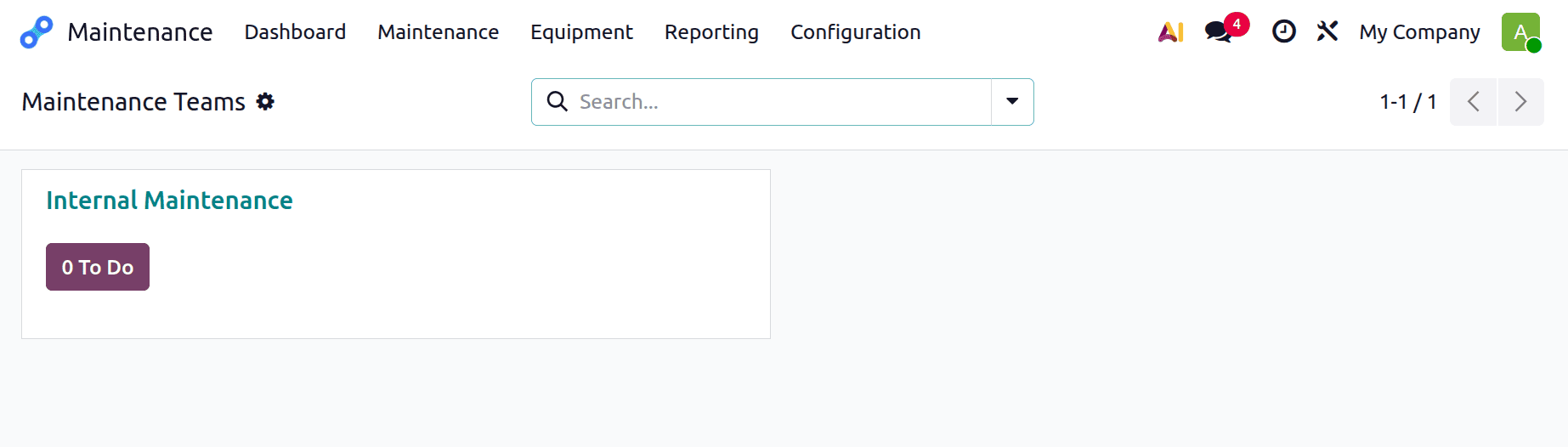
The key center for overseeing and controlling maintenance activities throughout the company is this dashboard view of the Odoo 19 Maintenance module. The list of specified maintenance teams, each denoted by a panel or card, is specifically shown on the dashboard. These groups are usually in charge of managing maintenance duties pertaining to several departments and equipment, including subcontractors, internal maintenance, and metrology.
The panel for each team gives a brief overview of its workload, including the quantity of unfinished maintenance requests that are currently assigned to that team. The status of these petitions determines their classification.
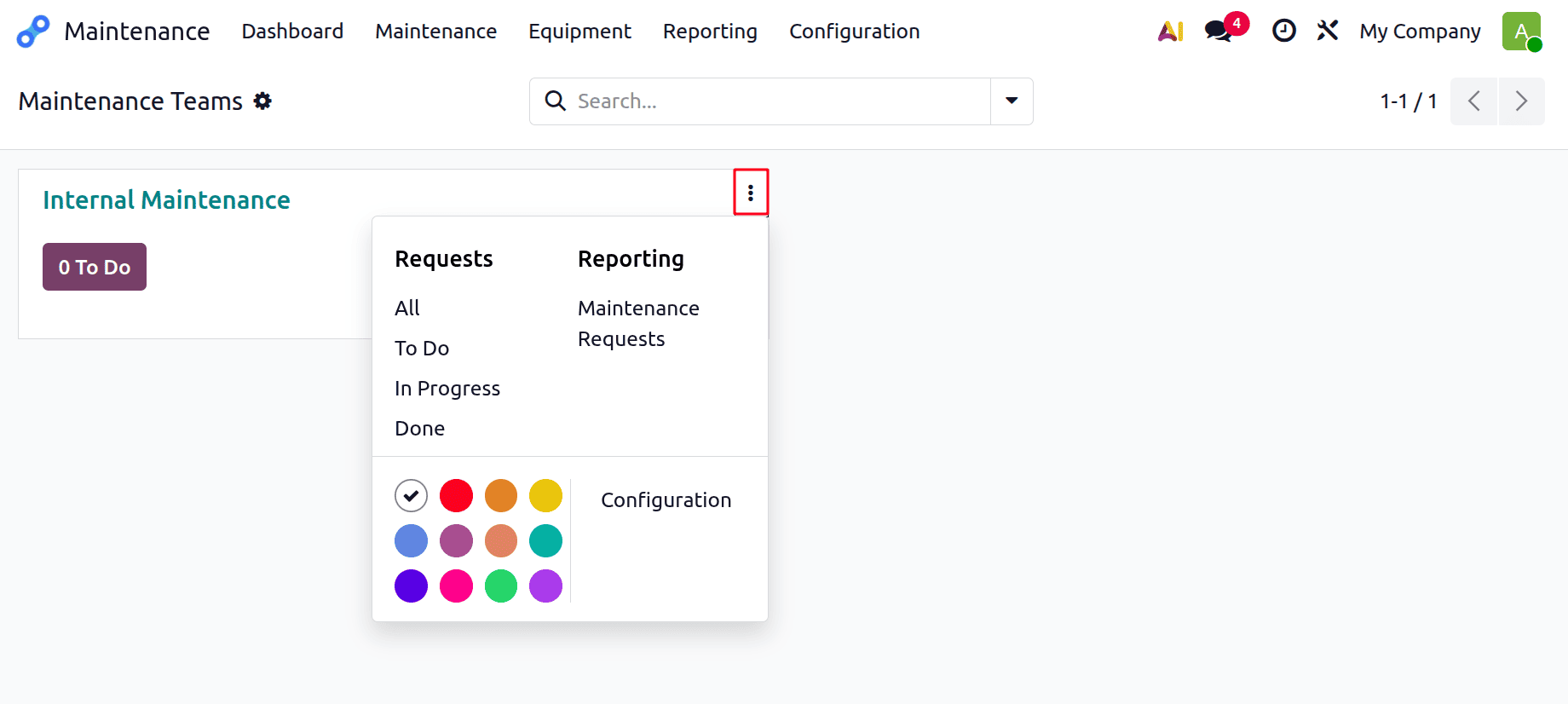
For that team, this menu provides particular navigation shortcuts and management capabilities. The "Requests" section is the first menu category and provides quick access to different maintenance request statuses. It includes All, which displays every maintenance request associated with the team; To Do, which lists scheduled tasks that have not yet started; In Progress, which shows maintenance activities currently being performed; and Done, which contains all completed maintenance tasks.
The "Reporting" section lets users access performance summaries or graphic information pertaining to maintenance requests for the chosen team. These reports aid in optimising operational planning, recognising recurrent equipment problems, and assessing team effectiveness.
In order to help users rapidly to distinguish teams visually on the dashboard, the menu also offers colour customisation choices that let each team card be designated with a different backdrop colour. Lastly, a "Configuration" link opens comprehensive settings for the chosen team, including choices to identify the team's members, designate a team leader, and list the team's equipment.
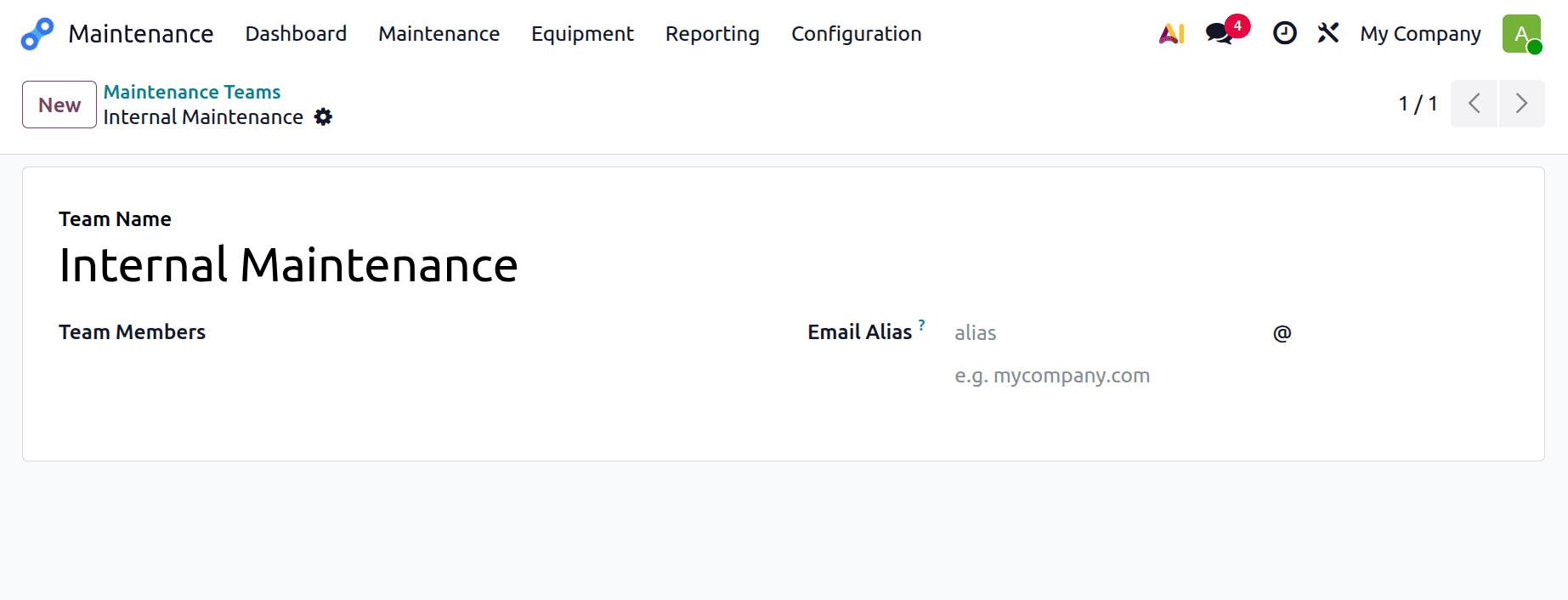
The user is taken to the form view of the chosen maintenance team when they click the Configuration option from the team's dropdown menu. Users can set up and modify important team attributes in this view. In particular, they can change the team name, assign or edit team members, and specify roles and duties.
The form also has a Company field that automatically shows the name of the company context the user is currently working in. This guarantees that every maintenance staff member is connected to the right business, which is especially helpful in settings with multiple companies. Administrators may efficiently manage team structure and make sure that maintenance activities are in line with organisational resources and settings by using this configuration view.
2. Maintenance
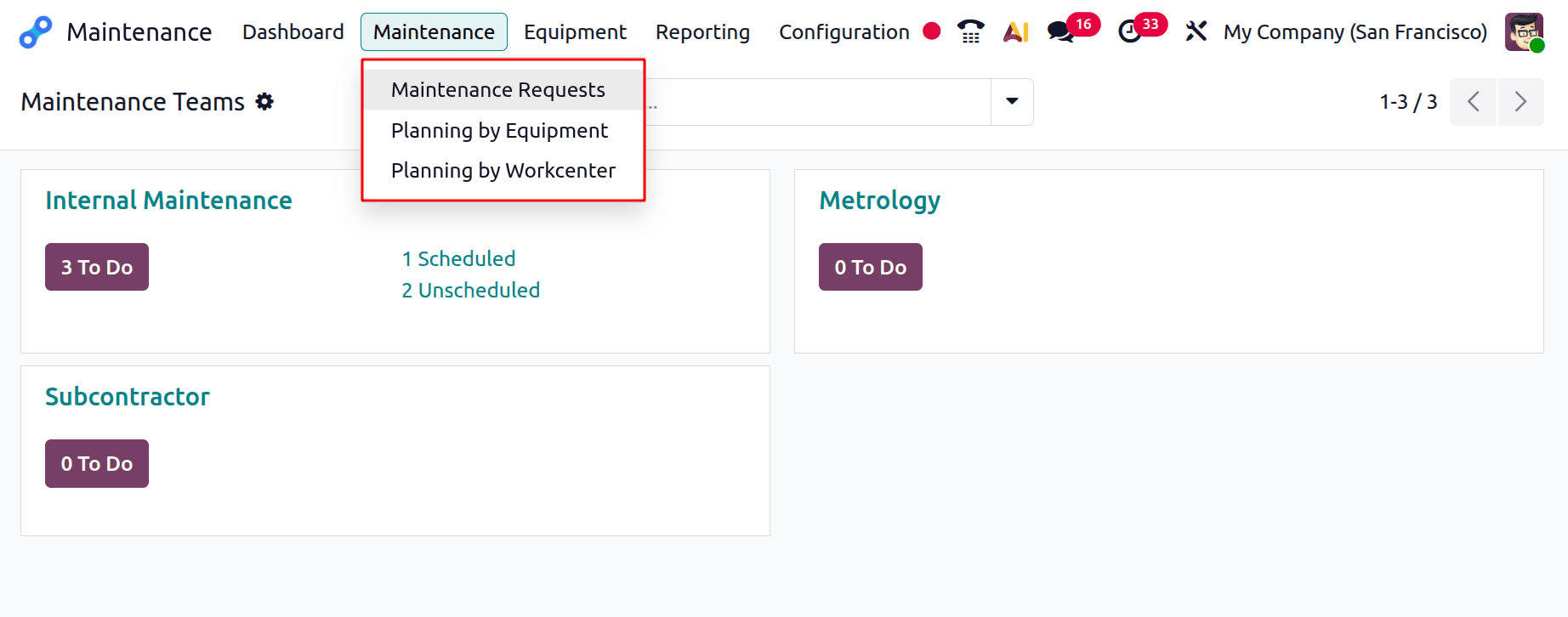
Key operational features that make it easier to manage maintenance tasks on a daily basis are accessible through the maintenance menu.
The Maintenance Requests, Planning by Equipment, and Planning by Work Center are the submenus working together to offer a complete toolkit for organising, planning, and carrying out maintenance tasks. They improve asset management, decrease downtime, and enable better decision-making.
Maintenance Requests
Users can view all of the system's registered maintenance requests in a detailed view by selecting the Maintenance Requests submenu. These requests may pertain to preventive maintenance (planned chores based on consumption or time intervals) or corrective maintenance (unexpected equipment breakdowns).
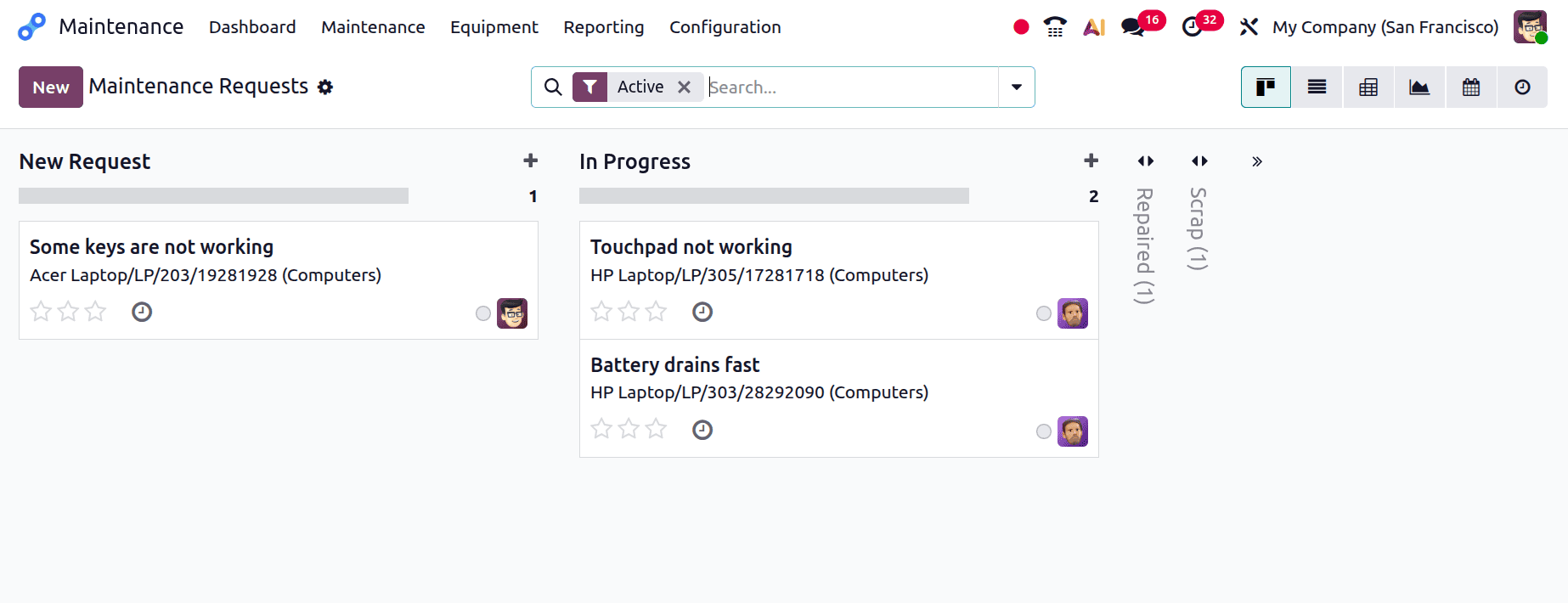
The interface provides multiple visualization options, including Kanban, List, Pivot, Graph, and Calendar views, allowing users to monitor and manage maintenance requests effectively. These views enable users to track the progress of each request by its current status, such as To Do, In Progress, and Done. Let's personalise the stages as well. Sort and organise by team, equipment, type of request, or accountable individual. Make new requests and designate particular teams or technicians to handle them. Maintenance managers and technicians can effectively prioritise and manage workloads in this area, guaranteeing that all problems are resolved on time.
A Kanban board layout, which is separated into several stages or columns, is used to arrange the view. The cards within each column correspond to unique maintenance requests, and each column indicates a particular status of a maintenance request.
Each Kanban card represents an individual maintenance request and displays key information, including a brief description of the issue, the associated equipment name and serial number, the equipment category (such as computers or monitors), a star-based priority rating, the avatar of the assigned user indicating responsibility, and a clock icon representing the scheduled or expected completion time. The cards are fully interactive and can be easily dragged and dropped between workflow stages to update the request status, providing an intuitive and efficient approach to maintenance workflow management.
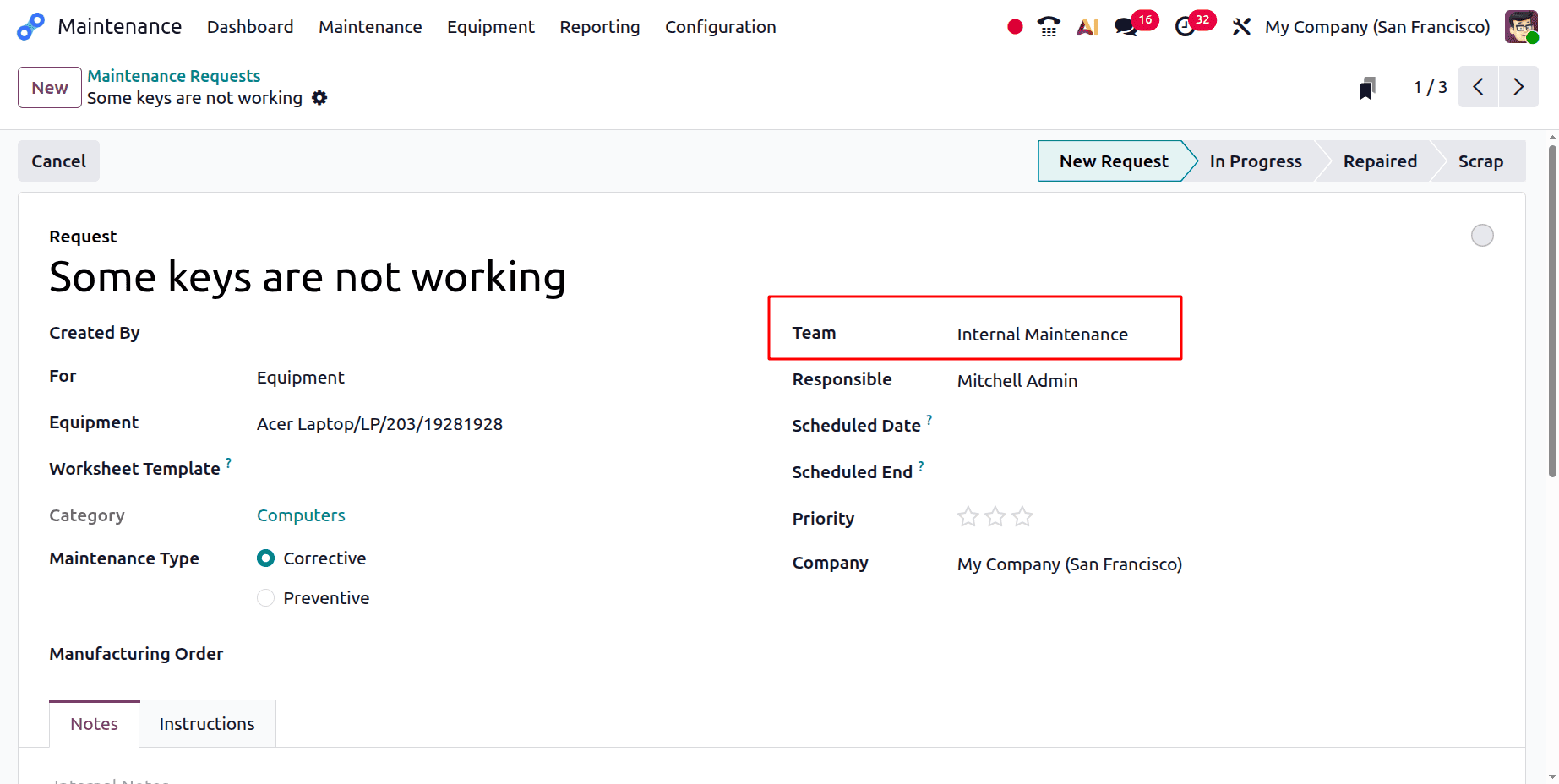
Users can browse, create, or change individual maintenance request records using this form's comprehensive structure. Every field in this view records crucial data that makes it easier to accurately track, prioritise, and allocate maintenance tasks.
- Request: This is the headline of the maintenance request and provides a summary of the issue. In this case, it's "Screen not working," which clearly illustrates the issue.
- Created By: Shows the user's name who made the maintenance request. This guarantees traceability and helps identify the source of the report. This is Mitchell Admin.
- For: This field dynamically determines the target of the maintenance activity by allowing users to select the relevant context. This may include assigning the task to a specific work center or linking it directly to an individual piece of equipment.
The user can identify the precise equipment involved in the request by selecting "Equipment" in the "For" area, which causes an additional field labelled "Equipment" to appear below. This makes it possible to track maintenance at the asset level, which is helpful for taking preventative or corrective measures on specific equipment, devices, or machines.
However, if the user chooses "Work Center," a field labelled "Work Center" is dynamically shown by the system. In this instance, the user can indicate that the maintenance activity relates to a broader operational region rather than a single asset by entering the name of the pertinent work center (e.g., Assembly Line 1, Packaging region).
- Worksheet Template: Enables technicians to choose from a pre-made worksheet when performing repairs. To standardise the maintenance procedure, it may include checklists or detailed instructions.
- Category: Specifies the category or type of equipment associated with the maintenance request, such as computers, monitors, or other devices.
- Request Date: The creation date of the request. This makes it easier to monitor the schedule and reaction time for every maintenance task.
- Maintenance Type: Indicates whether the request is for Preventive Maintenance (planned maintenance) or Corrective Maintenance (unplanned repair). "Corrective" is chosen in this instance.
- Manufacturing Order: This connects the maintenance request to a particular manufacturing order, if applicable. It is helpful when production activities have an impact on or cause maintenance.
- Team: Identifies the maintenance team that will deal with the request. Teams like Metrology, Internal Maintenance, and Subcontractor are among the options. Proper responsibility and effort distribution are ensured by assigning the appropriate team.
- Scheduled Date: Specifies the scheduled date for the maintenance activity and supports effective resource planning and scheduling.
- Duration: Specifies the estimated time required to complete the task. This facilitates job allocation and the scheduling of technician availability.
- Priority: Enables the use of a star system to rate the request's urgency. Requests with a higher priority may be handled first, guaranteeing that urgent problems are fixed promptly.
- Company: The maintenance request's registered company is automatically shown. This is especially important in multi-company environments.
- Notes and Instructions: These tabs let you add further background information. While "Instructions" might contain technical instructions or directions for the maintenance staff, "Notes" can hold internal remarks.
Planning by Equipment & Work center
In the Odoo 19 Maintenance module, the Maintenance Calendar from the previous version is divided into Planning by Work Center and Planning by Equipment. In this case, users can track equipment maintenance using Planning by Equipment, but work center maintenance is tracked using Planning by Workcenter.
There are different types of views available, like Gantt view, Kanban view, List view, Pivot view, Graph view, Calendar view, and Activity view.
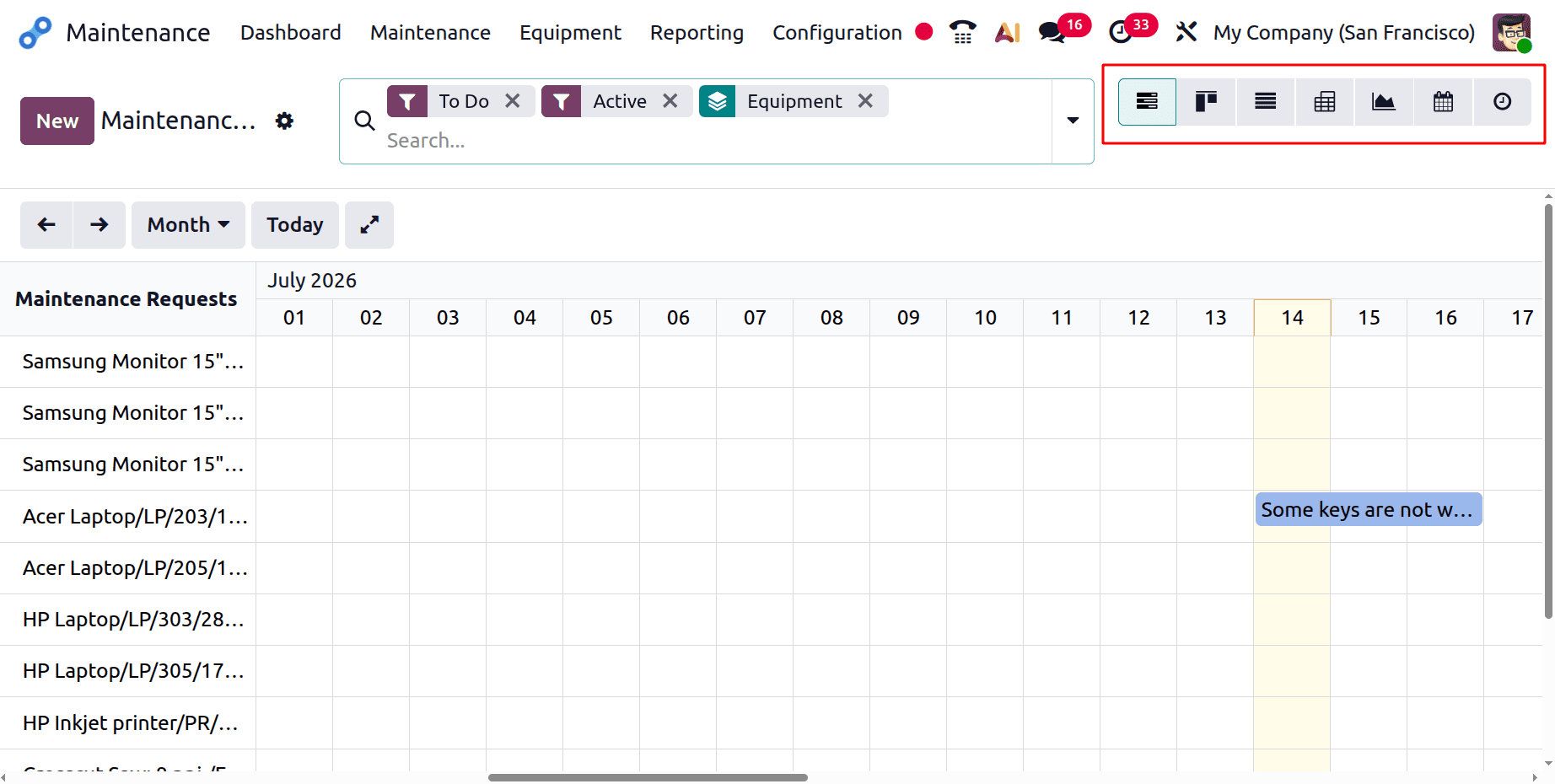
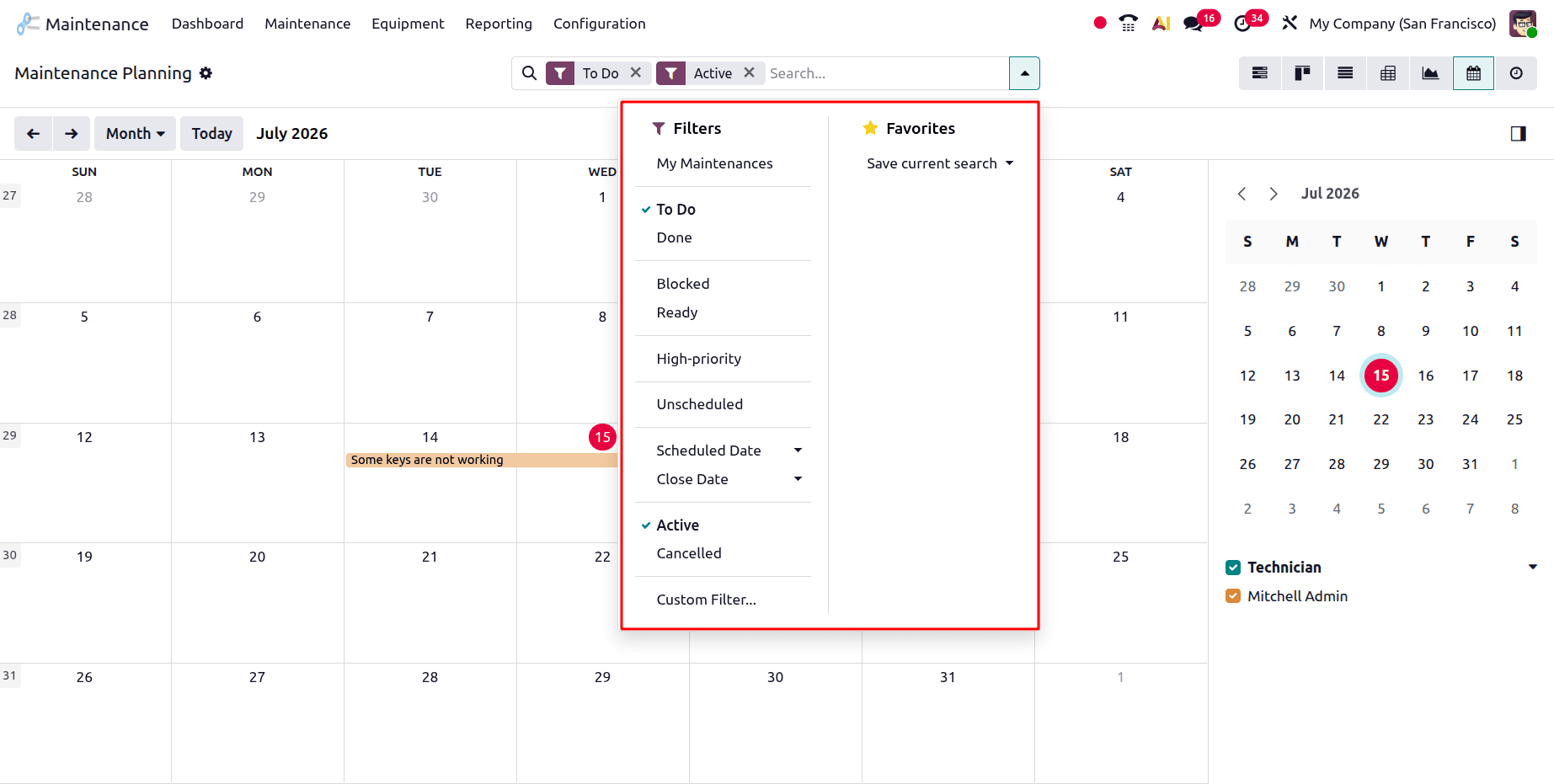
The "Week" button enables users to switch between daily, weekly, and monthly calendar views for flexible scheduling. The "Today" button quickly returns the calendar to the current date, while the arrow buttons allow navigation between previous and upcoming periods. Additionally, the mini-calendar on the right provides a convenient way to select specific dates, improving overall calendar navigation efficiency. These are a few helpful features offered by the Planning Controls in the Maintenance Calendar view.
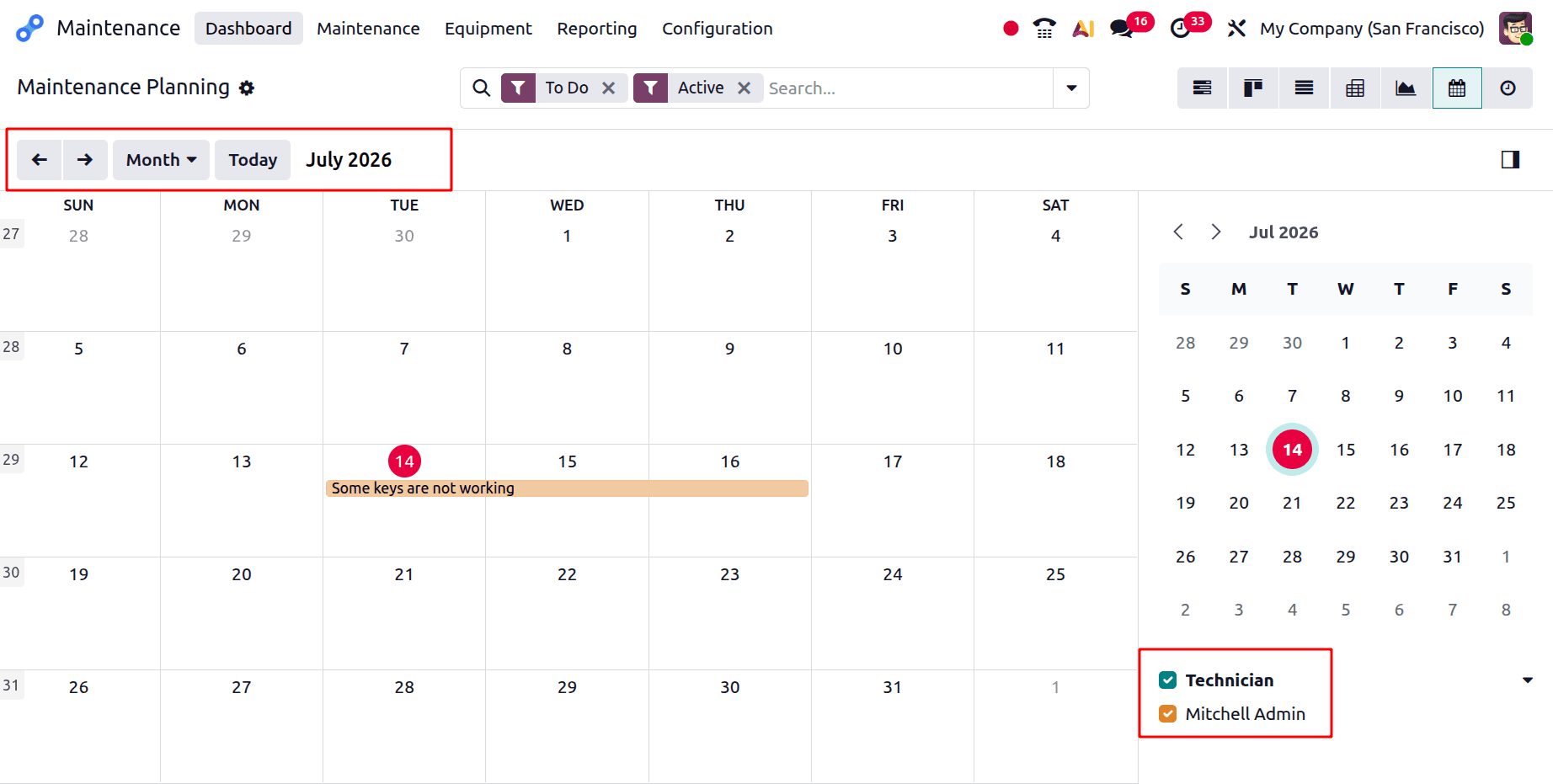
Users can save frequently used views and customize their view by task status, dates, and ownership using the Filters & Favourites menu.
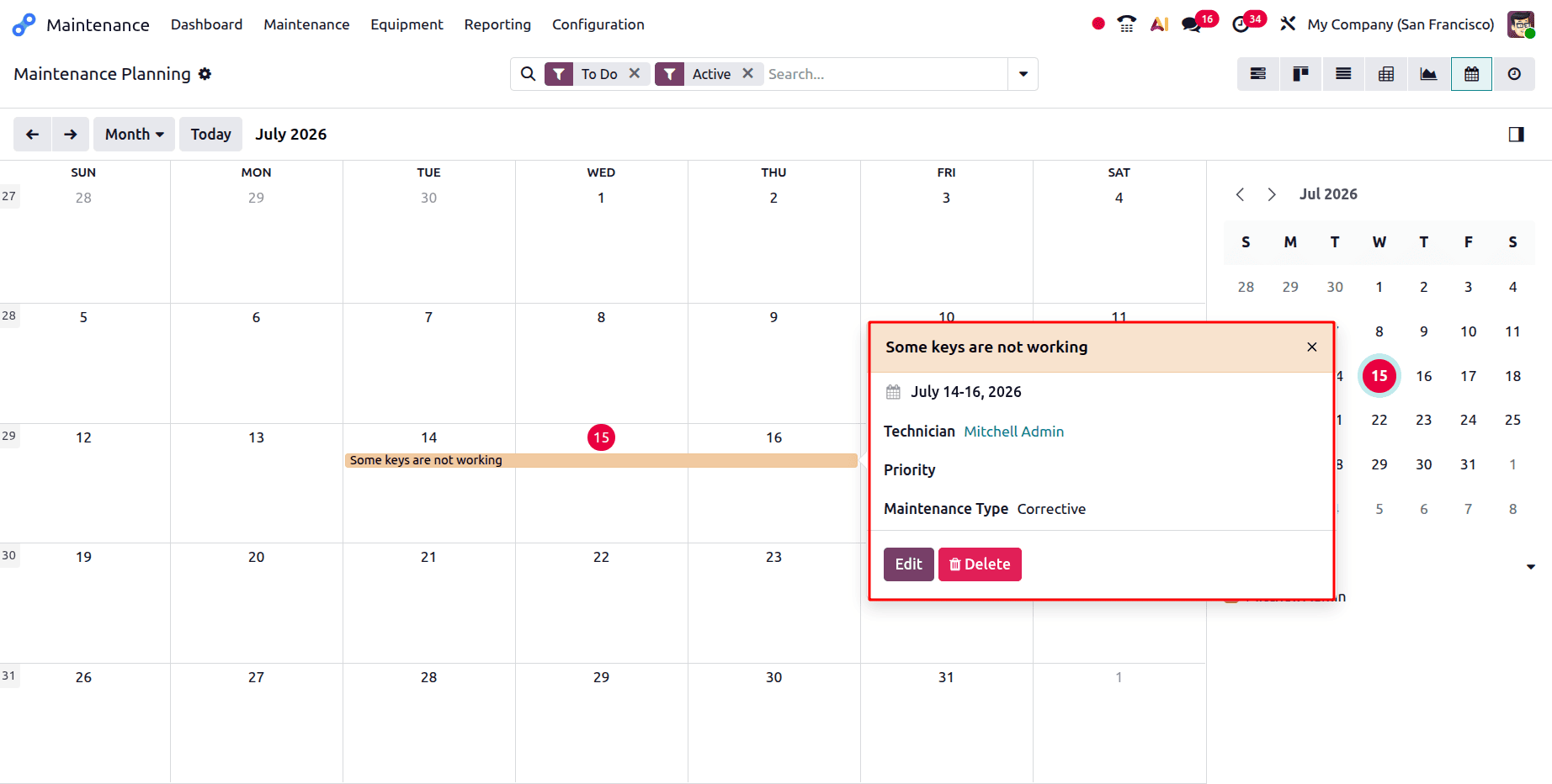
This view shows planned maintenance requests arranged by day and time in a calendar format.
Users can examine the maintenance chores allocated for each day of the chosen week in the main section of the page, which displays a week-based timetable. Precise scheduling by time slot is made possible by the fact that each row represents an hour of the day. The example shows a maintenance request with the subject "Screen not working" that is set for July 14th to July 16th.
A user legend with colour coding is located on the right. It demonstrates that jobs can be highlighted or filtered according to the designated technician; in this instance, Mitchell Admin is chosen. To more evenly divide the burden while several technicians are working, users can change their visibility.
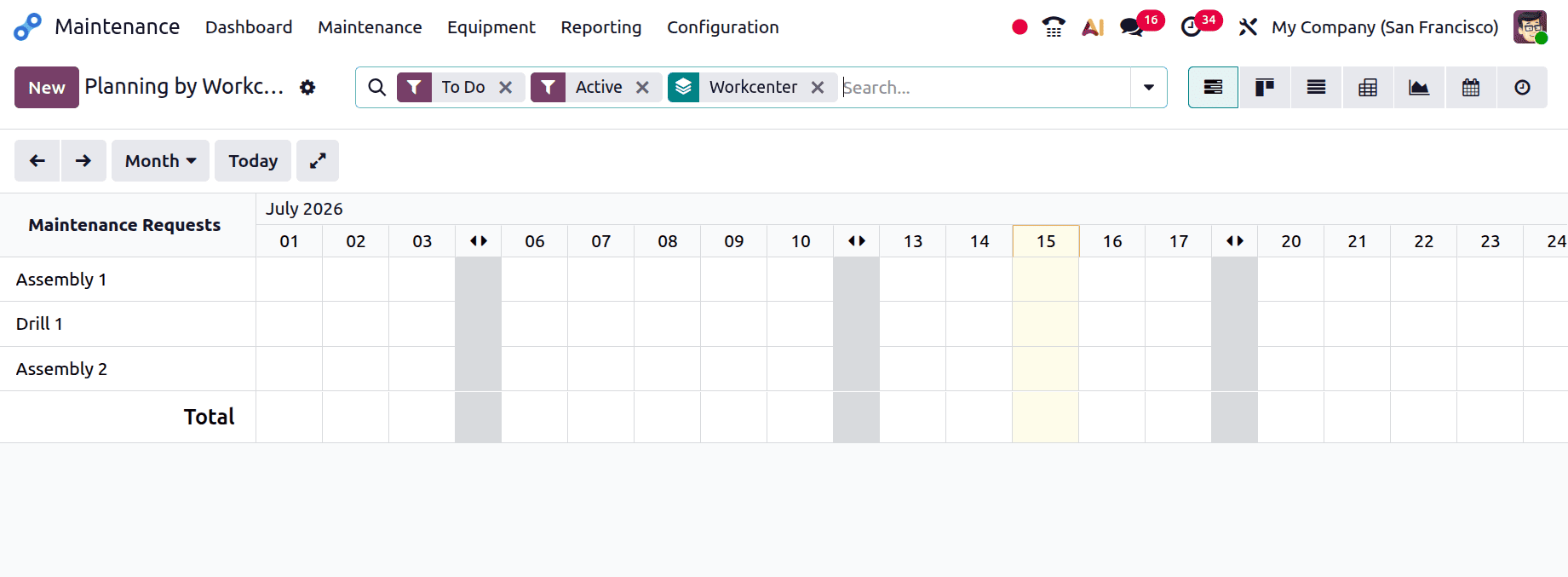
The Planning by Work Center is also similar to Planning by Equipment. The only difference is that planning by Workcenter is to view the maintenance requests raised for the work center.
3. Equipment
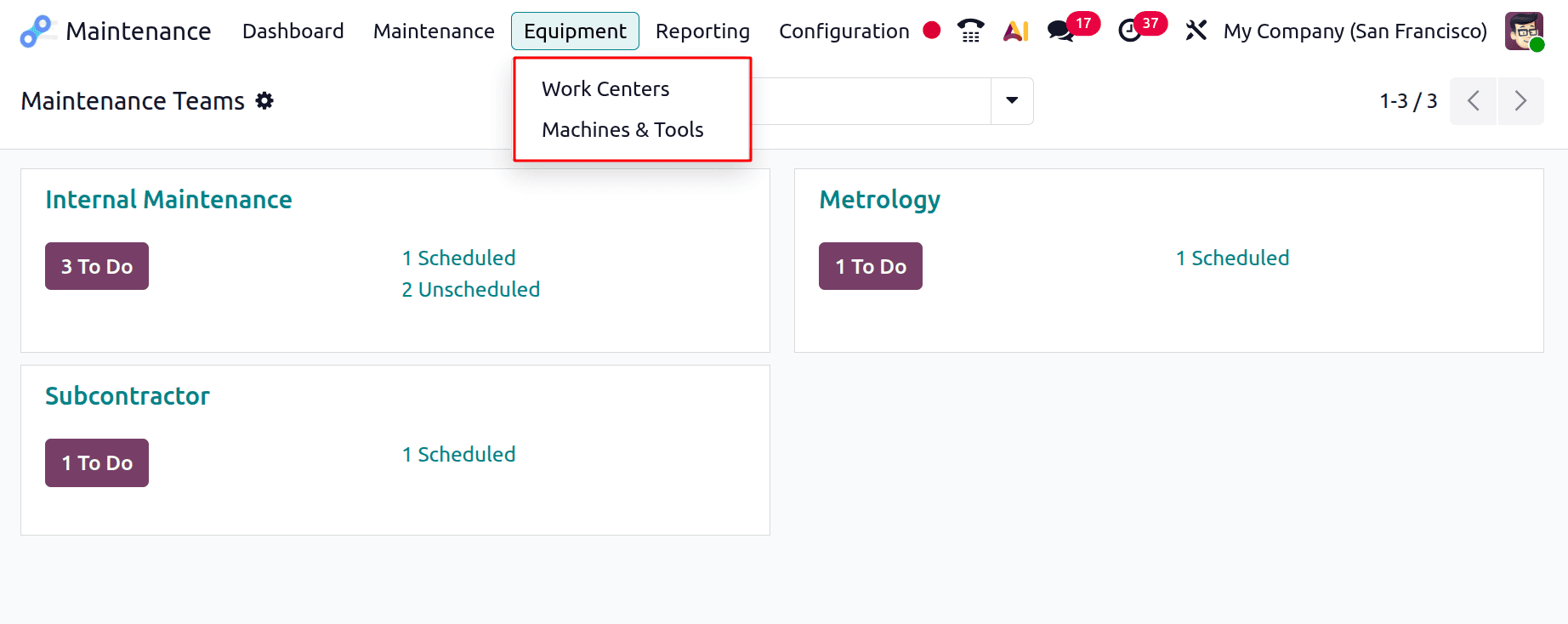
The Equipment menu serves as the primary configuration area for managing the physical assets, including tools and work centers, that are associated with maintenance activities.
- Work centers are operational or production spaces where particular manufacturing or service activities take place. By selecting this option, users can set up and oversee various work centers, link them to maintenance requests, and monitor associated performance indicators.
- Machines & Tools: This option displays a list of tools and machines that are under system management. In addition to assigning them to work centers and connecting them to maintenance teams, users can add new equipment and plan preventative maintenance.
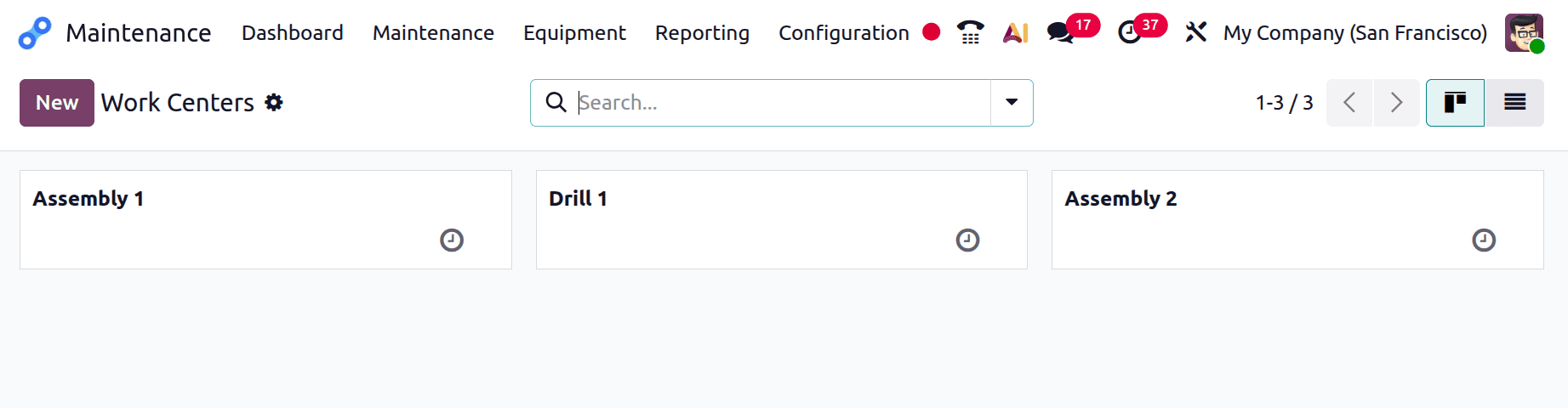
This section allows users to define and manage physical work centers, which represent operational sites or stations within manufacturing and maintenance processes, such as assembly lines, drilling stations, and testing areas. A distinct work center is represented by each row in the list.
In Odoo, each work center has a unique name or title, like "Assembly 1," "Drill 1," or "Assembly 2," which helps identify the logical or physical place where tasks are carried out. A brief reference label is used internally for simpler identification, and the system integration is made possible by the code field. Users can group or classify work centers using the tag field, which helps with reporting and filtering.
Tools & Machines
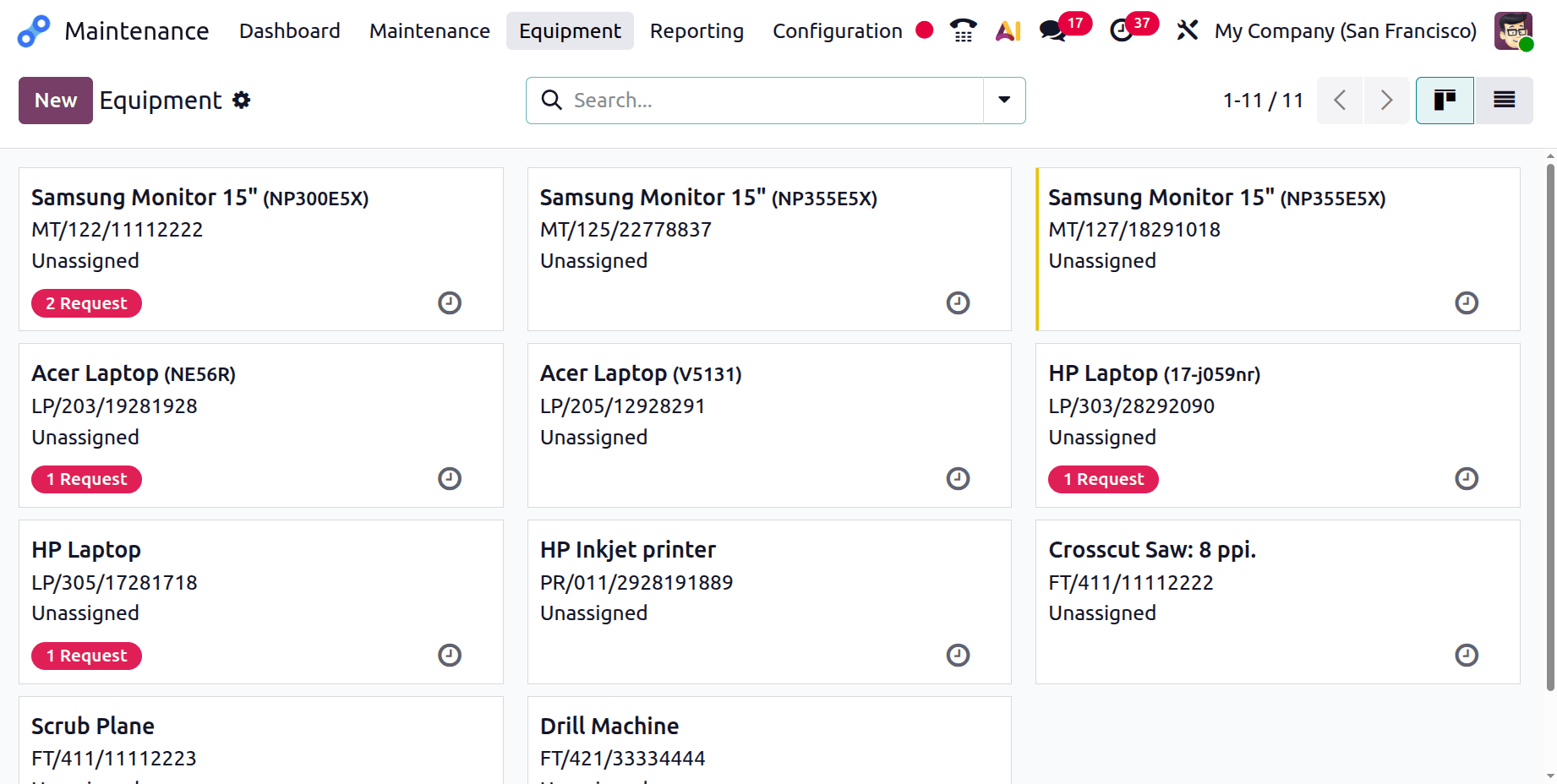
Under this section is on equipment? Tools & Machines view. All of the physical assets (equipment) utilised in operations can be managed by maintenance teams thanks to this interface.
Upkeep > Equipment > Equipment & Tools
All of the equipment that has been registered in the system, such as laptops, monitors, printers, tools, etc., is listed under this menu.
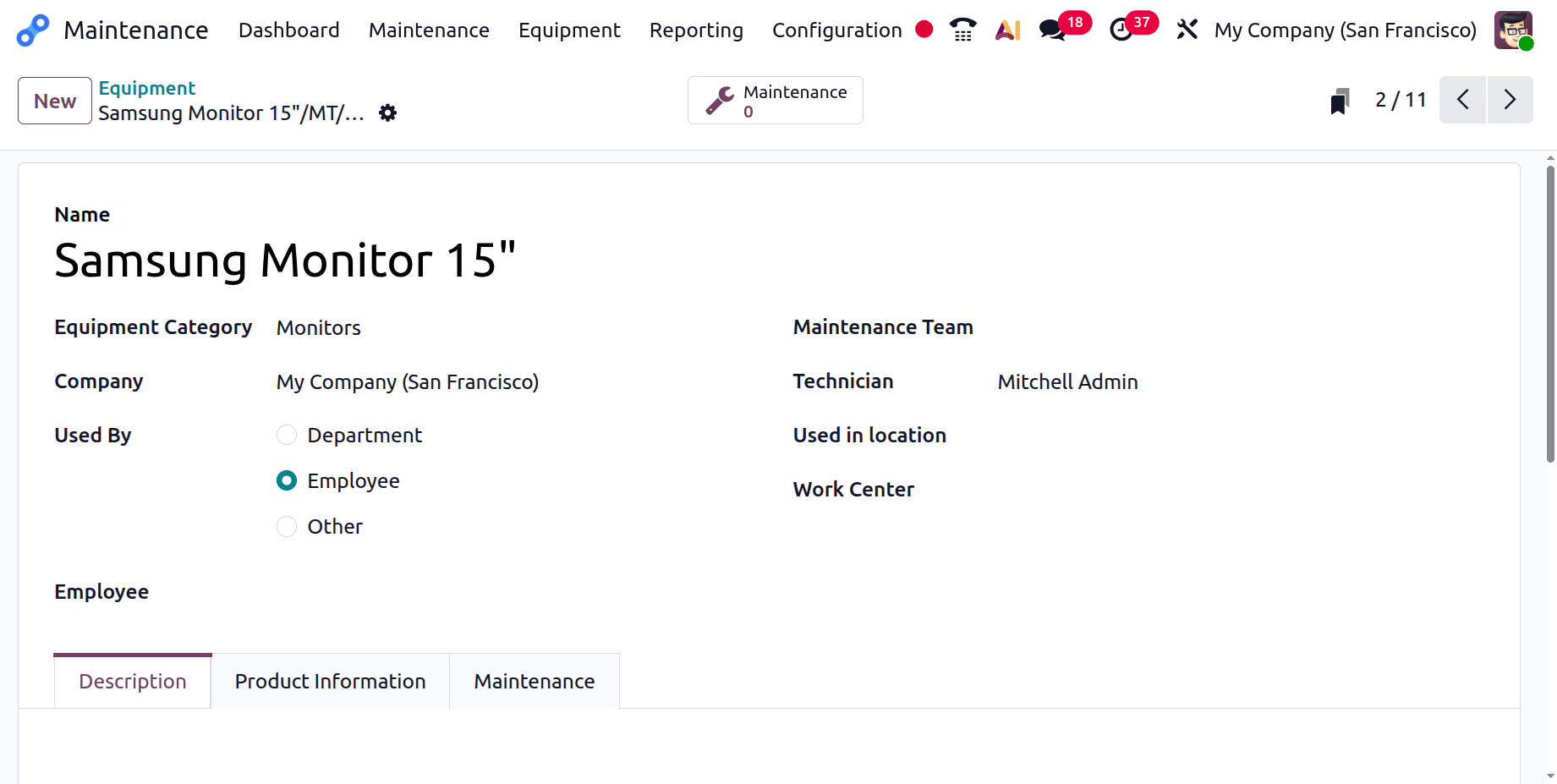
Clicking the "New" button enables users to create a new record directly from the current view.
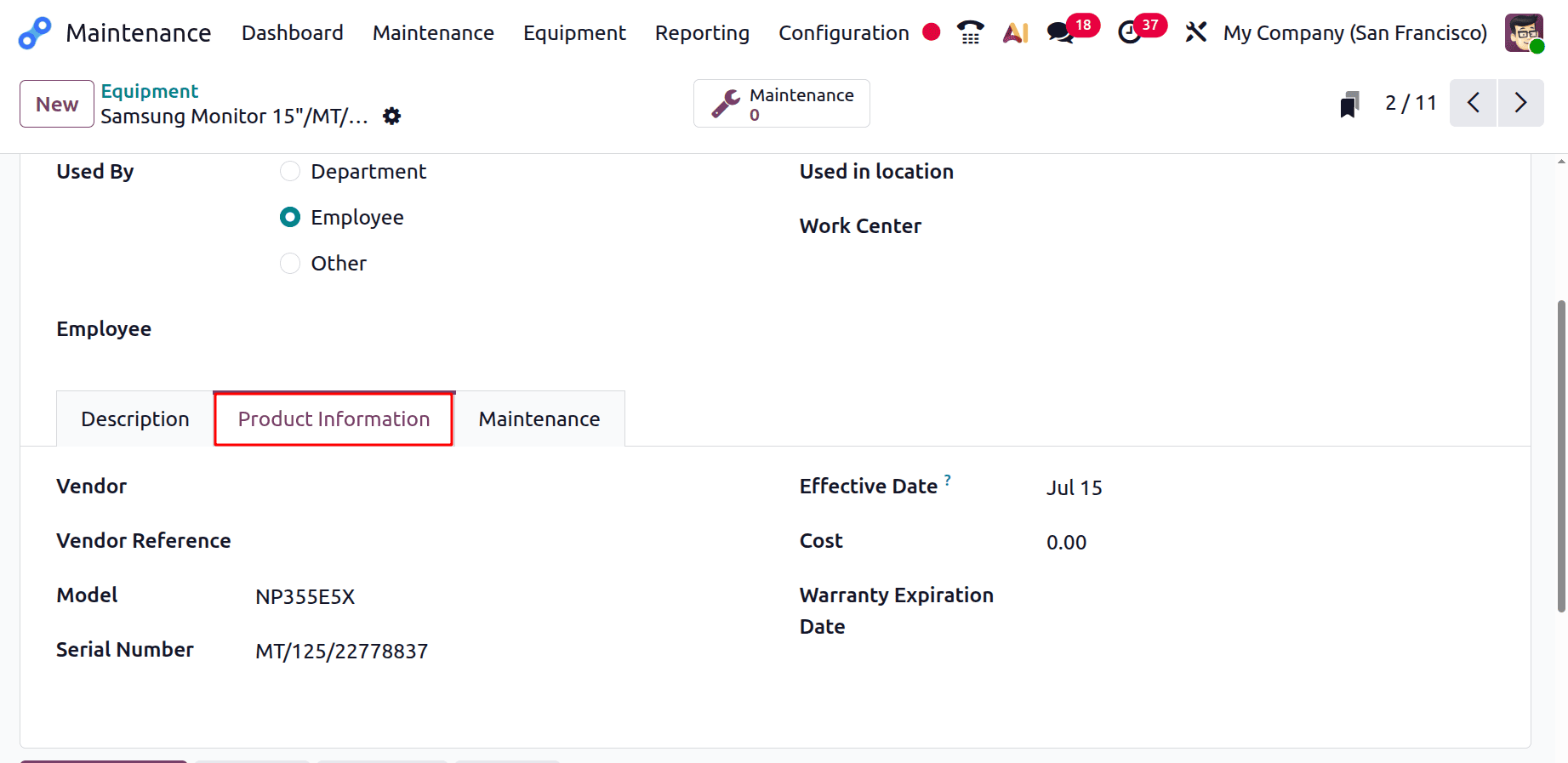
- Vendor: The equipment's producer or provider. In order to get parts, services, and warranty support, this information is essential.
- Vendor Reference: This equipment's vendor part number or reference code. This expedites the process of acquiring replacement parts and obtaining technical assistance.
- Model: The equipment's particular model number. This facilitates access to technical documentation and the identification of suitable parts.
- Serial Number: the unique number assigned to you by the manufacturer. Service records, warranty claims, and theft prevention all depend on this.
- Warranty Expiration Date: The expiration date of the manufacturer's warranty. This aids in budgeting for repairs and developing maintenance plans.
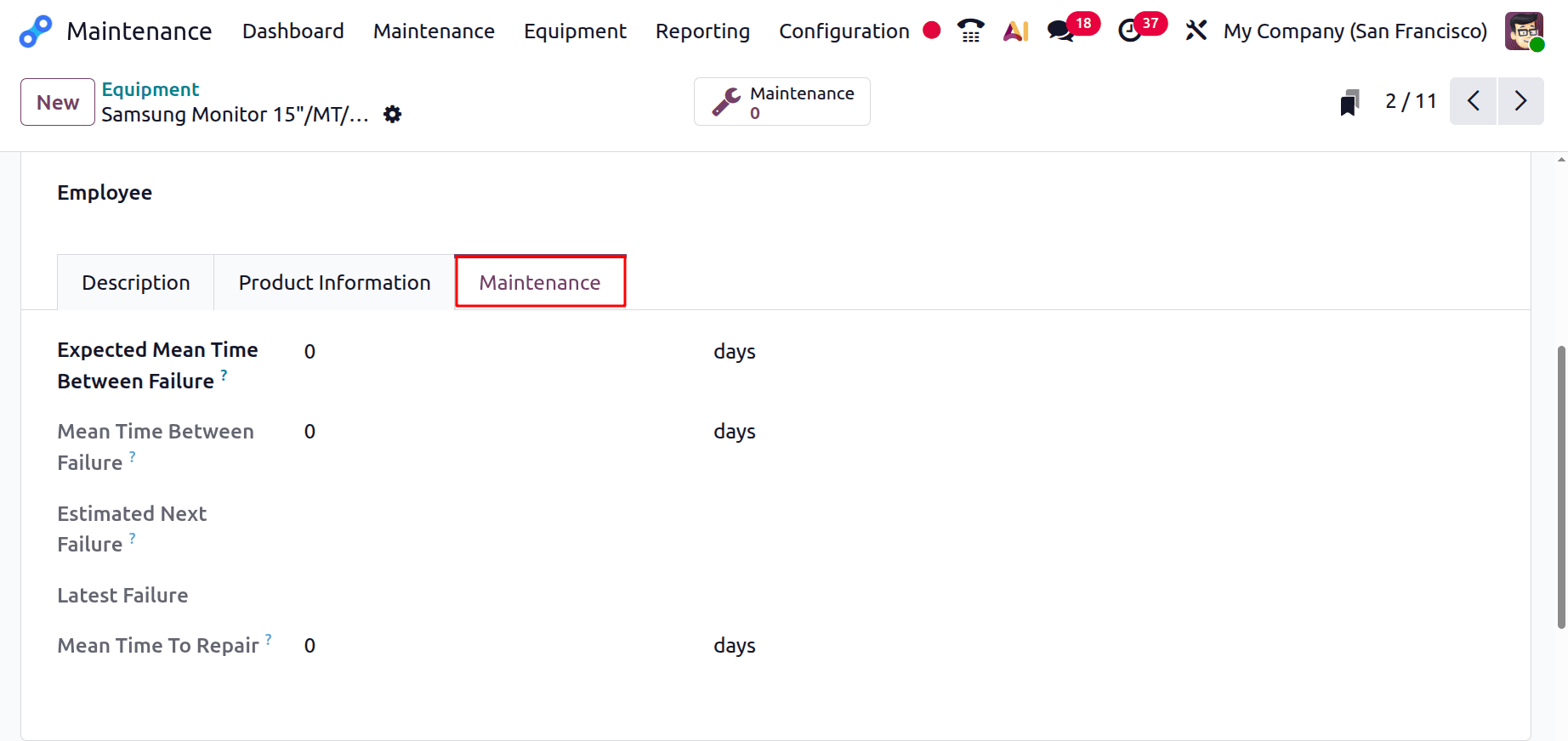
The average amount of time you anticipate between equipment failures is shown in the Expected Mean Time Between Failure (MTBF) field.
Mean Time Between Failure: This is the real, computed average of the intervals between failures that have been noted.
Estimated Next Failure: Indicates the predicted time or likelihood of the next equipment failure.
Latest Failure: Indicates when the equipment failed most recently.
When this equipment goes down, the Mean Time To Repair (MTTR) indicates how long it typically takes to fix it.
4. Reporting
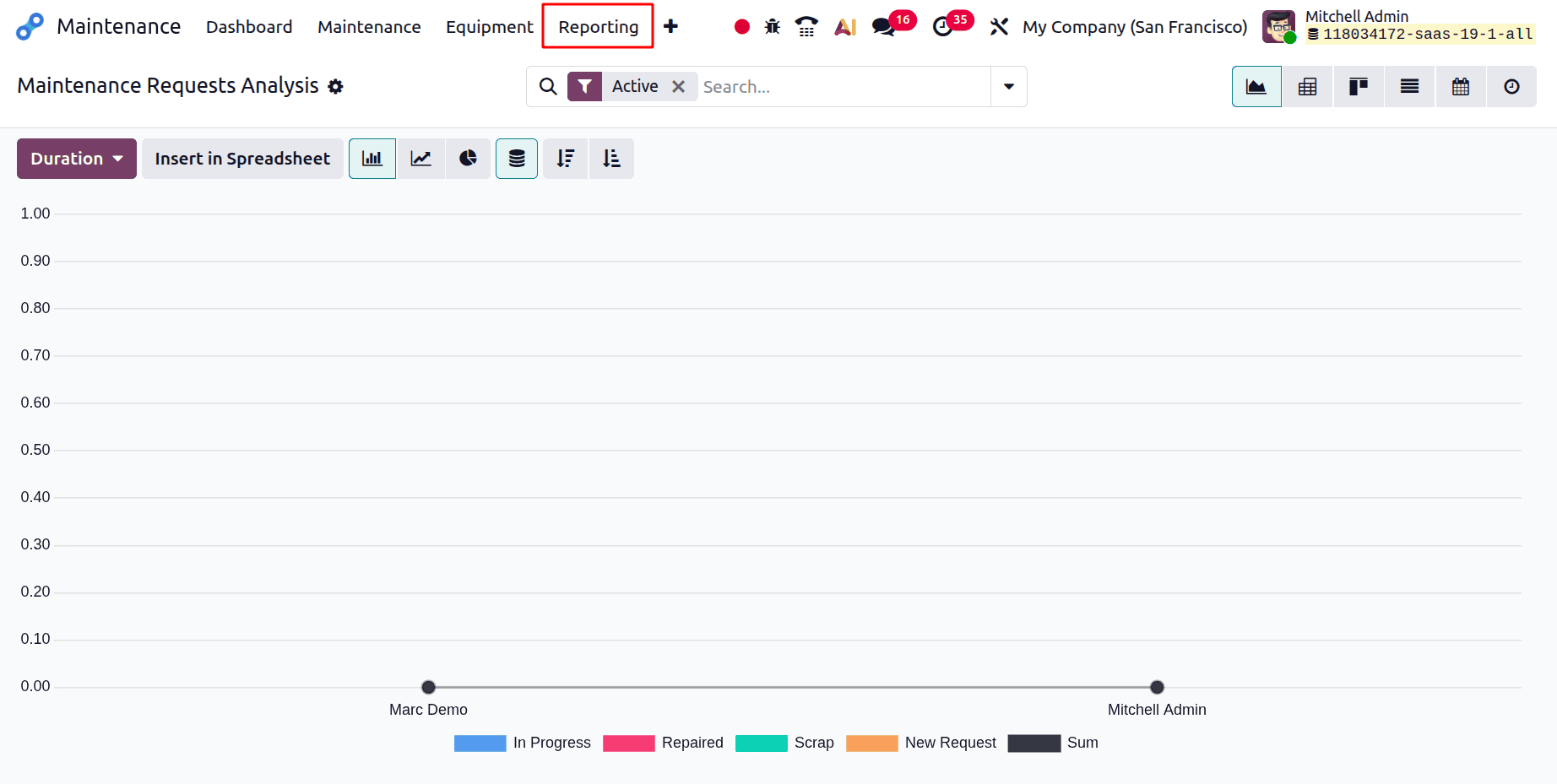
The maintenance request volumes over time are displayed in this stacked area graphic, where different coloured regions correspond to different repair request statuses.
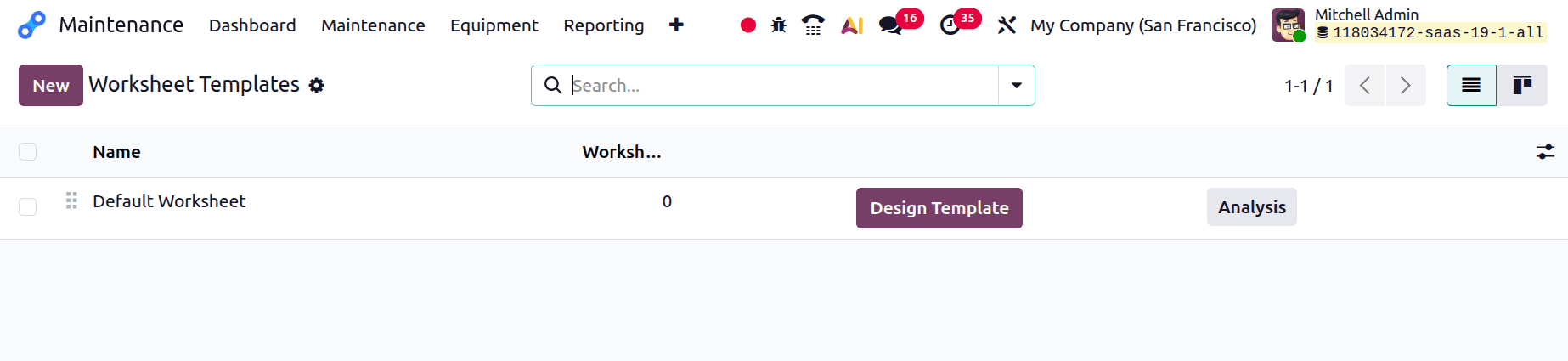
Worksheets for Maintenance: This tool lets you make standardised, personalised worksheet templates for maintenance tasks. Maintenance technicians can use these documents as forms or checklists while working.
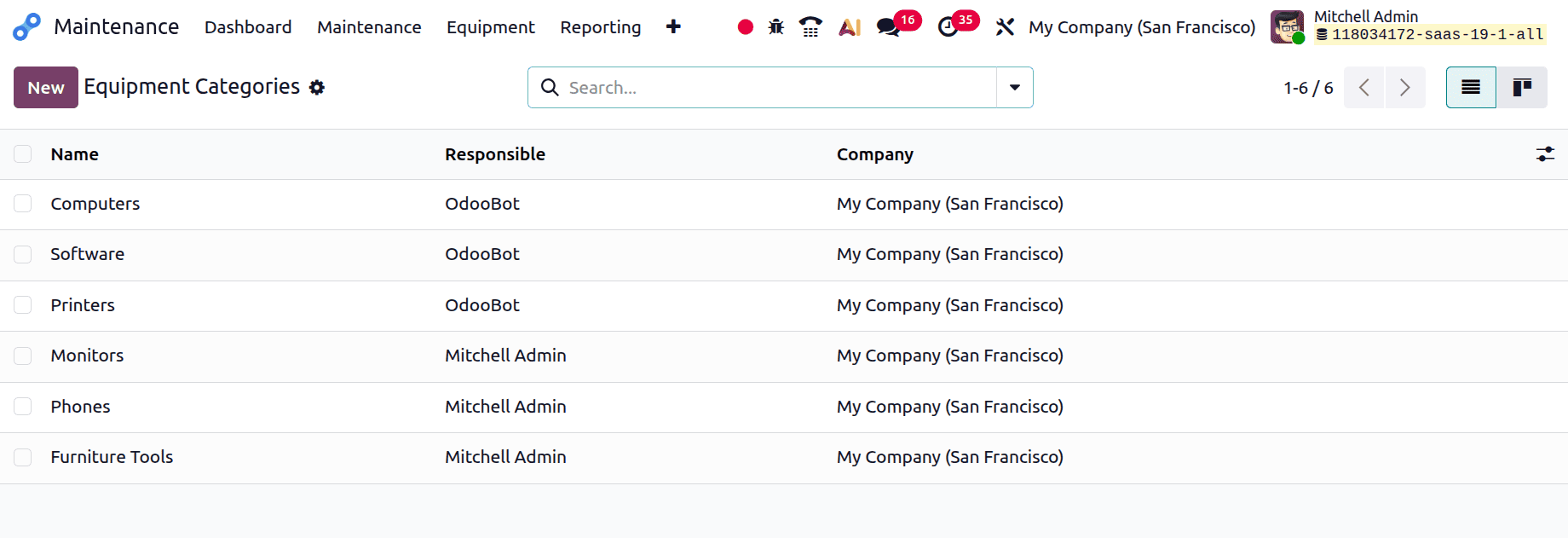
Equipment Category: By classifying related equipment and creating distinct ownership and communication channels for each category, this classification system offers a basis for structured, effective maintenance management.
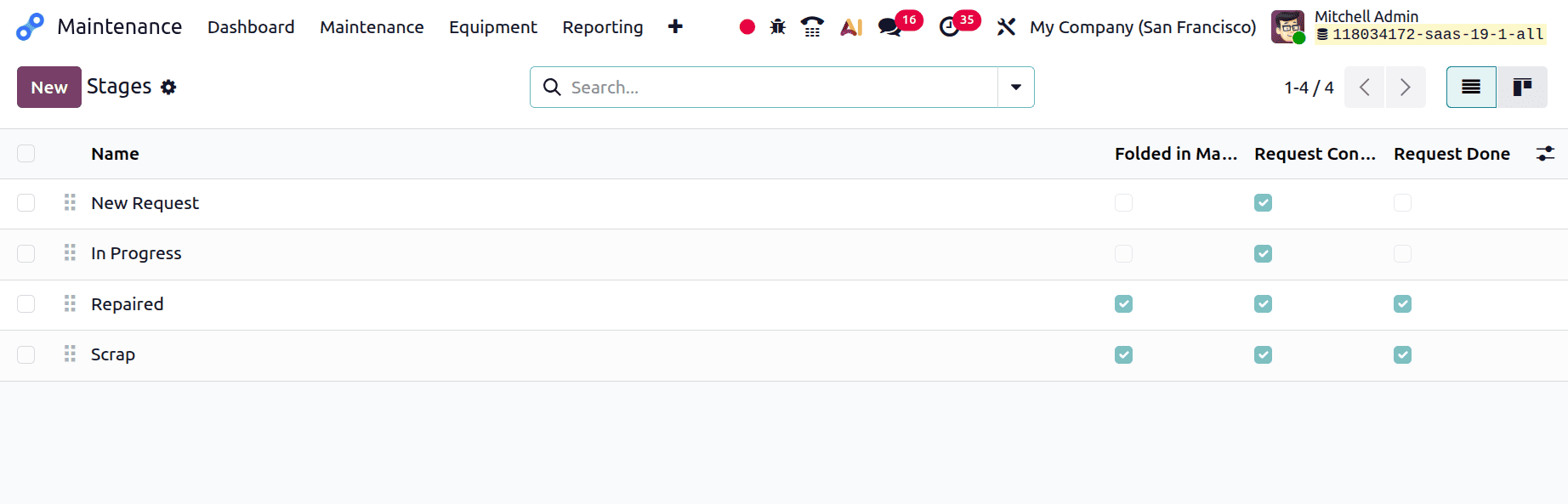
Maintenance Stages: Defines the workflow steps that a maintenance request follows, from initial creation through to completion.
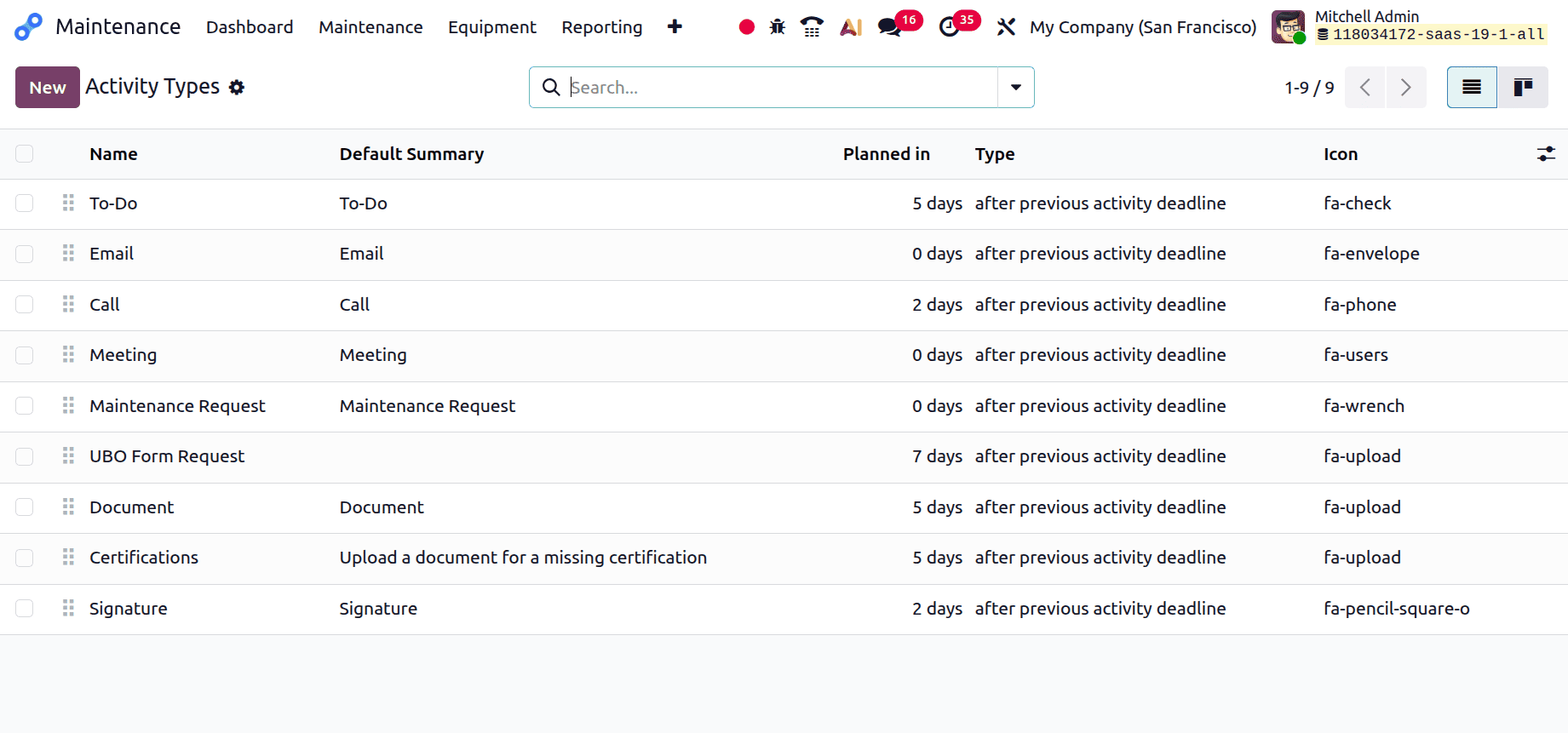
Activity Types: This page enables administrators to control the many activity categories that can be tracked and scheduled in the maintenance management system, along with their visual representations and default time relationships.
Odoo 19's Maintenance module offers a centralized solution for effectively monitoring equipment, planning preventative maintenance, and responding to requests for corrective maintenance. It helps companies decrease equipment downtime, increase productivity, and prolong the life of vital assets by providing real-time visibility into maintenance operations and asset performance. The module helps businesses to ensure dependable, continuous business processes and streamline maintenance operations through its smooth interface with other Odoo apps.
To read more about An Overview to Maintenance Module in Odoo 18, refer to our blog An Overview to Maintenance Module in Odoo 18.