Have you ever thought about how it is better to have a particular value in a web client session so that you can improve your server performance by limiting frequent server RPC calls to fetch data to the web client? In this blog today, we can discuss, see a practical demonstration of adding data to an Odoo session, and use it in your custom or Odoo web client.
When we are working with our business ideas, which involve extensive User interface development, the web client needs some of the common data from the server. To avoid or limit frequent network requests in JavaScript, some of the information can be serialized directly in the page and can be accessed in JavaScript through the @web/session module.
In this blog lets create a custom module in Odoo 19 and add extra parameters to the session and retrieve this in one of our custom components.
Create a module with the below manifest structure.
   'name': 'Custom Session Data Client Action',
   'version': '19.0.1.0.0',
   'category': 'Hidden',
   'summary': 'A client action demonstrating custom session data and fullscreen view',
   'depends': ['base', 'web'],
   'data': [
       'views/client_action_views.xml',
   ],
   'assets': {
       'web.assets_backend': [
           'your_module_name/static/src/js/custom_session_data_component.js',
           'your_module_name/static/src/js/custom_session_data_component.xml',
       ],
   },
   'installable': True,
   'application': False,
   'license': 'LGPL-3',
}
Let's create the ir_http.py in the models directory of our custom module.
# -*- coding: utf-8 -*-
from odoo import models
class IrHttp(models.AbstractModel):
   """ Inherit the class to pass extra params in session info"""
   _inherit = 'ir.http'
   def session_info(self):
       """ Added the current user details to session Info"""
       result = super(IrHttp, self).session_info()
       partner = self.env.user.partner_id

       # Injecting partner details into the session
       result.update({
           'some_key': 'Custom Session Value from DB',
           'partner_name': partner.name,
           'partner_email': partner.email or '',
           'partner_address': partner.contact_address,
           'partner_phone': partner.phone or '',
       })
       return result
In the above file, we have checked the current user and added the related partner’s information to the session info.
The next step lets us see how we can retrieve this data in our custom component by importing the session.
Create the your_component.js file under the static/src/js directory of your module.
import { registry } from "@web/core/registry";
import { session } from "@web/session";
import { Component } from "@odoo/owl";
import { useService } from "@web/core/utils/hooks";
export class CustomSessionDataComponent extends Component {
   static template = "your_module_name..CustomSessionDataComponent";

   setup() {
       this.myValue = session.some_key;
       this.partnerName = session.partner_name;
       this.partnerEmail = session.partner_email;
       this.partnerAddress = session.partner_address;
       this.partnerPhone = session.partner_phone;
       this.action = useService("action")
   }
   toggleFullscreen() {
       this.action.doAction({
           type: "ir.actions.act_url",
           target: "self",
           url: "/odoo",
       });
   }
}
registry.category("actions").add("custom_session_data_action", CustomSessionDataComponent);
Create the your_component.xml file under the static/src/xml directory of your module.
<?xml version="1.0" encoding="UTF-8"?>
<templates xml:space="preserve">
   <t t-name="your_module_name.CustomSessionDataComponent">
       <div class="o_action_manager p-4">
           <div class="card shadow-sm mx-auto" style="max-width: 600px;">
               <div class="card-body">
                   <h2 class="card-title text-center mb-4">Partner Details from Session</h2>
                   <ul class="list-group list-group-flush mb-4">
                       <li class="list-group-item">
                           <strong>Name:</strong>
                           <t t-esc="partnerName"/>
                       </li>
                       <li class="list-group-item">
                           <strong>Email:</strong>
                           <t t-esc="partnerEmail"/>
                       </li>
                       <li class="list-group-item">
                           <strong>Phone:</strong>
                           <t t-esc="partnerPhone"/>
                       </li>
                       <li class="list-group-item">
                           <strong>Address:</strong>
                           <br/>
                           <span class="text-muted"><t t-esc="partnerAddress"/></span>
                       </li>
                       <li class="list-group-item">
                           <strong>Custom Key:</strong>
                           <t t-esc="myValue"/>
                       </li>
                   </ul>
                   <div class="text-center">
                       <button class="btn btn-primary" t-on-click="toggleFullscreen">
                           Go Home
                       </button>
                   </div>
               </div>
           </div>
       </div>
   </t>
</templates>
Now lets create the needful actions and menu items for your interface to view the component we created.
Create the your_module_action.xml under the views directory of your module.
<?xml version="1.0" encoding="utf-8"?>
<odoo>
   <!-- Define the Client Action -->
   <record id="action_custom_session_data" model="ir.actions.client">
       <field name="name">Custom Session Data</field>
       <field name="tag">custom_session_data_action</field>
       <field name="target">current</field>
   </record>
   <!-- Menu Item to trigger the action -->
   <menuitem id="menu_custom_session_data"
             name="Custom Action"
             action="action_custom_session_data"
             parent="base.menu_administration"
             sequence="100"/>
</odoo>
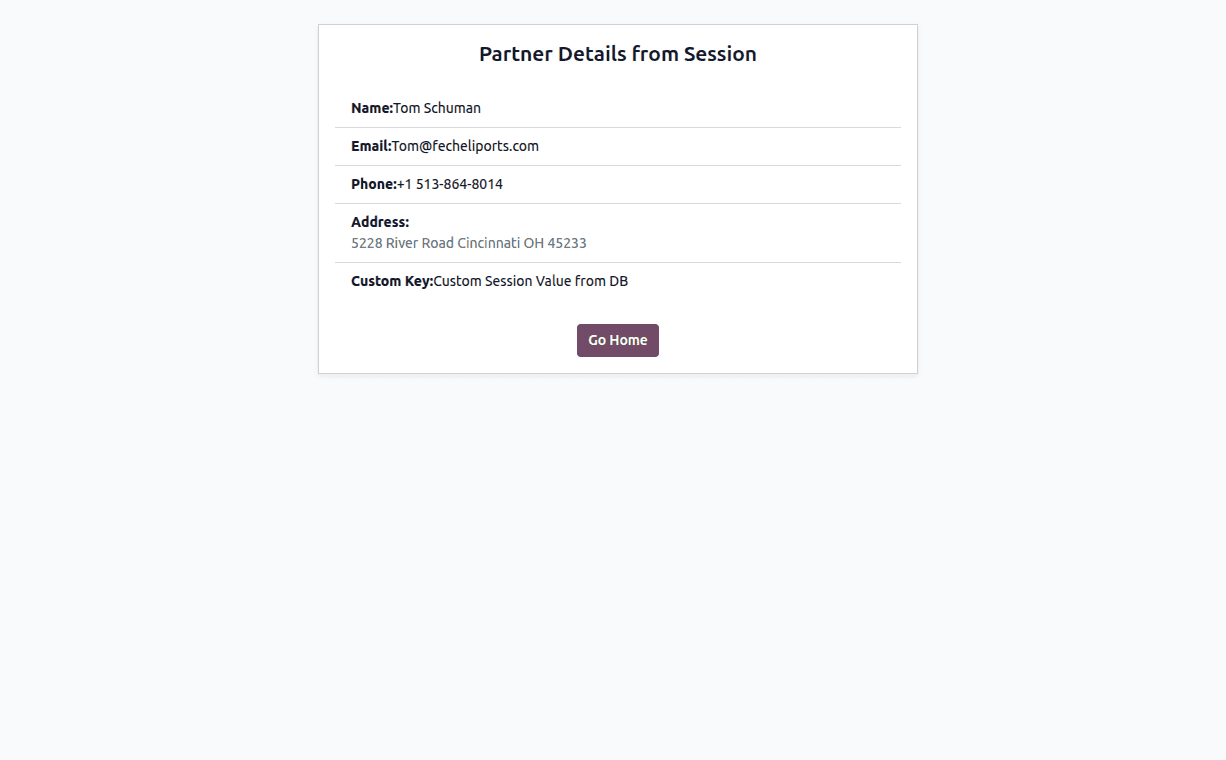
After installing the module by clicking your custom menu item you can see the below user interface with the current user partner data fetched from the imported session.
In this blog, we came across the smart method in Odoo to add values to the session, which can be accessed in the ui component to avoid repeated calls to network RPC to get data from the database. This is a smart approach to preload important information such as user details, company settings, permissions, preferences, or any commonly required business data, directly into the session.
To read more about How to Use the Session Storage in Odoo 19, refer to our blog How to Use the Session Storage in Odoo 19.