A product may contain more than one component. Offering these products as kits is one strategy to increase sales efficiency. A product's parts can be put together as a kit and sold as a complete. For instance, if you own a computer store, you might sell a computer as a kit with all of its parts, including a keyboard, speaker, CPU, mouse, and monitor. One kit can be used to assemble all the parts required to build a whole computer system. In addition to being available as a kit, the product's component pieces can be sold separately. However, a kit's part inventory needs to be effectively and methodically managed in order to facilitate seamless sales operations.
The Odoo 19 ERP system's Kit functionality and Bill of Material configuration allow the vendor to promote several components as a single product by combining them into a single list. The inventory management of individual kit components can be automated with the use of this feature. In this case, the components will be impacted by any inventory adjustments you make to the kit.
We'll discuss how to use Odoo ERP to offer a kit of products in this article.
Only the Odoo Manufacturing module has this feature. Installing the Manufacturing and Sales modules from the Odoo App Store is advised in order to effectively manage the kit's inventory and sales. You must configure the product components in your database after installing these modules. Let's say you are selling computer kits to your customers. Setting up the Computer Kit as a single product on your system requires first configuring the speaker, keyboard, CPU, mouse, and monitor of the main product.
The parts of the product can be kept in storage. You can either purchase these pieces from suppliers or sell them separately.
As a result, confirm that both the "Can be Sold" and "Can be Purchased" options are enabled.
After the product and all of its parts are specified, you can create a Bill of Materials to sell the goods as a kit.
In Odoo 19, the product setup page has a Bill of Materials smart button that allows you to create a kit for a particular product. If not, choose the Bill of Materials option from the Products menu in the Manufacturing module.
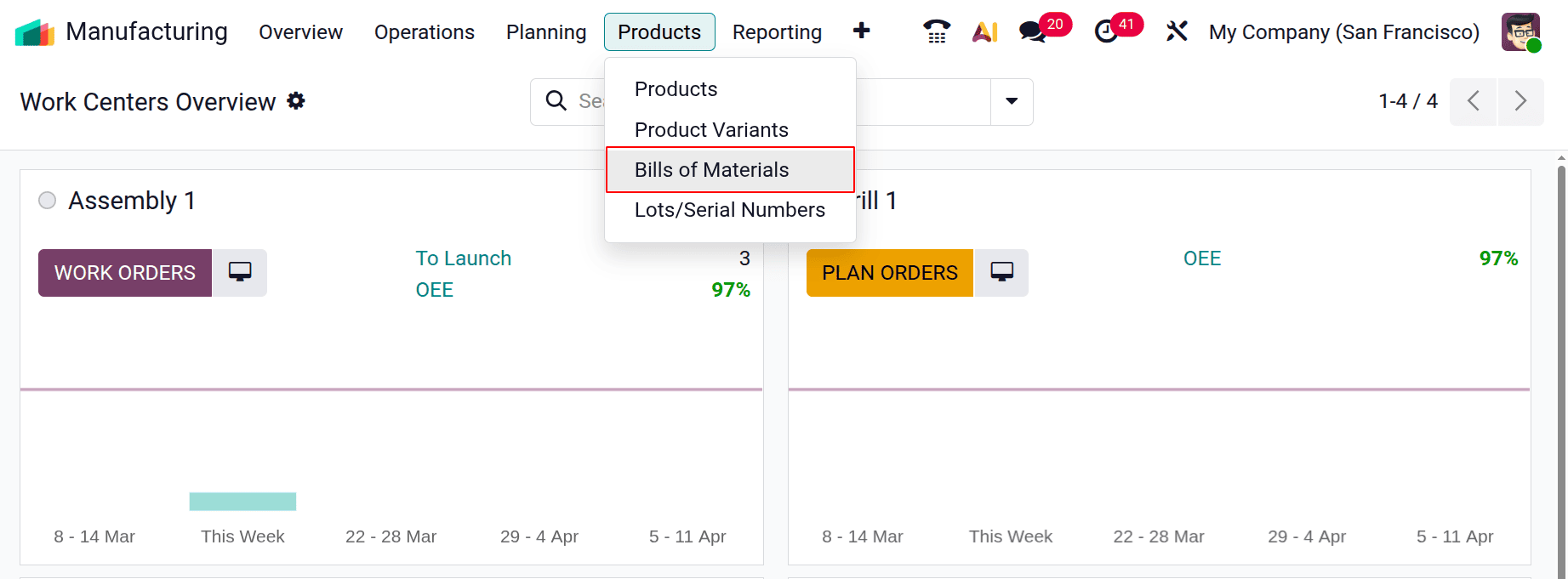
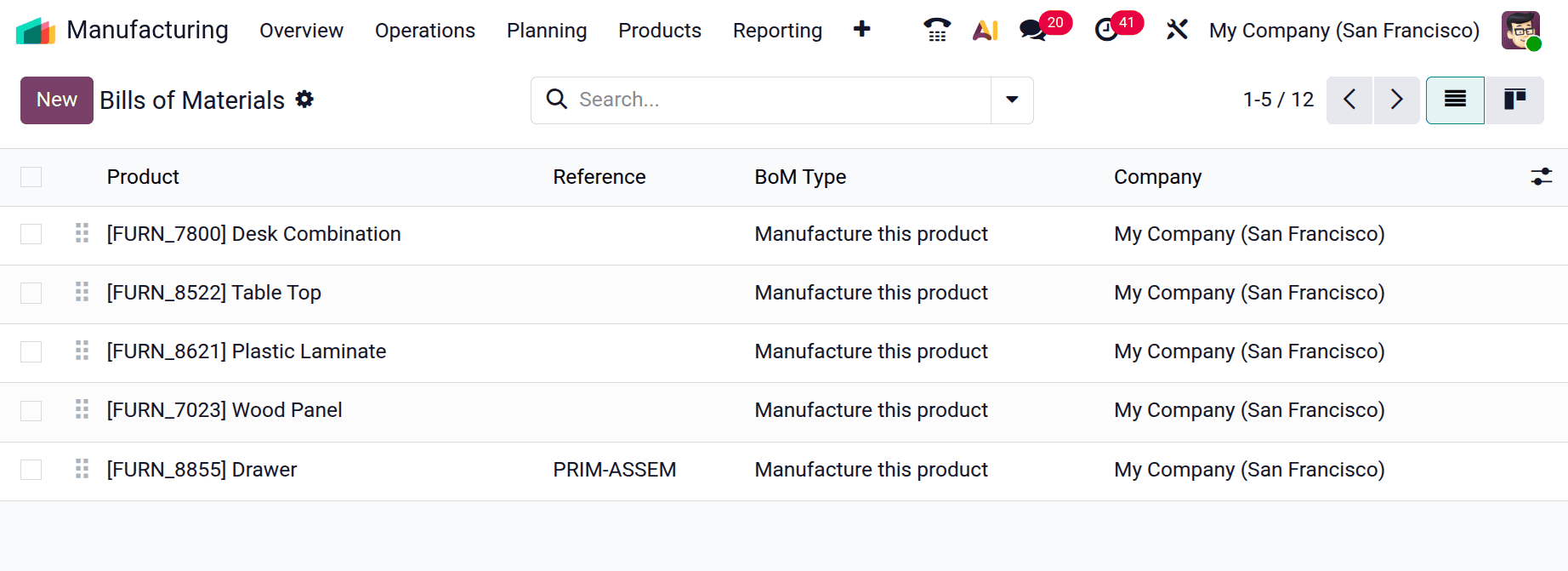
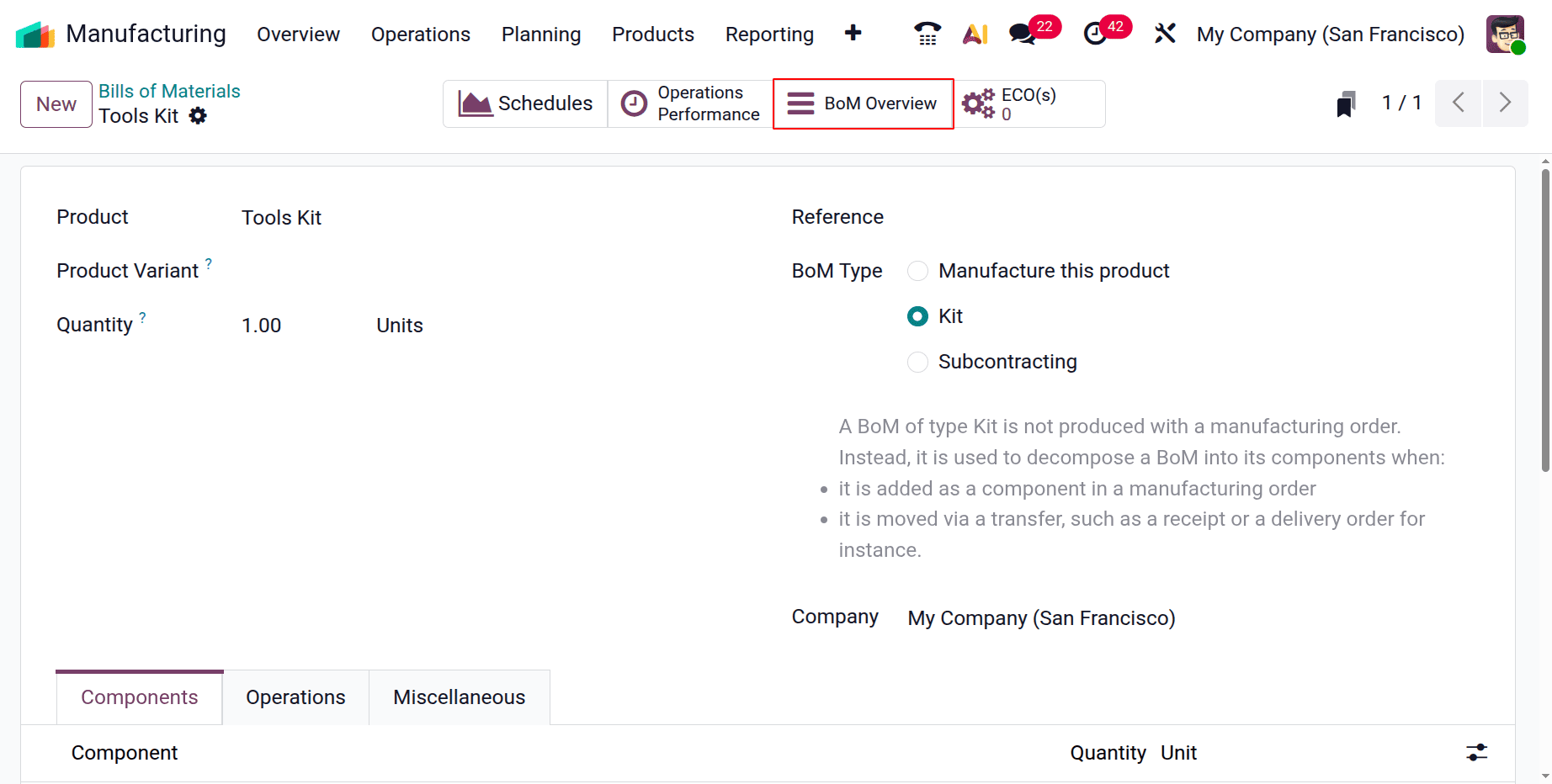
The Bill of Materials configuration pane is shown in the image below.
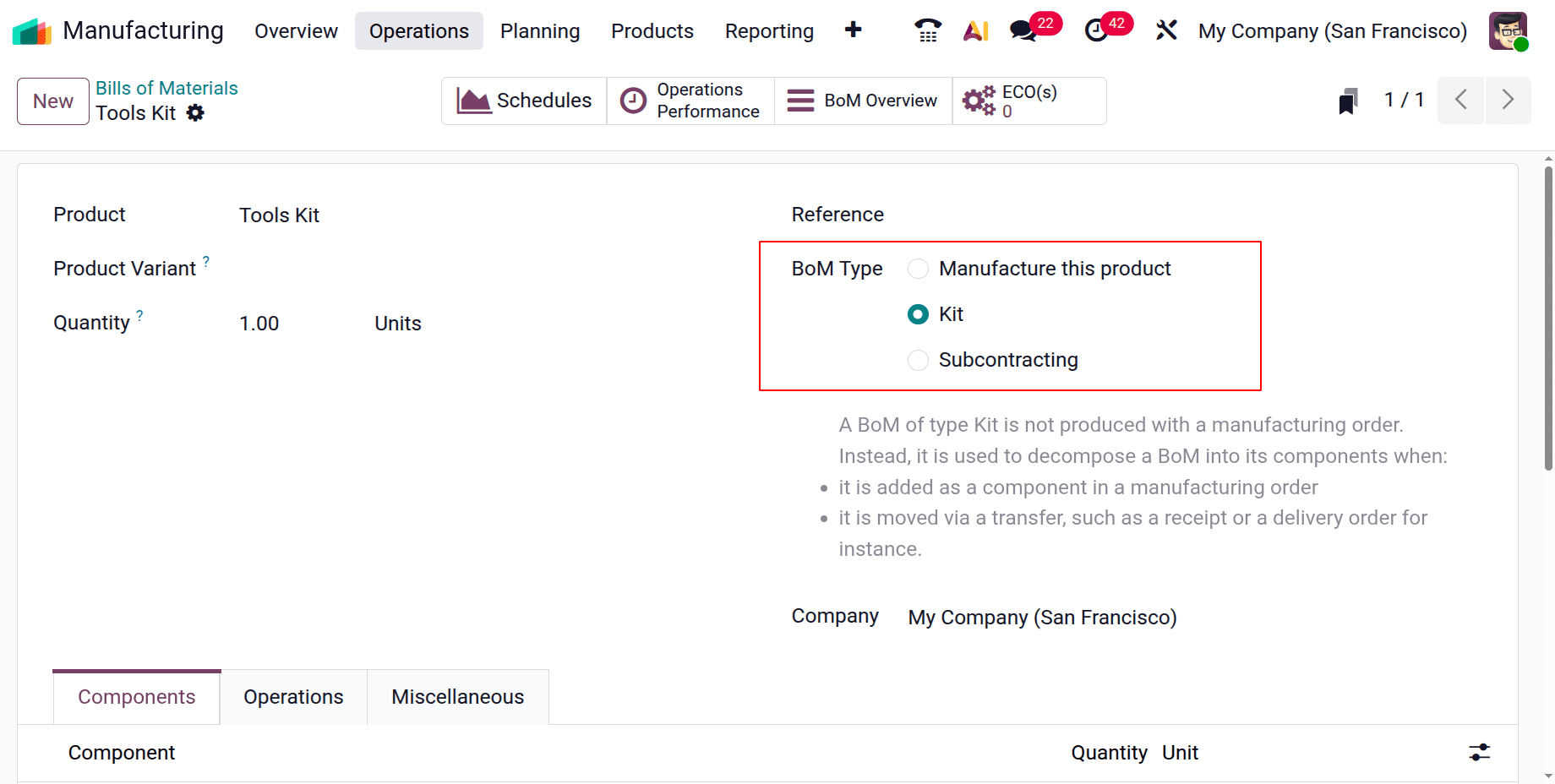
The name of the primary item is defined in the Product field. We've already set up the main product in the database, so you only need to choose the product name from the list. As soon as you choose the product, the pertinent Reference will show up in the relevant box. Any modifications of the product can be described using the Product Variant field. Odoo may be used to build three distinct Bills of Materials: Manufacture This Product, Kit, and Subcontracting. In the relevant area, you can select Kit as the BoM Type. In the Quantity area, you can specify how many kits you wish to generate overall.
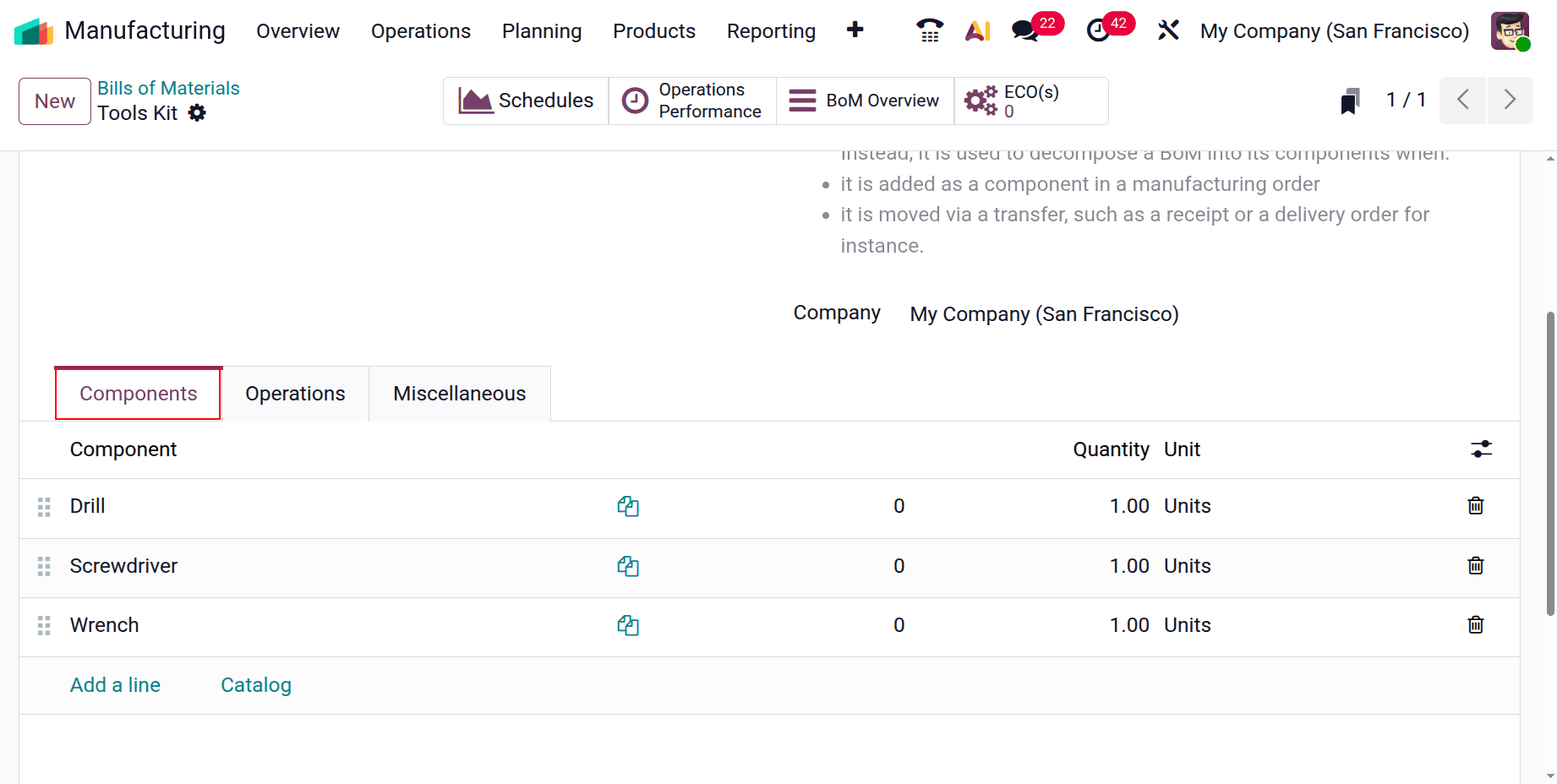
The Components, Operations, and Miscellaneous sections contain more information about the kit. The Add a Line button under the Components category allows you to define any component you want to include in a kit, along with its quantity.
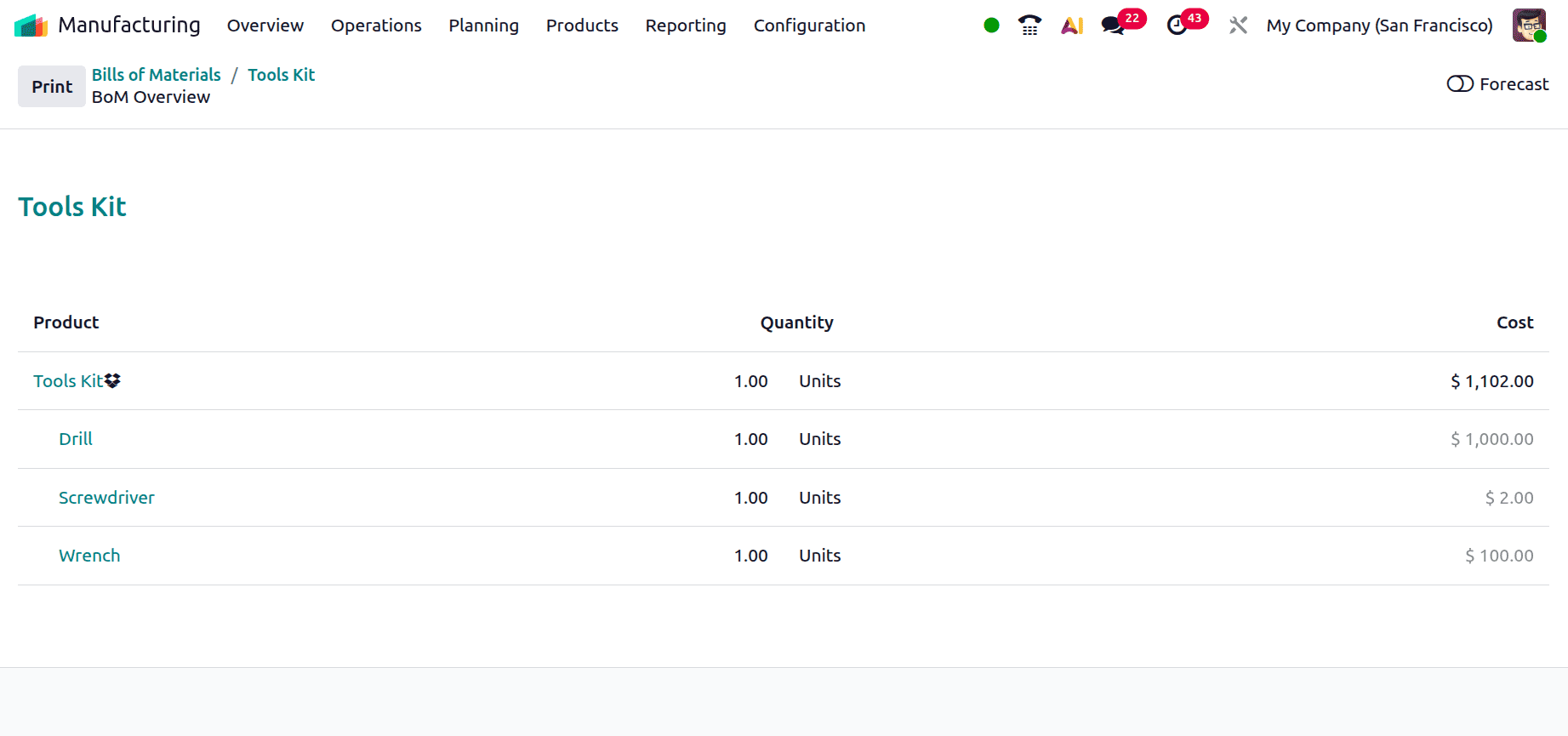
The Operations tab allows you to define the operation needed to construct this kit. Clicking the Save button will now save the revised Bill of Materials. There will be a smart button titled "Structure & Cost" in the window that displays the Tool Kit's cost and BoM structure.
The Print button allows you to print the structure and cost of the recently constructed BoM.
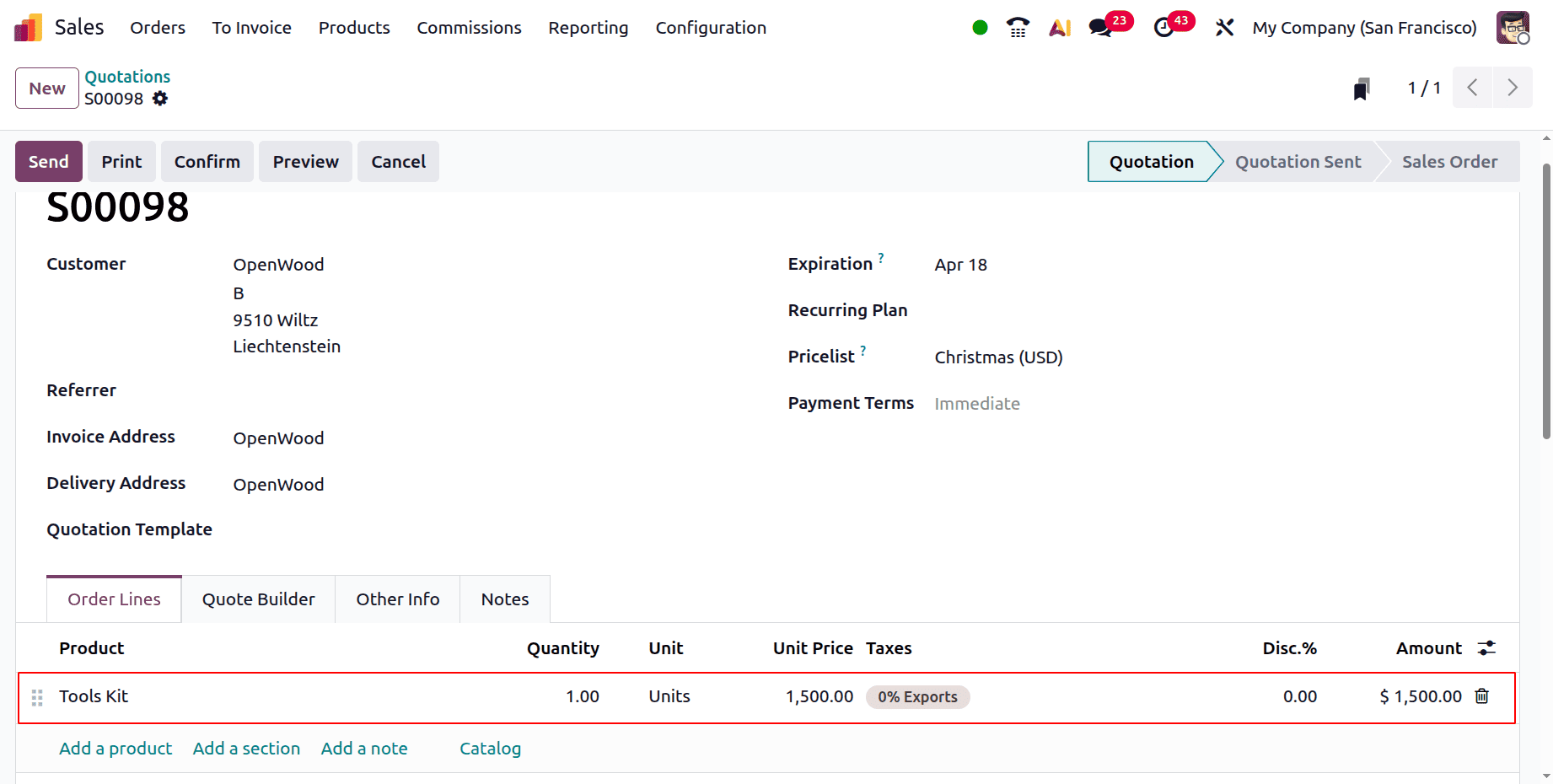
We completed setting up the Computer Kit for the Manufacturing module. You can now use the sales module to create and validate a sales order for this product. We only included the name of the Computer Kit in the Order Line, as you can see in the image below.
Here, OpenWood, the consumer, is asking for a single Tool kit. The Tool Kit is the only item that was added to the order line. Verify the sales quote.
After you have confirmed the sales order and invoice for the tool kit, the product will be sold as a kit with the pieces specified in the BoM. The components of the product will be listed in the delivery order. You can examine the Delivery Order by choosing the relevant smart button in the Sales Order box. To view the products that have been dispatched to the customer, use the Smart Tab Delivery. Every part of the Computer Kit is shown separately on the Delivery's Operations tab.
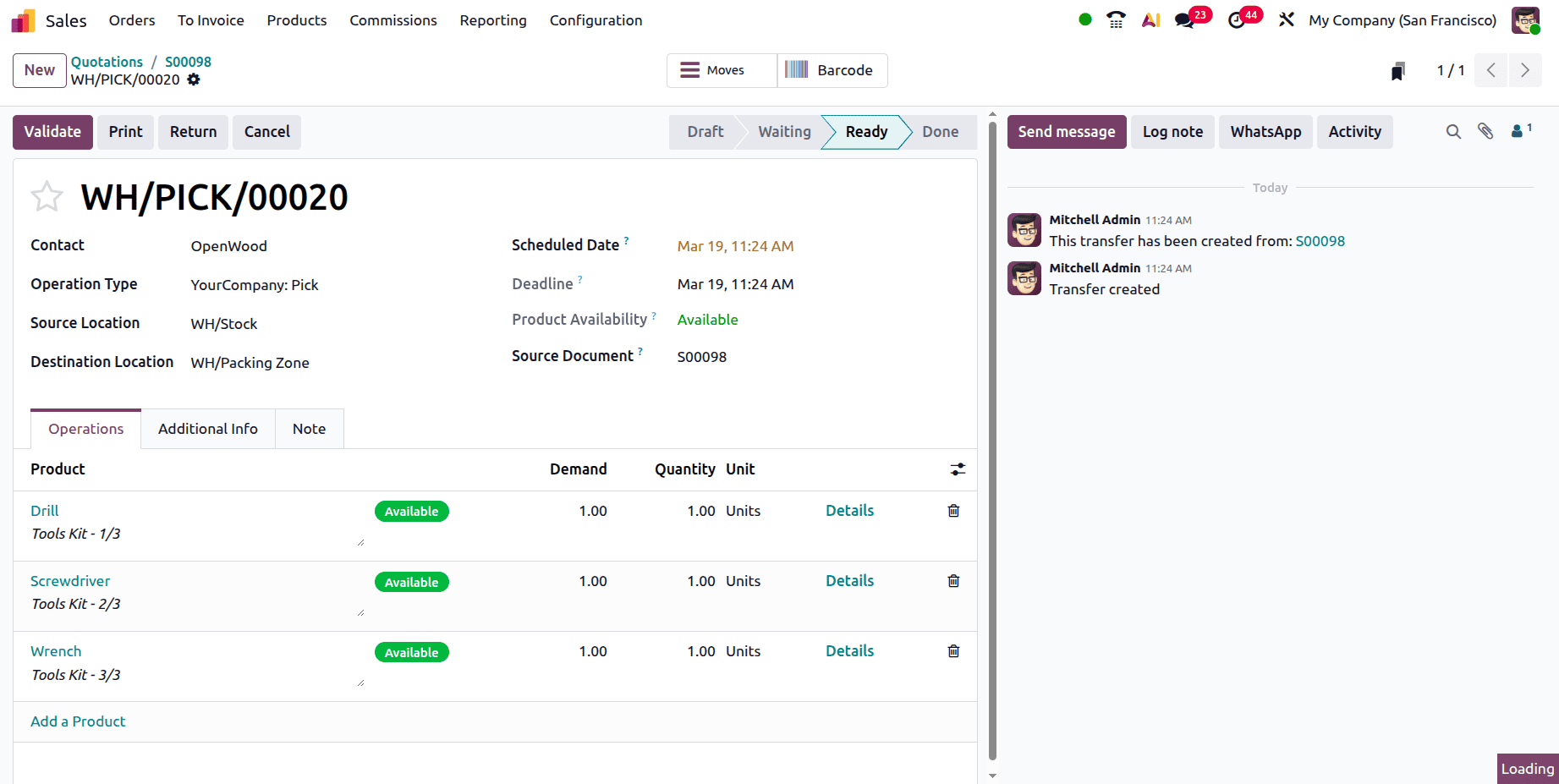
Here, the products are moved to the Packing Zone from stock. Verify the delivery, then open the next transfer.
Here, the next transfer is created from the Packing Zone to the Out Put location. Validate the transfer. Then open the last transfer.
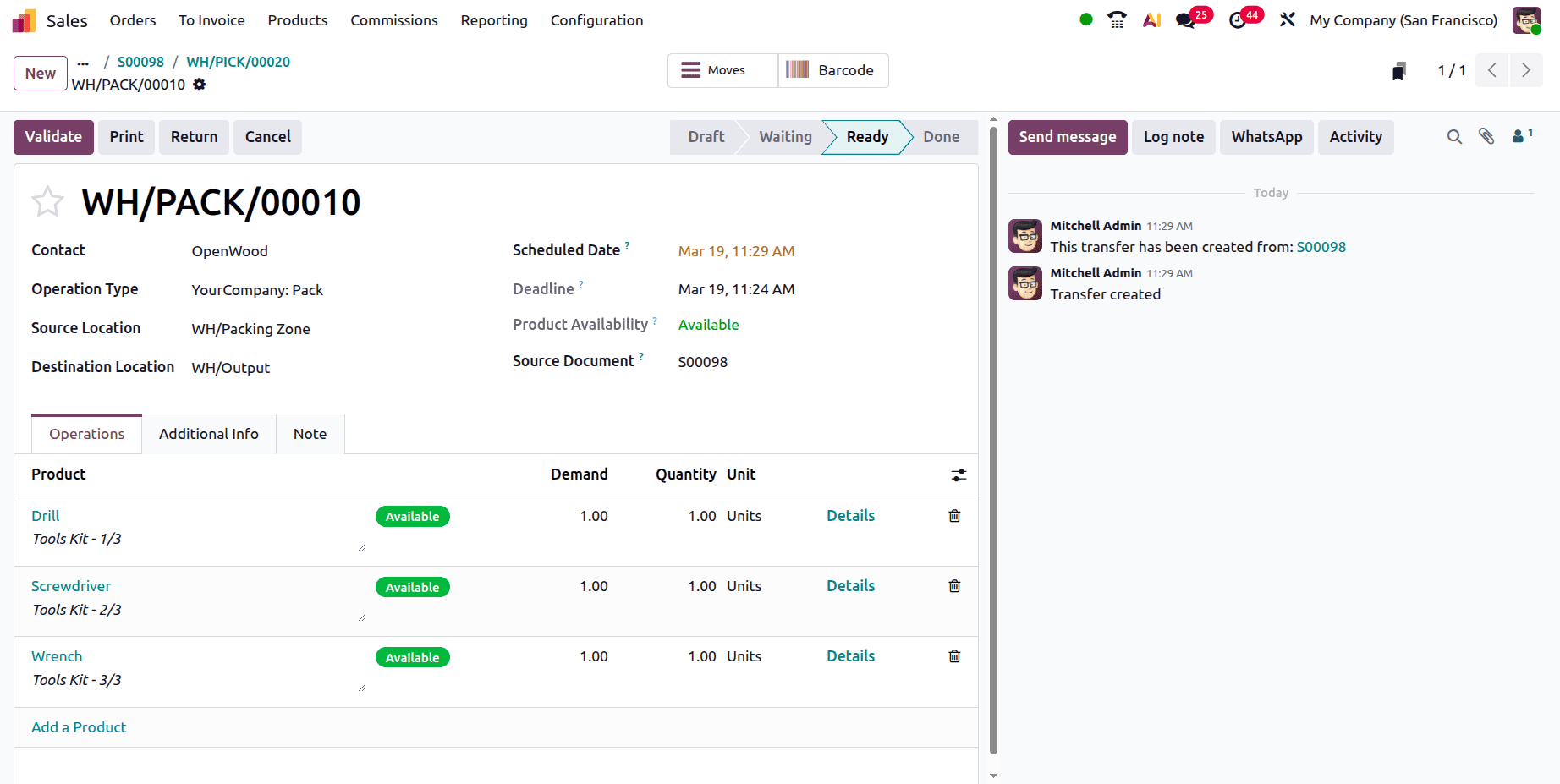
The last transfer is created to move the product from the Output location to the customer location. Validate the transfer.
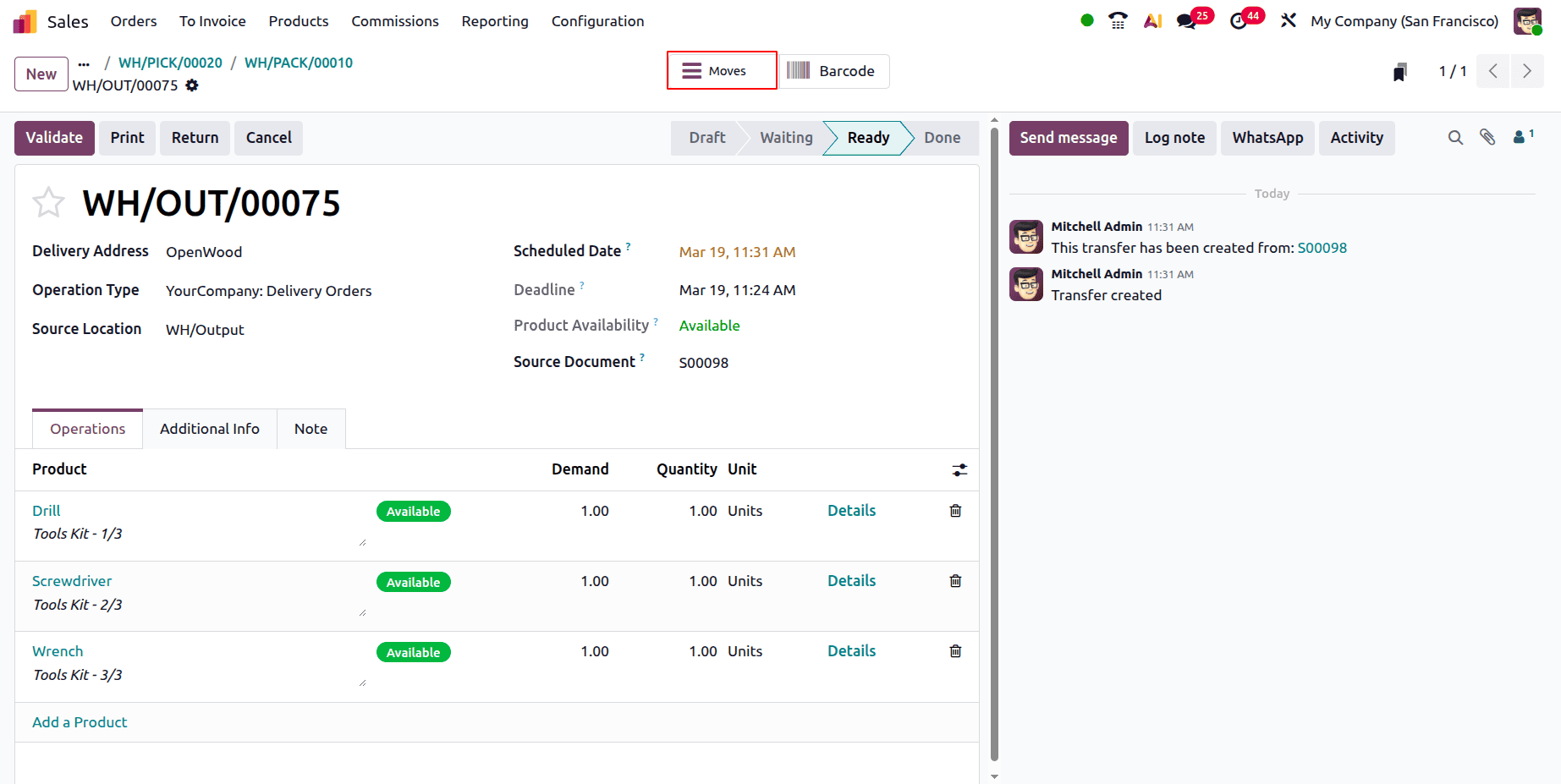
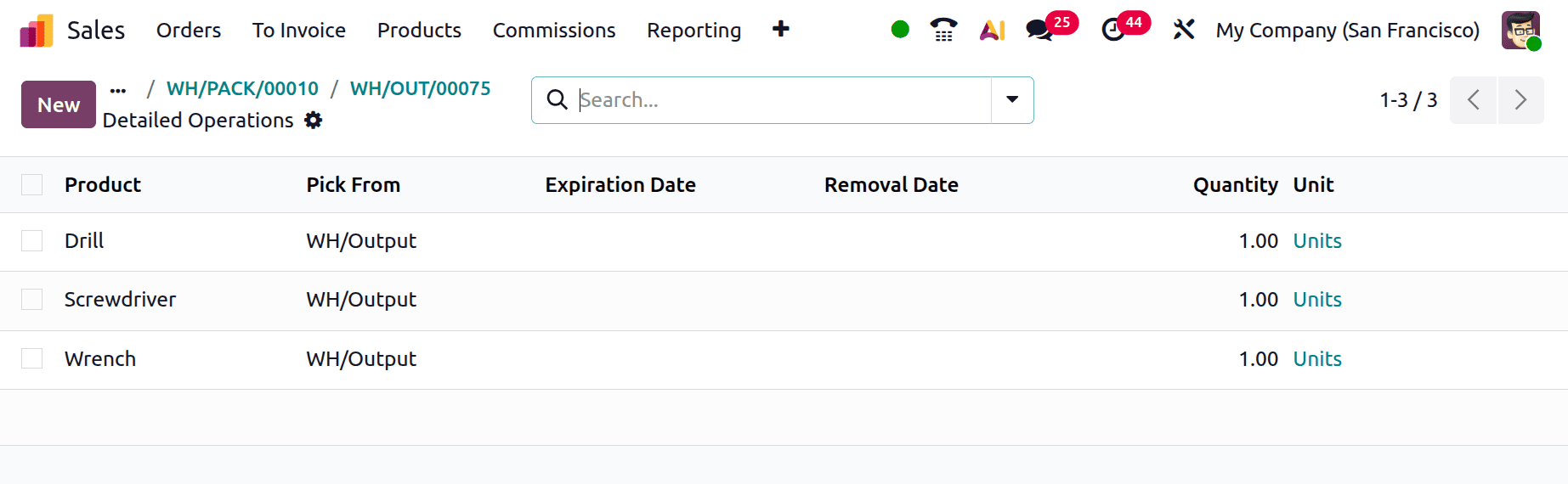
Examine the Moves smart tabs.
In conclusion, managing packaged products without the hassle of whole manufacturing orders is made flexible and effective by utilising kits in Odoo 19 Manufacturing. By making inventory tracking easier and eliminating the need for pointless manufacturing stages, they optimize operations. Businesses that deal with product bundles, promotional packages, or pre-assembled sets will find kits very useful. Businesses can increase order fulfilment speed and better manage stock levels by utilising this tool. All things considered, kits offer a workable way to improve operational effectiveness and streamline processes in contemporary production settings.
To read more about How Kit is Helpful in Odoo 18 Manufacturing, refer to our blog How Kit is Helpful in Odoo 18 Manufacturing.