Odoo models are used to store data of different kinds, starting with simple strings and numbers up to complex relations. In some cases, the field is supposed to provide limited choices that could be shown to the user. For example, the sales order with statuses like Quotation, Quotation Sent, Sales Order, and Cancelled; tasks with priorities; or an invoice line with an invoice status. Such functionality can be achieved in Odoo using a Selection Field (fields.Selection). Such a field guarantees data integrity at the database and ORM levels, as it allows storing only predefined values. This blog post will cover how Selection Fields work in Odoo 20. It will touch on static and dynamic selection, adding selection_add to them, handling module uninstallation with ondelete, displaying selections with modern Odoo 20 OWL widgets, and working with them in Python.
What is a Selection Field?
The Selection field represents an exclusive selection among several predefined values. In the PostgreSQL database, Odoo stores the Selection field in a varchar field containing the internal name of the selected value. The human-readable name for that value is displayed in the user’s language on the user interface side.
The basic definition of a Selection field in an Odoo 20 model is:
from odoo import fields, models
class CustomProjectTask(models.Model):
   _name = "custom.project.task"
   _description = "Custom Project Task"
   name = fields.Char(string="Task Title", required=True)
   priority_level = fields.Selection(
       selection=[
           ("low", "Low"),
           ("medium", "Medium"),
           ("high", "High"),
           ("urgent", "Urgent"),
       ],
       string="Priority Level",
       default="medium",
       required=True,)
In this example:
- Each item in the ‘selection’ list is a tuple containing two values (key, label), which is used for defining the available choices in terms of key-value pairs. Key ("low", "medium," and so on): Technical value stored in the database field. It must always be of string type. Label ("Low", "Medium," and so forth): String that can easily be comprehended by the user.
- default="medium": Sets the default selected key value when a new record is created.
- required=True: Ensures that the field cannot be left empty (False or None).
Extending Selection Fields with selection_add and ondelete
In modular development, custom modules frequently extend existing Odoo core models to add new business stages or options. Instead of redefining the entire field, Odoo provides the selection_add attribute.
Basic selection_add Syntax
For example, suppose the core sale.order model defines the state field with stages:
[
   ("draft", "Quotation"),
   ("sent", "Quotation Sent"),
   ("sale", "Sales Order"),
   ("cancel", "Cancelled"),
]
If your custom module needs an approval workflow stage named "waiting_approval", you inherit sale.order and use selection_add:
from odoo import fields, models
class SaleOrder(models.Model):
   _inherit = "sale.order"
   state = fields.Selection(
       selection_add=[
           ("waiting_approval", "Waiting Approval"),
       ],
       ondelete={"waiting_approval": "set default"},
   )
Ordering with Singletons
You can add new selection values relative to existing values using singleton tuples (key):
state = fields.Selection(
   selection_add=[
       ("waiting_approval", "Waiting Approval"),
       ("sale",),],
   ondelete={"waiting_approval": "set default"},
)
Here, ("sale",) indicates the position of the existing stage, placing "waiting_approval" right before "sale".
The Critical ondelete Policy
Whenever you extend a Selection field using selection_add, you must supply an ondelete mapping. This dictionary instructs Odoo on how to clean up existing records if the custom module is ever uninstalled.
The supported ondelete policies in Odoo 20 are:
- "set null": Sets the field value to False on all records currently holding that option. This is the default behaviour for optional fields, but it is strictly forbidden if the selection field is defined with required=True.
- "set default": Resets all records using this option to the field’s default value. The base field definition must have a default attribute configured.
- "set ": Resets all affected records to a specified existing selection key, for example: ondelete={"waiting_approval": "set draft"}.
- "cascade": Deletes every record that currently has this selection value assigned.
- A Custom Callable: A Python function or lambda that receives the recordset of affected records and executes custom fallback logic.
class StockPicking(models.Model):
   _inherit = "stock.picking"
   custom_type = fields.Selection(
       selection_add=[
           ("inspection", "Quality Inspection"),
       ],
       ondelete={
           "inspection": lambda records: records.write({
               "custom_type": "internal",
               "note": "Reset from Inspection due to module uninstallation.",
           })
       },
   )
If you add a selection option to a required=True field without specifying an ondelete policy, Odoo will raise an error during module installation or startup.
Selection Fields in Views and OWL Widgets
In Odoo 20, views are written in clean XML and rendered using modern OWL (Odoo Web Library) components. A Selection field can be presented in multiple ways depending on user interaction needs.
1. Default Dropdown
Without any explicit widget specified, a Selection field renders as a standard dropdown selection box in the view:
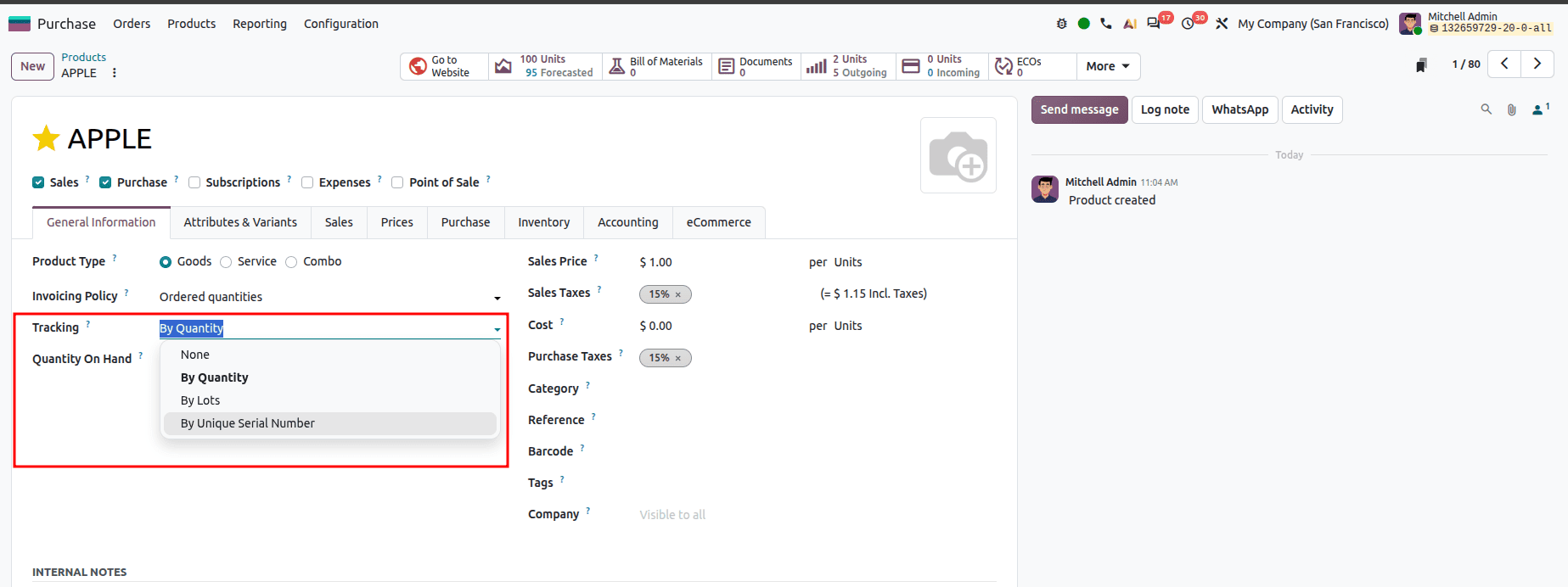
<field name="service_tracking" invisible=”1 or type != ‘service’”/>
2. Statusbar Widget (widget="statusbar")
The statusbar widget is standard for workflow progression (such as state fields). It displays stages as a horizontal workflow bar in form view headers:
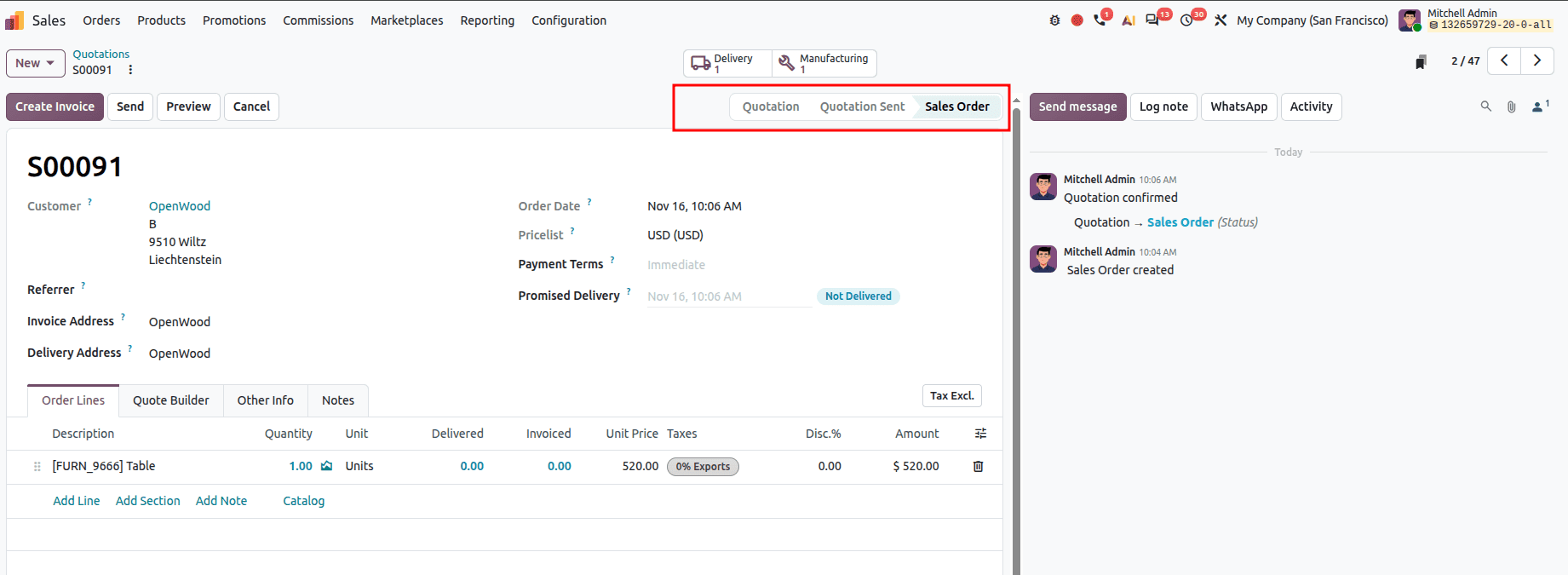
<header>
   <field name="state" widget="statusbar" statusbar_visible="draft,sent,sale"/>
</header>
Key attributes for the status bar:
- statusbar_visible: Specifies a comma-separated list of technical keys that should always remain visible in the bar, even when the record is not in that stage. Secondary stages (such as cancel) appear only when active.
- clickable="1" or options="{'clickable': '1'}": Allows authorized users to click directly on a stage to switch states.
3. Radio Buttons (widget="radio")
The 'radio’ widget displays the choice options in the form of radio buttons and is suitable for use where very few choices exist, and they all need to be displayed at once.
Xml
<field name="create_variant" widget="radio"/>
To display radio buttons horizontally side by side, add the options=”{‘horizontal’” true}”:
Xml
<field name="create_variant" widget="radio" options="{'horizontal': true}"/>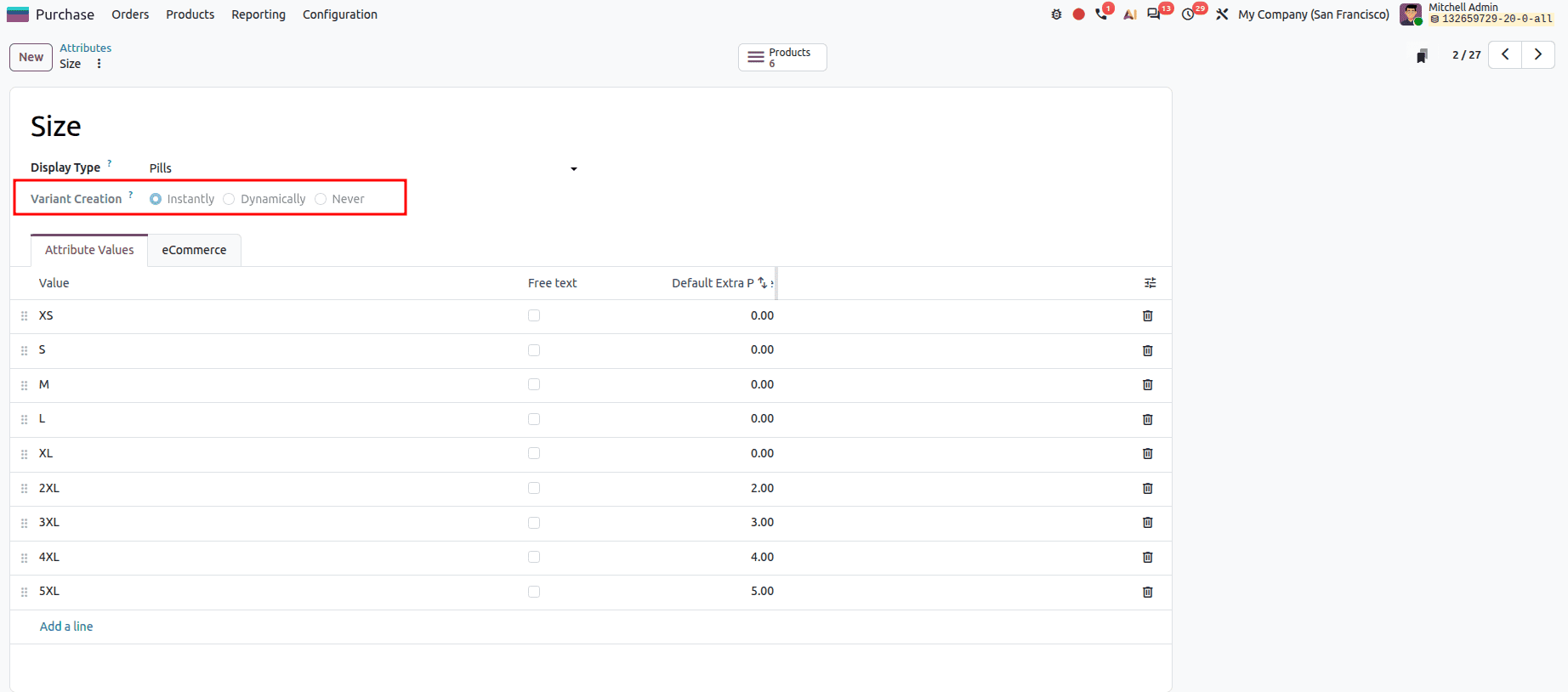
4. Priority Widget (widget="priority")
For rating or urgency, Odoo provides the priority widget. It converts numeric or integer-like selection keys into interactive star icons:
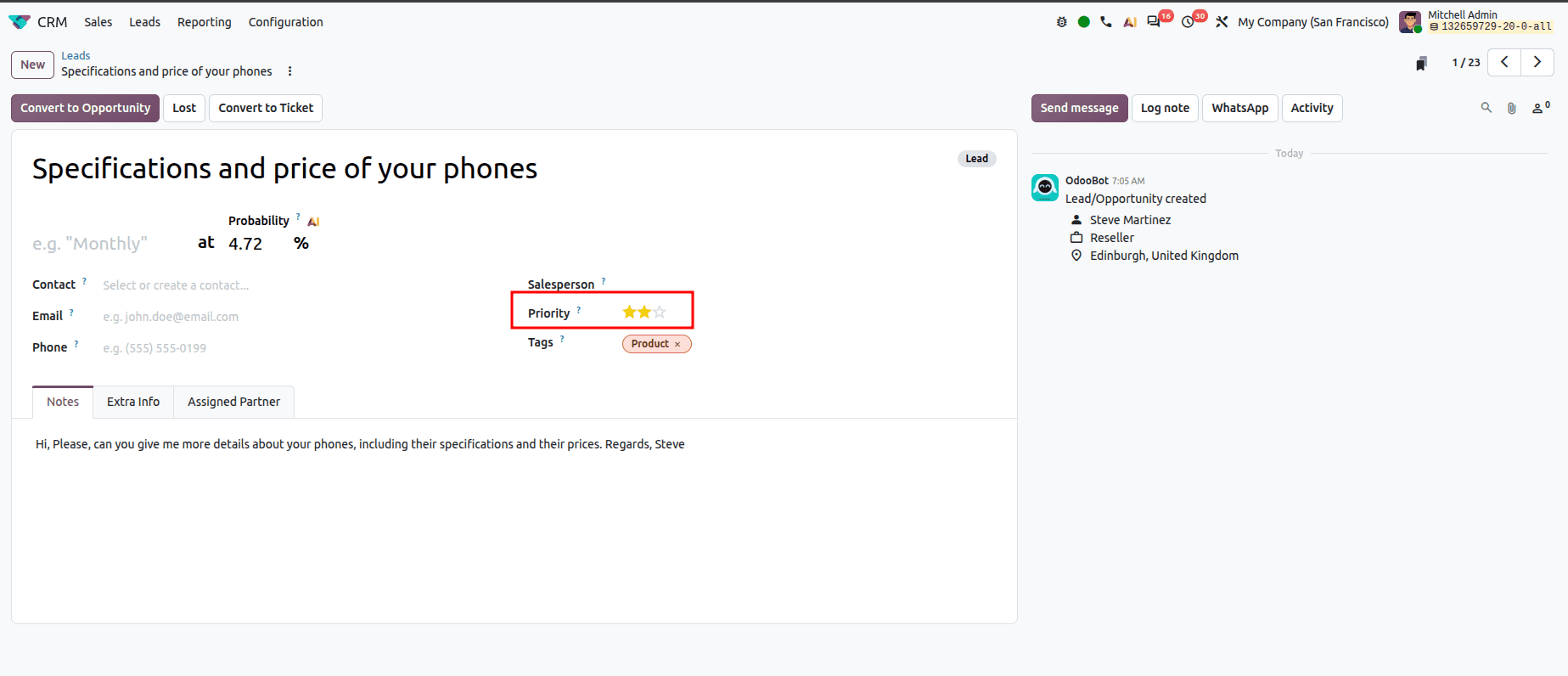
In the XML view:
<field name="priority" widget="priority" nolabel="1" class="w-auto"/>
Users can click on stars to increase or decrease the score directly in both list and form views.
5. Badge Widget (widget="badge")
In list and kanban views, selection values are often styled as colored pill badges using widget="badge" along with decoration attributes:
Xml
<list>
   <field name="name"/>
   <field name="state"
          widget="badge"
          decoration-info="state == 'draft'"
          decoration-warning="state == 'sent'"
          decoration-success="state == 'sale'"
          decoration-danger="state == 'cancel'"/>
</list>
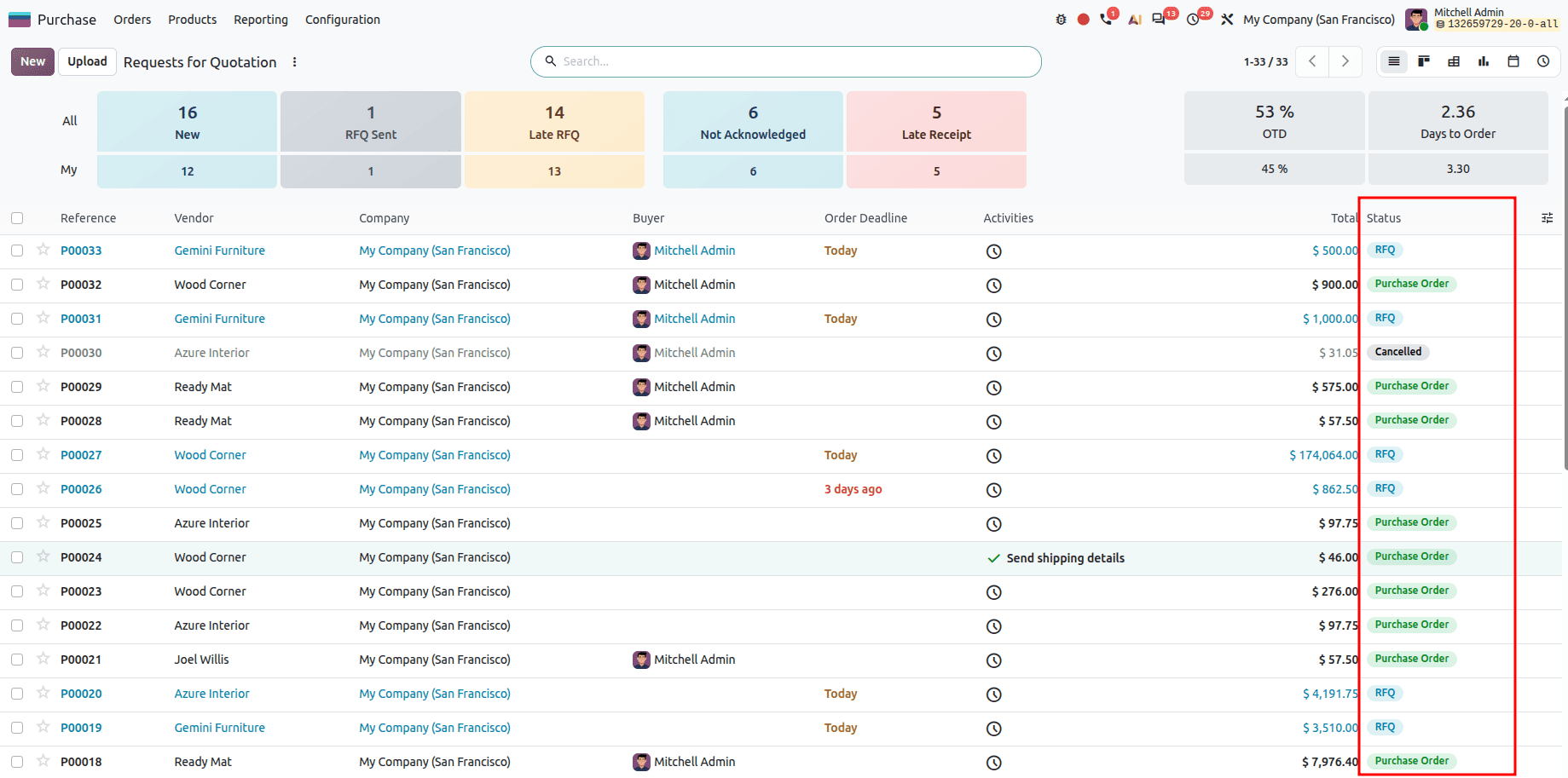
Grouping and Kanban with group_expand=True
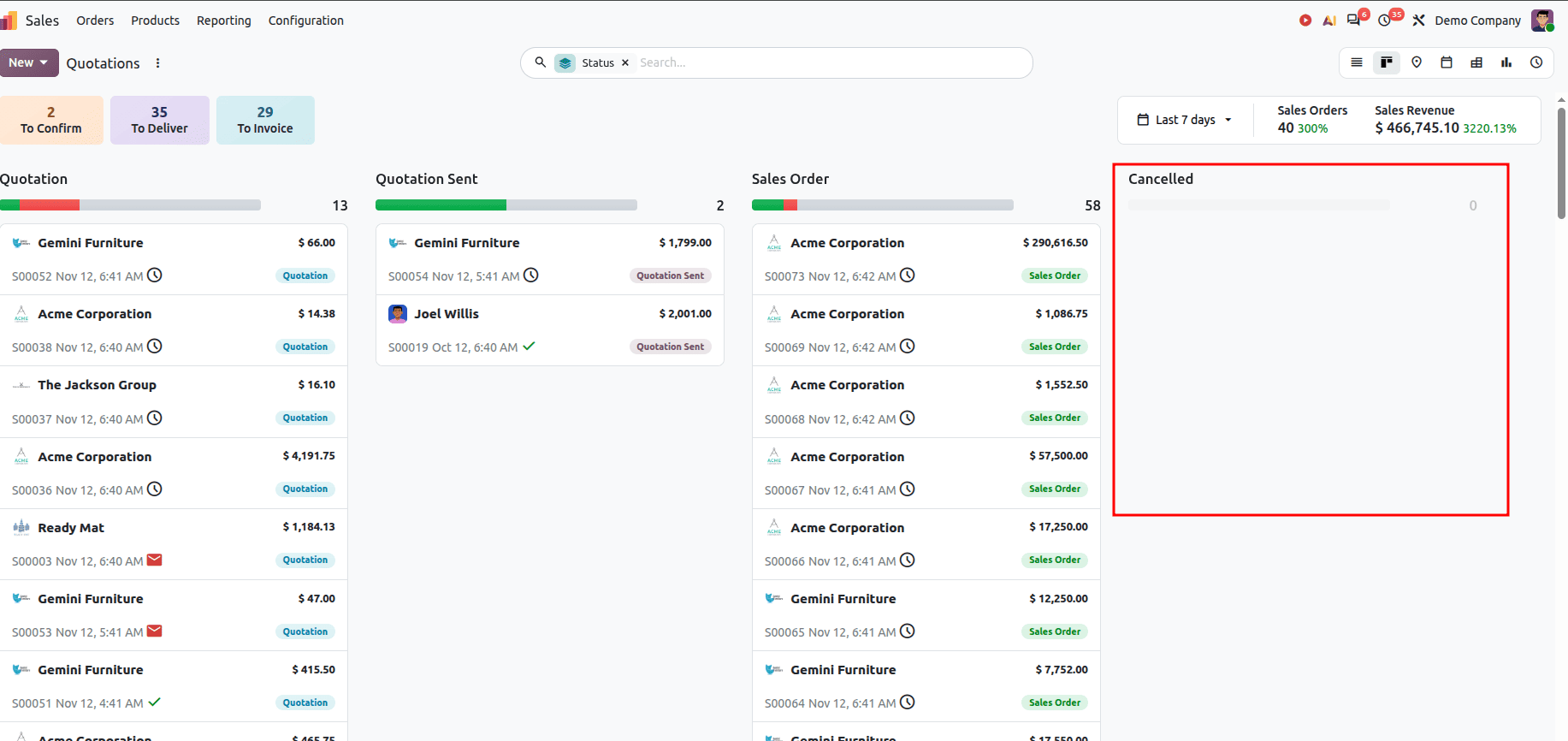
When grouping records by a Selection field in a Kanban or List view, groups without any records are normally omitted from the view.
For workflow fields, users generally expect every stage column to appear in Kanban view, even when zero records currently reside in that stage.
In Odoo 20, fields.Selection provides built-in support for group_expand=True:
state = fields.Selection(
   selection=SALE_ORDER_STATE,
   string="Status",
   readonly=True,
   copy=False,
   index=True,
   tracking=3,
   group_expand=True,
   default="draft",
)
Setting ‘group_expand=True’ instructs the Odoo ORM to invoke the field's internal _default_group_expand method. This allows it to always show all the states even when the specific states do not have any existing records.
Related Selection Fields
When a model needs to mirror a Selection field that already exists on a related record, you can use a 'related' field attribute.
Python
class CustomProjectTaskLine(models.Model):
   _name = "custom.project.task.line"
   _description = "Task Line"
   task_id = fields.Many2one("custom.project.task", string="Task", required=True)
   task_priority = fields.Selection(
       related="task_id.priority_level",
       string="Task Priority",
       store=True,
   )
Important rules for related Selection fields in Odoo 20:
- Do not redeclare the ‘selection’ attribute, Odoo automatically inspects the target field on the related model and delegates option retrieval dynamically.
- readonly=True by default: Related fields are read-only by default. If you need users to edit the parent value through the child record, set readonly=False.
Selection Field vs Many2one: When to Use Which?
Both Selection and Many2one fields allow users to choose an option from a list. Choosing the right one is a fundamental architectural decision in Odoo:
| Feature / Requirement | fields.Selection | fields.Many2one |
| Option Source | Defined in Python code by the developer. | Stored as separate database records in a comodel. |
| End-User Creation | End-users cannot add options without custom code. | Users can create new records on-the-fly (with access rights). |
| Storage | Single varchar column on the current table. | Foreign key (integer) referencing another table's id. |
| Extensibility | Extended via selection_add across modules. | Extended simply by creating new database records. |
| Usage | Fixed options like workflow states, priority levels, or document types. | Dynamic master data like customers, products, or categories managed via the UI. |
Selection fields form one of the essential parts of the Odoo ORM architecture:
- They store unique, predefined selections in varchar columns but render translated labels on the frontend side.
- When inheriting models, the options need to be extended via selection_add, along with defining an ondelete behaviour (set null, set default, set , cascade, or callable) to guarantee smooth uninstallation of modules.
- When inheriting models, the options need to be extended via selection_add, along with defining an ondelete behaviour (set null, set default, set , cascade, or callable) to guarantee smooth uninstallation of modules.
- Modern Odoo 20 views utilize OWL widgets such as statusbar, radio, badge, and priority to adjust the field to different UI flows.
- Setting group_expand=True guarantees that all the options of a selection field will be shown separately in the grouped Kanban view, regardless of the absence of records in the columns.
- In the Python code, record.field_name returns the technical key of the option, while _description_selection(self.env) returns the translated labels.
Selection fields are useful in ensuring that your business applications are well-developed in terms of both design and proper data validation in Odoo 20.
To read more about How to Work with Selection Fields in Odoo 19, refer to our blog, How to Work with Selection Fields in Odoo 19.