It is essential to monitor the company's equipment in order to accurately record its assets. For long-term use, the device requires frequent repairs in addition to tracking. This will provide the best possible downtime and resource efficiency. Paper inspections of the equipment and maintenance requests have not been enough because of their inefficiency. Paper inspection slows down the team's work and prevents prompt communication about equipment issues.
To fix this problem, you need the appropriate maintenance management software. Every facet of business management is made easier by Odoo 19. Everything is properly managed by the Odoo Maintenance module, including request handling and equipment tracking. Analyzing, monitoring, and organizing your equipment is simple.
Installing the Odoo 19 Maintenance module is not too difficult. The application allows you to install them. After installation, the symbol for the Maintenance module will show up on your screen with all other installed applications.
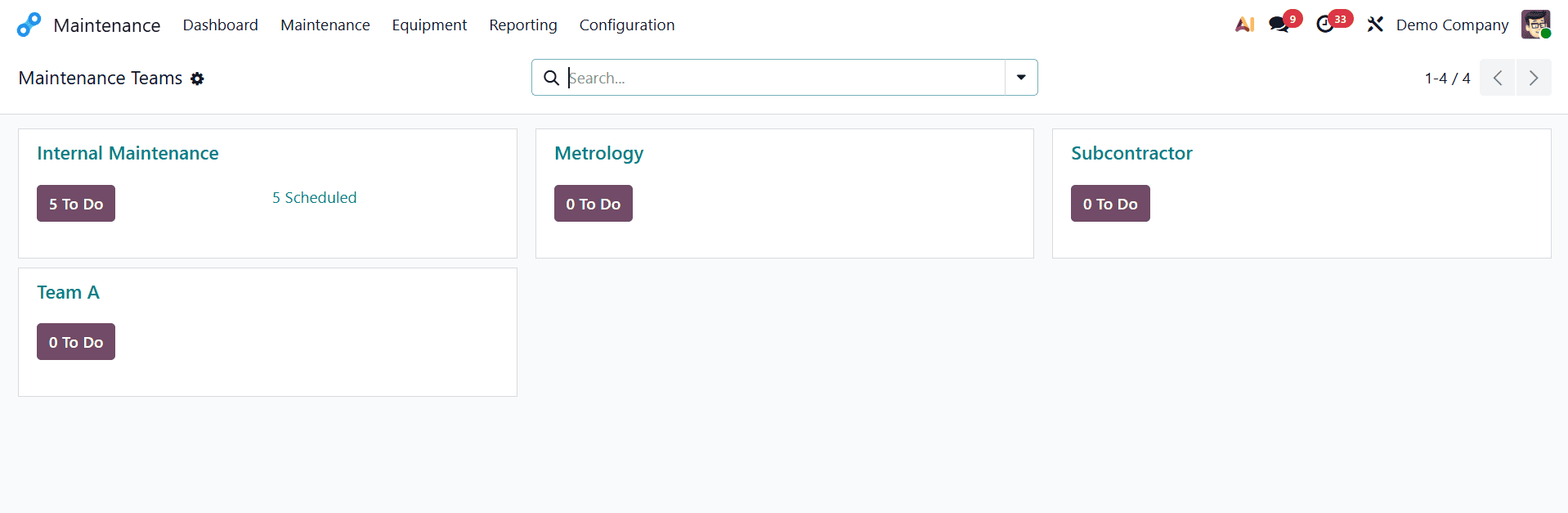
The Maintenance Teams list from the maintenance module dashboard is shown on the screen. A list of unresolved maintenance work is displayed as TO DO under each Maintenance Team. The number of unplanned requests is displayed in addition to the TO DO. You can search for Teams by adding different filters.
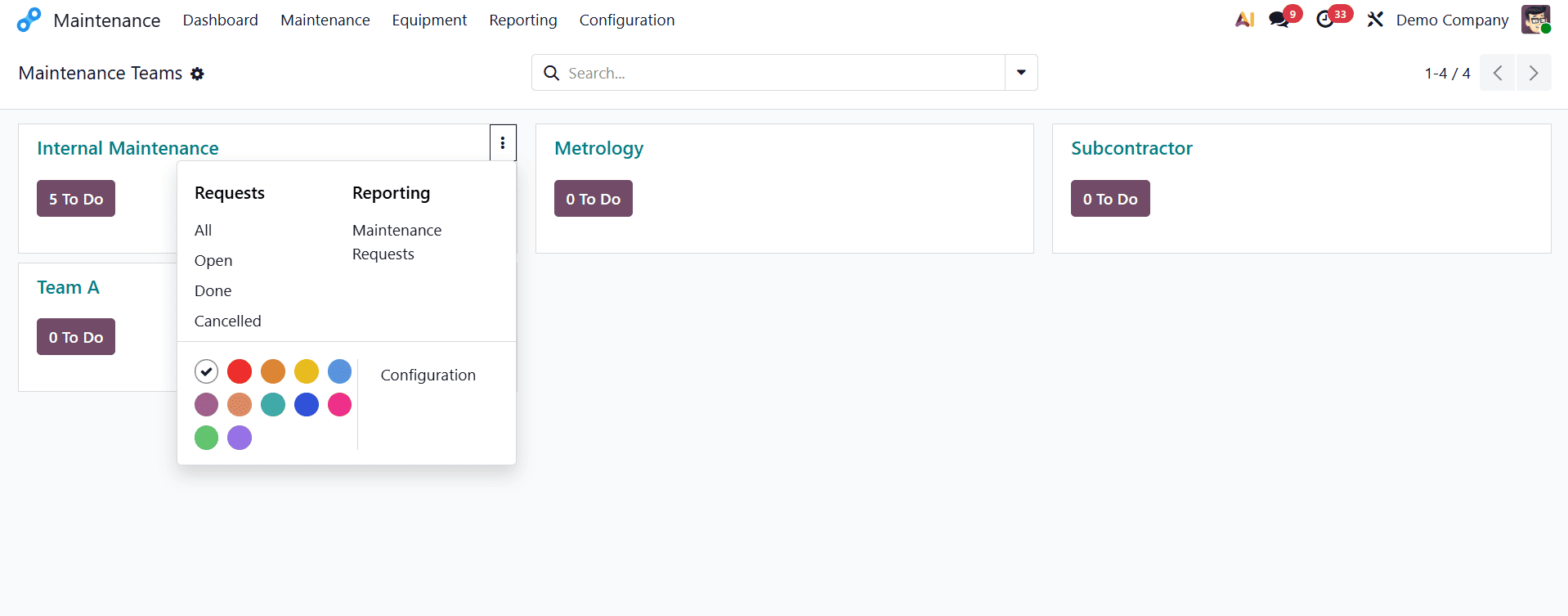
By choosing the three dots next to the Maintenance Team, you can see the Requests and Reporting. You may view all requests, To-Do requests, In Progress requests, and Done requests under Request. Maintenance Requests are located under Reporting. By choosing Configuration, you may add team members and company names, as well as modify the name of the Maintenance Team.
The Maintenance module's major objectives are to organize maintenance requests and streamline the procedure.
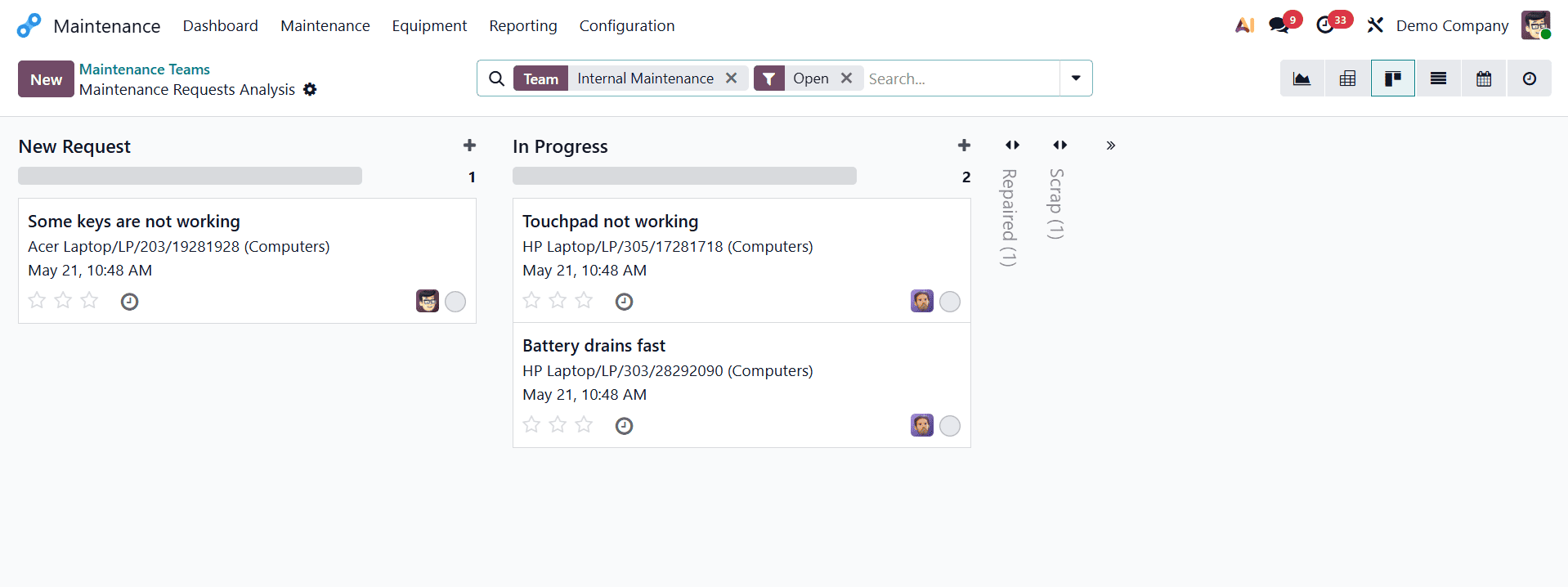
By selecting the Maintenance Team option, you may select the Maintenance Request option. After choosing the Maintenance Request option, a screen with a list of request options will appear. Requests are grouped into a number of categories, such as New Request, In Progress, Repaired, and Scrap. You can create a new category according to your requirements by simply choosing the "establish a Column" option. You can examine the request changes in Kanban, Calendar, Pivot, List, or Graph.
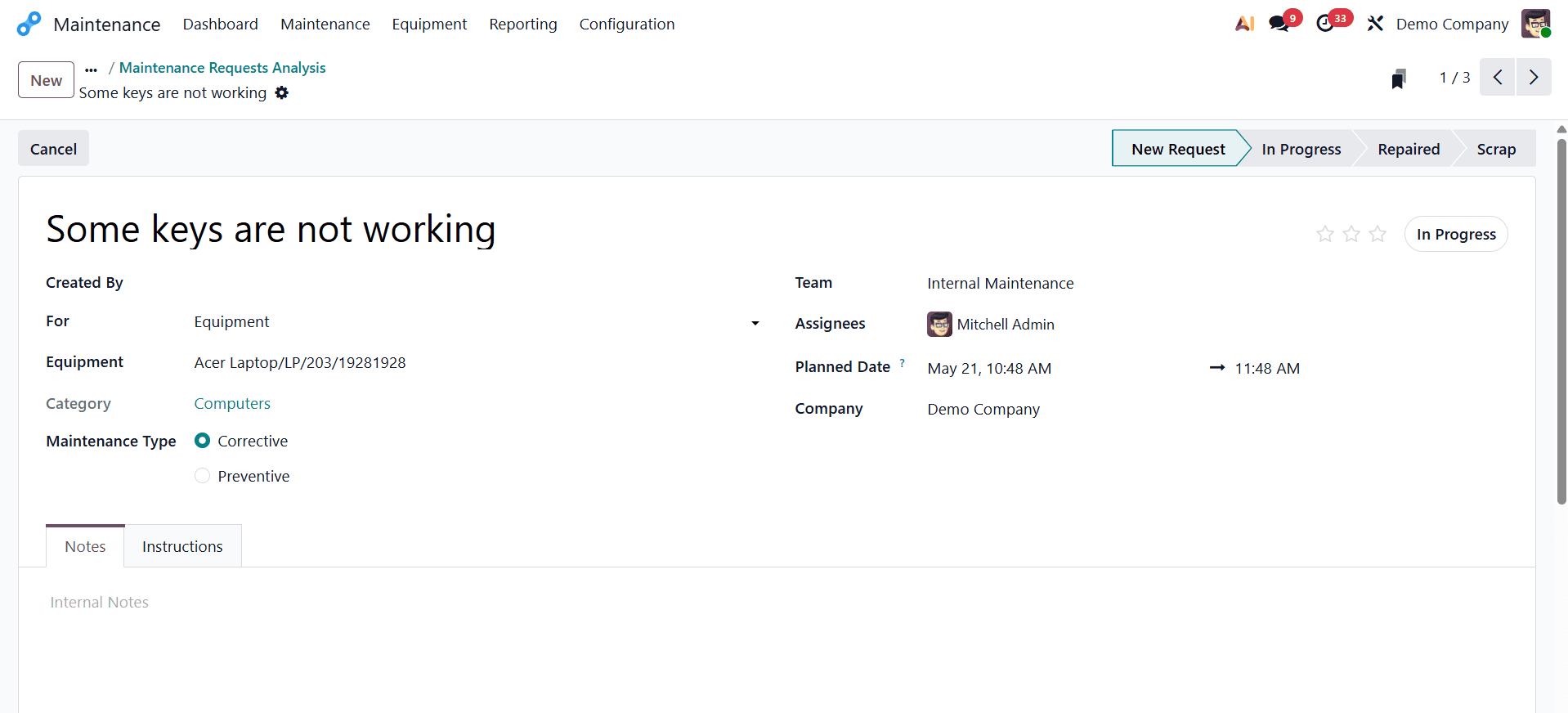
A detailed description of each request can be accessed by just clicking on its name. The description includes the request's title, equipment name, category, request date, maintenance type (preventive or corrective), manufacturing order, maintenance team, responsible party name, scheduled date, duration, priority, and firm name. The log notes related to the maintenance request are listed below the details. Examining the log notes can help you understand what was done in response to the maintenance request.
You can create an activity by choosing the Schedule Activity option. You may also send a message to the followers of the title by using the Send Message option. You can change the requested category using the choices listed above the details. There are four possible categories: New Request, In Progress, Repaired, and Scrap. To take a duplicate of the requestor and delete the request, you can use the Action option.
Making a maintenance request is quite simple using the Odoo 19 Maintenance module. When activities are handled manually, there is a chance of misunderstandings and requests may take longer to reach the right person. On the other hand, Odoo's repair module allows you to swiftly and simply create requests for equipment repair.
Select Maintenance Requests from the Maintenance menu. As mentioned earlier, a page listing requests under several categories will be displayed to you. A new request can be made by clicking the New button. The form will appear on a page.
The problem that needs to be fixed, the name of the person who made the maintenance request, the equipment that needs to be maintained, and the date of the request must all be entered into the form. Both equipment and work centers are capable of performing maintenance. Thus, select either Work Center or Equipment in the "For" section.
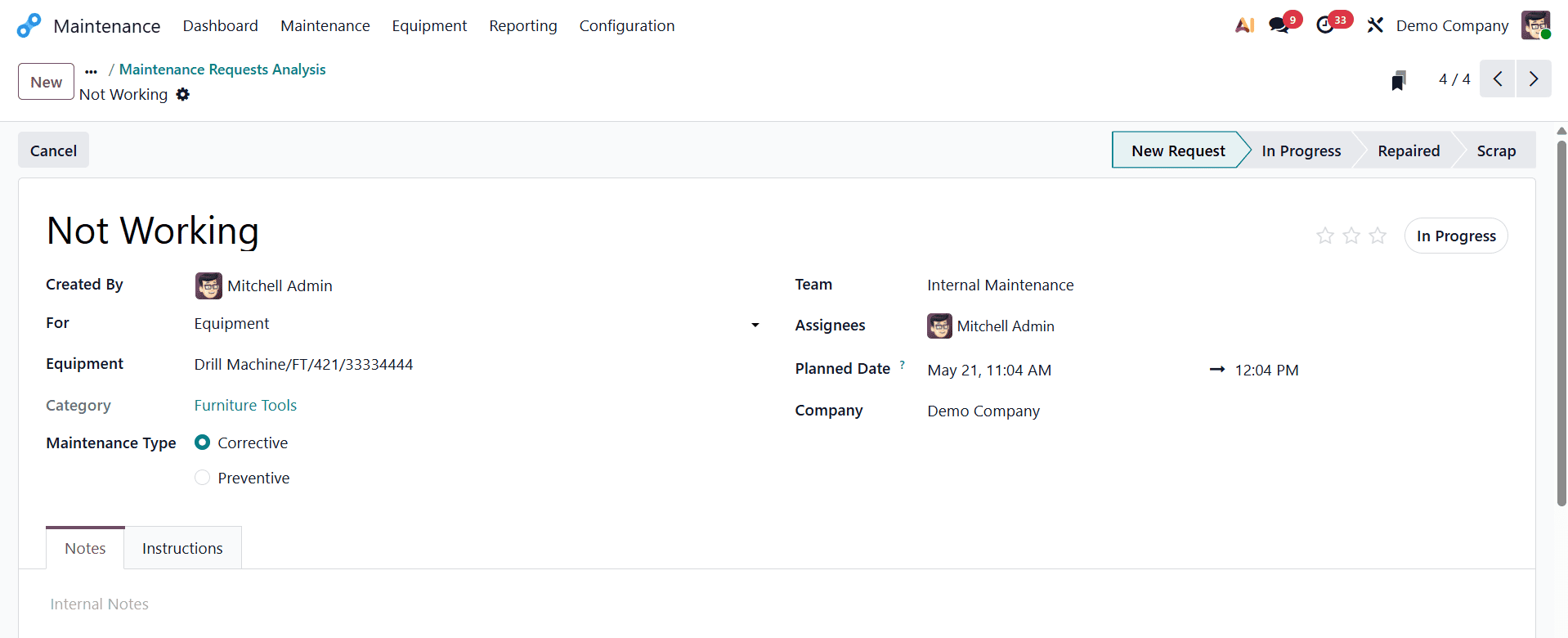
The requirements should be taken into consideration when selecting the type of maintenance. If regular maintenance is necessary for your gadget, you can opt for preventive maintenance. When selecting preventive maintenance, a recurring field appears.
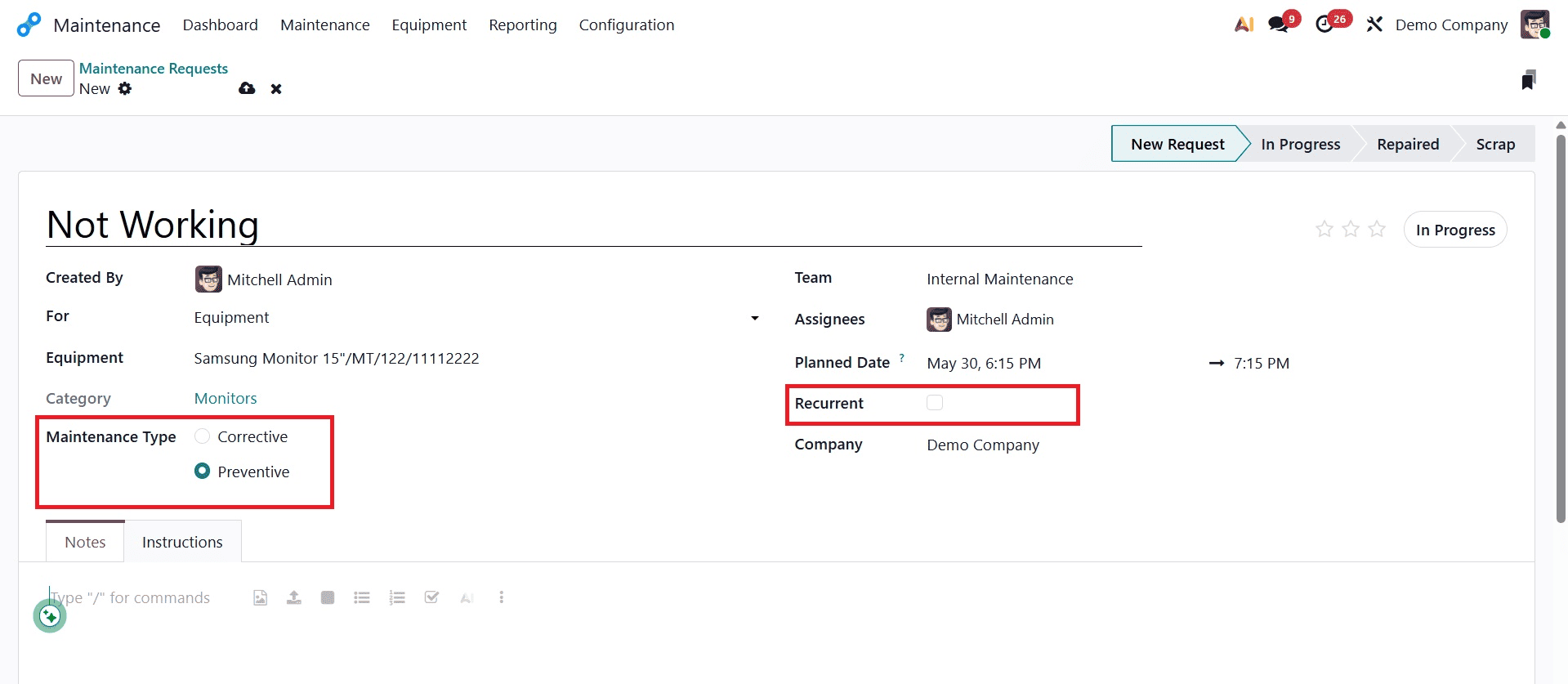
If the equipment only needs maintenance when problems arise, corrective maintenance is a possibility. Corrective maintenance is typically done on an as-needed basis.
The next stage is to select the maintenance crew that will carry out the task and the name of the accountable individual. A time and date can be planned using a clock and calendar. To show how long the maintenance procedure will take, duration might be provided. You can specify the priority of the maintenance by clicking on the stars adjacent to it. By looking at the amount of stars out of three, the maintenance supervisor can assess the importance of the maintenance. You can then type the name of the company.
You can document any internal notes you may have regarding the equipment or the repair under the Internal Notes option. You can save the request by choosing the SAVE option. Your produced request will be displayed with other requests under the selected maintenance team.
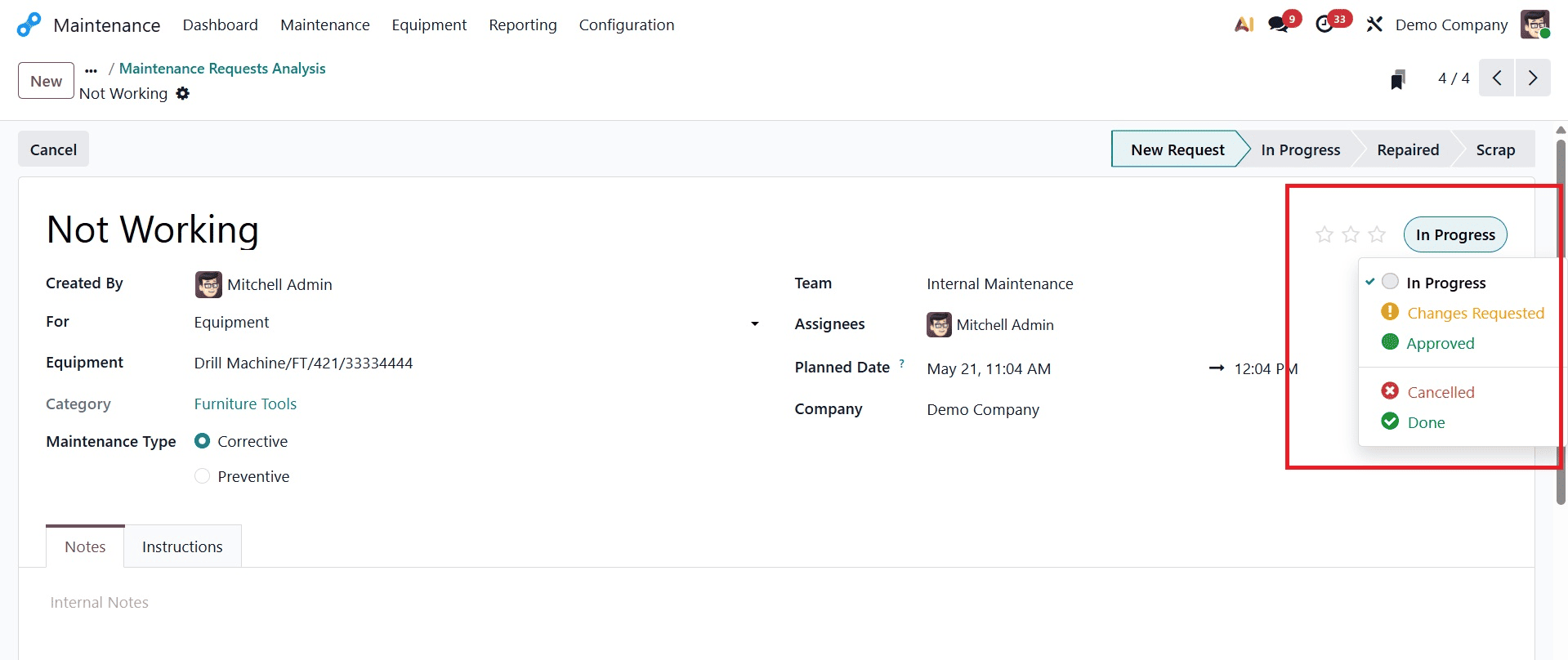
There is a round white button in the form's upper left corner. If the button is white, the activity is underway. The button will turn red or green depending on whether you select Blocked or Ready for Next Stage. You can add the request to one of several categories, such as New Request, In Progress, Repaired, or Scrap, depending on the degree of upkeep.
Modify the phases in accordance with the maintenance request's progress. Change the stage to Repaired once the request has been fulfilled.
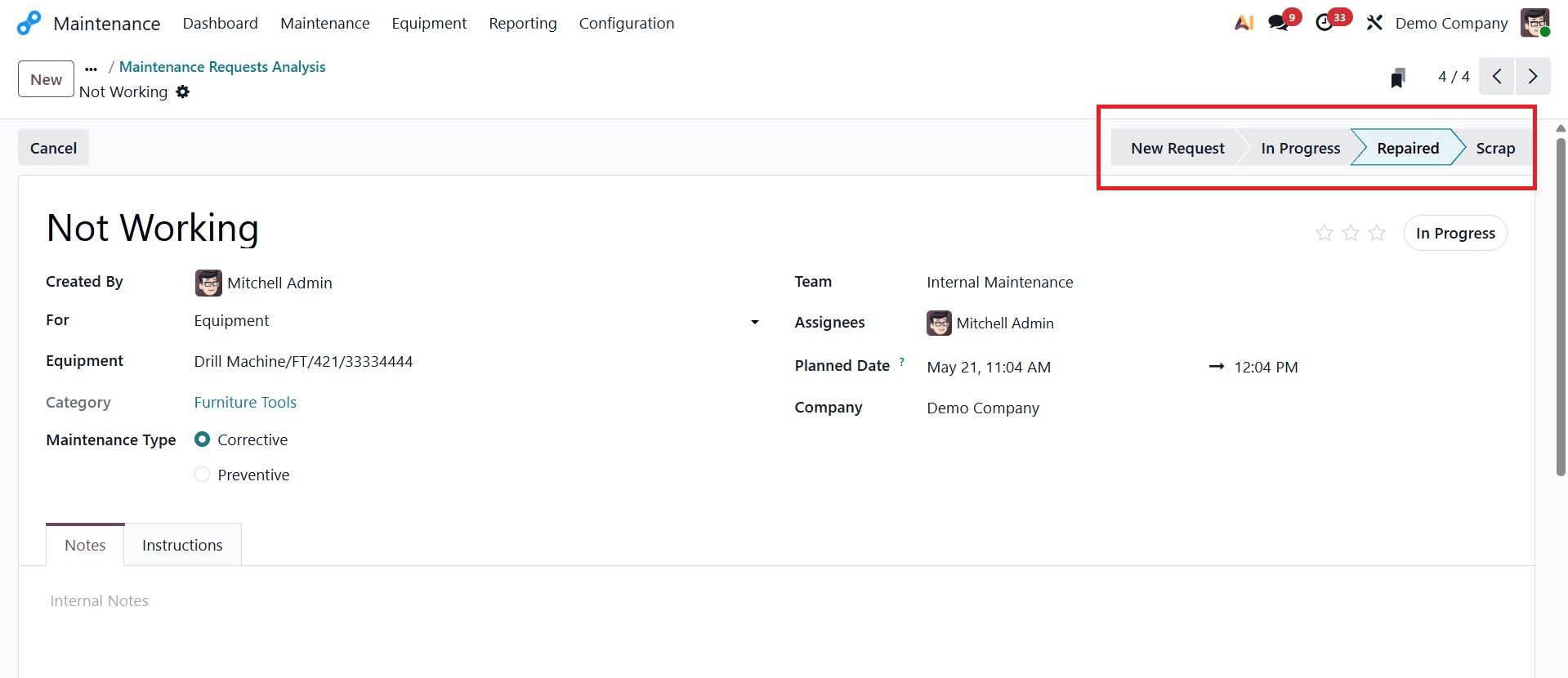
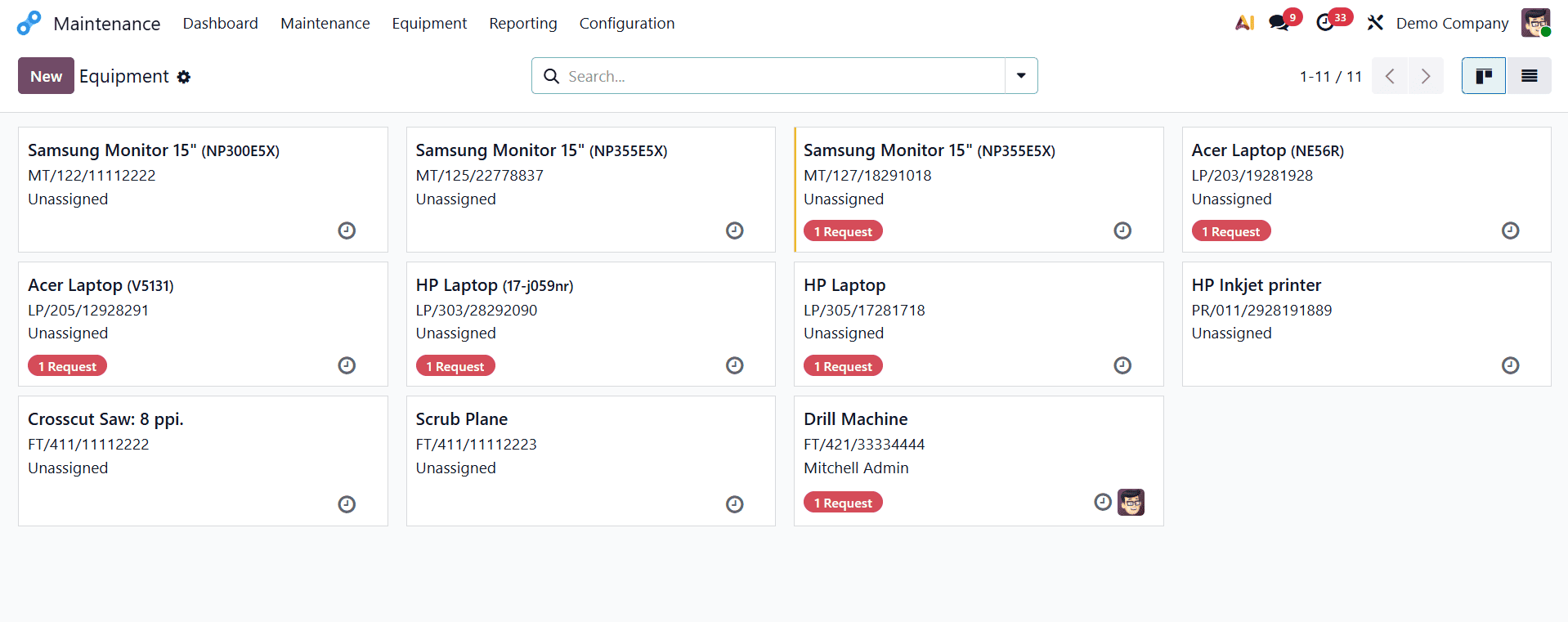
Thus, the equipment drill machine's maintenance requirement has been fulfilled. Let's examine the equipment now. To do that, select Machines & Tools from the Equipment menu. The Drill Machine will then open when you click on it.
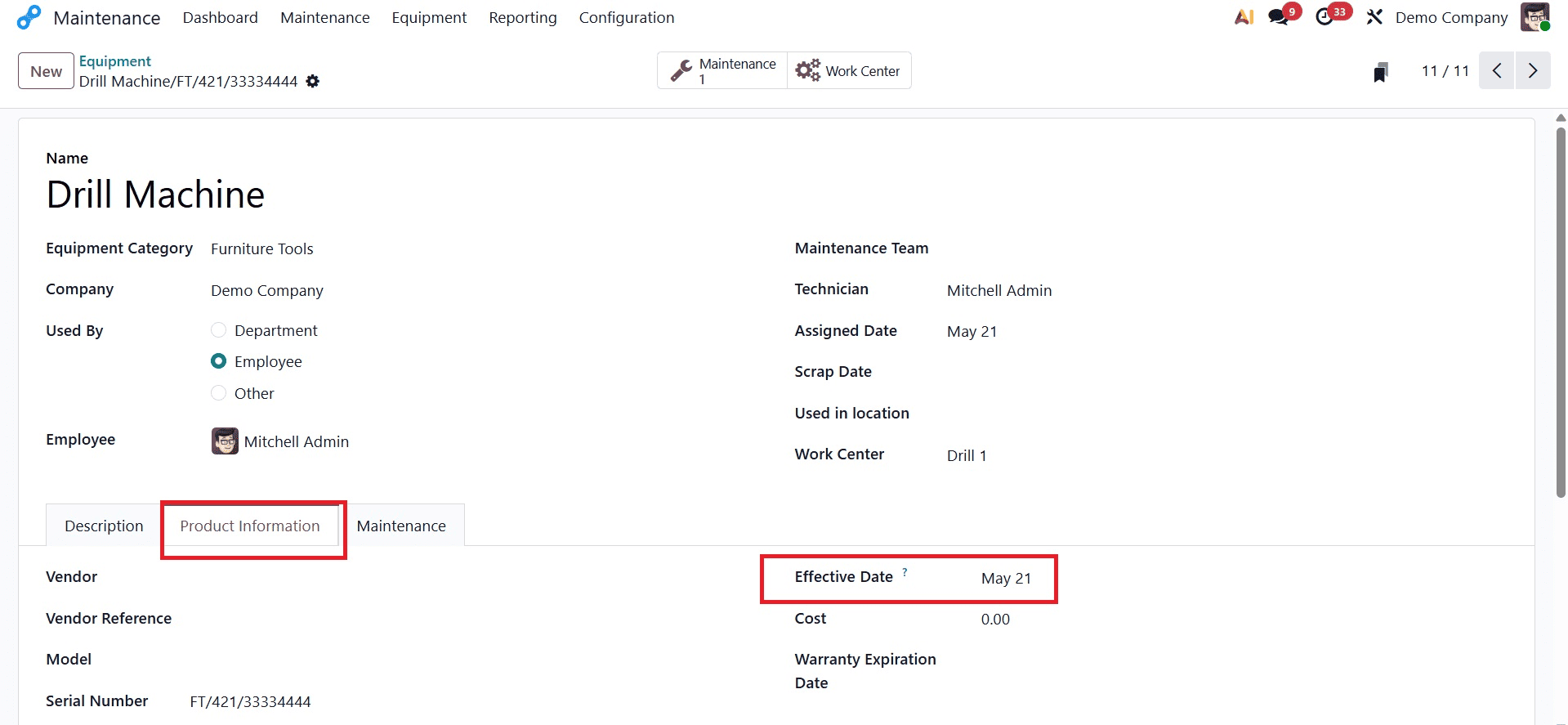
There, the equipment data is displayed. Equipment Type, Organization, Technician, Maintenance Team, Assigned Date, Scrap Date, Location Used, Work Center. The department, employees, and others can utilize the equipment. The equipment's Effective Date is displayed under the Product Information tab. Effective Date (under the Product Information tab of an Equipment record in Odoo Maintenance) refers to the date on which the equipment or its associated product information becomes valid and starts being considered for maintenance tracking, warranty calculations, and reliability metrics. It serves as a reference date for maintenance-related records and equipment lifecycle management.
The Mean Time between Failures will be computed using the effective date.
Maintenance Request from the Manufacturing Order
From the production order, a maintenance request may be made directly. Open the manufacturing module to do that. Select the Manufacturing Order from the Operation menu. After that, a list of manufacturing orders will appear. Open a Manufacturing Order from the list.
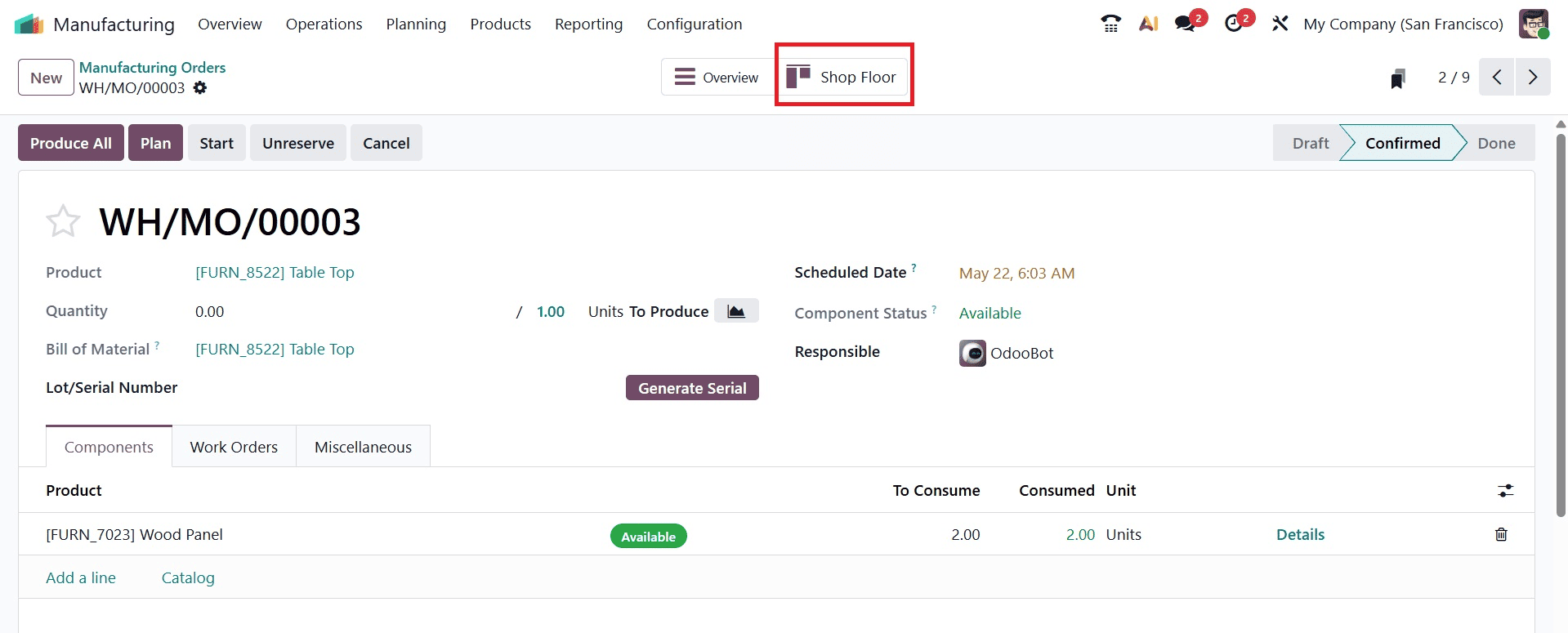
A manufacturing order that is in the Confirmed stage can be seen in the screenshot below. Click on the Shop Floor smart tab. This will take you to the Shop Floor module.
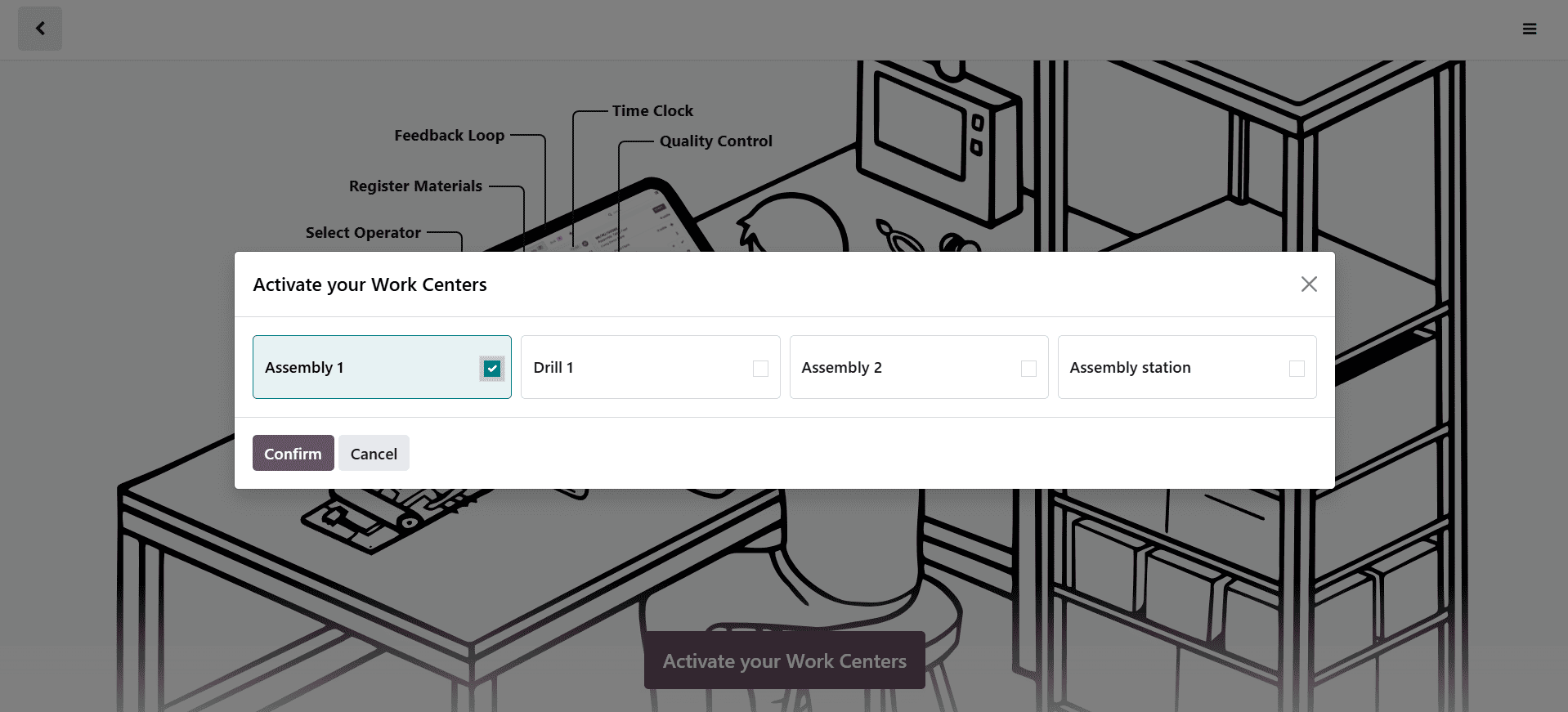
The popup window will then display a list of work centers. Thus, pick the workplace.
The production order will then be displayed on the shop floor. Click on the three dots that is displayed.
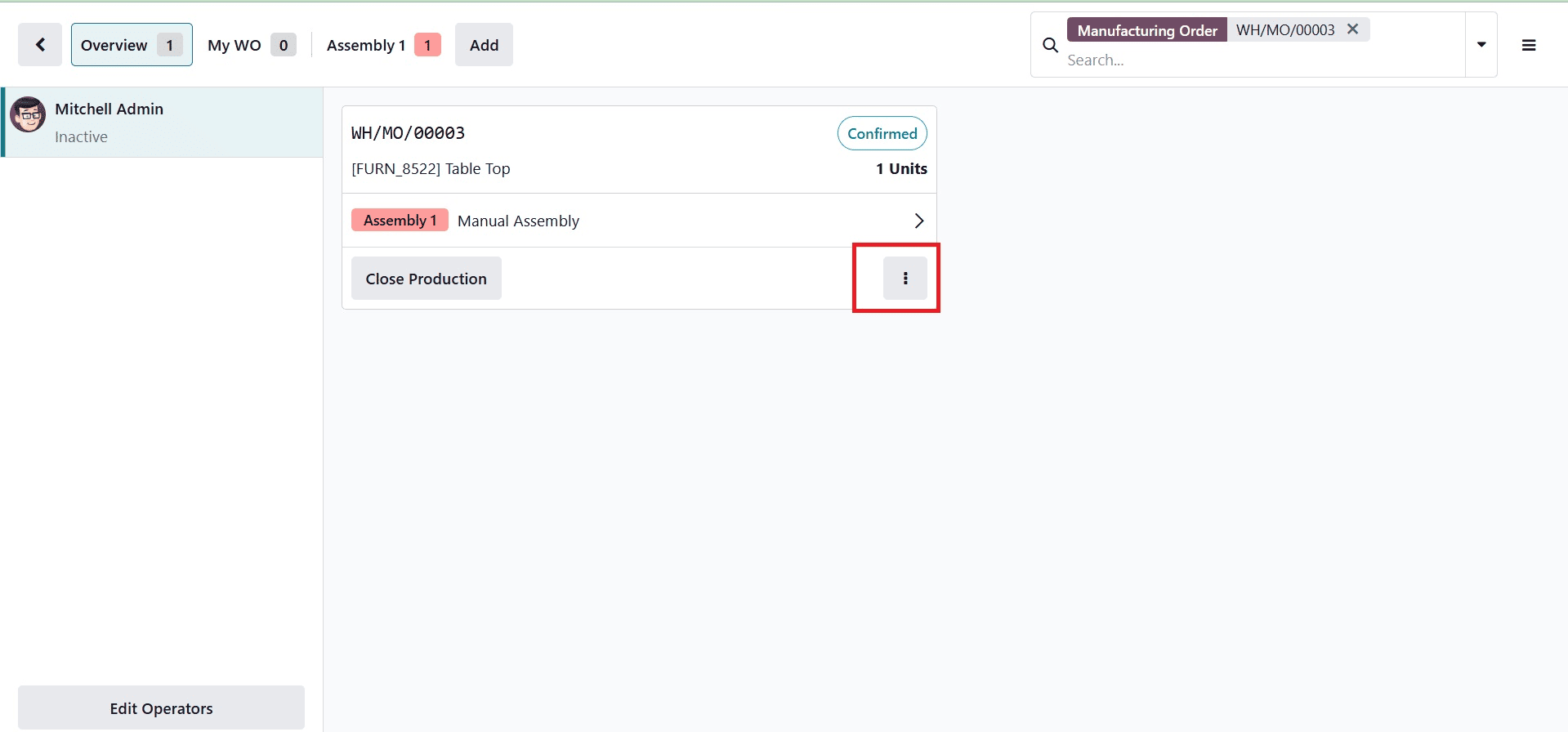
The options displayed in the list are Scrap, Add Component, Open Manufacturing Order, Move to Workcenter, Update Instructions, Create a Quality Alert, and Request Maintenance.
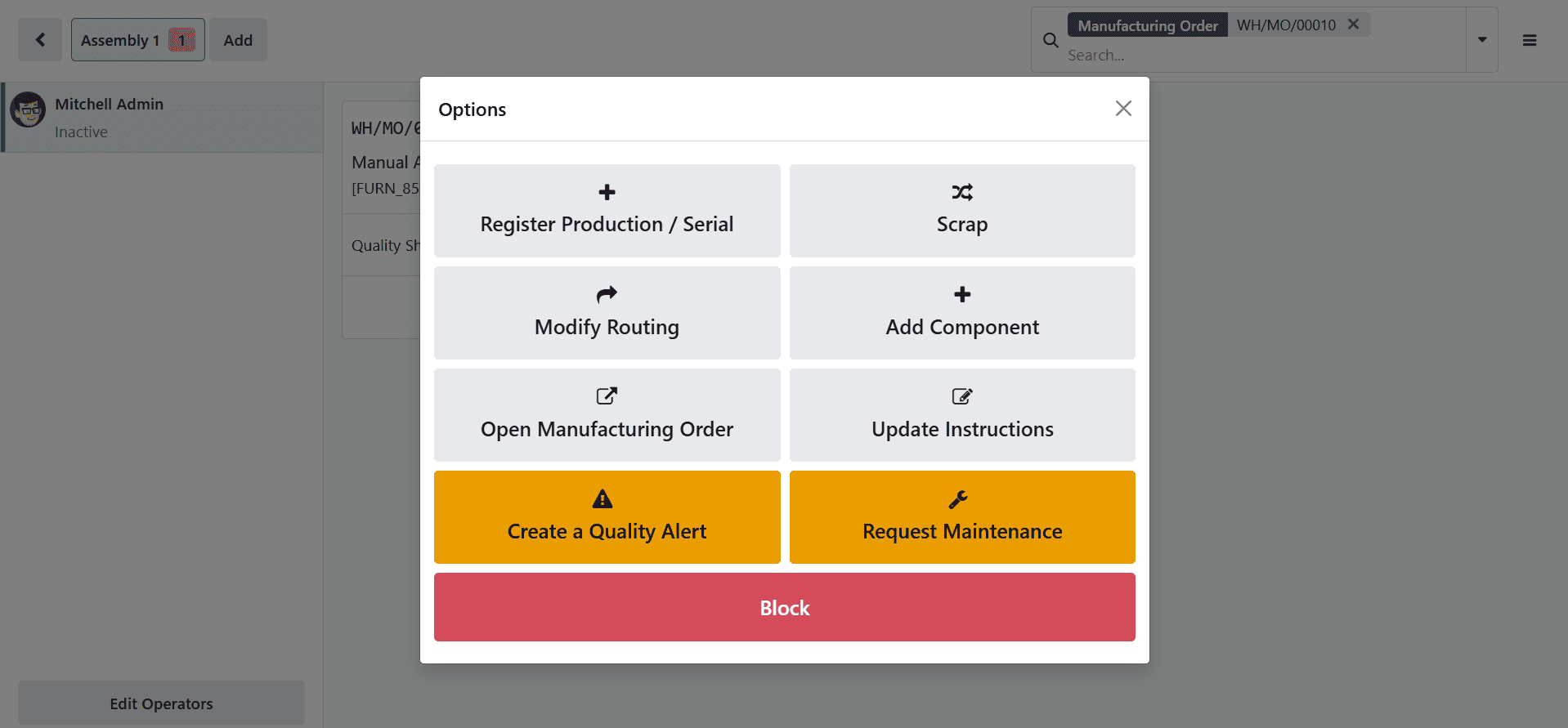
Click the Request Maintenance button to add a new maintenance request. There, a fresh maintenance request will appear. This time, the work center has a maintenance request.
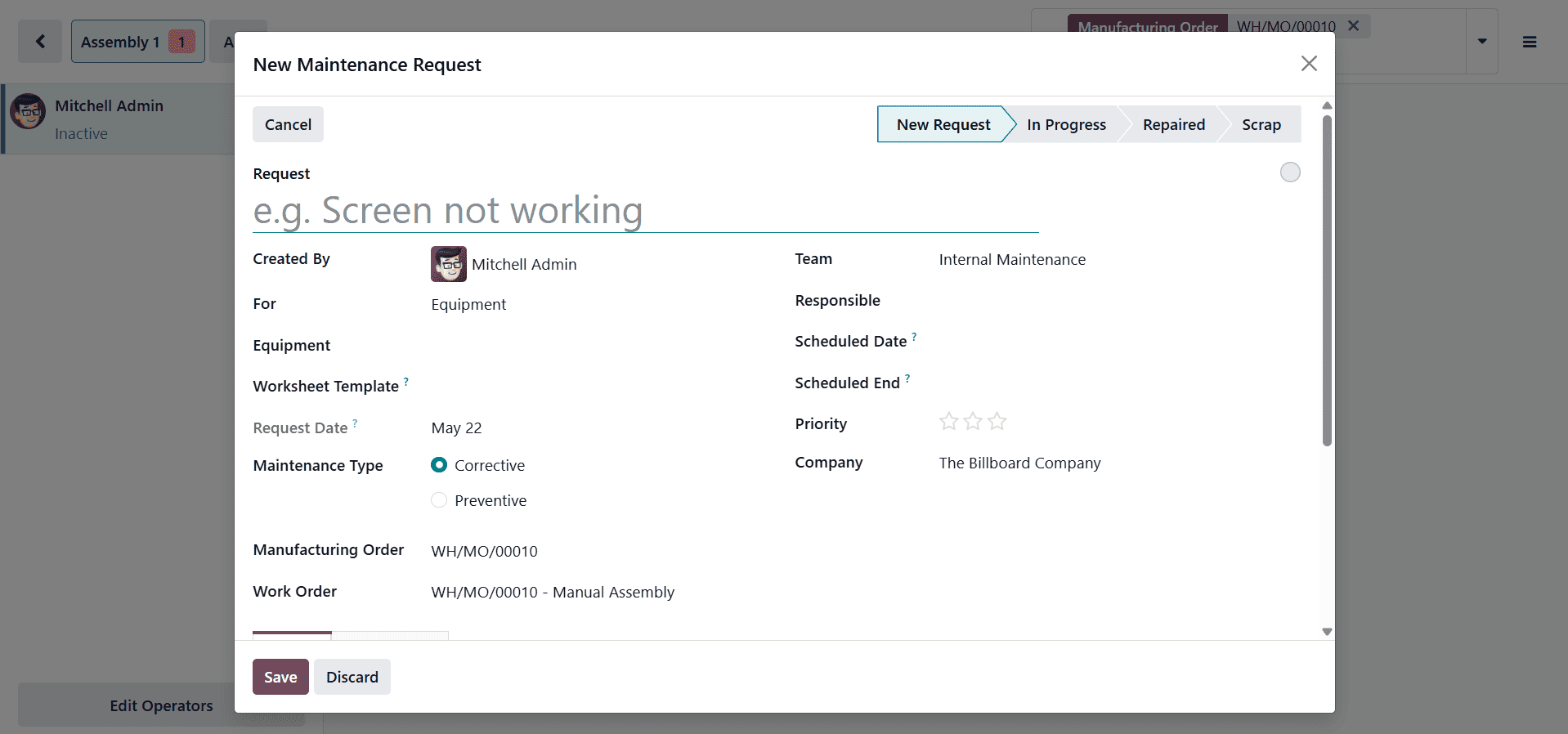
A description of the request has been added. Mitchell Admin is the log-in employee in this case, hence Mitchell Admin created the request. The request instantly updates the work order, manufacturing order, and work center name. The Team, Responsible employee, Scheduled date, Duration, Priority, Email cc, and Company can all be specified by users. Block Workcenter is a check box.
Planning work orders or authoring maintenance on this work center will not be possible if the check box is activated. The maintenance request should be saved.
To select the Maintenance Request, navigate to the Maintenance module and select the Maintenance option. The New Request stage displays the request made from the manufacturing order.
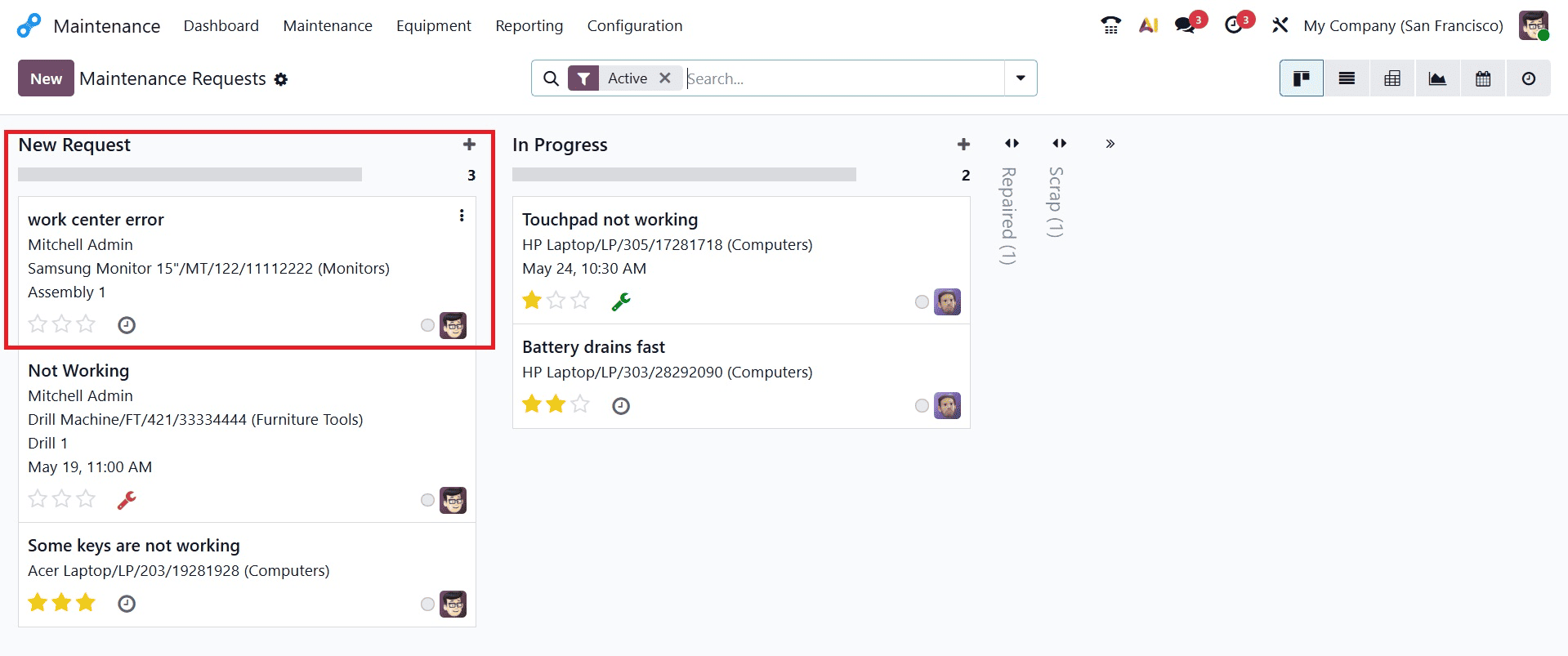
To resolve it, open the request. Change the stage to Repaired, as previously said.
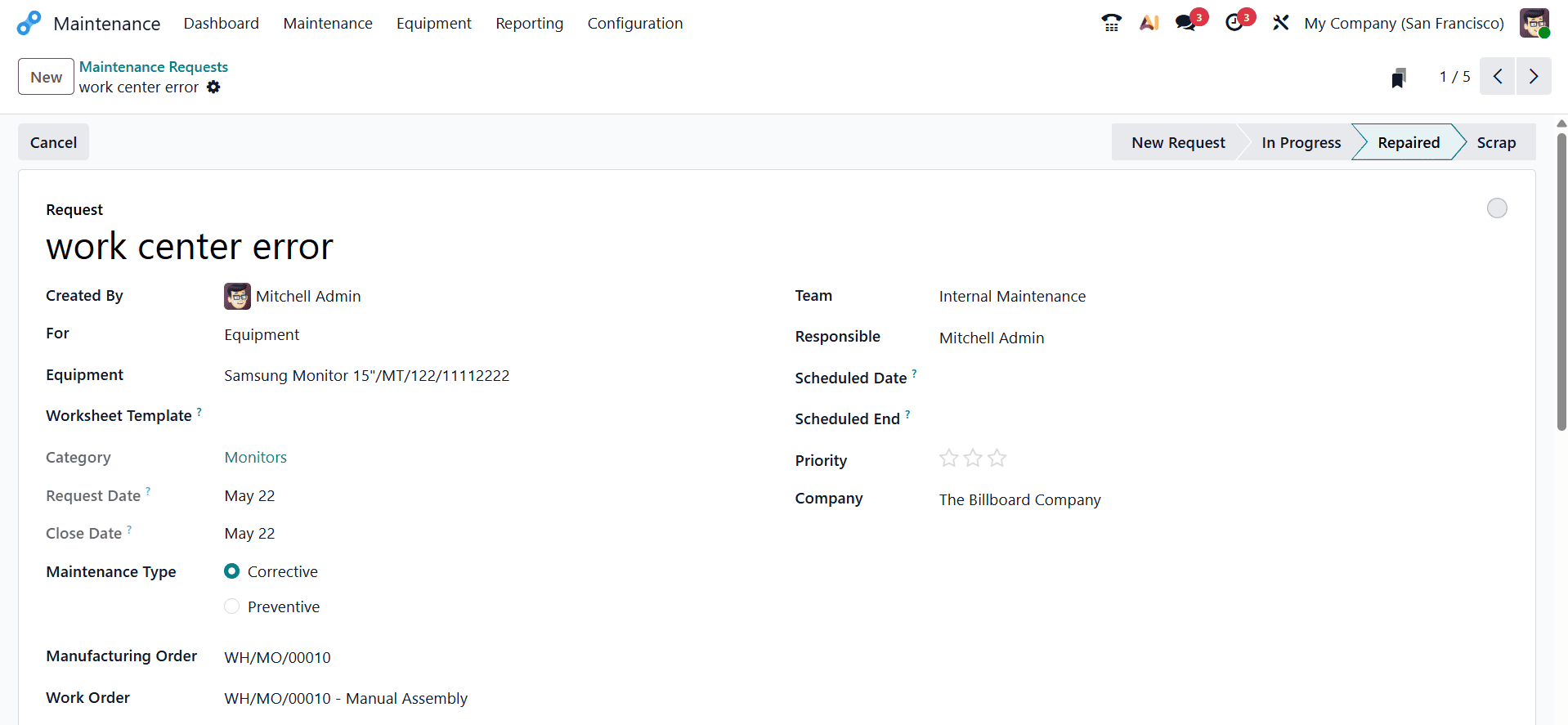
Thus, the manufacturing's maintenance requirement has been fulfilled. The manufacturing process can then be finished by the user. Next, examine the maintenance information by opening the work center. There is a tab called Maintenance in the work center. All of the information regarding work center maintenance is displayed within the maintenance tab.
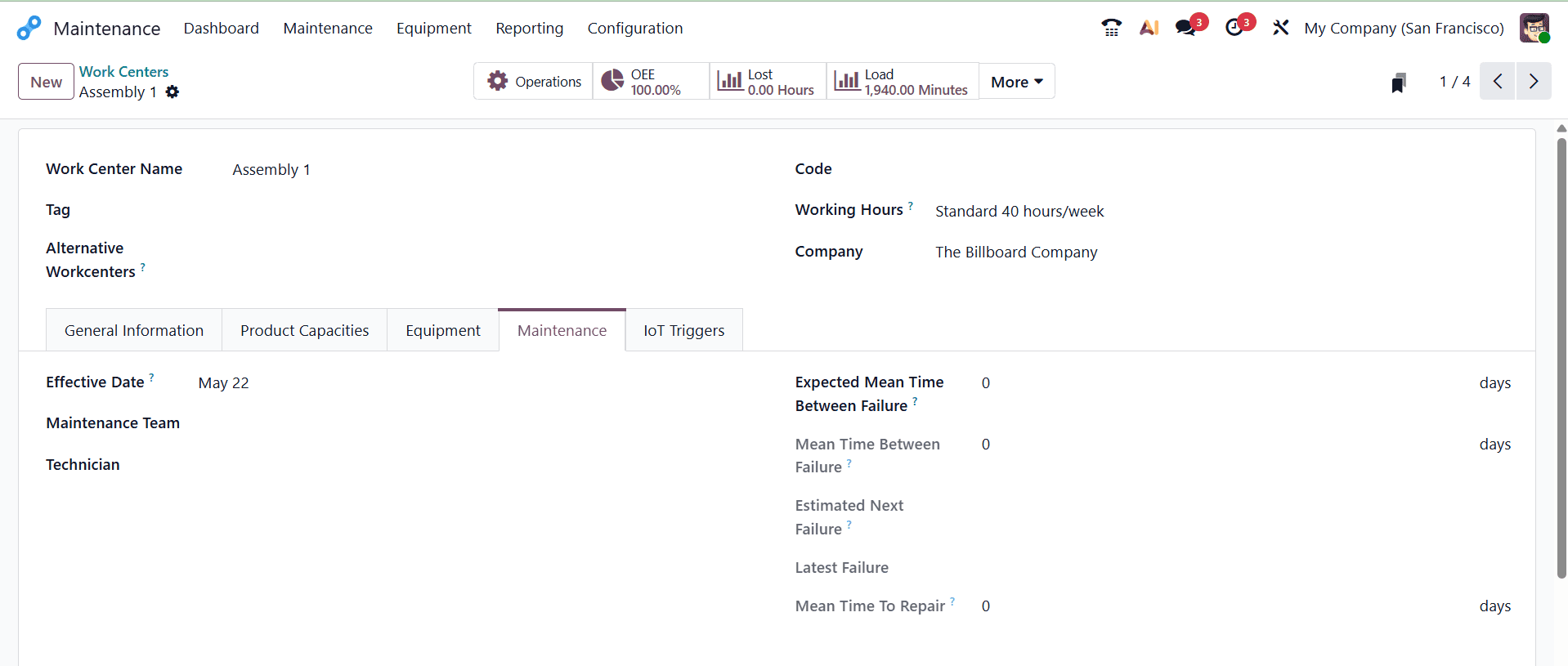
It shows the Effective date, Maintenance Team, Technician, Estimated Next Failure, Latest Failure, Mean Time To Repair, and Expected Mean Time Between Failure.
- Effective Date: The date from which the maintenance statistics and calculations for the work center become applicable or effective.
- Maintenance Team: The maintenance team responsible for handling preventive and corrective maintenance activities for the work center.
- Technician: The maintenance technician assigned to monitor, inspect, and repair equipment associated with the work center.
- Estimated Next Failure: The predicted date or time when the next equipment failure is expected to occur based on historical maintenance data and failure trends.
- Latest Failure: The date and time when the most recent equipment breakdown or failure occurred in the work center.
- Mean Time To Repair (MTTR): The average amount of time required to repair equipment and restore it to normal operation after a failure.
- Expected Mean Time Between Failure (MTBF): The estimated average operating time between two consecutive equipment failures, used to evaluate equipment reliability and plan preventive maintenance.
As you can see, submitting a maintenance ticket is made easy with the Odoo 19 Maintenance module. Quickly requesting repairs, clearing up any ambiguities, and correctly assigning the maintenance assignment to the solution should be the key objectives of maintenance management. Odoo's Maintenance module can be used to accomplish all of them. If tasks are finished on time, downtime can be reduced and the company's resources and equipment will operate as intended. All of this contributes to ineffective business operations, and you can save money with the Odoo 19 Maintenance module.
To read more about How to Manage Maintenance Requests in Odoo 18, refer to our blog How to Manage Maintenance Requests in Odoo 18.