Managing accounting documents often involves handling numerous invoices, bills, receipts, and other financial records. When these documents are processed manually, it requires significant time and effort, and it can also lead to data entry errors. To improve efficiency and accuracy in financial operations, Odoo 19 Accounting provides a powerful Document Digitization feature that helps businesses convert physical and digital documents into structured records within the system.
Document digitization refers to the process of transforming paper-based or digital documents into database records that can be processed and managed directly in Odoo. Instead of manually entering information from invoices or bills, users can upload scanned documents, images, or PDF files to the system. Using Artificial Intelligence (AI) and Optical Character Recognition (OCR) technologies, Odoo analyzes the uploaded documents and automatically extracts key information from them.
The Document Digitization feature in Odoo 19 Accounting intelligently reads the content of uploaded documents and identifies important details such as vendor names, invoice numbers, dates, product lines, taxes, and totals. Based on both the document’s content and the accounting data already available in the system, Odoo automatically creates and fills in the corresponding accounting records. This feature is primarily used for processing vendor bills and vendor refunds, enabling organizations to quickly convert supplier documents into accurate accounting entries. By simply uploading the document, Odoo can interpret the information and prepare the corresponding bill in the accounting module, which users can then review and validate.
Although vendor-related documents are the most common use case, the document digitization process can also be applied to customer invoices and credit notes when the system settings are configured accordingly. By integrating AI-driven data extraction with OCR technology, Odoo 19 helps businesses move toward a more organized and paperless accounting system, ensuring better document management, improved data accuracy, and a more streamlined financial workflow.
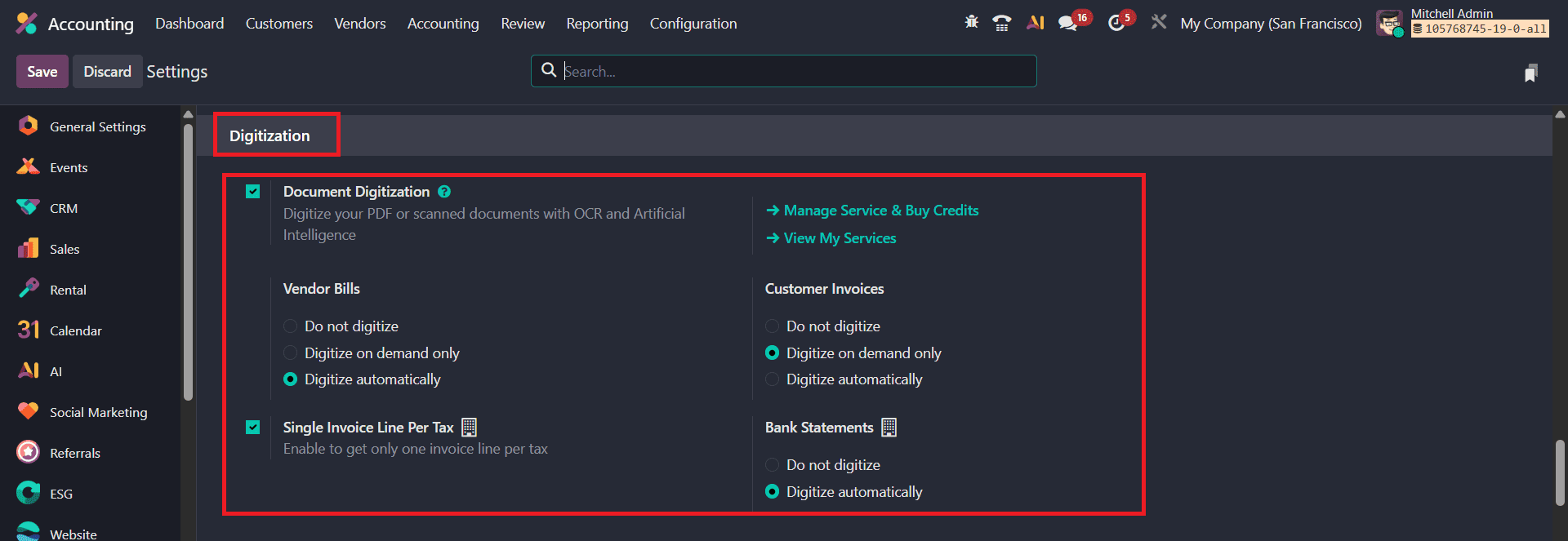
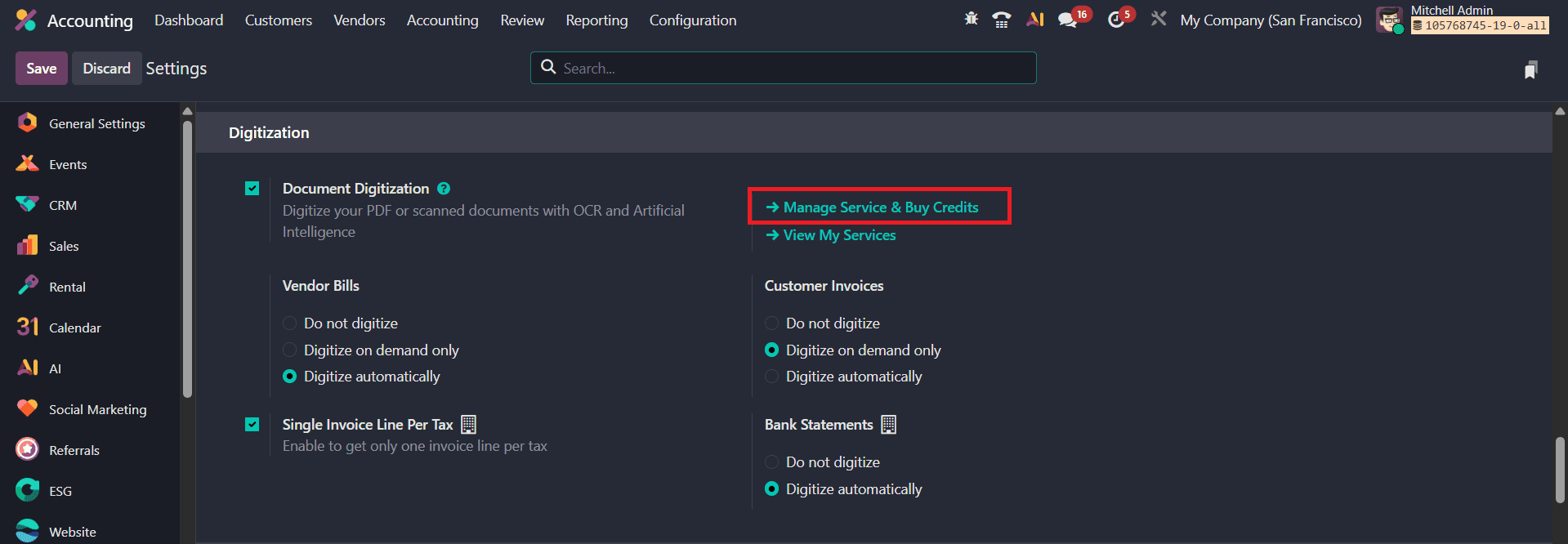
To enable this feature, navigate to Accounting > Configuration > Settings. In the Document Digitization section, users can configure how the system should process uploaded documents by selecting one of the available options:
- Do Not Digitize - Disables OCR processing for documents.
- Digitize on Demand Only - Documents are processed only when users manually request digitization.
- Digitize Automatically - The system automatically detects and digitizes uploaded or received documents.
After enabling the feature, users can upload invoices or bills directly by clicking the Upload button on the Customer Invoices or Vendor Bills pages. Alternatively, documents can be sent to Odoo through a configured email alias, allowing them to be automatically received and processed by the system. Additionally, if the Single Invoice Line Per Tax option is enabled, Odoo will create only one line per tax in the generated vendor bill, regardless of how many lines appear in the original document.
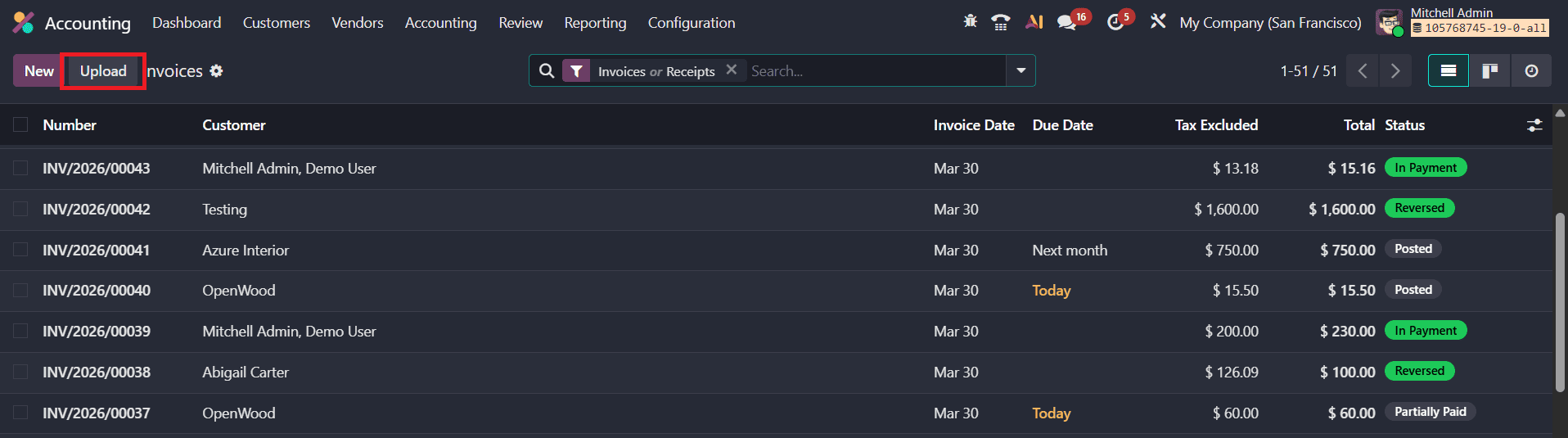
From the Accounting Dashboard, users can directly upload vendor bills by dragging and dropping the documents into the desired Purchase Journal. Alternatively, they can open the Purchase Journal and click the Upload button to add the vendor bills for processing. Once uploaded, Odoo processes the document through the configured digitization settings and extracts the relevant information, such as partner details, dates, amounts, and taxes automatically.
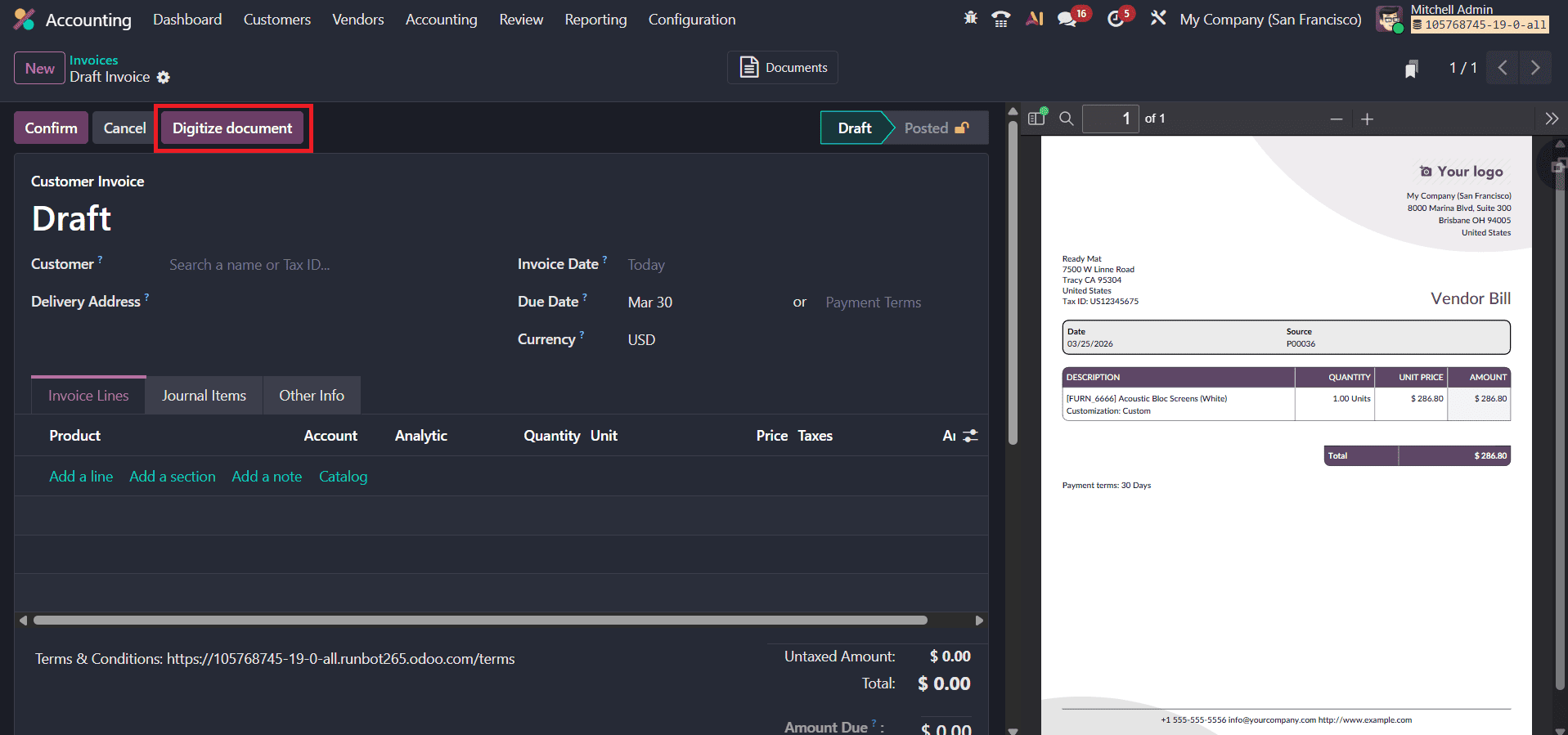
For users who prefer to review the document before finalizing, the Digitize Document button allows manual verification and editing of extracted data before posting it.
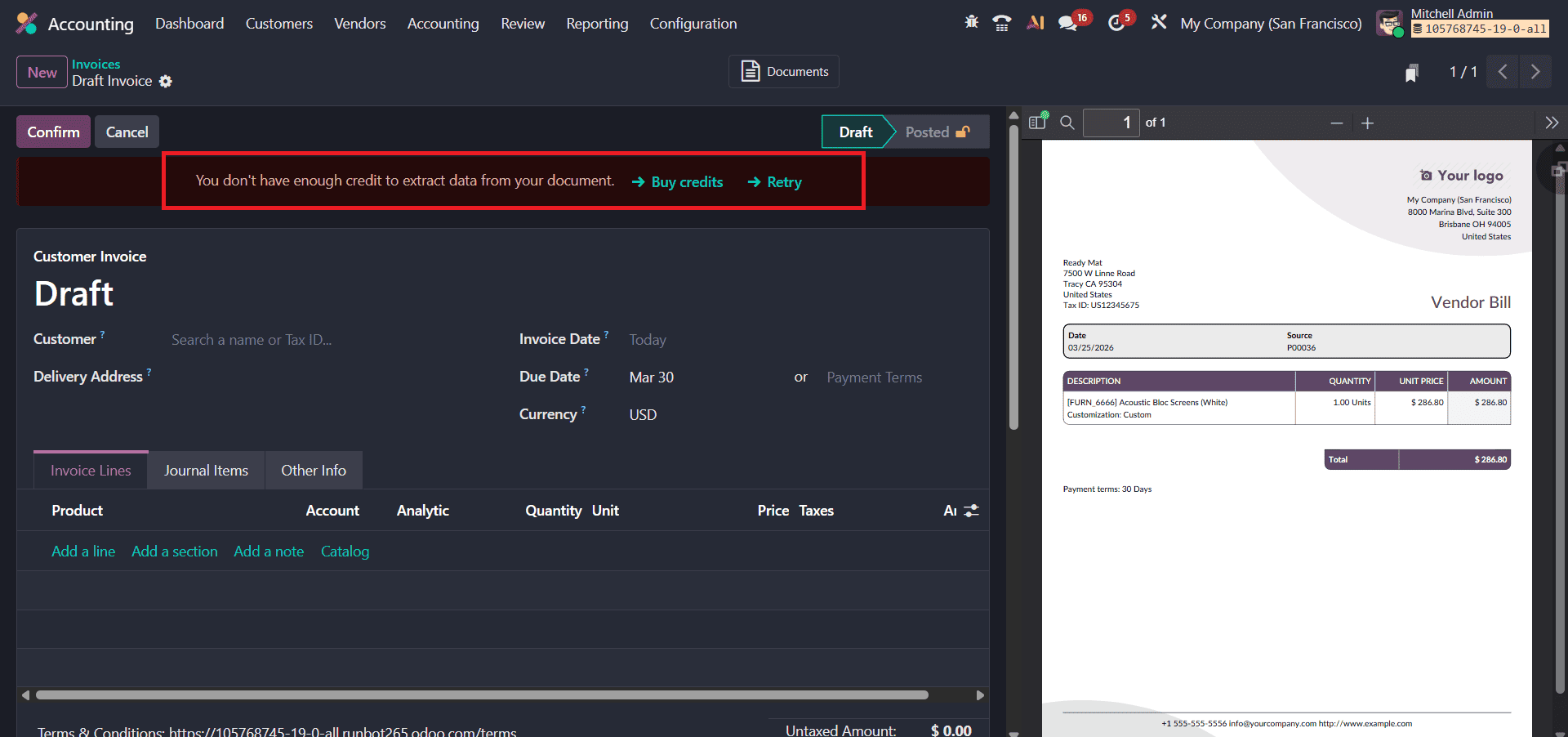
It’s important to note that this functionality operates on a credit-based system, meaning that digitization credits must be purchased to process and extract data from scanned or PDF documents. The document digitization feature is an In-App Purchase (IAP) service that requires prepaid credits. Each document digitized consumes one credit.
To purchase credits, go to the Settings app or navigate to Accounting > Configuration > Settings. In the Digitization section, click Buy Credits to add more.
After purchasing the credits, you can upload the bill and click the Digitize Document button to process the document.
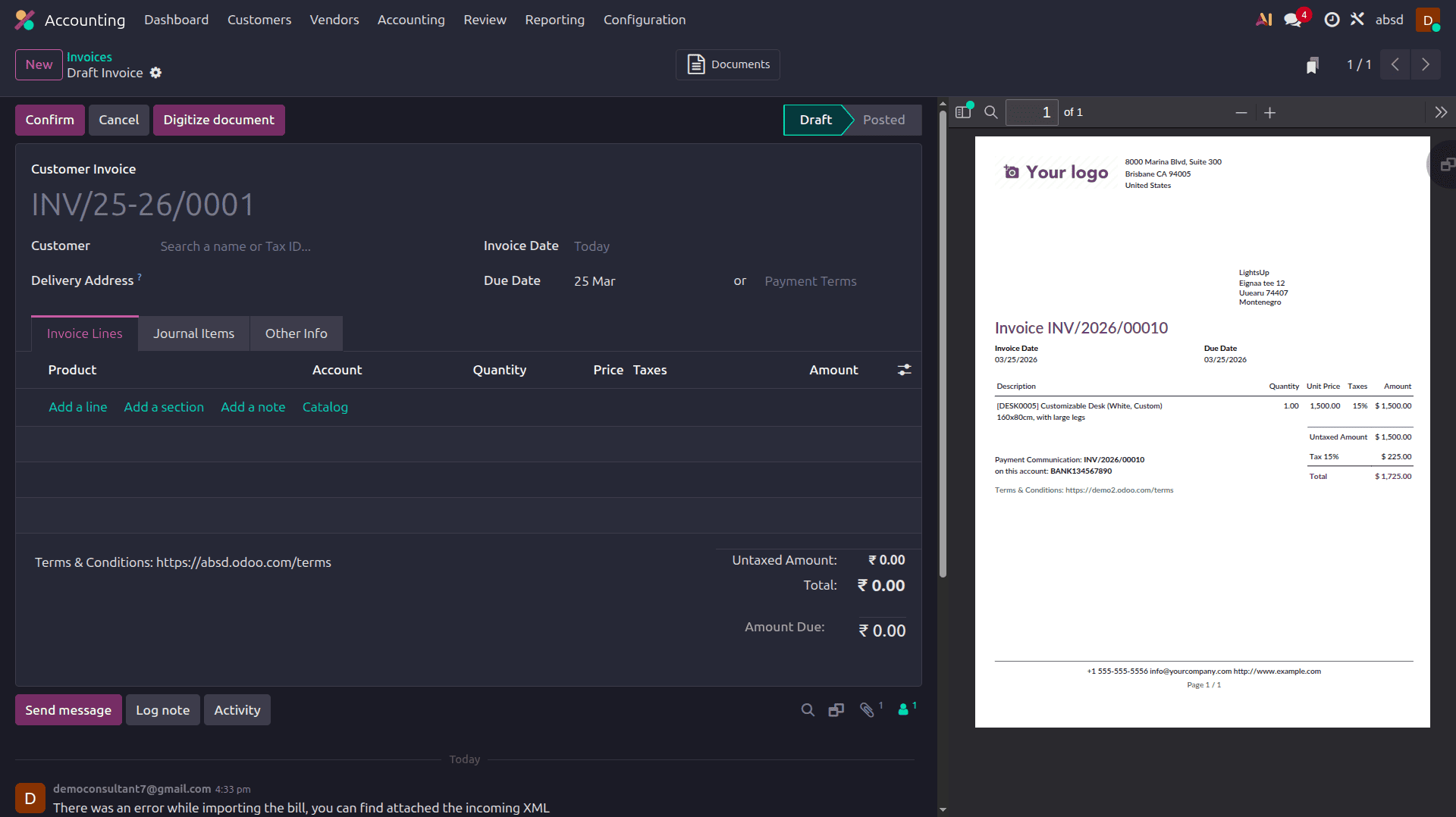
Once the bill is uploaded, a preview of the document appears on the right side of the screen.
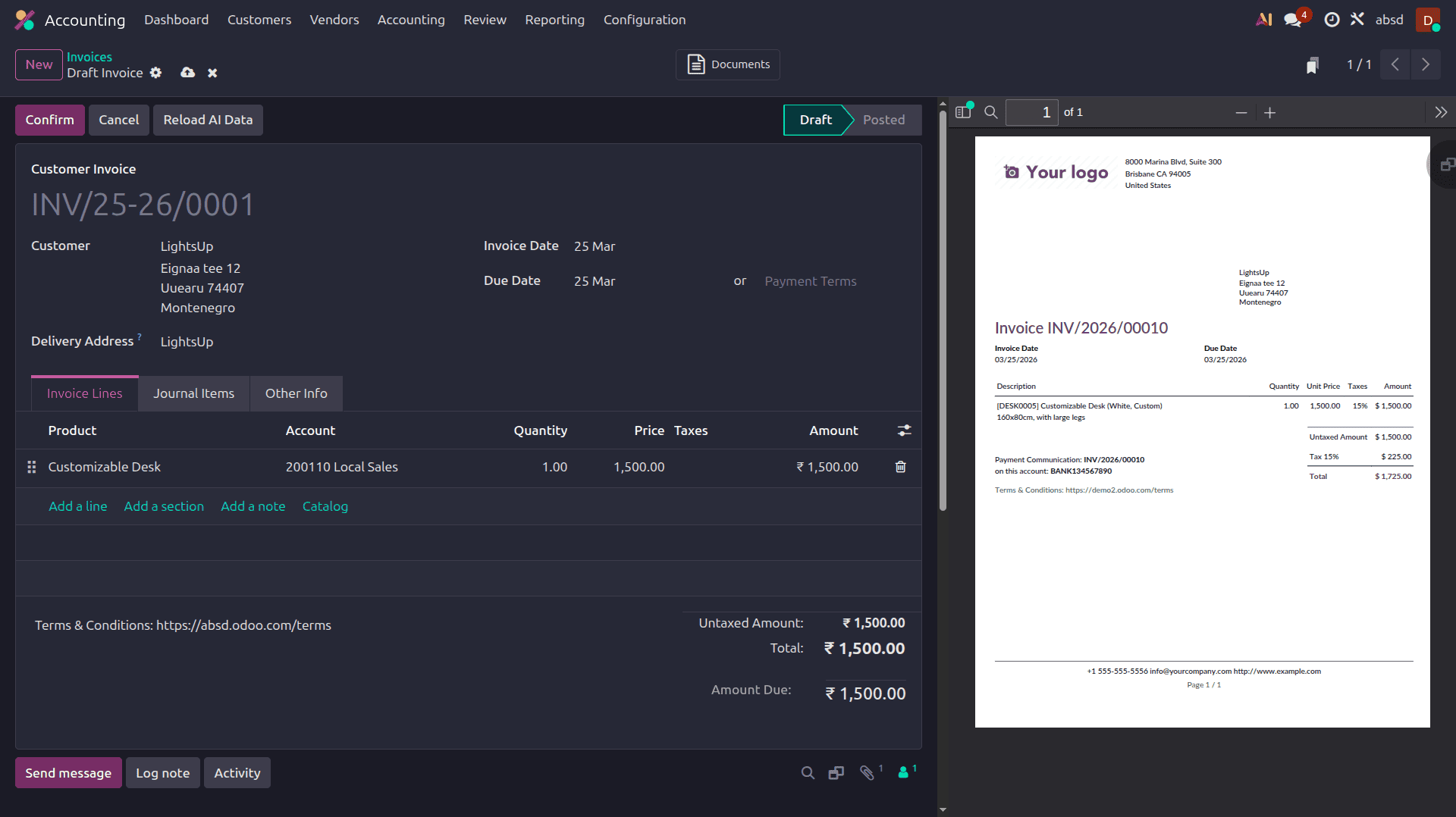
Once the document has been digitized, click Refresh and review the information extracted during digitization. If needed, correct any details by clicking on the related fields to edit them, or click Reload AI Data to refresh the extracted information. After verifying the details, click Confirm to post the document.
All digitized data is stored securely in your Odoo 19 database, making retrieval and audit tracking simple and efficient. The document digitization feature in Odoo simplifies the process of managing vendor bills by automatically extracting key information from uploaded documents. This reduces manual data entry, improves accuracy, and speeds up the accounting workflow. By reviewing the extracted details and confirming the document, users can efficiently record bills while maintaining organized and accurate financial records.
To read more about How to Set Up and Use Default Accounts in Odoo 19 Accounting, refer to our blog How to Set Up and Use Default Accounts in Odoo 19 Accounting.