Effective financial management in any business depends on maintaining a well-organized system for recording and monitoring financial activities such as income, expenses, assets, and liabilities. This is achieved through the use of accounts that categorize every transaction performed by the organization. To structure these accounts systematically, businesses rely on a Chart of Accounts (COA), which serves as a comprehensive list of all accounts used in the general ledger. A properly organized COA provides a clear framework that helps ensure accurate financial recording, reporting, and analysis.
In Odoo 19 Accounting, the system includes a predefined chart of accounts that is tailored to different countries and business environments. This default setup contains commonly used account types such as income, expenses, receivables, payables, and bank accounts, allowing companies to begin managing their finances quickly and efficiently. As business operations grow and evolve, users can easily customize the chart of accounts by creating new accounts or modifying existing ones to match their specific operational and regulatory requirements. Odoo’s modular and flexible architecture ensures that organizations can scale their accounting structure without interrupting their ongoing financial workflows.
Among the key elements of this structure are default accounts, which play an essential role in automating financial transactions within the system. These accounts are preassigned to streamline processes such as tax postings, inventory valuation, and customer or vendor transactions, ensuring that entries are recorded consistently and accurately. This blog explores how to understand and use default accounts in Odoo 19 Accounting, providing a step-by-step overview of how they can be configured and managed through the Chart of Accounts under the Configuration menu in the Accounting module.
Chart of Accounts
In Odoo 19 Accounting, the Chart of Accounts (COA) forms the core of a company’s financial framework. It acts as a centralized and systematically organized list of all accounts used to categorize and record every financial transaction within the business. By structuring financial data in this way, the chart of accounts ensures that transactions are recorded consistently and can be easily analyzed through financial reports such as balance sheets and profit and loss statements. In Odoo, users can access the Chart of Accounts by navigating to Accounting > Configuration > Chart of Accounts, where all existing accounts of the company are displayed and managed.
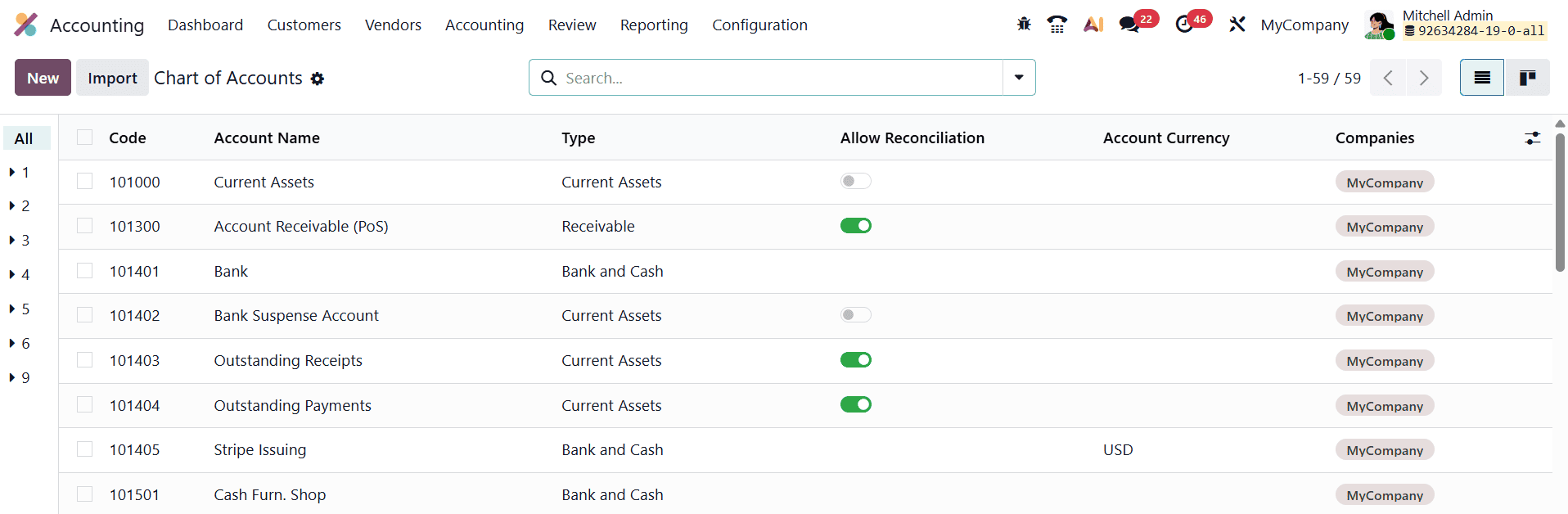
When you open the Chart of Accounts window, the accounts appear in an interactive grid view. This view provides essential information about each account, including the Account Code, Name, Type, Currency, and Company associated with it. Among these fields, the Account Type is particularly significant because it determines how the account behaves within the accounting system. It defines how the account appears in financial reports, what rules apply during fiscal year closing, and whether the account allows reconciliation. Reconciliation is especially important for accounts such as receivables and payables, as it enables businesses to link invoices with their corresponding payments and maintain accurate financial records.
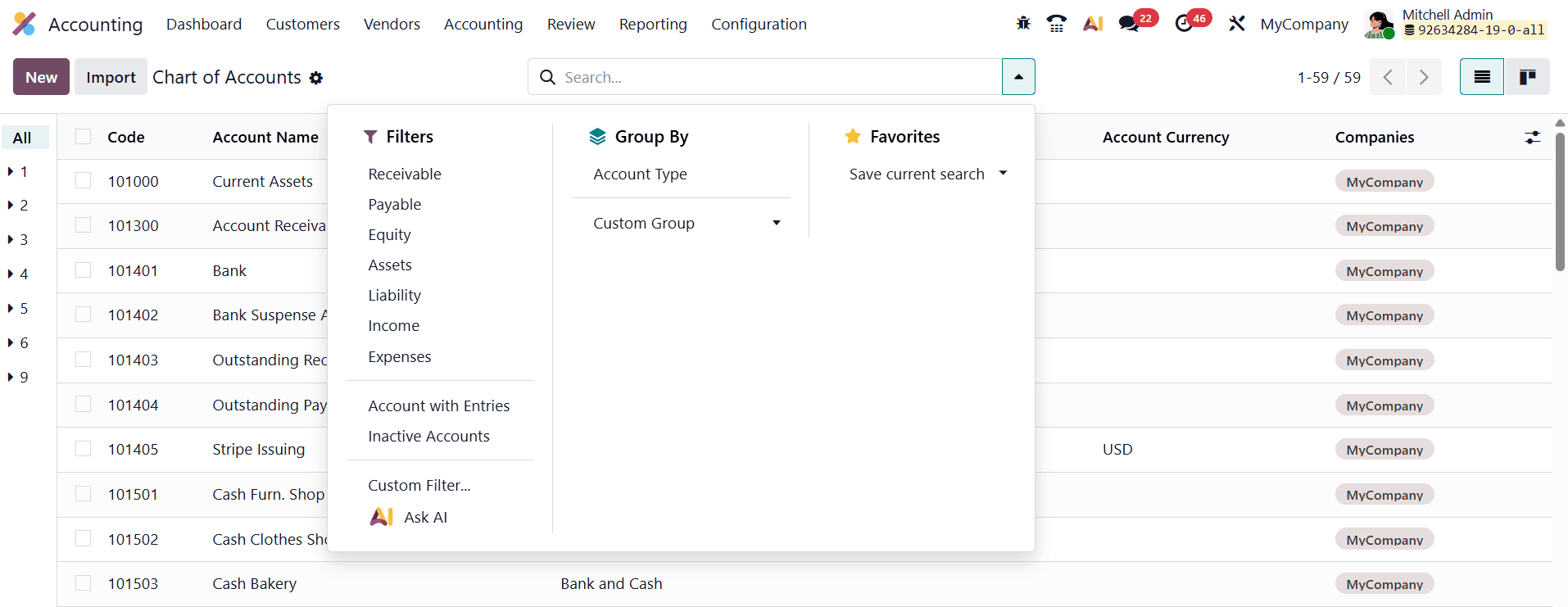
To make navigation easier, Odoo provides several built-in filters, such as Receivable, Payable, Assets, Liabilities, Income, Expenses, and Equity, allowing users to quickly locate specific categories of accounts. In addition to these predefined filters, users can apply custom filters and group accounts based on various criteria, offering a flexible way to segment financial data and analyze it efficiently without exporting it to external spreadsheets.
If a business needs to create a new account, it can do so by clicking the New button in the Chart of Accounts window.
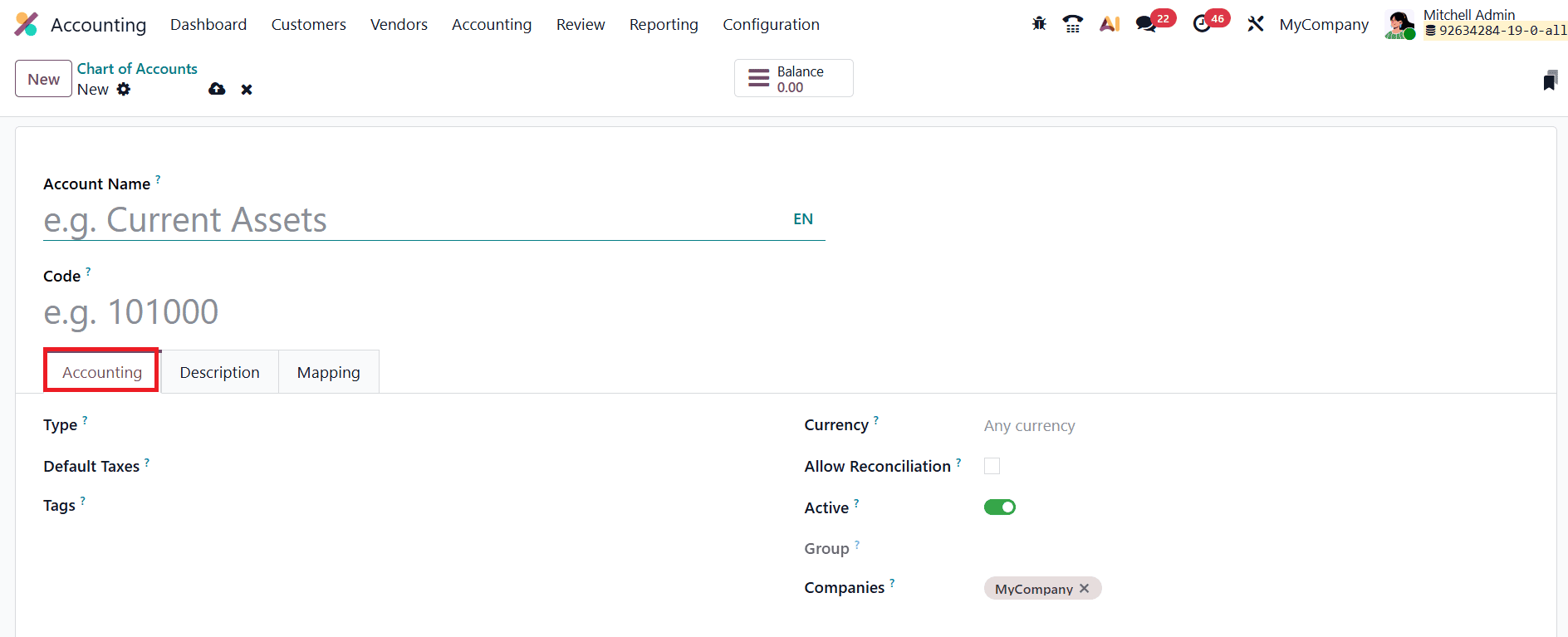
When creating an account, users must provide several key details, including the Account Code, which acts as a unique identifier for the account and helps track it easily in reports and transactions. The Account Name serves as a descriptive label that clearly indicates the purpose of the account within the organization’s financial structure. The Account Type determines how the account is classified and how it behaves in financial statements such as the balance sheet or income statement. Additionally, users can assign Tags to accounts, which function as custom labels that help categorize accounts and simplify the generation of analytical and financial reports. The Default Taxes field allows users to define the tax rate that will automatically apply when the account is used in financial transactions, ensuring consistency in tax calculations. Enabling the Allow Reconciliation option permits the account to reconcile journal entries with corresponding invoices or payments. This feature is essential for monitoring outstanding balances and maintaining accurate financial reconciliation within the system.
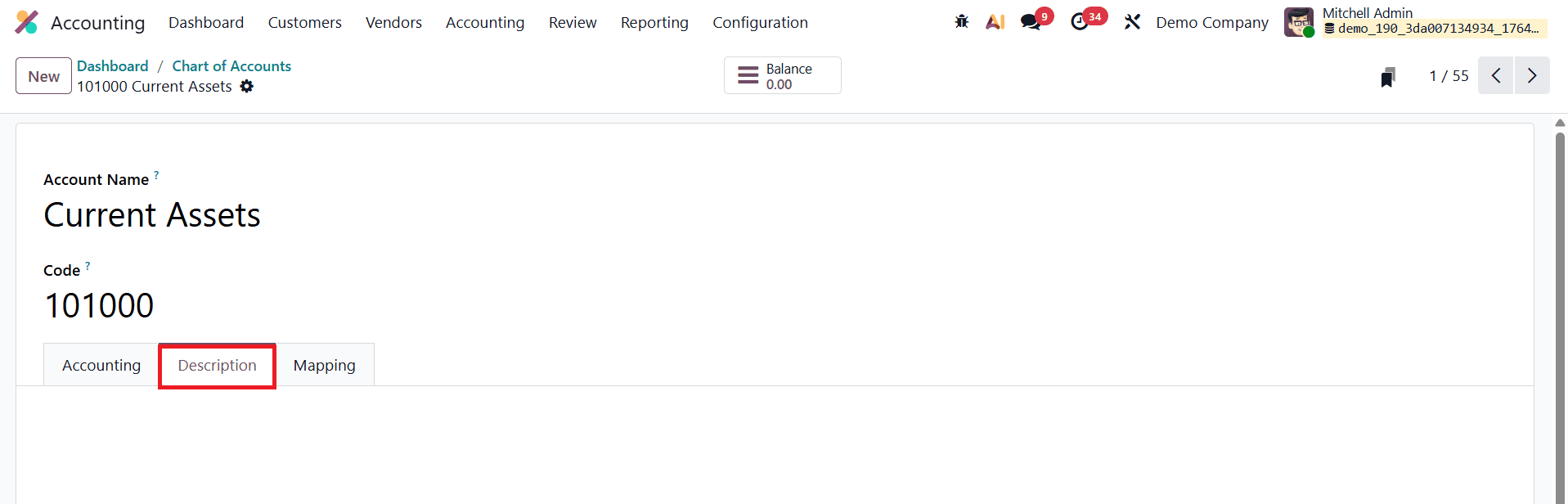
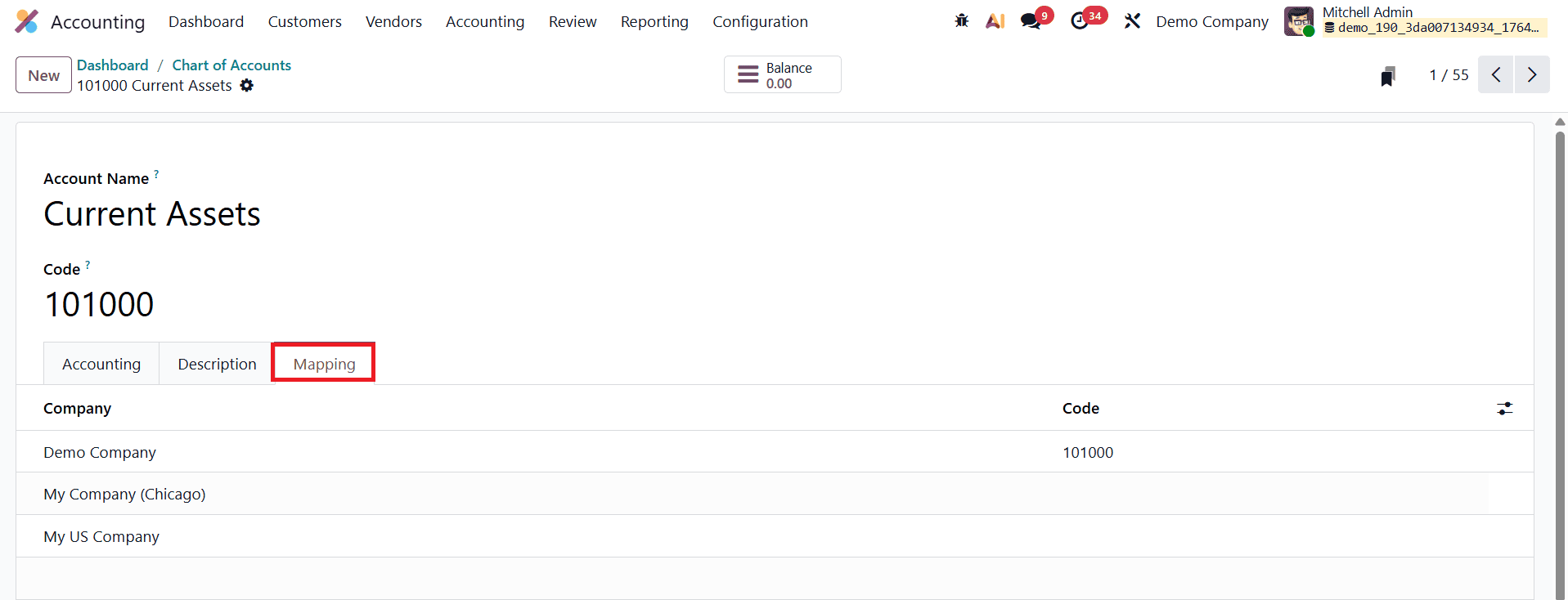
Odoo also allows users to add more context to an account through the Description tab, where additional notes or explanations about the account can be recorded. This is particularly helpful for clarifying the account’s purpose or providing internal guidance for accounting teams. Furthermore, Odoo 19 includes an Account Mapping feature, which is especially useful for companies operating multiple subsidiaries or managing multiple companies within the same system.
For quick financial insights, Odoo provides a Balance button within each account’s interface.
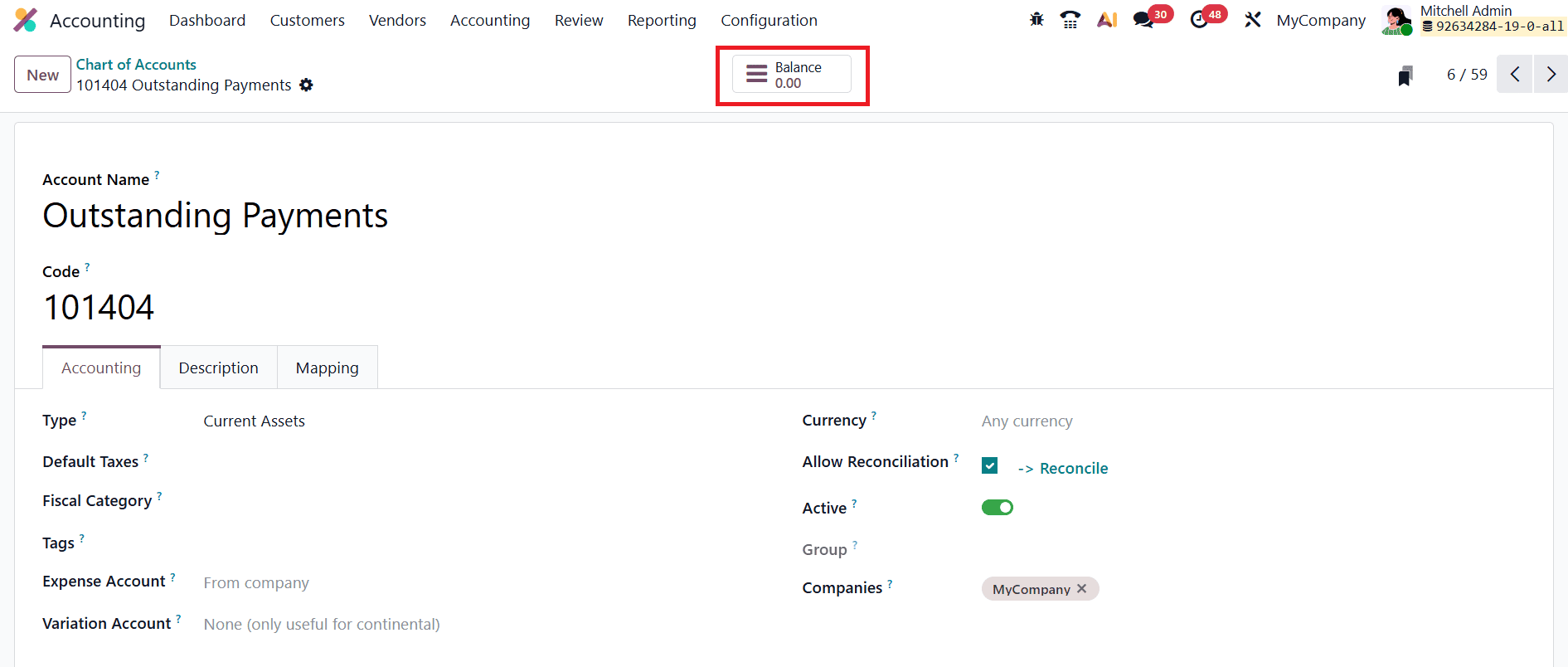
By clicking this button, users can instantly view the account’s current debit, credit, and net balance, allowing them to monitor financial activity without navigating away from the dashboard.
Default Accounts
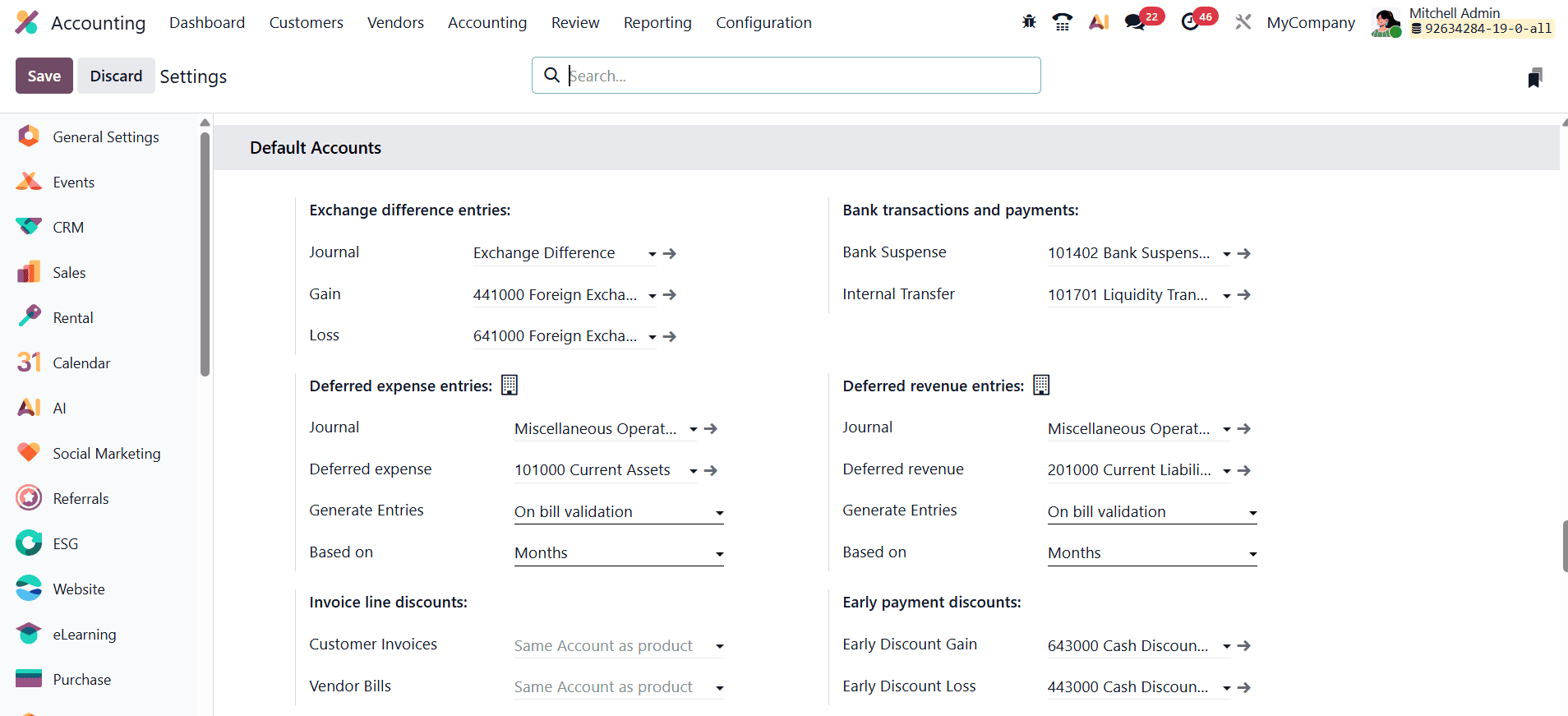
Once the essential accounts required for your accounting operations have been configured, the next step is to assign default accounts for specific financial processes. These default accounts help automate various accounting activities by ensuring that transactions are automatically posted to the appropriate accounts, thereby improving accuracy and reducing manual intervention. To configure default accounts, navigate to the Settings menu within the Accounting module. In this section, you will find a dedicated tab called Default Accounts, where you can define the accounts that Odoo should automatically use for different accounting operations.
Exchange-difference Entries
Exchange-difference entries are used to record currency revaluations that occur when transactions involve foreign currencies. These adjustments typically arise when a foreign-currency invoice is settled at a different exchange rate than the one used when the invoice was originally recorded, or when companies perform end-of-period currency remeasurements to reflect the current exchange rate.
In this configuration section, you must define the accounts and journal that Odoo will use to record these adjustments automatically. First, select the Journal where Odoo will post the exchange rate adjustment entries generated during reconciliation or revaluation.
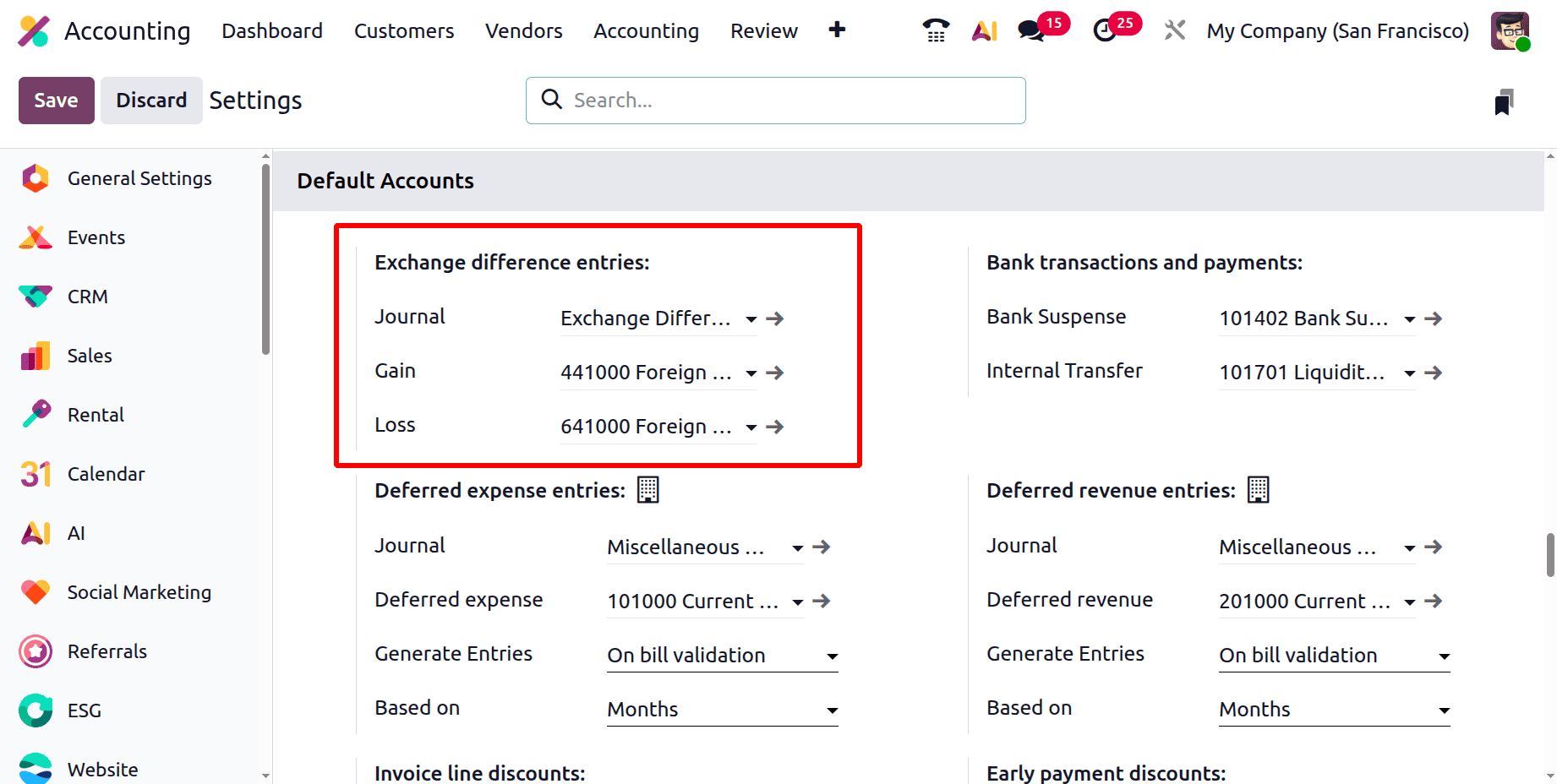
Next, specify the Exchange Gain and Exchange Loss accounts. These are typically profit and loss accounts used to capture the financial impact of exchange rate fluctuations. When the exchange rate results in a favorable difference, the amount is recorded in the Exchange Gain account. Conversely, if the fluctuation results in a loss, the amount is posted to the Exchange Loss account.
Deferred Expense Entries
Deferred expenses refer to prepaid costs, such as insurance, rent, or service subscriptions, that are paid in advance but must be recognized gradually over a defined period. Instead of recording the entire amount as an expense immediately, the cost is distributed across multiple accounting periods to accurately reflect when the benefit is actually consumed. In Odoo, deferred expense configuration ensures that these costs are automatically allocated over time, maintaining accurate financial reporting and compliance with accounting principles.
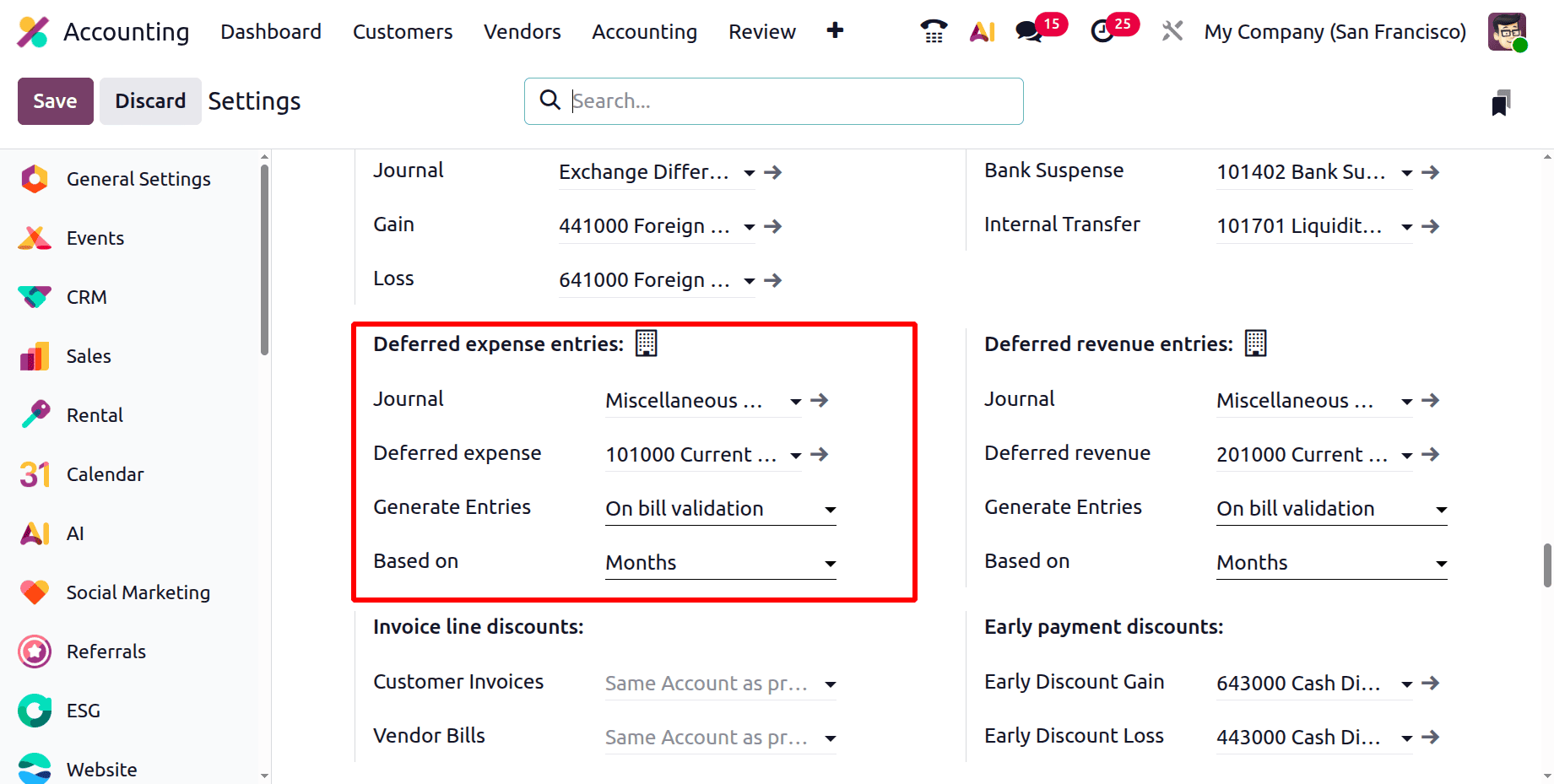
In this section, you first specify the Journal that will record the periodic amortization entries. Each time the expense is recognized for a specific period, Odoo posts an entry in this journal to move the appropriate amount from the deferred account to the expense account.
Next, you define the Deferred Expense Account, which is typically a current asset account. When a prepaid expense is recorded, the amount is initially stored in this account rather than being expensed immediately. Over time, Odoo gradually transfers portions of this balance to the appropriate expense account according to the defined schedule.
The Generate Entries option determines how Odoo creates the periodic amortization entries. When set to On Bill Validation, Odoo automatically schedules the deferral entries as soon as a vendor bill containing a deferred expense product is validated. Alternatively, selecting Manually & Grouped allows accountants to generate amortization entries manually, often in batches for multiple deferred expenses at once.
Another important configuration is the Based On field, which defines how the expense amount is distributed across accounting periods. When set to Based on Days, the expense is allocated proportionally according to the exact number of days in each period. The Based on Months option divides the total amount equally across the specified number of months, creating consistent monthly expense entries. The Full Months option treats each entire month as a full accounting period, regardless of the billing date, which is often used by businesses that prefer simplified and consistent month-to-month expense recognition.
Invoice Line Discounts
When discounts or price reductions are applied to individual invoice lines, Odoo 19 Accounting uses the Invoice Line Discounts mapping to determine which accounts should record the financial impact of those discounts. This configuration ensures that discounts are properly reflected in financial records without manually adjusting journal entries each time a discount is applied.
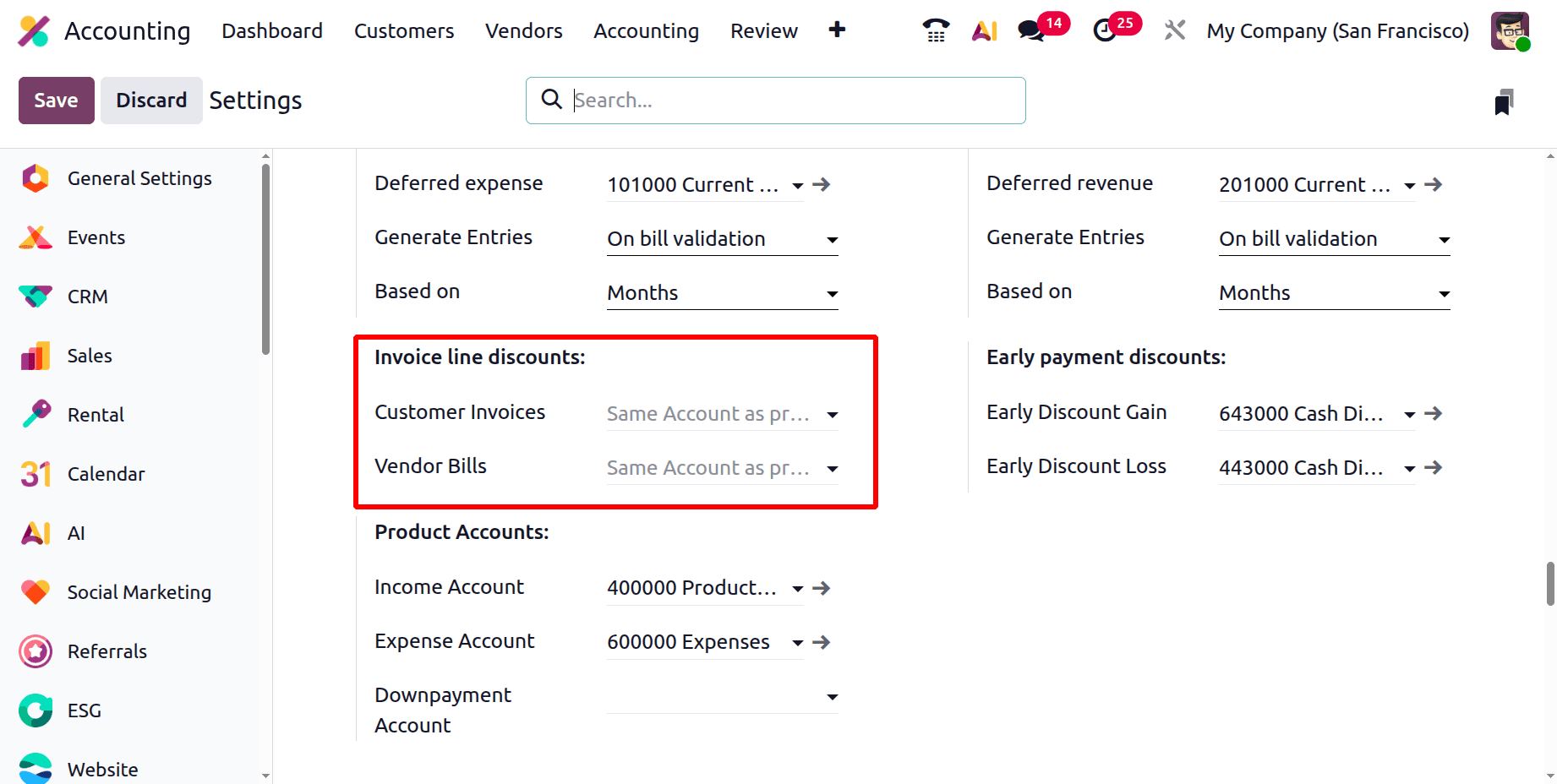
In this section, separate default accounts can be assigned to manage discounts in different transaction types. One account is designated to record discounts granted on Customer Invoices, which typically reduces the company’s recognized revenue. When a discount is applied to a sales invoice, the discounted amount is automatically posted to this account, ensuring accurate revenue tracking. Another account is configured to record discounts received on Vendor Bills. These discounts reduce the total expense incurred by the business when purchasing goods or services from suppliers.
Bank Transactions and Payments
In Odoo 19 Accounting, the Bank Transactions and Payments configuration includes default clearing accounts that help maintain accurate and organized bank reconciliations. These accounts act as temporary holding points during the reconciliation process, ensuring that transactions are properly tracked before they are fully matched with their corresponding accounting entries.
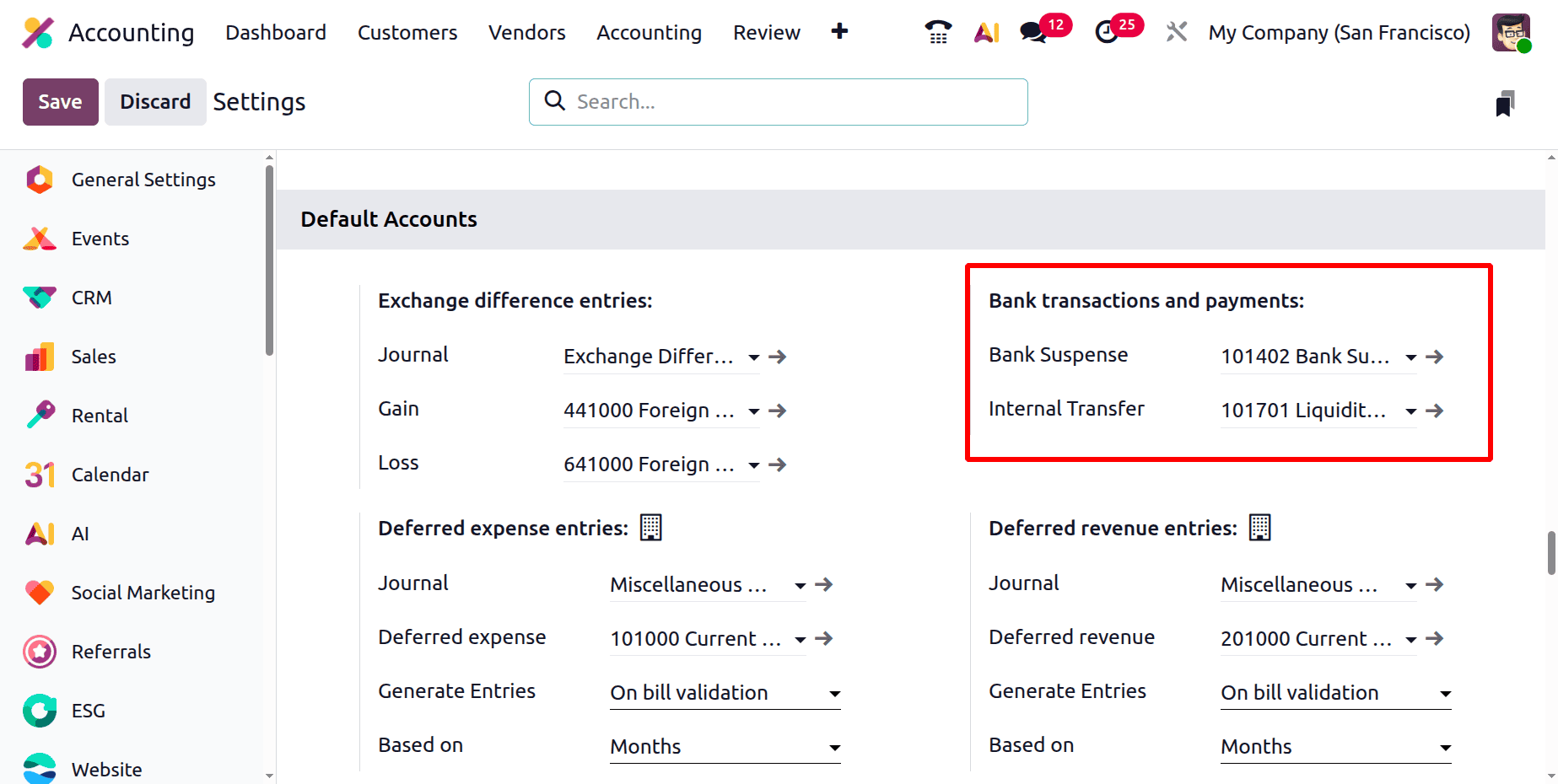
One of the key accounts in this section is the Bank Suspense Account. This account functions as a temporary holding account for imported bank statement lines that have not yet been matched with existing invoices, vendor bills, payments, or other accounting entries. Another important account is the Internal Transfer Account, which is used when transferring funds between a company’s own bank or cash accounts. This account serves as an intermediary ledger that records the movement of funds from one account to another within the organization.
Deferred Revenue Entries
Deferred revenue represents income that a company receives in advance for goods or services that will be delivered over a future period. Common examples include subscription fees, maintenance contracts, or long-term service agreements. Instead of recognizing the entire payment as revenue immediately, the amount is gradually recognized over time as the service is provided. In Odoo 19 Accounting, deferred revenue functions as the counterpart of deferred expenses, ensuring that income is recorded in the appropriate accounting periods and reflects the actual earning process.
In this configuration section, you first specify the Journal that will record the recurring revenue recognition entries. Each time a portion of the deferred revenue is recognized, Odoo automatically posts an entry in this journal to transfer the appropriate amount from the deferred revenue account to the revenue account.
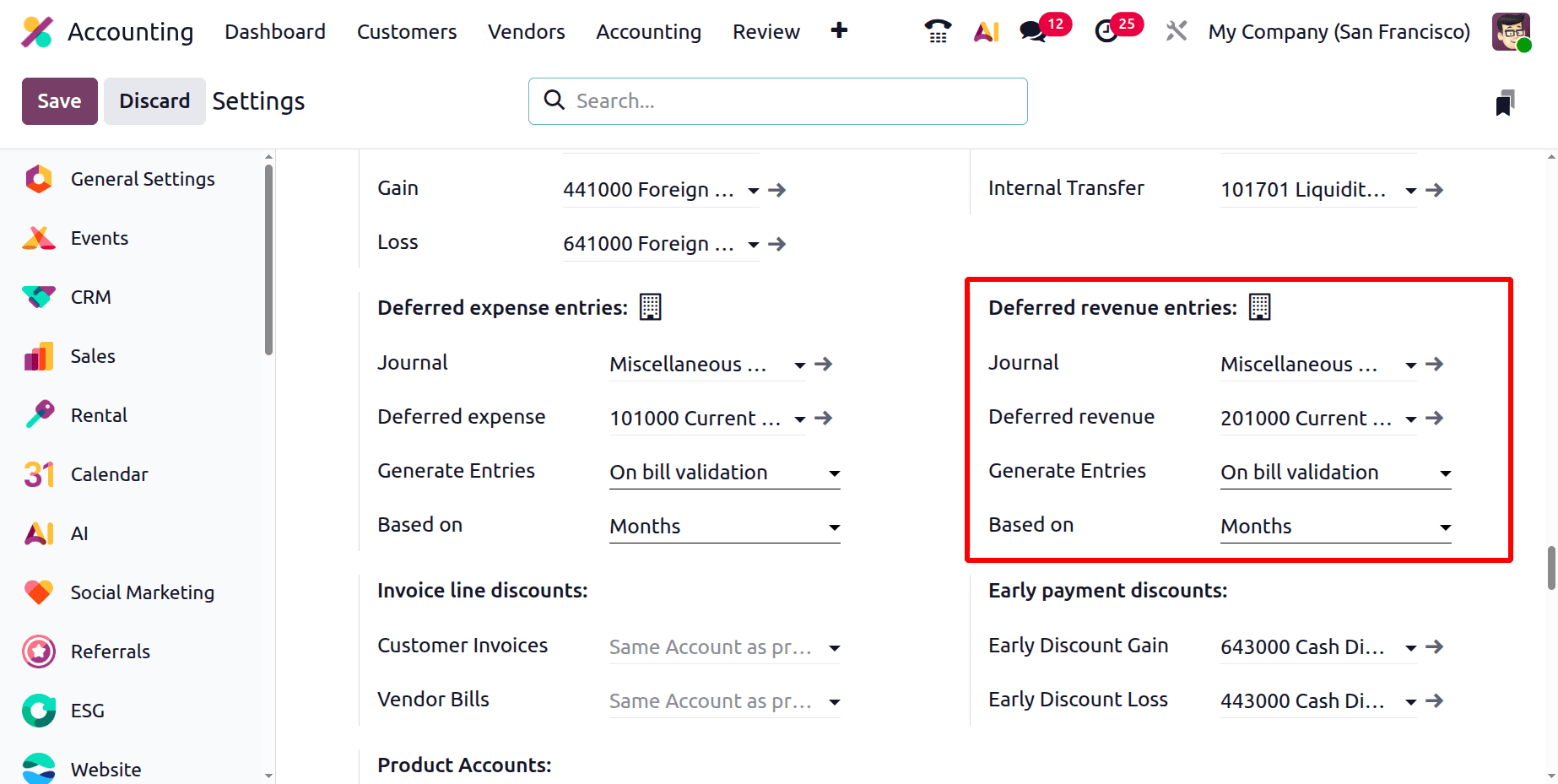
Next, you define the Deferred Revenue Account, which is typically a liability account. When a customer pays in advance, the amount is initially recorded in this account as unearned income. As the service is delivered over time, Odoo gradually moves portions of this balance to the appropriate income account, ensuring that revenue is recognized accurately. The Generate Entries option determines how the system creates the periodic revenue recognition entries. When set to On Invoice Validation, Odoo automatically schedules the revenue recognition entries as soon as the related customer invoice is validated. Alternatively, choosing Manually & Grouped allows accountants to generate these entries manually, often in bulk for multiple deferred revenue records, offering greater control over the timing of the postings.
Finally, the Based On field defines how the revenue amount is distributed across accounting periods. Selecting Based on Days allocates revenue proportionally according to the exact number of days in each period. The Based on Months option distributes the revenue evenly across the specified number of months. Meanwhile, Full Months treats each complete month as a full accounting period regardless of the exact invoice date, which is often preferred by businesses seeking a simpler and more consistent approach to monthly revenue recognition.
Early Payment Discounts
Early payment discounts help businesses automatically account for the financial impact that occurs when invoices are settled before their scheduled due dates. In Odoo 19 Accounting, this process is automated through dedicated default accounts that record the gain or loss resulting from early payment settlements.
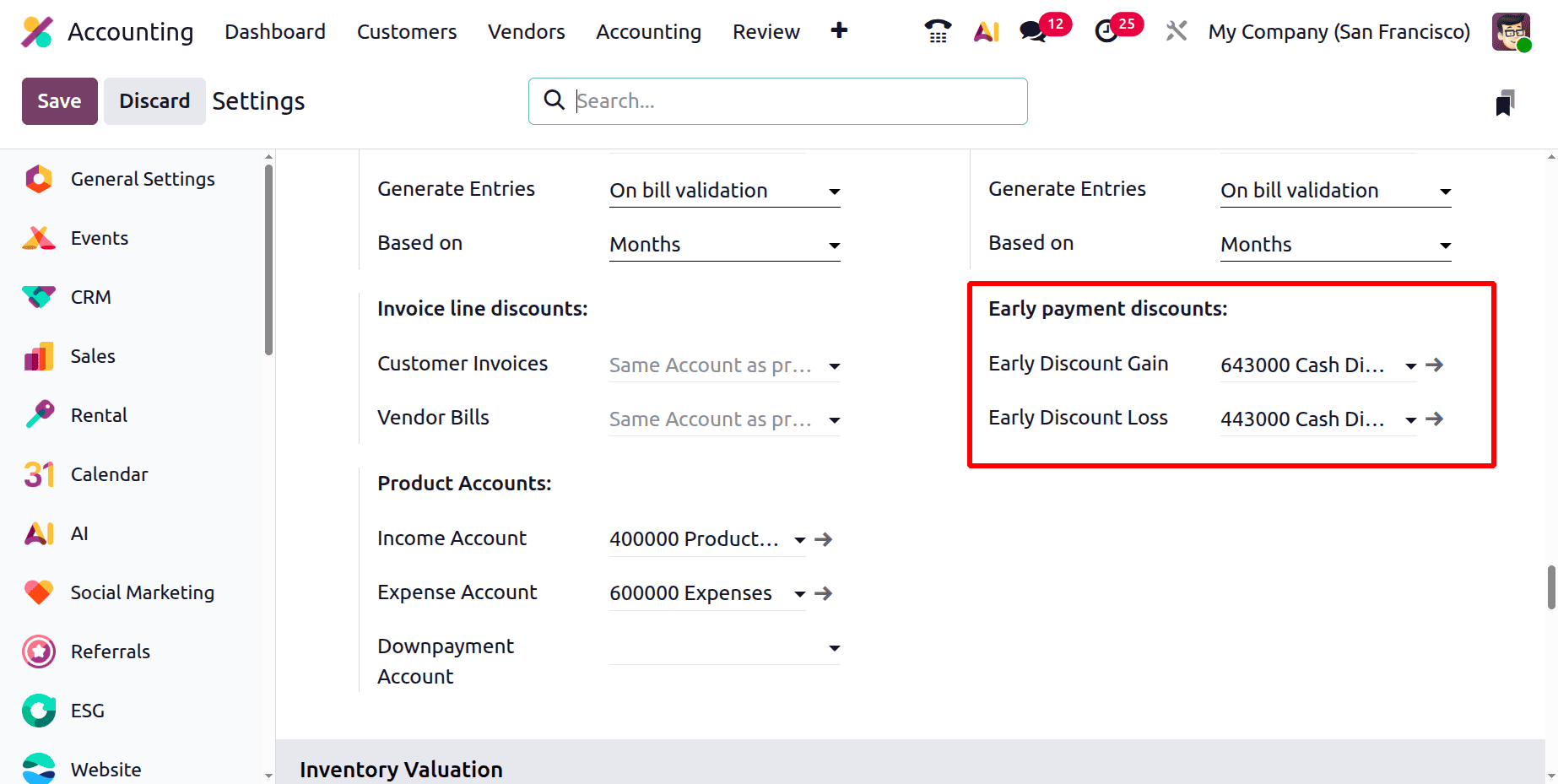
When a company pays a supplier invoice earlier than the agreed payment term and receives a discount from the vendor, the difference between the original invoice amount and the discounted payment is recorded in the Early Discount Gain account. This account reflects the financial benefit obtained from paying the bill before its due date. On the other hand, when a customer settles an invoice early and receives a discount, the reduction in the expected revenue is recorded in the Early Discount Loss account.
Product Accounts
Product accounts determine how financial transactions related to products and services are recorded in the accounting system. In Odoo 19 Accounting, these default accounts ensure that revenue, expenses, and advance payments associated with products are automatically posted to the appropriate ledgers whenever transactions such as invoices or bills are created.
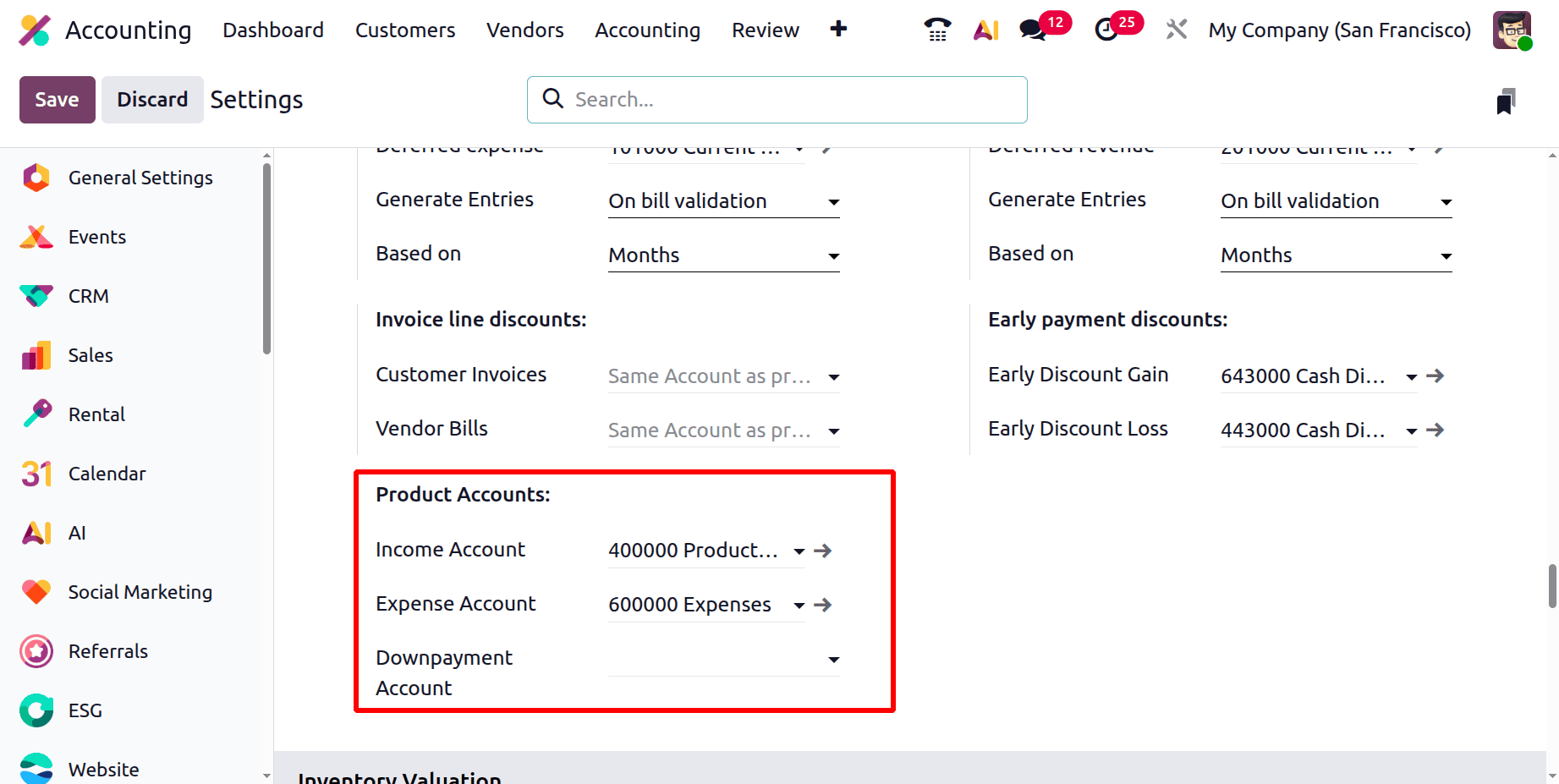
The Income Account is used to record all revenue generated from the sale of goods or services. When a customer invoice is created and validated, the sales amount related to the product is automatically credited to this account. The Expense Account, on the other hand, records the cost associated with purchasing goods or services. When a vendor bill is confirmed, Odoo automatically debits this account with the corresponding product or service cost.
Another important account in this section is the Downpayment Account, which manages advance payments or deposits made or received before the delivery of goods or completion of services. When a customer or vendor makes an advance payment, the amount is temporarily recorded in this account until the final invoice is issued and the transaction is completed. This ensures that prepayments are tracked accurately and are properly reconciled once the actual sale or purchase is finalized.
Practical Example of Default Accounts in Odoo 19
To understand how default accounts function in Odoo 19 Accounting, let’s look at a practical example involving Invoice Line Discounts. In this scenario, the account Invoice Discount has been configured to record discounts granted on Customer Invoices.
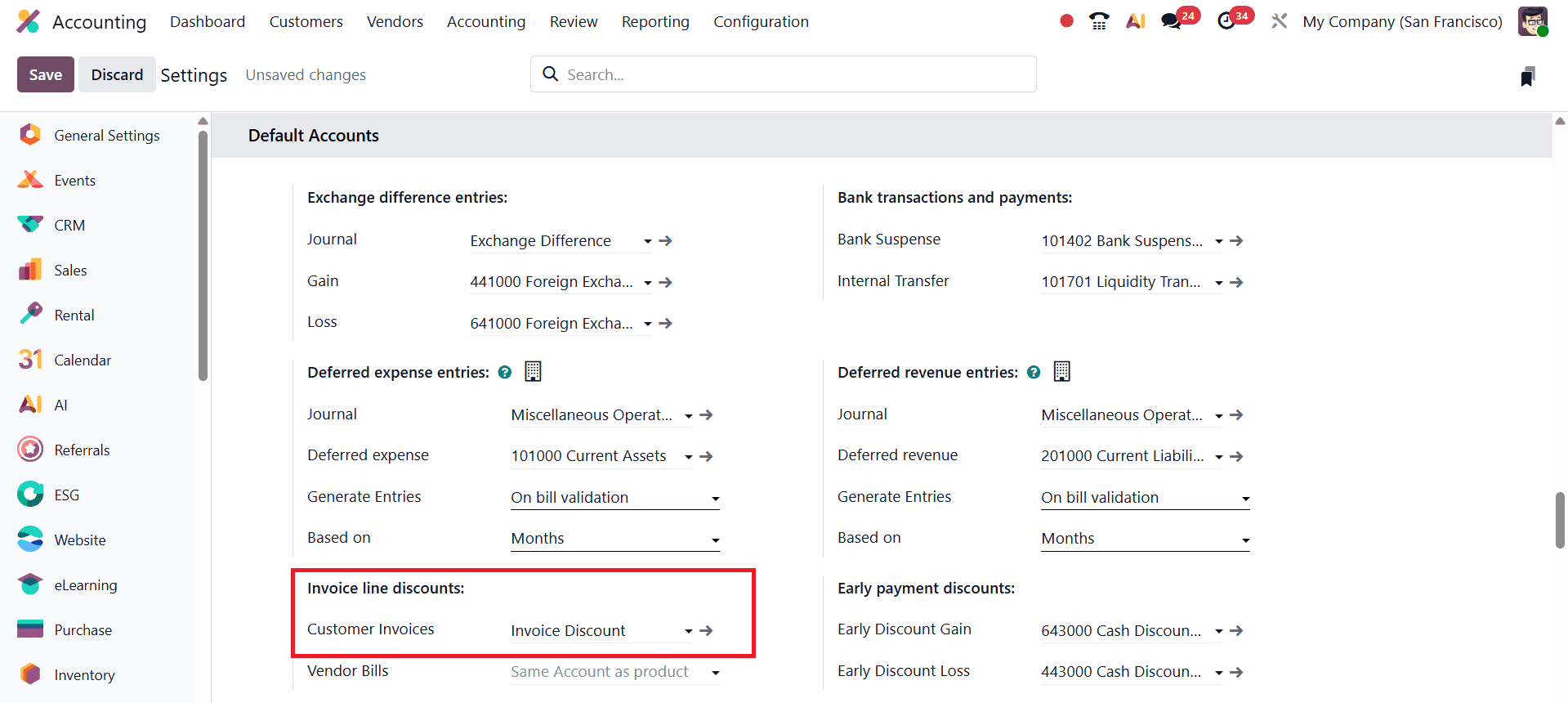
When a discount is applied directly to an invoice line (rather than as a global discount), Odoo automatically posts the discounted amount to the configured discount account.
First, navigate to the Sales module and create a new Sales Order. Click the New button and select a Customer for the order. Then, add a product under the Order Lines section. Once the product is added, you will notice a Discount field in the order line. Enter a discount percentage in this field, for example, 5%. This means the product price will be reduced by 5% for that particular line.
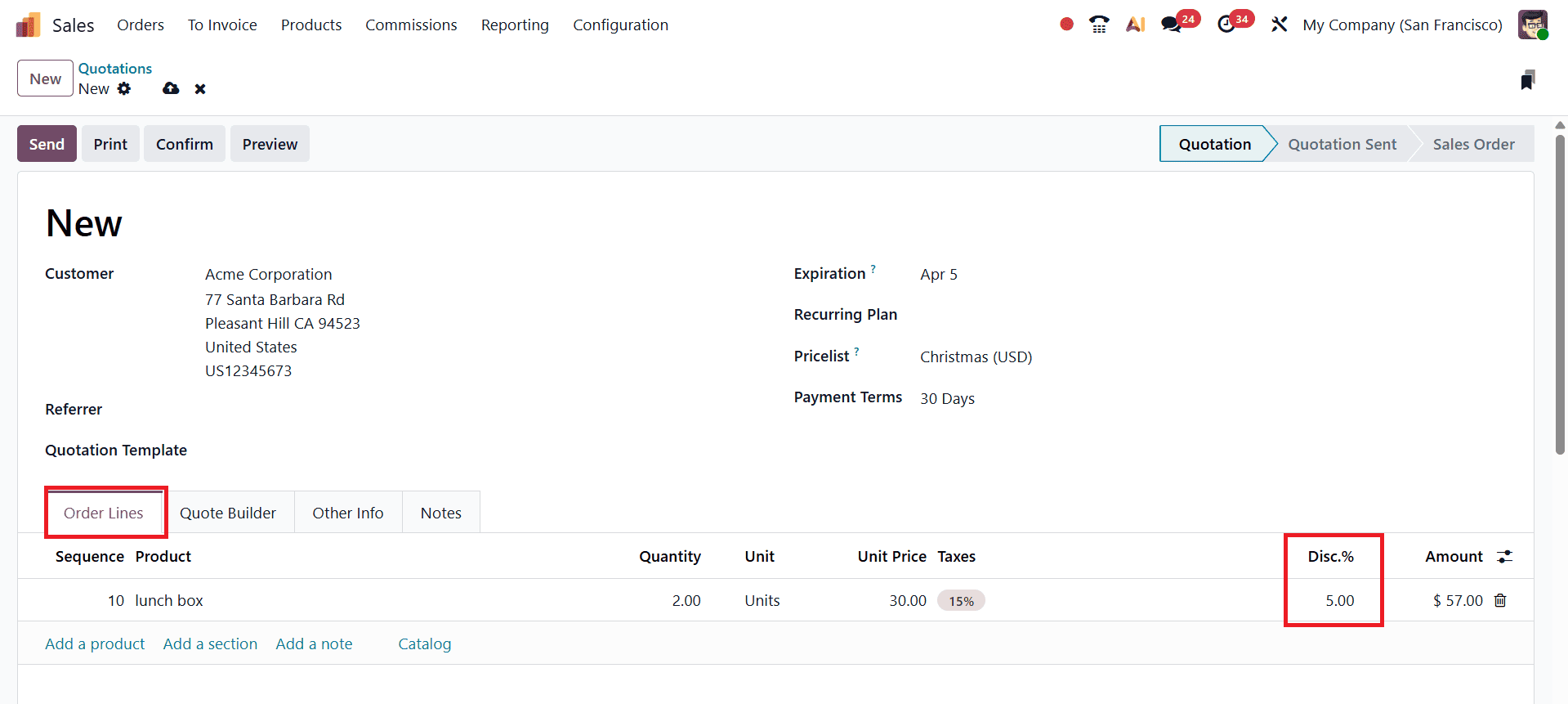
After entering the discount, confirm the Sales Order by clicking the Confirm button. This converts the quotation into a confirmed order and prepares it for invoicing and delivery processes.
Next, create an invoice from the confirmed sales order. Click the Create Invoice button and choose the appropriate invoicing option, typically Regular Invoice.
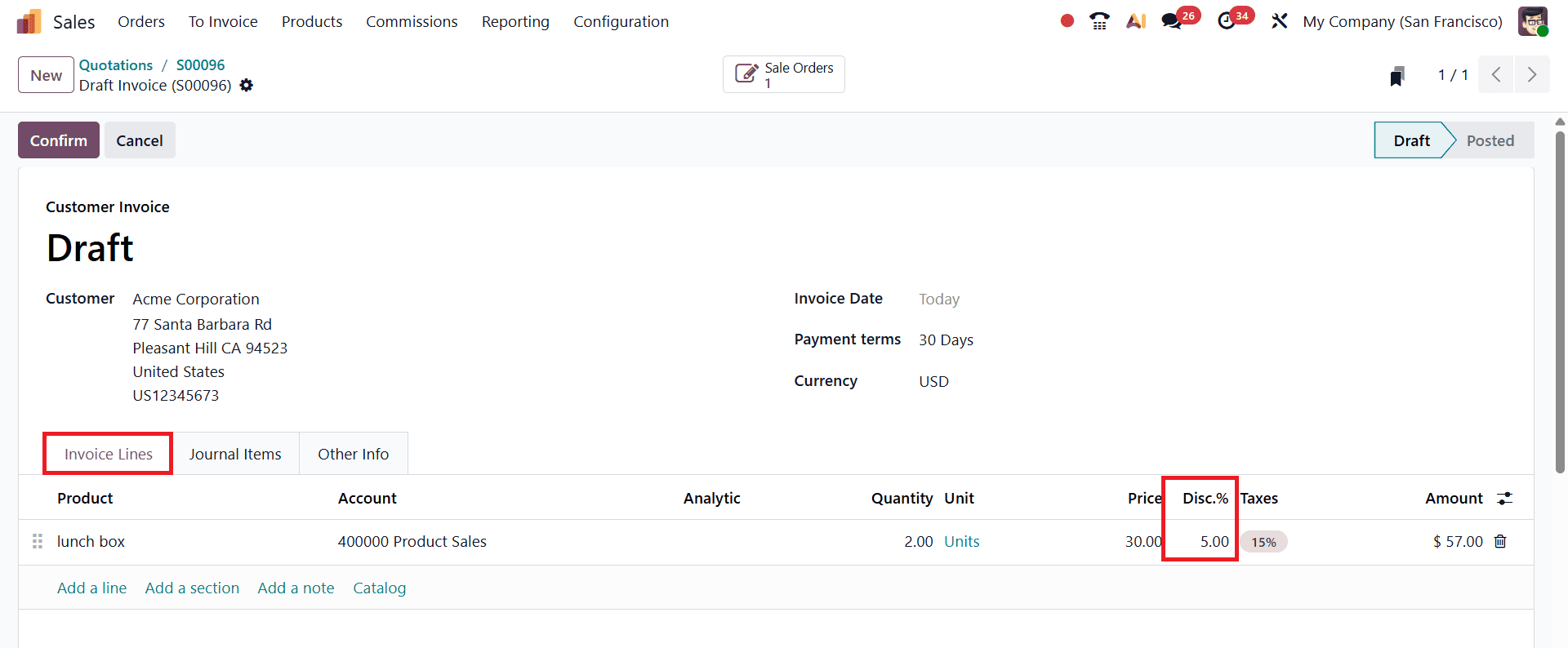
Once the invoice is generated, open the invoice form and review the Invoice Lines section. Here, the discount applied in the sales order line will automatically appear on the corresponding invoice line.
When the invoice is confirmed, Odoo generates the related journal entries in the accounting module. At this stage, the system separates the discount portion from the actual sales revenue according to the configured default accounts. The discount amount is automatically posted to the configured Invoice Discount account, while the remaining net sales amount is recorded in the appropriate income account.
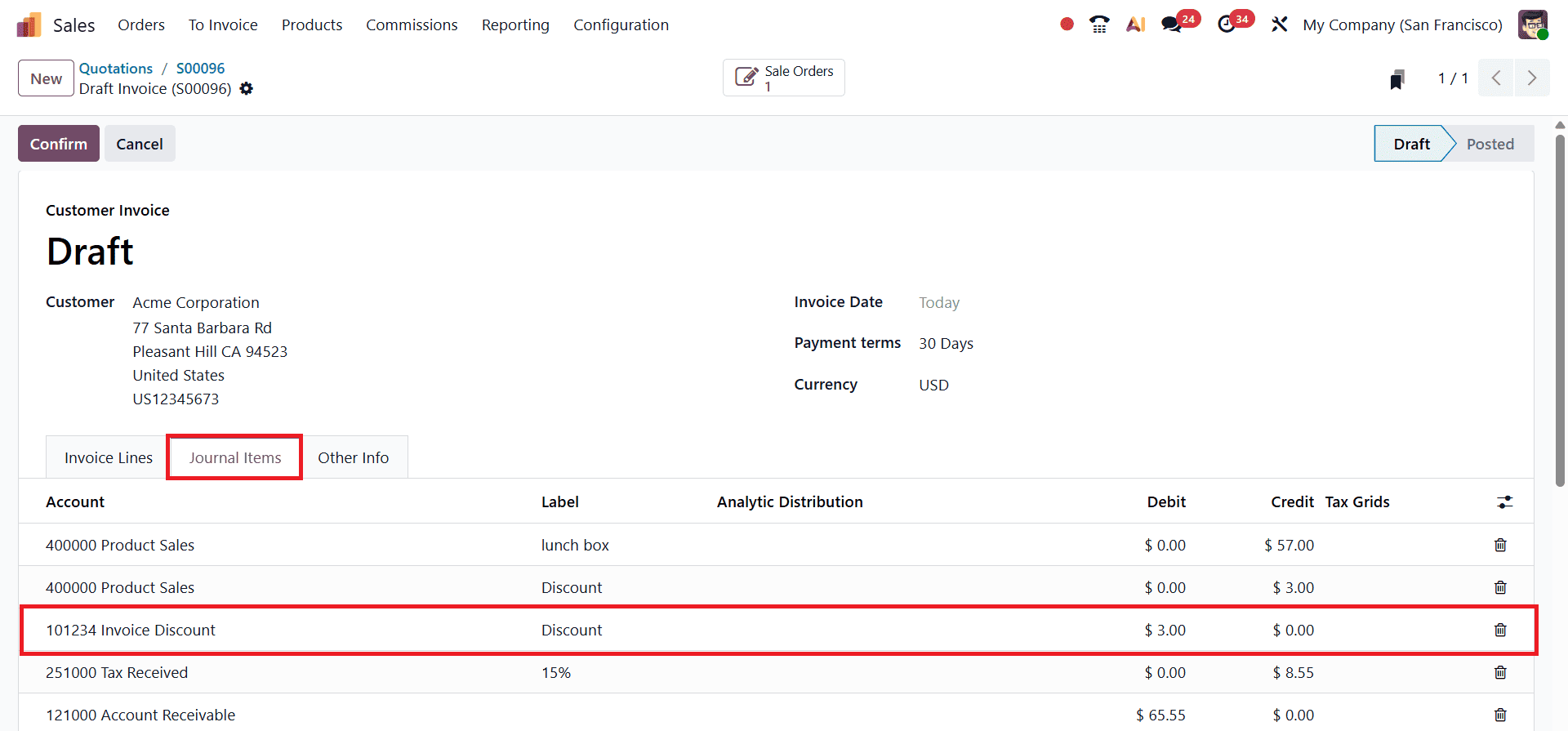
You can verify this by opening the Journal Items tab on the invoice. The entry will show the discount amount posted to the designated discount account. This automated process ensures that discounts granted to customers are clearly tracked in the accounting records, helping businesses analyze pricing strategies and maintain accurate financial reporting without manual adjustments.
Default accounts in Odoo 19 Accounting play a vital role in automating and standardizing financial transactions across the system. By properly configuring these accounts for areas such as discounts, deferred expenses, deferred revenue, bank transactions, and product-related entries, businesses can ensure that accounting records remain accurate and consistent without requiring constant manual adjustments. This not only simplifies day-to-day accounting operations but also improves the reliability of financial reports.
To read more about How to Configure the Default Accounts in Odoo 18 Accounting, refer to our blog How to Configure the Default Accounts in Odoo 18 Accounting.