In many businesses, customers expect quick and continuous support. Handling every request manually can be challenging, so using a chatbot can help manage common queries efficiently. In Odoo 18, a chatbot can be configured for the Helpdesk to automatically respond to questions, guide users, and create support tickets when needed.
Odoo’s chatbot can greet visitors, answer common questions, create support tickets, suggest knowledge base articles, and even gather important details before handing the conversation over to a live agent. In this blog, we’ll guide you through the process of configuring and optimizing a chatbot tailored specifically for your Helpdesk operations in Odoo 18. So, let’s get started with setting up your Helpdesk chatbot.
Go to the Helpdesk app, navigate to Configuration > Helpdesk Teams, and select the relevant team.
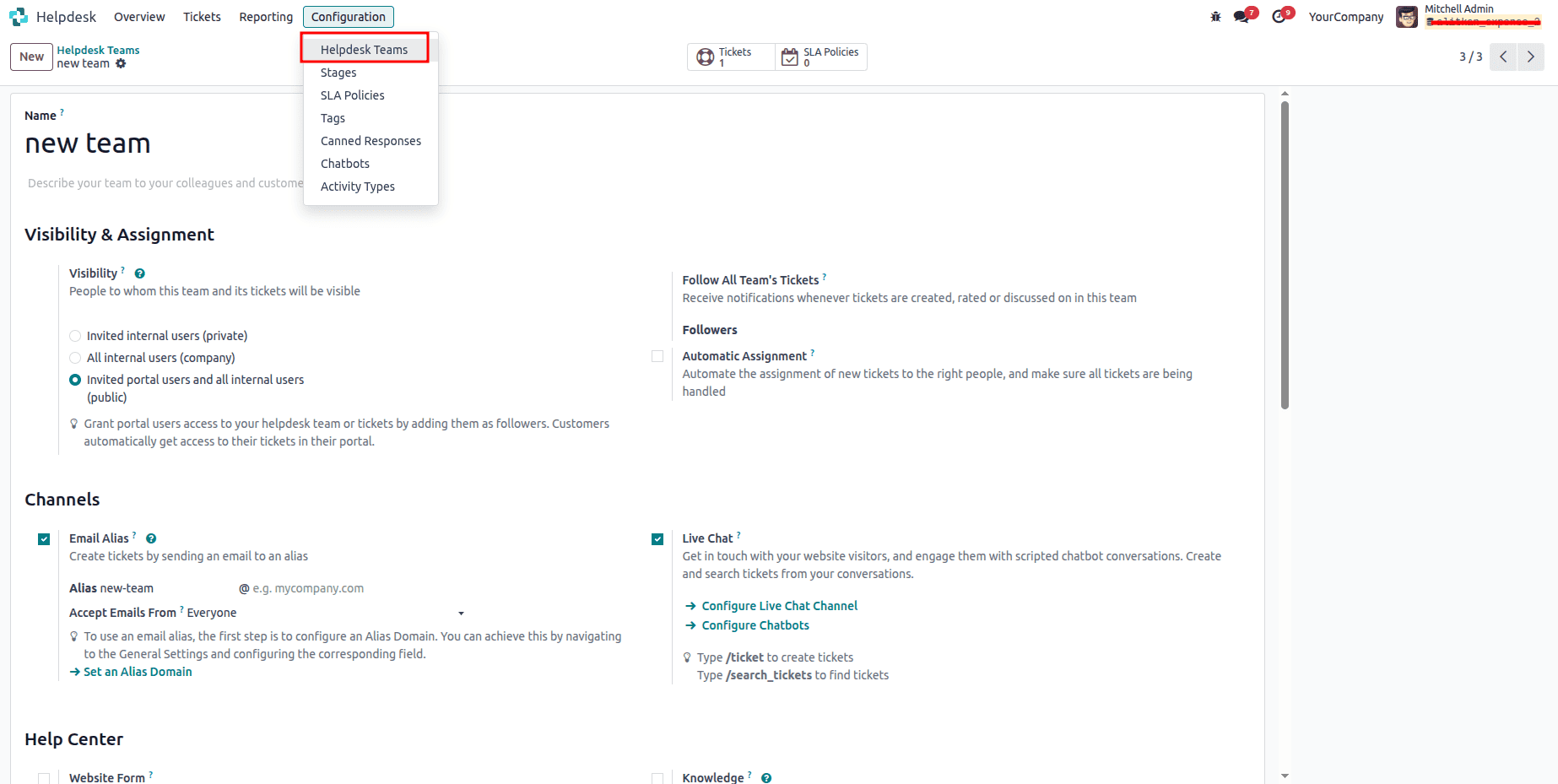
In the team form, find the Channels section and ensure that Live Chat is enabled.
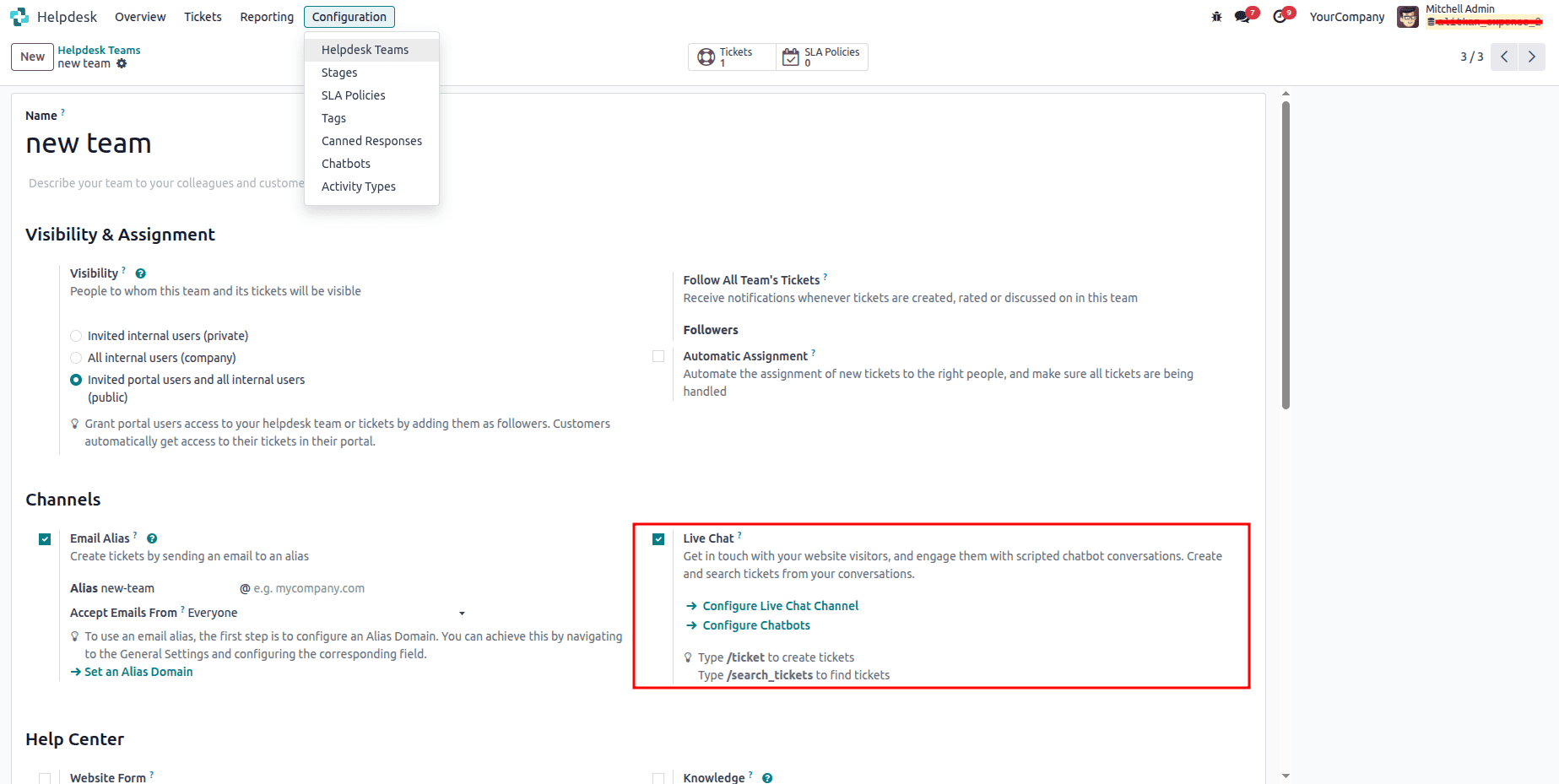
There, you will see the “Configure Chatbot” option. Click on the link, and from there you can create a new chatbot.
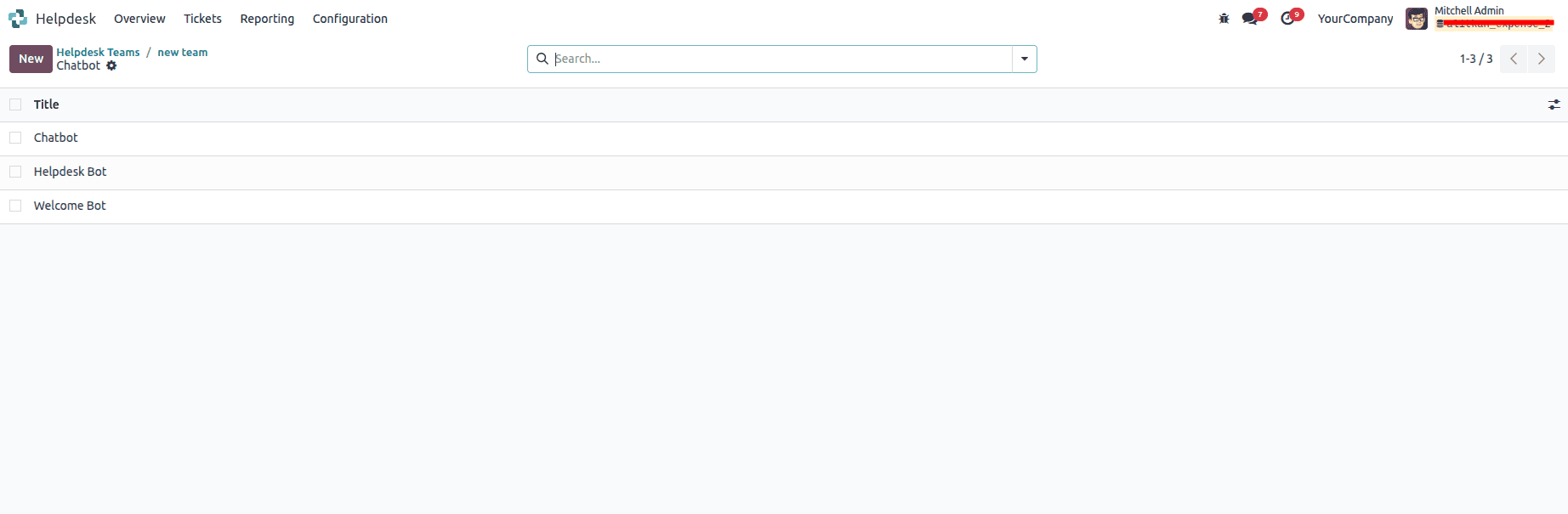
After creating and naming the new chatbot, the next step is to write its script. Chatbot conversations follow a predefined script, where each line is designed to provide or capture information.
On the chatbot detail page, go to the Script tab and click Add a Line to begin creating the script. This will open the Create Script Steps pop-up.
For every line of dialogue the chatbot may use during a conversation, you will need to complete this form.
Start by entering the text in the Message field. Then, select the appropriate options from the Only If and Step Type dropdown menus.
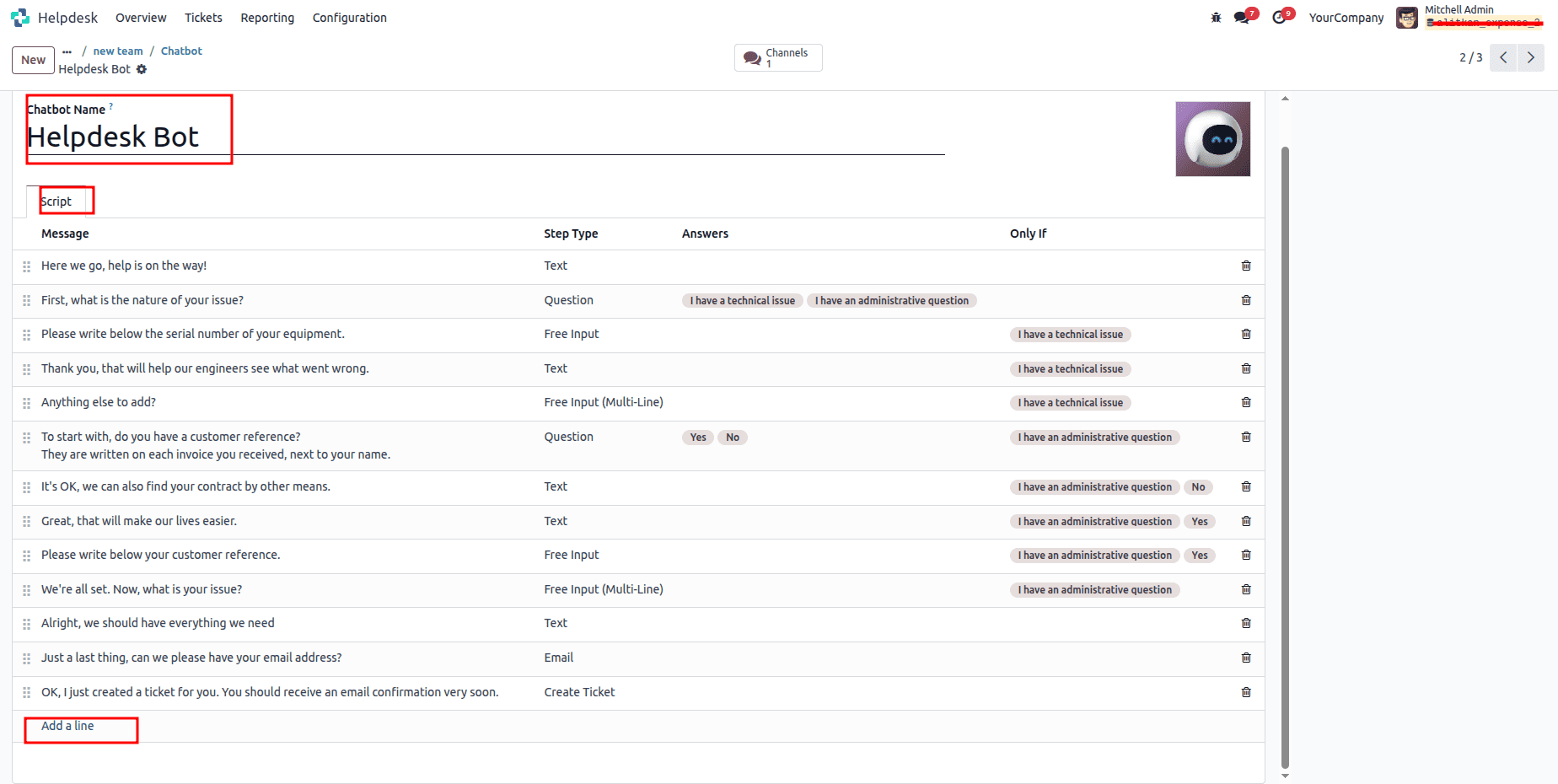
You can add a new message by clicking the “Add a Line” option.
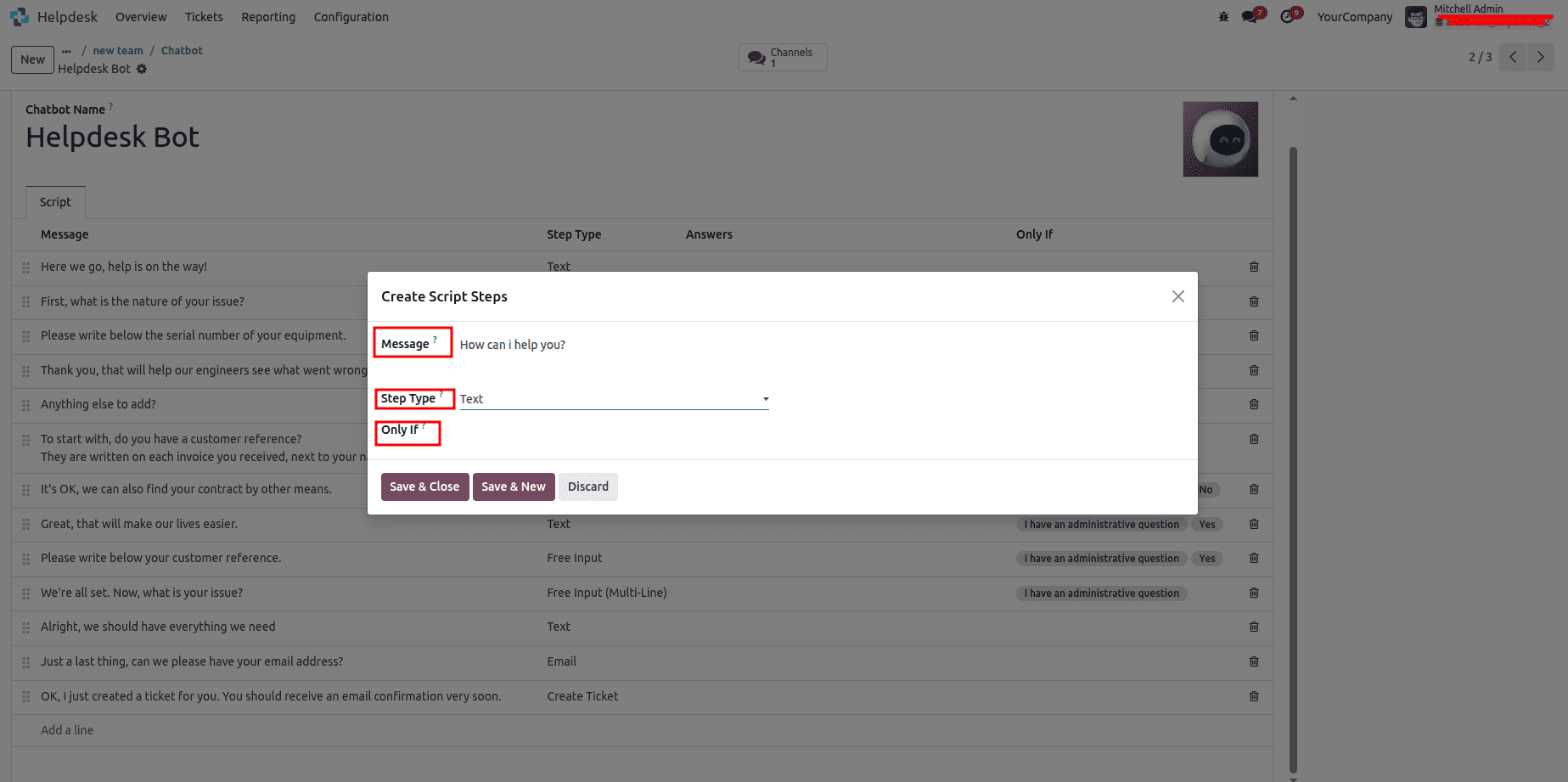
First, enter the message content in the Message field. Then select the appropriate options from the Only If and Step Type dropdown menus. The step type includes:
Step Types
The selected Step Type depends on the purpose of the message. Below is an overview of the available step types, how they are used, and any additional details:
- Text
This step is used when no response from the user is required. It is ideal for displaying information, greetings, or simple statements.
- Question
This step presents a question along with multiple answer choices. When the visitor selects an answer, the conversation either moves to the next defined step or redirects them to an optional external webpage.
- Email
This step asks the visitor to provide their email address, which is then stored for follow-up communication by the team.
Only valid email formats are accepted. If the visitor enters anything other than a proper email address, the chatbot will respond with a message indicating that the input is not recognized.
- Phone
Similar to the Email step, this option prompts the visitor to enter their phone number. The number can be used later for follow-ups, scheduling demos, or sharing additional information.
- Create Ticket
This step allows the chatbot to create a helpdesk ticket. You can also assign the appropriate helpdesk team for the ticket within this step.
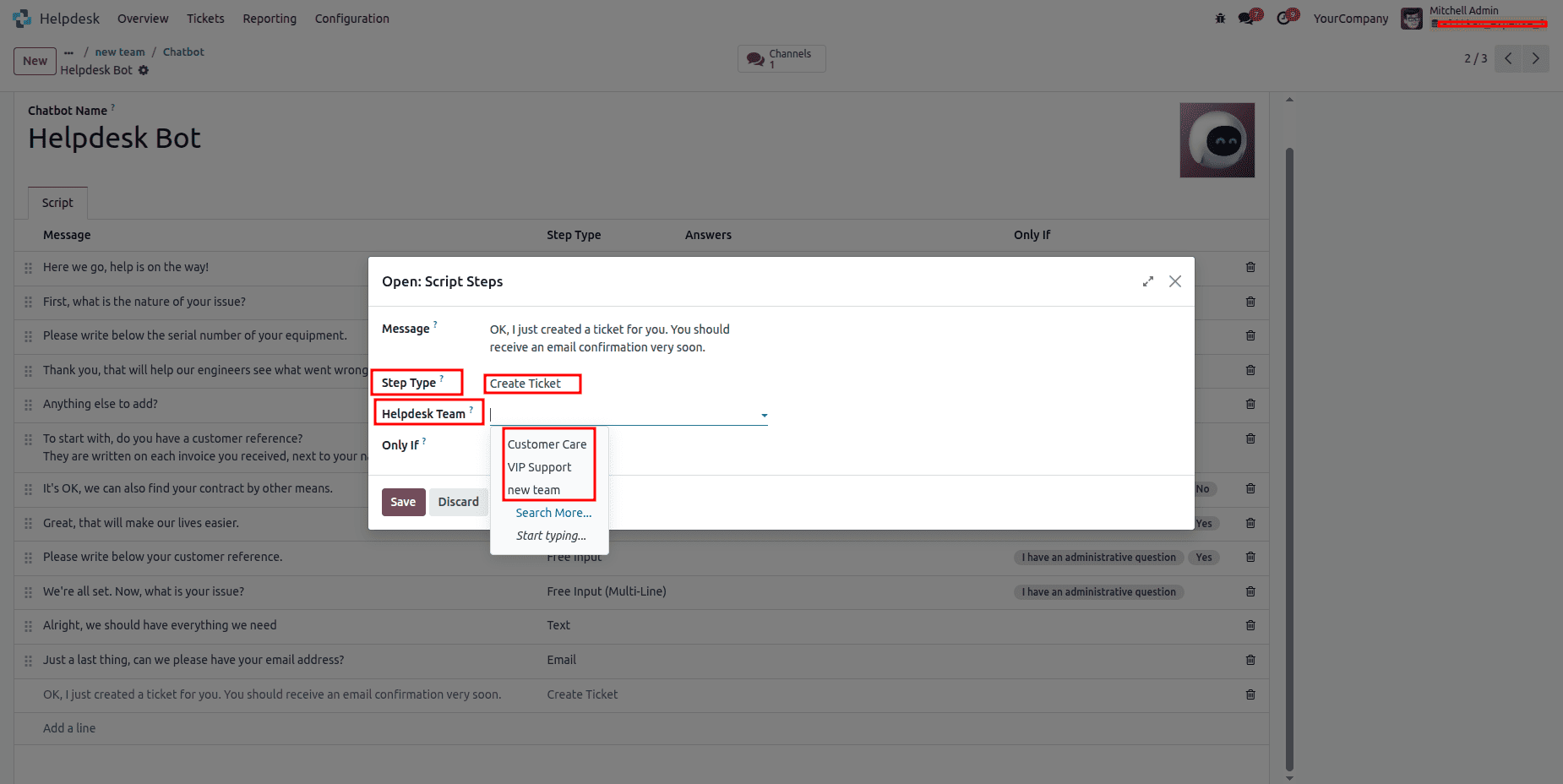
By adjusting the chatbot's script, the visitor’s response to a previous question will determine the next question the chatbot asks in Odoo.
Live Chat:
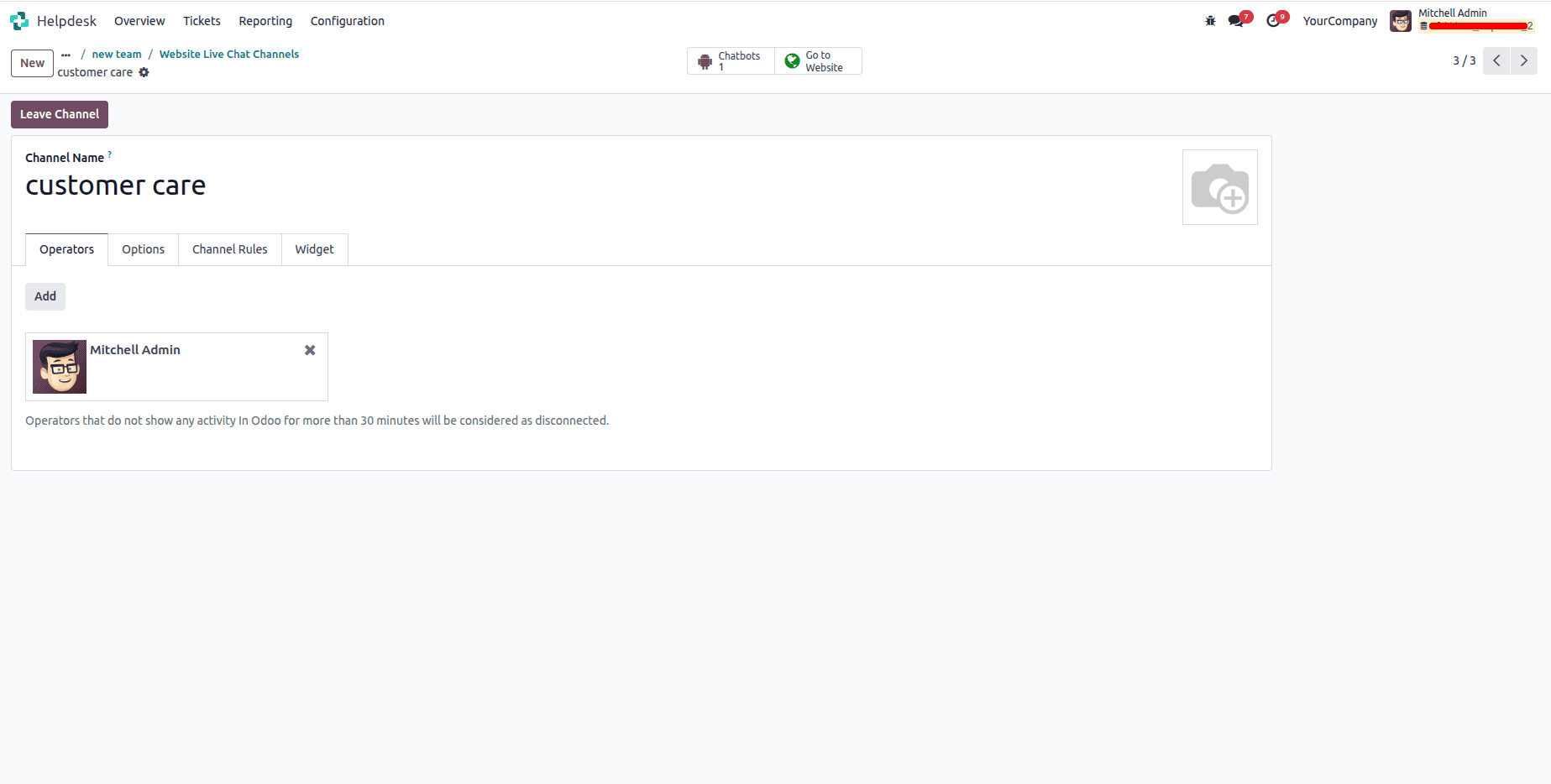
Next, you can configure the chatbot in the Live Chat channel.
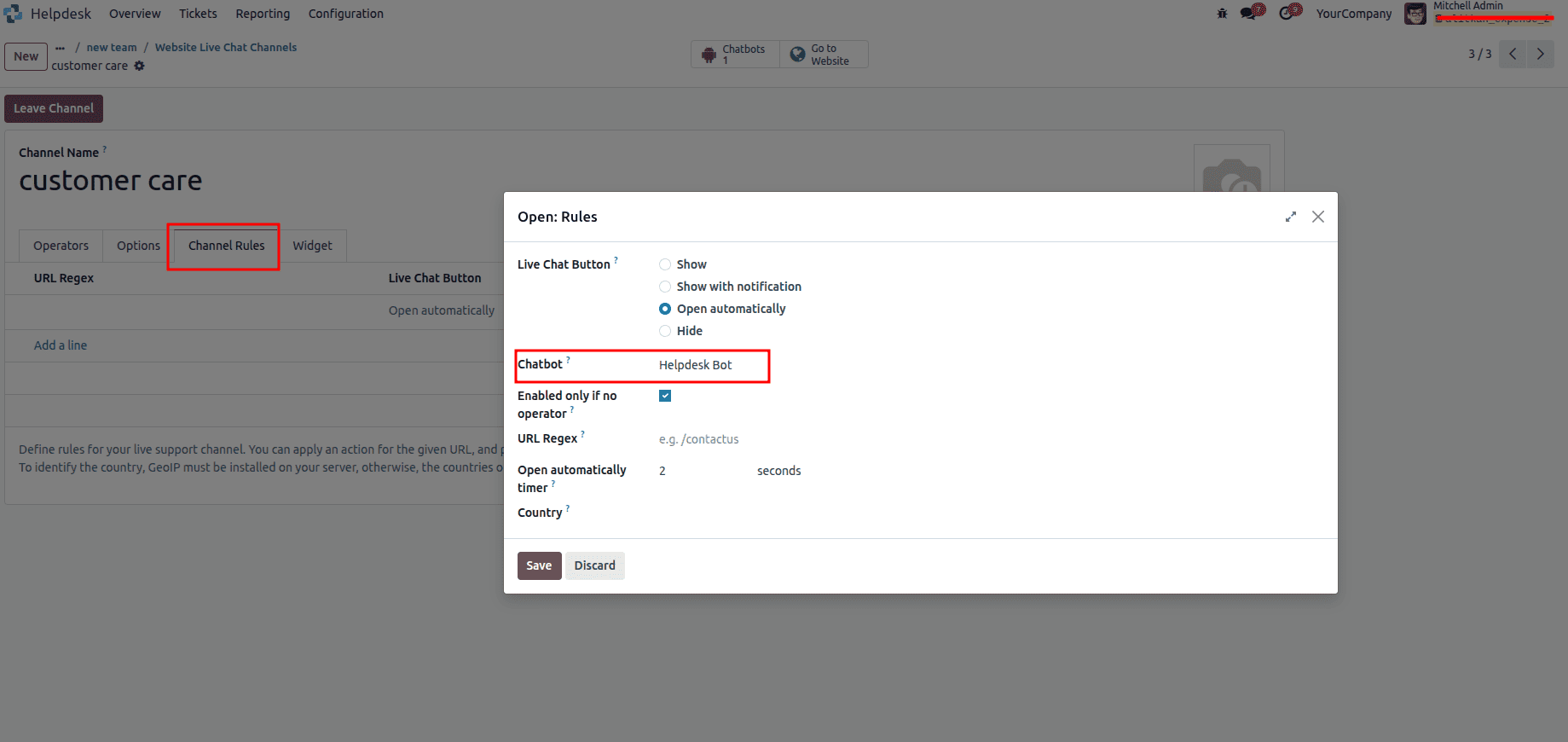
Go to the Channel Rules section, where you can set up the chatbot and specify when it should appear by configuring the “Open automatically timer” field.
After that, you can check the chatbot on the website.
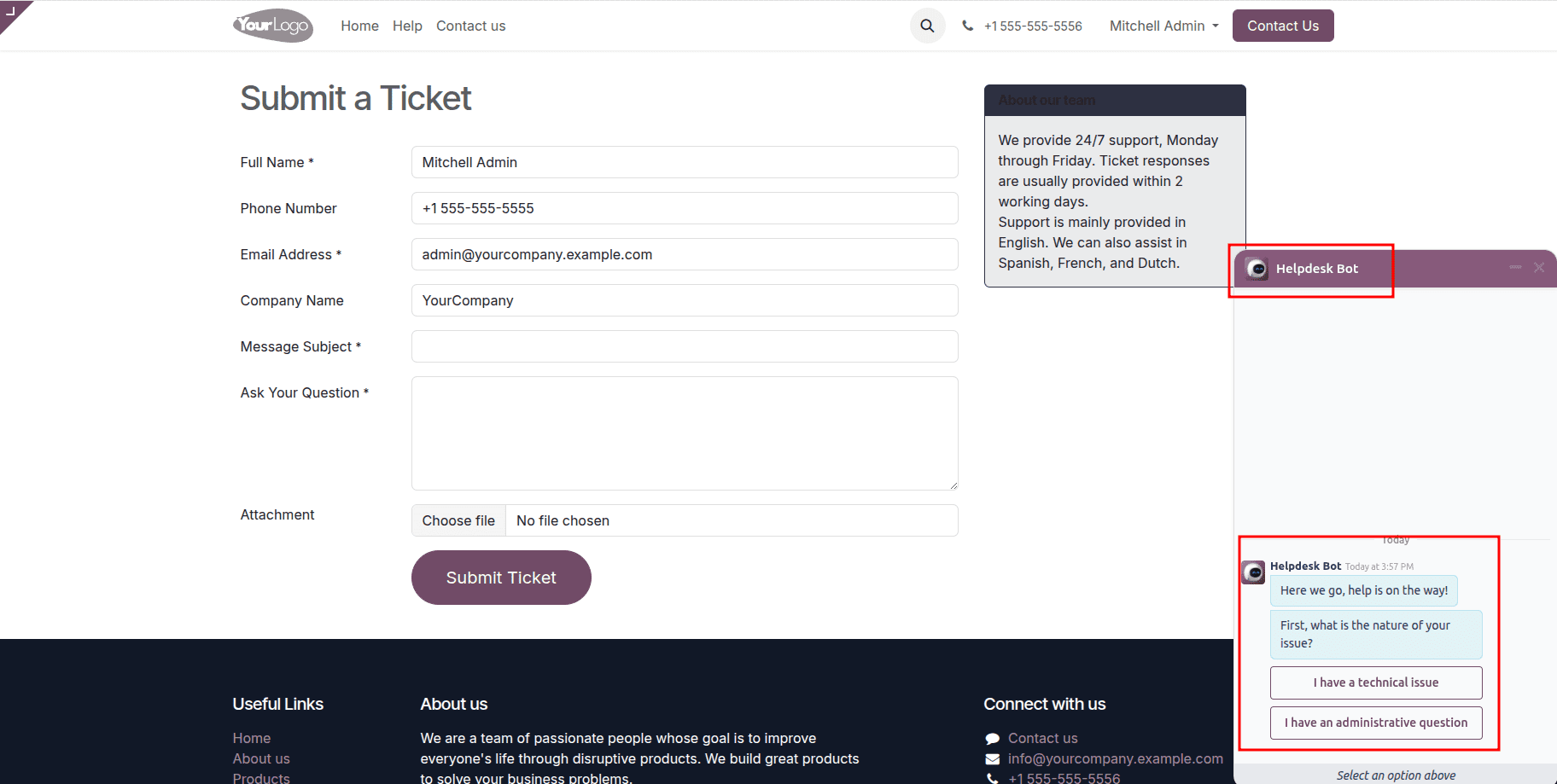
You can access the chatbot there and ask any questions you have.
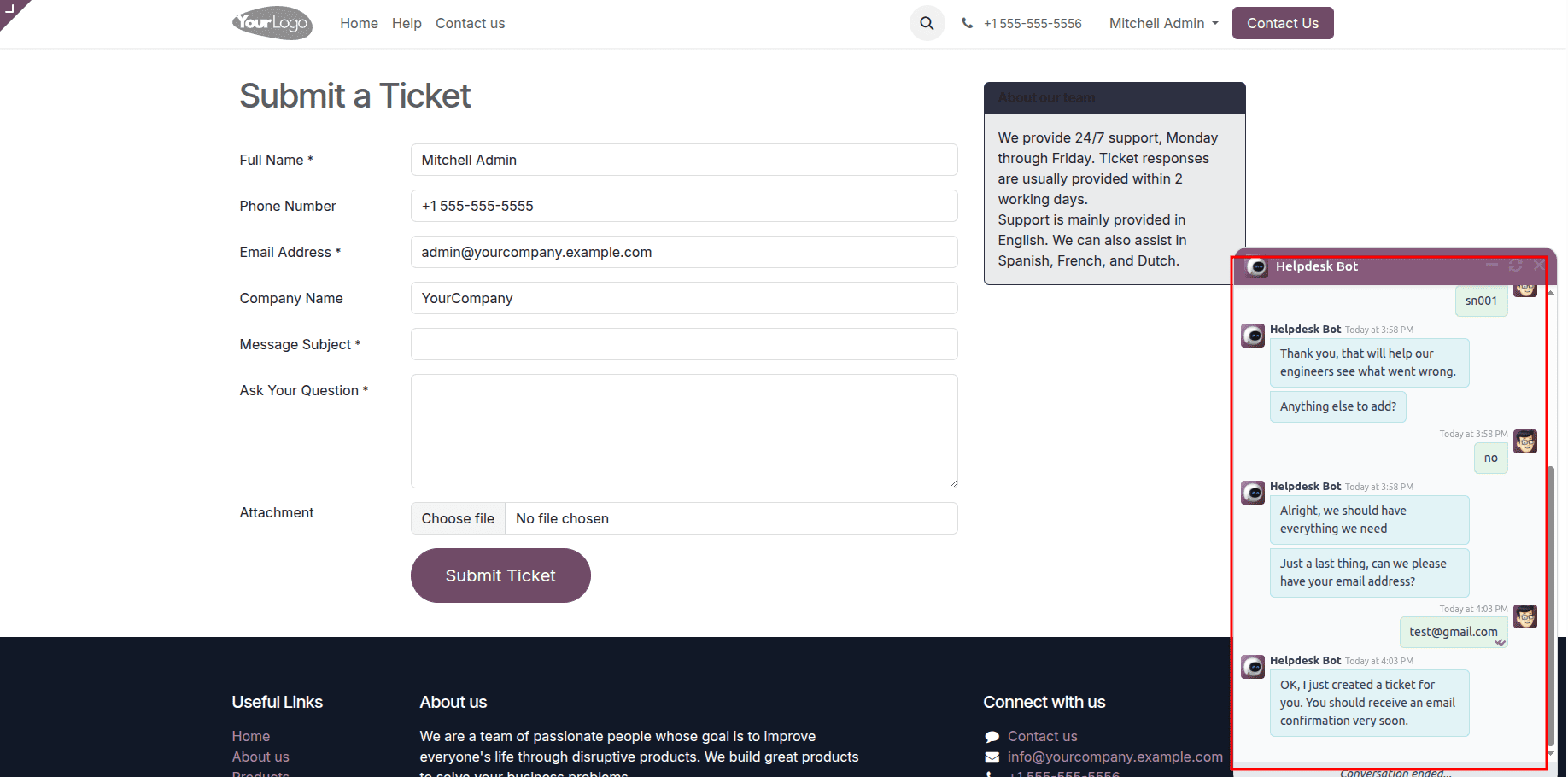
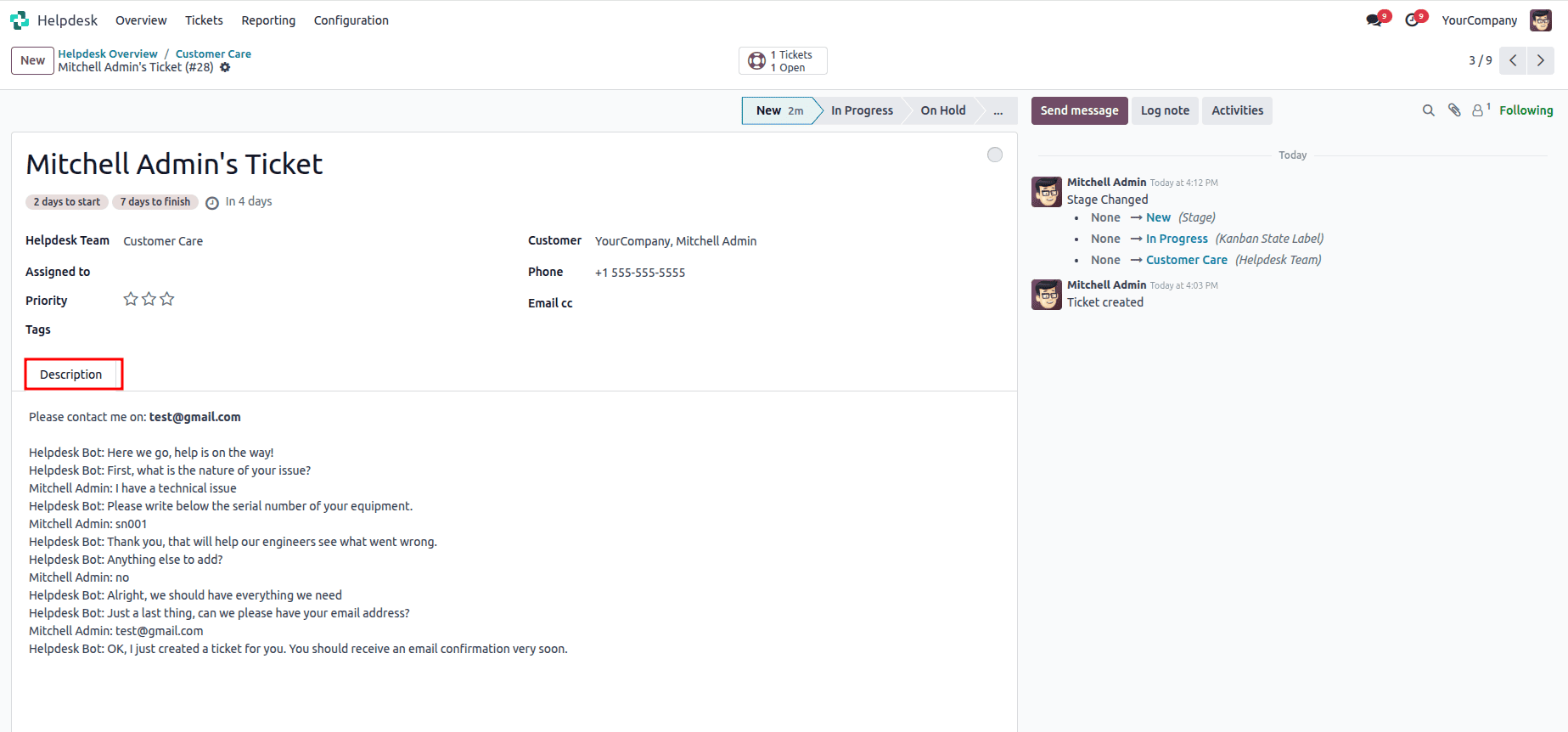
To verify that the ticket has been created, go back to the Helpdesk module and open the corresponding ticket team.
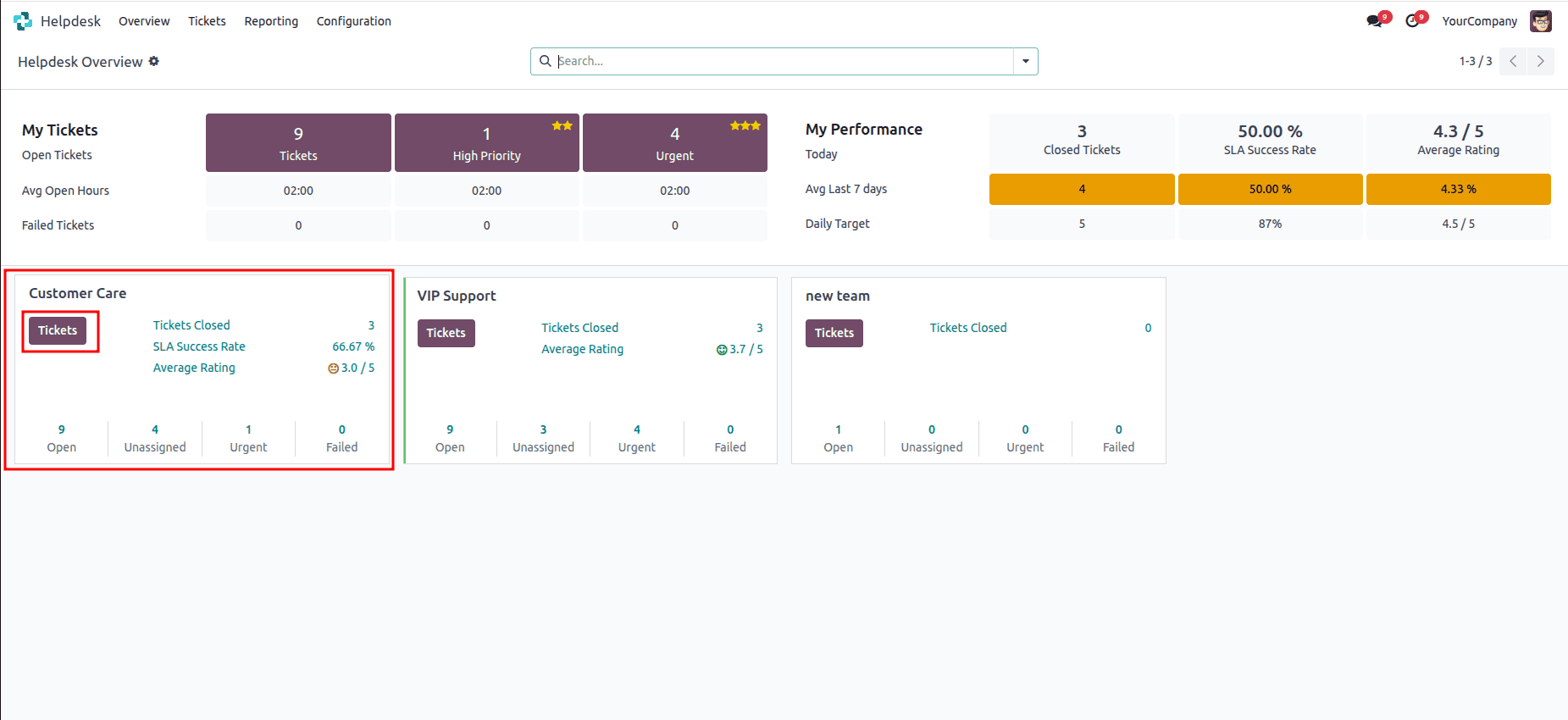
Here, you can see all the tickets.
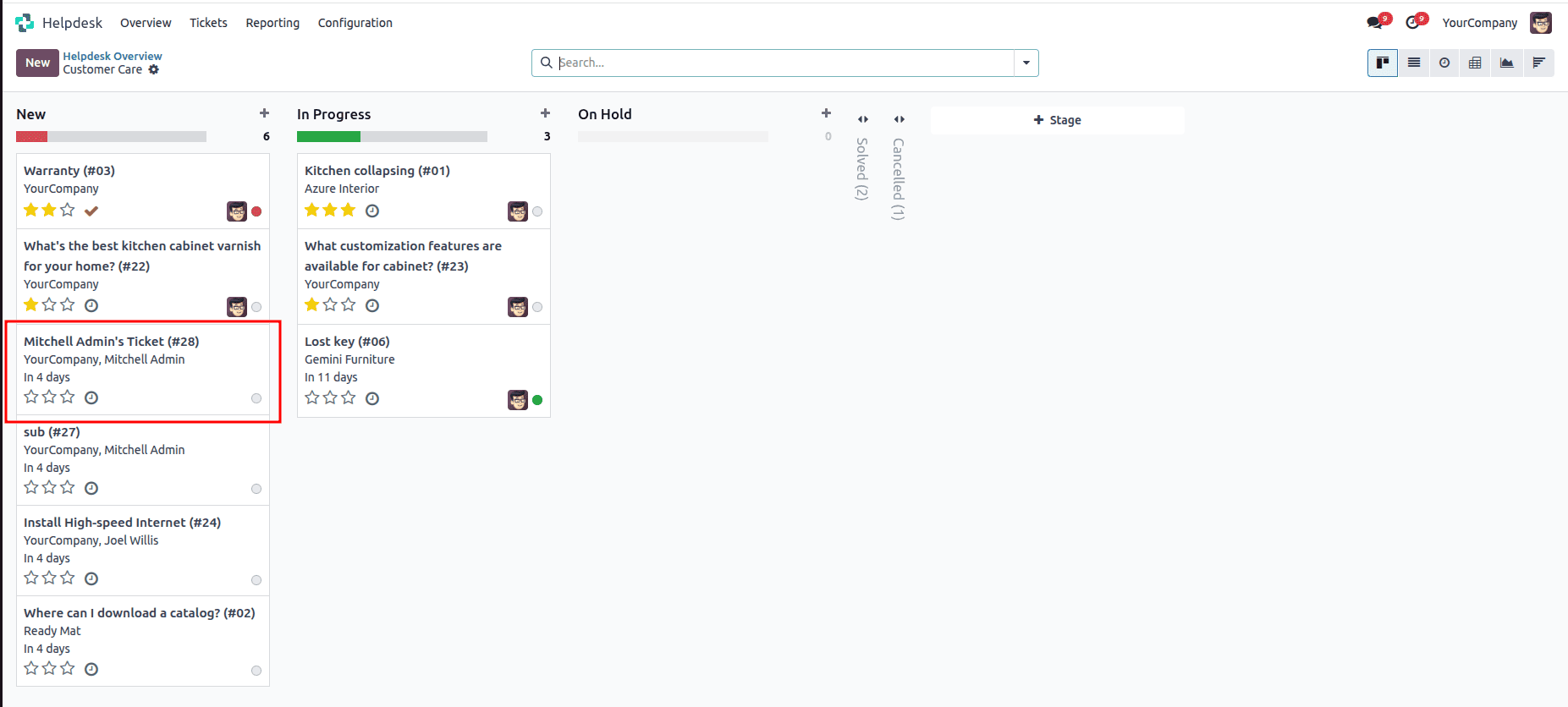
The ticket created through the chatbot will appear here, and you can view the chat details in the description.
Configuring a chatbot for the Odoo 18 Helpdesk allows businesses to automate customer interactions, streamline support processes, and improve response times. By designing a structured script, defining step types, and linking the chatbot to the Live Chat channel, you can guide visitors through inquiries, collect essential information, and even create support tickets automatically. Once configured, the chatbot becomes an efficient tool for managing customer queries and ensuring that your helpdesk team can respond quickly and effectively.
To read more about How to Configure Your Help Desk in Odoo 18, refer to our blog How to Configure Your Help Desk in Odoo 18.