Customers may now place orders using mobile devices or kiosks thanks to Odoo 19's Mobile Self-order & Kiosk capabilities. Self-ordering can be set up as a QR Menu, Kiosk, or QR Menu + Ordering. Thus, select "Kiosk" from the settings window's "Point of Sales" column. Customers may now place orders using mobile devices or kiosks thanks to Odoo 19's Mobile Self-order & Kiosk capabilities. Self-ordering can be set up as a QR Menu, Kiosk, or QR Menu + Ordering. Thus, select "Kiosk" from the settings window's "Point of Sales" column.
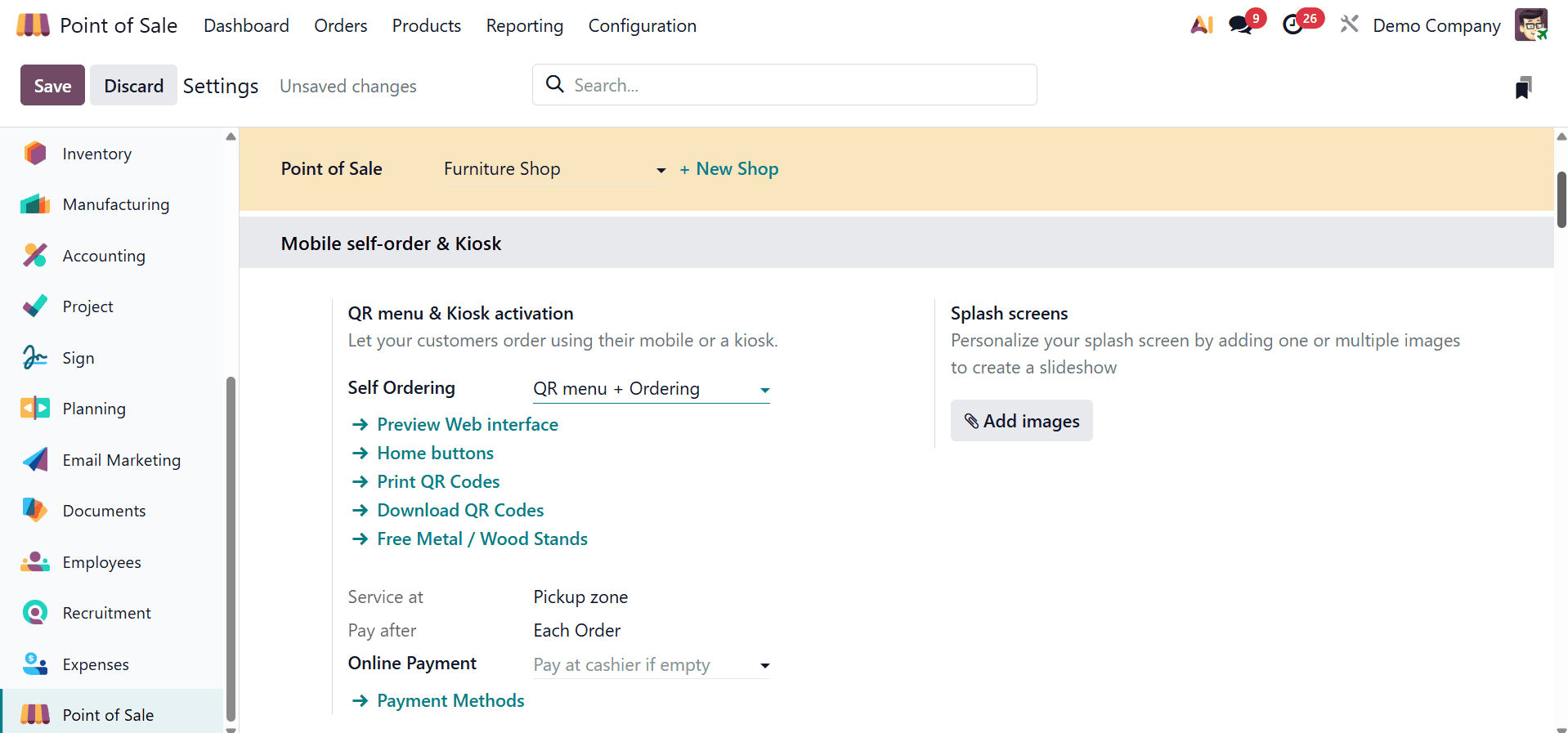
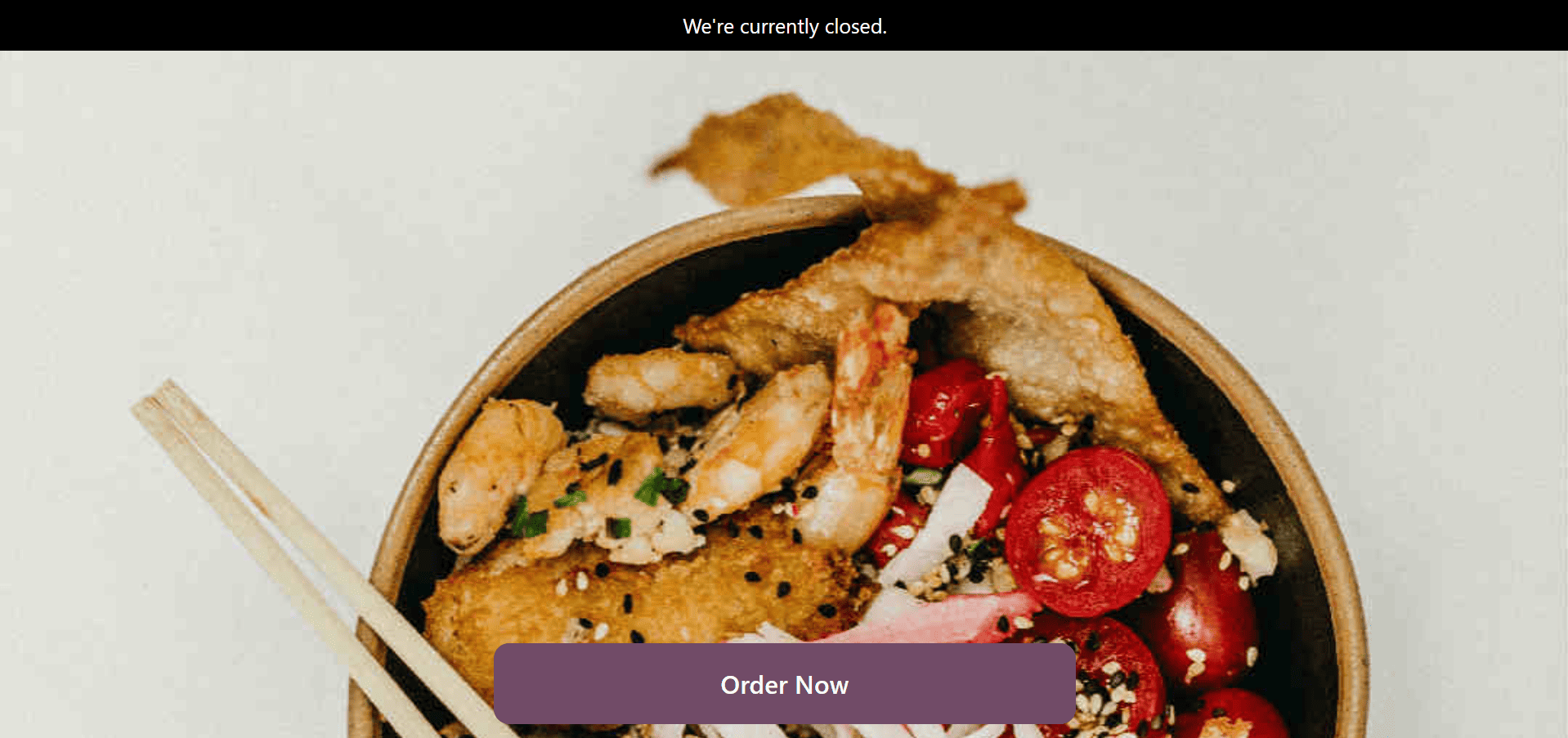
Click the "Preview Web Interface" option to see how the Kiosk interface appears. This will cause the interface to open as seen below.
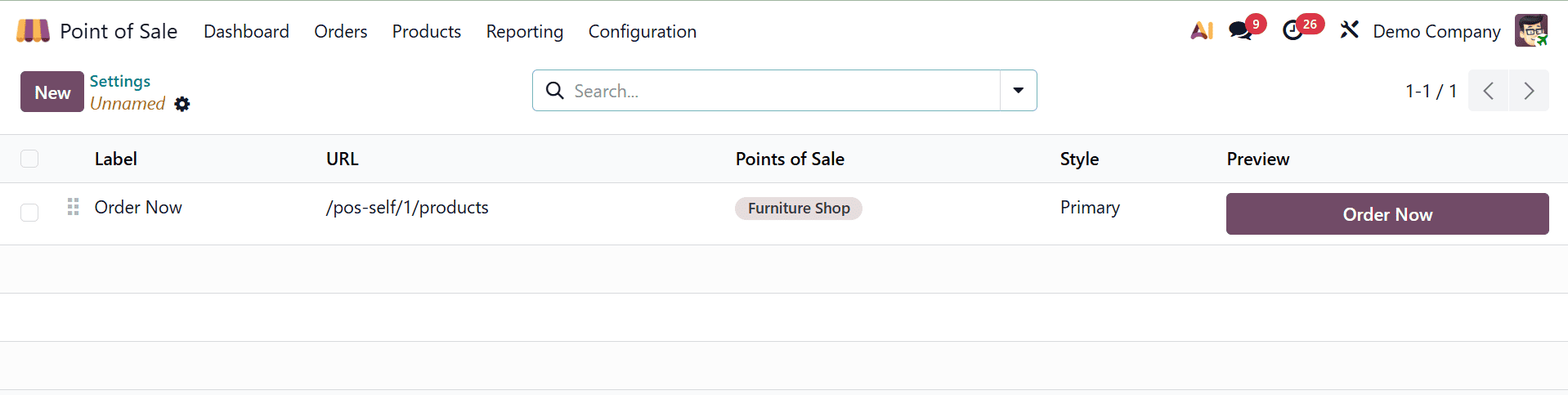
The Home buttons that show up on the Kiosk display window can be created and managed using the "Home Buttons" link. The dashboard displays all of the buttons that are available, along with the option to create new ones.
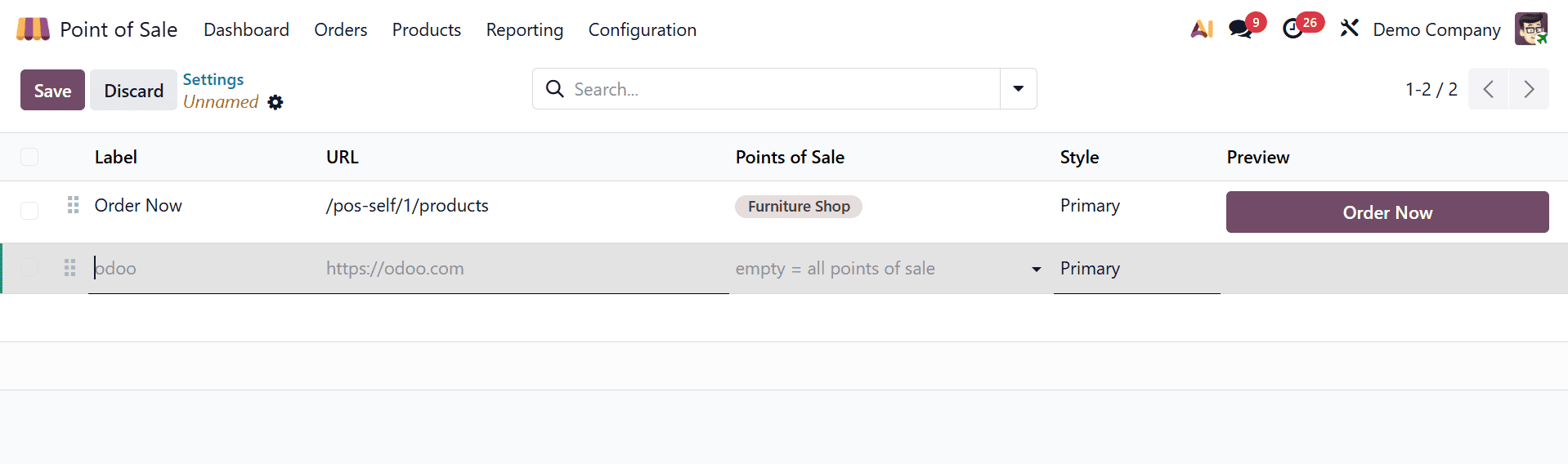
Edit the Label Name, URL, Point Of Sale Session, Style, and button Preview as seen in the screenshot below after launching a new home button creation window with the "New" button.
You can check the product catalog by using the new button that will be added to the kiosk's home page.
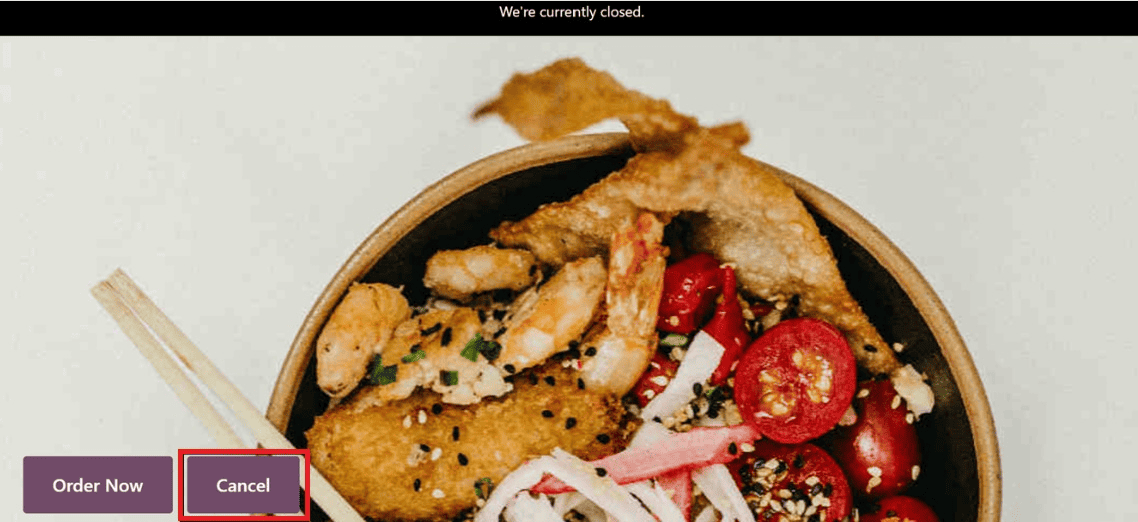
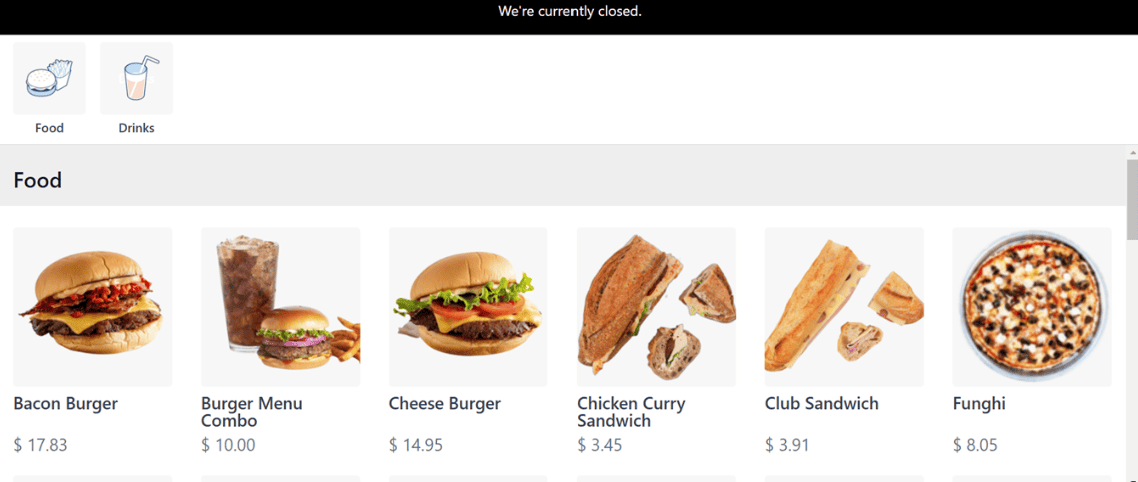
You will be taken to the products menu as seen below after selecting the new "Menu" home button.
In addition to the Kiosk self-ordering system, Odoo offers two further self-ordering choices. These choices are available in the Settings window's "Mobile self order & kiosk" tab's "Self Ordering" field. Settings like Preview Web Interface, Home Buttons, Print QR Codes, Download QR Codes, Payment Methods, Free Metal/Wood Stands, Available Interface Language and Default Languages can then be altered.
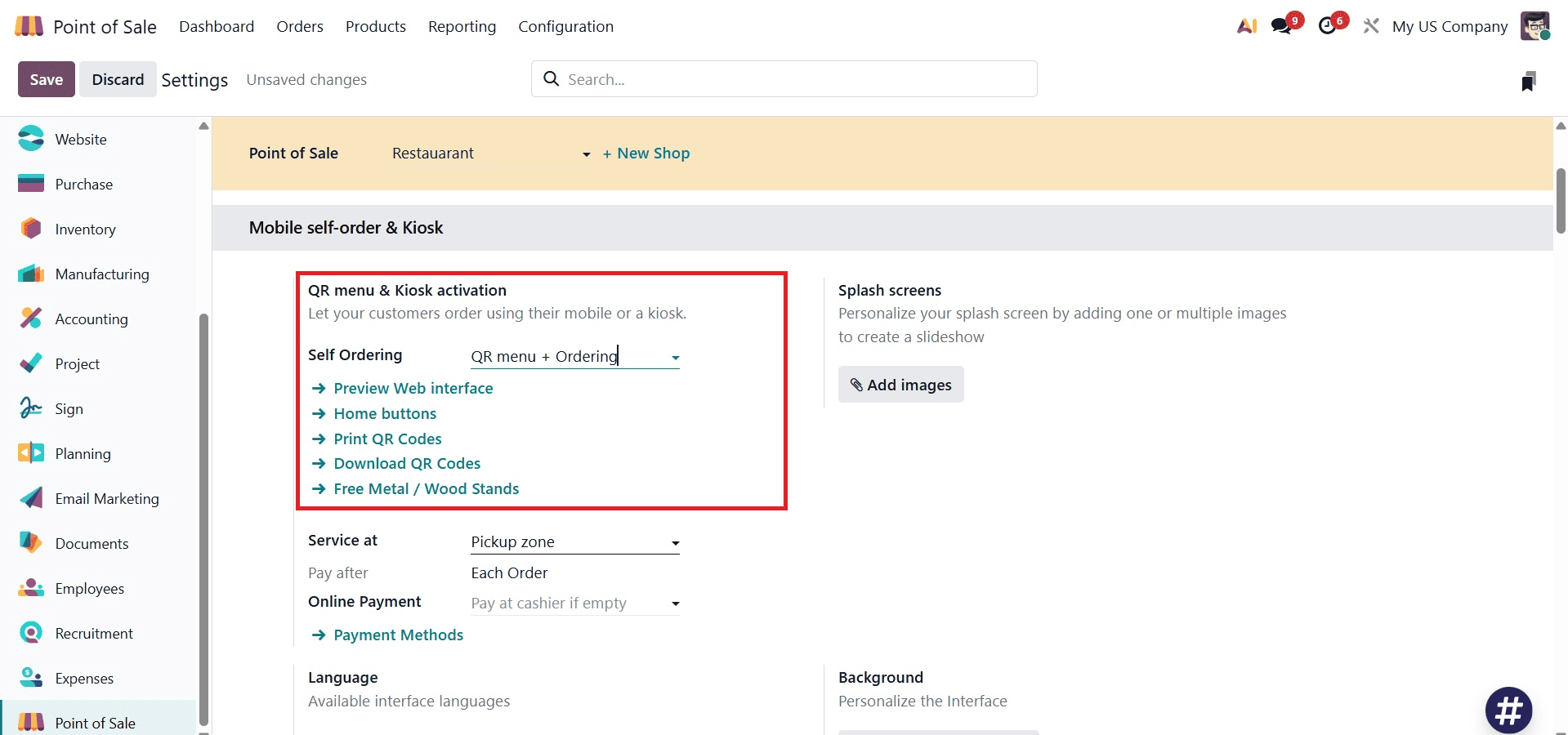
Odoo's "QR Menu" feature, which simplifies the customer experience by allowing consumers to browse menus and place orders directly on their mobile devices, would be advantageous for establishments like cafés and restaurants who wish to reduce manual participation.
When the self-ordering system's "QR Menu" option is chosen, Odoo will show links to "Print QR Codes" and "Download QR Codes," which may be used to set up QR codes for the self-ordering Kiosk interface.
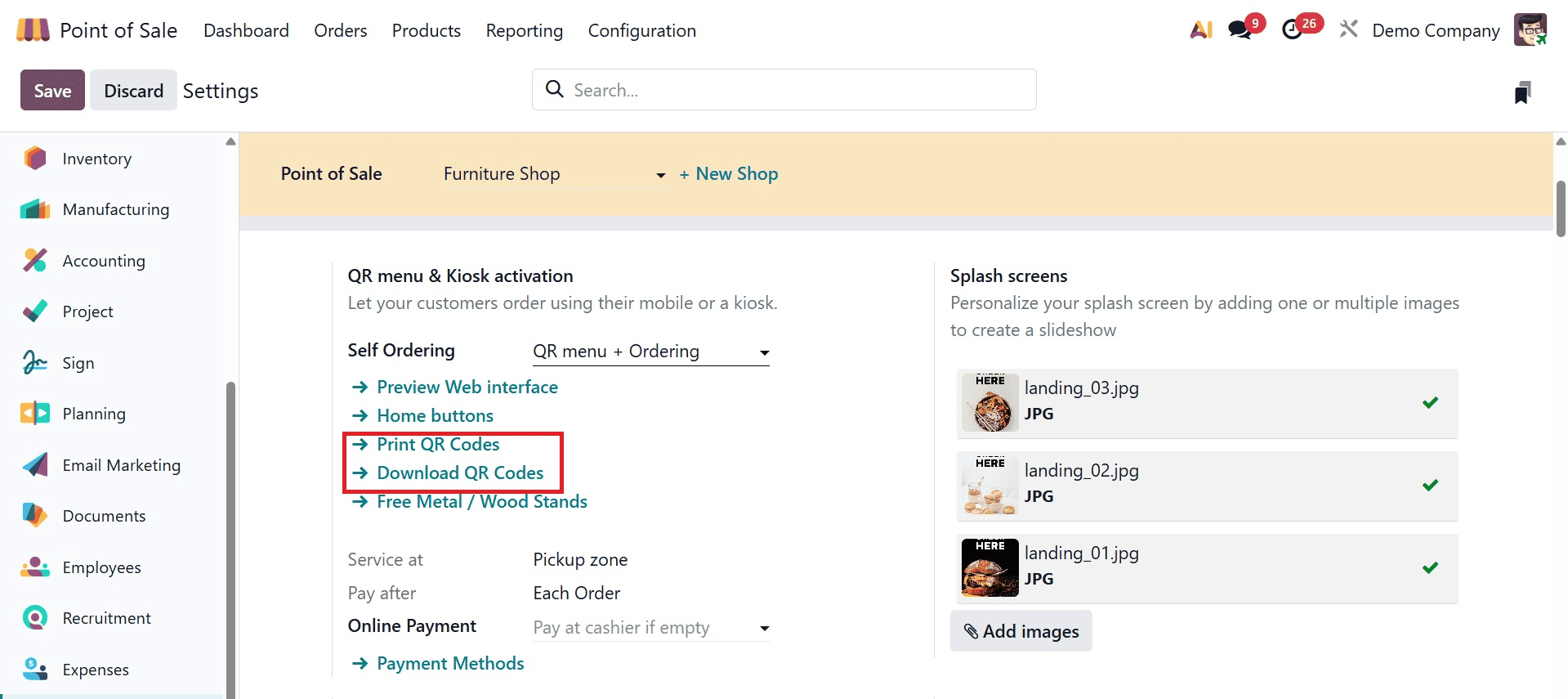
The "Download QR Codes" button will immediately download the required quantity of QR codes based on the number of tables and floors in your restaurant. Click the "Print QR Codes" option to print the QR codes. Odoo will download the codes into your system based on the number of tables in your restaurant session, as indicated below.
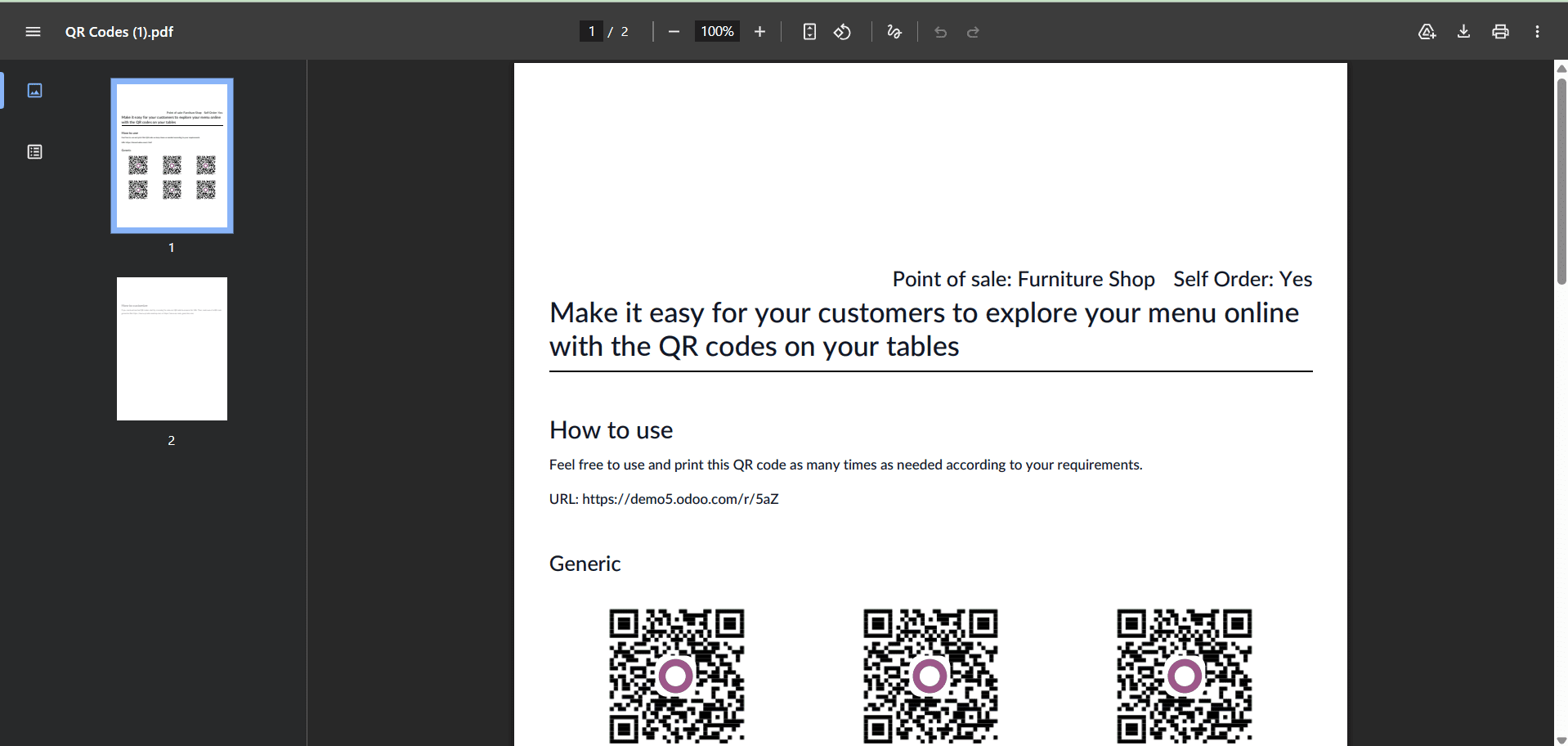
These QR codes can then be strategically positioned throughout a restaurant so that patrons can scan them with their cellphones. This directs users to an online menu where they may browse, customize their meals, and place orders directly from their phones. This speeds up the ordering process and reduces staff labor, allowing them to focus on other service areas.
Click the "Payment Methods" link and select or create payment methods from the dashboard window to manage and create the payment ways for the Kiosk shopping session.
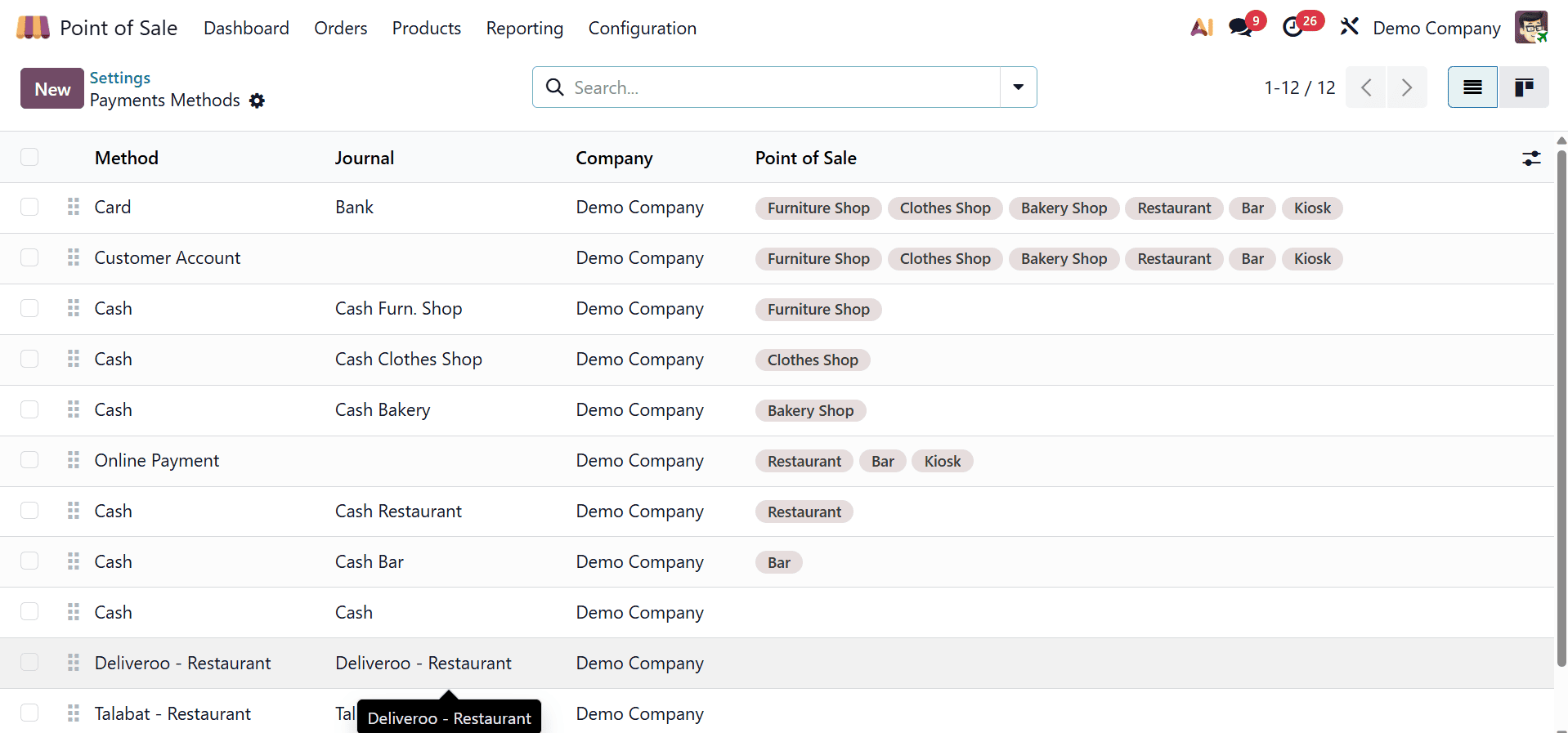
Click the "New" button and change the payment method name in the "Method" section to establish a new payment method. Next, depending on the payment method, activate the "Online Payment" and "Identify Customer" fields.
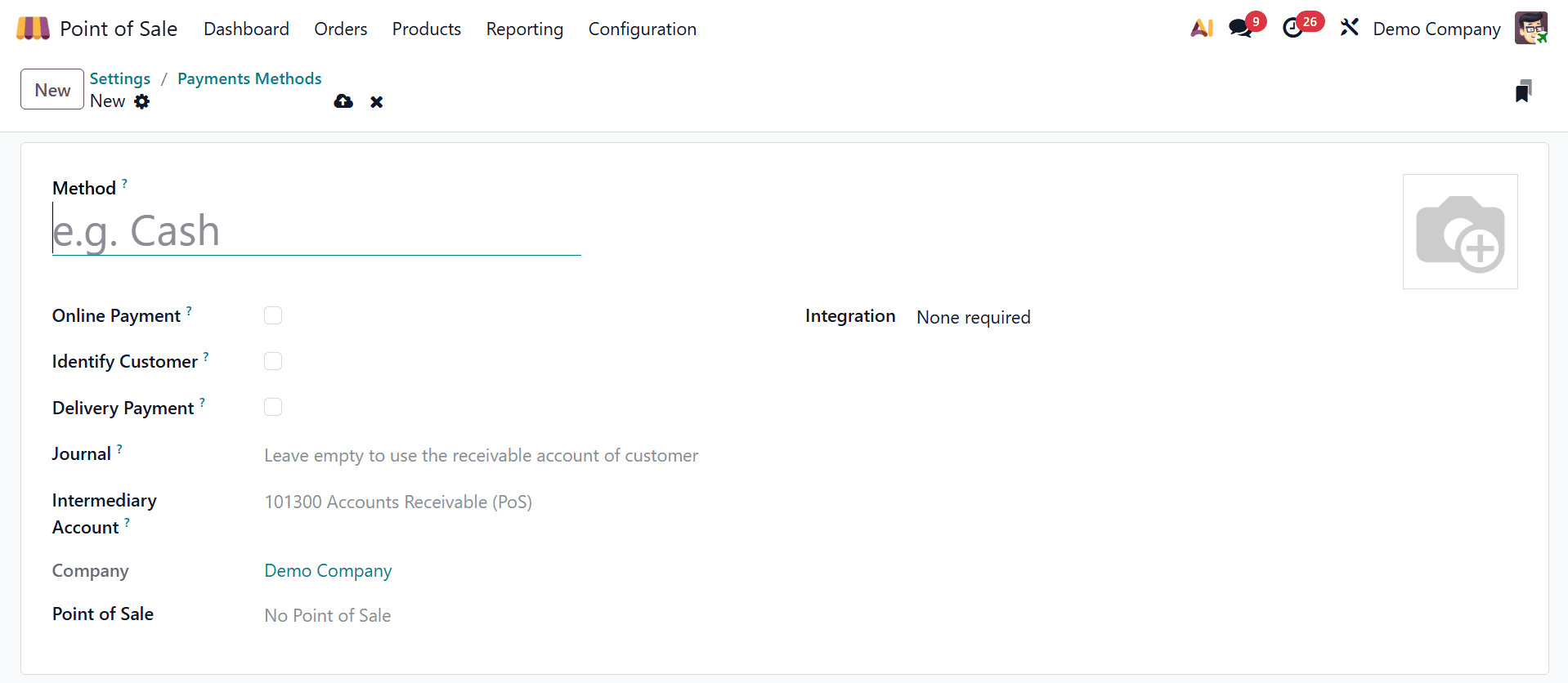
For a more thorough setup of the payment method, you can also select the Journal, Intermediary Account, and Integration settings. The Point of Sale Settings portion of this book is a detailed description of how to create a new payment option.
Splash Screens are pop-up notifications in Odoo's POS module that enhance productivity and communication by offering order summaries, promotions, payment alerts, or customer instructions.
By clicking the "Add images" link located beneath the Splash Screen photos field, you may add eye-catching and personalized splash screen images to the kiosk window. You can access your device's storage by clicking the "Add images" button. The necessary image can be selected and added as a kiosk splash screen.
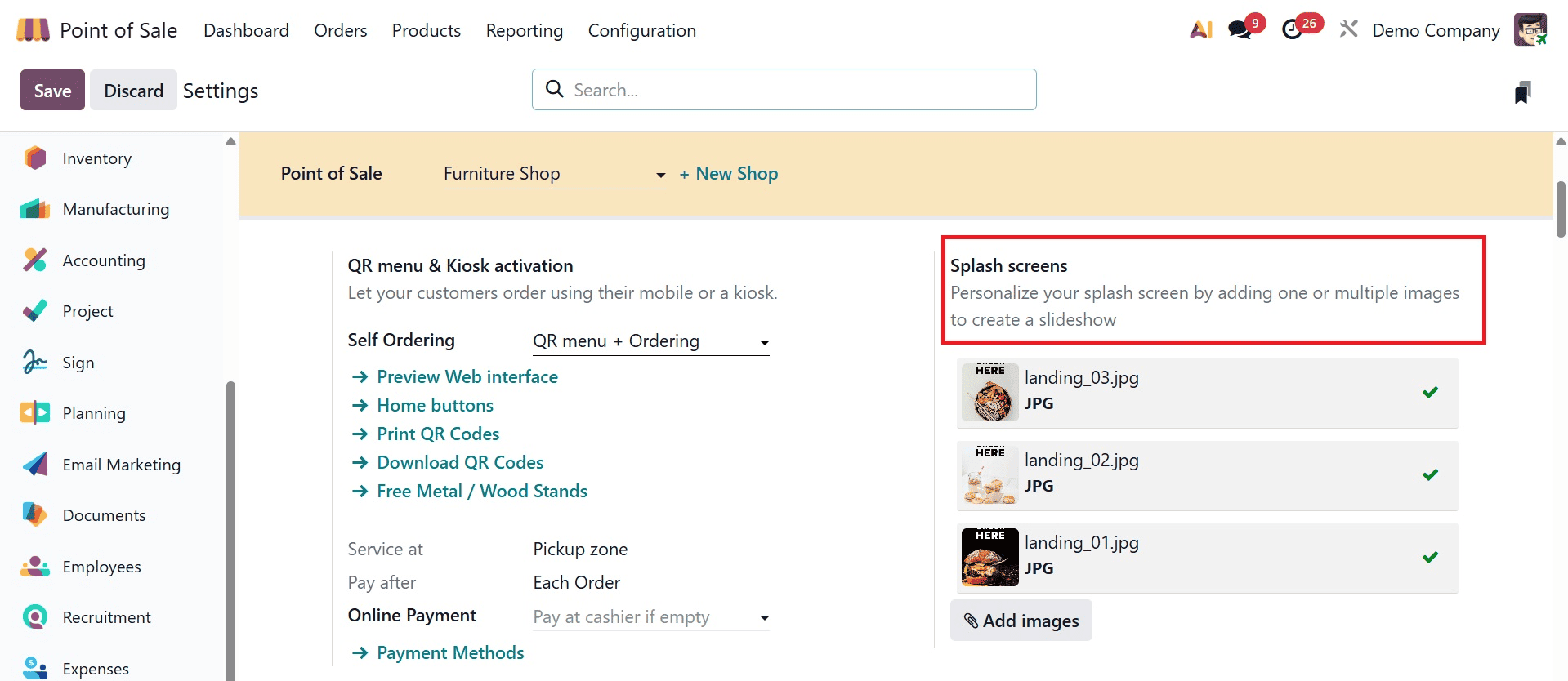
Using the "Add images" button, you can simply remove the old photographs and replace them with new ones in order to manage and delete them. After that, you can use the "Upload your file" link found under the "Customize Headers" option to create a brand image for the Kiosk shop.
You can modify the Default and Available languages under the "Language" settings to see the contents of the kiosk web interface in various languages. You can use the "Add Languages" button to add new languages from the Odoo database to the PoS web interface.
You may view the available languages using the web interface after setting up the languages settings. To improve clarity, you can personalize the online content by choosing your chosen language from the available options. Customers can use the "Order Now" button to pick items and tables and place orders during active sessions once all settings have been saved. After that, the order will appear in the relevant session.
The Kiosk Interface in Odoo's Point of Sale module improves customer ordering by enabling self-service transactions. This solution reduces staff workload and increases order efficiency with its interactive and user-friendly interface.
You can select the Kiosk Session option from the Point of Sale's Dashboard Menu to begin a Kiosk sales session.
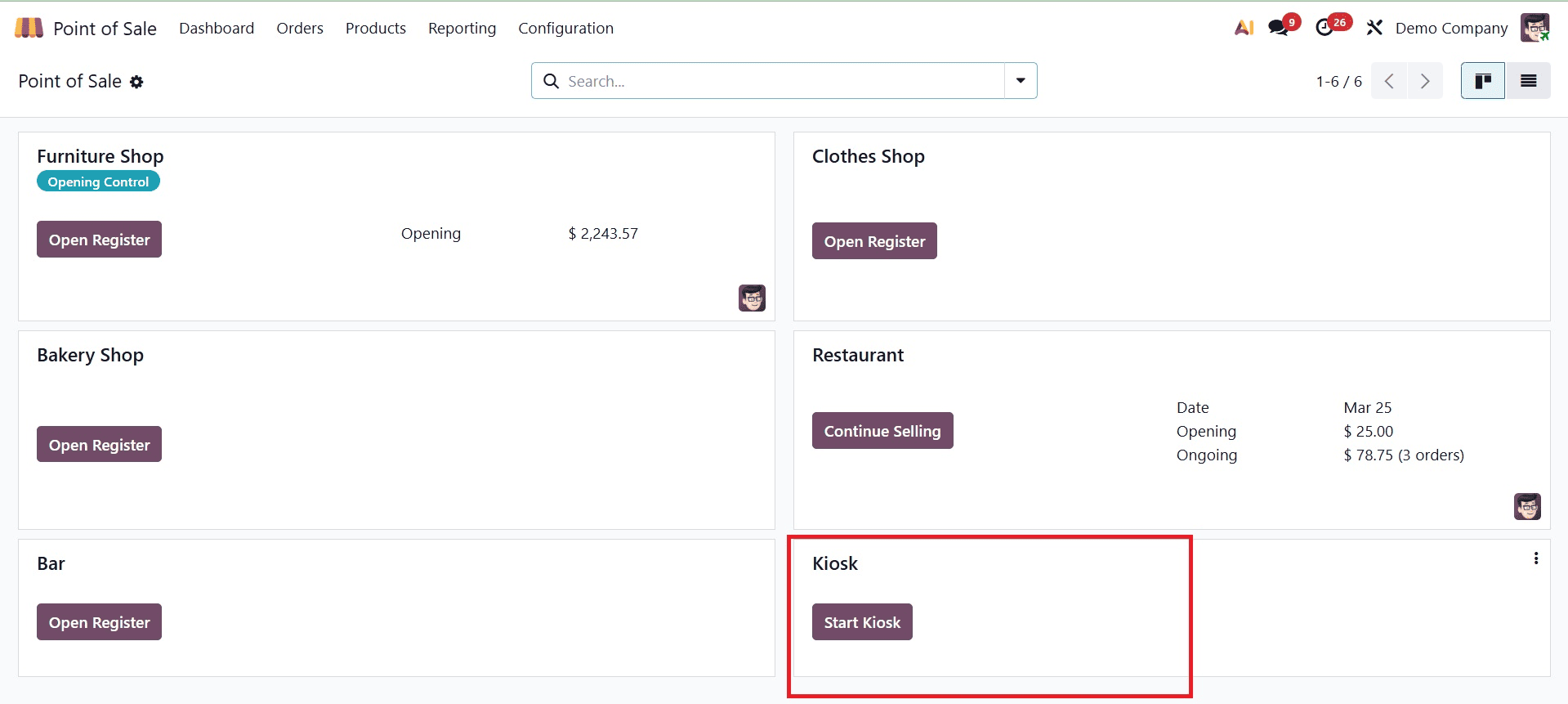
Click "Start Kiosk" from the dashboard to access the kiosk interface when it has been configured.
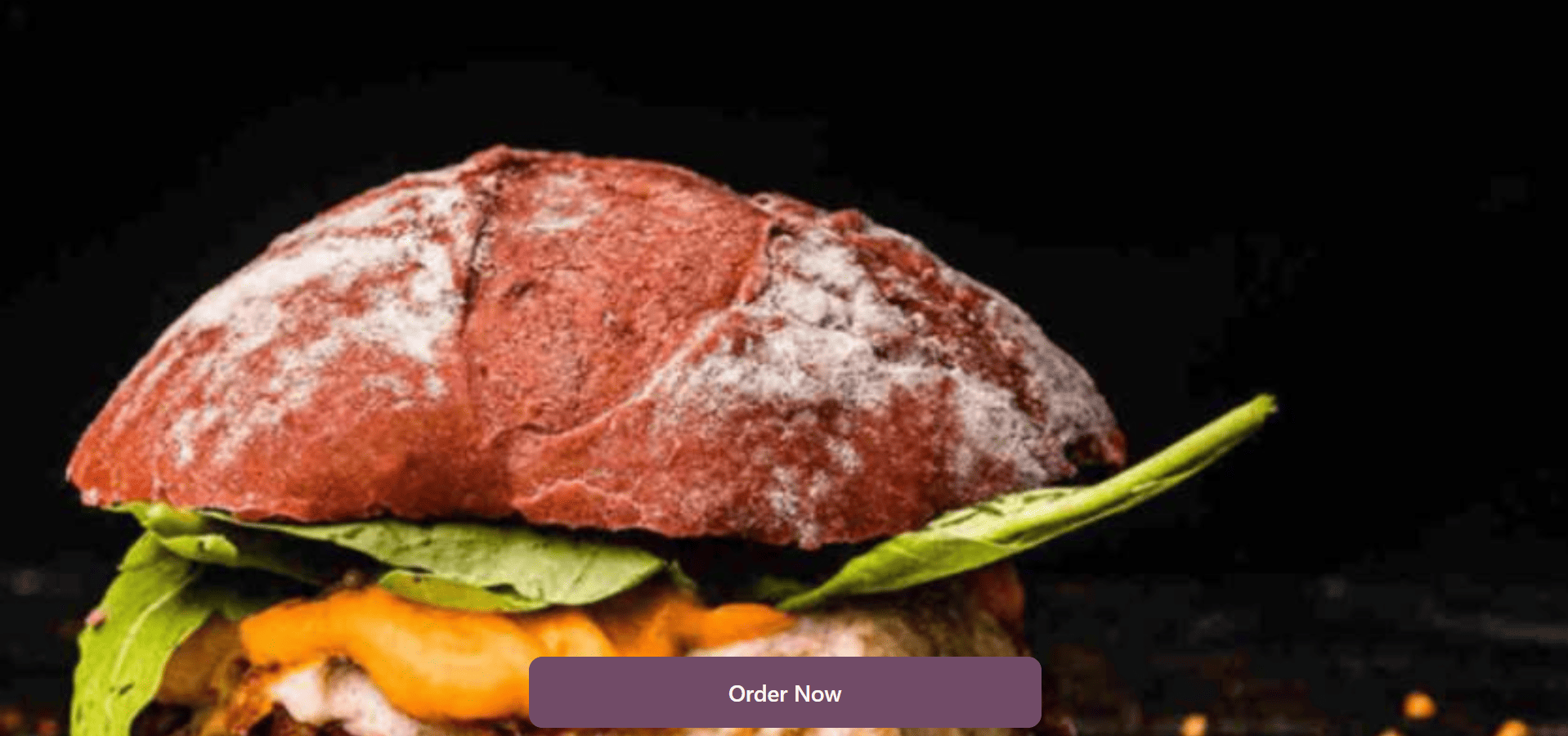
After that, click "Order Now," begin selecting items from the catalog, and then click "Order."
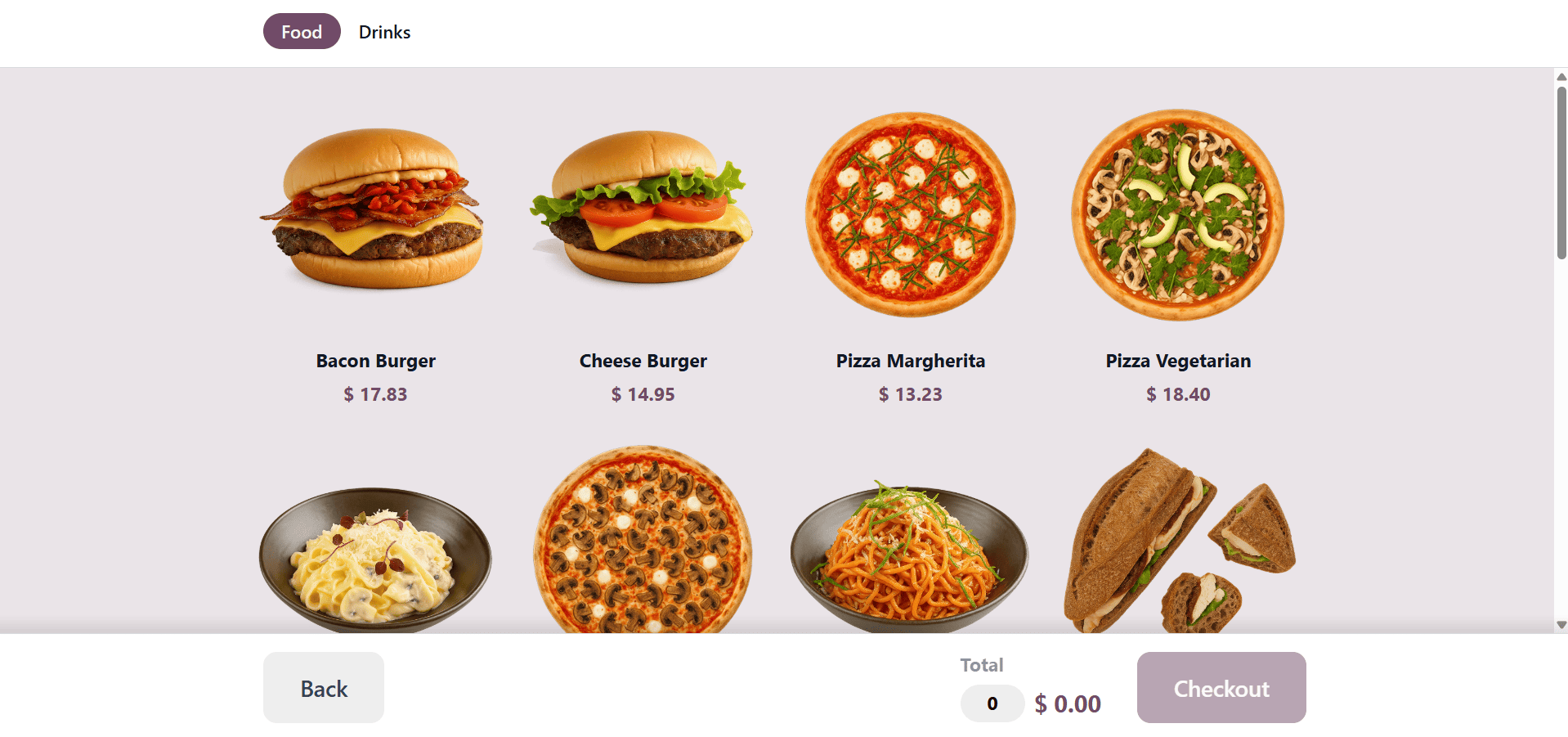
Next, select the items and use the "Add to cart" button to add them to the shopping cart.
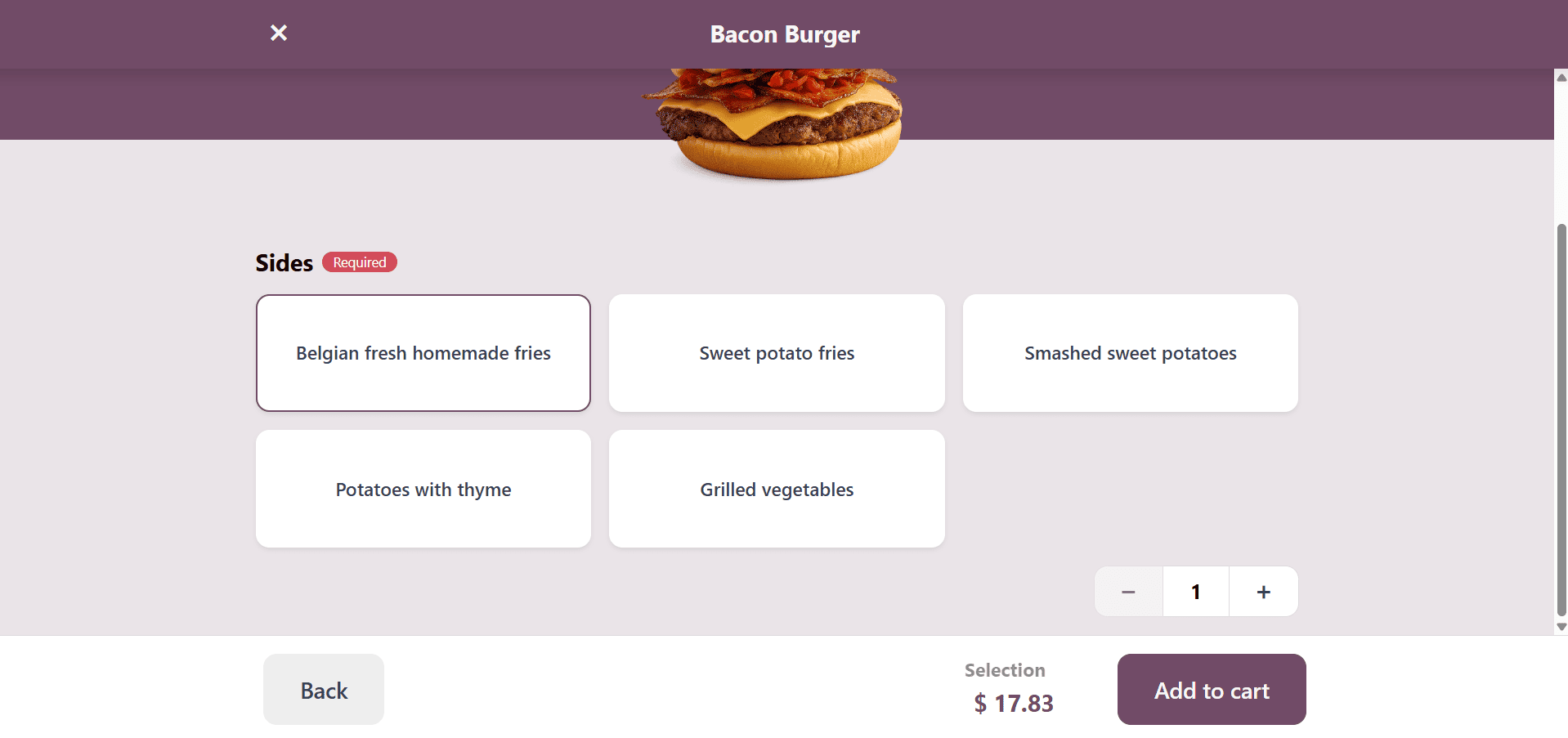
Next, use the "Add to Cart" button to add your product order.
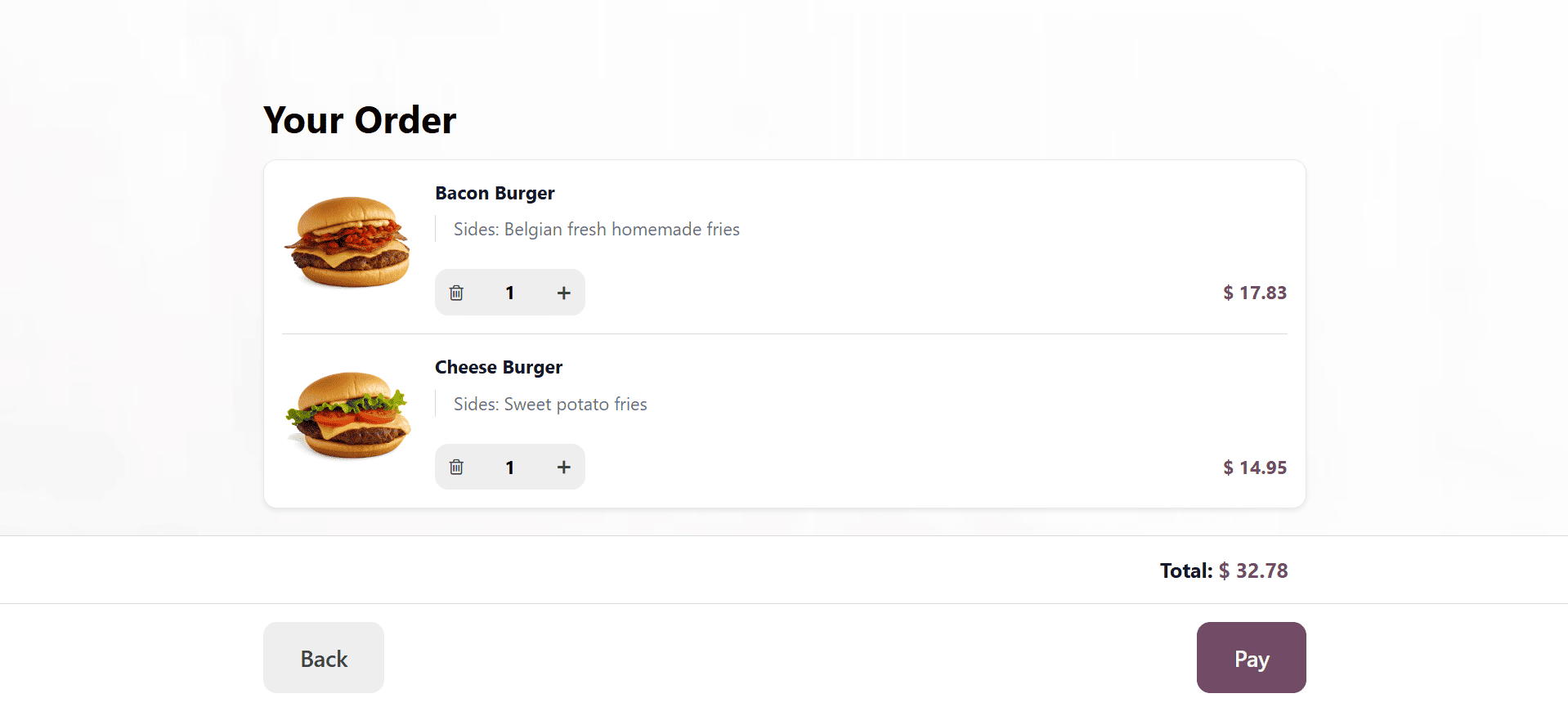
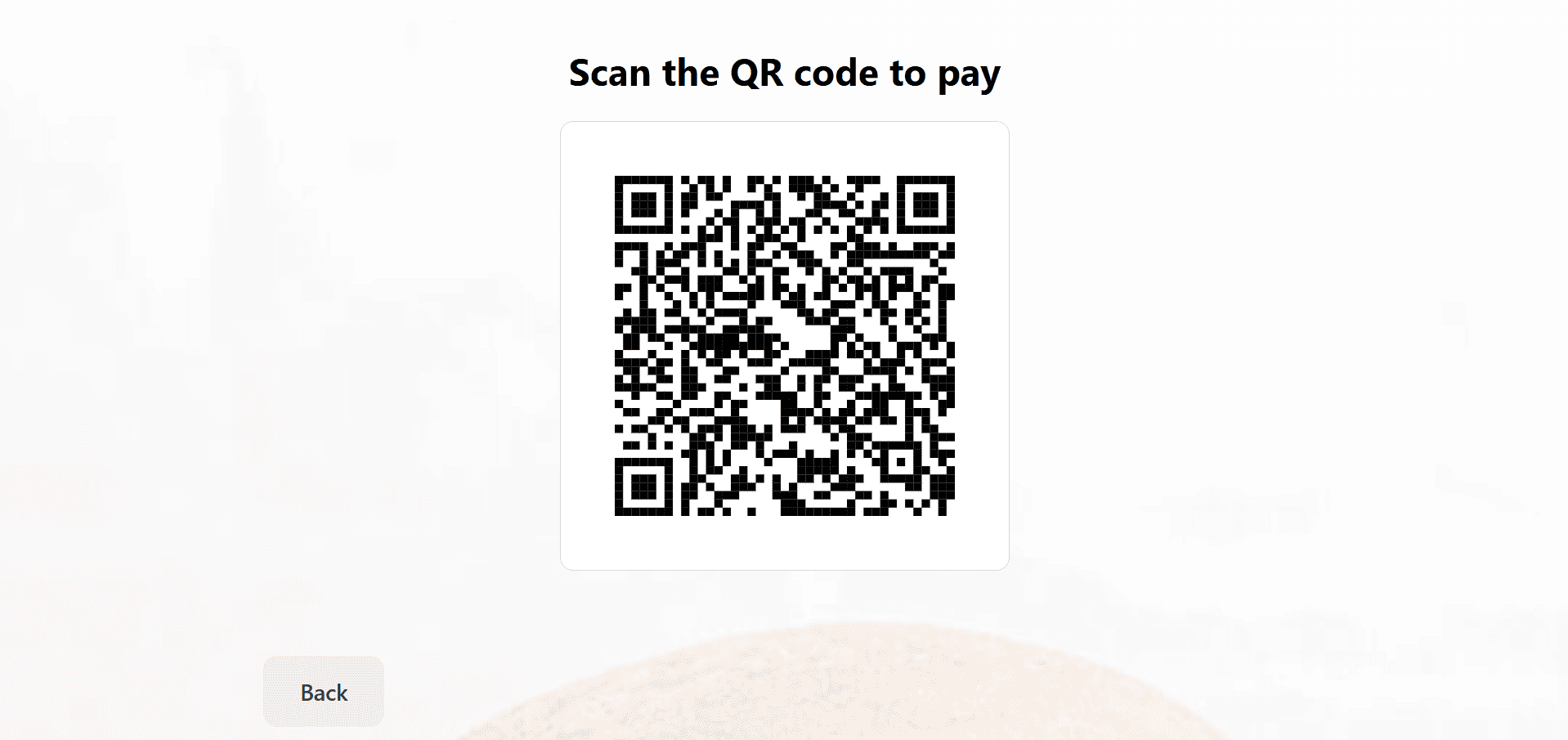
As seen in the screenshot below, clicking the "Pay" button will finalize the order and provide you with the QR Code to complete the process.
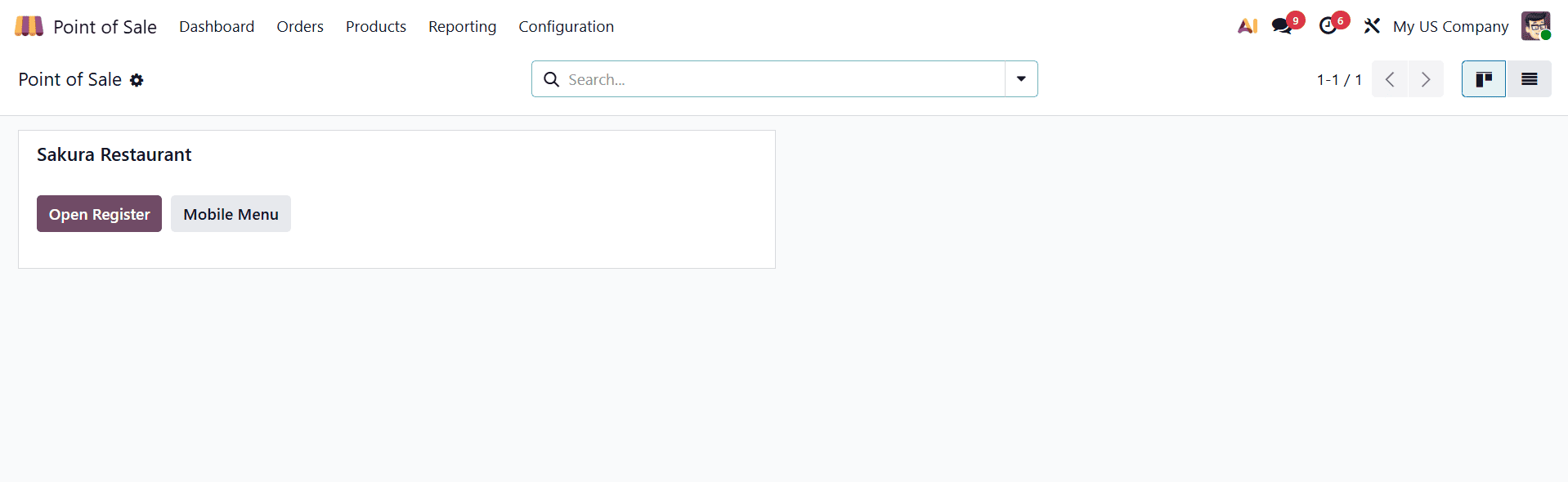
Once the QR Menu has been established in the Kiosk settings section, open the restaurant and begin your product purchasing. Thus, by pressing the "Open Register" button and entering an opening note, you can access the restaurant through the "Dashboard" window at the point of sale.
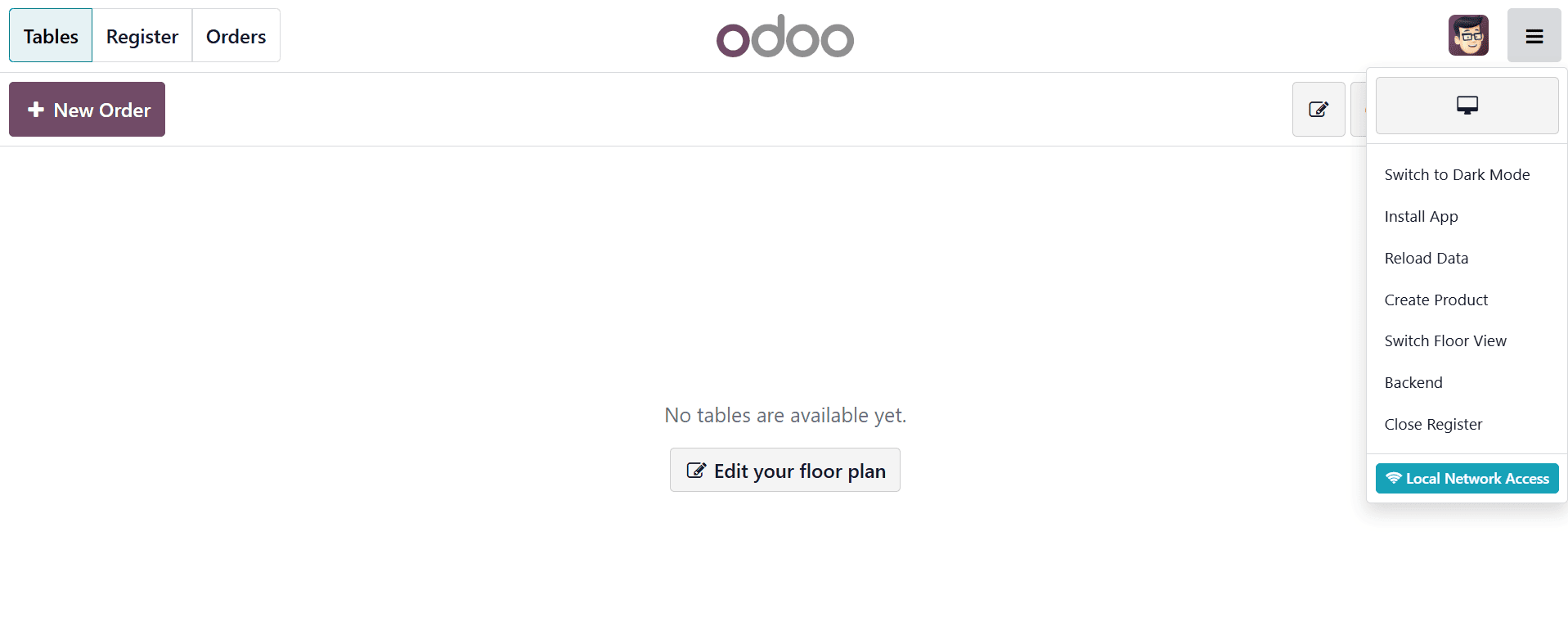
The floor plan and table view will be the same as when we start a regular restaurant session, as seen in the screenshot below, once you have opened the kiosk mode.
The products catalog will then show up after you select the table. After that, you can select the items and use the "Order" button to complete the order and payment.
The web page interface is displayed as follows when placing an order via a QR Menu application interface.
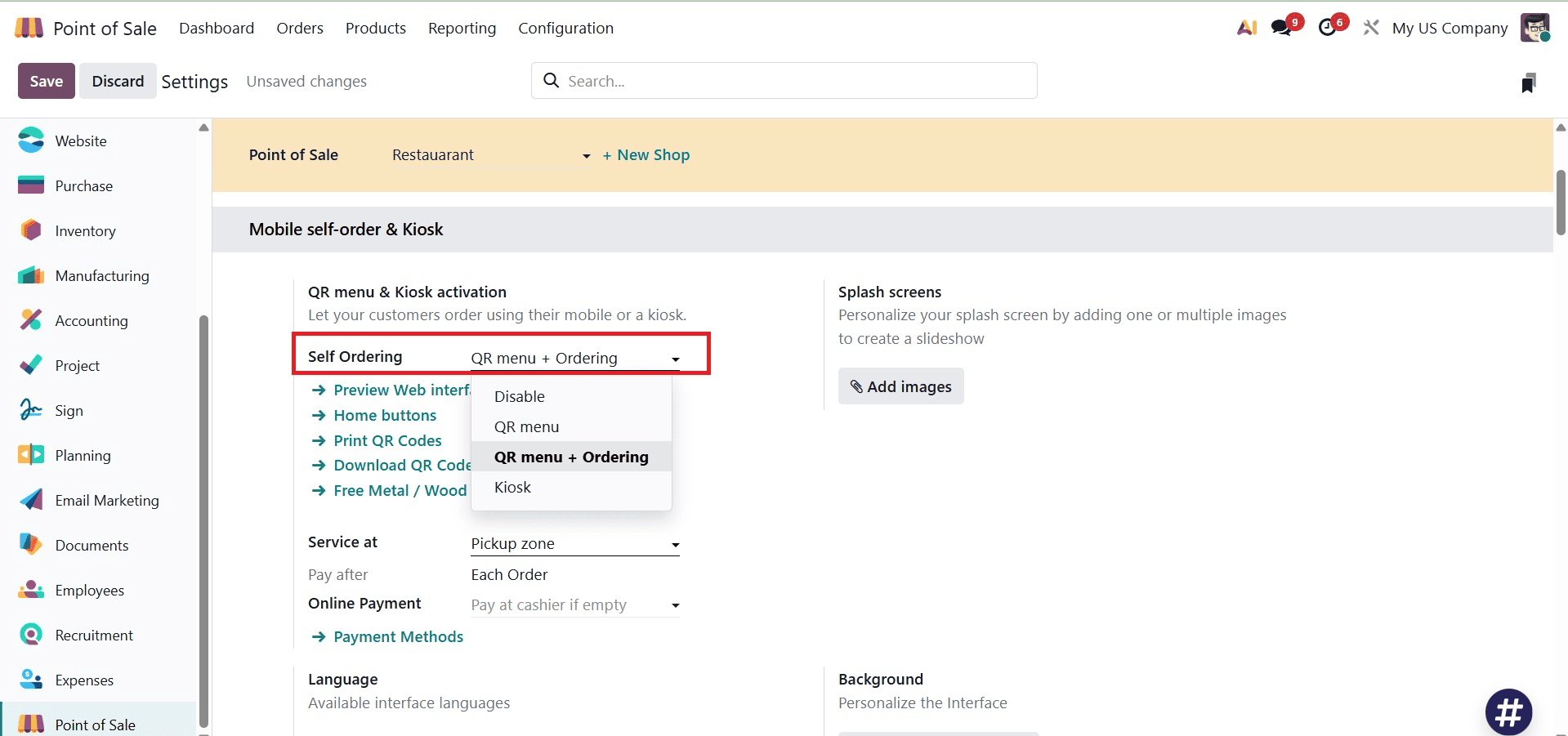
The 'QR Menu+Ordering' option improves the dining experience and streamlines operations by enabling customers to access digital menus and place orders straight from their mobile devices.
When this option is enabled, the kanban view of the specific shop within the POS dashboard has a "Self Ordering Enabled" feature that enables real-time monitoring and control of self-orders, guaranteeing effective tracking of incoming orders and seamless operations at peak times.
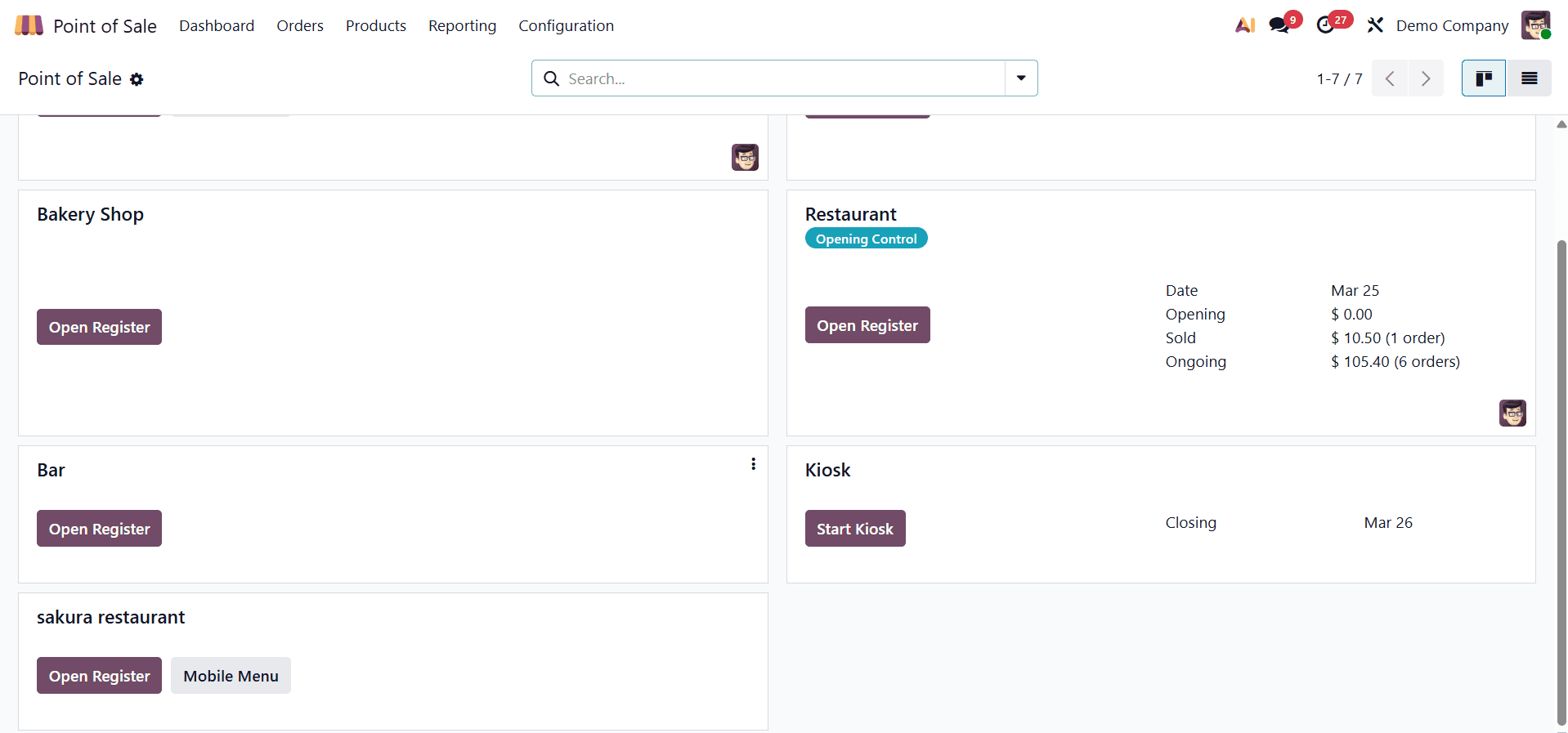
After that, you can click the "Open Register" button and enter the opening note to start the kiosk session.
To see how the kiosk interface appears, click the "Preview Web Interface" option in the Self Ordering settings window.
The ordering procedure can then be initiated by selecting the desired items and clicking the Orders button. When using a smartphone, the interface will instantly switch to a mobile-friendly preview. After selecting the products, click the Pay button and complete the purchase using any of the Point of Sale payment options.
To read more about How to Configure a Bar and Restaurant in Odoo 19 POS, refer to our blog How to Configure a Bar and Restaurant in Odoo 19 POS.