Efficient inventory management extends beyond manufacturing finished products; it also includes the ability to reverse production whenever necessary. In Odoo 19 Manufacturing, the Unbuild Order feature enables businesses to dismantle manufactured products into their original components while maintaining accurate inventory records. This functionality is particularly useful for handling defective products, recovering reusable materials, correcting manufacturing errors, or disassembling returned items. During the unbuilding process, Odoo automatically adjusts stock quantities by removing the finished product from inventory and restoring its components based on the associated Bill of Materials (BoM). Fully integrated with the Manufacturing, Inventory, and Accounting modules, this feature ensures complete inventory traceability and efficient stock management. In this blog, we will explore how to configure and perform product unbundling in Odoo 19, along with its impact on inventory operations.
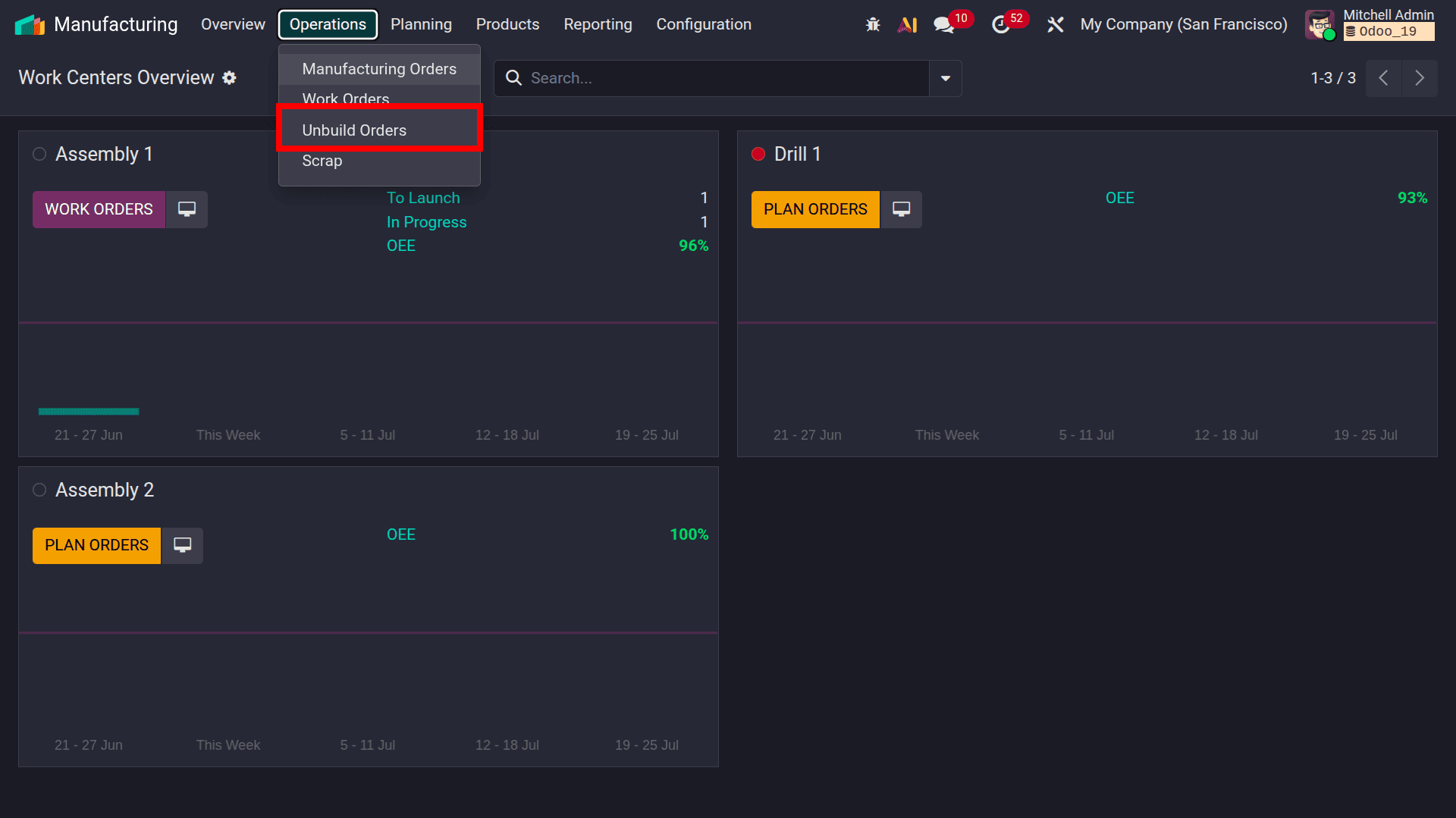
As shown in the screenshot, Odoo 19 provides a dedicated Unbuild Orders option under the Operations menu in the Manufacturing module. This menu is used to manage the dismantling of manufactured products and create unbuild orders whenever required. Although Odoo supports creating unbuild orders directly from this menu, in this demonstration, the unbuilding process will first be performed from a to illustrate the complete workflow. The Unbuild Orders menu will be explored later in the blog to demonstrate how unbuild orders can also be created and managed independently.
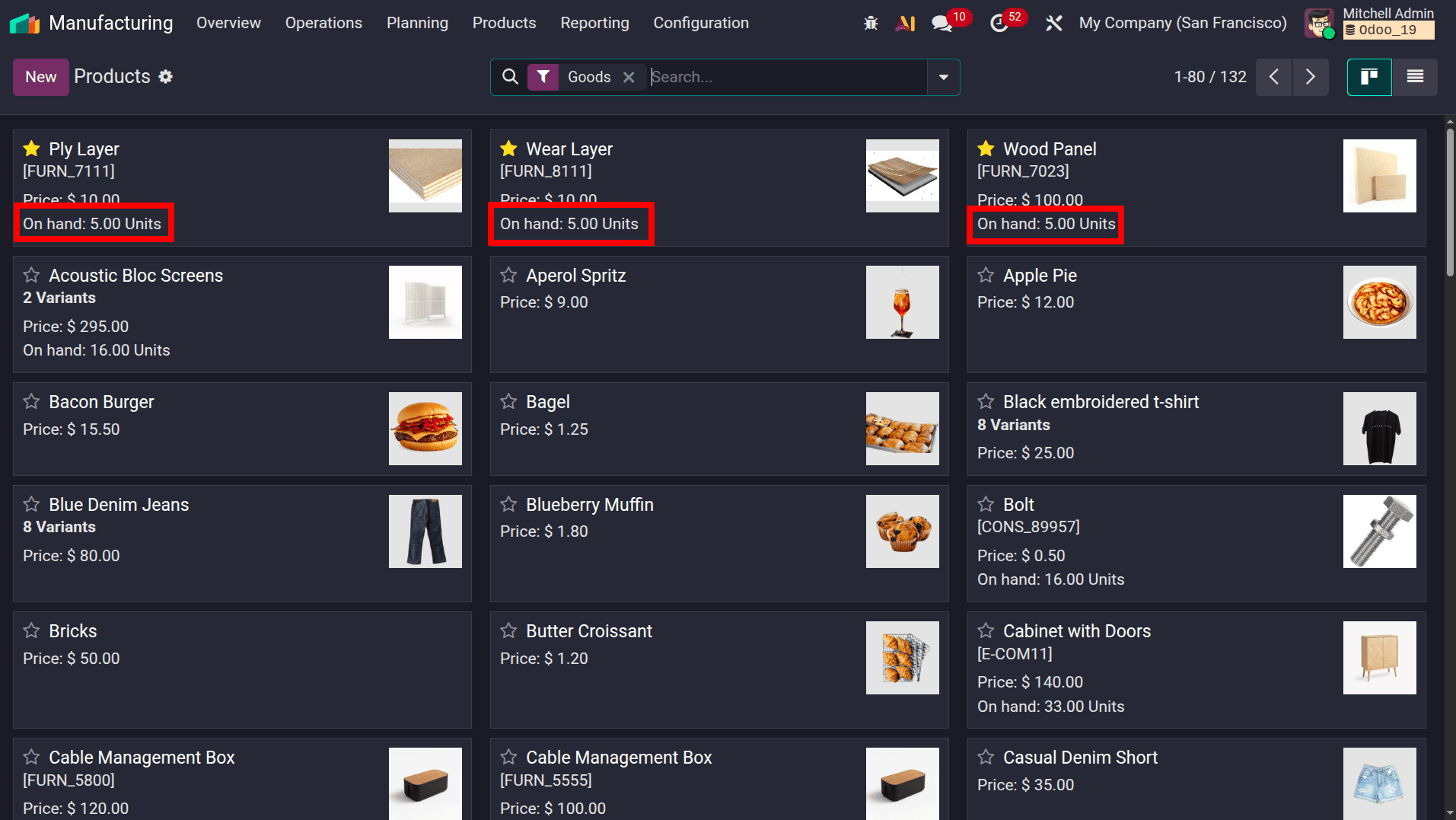
Before moving to the unbuilding process, ensure that the required component products are available in inventory. As shown in the screenshot, the products Ply Layer, Wear Layer, and Wood Panel each have an On Hand quantity of 5.00 Units. These components will be used to manufacture the finished product in the following steps. Recording their initial stock quantities makes it easier to observe how Odoo automatically updates inventory after the manufacturing and subsequent unbuilding operations.
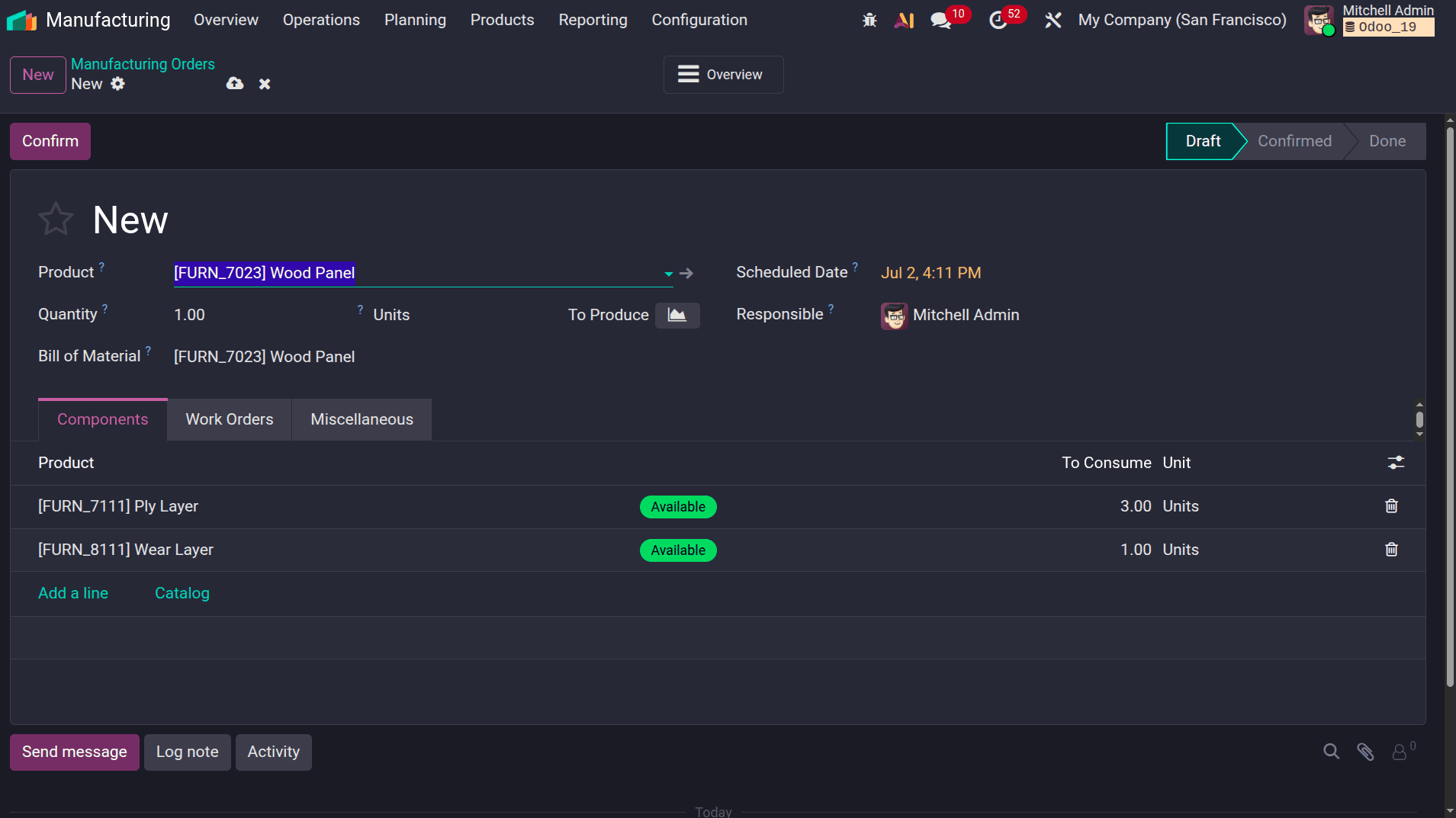
To begin the manufacturing process, create a new Manufacturing Order for the finished product. As shown in the screenshot, the Wood Panel product is selected with a quantity of 1.00 Unit. Odoo automatically retrieves the associated Bill of Materials (BoM) and lists the required components under the Components tab. In this example, manufacturing one Wood Panel requires 3.00 Units of Ply Layer and 1.00 Units of Wear Layer. Since the required components are available in stock, Odoo displays their status as Available, indicating that the manufacturing order is ready to proceed. This manufacturing order will be completed first and then used to demonstrate the unbuilding process.
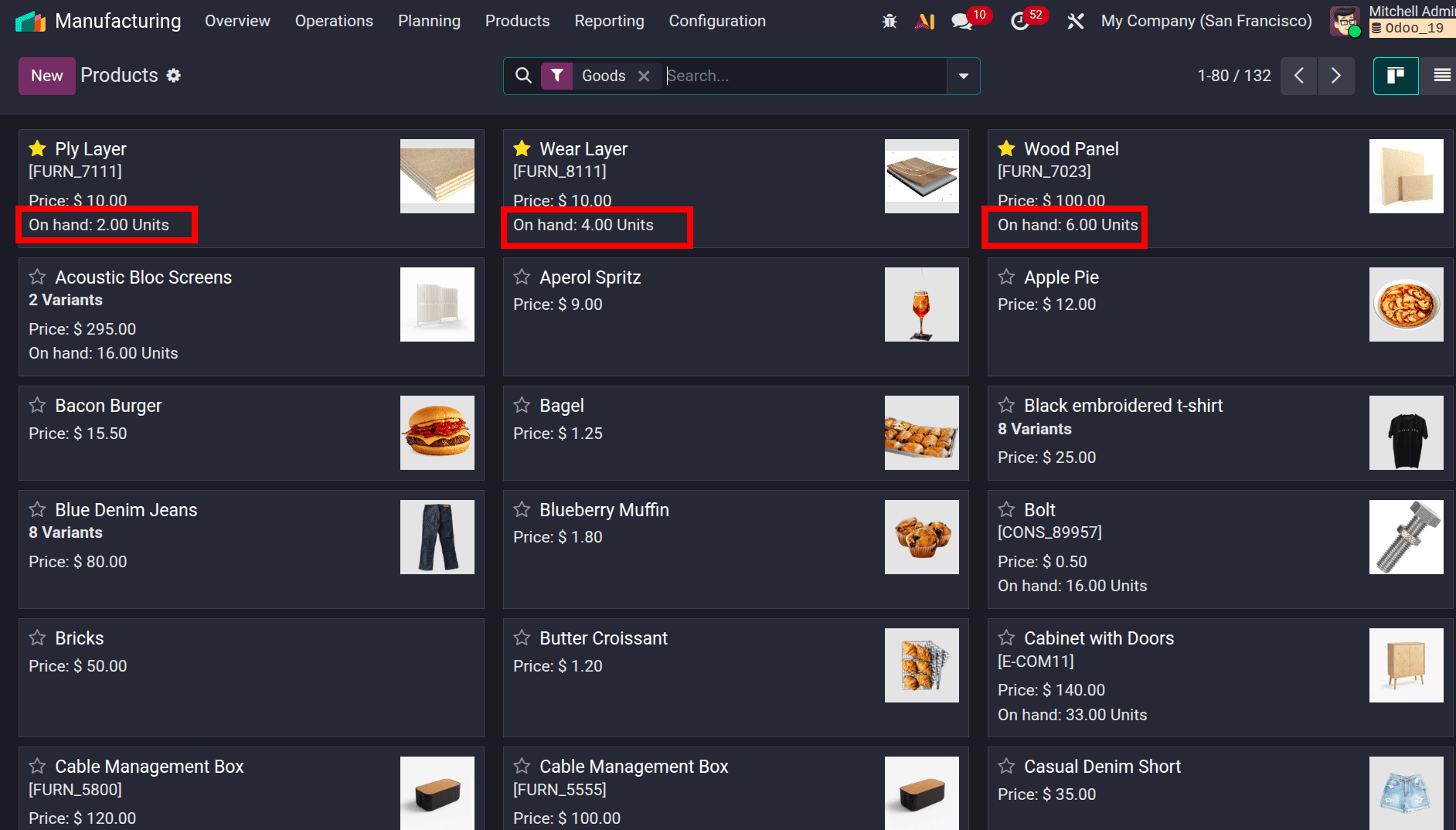
After completing the Manufacturing Order, the inventory quantities are automatically updated to reflect the consumption of components and the production of the finished product. As shown in the screenshot, the Ply Layer stock has decreased from 5.00 to 2.00 Units, and the Wear Layer stock has reduced from 5.00 to 4.00 Units, as these components were consumed during manufacturing. At the same time, the Wood Panel stock has increased from 5.00 to 6.00 Units, indicating that one finished product has been successfully manufactured. These updated inventory quantities will be used to demonstrate how the Unbuild Order reverses the manufacturing process and restores the consumed components to stock.
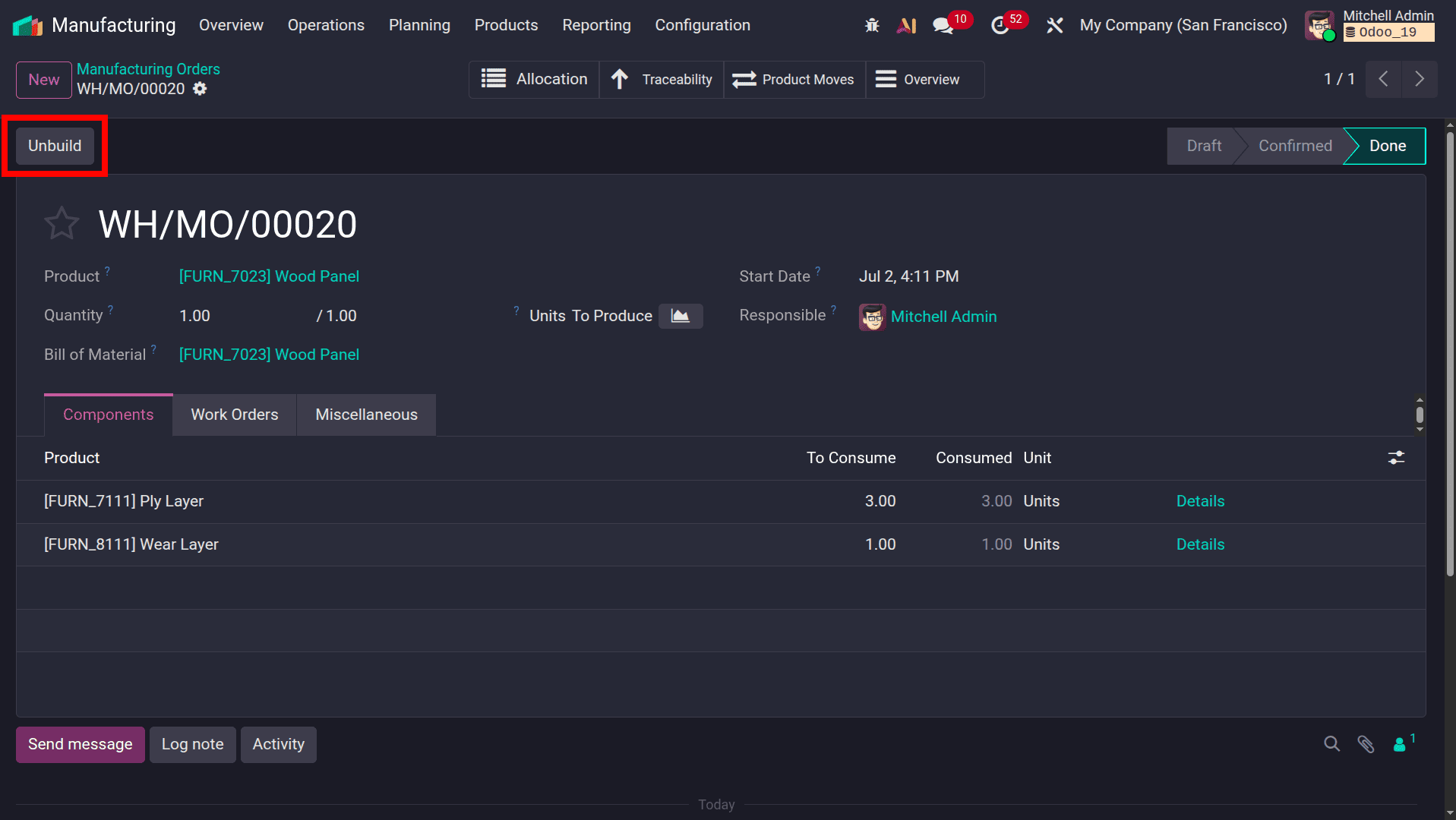
After the Manufacturing Order is completed, open the order to initiate the unbuilding process. As shown in the screenshot, Odoo provides an Unbuild button at the top of the completed manufacturing order. Clicking this button automatically opens a new Unbuild Order linked to the selected manufacturing order, eliminating the need to manually enter the product or its components. This ensures that the unbuilding operation is based on the same Bill of Materials (BoM) and the exact quantities consumed during manufacturing, providing a quick and accurate way to reverse the production process.
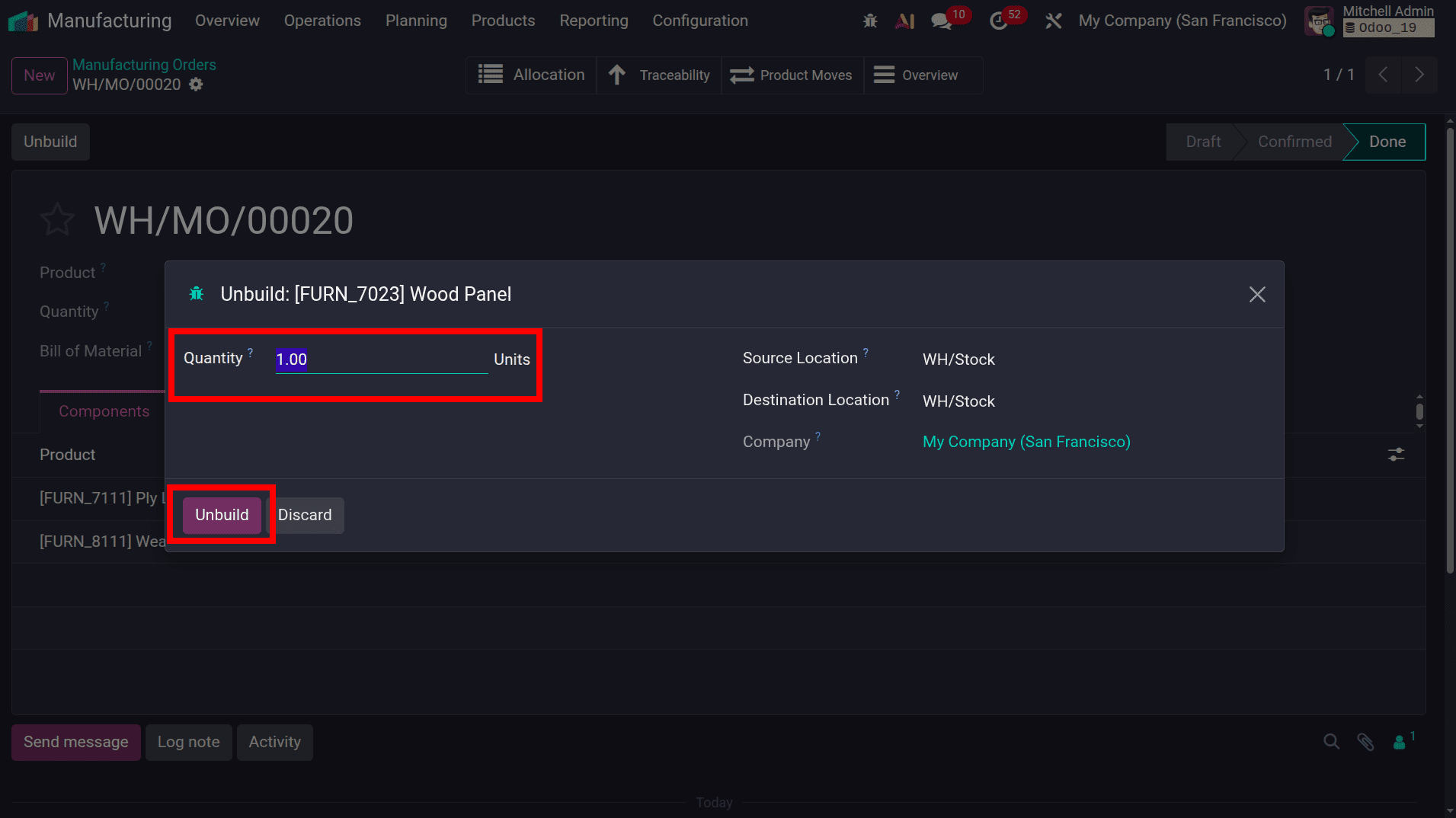
Clicking the Unbuild button opens the Unbuild Product wizard, as shown in the screenshot. The wizard automatically selects the manufactured product and populates the quantity based on the completed Manufacturing Order. If required, the Quantity can be modified to specify how many finished products should be dismantled. The Source Location and Destination Location are also displayed, indicating where the finished product will be removed from and where the recovered components will be returned. After verifying the details, click the Unbuild button to create the unbuild order and reverse the manufacturing process.
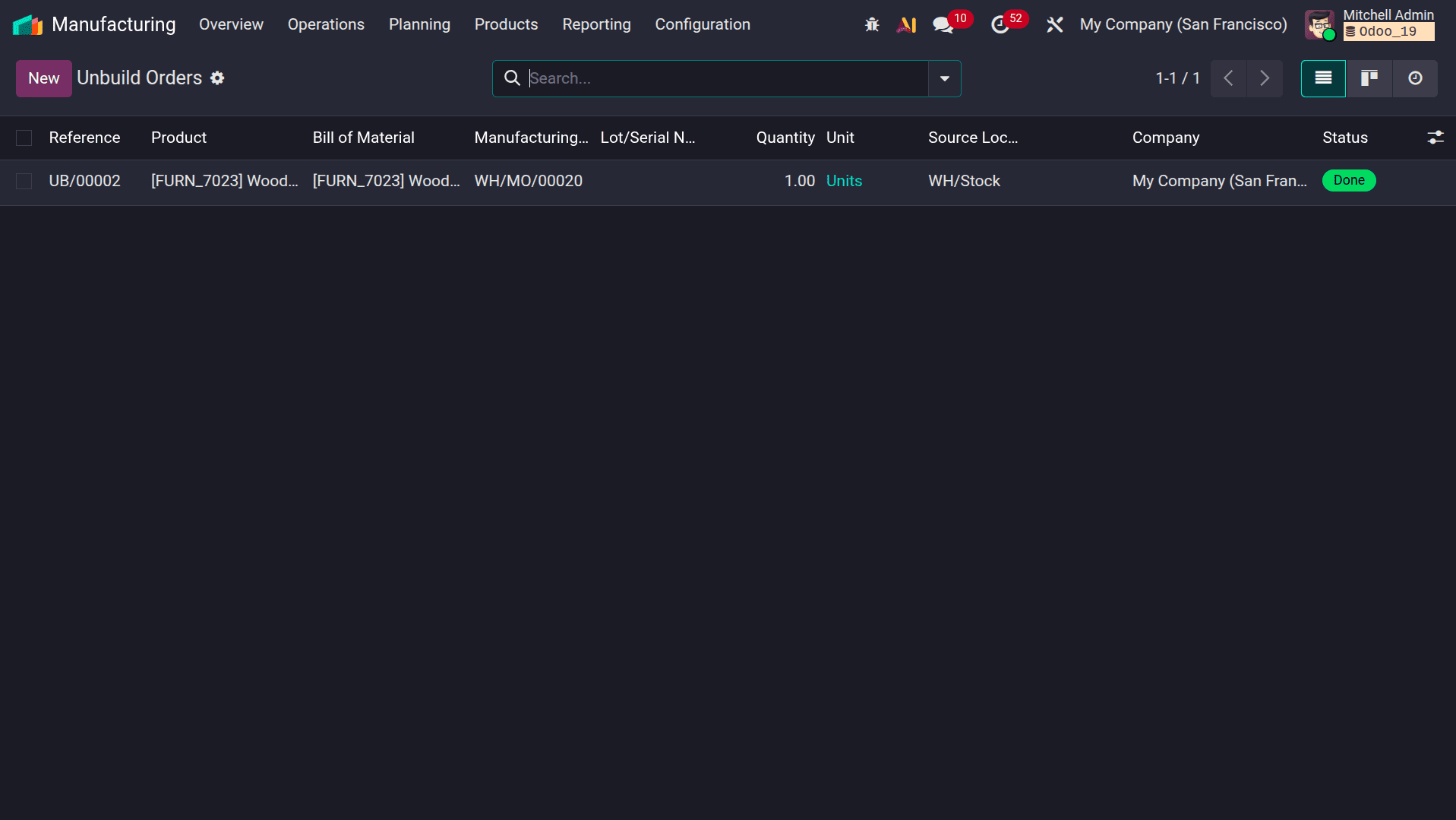
Move to Unbuild Orders to view the created unbuild order. As shown in the screenshot, Odoo automatically generates an Unbuild Order with a unique reference and links it to the corresponding Manufacturing Order. The list view displays key details, including the Product, Bill of Materials, Manufacturing Order, Quantity, Source Location, and the current Status. In this example, the status is Done, confirming that the unbuilding operation has been successfully completed and the inventory has been updated accordingly.
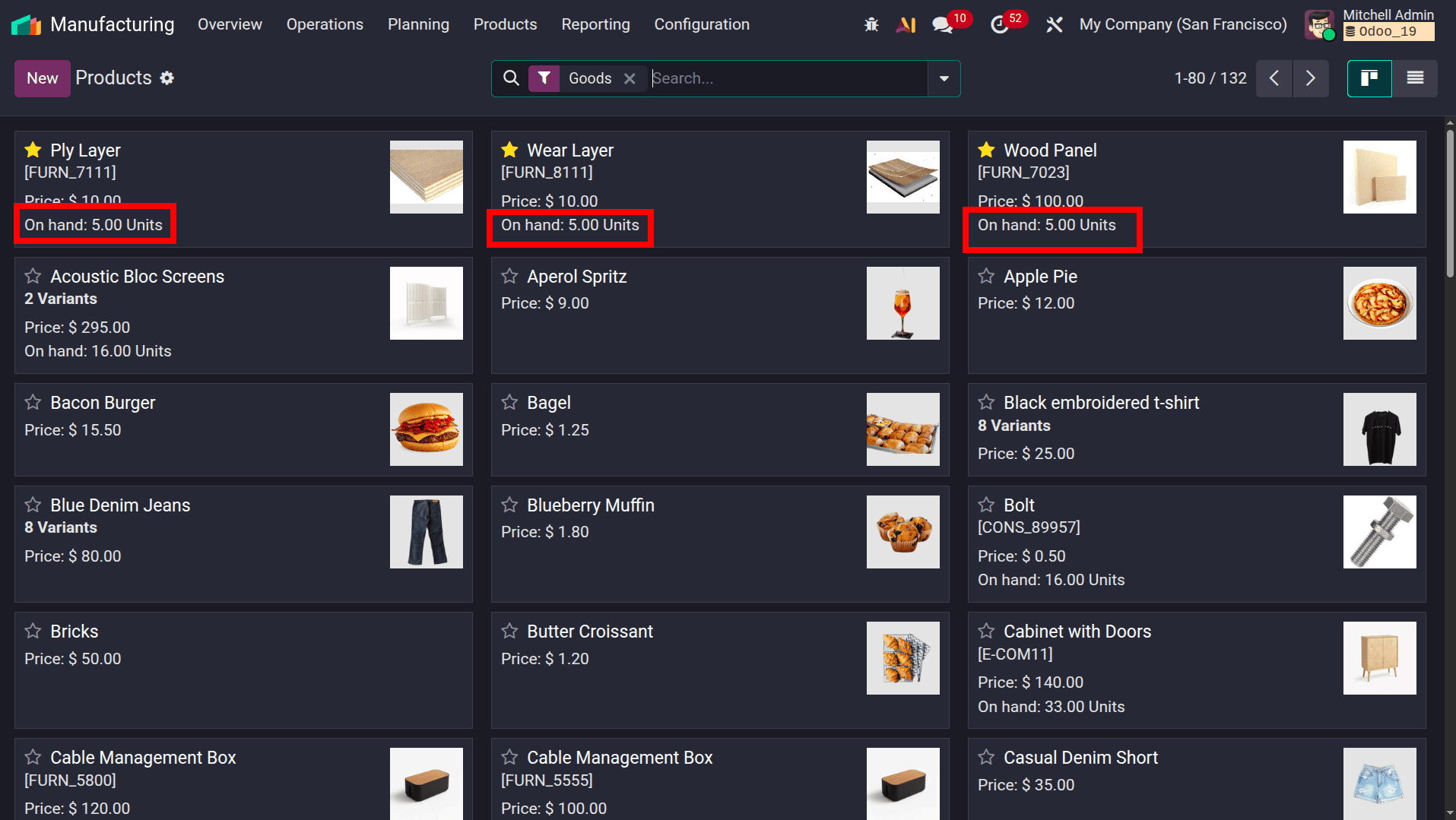
On moving to the list of products, we can see the inventory has been restored after completing the Unbuild Order. The Ply Layer and Wear Layer component quantities have increased back to 5.00 Units, while the Wood Panel finished product quantity has decreased from 6.00 to 5.00 Units. This confirms that Odoo has successfully reversed the manufacturing operation by removing the finished product from stock and returning its consumed components to inventory according to the associated Bill of Materials (BoM).
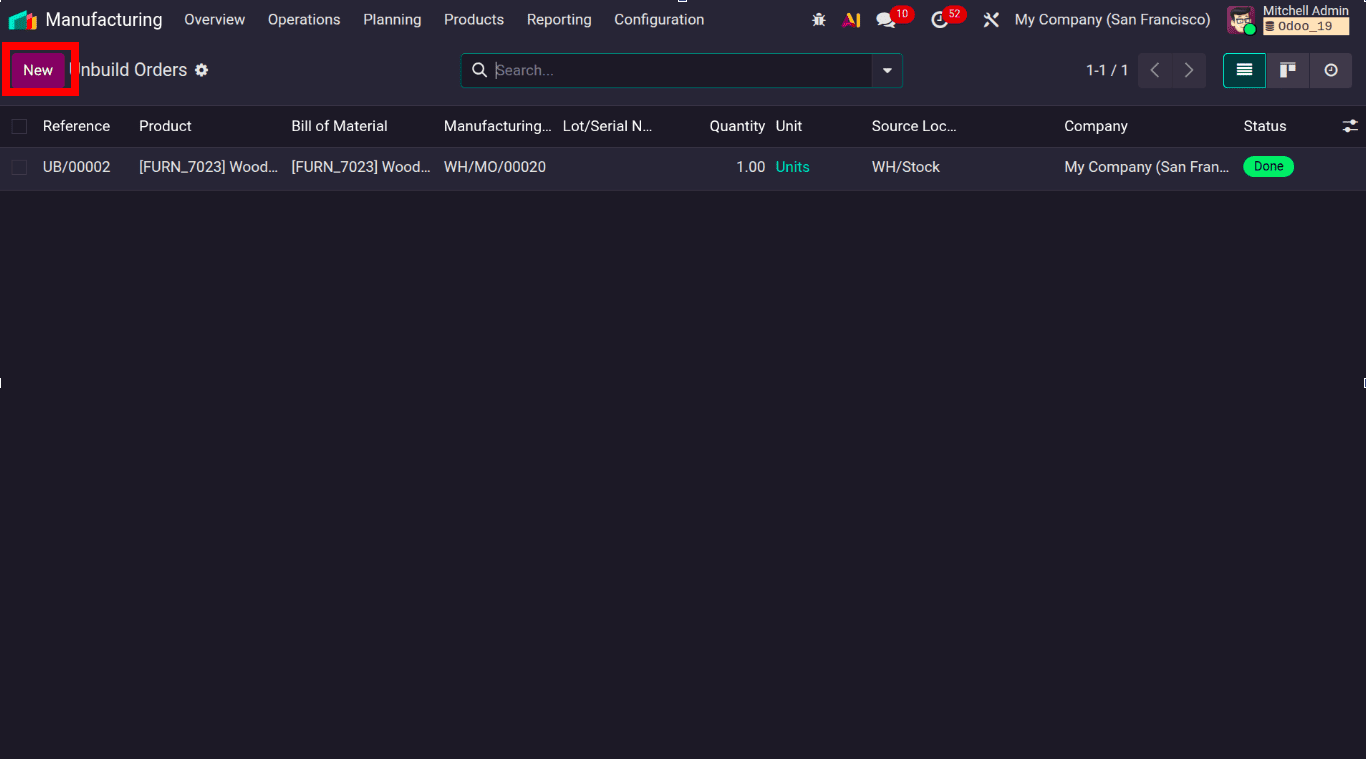
To demonstrate the unbuilding process independently of a manufacturing order, navigate to the Manufacturing module, and open the Operations menu and then the Unbuild Orders and click the New button, as highlighted in the screenshot. Creating an unbuild order from this menu allows users to manually dismantle a finished product without initiating the process from a completed Manufacturing Order. In the following steps, a new unbuild order will be created by specifying the product, Bill of Materials (BoM), quantity, and inventory locations, enabling Odoo to reverse the manufacturing process and restore the corresponding components to stock.
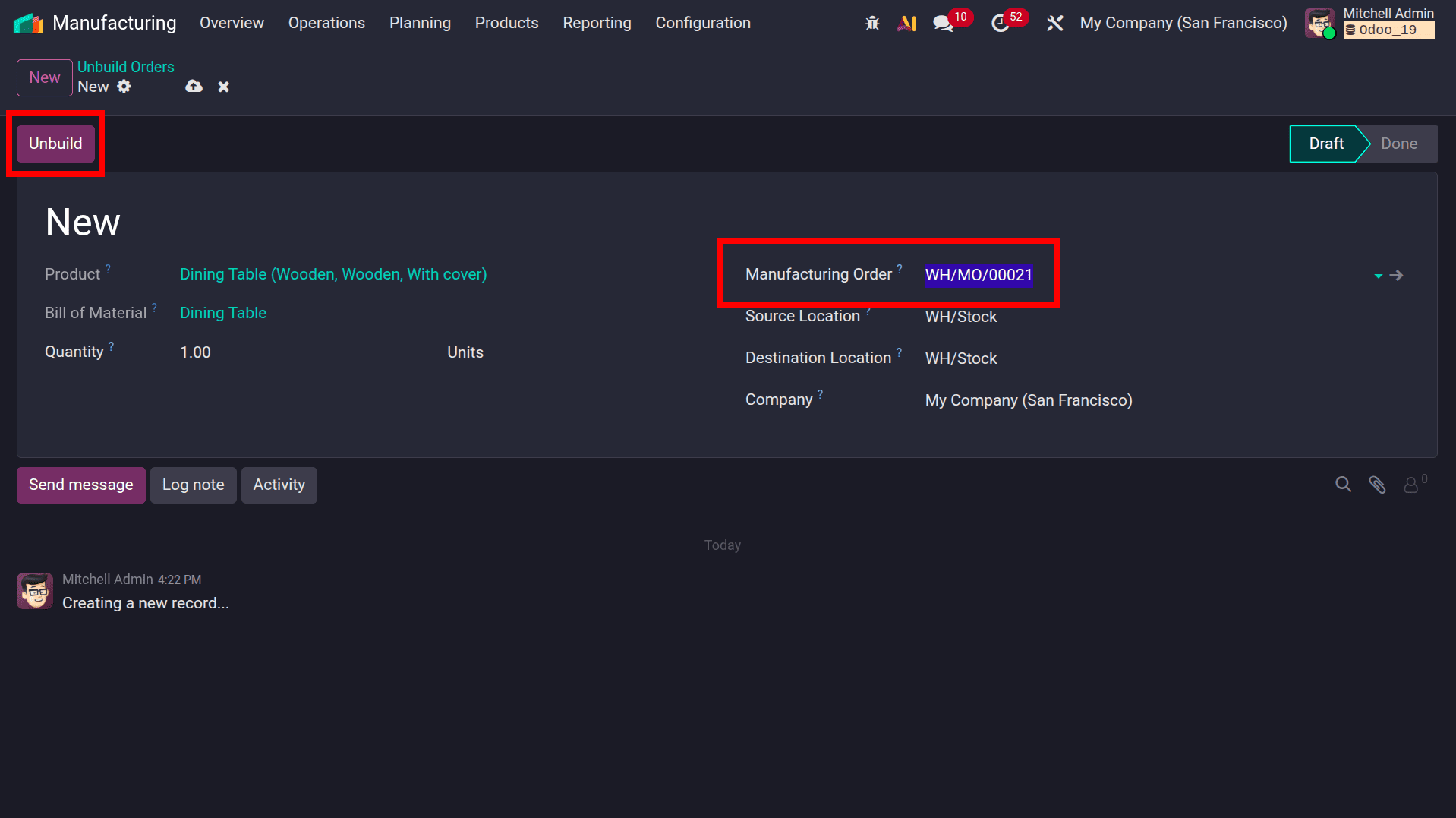
As shown in the screenshot, begin by selecting the required Manufacturing Order in the Manufacturing Order field. Once the reference is selected, Odoo automatically populates the related details, including the Product, Bill of Materials (BoM), Quantity, and inventory locations based on the selected manufacturing order. This eliminates the need to manually enter the product information and ensures that the unbuild operation uses the same production data as the original manufacturing process. After verifying the automatically populated details, click the Unbuild button to dismantle the finished product and restore its components to inventory according to the associated Bill of Materials (BoM).
The Unbuild Order feature in Odoo 19 Manufacturing provides a reliable way to reverse the manufacturing process by dismantling finished products into their original components. Whether initiated directly from a completed Manufacturing Order or created manually through the Unbuild Orders menu, Odoo automatically updates inventory to maintain accurate stock levels and complete product traceability. By using this feature, businesses can efficiently recover reusable components, correct production errors, and manage returned or defective products while ensuring seamless integration between the Manufacturing and Inventory modules.
To read more about How to Unbuild a Manufacturing Order in Odoo 18, refer to our blog How to Unbuild a Manufacturing Order in Odoo 18.