An efficient inventory management system is essential for retail businesses looking to increase output and customer satisfaction. Odoo 19 Point of Sale's comprehensive solution, which integrates inventory management with sales processes, allows for accurate stock level control. With real-time inventory management, businesses can monitor product availability and make smart purchasing decisions. Automated stock replenishment features improve client satisfaction by preventing stockouts. Additionally, by offering insights into sales trends and inventory performance, extensive reporting systems assist businesses in streamlining their operations.
Odoo 19 POS makes inventory management simple for users, even in busy environments. Retailers can reduce waste, save costs, and increase overall efficiency by making use of these capacities. This article will go over the key features and benefits of Odoo 19 Point of Sale inventory management in depth, as well as how they could transform retail operations.
Now let's talk about Odoo 19 Point of Sale's Inventory Management feature. Navigate to the point of sale and select Settings under Configuration. Configuration < Settings.
Bakery Shop is the selected session in this case, and inventory management can be configured under the Inventory section.
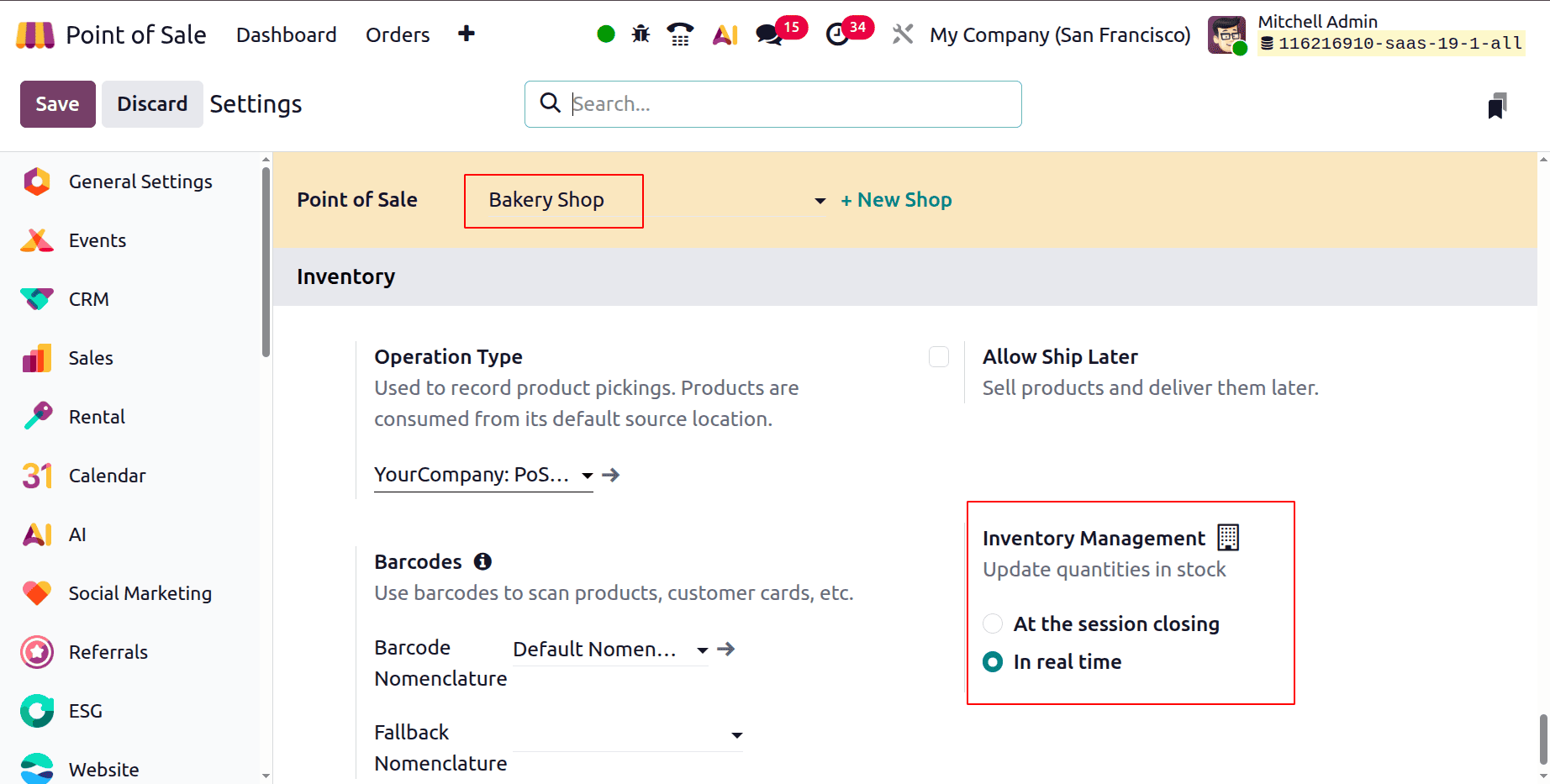
The option is used to update stock quantities under inventory management. "At the session closing" and "In real time" are the two choices. The stock information will only be updated in the system once the shop session has ended if the inventory management setting is set to "At the session closing." Additionally, if it is configured to "in real time," the system will update the stock changes at the same time. Let's examine each one independently.
1. At Session Closing
Here, the Bakery Shop's inventory management is set to "At the session closing." Once the settings are saved, the configuration is finished. Verify the number of products in stock before starting a session.
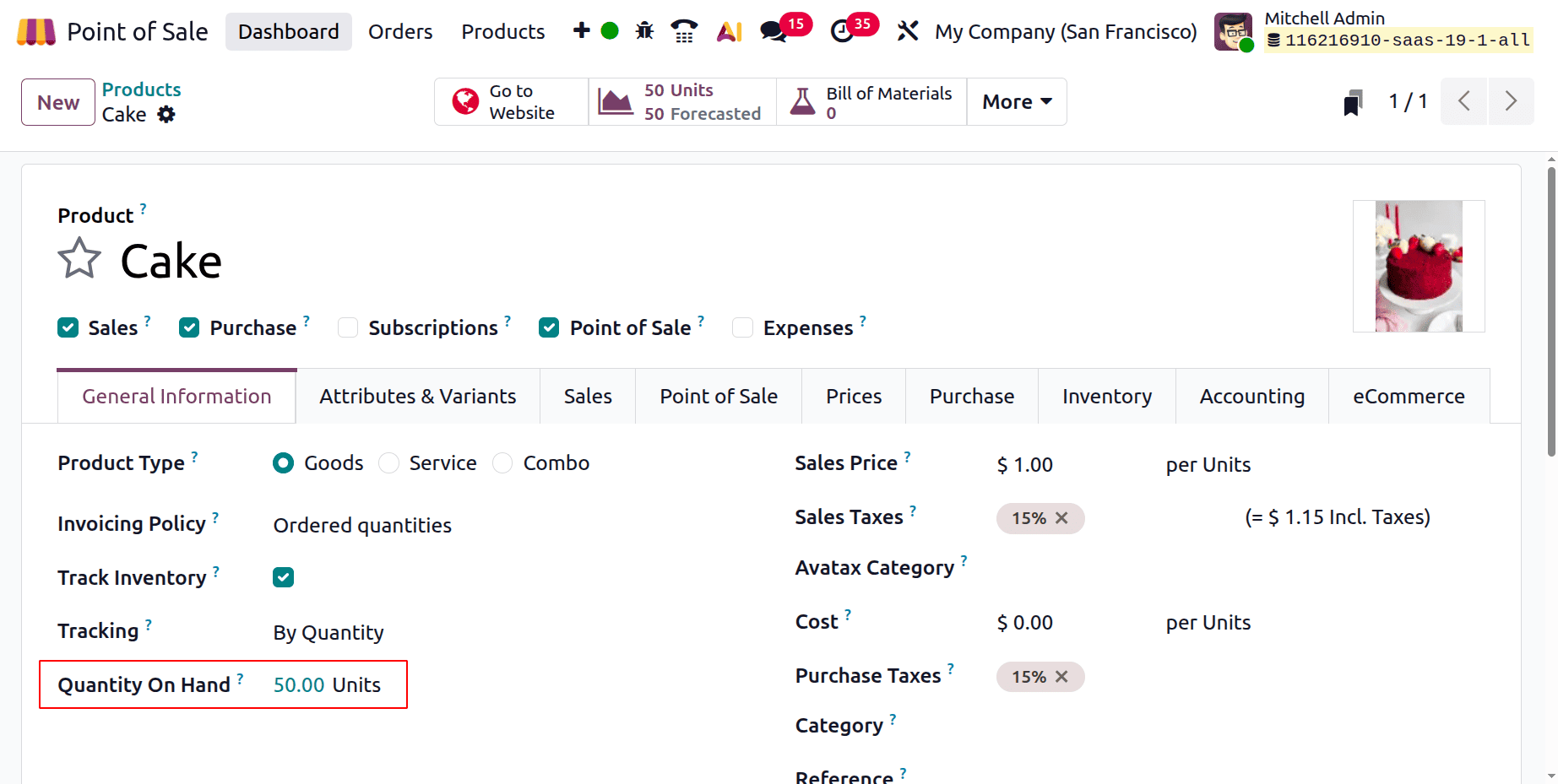
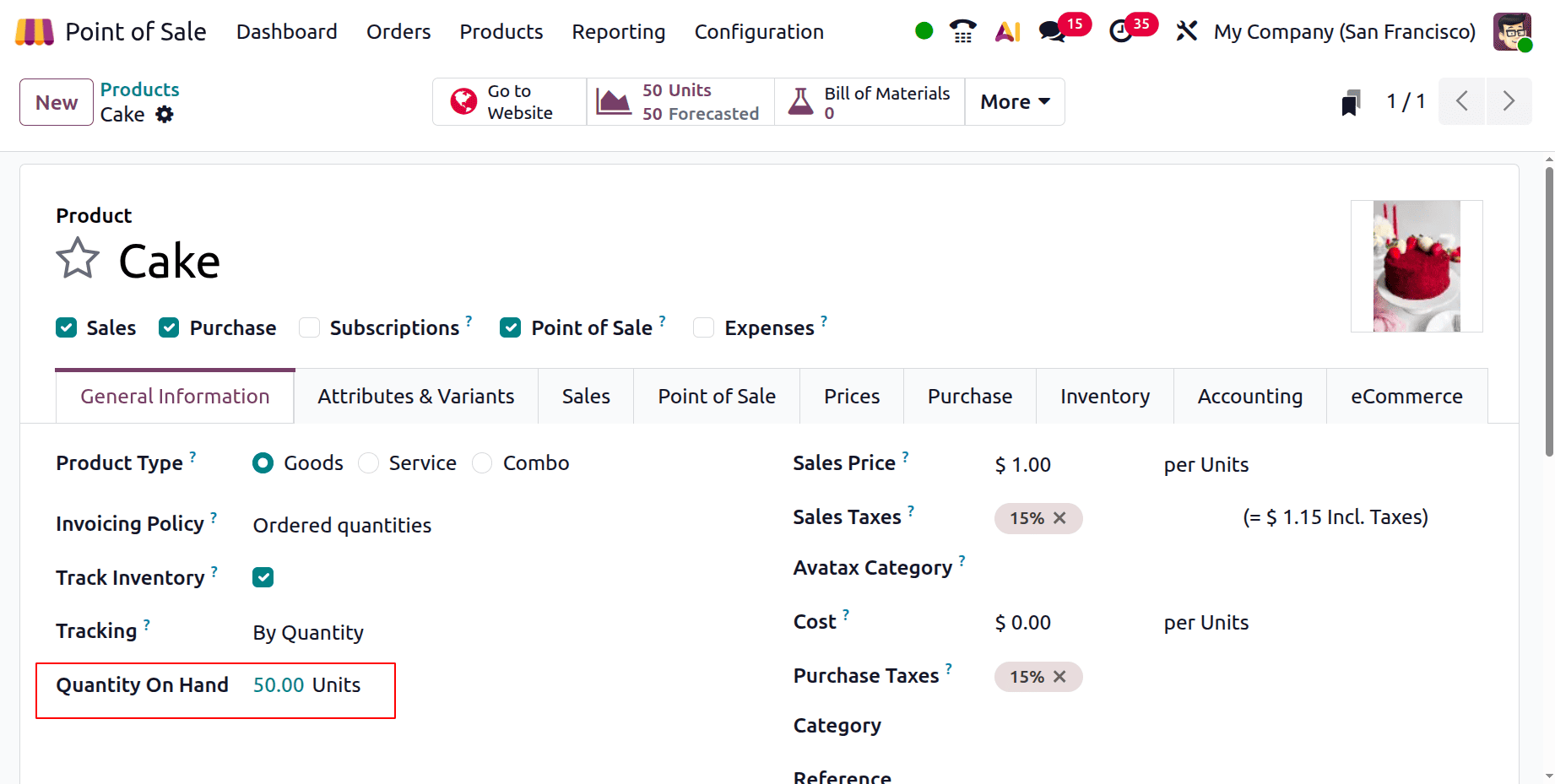
Open the product form to do that. In this case, the selected product is cake, and there are 50 quantities of it in the warehouse.
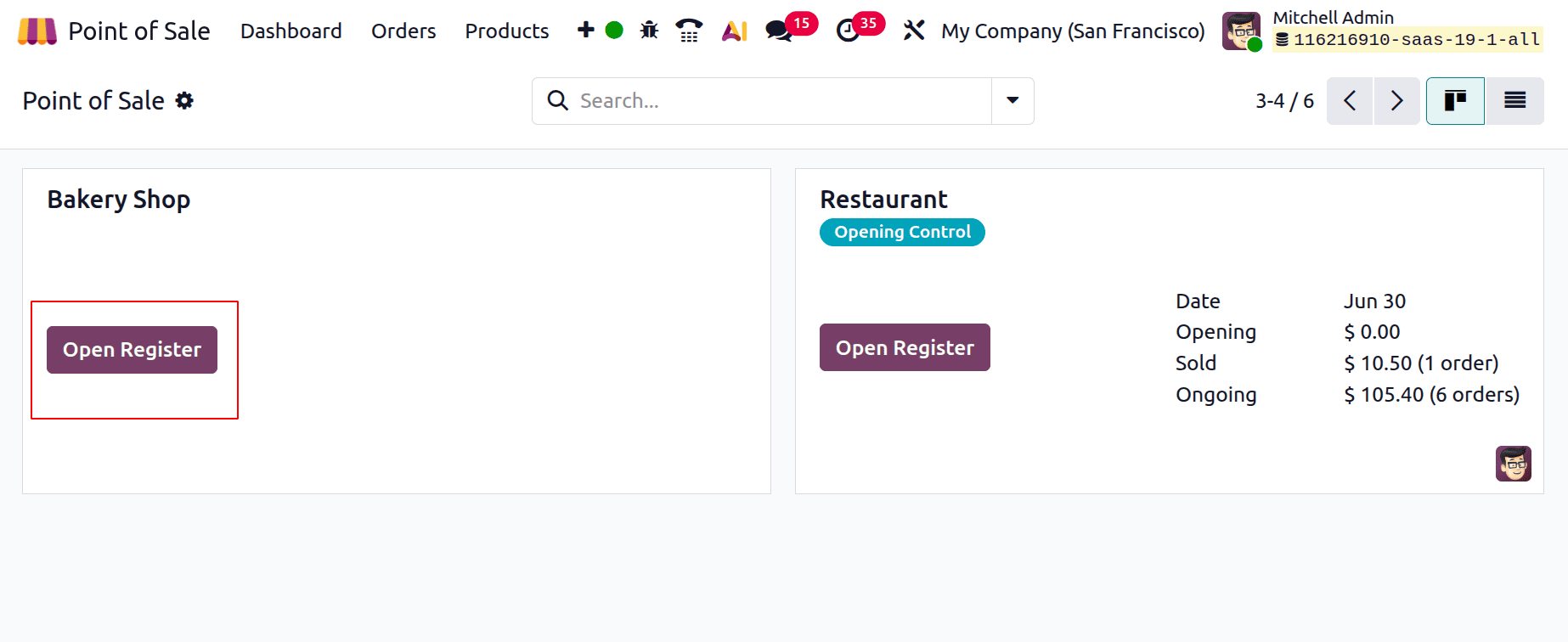
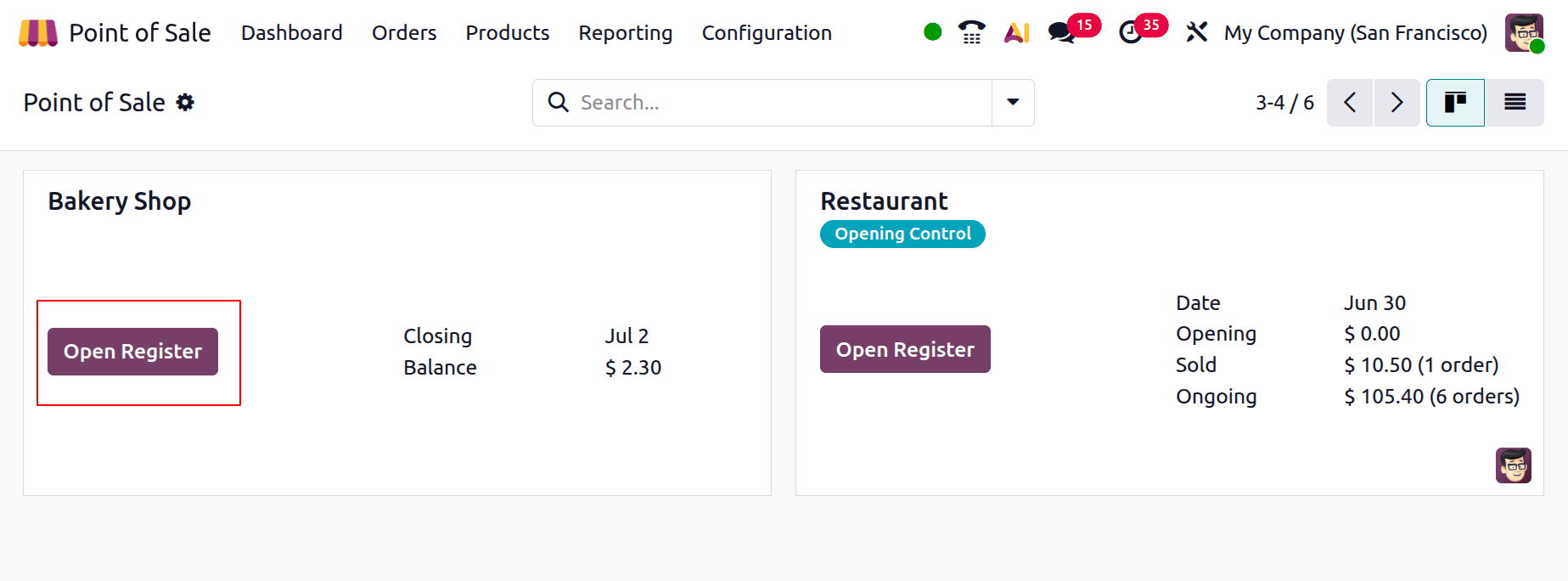
Click the "Open Register" button to start the Bakery Shop session. The Bakery Shop will open after you press that button.
Select the Cake product in a certain quantity. The salesperson selected two quantities of cake in this instance.
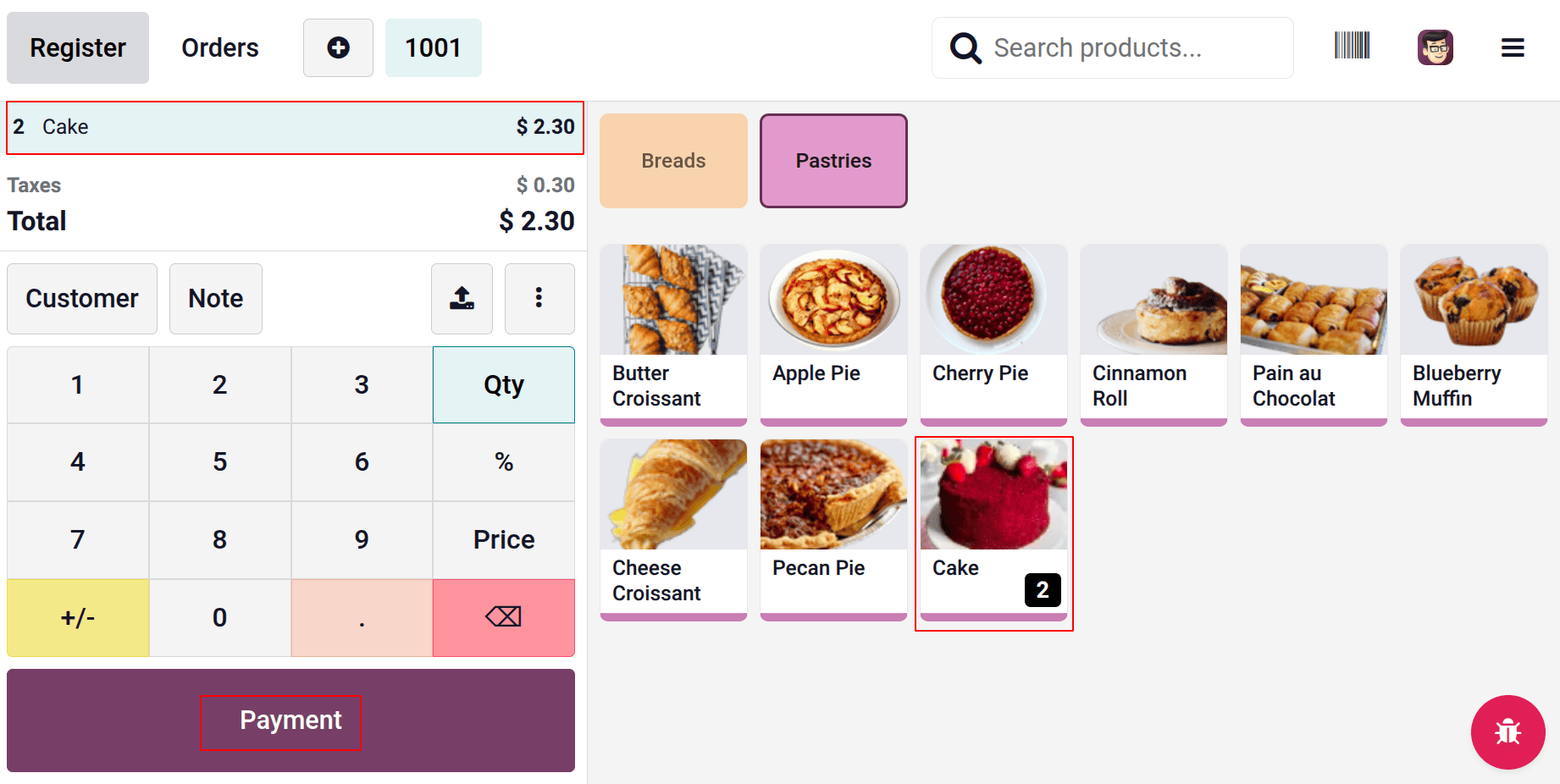
After that, finish the order by making the payment. The payment methods are listed on the payment page.
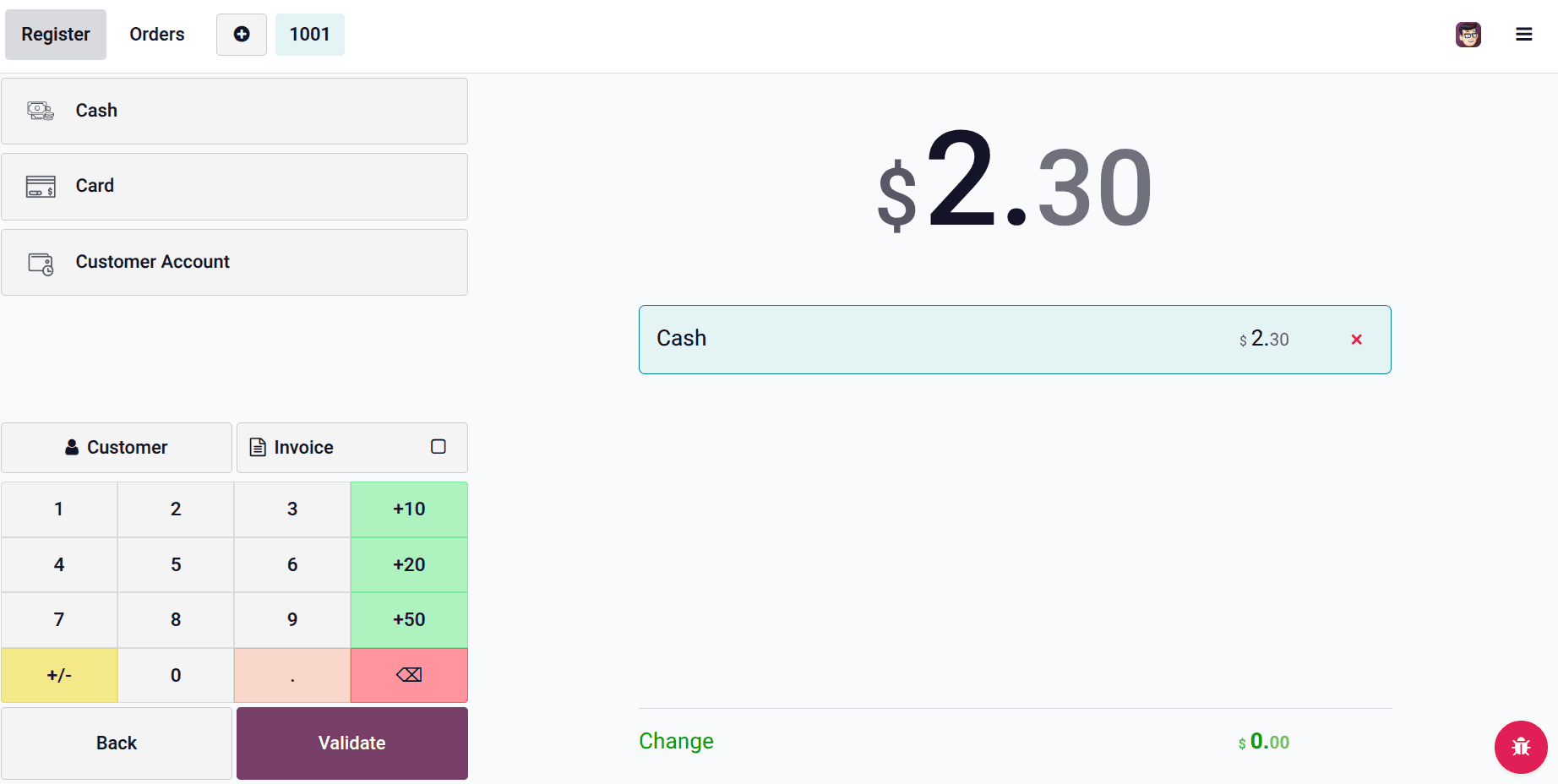
After that, the cake quantity order is finalised. This indicates that two amounts of cake have been taken out of the stock. However, the inventory management is set to "At the session closing" in this instance.
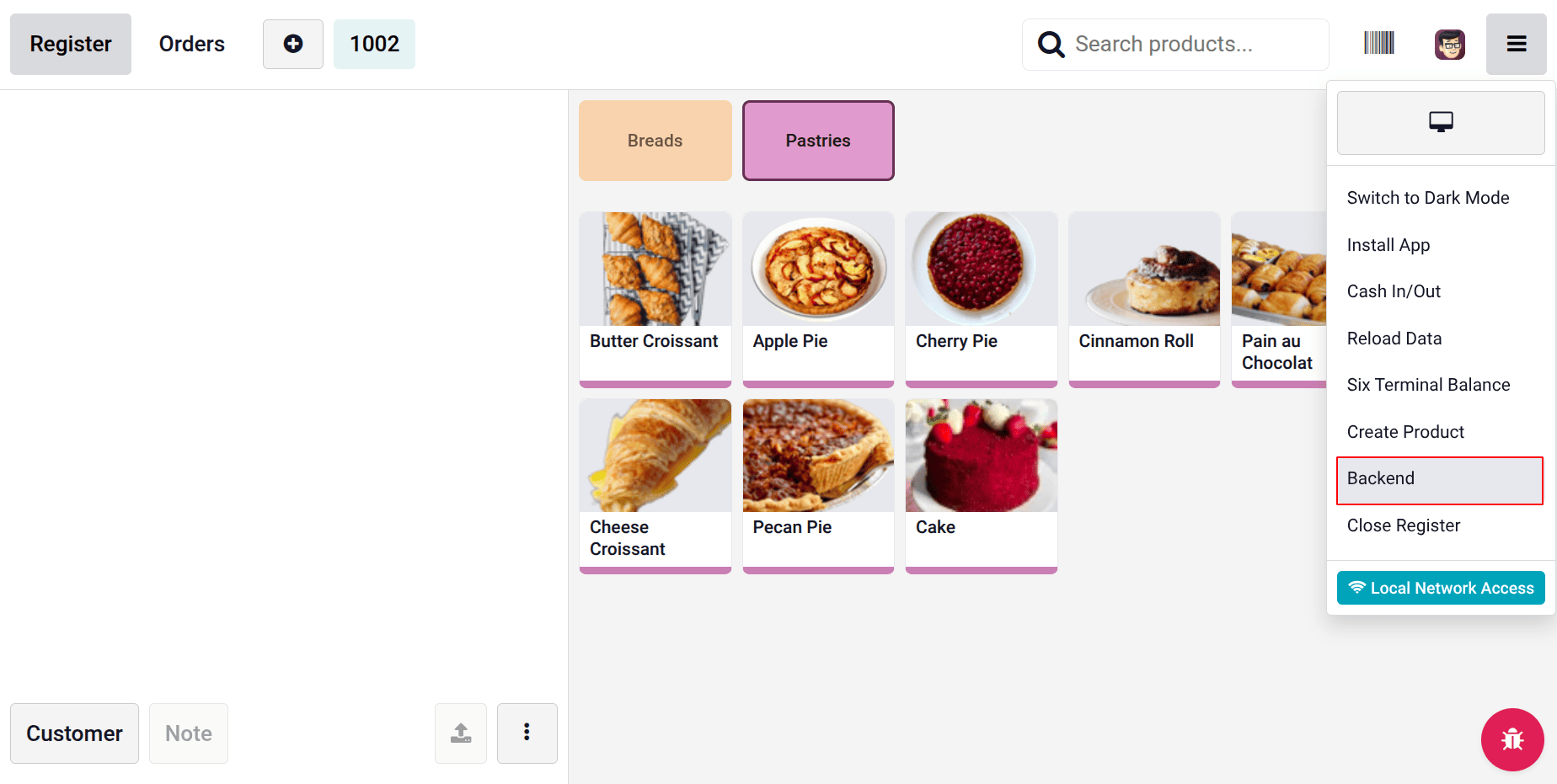
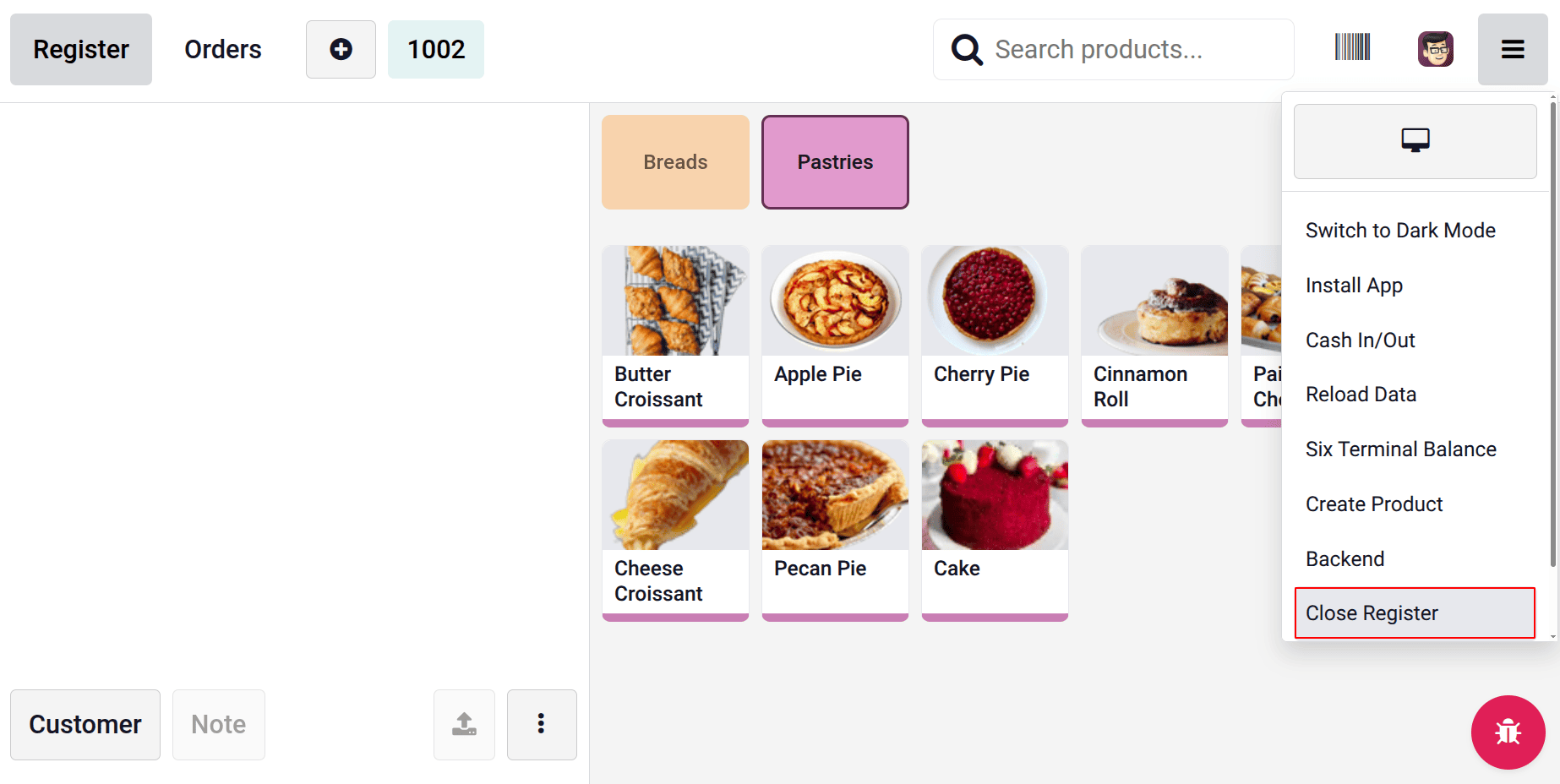
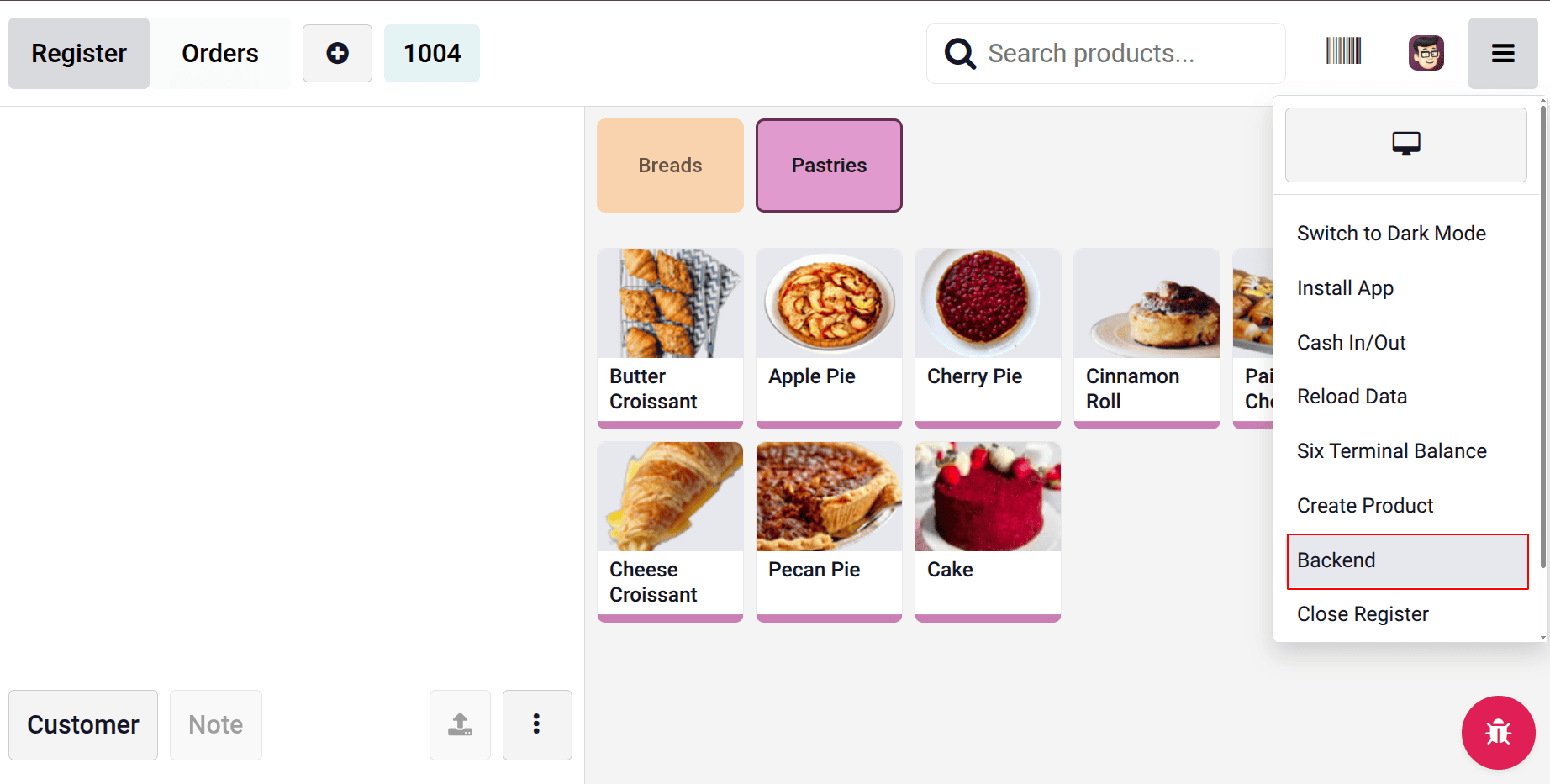
Therefore, let's verify the product's inventory count before closing the store. Navigate to the symbol located in the screen's upper right corner. Select the Backend option from the list.
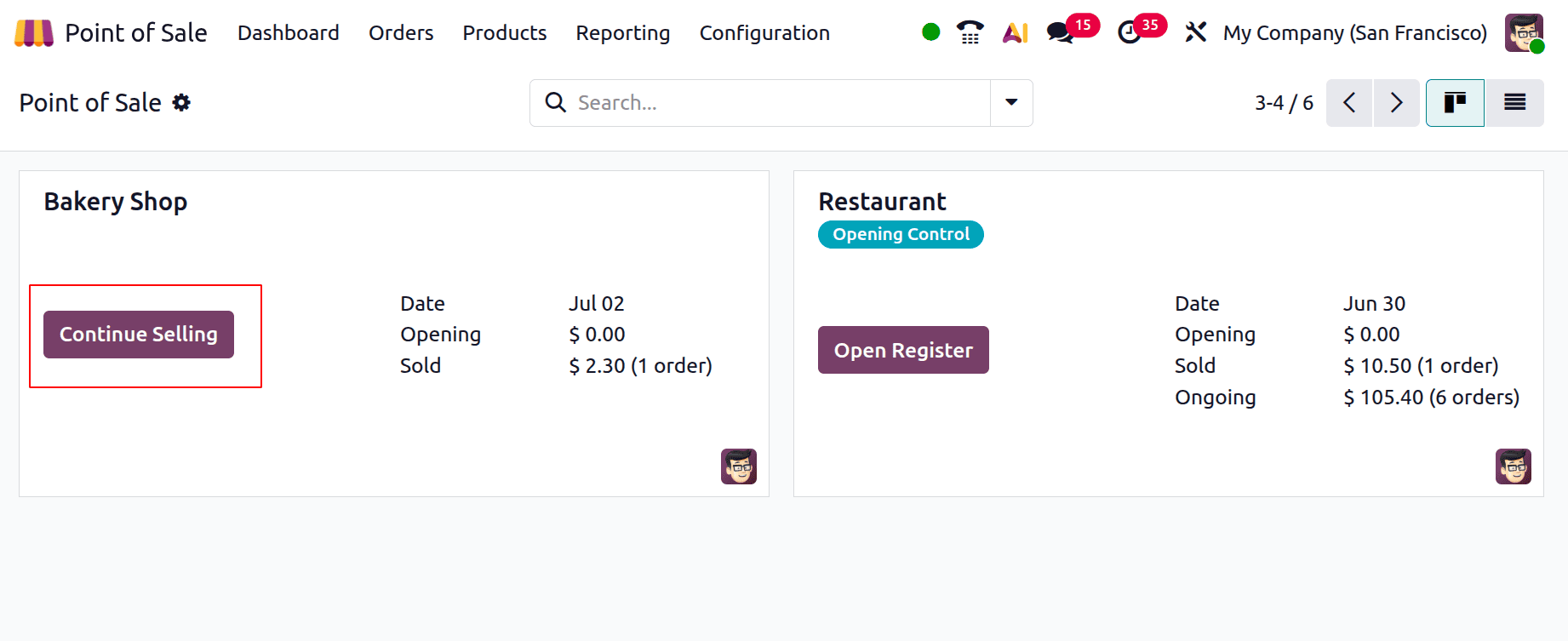
Here, the Bakery shop displays a different button called Continue Selling in place of the Open Register. This is due to the fact that the store is open.
Next, let's double-check the product Cake's stock count. Even after selling two quantities of cake, there are still fifty on hand.
The Bakery Shop then reopens once you click the Continue Selling button. The Bakery Shop can then be closed by selecting the Close Register option from the same upper right corner.
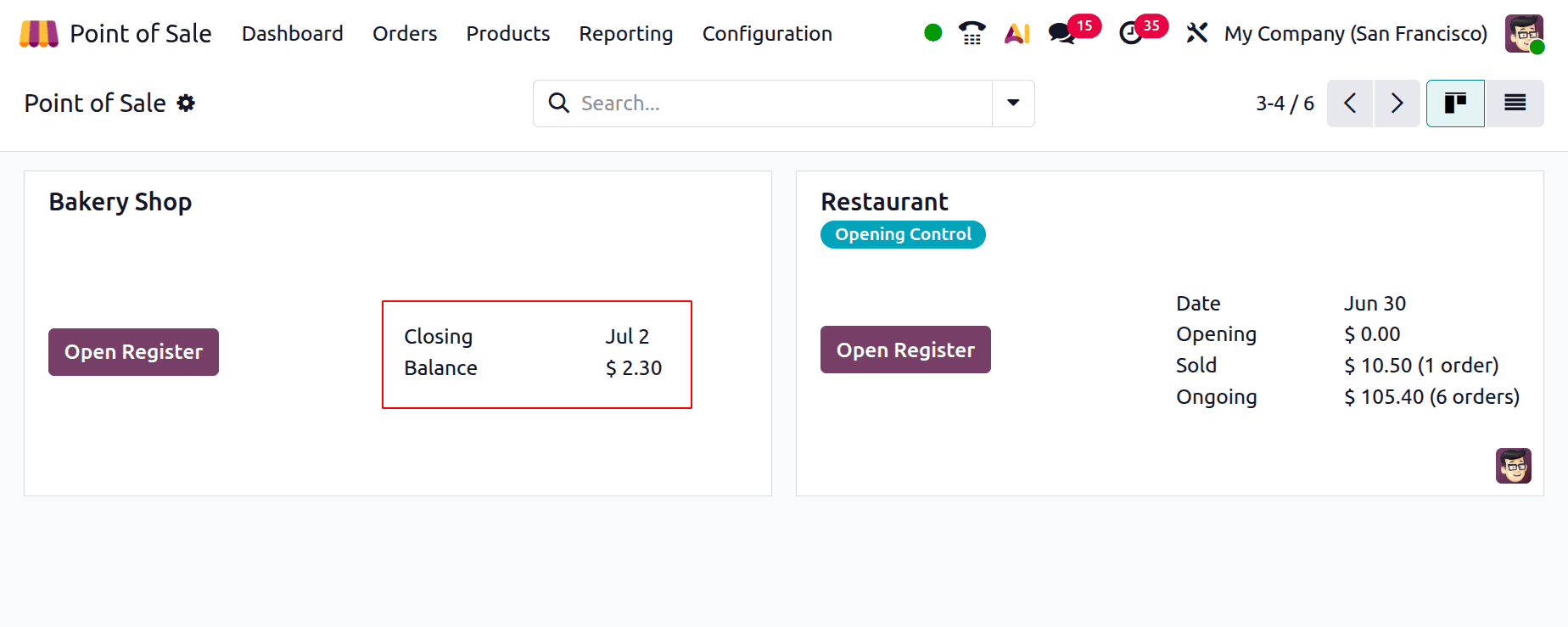
The Bakery Shop is displayed here on the dashboard. Right now, the Open Register button is visible. This indicates that the Bakery Shop is closed right now.
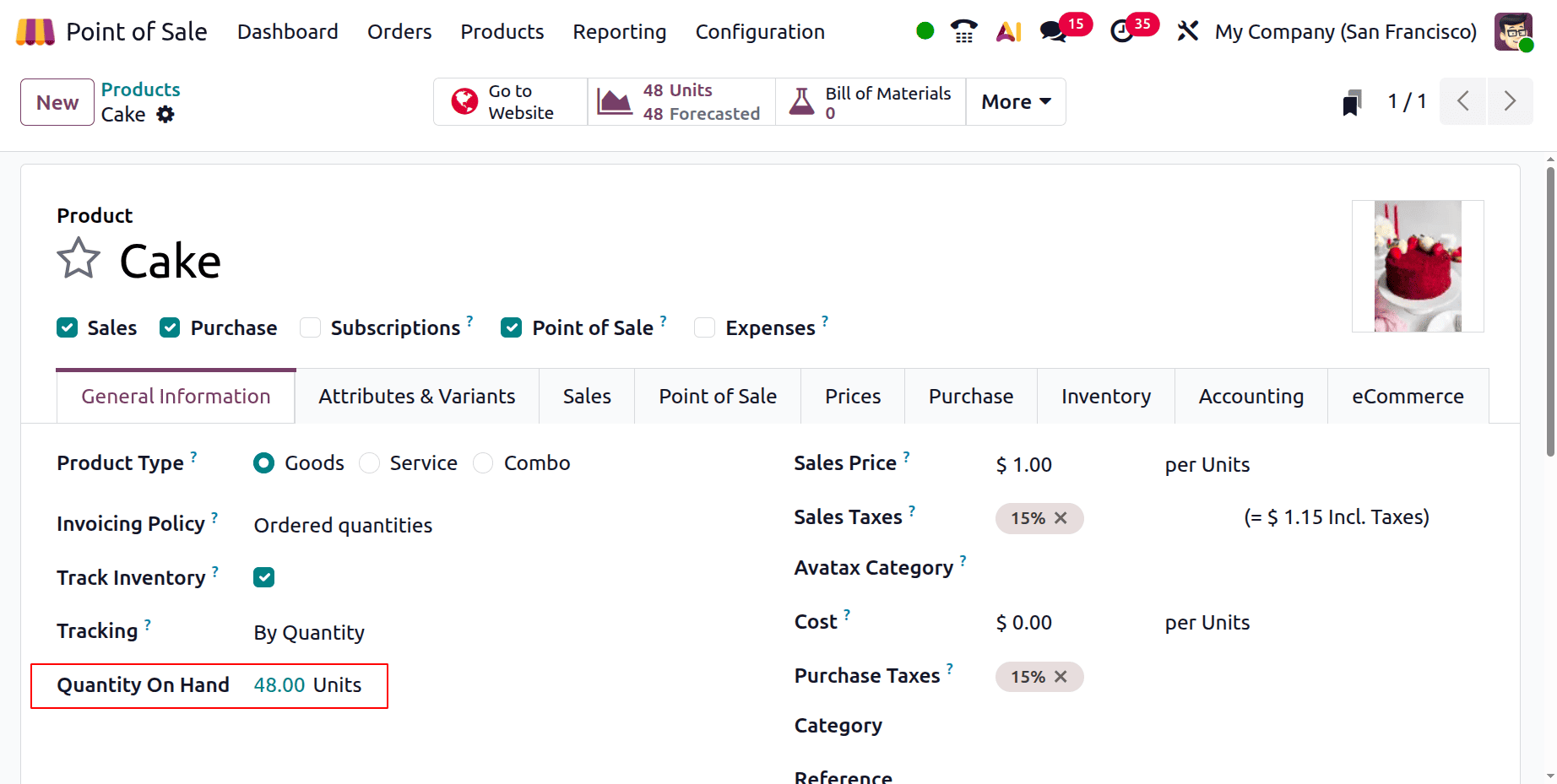
Go back to the products to confirm that the Jacket product is still available. Then, there are just 48 available right now. This shows that the quantity sold was used to lower the stock count.
2. In real time
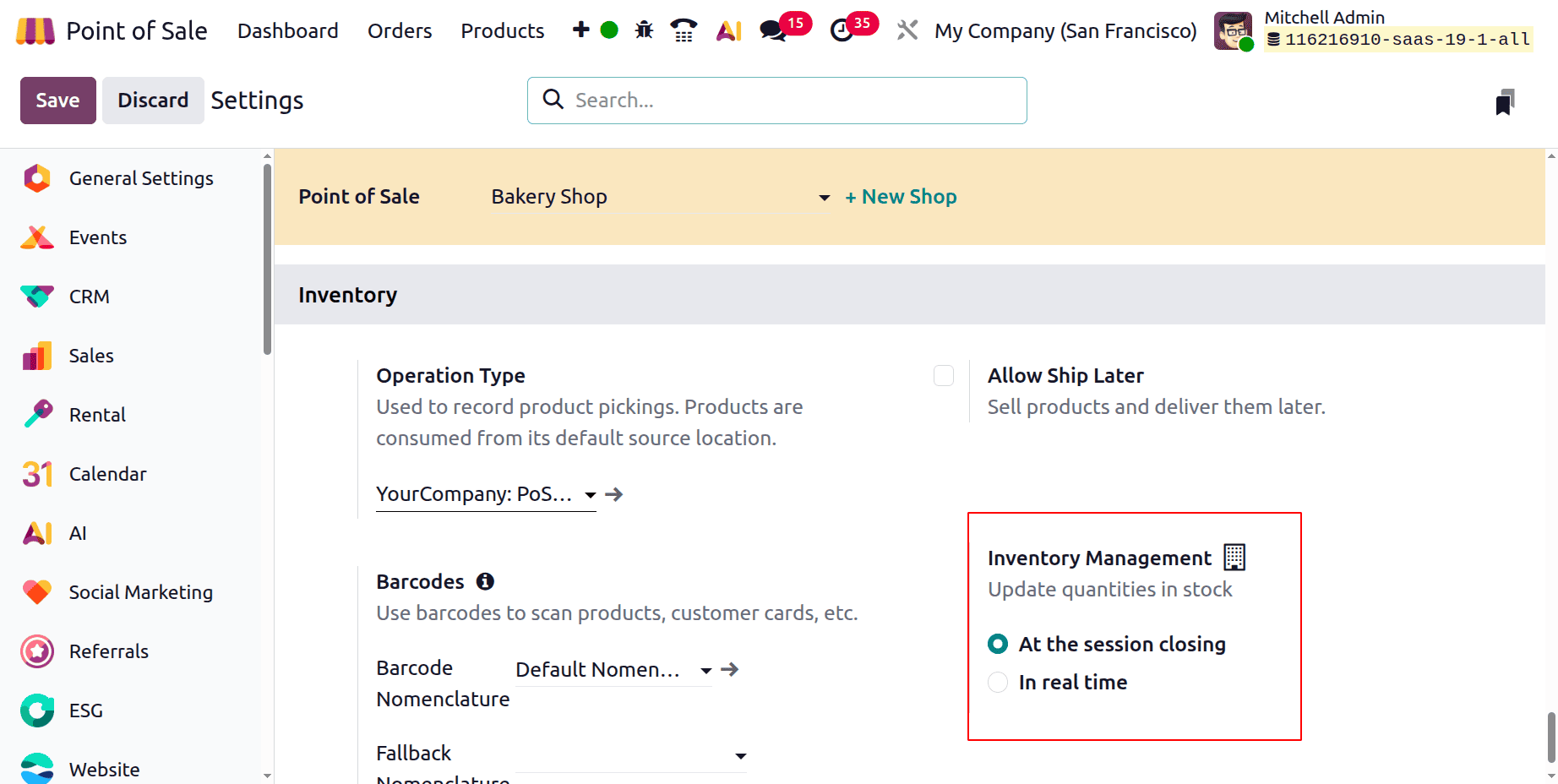
The inventory control system is set up to update the stock count concurrently and in real time when it varies. To do that, adjust the Bakery Shop's setup once more.
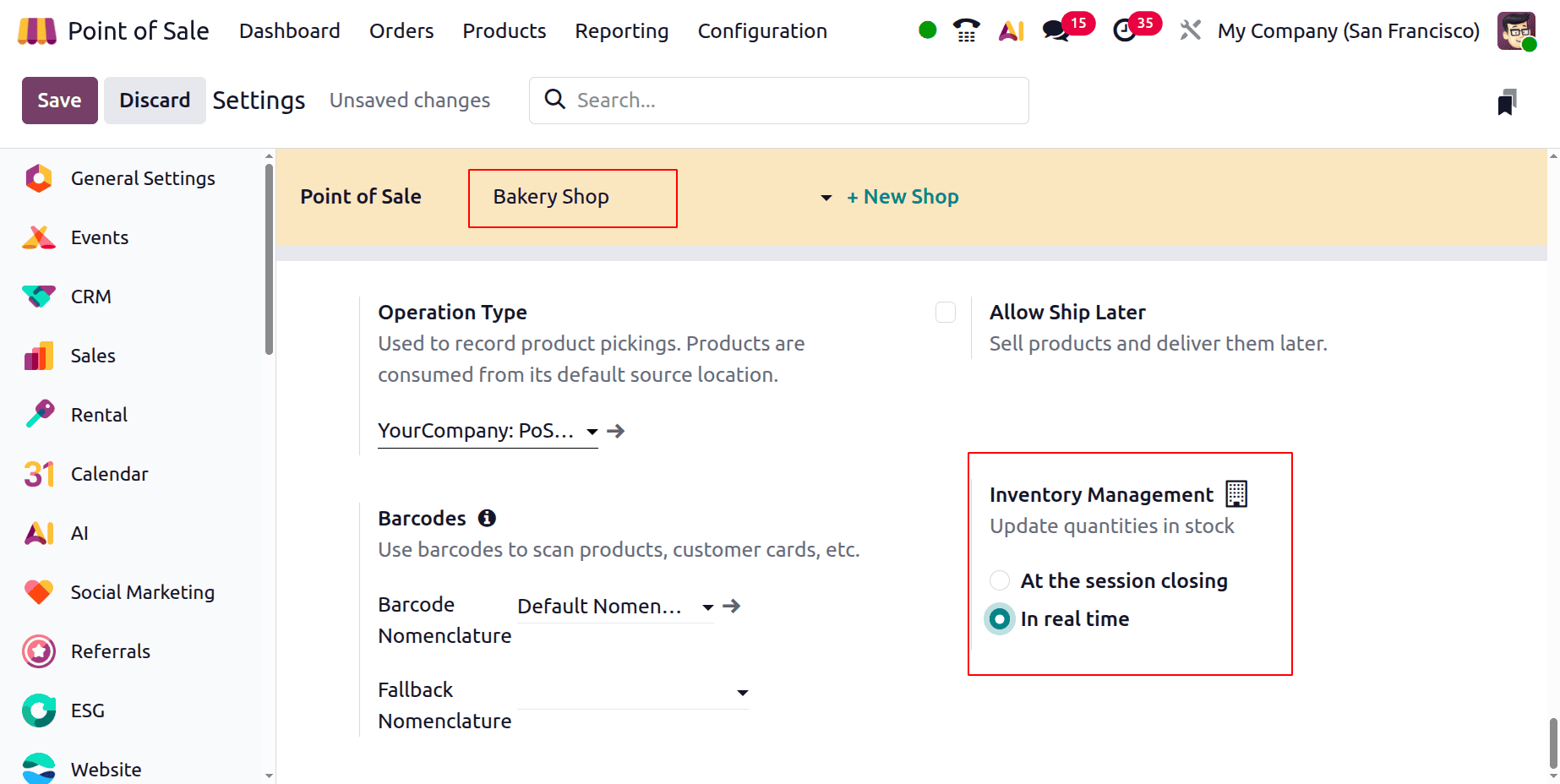
Save the updated configuration after making any changes. From the dashboard, reopen the session. Click the Open Register button to do that.
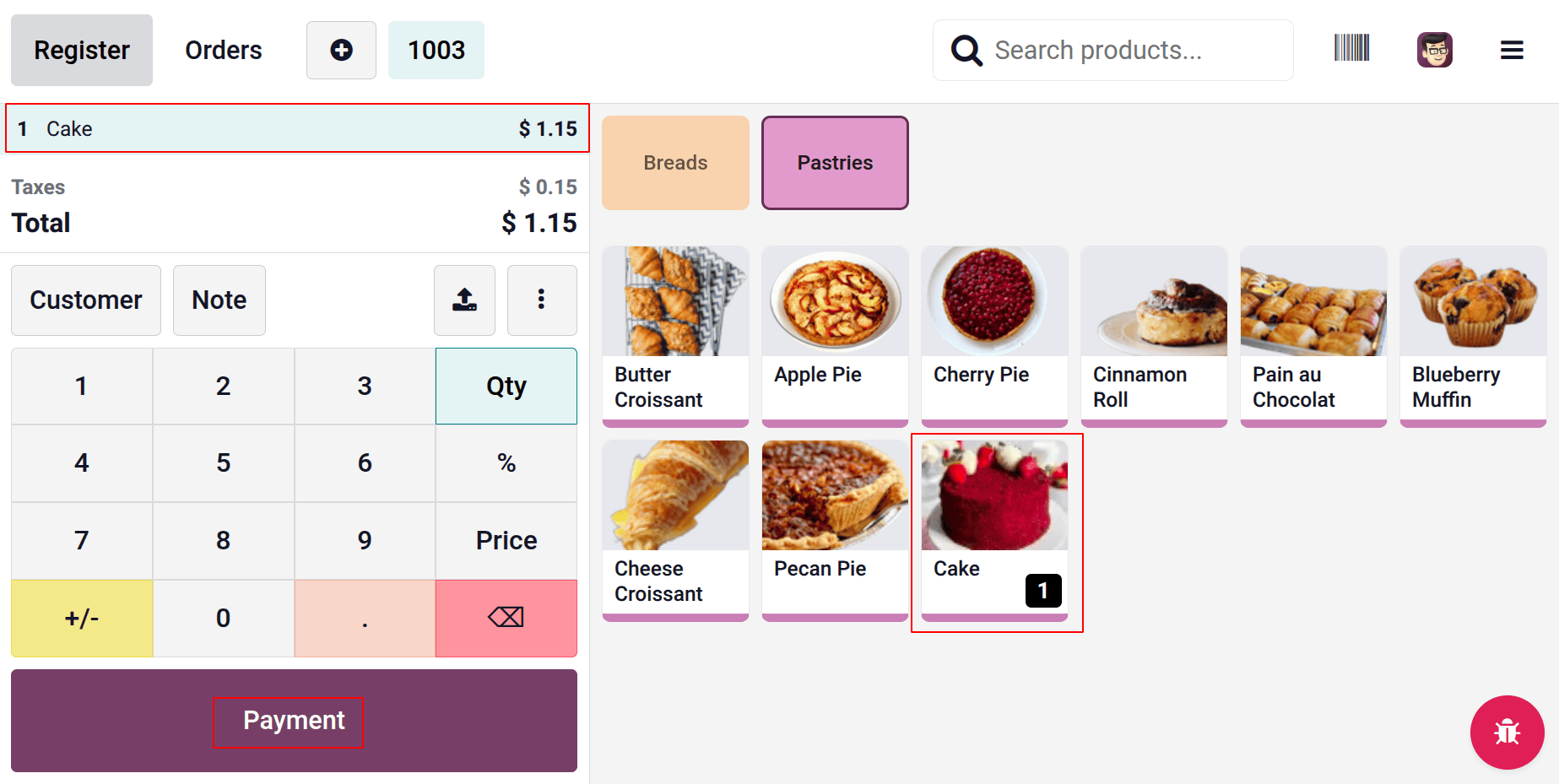
Select the same product (cake) in one quantity once again. The order board displays the product along with quantity and pricing information. Next, press the "Payment" button.
Select the payment method to finish the transaction. Next, click the Backend button in the upper right corner.
As previously stated, the Bakery Shop is still open. As a result, the only button in the session is Continue Selling.
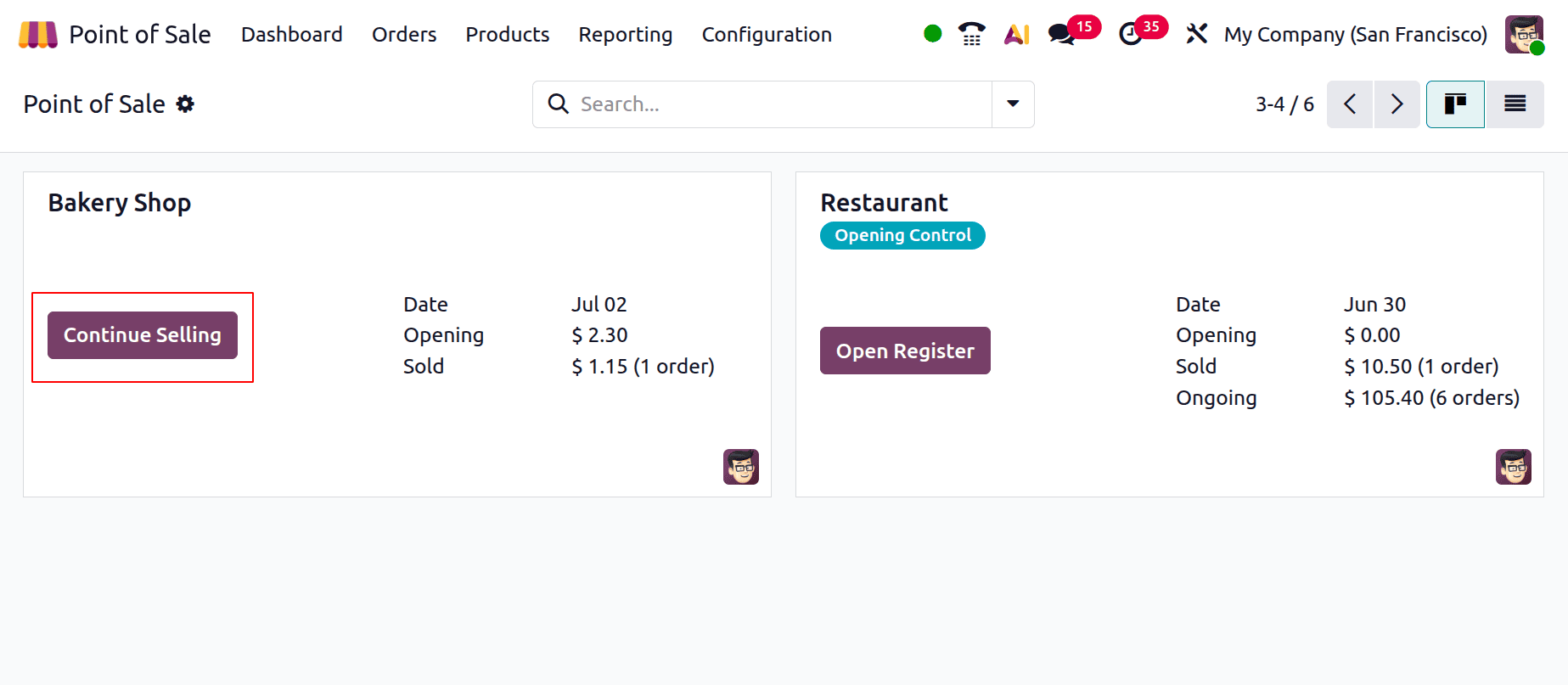
Next, double-check the product's stock level. One quantity of the cake is completed by the salesperson. There were 48 in stock prior to the order being sold. Therefore, the on-hand amount changed to 48 quantities after the order was completed.
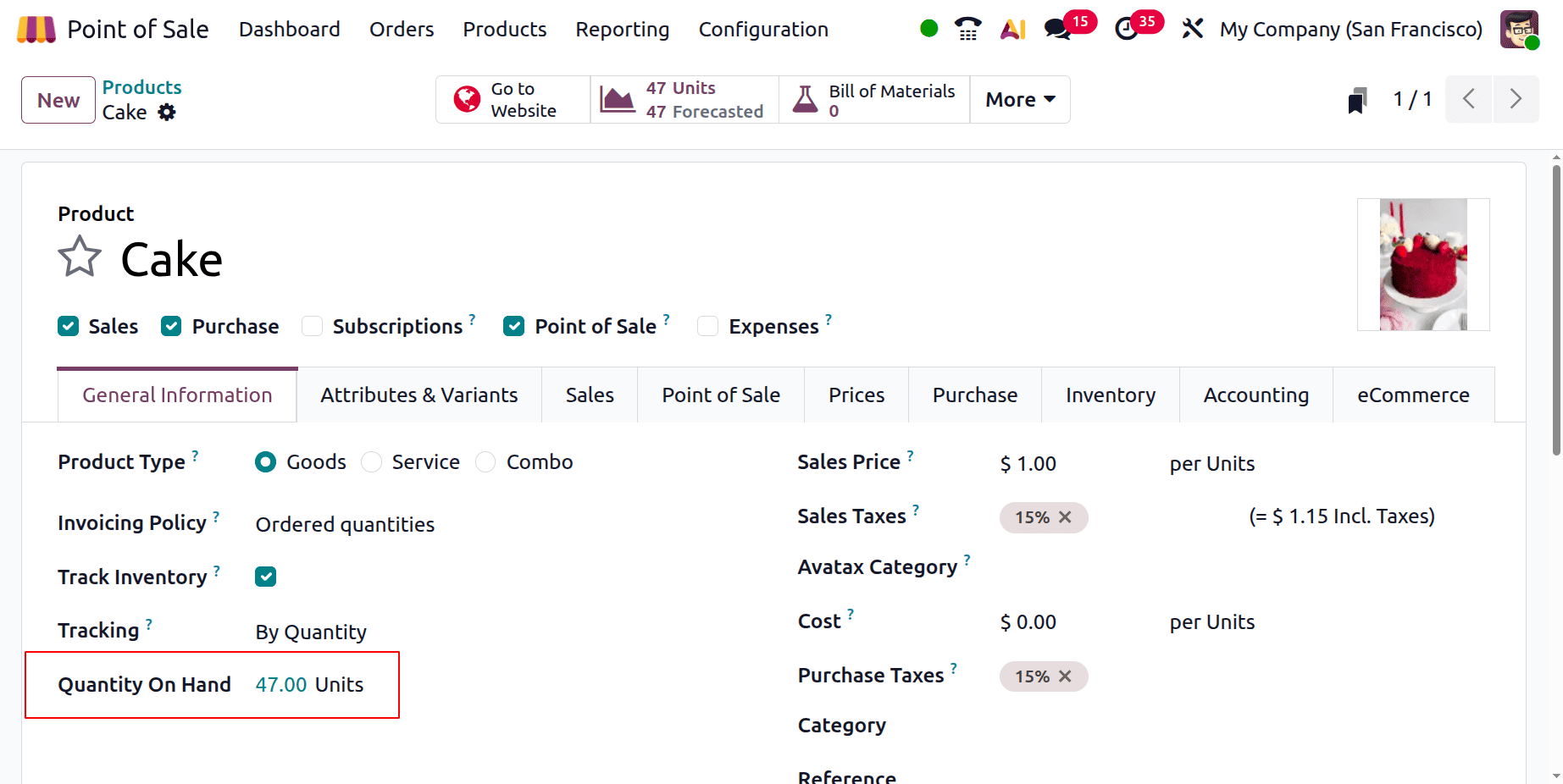
In this case, the quantity was adjusted based on the sale's completion. During this period, the on-hand quantities were updated in tandem with the sale. If inventory management is carried out in real-time, the stock update is accurate, but the system will lag.
To read more about How to Manage Inventory With Odoo 18 POS, refer to our blog How to Manage Inventory With Odoo 18 POS.