When it comes to managing projects, one of the most important things is being able to see your work in a way that makes sense to you. Different people work differently; some prefer a visual overview, some like a structured list, and some need a timeline to track deadlines. Odoo 19 understands this and gives you a wide range of views to look at your projects and tasks from different angles. Whether you are a project manager keeping an eye on the big picture or a team member tracking your daily tasks, there is a view in Odoo 19 that fits the way you work.
This blog walks through all the available views for both projects and tasks in Odoo 19, explaining what each one shows and when it is most useful.
1. Project Views
When you open the Project app in Odoo 19, you can see all your projects in two different ways: Kanban view and List view. These are available from the top right corner of the Projects page.
Kanban View
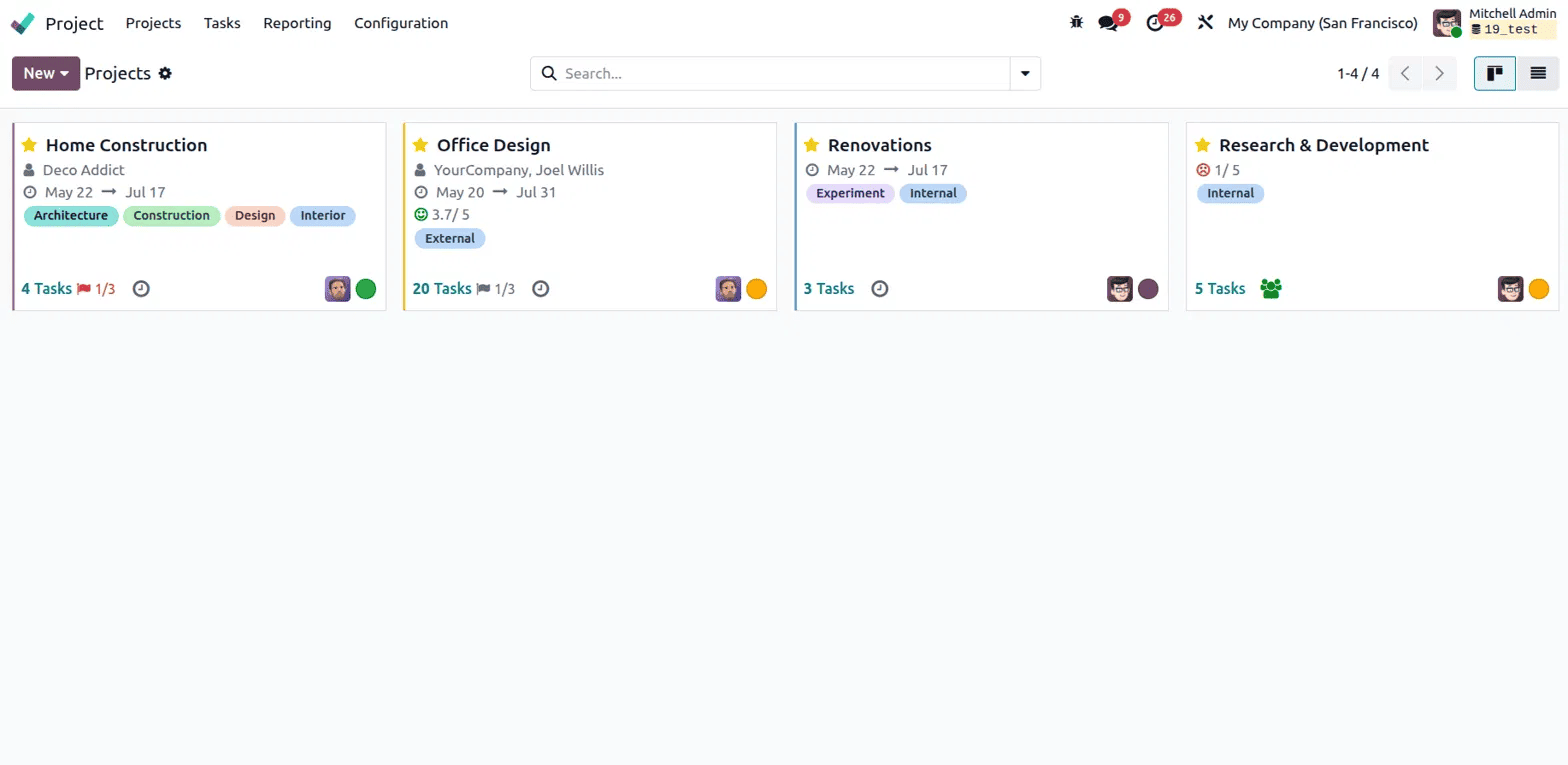
The Kanban view is the default view when you open the Projects page. Each project appears as a card and shows all the key details in one place. At the top of each card, you can see the project name along with a star icon to mark it as a favourite. Below it is the customer name, followed by the start and end date range of the project. Tags associated with the project are shown in coloured labels, making it easy to identify the category or type of work at a glance.
Each card also shows a milestone progress indicator, such as 3.7/5, which tells you how many milestones have been completed out of the total. Next to this is a milestone flag count like 1/3, which shows how many milestones have been reached out of the ones set. The number of tasks in the project is displayed as a clickable link at the bottom of the card. A timer icon sits next to the task count, which is used for time tracking. On the right side of the card bottom, you can see the assignee avatars showing who is working on the project, and a coloured status dot that gives you a quick visual indication of the project's health: green for on track, orange for at risk, and red for off track.
List View
The List view shows all your projects in a clean table format. The columns in this view are Name, Customer, Company, and Project Manager. The Name column shows the project title, the Customer column shows who the project belongs to, the Company column shows which company it is under, and the Project Manager column shows the person responsible for the project, along with their avatar. On the far right of each row, there is a coloured status dot indicating the project's health, followed by a View Tasks button that takes you directly into the tasks of that project.
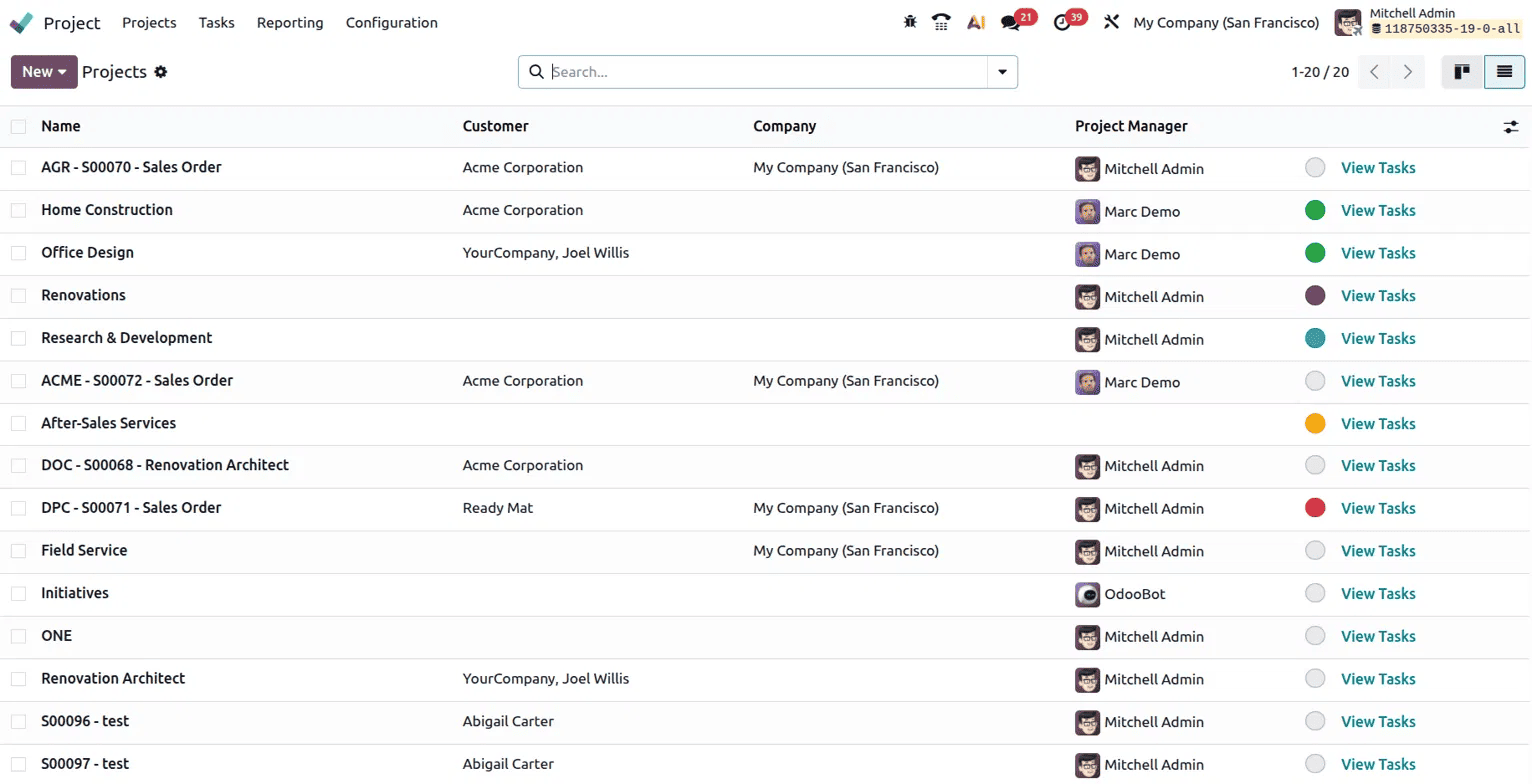
This view is useful when you have a large number of projects and want to quickly scan through them, compare details, or find a specific project by name or manager.
2. Task Views
Once you open a project, you can see all the tasks in different views. Odoo 19 offers eight views for tasks, each giving you a different way to look at and manage your work. The view icons are available in the top right corner of the task page.
Kanban View
The Kanban view for task groups shows all the tasks by their stage: New, In Progress, Done, and Cancelled. Each task appears as a card showing the task name, customer, time logged, assignee, and other details. You can drag and drop tasks between stages to update their status quickly.
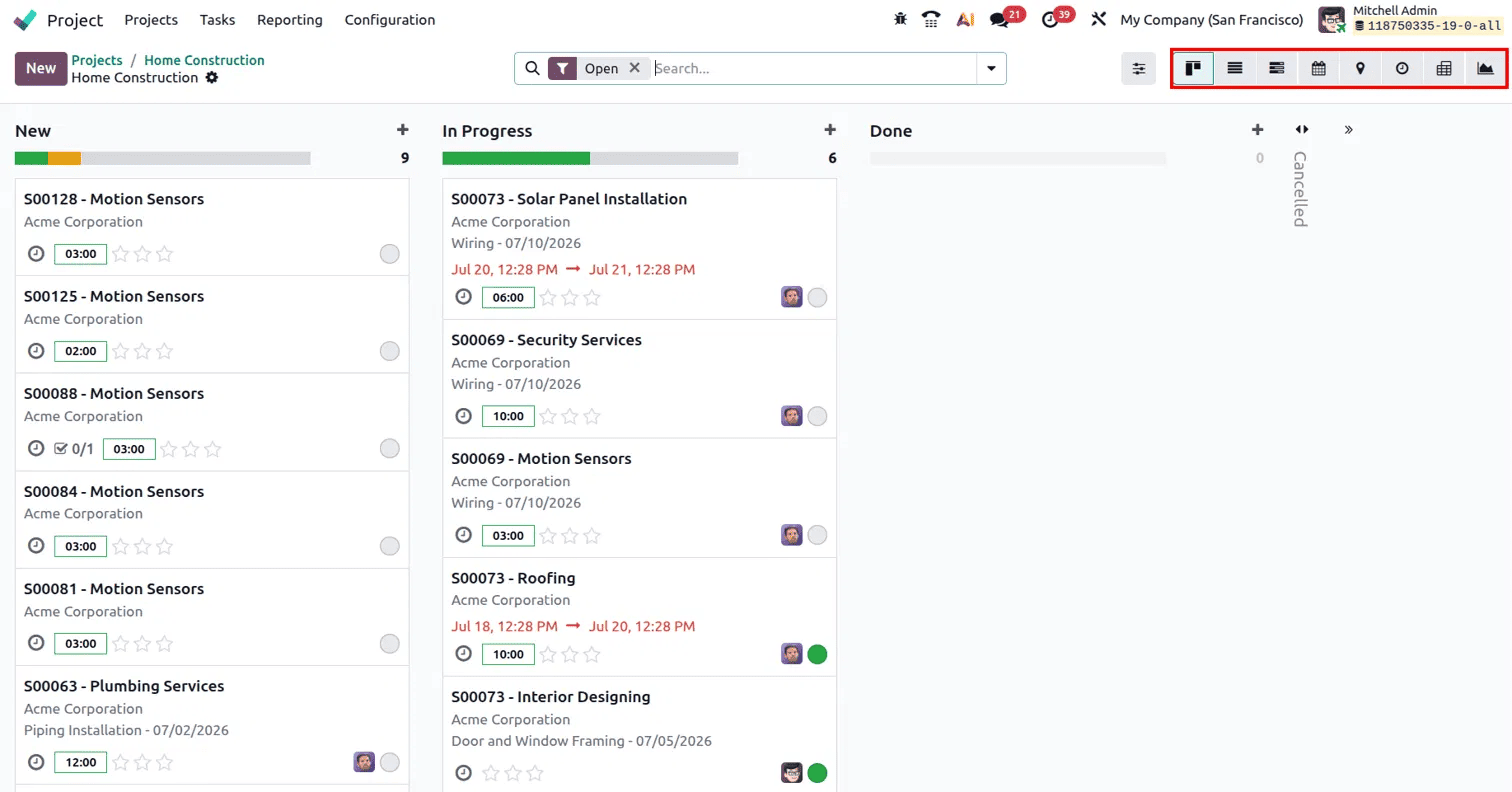
This is the most popular view for day-to-day task management. It gives you a clear picture of where each task stands and makes it easy to move things forward.
List View
The List view shows all tasks in a table with columns for Title, Assignees, Time Spent, Progress, Priority, Next Activity, Tags, and Stage. Tasks are grouped by stage so you can still see which stage each task belongs to, but in a more structured and data-rich format.
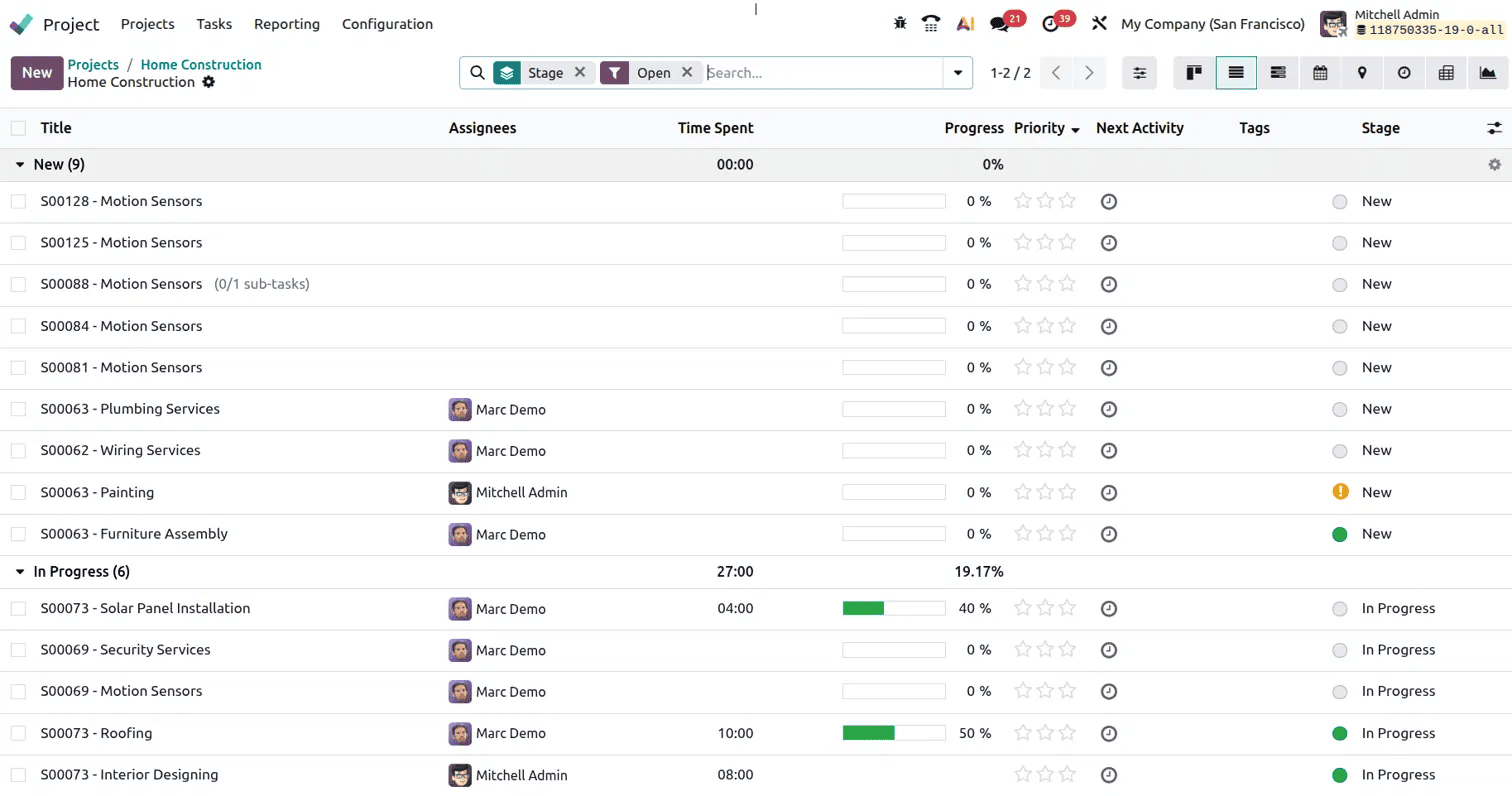
This view is ideal when you need to see specific details for each task at once, such as how much time has been spent or what the current progress percentage is.
Gantt View
The Gantt view displays tasks on a timeline, grouped by assignee. You can see when each task is scheduled to start and end, how long it runs, and how tasks overlap across the team. You can switch between day, week, and month views to zoom in or out on the timeline.
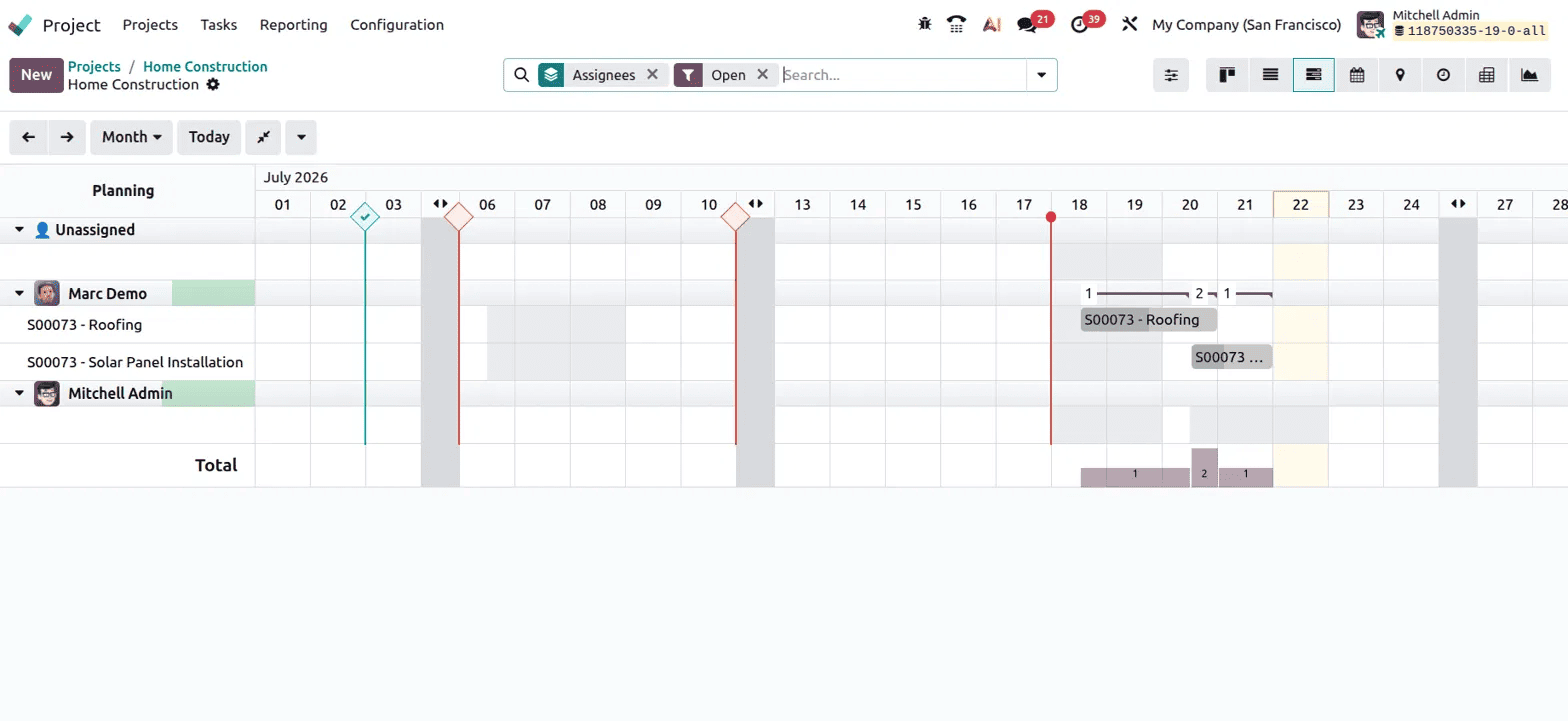
This view is very useful for planning and scheduling. If you want to make sure your team is not overloaded or that key tasks are not clashing with each other, the Gantt view makes it easy to spot those issues at a glance.
Calendar View
The Calendar view shows tasks laid out on a monthly calendar based on their scheduled dates. On the right side of the screen, there is a list of tasks that have not been scheduled yet. You can simply drag a task from that list and drop it onto any date on the calendar to schedule it instantly.
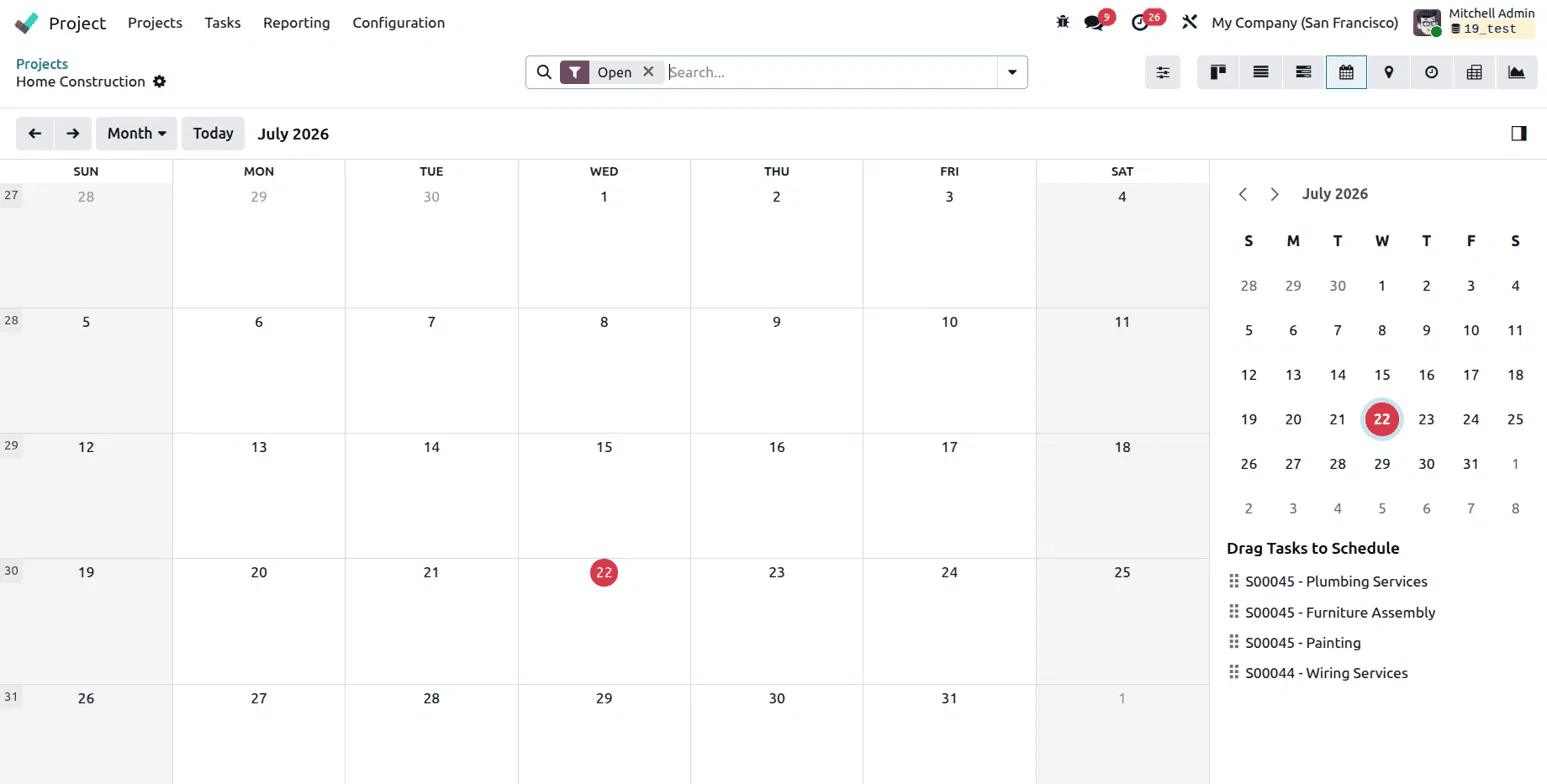
This view works well when you want to manage deadlines and make sure tasks are spread out properly across the month. It is also a quick way to catch any days that are too packed with work.
Map View
The Map view plots tasks on a world map based on the location associated with each task. On the left side, there is a list of tasks, and on the map, you can see a pin showing where those tasks are located. There is also an option to view the map in Google Maps for more detailed routing.
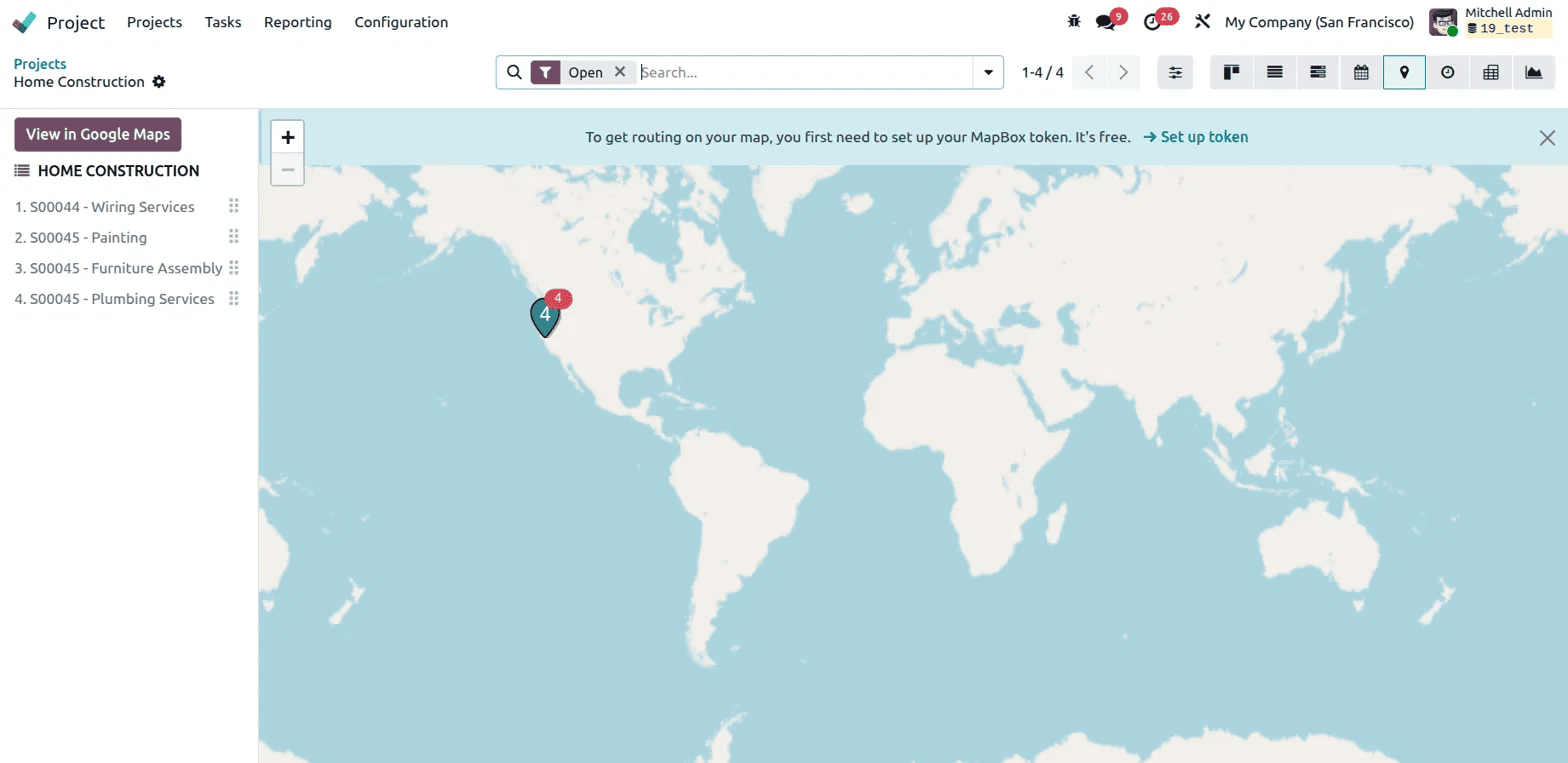
This view is especially useful for field service teams or businesses where tasks are carried out at different physical locations. It helps you plan routes and understand where your work is happening geographically.
Activity View
The Activity view shows a table of tasks with columns for different activity types - To-Do, Email, Call, Meeting, and Document. For each task, you can see what activities have been scheduled and when they are due. You can also schedule a new activity directly from this view using the Schedule Activity button at the bottom.
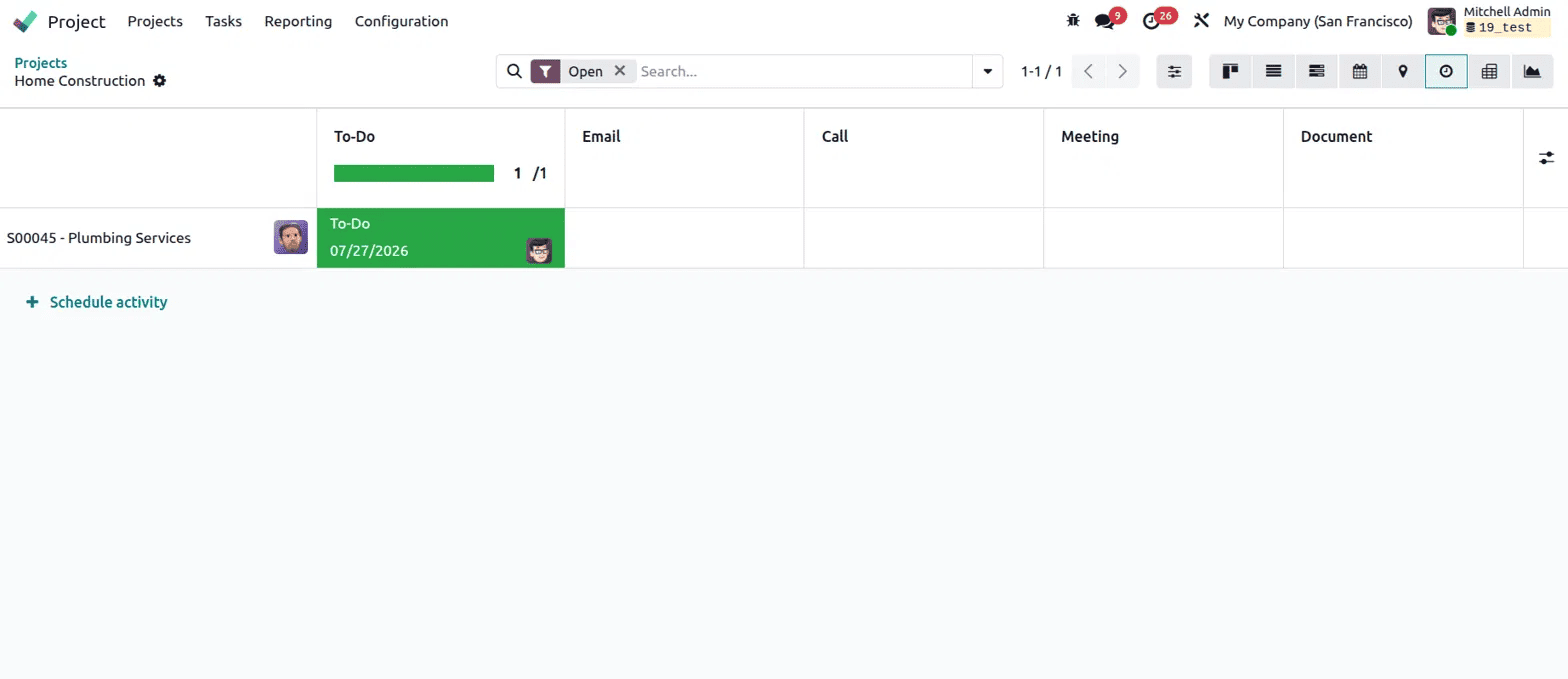
This view is helpful for keeping on top of follow-ups and making sure no important activities are missed against any task.
Pivot View
The Pivot view presents task data in a spreadsheet-style table. You can group tasks by different criteria, such as assignee, stage, or project, and see counts or other measures at a glance. There is also an option to insert the data directly into a spreadsheet for further analysis.
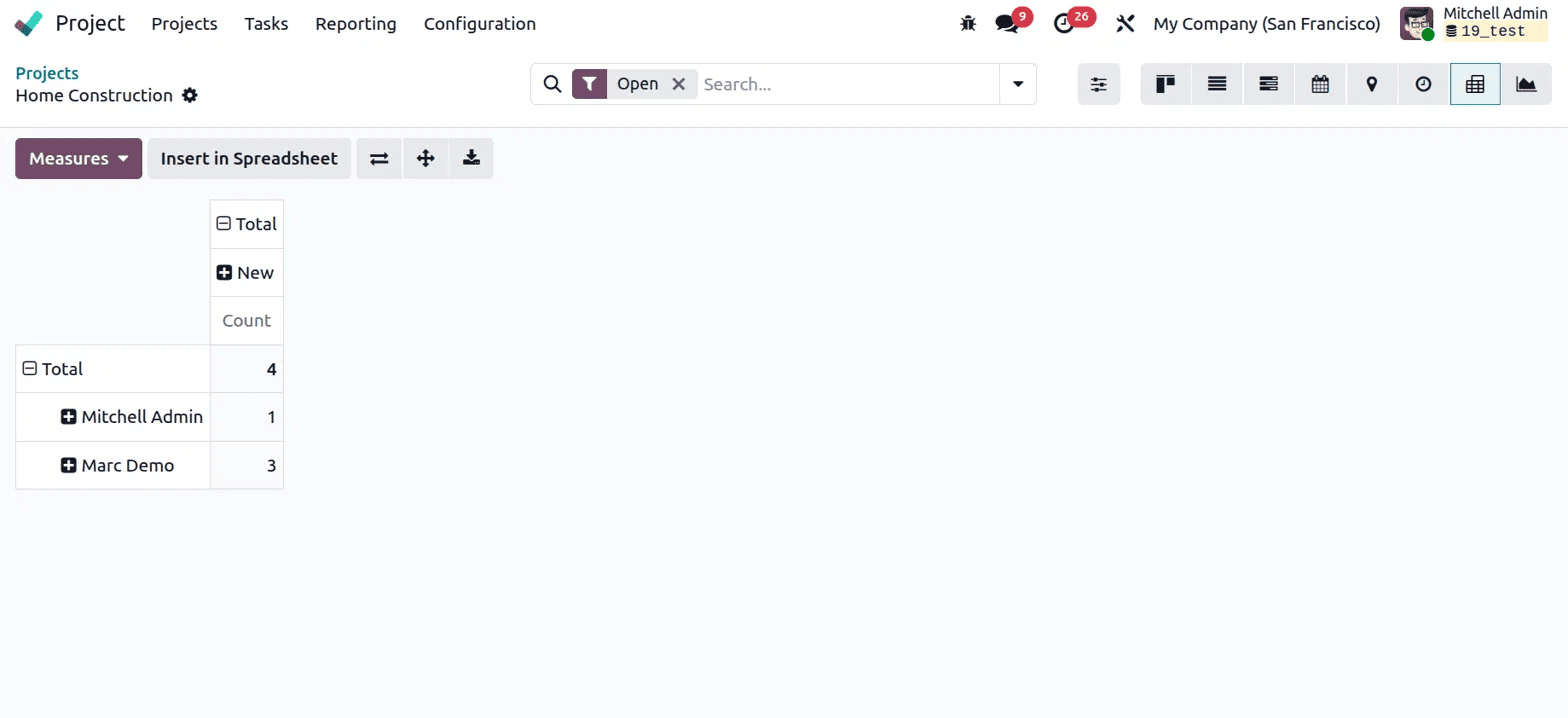
This view is great for getting a numerical summary of your tasks. If you want to know how many tasks each team member has, or how work is distributed across stages, the Pivot view gives you that information quickly and clearly.
Graph View
The Graph view displays task data as a visual chart. By default, it shows a bar chart, but you can switch to a line chart, pie chart, or stacked bar chart using the options at the top. The chart is colour-coded by assignee so you can instantly see how tasks are split across the team.
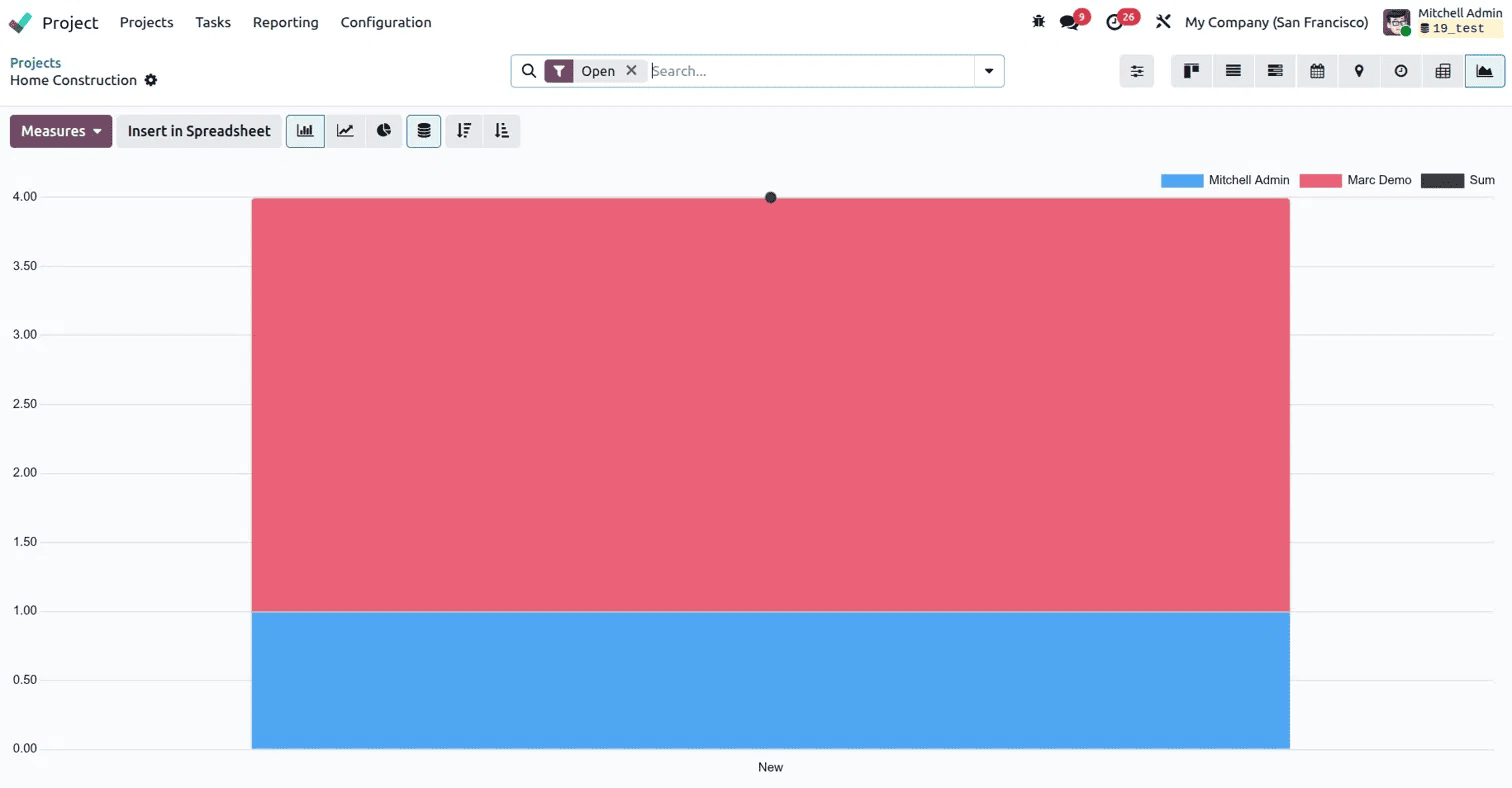
This view is useful for reporting and getting a high-level visual summary of how tasks are distributed. It is a good view to use when presenting project progress to a team or management.
Odoo 19 gives you a rich set of views for both projects and tasks, making it easy to manage your work in whatever way suits you best. The Kanban and List views give you a solid overview of your projects, while the eight task views, Kanban, List, Gantt, Calendar, Map, Activity, Pivot, and Graph, cover everything from day-to-day task tracking to scheduling, reporting, and field planning. Knowing which view to use and when can make a real difference to how efficiently you and your team manage projects in Odoo 19.