Price control is a vital aspect of running a successful retail business, especially when multiple employees use a Point of Sale system. In Odoo 19 POS, businesses can implement control mechanisms to ensure that only authorized staff members, such as managers, can modify product prices during transactions. This functionality is particularly useful in preventing accidental errors and avoiding misuse by unauthorized users. When multiple employees operate the POS, unrestricted price editing can lead to discrepancies, loss of revenue, and challenges in auditing sales data. By restricting price changes, businesses can establish a clear hierarchy of permissions and ensure that pricing decisions are handled responsibly. Odoo’s flexible access control system makes it easy to define these roles without disrupting daily operations. This blog explains how to configure price adjustments that require managerial authority, helping businesses maintain better control and operational discipline in Odoo 19 POS.
Firstly, open the Point of Sale module from the Odoo 19 dashboard. Then, navigate to the Configuration > Settings and select a shop as Bakery Shop. Users can change shops, and they can also create a new one using the + New Shop button.
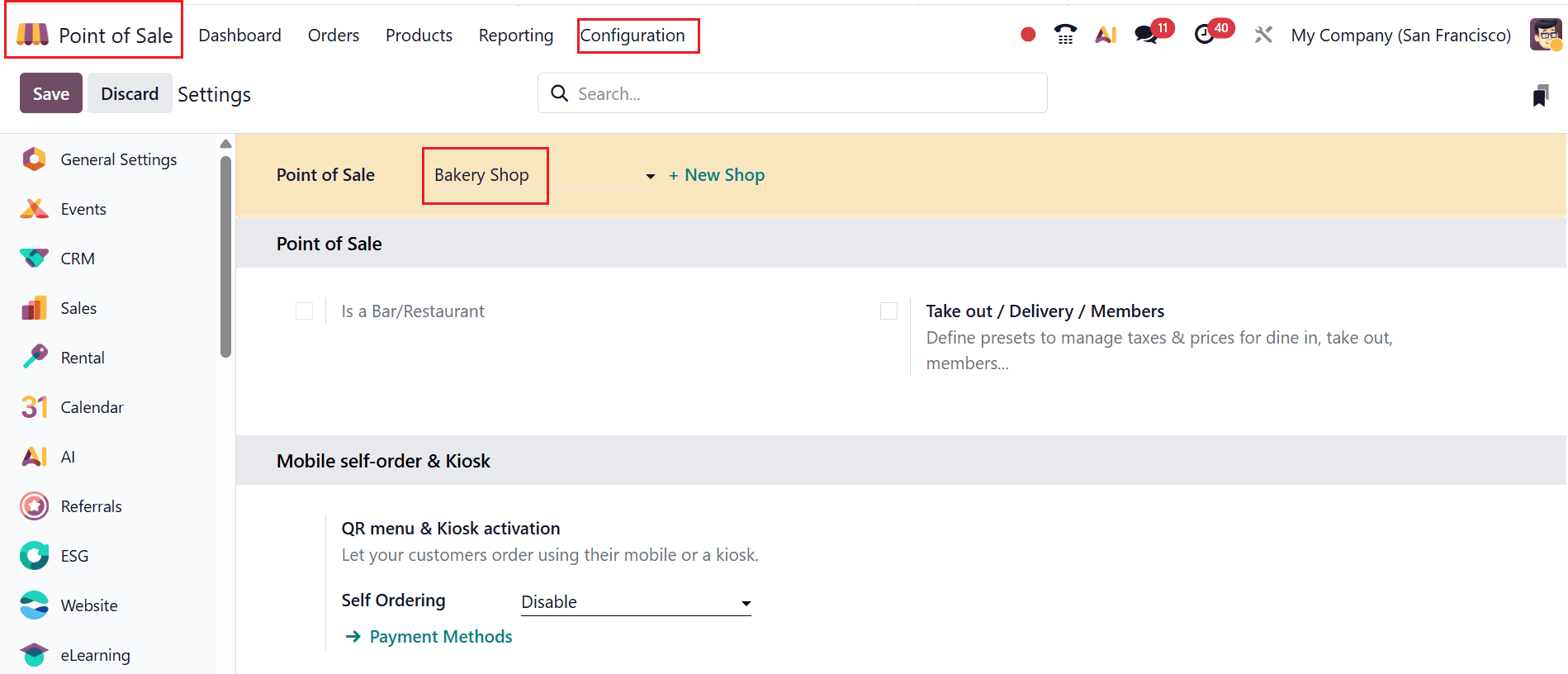
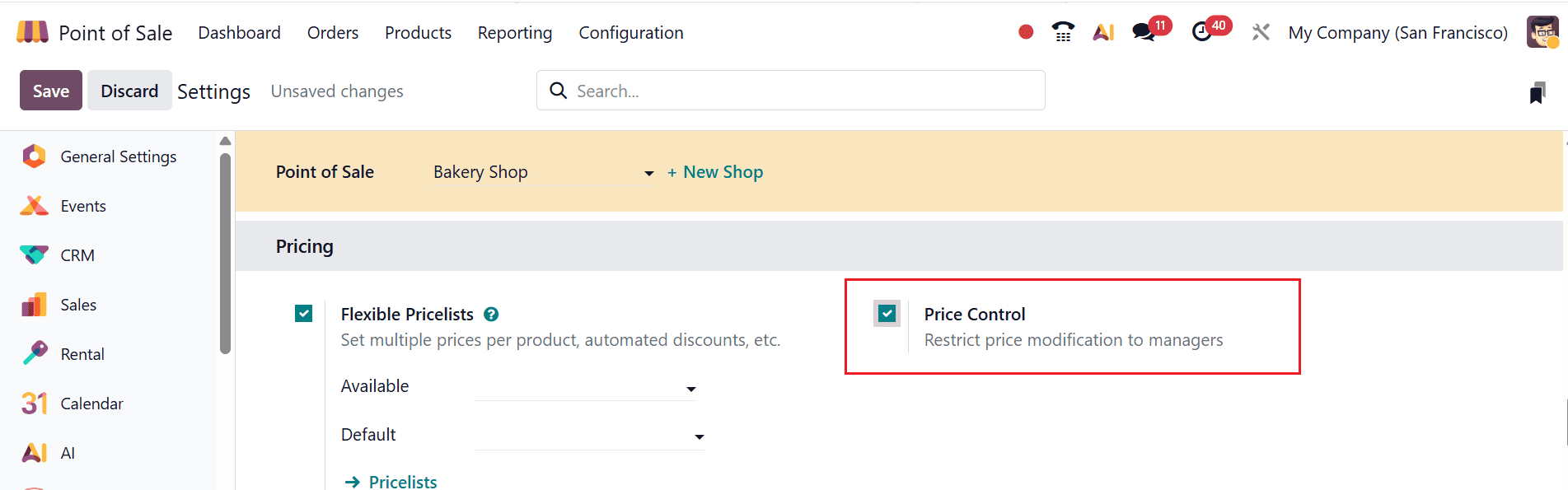
By enabling Price Control in the Pricing section, price modifications are restricted exclusively to managers. To enable the Price control option, navigate to the Configuration > Settings > Price Control > Save.
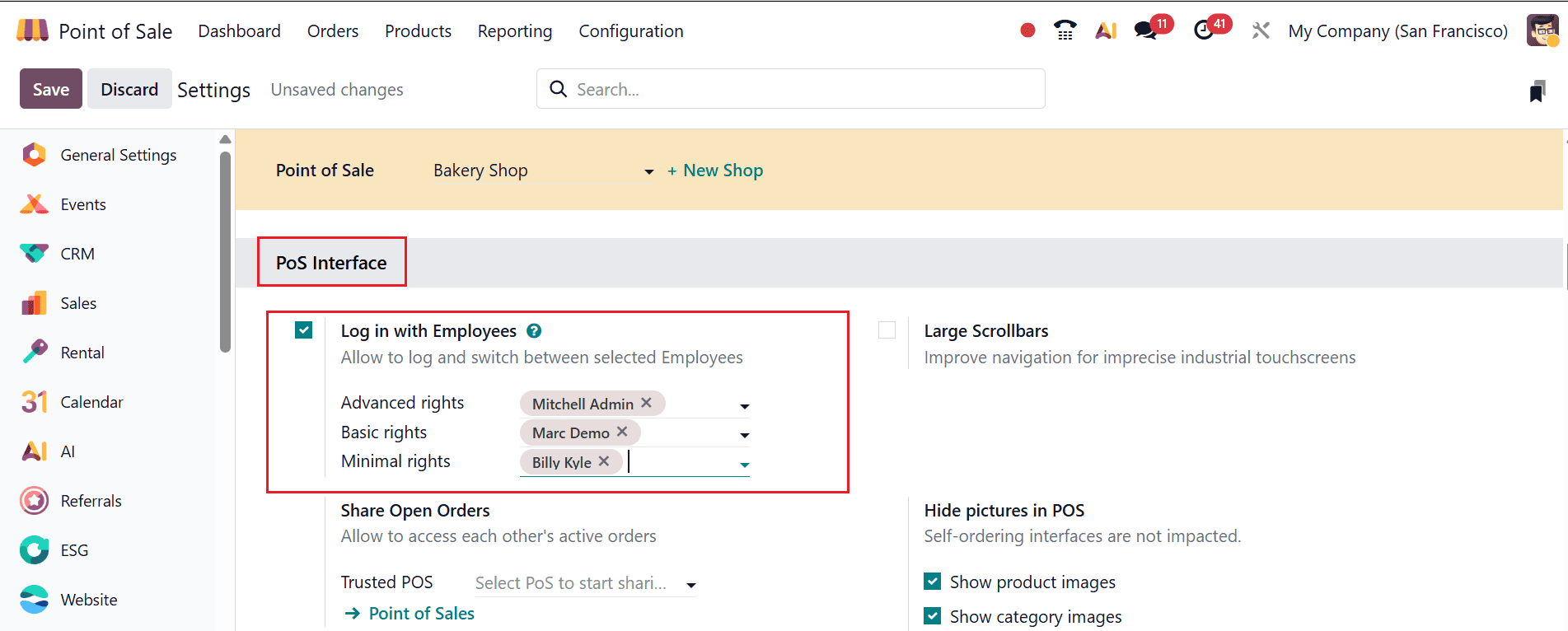
Enable the Login with Employees option available in the POS Interface section, which helps businesses to define employees and control their access to the shop directly from the settings. Employees can access a POS session by scanning their badge or entering a PIN, set up under the HR Settings tab in their employee form.
Once this option is enabled, this feature offers two access levels: Basic Rights and Advanced Rights. These roles help differentiate employee permissions within the POS system.
Consider a shop where there are two employees: Marc Demo and Mitchell Admin. Marc Demo is assigned Basic Rights, which limits his access to essential operations, while Mitchell Admin is given Advanced Rights, granting broader control within the system. All authorized employees can be added and managed directly within the POS settings.
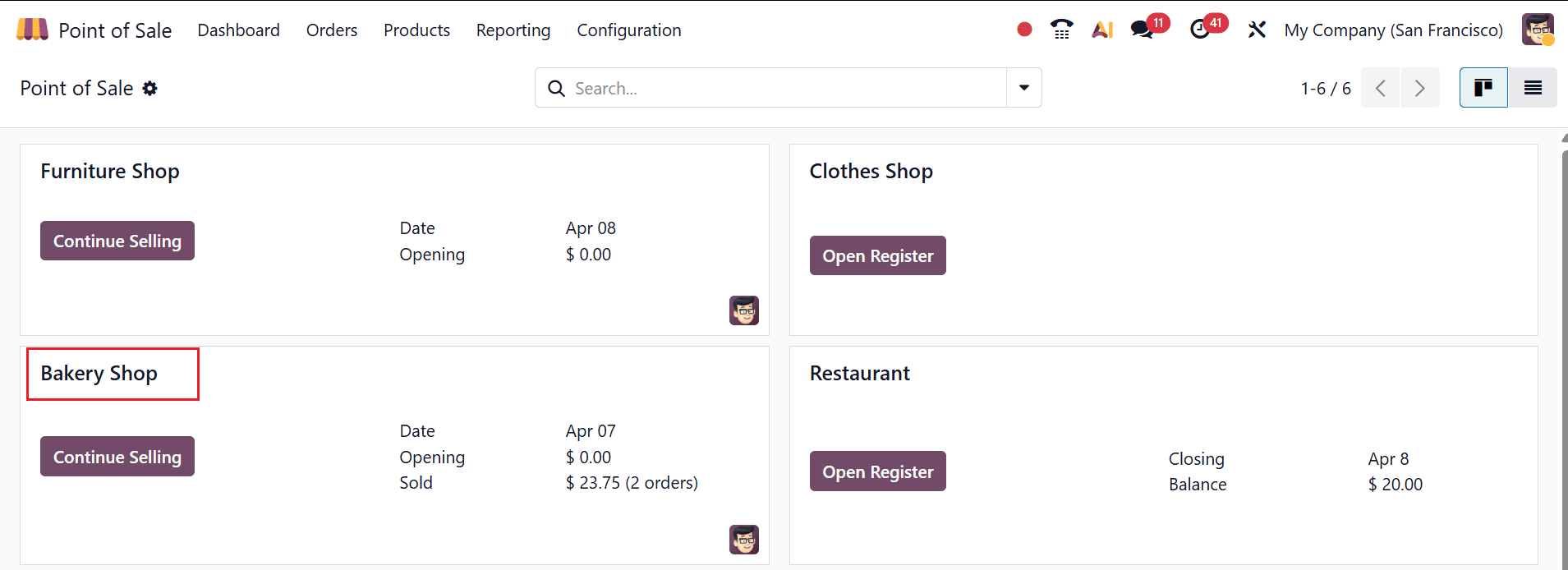
Once you have saved the changes, you can go back to the main dashboard to view the list of POS sessions. You will see the session named Bakery Shop with the new settings applied. Click Continue Selling to open it.
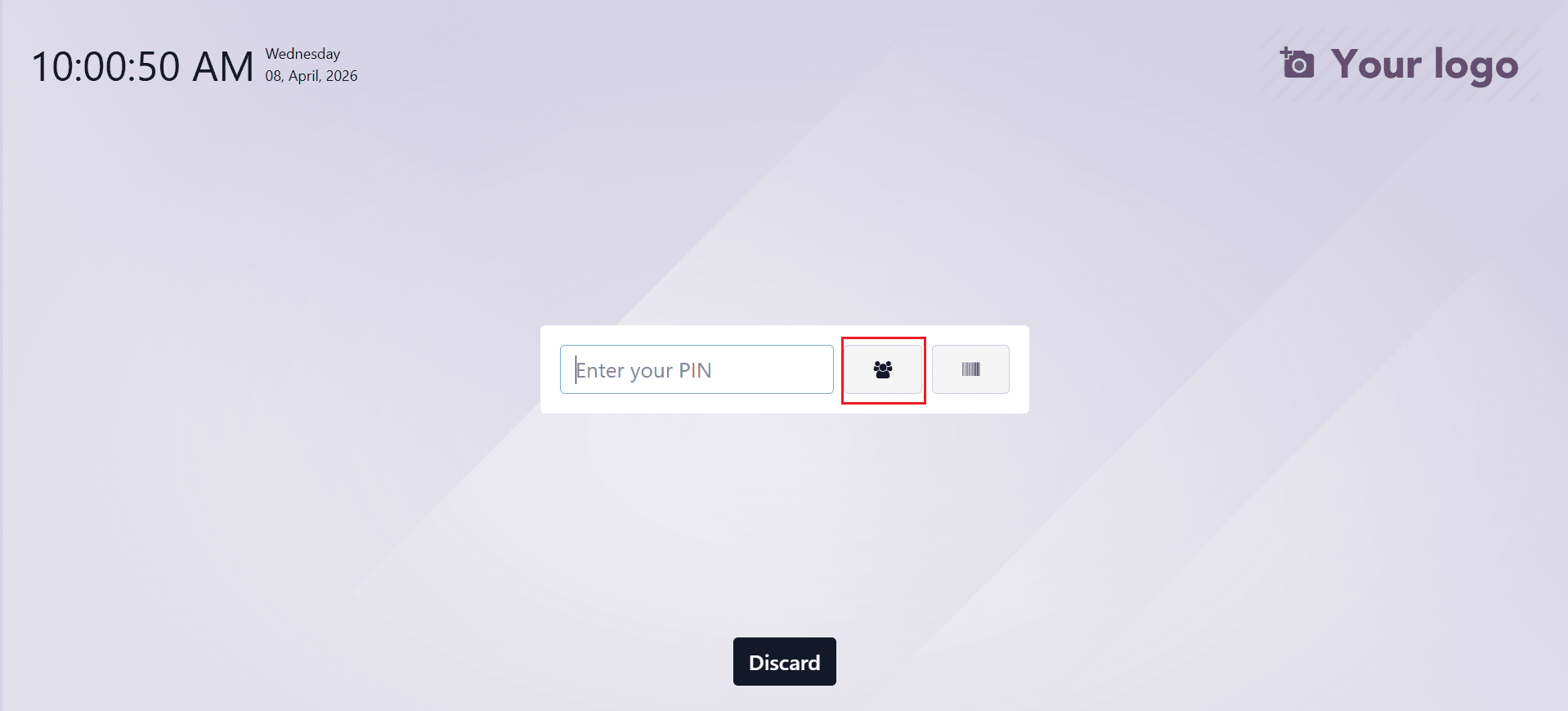
A new window will appear where you can select the employee who can access the shop. As shown in the illustration below, you can either use the scanning method or select the employees icon as shown below:
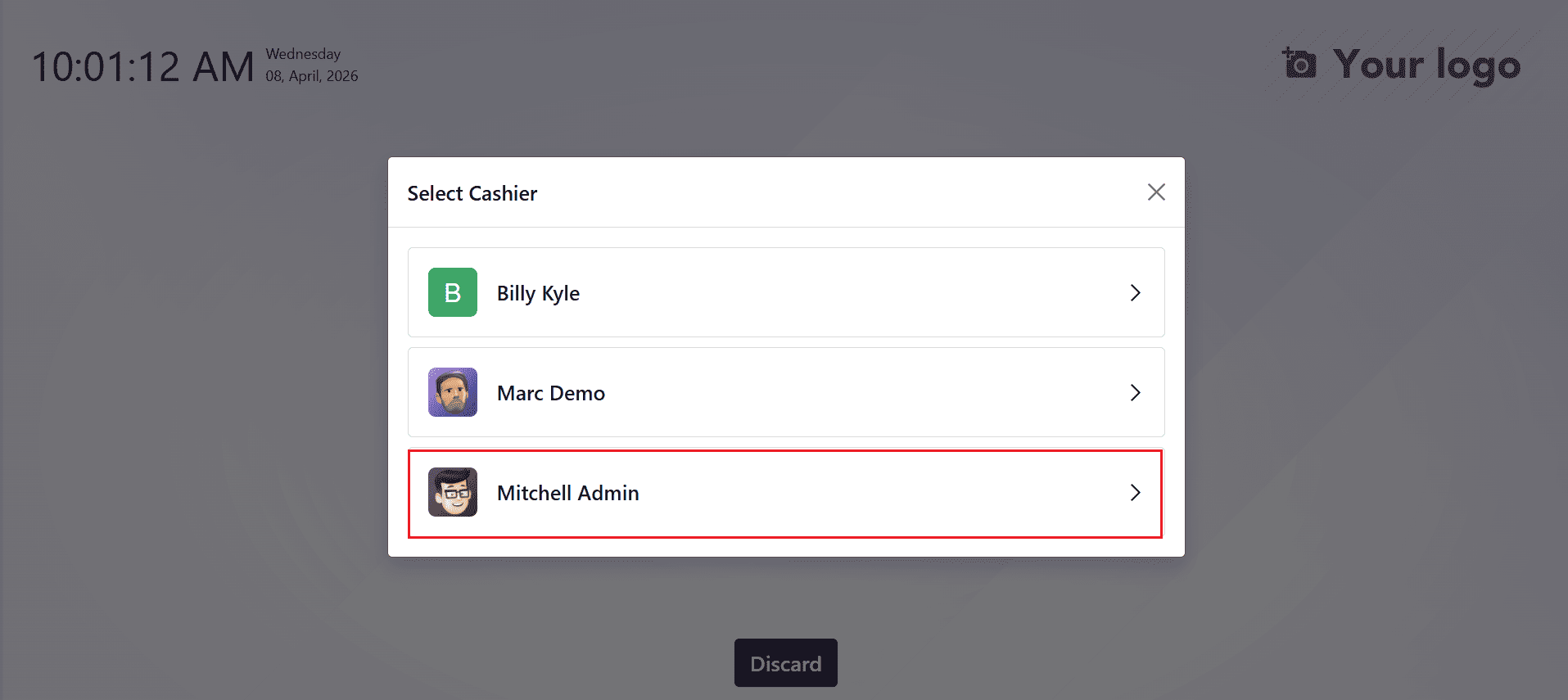
A new pop-up screen will appear, displaying a list of cashiers. Users can choose the employee they want to assign to the session. In this example, two employees are available: Mitchell Admin, the session manager, and Marc Demo, the salesperson. Here, select Mitchell Admin as the cashier, since he has Advanced Rights.
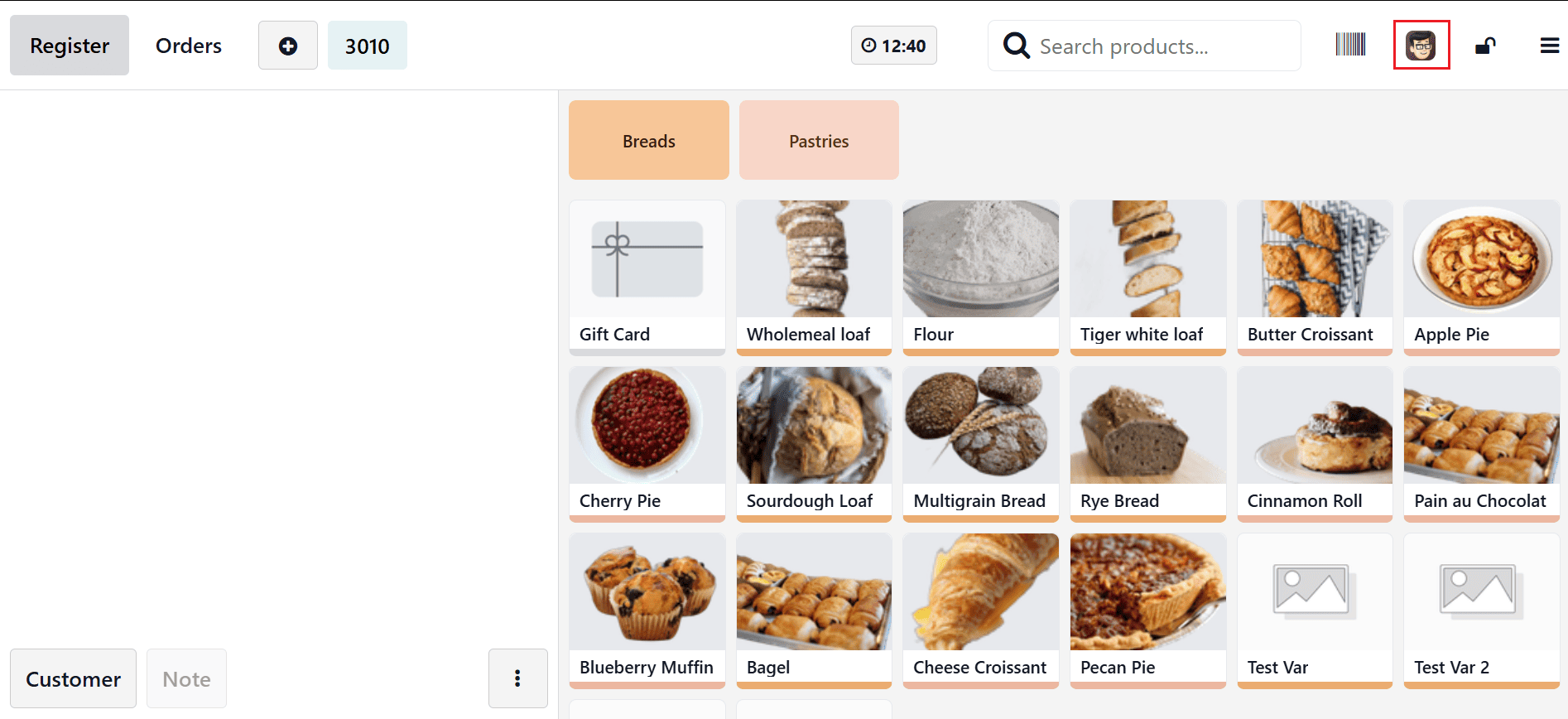
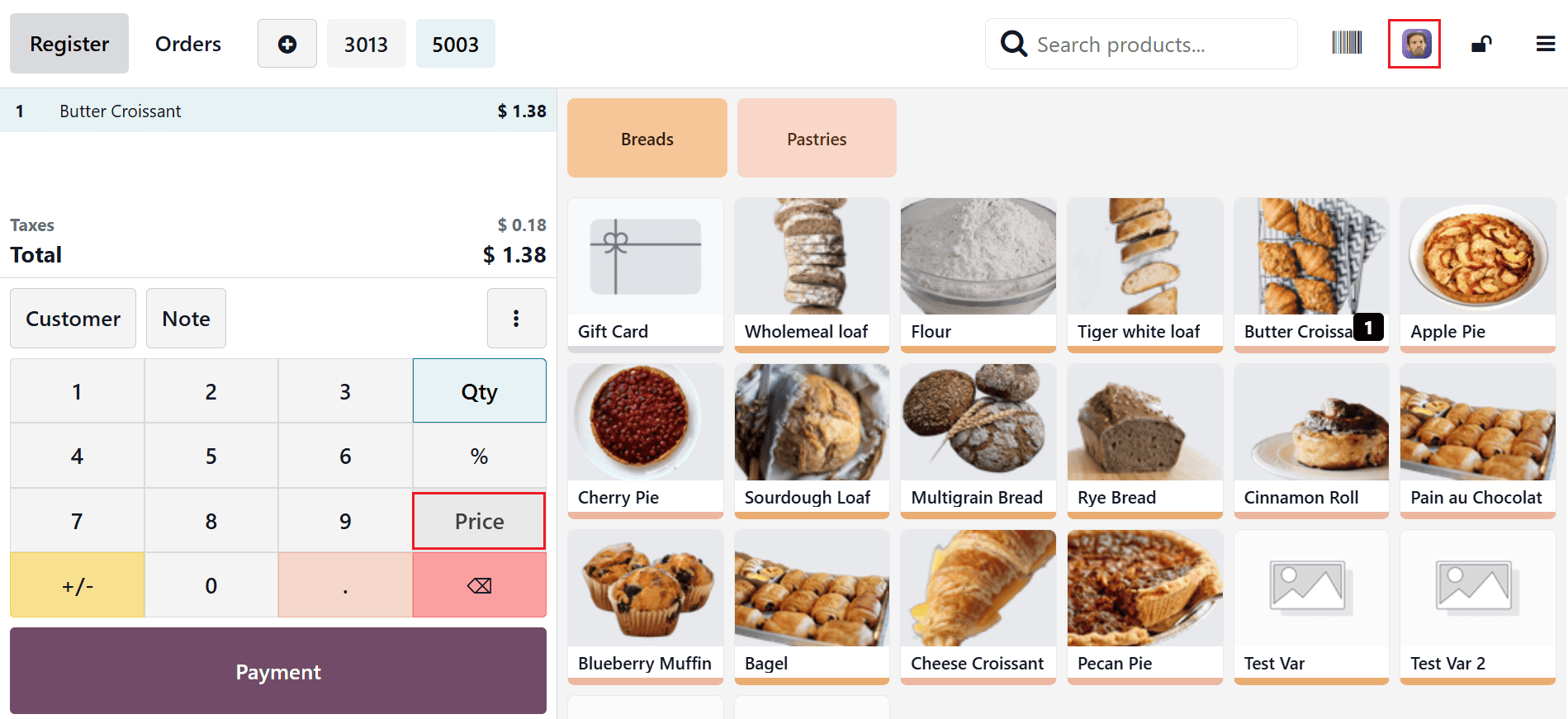
A new dashboard opens for placing orders, and the products are listed on the right side of the screen. The currently logged-in employee, Mitchell Admin, appears in the upper-right corner.
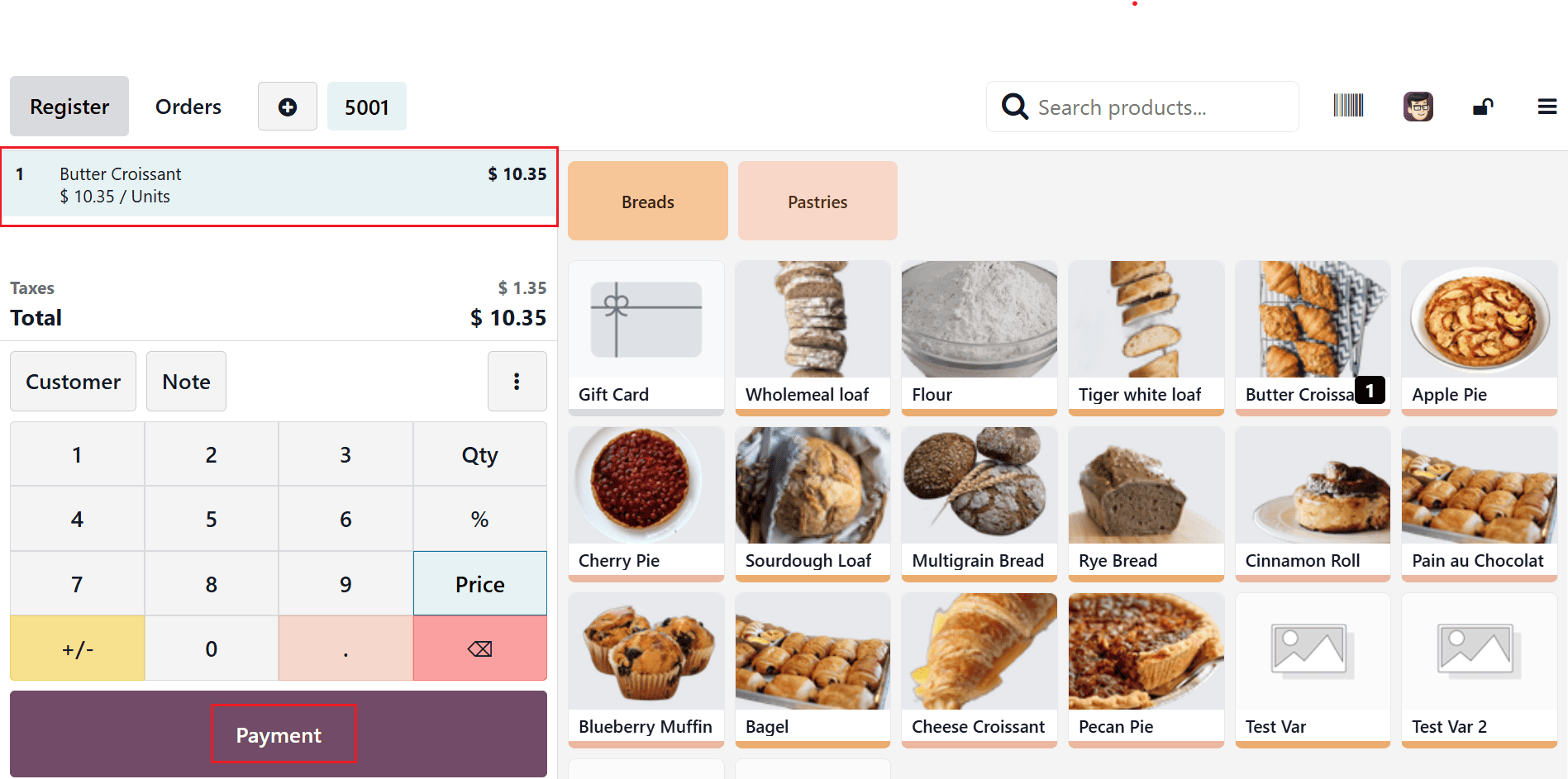
When you select any order, it will appear on the left-side of the screen as shown below. The system allows the user to change Quantity, Price, Discount %, etc. Here, a single piece of Butter Crossiant has been added, with a unit price of $1.38. By using the Price button, the Mitchell Admin can easily modify the product’s price using their Advanced Access Right.
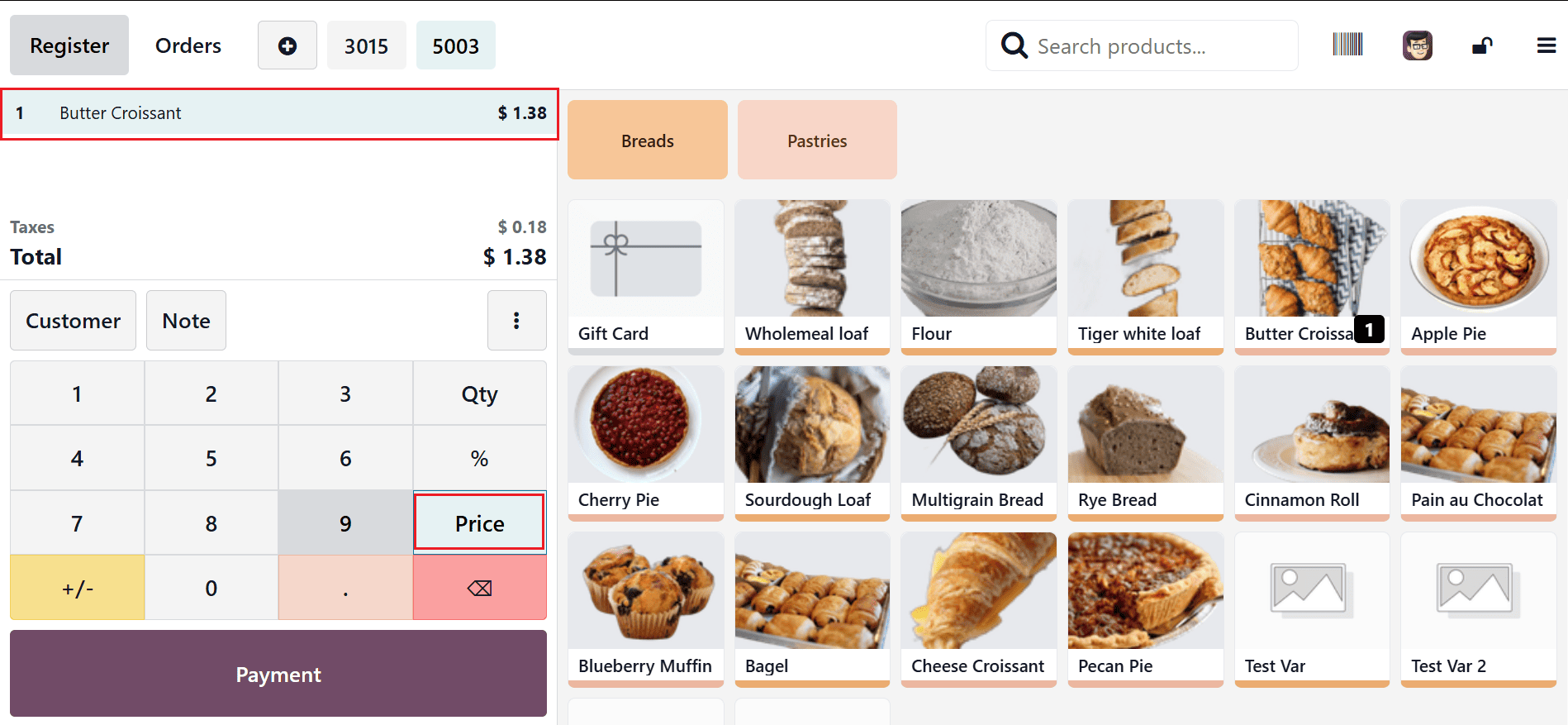
By clicking the Price button, you can adjust the product’s price with ease. Here, the item’s price has been updated to $10.35. Afterward, click the Payment button to finish the process.
Then, select a payment method and click on the Validate button to complete the payment process.
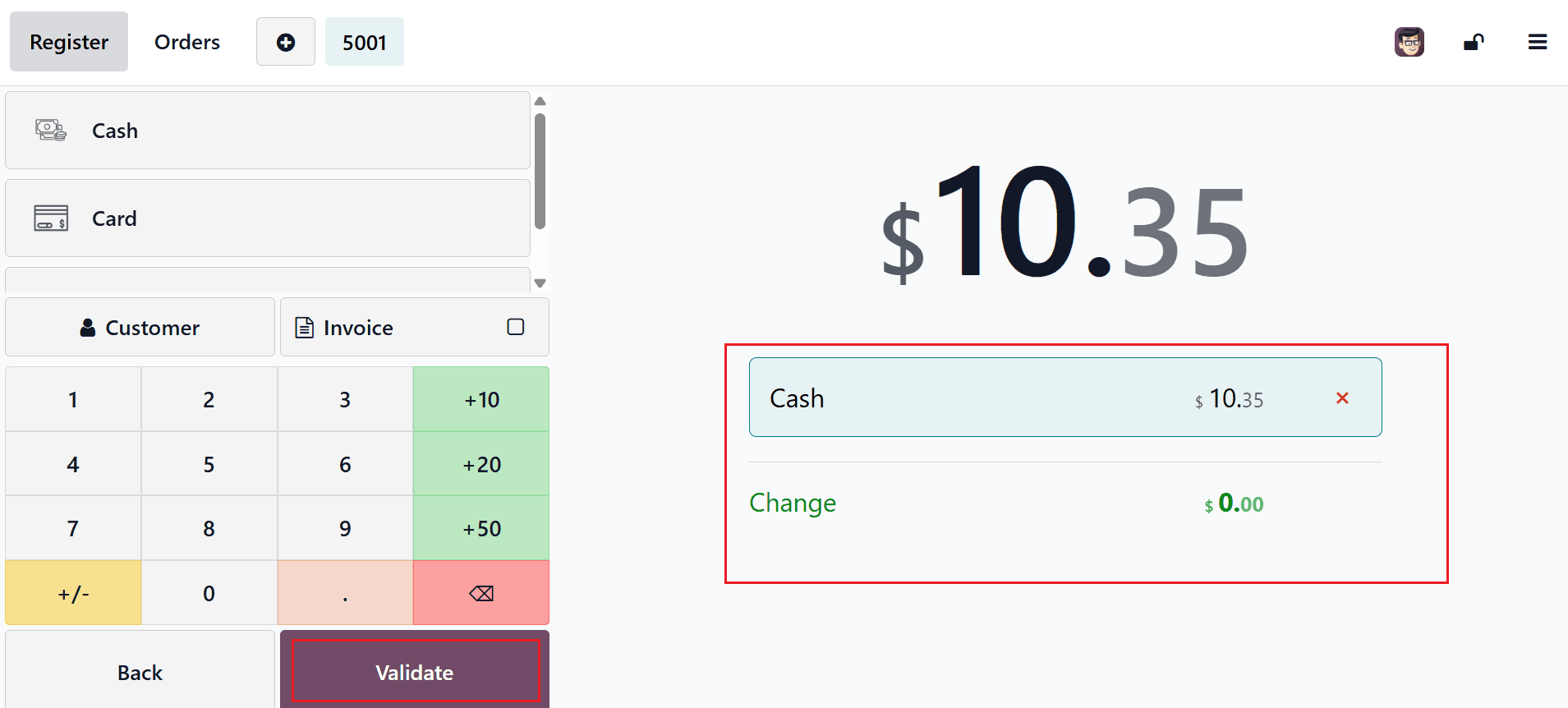
This shows that employees with Advanced Access rights have the ability to adjust the price of selected products within the session. This confirms that the manager can modify product prices.
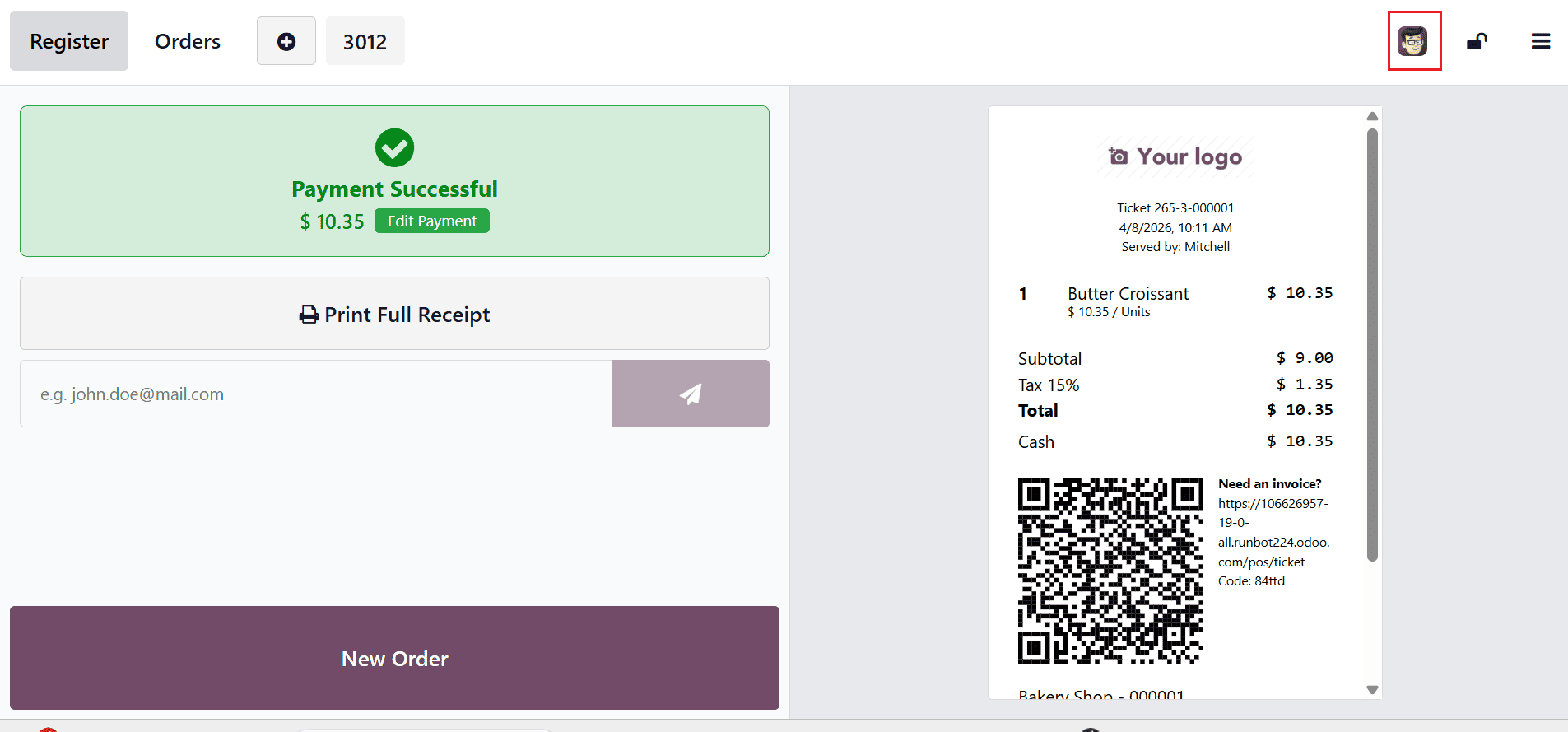
Let’s check with another employee. At first, change the logged-in user by clicking the employee name shown in the upper-right corner.
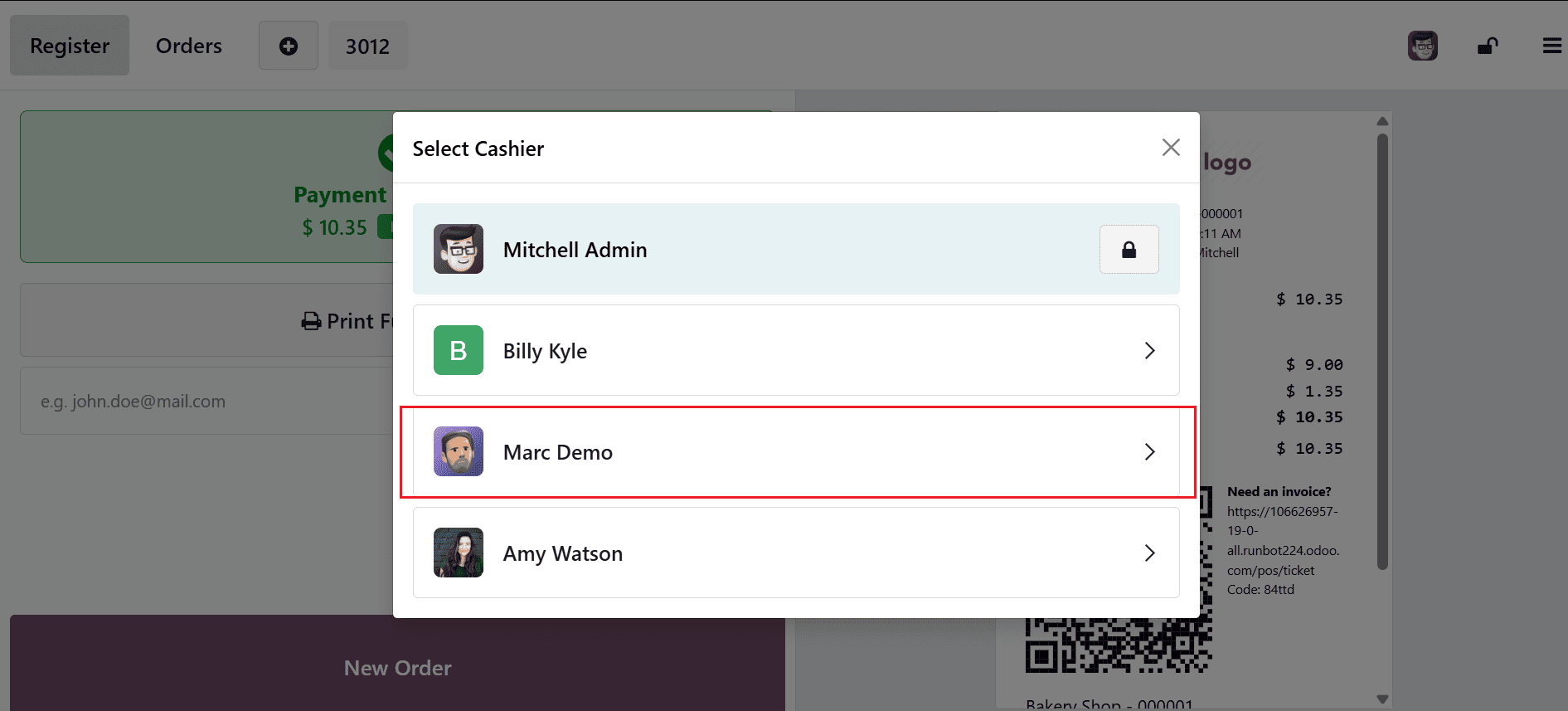
A pop-up will appear showing all cashiers currently available. Then, change the cashier to the salesperson, Marc Demo.
Now, Marc Demo is the active user in the session. The product Butter Crossiant is selected with a quantity of one, similar to the previous order. While the user can adjust the Quantity, the Price button remains disabled.
Employees who have Basic Access cannot modify product prices. Only employees with Advanced Access are authorized to change the sales price.
Implementing restrictions on price changes in Odoo 19 POS is a smart approach to improving business control and minimizing risks. By assigning price modification privileges exclusively to managers, companies can ensure that all pricing decisions are deliberate and authorized. This reduces the likelihood of unauthorized discounts, pricing inconsistencies, and potential financial losses. Additionally, it promotes transparency, with every change being accountable to a specific individual. Odoo’s role-based access system allows businesses to enforce these rules without complicating the workflow for cashiers. As a result, staff can focus on efficient customer service while managers handle sensitive pricing tasks. This structured approach gradually ensures more accurate reporting and more efficient financial management. Adopting such controls in your POS system not only safeguards revenue but also strengthens overall operational integrity and trust within the organization.
To read more about How to Restrict Price Modification to Managers in Odoo 18 POS, refer to our blog How to Restrict Price Modification to Managers in Odoo 18 POS.