Effective inventory management is essential for any business since it has a direct impact on operations, cash flow, and customer satisfaction. Establishing an accurate opening stock is a fundamental step in inventory management for businesses implementing Odoo 19 or beginning a new fiscal period. The amount of items a company possesses at the start of a new period is known as opening stock, and it serves as the starting point for all subsequent inventory movements.
We'll lead you through the Odoo 19 starting stock setup procedure in this article. This configuration guarantees that your inventory records get off to a good start, giving you a precise picture of product availability immediately away. Adding opening stock correctly helps maintain stock accuracy and facilitates seamless inventory management going forward, whether you're moving to Odoo from another system or building up a new warehouse.
- Accurate Financial Reporting: Including opening stock guarantees that the value of your inventory is accurately represented in your financial reporting, including income statements and balance sheets.
- Accurate COGS Calculation: The Cost of Goods Sold (COGS) is influenced by opening stock. Determining the cost of the goods sold over a specific time period is made easier by knowing the initial stock.
- Inventory Valuation: For tax and financial reasons, accurate inventory valuation is essential. Opening stock serves as a foundation for figuring out the value of the products you have on hand and adds to the overall valuation of your inventory.
- Performance Analysis: By keeping track of opening stock, you can better analyze inventory turnover and evaluate how effective your inventory management procedures are.
- Entering opening stock in Odoo establishes a beginning point for inventory levels, allowing the system to precisely monitor sales, purchases, and stock movements going forward. This provides a basis for efficient inventory control by ensuring that your records match the actual physical supply on hand.
One of the most important steps in Odoo 19 is the initial inventory setup, which entails inputting the starting quantity for each product and adjusting your inventory as needed. In order to create a dependable Odoo inventory management system and guarantee the correctness of your inventory records, this step is essential. "Physical Inventory" is a unified Odoo procedure that streamlines the process of adding opening stock and making stock modifications or adjustments. This feature increases the overall effectiveness of your inventory management workflow by making it easier to maintain exact inventory levels.
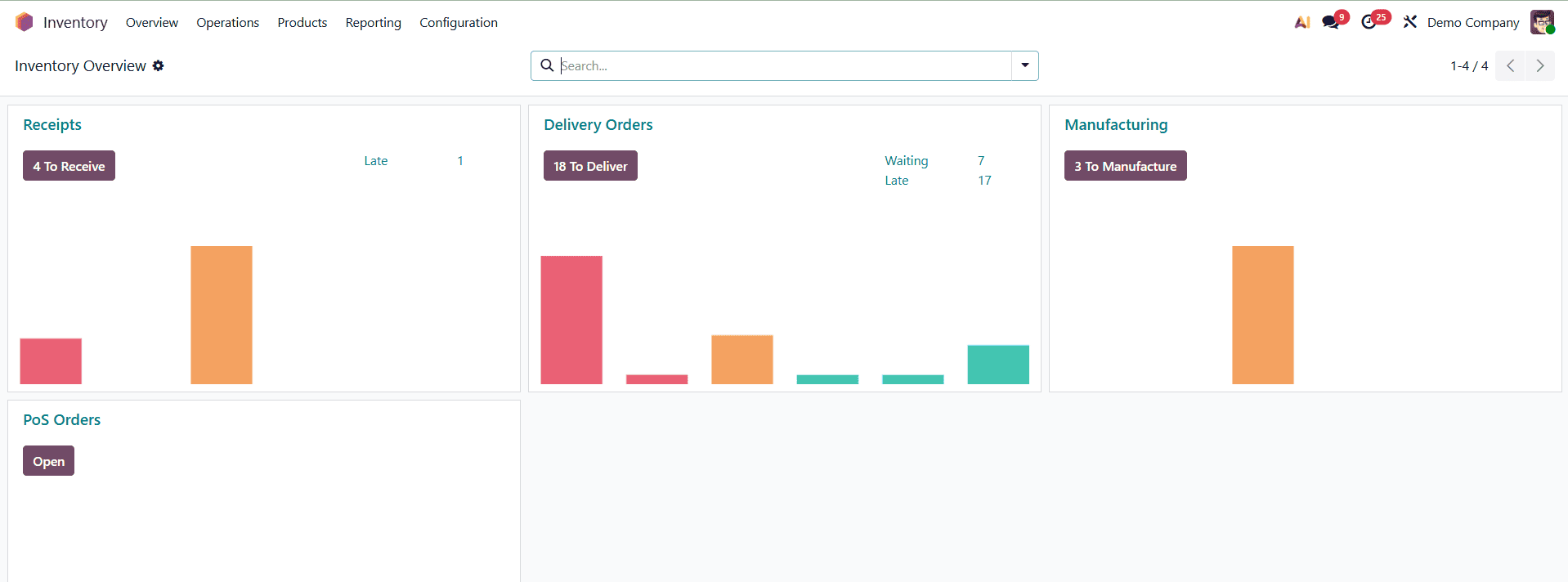
Use these procedures to add opening stock to the Odoo 19 Inventory Module: Go to the Inventory module after logging into your Odoo 19 database.
It creates a baseline for your inventory levels, representing the amount of goods available at the start of a certain accounting period. This is crucial for a number of reasons:
Make a new product if the one you wish to add opening stock for isn't currently in the system. Add all pertinent information, such as the unit of measurement, category, and name.
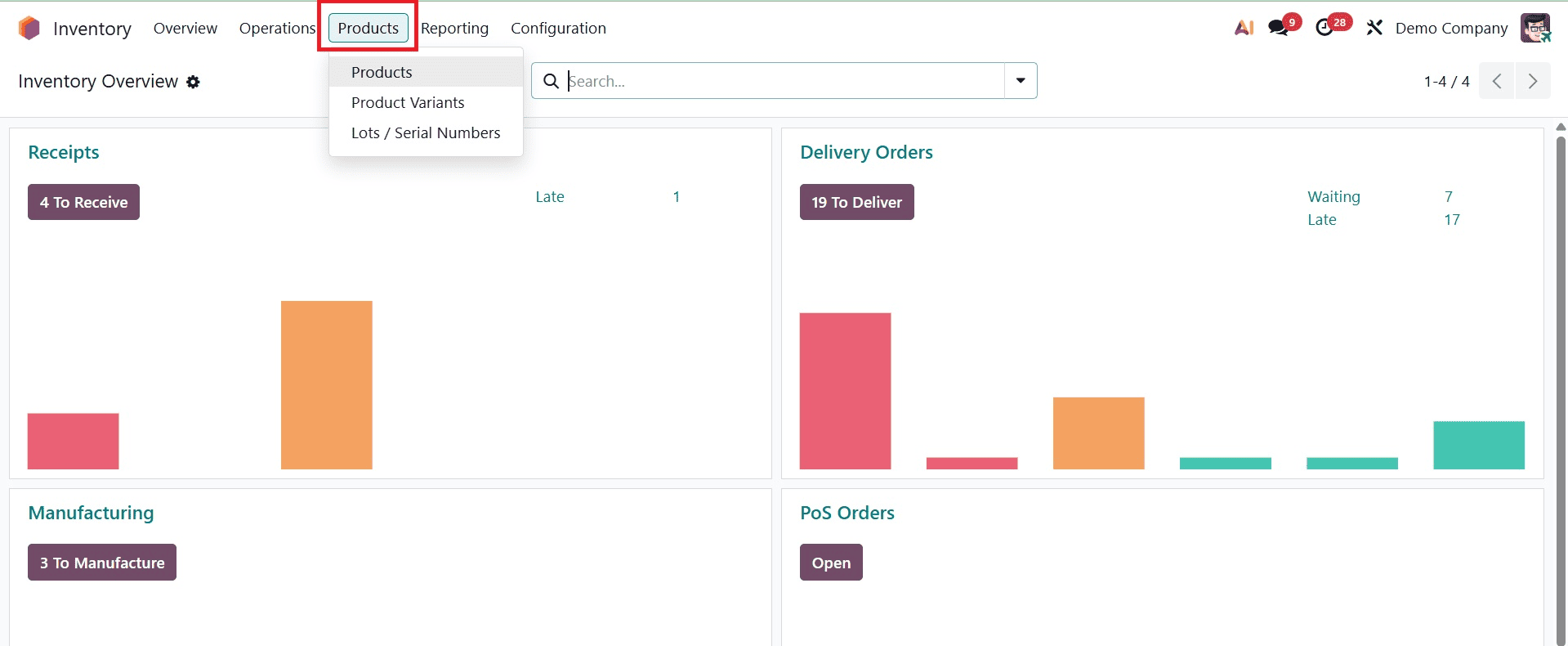
Find and choose the "Inventory Adjustments" menu in the Inventory module. This function is located in the "Physical Inventory" option under the "Operations" menu in Odoo 19.
To start a new inventory adjustment, click the "New" button.
Select the place where opening stock is to be added. Choose the product you designed or the one that already exists and requires stock adjustments or else create a new product.
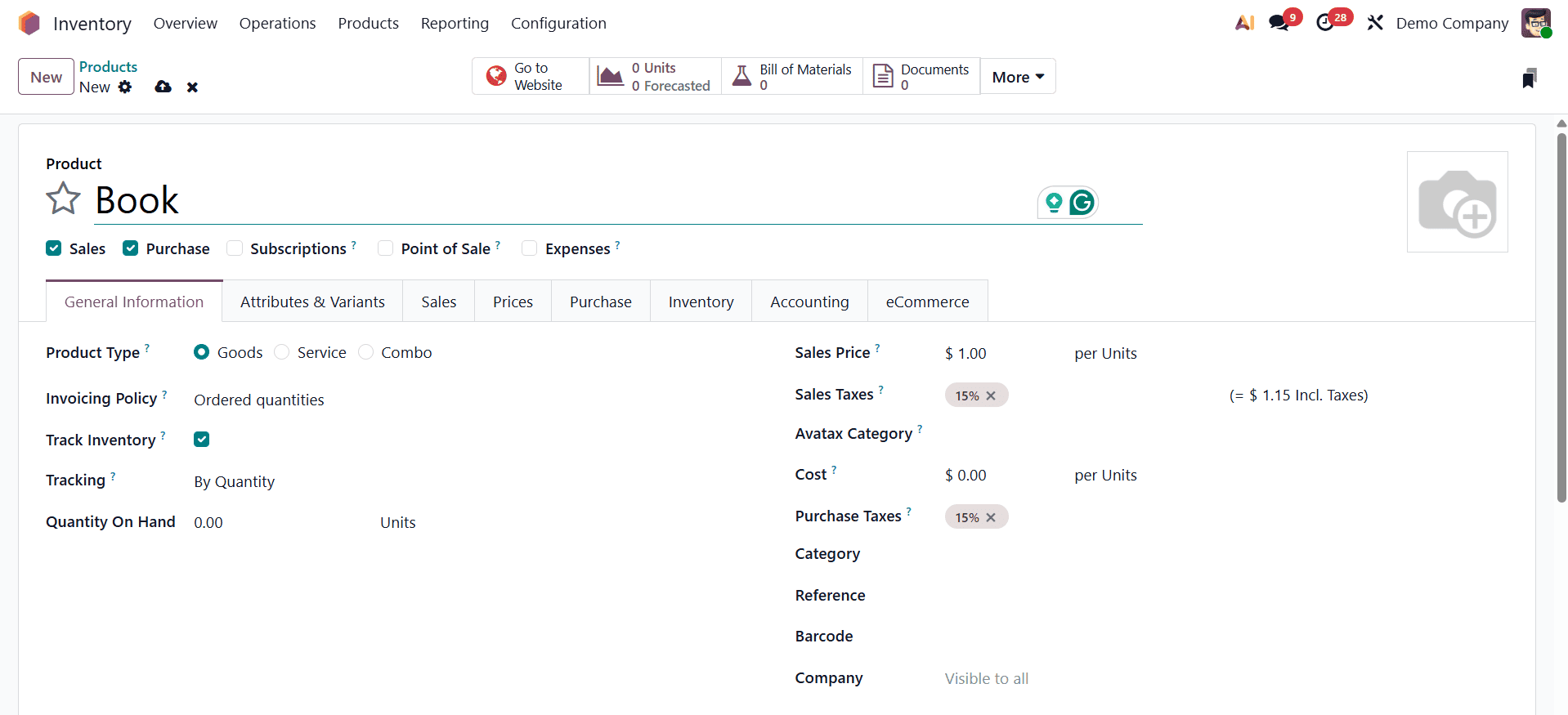
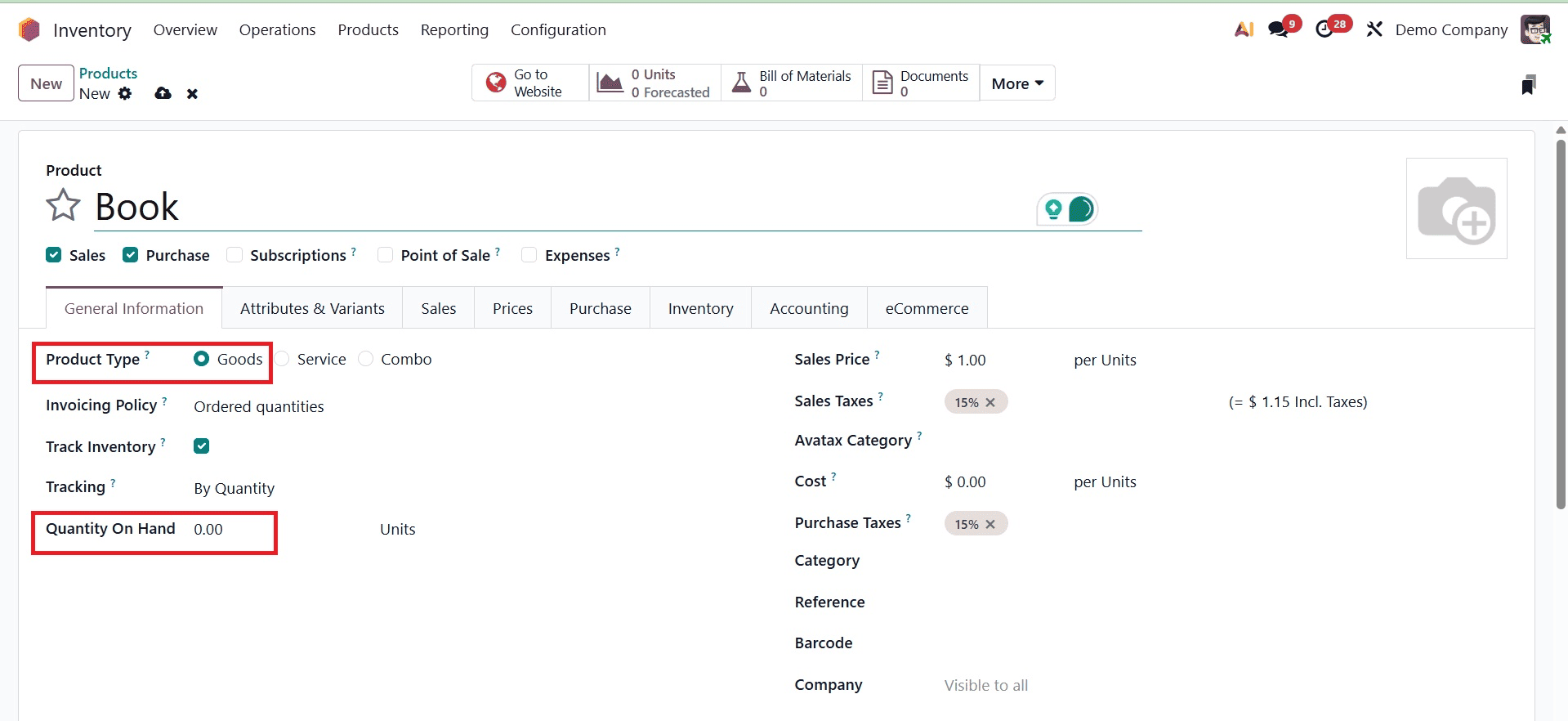
Using the New icon, you can create a new product. There, set the product type as goods and quantity on hand as zero.
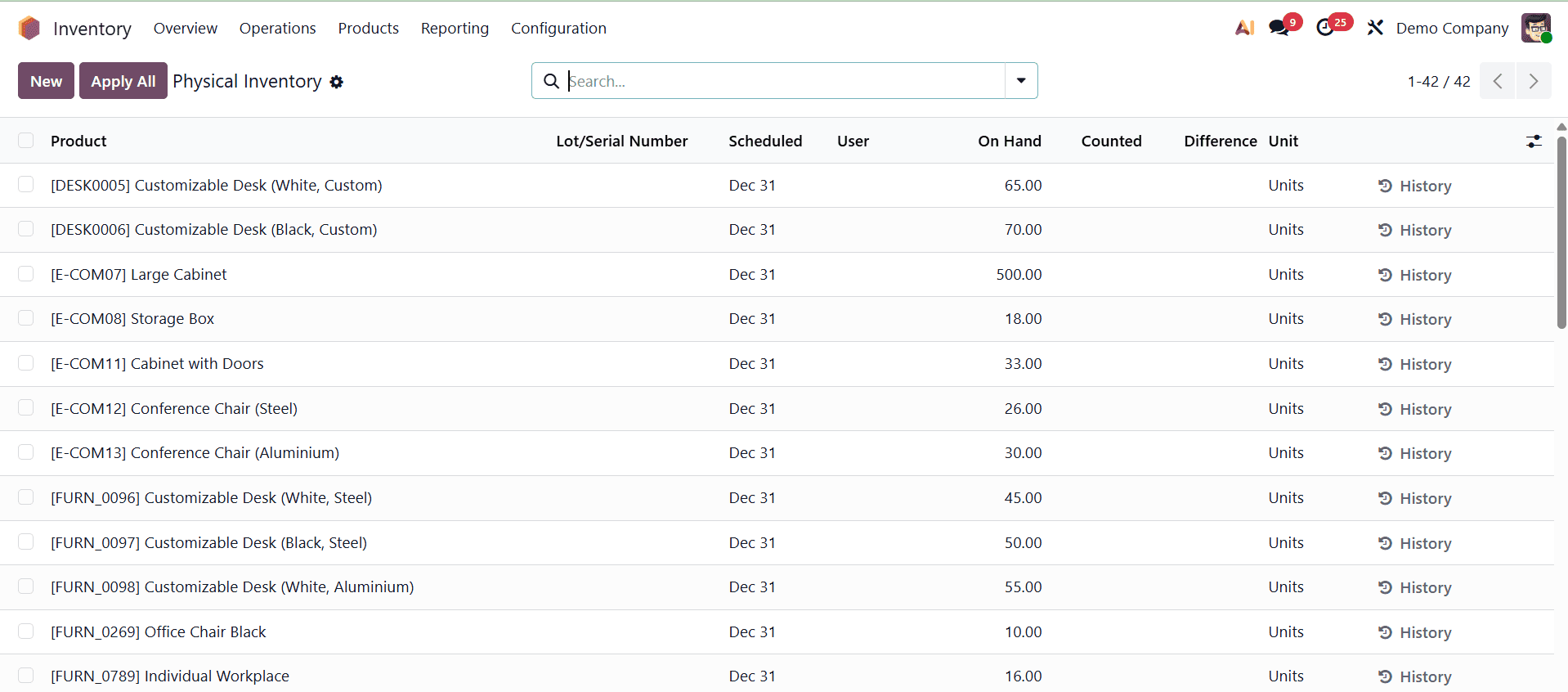
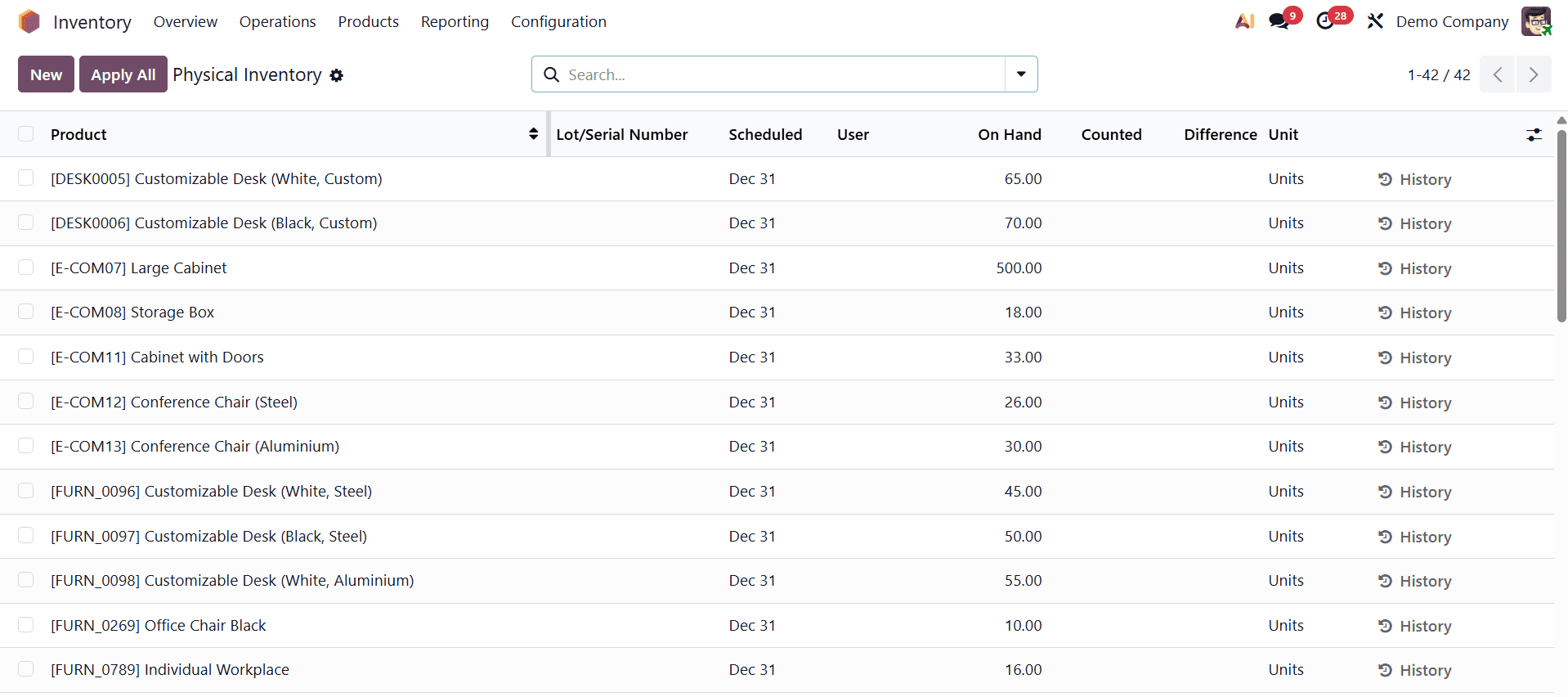
Now, under the menu Operations, go to the Physical Inventory. There, you can have the list of inventory adjustments for the physical inventory.
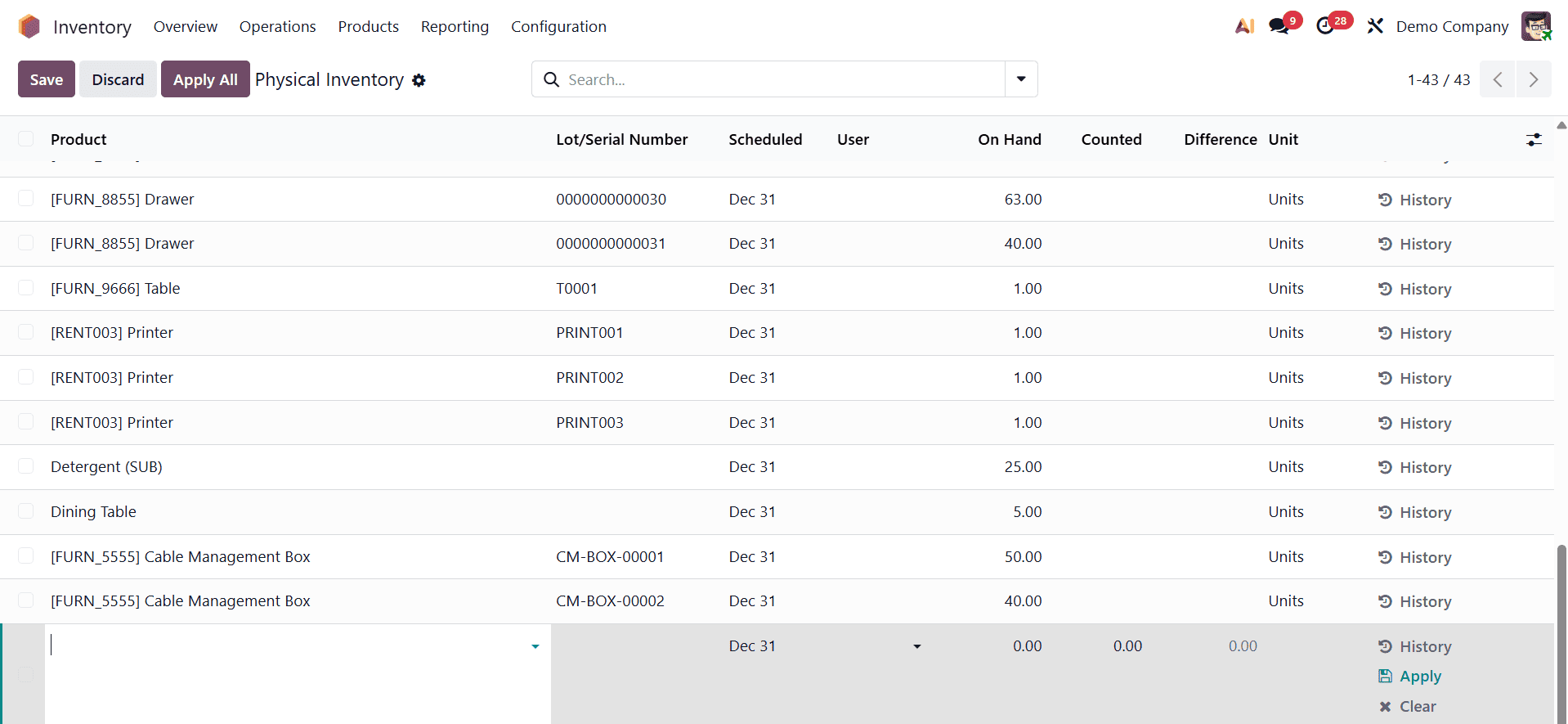
Using the New icon, create a new inventory adjustment to add opening stock for the product we created.
Here, select the created product, location, and add the counted difference. Finally, save the record.
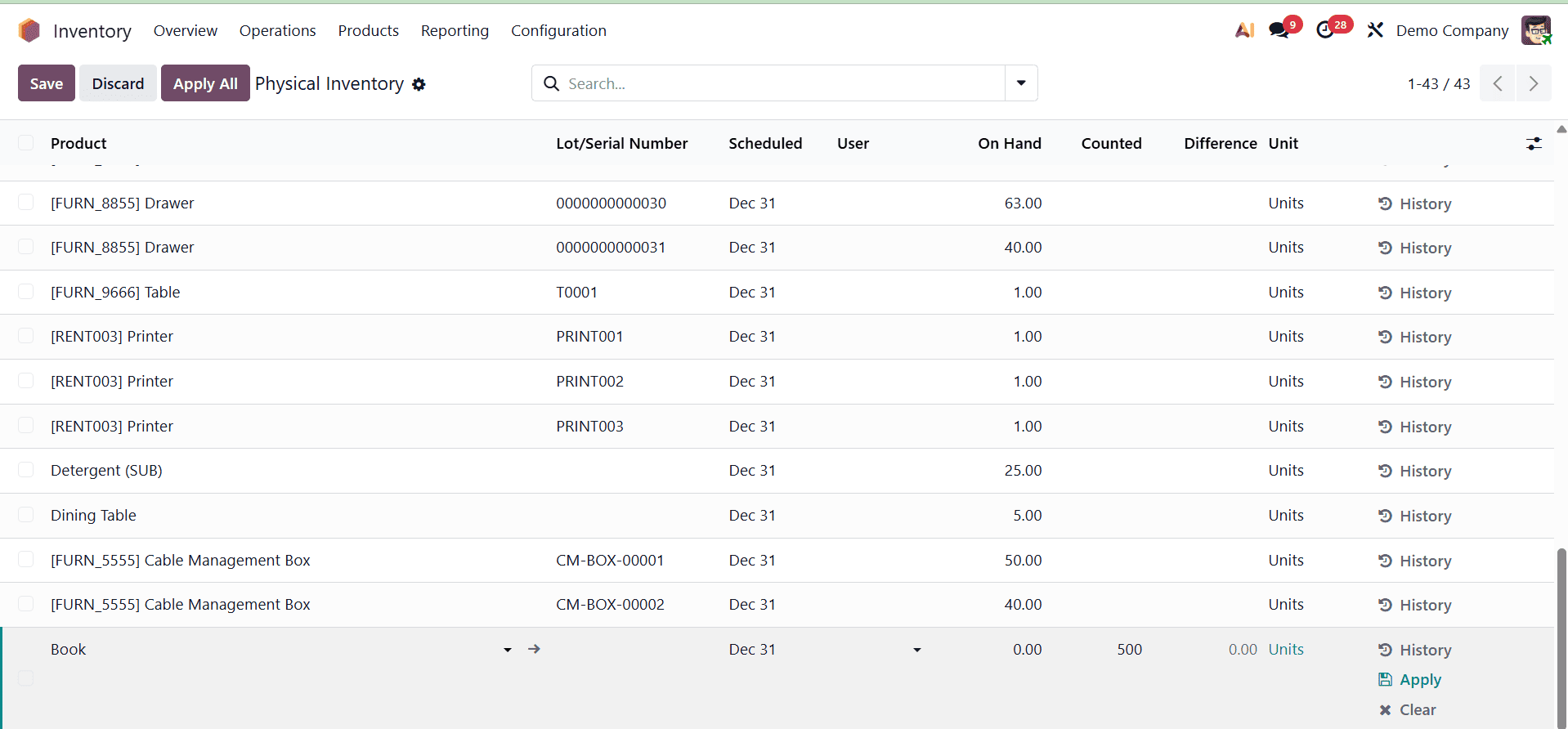
Now, on scrolling to the horizontal direction, there is an Apply button to add the counted quantity to the stock.
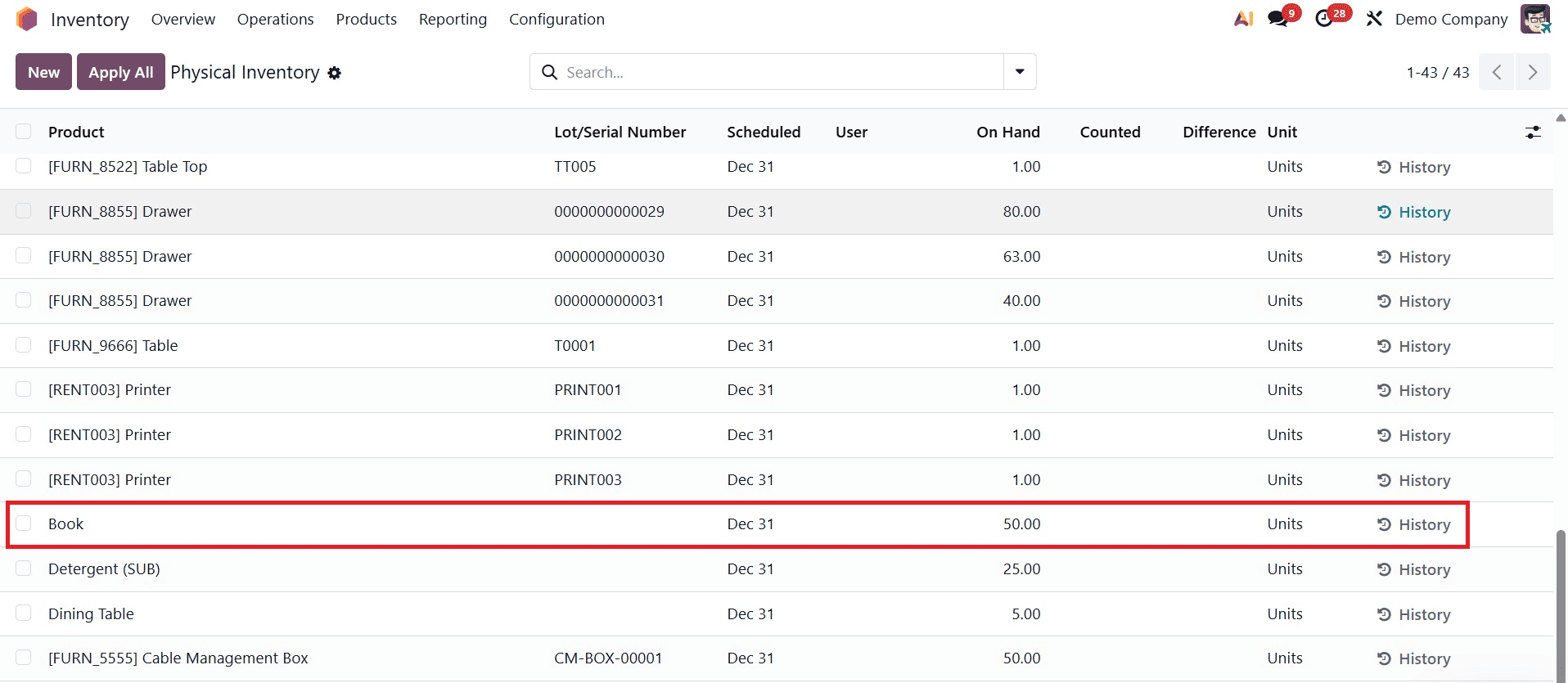
Here, you can see that the quantity on hand has been updated to 50. Now, to add the opening stock, select the gear icon.
Now, when you return to the product, you can see that the quantity on hand has been updated.
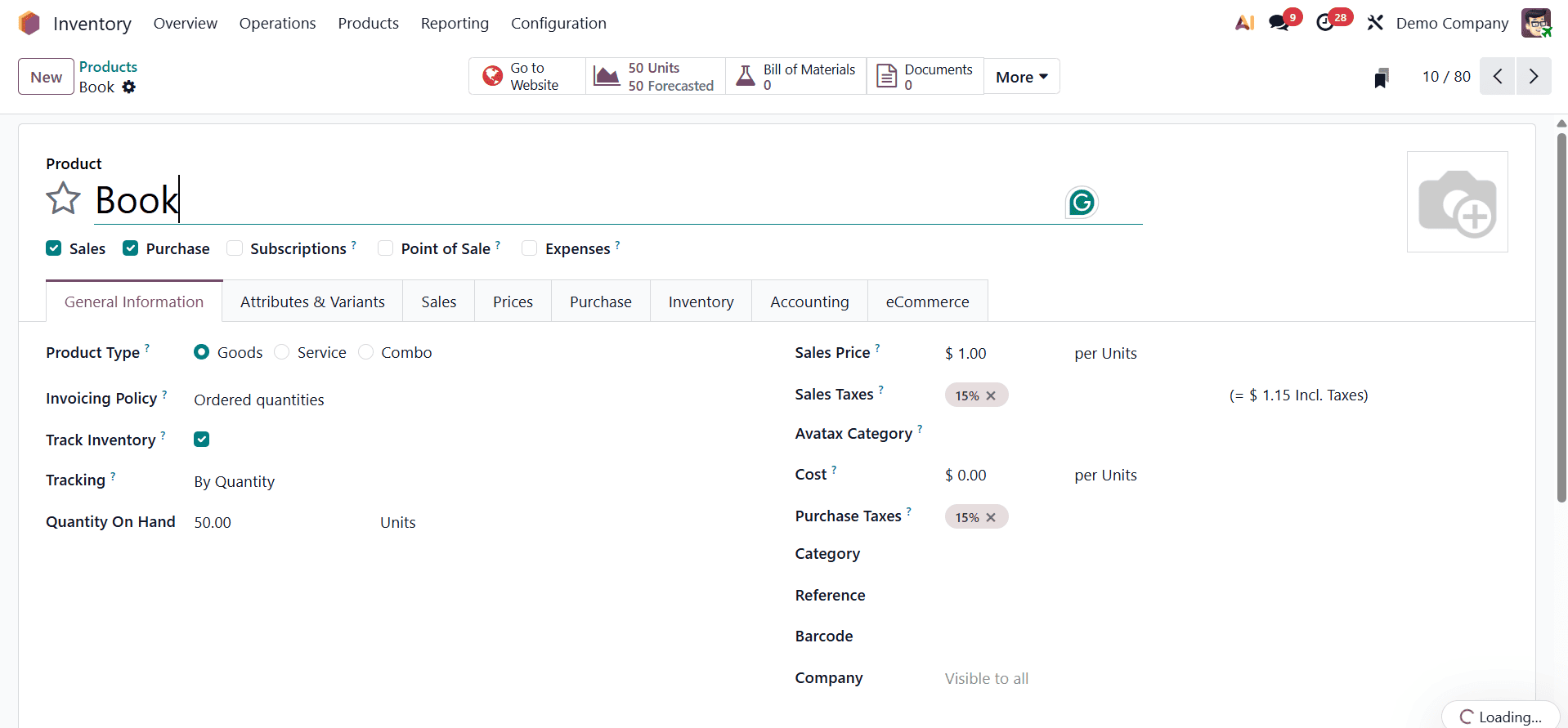
In Odoo 19, we can import the Physical Inventory we wish to add to the opening stock before importing the opening stock of a product. Go to the Inventory app for that.
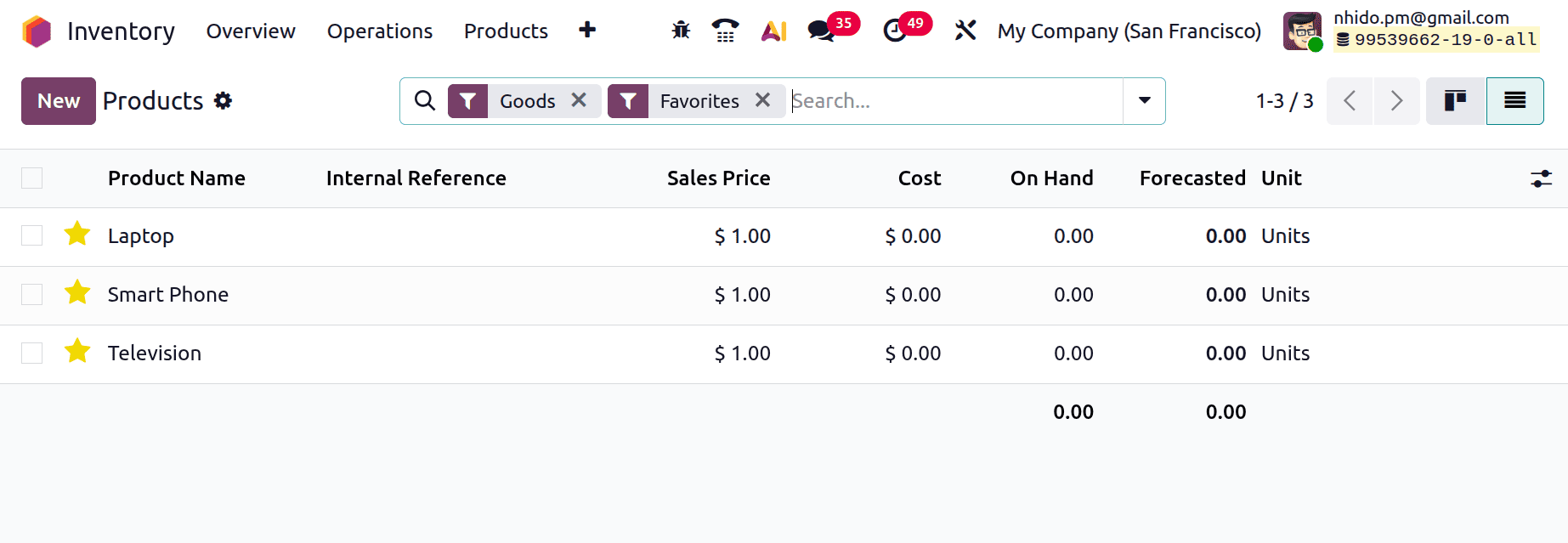
Let's check the product page. Here the list shows 3 products named Laptop, Smart Phone and Television. Three of the products are not available in the stock.
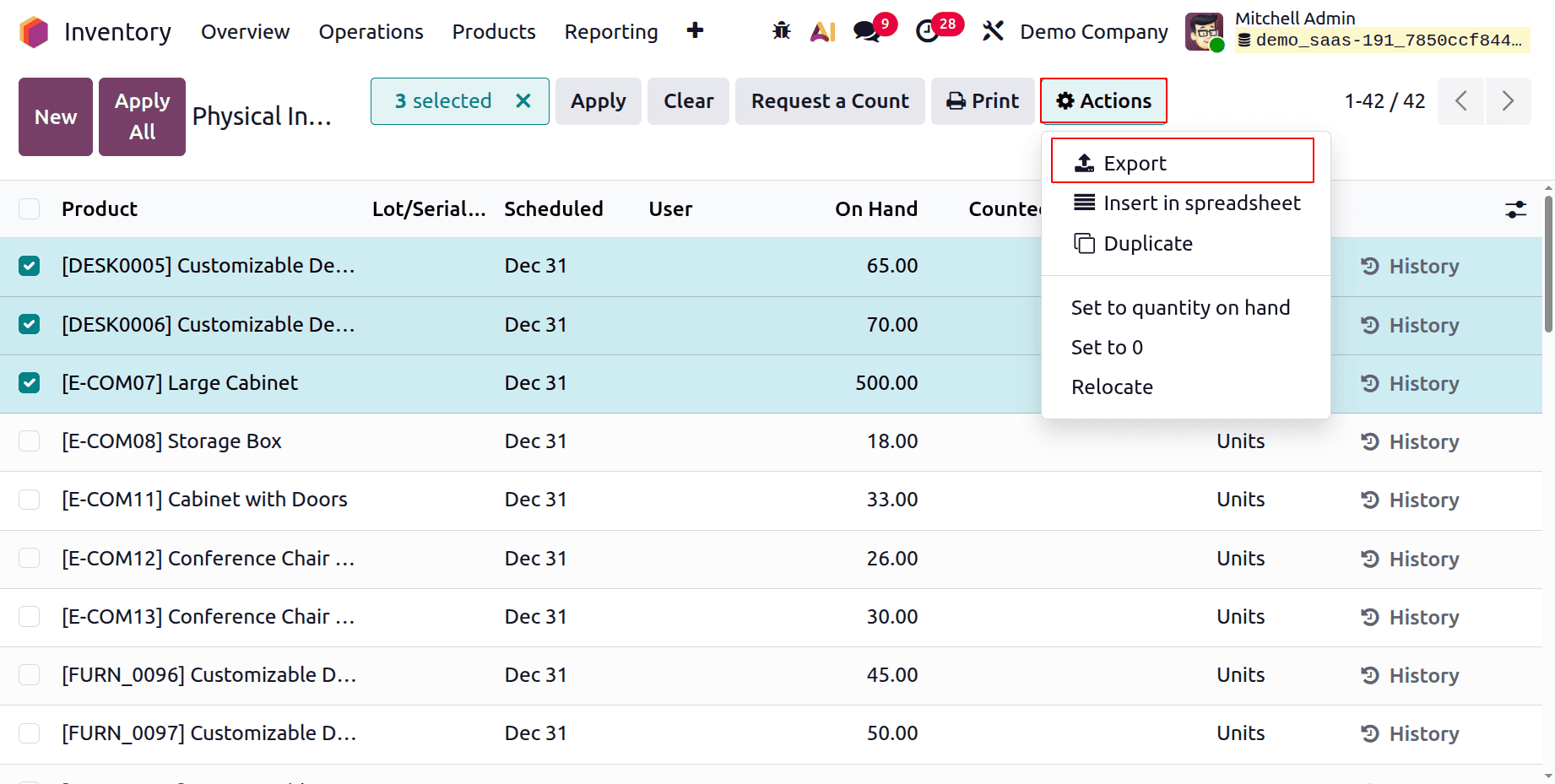
To add the Opening stock move to the Physical Inventory, which is available inside the Operations menu. Open the Physical Inventory. Lets Export a template from the Physical Inventory. Select the lines and from the Action menu choose the Export option.
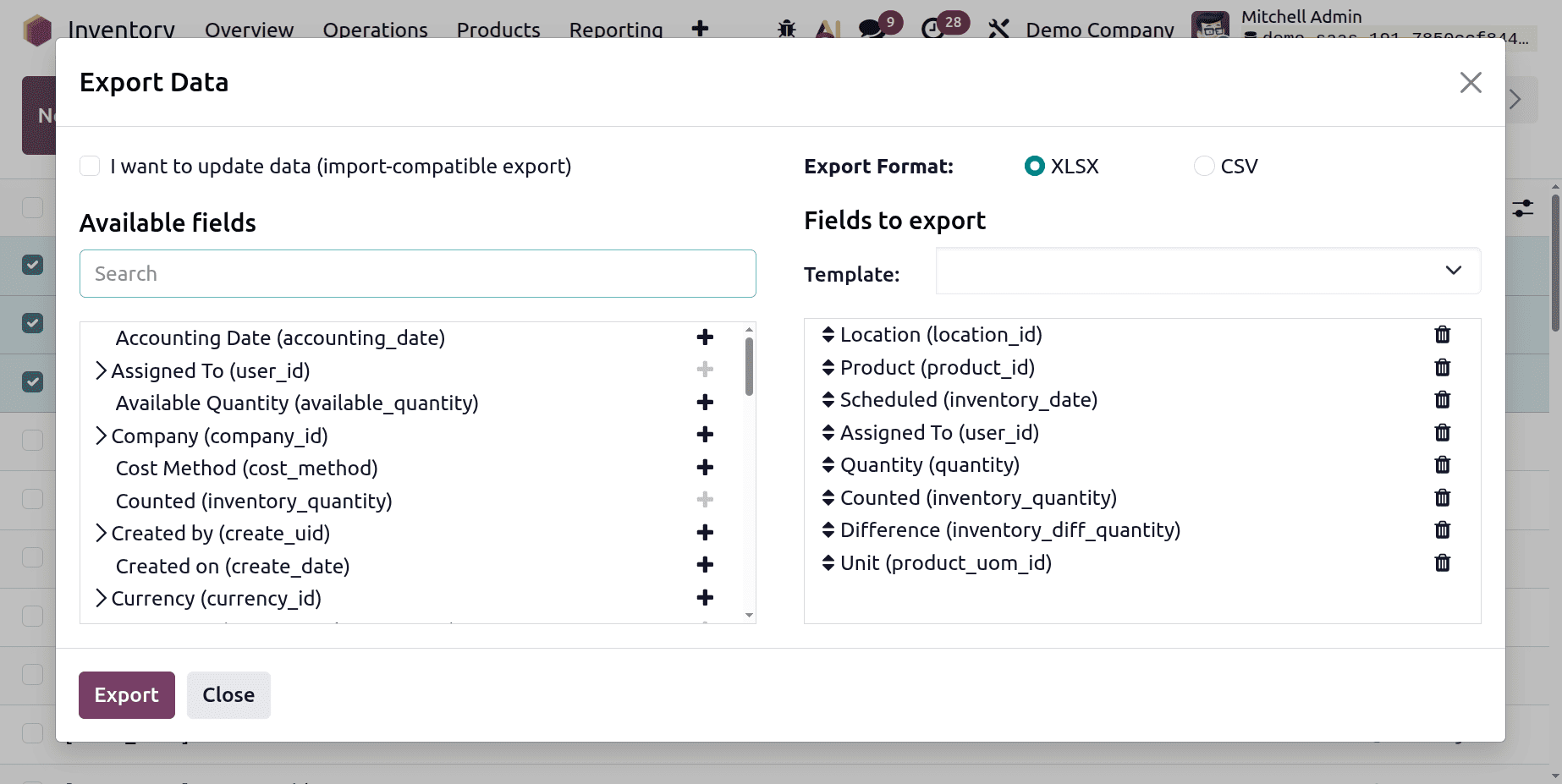
Choose the Fields to export. The Available fields are shown on the left side and the fields to export are available on the right side of the screen.
By selecting the plus icon, we can add the fields we wish to export to the export section from the available fields. We may utilize this template if we are exporting the data more than once, and we can give the template a name to save it under.
There is also a feature named "I want to update data (import-compatible export)." Only the fields that can be imported will be displayed if we select that option. In order to identify the existing data that has to be updated, we can add an external ID field to the file we are exporting. When we import the data, Odoo maps the field with the supplied unique ID. You have a lot more field possibilities when the box is left unchecked because all of the fields are shown, not only the ones that can be imported.
We have two options for exporting it:.csv and.xlsx. The search box can be used to locate particular fields we need, and the > (right arrow) button can be selected to see more sub-field possibilities for each field. Additionally, we can utilize the trash icon to remove fields that aren't needed and drag the fields to arrange them in the desired order in the exported file.
Click on the Export button.
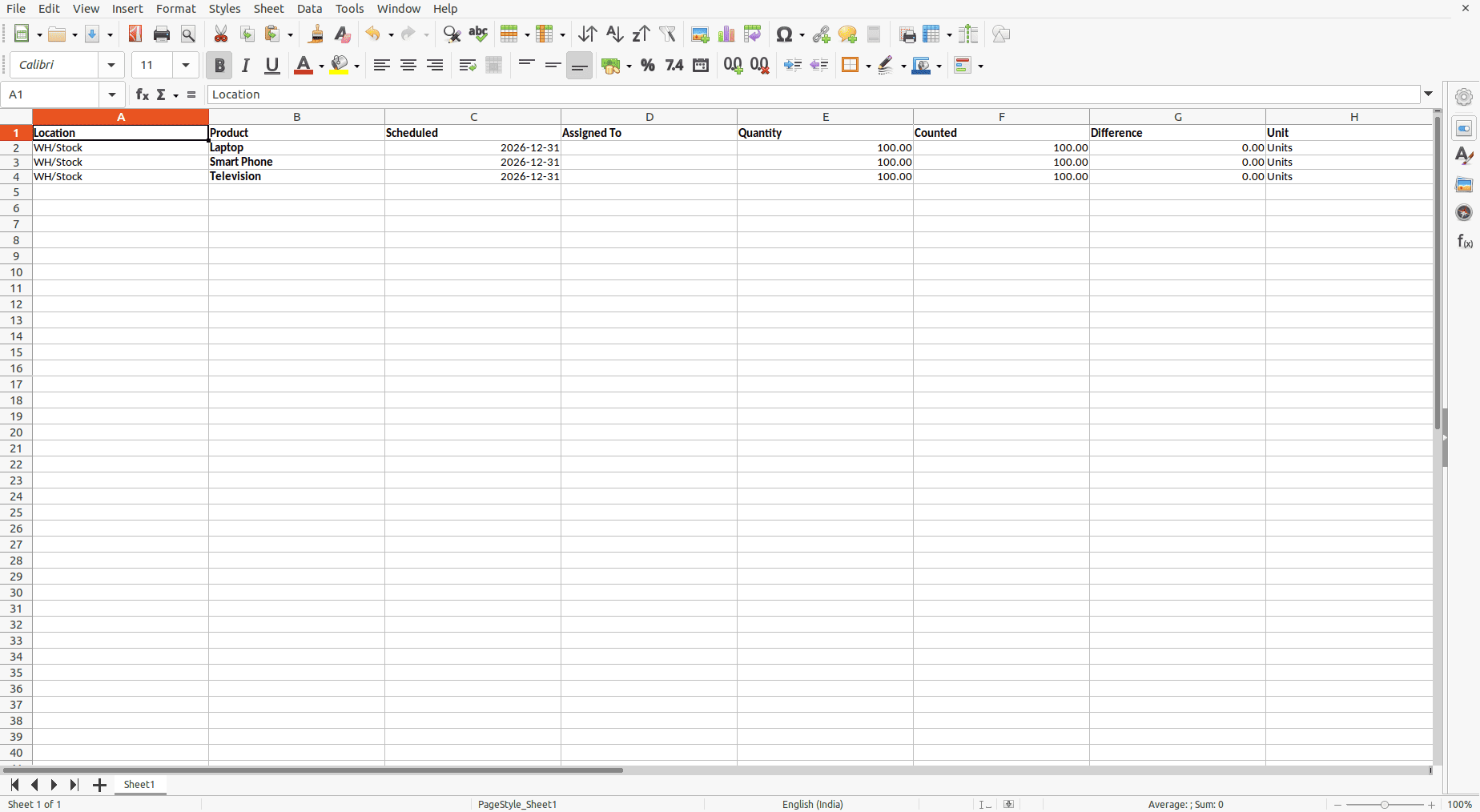
Then inside the sheet add the details like Location, Product name, Schedule date, Assign person, Quantity, Counted Quantity and Units. After adding the details, save the sheet.
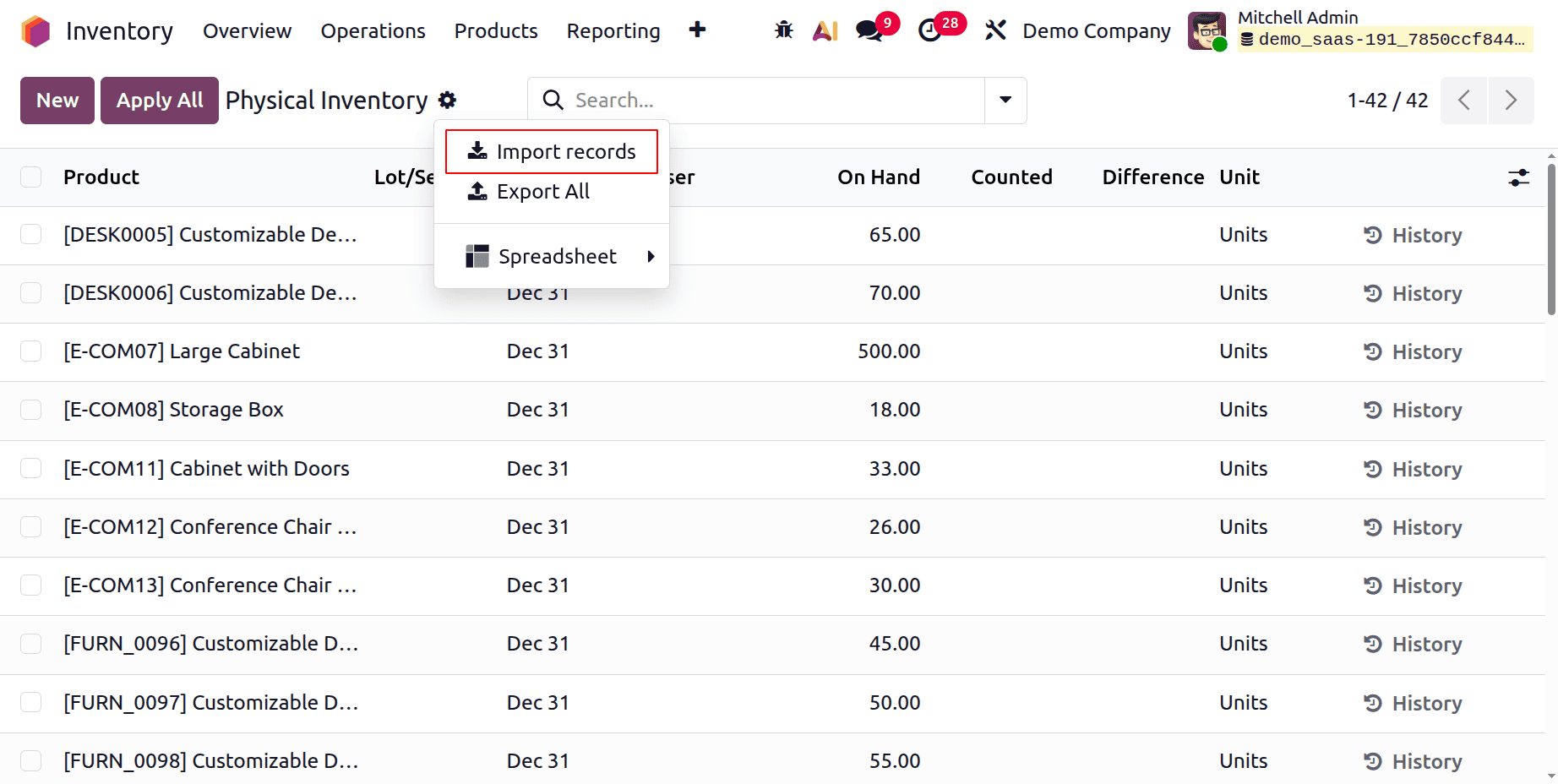
Then move back to the Inventory app. Choose the Physical Inventory from the Operations menu. The Gear icon shows different options Import records, Export All and Spreadsheet.
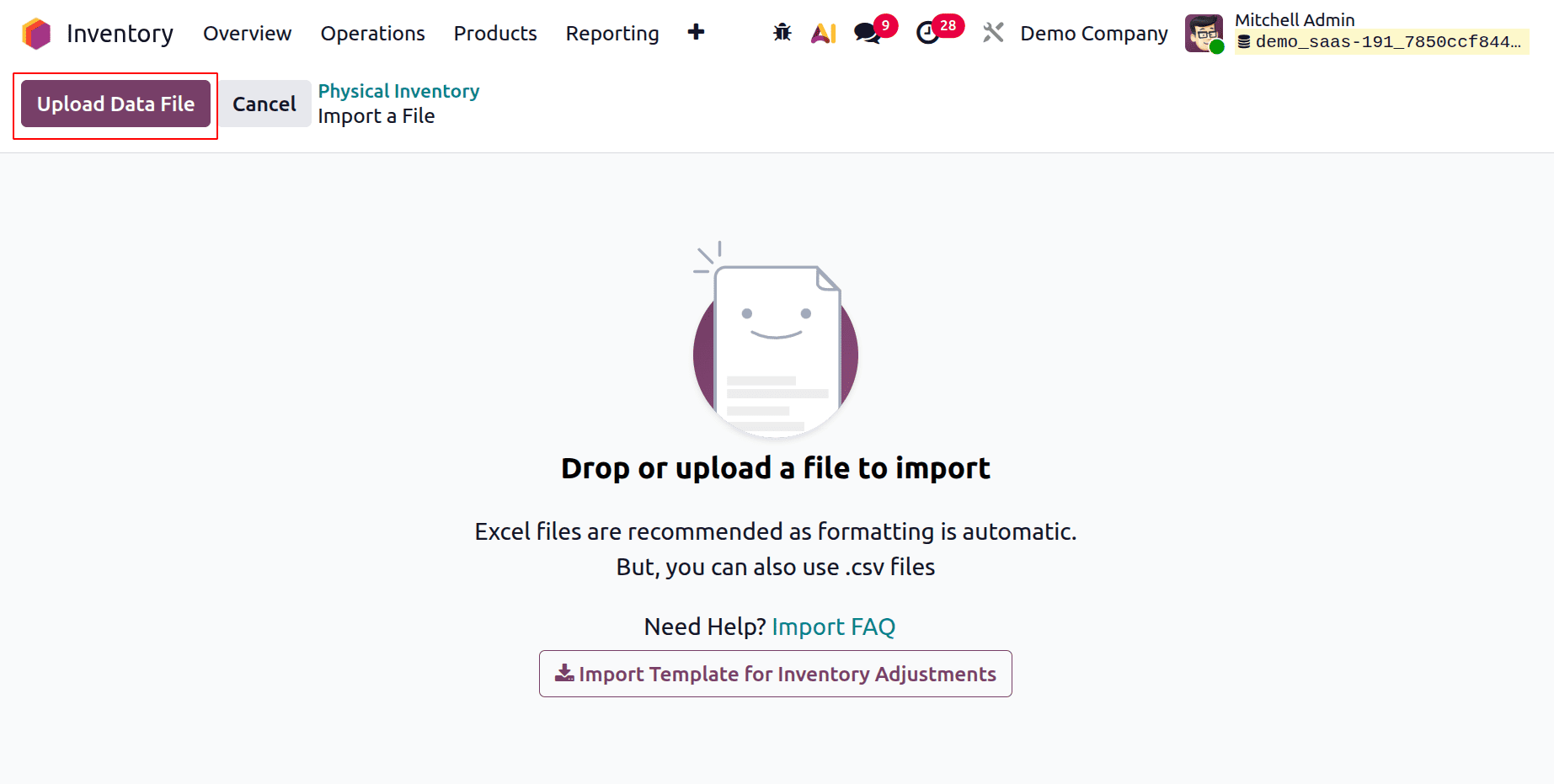
Choose the Import records from the gear icon. Then click on the Upload Data File. And upload the updated sheet here.
After uploading the sheet, the details are shown there. Click on the Test button first.
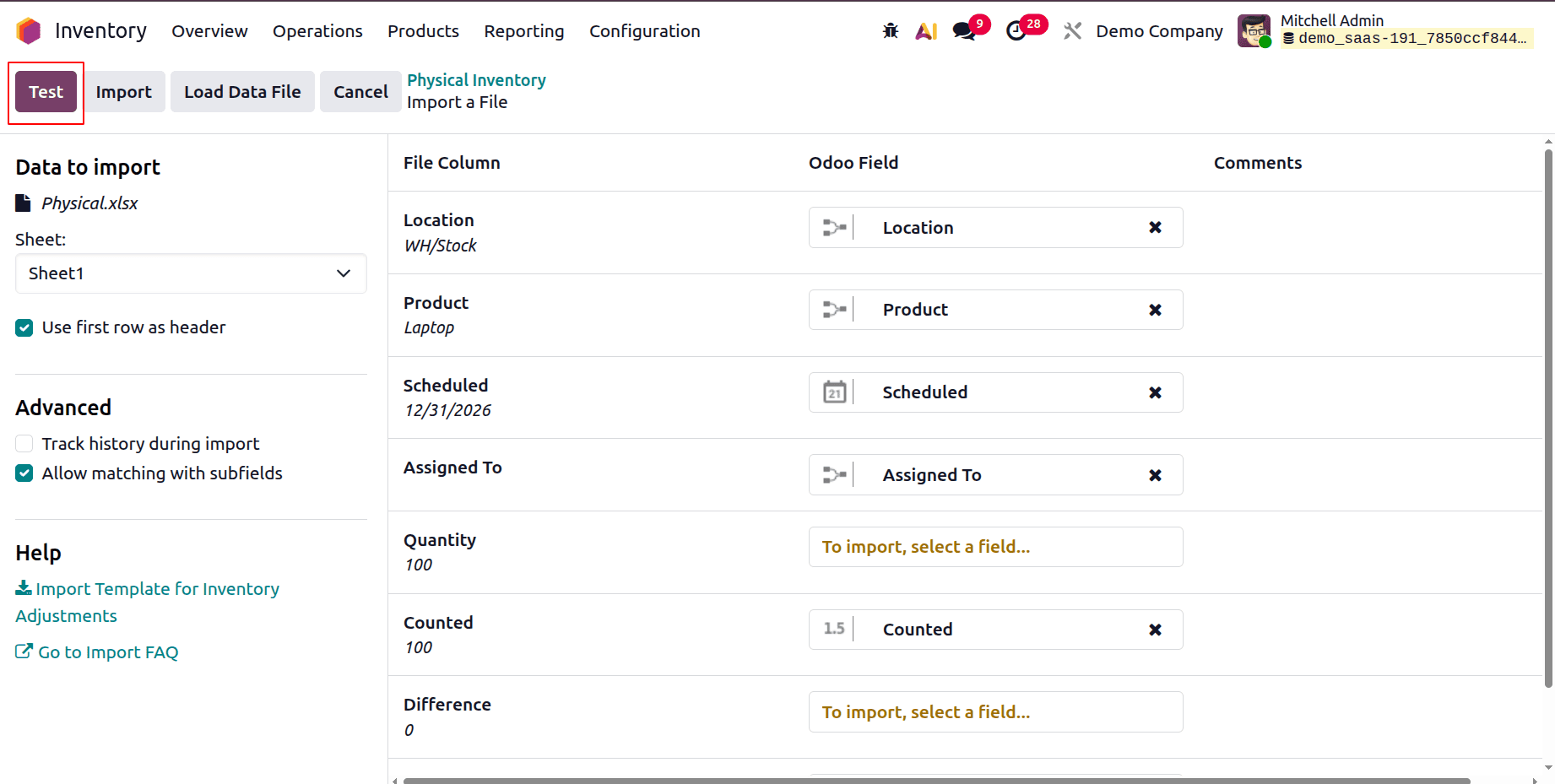
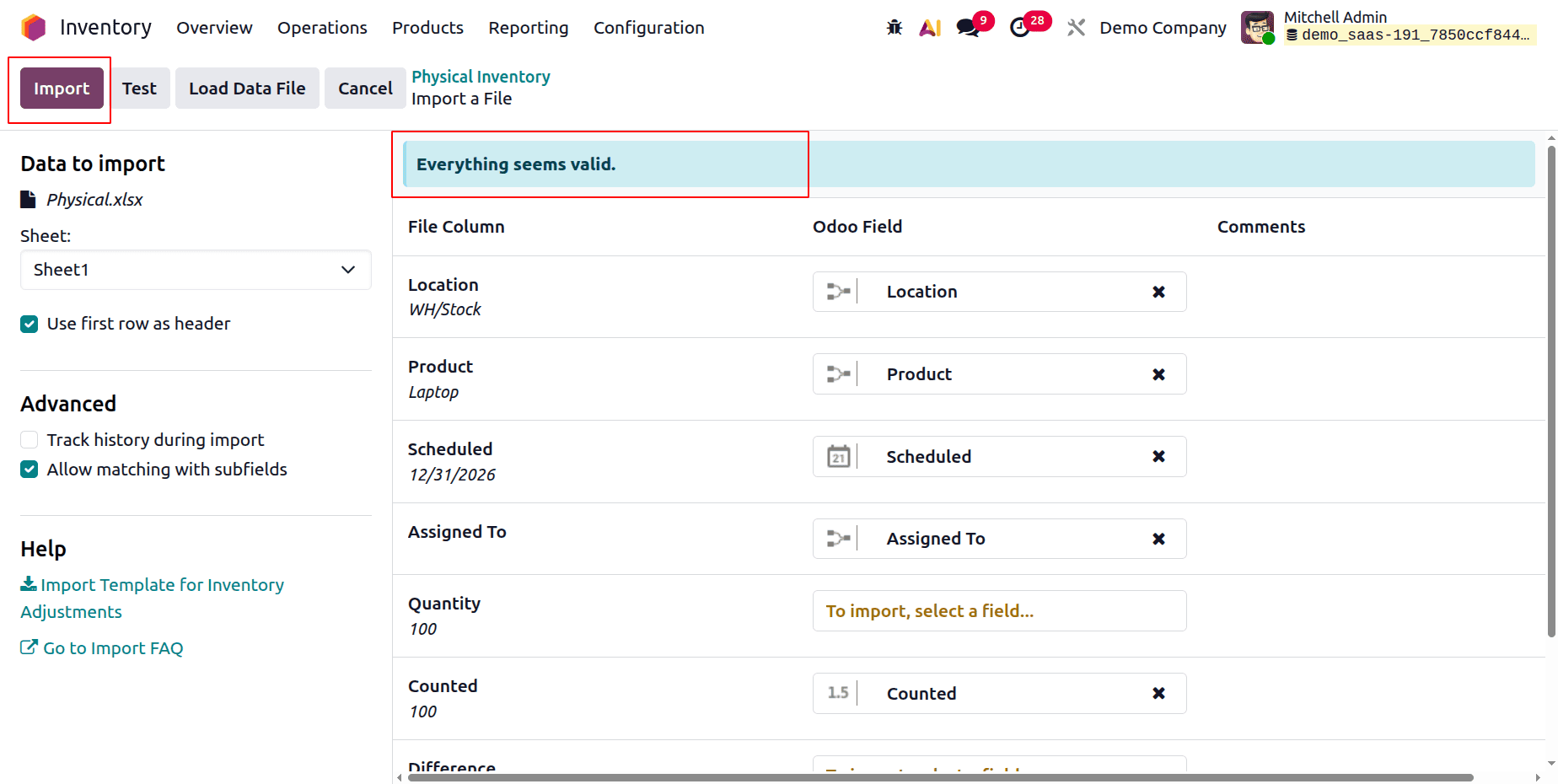
After clicking on the Test button, everything seems valid. Click on the Import button.
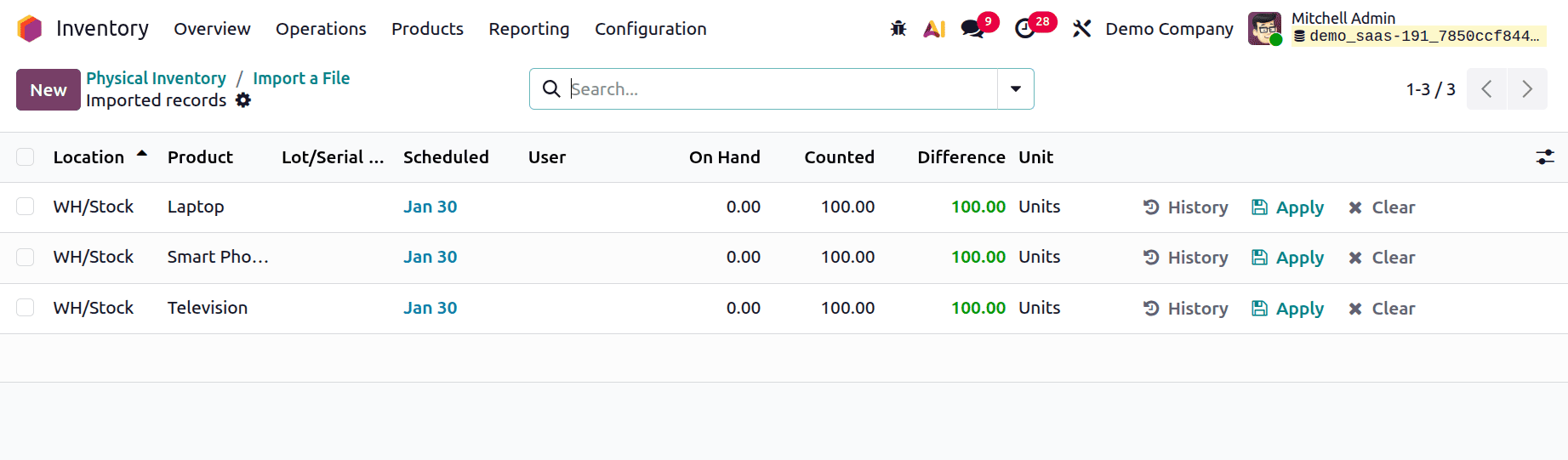
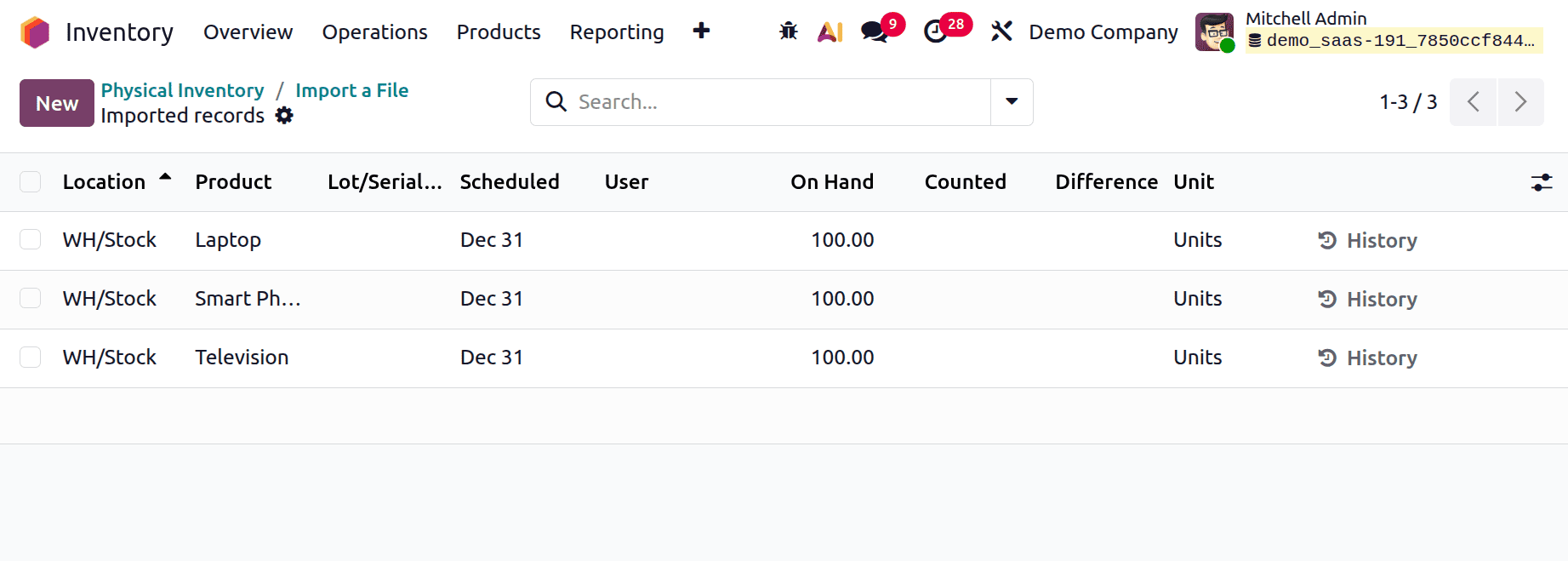
After uploading the sheet, the Physical Inventory shows the Products with quantities. The location, product name, Counted quantities are shown in the list.
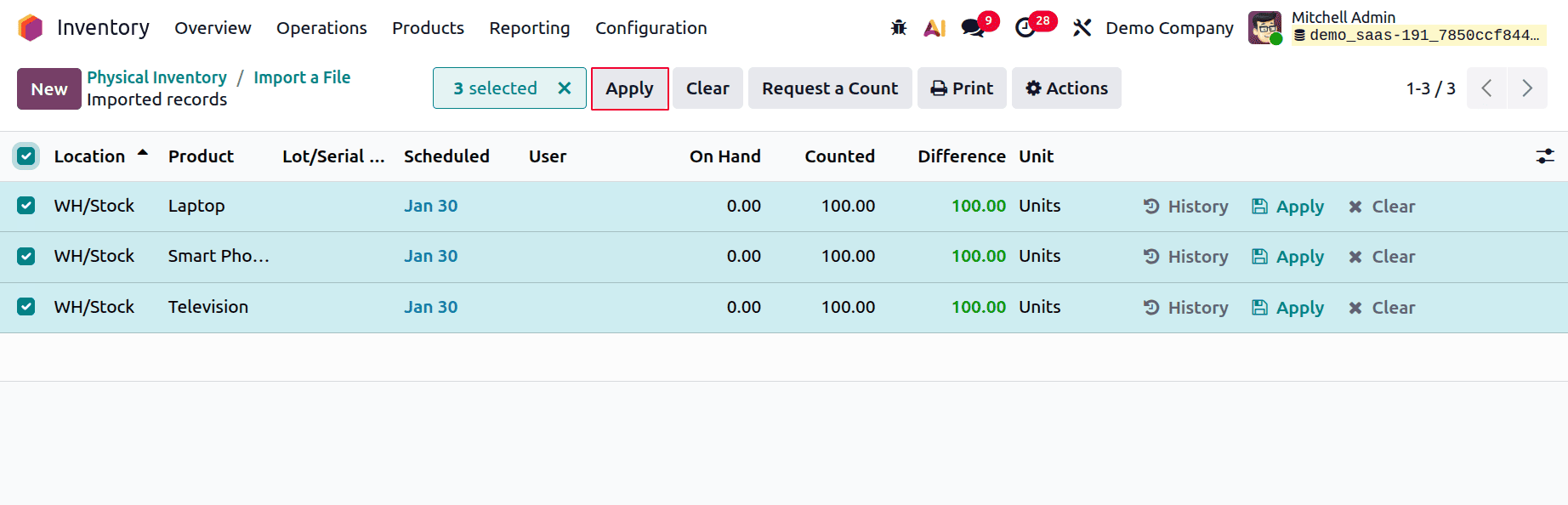
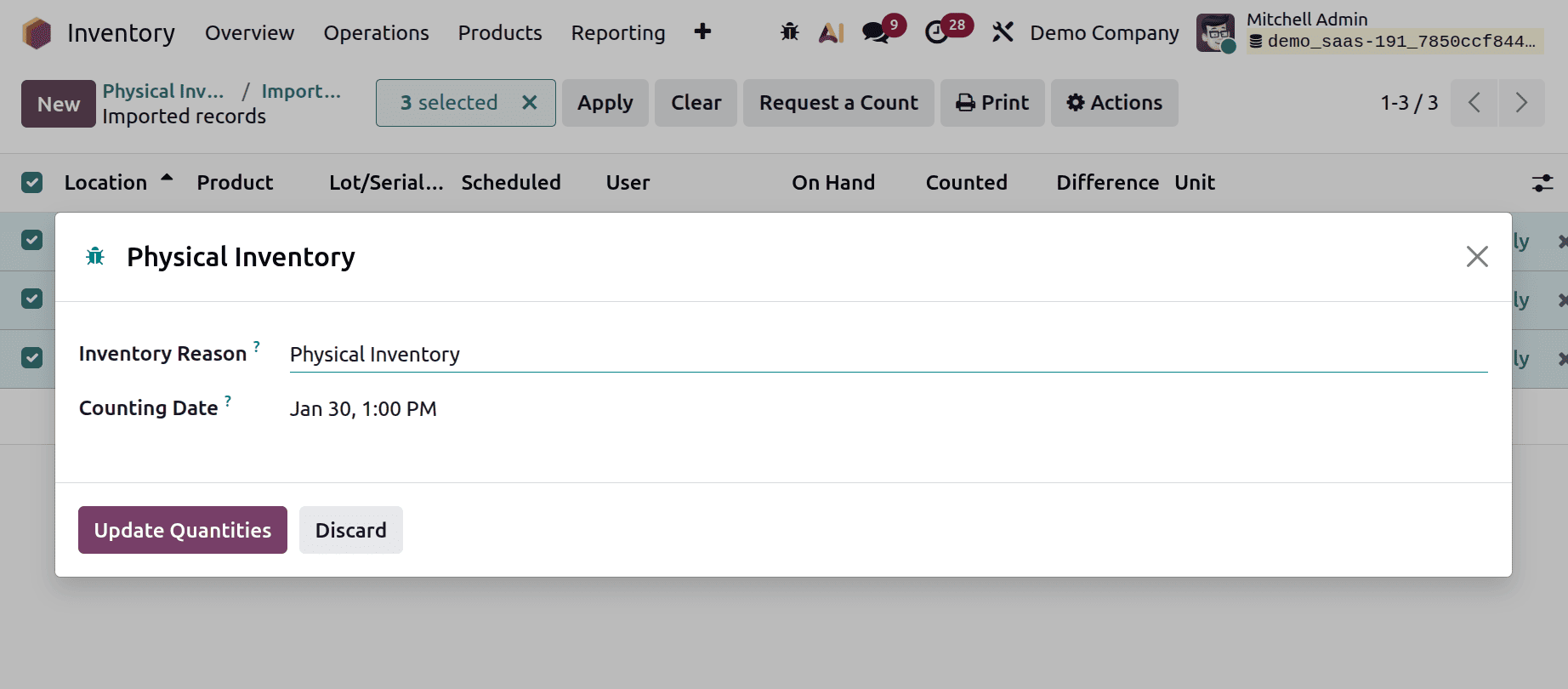
Select the products, then click on the Apply button.
After clicking on the Apply button another window will appear as shown below. Add the Inventory Reason and Counting Date. Then click on the Update Quantities.
Then the Onhand quantities updated as shown below.
You should be able to successfully add opening stock to the Odoo 19 Inventory module by following these instructions. Maintaining correct records and optimizing stock levels depend heavily on effective opening stock management in the Odoo Inventory module. Businesses may improve their inventory procedures and make well-informed decisions for long-term growth thanks to the user-friendly interface and features like inventory changes and real-time monitoring.
To read more about How to Add Opening Stock in Odoo 18 Inventory, refer to our blog How to Add Opening Stock in Odoo 18 Inventory.