Event planning is one of the top marketing strategies used by companies today to advertise their products and services to a wide audience. You can host any kind of event with Odoo 19's extensive event management system. This module can be handled and used without any issues. Using the user-friendly platform provided by the Odoo19 event management module, you can quickly plan new events, post them on the business website, handle registration, sell tickets, and perform a number of other duties related to event planning and execution. The Odoo 19 Events module will be examined in this chapter.
Event Management
You will be taken to the main dashboard after launching the Events module, which displays all of the platform's designated events. The events platform will provide you with Kanban, Pivot, List, Gantt, Calendar, Map, and Graphical views.
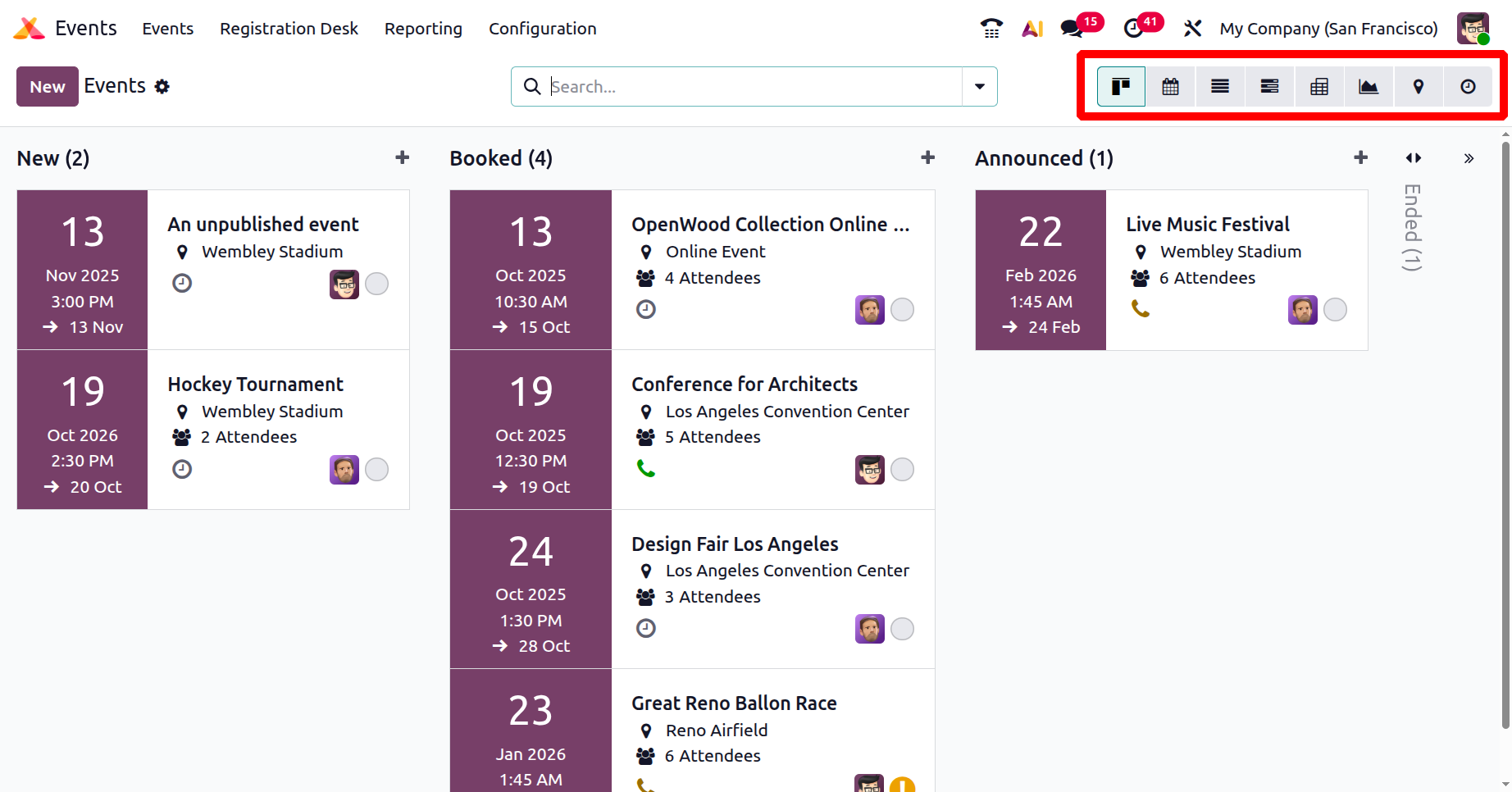
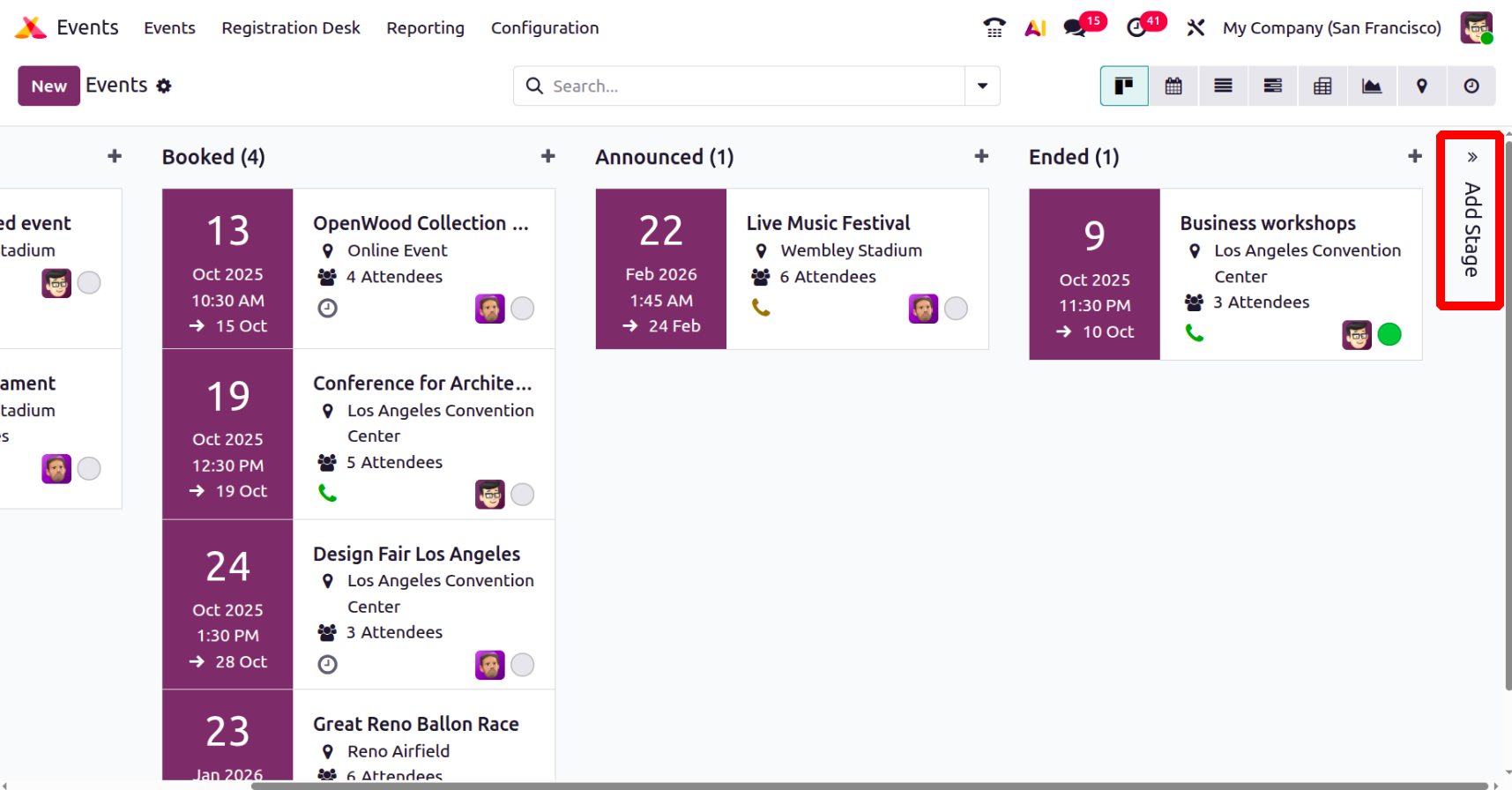
The events are organized in the Kanban view under multiple stages, as seen in the screenshot above. If you organize them into the appropriate stages, you will have a clear image of how the event develops. By selecting Add Stage next to Add a Column, you can quickly allocate a new stage for events.
2.10 Bank
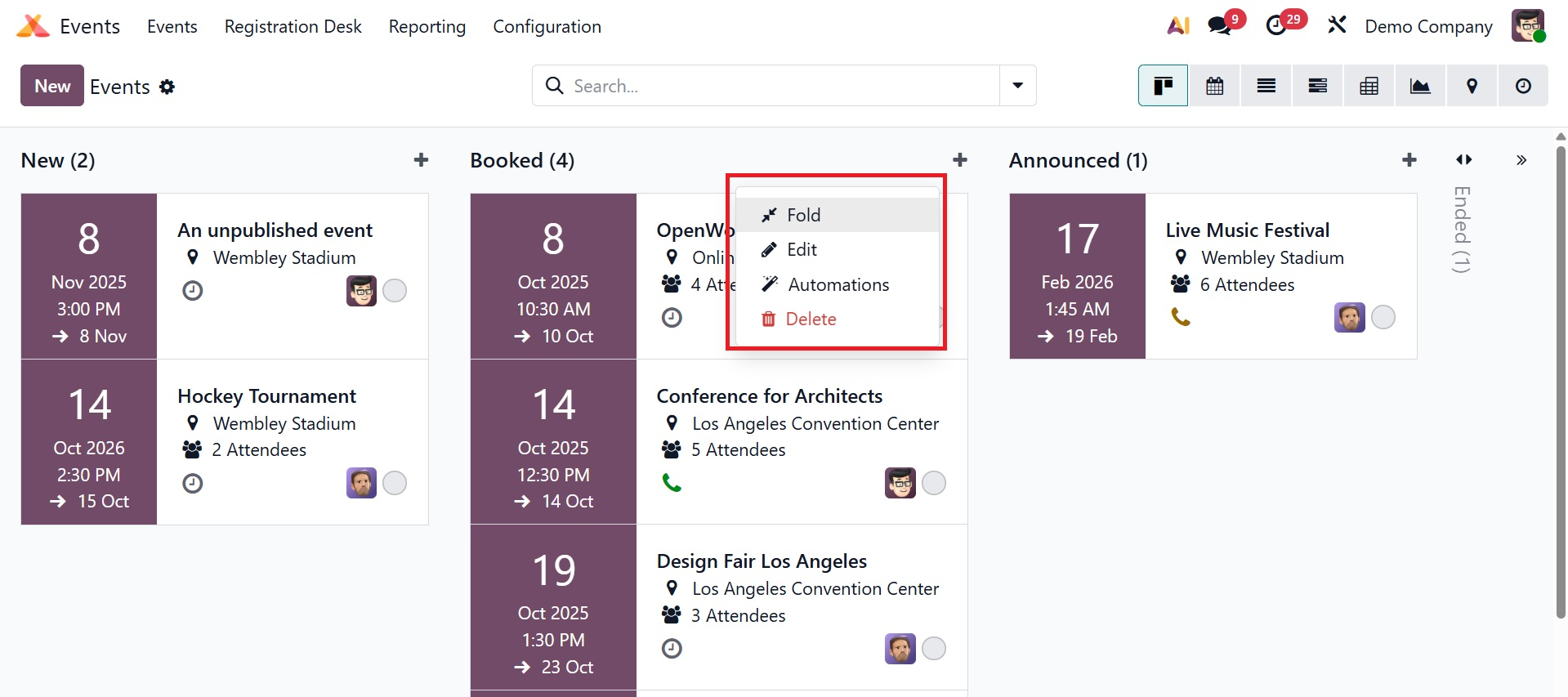
You can make use of the Fold, Edit, Automation, and Delete under the options icon next to the stage title.
- Fold : Removes the event without removing it from the main display.
- Edit : Enables you to modify the event's parameters or information.
- Automation :Enables you to program emails or actions to be sent automatically for the occurrence.
- Delete : Eliminates the event from Odoo permanently.
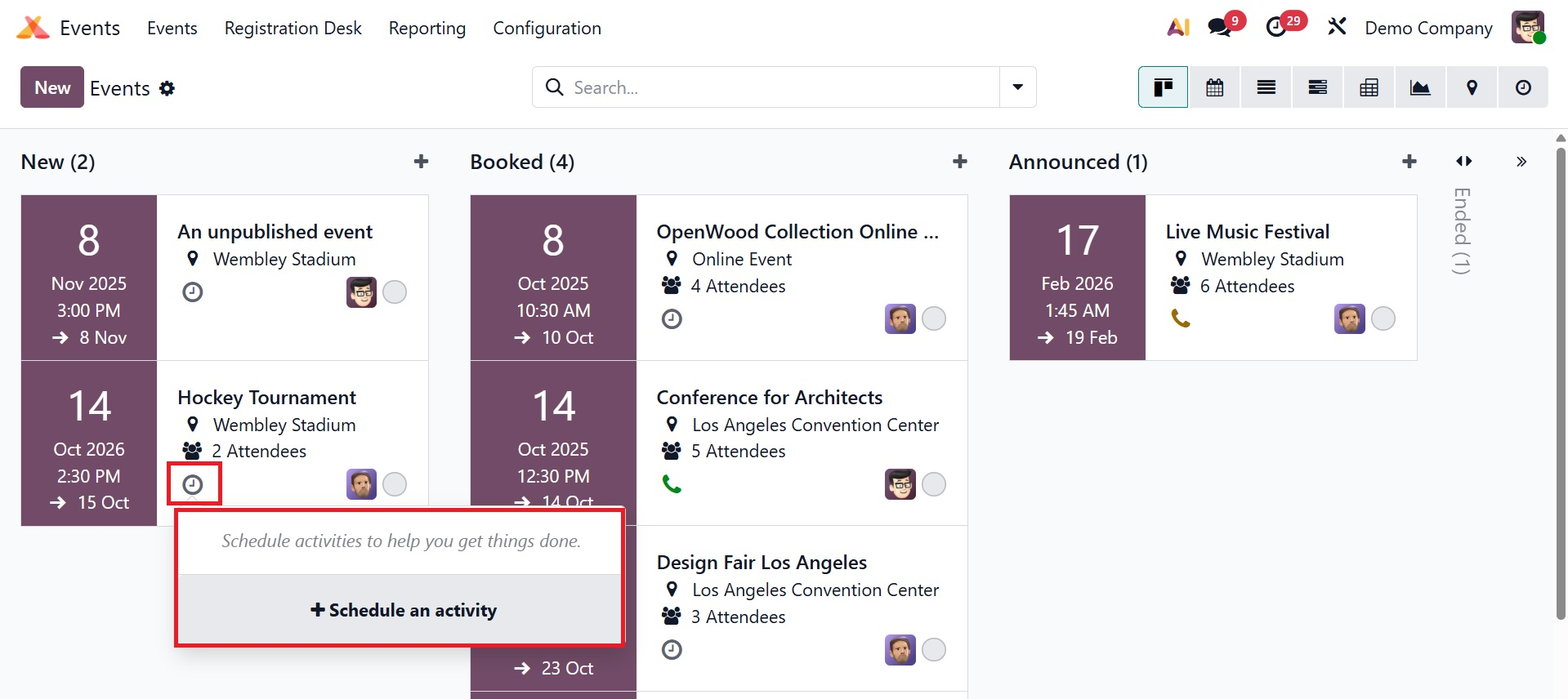
The name, location, date, time, and anticipated number of attendees will all be included in the event preview. The employee who initiated the event is depicted in the screenshot. The clock indicator for each event will assist you in planning your timetable for that specific event.
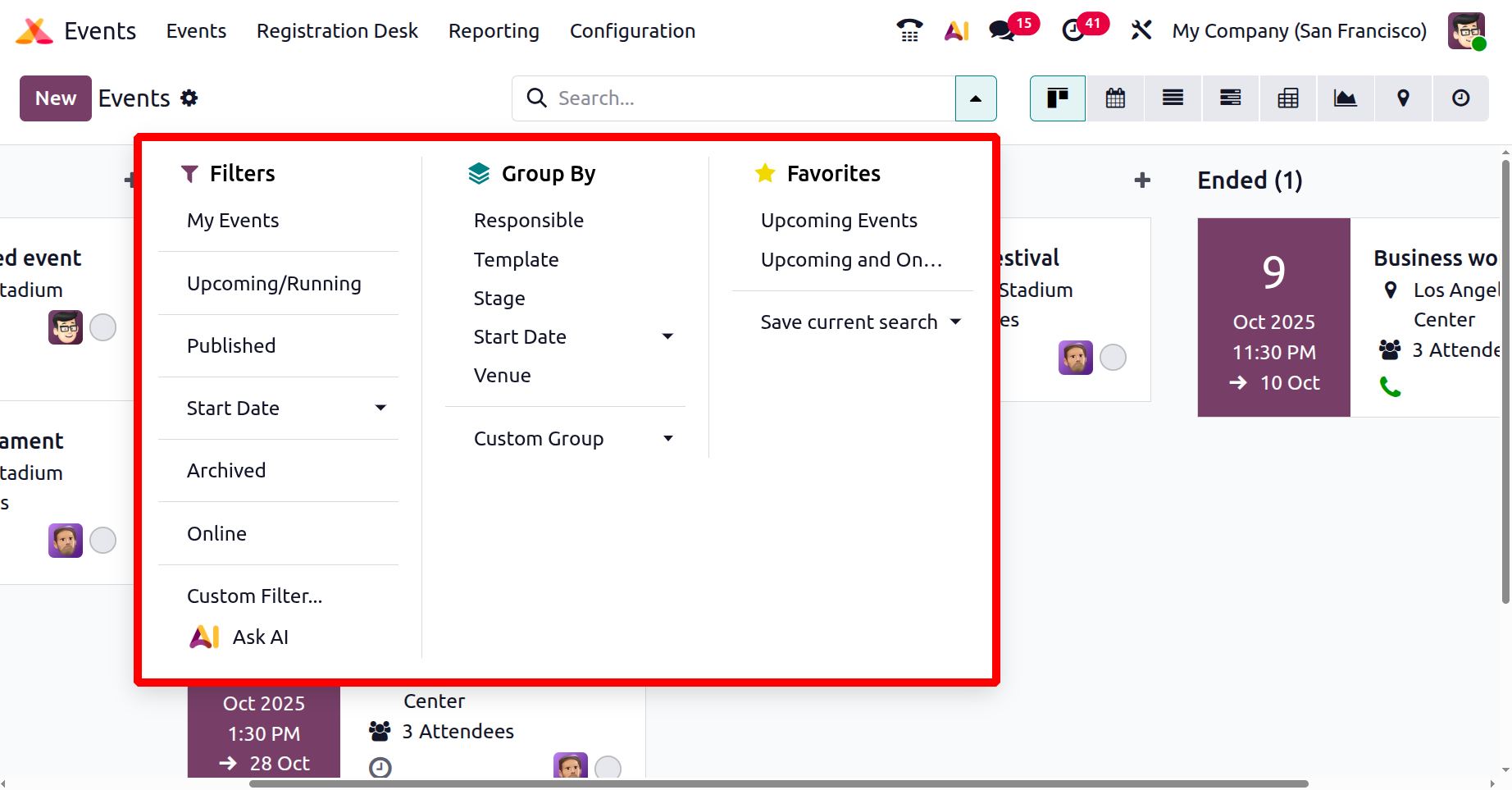
To sort and find the pertinent information among the events shown, you can utilize the default and resizable Filters and Group By options.
Click the plus symbol next to the stage title, as seen in the screenshot below, if you want to immediately add a new event under a certain stage. In the spaces provided, you may enter the event's name along with the start and end dates.
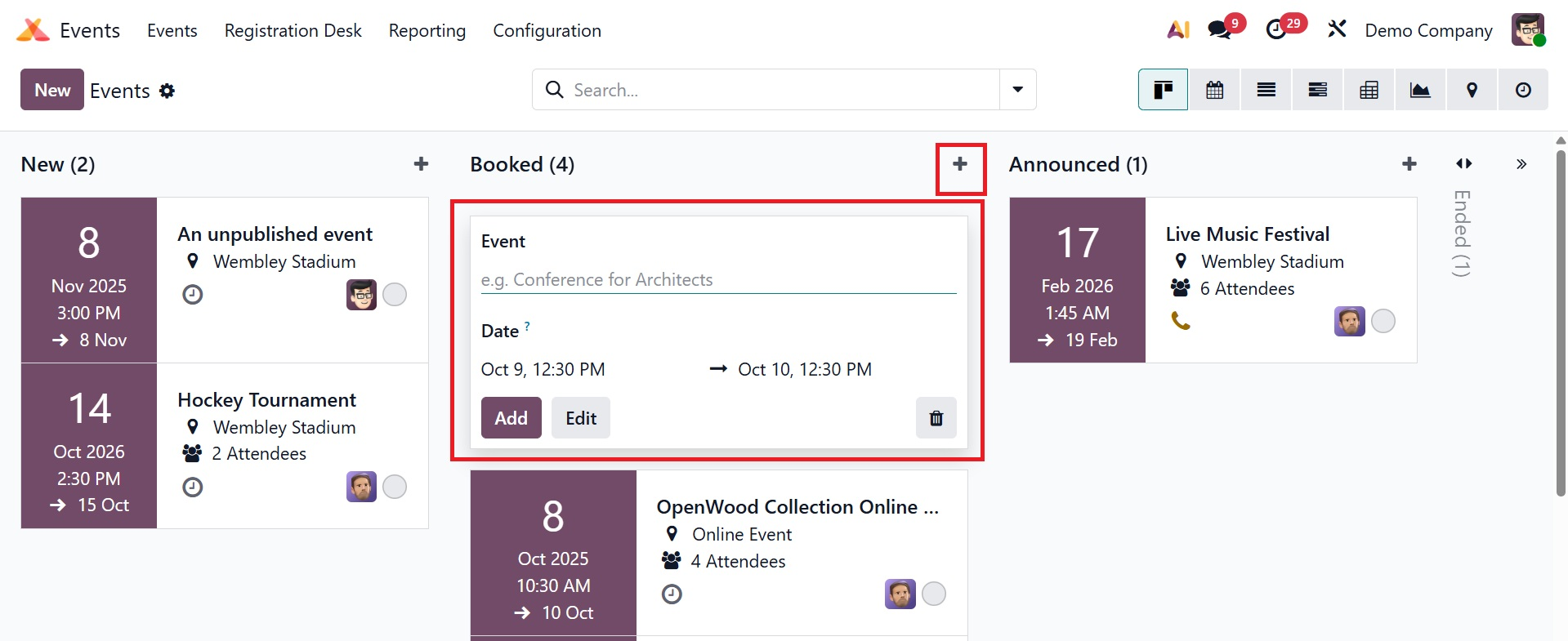
The event will be added to the appropriate stage by clicking the Add or Edit buttons, respectively. By selecting the New button, you can also create new events.
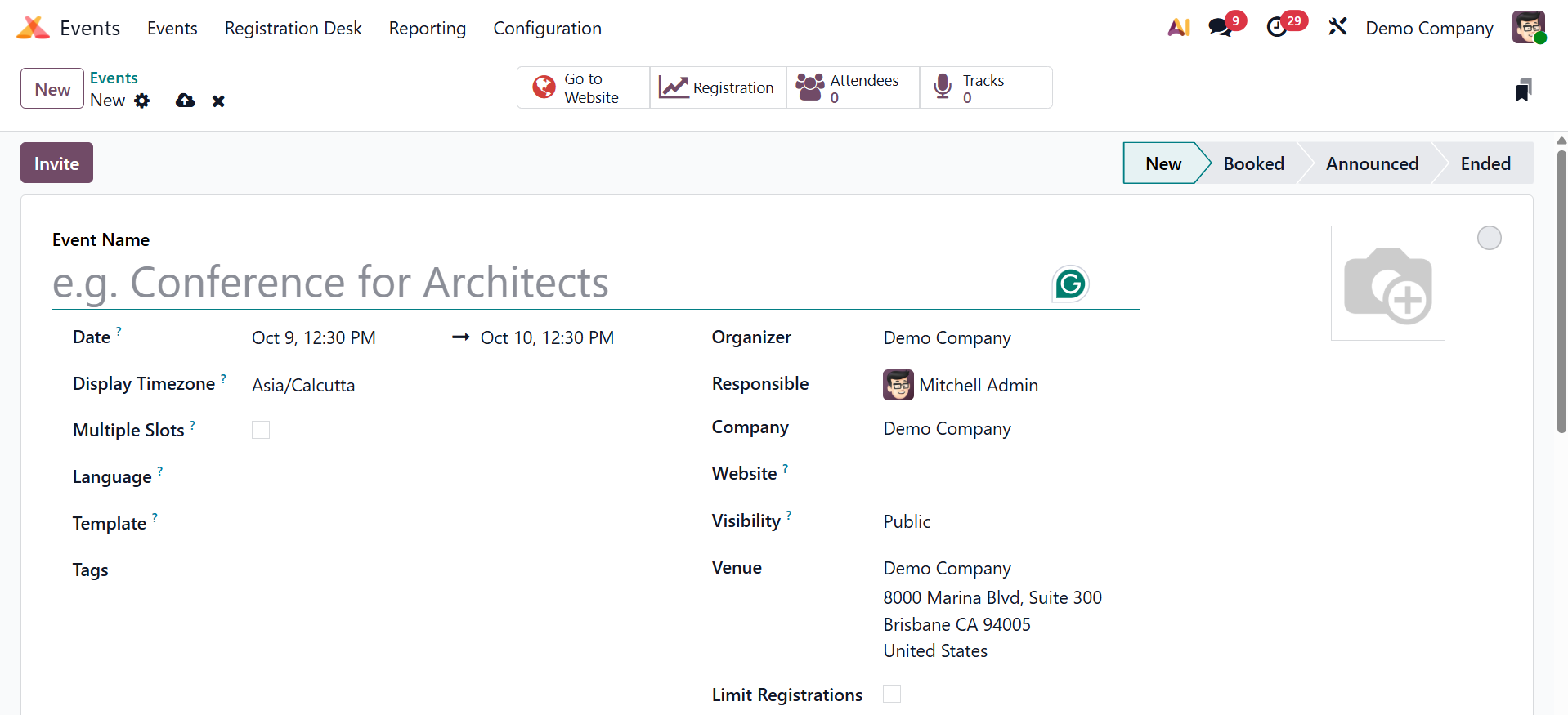
In the Event Name field, you can type the event's name. Event-specific menus can be displayed and managed on the website by turning on the Website Submenu option. The booth register, Showcase Tracks, Allow Track Proposal, Showcase Exhibitors, and Community tabs are all part of the submenu.
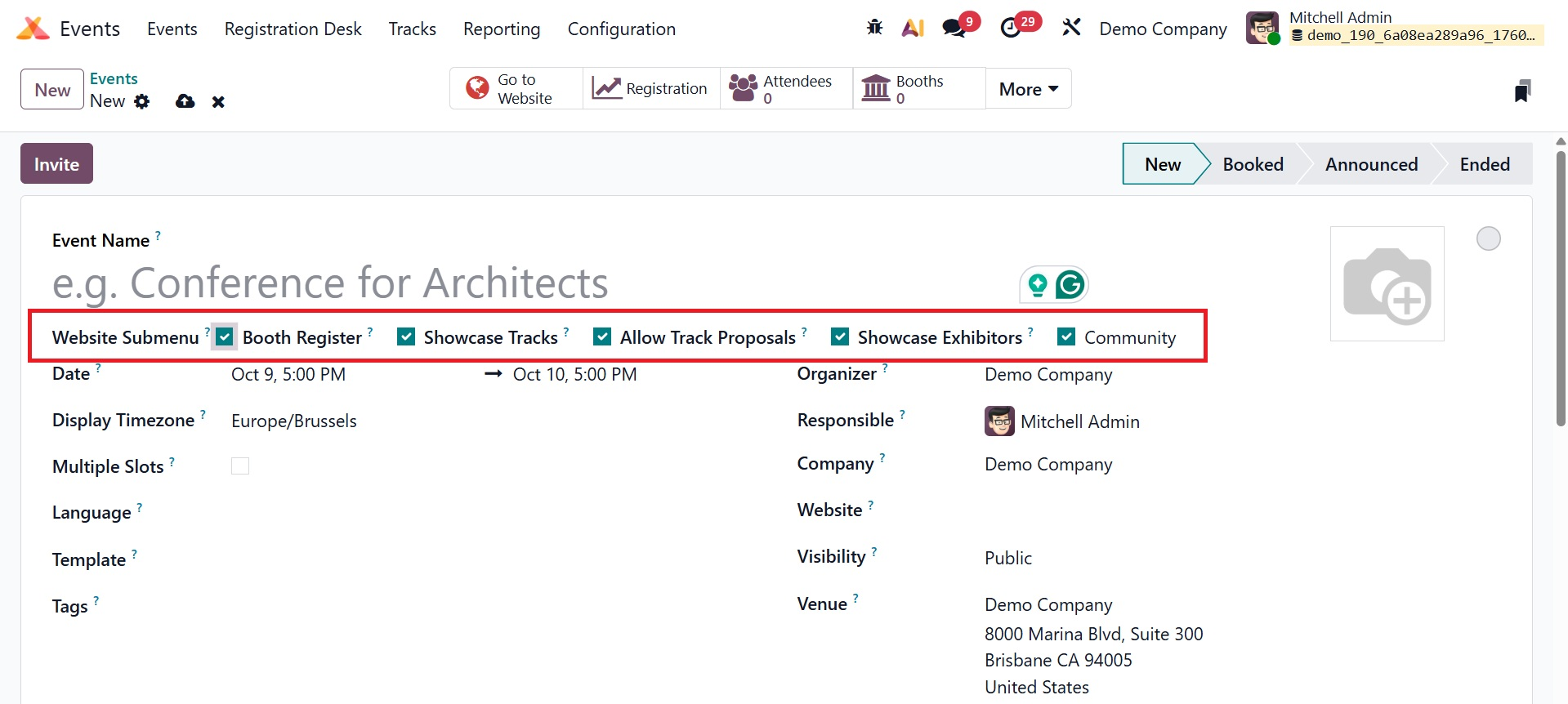
Website-specific menus can be arranged and displayed using the Website Submenu. The menu for booth registration. You can register for events using the Booth Register. Public presenters are invited to submit talk proposals using Allow Track Proposal. The organizers will later decide whether to accept or reject this based on how pertinent the proposed talks are. It will appear on the website under "Talks" after it is approved. The website's community tab will then be shown when you select the Community option. You must be in debug mode in order to access these Booleans.
The template, tags, visibility, and venue options are located beneath that. You can reuse setups for related events by using the template option. Events are categorized and filtered using tags. The venue option is for the event's location, and visibility determines who may see or register for the event.
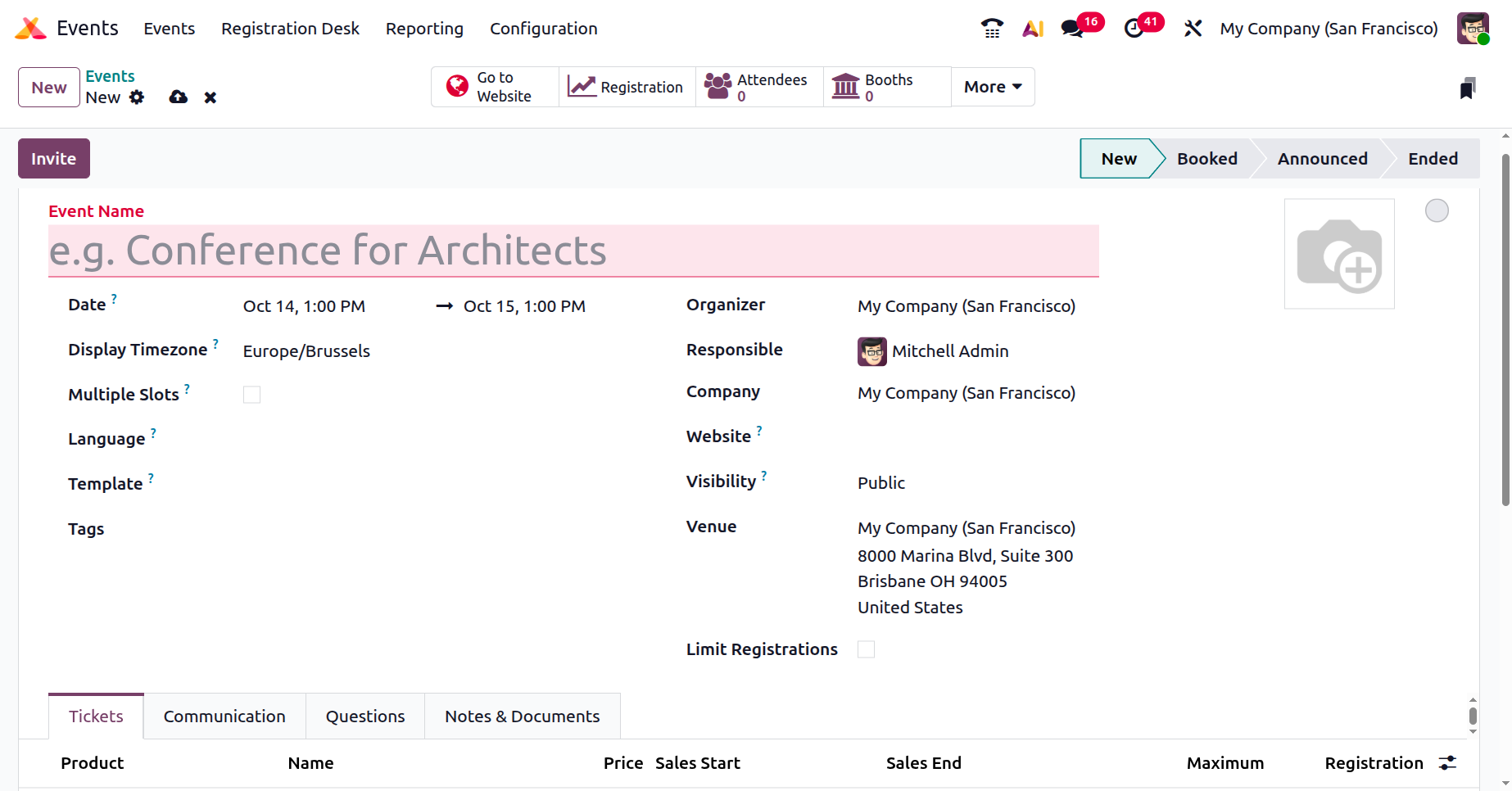
In the appropriate areas, enter the event's start and end dates, time zone, appropriate event template, tags, event organizer, employee responsible for the event, company, website to restrict event posting to the chosen website, and venue.
- Display Timezone: Indicates the date and time of the event based on the time zone that has been chosen.
- Multiple Slots: This feature lets you set up and oversee multiple sessions or time slots within a single event.
- Language : Defines the language in which emails and event information will be displayed.
- Templates: Enables you to utilize a pre-established format or layout for emails or event pages.
- The term "Organizer": refers to the individual or business in charge of the event.
- Website : If there are several websites, choose the one where the event will be posted.
- Visibility : Regulates the event's audience (public, registered users, or designated groups.
- Venue : Indicates the address or location where the event will be held.
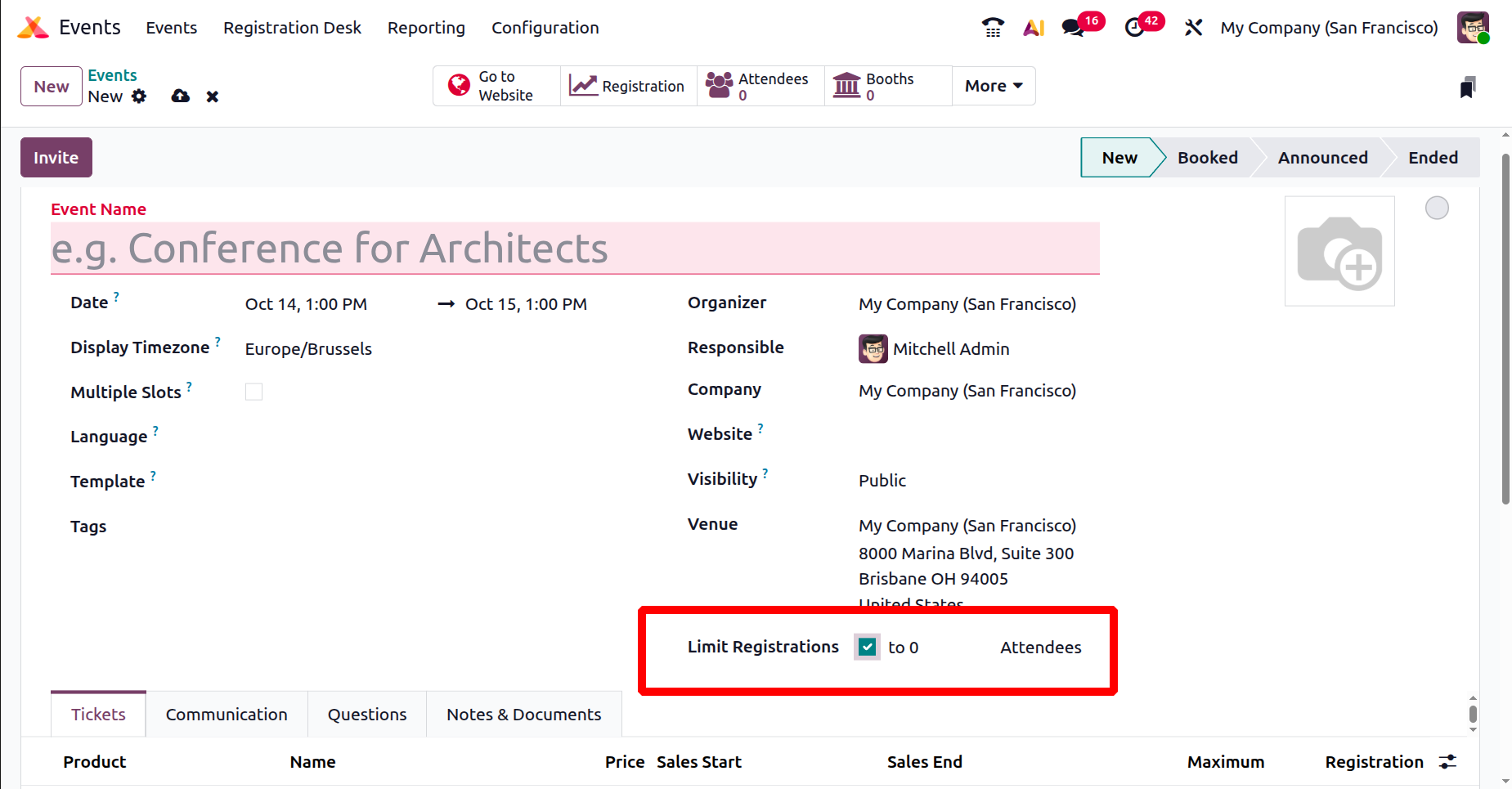
- Limit Registration : Defines the upper limit of people who can sign up for the event.
Clicking the Limit Registration option opens a new area where you can enter the maximum number of guests.
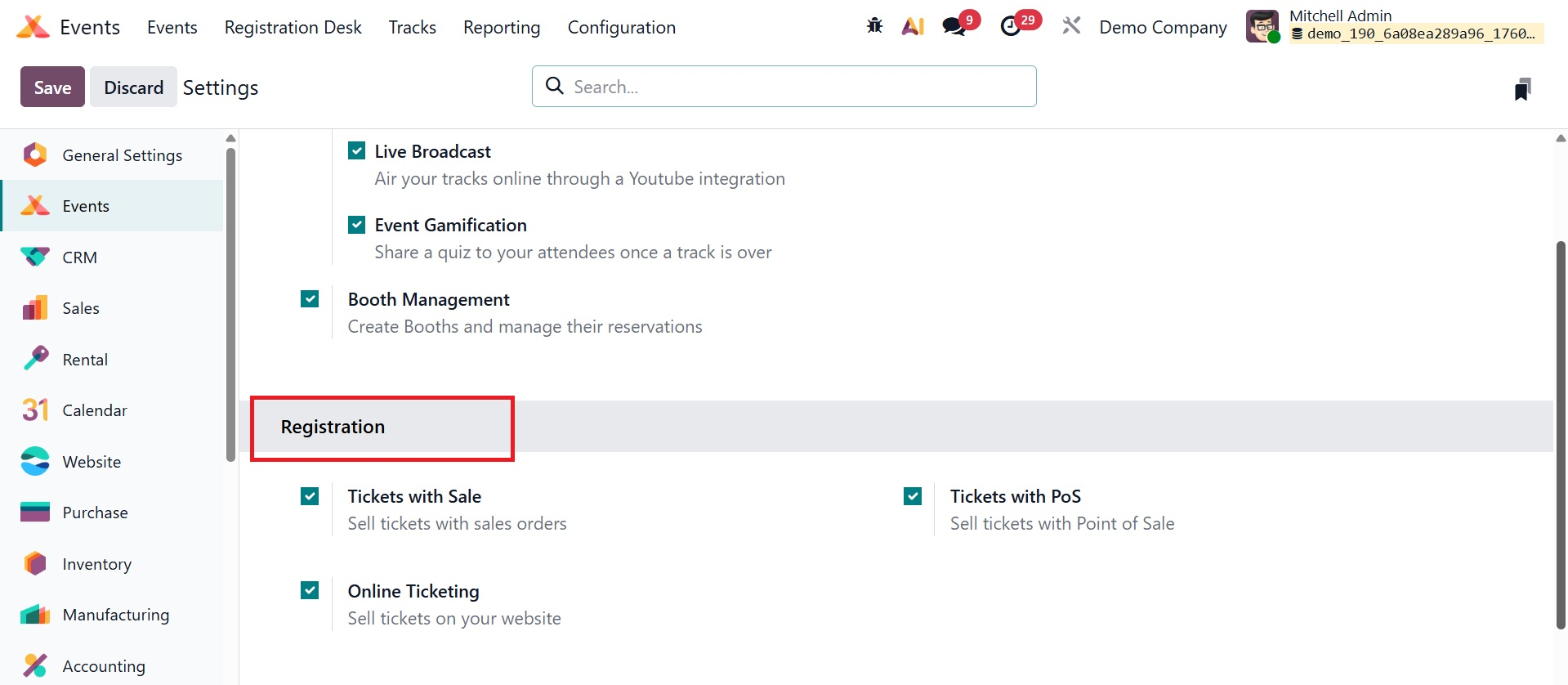
You may activate the Tickets and Online Ticketing features in the Settings menu of the module. For online ticket sales and sales orders, respectively, these choices are available.
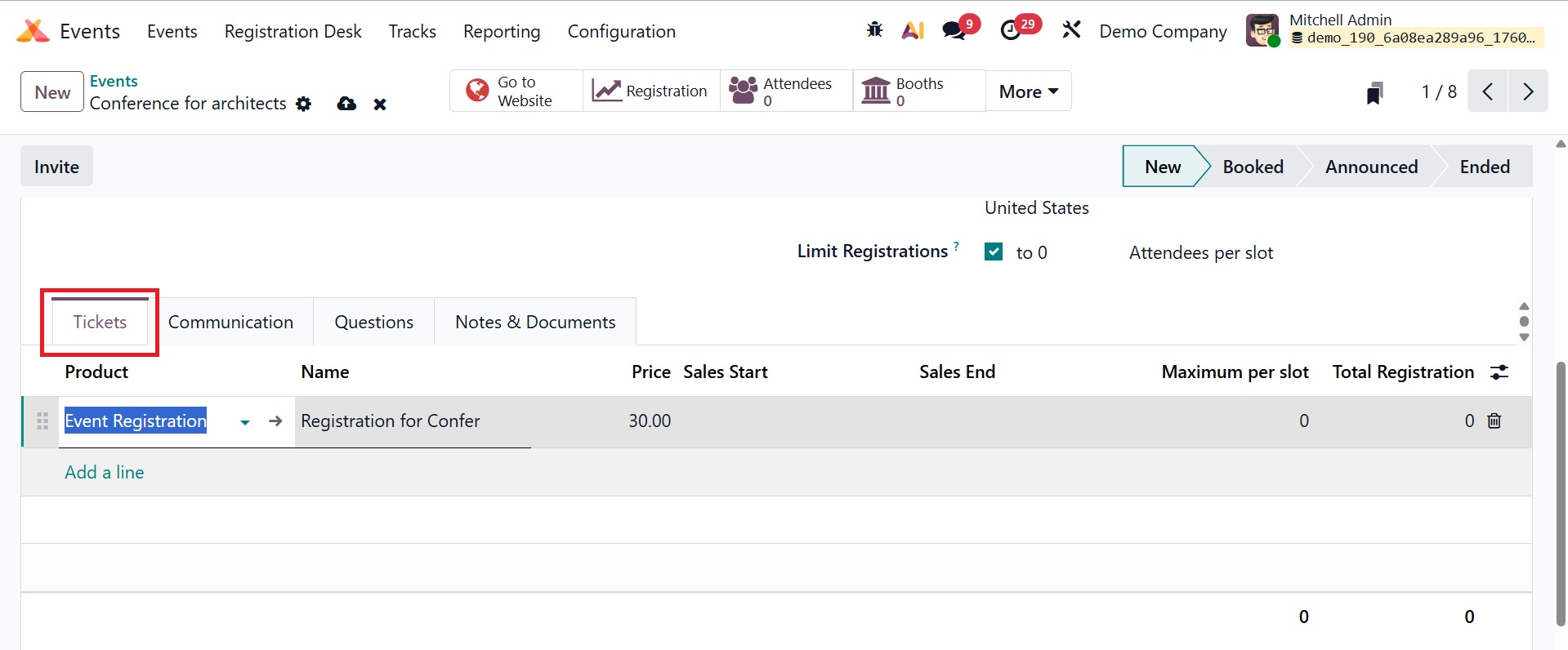
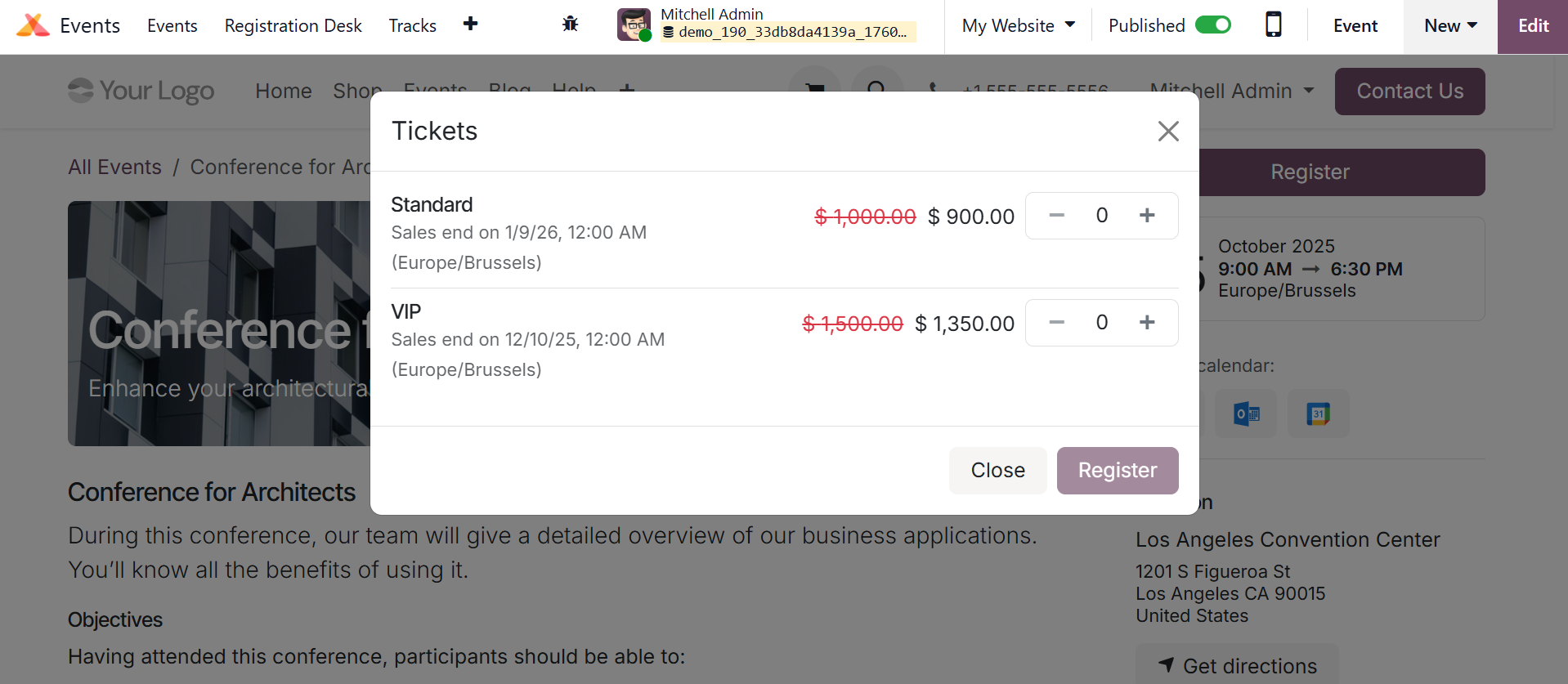
Under the Tickets option in the event creation box, you can now create tickets for the events.
You can choose the event tickets you want by clicking the Add a Line button. In Odoo 19, you can initially set up the event ticket as a service product. To create the ticket, select Create on order as event registration during ticket setup. These tickets can be added via the Tickets tab, as shown below. In the corresponding fields, enter the price, the start and end dates of the sale, and the maximum number of tickets that will be available. When customers purchase tickets on your website, you can view the quantity of confirmed and unconfirmed tickets in this tab.
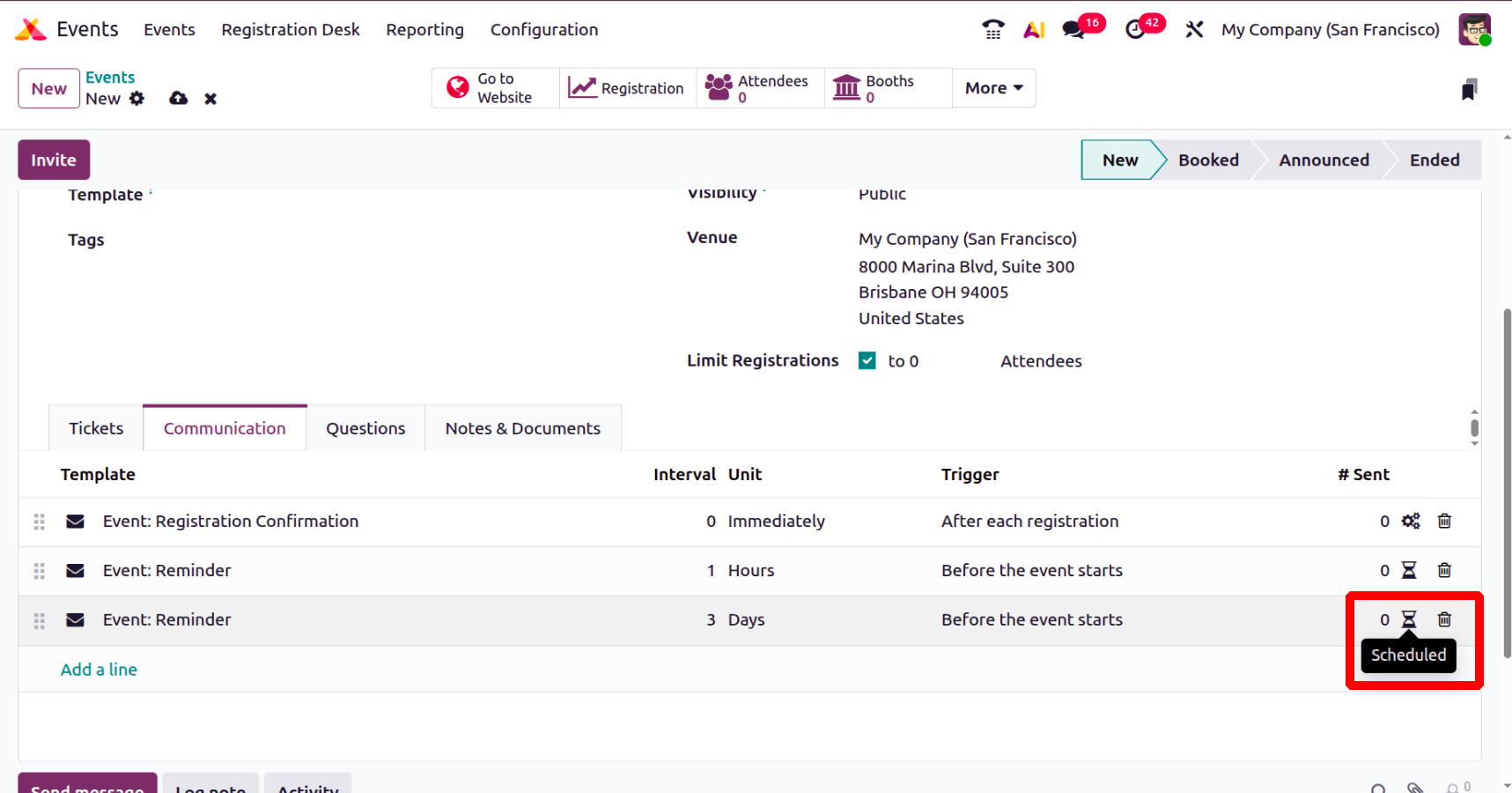
You can choose to communicate by SMS or mail by using the Add a Line option under the Communication Tab. From the Template area, pick an appropriate template for the email or SMS. Participants may receive a mailer or SMS right away or a predetermined number of hours, days, weeks, or months prior to or following the event, as in the screenshot below.
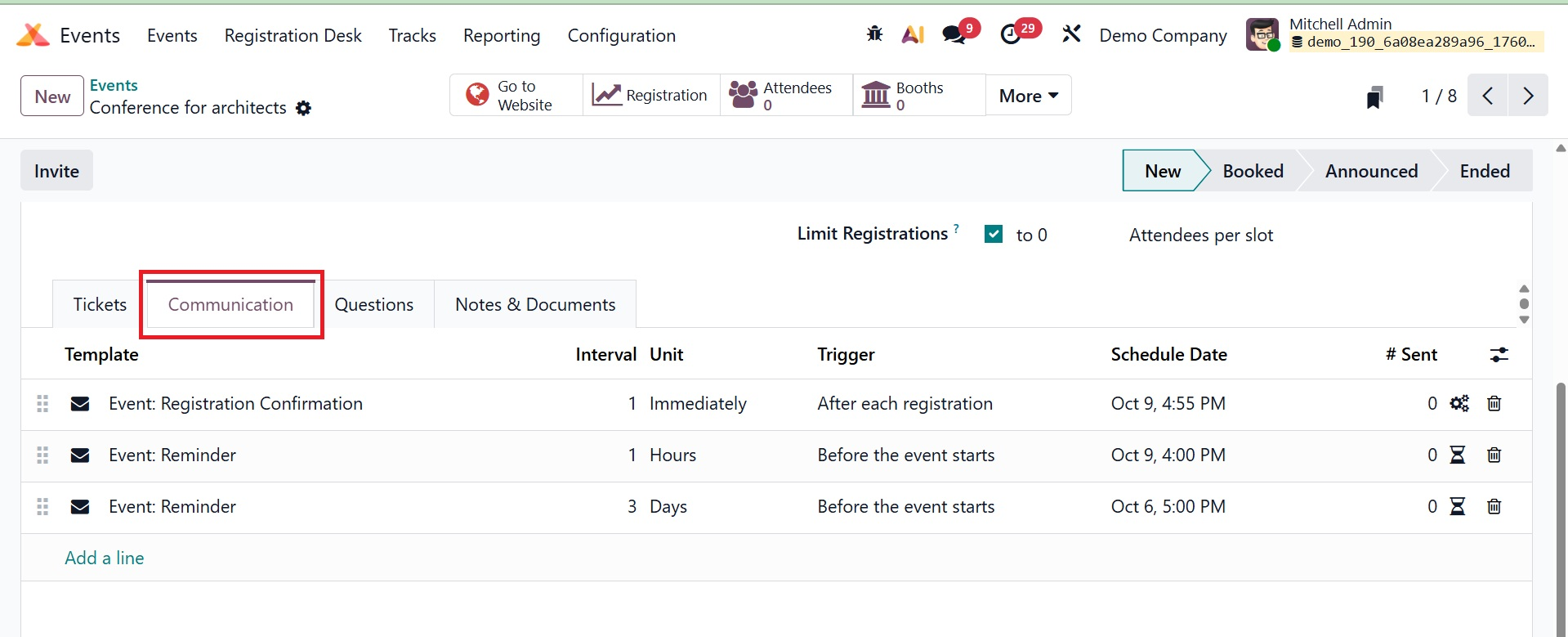
By providing participants with timely information, these emails improve their experience, reduce manual labor by automating repetitive tasks, increase engagement and attendance rates by sending out reminders, and help with feedback collection and event promotion.
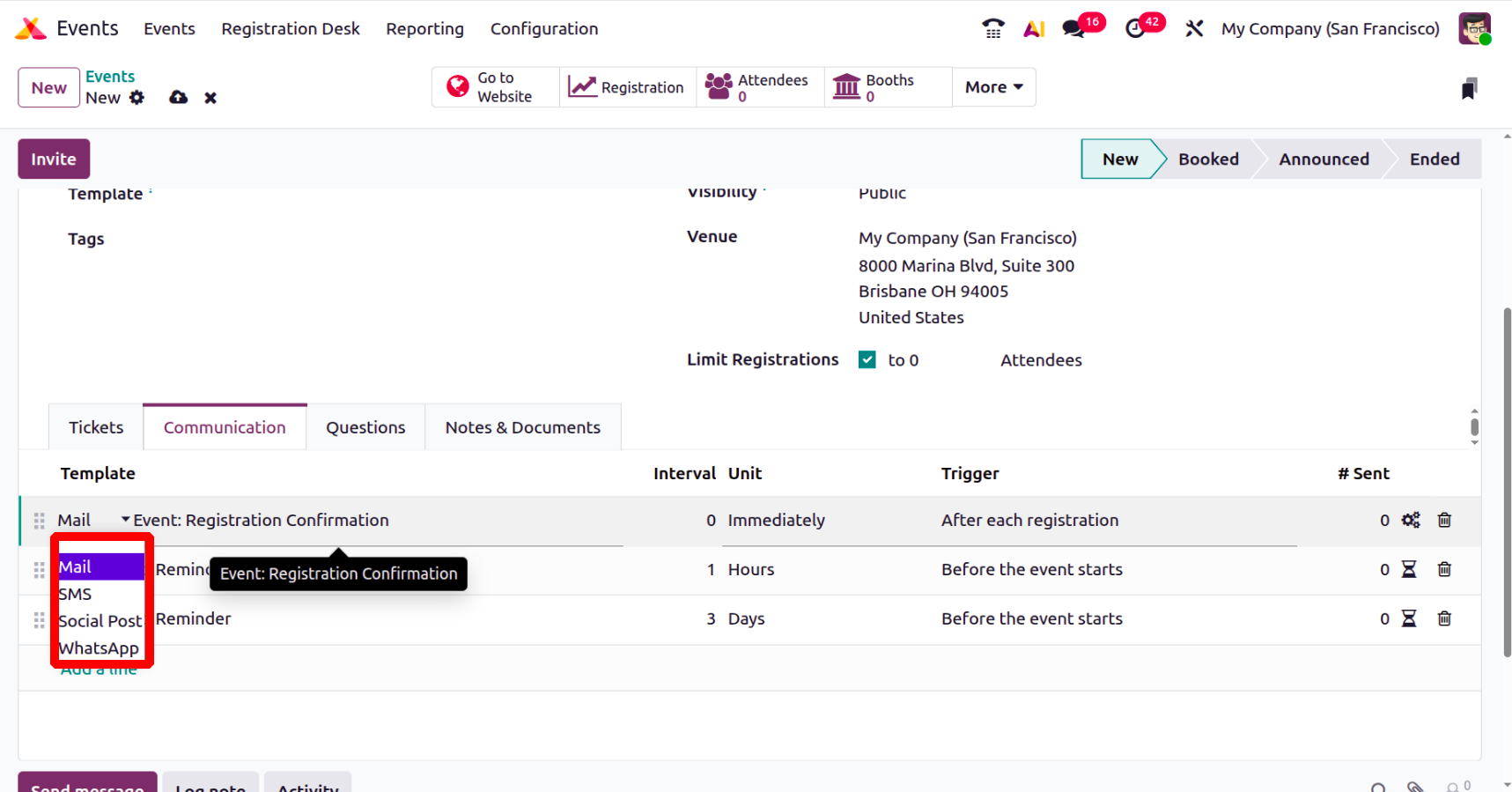
It's to let guests know that their registration was successful. This page can also show the scheduled date and the total number of emails or SMS messages delivered. Under the Units field, you can determine the type, such as :
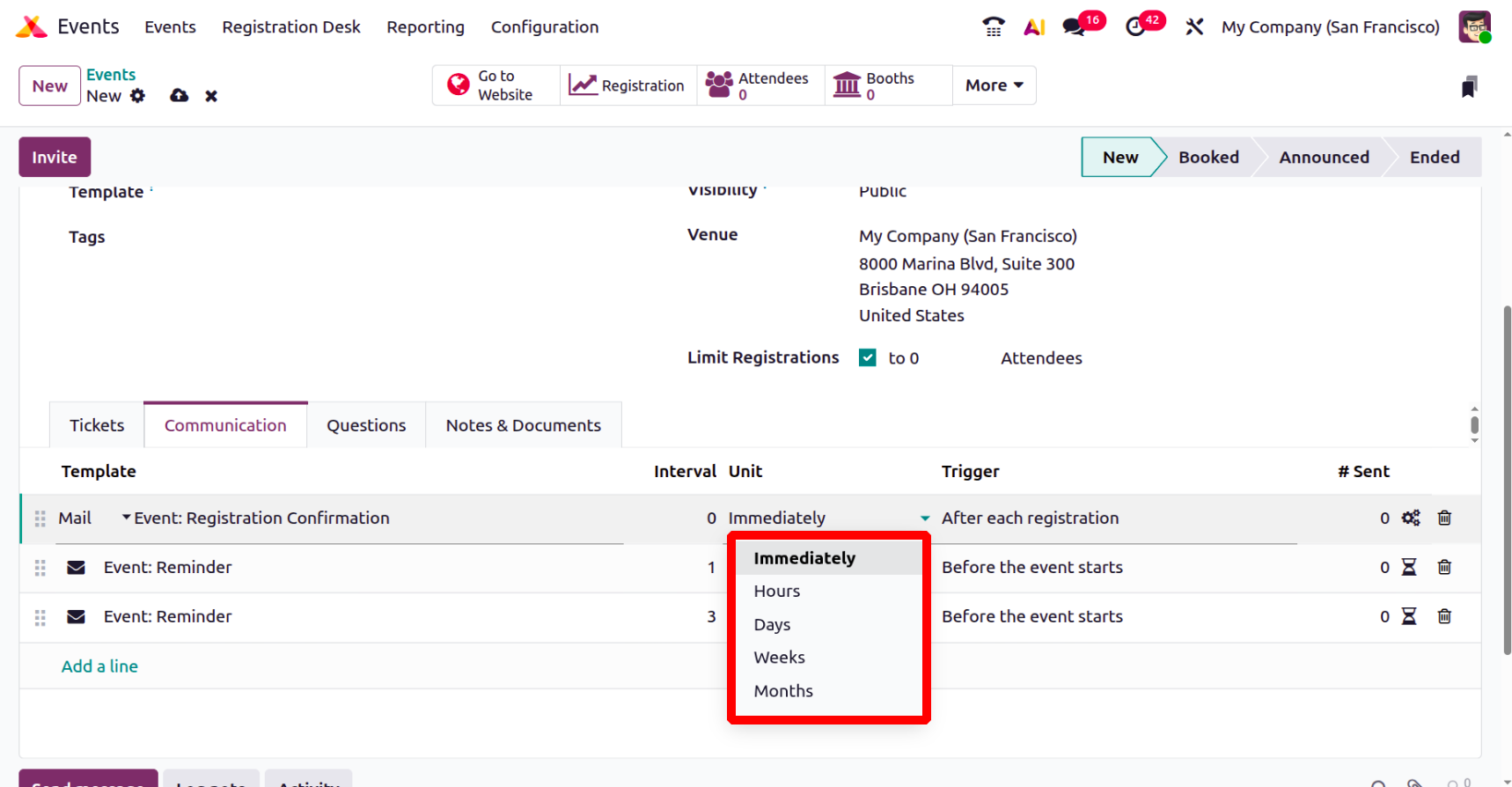
- Immediate:transmits the message immediately.
- Hours : The message is sent a predetermined number of hours before or following the event.
- Days : Notifies the recipient a predetermined number of days prior to or following the event.
- Weekly : according to the predetermined timetable, sends the message once a week.
- Monthly : according to the predetermined timetable, sends the message once a month.
Depending on these settings, automated event alerts can be sent immediately or after a predetermined amount of time—hours, days, weeks, or months.
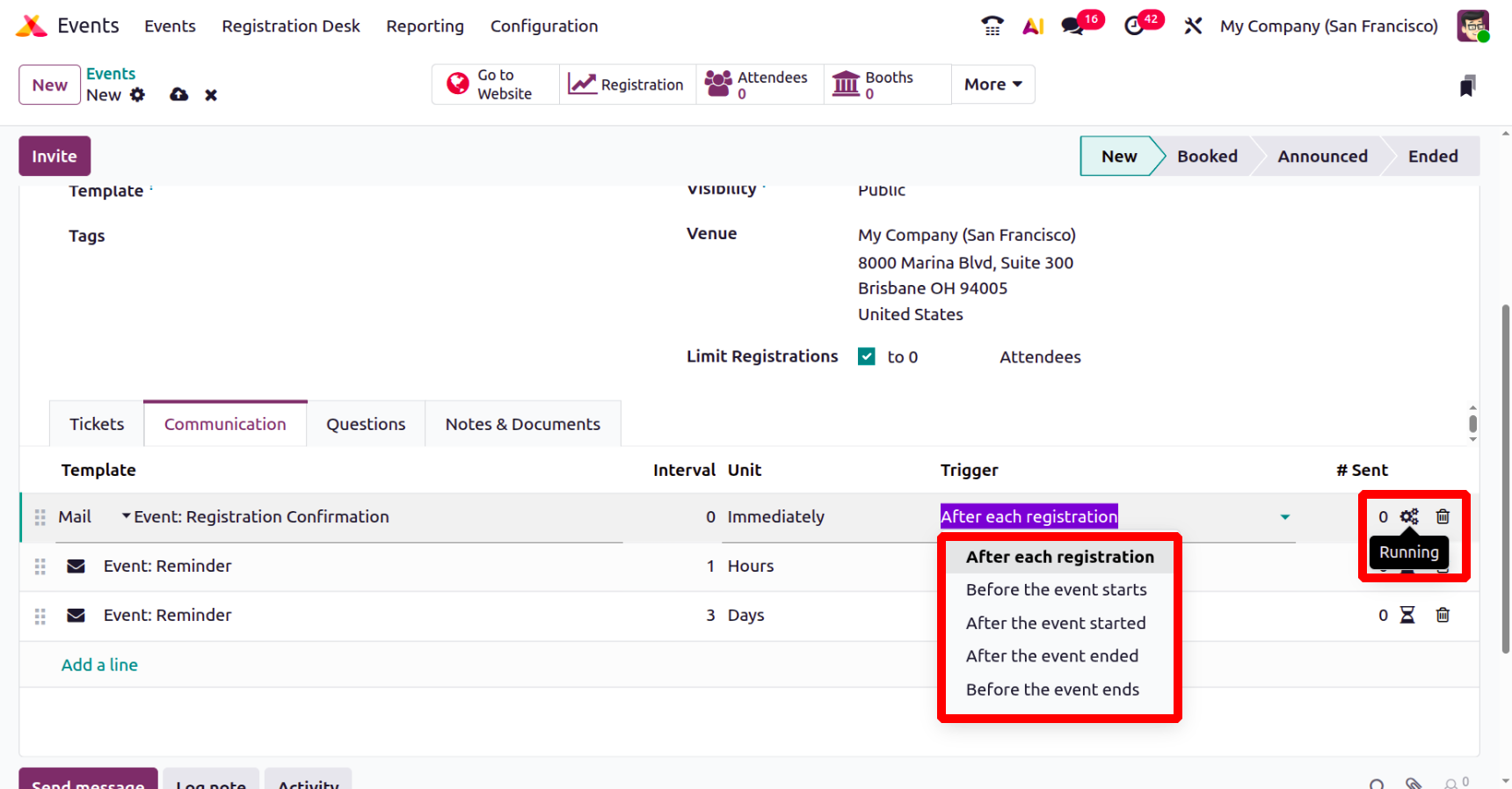
The precise time at which Odoo transmits the scheduled event communication is managed by the Trigger option, as shown below. The options here include,
After each registration, before the event starts, after the event starts, after the event ends, and before the event ends, respectively. Similarly, under the Sent field, you can view the number of mail sent, running, and deleted, as shown below. This indicates that the receivers are actively receiving the message.
Under the below screenshot, using the marked icons, you can view the scheduled icon here. This indicates that the message is scheduled to be sent on a particular date or time in the future.
You can interview attendees when they sign up online for the event. For instance, if your business decides to serve food to visitors, you can use the online registration process to inquire about participants' dietary needs. You can mention these questions in the event creation window's Question tab, as shown below.
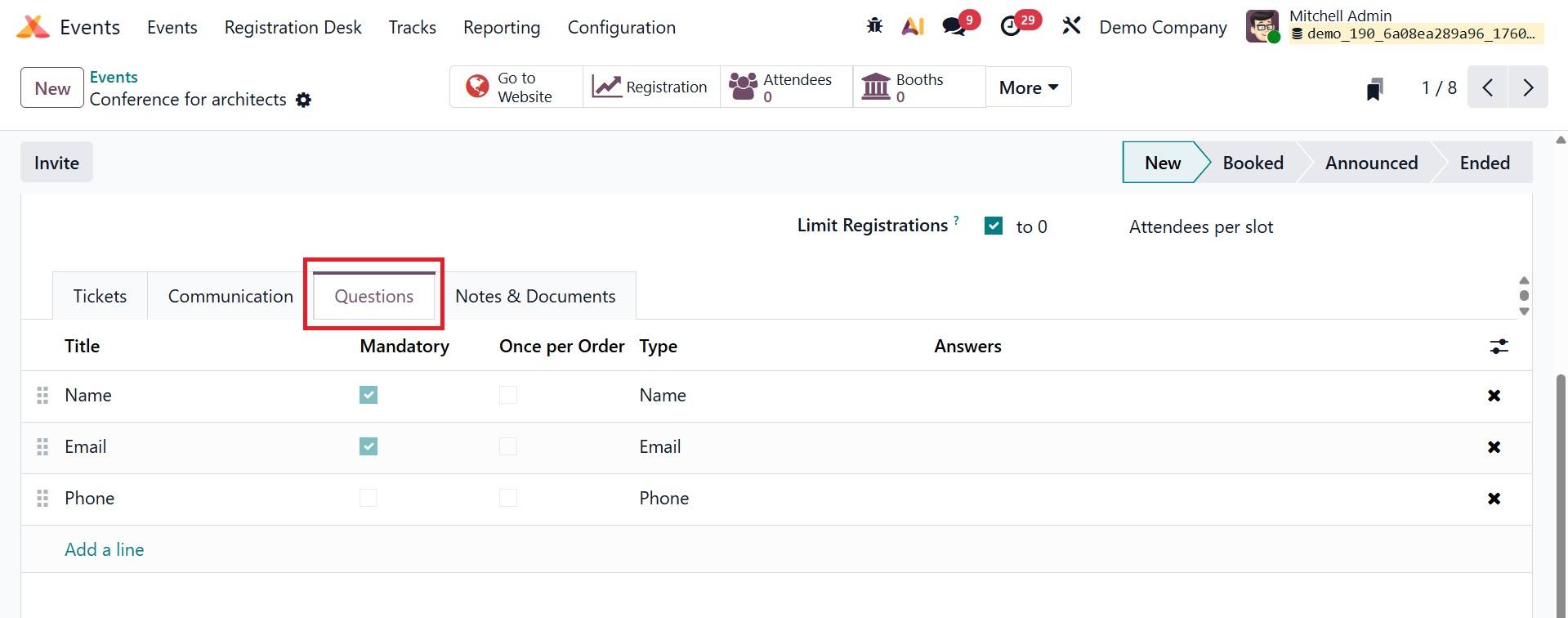
When this option is selected, the event creation window will display the Question tab, as seen in the figure below. Attendee questions are used to gather vital information that helps event organizers effectively handle logistics and personalize the event experience. This ensures better planning, more targeted communication, and happier participants.
To add questions, select the Add a Line option. You will see a pop-up window appear.
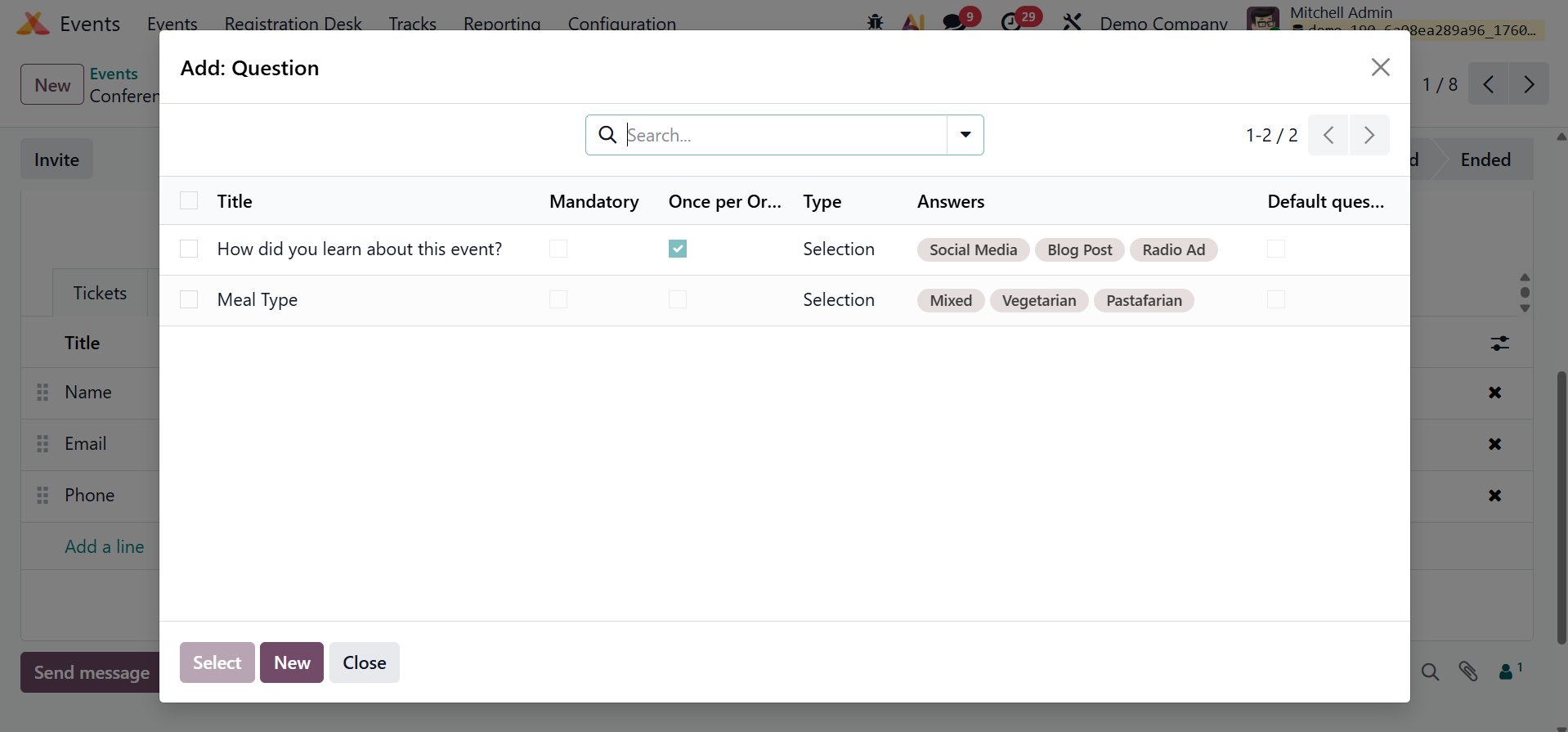
Type the question in the space provided. Each participant will be notified of the question's value if the "Once per order" option is used. The Question Type setting has two options: Text Input and Selection. You can select the responses you want to use in the Selection type by looking at the responses page. To save the question, click the Save button.
Additional event details and ticket requirements may be found on the Notes and Documents page.
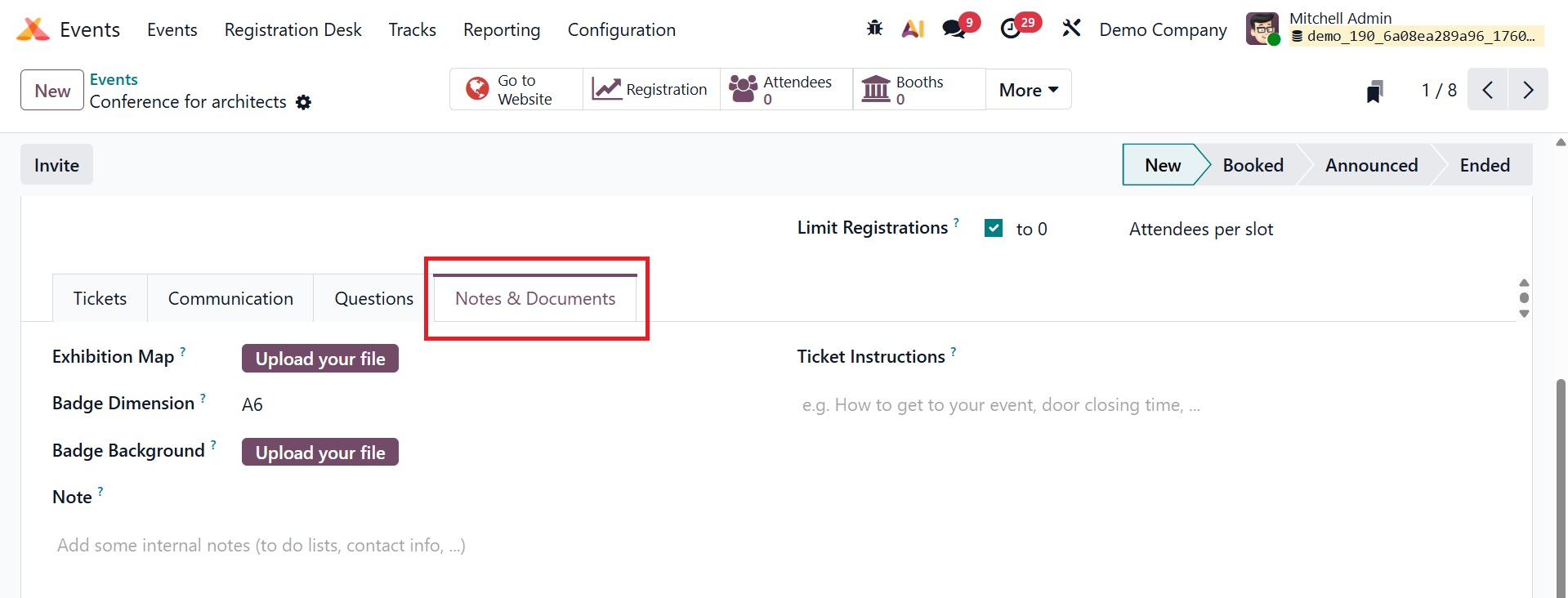
Here, using the "Upload Your File" option, you can provide a map of the show under the Exhibition Map field. In the appropriate box, you can mention the Badge Dimension and provide a Badge Background. By choosing the Ticket Instructions option under the Tickets tab in the Odoo Events module, you may add specific remarks or instructions relevant to each kind of ticket. Guests are sent these instructions upon registration and/or on their confirmation email, which assist them to understand what the ticket includes, restrictions (like the dress code or ID check), or special directions (like the arrival time or parking information). You can save the new event by clicking the Save button after entering all the necessary data.
The Invite button will show up in the window, and you can use it to invite others to the event.
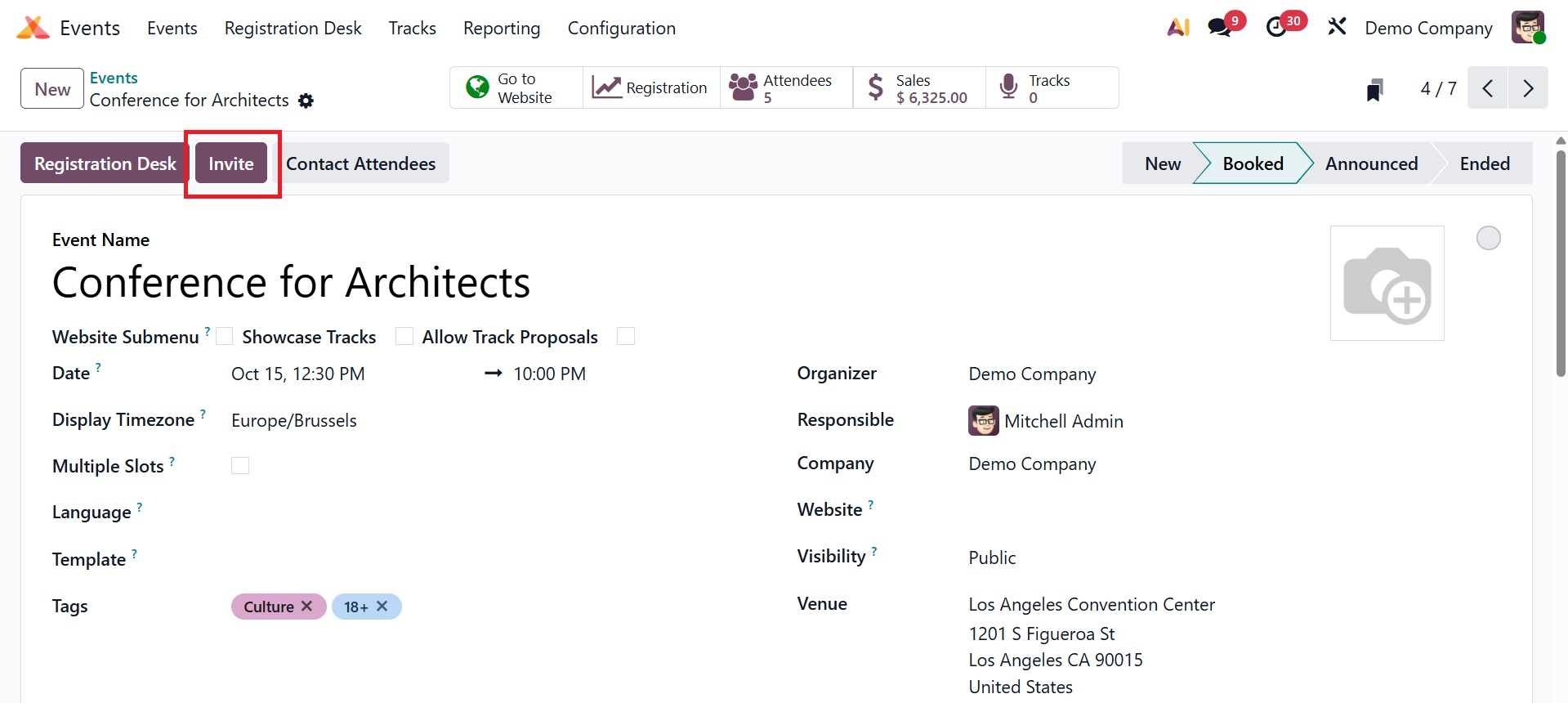
Clicking the Invite button opens the window you see below.
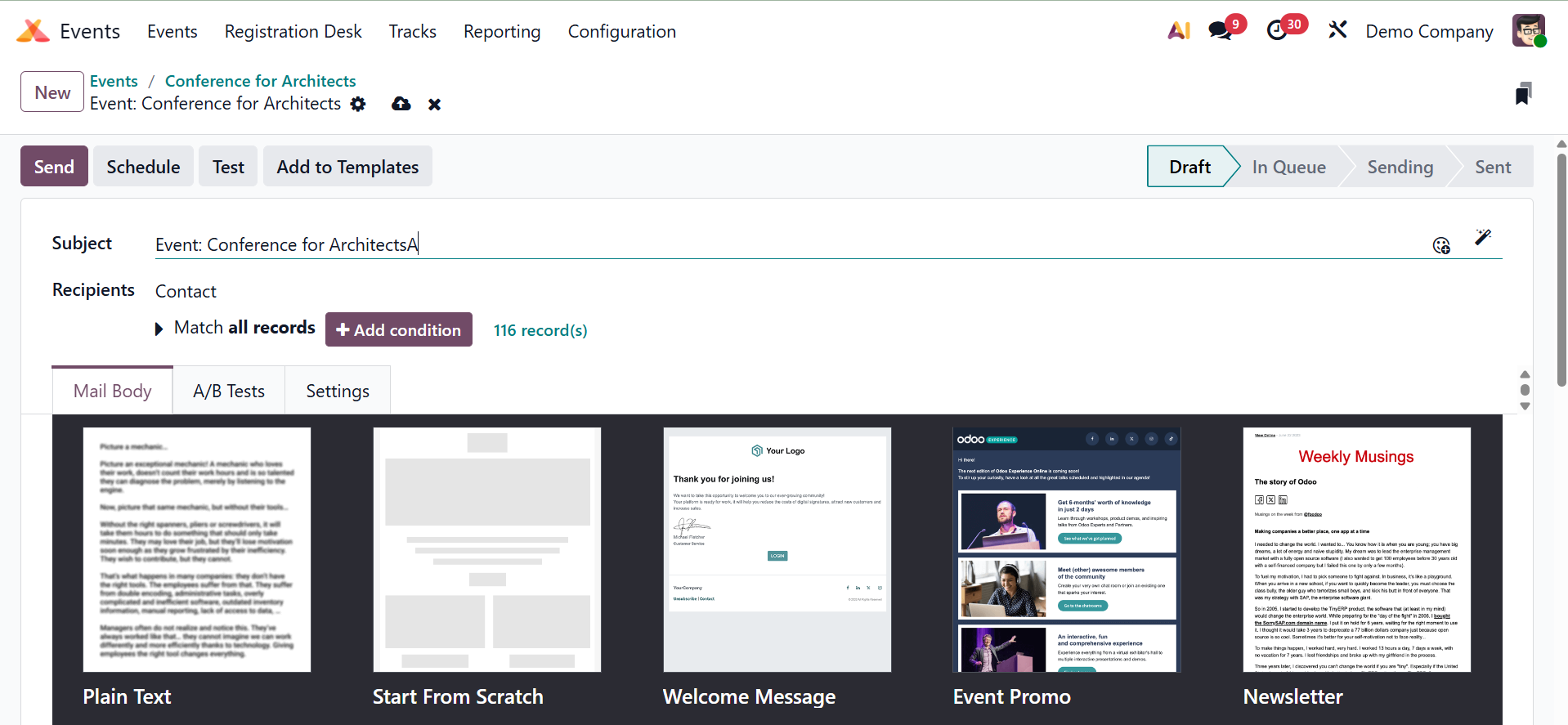
This platform allows you to create invitation emails or SMS, which is similar to what we covered in the Email and SMS Marketing courses. For more information on creating marketing emails or SMS, see these modules in the Odoo 19 Enterprise Book.
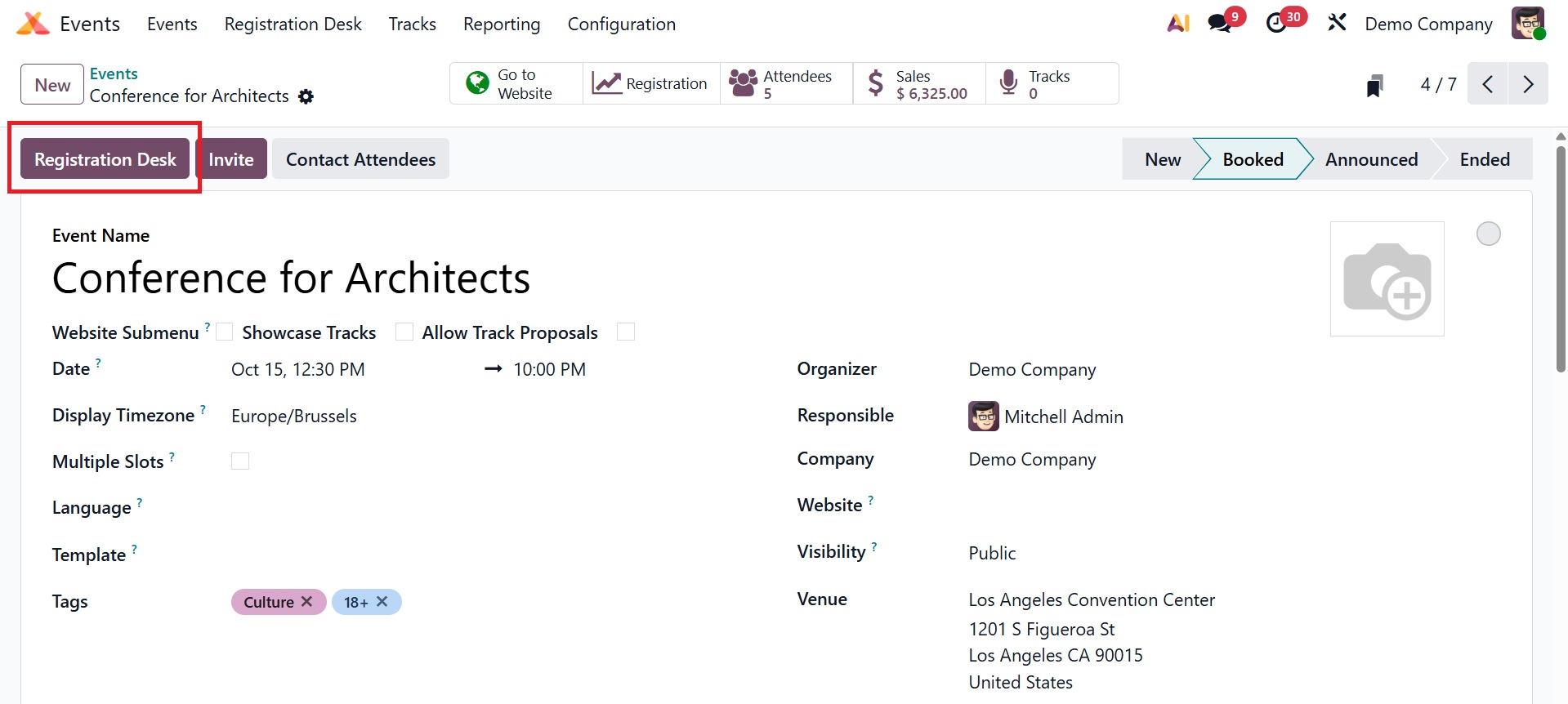
As seen in the screenshot below, the registration desk button facilitates the management of on-site registrations and check-ins.
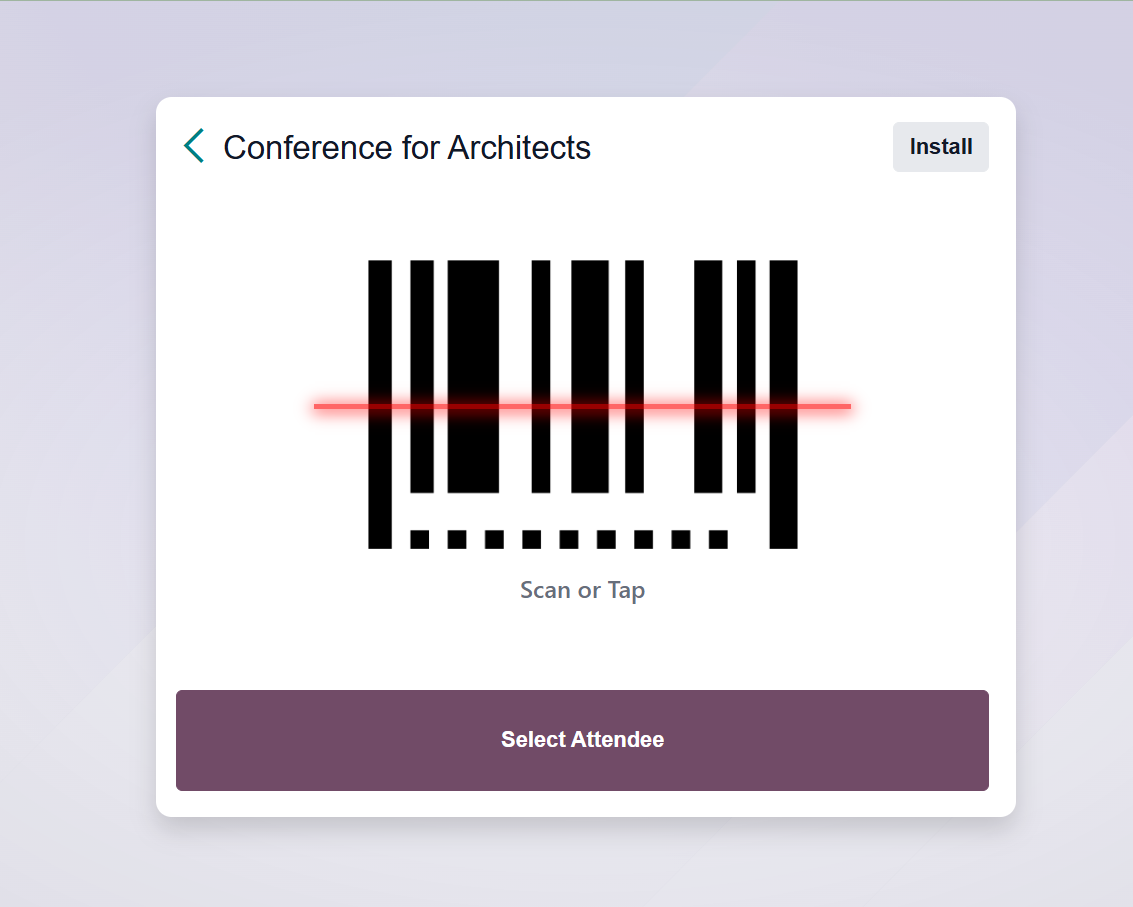
You will receive the barcode for registration after choosing the option.
Contact attendees is the next choice, as seen in the picture below.

When you choose this option, you will be taken to a page where you can send chosen or all attendees an email or SMS message.
You may view and manage the names, email addresses, and phone numbers of the speakers at your events by selecting the Contact Speakers icon on the Odoo Events, as shown below.
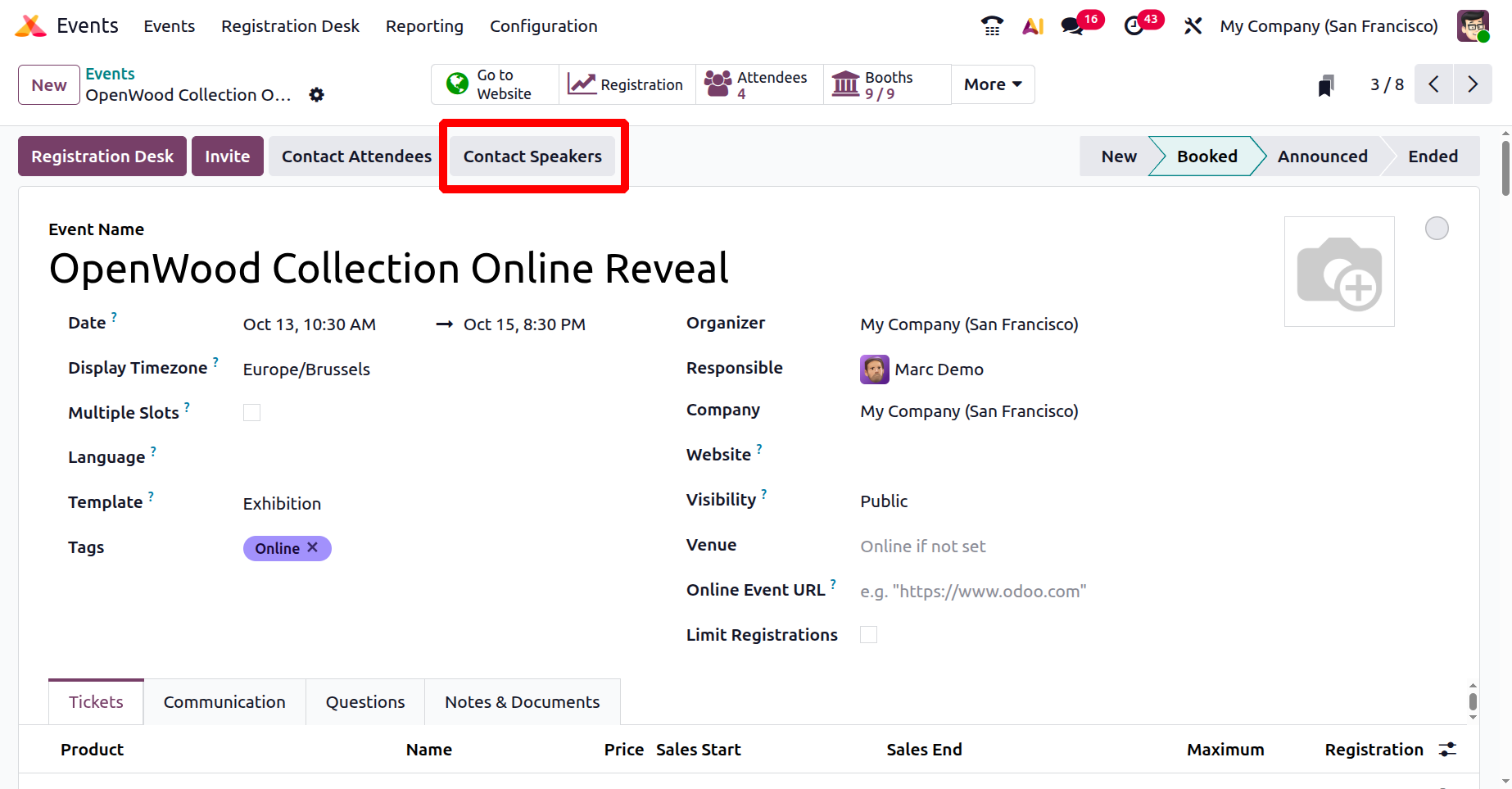
You can now post the event to your website by clicking the 'Go to Website' button.
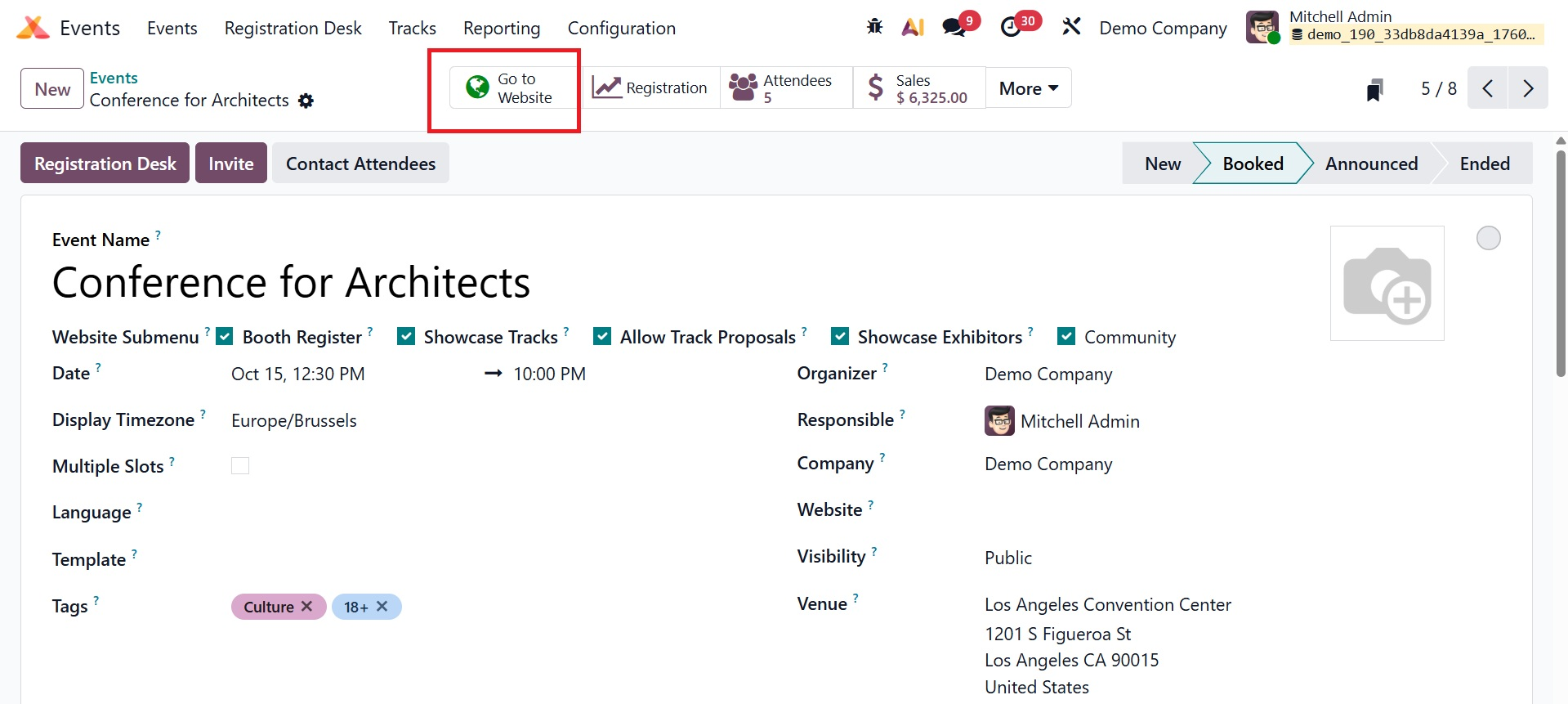
The screenshot below shows how the webpage appears. The website now has the menus and the Register button, as seen below.
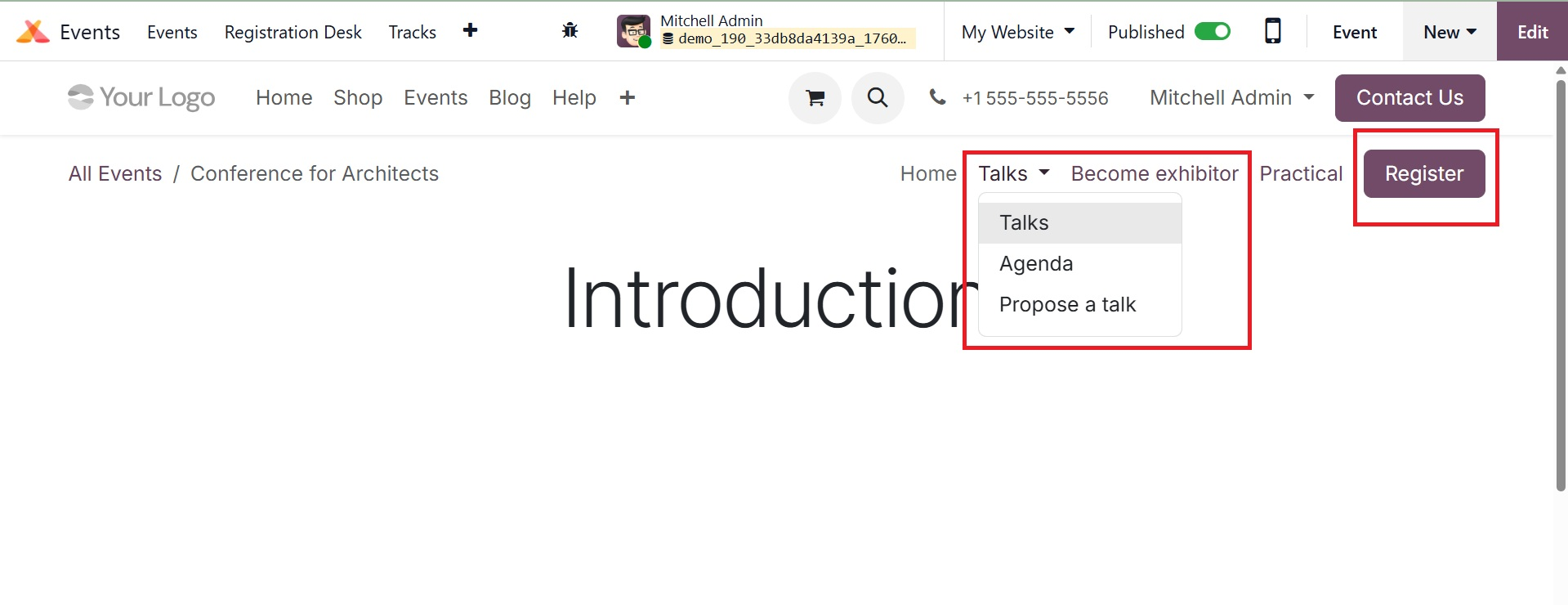
All of the event's enabled elements, such as the talks, talk proposals, exhibitors, and agenda, will be shown on the website.
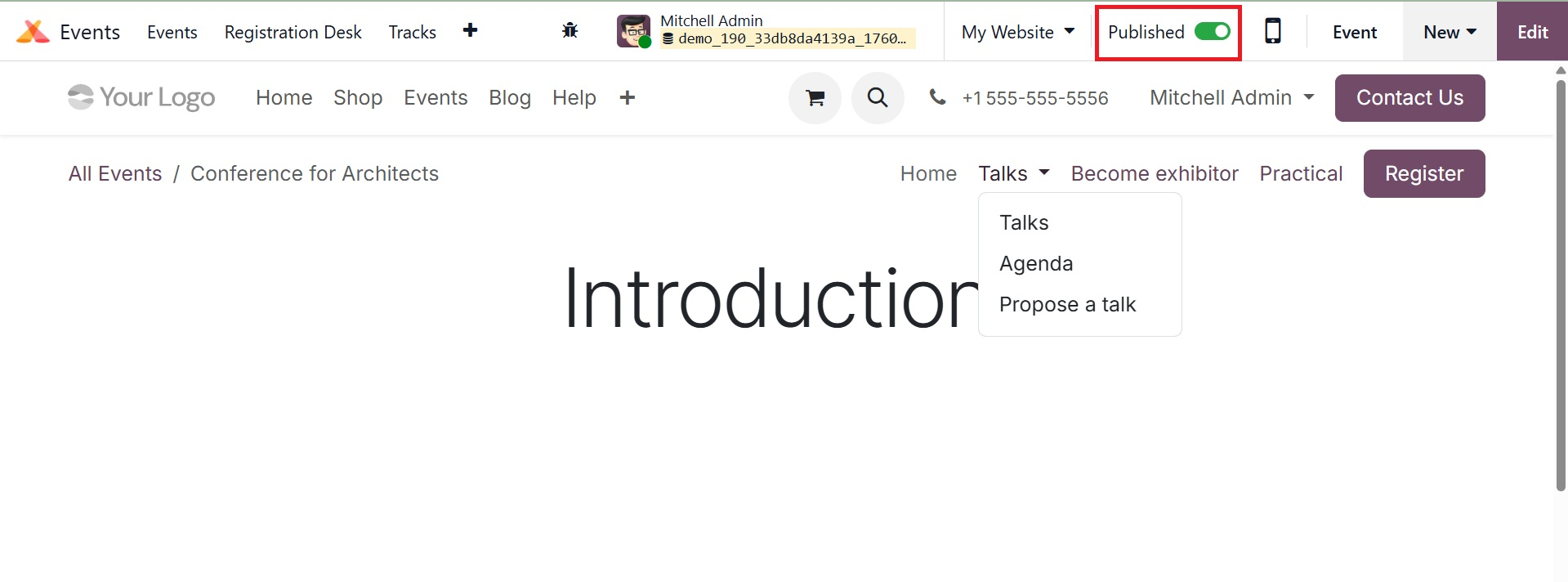
To change the event's status from "Unpublished" to "Published," click the button that matches the new status.
Participants can click the 'Register' button to sign up when the event has been publicized.
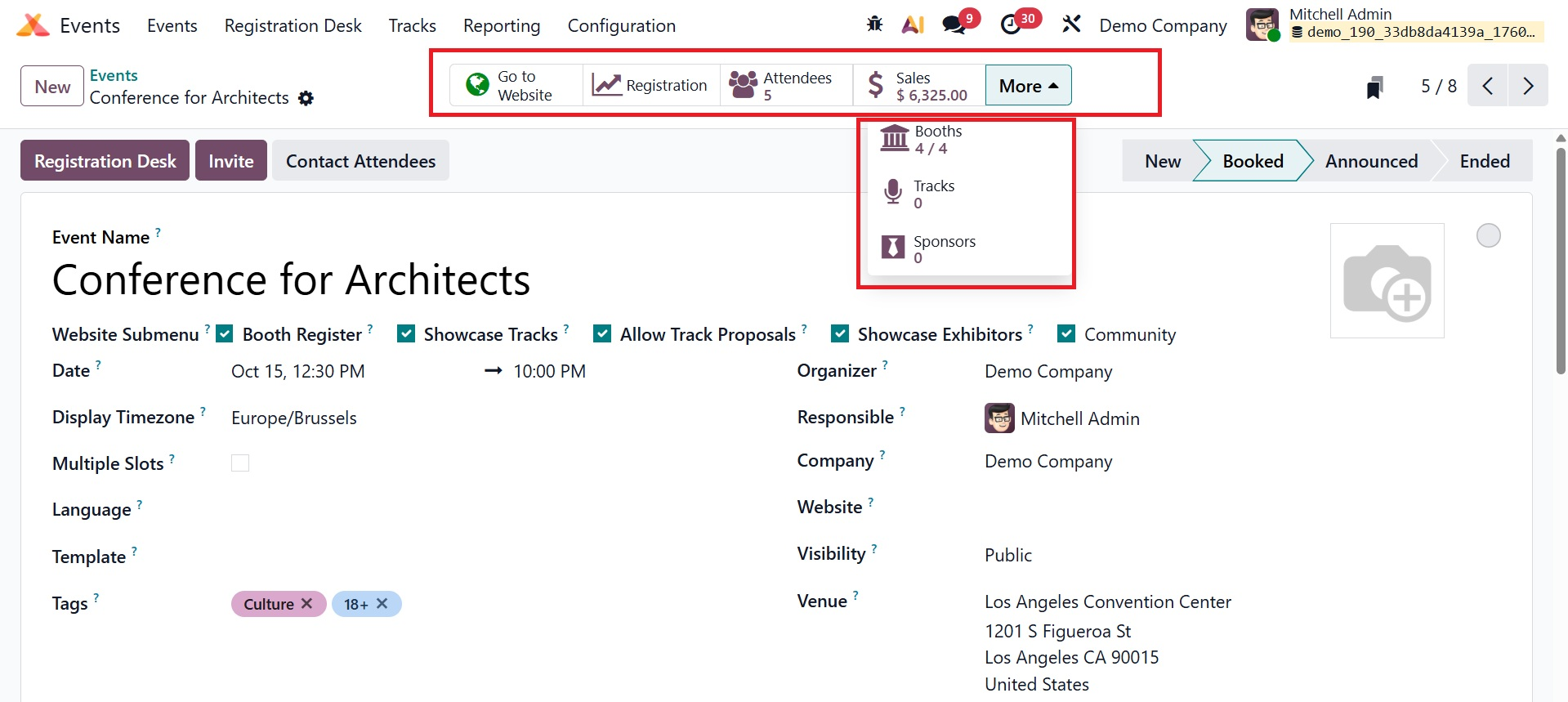
A published event's event description box will have several smart buttons, as seen in the figure below.
Clicking the Attendees tab will display the complete list of attendees for this event. This website has a list of all attendees who have signed up for the event.
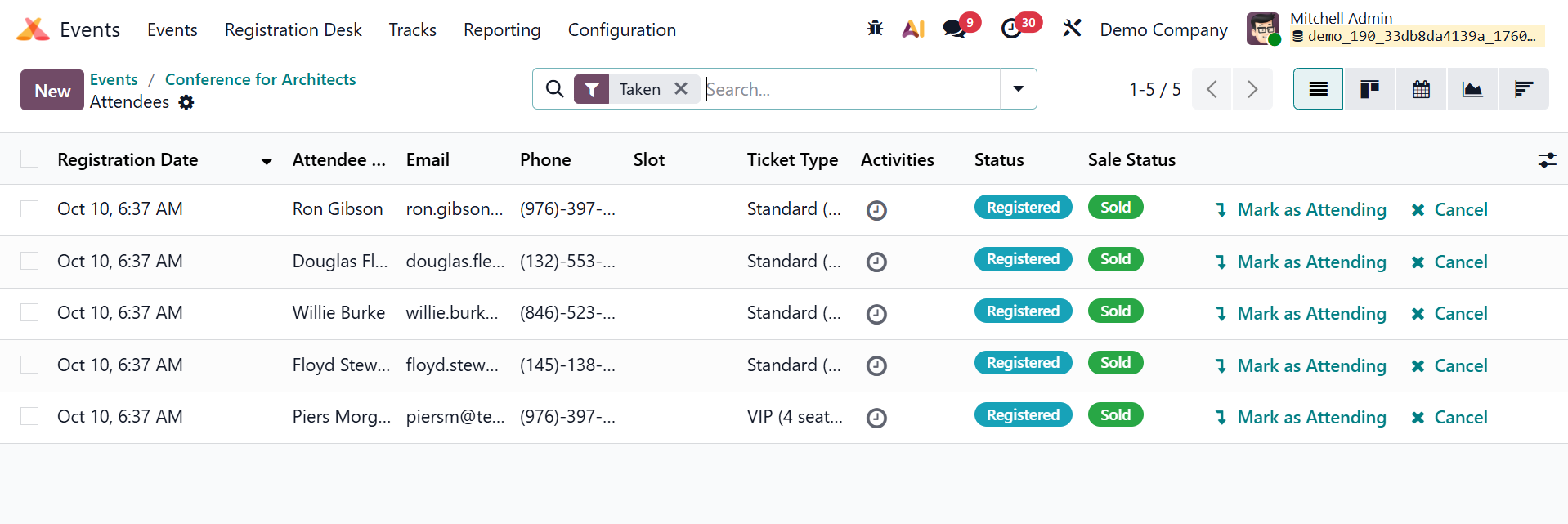
This box displays the attendees' names, email addresses, phone numbers, event tickets, registration date, and status. The Cancel and Mark as Attending buttons are also visible, as seen in the figure.
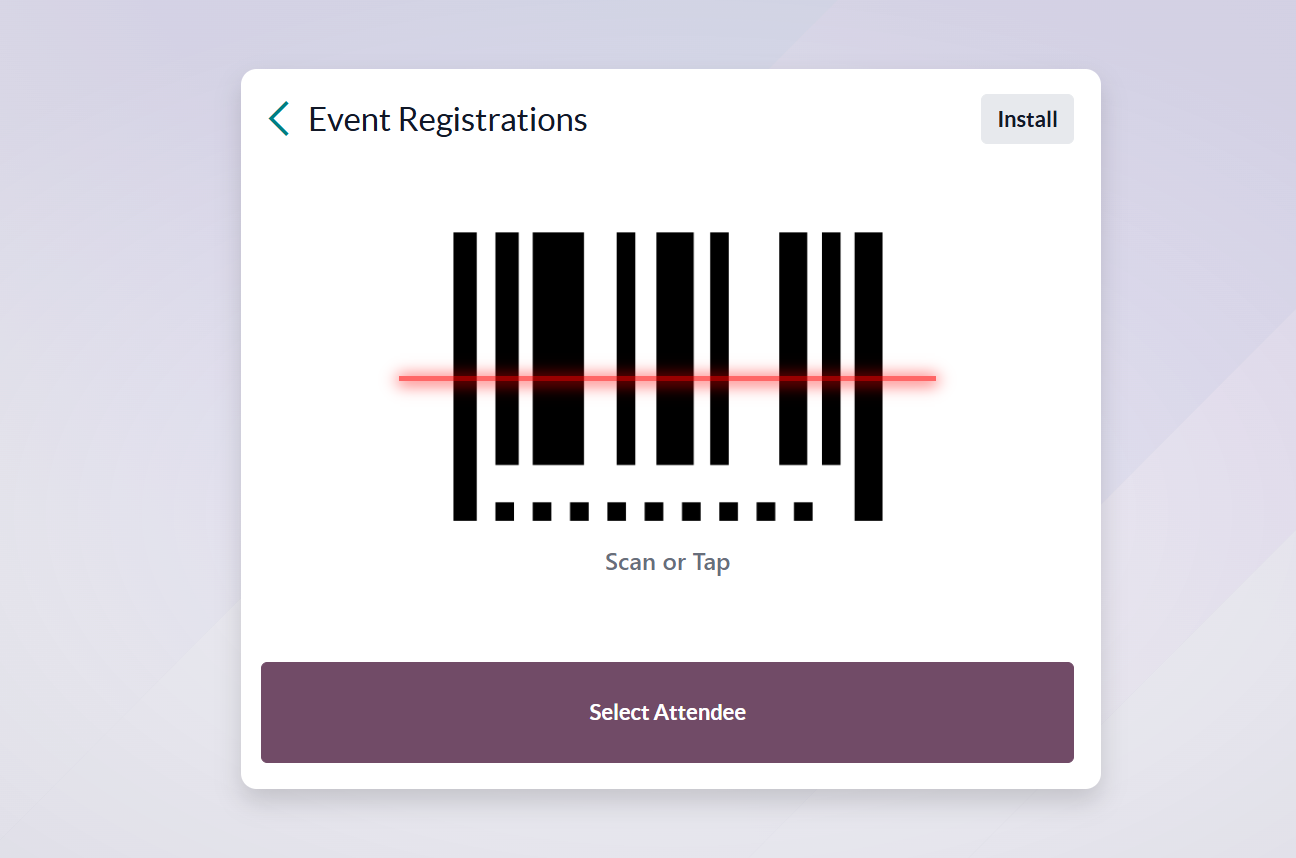
A new window will emerge when you click the Registration button, allowing guests to manually choose themselves or scan their badges to confirm that they are registered for the event.
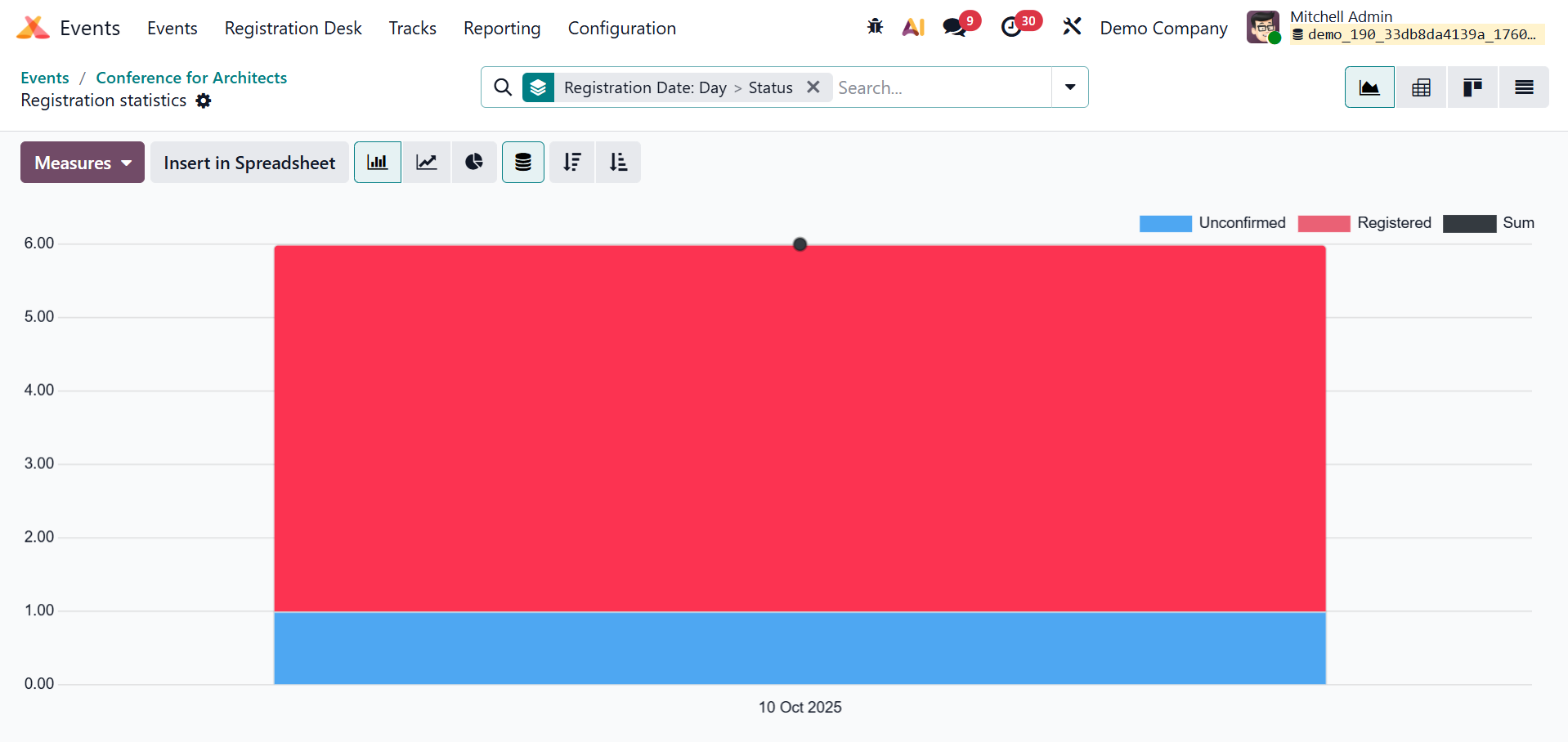
You must first enable the Use Event Barcode option under the Attendance tab in the Settings menu in order to use this feature.
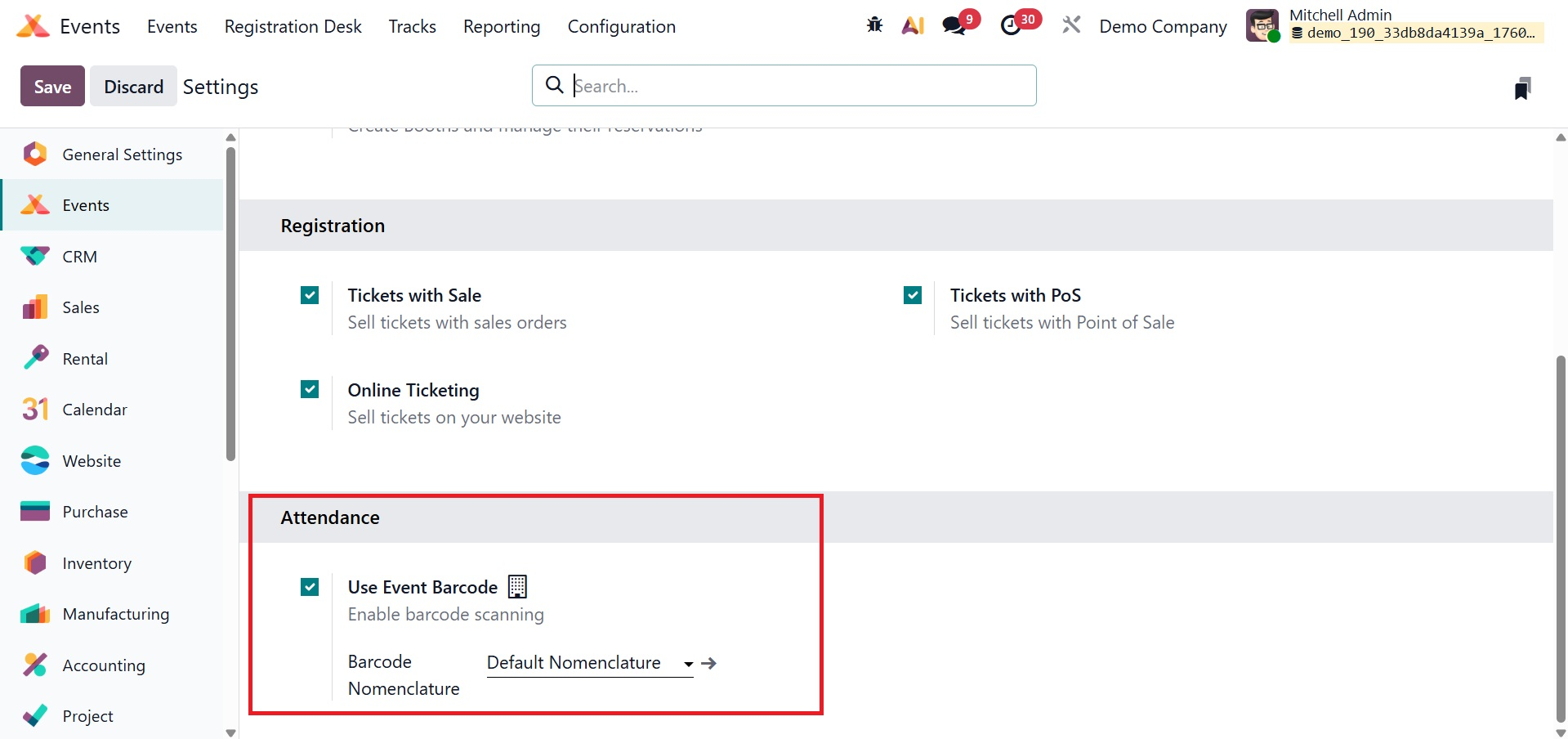
By using this feature, you can scan badges to verify attendance.
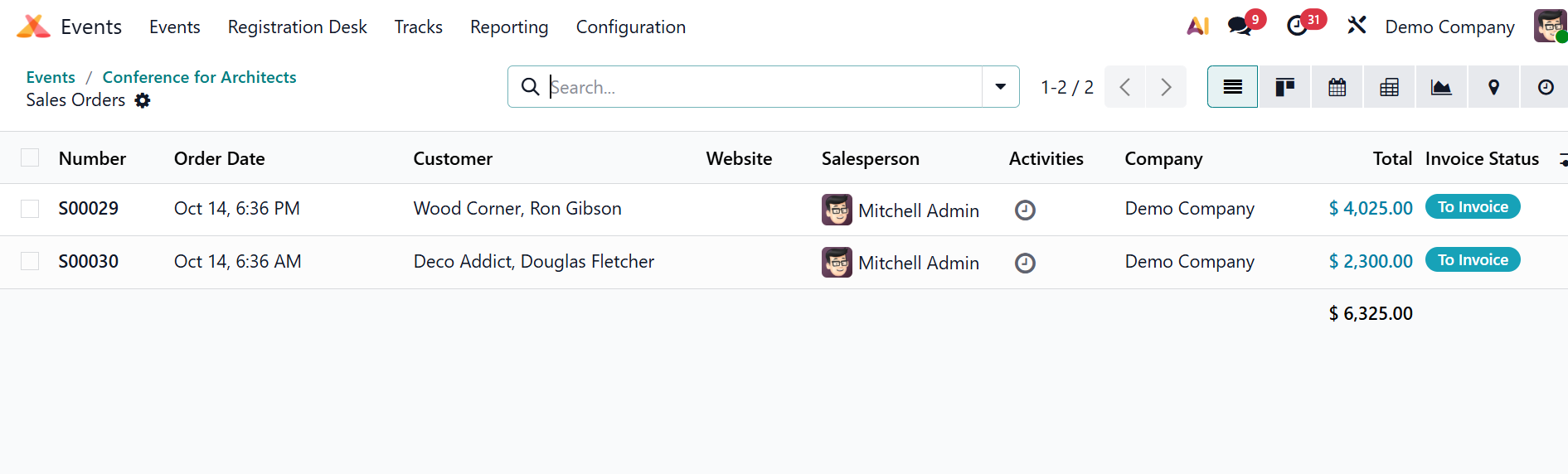
The next smart tab is Sale order, which on selecting you will get the details regarding the sale order of the event, as shown below.
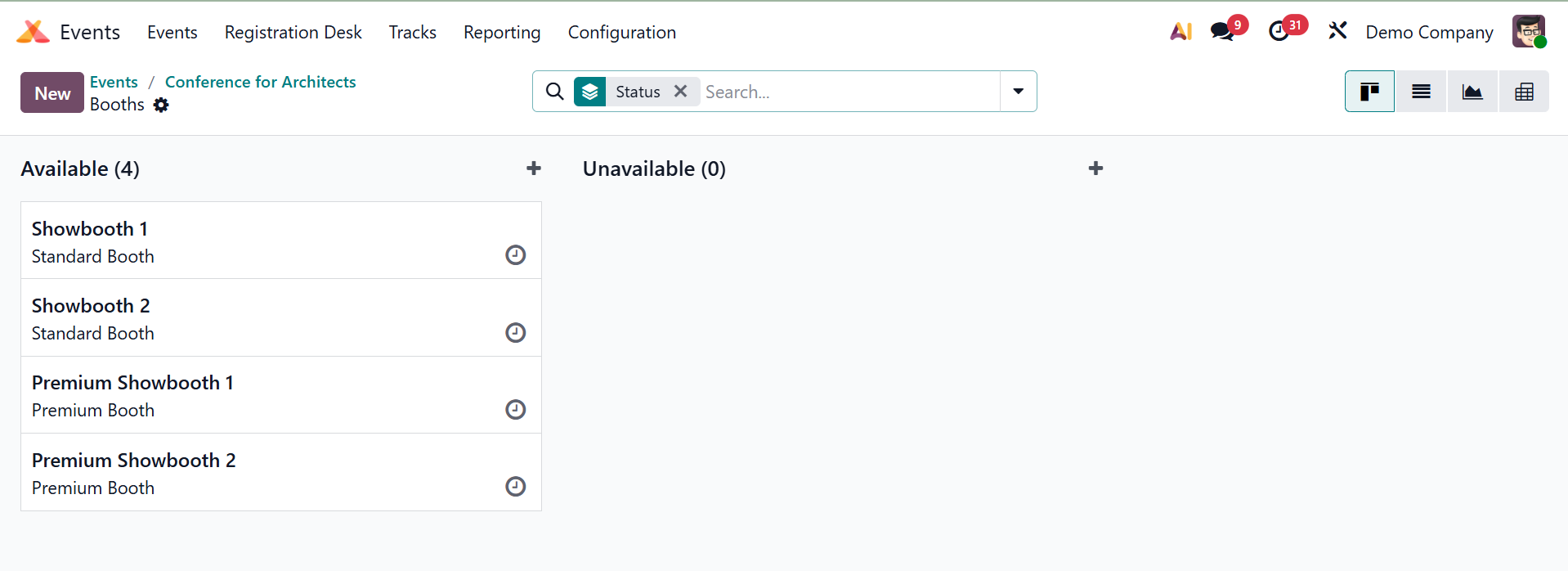
Near that, you will get the booth smart tab. This displays and oversees the event's exposition booths, including information about them, their availability, and the exhibitors.
Next one is Track, which shows the scheduled talks or sessions (such as workshops or presentations) for the event. And the last one is Sponsors, which provides a list of the event's sponsors, their information, and the amount they have contributed.