Dashboard Menu
Inside the ‘Dashboard’ window, you can see the kanban view of all the available Point of sale shop sessions along with their creation Date, Opening and Closing balances and Ongoing order details.
You can use the three-dot menu on each Kanban card to quickly view Orders, Sessions, and the Order Reports without opening separate menus. If you need to make changes, just click the 'Edit' option to update the POS session settings directly.
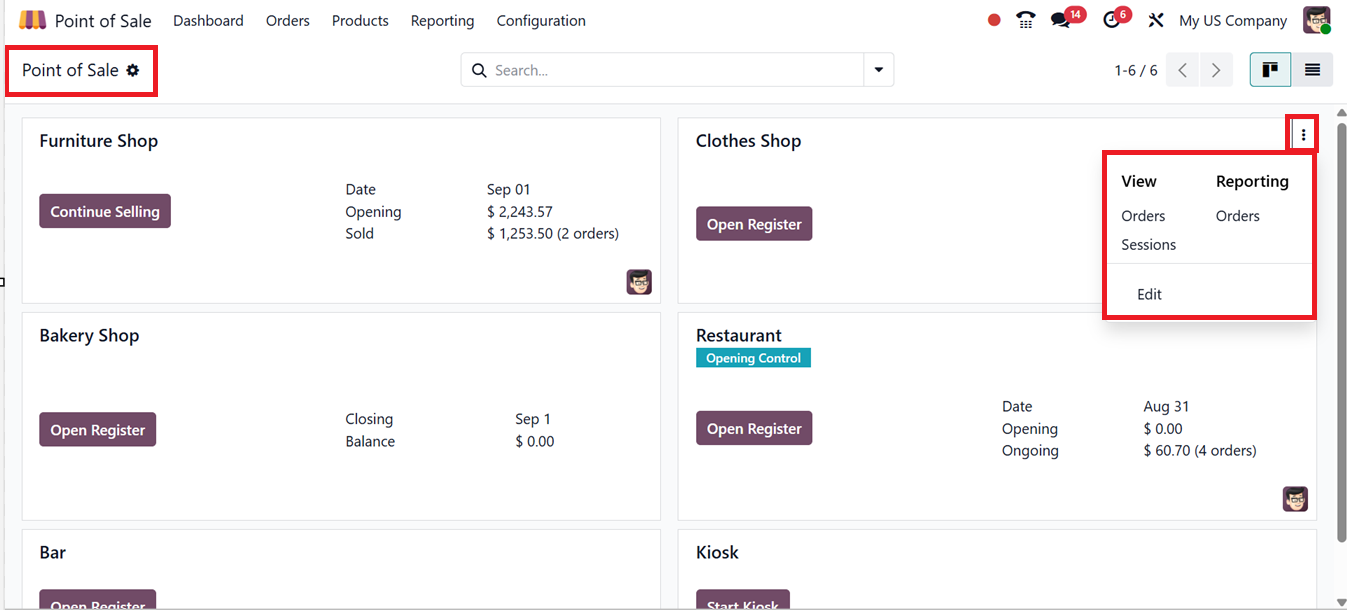
This kanban dashboard can also be changed to a list view for quick overview. You can also utilize the advanced search bar filter and sorting options to extract the required information, as shown in the screenshot below.
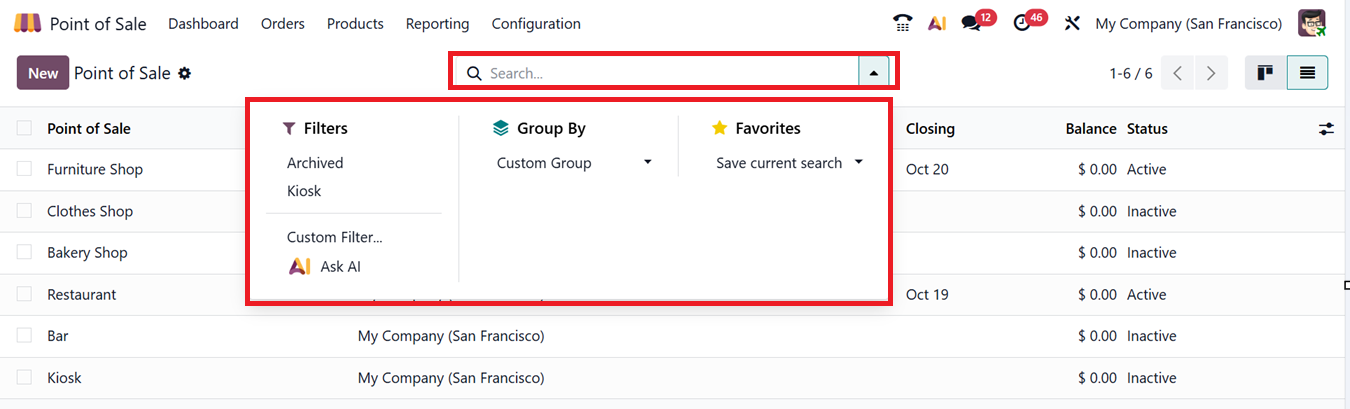
Using the ‘Filter’ options, you can filter the Archived and Kiosk data. You can also create customized filters using the ‘Custom Filter’ option. Then the ‘Group By’ feature can be used to create any customized groups using the ‘Custom Group’ option. Finally, you can use the ‘Favorites’ option to save recent searches in this dashboard data.you can also use the integrated ‘AI’ icon to get assistance from AI tools.
The 'Action' button located near the menu title provides several useful functionalities. It allows users to export all order-related data, add key metrics to the dashboard, and insert dynamic links and views into spreadsheets.
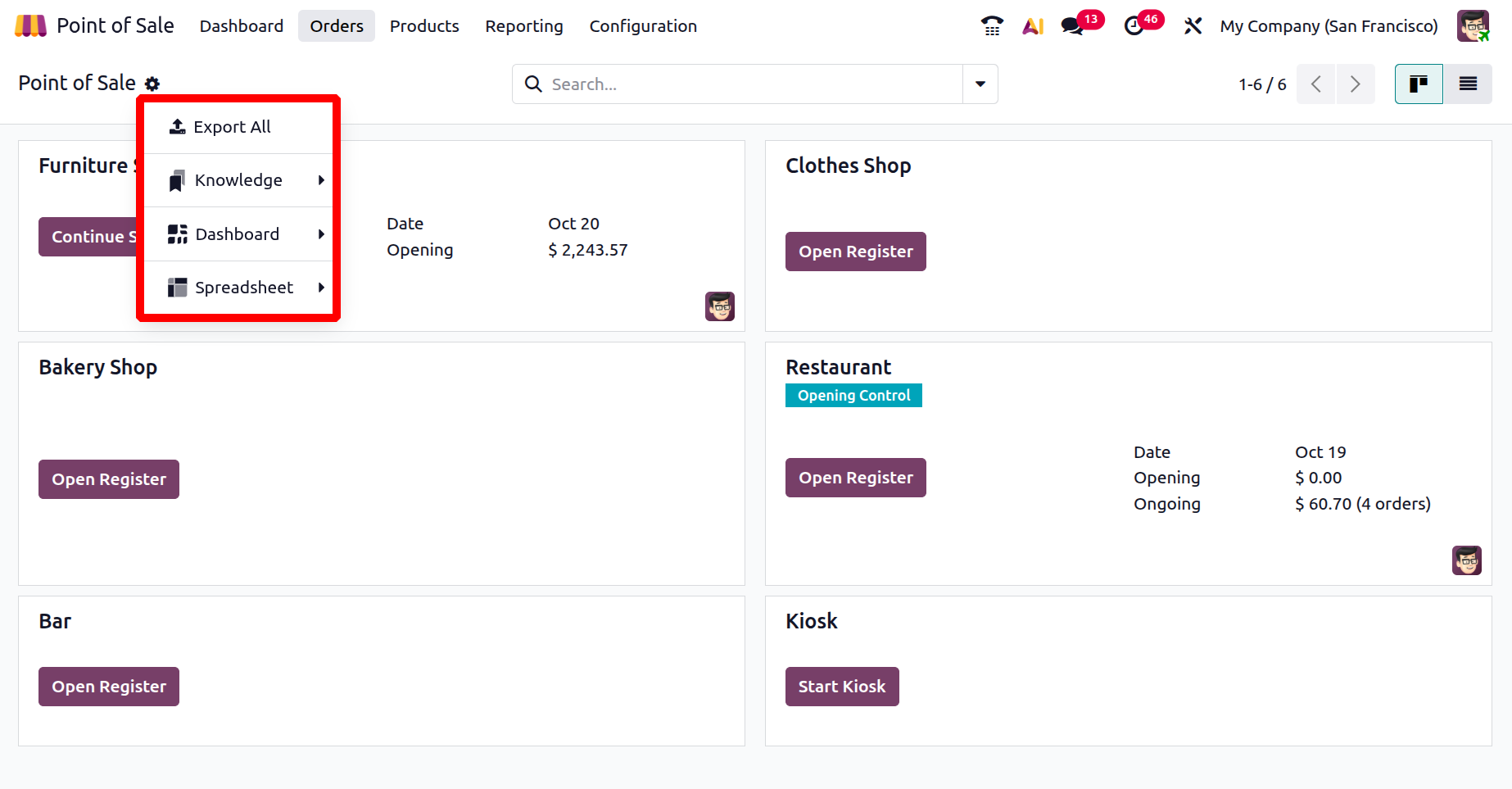
When combined with the Odoo Knowledge module, these links and views can also be leveraged to create informative articles for future reference or analytical purposes.