The Mobo Sales App provides a structured mobile environment for managing customer relationships, tracking quotations, monitoring product performance, and controlling invoicing activities in real time. Built as a seamless extension of Odoo, the application centralizes key sales data into intuitive list and form views, enabling users to maintain accuracy, visibility, and operational continuity directly from a mobile device.
Through dedicated modules for Customers, Quotations, Products, and Invoices, the app delivers detailed insights into transaction history, sales performance metrics, pricing intelligence, and receivable status. Each section is designed to support faster navigation, improved data accessibility, and informed decision-making, ensuring that business-critical information remains readily available at every stage of the sales cycle.
CUSTOMERS
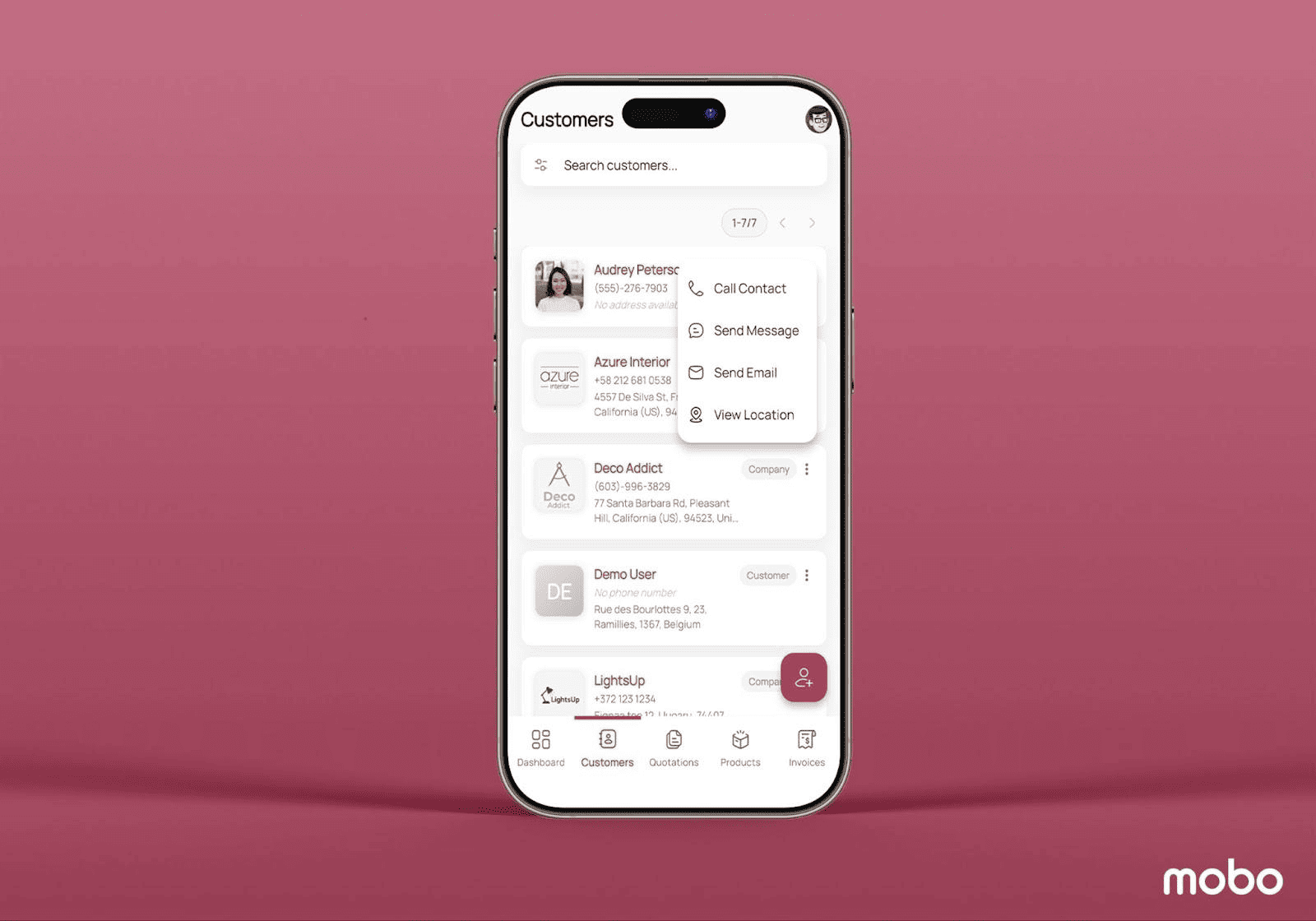
When navigating to the Customers menu, users are presented with a clean list view showcasing all customer records, each clearly tagged as either an individual customer or a company. From this screen, tapping the three-dot menu on any customer entry opens a set of quick actions, allowing you to call the contact, send a message, send an email, or even view their location instantly, enabling efficient communication and follow-up directly from within the app. New customers can also be added right from this screen by tapping the Create icon at the bottom.
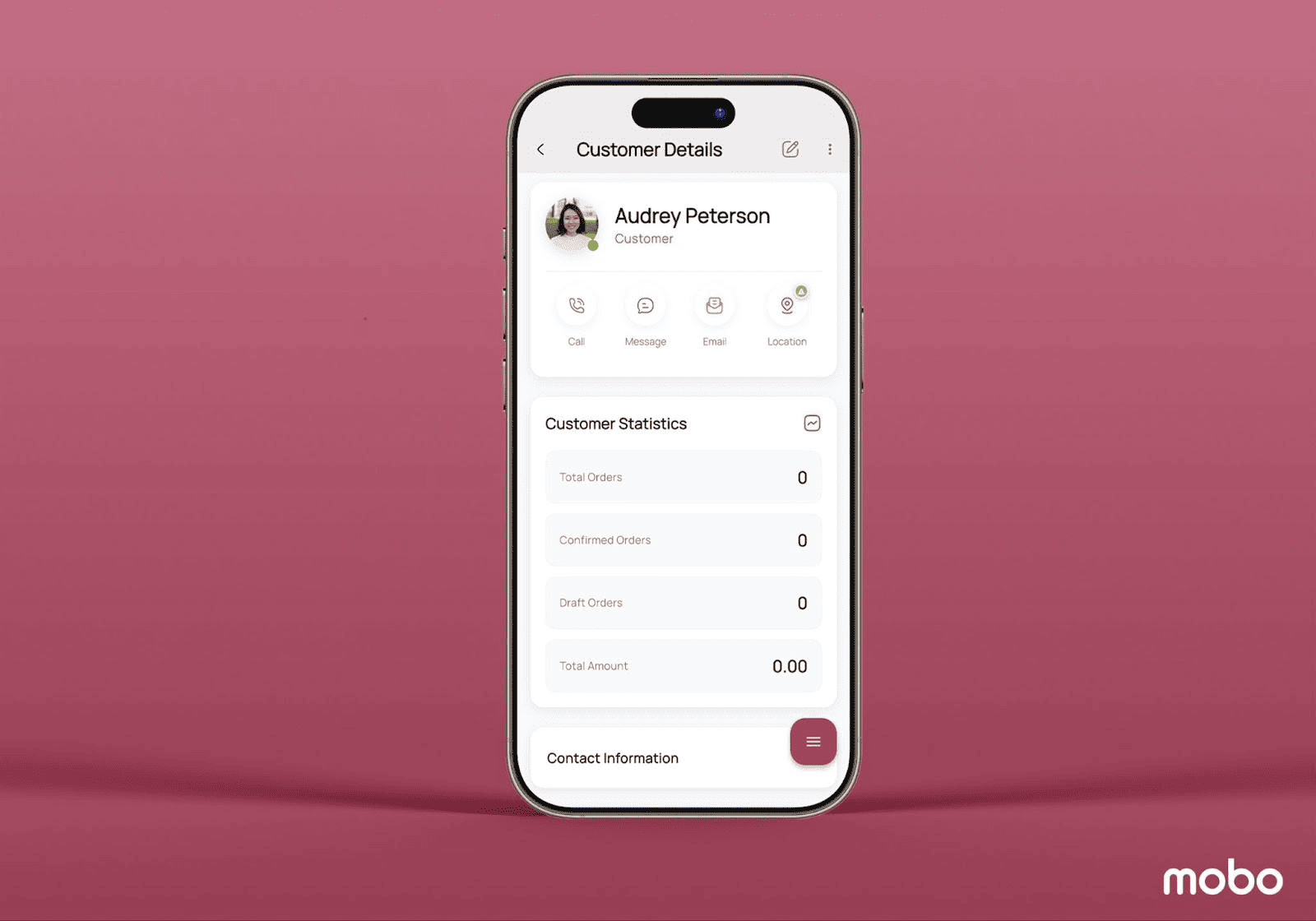
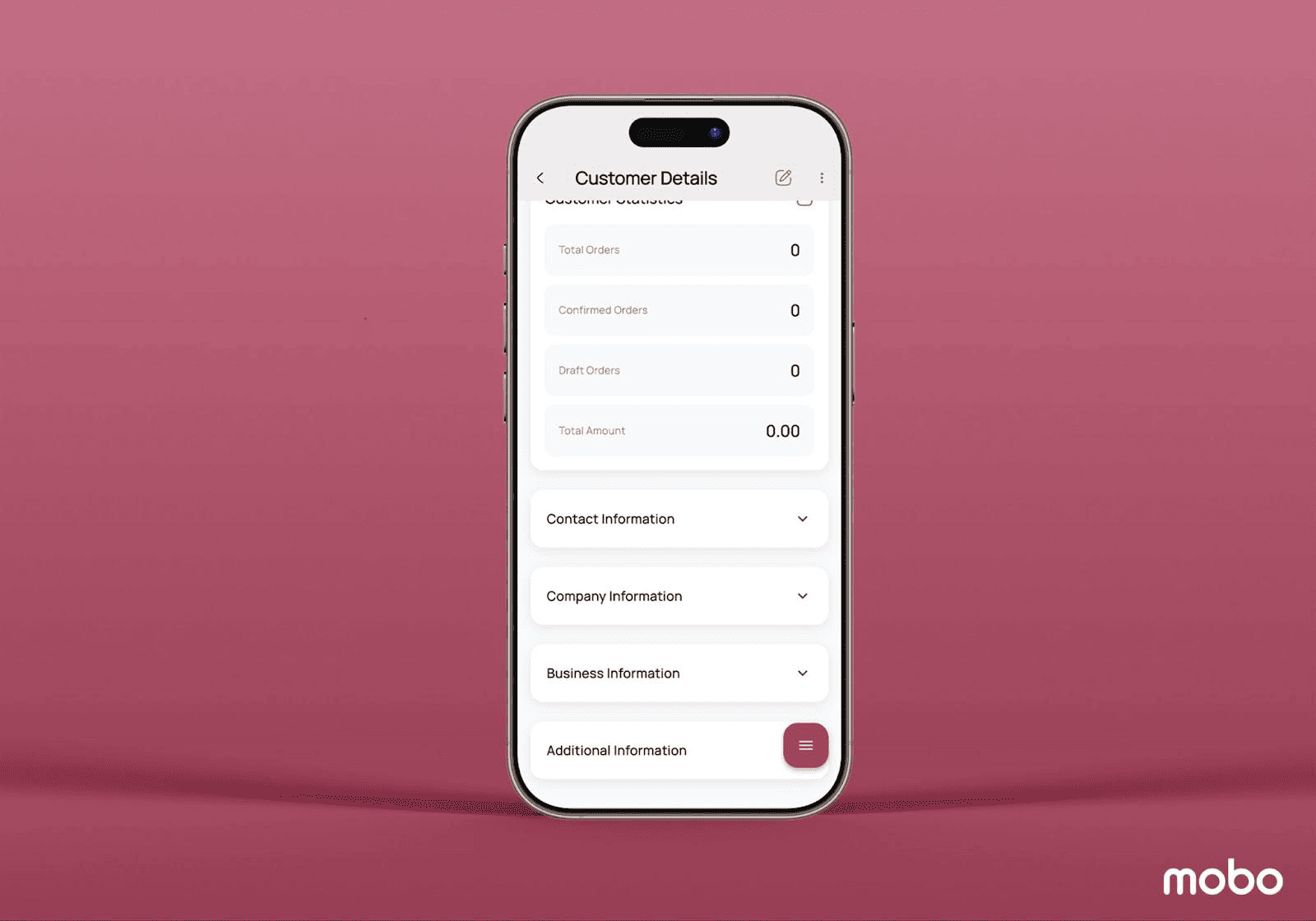
Opening a customer record reveals a well-structured form view, where all relevant information is grouped into intuitive sections. At the top, Customer Statistics provides a snapshot of total orders, confirmed orders, draft orders, and the total transaction amount, giving instant context on relationship value and activity. Below that sits Contact Information, displaying the customer’s phone number and email, followed by Company Information, which shows organizational contact details if the customer belongs to a company. The Business Information block highlights operational-level details such as credit limit, customer type, and current status. Lastly, the Additional Information area provides timestamps such as the created date and last updated date, offering traceability and context for account lifecycle tracking.
Overall, the Customers section gives sales users everything they need, from quick outreach to in-depth customer insights, all in one streamlined mobile experience.
QUOTATIONS
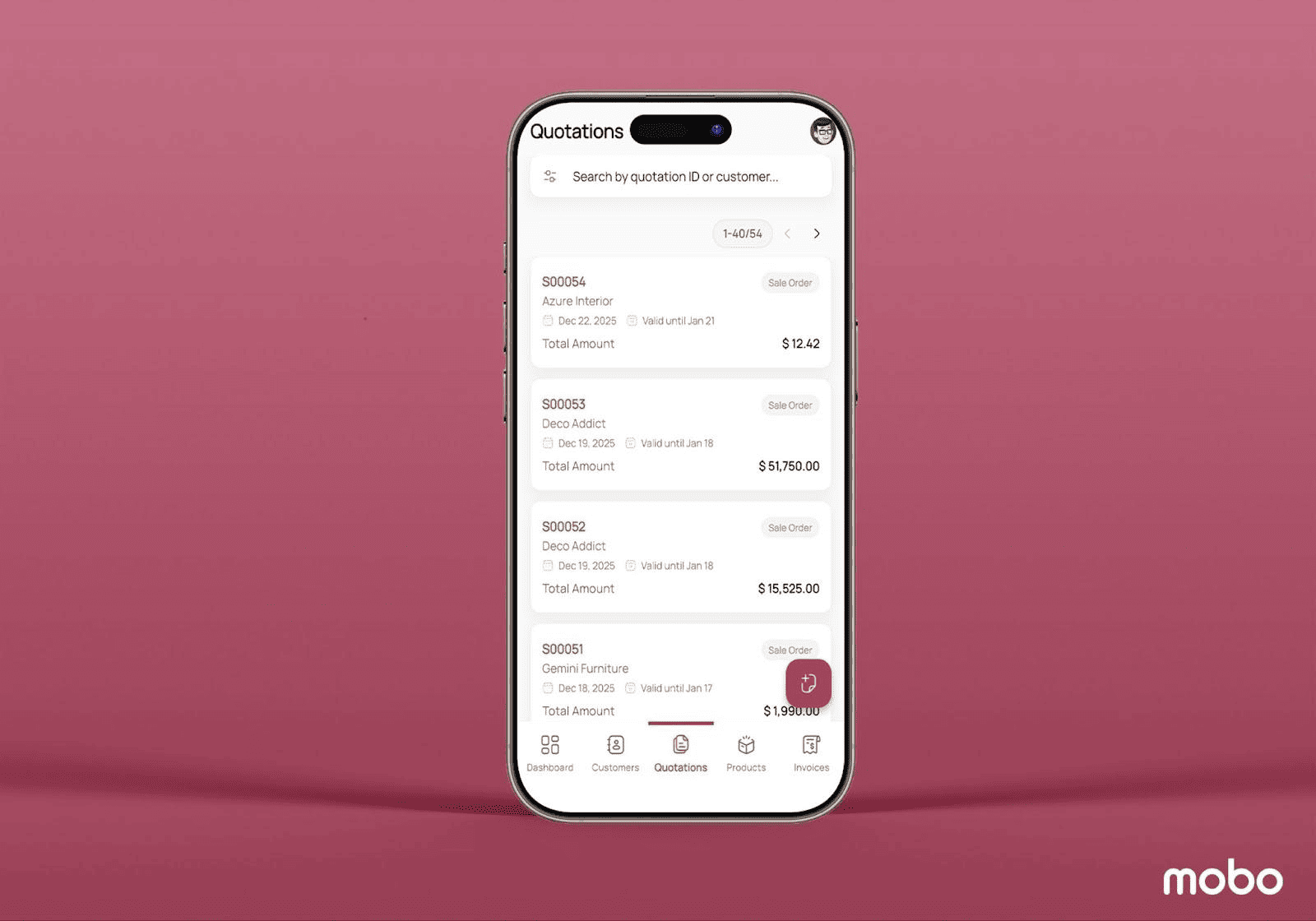
When accessing the Quotations menu, users are welcomed with a clear list of all sales quotations, each displayed with a stage tag that indicates its current status, whether it’s a draft, sent, sale, or cancelled. Alongside each entry, the list shows essential details including the customer name, order date, validity date, and the total amount, giving sales teams a quick snapshot of pipeline activity at a glance.
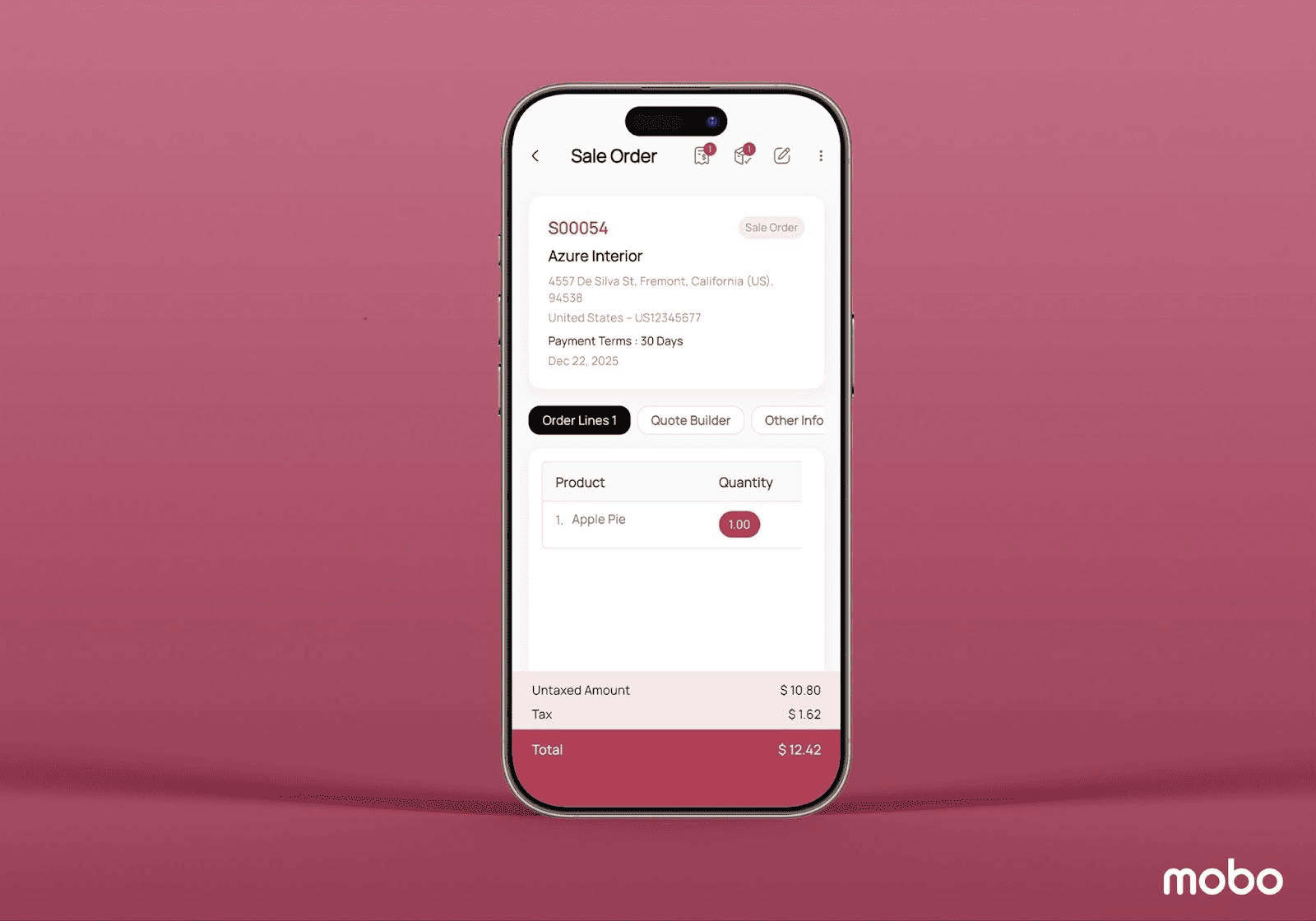
Opening a quotation brings you into the detailed form view, where everything related to the order is neatly organized. At the top (header area), users will notice visual icons that instantly show the invoice status and delivery status linked to that particular quotation or sale order. Scrolling down, the main body displays key sections such as the Order Lines with product details, Quote Builder for tailoring proposal data, Other Info for terms and internal notes, and a Signature Tab where a customer can digitally confirm the quotation. The footer of the page presents the final total amount, offering a clear financial summary before closing or confirming the quote.
PRODUCTS
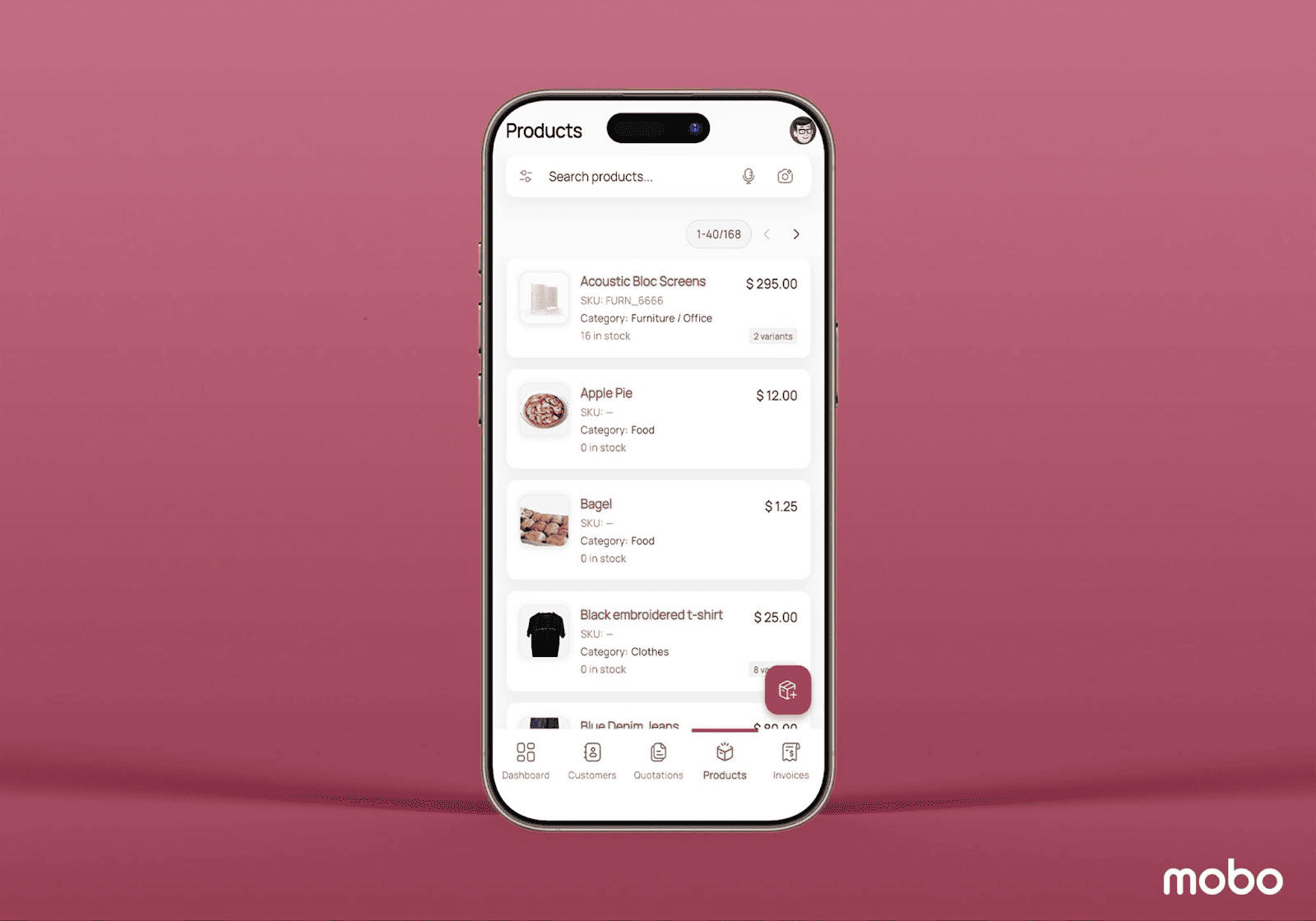
Inside the Products menu, users can browse the complete catalogue of items available in the database. The list view is visually intuitive, displaying each product along with its image, name, default code, category, current stock quantity, and price, making it easy to identify items at a glance. A built-in search bar allows products to be located quickly, whether by typing the name or even searching visually through images.
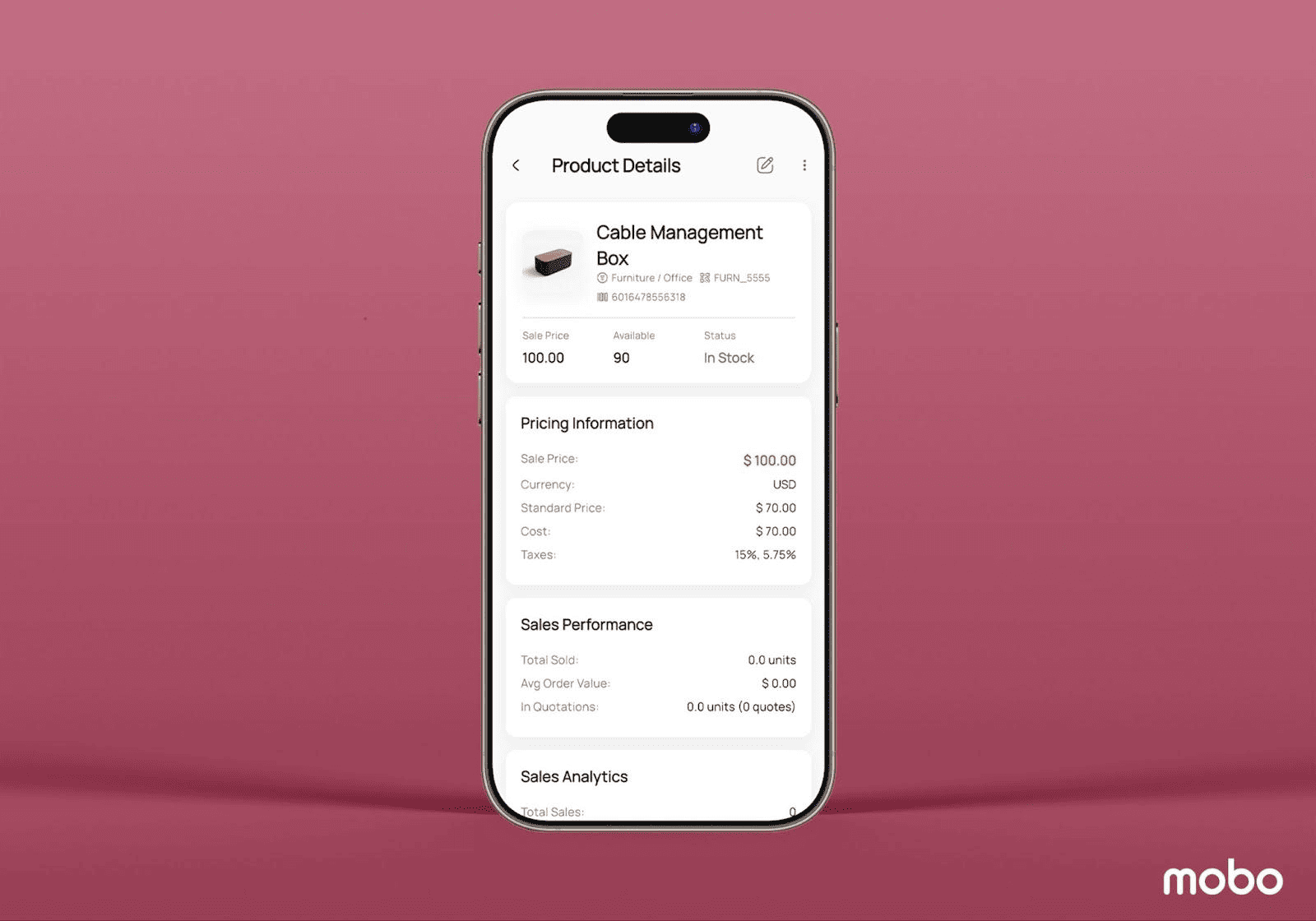
Opening a product record reveals a comprehensive form view that consolidates all information a sales user may need. Core details such as sales price, available quantity, and in-stock status are displayed at the top for immediate clarity. Additional sections provide deeper insights, including Pricing Information, Sales Performance (showing total units sold, average order value, and how many times the product has been used in quotations), and Sales Analytics, which summarizes the total revenue generated from that product.
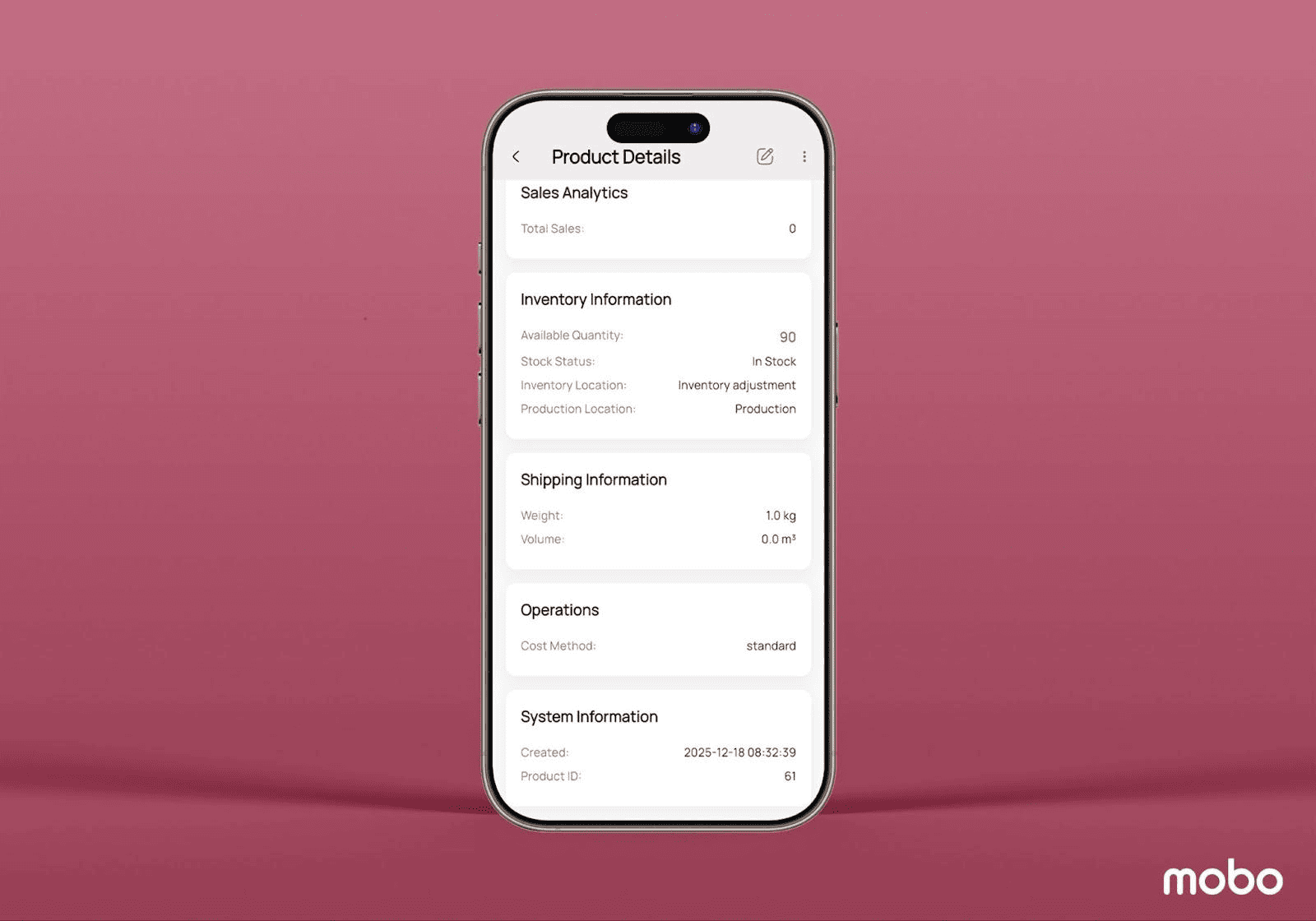
Further down, the Inventory Information panel shows stock availability, inventory locations, and production locations, helping teams understand supply positioning. The Shipping Information section lists attributes such as product weight and volume, useful for delivery planning. Finally, the Operations & System Information area gives backend visibility into configuration-level details like costing method, product ID, and timestamps, including the created date. Overall, the Products section allows users to go beyond browsing; it provides actionable intelligence for pricing, sales, stock decisions, and product strategy.
INVOICES
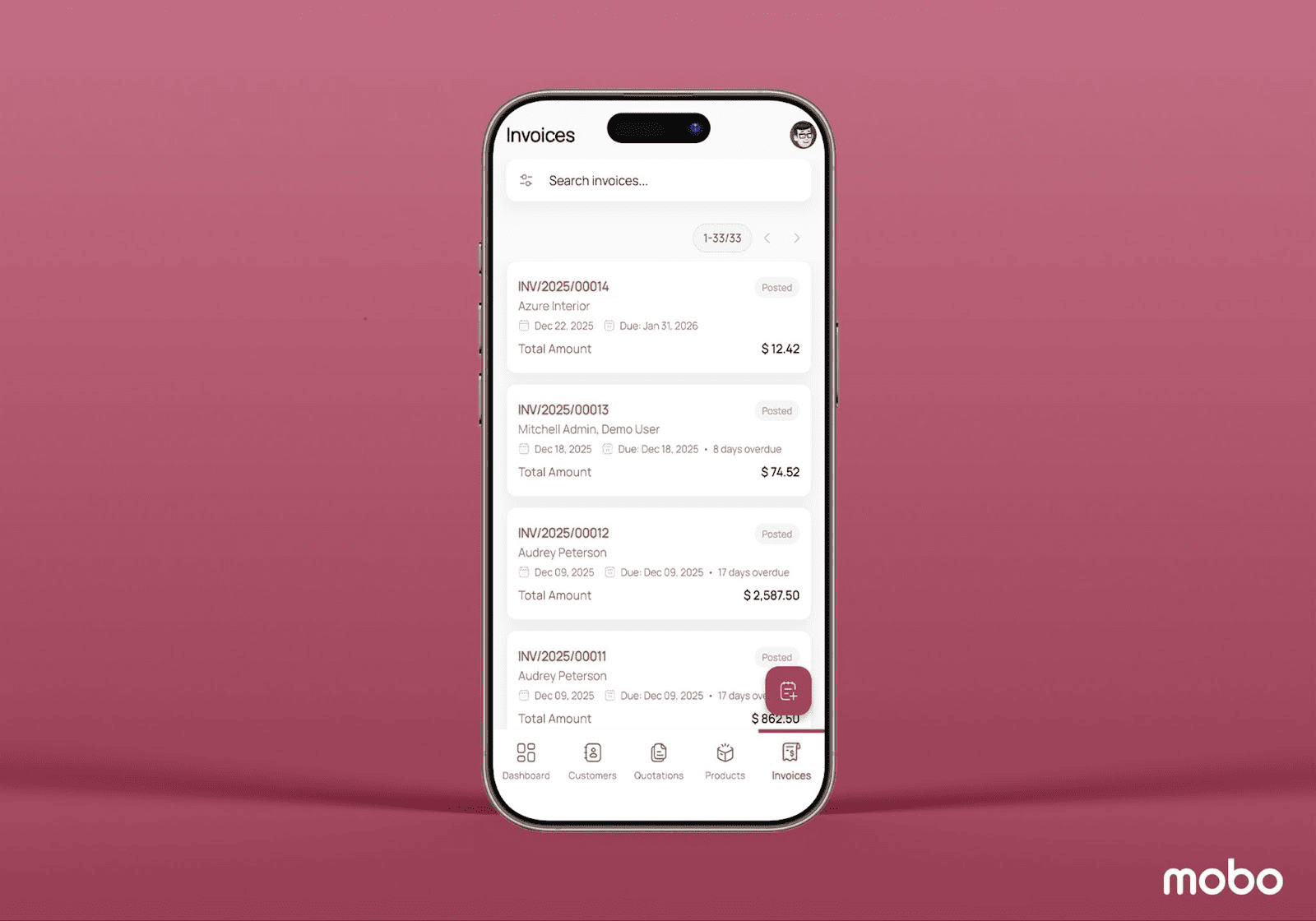
The Invoices menu opens into a structured list view displaying every invoice recorded in the system. Each entry includes key details such as the invoice reference, customer name, invoice date, due date, total amount, and a clear status indicator showing whether the invoice is posted, paid, or still pending. A search option is also available, making it simple to locate invoices using their reference number or other key fields.
When an invoice is opened, users are presented with a detailed form view that brings all financial and customer information into one place. At the top, the header includes a cart icon that provides quick access to the related sale order, offering full traceability from order to invoicing. The form itself displays structured sections such as Invoice Details, Customer Information, and Due Date data. Scrolling further reveals the Invoice Lines, capturing individual product or service billing entries, along with an Other Info tab for internal notes or terms. The page concludes with the total amount, positioned at the footer to give users a clear financial summary before closing or processing the invoice.
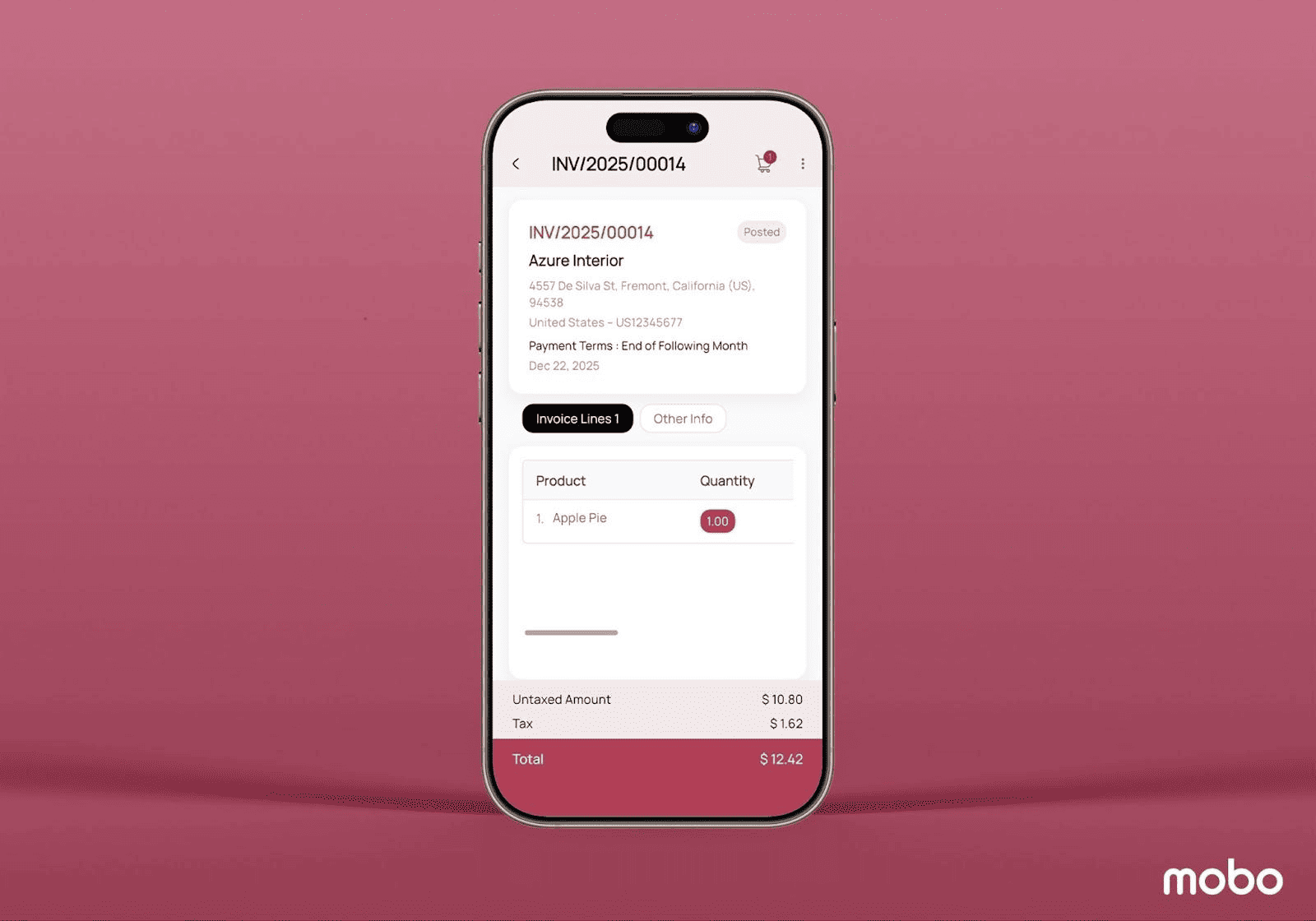
Overall, this menu makes it easy to track payments, manage receivables, and maintain invoicing accuracy, all from a mobile-friendly screen.
CONFIGURATION
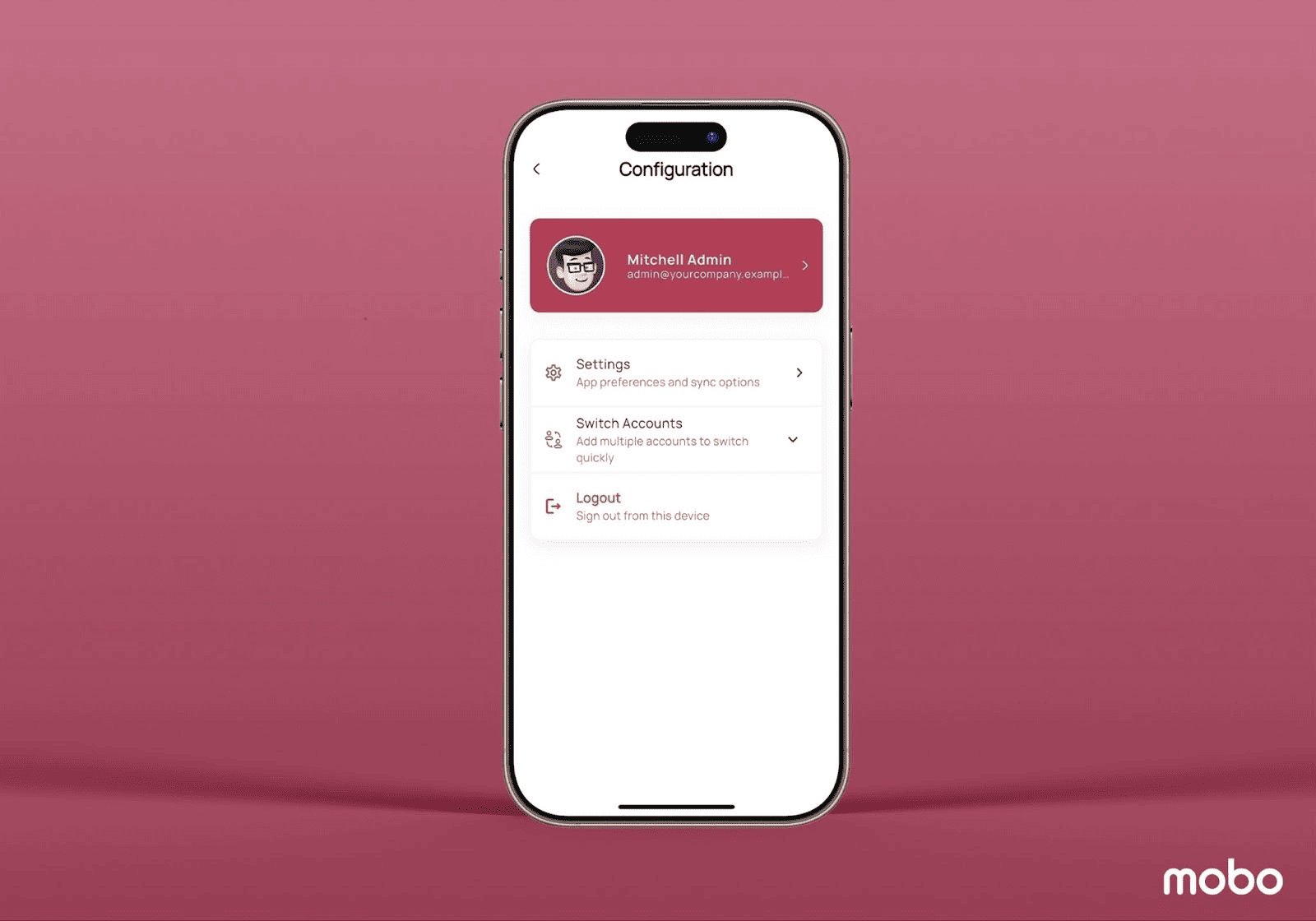
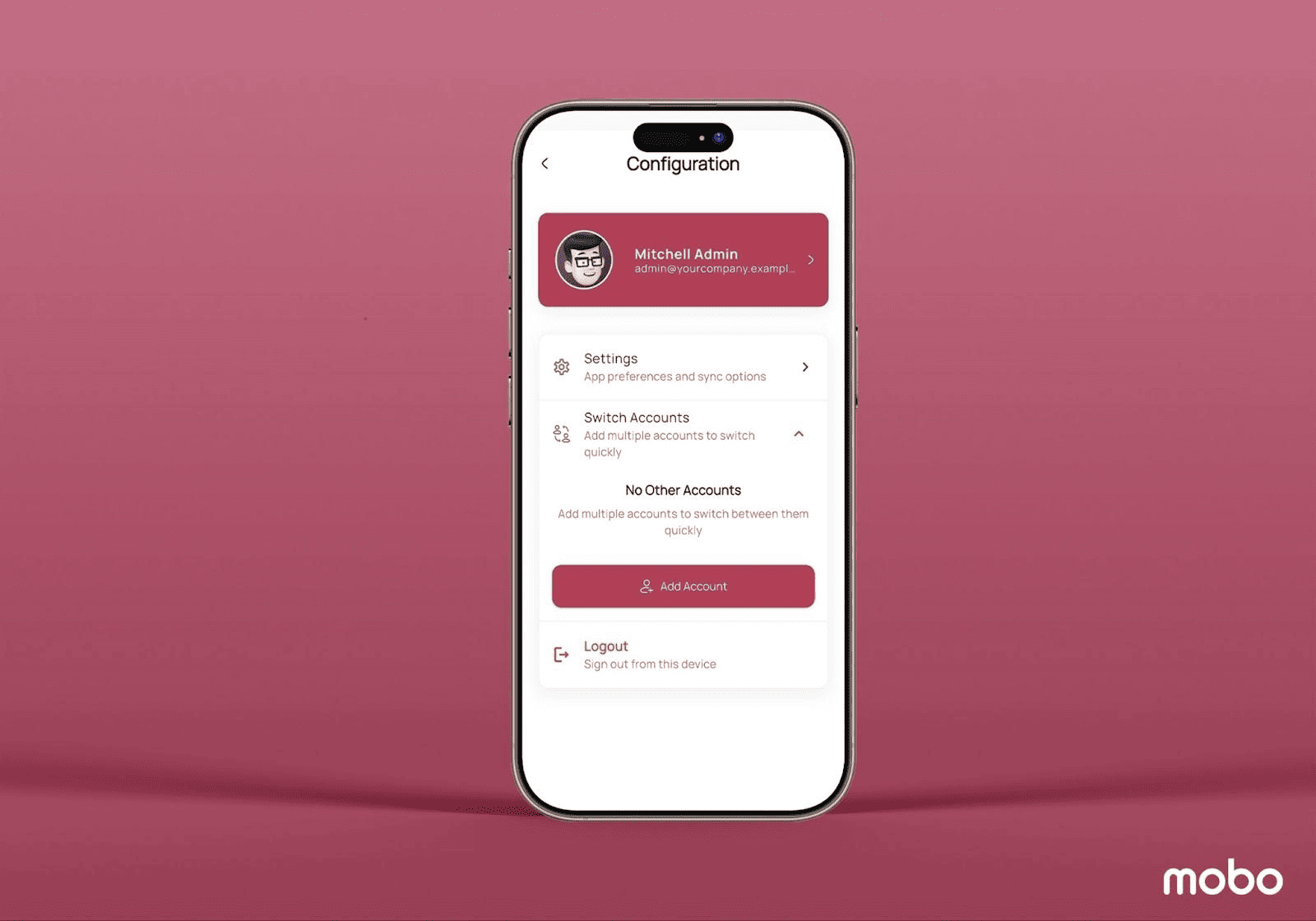
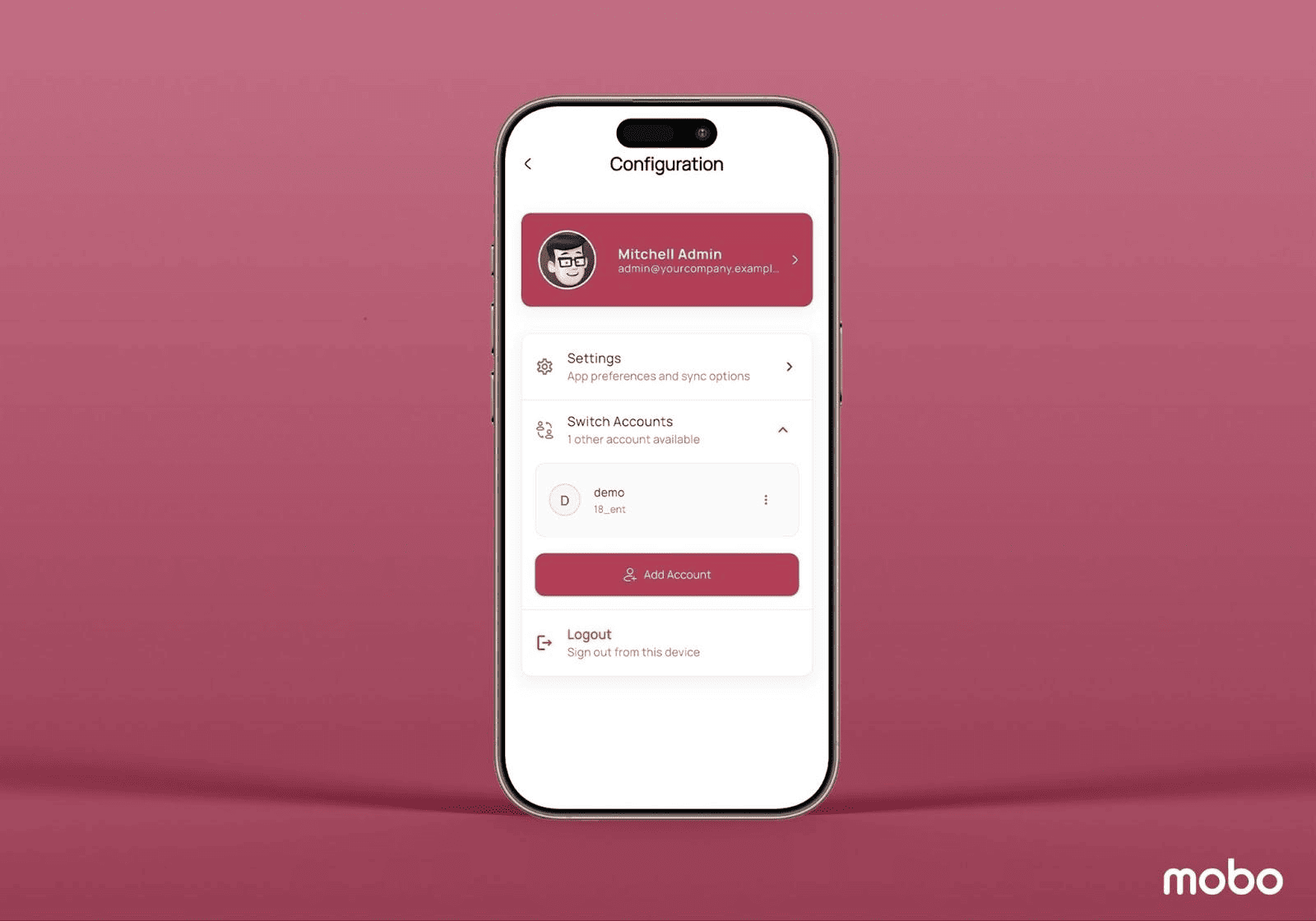
In the Configuration of the Mobo Sales App, we have three options as Settings, Switch Accounts, and Logout.
SETTINGS
The Settings menu provides control over key application preferences to tailor the user experience. Within this section, users can manage Appearance, allowing a seamless switch between light and dark themes. Under Security, the App Lock feature enables biometric authentication for enhanced protection. The Language & Region area allows users to configure their preferred language, currency format, and time zone, ensuring the app aligns with regional requirements and personal usage preferences.
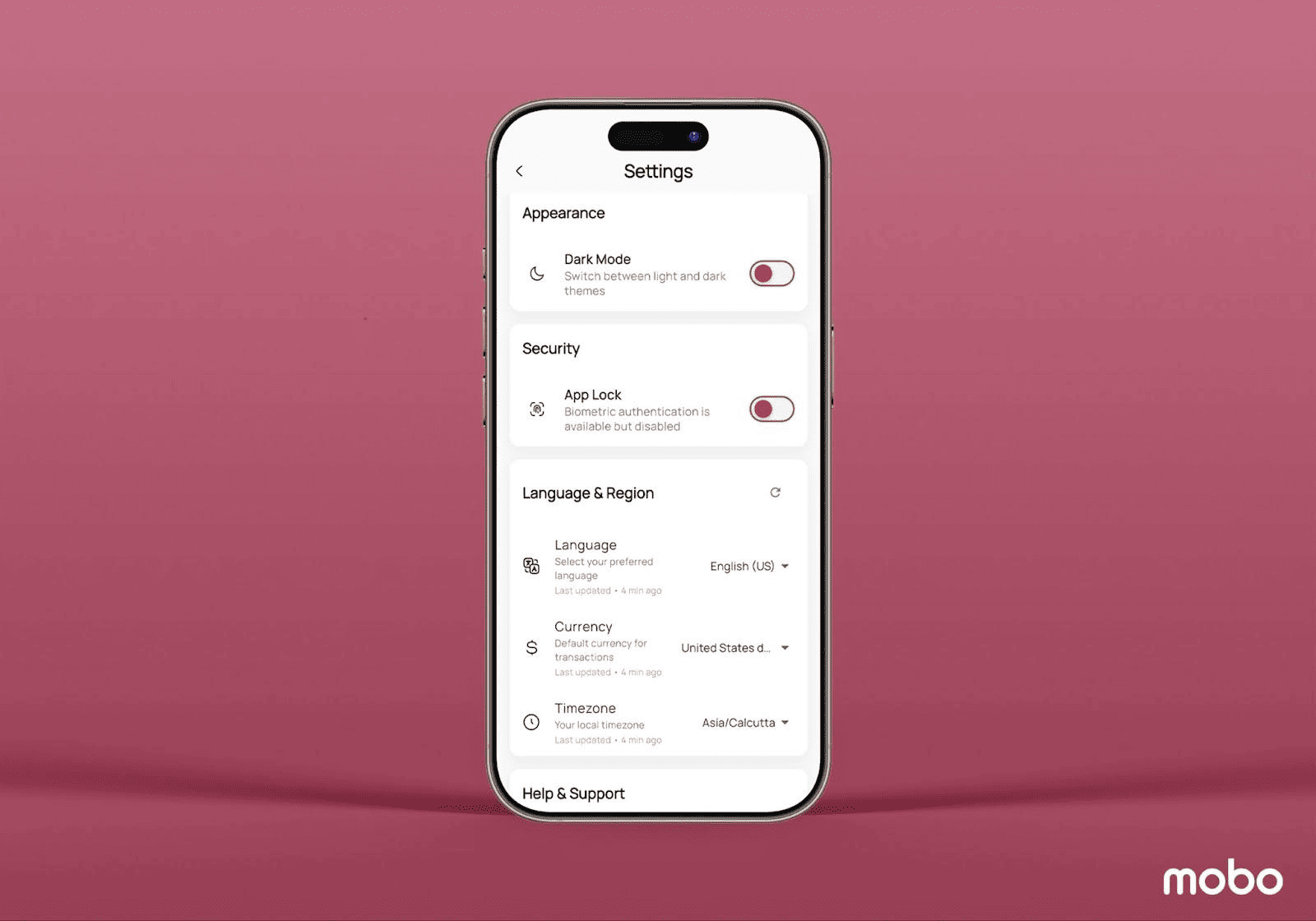
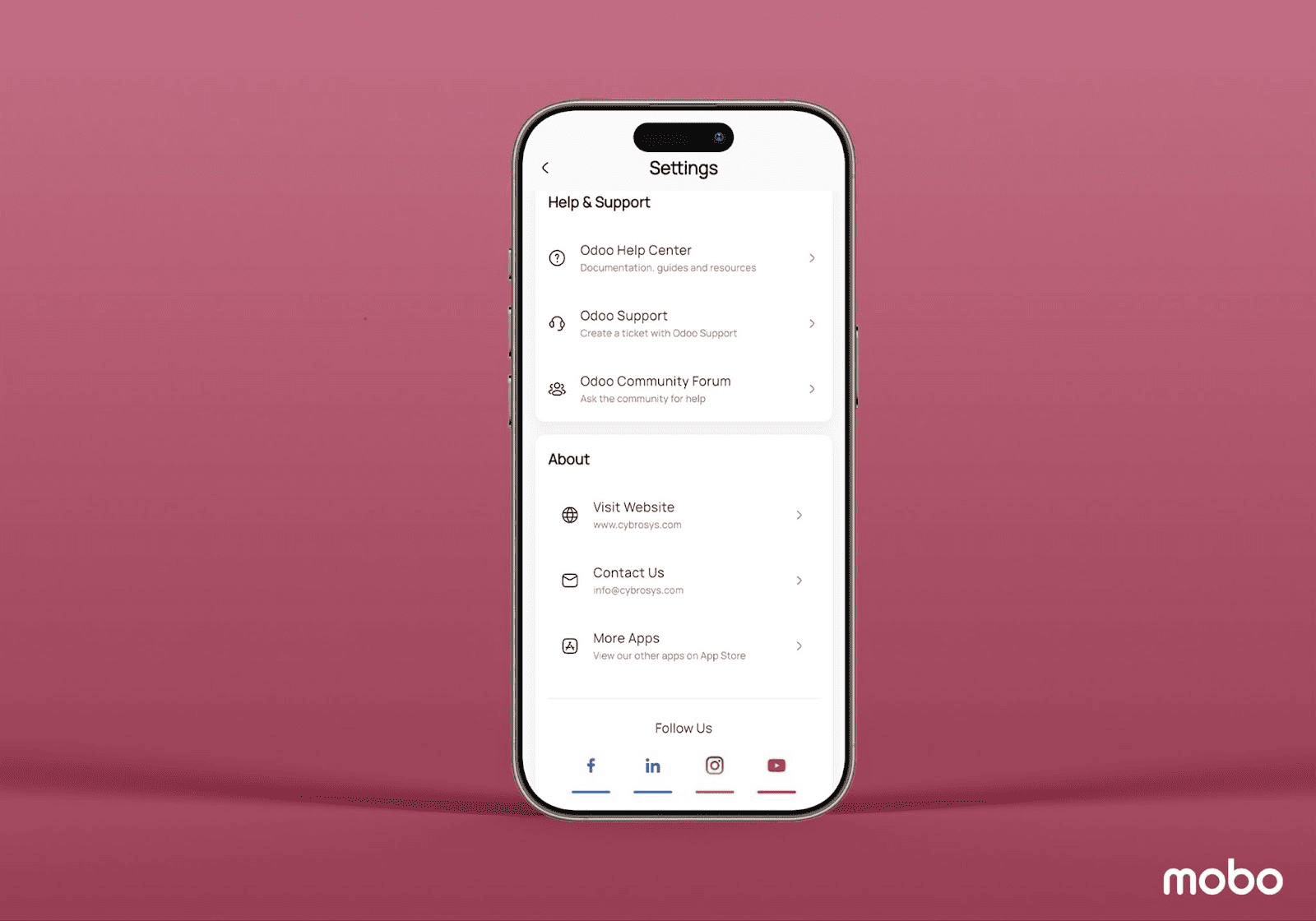
The Help & Support section gives users direct access to essential Odoo learning and assistance resources. It includes links to Odoo documentation, guides, and reference materials to help users better understand various features. There is also an Odoo Support option where users can raise tickets or submit questions when assistance is needed, along with a shortcut to the Odoo Community Forum for browsing discussions, solutions, and community-driven help.
The About section includes useful business details such as the official website link, contact information, and a More Apps option, allowing users to explore additional available applications within the Mobo suite.
SWITCH ACCOUNTS
The Switch Accounts feature is one of the most convenient elements of the Mobo app, allowing users to move between multiple accounts on the same server without logging out or restarting the app. With a single tap on Switch Accounts, a dropdown list appears showing all currently linked accounts, along with an Add Account option. This enables users to quickly add new accounts and transition between them effortlessly, which is ideal for businesses managing multiple users, companies, or environments under one device.
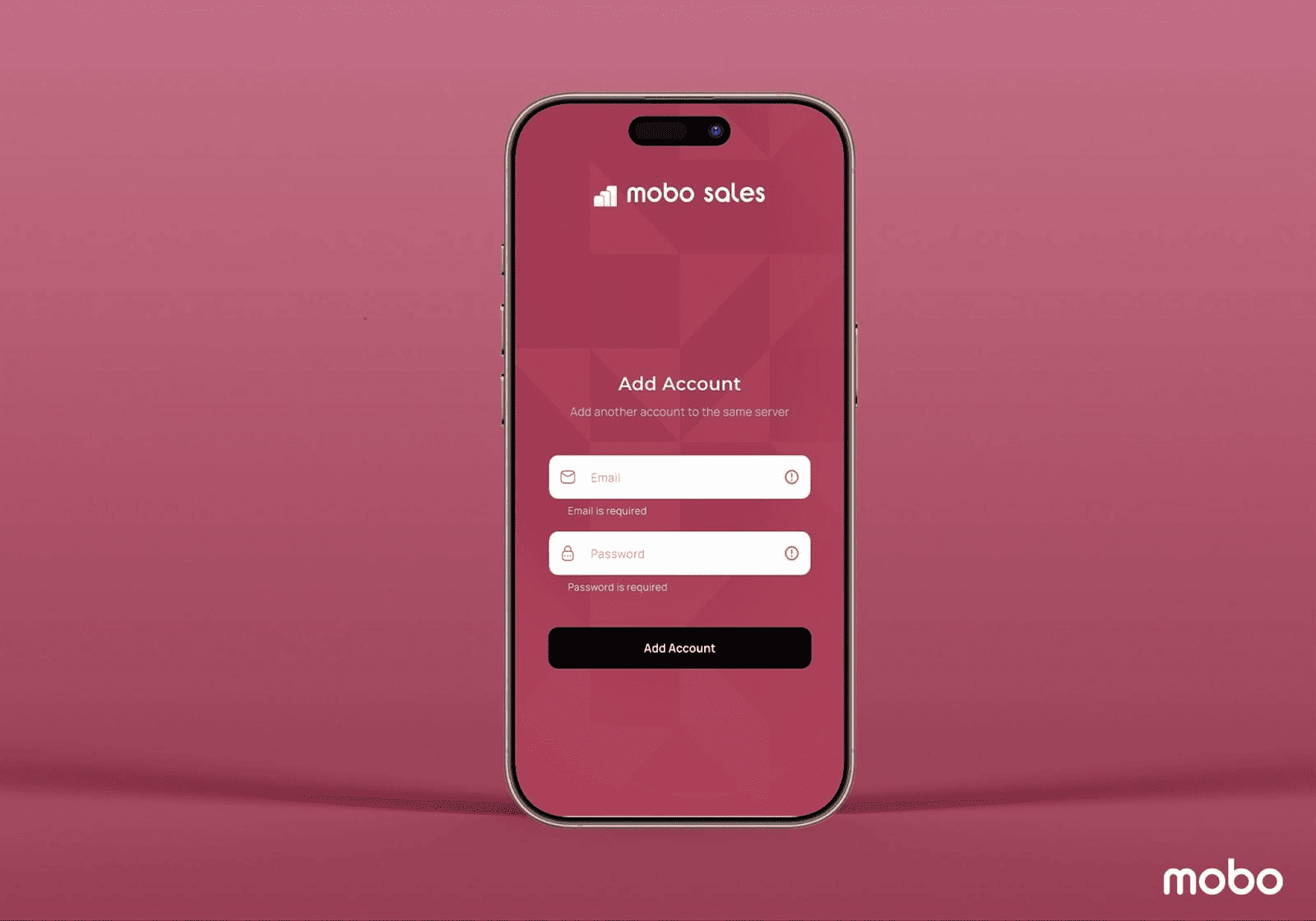
On the next screen, users can simply enter their email and password, then tap Add Account to link the new profile. Once added, the user will be redirected to the dashboard of the currently added account.
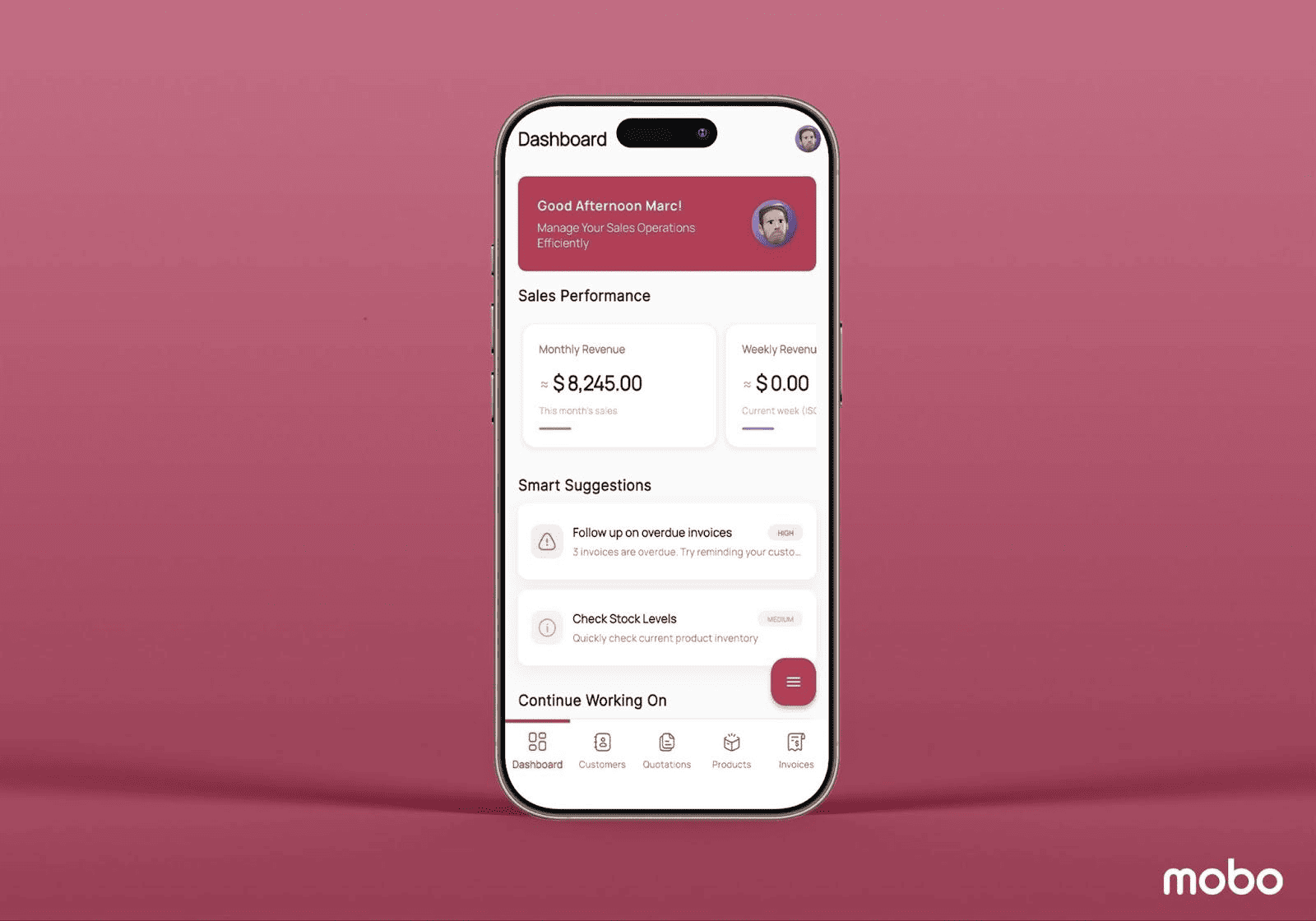
From this point forward, all connected accounts will be visible in the Switch Accounts list, allowing users to move between them instantly using a single tap on the account name. Multiple accounts can be added as needed, and if any profile needs to be removed, users can simply click the three-dot menu next to that account and select the remove option. This creates a smooth and flexible account-management experience within the app.
LOGOUT
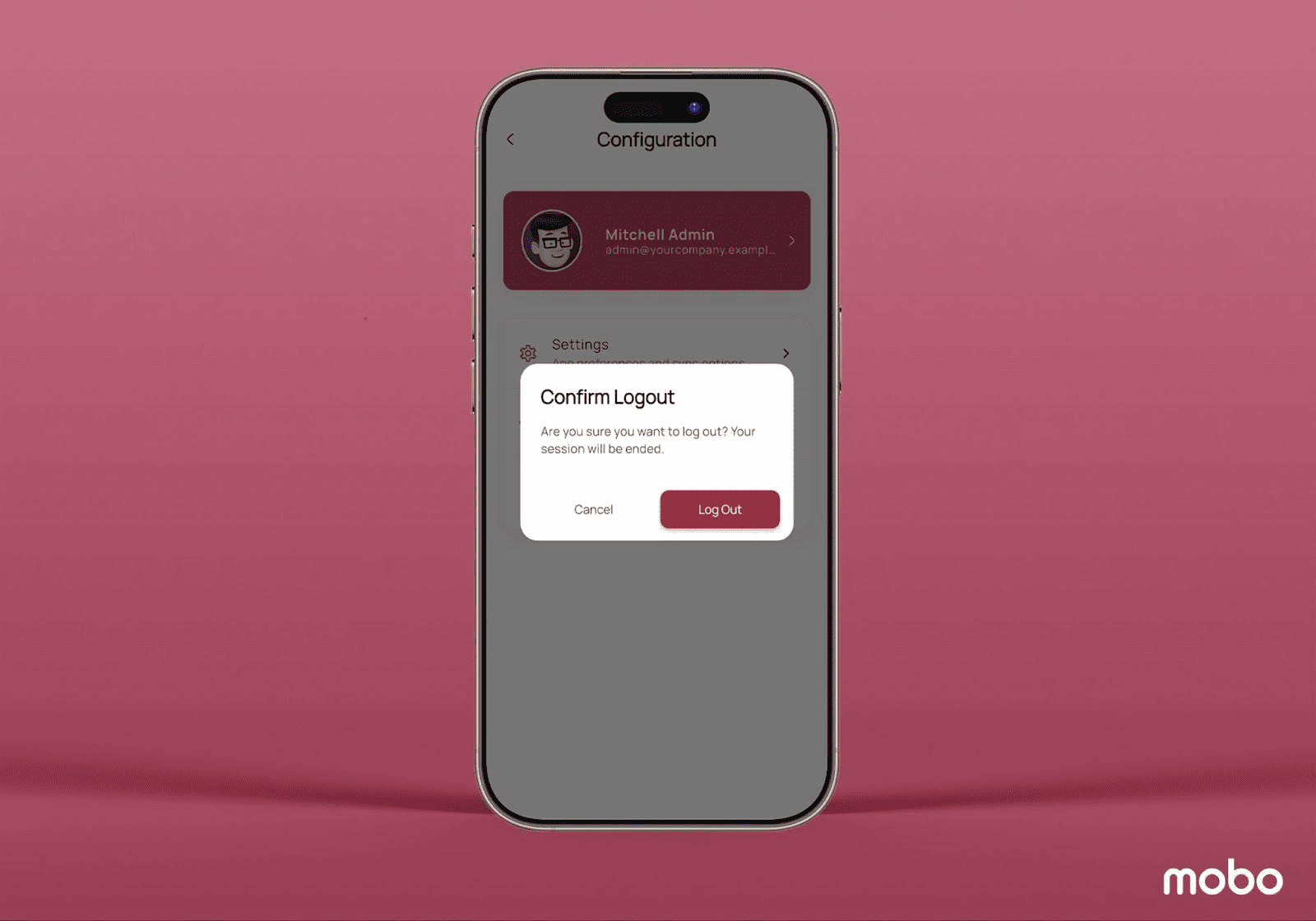
When the Logout button is selected, a confirmation popup appears to ensure the action is intentional. Once the user confirms, the app instantly logs out and redirects them back to the Sign-In page, where they can re-enter credentials or switch to a different account.
The Mobo Sales App enables efficient management of customers, quotations, products, and invoices through a structured mobile interface integrated with Odoo. With clear list views, detailed record insights, and organized operational data, users can easily track sales activities, monitor product information, and maintain accuracy across transactions.
By consolidating operational information such as product availability, sales performance indicators, and customer activity history, the application enables teams to respond faster to business requirements and maintain well-informed decision-making. Integrated analytical insights and organized data presentation support improved tracking of sales activities, helping organizations maintain clarity over pipeline progress and operational outcomes.
To read more about Why Mobo CRM Is the Secret Weapon for Mobile Sales Success, refer to our blog Why Mobo CRM Is the Secret Weapon for Mobile Sales Success.