If you have used Odoo for some time, you certainly have seen those small pop-up windows that appear when you are about to do something important: sending a quotation, registering a payment, or validating a stock transfer.
Those pop-ups aren't there for aesthetics alone; they're wizards, and they are one of Odoo's best design decisions.
Odoo Wizards are small guides that help users achieve difficult things in a few easy steps. Without overwhelming you with two dozen fields or technical terminologies, a wizard only gives you what you need at that very moment.
Wizards are highly featured in Odoo 19 within several modules, such as Sales, HR, Inventory, and Accounting. The use of wizards facilitates smoother and error-free operations with faster decision-making. Let's discuss how these wizards emerge in real-life situations and make life simpler for end-users, functional consultants, and business teams.
Sales Module
In every busy sales department, handling invoicing is generally one of the most repetitive and time-consuming tasks, especially when it comes to creating multiple invoices in one instance for confirmed sales orders.
Suppose, for example, you have a Sales Manager who has just finished a month-end review and needs to invoice 15 customer orders. Opening each sales order, creating the invoice, and validating it would take ages. Fortunately, Odoo takes care of this with its "Create Invoices" wizard.
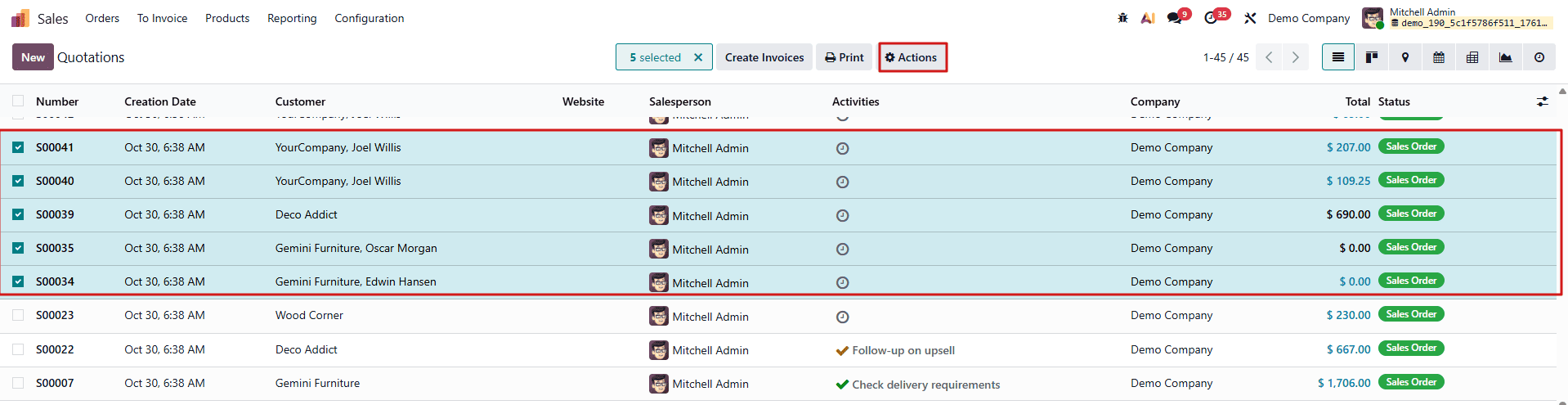
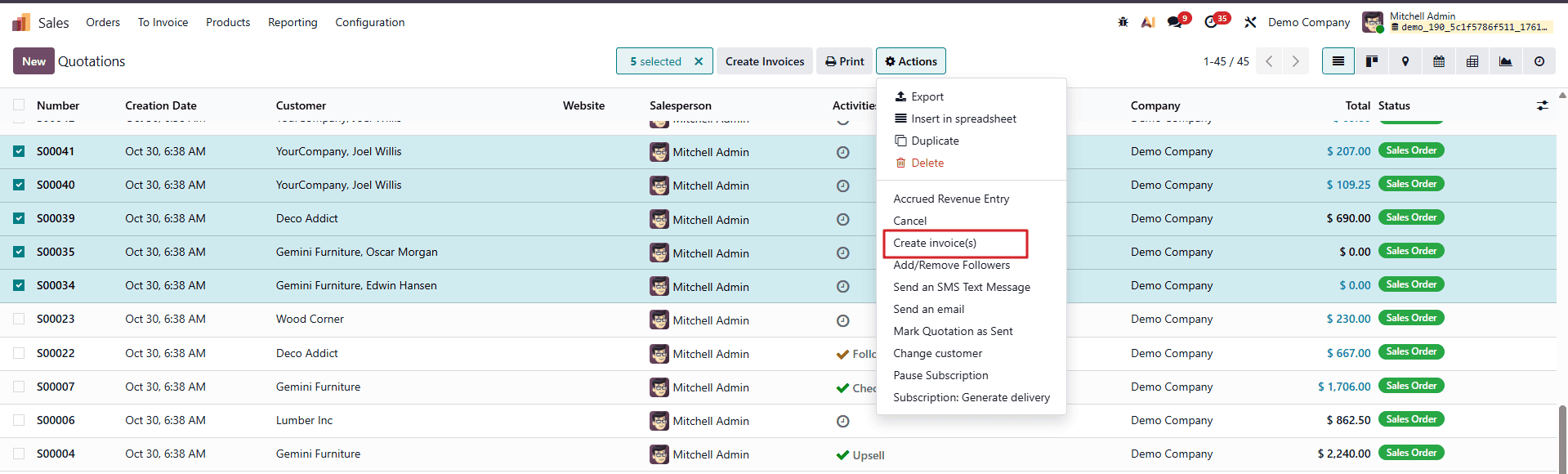
Here is how it works: from the Sales Orders list view, a user can select several confirmed sales orders, then click Action > Create Invoices.
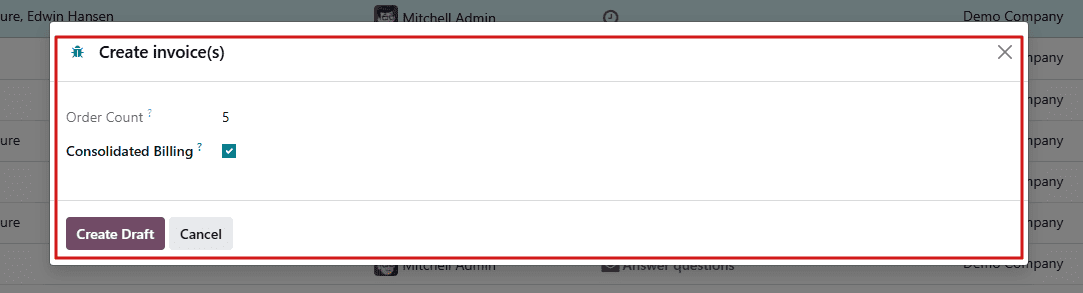
Odoo opens a wizard that takes you through the invoicing process. You can then choose whether to group the invoices by customer or create separate ones.
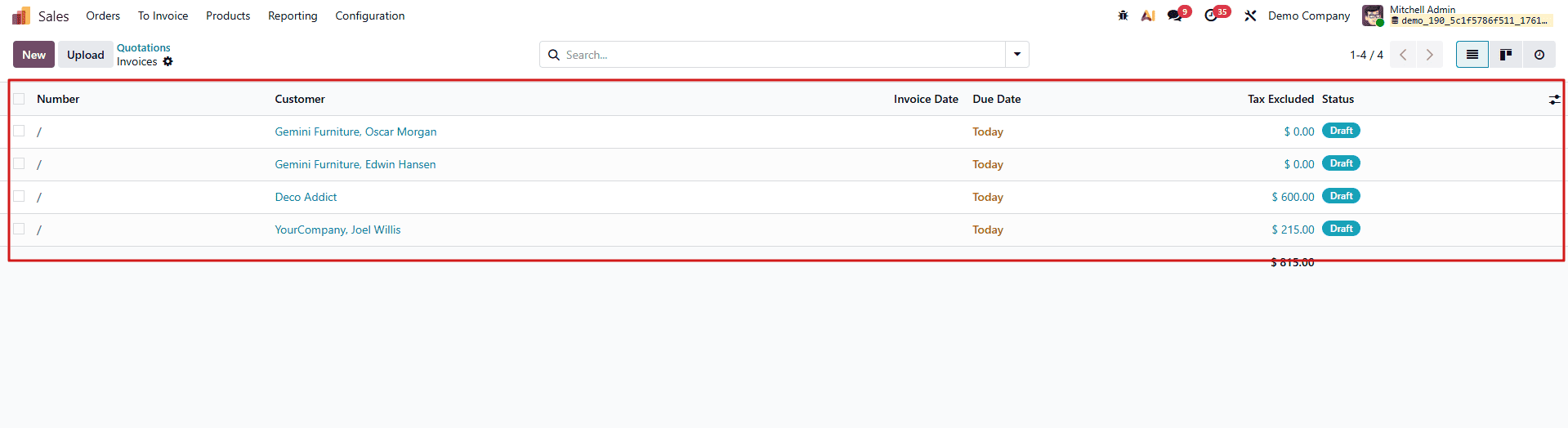
Once confirmed, Odoo generates all the invoices in one go, and we can see all the generated invoices in a single place, as seen in the image below.
For functional consultants, this feature perfectly demonstrates the batch automation capability of Odoo. To end-users, it means quicker invoicing and less manual effort. And for implementers, it's a built-in wizard that highlights how Odoo bridges operational efficiency with ease of use, all from a single interface.
Human Resources: Employee Onboarding Wizard
An organization may make a positive first impression on new personnel, and the onboarding process is what keeps that image going.
The Employee Onboarding wizard in Odoo 19 simplifies this procedure with clarity and organization. The Onboarding Plans wizard, which is accessible through the Employees app, allows HR personnel to create onboarding procedures like document submission, system access configuration, or week-one activities and then assign them to the new hire.
When an HR officer starts onboarding, they can select the number of employees to start onboarding for and then click on the “Launch Plan” button to launch the onboarding, which will open up a wizard to make the onboarding process for multiple employees easier.
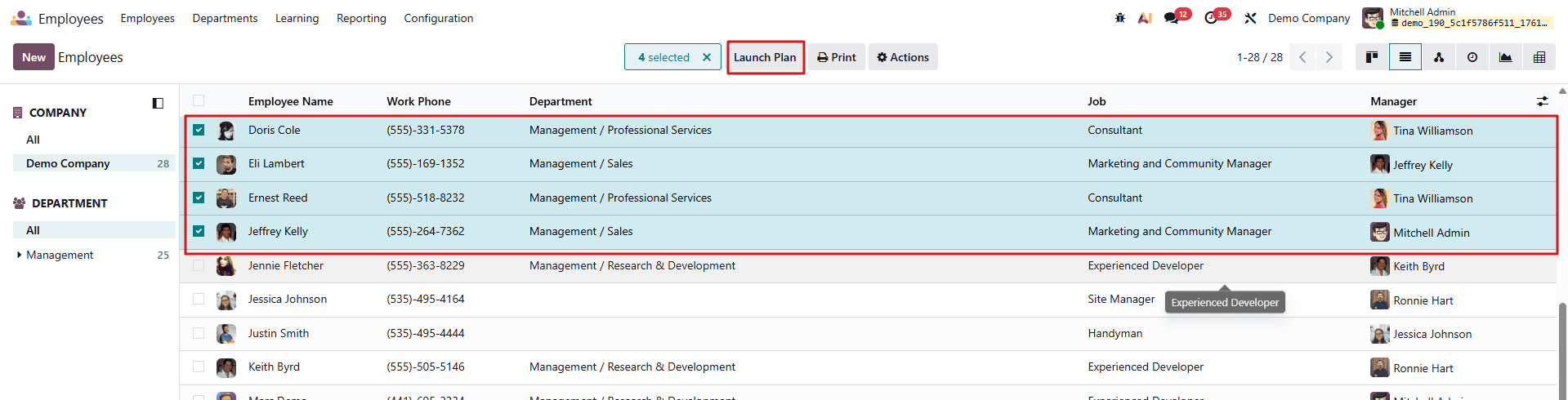
It opens a wizard that takes them through choosing an onboarding plan, assigning responsible users, and scheduling major activities. We can provide the activities needed to complete the onboarding, due date, etc., and we can see the plan summary also in the wizard.
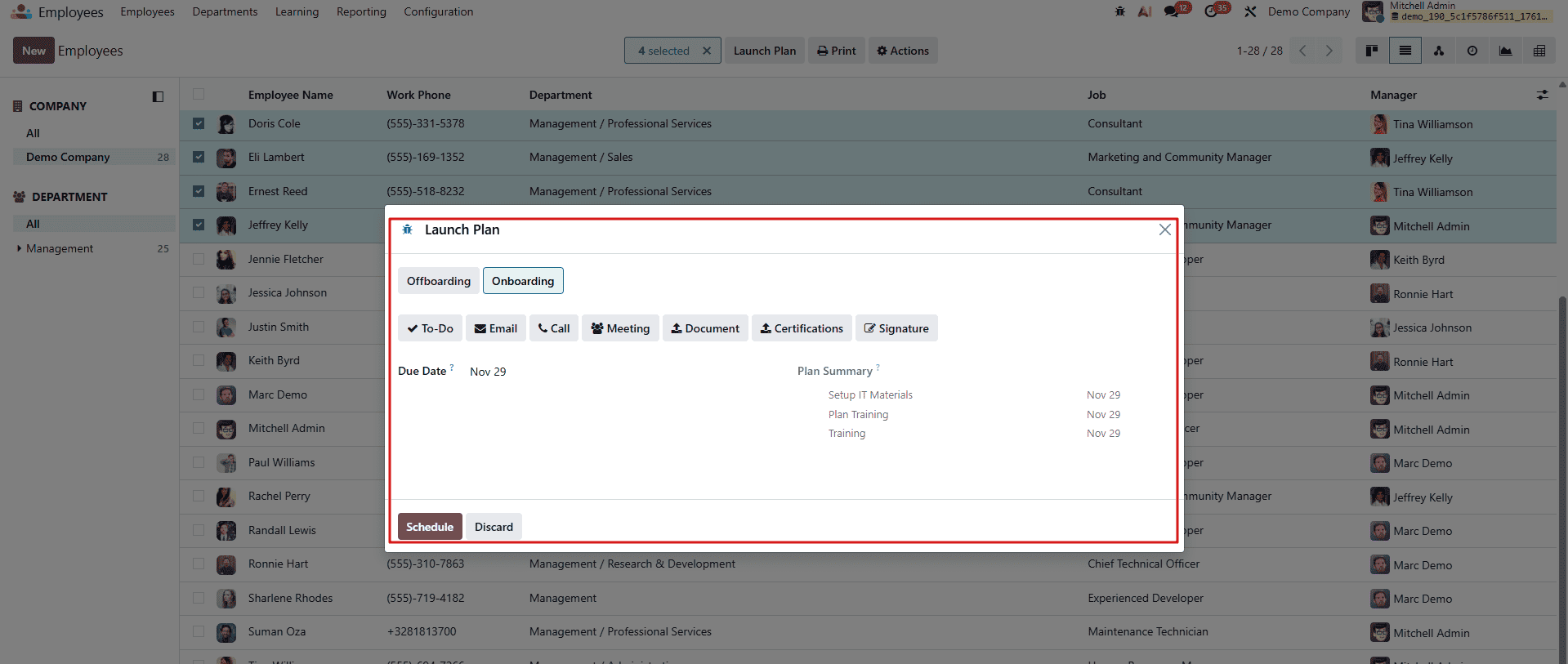
After filling in all the necessary info, we can click on the schedule button to schedule the onboarding plan for a bulk of employees at a time. Then the system automatically creates the tasks in each corresponding module. Now we can see in the image below that onboarding is scheduled for all the employees who are selected.
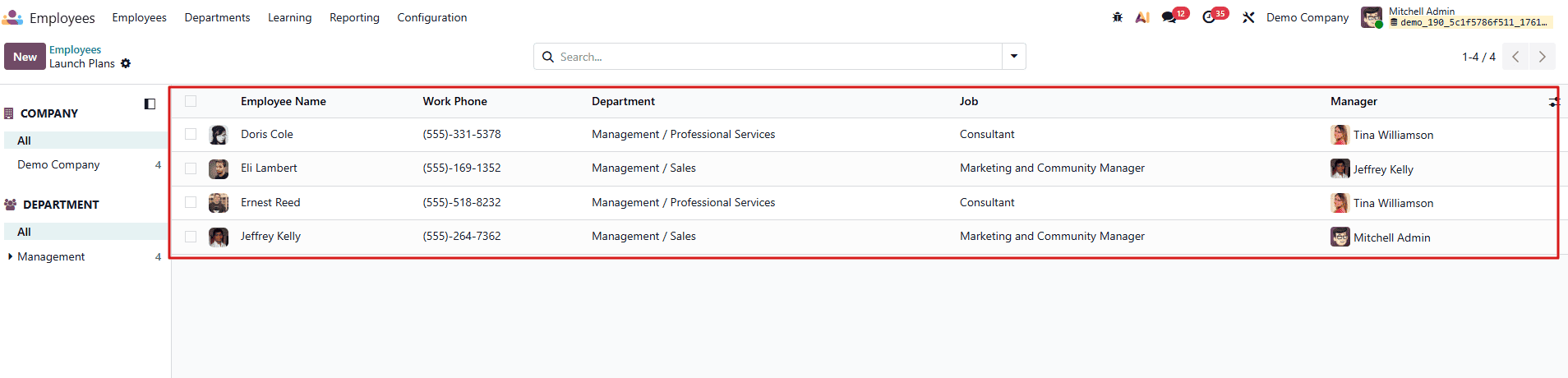
This wizard not only makes onboarding effective, but it also provides a standardized experience for all new employees. Consultants, for one, find it an invaluable workflow to showcase how Odoo brings HR, Project, and Communication modules together in a smooth workflow.
Appraisal Management: Starting Appraisals with a Wizard
Performance appraisals are a key component of employee growth. With Odoo 19, the Appraisal module brings interactivity and structure to this process with its Launch Appraisal wizard.
When an HR manager is ready to start appraisals, they can choose employees, pick templates, and set review time frames all within a wizard window.
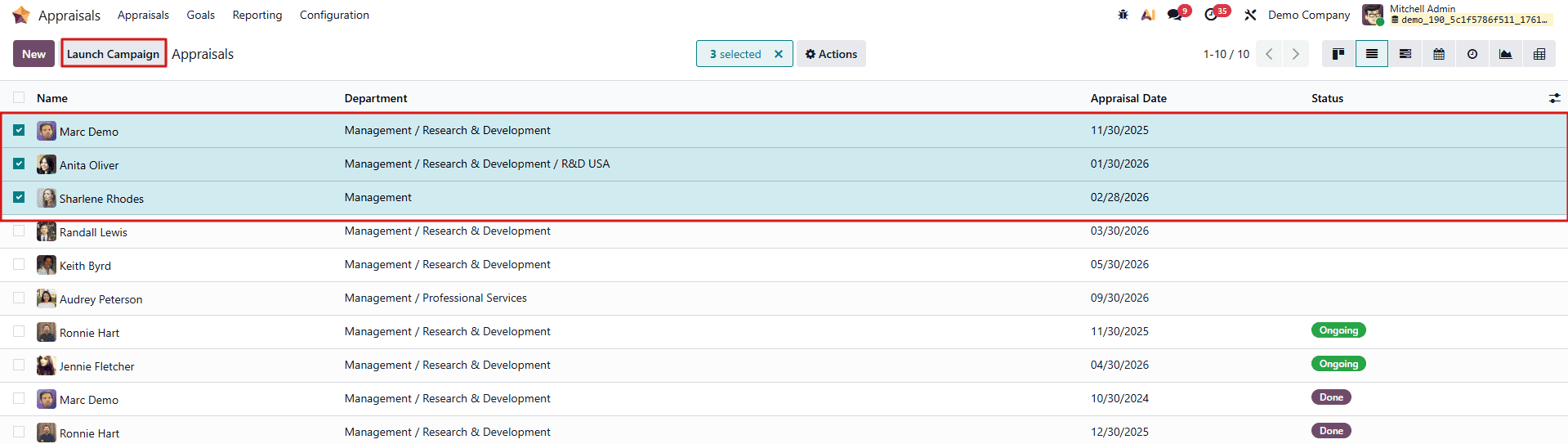
The easy pop-up verifies all critical input (such as manager comments, appraisal templates, and dates) before initiating the batch of appraisals. After that, we can click on the schedule button to schedule the appraisals.
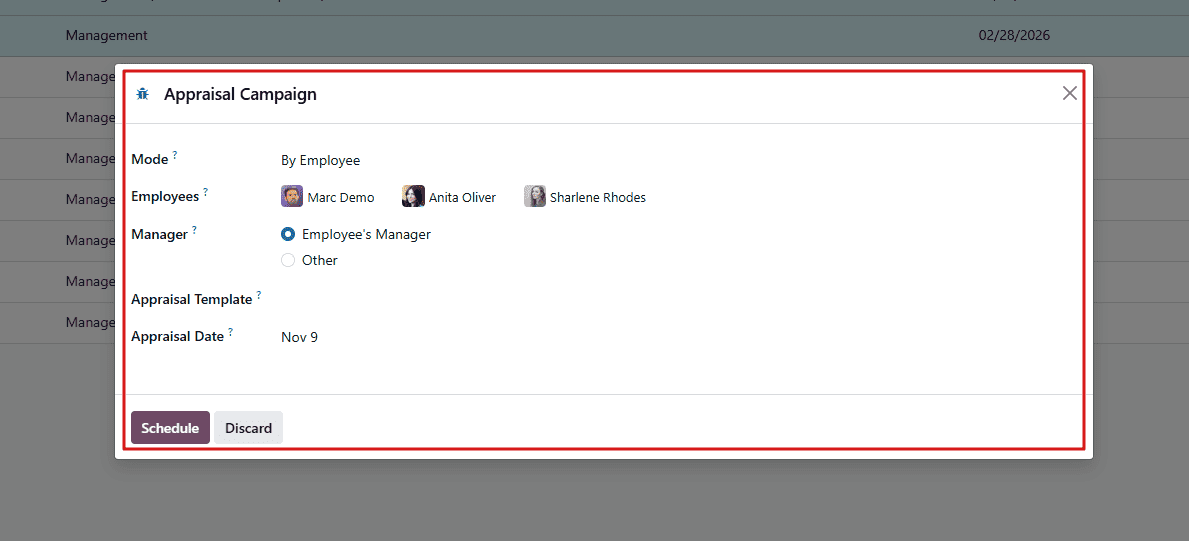
Now we can see that the appraisal is confirmed for the selected employees, as seen in the image below. The status clearly updates on the screen, making it easy to identify which appraisals have moved forward in the process.

For end-users, this translates into no ambiguity or lost fields; the wizard promises consistency of data.
For implementers and consultants, it's a great showcase of how Odoo guided processes avoid human error and simplify the tracking of performance throughout the company.
Inventory Management: Product Relocation Wizard
Efficient warehouse management isn't just about tracking quantities; it's also about making sure products are stored in the right place. In Odoo 19, this process is streamlined via the Relocate wizard, which allows moving stock between locations with just a few clicks, ensuring updates in real time and operational clarity.
From Inventory > Operations > Physical Inventory, the user can select one or more products and click on the Actions menu. Relocate will launch a simple but powerful wizard.
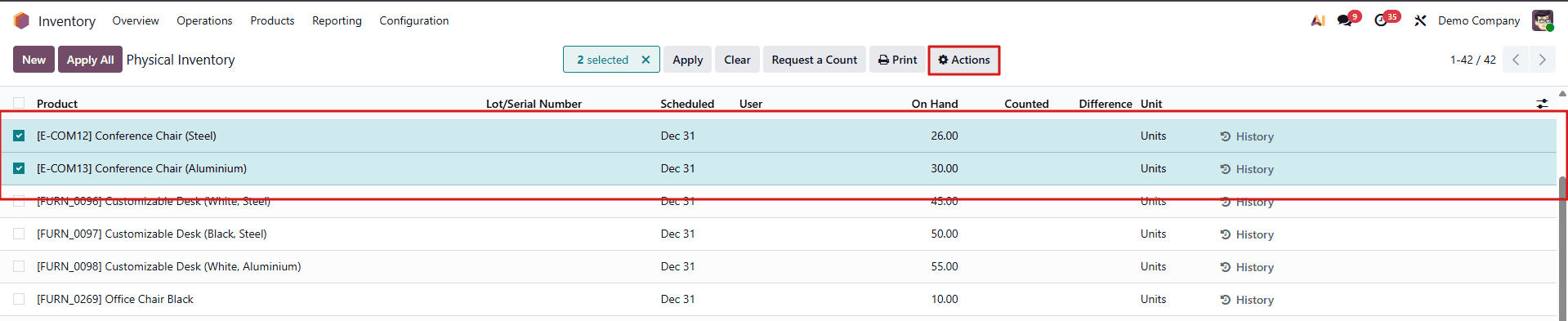
In the Action menu, you’ll notice a new option called “Relocate.” Selecting this option opens up the relocation wizard, which guides you through the steps needed to move the item or record to a different location. Simply click on it, and the system will walk you through the required details to complete the relocation process.
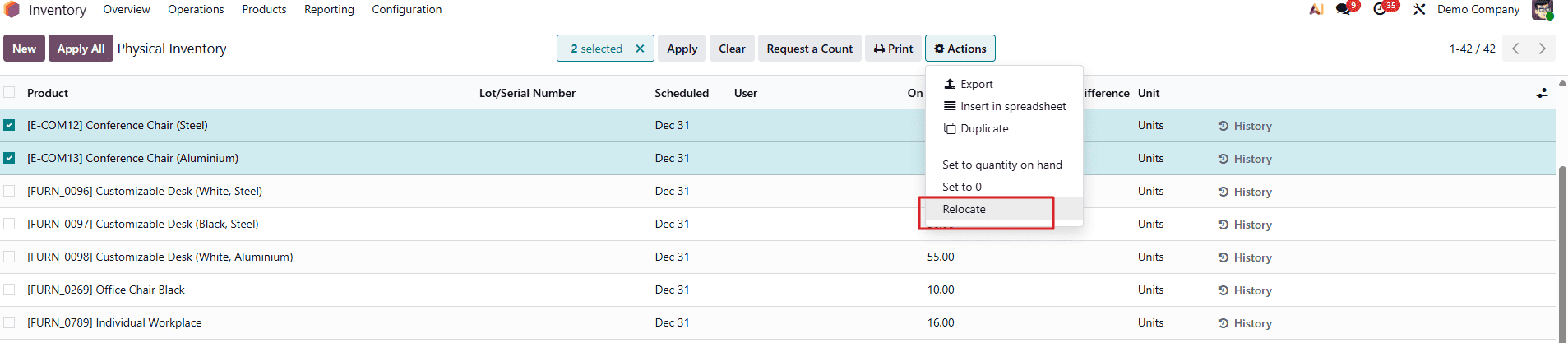
The interface requests two key pieces of information: the destination location and the reason for relocation. Once validated, Odoo instantly transfers the selected quantities to the new location and automatically updates all related records.
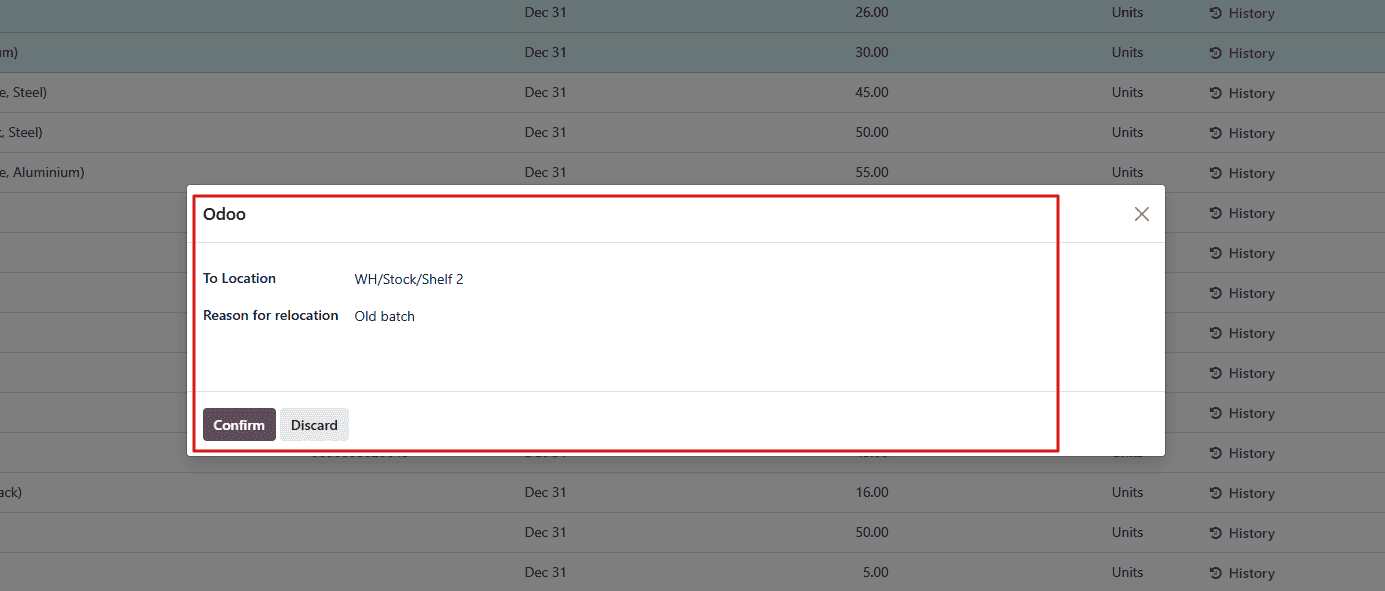
After selecting the location to relocate to and the reason for the relocation, we can confirm the button to initiate the relocation of the selected product from its old location to the new location.
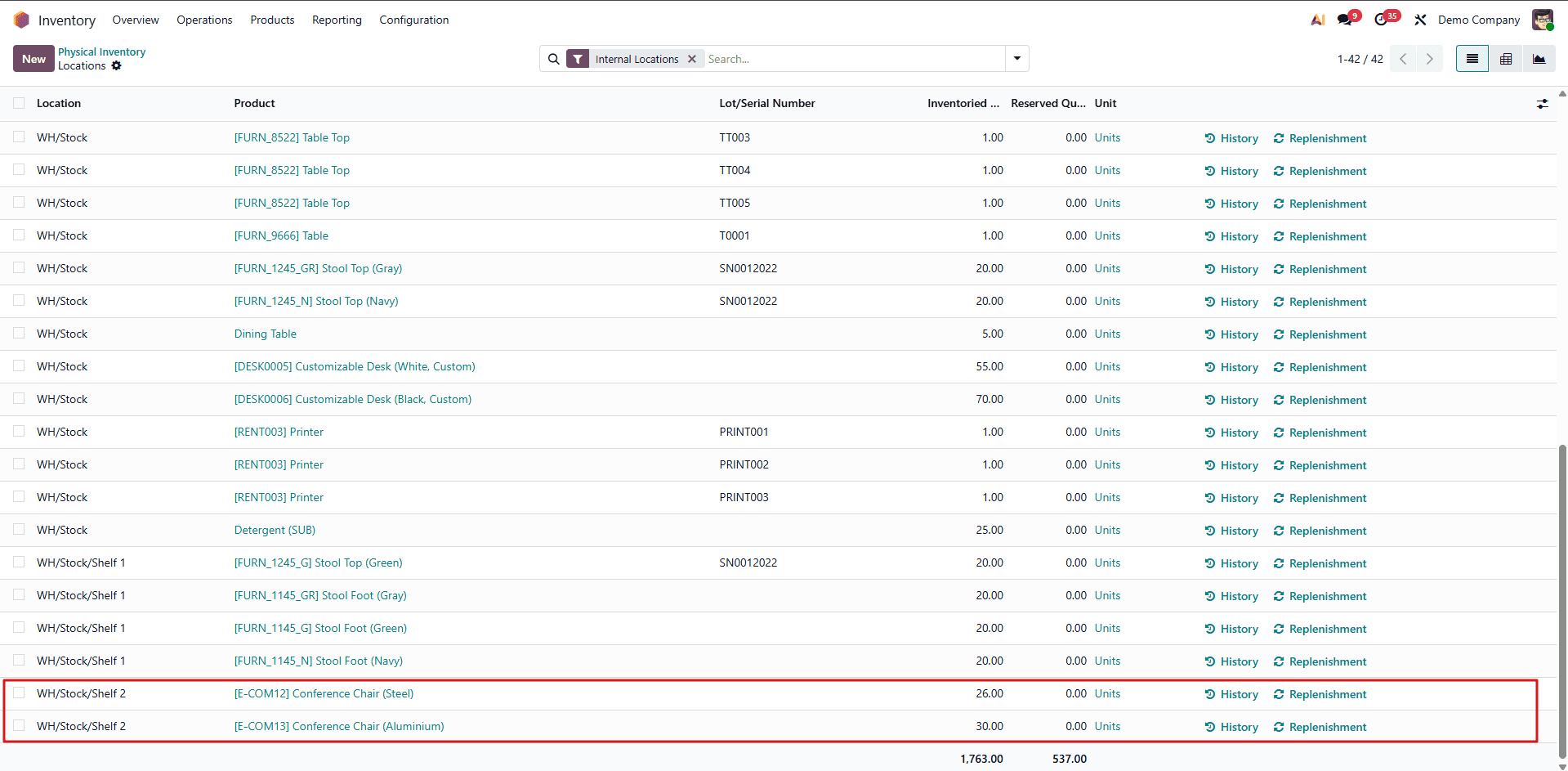
For people in the warehouse, this wizard avoids manual transfers or complicated stock moves. It's intuitive enough for the day-to-day user yet precise enough to keep total traceability across locations. This feature is quite often taken by functional consultants to illustrate how Odoo transforms complex backend logistics into guided, human-friendly processes that ensure inventory integrity with a minimum of effort.
Manufacturing: Posting WIP Accounting Entries Using a Wizard
In manufacturing-driven businesses, accurate financial reporting depends heavily on how Work-In-Progress (WIP) is accounted for. Materials may be consumed, labor may be recorded, and overhead costs may accumulate long before a manufacturing order is fully completed. Odoo 19 addresses this complexity with a dedicated Post WIP Accounting Entry wizard, ensuring that costs are reflected correctly in financial statements even when production is still ongoing.
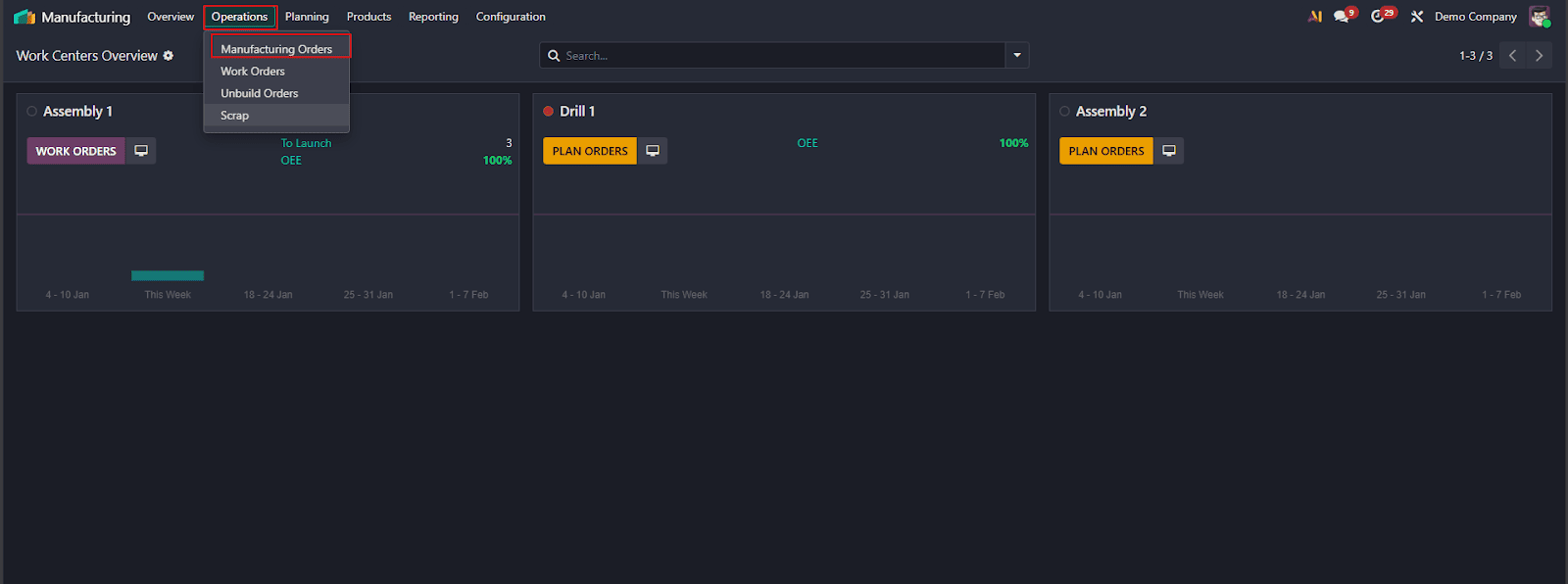
First go to the manufacturing, then click on the operations menu, then click on the manufacturing orders. From there we can see the manufacturing orders; select the manufacturing orders we need to post the WIP accounting entries.
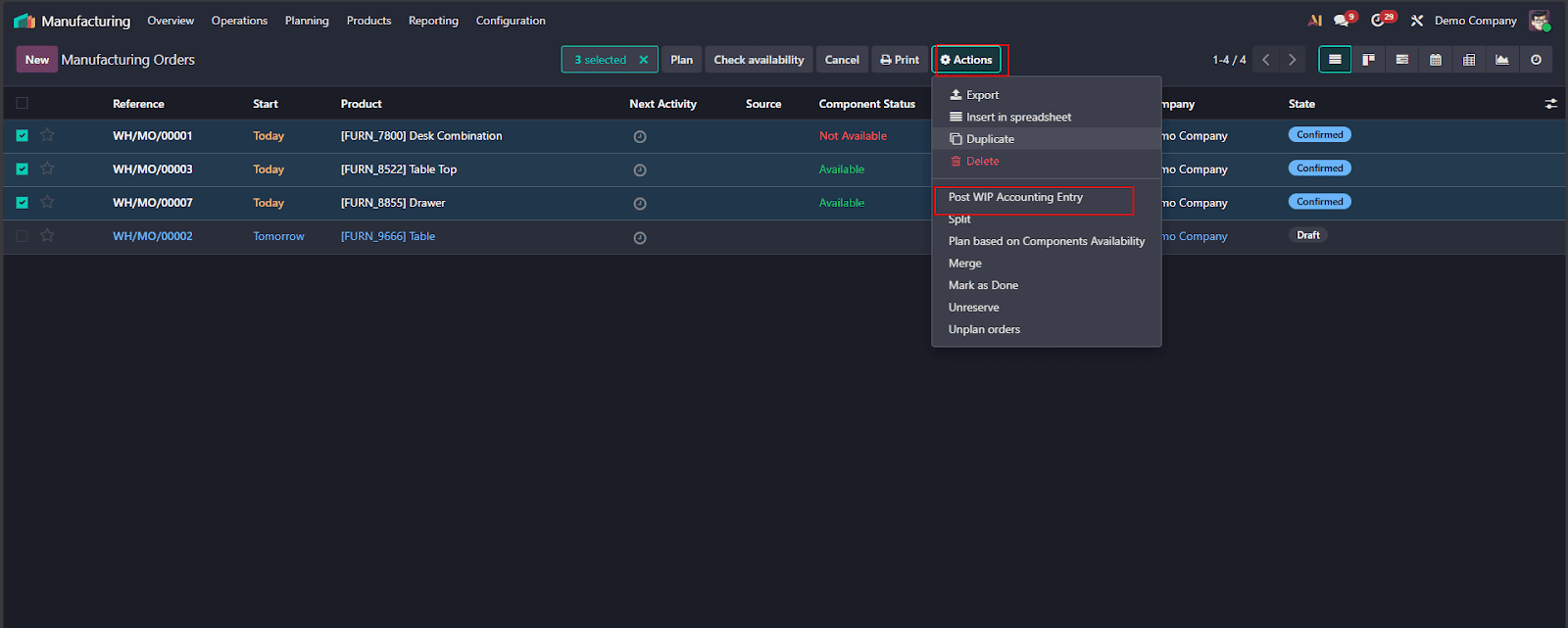
Then after selecting the manufacturing orders, click on the action button, then click on the Post WIP Entry option, which will open up a wizard to post the WIP accounting entries.
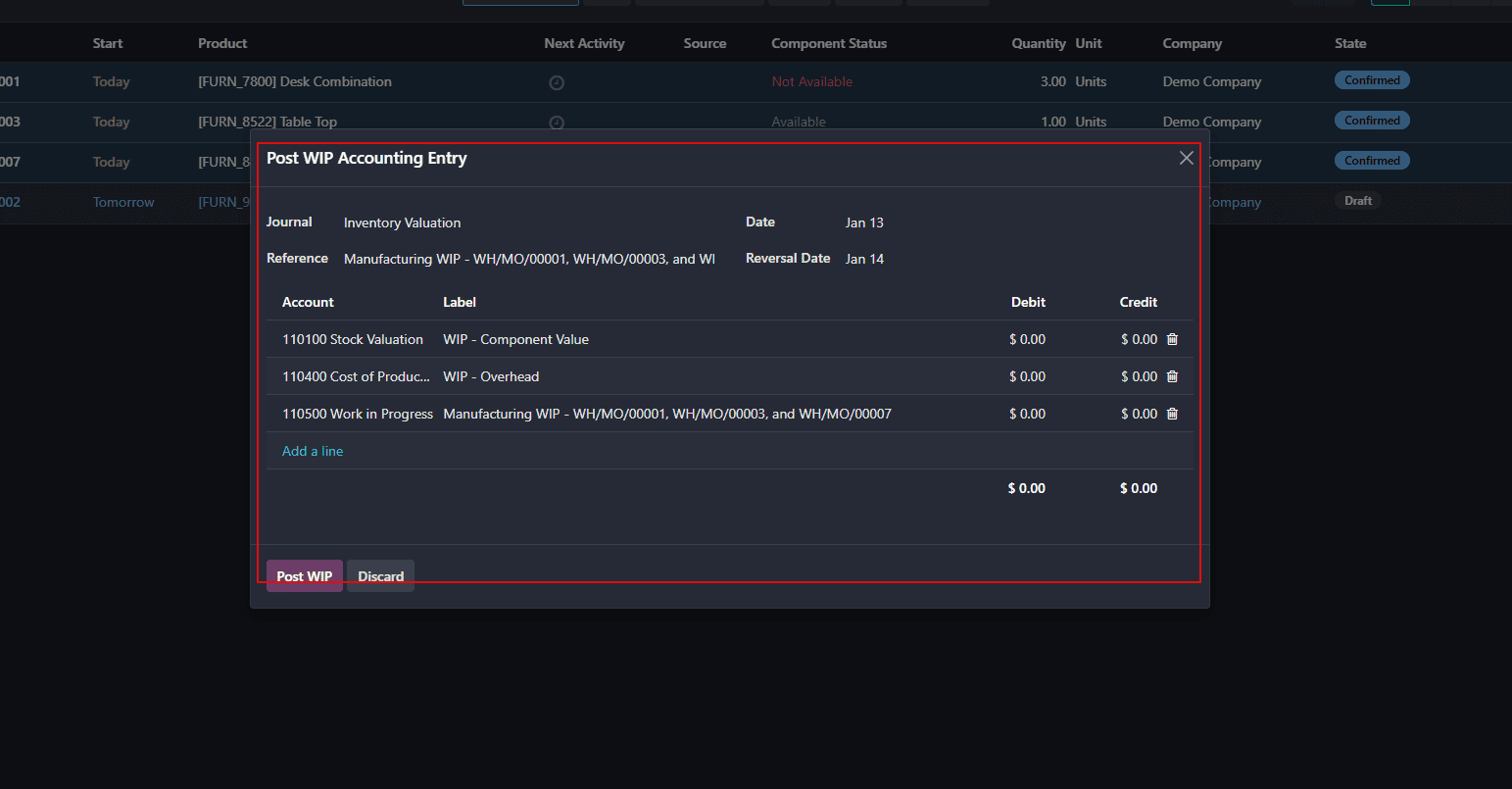
Then, after selecting the appropriate journal, posting date, and other required details, we can click on Post WIP to create the Work-In-Progress accounting entry.
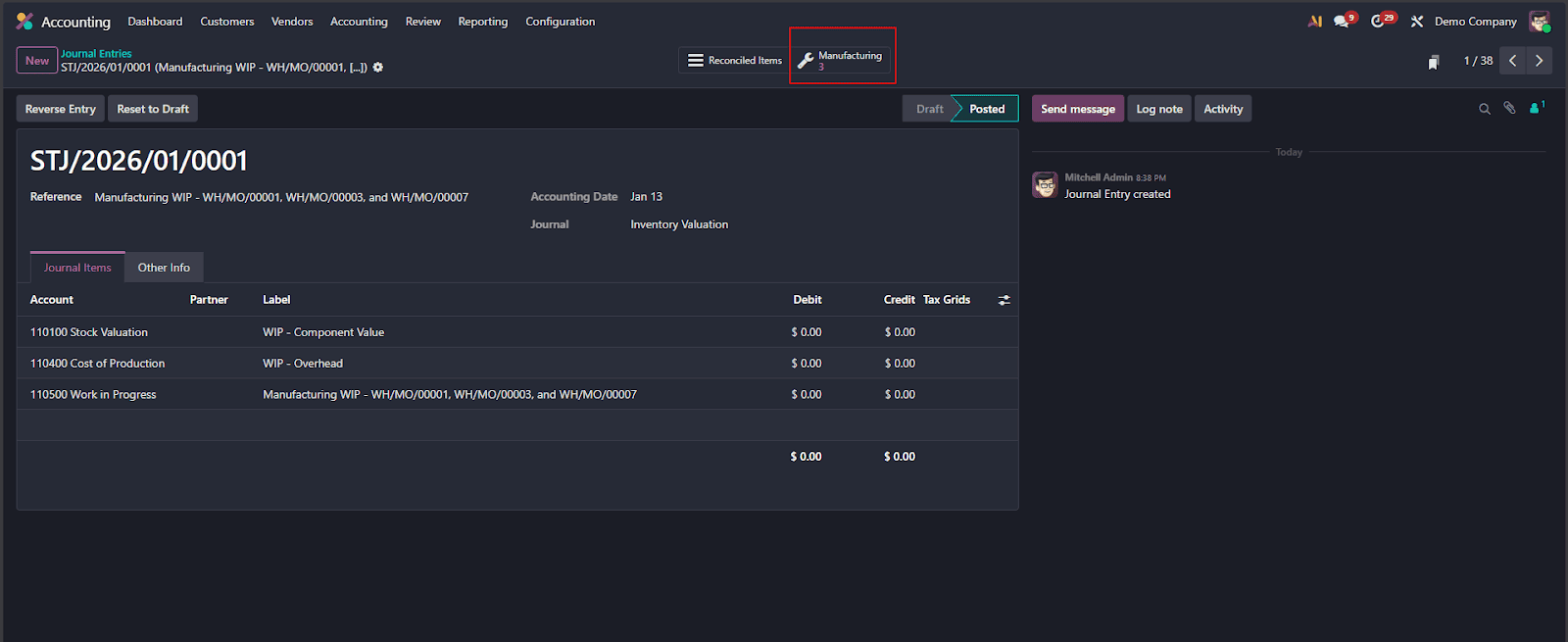
After posting, the WIP accounting entries can be viewed in the Accounting module under Journal Entries.
For end-users, this wizard removes the need for complex manual accounting adjustments. For functional consultants, it demonstrates how Odoo seamlessly integrates Manufacturing and Accounting workflows. For implementers, it highlights the power of wizard-driven processes in enforcing structured, error-free financial operations.
The Post WIP Accounting Entry wizard is a perfect example of how Odoo 19 transforms traditionally complex manufacturing accounting into a guided, transparent, and user-friendly process—without sacrificing accuracy or control.
Timesheet Validation: Bulk Approval
Validating employee timesheets is a critical control step for HR managers and project leads. It ensures that only approved working hours move forward for payroll, invoicing, or project costing. In Odoo 19, this process is intentionally kept simple and efficient, without introducing an extra wizard window.
From the Timesheets module, managers can navigate to Timesheets > To Validate, where all submitted timesheet entries awaiting approval are listed in a clear, structured view.
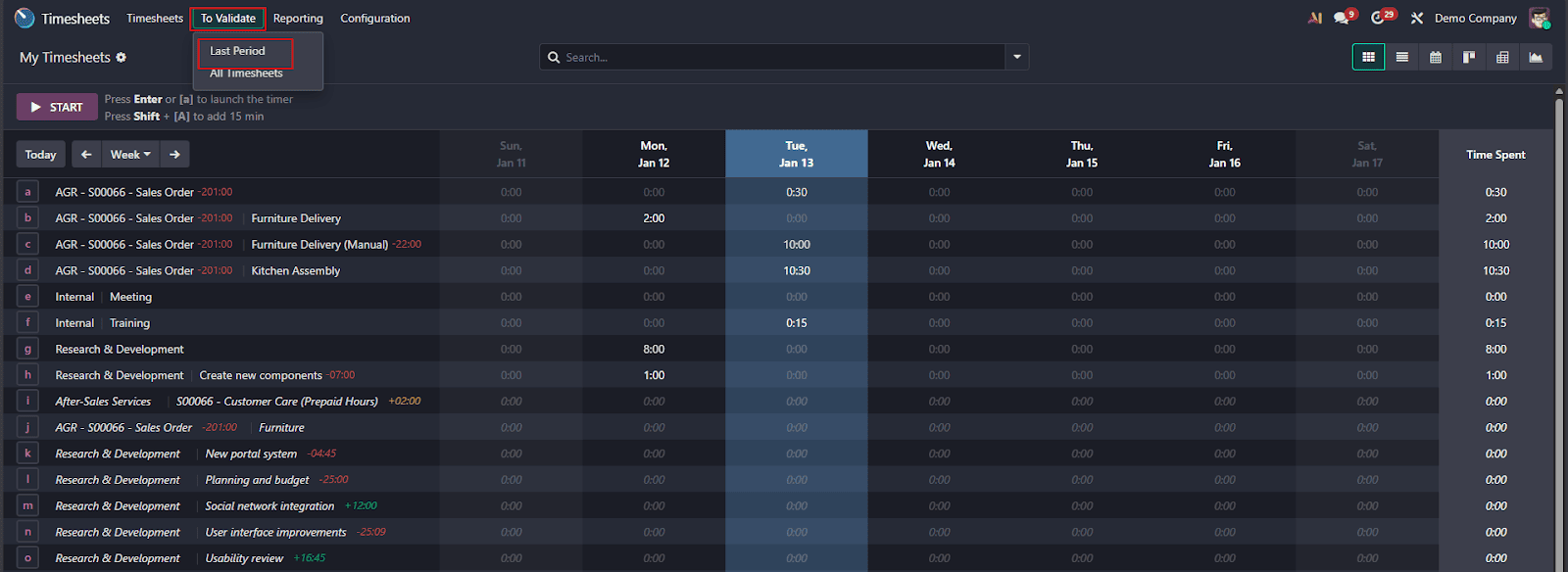
The screen displays key details such as the employee name, project, task, description, sales order item, and time spent. This allows managers to review entries quickly without opening each record individually.
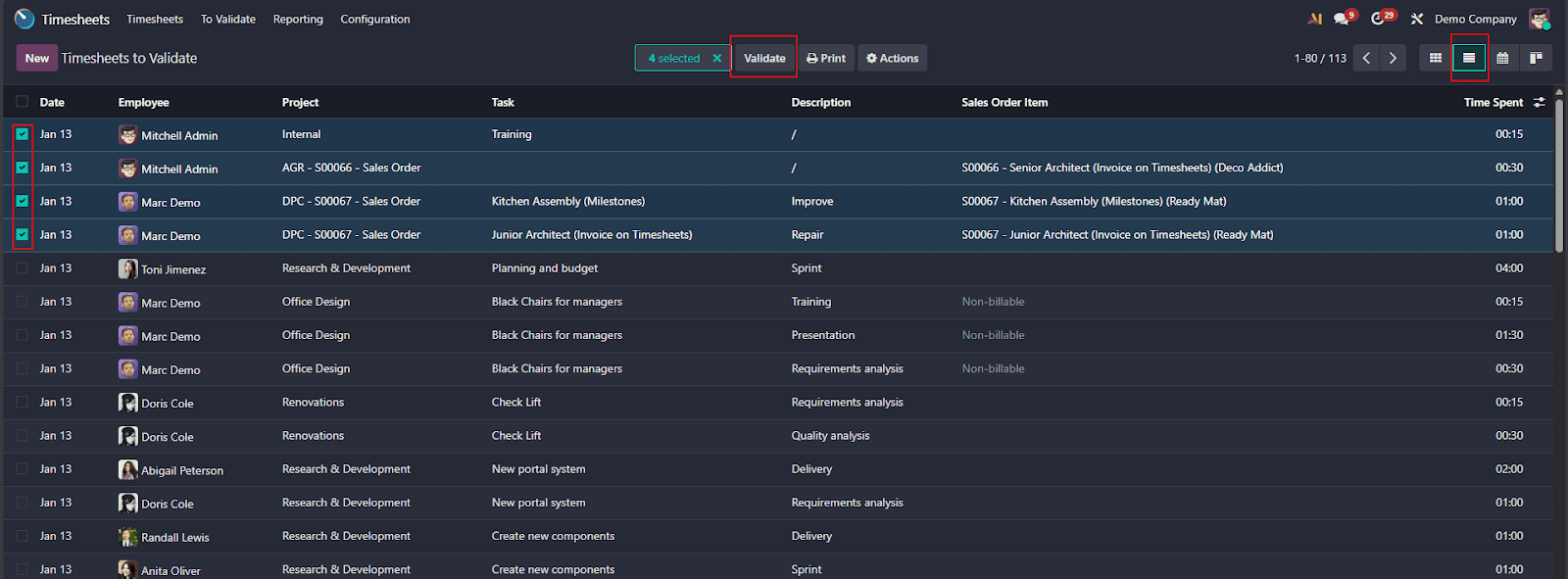
To validate timesheets in bulk, the user can select multiple entries using the checkbox option and click on the Validate button available in the action bar.Odoo directly processes the validation. Once validated, a confirmation message appears on the screen indicating that the selected timesheets have been successfully approved. The validated entries are automatically removed from the “To Validate” list, clearly reflecting their updated status.
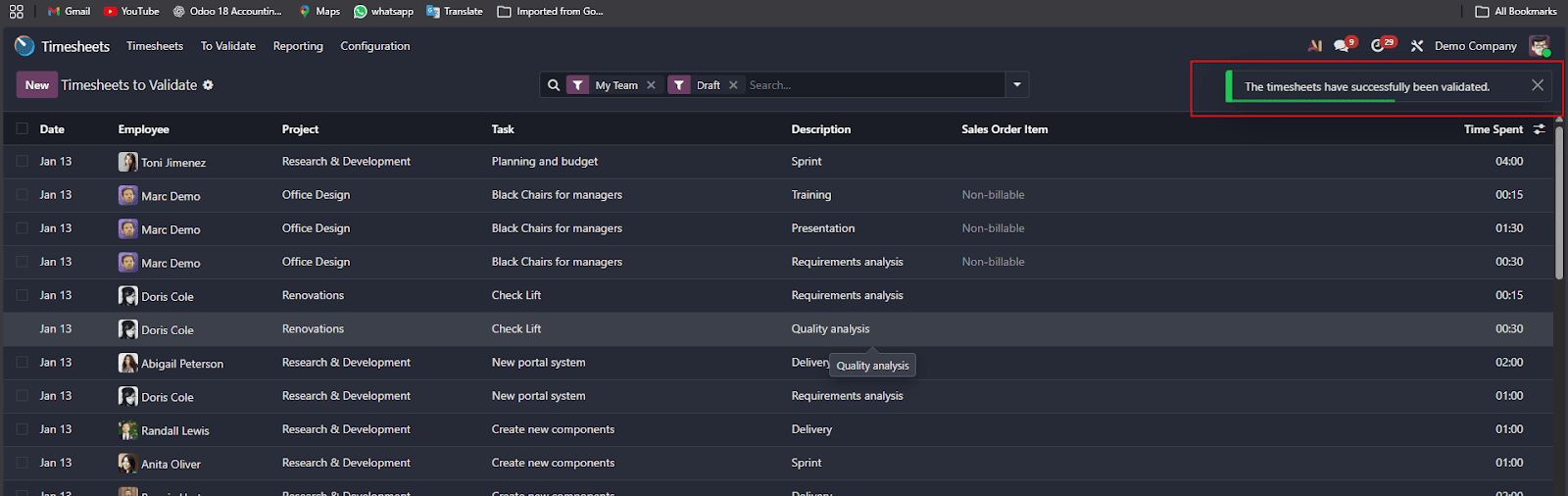
This approach offers a smooth approval experience:
- Faster validation for large volumes of timesheets
- Reduced friction for managers handling daily or weekly approvals
For end-users, this means quicker approvals and faster downstream processes like invoicing or payroll. For functional consultants, it’s a good example of how Odoo avoids unnecessary complexity when a wizard is not required. For implementers, it highlights Odoo’s design philosophy: use wizards only when guidance is needed, and keep actions direct when the workflow is already clear.
How Wizards Add Value to Odoo Users
The utility of wizards in Odoo goes beyond ease of use: they provide real business value in three major ways:
- Time Efficiency: Wizards capture several steps in one interactive window, freeing hours for staff members across departments.
- Error reduction: Odoo guides users through compulsory fields and sequenced steps; hence, errors in data input are reduced, and the correctness of the process is ensured.
- Easy-to-Use Design: Non-technical users feel comfortable executing complicated tasks from approving mass orders to controlling stock or hiring employees, without backend access or developer assistance.
Wizards in Odoo 19 are more than pop-up assistants; they're a critical component of how Odoo converts business complexity into easy, guided processes.
For consultants and implementers, knowing and highlighting these wizards is key to proving the functional power of Odoo. And to end-users, it's a daily reminder that powerful ERP systems don't have to be mind-bending when led the right way.
To read more about Overview of Multi-Step Wizards Odoo 19, refer to our blog Overview of Multi-Step Wizards Odoo 19.