Sales management focuses on efficiently converting prospects into customers, and Odoo supports this goal through its integrated Sales Module within a comprehensive open-source ERP platform. Acting as a centralized hub for leads, quotations, orders, invoicing, and customer interactions, the module streamlines workflows, reduces errors, and improves productivity while offering CRM capabilities, advanced analytics, and seamless integration with accounting, inventory, and procurement. With the release of Odoo 19, usability and functionality have been further enhanced, including a powerful variant grid feature that allows users to add multiple product variants directly to sales orders ideal for businesses managing products with different sizes, colors, or configurations. This flexibility, combined with Odoo’s intuitive inventory and sales management tools, enables businesses to handle complex product structures efficiently while supporting growth through a customizable and cost-effective solution.
To begin using product variants, the user needs to activate the “Variants” feature. This can be done from the Sales Module by navigating to the "Settings" section under the "Configuration" menu. Within this page, under the "Product Catalogue" section, users can enable the “Variants” option to begin defining product variations with specific attributes.
Once the “Variants” feature is active, the next step is enabling the “Variant Grid Entry” option. This additional setting allows users to add multiple product variants directly from a grid while creating a sales order, significantly speeding up the process.
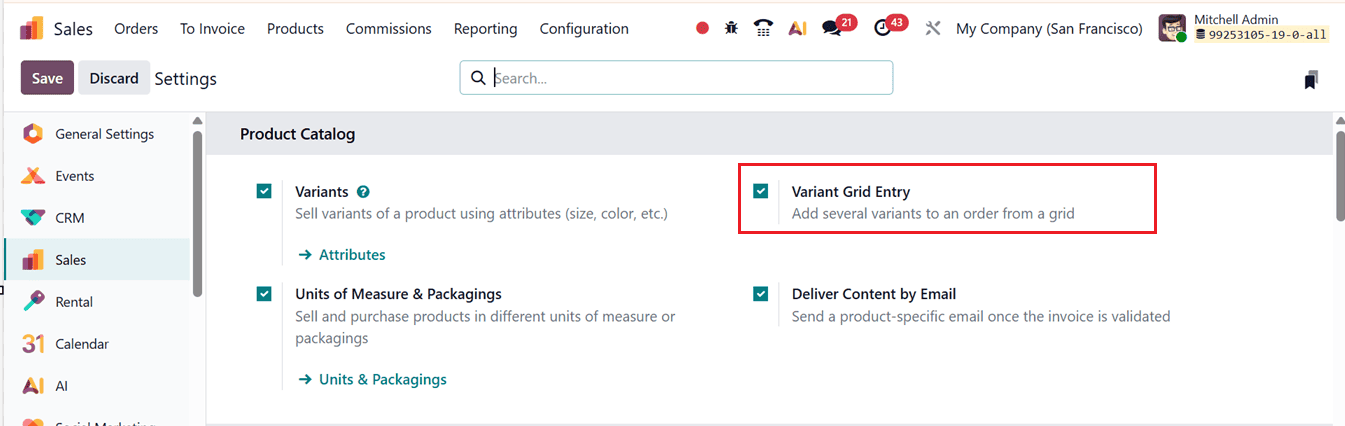
For quick access to attribute management, Odoo provides an interlinked “Attributes” option under the Variants section. This link opens the "Attributes" dashboard, where users can define specific attributes for use in product configurations.
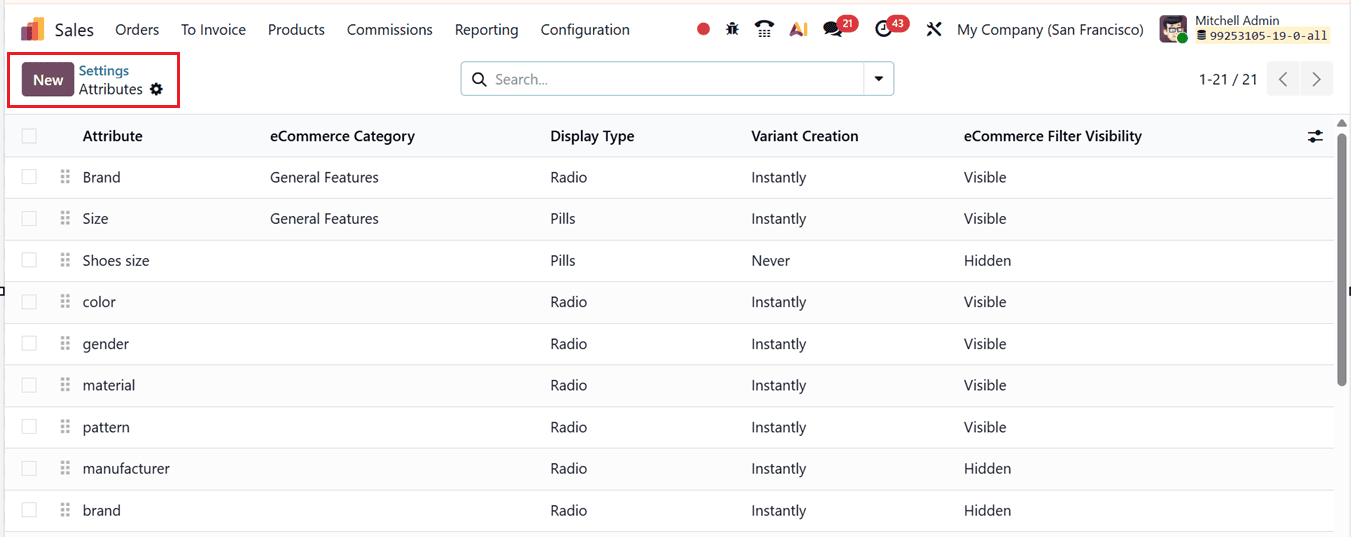
These attributes become essential when setting up a product with multiple variants under the "Attributes & Variants" tab of the product configuration window.
By clicking on the “New” button, users can access the attribute configuration form. This form requires an "Attribute Name" and allows selection of one of the available “Display Types” include "Radio," "Pills," "Select," "Color," “Multi-checkbox” and “Image.” For eCommerce-specific usage, there are additional configuration fields such as "eCommerce Category" and "eCommerce Filter Visibility," where options include "Visible" or "Hidden." Furthermore, users can select how variants are created using one of three "Variant Creation Modes" “Instantly," "Dynamically," or "Never" depending on how they want the system to handle variant generation.
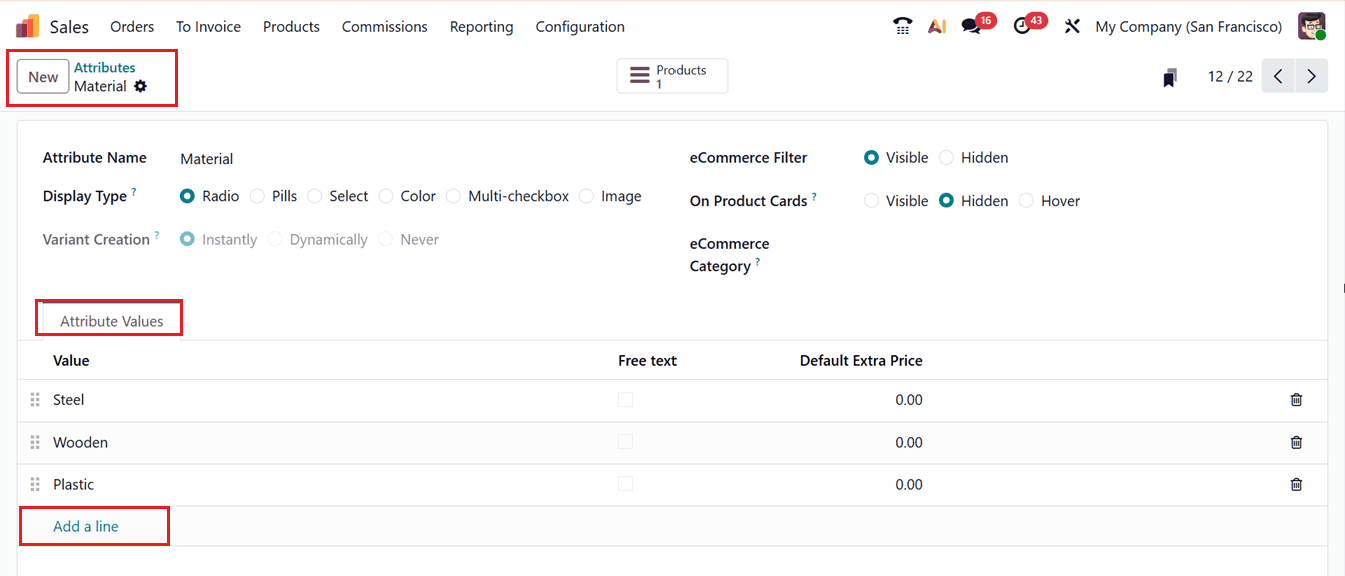
Once the attribute is configured, you can define attribute values under the “Attribute Values” tab. Here, clicking “Add a line” allows you to enter specific values such as different sizes, colors, or styles associated with the attribute. For each value, the user can specify whether it is a custom value and, if applicable, define any additional pricing associated with the variant in the “Default Extra Price”. After entering the values, clicking "Save" will store the configuration within the Odoo system. For demonstration purposes, three size options “Small,” “Medium,” and “Large” have been created. These size attributes will now be used to demonstrate how multiple product variants can be added from a grid within a sales order in Odoo 19.
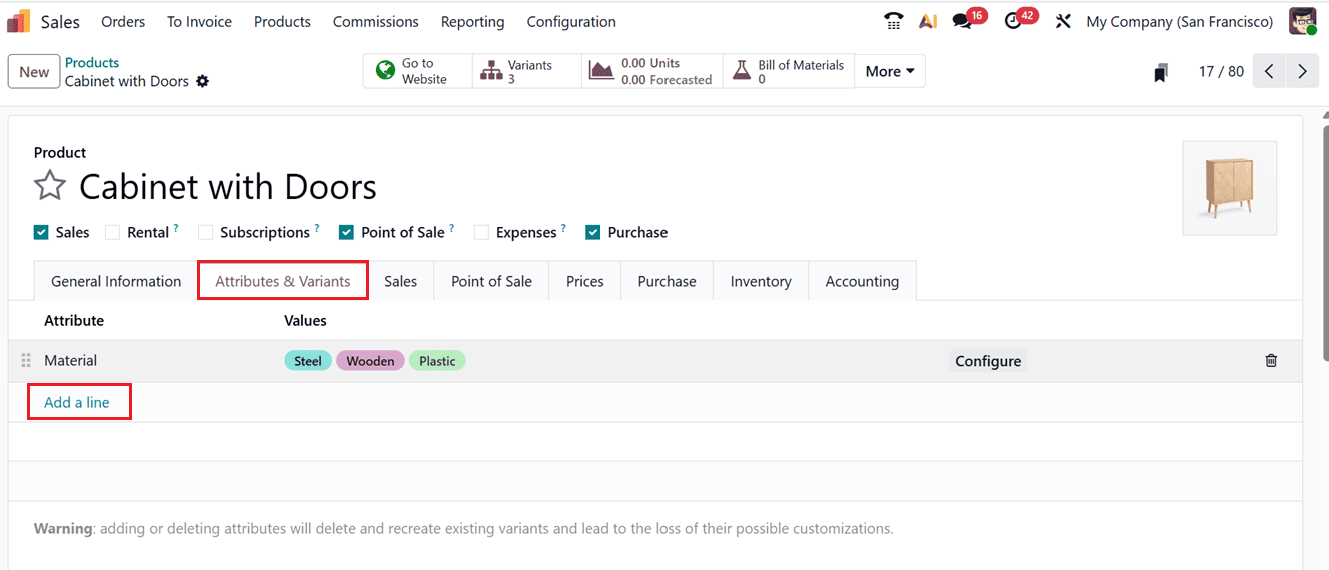
To test and demonstrate this capability, the next step is to create a new product. This can be done by navigating to the Products section in the Sales Module and clicking the “New” button. Enter the product name and other details as usual. To add multiple product variants, go to the “Attributes & Variants” tab in the product form. Then, click on the “Add a line” button to insert a new attribute, and select the relevant attribute name.
In this case, we are creating a “Material” attribute with values “Steel,” “Wooden,” and “Plastic” in the "Values" field. You can also choose all relevant options from the dropdown list, as shown in the screenshot below.
After selecting the values, navigate to the “SALES VARIANT SELECTION” section and choose the “Order Grid Entry” option. This feature enables the grid-based selection interface when adding the product to a sales order.
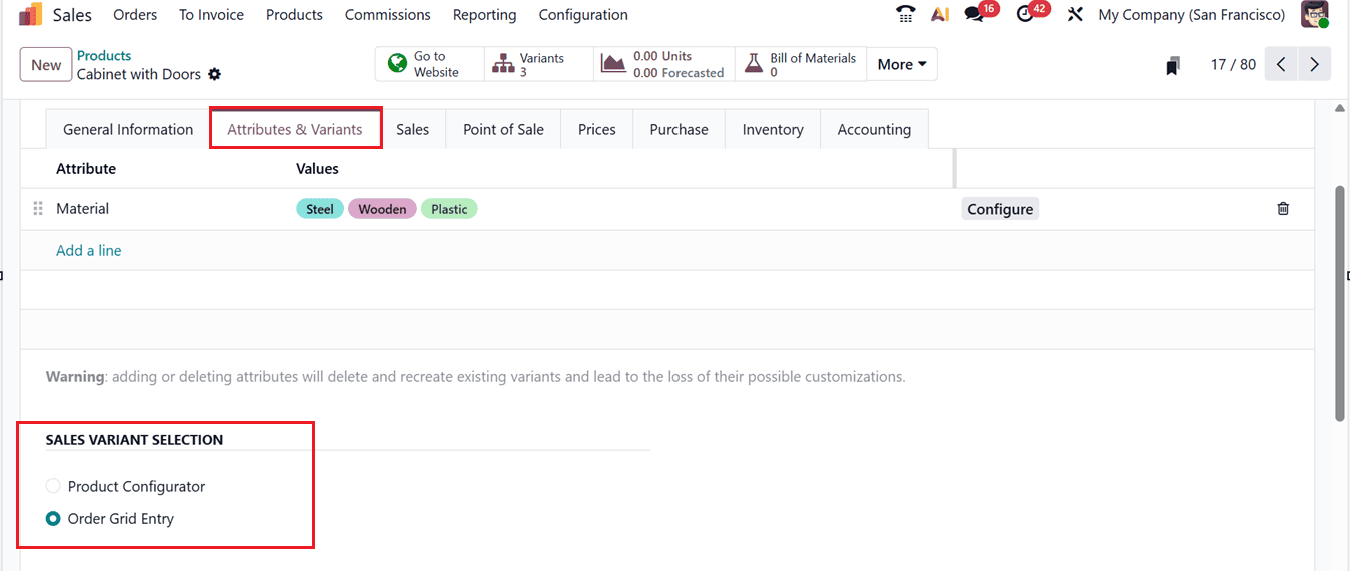
Once everything is in place, save the product configuration.
Now that the product and its variants are set up, the next step is to create a Sales Order that includes these multiple variants. This can be done by going to the “Orders” menu and selecting “Sales Orders.”
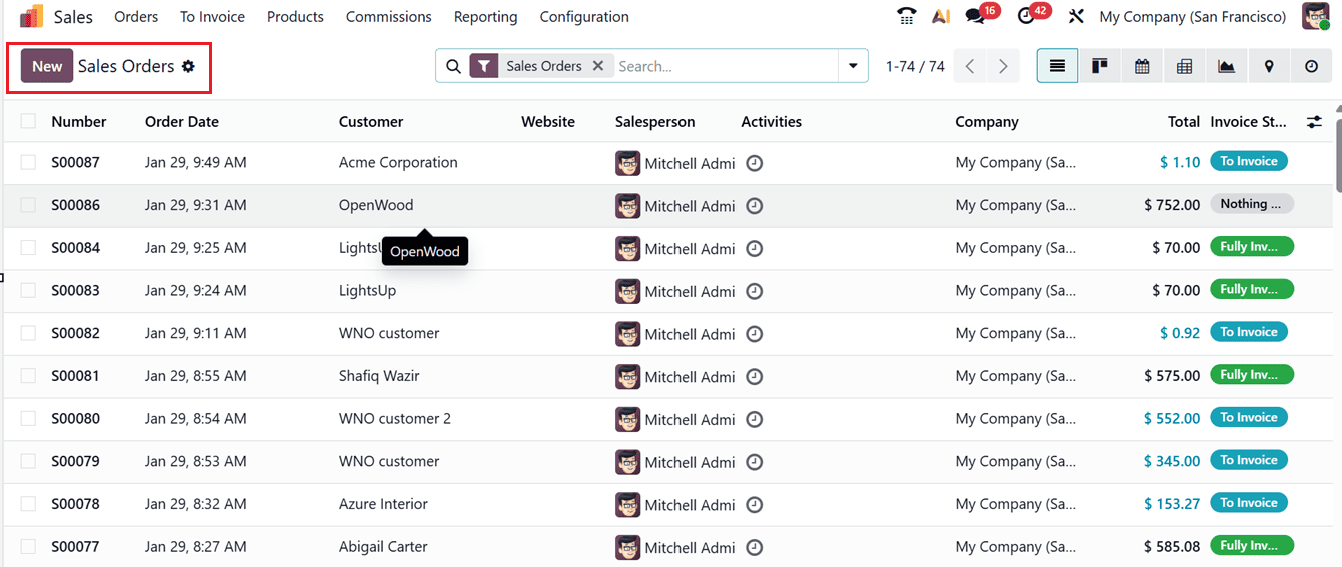
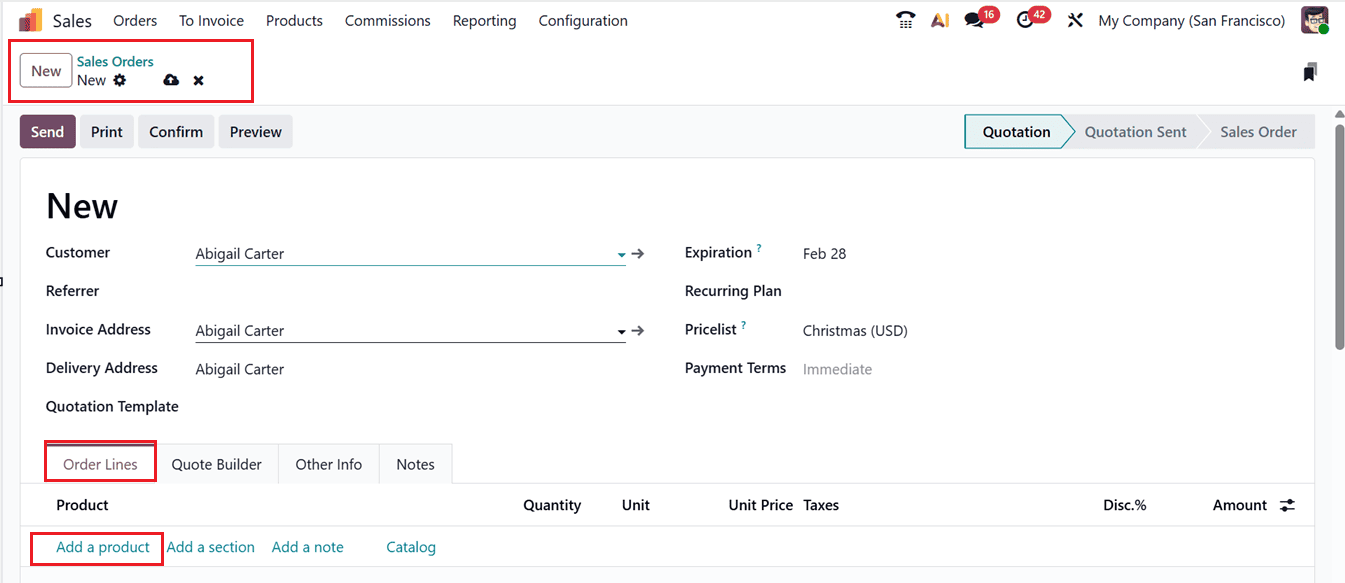
In the list view, click the “New” button to create a fresh order. On the sales order form, you can enter details such as the “Customer,” “Referrer,” “Invoice Address,” “Delivery Address,” “Quotation Template,” “Expiration Date,” “Recurring Plan,” “Pricelist,” “Payment Terms,” and more. Once these fields are populated, go to the “Order Lines” tab section and click on the “Add a product” button, as depicted in the screenshot below.
Upon clicking the “Add a product” button, the system will display a grid interface that allows you to select multiple variants of the chosen product. When you select the “Cabinet with Doors” option, a variant grid appears under the “Choose Product Variants” window. Here, you can input the quantity of each variant Steel, Wooden and Plastic based on your customer’s requirements.
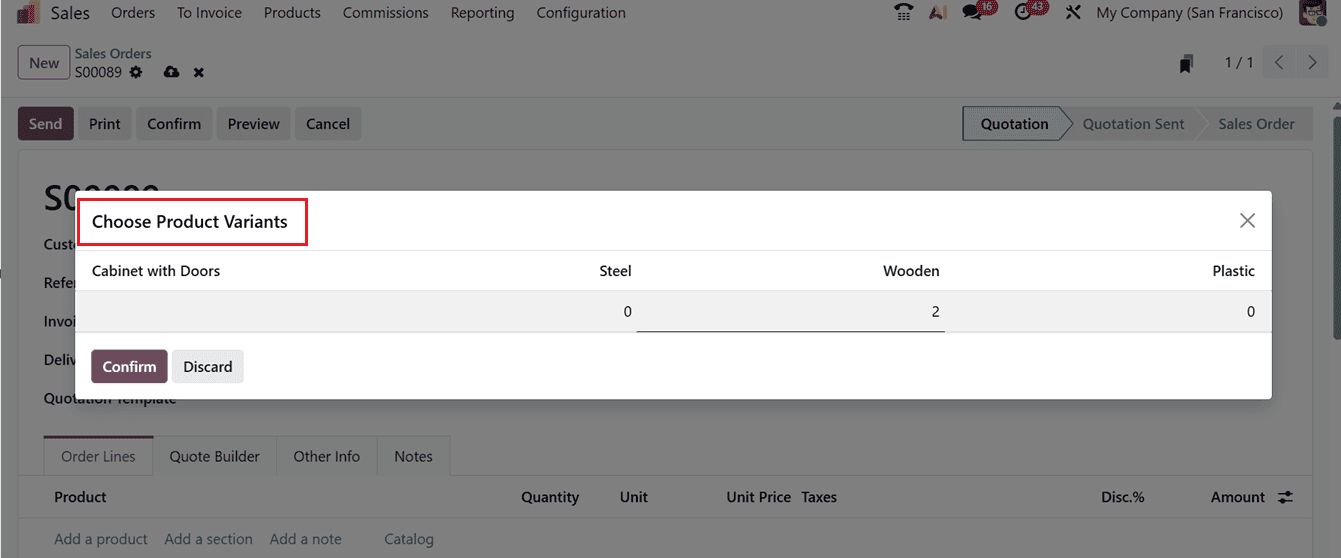
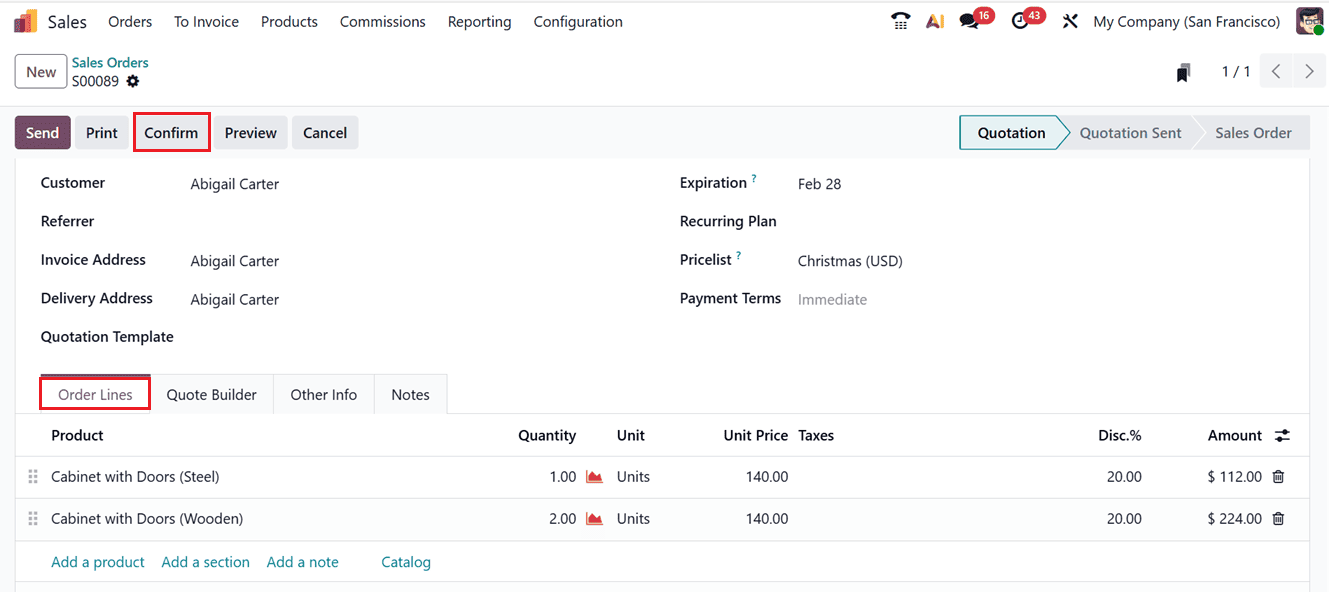
Once you've entered the desired quantities, click on the “Confirm” button. This will add all selected variants to the sales order. The variants will now be listed under the “Order Lines” tab.
After reviewing the order and ensuring all details are correct, you can finalize the order by clicking the “Confirm” button.
After confirming the sales order, you can create an invoice and proceed with the payment processes as usual.
In conclusion, the Odoo 19 Sales Module offers a fast and user-friendly variant grid system that simplifies managing configurable products. It enables quick, accurate entry of multiple product variants, reducing errors, saving time, improving inventory control, and boosting overall efficiency and customer satisfaction.
To read more about How to Configure Products for Seamless Sales in Odoo 18 Website, refer to our blog How to Configure Products for Seamless Sales in Odoo 18 Website.