Odoo 19 Studio is the best no-code tool for customizing workflows, views, and automations. One of the most powerful features of Odoo 19 Studio is its ability to manage any record's followers list automatically, subscribe the appropriate individuals when the record reaches a certain threshold, and remove them when the record is no longer relevant.
Create dynamic follower automation on the Sales Order model with Studio by following these steps.
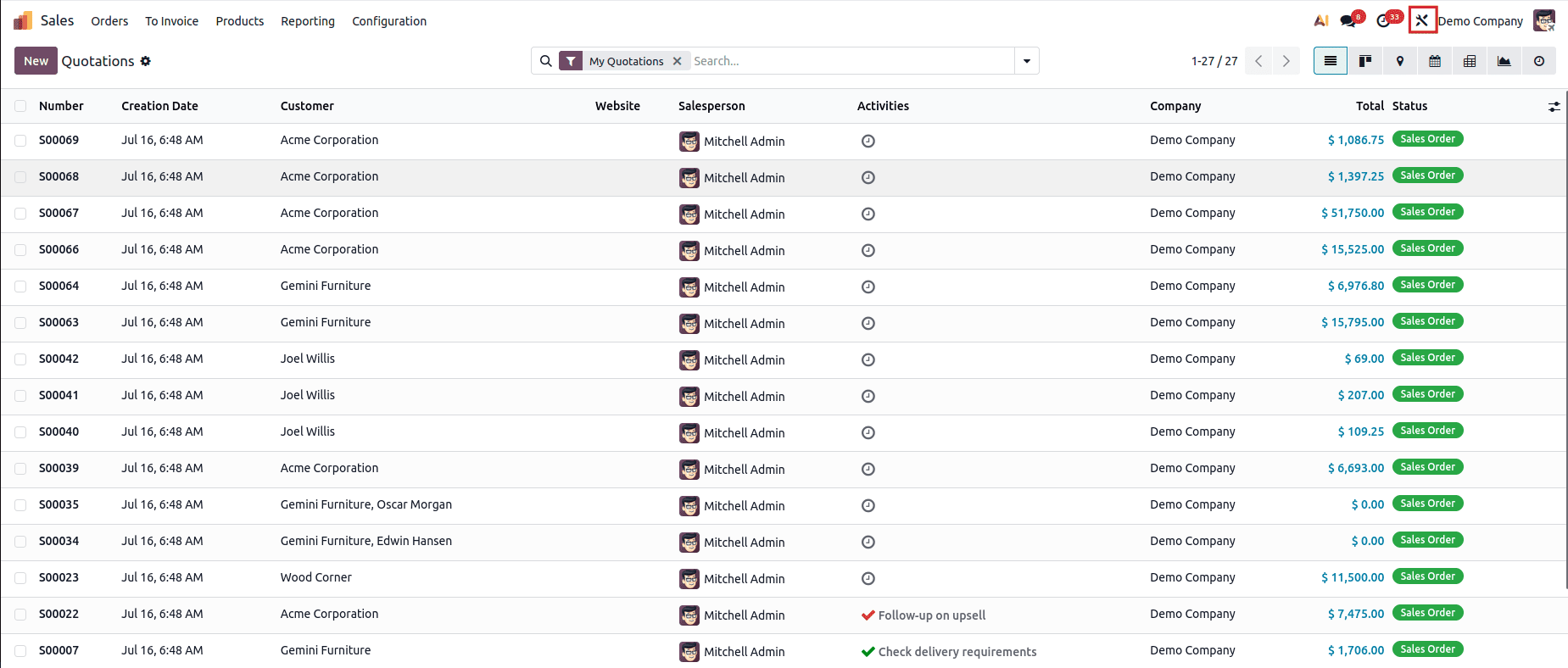
Step 1: Open Studio and select the model for managing followers. Click the Studio icon in the right corner of the screen after selecting Sales.
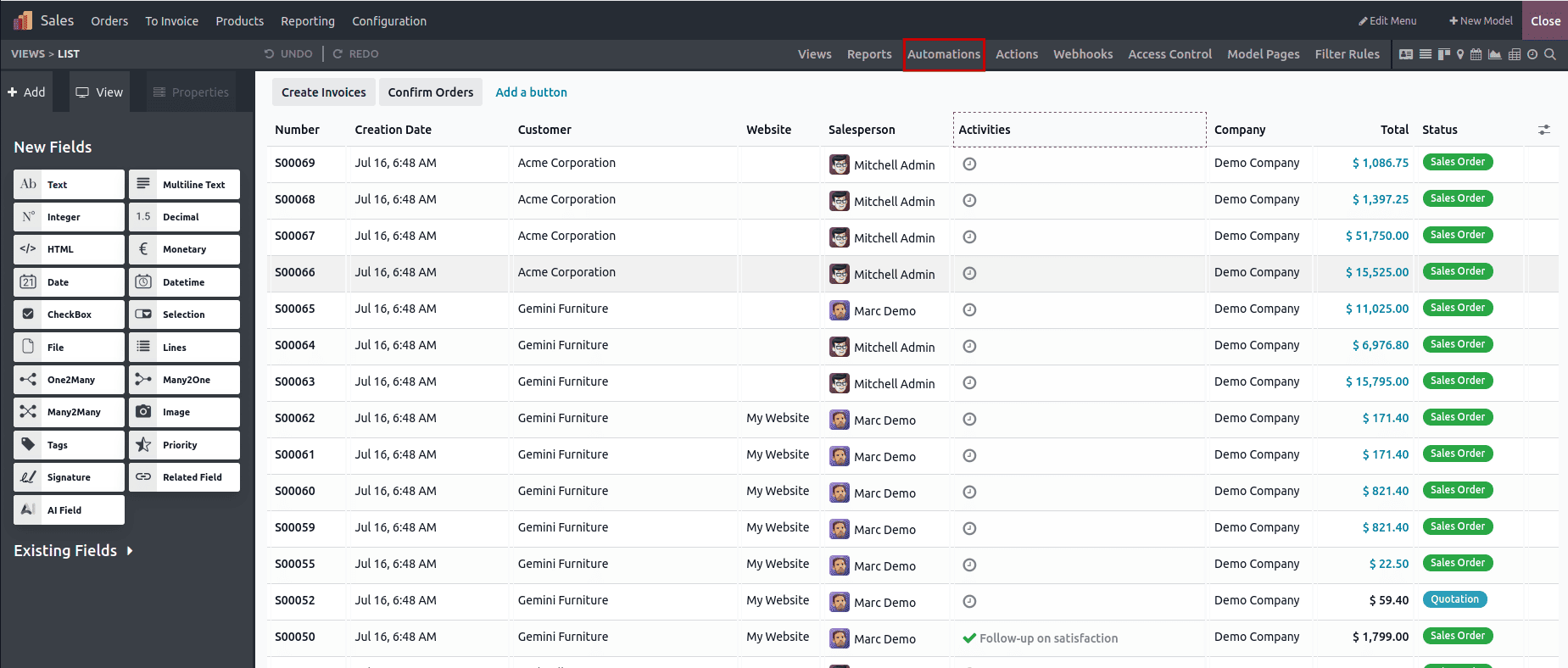
Step 2: Click Automations at the top to access the Automations Tab in Studio mode.
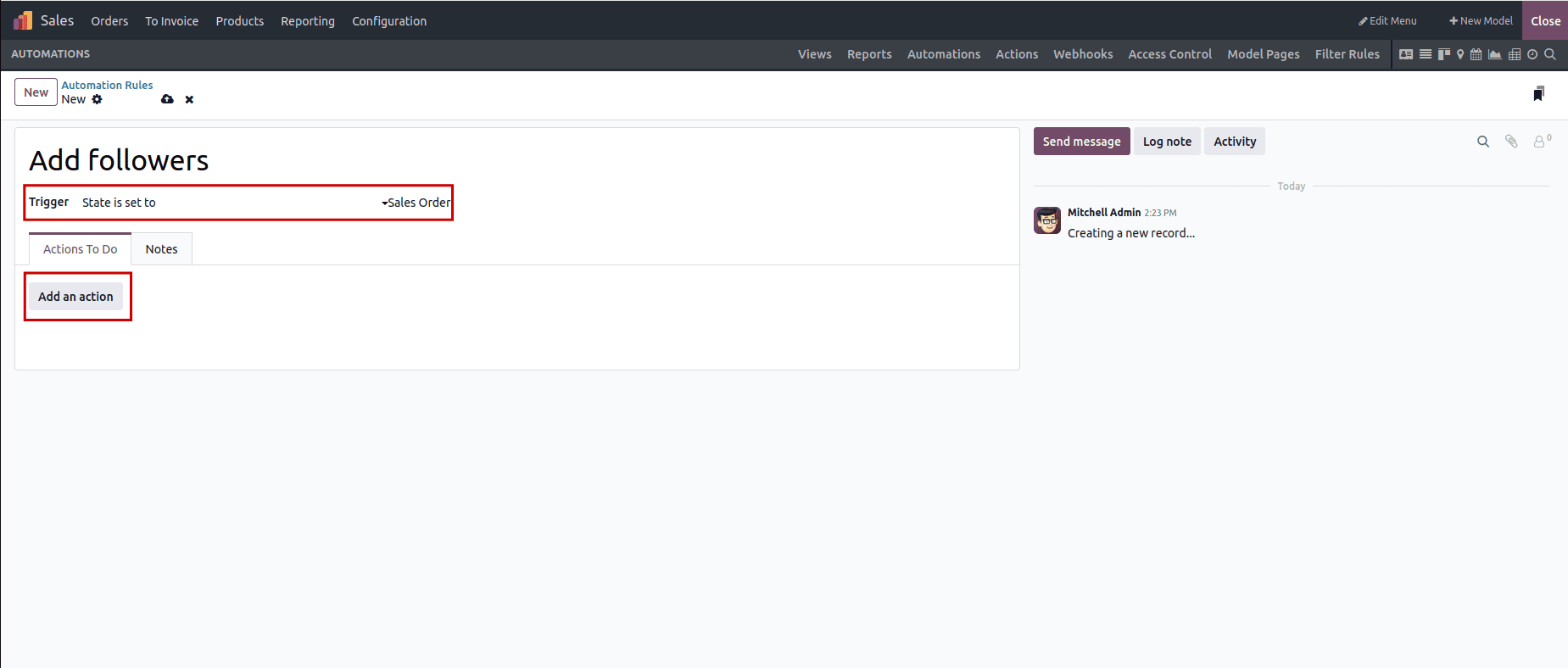
Step 3: Click the New button to create the Add followers rule. The state of the trigger is set to > Sales Order. In other words, when a quotation is verified and turns into a sales order, the rule is activated. Click the Add an action button.
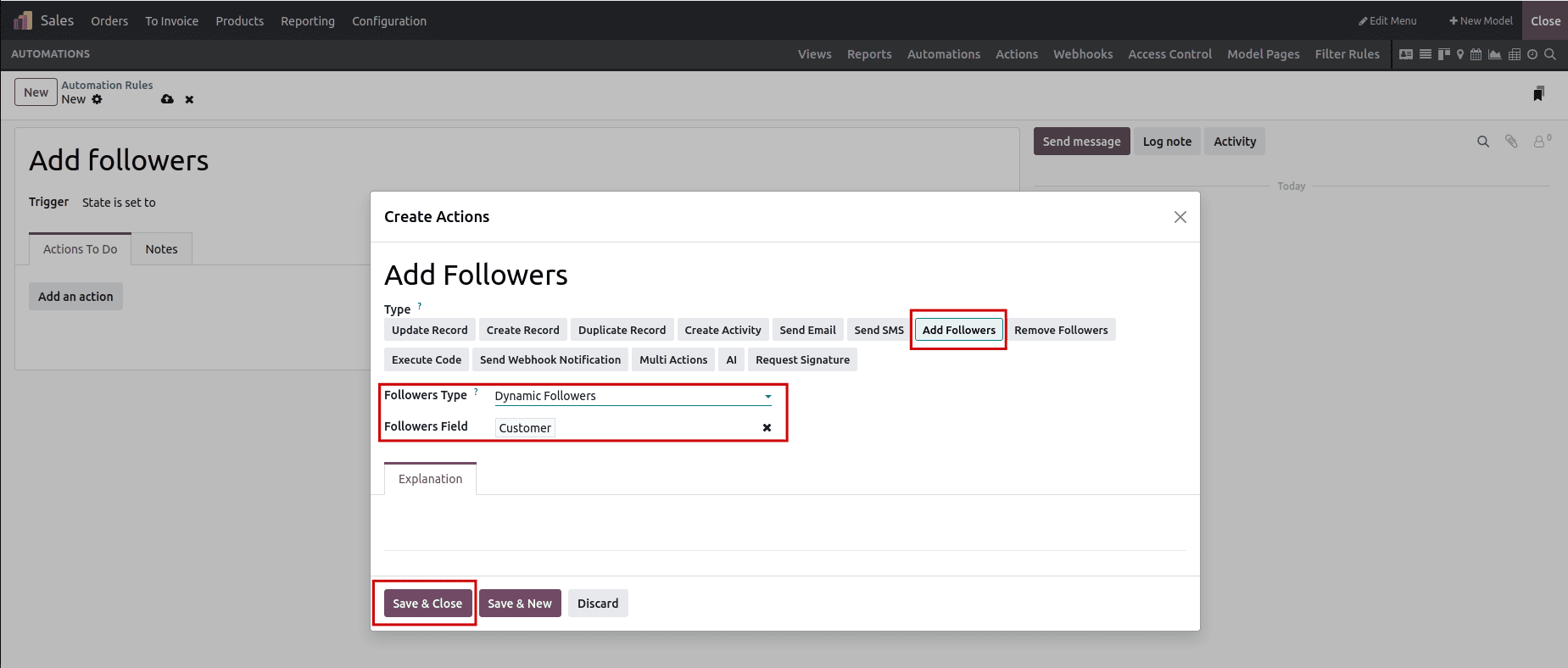
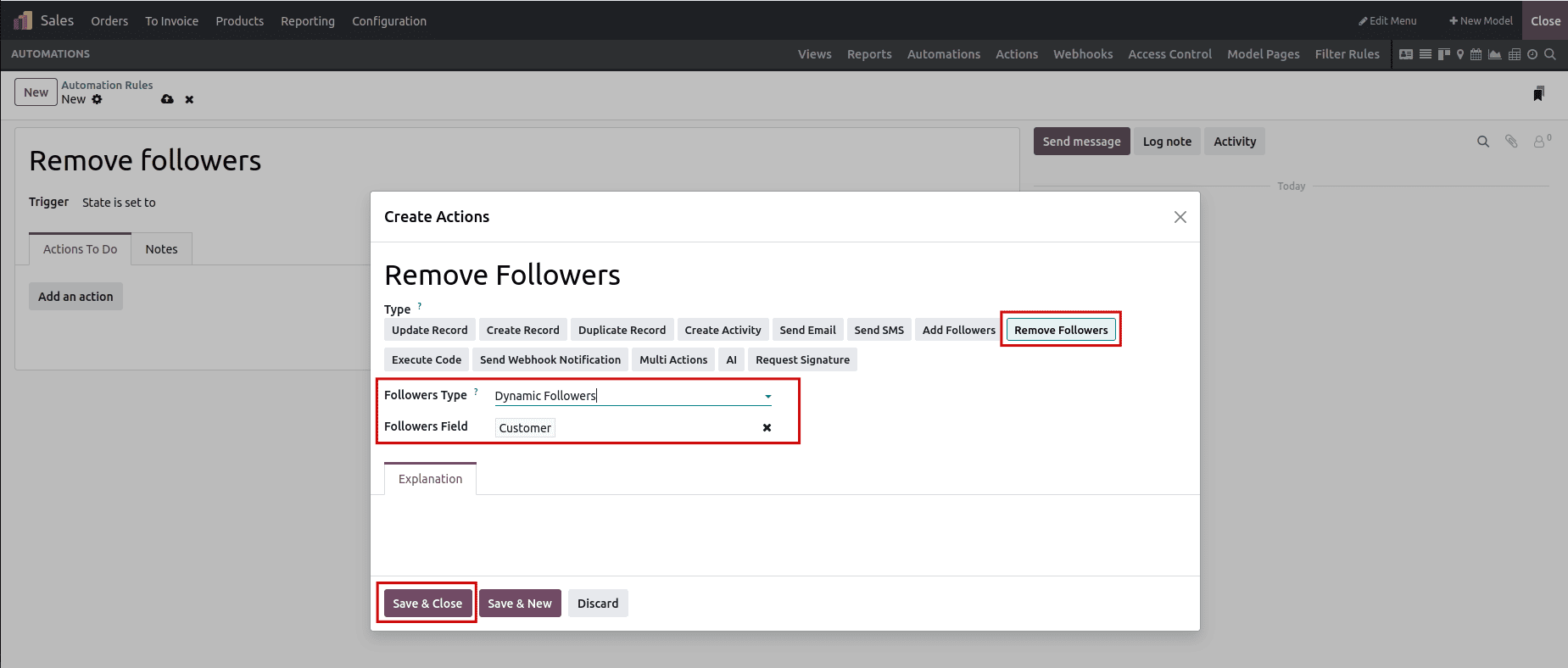
Step 4: Set the action to Add Followers. Choose Add Followers as the action type in the Create Actions panel. This instructs Odoo to follow any contact listed in the Customer field on this record. Set Followers Type to Dynamic Followers. Set Followers Field to Customer instinctively on all orders. Click Close and Save.
Step 5: Create the "Remove followers" rule in automations by creating a new rule with the same name. This time, set the trigger to State is set to > Cancelled so that it will activate upon the cancellation of the same order.
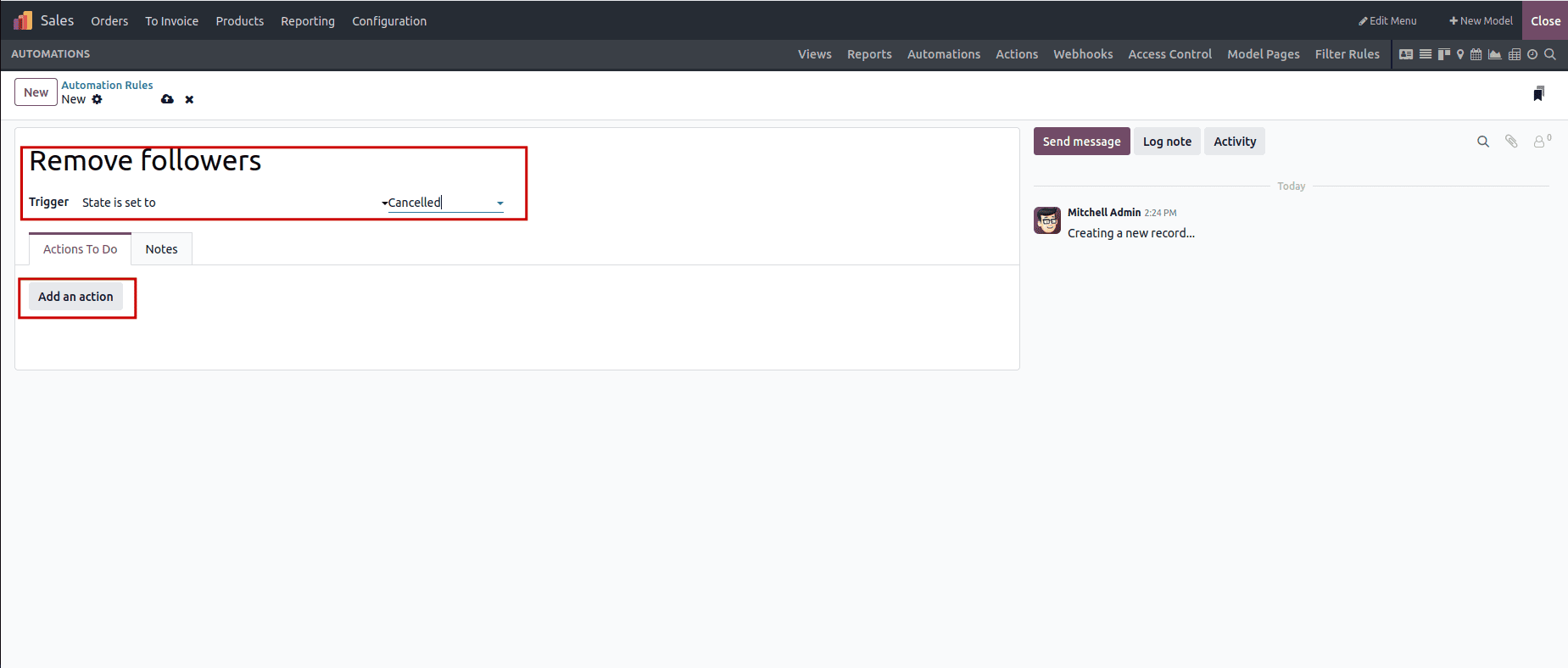
Step 6: Choose Remove Followers as the Action. This time, add an action and choose Remove Followers. Use the same configuration: Followers Field: Customer, Dynamic Followers.
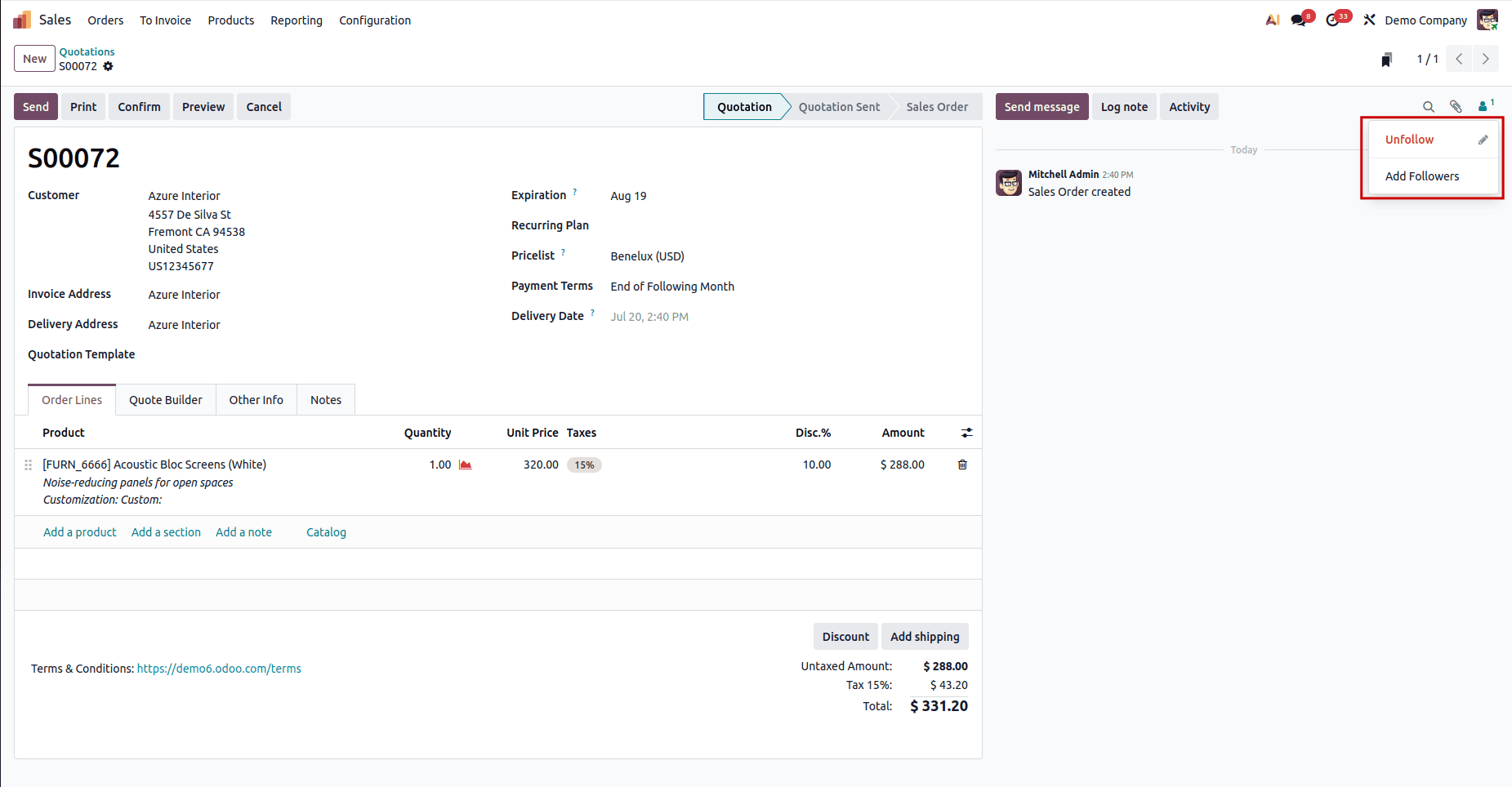
Before confirming the quotation, the customer will not be added to the followers list.
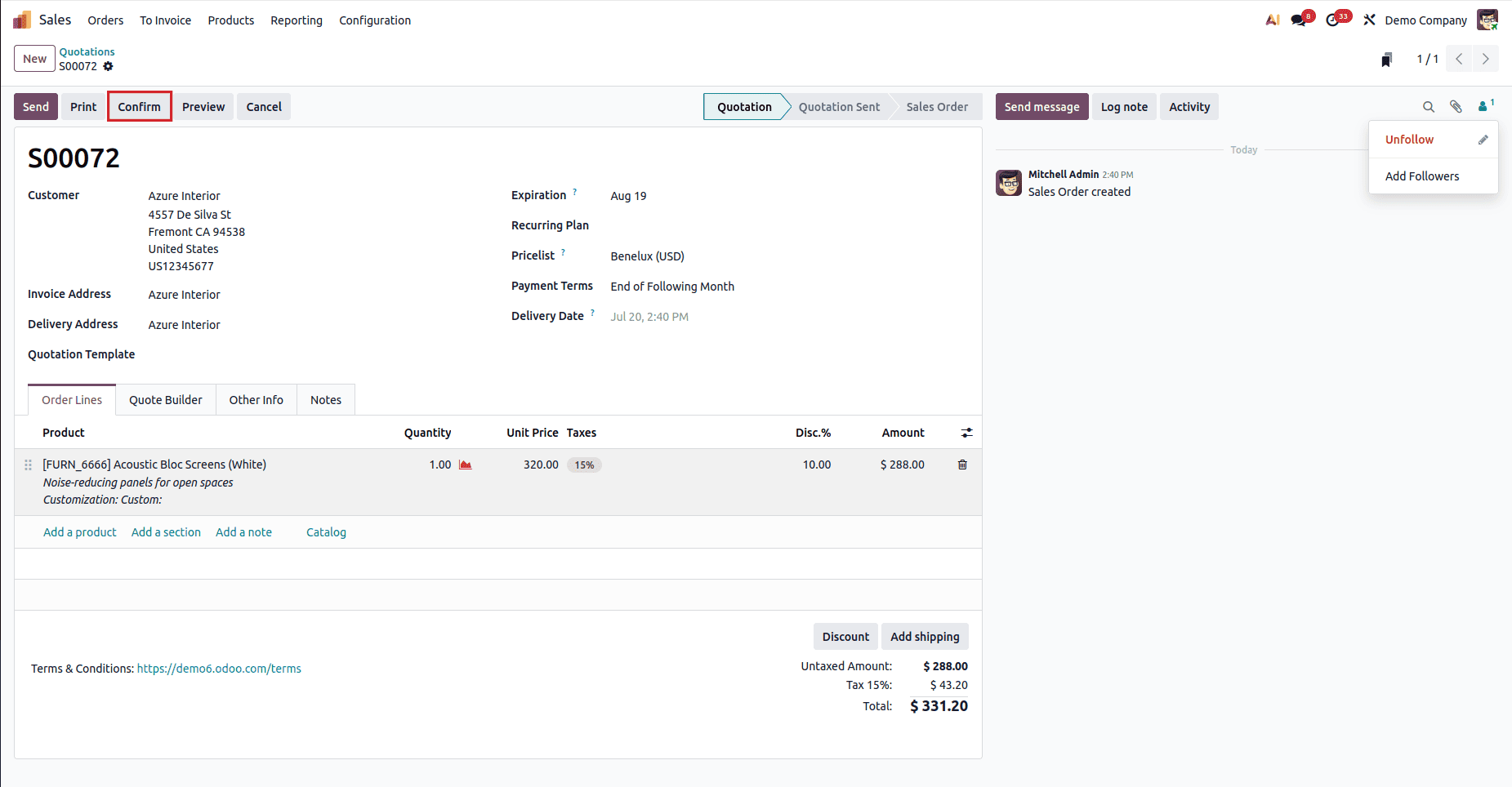
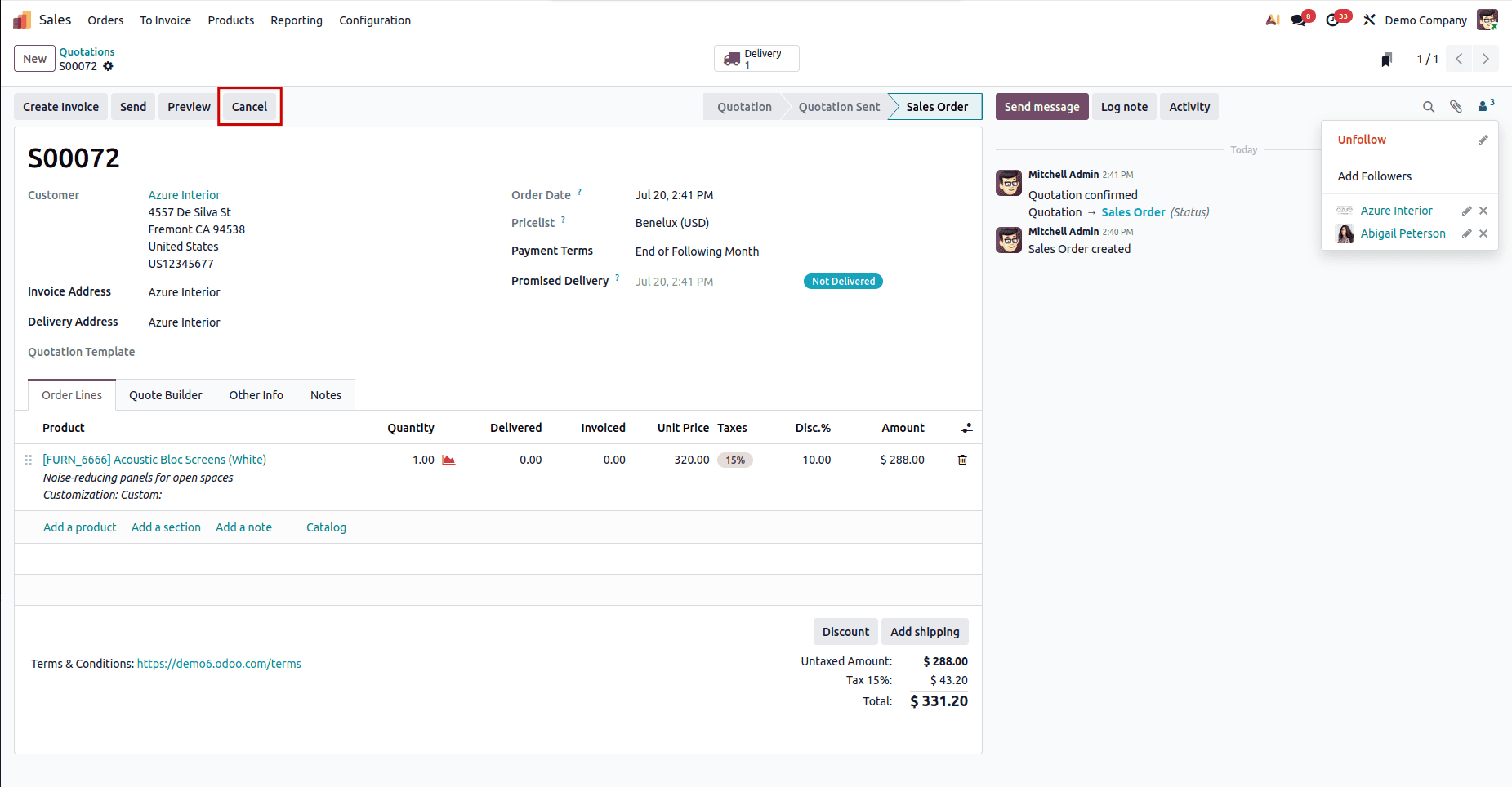
Click the Confirm button to confirm the quotation to the sales order.
Once the sales order has been confirmed, the customer is automatically added as a follower.
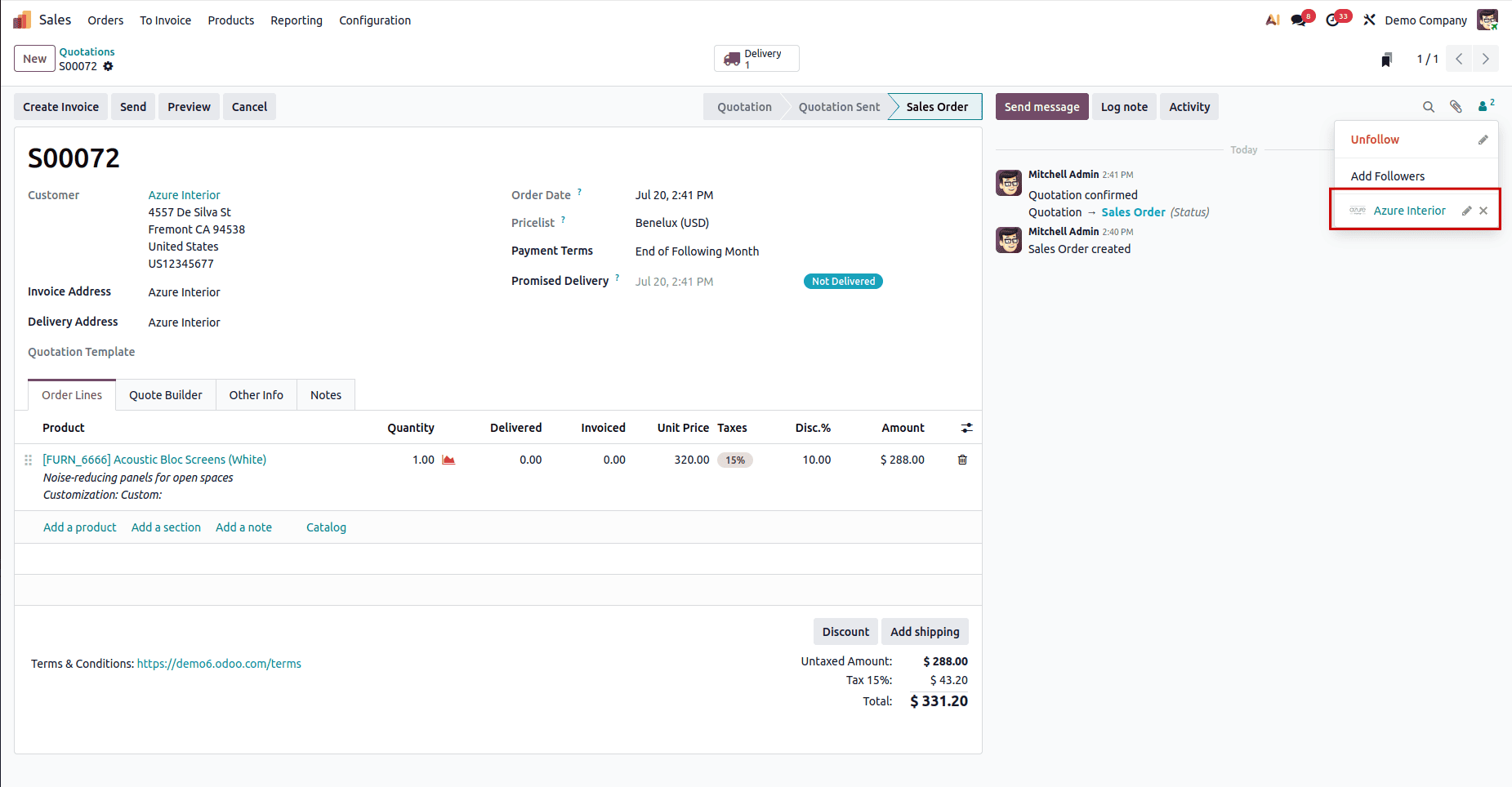
Click the Add Follower button to add a follower manually.
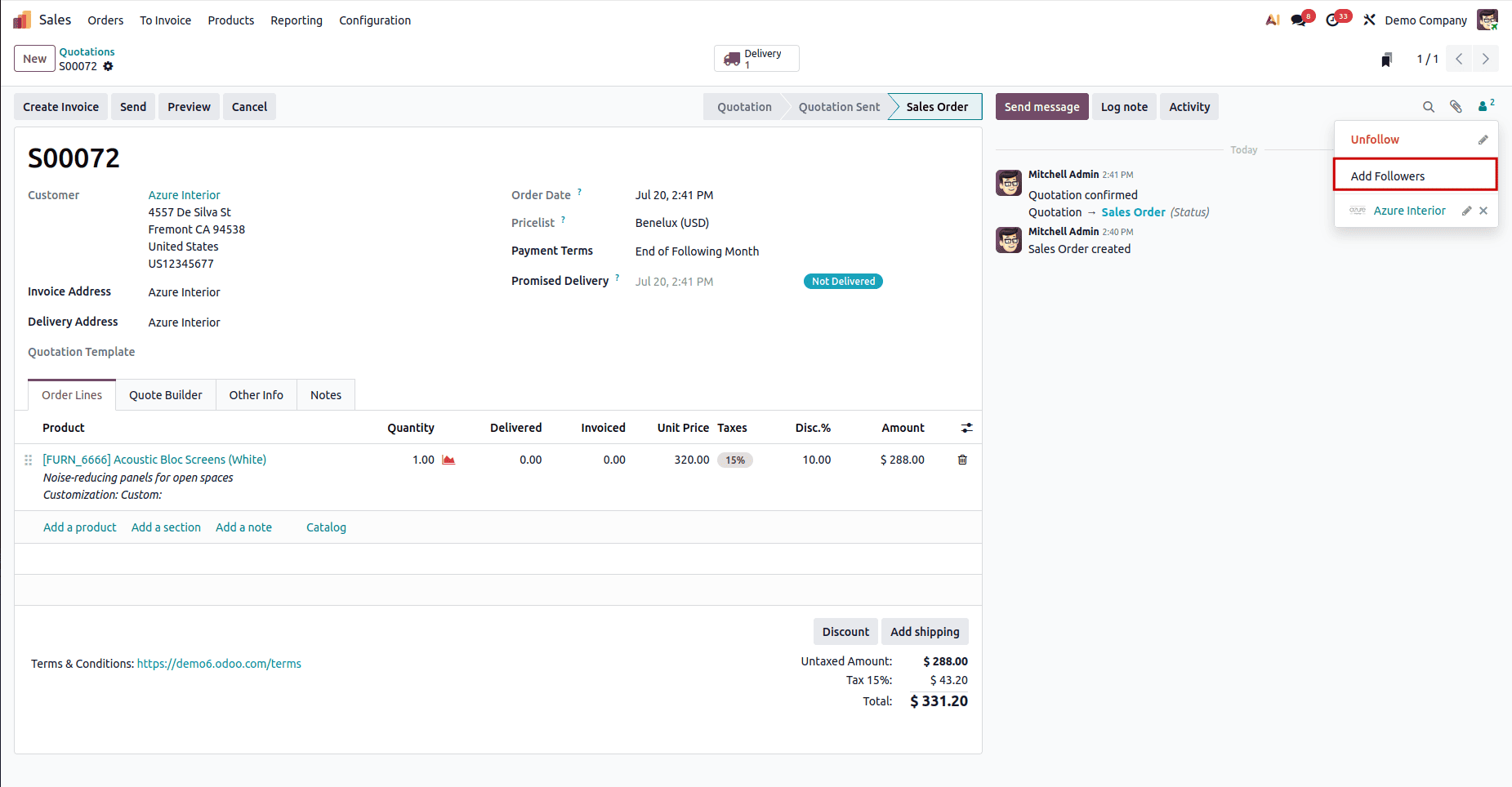
Select the follower from the follower list manually and click the Add Follower button.
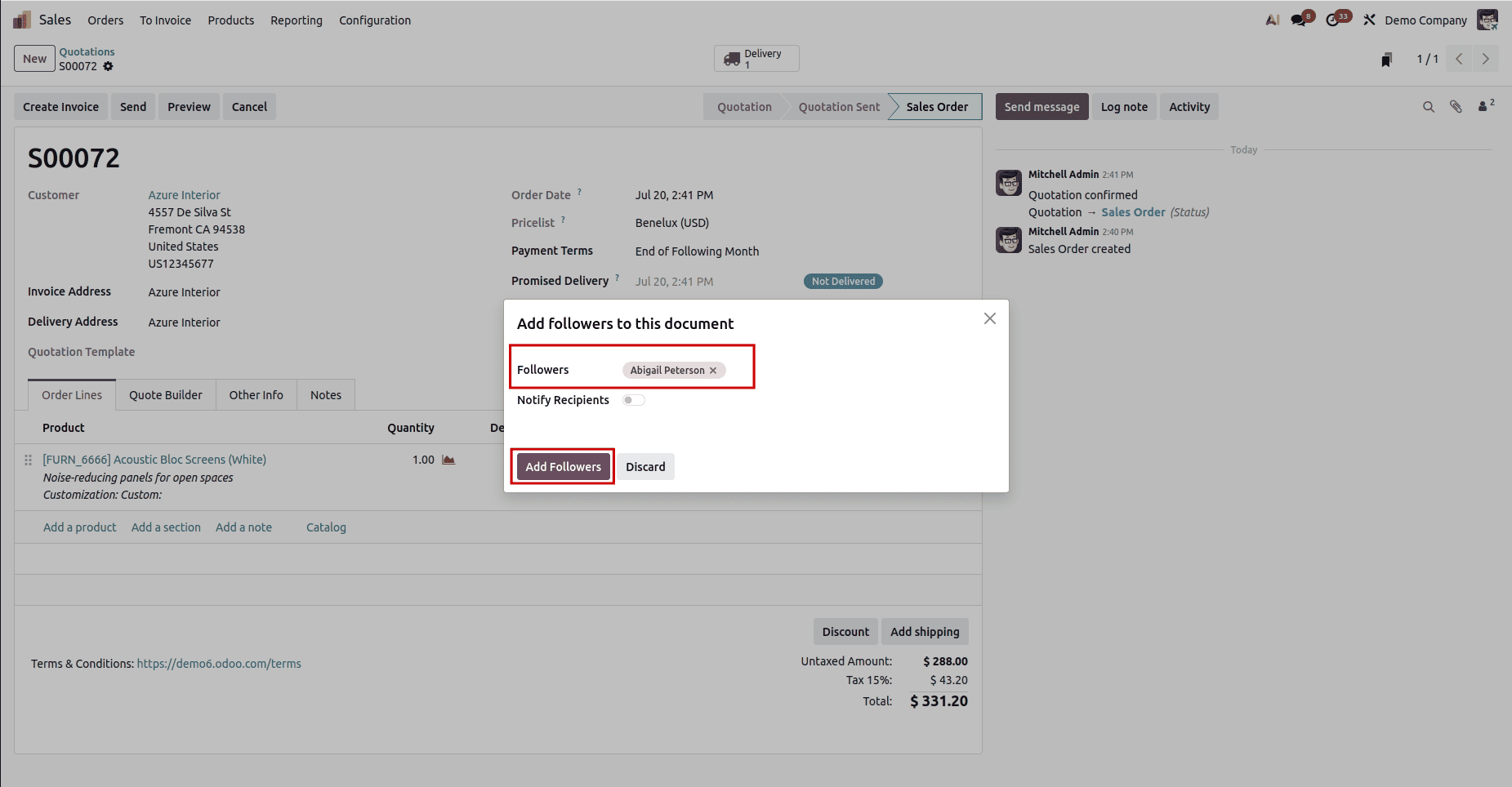
The manually added follower will be shown in the follower list.
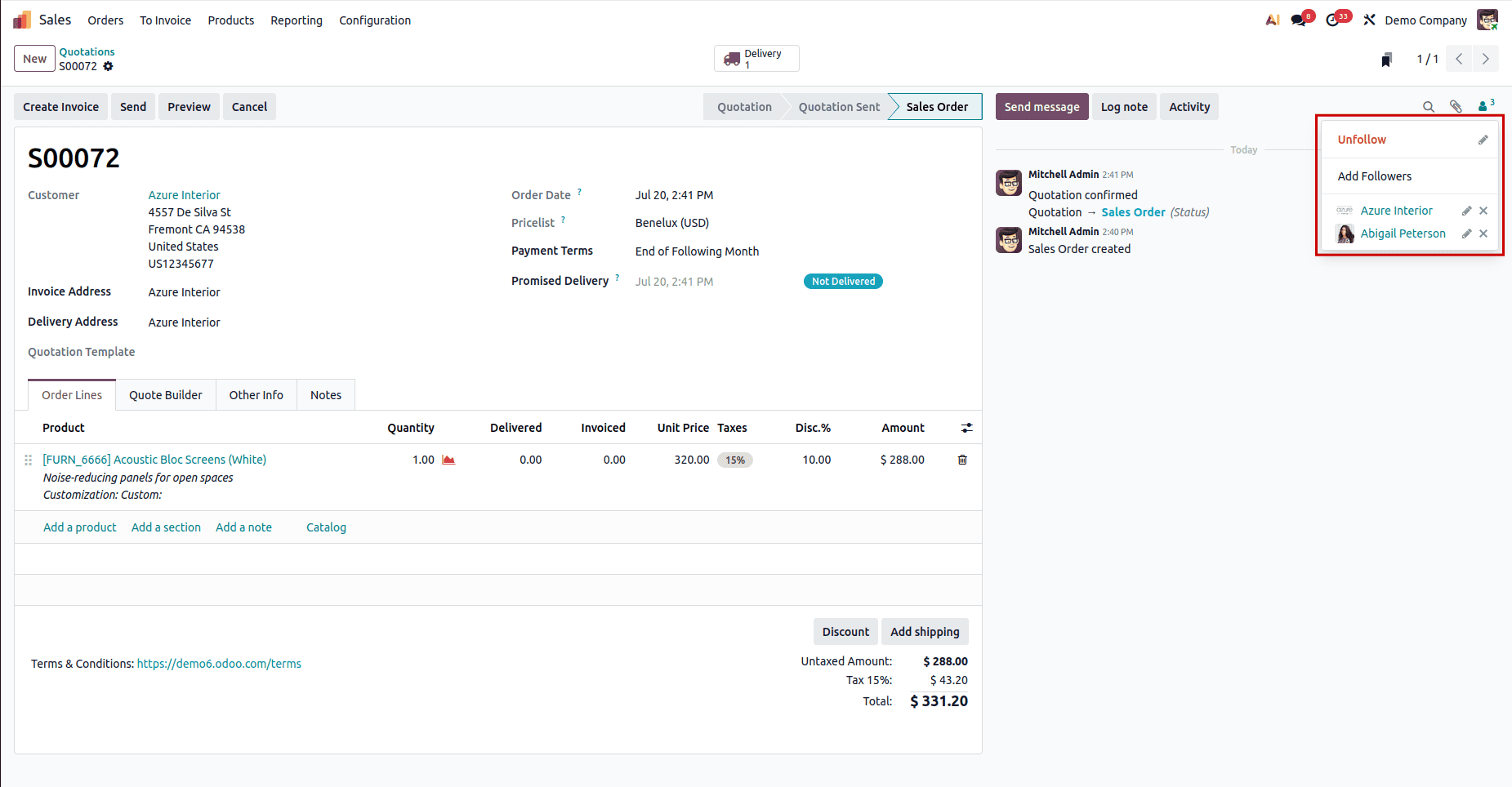
You can click the Cancel button to remove the dynamically added follower from the follower list.
After the order is cancelled, the dynamically added follower is removed from the followers list.
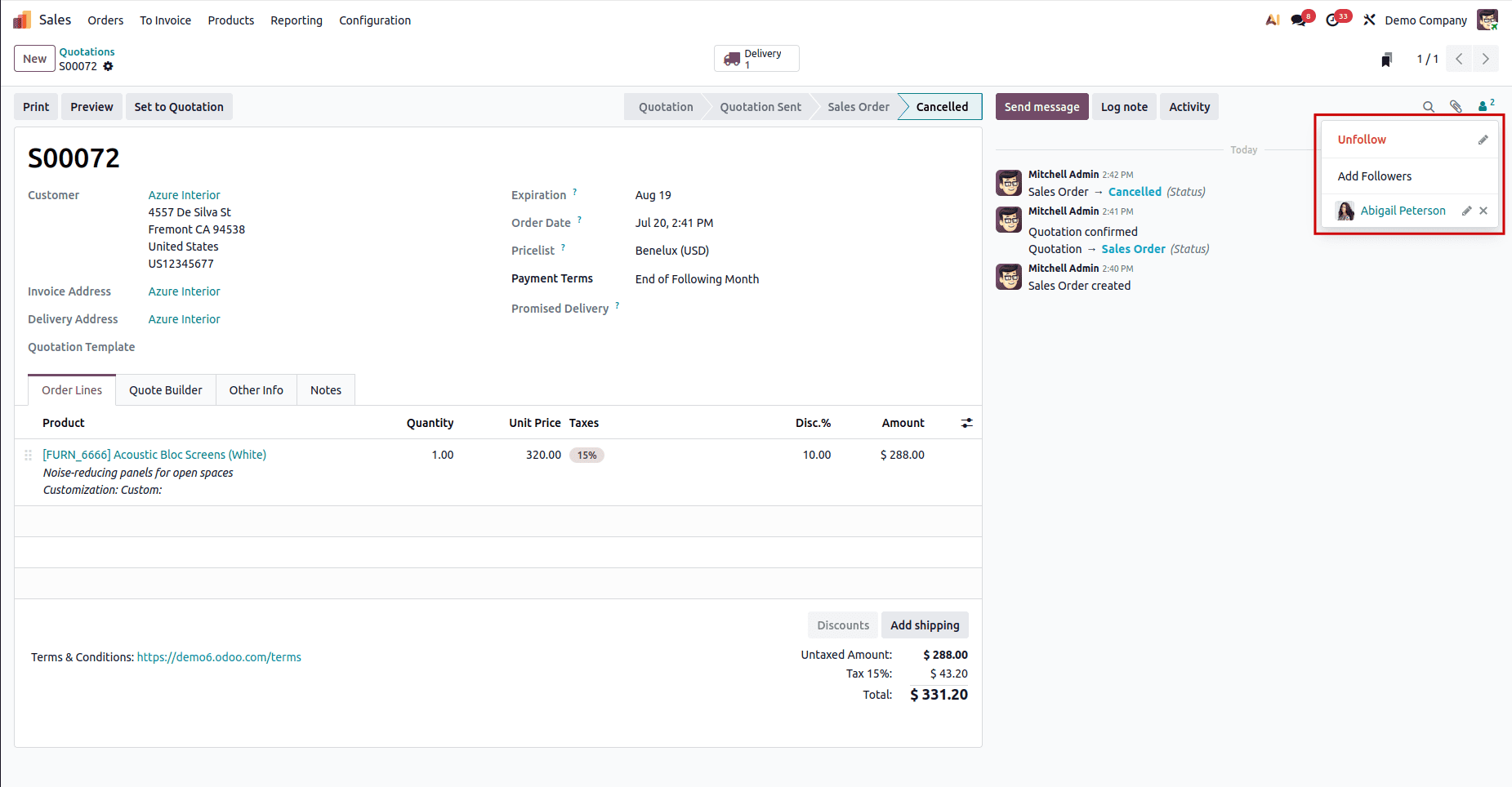
Odoo 19 Studio allows you to maintain an accurate, up-to-date follower list for Sales Orders using just two no-code automation rules, eliminating the need for manual intervention or custom development. The customer is automatically subscribed as soon as a quotation becomes a confirmed order and is also automatically unsubscribed if that order is later cancelled by setting up Add Followers on confirmation and Remove Followers on cancellation; any manually added followers are unaffected.
To read more about How to Use AI-Powered Fields in Odoo 19 Studio, refer to our blog How to Use AI-Powered Fields in Odoo 19 Studio.