Deferred release, as used in accounting, is the amount of money that a company receives from customers in exchange for any sold items or services that have not yet been delivered or completed. Since the money has not yet been learned and is still being received, we are unable to record this amount in the firm income account. Until the delivery or service is completed, the status of this revenue or income may change. It would be possible after the amount was declared as a liability in accounting.
Let's look at how Deferred Revenue is handled by the Odoo 19 Accounting module.
You can select the Odoo 19 Accounting module from the Odoo 19 main dashboard. When you look at the module's settings, you can find the option to handle the deferred release.
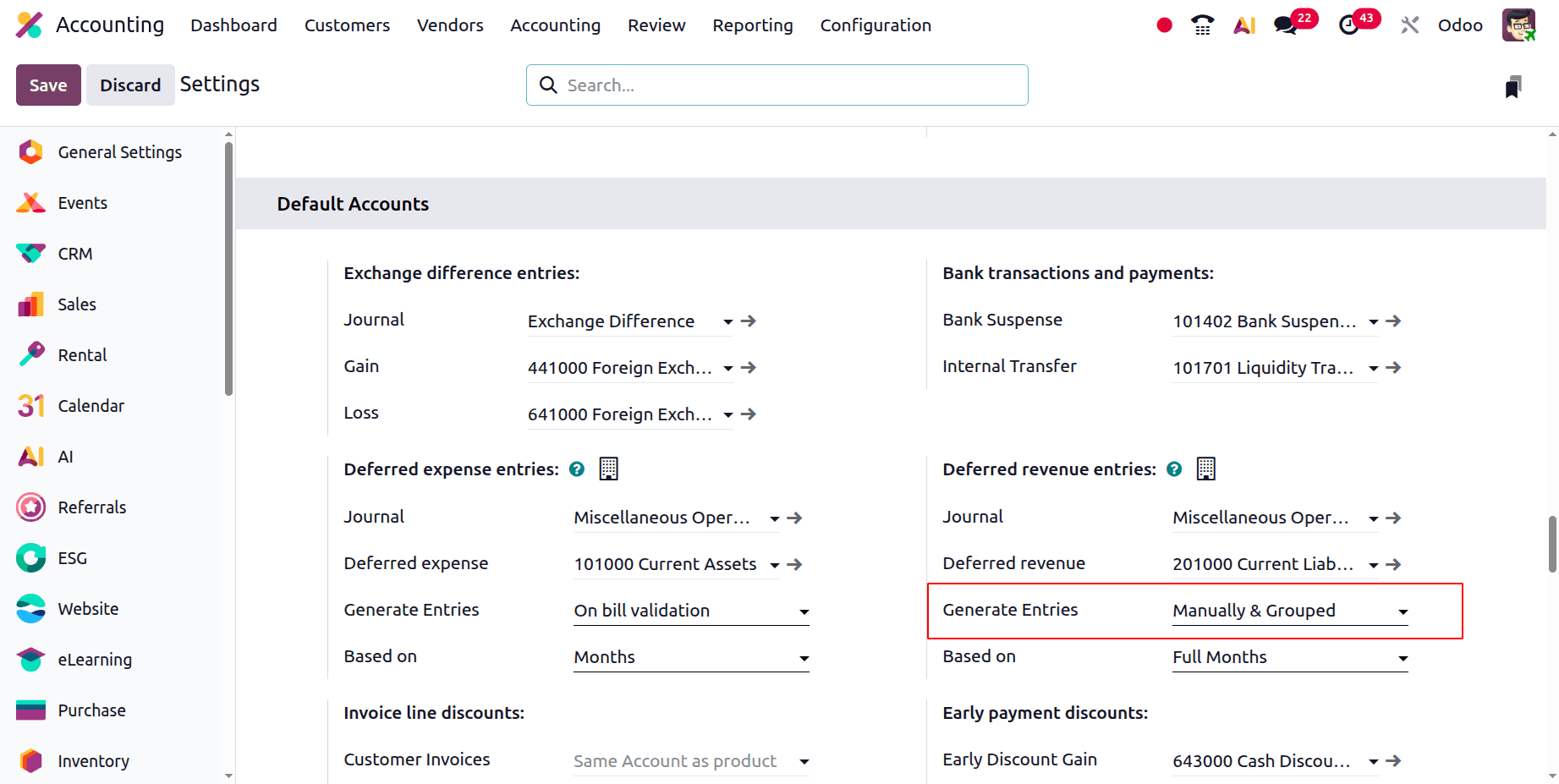
The Default Accounts area is located under Accounting Settings. All of the default corporate accounts are displayed in this section. The screenshot below displays the deferred revenue entries.
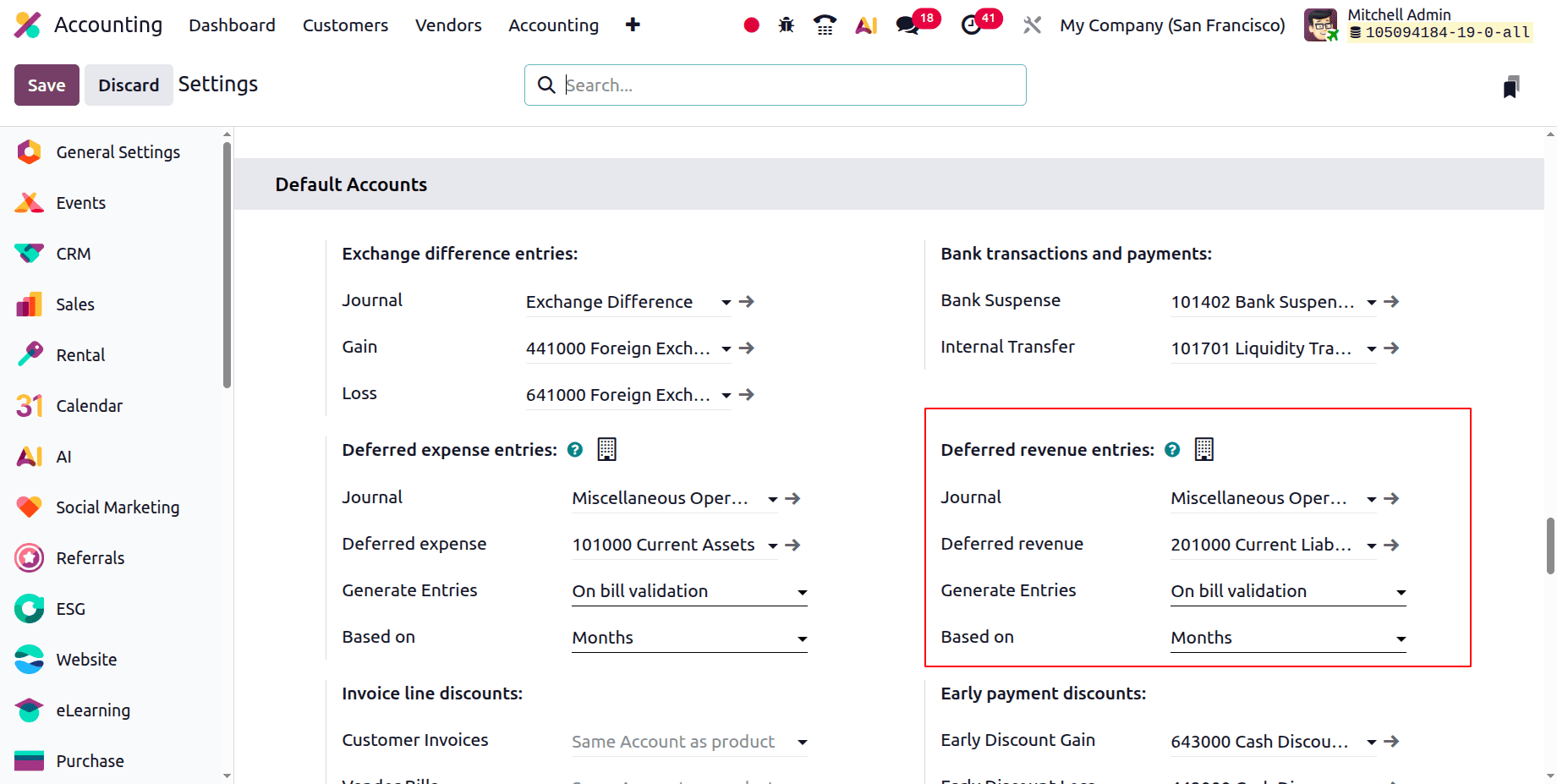
There is a journal for deferred entry and a deferred revenue account. Deferred entries can be created manually and grouped or on bill verification. Days, Months, and Full Months can all be used to calculate entries.
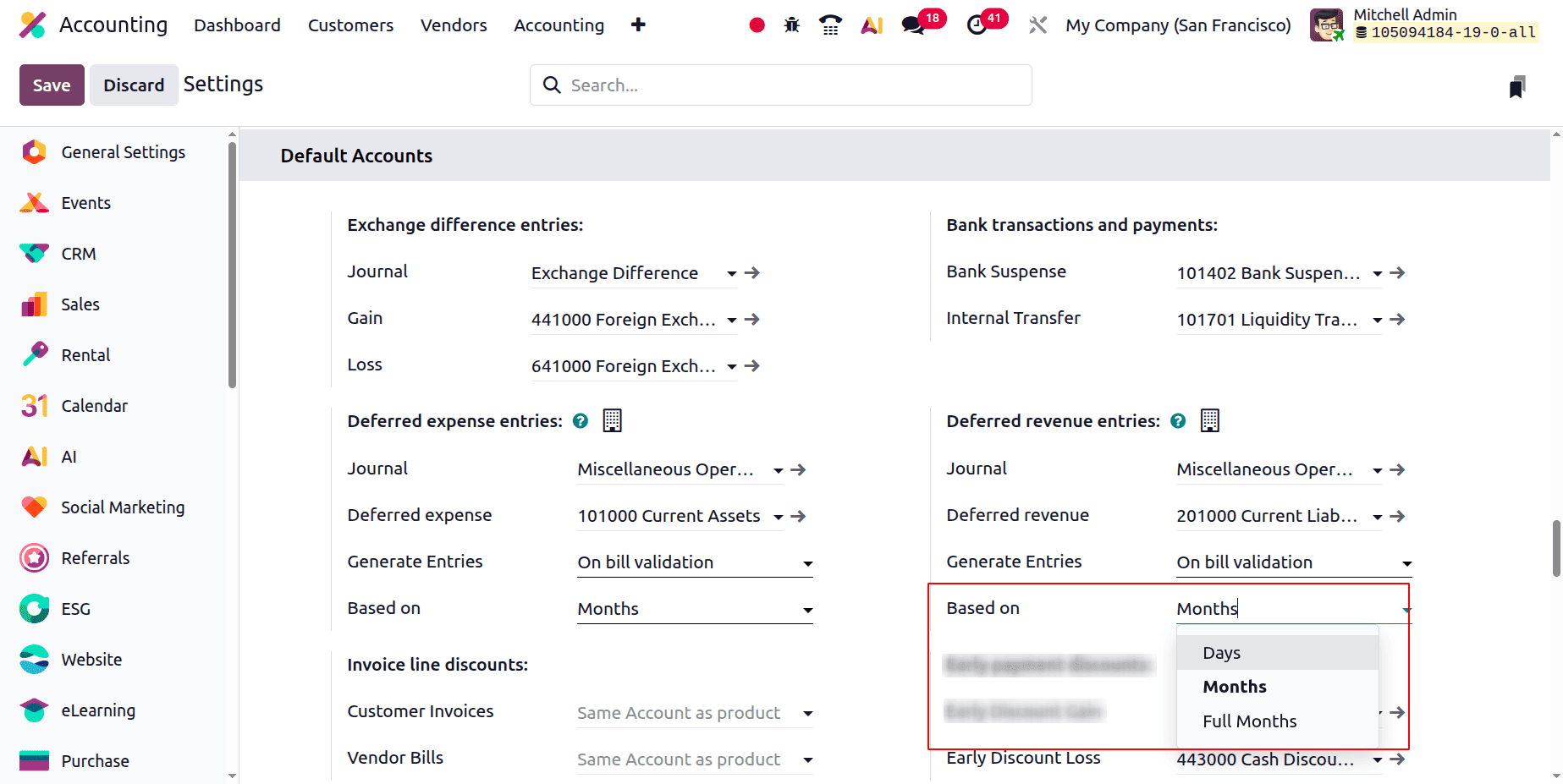
Generate Entries On bill verification
The deferred entries will automatically produce upon a bill's confirmation, even though they generate entries as bill validation.
Based on Months
Let's say we have a client who purchases a subscription plan from the business. So let's draft a fresh invoice. Select the Invoice option from the Customer menu to add a new invoice. a list of bills that includes information about the customer, reference, invoice date, tax excluded, total, and status. To add a new one, click the New button.
The invoice line used to add the product with quantities should be included after the customer's name, followed by the invoice date, terms of payment, journal, etc. Additionally, the Start Date and End Date columns are located on the Invoice line. The dates of the referred entry are displayed by the start and end dates.
The client Deco Addicts stores the service product Subscription Plan, as seen in the screenshot below. The dates are January 1st, 2026, through March 31st, 2026. In order to see the entries, let's verify the invoice.
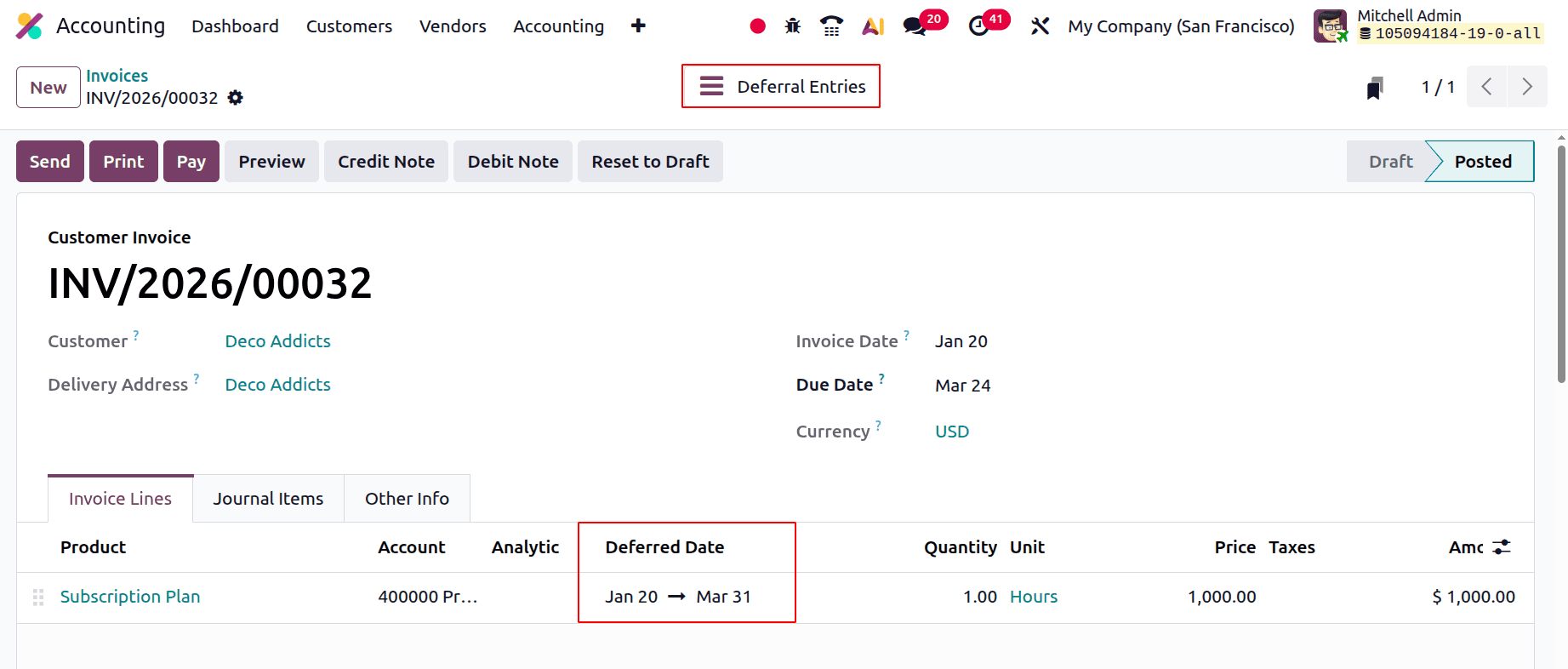
As seen above, a new smart tab called Deferred Entries appears after the invoice has been confirmed. Click the smart tab to see the deferred entries.
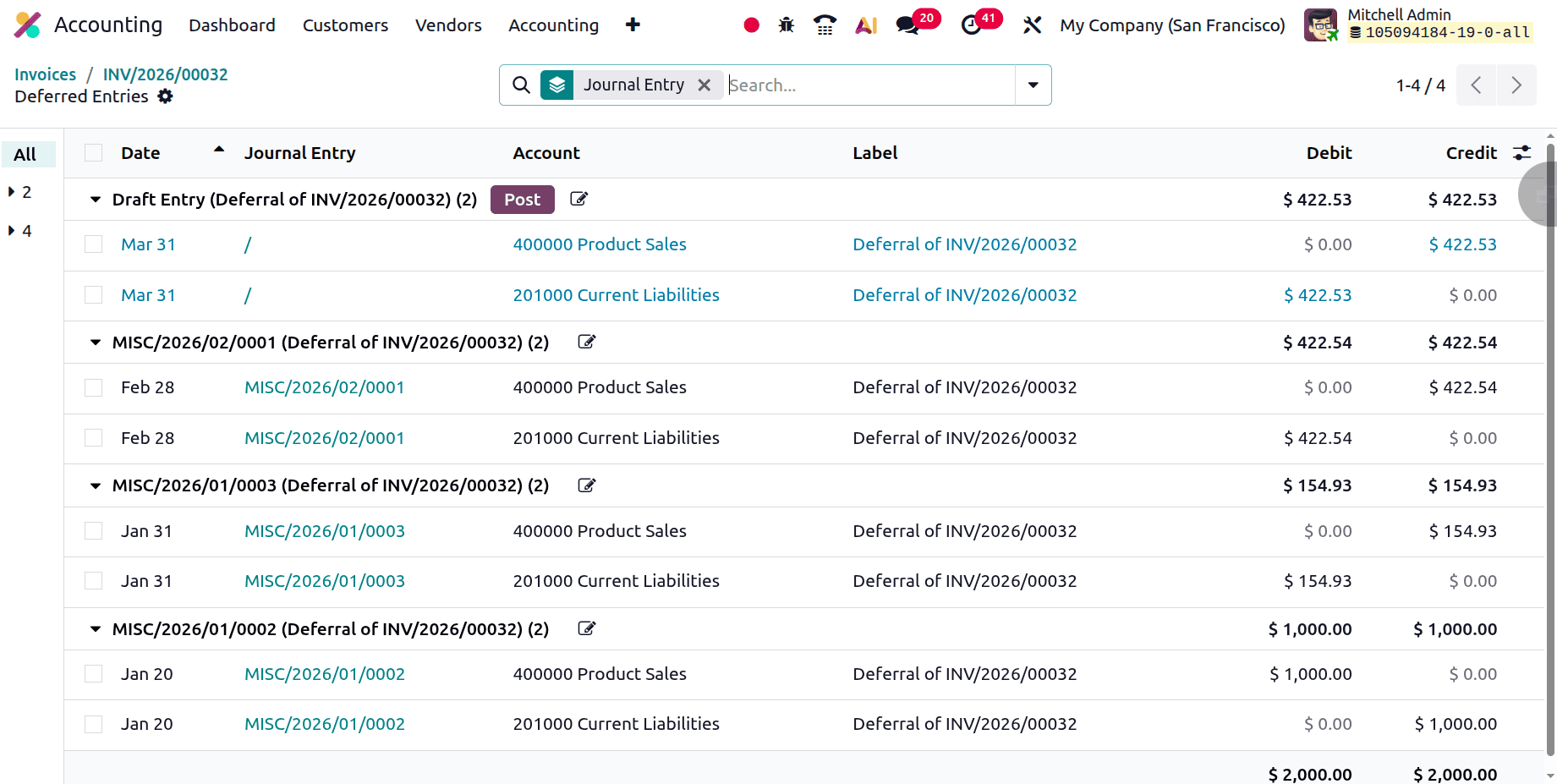
Two accounts are displayed in the first entry. The first is an income account called Product Sales. When a release is postponed, the income is reduced, and the entire amount is deducted from the income account. Current Liability is a Deferred Revenue account; when the liability rises, the account is credited.
In this case, the Deferred Revenue is generated for three months (January to March) and takes thirty days into account. It is $1000 in total. However, January 20th is the designated start date. January has eleven days, thus 11/30 = 0.36666667 months. Thus, there are 2.36666667 months between the start and finish dates.
Monthly Deferred Revenue = 1000/2.36666667 = 422.535211208.
Thus, $422.54 depreciated per month.
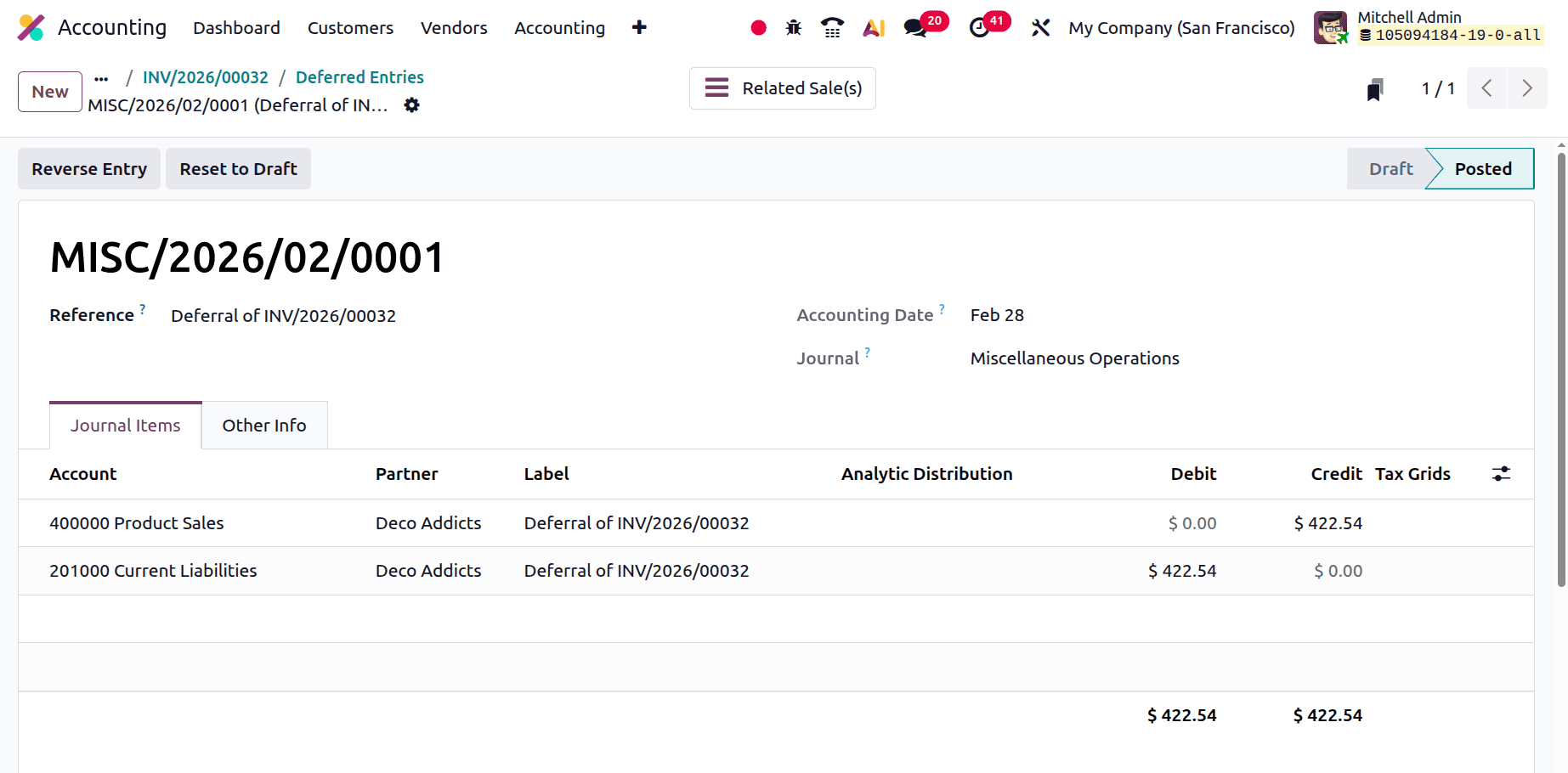
Let's review the journal entries. This is the January journal entry that was alluded to. January 20th is the designated commencement date. Thus, there are just eleven days left in January.
January Deferred Revenue = (11/30) * 422.535211208 = 154.93.
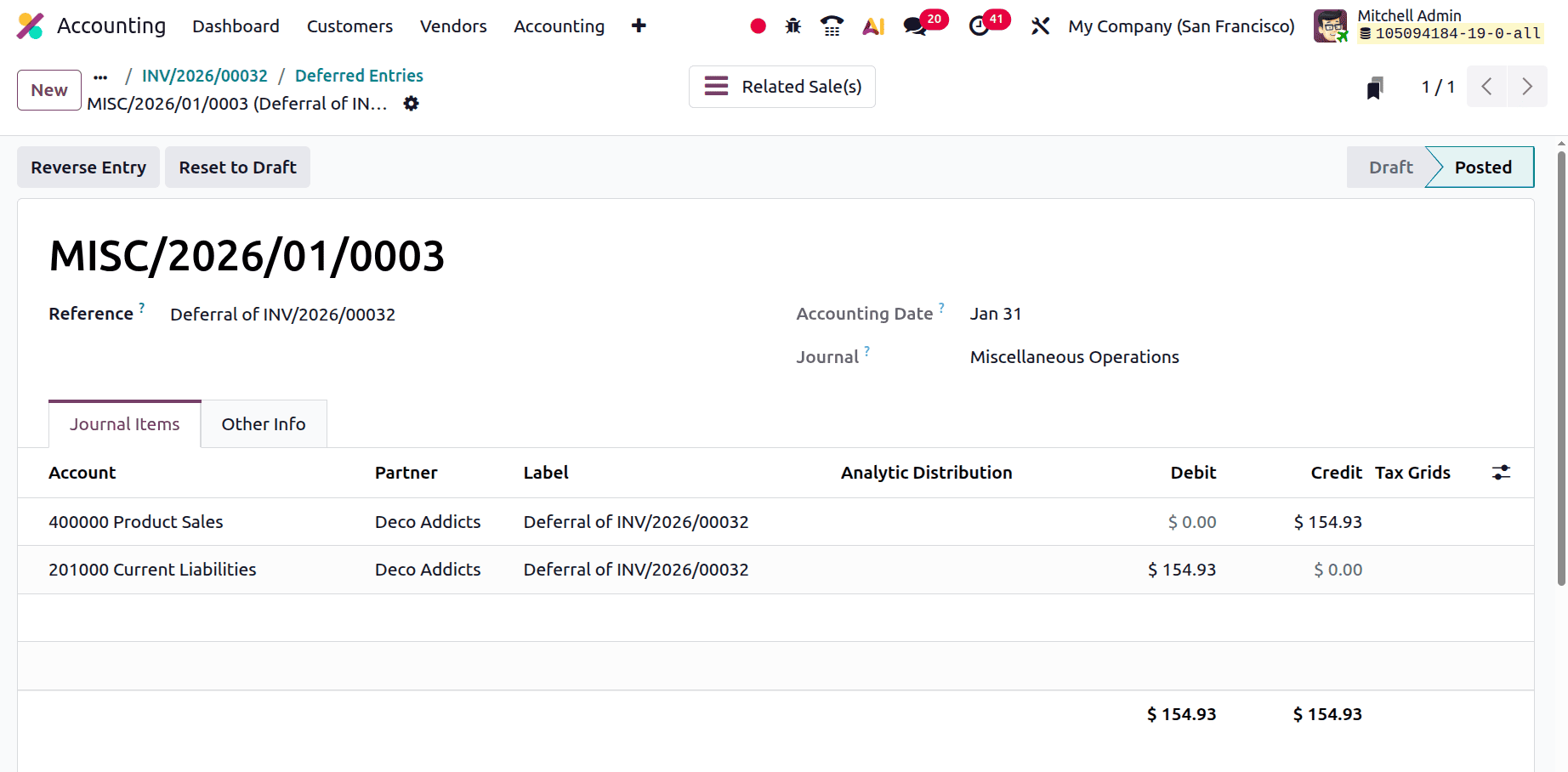
The accounting date is stated as January 31st. Every month, the liability decreases and the income increases. As a result, the money was credited to the Product Sales account and deducted from the Deferred Revenue account.
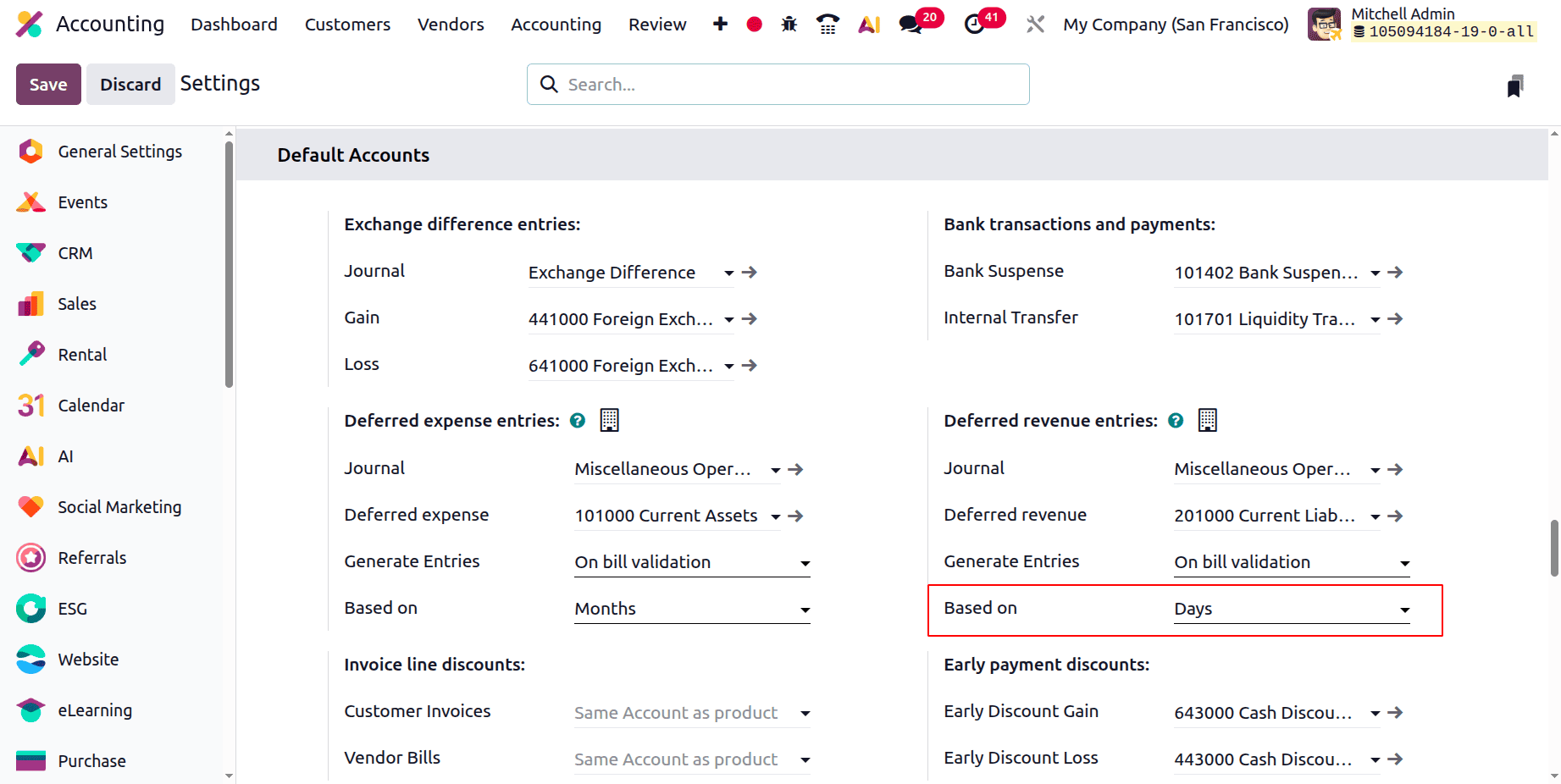
Based on Days
The computation of entries will alter, even though the deferred revenue is determined using days. Change the configuration first, as indicated below.
Make a new invoice after that. The identical subscription product was requested by the consumer, who is a Deco Addict. Include the beginning and ending dates. The start date is January 1, 2026, and the end date is March 31, 2026. Verify the invoice.
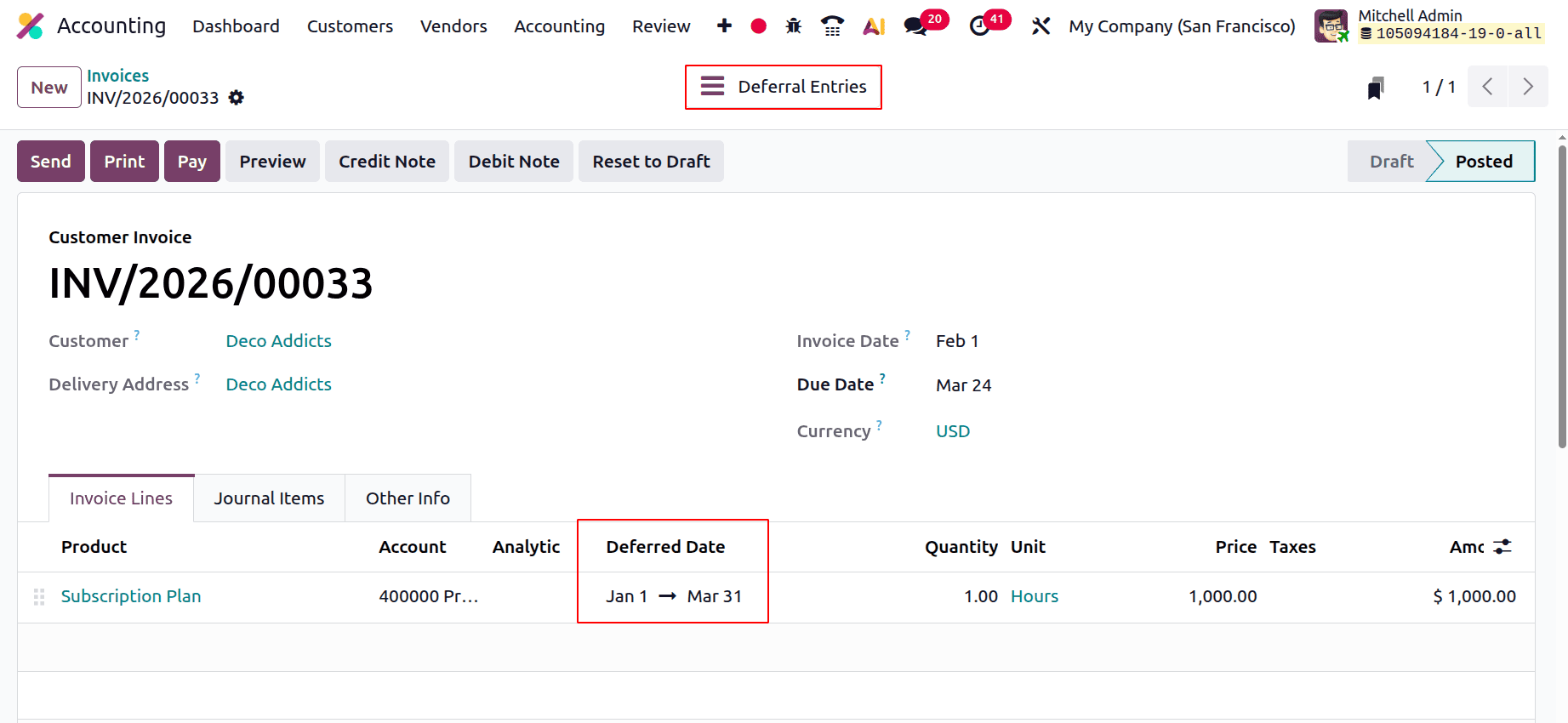
Following confirmation, the upper part of the invoice will display a smart tab called Deferred Entries. In this case, the calculator is happy based on days.
Deferred entries based on Days = Total Invoiced amount / Total Number of Days.
Deferred entry for one day = 1000/90 = 11.111.
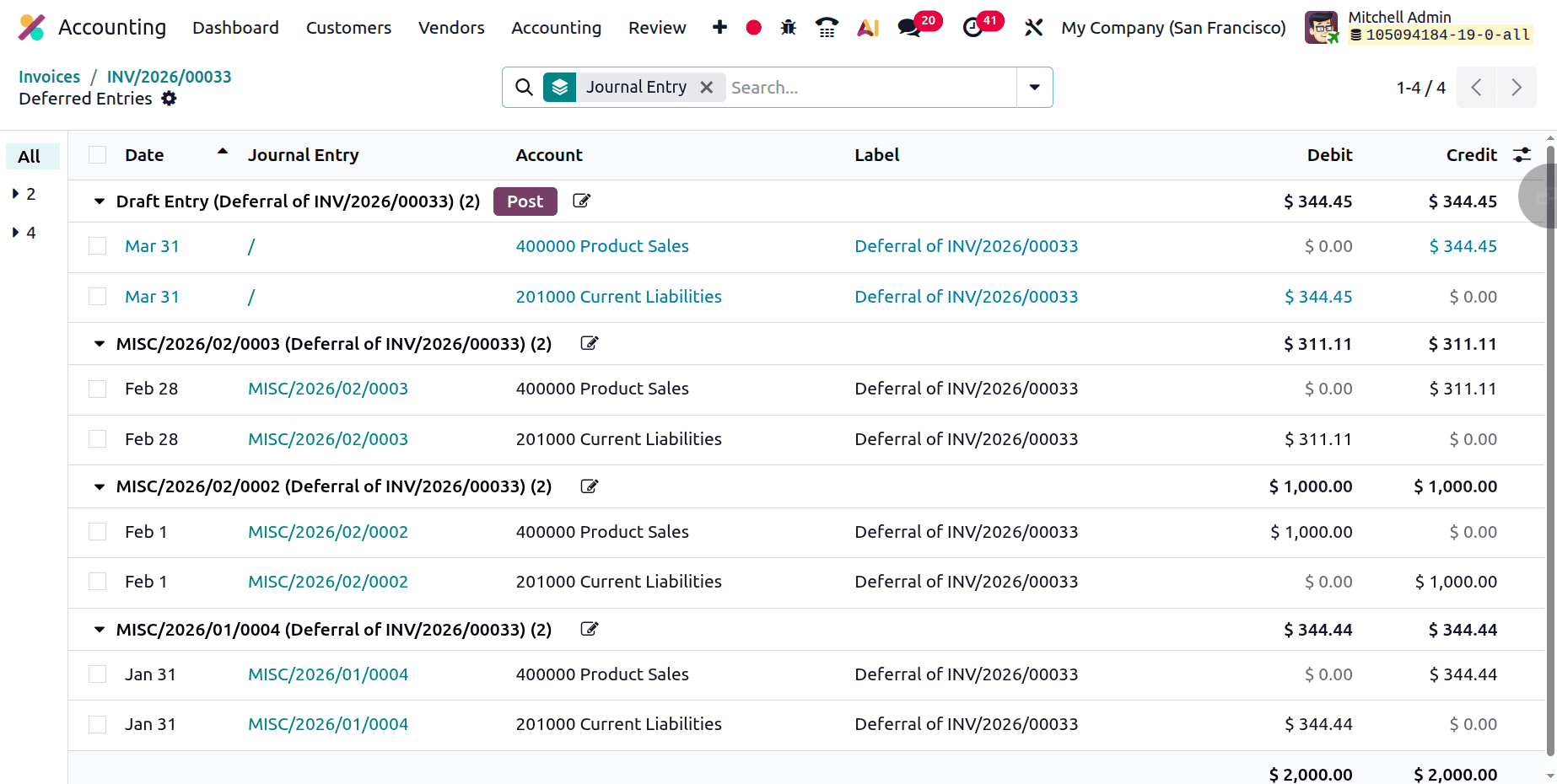
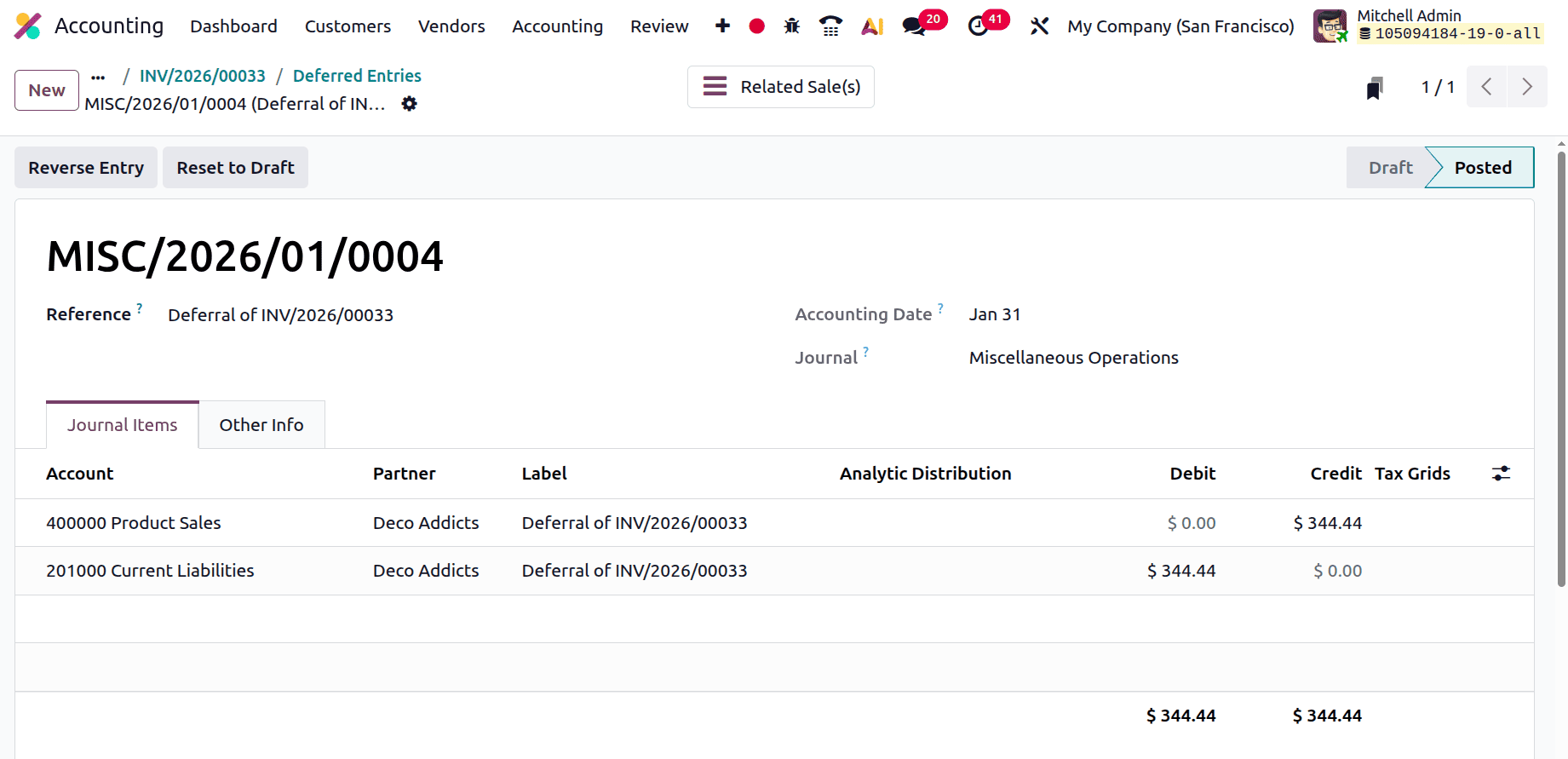
Open the January entry that was made. There are thirty-one days in January.
January's deferred entry is 11.111 * 31 = 344.44.
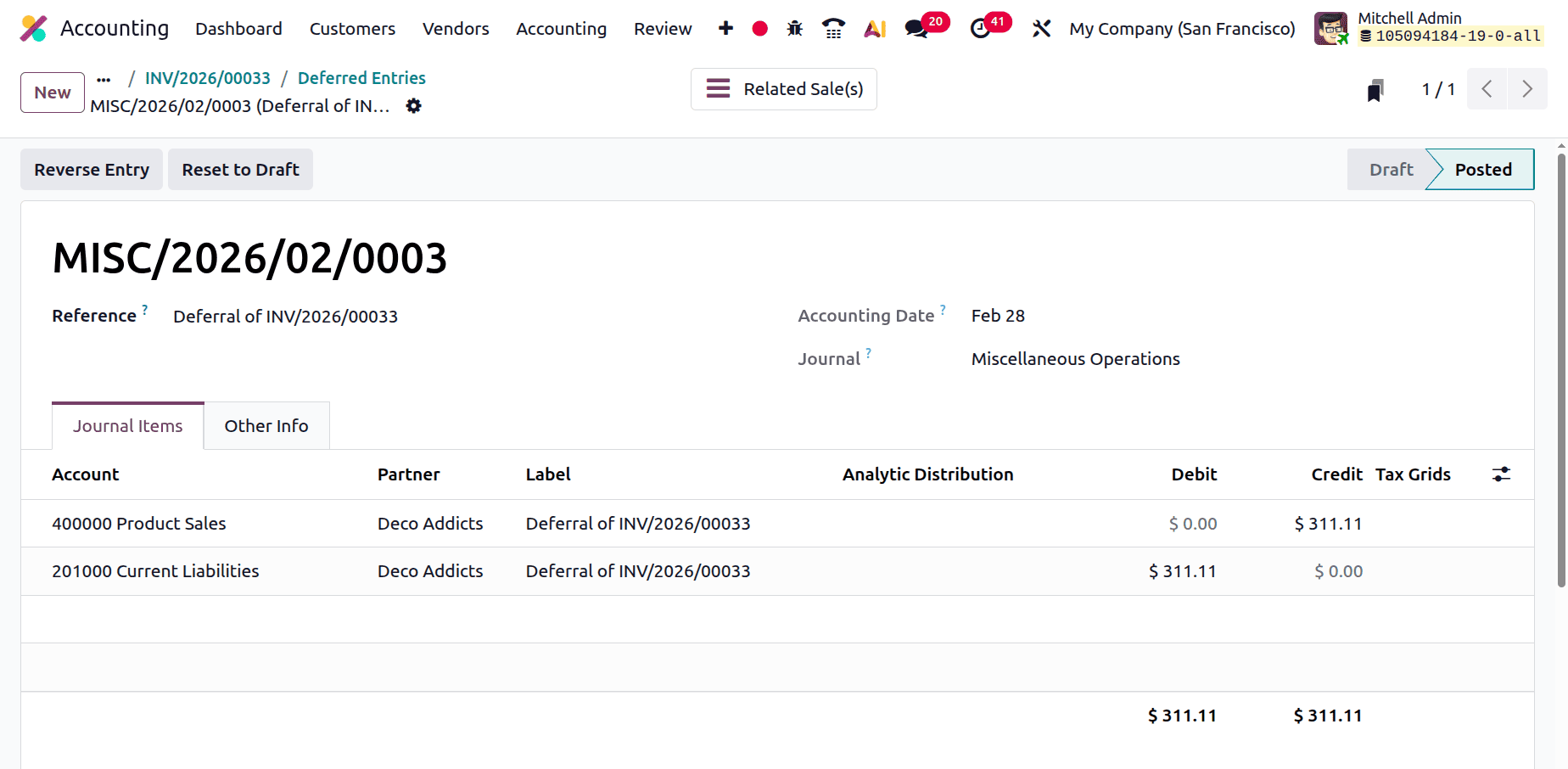
The following diary entry for February was then made. February has twenty-eight days.
February deferred entry = 11.111 * 28 = 311.11.
On the accounting date, the journal entry will be posted automatically.
Therefore, the monthly delayed revenue amount is deducted from the deferred revenue. To publish the journal entry, click the Post button.
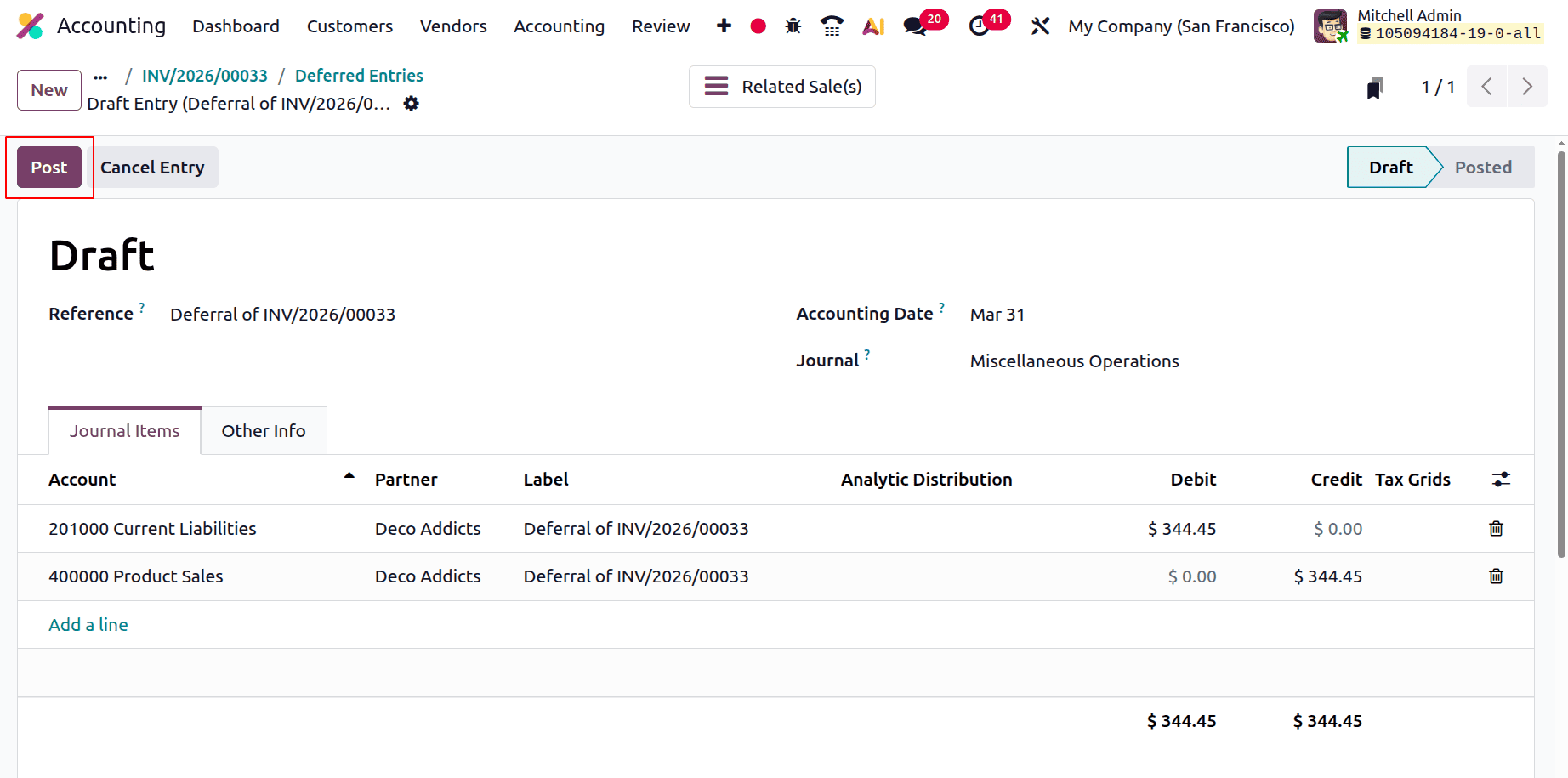
The deferred release journal entries are computed in this manner.
Based on Full Months
Based on Full Months is the following calculation, which divides the total amount equally among the months. First, make a configuration change.
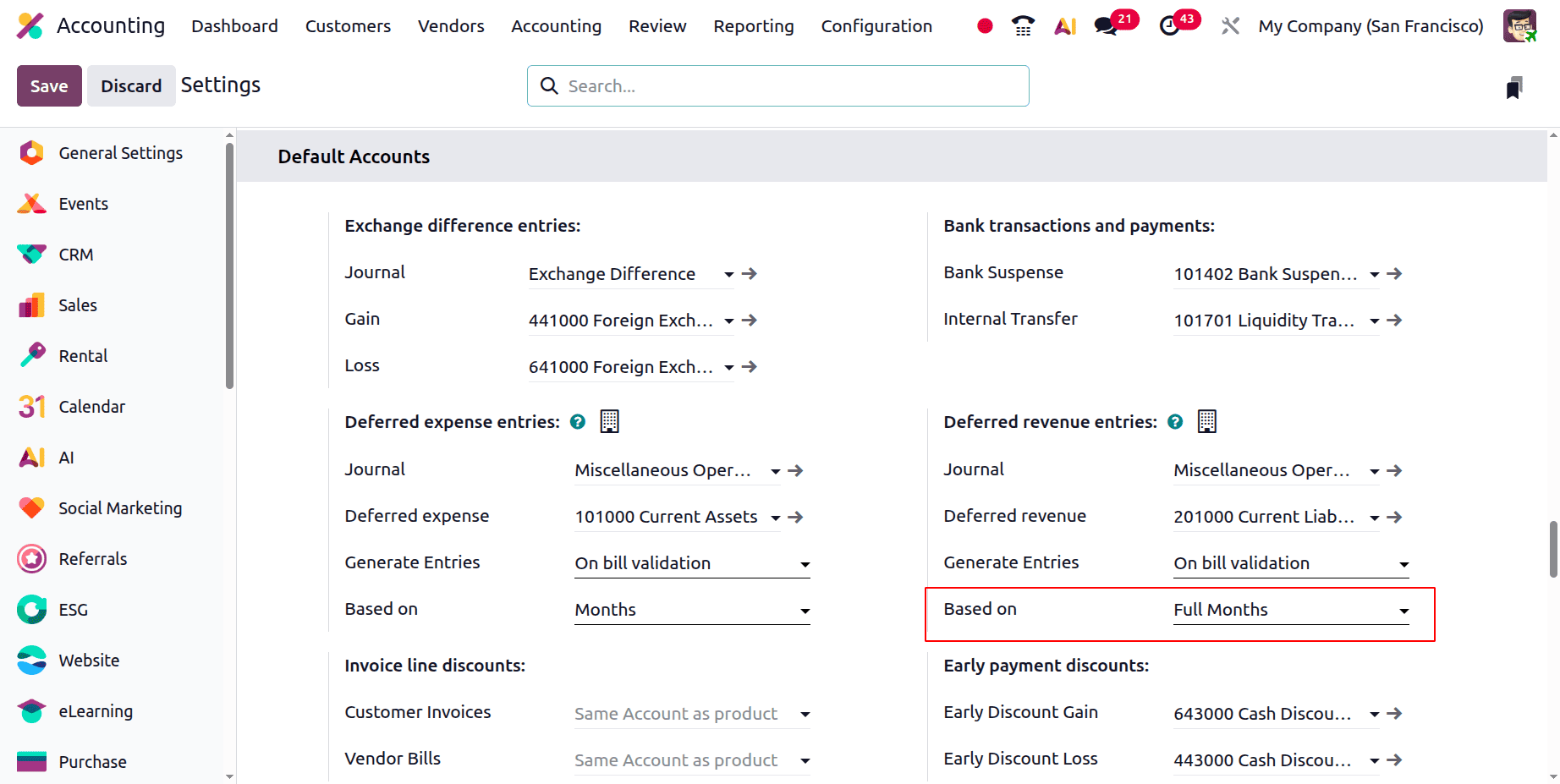
Next, make a fresh bill for a client. The start date is January 21, 2026, and the termination date is April 30, 2026. the product subscription plan, which comes with an additional $1000. Verify the invoice.
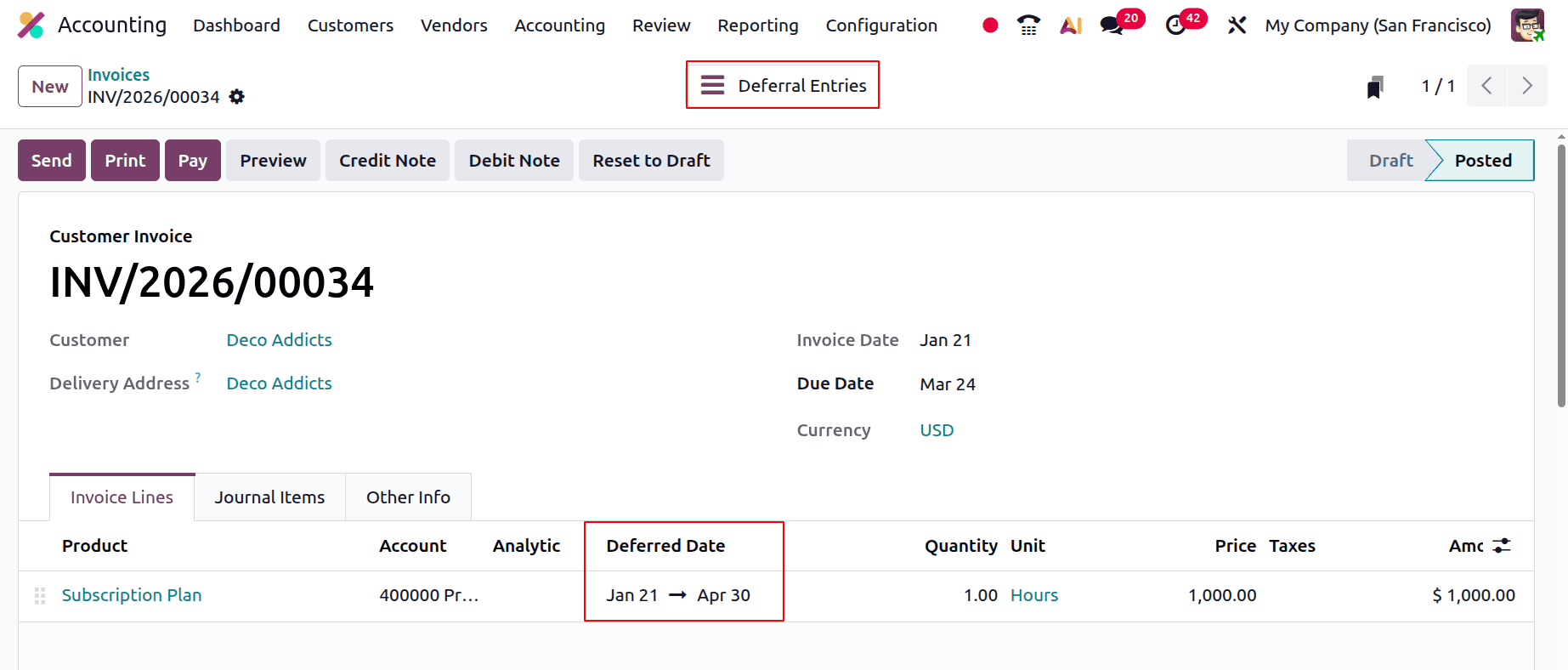
Launch the Deferred Entries smart tab. It will display every entry that has been made. Here, the depreciation entry is the same for every month.
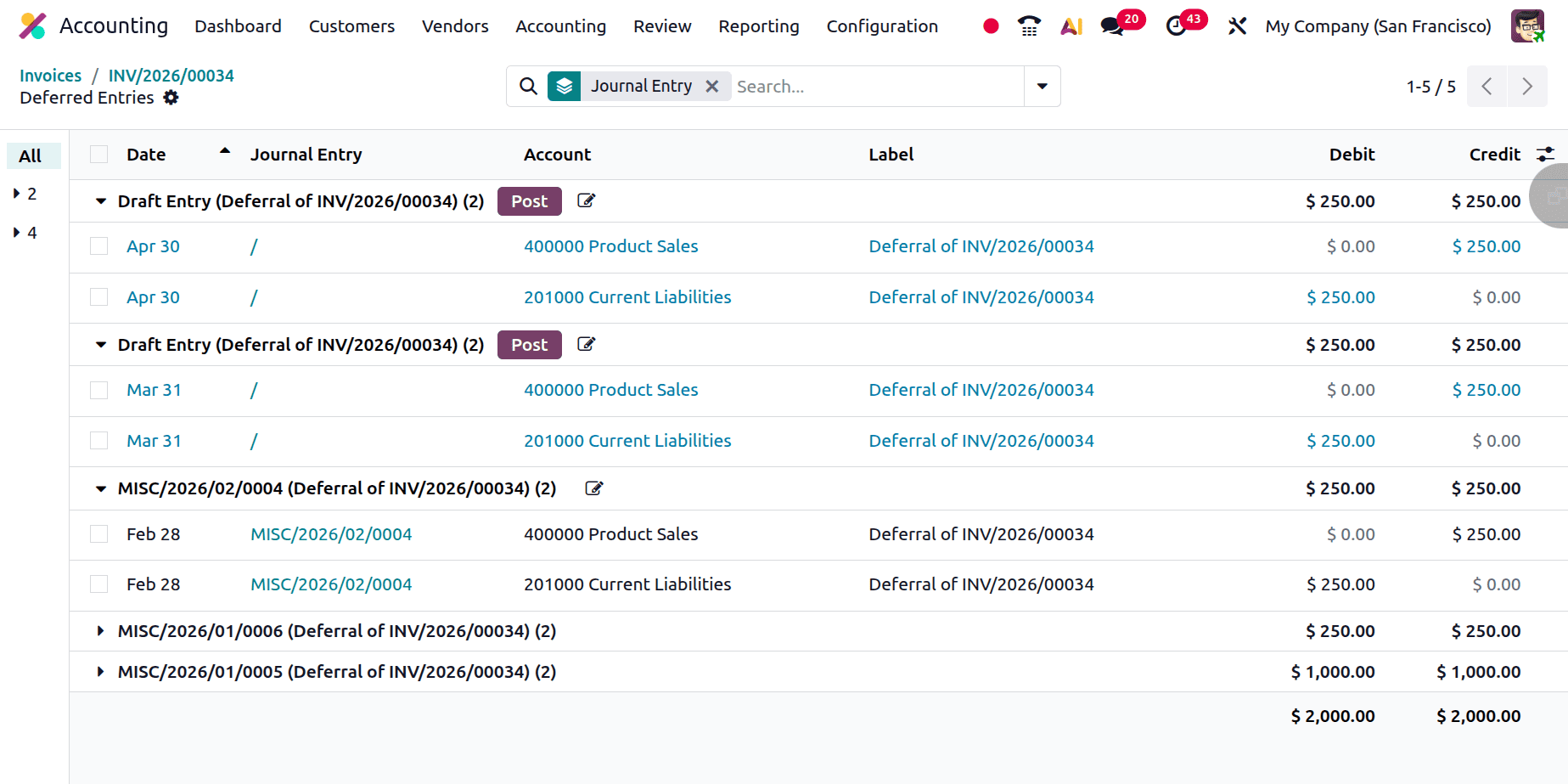
For four months, the total release is $1000.
Therefore, to calculate the Deferred Revenue for a single month, divide the whole invoice amount by the total number of months.
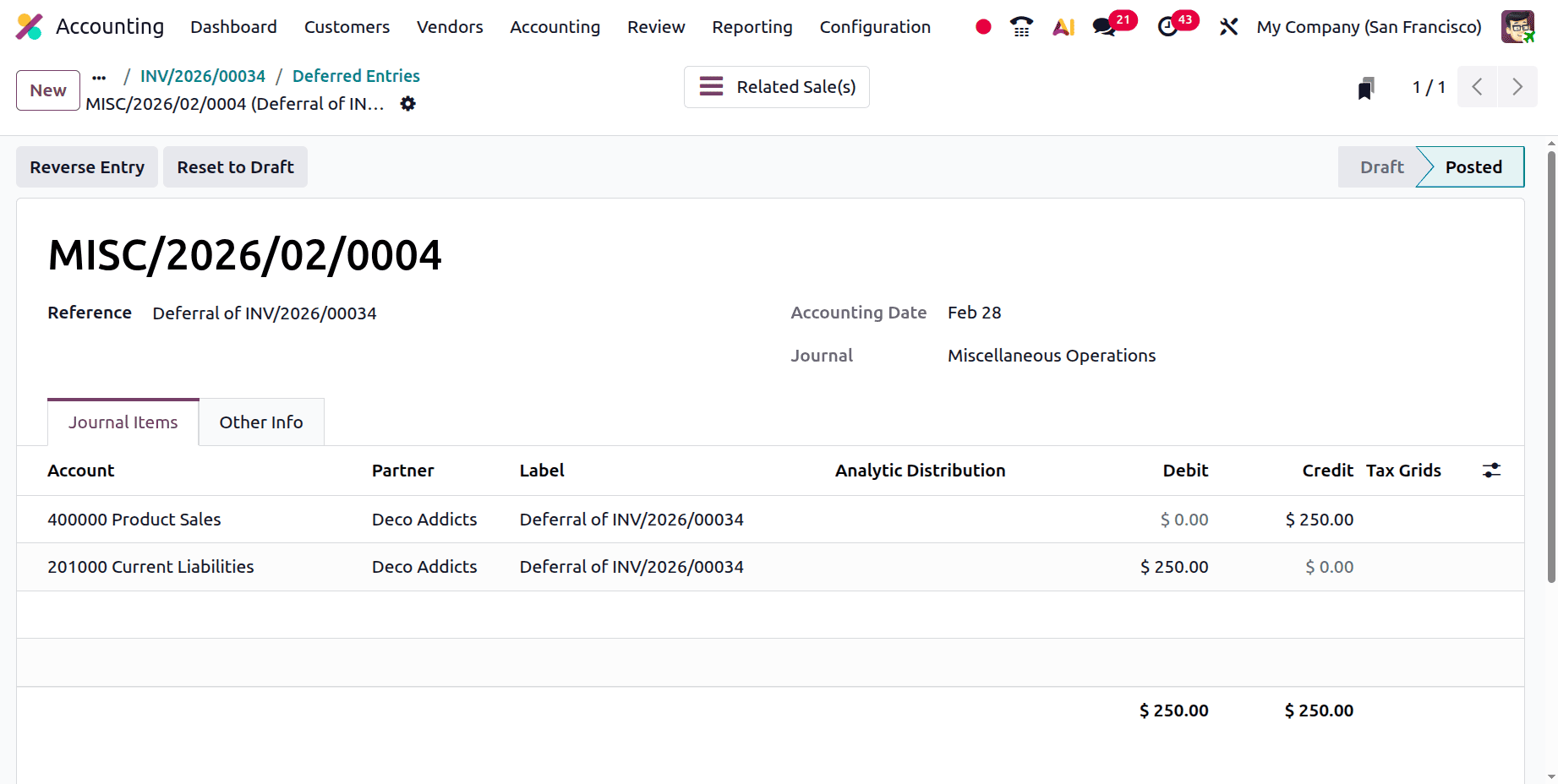
One month's worth of deferred revenue is 1000/4 = 250.
Generate Entries Manually & Grouped
Manually & Grouped is the second technique for creating deferred entries. The journal entries are not generated automatically while using this method. As a result, the user must create the entry for every month independently. In order to modify the settings, the user must first select Deferred Entries under Accounting Settings. Next, select Manually & Grouped in the Generate Entries area.
Make a new invoice after saving. Dec Addicts, the same client, was selected as a client. The identical Product Subscription Plan is added inside the invoicing line. The relevant entry's start and end dates are set from March 1, 2026, to June 30, 2026. March 24th is also designated as the invoice date. Verify the invoice.
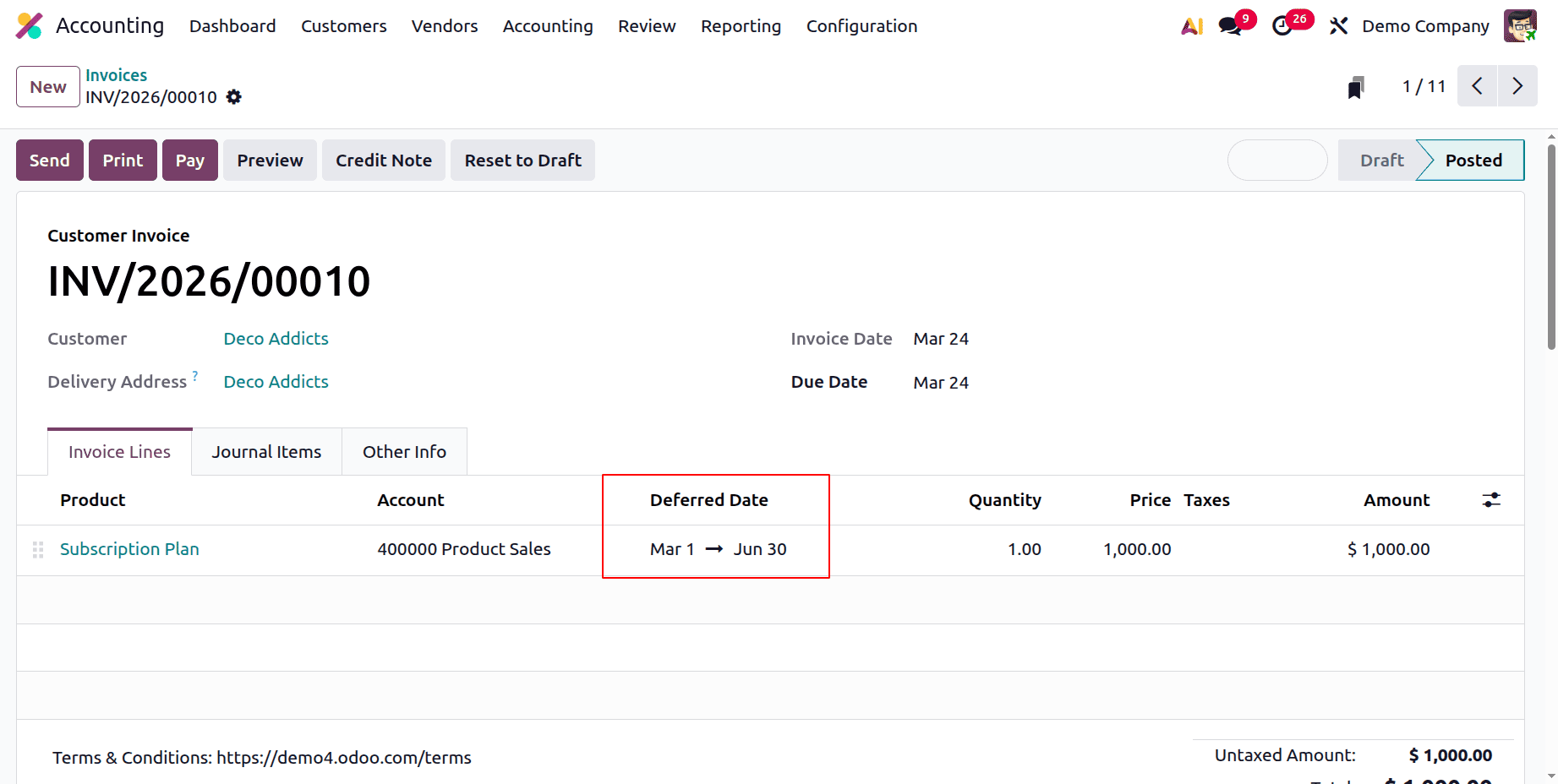
As previously mentioned, the referred entries are automatically created after the following confirmation. Thus, the journal entry must be created by the user.
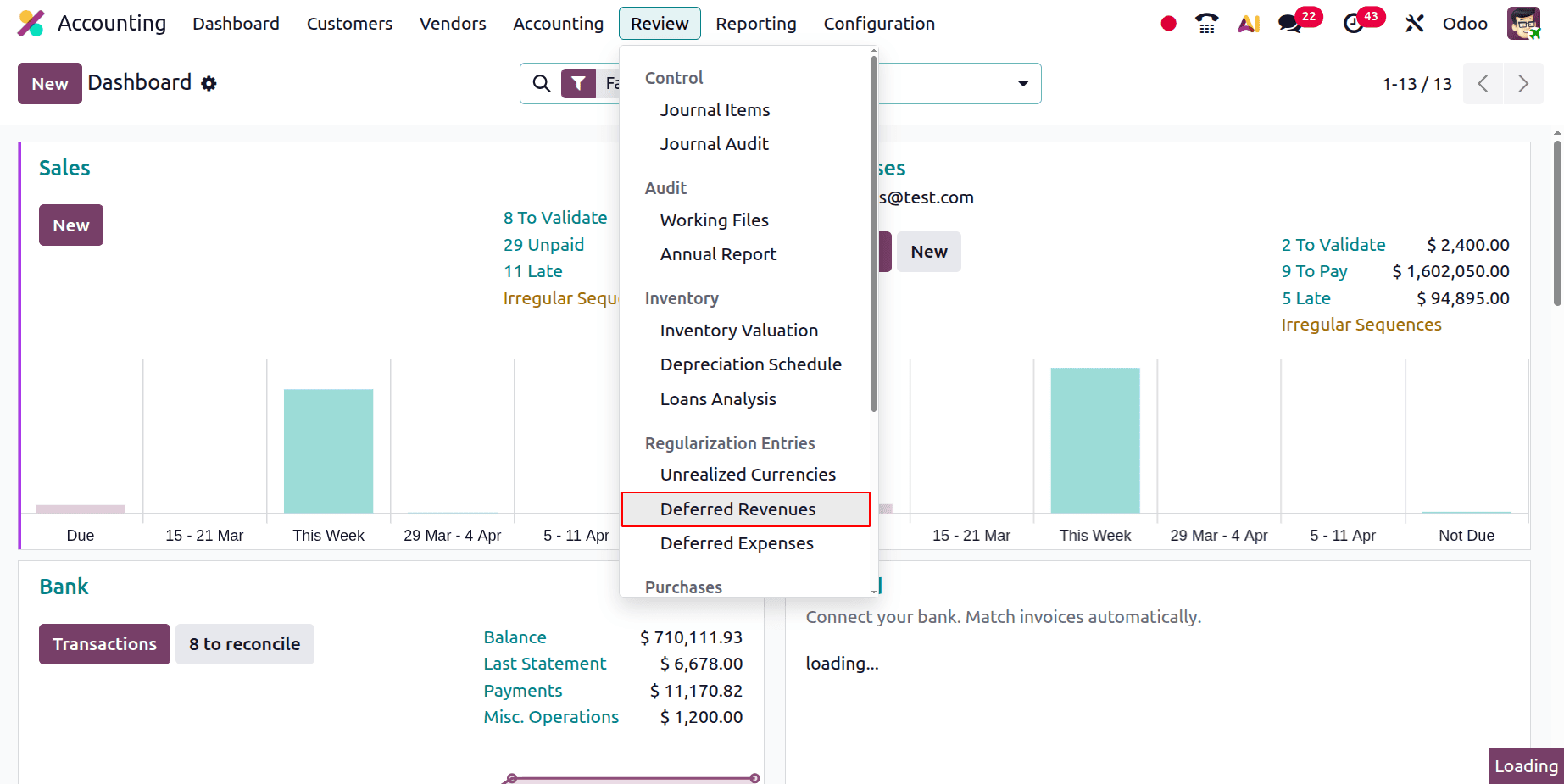
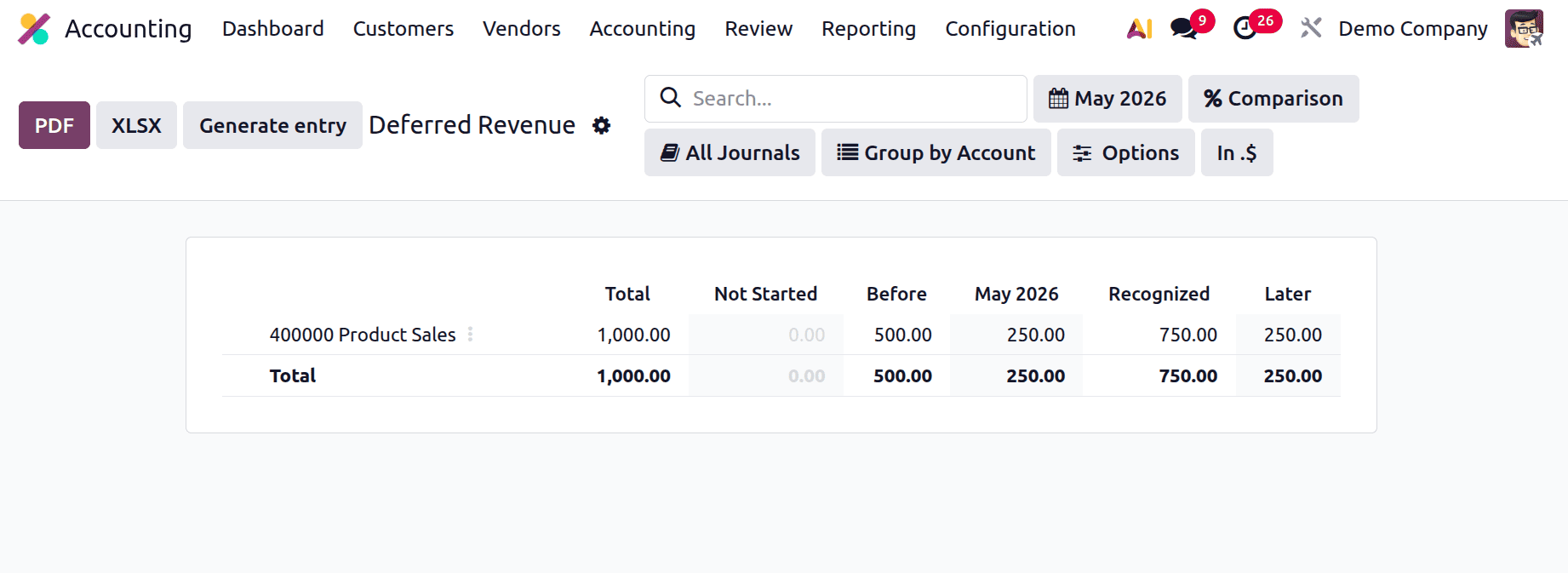
Odoo included a Deferred Revenue Report so that the deferred entries could be generated and seen. The Regularization Entries section contains the report. So, under the Review menu, select the Deferred Revenue Report.
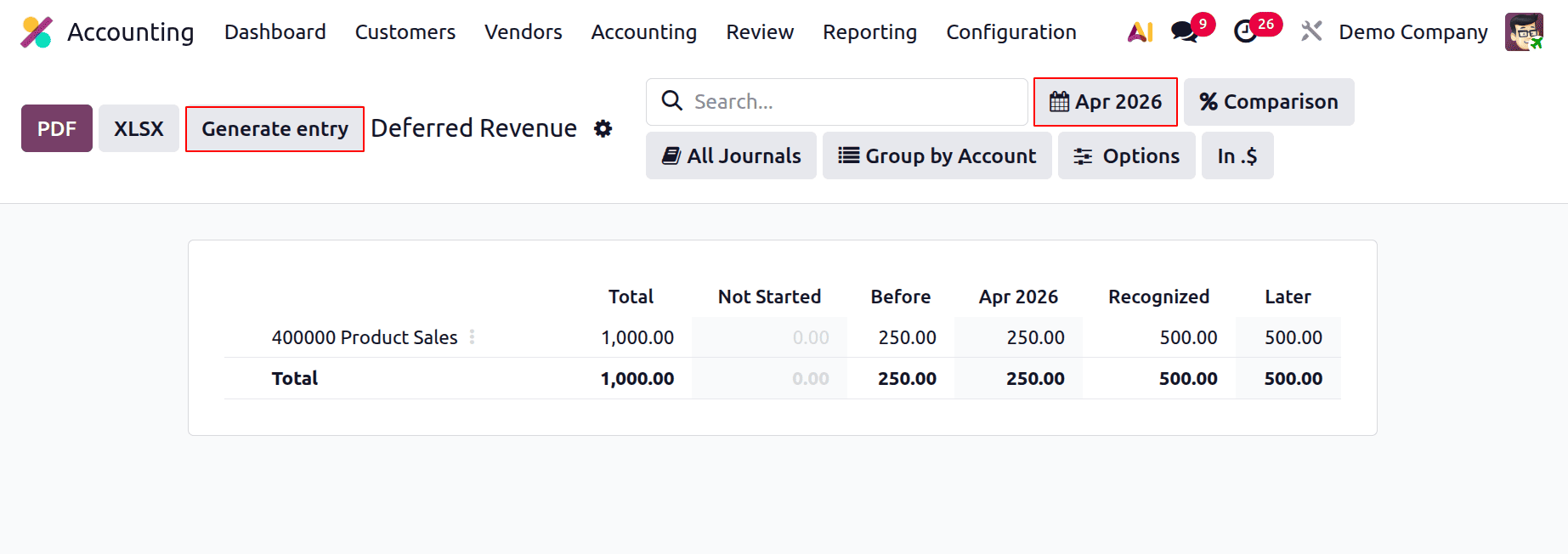
The report is displayed below. After selecting the relevant month using the filter, a new button called "Generate entry" appears on the upper left corner of the page. To create a journal entry, click on it. Then, as seen below, journal entries are made for the months of April and May. Let each one open.
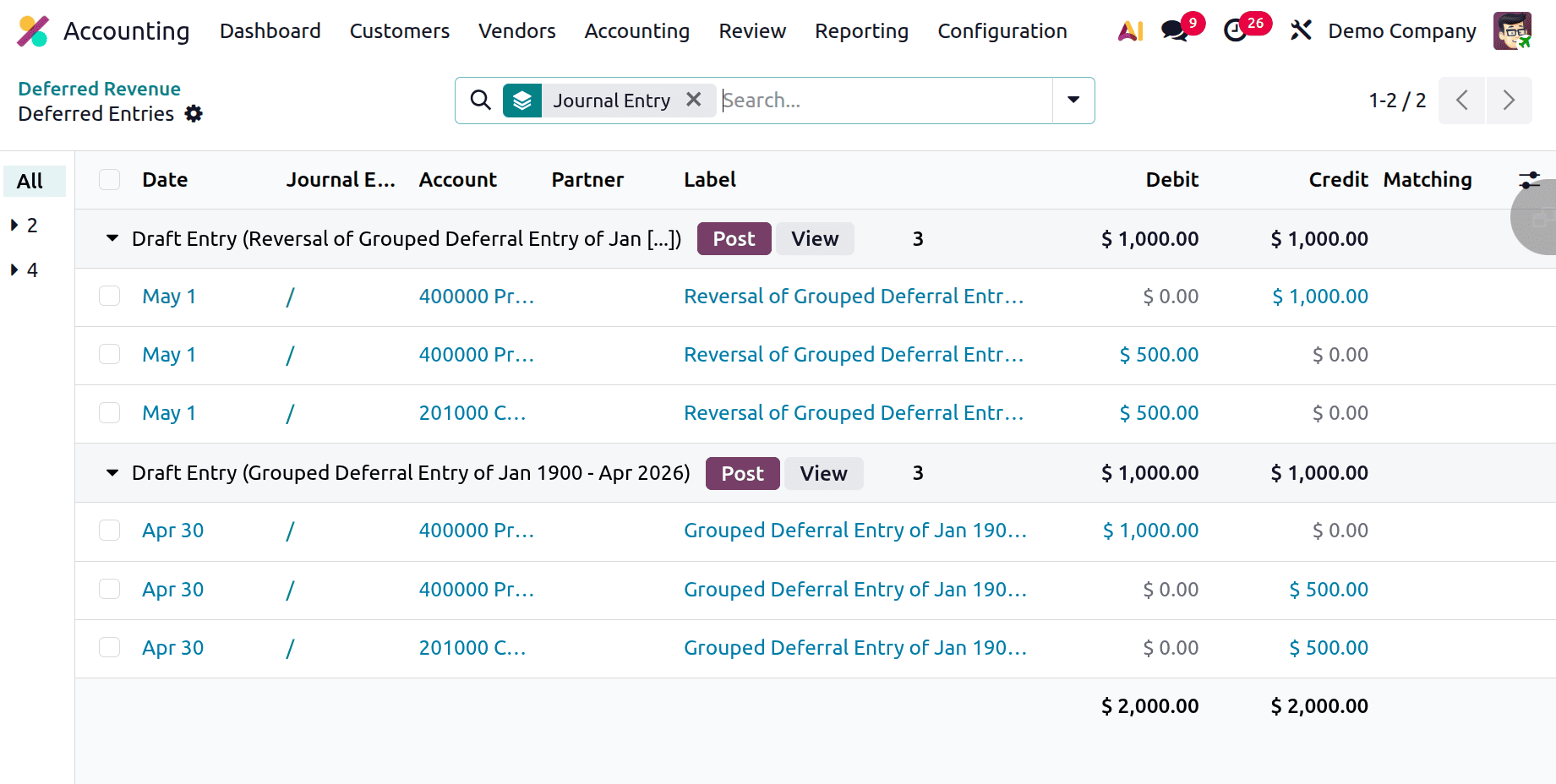
The Grouped Deferral Entry of April 2026 is the first journal entry. $1000 is the entire revenue. However, since it's referred revenue, it falls under the five-month period. Depreciation is calculated using the By Months technique. $500 will therefore be depressed every month.
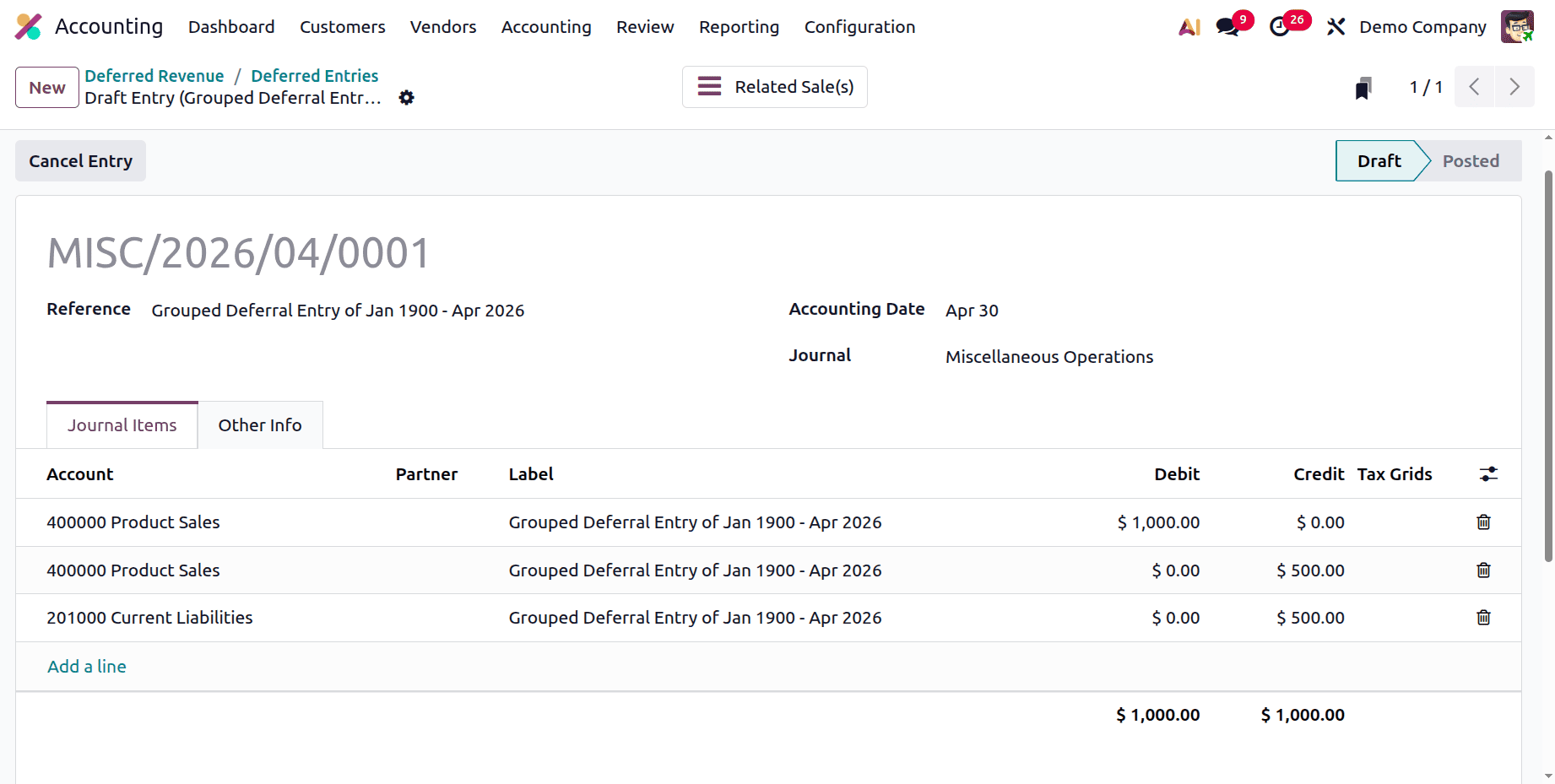
In this case, the Product Sales account is debited for the entire sum. As mentioned, there was just $500 in revenue in December. Thus, the remaining sum is recorded in the Deferred Revenue account, and the $500 is deposited to the Income account.
The Grouped Deferral Entry is reversed in the second journal entry. Every entry from the previous one has been reversed here, and it will be uploaded on May 1, 2026, the following month.
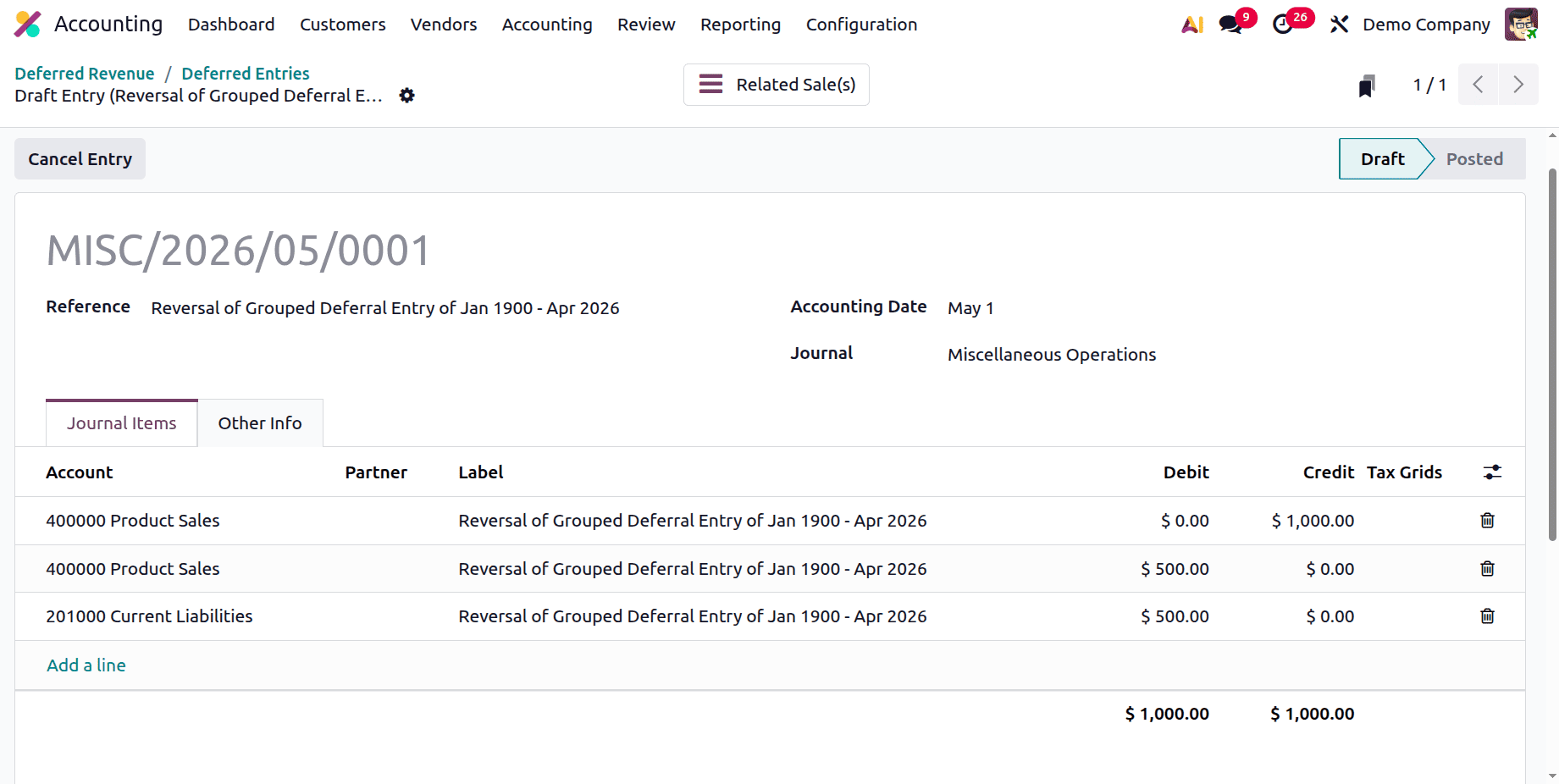
$1000 is credited to product sales. Next, $500 and $500, respectively, are deducted from the Product Sales and Deferred Revenue accounts. First, post both entries.
Next, return to the report and adjust the filter once more next month. Press the "Generate entry" button. Two journal entries will be produced there, as previously stated. The first is May 2025 Grouped Deferral Entry, while the second is Grouped Deferral Entry Reversal.
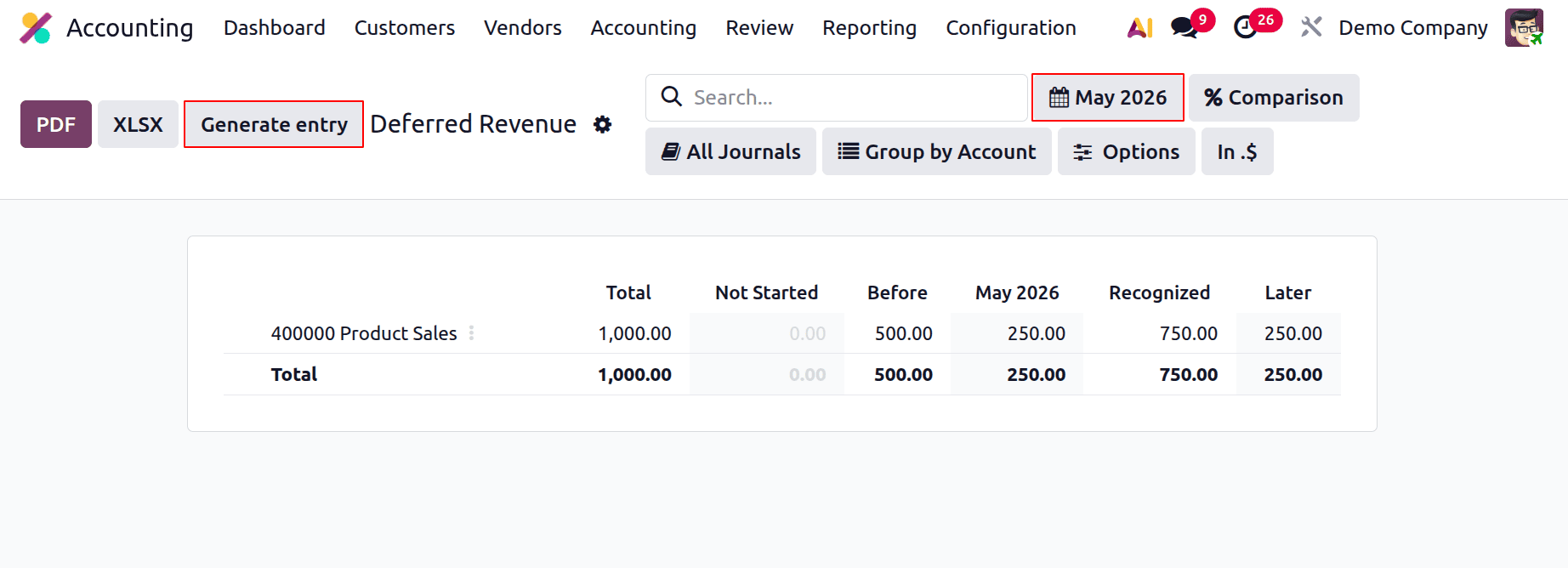
The entire $1000 is once more deducted from the Product Sales account in the "Grouped Deferral Entry of May 2026."
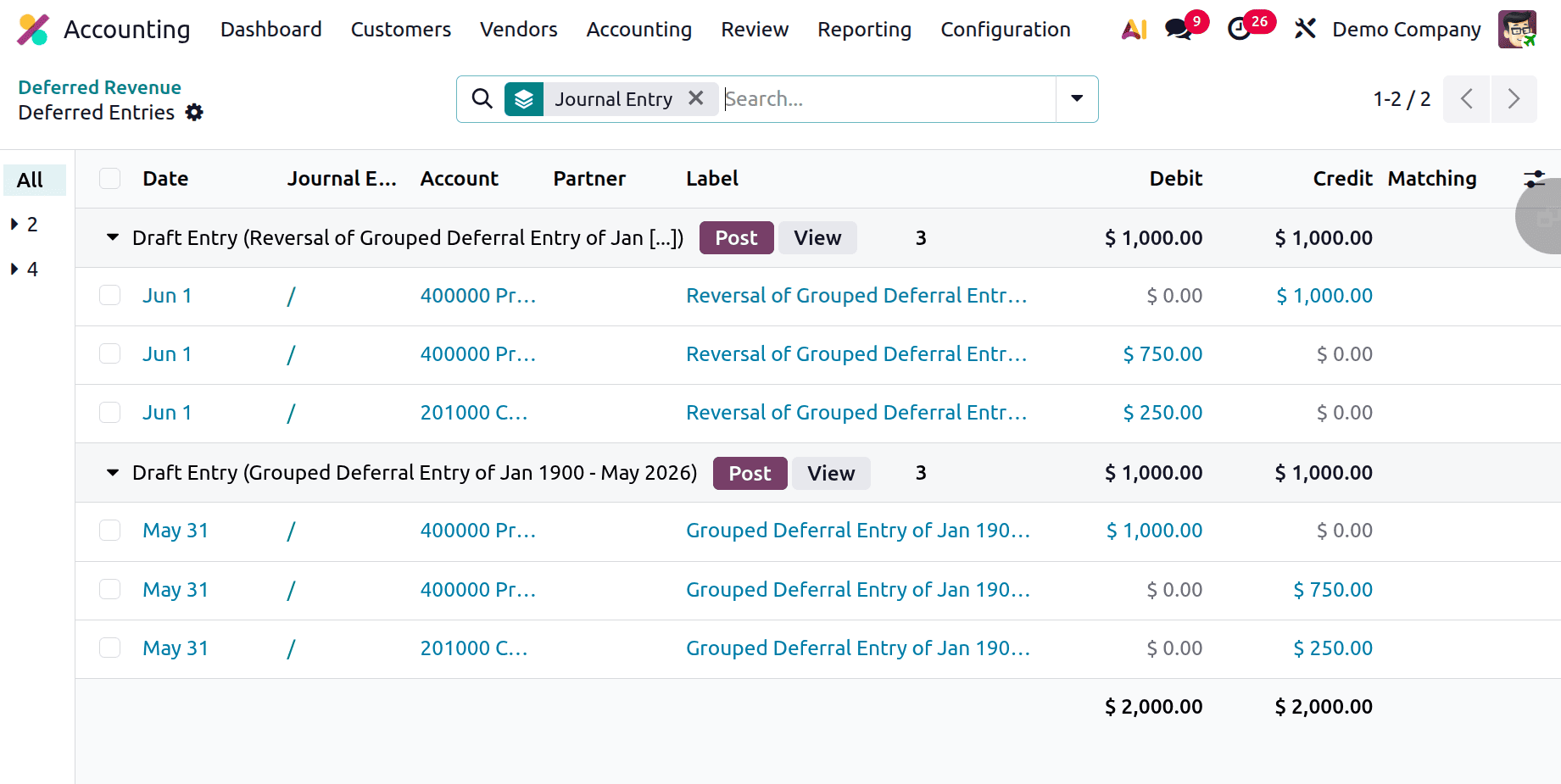
The second month's total revenue of $750 is then credited to the product sales account. Additionally, the Deferred Revenue account is credited with the remaining sum.
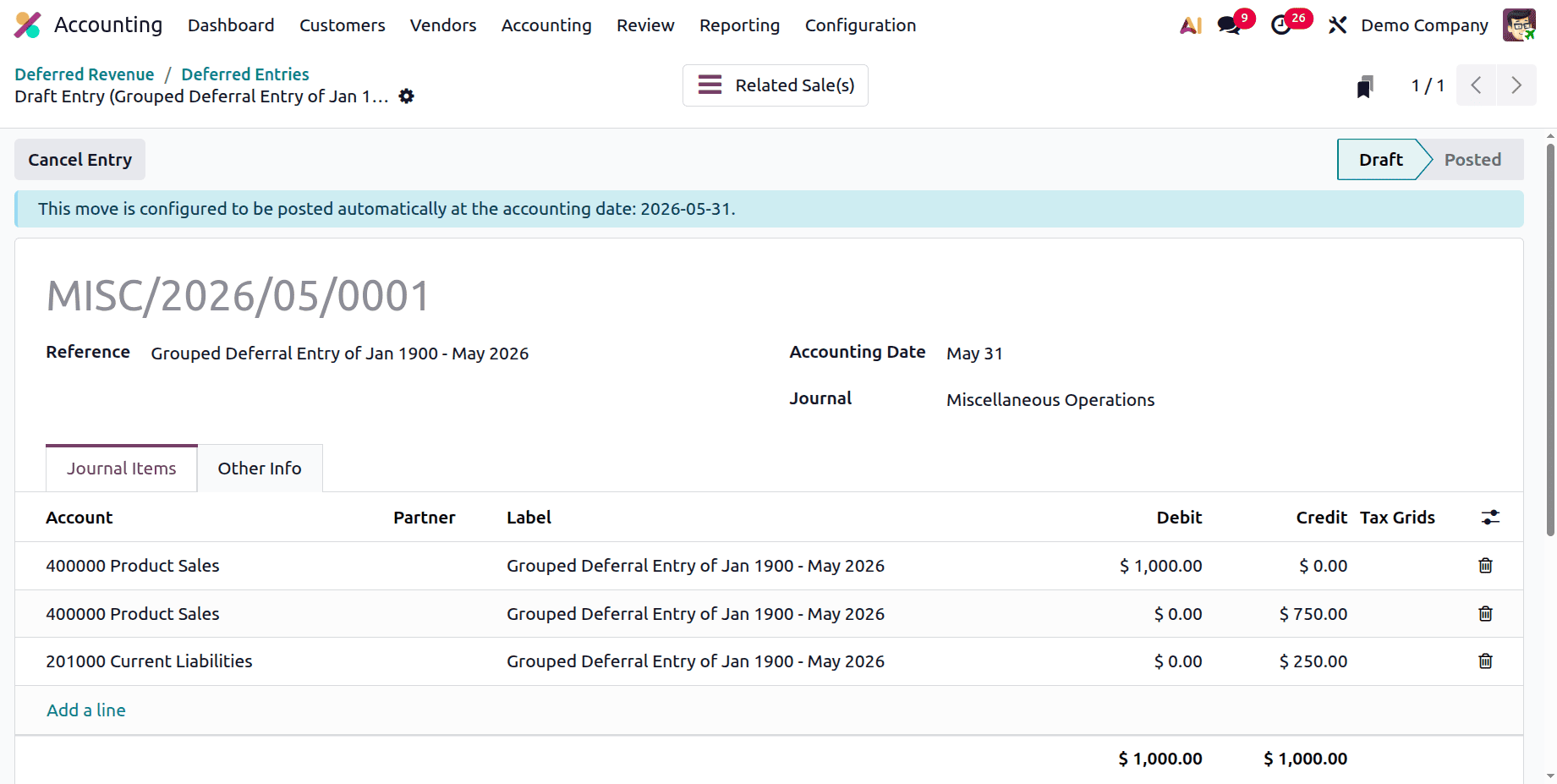
The entry will automatically post on the accounting date; it is currently in the draft stage. Change the Auto Post Option from the Other Info tab to No if the user wishes to post the entry. Next, press the "Post" button.
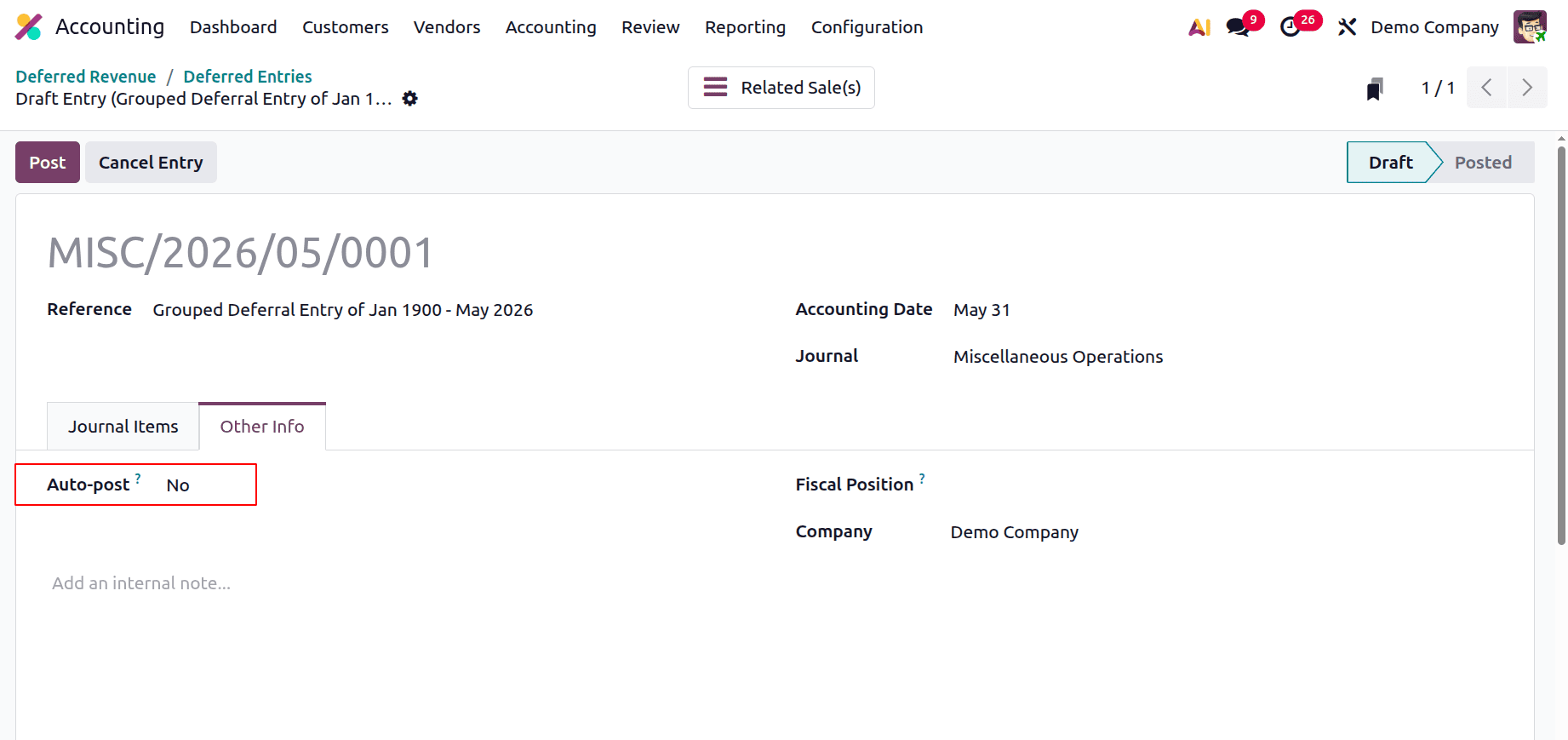
The Grouped Deferral Entry from May 2026 is reversed in the second journal entry. Every entry from the previous one has been reversed here, and it will be uploaded on June 1, 2026, the following month.
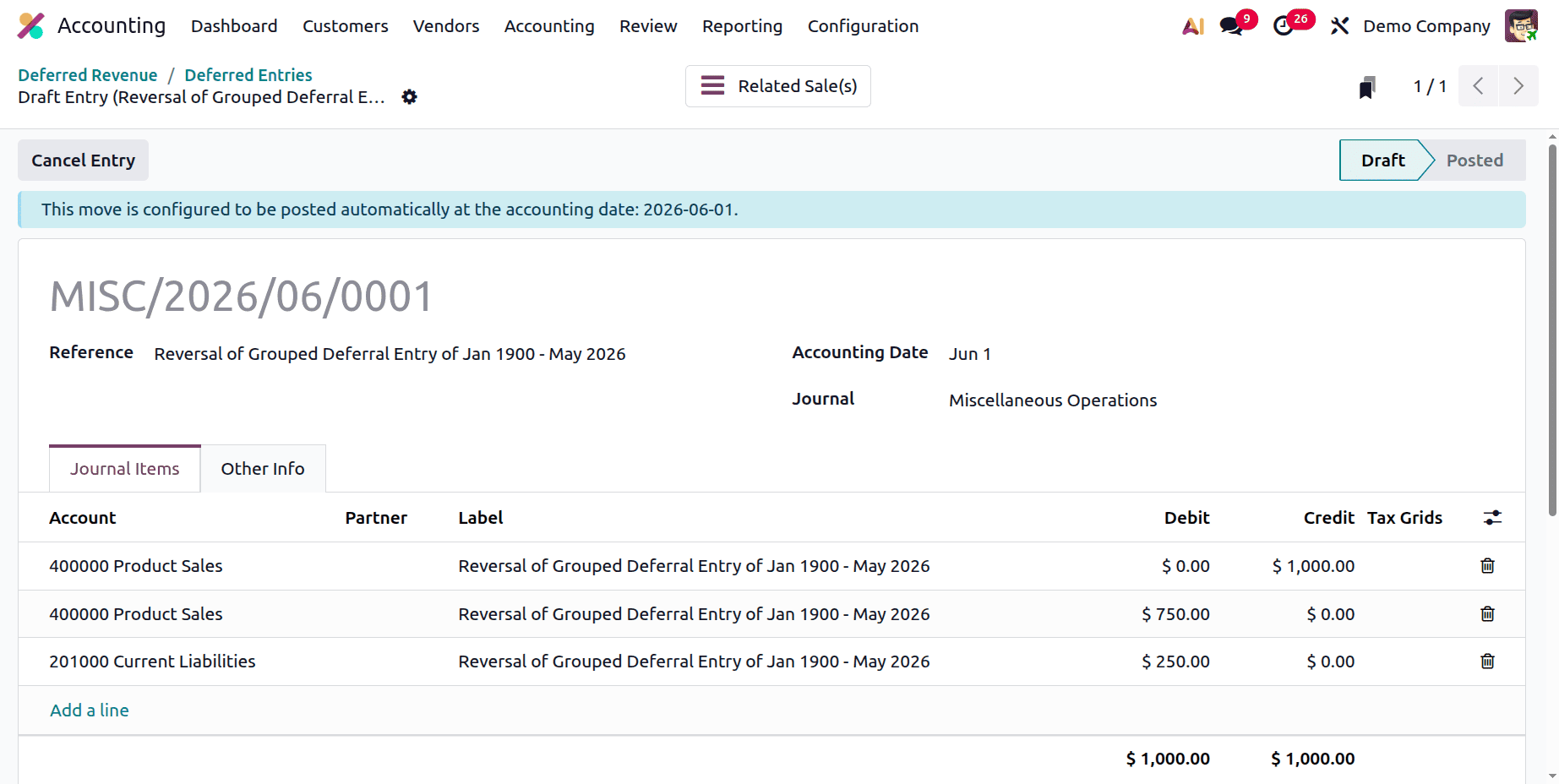
$1000 is credited to product sales. Next, $750 and $250, respectively, are debited from the Product Sales and Deferred Revenue accounts. First, post both entries.
Next, return to the report and adjust the filter once more next month. Press the "Generate entry" button. Two journal entries will be produced there, as previously stated.
Maintaining account financial records and following accounting rules depend on the efficient handling of delayed income. This process is made easier by Odoo 19's accounting module, which also provides businesses with the tools they need to efficiently handle referred money. By following the process, businesses may ensure that their financial reports accurately reflect their income status and enhance decision-making and financial management.
To read more about How to Manage Deferred Revenues in Odoo 18 Accounting, refer to our blog How to Manage Deferred Revenues in Odoo 18 Accounting.