One useful customization in business workflows is enhancing the systray, the top-right toolbar, with interactive components. Adding a dropdown menu in the systray provides quick navigation to frequently used records, reducing the need for repetitive menu browsing.
In this blog, we will build a custom systray dropdown in Odoo 19 that allows users to directly access sales orders and purchase orders.
Step 1: Create the Javascript component.
 /** @odoo-module **/
import { registry } from "@web/core/registry";
import { useService } from "@web/core/utils/hooks";
import { Component } from "@odoo/owl";
import {Dropdown} from '@web/core/dropdown/dropdown';
import {DropdownItem} from '@web/core/dropdown/dropdown_item';
class SystrayDropdown extends Component {
   setup() {
       this.action = useService("action");
   }
   _openSaleModel() {
       this.action.doAction({
           type: "ir.actions.act_window",
           name: "Sale Order",
           res_model: "sale.order",
           views: [[false, "list"], [false, "form"]],
           target: "current",
           });
           }
   _openPurchaseModel(){
       this.action.doAction({
           type: "ir.actions.act_window",
           name: "Purchase Order",
           res_model: "purchase.order",
           views: [[false, "list"], [false, "form"]],
           target: "current",
           });
    }
}
   SystrayDropdown.template = "systray_dropdown";
   SystrayDropdown.components = {Dropdown, DropdownItem };
   export const systrayItem = { Component: SystrayDropdown,};
   registry.category("systray").add("SystrayDropdown", systrayItem, { sequence: 1 });
Step 2: Define the XML template.
<?xml version="1.0" encoding="UTF-8" ?>
<templates xml:space="preserve">
  <t t-name="systray_dropdown" owl="1">
      <Dropdown>
             <div class="new_icon">
                 <div class="icon_div">
                     <div class="toggle-icon" role="button">
                         <i id='create_order'
                            class="fa fa-shopping-cart fa-1.5x"
                            style="color: black; margin-bottom:10px; padding:13px;"
                            role="img" aria-label="Sale/Purchase Order"/>
                     </div>
                 </div>
             </div>
          <t t-set-slot="content">
              <DropdownItem onSelected="() => this._openSaleModel()">
                  Sale Orders
              </DropdownItem>
              <DropdownItem onSelected="() => this._openPurchaseModel()">
                  Purchase Orders
              </DropdownItem>
          </t>
      </Dropdown>
  </t>
</templates>
Step 3: Add Assets to Manifest
Include the js and xml files in the manifest file.
'assets': {'web.assets_backend':
              [
'systray_dropdown/static/src/js/systray_dropdown.js',
                'systray_dropdown/static/src/xml/systray_dropdown.xml',
              ]
},
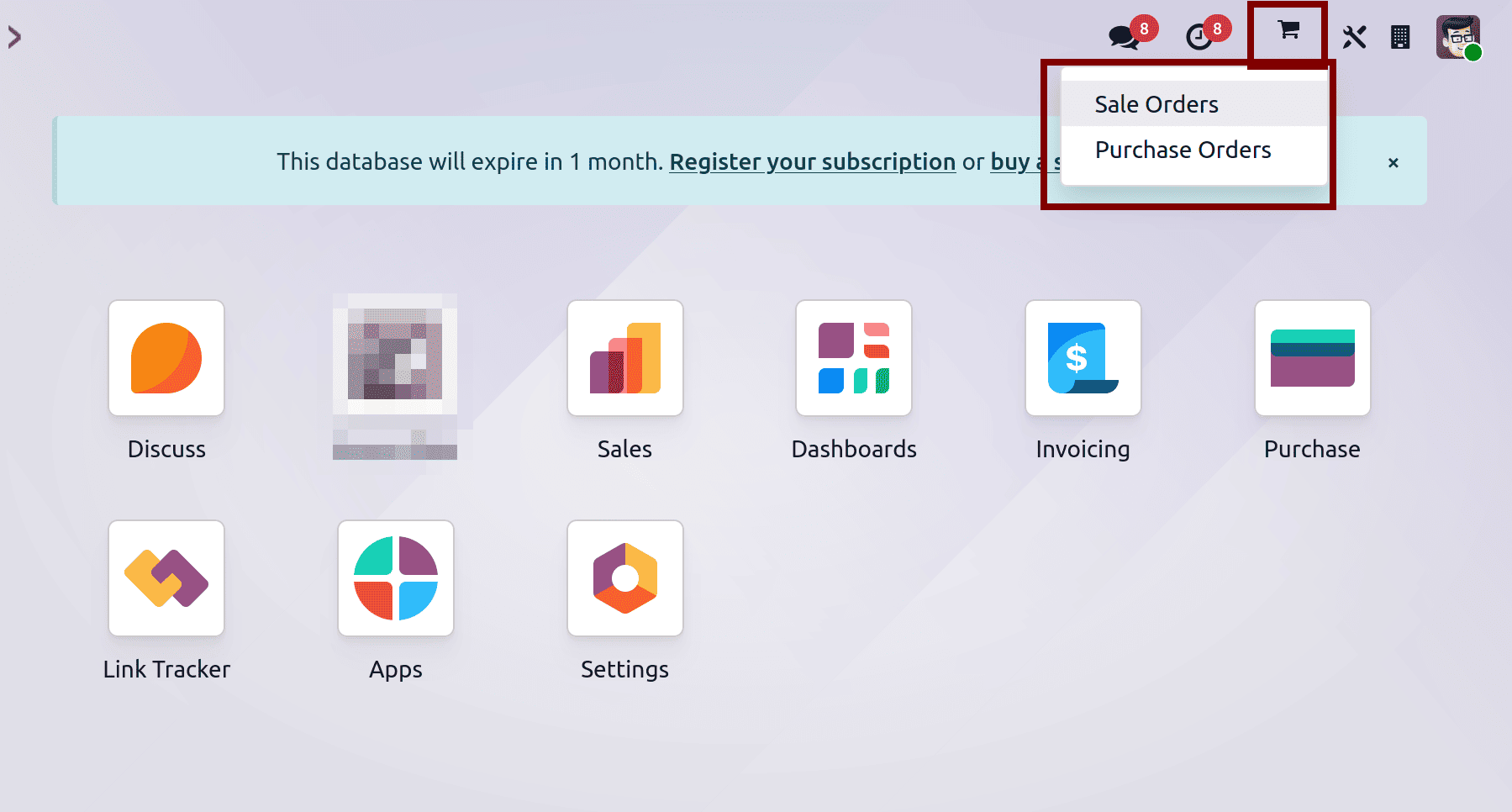
After completing the development, we can restart the Odoo server and upgrade the custom module. Once loaded, we can see a new icon in the systray. Clicking it will display a dropdown menu including the Sale order and purchase order.
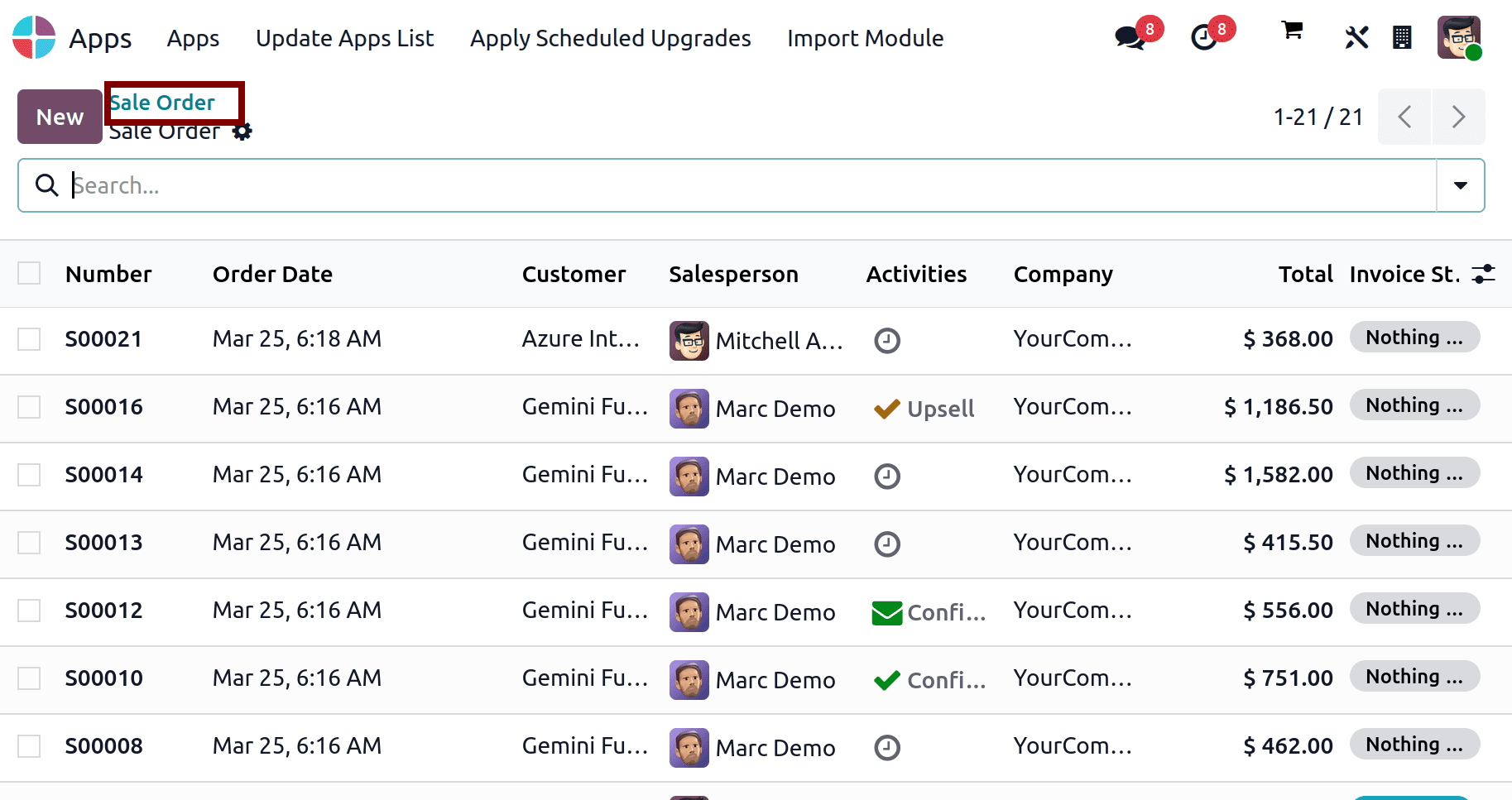
Selecting the sale orders will open the sale orders list view.
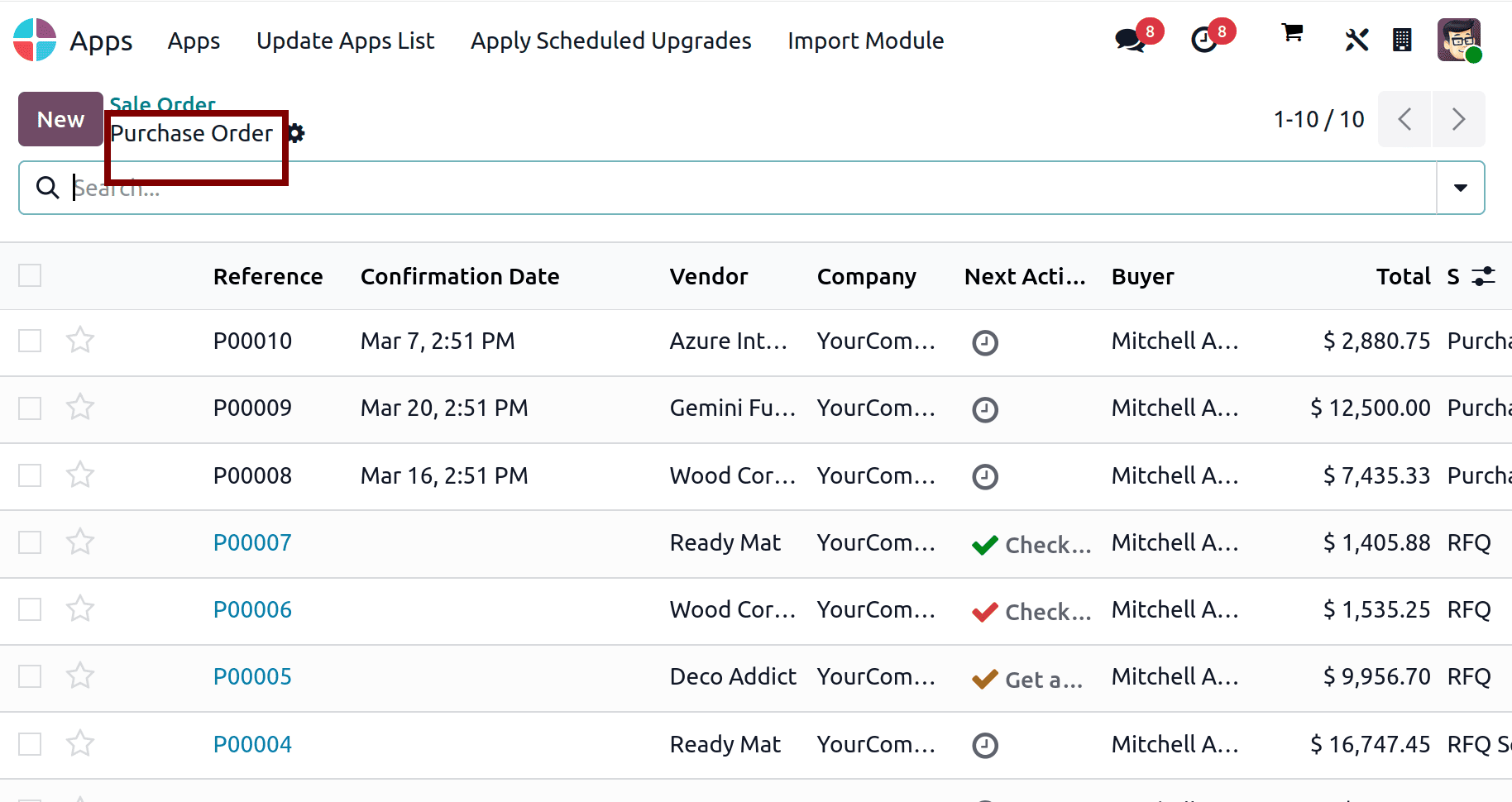
Upon choosing, the purchase orders will open the list view of purchase orders.
Adding a dropdown menu to the systray in Odoo 19 is a good way for users to access records easily that are frequently used. This will minimize the clicks and improve overall workflow speed.
To read more about How to Open a Drop Down From Systray in Odoo 18, refer to our blog How to Open a Drop Down From Systray in Odoo 18.