Odoo 19 POS has become more flexible with the help of the OWL framework. Because of this, the POS screen is more interactive, and developers can change how different parts of the interface work. In many POS projects, businesses want small changes in how buttons, fields, or widgets behave.
One common change is updating what happens when a user clicks on an order line. In this article, we will take a simple example and show how you can override a widget in Odoo 19 POS. This will help beginners understand how to adjust POS behavior without touching the core code.
Why Do We Override a Widget?
In the POS system, widgets control how different parts of the screen look and behave. For example:
- How products are shown
- How order lines behave when selected
- What appears on the receipt
Sometimes a business needs these elements to work differently. By overriding a widget, you can:
- Add your own logic
- Show additional information
- Run a custom action when something is clicked
The best part is that you don’t need to change Odoo’s core files. Instead, you extend the existing widget, which keeps your changes safe and compatible during upgrades.
Preparing for the Customization
Before we start overriding anything, we need a custom module. This is where all our changes will live. Inside your module, create a JavaScript file in the following path:
'assets': {
   'point_of_sale._assets_pos': [
       'your_module_name/static/src/js/pos_widget_override.js',
   ],
}
Once your JavaScript file is ready, the next step is to make sure it loads inside the POS. This is done by adding the file to the POS assets in your module’s manifest file.
Identifying the Right Widget
On the Product Screen, the widget responsible for showing order details is called OrderSummary. This widget controls what happens when a user interacts with order lines—for example, when a line is selected.
Since we want to change this behavior, we will extend the OrderSummary widget and add our own action when an order line is clicked.
Applying the Patch
Odoo’s OWL framework allows us to extend existing widgets using a patch. This is the cleanest and safest way to customize POS behavior.
A basic patch starts like this:
/** @odoo-module **/
import { OrderSummary } from "@point_of_sale/app/screens/product_screen/order_summary/order_summary";
import { patch } from "@web/core/utils/patch";
patch(OrderSummary.prototype, {
   setup() {
       super.setup(...arguments);
   },
});
This setup allows the widget to receive and run our custom logic.
Adding the New Action
Now that the patch is ready, we can change what happens when an order line is clicked.
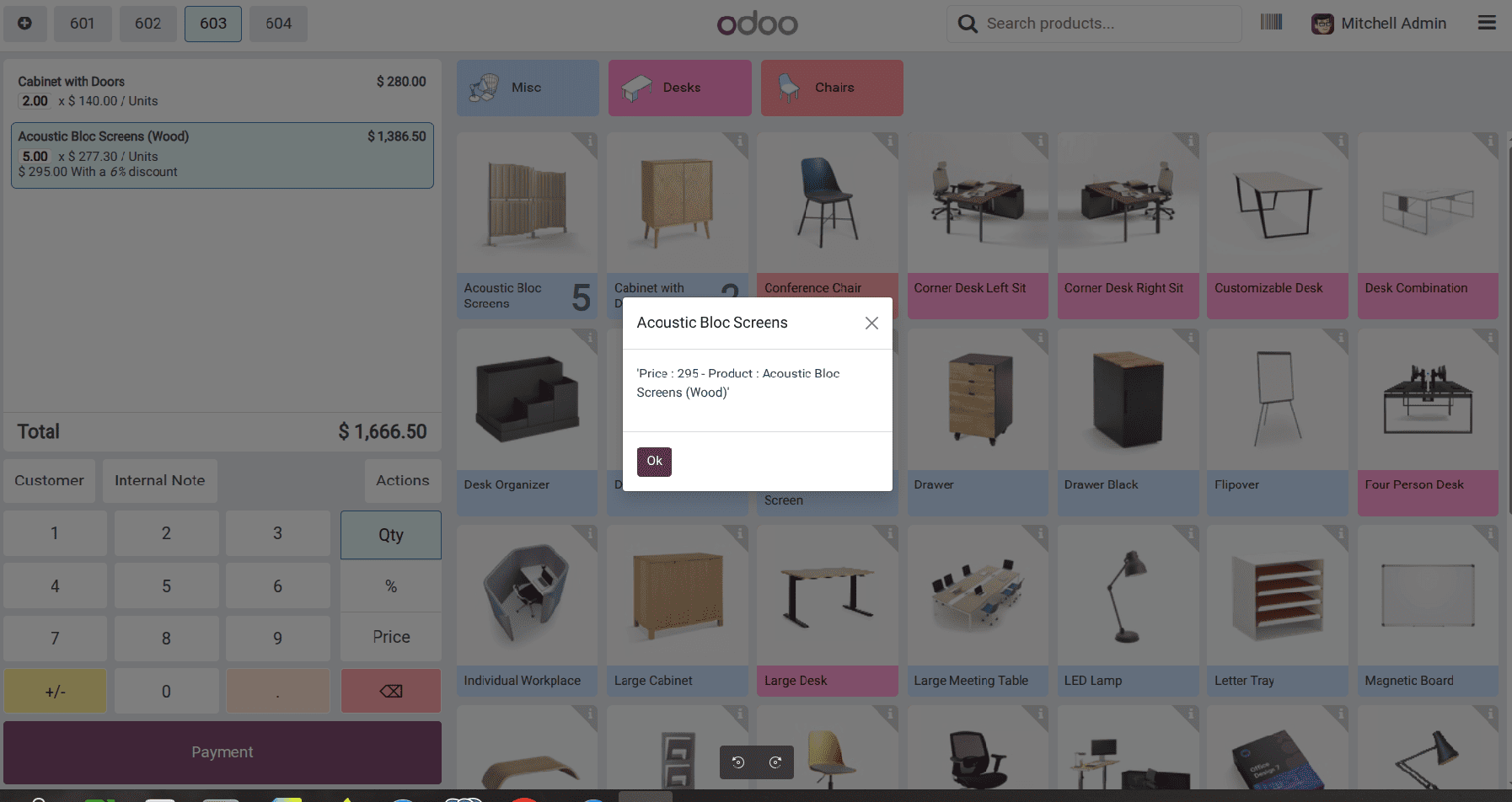
Instead of using the default behavior, we will show a pop-up that displays the product details of the selected order line.
/** @odoo-module */
import { patch } from "@web/core/utils/patch";
import { OrderSummary } from "@point_of_sale/app/screens/product_screen/order_summary/order_summary";
import { AlertDialog } from "@web/core/confirmation_dialog/confirmation_dialog";
import { _t } from "@web/core/l10n/translation";
patch(OrderSummary.prototype, {
   clickLine(ev, orderline) {
       this.dialog.add(AlertDialog, {
           title: _t(orderline.product_id.name),
           body: _t("'Price : %s - Product : %s'",orderline.product_id.lst_price,
                      orderline.product_id.display_name),
       });
       super.clickLine(ev, orderline)
   }
});
What This Change Does
- When you click an order line, a pop-up appears.
- The pop-up displays the product’s price and its invoice policy.
- Since we call super.clickLine(), the default POS behavior continues to work as usual.
How to Check if It’s Working
- Open the POS and start a session.
- Add a few products to an order.
- Click on any order line.
If everything is set up correctly, a pop-up with the product details will appear.
If the pop-up doesn’t show, make sure your JS file is correctly added in the POS assets and that there are no errors in the browser console.
Key Takeaways
- Widgets control how different sections of the POS screen look and respond to user actions.
- Odoo 19 allows you to extend these widgets using patches, which keeps the customization clean and safe.
- You can introduce your own behavior without changing any core Odoo files.
- This same approach can be applied to any POS widget you want to adjust.
Using this method, developers can build POS features that fit specific business workflows while still keeping the system stable and easy to maintain during upgrades.
To read more about How to Override a Widget in the Odoo 18 POS, refer to our blog, How to Override a Widget in the Odoo 18 POS.