Odoo’s ORM is powerful, but one area where developers often get stuck is grouping records by a Many2Many field. M2M fields work differently from regular database fields: the values aren’t stored directly on the main table but in a relational table. Because of this, Odoo cannot apply its normal “GROUP BY” logic to them, which leads to assertion errors if you try to group by an M2M field directly.
A reliable workaround is to create a computed, stored field that represents the M2M values in a simple format (usually a comma-separated string). Once this field exists in the database, it becomes eligible for Group By in search views.
Below is a practical example based on grouping Sales Orders by the tags of the products included in their order lines.
Step-by-Step Implementation
We'll extend the sale.order model to group sales orders by product tags from order lines. Assume a custom module named sale_tag_grouping.
Step 1: Define the Computed Field (Python)
In your custom module (e.g., sale_tag_grouping), extend the sale.order model and compute a field based on product tags.
from odoo import models, fields, api
class SaleOrder(models.Model):
    _inherit = 'sale.order'
    product_tags = fields.Char(
        string='Product Tags',
        compute='_compute_product_tags',
        store=True
    )
    @api.depends('order_line.product_id.product_tag_ids.name')
    def _compute_product_tags(self):
        for order in self:
            tags = set()
            for line in order.order_line:
                tags.update(line.product_id.product_tag_ids.mapped('name'))
            order.product_tags = ', '.join(sorted(tags)) if tags else ''
How it works
- product_tag_ids is the M2M field on the product.
- A Python set() ensures no duplicates.
- Sorting the names keeps the output consistent (useful for grouping).
- The empty string avoids null values and keeps UI filters tidy.
Since the field is stored, it becomes a real database column, which is the key requirement for Group By to work.
Step 2: Update the Search View (XML)
In your views file (e.g., views/sale_order_views.xml), inherit the base search view and add a filter for Group By.
Next, extend the search view of Sales Orders.
<?xml version="1.0" encoding="utf-8"?>
<odoo>
    <record id="view_sales_order_filter_inherit" model="ir.ui.view">
        <field name="name">sale.order.search.inherit.tag.grouping</field>
        <field name="model">sale.order</field>
        <field name="inherit_id" ref="sale.view_sales_order_filter"/>
        <field name="arch" type="xml">
            <xpath expr="//search" position="inside">
                <separator/>
                <filter name="product_tags"
                        string="Group by Product Tags"
                        domain="[]"
                        context="{'group_by': 'product_tags'}"/>
                <separator/>
            </xpath>
        </field>
    </record>
</odoo>
- Explanation:
- context="{'group_by': 'product_tags'}" tells Odoo to group by the computed field.
- A blank domain means no extra filtering is applied.
Once loaded, “Product Tags” will appear under Group By > Custom Group in the Sales Order search panel.
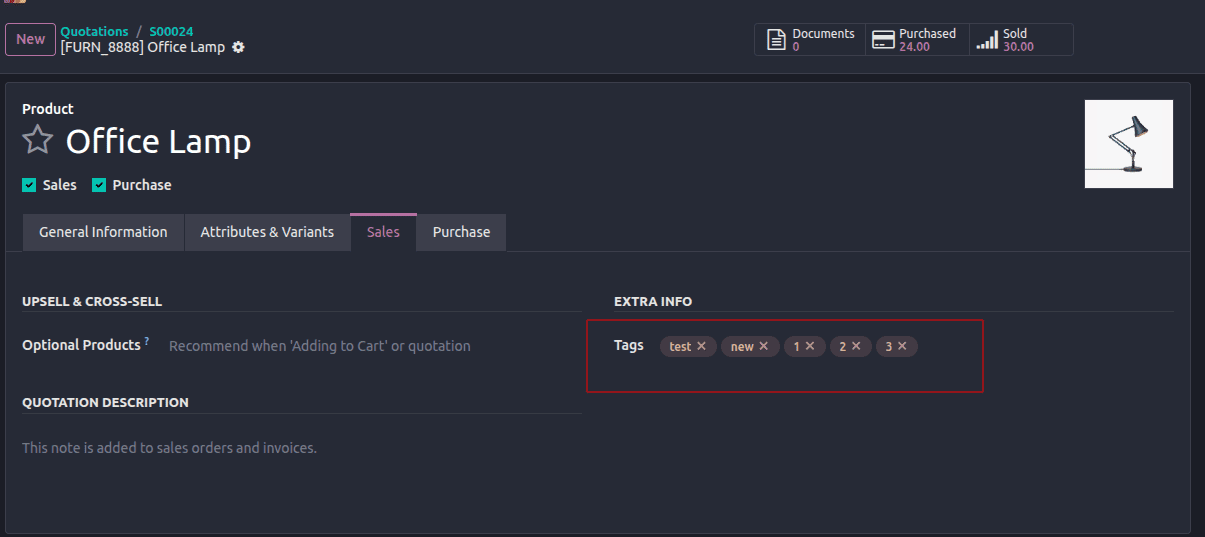
After defining the XML view, go to the Odoo UI and upgrade the module to apply the changes. This will add the tag_names field to the form view and enable grouping by tags.

Step 3: (Optional) Display the Field in Form/Tree Views
If you want users to see the computed tags directly:
<record id="view_order_form_inherit" model="ir.ui.view">
    <field name="name">sale.order.form.inherit.tag.grouping</field>
    <field name="model">sale.order</field>
    <field name="inherit_id" ref="sale.view_order_form"/>
    <field name="arch" type="xml">
        <xpath expr="//field[@name='partner_id']" position="after">
            <field name="product_tags" readonly="1"/>
        </xpath>
    </field>
</record>
Step 4 — Update the Module and Test
- Add imports in __init__.py.
- Add your XML files to __manifest__.py.
- Update the module from the Apps menu.
- Open Sales > Orders.
- Use Search > Group By > Product Tags.
You should now see orders grouped based on the combined product tags found in their order lines.

Odoo cannot group by M2M fields natively because they’re not stored directly in the model table. By creating a stored computed field that represents the M2M content, you can take advantage of Odoo’s built-in grouping mechanisms without performance concerns. This pattern is versatile—apply it to tags, categories, or users across modules like CRM, Inventory, or HR.
To read more about How to Use Group By for Many2Many Fields in Odoo 18, refer to our blog How to Use Group By for Many2Many Fields in Odoo 18.