Depending on which edition of Odoo 20 you are using, there are different invoicing functions. The Community edition allows for invoicing and invoice follow-up. Odoo Enterprise has extra accounting features, for example, financial reporting, bank matching, asset tracking, and auto-reminders.
Within this blog, we will compare the invoicing module (Community edition) and the accounting module (Enterprise edition). Further to this, we will investigate some OCA modules which can add additional functionality to the Community edition.
Edition snapshot
| Area | Community: Invoicing (account) | Enterprise: Accounting (accountant) |
| Customer invoices and vendor bills | Yes | Yes |
| Payments and payment terms | Yes | Yes |
| Taxes and fiscal positions | Yes | Yes |
| Standard financial reports (balance sheet, P&L, cash flow, tax return) | No, only basic views | No, only basic views |
| Customer follow-ups | No | Yes (account_followup) |
| Fixed asset depreciation | No | Yes (account_asset) |
| Budgets | No | Yes (account_budget) |
| Loan management | No | Yes (account_loans) |
| Automatic bank feeds | No | Yes (account_online_synchronization) |
| Invoice OCR and data extraction | No | Yes (account_invoice_extract) |
| Guided bank reconciliation | Limited | Full reconciliation widget |
An invoicing solution enables users to produce, issue and control both customer and supplier invoices and also deal with payments. Accounting provides further functionality, including accounting reports, bank reconciliation, budgeting, and asset control.
The Community Invoicing app (account)
The Invoicing application in Odoo 20 Community allows customers and vendors to be invoiced, creates credit notes, tracks payments, and performs basic accounting operations.
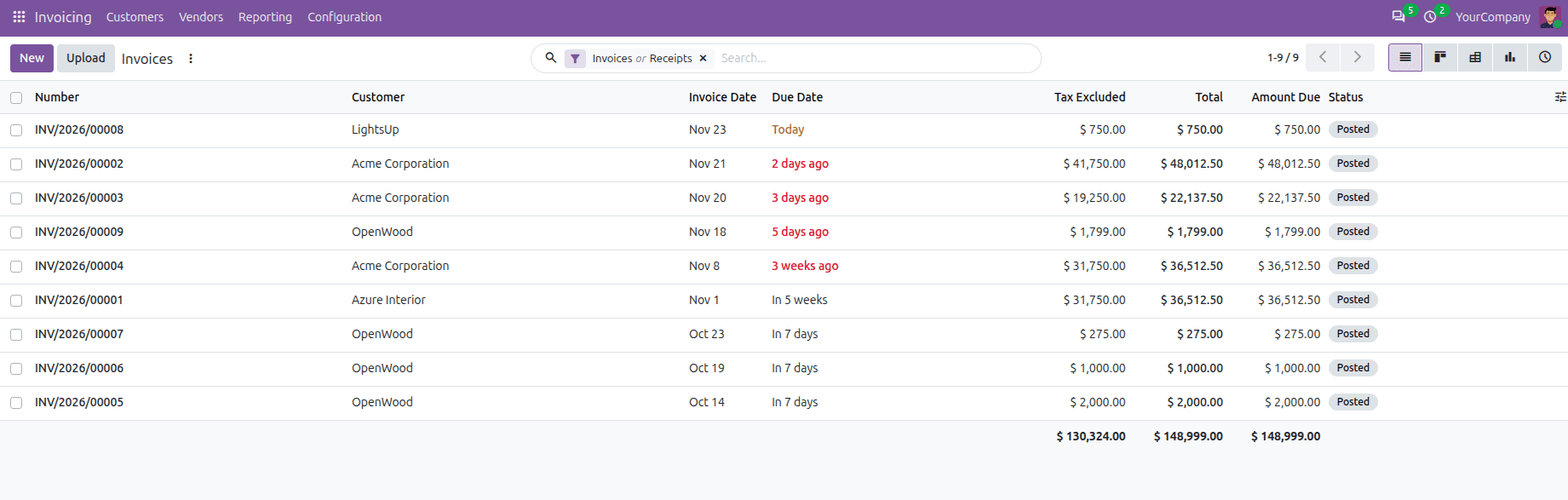
This is the screen when opening the Invoicing application in Odoo 20 Community Edition. We can manage various invoicing tasks on this screen. In the header section, there are 5 items within the menu bar: Invoicing, Customers, Vendors, Reporting, and Configuration. In the invoicing area, there is a summary of customers’ invoices. Information such as invoice number, customer name, invoice and due dates, pre-tax, total, outstanding, and payment status can be seen here. We can create an invoice by clicking the New button at the top. Documents can be uploaded using the upload function and related document process. In addition, we can search for invoices via the search facility. Within the Community edition, this is where customer invoices, supplier invoices, contacts, and invoicing settings are managed.
The Enterprise Accounting app (accountant)
The Enterprise Accounting app (accountant) in Odoo 20 provides an extended set of financial management tools designed for accountants, finance teams, and businesses that need more than basic invoice and payment management.
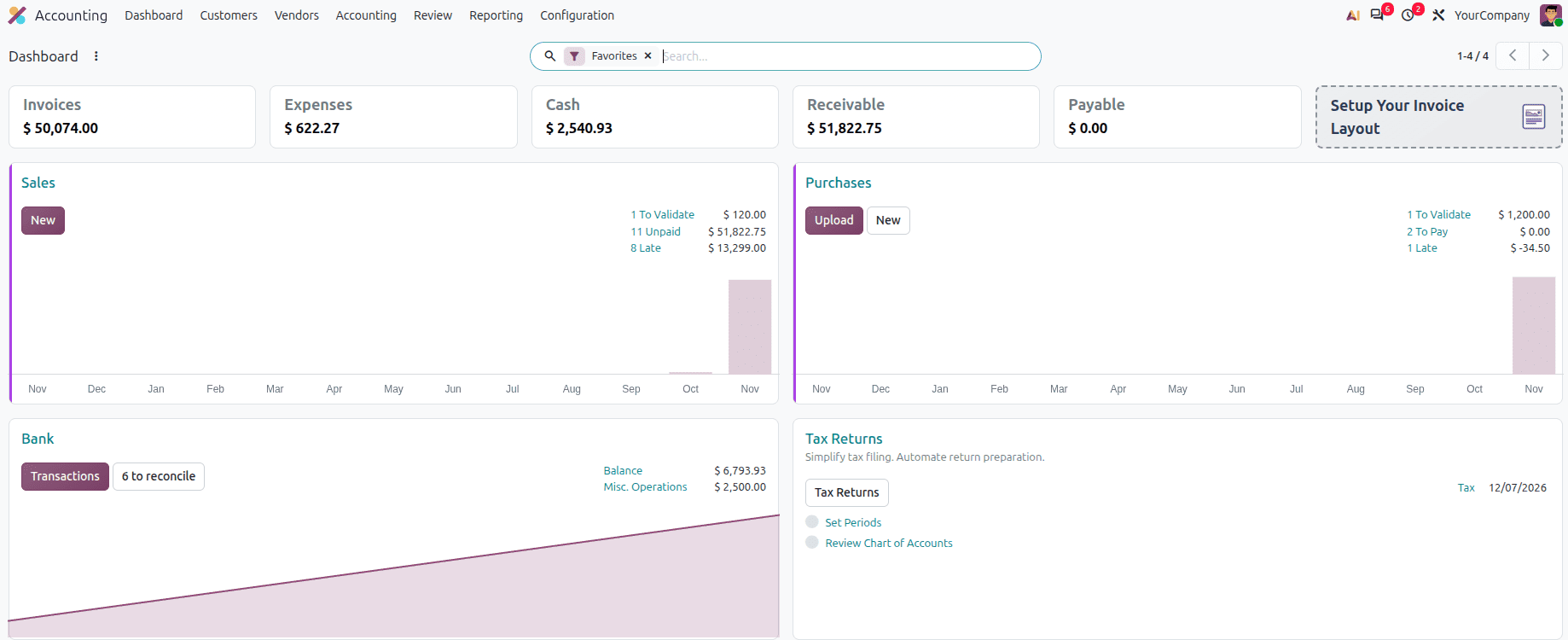
Within the Accounting application, you are brought to the Accounting Dashboard. From this screen, you can perform accounting operations from the top bar: Dashboard, Customers, Vendors, Accounting, Review, Reports & Configuration. Summary information can be seen at the top of the screen in relation to invoicing, expenditure, and funds. It also shows who and what the company is owed. Sales allows invoices to be produced for customers. Further details can be viewed on unapproved, unpaid, and overdue invoices.
Within purchases, you can import bills from a supplier or manually create bills. You can also see pending validation bills and bills in payment. Within the Banking section, you can see banking transactions, current balances, and pending reconciliations. In the Tax Returns section, you can manage your tax returns, set up tax periods, and review accounts. Within the Setup Your Invoice Layout section, you can customise your invoices. This dashboard provides you with a single place to manage customer invoices, supplier bills, banking transactions, tax activities, and many other financial activities within Odoo Enterprise Accounting.
Customer Invoice and Supplier Bill
An invoice is issued to show what an organisation is owed by its customers. Bills are issued to show what an organisation owes its suppliers. Alongside this, basic invoicing and billing can be implemented within both Community and Enterprise. Enterprise also provides additional accounting facilities.
Payment
Payment tracking within Odoo 20 Community allows you to manage payments received from customers and payments due to suppliers. It gives visibility into whether payments have been fully/partially made or are outstanding. In Enterprise Accounting, you can also do this. Integration with online banking, enhanced reconciliation, and detailed reporting make reconciling payments in the accounting system from bank statements easy for accountants.
Financial Reporting
In Odoo 20, the main difference between the Community and Enterprise editions is the availability of complete accounting functionality and financial reporting features. Odoo 20 Community provides basic invoicing and limited accounting capabilities, but financial reports such as Profit & Loss, Balance Sheet, General Ledger, Trial Balance, Cash Flow Statement, Aged Receivable, Aged Payable, Partner Ledger, and Tax Reports are not available as standard built-in features. These reports and advanced accounting functionalities are available in Odoo 20 Enterprise through its Accounting application. However, similar financial reports can be implemented in the community using OCA (Odoo Community Association) accounting modules, third-party applications, or custom development. In particular, the OCA Account Financial Reporting repository provides modules such as account_financial_report, which supports reports including General Ledger, Trial Balance, Open Items, Aged Partner Balance, VAT Report, and Journal Ledger, with PDF and Excel export options.
Main financial reports in Enterprise Accounting
1. Balance Sheet
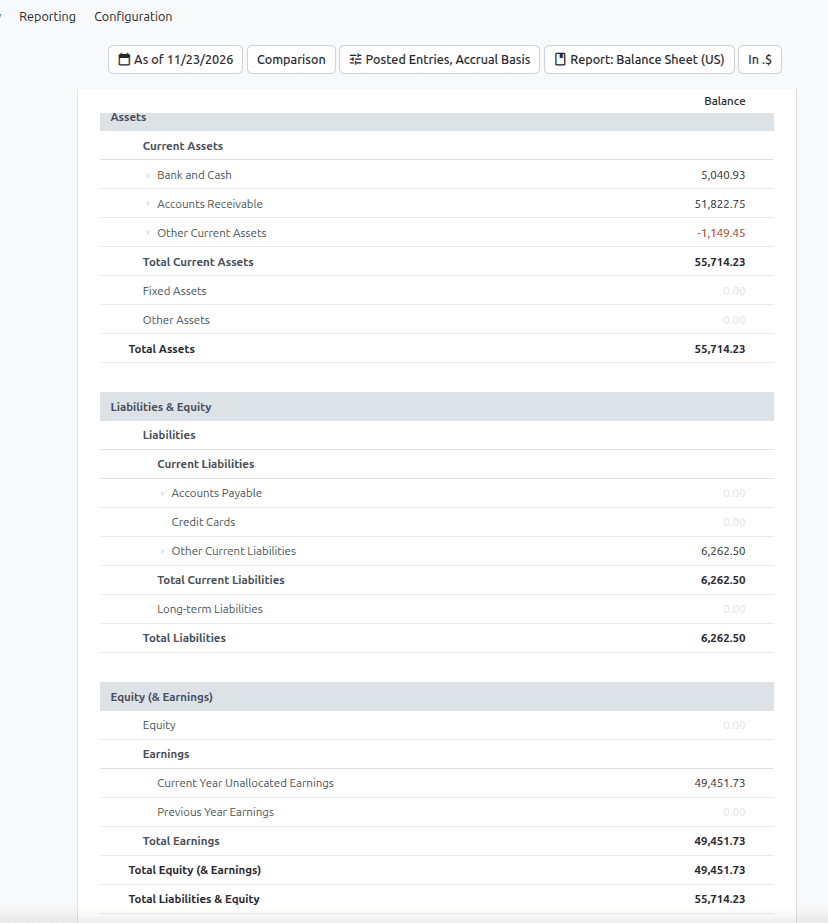
The Balance Sheet shows the financial position of a business at a particular point in time. It shows resources (assets), obligations (liabilities), and investments (equity) made by owners. Unlike the profit and loss account, the Balance Sheet is a ‘point in time’ figure.
Within the Balance Sheet, there are usually 3 headings:
- Assets - This represents assets owned/controlled by the company. This would include cash, bank, debtors, stock, property and equipment.
- Liabilities - This shows what the business owes. This can include amounts owed to suppliers, loans, and other debts.
- Equity - This shows what has been invested in the business by owners. Within equity, we have share capital and retained earnings.
2. Profit and Loss (P&L)
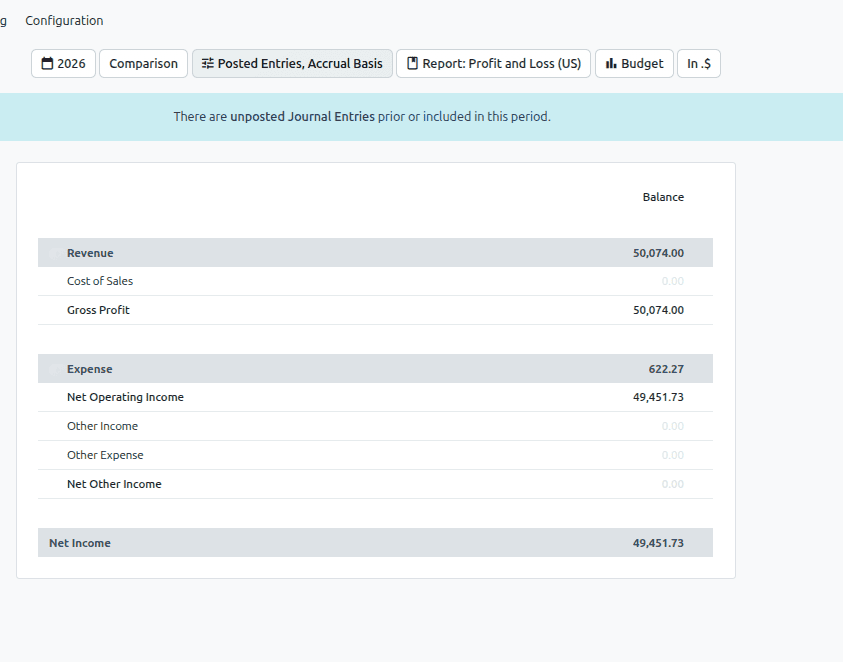
The Profit and Loss Report in Odoo 20 allows businesses to see if they have made a profit/loss within a given time period. This report gives businesses an overview of the income they have made, in addition to any losses (expenses) and overall performance. It gives the total income made through sales and other sources, in addition to the expenses (salary, rent, purchases, and other running costs). Using these two figures, the net profit/loss can be calculated by subtracting the total expenses from the total income. If there is a higher amount of income than expenses, profit has been made. If there are more expenses than income, a loss has been made. Users can choose a certain time frame to review and also get detailed information on the balance of accounts.
3. Cash Flow Statement
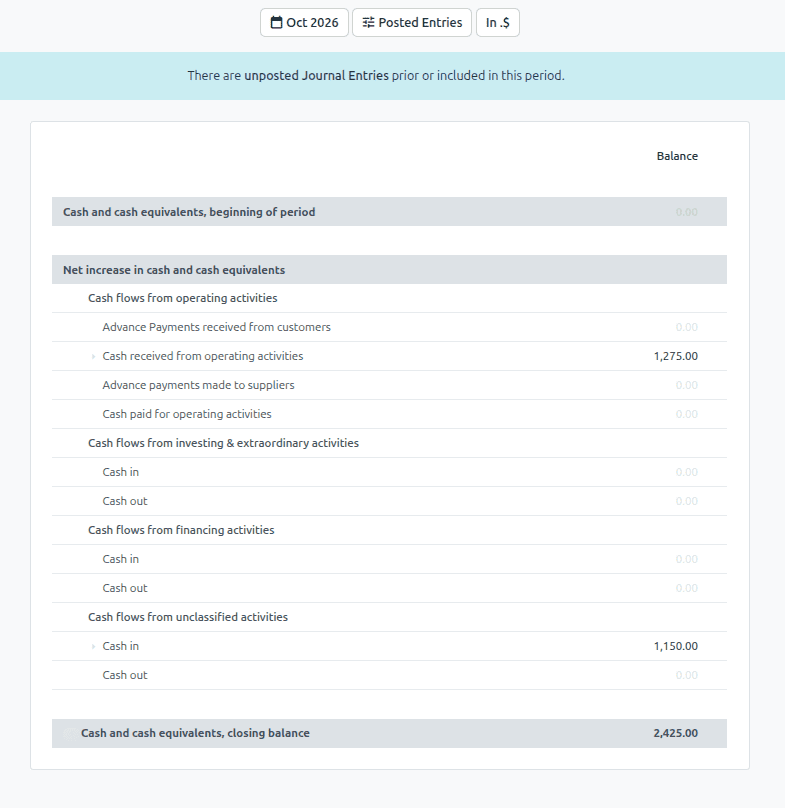
The Cash Flow Statement in Odoo 20 demonstrates the inflows and outflows of cash within a company over a certain time period. It outlines how much cash has been gained and lost by the business as part of its day-to-day operations. There are three main categories: Operating Activities, Investing Activities, and Financing Activities. In Operating Activities, money is gained from customers, and money is lost from expenses. In Investing Activities, money is lost/gained from purchasing/selling an asset, such as machinery and equipment. Within Financing Activities, money is gained from loans, and money is lost towards loans or other financing activities. Using this information, Odoo is able to show the inflows of cash, outflows of cash, and overall change in cash held by the business. A date range can be selected, and therefore we can look at how much cash the business has had at that time.
4. Executive Summary
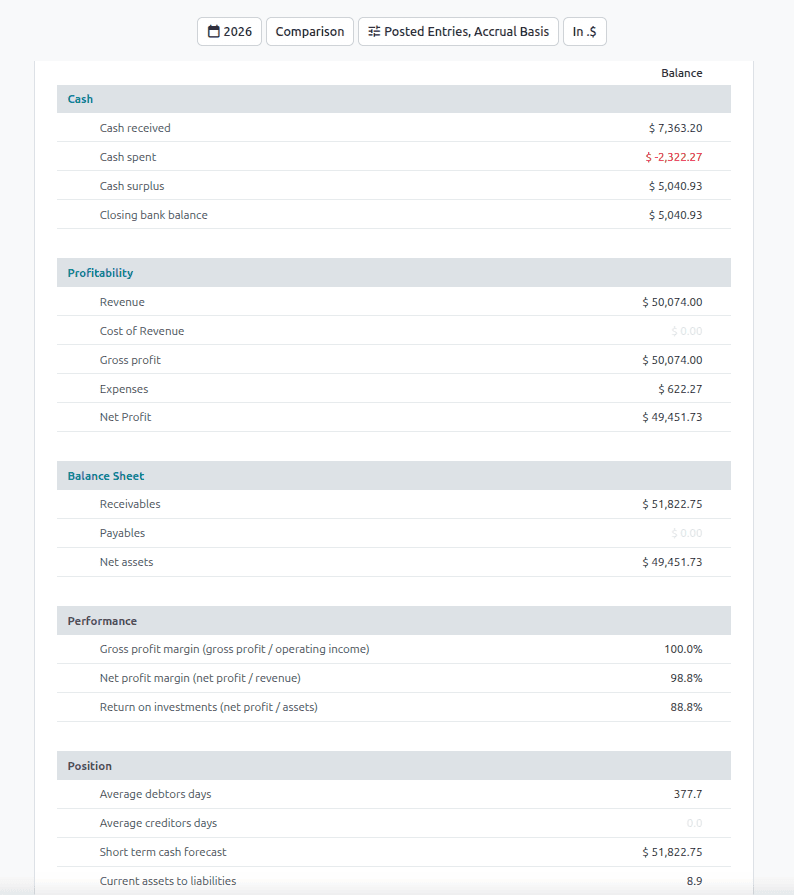
This is a summary of key financial areas. Information has been extracted from the accounts. Sections include cash flow, which displays income, expenditure, profit (or loss) and ending bank balance. Profitability demonstrates income, cost of sales, gross profit (income less cost of sales), overheads, and net profit (profit after all costs have been deducted). The balance sheet provides information on trade receivables (customer debtors) and trade payables (supplier debtors). Net assets are also shown, which are calculated by subtracting the company’s liabilities from its assets. Performance indicators include gross profit margin (gross profit as a % of income), net profit margin (net profit as a % of income), and return on investment (net profit as a % of assets). Position is an indication of a company’s short-term performance. Average trade receivable days (the average period of time it takes to receive payments from customers), average trade payable days (the average period of time it takes to make payments to suppliers), and short-term cash flow projection are also shown. Current assets and liabilities indicate whether the company can satisfy its short-term liabilities. The higher this figure, the better.
5. General Ledger
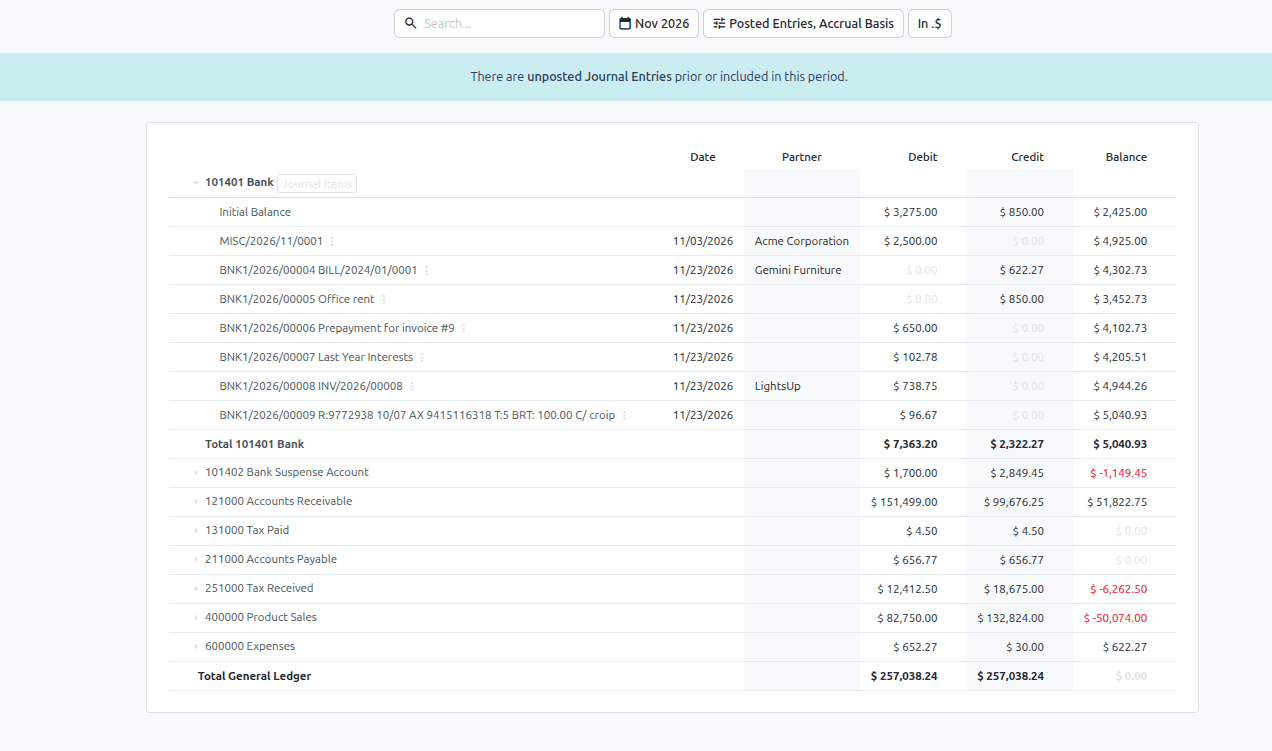
Odoo has a General Ledger which shows detailed information. This is more detailed than the Executive Summary. For Bank, Receivables, Sales, and Rent Expense, it is possible to see the journal entries that have been posted to these accounts. Each entry can be viewed and will include information including the date, journal, reference and/or partner. A brief description can also be seen. Both the debit and credit for each line will be visible. Opening, current, and closing balances can also be reviewed. Within Enterprise, accounts can be expanded and/or collapsed. Clicking on an entry will enable access to the source document, for example, an invoice, bill, payment and/or journal. Filters can then be applied so that specific information can be analysed, for example, for a particular period, journal, and/or posted and/or all information. Filters can also be added based on analytic accounts. Analysis can be undertaken for different periods. Information can then be exported in PDF and/or Excel.
6. Trial Balance
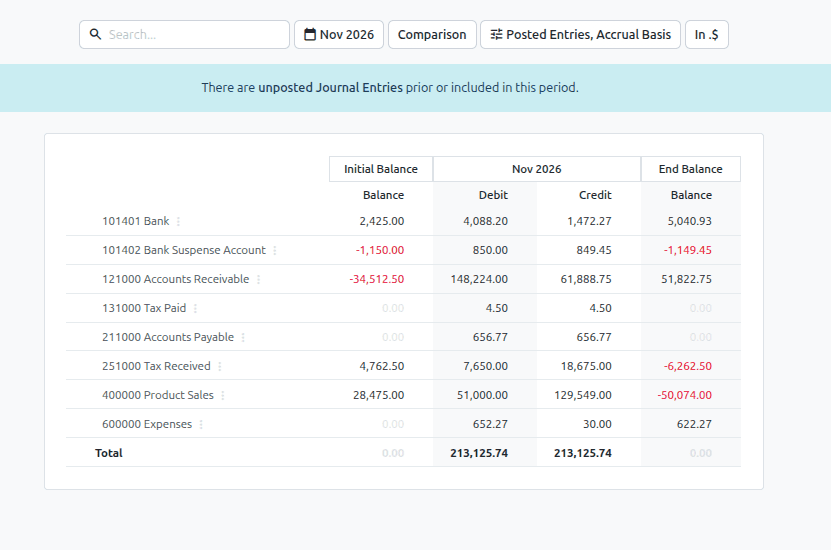
The Trial Balance is a report which shows a list of all accounts along with their debits, credits, and balance for a given period. Within double-entry bookkeeping, the amount of debits will always match the amount of credits. Each account is shown in a row. Information displayed includes the opening balance (the value of the account at the beginning of the period), the debits and credits for the period, and the closing balance. A period can be selected and compared to another. It is also possible to restrict the report to certain journals and/or posted entries. Further information can be viewed relating to the journals for a specific account, and/or the General Ledger can be accessed for an account. The report can then be outputted as a PDF or Excel.
7. Aged Receivable
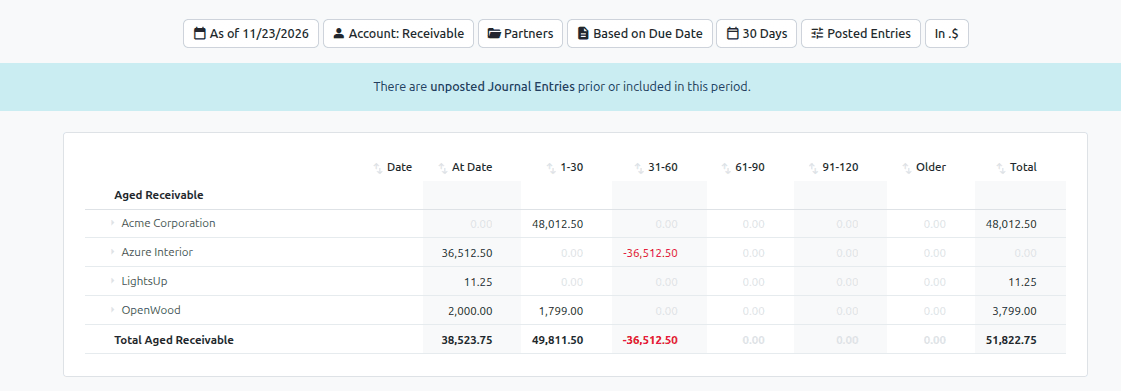
Aged Receivable is a report in Odoo that shows how much your customers owe you and how long each amount has been overdue. It lists every customer with unpaid invoices and splits what they owe into time buckets, such as not yet due, 1 to 30 days overdue, 31 to 60, 61 to 90, 91 to 120, and older than 120 days.
8. Aged Payable
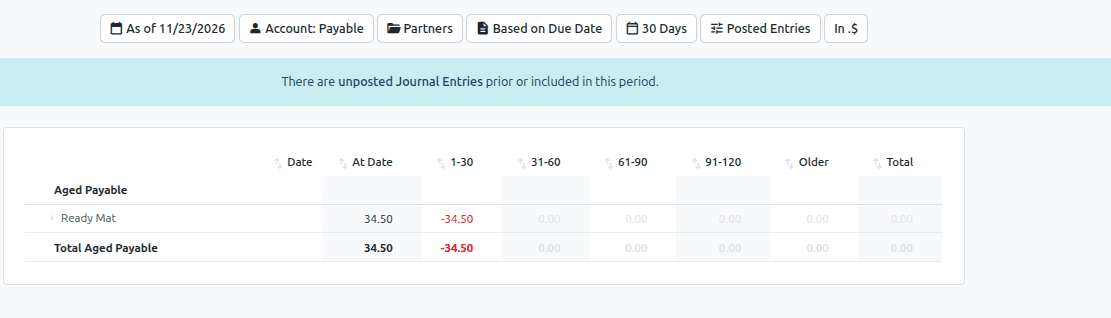
The Aged Payable report allows you to see what you owe your suppliers. As with Aged Receivables, this report lists the Vendors that you owe money to. It shows how much each Vendor owes in different time ranges. These time ranges include Due, 1-30 Days Past Due, 31-60 Days Past Due, 61-90 Days Past Due, 91-120 Days Past Due, and Over 120 Days Past Due. At the bottom of the report, the total amounts owed to each vendor and the overall total should equal the amount in the Payables account within your Balance Sheet.
9. Tax Report
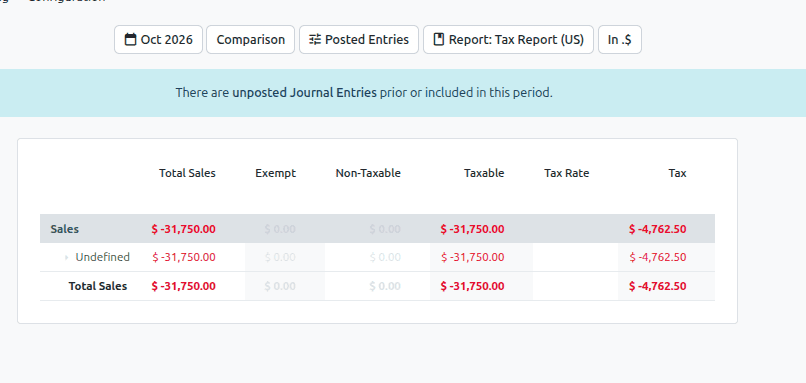
The Tax Report is a report in Odoo that summarizes the taxes you have collected from customers and the taxes you have paid to suppliers over a chosen period, so you can work out how much tax you owe the government or can claim back. Output tax is the name given to the tax payable on customer invoices. Input tax is that which appears on a supplier's invoice. These are both investigated within this report, and the difference between them shows the amount of tax paid or reclaimed during the period.
10. Partner Ledger
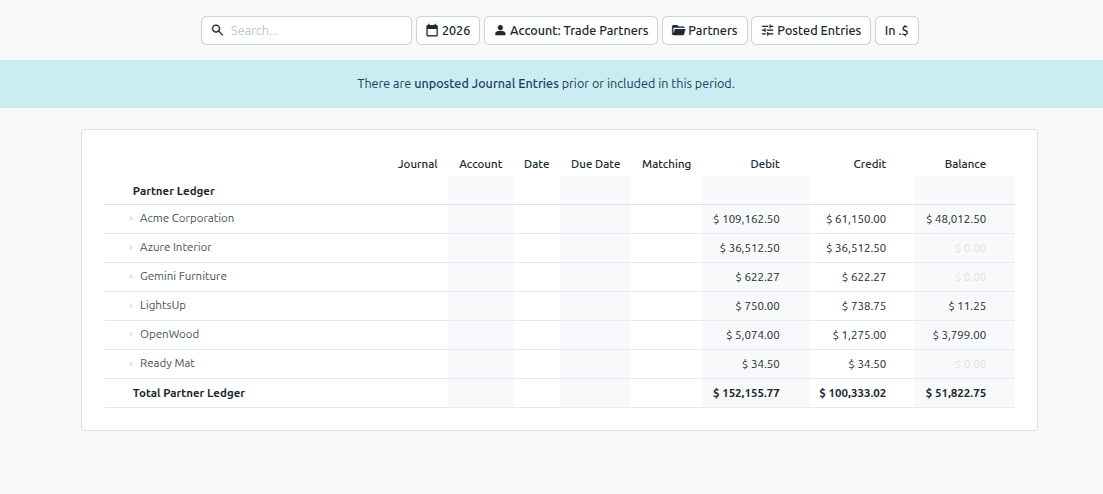
The Partner Ledger is a report in Odoo that shows every transaction with each customer and vendor, along with the running balance for each one. Where the General Ledger is organized by account, the Partner Ledger is organized by partner: each customer or vendor appears as a section, and under it you see their invoices, bills, credit notes, and payments, with the date, journal, reference, debit, credit, and balance. It also shows an opening balance at the start of the period, the movements during it, and a closing balance, so you can see exactly how much a partner owes you or how much you owe them.
Customer follow-up
Customer follow-up helps you chase overdue invoices by sending reminders by email, SMS, or letter, based on how many days a payment is late. Odoo Enterprise includes this feature built in, but Odoo Community does not. Community users can still get the same result with free OCA modules. Invoices have a due date and will be considered overdue if not paid by this time. Odoo will count the number of days passed since the due date. For each step, a predefined action will occur, such as sending an email or assigning a task to call the customer.
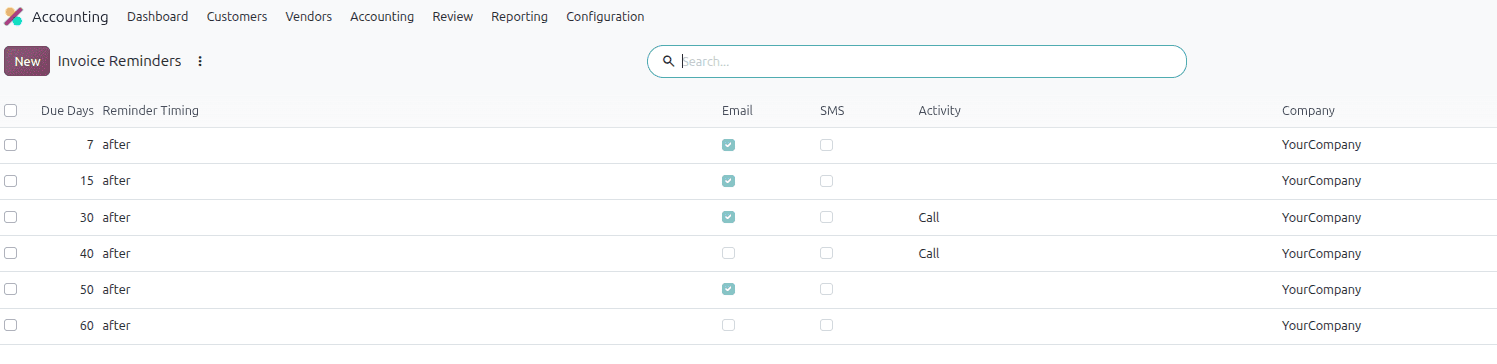
Invoice Reminders is where you enter information to tell Odoo how to follow up on overdue invoices. After an invoice is due, Odoo will carry out actions at each stage which you specify. This menu can be found under Accounting > Configuration > Invoice Reminders. Each line is a different stage. The column titled ‘Due Days’ shows how many days after the due date for an invoice the reminder is sent. The ‘Reminder Timing’ is ‘after’, so this means that the action will take place after the due date. Alternatively, you can enter a negative number of days so that a reminder can be sent before the due date. Tick the Email and/or SMS boxes if you require Odoo to email/SMS someone at this stage. Finally, within the Activity column, you can add an activity (for example, a Call) which is assigned to the correct person.
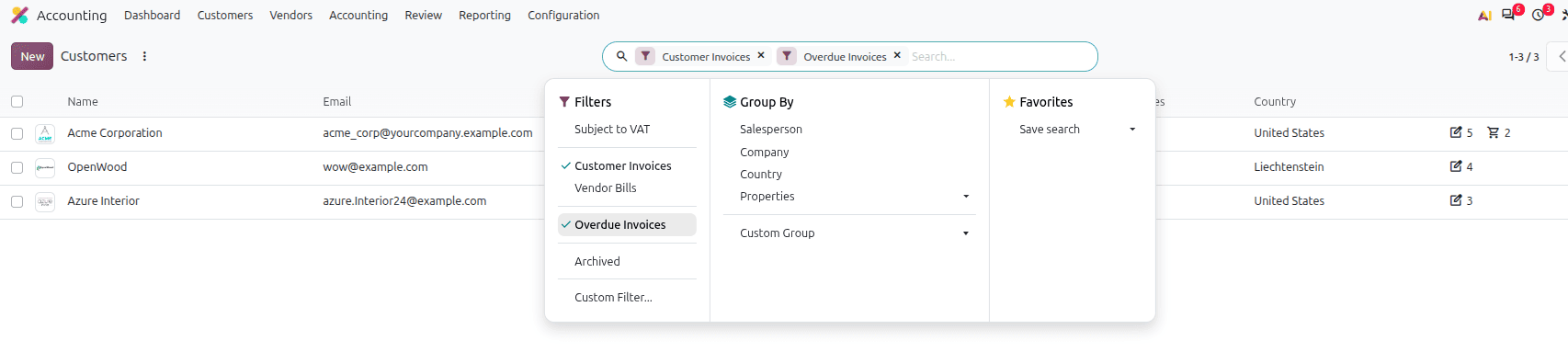
Go to Accounting > Customers > Customers and apply the Overdue Invoices filter. You get a list of customers who have overdue invoices.
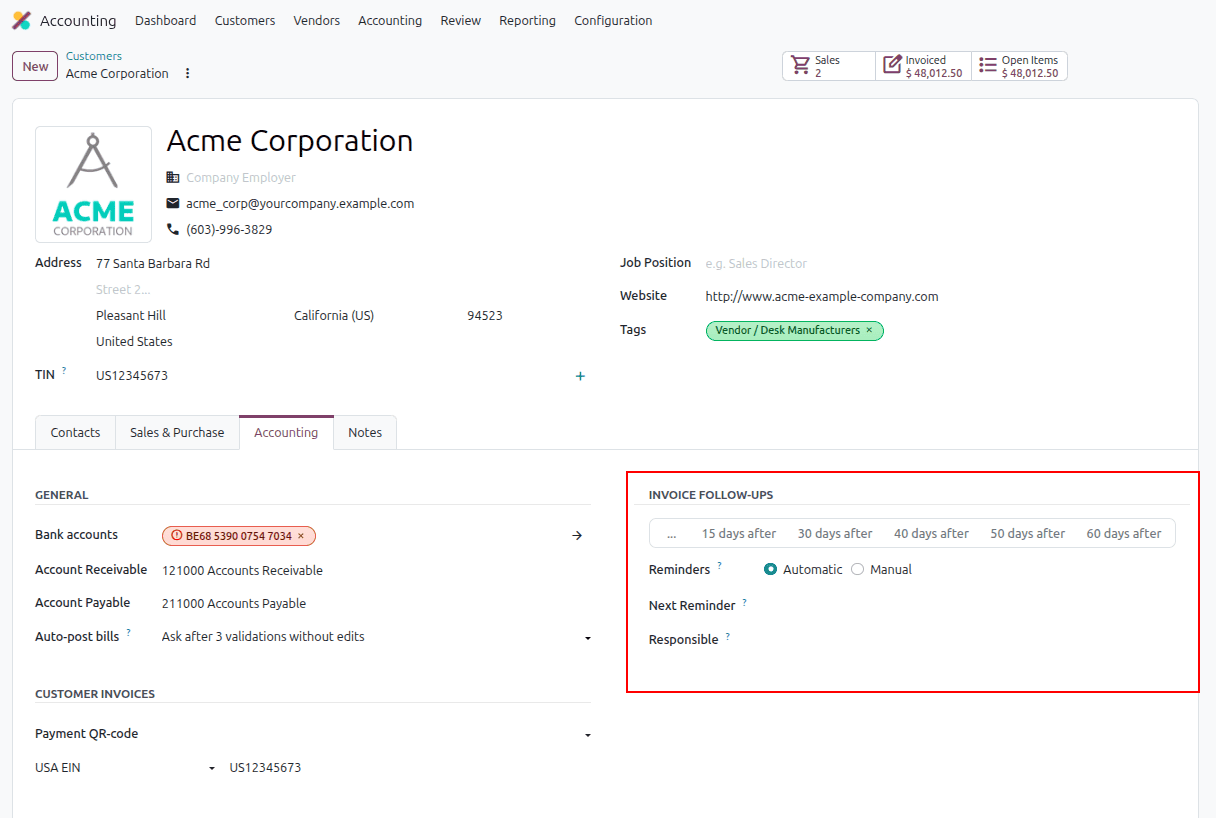
Open a customer and go to the Accounting tab. In Invoice Follow-ups, you can see which stage the customer has reached and decide how it runs:
- Automatic: Odoo sends the reminders by itself.
- Manual: you decide when to send them.
- Next Reminder: the date of the next action.
- Responsible: the person who gets the call tasks.
OCA (Odoo Community Association) provides free add-on modules for following up on customers who haven't paid. They are all in the GitHub repository OCA/credit-control.Account Credit Control (technical name: account_credit_control) finds customers whose invoices are past the due date. You start a "run", Odoo lists the overdue customers, and you check the list and send the reminders by email or letter in one go.Account Invoice Overdue Reminder (technical name: account_invoice_overdue_reminder) only sends overdue reminders by mail, letter, or phone, without the run and policy steps.
Asset management
Asset depreciation is not available by default on the Odoo Community. It is available in Enterprise, under Accounting (module account_asset). Assets can be created from supplier invoices, depreciation entries can be automatically computed (straight line, declining), and assets can be suspended, sold, disposed of, or revalued. Reports and a depreciation plan are available. However, for the community, the standard solution comes from OCA: account_asset_management (from account-financial-tools). This module allows you to define asset types, depreciation plans, several depreciation methods, and asset disposal. Usually, it is used with a module to generate an Excel file (.XLSX) of the reports.
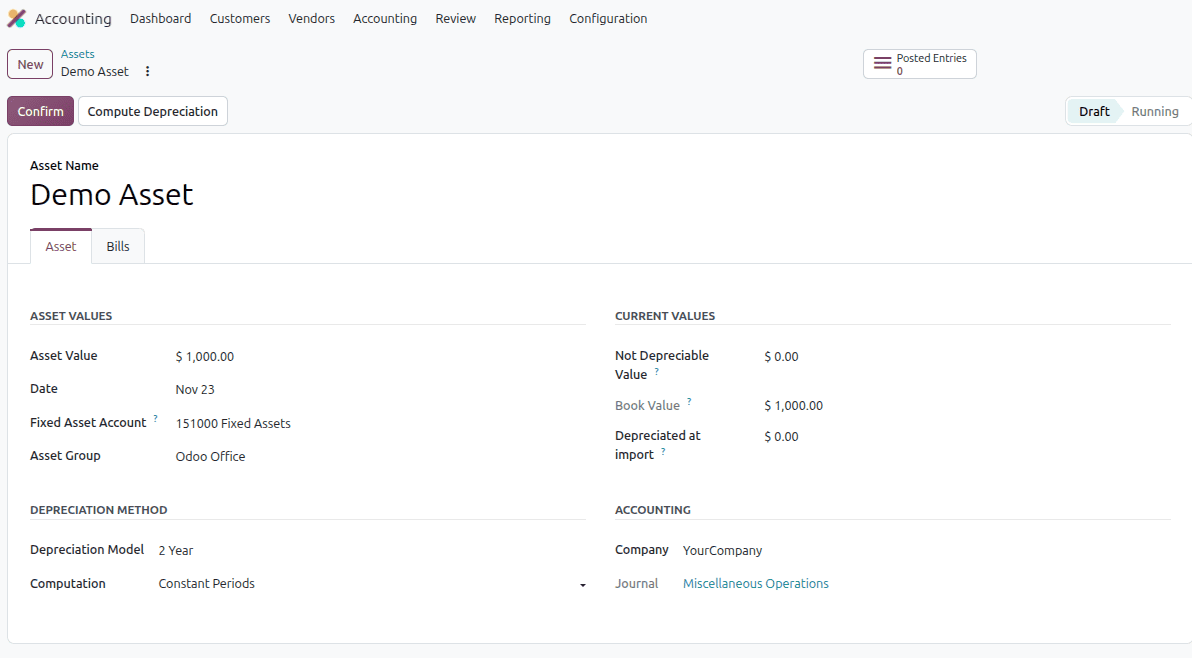
Navigate to Accounting > Accounting > Assets & Liabilities > Assets and click Create. Fill in the asset name, purchase price, date, account (151000 Fixed Assets), and asset group (Odoo Office). Choose a depreciation method (2 years) and depreciation calculation type (constant periods), meaning the cost will be distributed evenly. Select a company within Odoo and select a journal (Miscellaneous Operations) to make sure entries are posted correctly. The asset is now in Draft mode. The book value is therefore $1,000. There has been no depreciation applied. Clicking ‘Confirm’ means that the asset will be in Running mode. Then, by clicking ‘Compute Depreciation’, we can calculate depreciation for the asset. The value will decrease each period. If you click on the Posted Entries button at the top of the window, you can see how many entries have been created.
Budgets
A budget in Odoo is a spending plan. You can decide how much money a department, project, or cost center is allowed to spend or earn in a period, and Odoo then compares that plan against what actually happens. When bills, invoices, and expenses are posted, Odoo shows how much has been spent and how much is still left, so you can spot overspending early. In Odoo 20 Enterprise budgets come built in as part of the full Accounting app. They cover analytic budgets (by project or department) and financial budgets, and they show committed and achieved amounts as entries are posted. Odoo 20 Community has no built-in budgets because it includes only the Invoicing app. If you need budgeting there, you have to use an add-on module or custom development. The Odoo Community Association (OCA) offers free add-on modules that fill this gap. The ones usually used for budgeting are account_budget_oca (in the OCA account-budgeting repository).
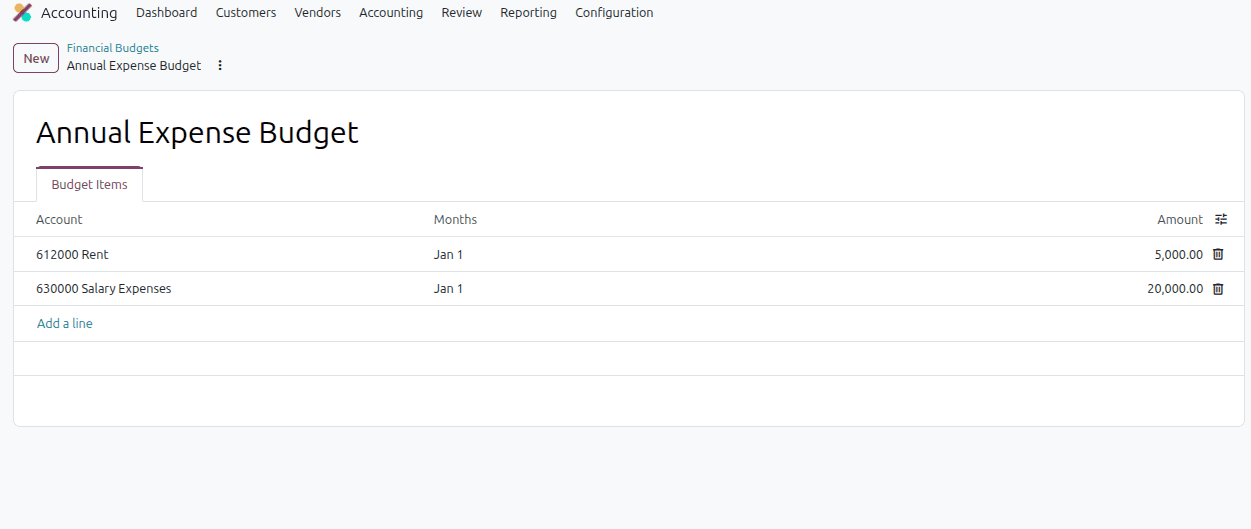
Click ‘Accounting’, then ‘Configuration’, and then ‘Financial Budgets’. Create a budget and name it (for example, Annual Expense Budget). Next, enter the figures that you wish to budget under the ‘Budget Items’ tab. Every item includes a specific account, month, and figure. For example, you may wish to budget 5,000.00 for account code 612000 – Rent, and 20,000.00 for account code 630000 – Salary Expenses for January. Odoo is therefore informed of what you believe you will be spending on different accounts. As you enter bills and journals relating to these accounts, Odoo will analyse your real expenditure and so enable you to assess if you are adhering to your budget. Further accounts or months can be added by clicking on ‘Add a line’.
Loans
A loan is money you can obtain (for example, from a bank) and which must then be repaid together with interest. You will need to record the loan, repayments and interest. Within Odoo 20 Enterprise, Loans can be added to the Accounting app. Details of the principal, interest rate, start date, and length of the loan are entered. A repayment plan is then produced and the loan approved. Odoo will then monitor every stage of repayment and also show the remaining debt. This functionality is absent from Community, which only has the Invoicing app. Alternatively, the free OCA account loan module can be employed.
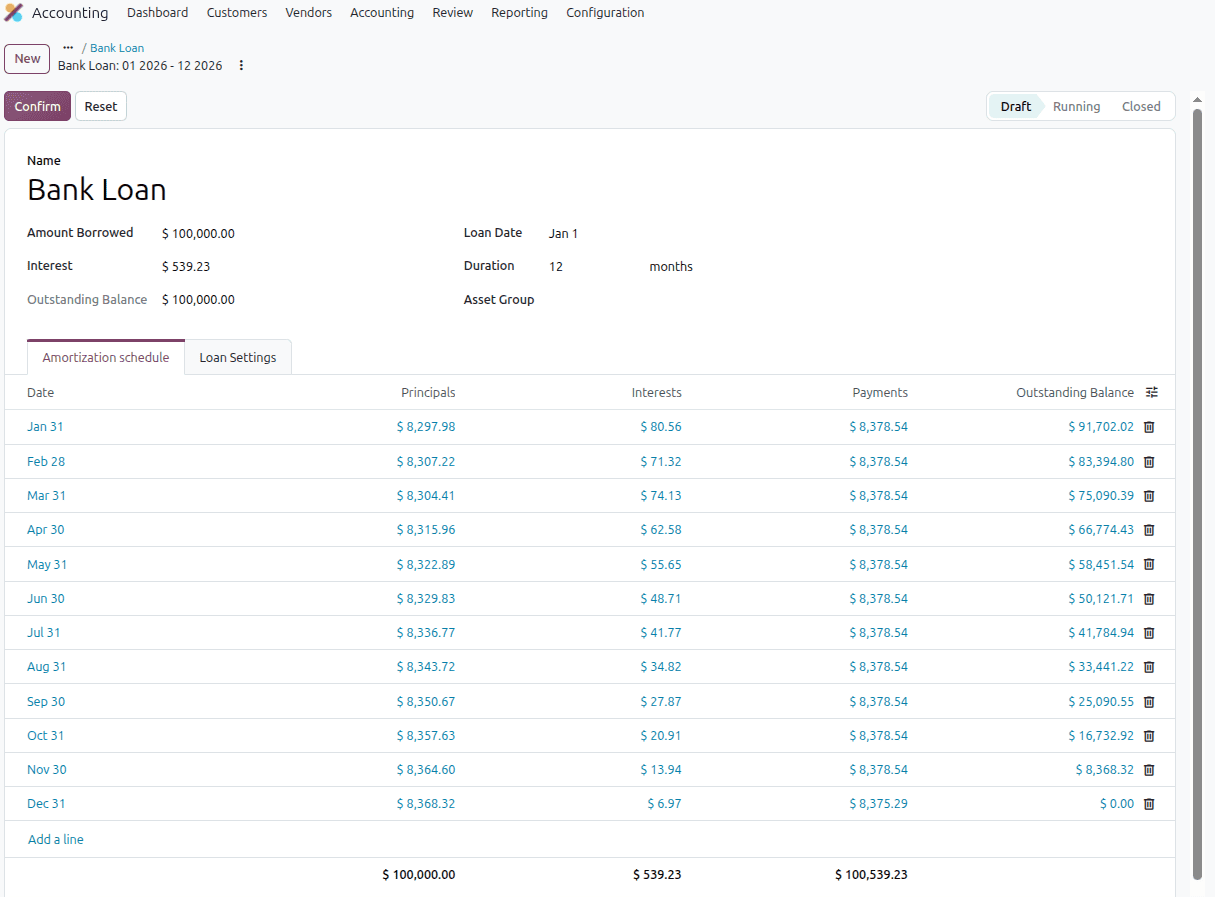
Click on Accounting, then Assets and Liabilities, and then Loans. There is already a draft loan named ‘Bank Loan’, which is for 01 2026 – 12 2026. It is for $100,000.00 and lasts 12 months beginning on Jan 1. The total interest due is $539.23. As no repayments have yet been made, the remaining capital is still listed as $100,000.00. The amortisation table has an entry for each month between Jan 31 and Dec 31. For each month, it shows the capital, interest, and repayment (approximately $8,378.54), and the remaining capital, which reaches $0.00 by December. The totals indicate that the total capital was $100,000.00 and the total interest was $539.23; therefore, in total, $100,539.23 is repaid. Confirm the loan or reset it to amend the loan information.
Bank synchronization
In Odoo, automatic bank synchronisation (the account_online_synchronization module) is an Enterprise feature. Community Edition does not include live bank feeds. Odoo connects to banks through third-party providers such as Plaid, Yodlee, Salt Edge, and Ponto, and it requires a valid Enterprise contract. For Community users, the OCA (Odoo Community Association) provides account_statement_import modules that load bank statement files (such as CAMT, OFX, and CSV) and reconcile them. These are file-based imports, not live bank connections.
To link your database to a Bank Account, within the Accounting Dashboard, click on New and then choose Bank. Within ‘Add a Bank Account’, select the correct bank name and click on Connect bank.
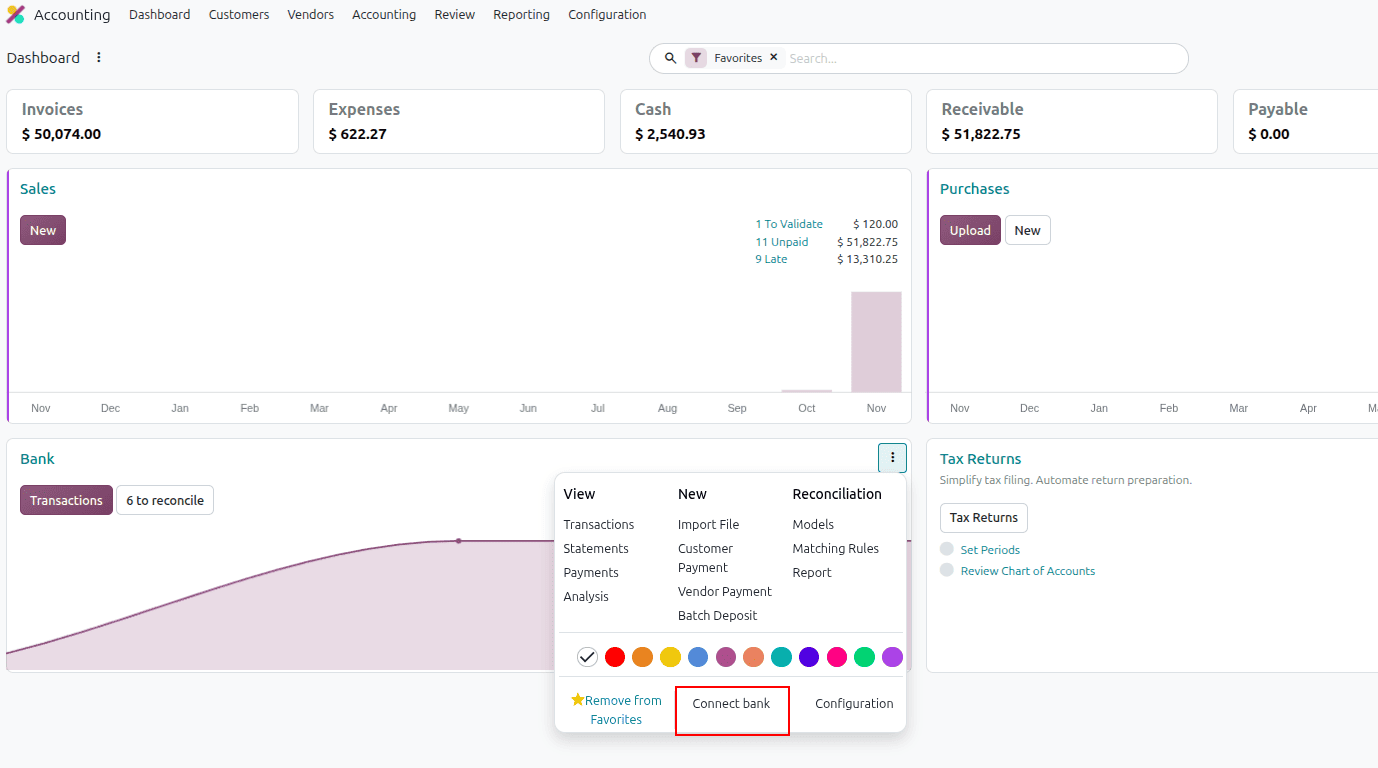
By default, bank journals are synchronised every 12 hours. To force a bank journal to synchronise, within the Accounting dashboard, click the ‘Fetch Transactions’ button for that journal. Alternatively, turn on developer mode, and on the Accounting menu, click on ‘Configuration’, and then ‘Online Synchronisation’. Choose the correct bank and then click on ‘Fetch transactions’. To edit a bank’s details, turn on developer mode and then within Accounting, select 'Configuration' and ‘Online Synchronisation’. Find and open the correct connection and then click ‘Update Credentials’.
OCR extraction
OCR is used to automatically populate supplier invoice data from a PDF or image. Within Odoo, this is an Enterprise feature which is processed using Odoo’s in-house cloud platform and so consumes IAP credits. There is no native OCR functionality within Community Edition.
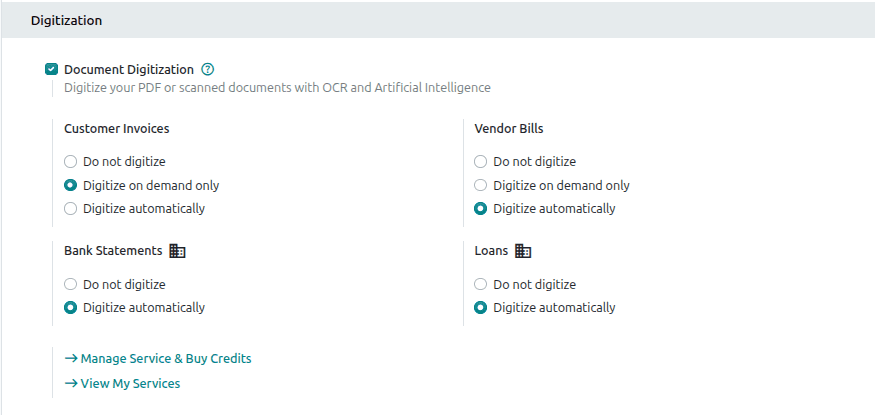
Document Digitization is turned on, so PDFs and scanned files are read using OCR and AI. Customer invoices are only digitized when you ask for them. Vendor bills, bank statements, and loans are digitized automatically as soon as they are uploaded. Digitization uses IAP credits, which you can check and buy through the service links at the bottom of the section.
Bank Reconciliation
Bank reconciliation matches the transactions on your bank statement with the invoices and payments in Odoo, and in Community Edition, this widget is not included.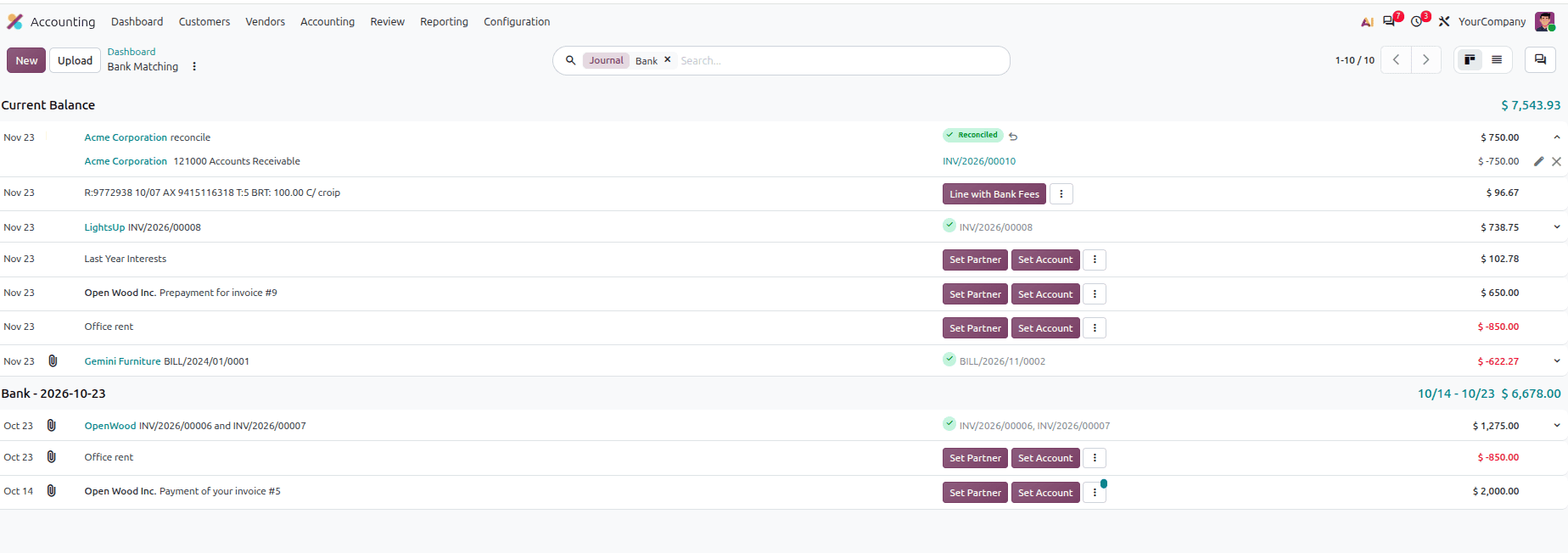
Bank Matching is used to relate a bank statement to Odoo. It is accessed via the Bank journal on the Accounting dashboard. Each bank item has information relating to the date, description, and value. A matched line has a relationship to either an invoice or bill and displays as Reconciled in green; for example, the Acme Corporation payment, which is associated with invoice INV/2026/00010. Unmatched lines include buttons. Odoo automatically proposes a suitable match for some items, for example, the ‘Line with Bank Fees’ button for a nominal fee. To relate an unmatched line, Set Partner is used to identify the relevant customer or vendor, and Set Account is used to select an appropriate account in the ledger, for example, Office rent. Items are organised by date, and a subtotal column indicates the value for each date section. The current balance, therefore, displays the overall value of the bank account. Paperclips are shown next to items which have documents attached. Upload and New buttons enable further items to be added, whether these are new statement information or manual entries.
AI accounting reports
Odoo 20 now includes AI functionality. The Enterprise edition offers the most advanced AI, which allows natural language queries to be made about financial reports. Two AI agents are also used in selected auditing functions - one analyses data and the second reviews the results. The Community edition does not include full Accounting functionality but does have a reduced version of the Invoicing app. The AI functionality is accessed via a pay-for-service offered by Odoo called IAP. As with all AI, accuracy depends on the quality of the source data.
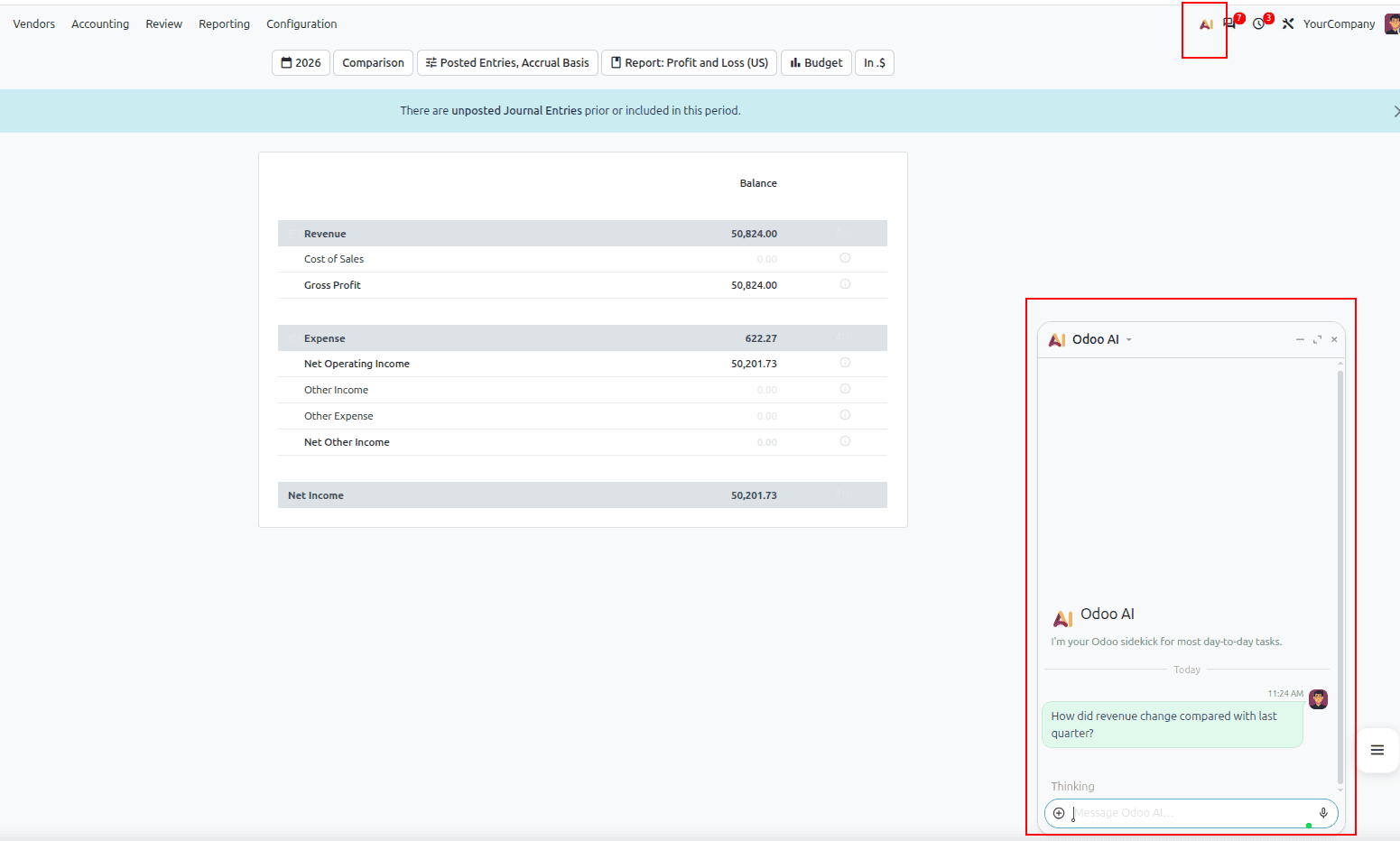
Using AI to analyse financial reports within Odoo 20 allows you to input natural language queries. For example, after viewing a report (such as the Profit and Loss), you can click on the AI button in the top right navigation bar and enter a query such as ‘What was the change in Revenue versus last quarter?’. Based on the information within the report together with details such as date range and posting method, the AI will provide numerical results along with an analysis. Further specific questions can then be submitted, for instance, what expenditure accounts were affected. This functionality is included within Odoo 20 Enterprise and requires that your account has sufficient IAP credits. Although AI can often give the impression that it is highly knowledgeable, it is important to verify the numerical results it provides by cross-referencing them with the relevant report lines and base journal items. This is particularly important where there are as yet unpicked journal items. The default AI service only analyses and summarises information, without making changes. Therefore, those responsible for decision-making and/or posting continue to sit with your accountant.
There are two versions of Odoo’s finance functionality - and it is dependent on business requirements to decide which is most suitable. The Community edition includes an Invoicing application, which is appropriate for smaller businesses predominantly concerned with invoicing customers and managing payables. The Enterprise edition gives access to additional applications that are commonly used by finance professionals. As well as core reports (Profit and Loss, Balance Sheet, and Aged Receivables), these include asset depreciation, budgeting, loans, bank importation, OCR scanning for invoices, and a complete reconciliation function. Whilst Community does not have these functions natively, there are free add-ons provided by the Odoo Community Association. These include account_financial_report (reporting), account_asset_management (assets), account_credit_control (follow-up), account_budget_oca (budgets), account_loan (loans), and account_statement_import (importing bank statements). Again, these do need more configuration, validation, and ongoing management than native Enterprise functions. Most innovative of Odoo 20 is its new Enterprise-only artificial intelligence (AI) reporting functionality. This allows natural language queries to be made about reports. However, this feature does consume IAP credits, and the accuracy of AI responses is limited by the quality of source data. Data can even be affected by unwritten journal items, so responses must always be verified by cross-referencing with relevant report and journal item lines. An ‘assistant’ function is also included, which analyses and summarises information but does not alter any data. It is therefore still up to the accountant to make decisions and carry out postings.
To read more about Odoo 20 Community vs Enterprise: Features by Department, refer to our blog Odoo 20 Community vs Enterprise: Features by Department.