In Odoo 18, managing repeat purchase orders is convenient for customers through their portal. The Re-order from Portal feature allows users to easily place the same order again without manually adding products one by one.
Enabling the Reorder Feature
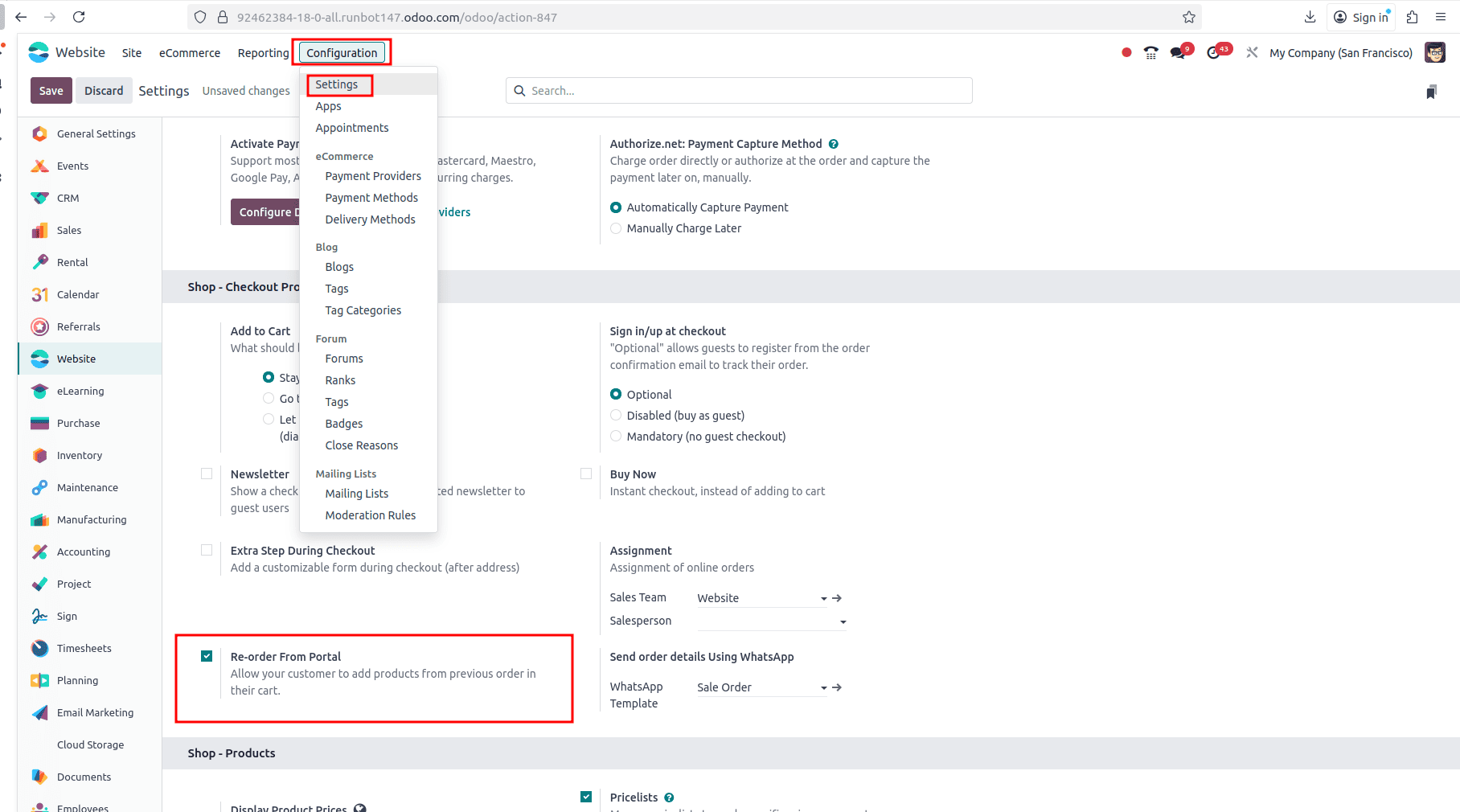
You can enable this feature by navigating to
website module > Configuration > Settings.
Then, activate the “Reorder from Portal” option.
This setting ensures that customers can reorder their previous purchases directly from their portal.
Creating an Order from the Website
Now, let us create an order from the website.
- Go to your Odoo website and place a new order as usual.
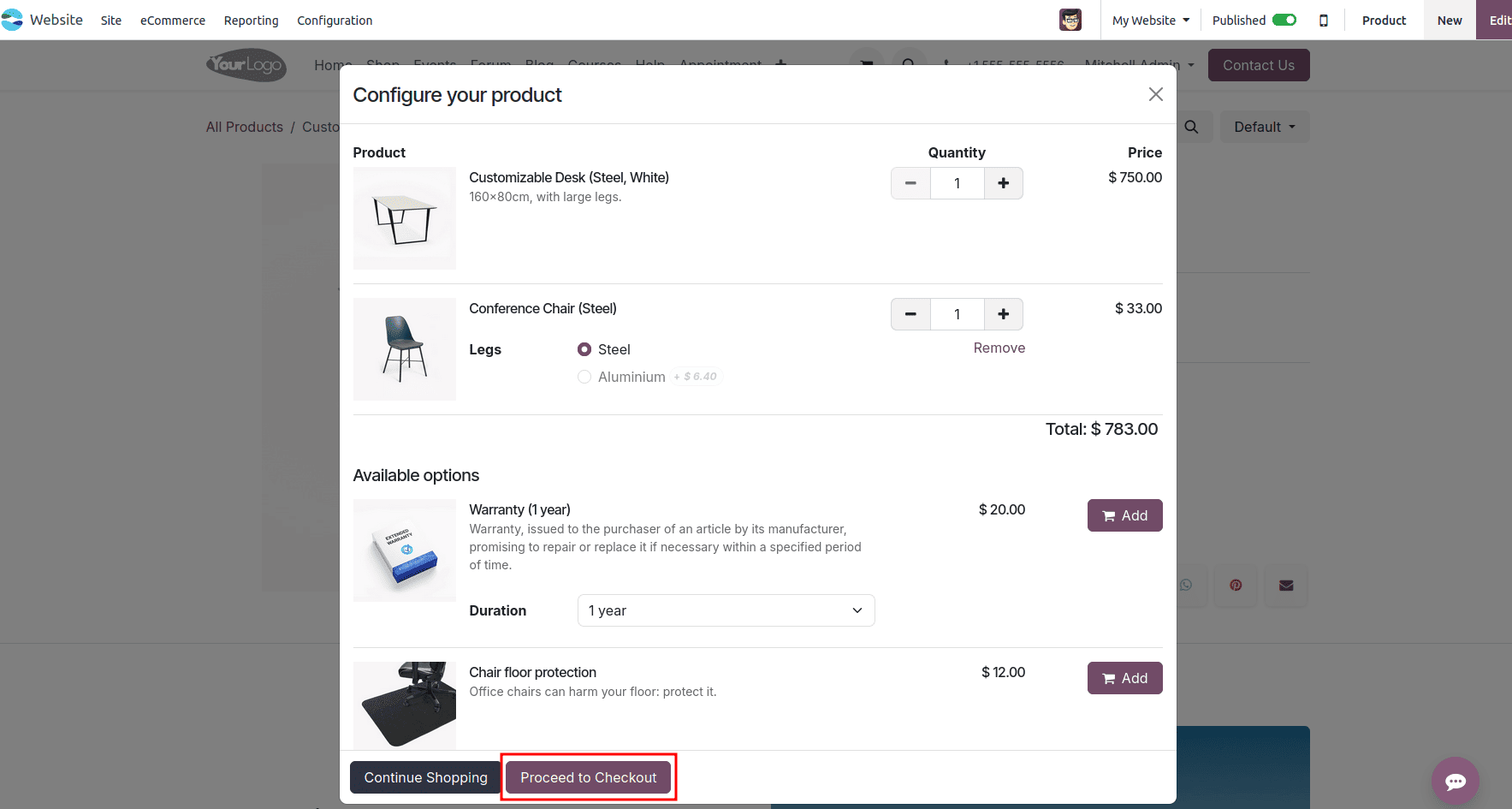
- Once the order is confirmed, it will be visible under your account.
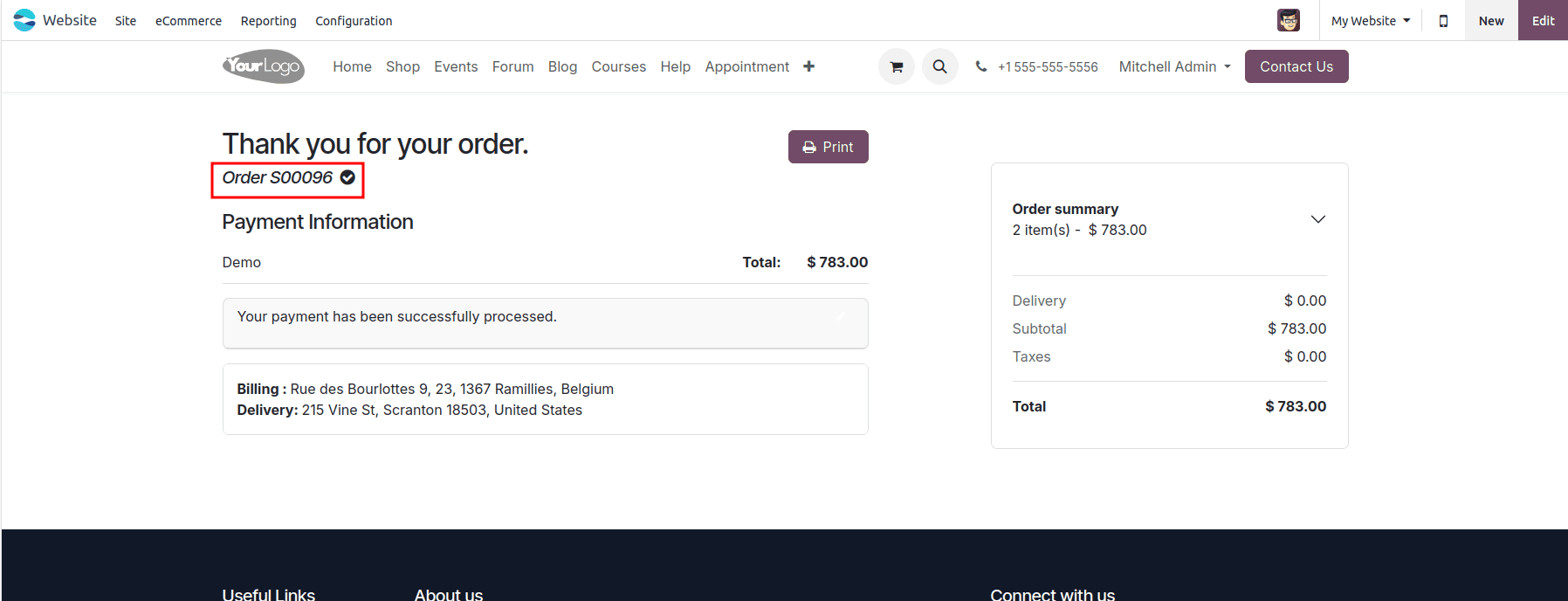
Viewing and Reordering Previous Orders
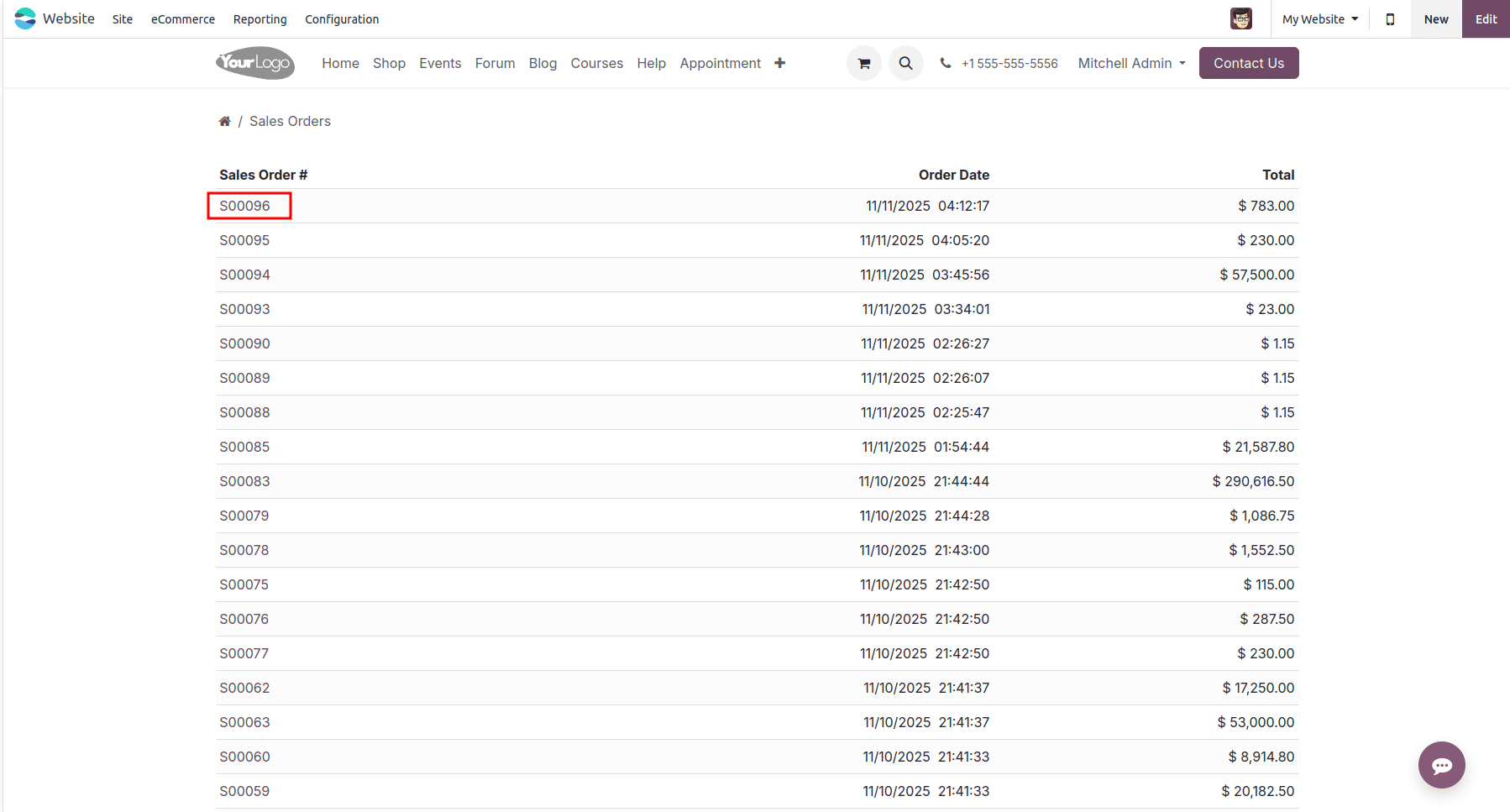
Now, you can see all your previous orders by going to My Account > Your Orders
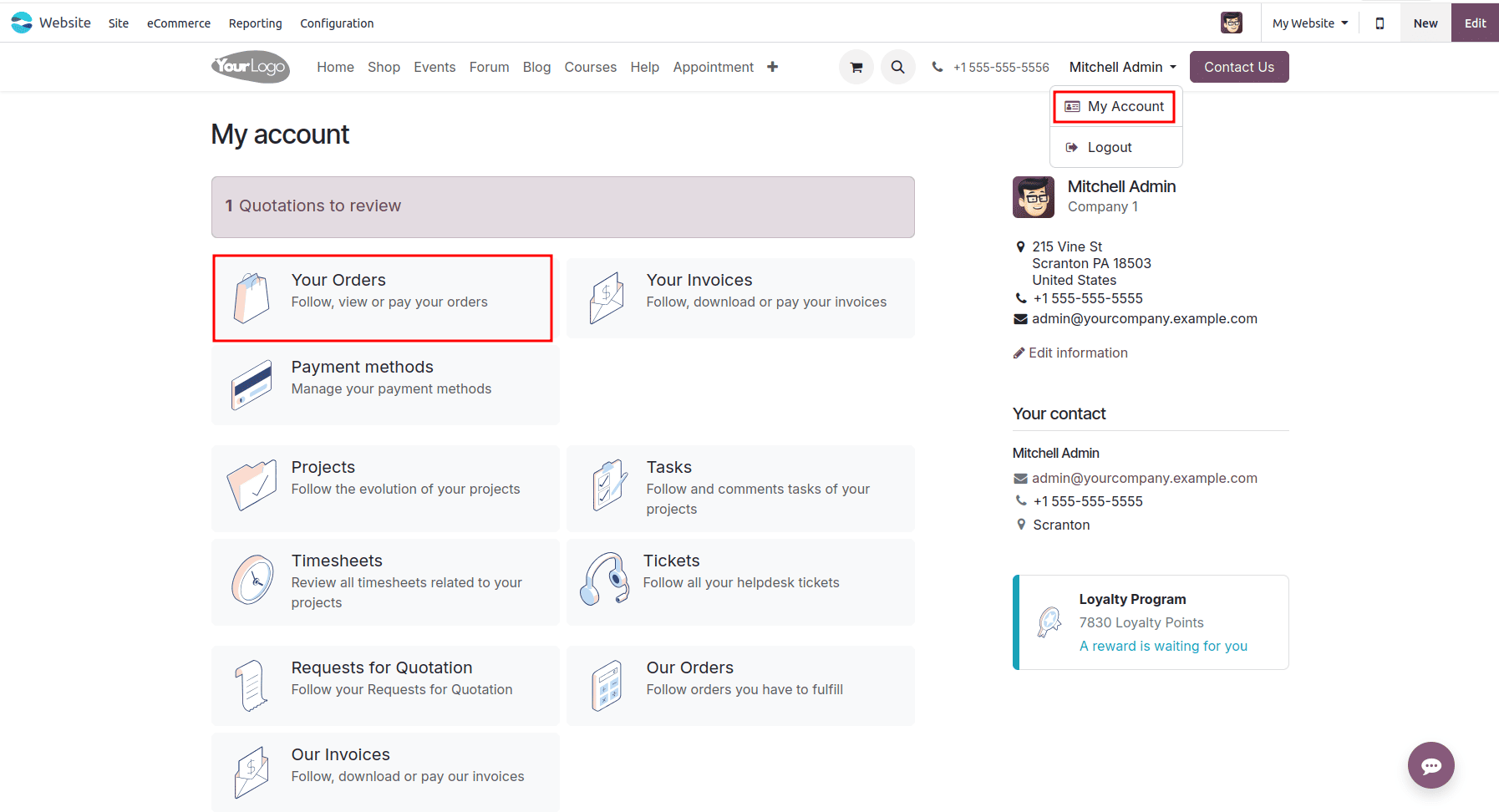
Here, you’ll find a list of all your past orders.
Select the order you wish to reorder—for instance, the one you just created.
Reordering Made Easy
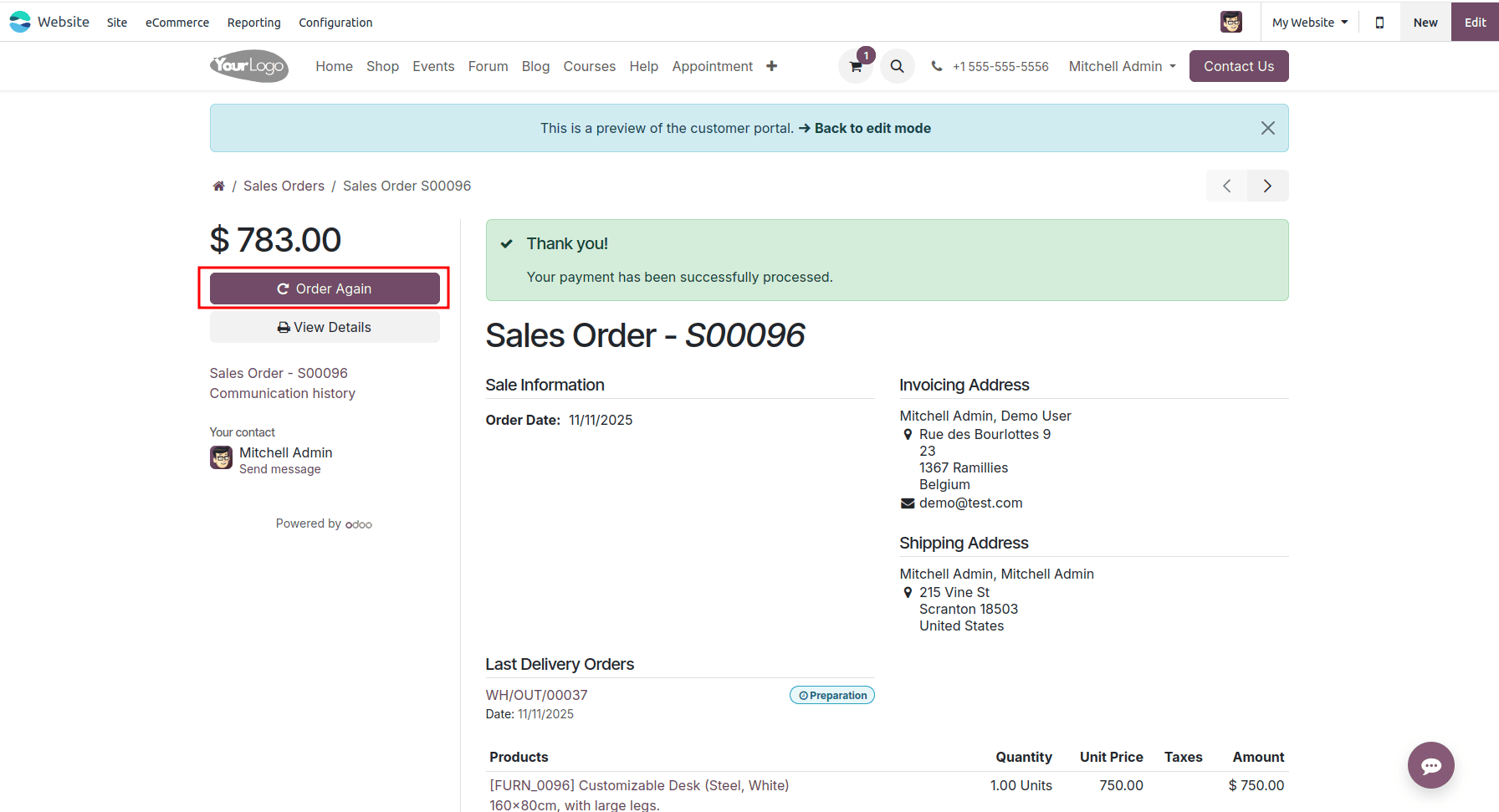
When you open the order, you’ll see the “Order Again” button.
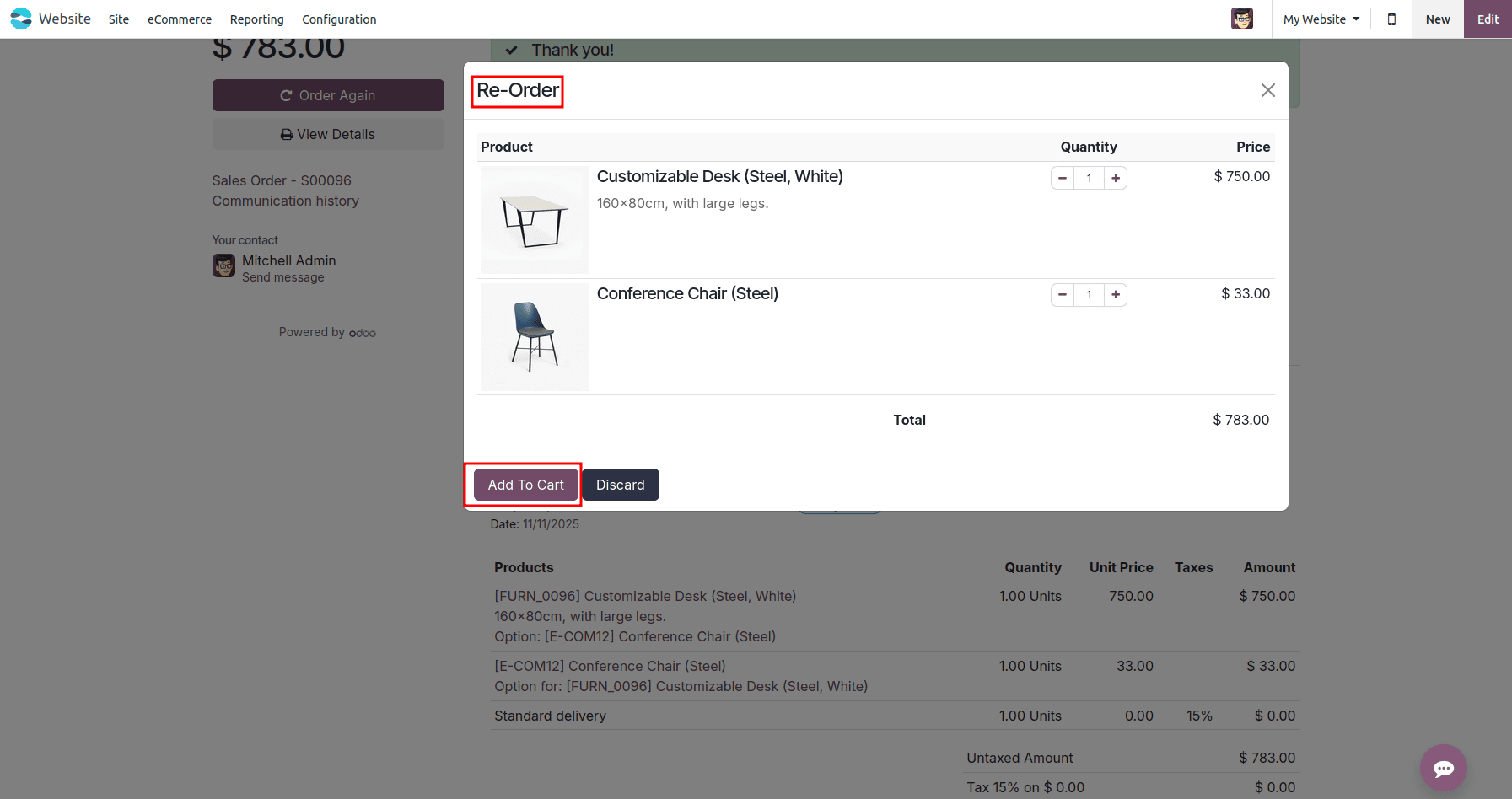
Upon clicking it, you can see a wizard to display the products from your previous order for reordering.
From here, you can:
- Review the items
- Modify quantities if needed
- Click Add to Cart to proceed
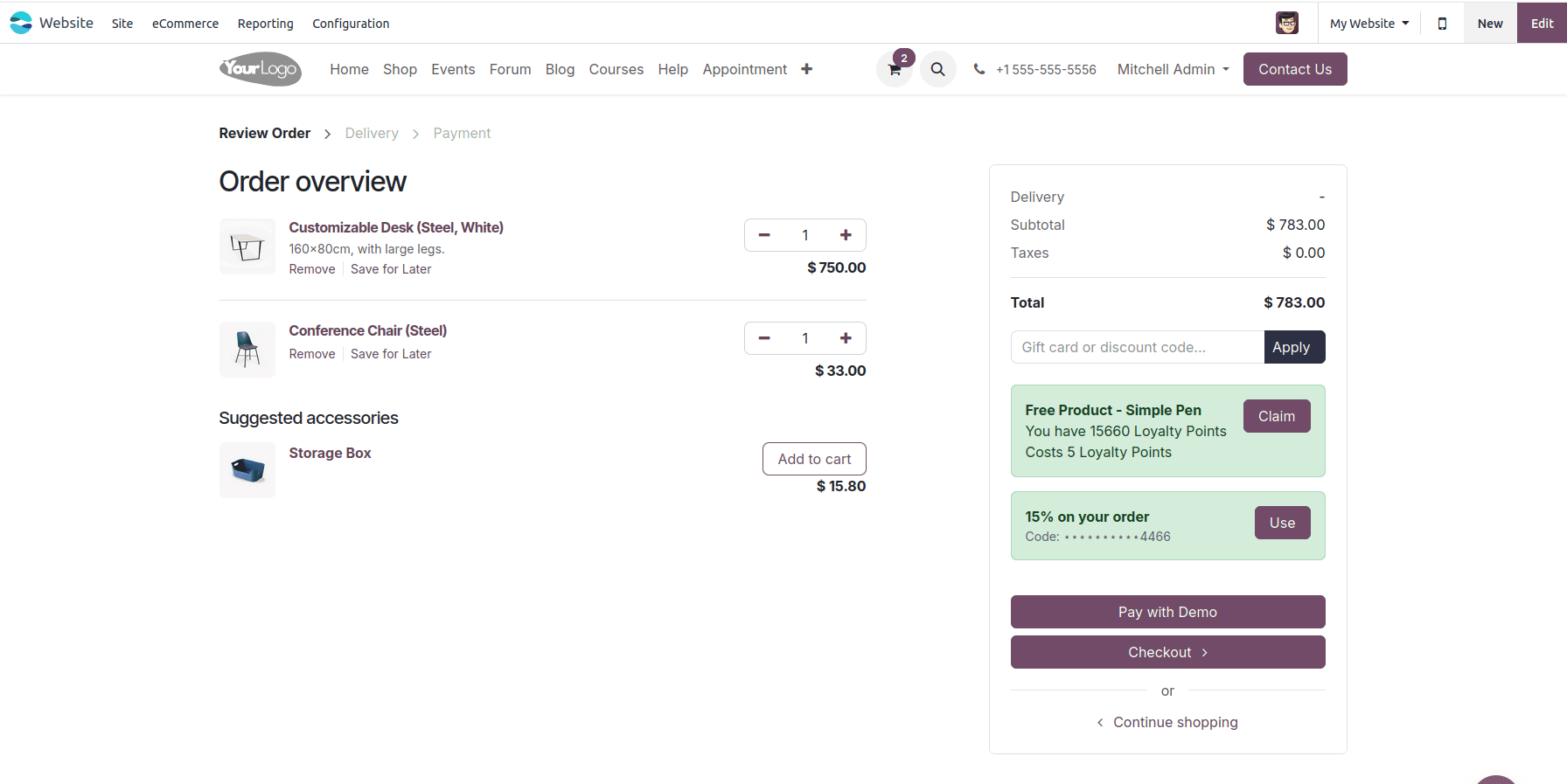
Once added, you can continue with checkout as usual.
After clicking on the add to cart button, you continue with your order.
This feature simplifies the buying process by enabling quick access to past orders through the customer portal, thus saving time and effort.
Odoo 18’s Reorder from Portal feature enhances the user experience by streamlining repeat ordering.
With just a few clicks, customers can recreate previous orders—making online shopping faster, easier, and more convenient.
To read more about How to Manage Reordering of Products From Customer Portal in Odoo 17, refer to our blog How to Manage Reordering of Products From Customer Portal in Odoo 17.