Analytical Accounting is one of Odoo 19's most potent features, and it continues to improve its financial skills. Businesses can use this application to monitor and analyse expenses and income by dimension, including projects, departments, cost centers, and more, in addition to by account. Analytical accounting in Odoo 19 offers useful insights for strategic financial decision-making because of its modular and adaptable design.
The main elements and useful applications of Analytic Accounting in Odoo 19 will be discussed in this blog, including:
- Analytical Accounts and Plans
- Models of Analytical Distribution
- Use in Bills, Assets, and Budgets
- Items for Analysis
- Reports on Analysis
From the accounting configuration settings, enable Analytical Accounting.
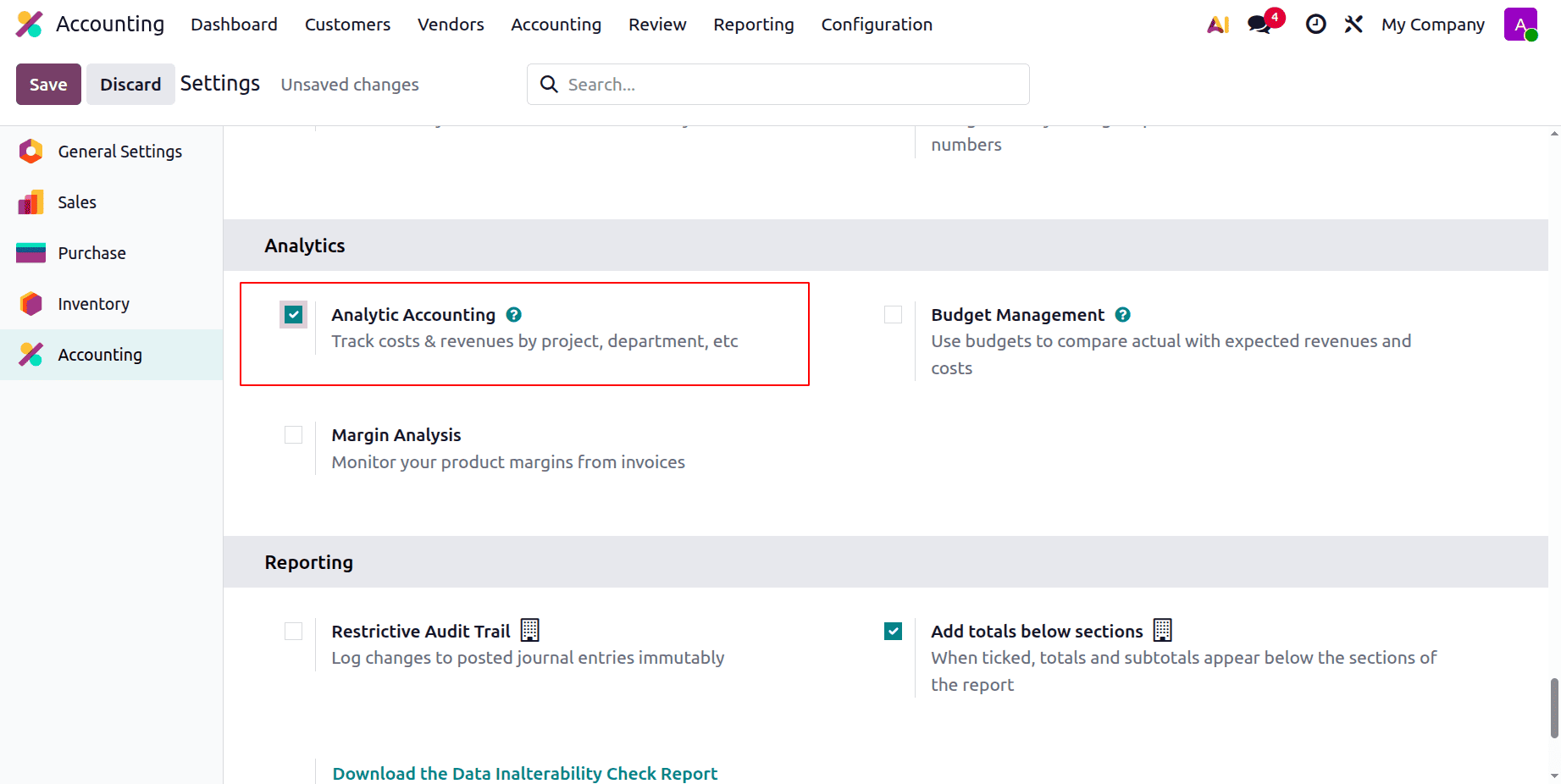
Analytical Plan
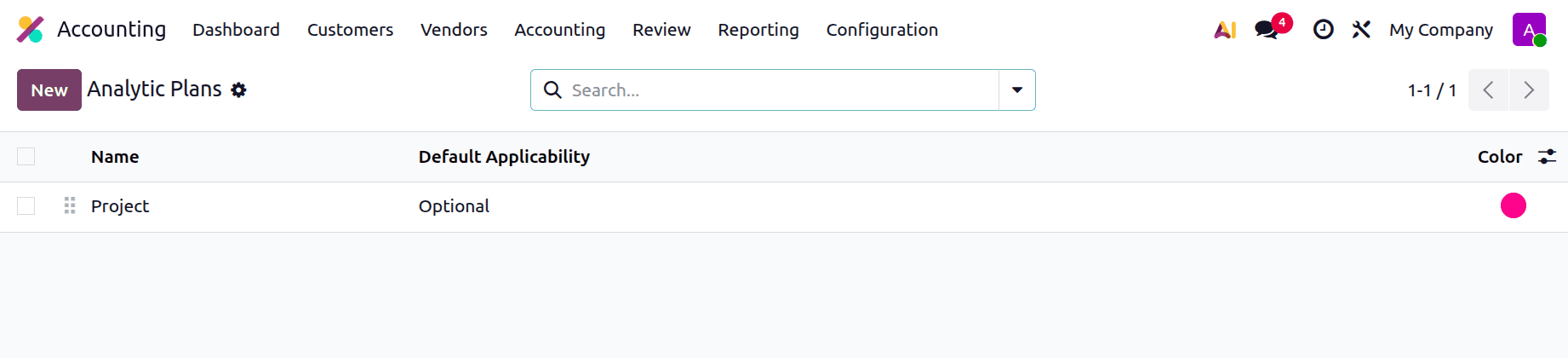
You can define several dimensions for analytical accounting using analytical plans. For instance, a business would wish to monitor spending by department, region, and project. Accounting > Configuration > Analytic Accounting > Analytic Plans in Odoo 19 allows you to activate numerous plans.
Each plan enables users to designate several analytic accounts to a single transaction and represents a dimension in your cost analysis. Your financial analysis gains more detail as a result.
Let's create a new analytic Plan. For that, click on the New button.
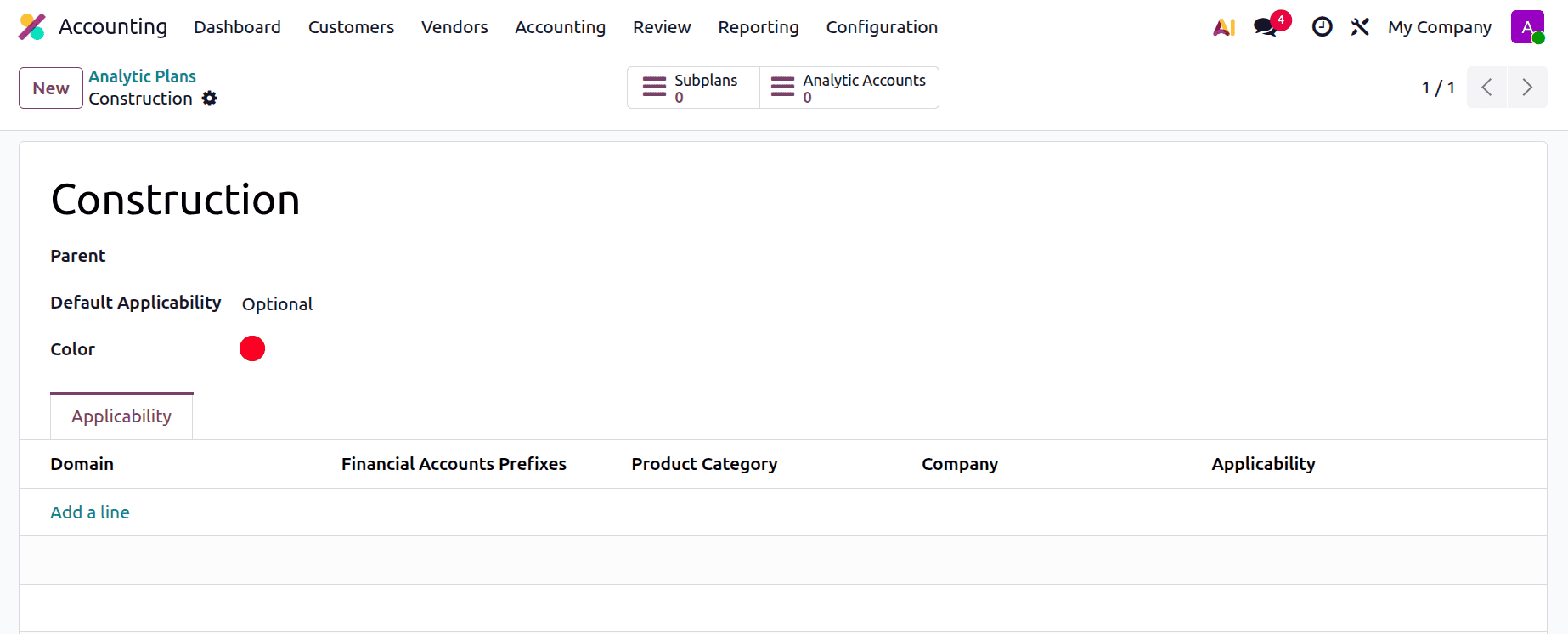
Name the Analytic Plan first. Users can mention the Parent Plan, and can choose the Color also. The Default Applicability can be set as Optional, Mandatory or Unavailable. Then, the Applicability users can set the Domain, Financial Accounts Prefixes, Product Category, Company, and the Applicability. Save the created plan.
Analytical Accounts
An analytical account functions similarly to a virtual profit or cost center. Analytical accounts assist in tracking internal financial data, whereas your chart of accounts records legal accounting.
Analytical accounting can be made from:
Accounting > Analytic Accounting > Configuration > Analytic Accounts
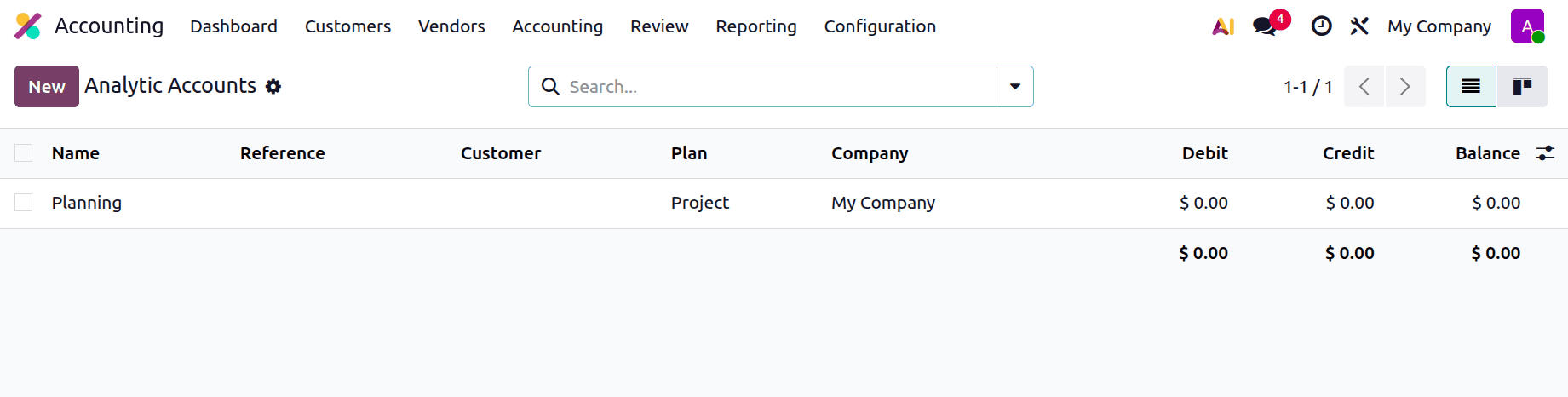
To add a new Account, click on the New button.
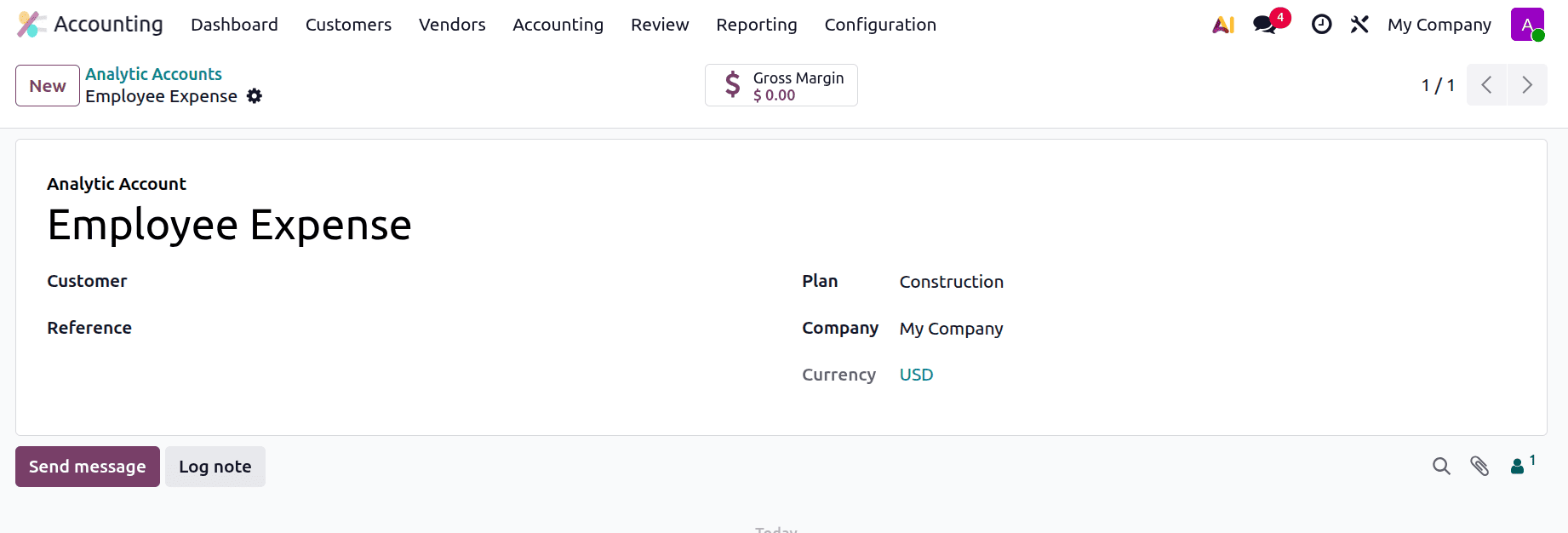
Add the Analytic Account Name. If the user wants, they can mention the Customer name, Reference, company, and currency. It's mandatory to add the Analytic Plan name here.
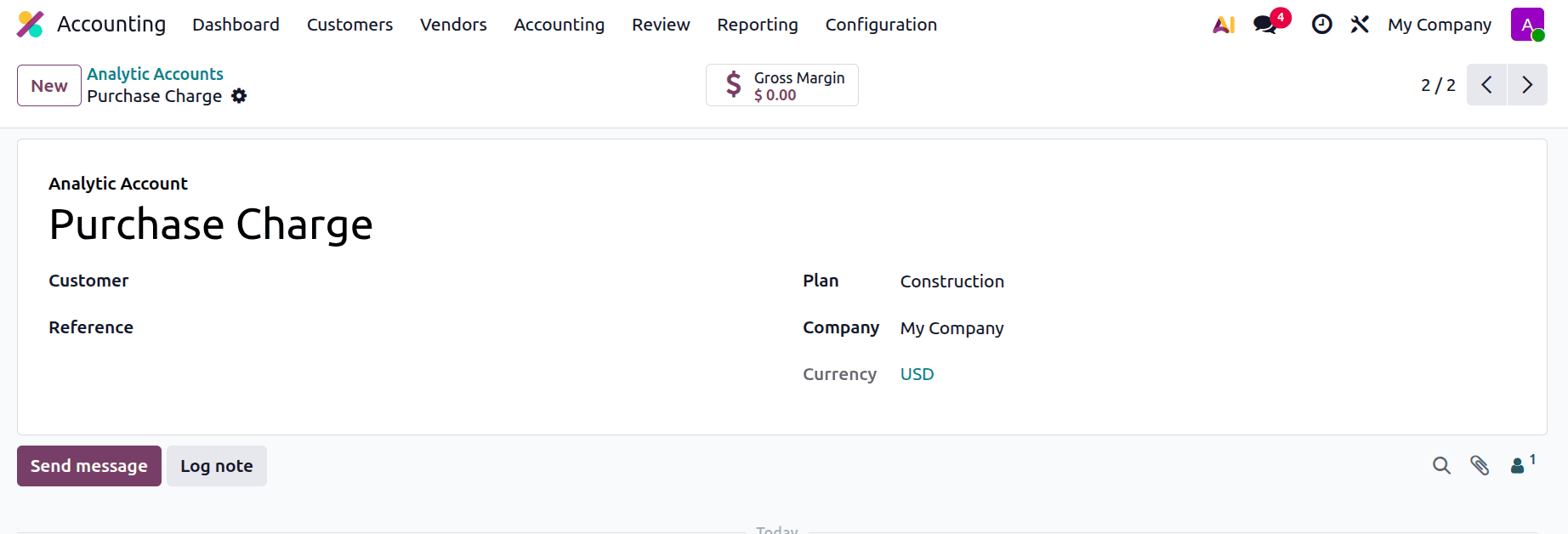
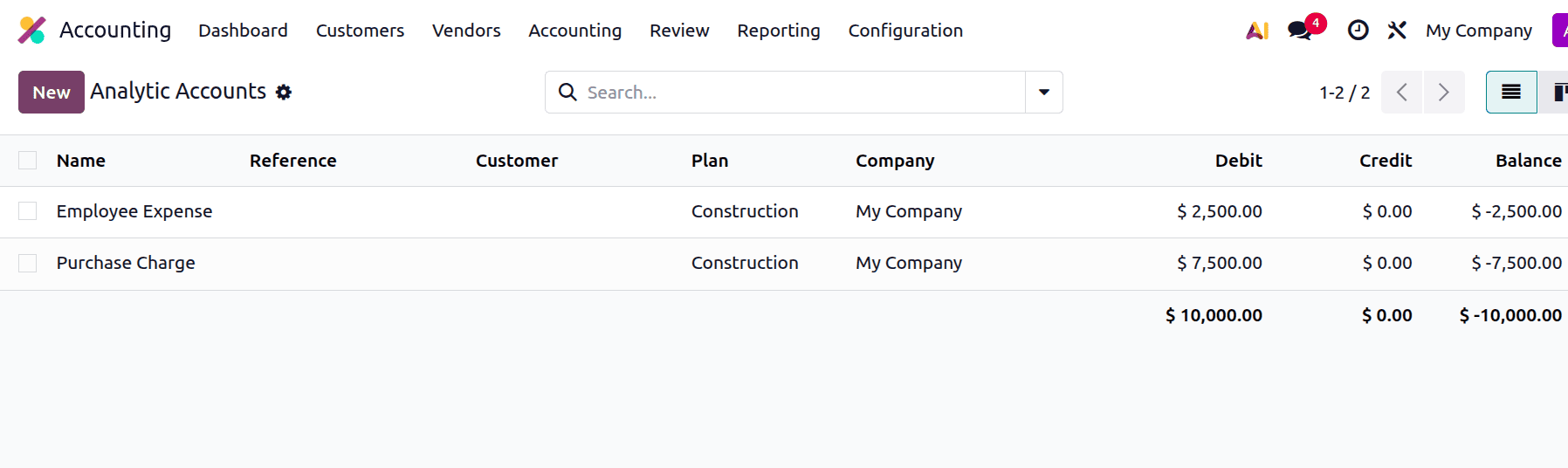
Here, two Analytic Accounts were created under the plan Construction. One is for Employee Expenses, and the other one is for Purchase Charge.
These accounts can be used to track related revenues and expenses across a variety of documents, including bills, invoices, and stock movements.
Analytical Distribution Models
Analytical Distribution Models in Odoo 19 improve control over cost distribution. These enable the analytic value of a transaction to be divided among several analytic accounts using either dynamic formulas or fixed percentages.
For instance:
25% of the total cost of the construction project is allocated to employee expenses, with the remaining 75% going toward purchase charges.
Set this up from:
Distribution Models > Analytical Accounting > Accounting > Configuration
This is particularly helpful when a single expense needs to be divided among several projects or departments.
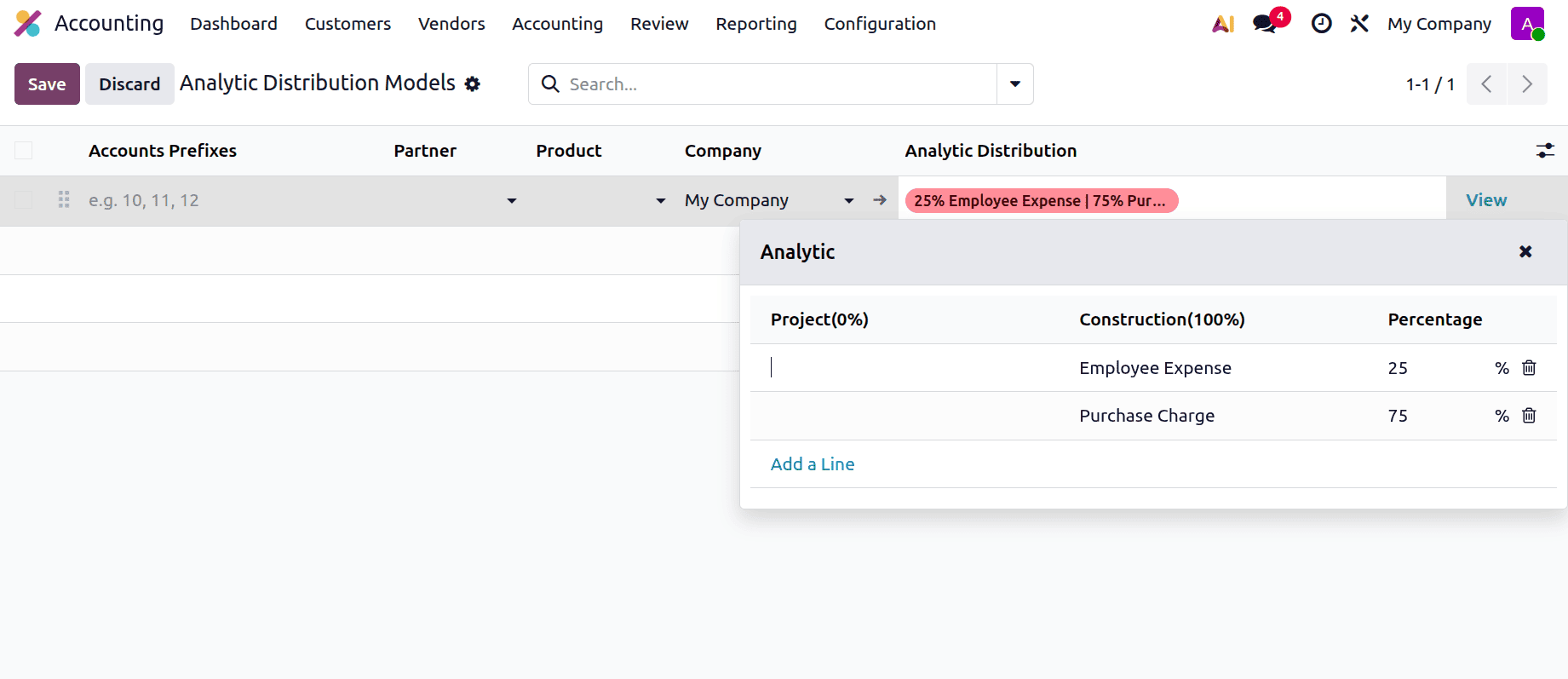
To view the created analytic distribution model in detail, click on the View button.
Users can set different conditions like Partner, Partner Category, Account prefix, product, product category, and company. The distribution can be mentioned there.
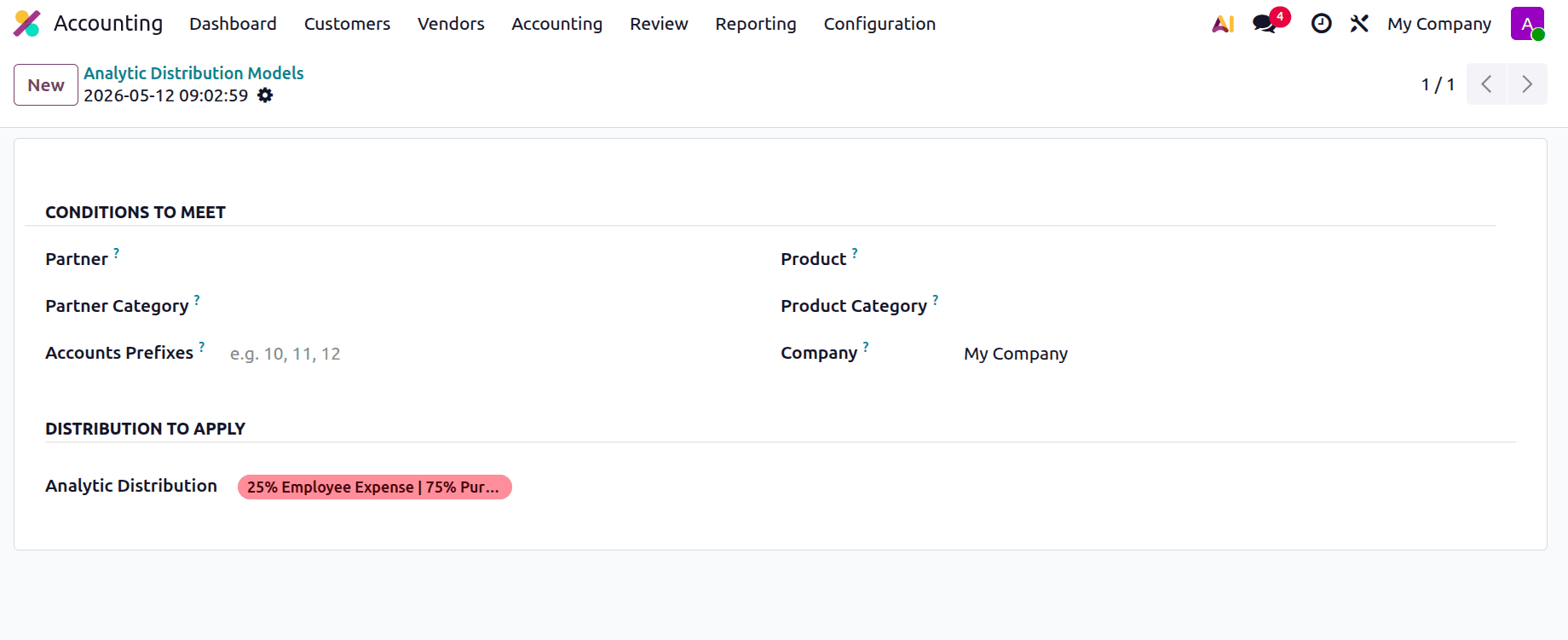
Users can use these analytic accounts in Vendor Bills or Invoices. To check that, let's create a new bill. To create a new vendor bill choose Bills from the Vendors menu. Then click on the New button.
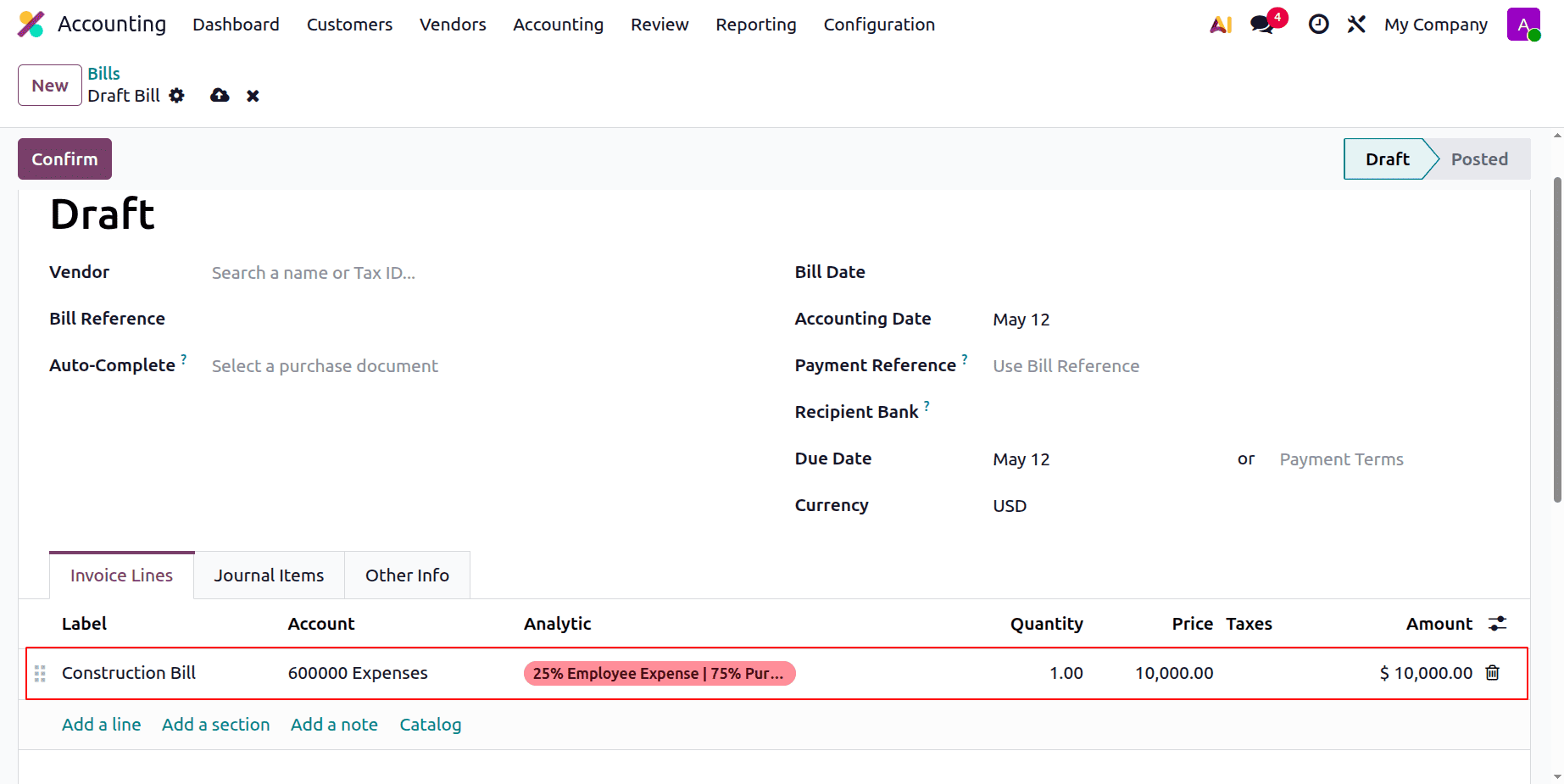
Add the details like vendor name, bill date, etc. Then, in the Invoice line, add the Product/Label. Here the label is given as a Construction Bill, and the total cost is $10000. And the analytic distribution is chosen there as shown below. Confirm the bill.
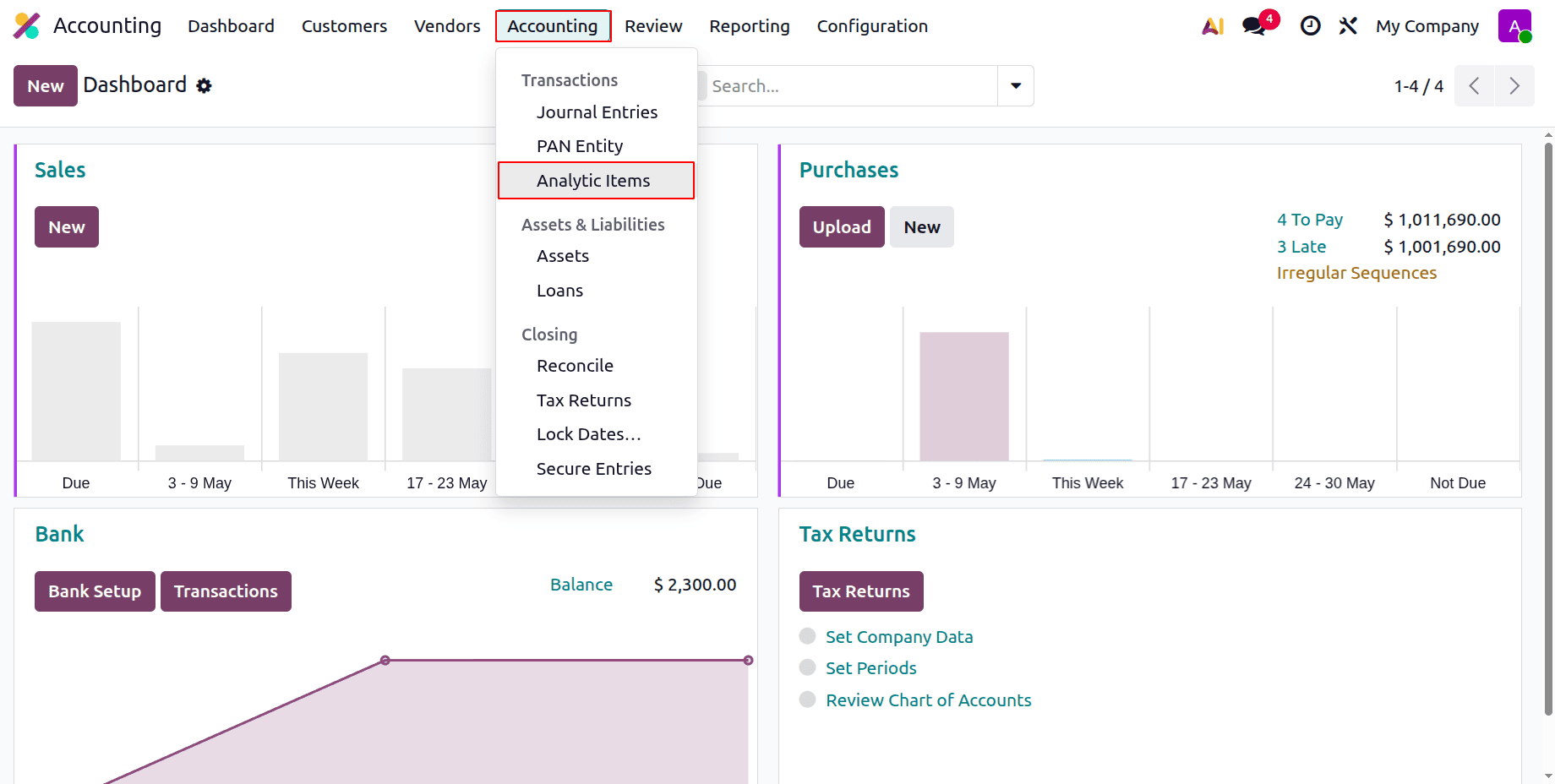
Under the Accounting menu, there are Analytic Items, which show each analytic item separately.
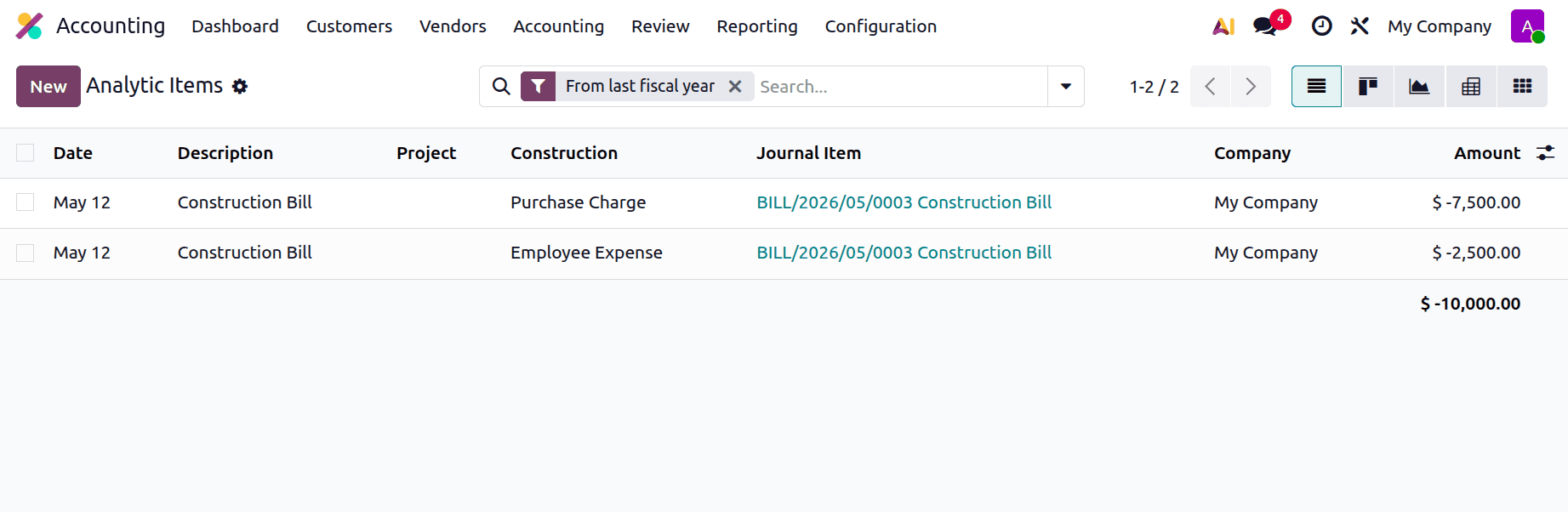
This shows the details like Date, Description, Analytic Plan name, Journal Item, Company and the amount. Here, the total billed amount is distributed, 75% to the Purchase Charge account and the remaining 25% to the Employee Expense account.
Then again, check the Analytic Accounts, which we mentioned above. Here, each account is debited with the amount as shown below.
Analytic Report is also available there in the Reporting menu. The report is available in different views like Pivot, List, Kanban, Graph, and Grid views.
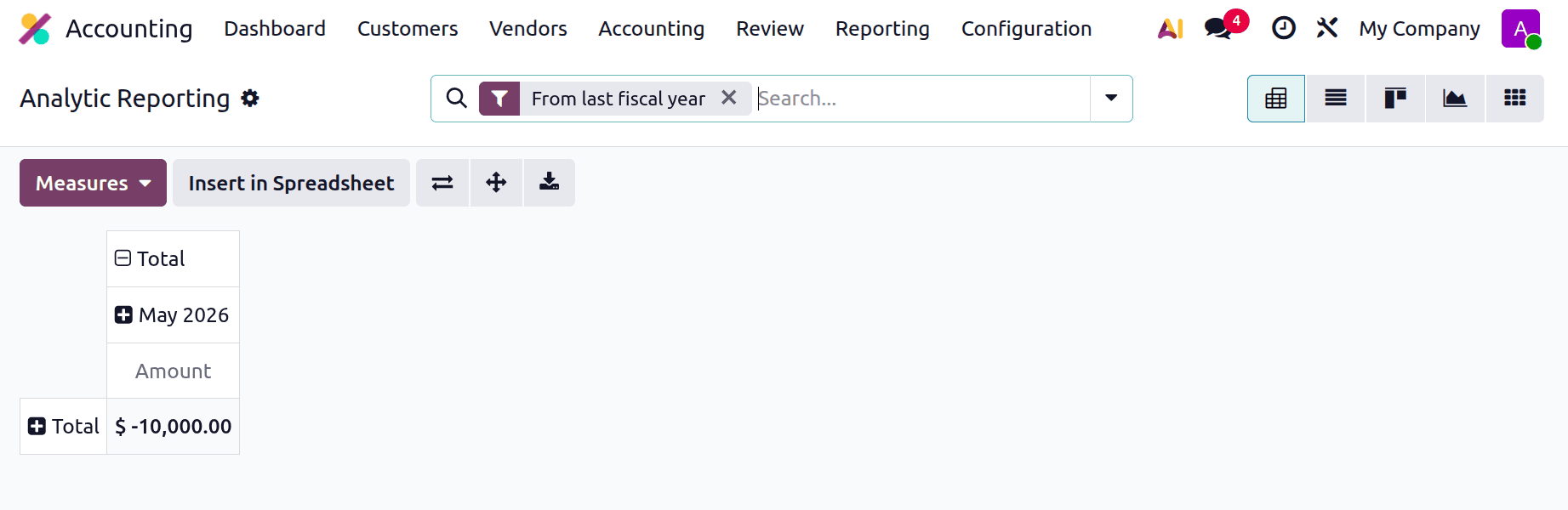
Applying Analytical Accounting in Important Domains
In Assets
Depreciation costs are tracked in accordance with assets that are tied to an analytical account, such as machinery or equipment.
Accounting > Assets > Accounting
When generating the asset, select the analytical account.
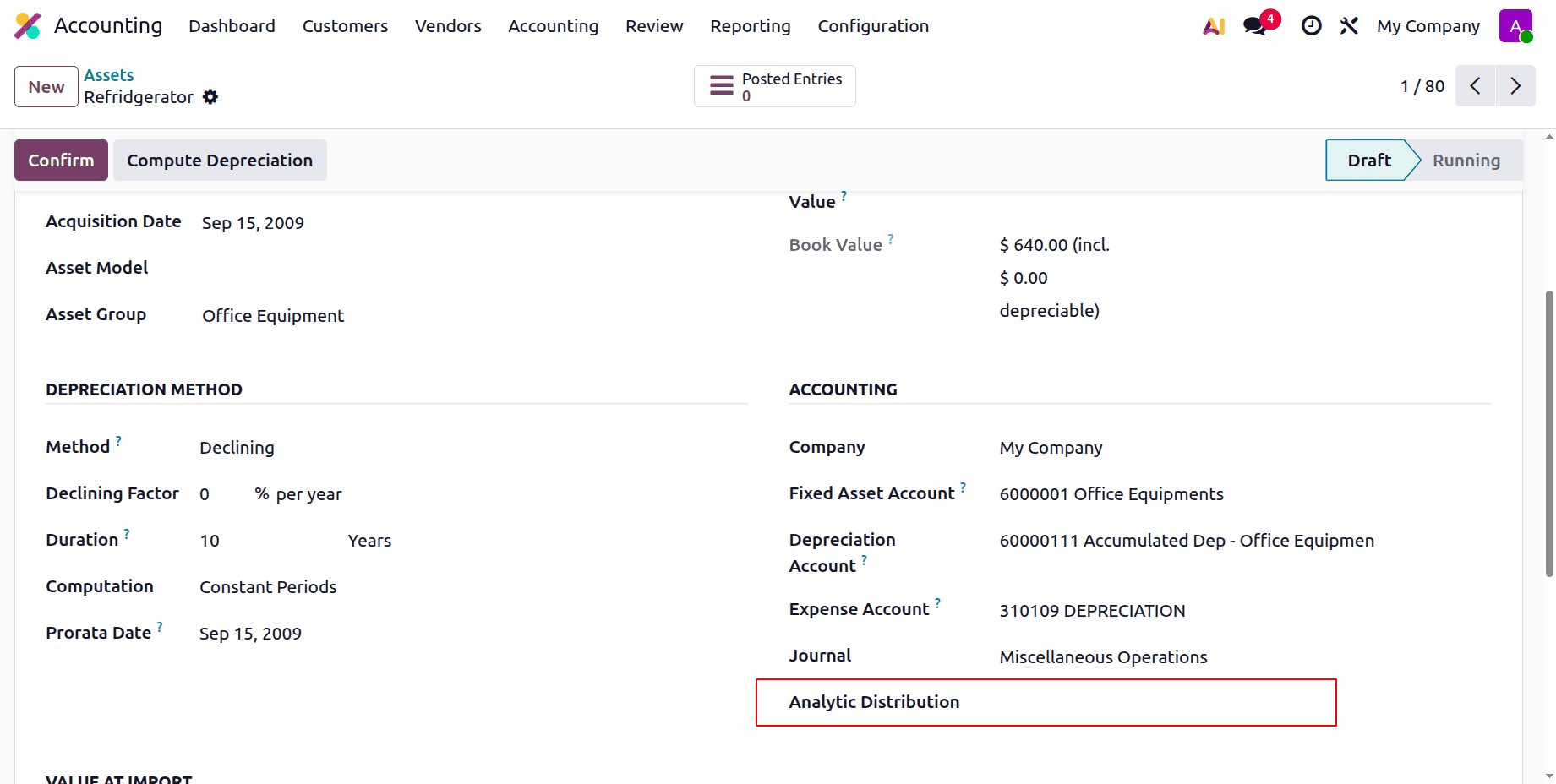
In Budgets
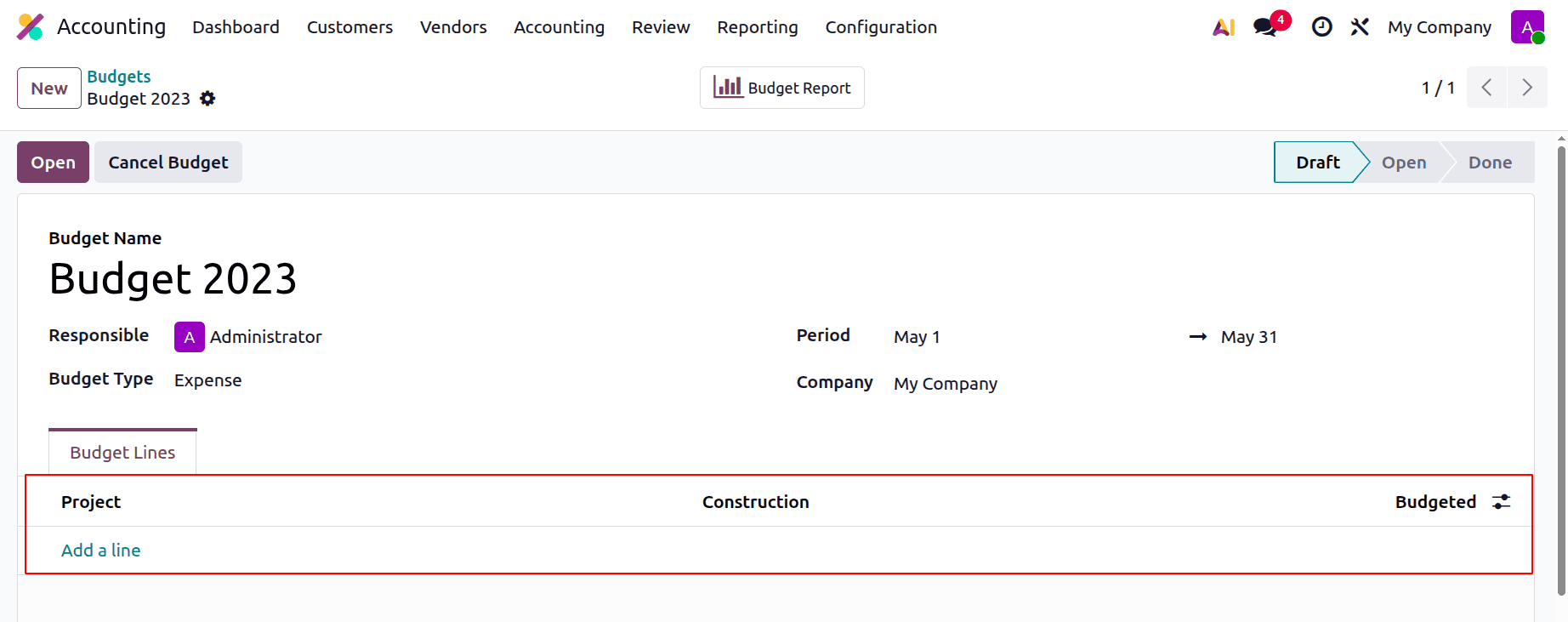
Analytic accounts are crucial to budget management. You can monitor actual versus planned financial performance by creating budgets for each analytic account. Path: Accounting > Budgets > Budgets: Define budgetary positions (connected to accounts) Assign budget lines to analytic accounts. This gives you control over how much each project or department can spend in a given time frame. To track actual versus anticipated financial performance, you can build budgets for each analytical account.
Budgets > Accounting > Budgets
Describe budgeting roles (associated with accounts).
Give analytical accounts budget lines.
This gives each department or project authority over how much money they can spend in a certain time frame.
To read more about Analytic Accounting In Odoo 18 Accounting Module, refer to our blog Analytic Accounting In Odoo 18 Accounting Module.