Automated communication plays a crucial role in keeping business operations smooth and efficient, and scheduled emails are a key part of that process. In Odoo 19, scheduled emails allow businesses to automatically send reminders, notifications, reports, and follow-ups at predefined intervals—without the need for manual intervention. Whether it’s reminding customers about pending invoices, notifying employees about upcoming tasks, or sending periodic performance reports, scheduled emails help ensure that the right message reaches the right audience at the right time.
Odoo 19 offers a flexible and powerful framework for managing scheduled emails through automated actions, server actions, and cron jobs. With the right configuration, you can streamline workflows, reduce repetitive tasks, and improve overall communication reliability. In this blog, we will explore how scheduled emails work in Odoo 19.
Use Case: Sending Daily Homework Reminders to Students
To demonstrate scheduled emails in a real-world scenario, let’s consider a School Management module built in Odoo 19. In this module, the res.partner model is inherited to include an additional selection field named education_role, which identifies whether a contact is a Student or a Teacher. This simple classification allows us to target specific groups of users more effectively within automated workflows.
Using this setup, we configure a scheduled email that automatically sends a homework reminder to all partners marked as Students every day at 5:00 PM. Instead of relying on manual follow-ups from teachers or administrators, the system ensures that students receive consistent and timely reminders, helping them stay organized and accountable for their daily tasks.
# -*- coding: utf-8 -*-
from odoo import _,api, fields, models
class ResPartner(models.Model):
   _inherit = 'res.partner'
   education_role = fields.Selection(
       [
           ('teacher','Teacher'),
           ('student','Student'),
       ]
   )
View:

Here we have 2 students already created
Creating an Email Template for Student Homework Reminders
To send automated homework reminder emails to students, we first create an email template using Odoo’s mail.template model. This template defines the email’s subject, sender, recipient, and message content, and it will later be reused by a scheduled action.
<?xml version="1.0" encoding="UTF-8"?>
<odoo>
   <record id="email_template_student_homework" model="mail.template">
       <field name="name">Student Homework Reminder</field>
       <field name="model_id" ref="base.model_res_partner"/>
       <field name="subject">Homework Reminder</field>
       <field name="email_from">noreply@example.com</field>
       <field name="email_to">{{object.email}}</field>
       <field name="body_html" type="html">
               <p>Hi <t t-out="object.name"/>,</p>
               <p>This is a reminder to complete your homework today.</p>
               <p><strong>Please make sure you finish it on time.</strong></p>
               <br/>
               <p>Best regards,<br/>School Team</p>
       </field>
   </record>
</odoo>
- The name field provides an internal label for the template, making it easy to identify from the Odoo interface.
- The model_id is set to res.partner because students are stored as partners in the system, allowing the template to access student-related fields such as name and email.
- The subject defines what appears in the student’s inbox, clearly indicating the purpose of the email.
- The email_from field specifies the sender address, which is commonly set to a no-reply email for automated communications.
- The email_to field dynamically uses the student’s email address by referencing object.email, ensuring each reminder is sent to the correct recipient.
- The body_html section contains the actual email content. Since it supports HTML, the message can be formatted for better readability. Dynamic expressions like the student’s name are inserted directly from the partner record, making the email feel more personal and engaging.
We can see the template created in Settings > Technical > Email Templates
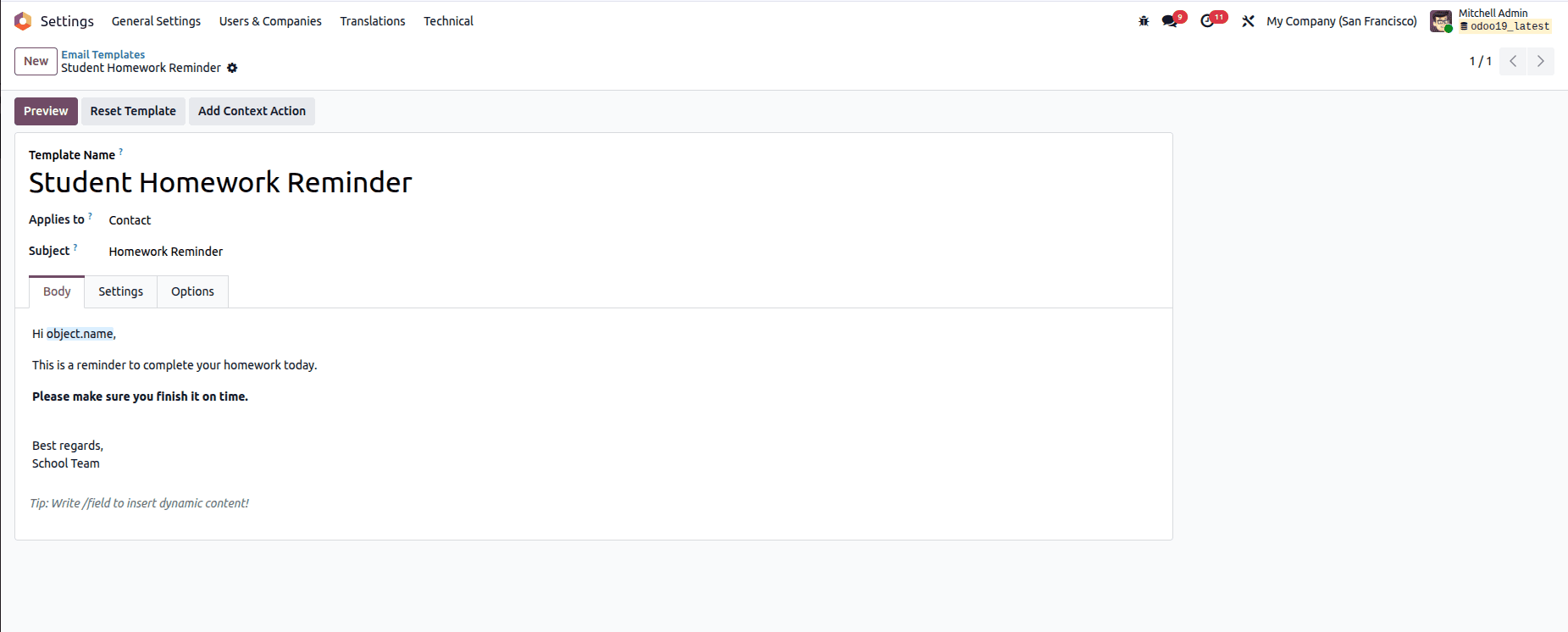
By defining this template once, it can be reused by scheduled actions or cron jobs to automatically send daily homework reminders to all students at a fixed time, without any manual intervention.
Creating a Scheduled Action for Daily Homework Reminders
Once the email template is ready, the next step is to automate its delivery using a scheduled action (cron job). In Odoo 19, scheduled actions allow background tasks to run automatically at defined intervals without user interaction.
<?xml version="1.0" encoding="UTF-8"?>
<odoo>
   <record id="cron_student_homework_reminder" model="ir.cron">
       <field name="name">Student Homework Reminder</field>
       <field name="model_id" ref="base.model_res_partner"/>
       <field name="state">code</field>
       <field name="code">model.send_student_homework_reminder()</field>
       <field name="interval_number">1</field>
       <field name="interval_type">days</field>
       <field name="active" eval="True"/>
       <field name="nextcall">2026-01-03 17:00:00</field>
   </record>
</odoo>
In this configuration, we create a scheduled action named Student Homework Reminder, which clearly describes its purpose in the system. The action is linked to the res.partner model because student records are stored there, and the email reminder logic operates on partner data.
The State is set to code, which means the cron job will execute Python code instead of calling a predefined server action. The Code field calls a custom method, send_student_homework_reminder(), which will contain the logic for identifying students and sending them the homework reminder email.
The Interval Number and Interval Type together define how often the scheduled action runs. In this case, setting the interval to 1 day ensures the job executes daily. The Active field enables the cron job so it starts running as soon as the module is installed or updated.
Finally, the Next Execution Date (nextcall) determines the first time the cron job will run. By setting it to 5:00 PM, the system ensures that homework reminders are sent every evening at the same time, helping students stay consistent with their daily tasks.
We can see the scheduled action created in Settings > Technical > Scheduled Actions
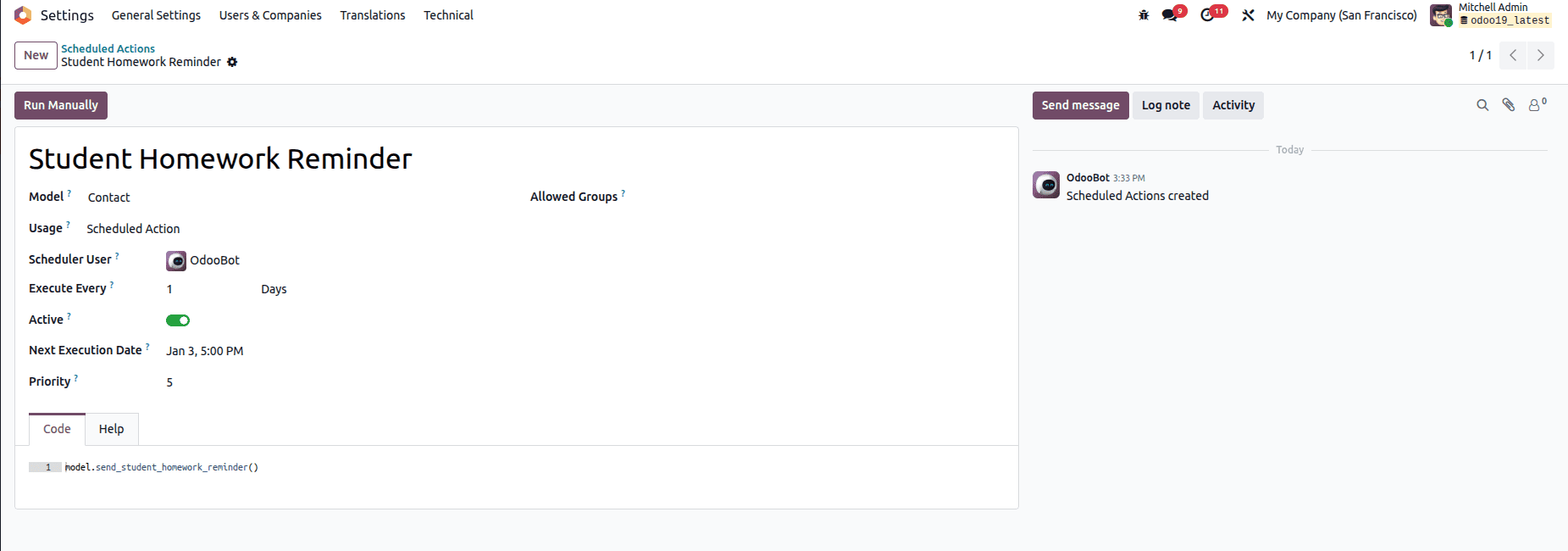
With this scheduled action in place, Odoo 19 automatically handles the timing and execution of the reminder process, making daily student communication fully automated and reliable.
Implementing the Email-Sending Logic
The scheduled action triggers a custom Python method responsible for sending homework reminder emails to students. This method is defined on the res.partner model, ensuring direct access to student records and their contact details.
@api.model
def send_student_homework_reminder(self):
   template = self.env.ref(
       'school_management.email_template_student_homework',
       raise_if_not_found=False
   )
   if not template:
       return
   students = self.search([
       ('education_role', '=', 'student'),
       ('email', '!=', False)
   ])
   for student in students:
       template.send_mail(student.id, force_send=True)
Inside the method, the first step is to fetch the predefined email template using its external ID. A safety check is included so that the process exits gracefully if the template is not found, preventing unnecessary errors during cron execution.
Next, the system searches for all partner records marked with the Student role and having a valid email address. This ensures that reminders are sent only to relevant recipients and avoids attempting to send emails to incomplete records.
Once the student records are identified, the method loops through each student and sends the email using the selected template. The force_send option ensures that emails are dispatched immediately rather than waiting in the email queue, which is ideal for time-sensitive reminders like daily homework notifications.
By combining this method with the scheduled action, Odoo 19 automatically sends personalized homework reminders to all students every evening at 5 PM.
We can see the emails send in Settings > Technical > Emails
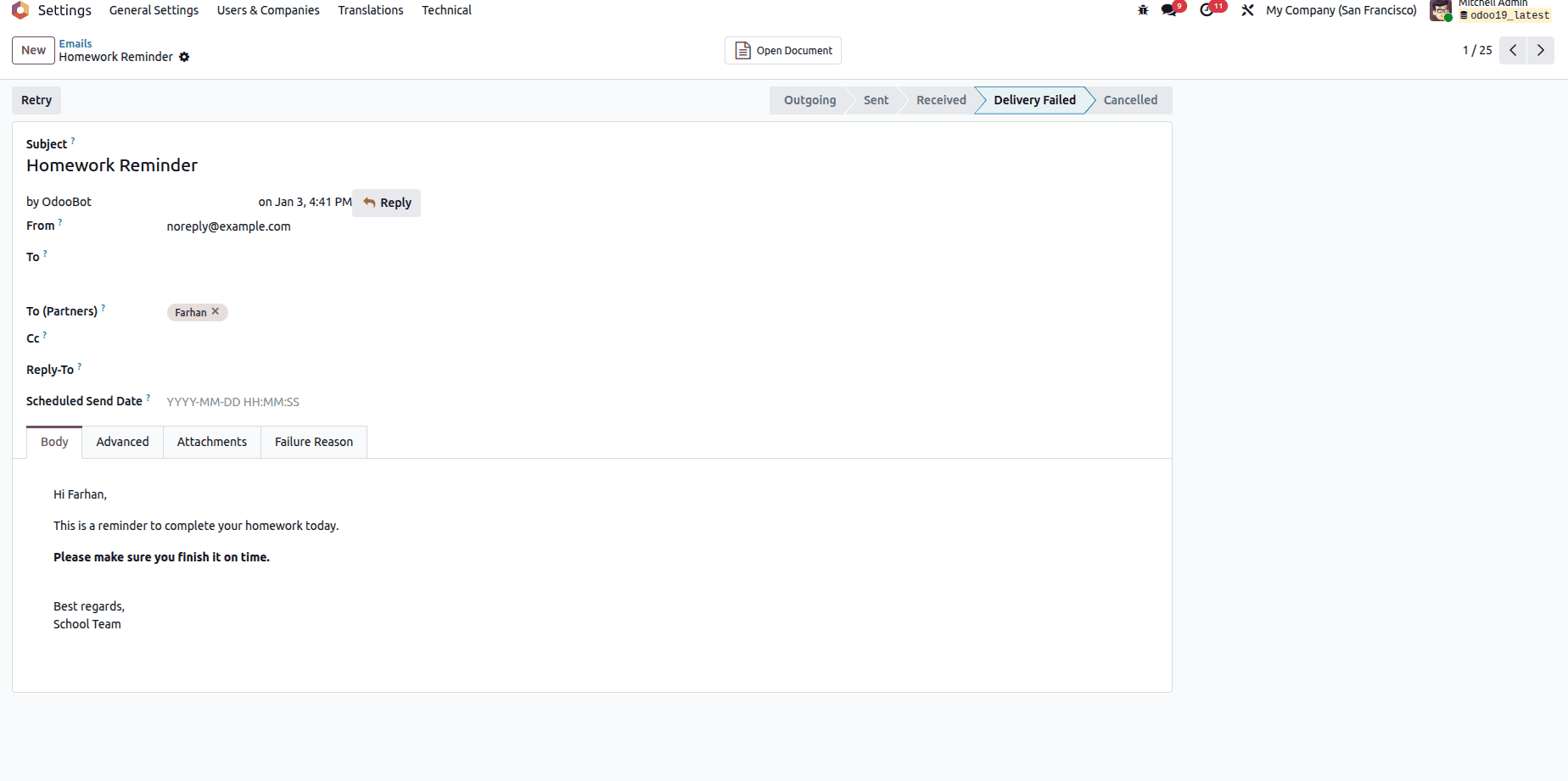
Scheduled emails in Odoo 19 make it easy to automate everyday communication without manual follow-ups. In this example, we used an email template, a scheduled action, and a simple Python method to send daily homework reminders to students automatically. This setup not only saves time but also ensures consistent and timely communication. With small adjustments, the same approach can be reused for many other reminders and notifications across an Odoo application.
To read more about How to Configure Scheduled Actions in Odoo 19, refer to our blog How to Configure Scheduled Actions in Odoo 19.