Schedule
The online appointment scheduling based on staff and resource booking will be displayed in the menu schedule.
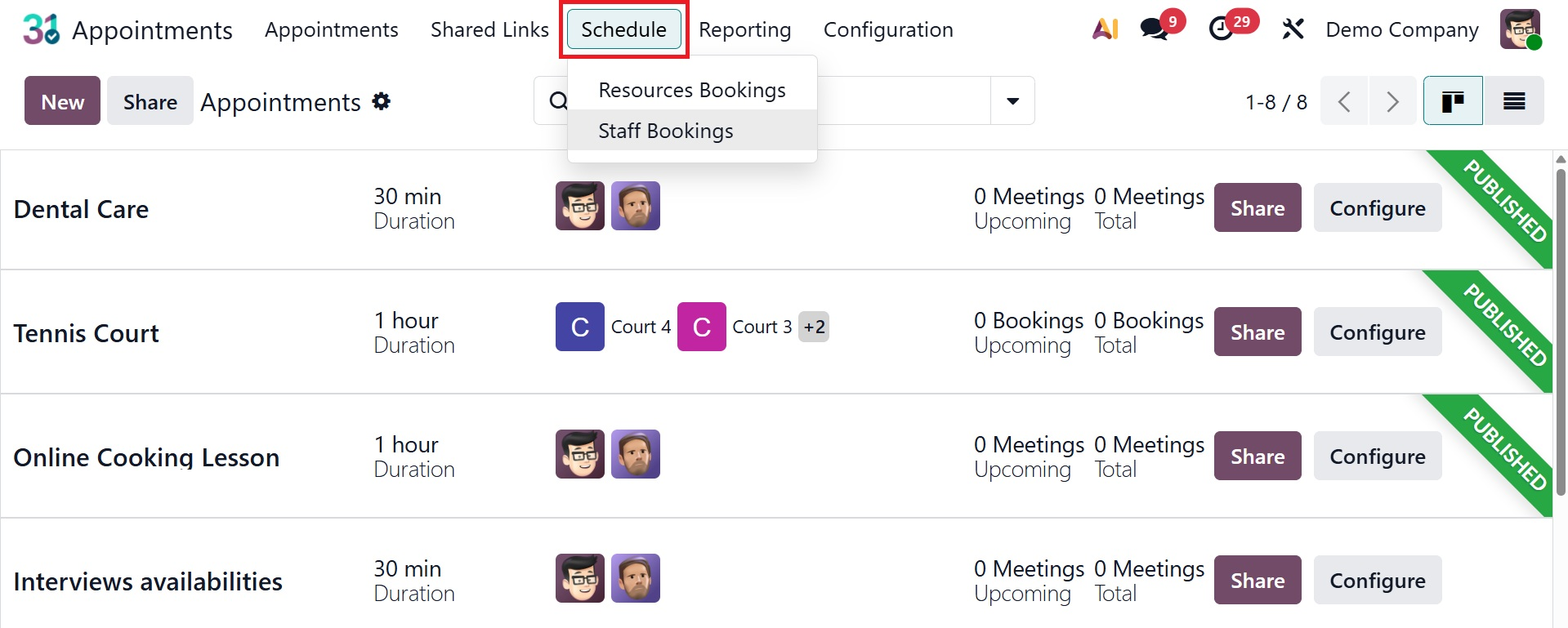
1.1 Resource Booking
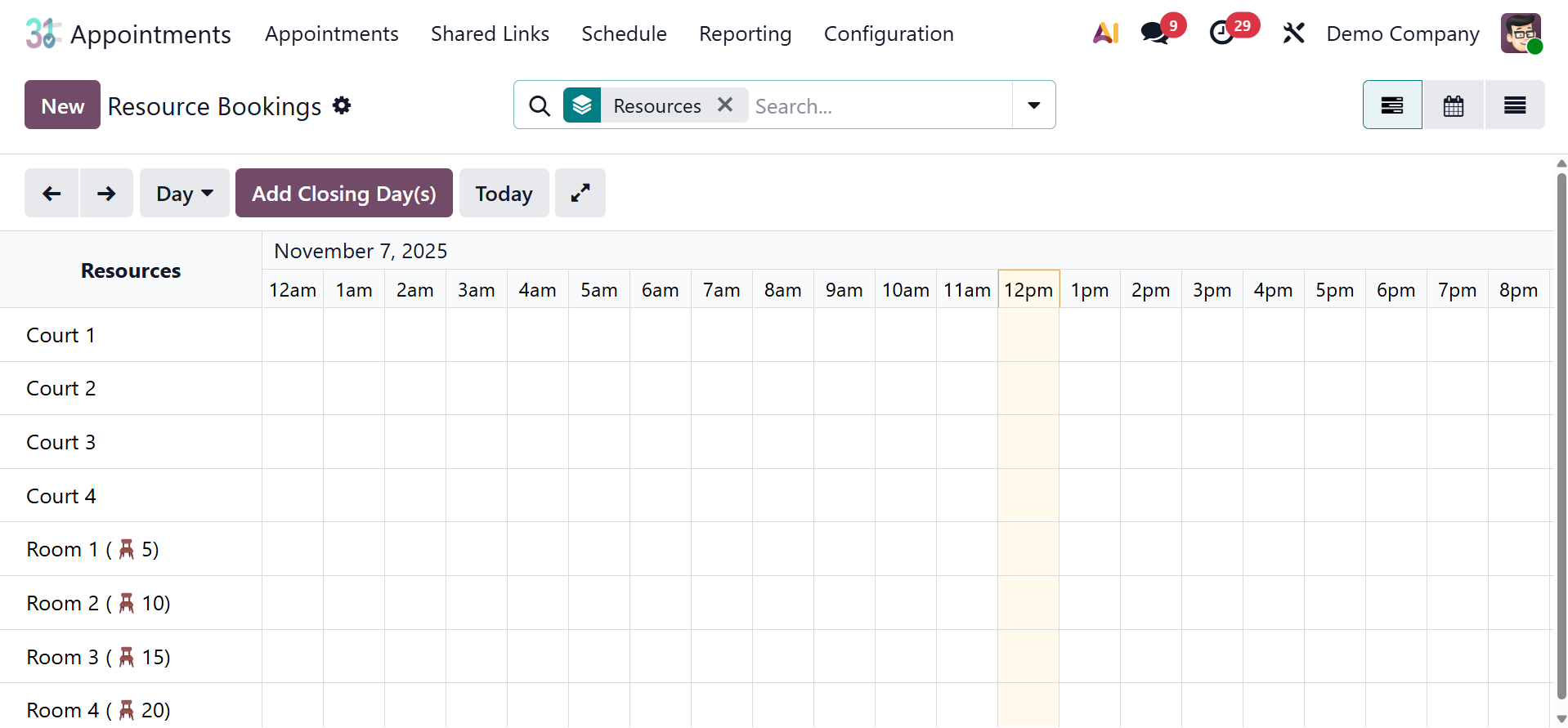
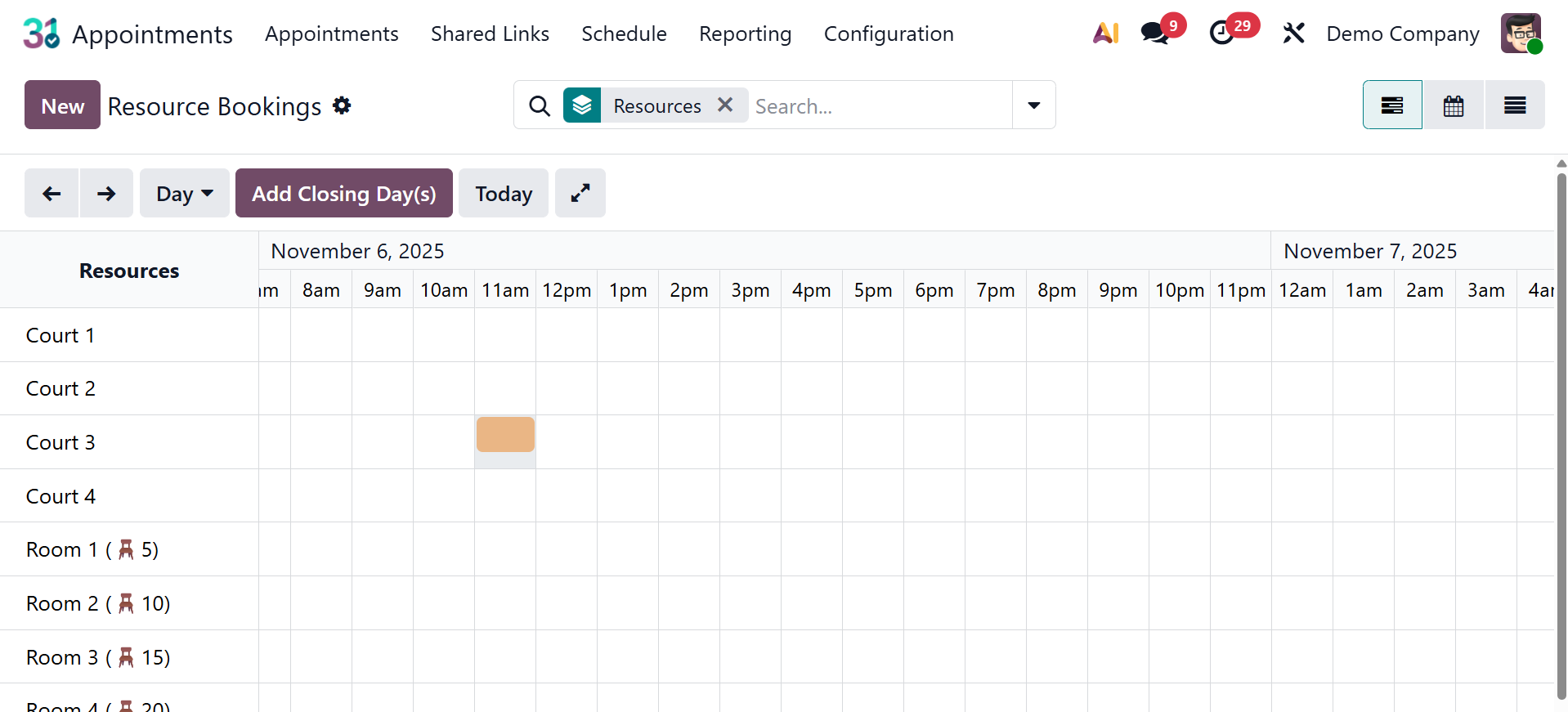
This resource booking page, arranged by day, month, and year, has all the booking details for the resources. Every single resource. To add a new Resource Booking, select the New option.
Choose the participants, time, date, status, and notes after adding the meeting's topic. Save the appointment after that.For more options, go for More Options.
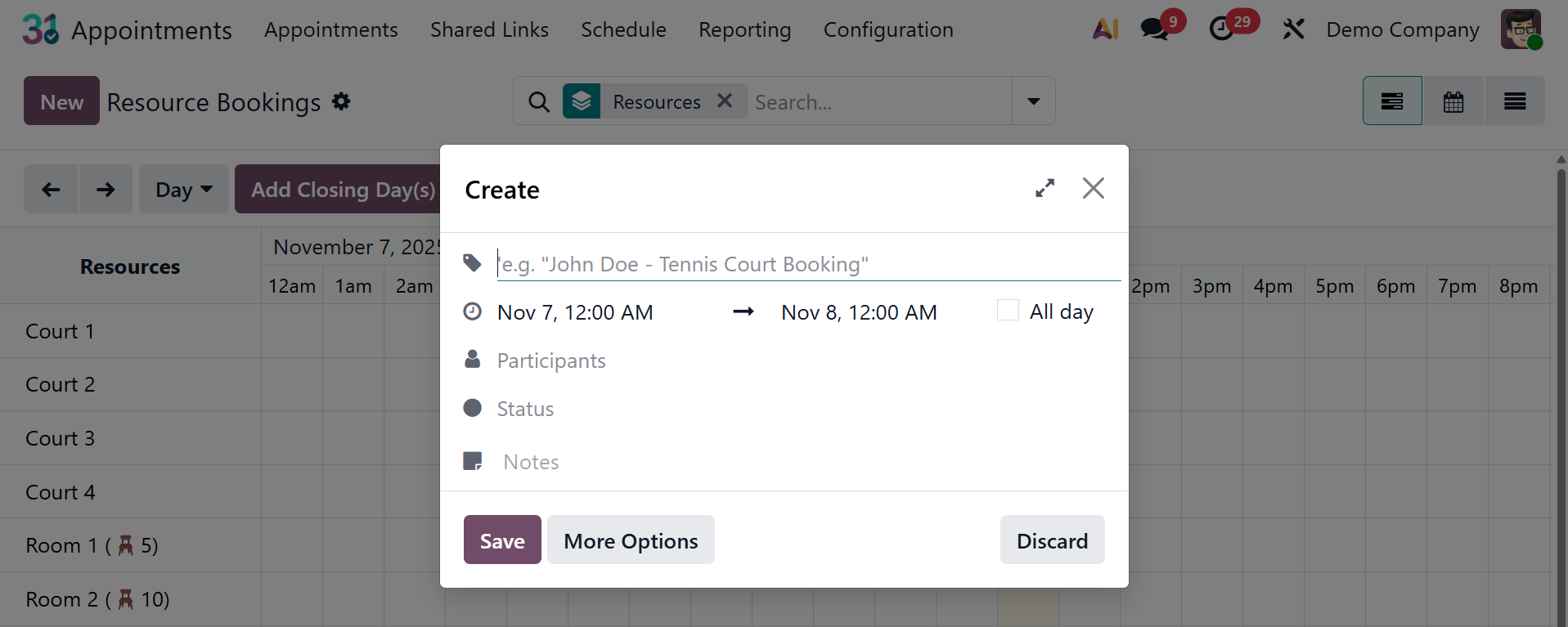
On selecting the more options, you will get the page, as shown below.
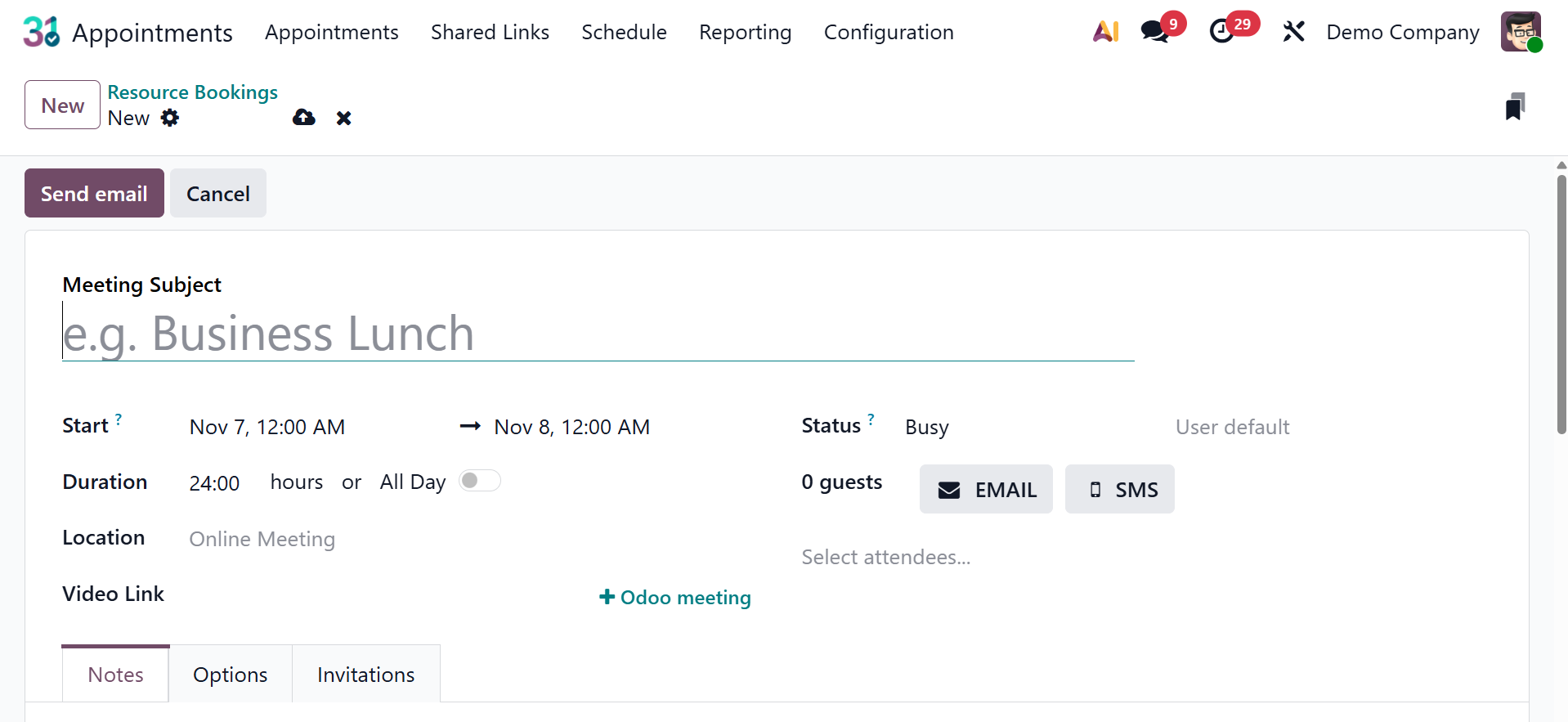
Here, add the meeting subject, time, duration, location, video link, status, and guest details. The reservation will subsequently show up in the Resource Booking calendar as shown below.
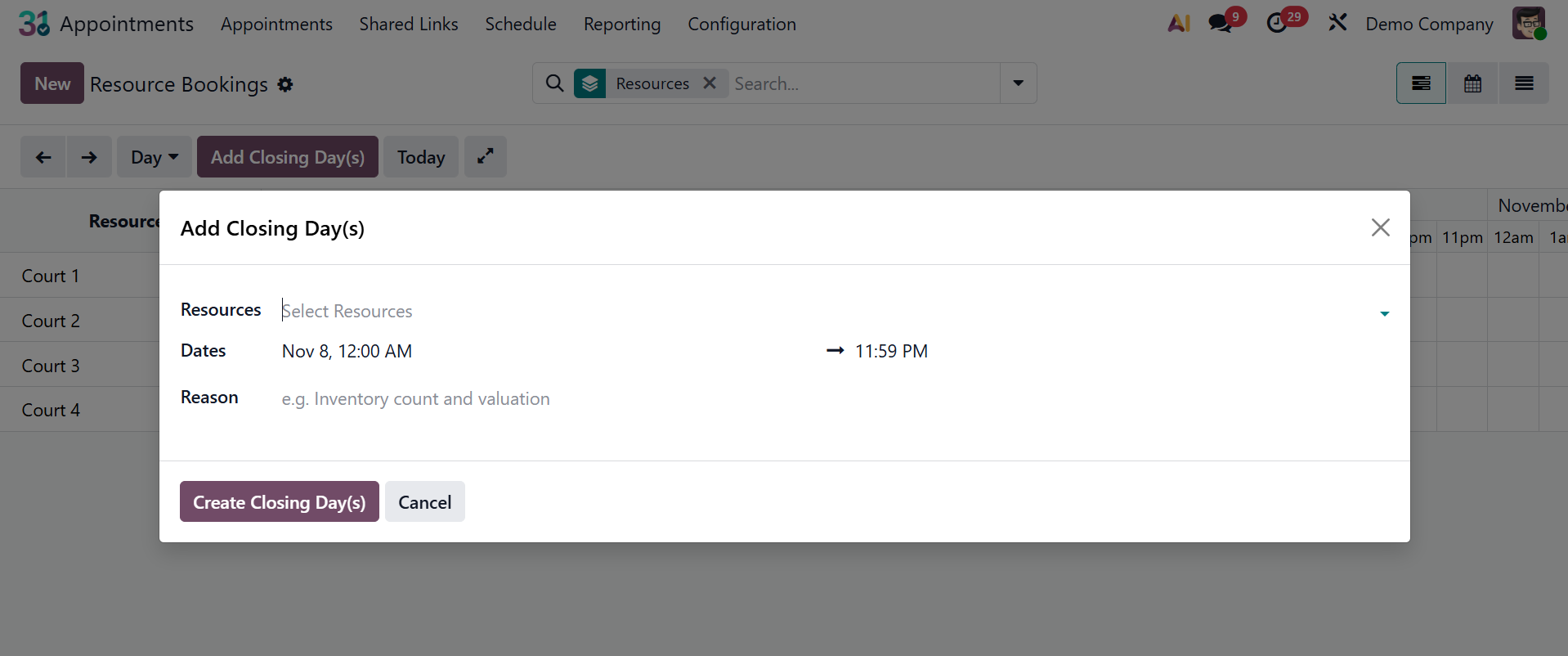
Click "Add closing days" to add a leave of absence. After that, you can select the Resource Calendar. The dates that follow will reveal the reason for the closure. Next, do not remove the leaf.
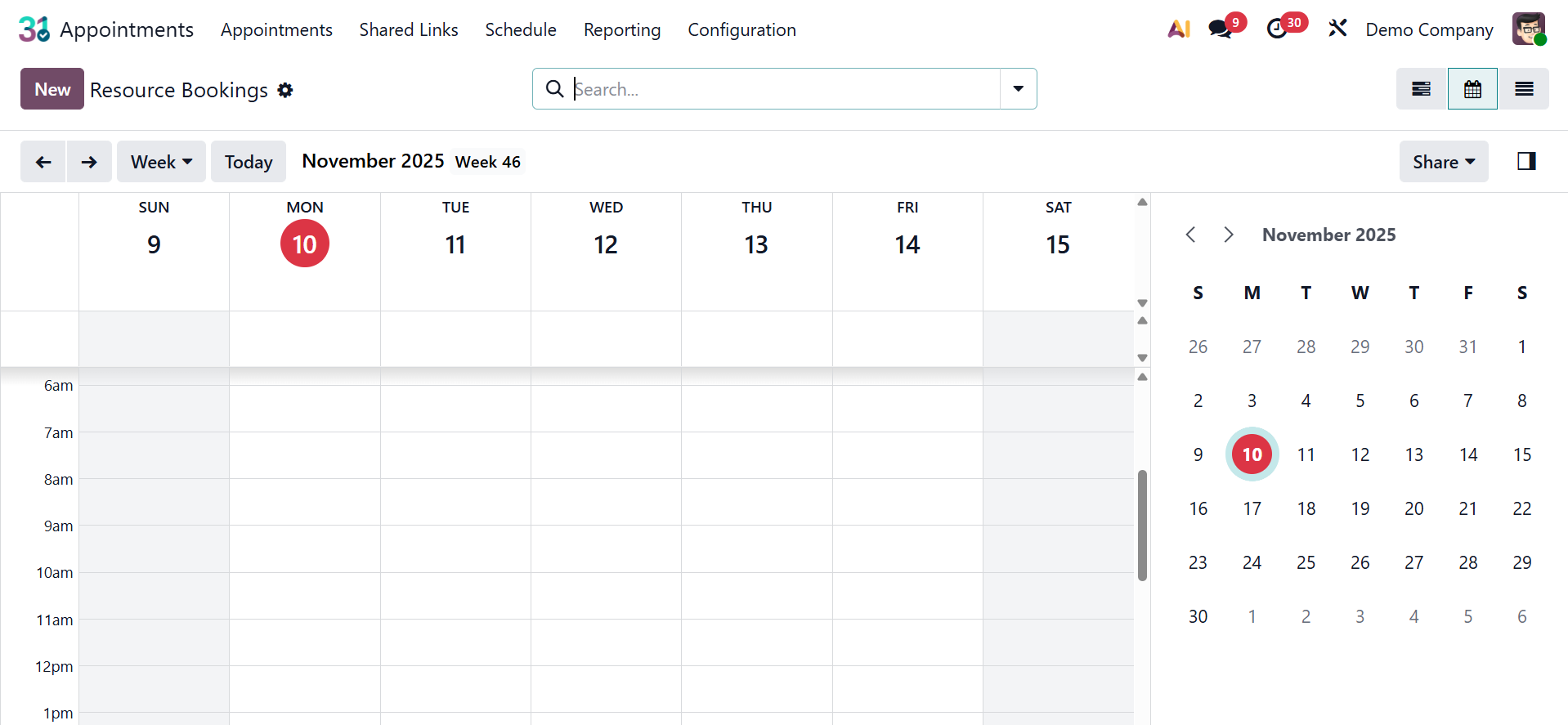
The page can also be viewed in calendar view, as shown below.
1.2 Staff Booking
Resource booking and staff booking are comparable. In this case, booking is based on staff rather than resources. The ability to schedule appointments with particular employees (staff members) based on their availability and designated services is known as staff booking. List, calendar, and Gantt views of the page are available here. This page is a Gantt chart.
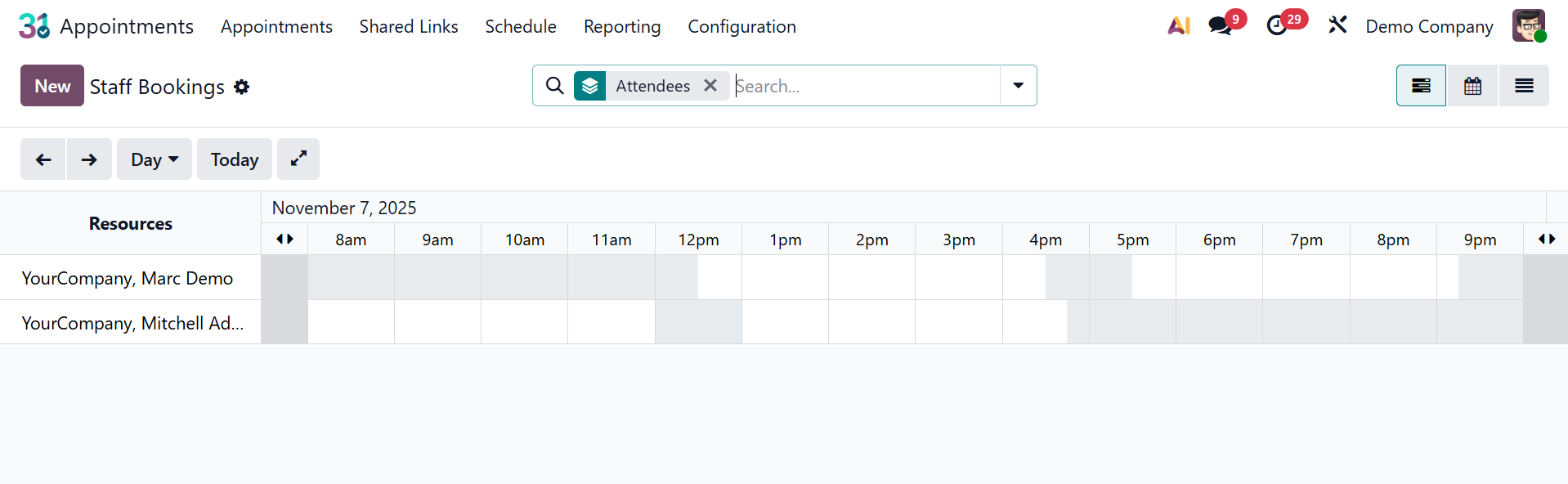
As seen in the picture below, you can have the list view.
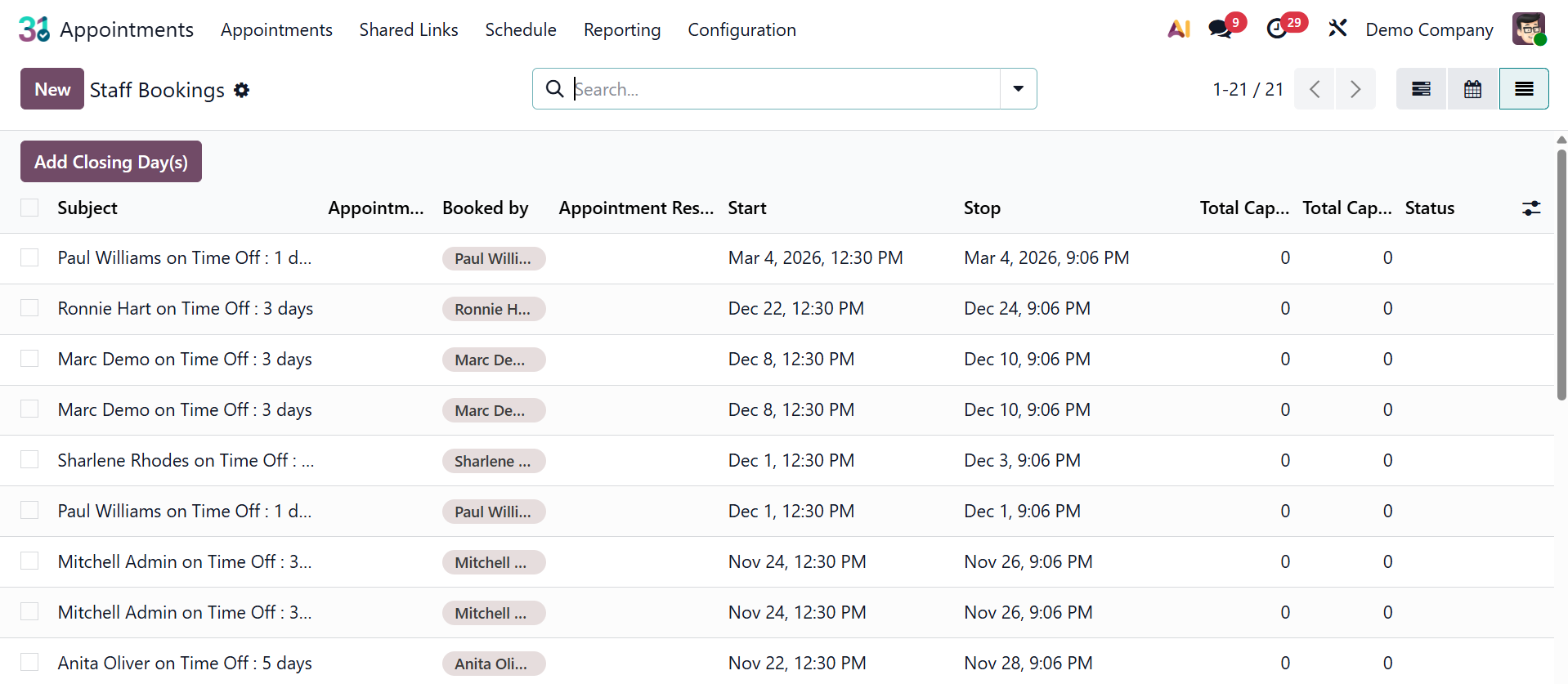
Subject, appointment, participant booked, start, stop, total capacity reserved, total capacity used, and appointment used are among the information sent. The page's calendar view will look like the screenshot below.
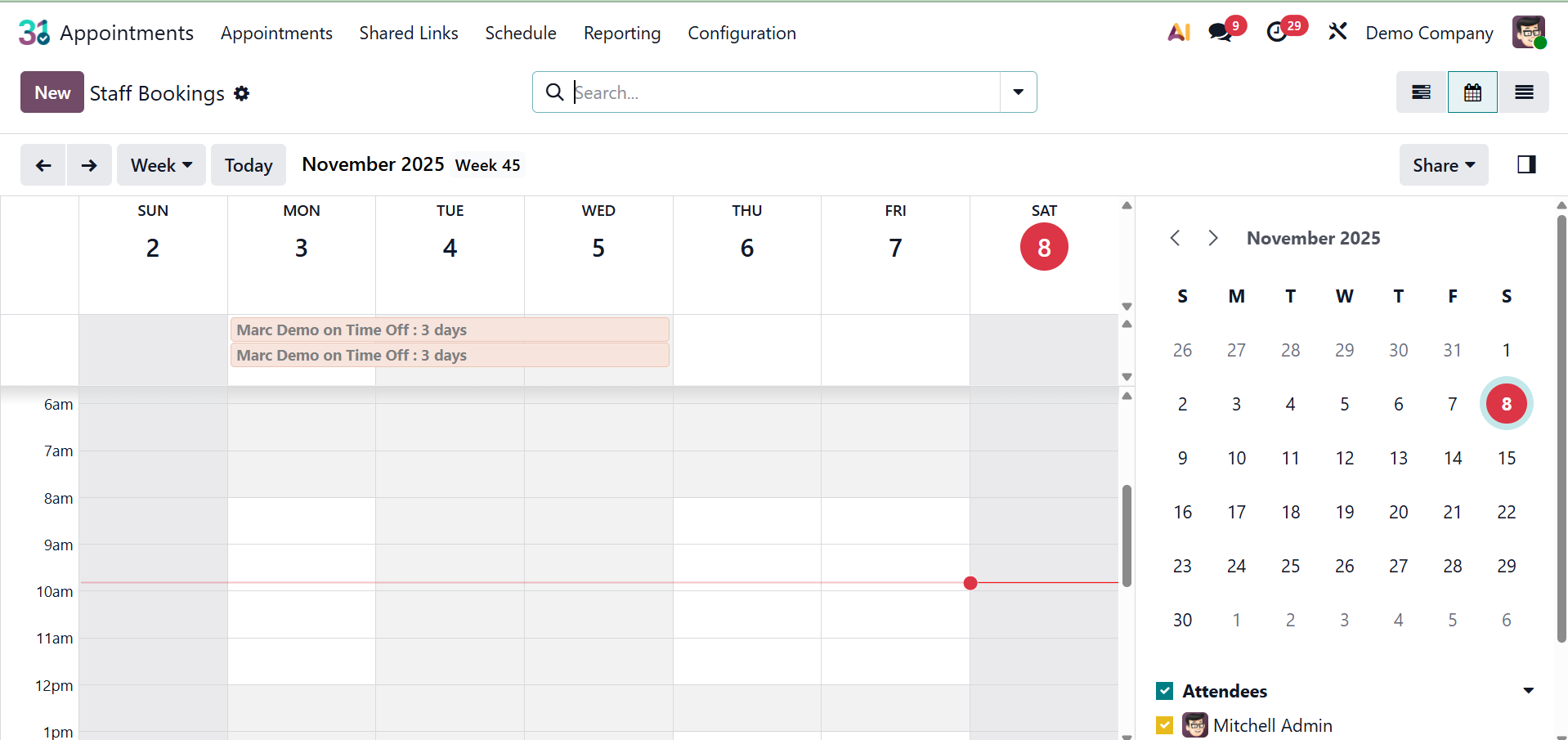
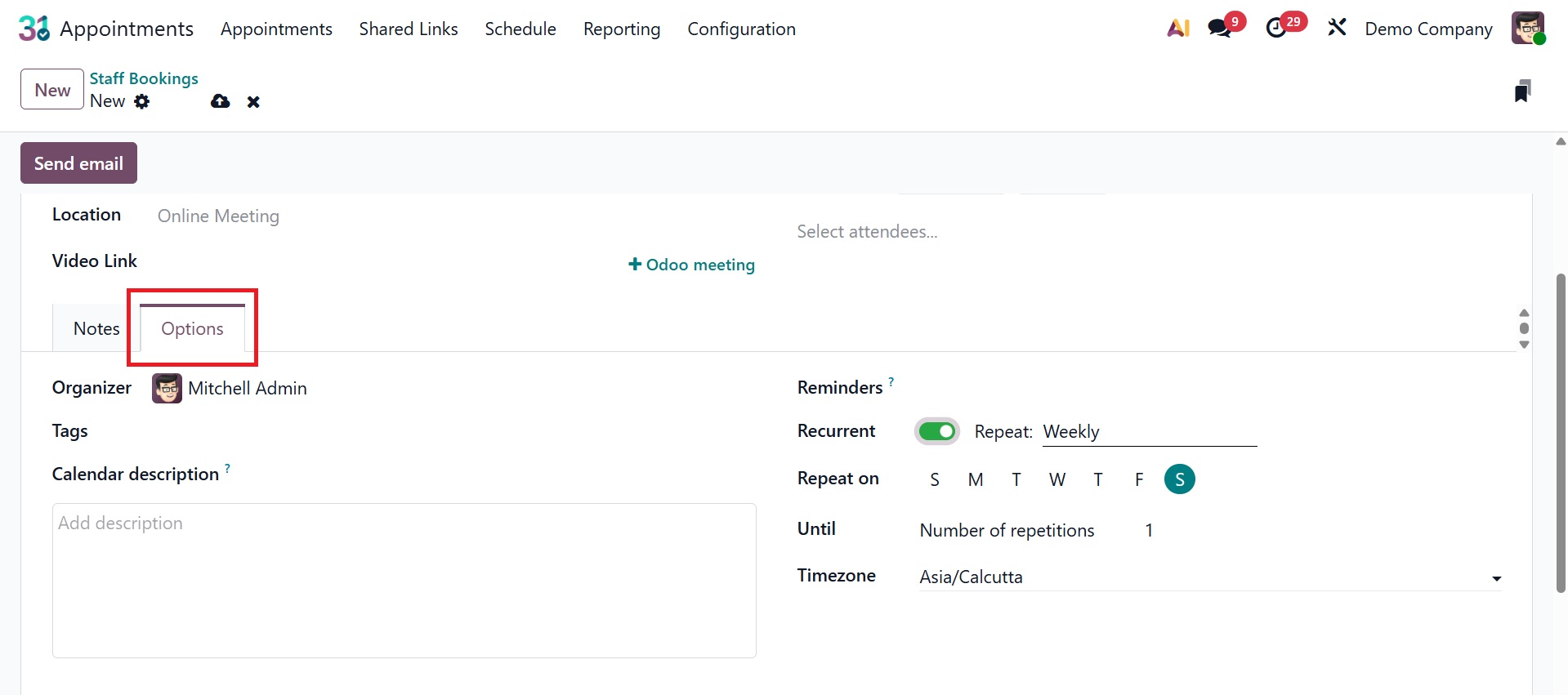
Clicking the "New" option will allow you to make a new reservation. The new site will look like the picture below.
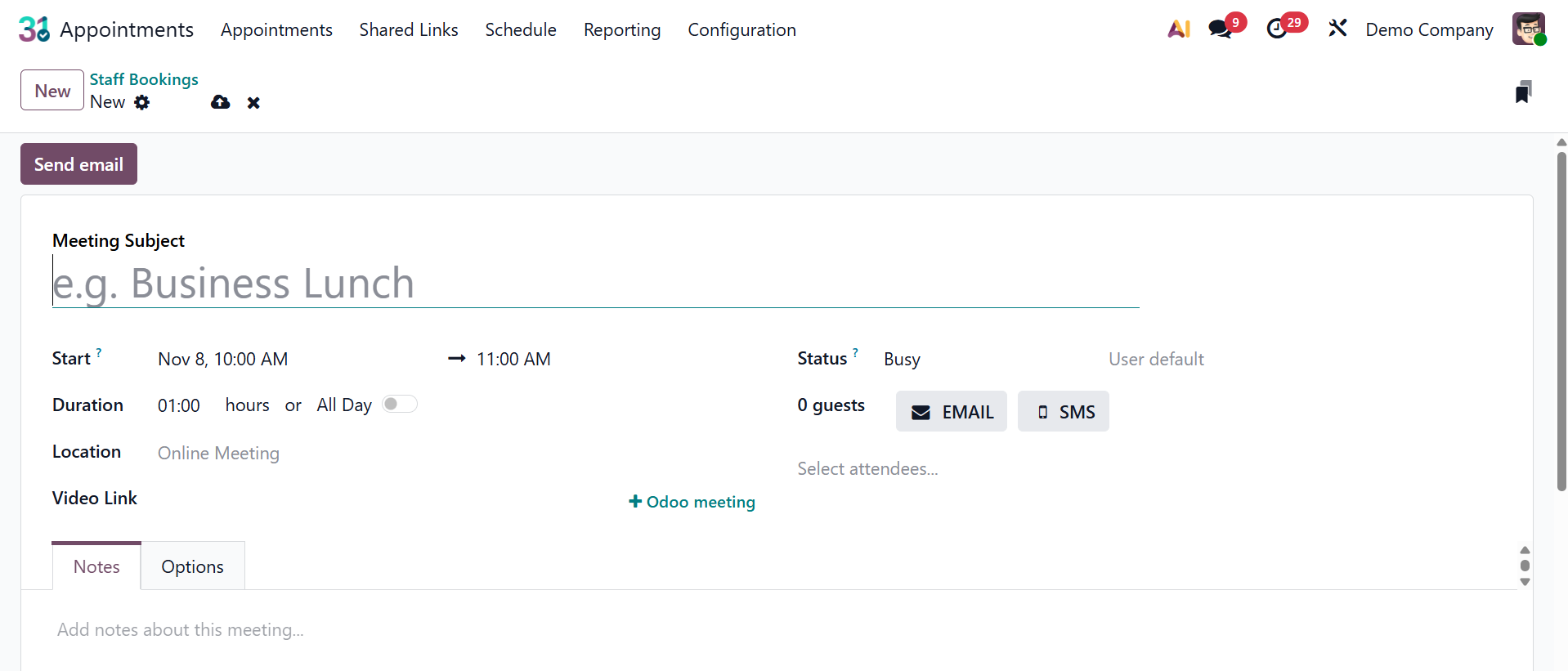
The meeting's subject, start time and date, duration, location, video call link, status, guests can all be entered here. You can save the data once you've entered all the information. Under the notes, you can add the notes regarding the meeting and under options, you can add the details on organizer, tags, calendar description, reminders, and recurrent, as shown below.