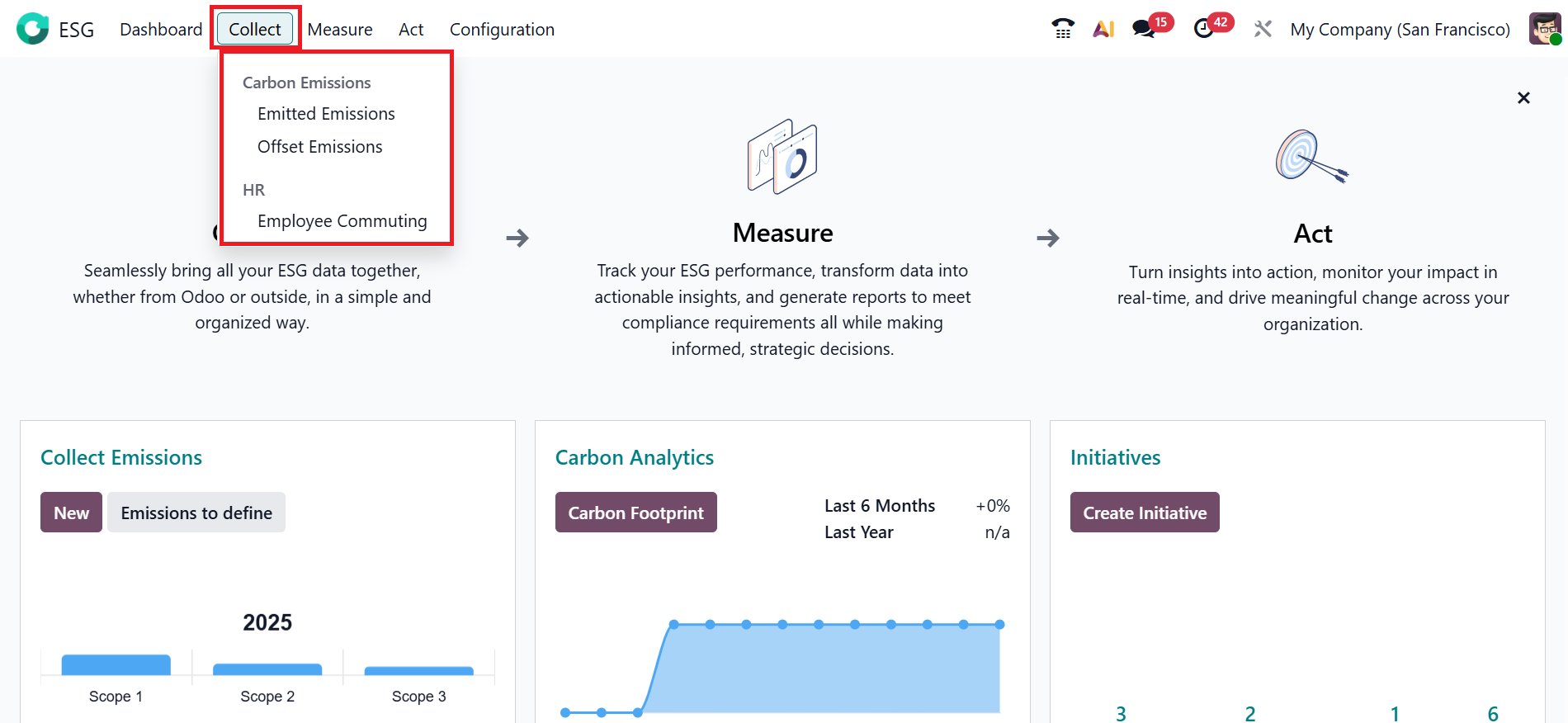
Collect:
In the Odoo 19 ESG module, the Collect menu is designed to gather environmental and sustainability data from different company operations for analysis and reporting. It is regarded as the initial step in the ESG process. Under the Collect menu, you can see two sections: Carbon Emissions and HR. The Carbon Emissions section shows the options such as Emitted Emissions and Offset Emissions. The HR section shows the options, such as Employee Commuting.
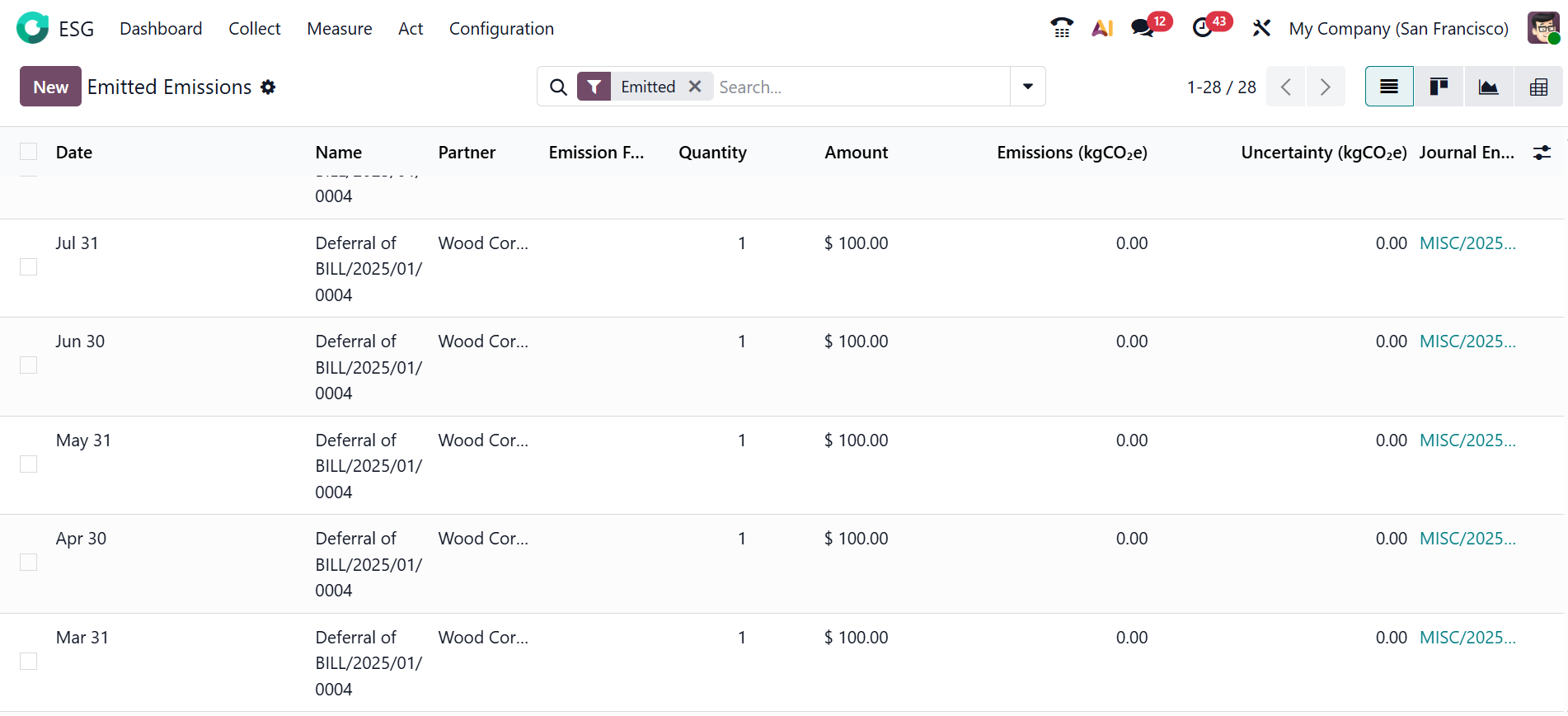
1.1 Emitted Emissions:
In the Odoo 19 ESG module, Emitted Emissions refer to the total amount of greenhouse gases released into the atmosphere by the company’s activities, such as fuel burning, electricity use, or transportation. It helps measure the organization’s carbon footprint and understand the amount of pollution produced. By default, Emitted Emissions are displayed in List View, but you can also switch to Kanban, Graph, or Pivot views. To create a new Emitted Emission, click on the New button.
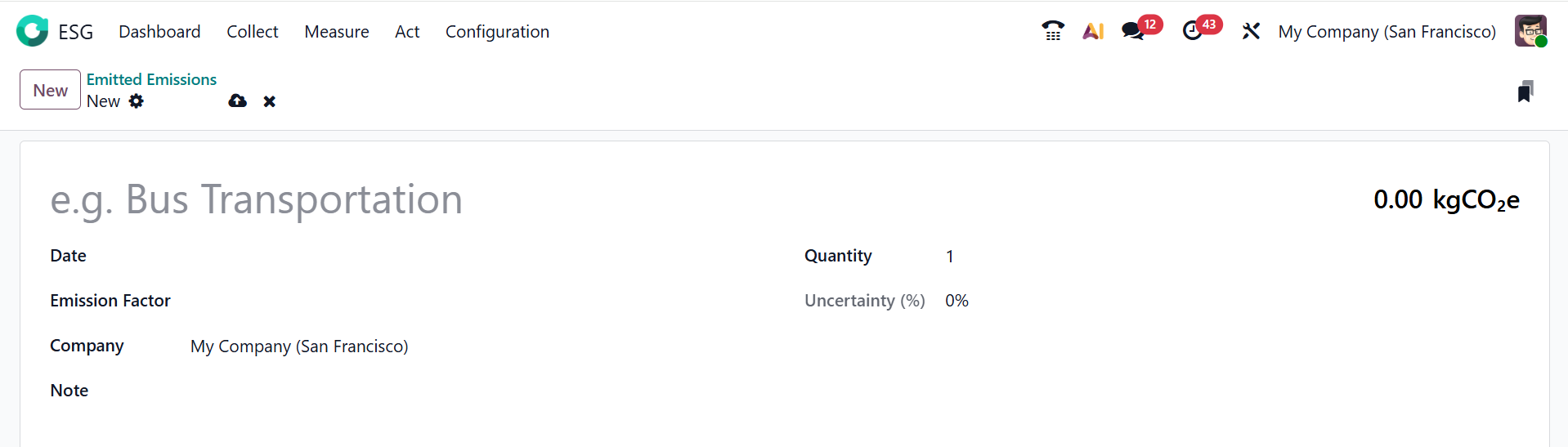
Here, you can add the details of the new Emitted Emissions, which were already explained above.
1.2 Offset Emissions:
In the Odoo 19 ESG module, Offset Emissions refers to the amount of greenhouse gases that a company compensates for by supporting activities such as tree planting or renewable energy. It helps reduce the organization’s net carbon footprint by balancing all of its emissions. You can view the Offset Emissions as a List, Kanban, Graph, and Pivot. To add a new Offset Emissions record, select the New button.
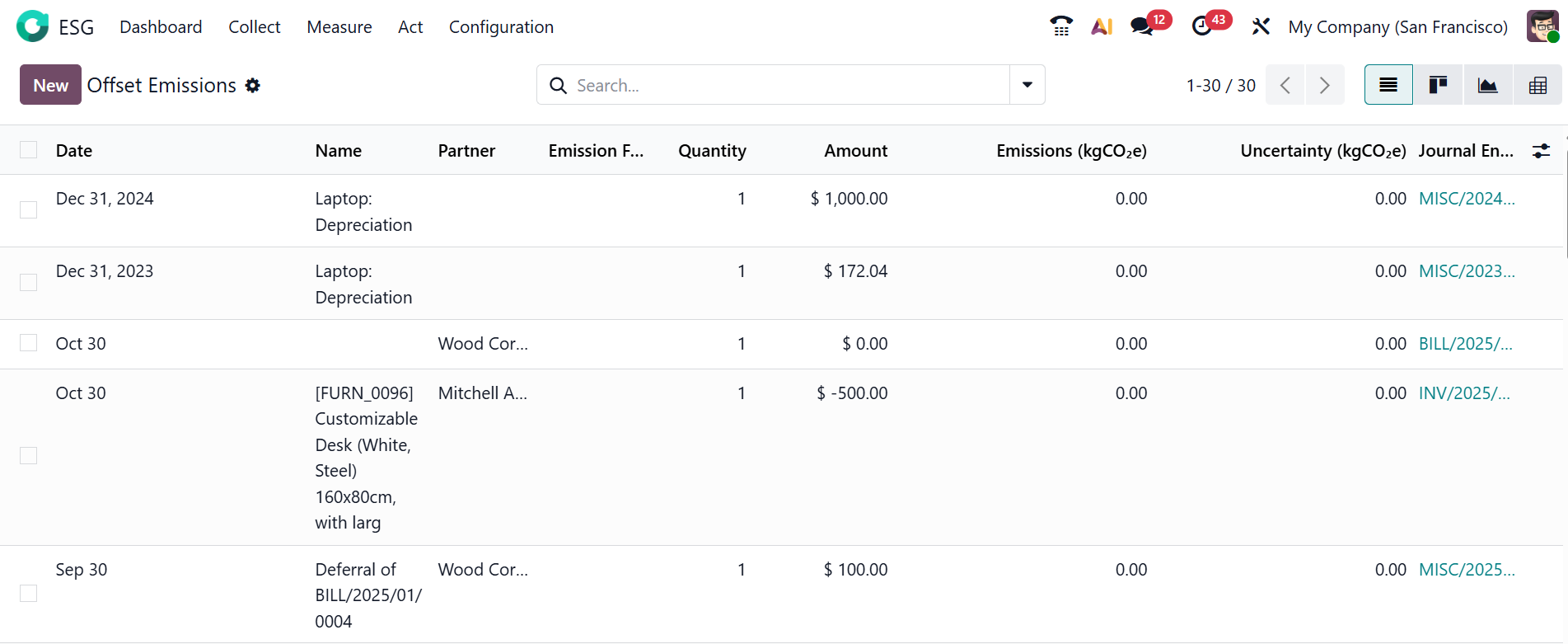
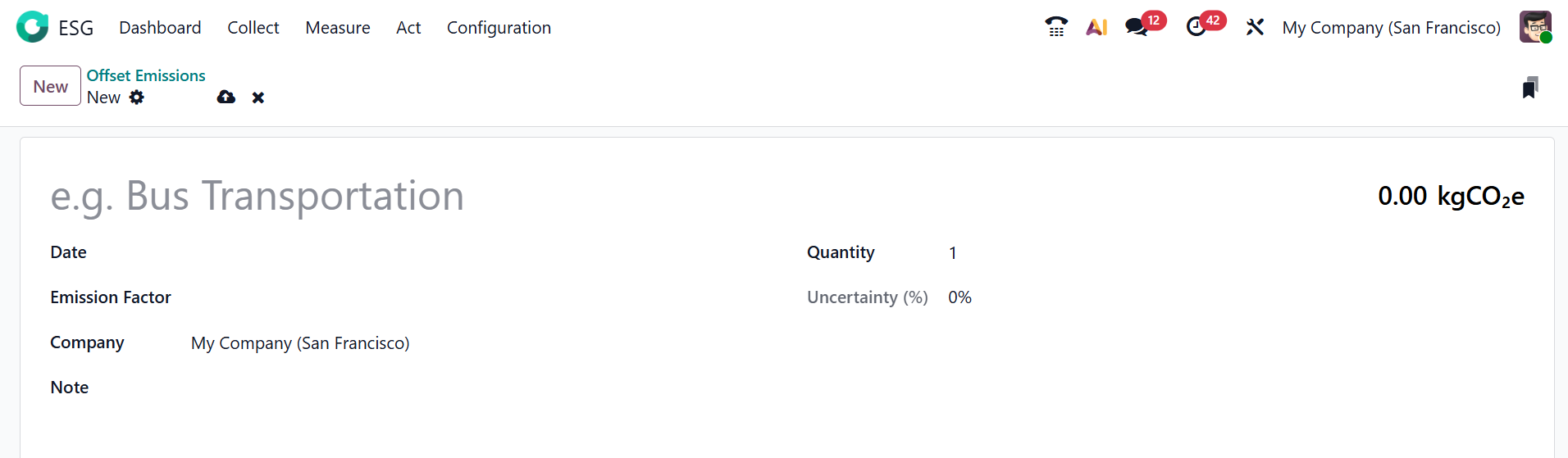
Here, you can add the details of the new Offset Emission, which was already mentioned above.
The above two options are connected in managing the carbon footprint. Both options collect data, measure what’s emitted, and take action, as mentioned in the above section.
1.3 Employee Commuting:
In the Odoo 19 ESG module, Employee Commuting refers to the tracking of carbon emissions produced when employees travel between their homes and the workplace. It helps measure the environmental impact of daily employee transportation and contributes to calculating the company’s overall carbon footprint.
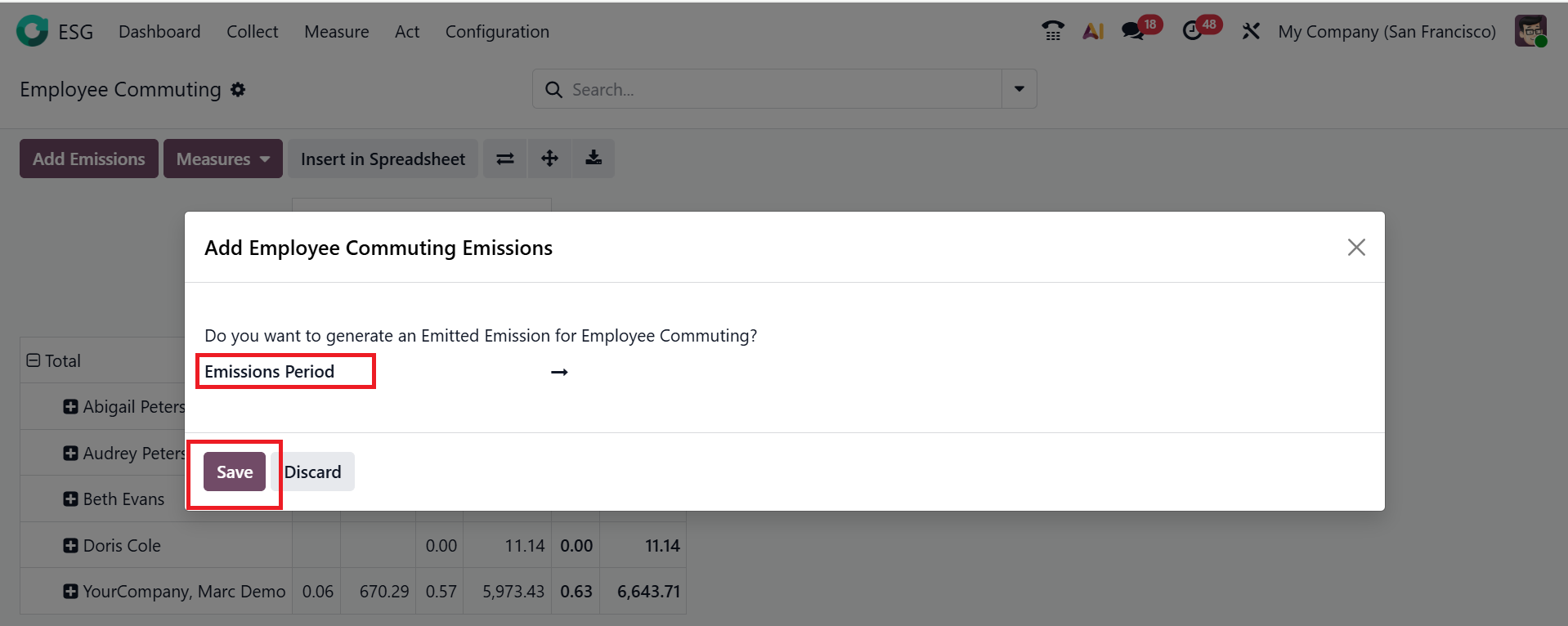
In Pivot View, you can see the employees’ names along with their corresponding emissions. Click on the Measures button to add the values, such as gCO2/km, km, tCO2, and Count. Click the Add Emissions button to add the data to the list of emitted emissions.
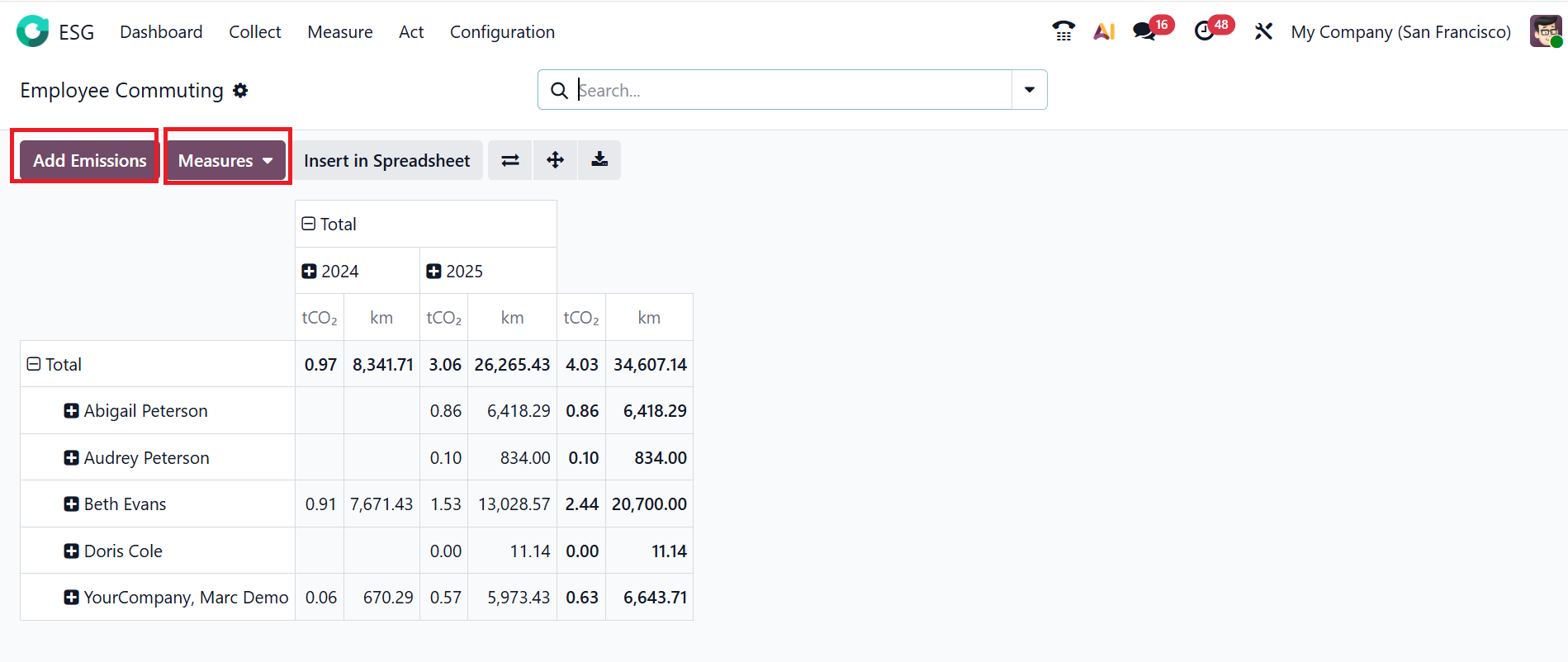
A pop-up screen appears, where you can add an Emission Period to cover, and then click the Save button.