Configuration:
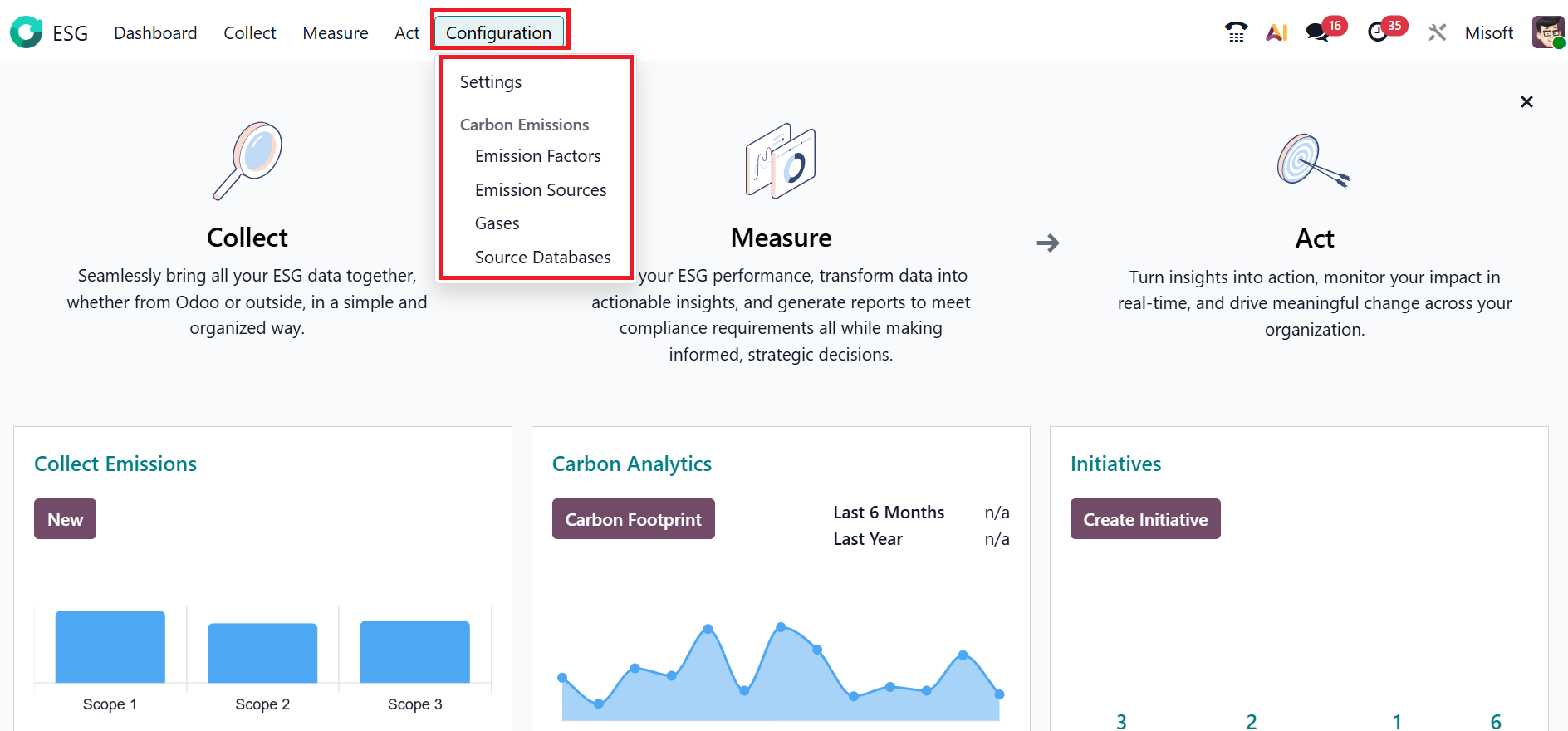
Under the Configuration menu in the Odoo 19 ESG module, you can view the sections such as Settings and Carbon Emissions. Under the Carbon Emissions section, you can view the options such as Emission Factors, Emissions Sources, Gases, and Source Databases.
1.1 Settings:
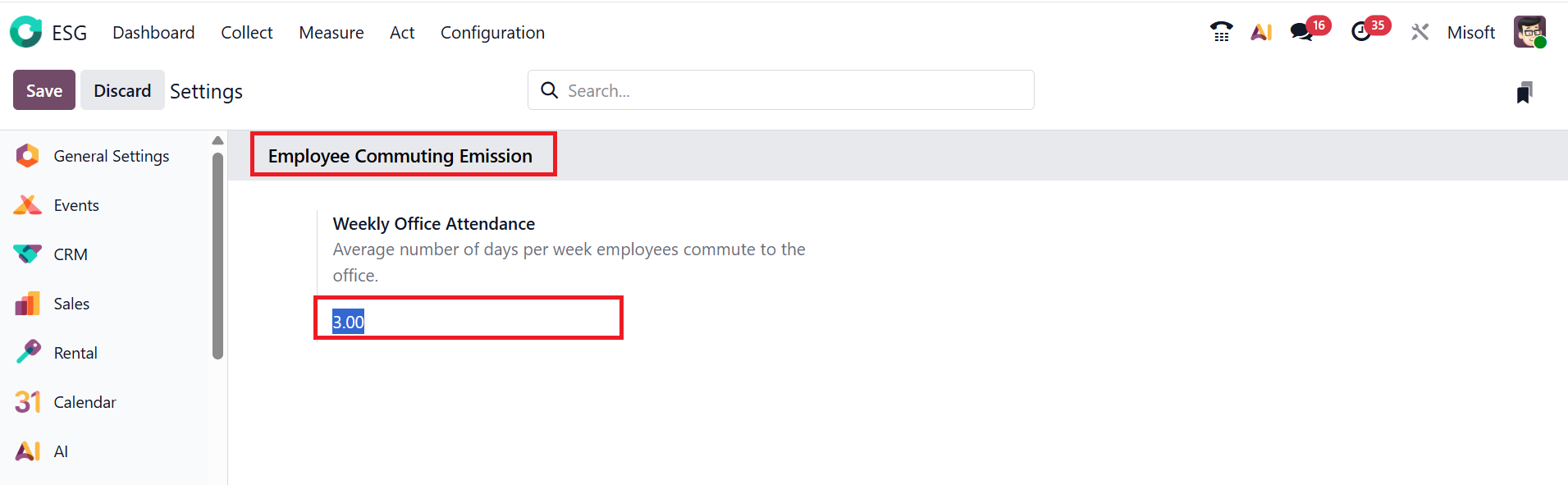
In the Odoo 19 ESG module Settings option, you can add the average number of days per week that employees attend and work at the office under the Weekly Office Attendance option. This option allows you to calculate employee commuting emissions, because the more days employees come to the office, the more transportation emissions are created.
1.2 Emission Factors:
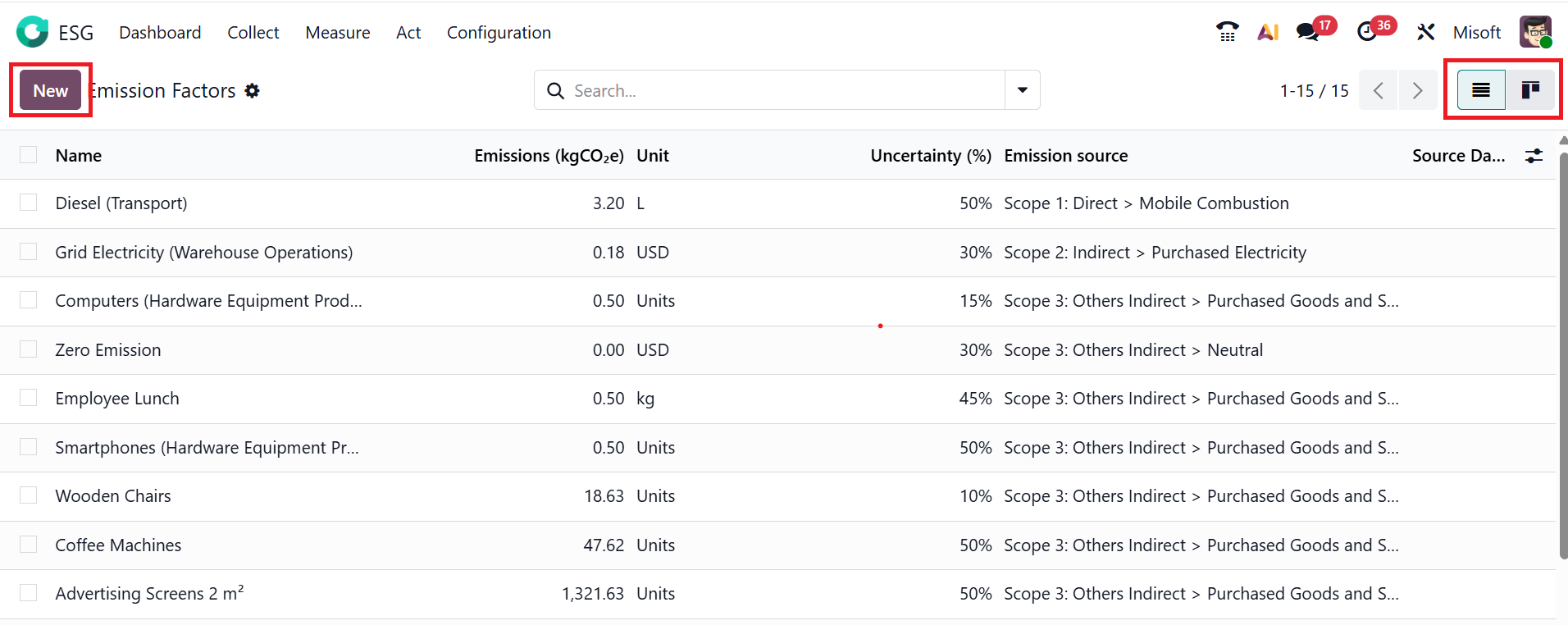
In the Odoo 19 ESG module, Emission Factors are the values that the system uses to calculate the amount of carbon produced from each type of activity. Here, you can view the details of the emission factors, such as Name, Emissions (kgCO2e), Unit, Emission Sources, and Source Database. You can view the emission factors in the List and Kanban views. To create a new emission factor, click on the New button.
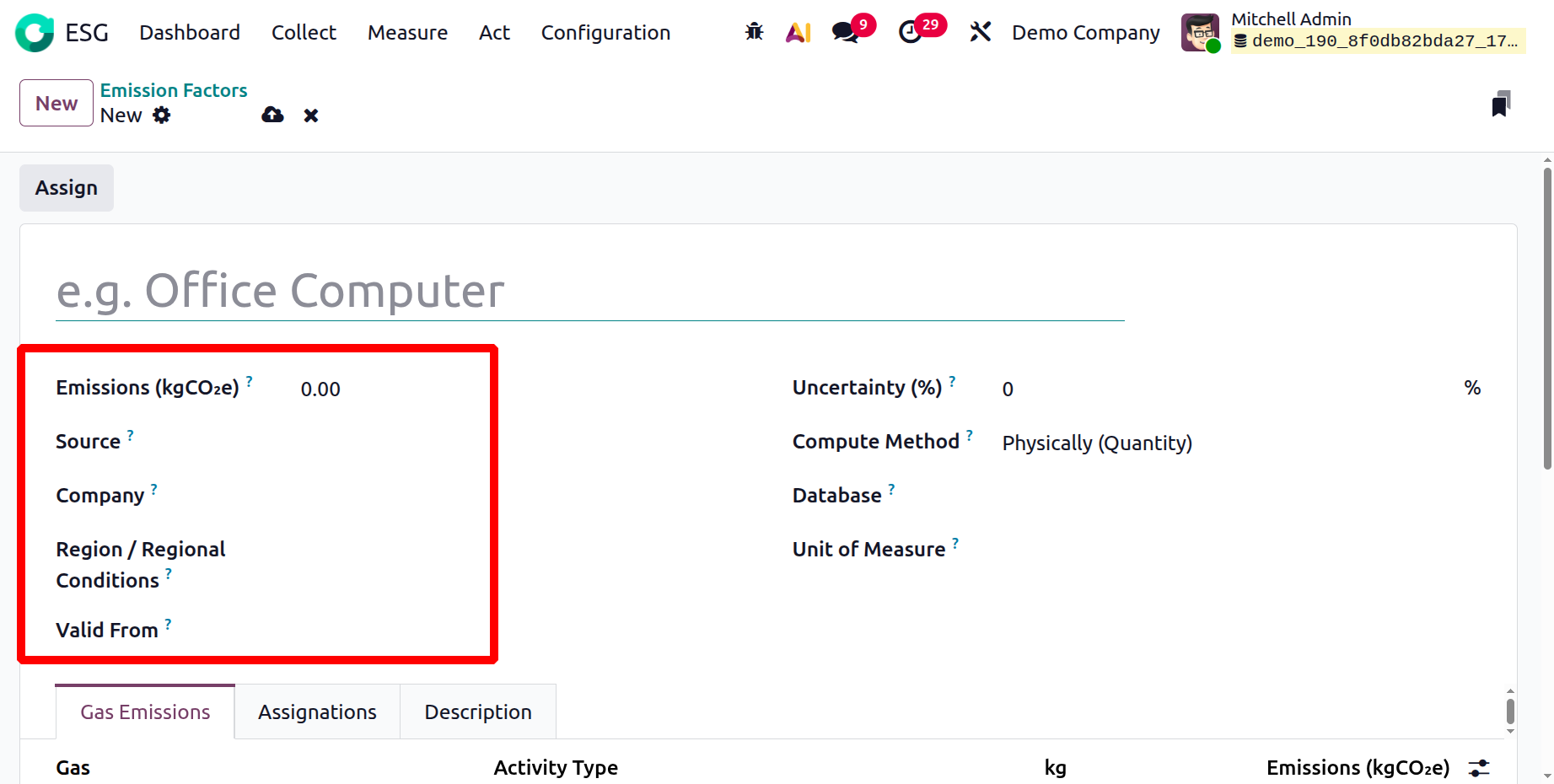
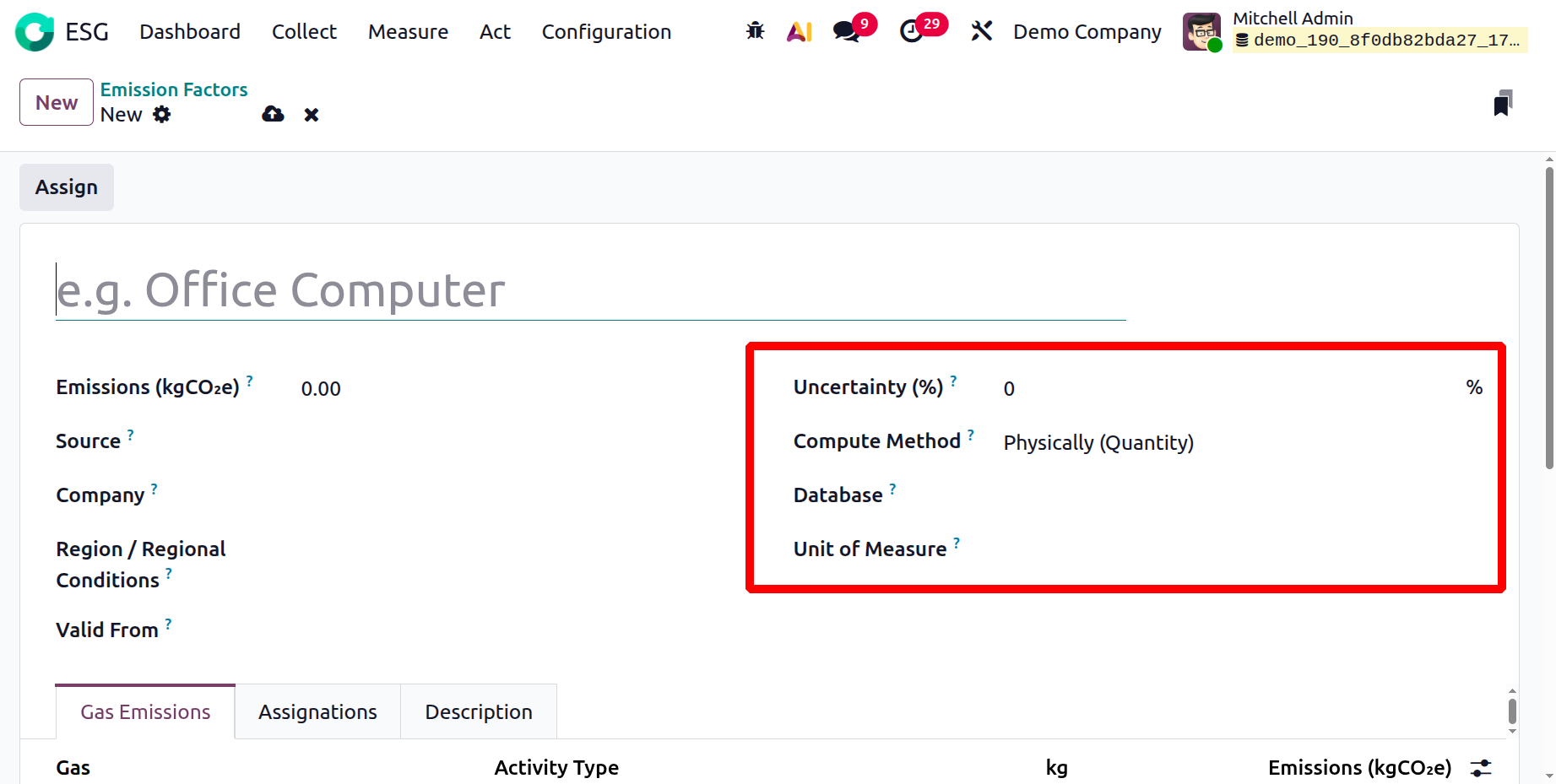
Here, add the name of the activity that produces emissions. In the Emissions (kgCO2e) field, add how many kgCO2e equivalent are emitted per unit for this activity. Specify the scope from which the emission factor originates in the Source field. In the Company field, you can associate the emission factor with a specific company. In the Region / Regional Condition field, specify which country or region this emission factor applies to because values vary by region. You can set the date from which the emission factor becomes active in the Valid From field.
In the Uncertainty (%) field, you can view the percentage of error in the emission value. You can select the Compute Method as Physically (Quantity) or Monetary to tell Odoo how the emission should be calculated. In the Database field, you can add a reference database used for the emission factor values. You can specify the unit that the emission factor applies to in the Unit of Measure field. Here, you can also view three tabs: Gas Emissions, Assignations, and Description.
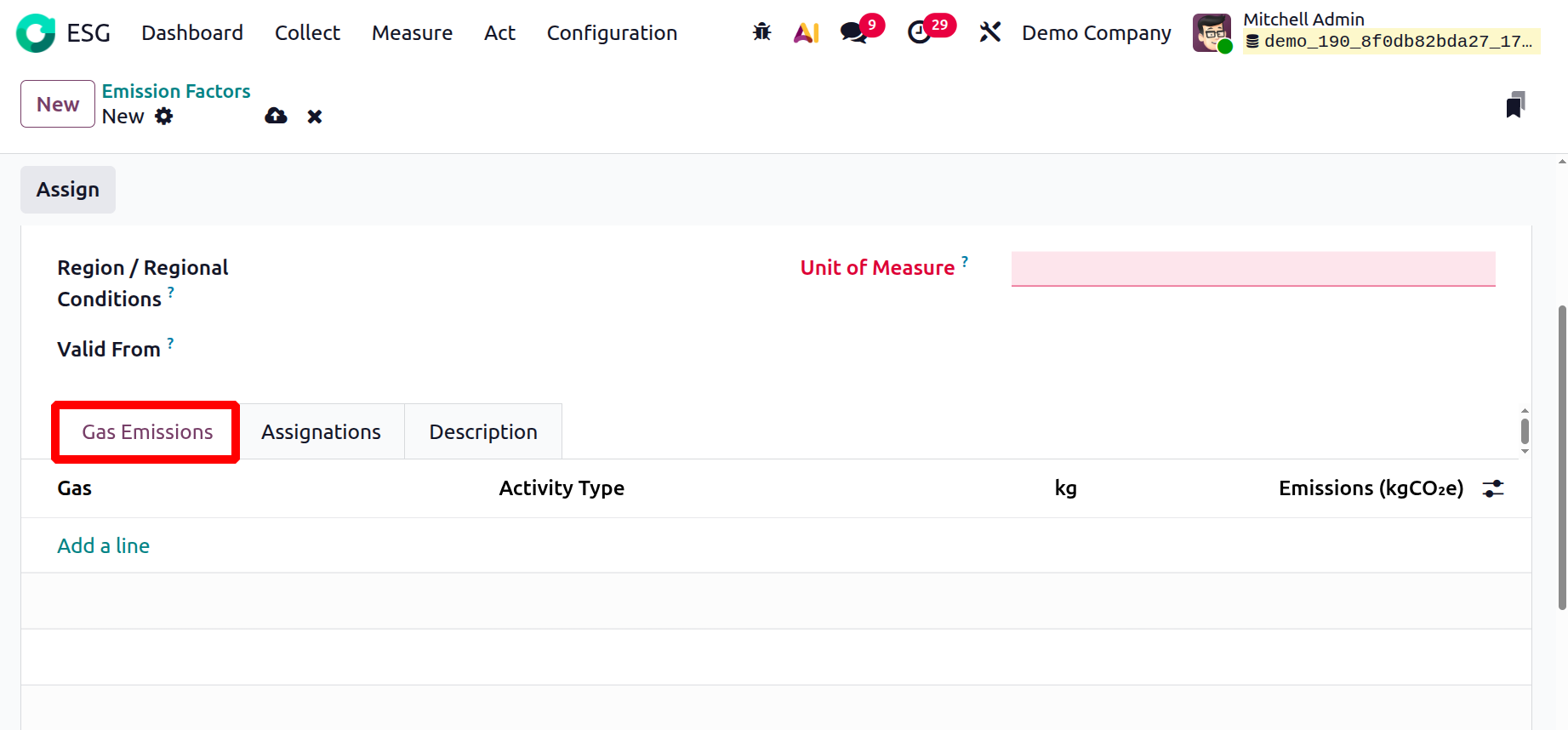
Under the Gas Emissions tab, click the Add a line button to add more gas types for the same activity. You can also show what kind of activity the factor is related to in the Activity Type section. Then, add the kg and emission value of the gas.
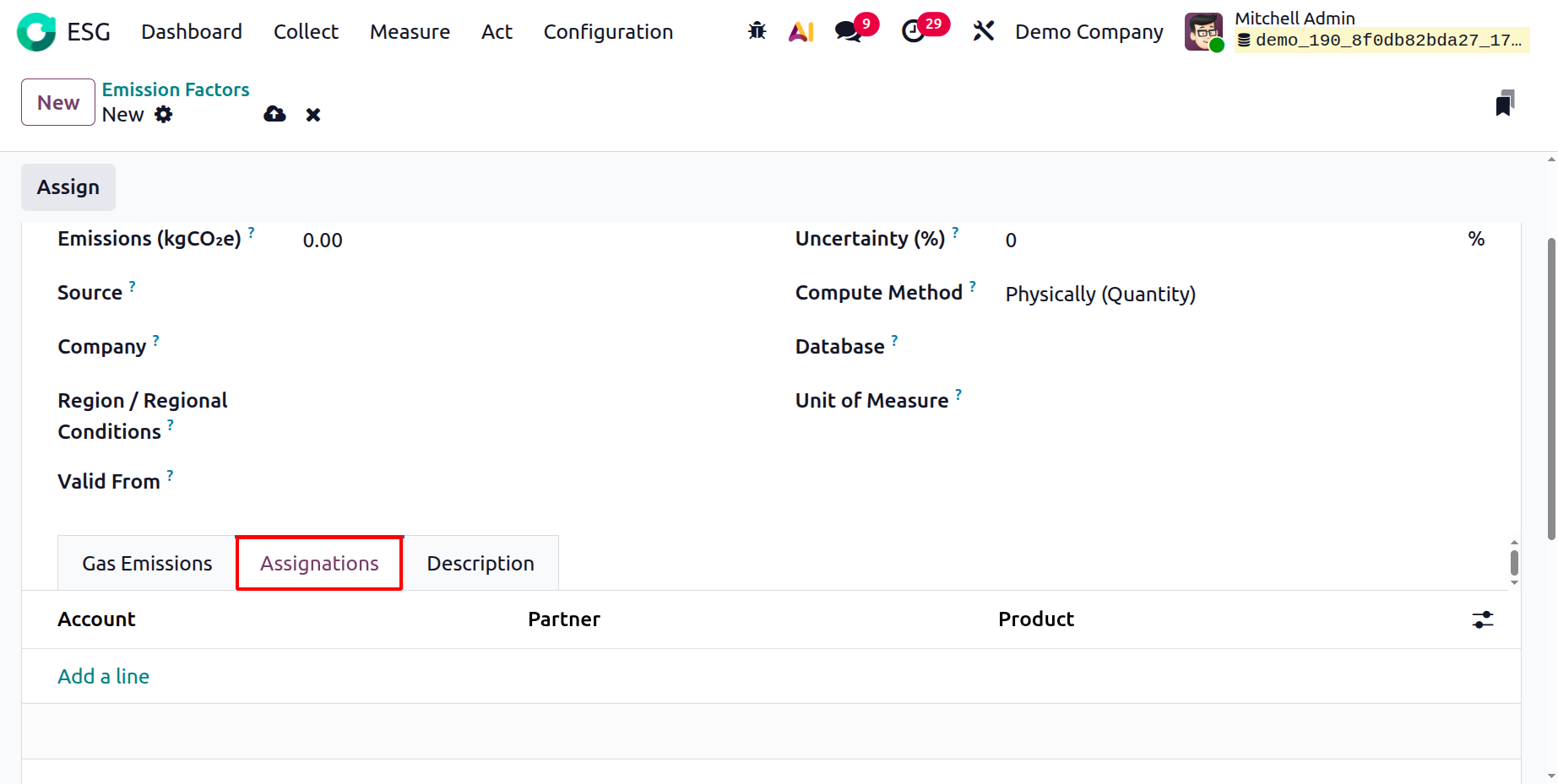
Under the Assignations field, click on the Add a line button to link the emission factor to a revenue account. Here, you can also attach the emission factor to a specific product and assign it to a partner.
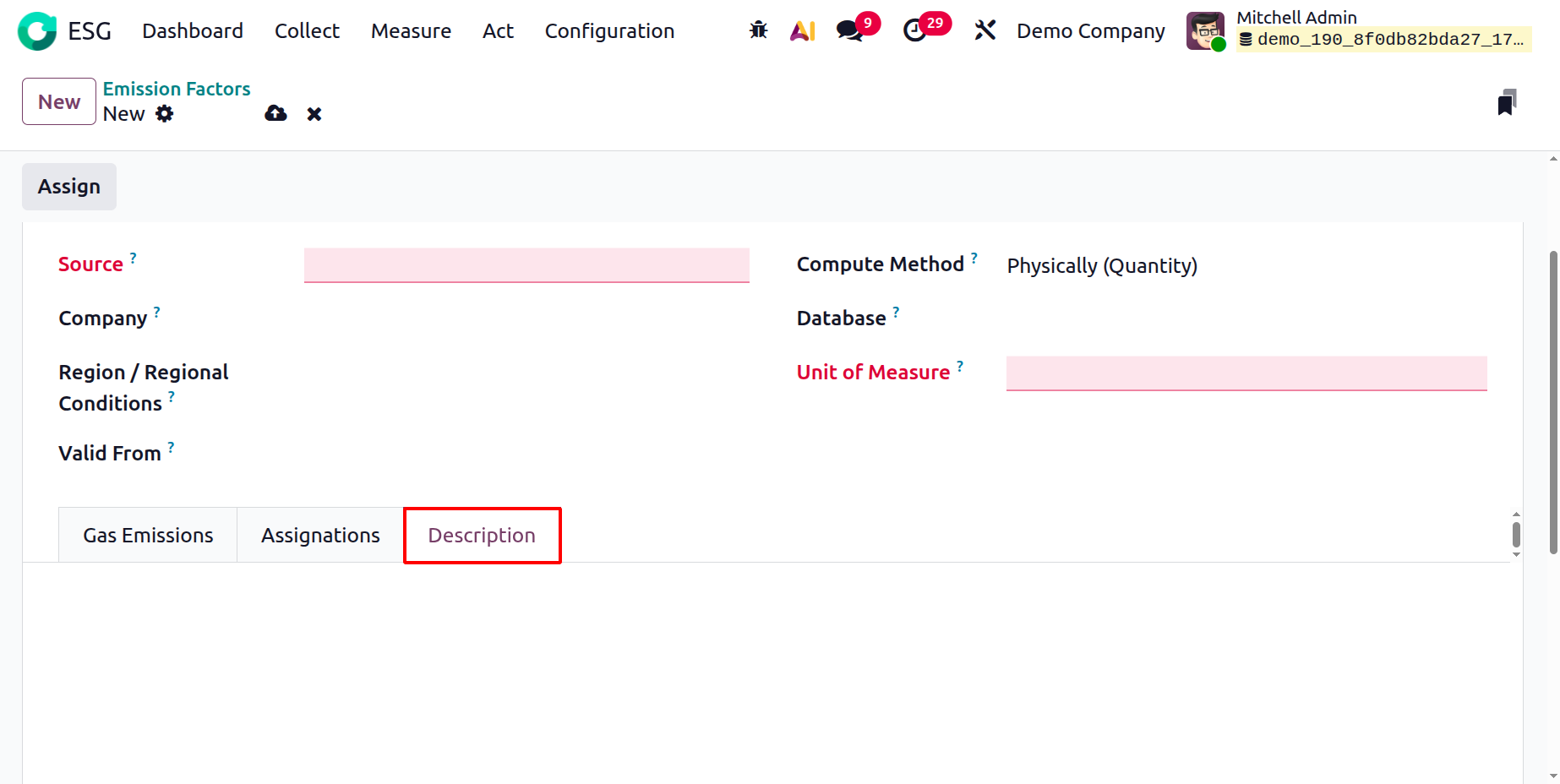
Under the Description tab, add a short note about the emission factor. After entering all the details, click the Assign button to save the emission factor.
1.3 Emission Sources:
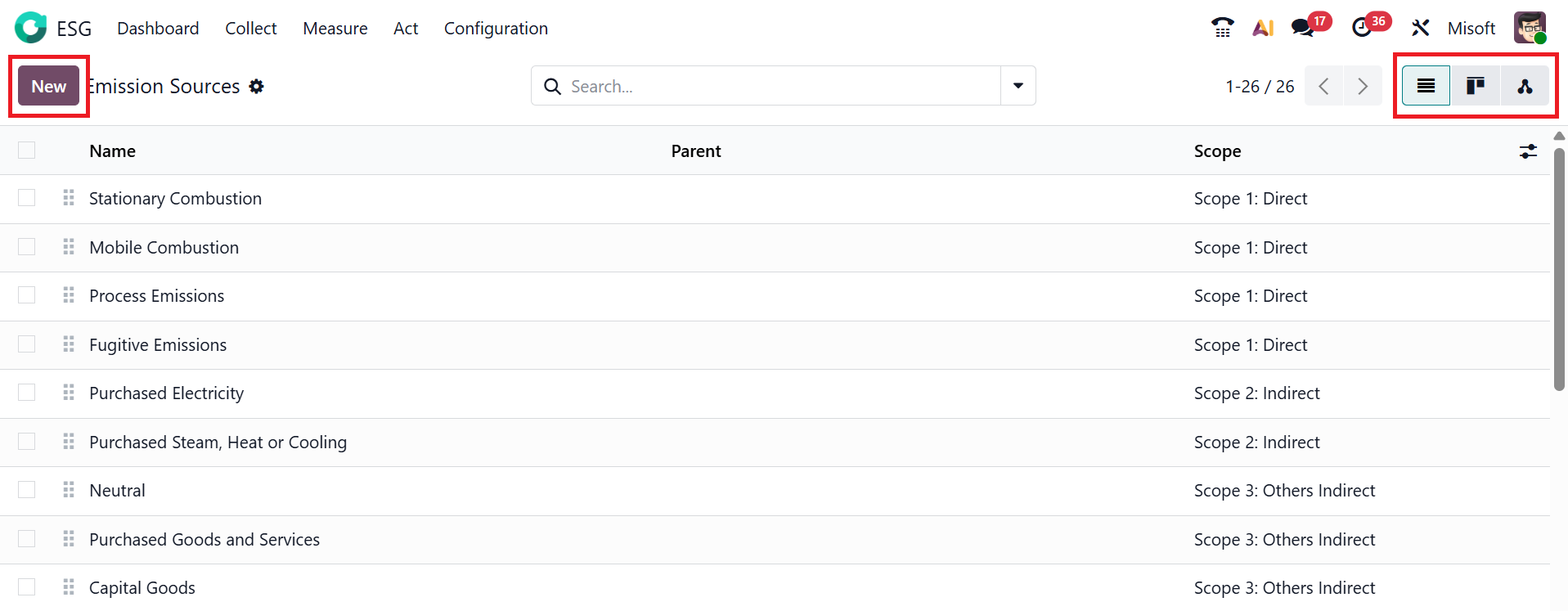
In the Odoo 19 ESG module, Emissions Sources refer to the activities within the company that produce CO2 emissions. Here, you can view the details of the emission sources, such as Name, Parent, and Scope. You can view the emission sources in List, Kanban, or Hierarchy views. To create a new emission source, click on the New button as shown below:
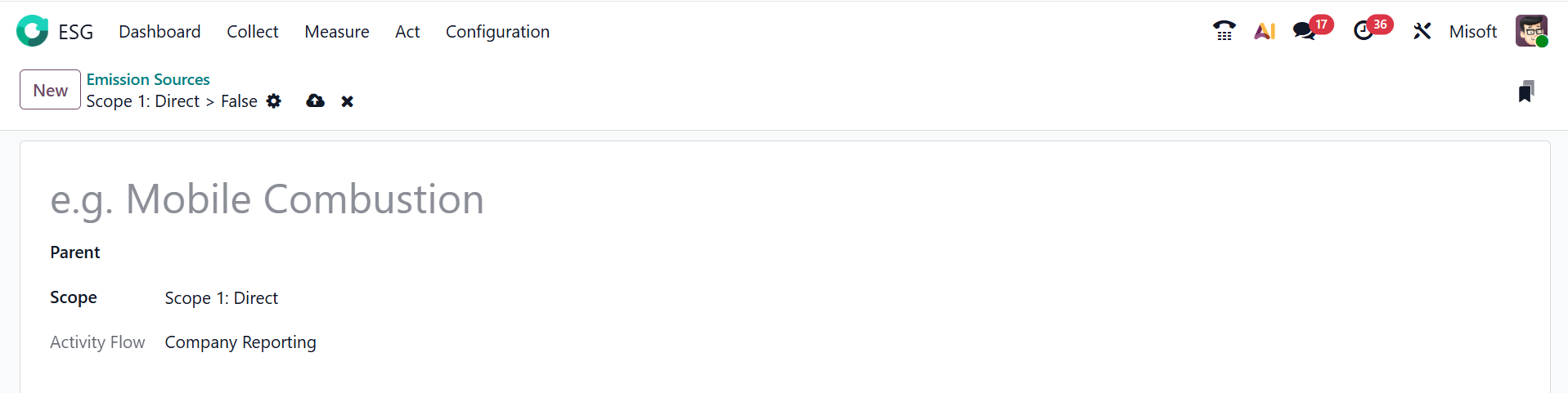
Here, add the name of the emission source category. In the Parent field, you can link the emission source to a parent category. Then, select a Scope for the emission source. In the Activity Flow field, you can analyze which reporting flow this emission source will be used for.
1.4 Gases:
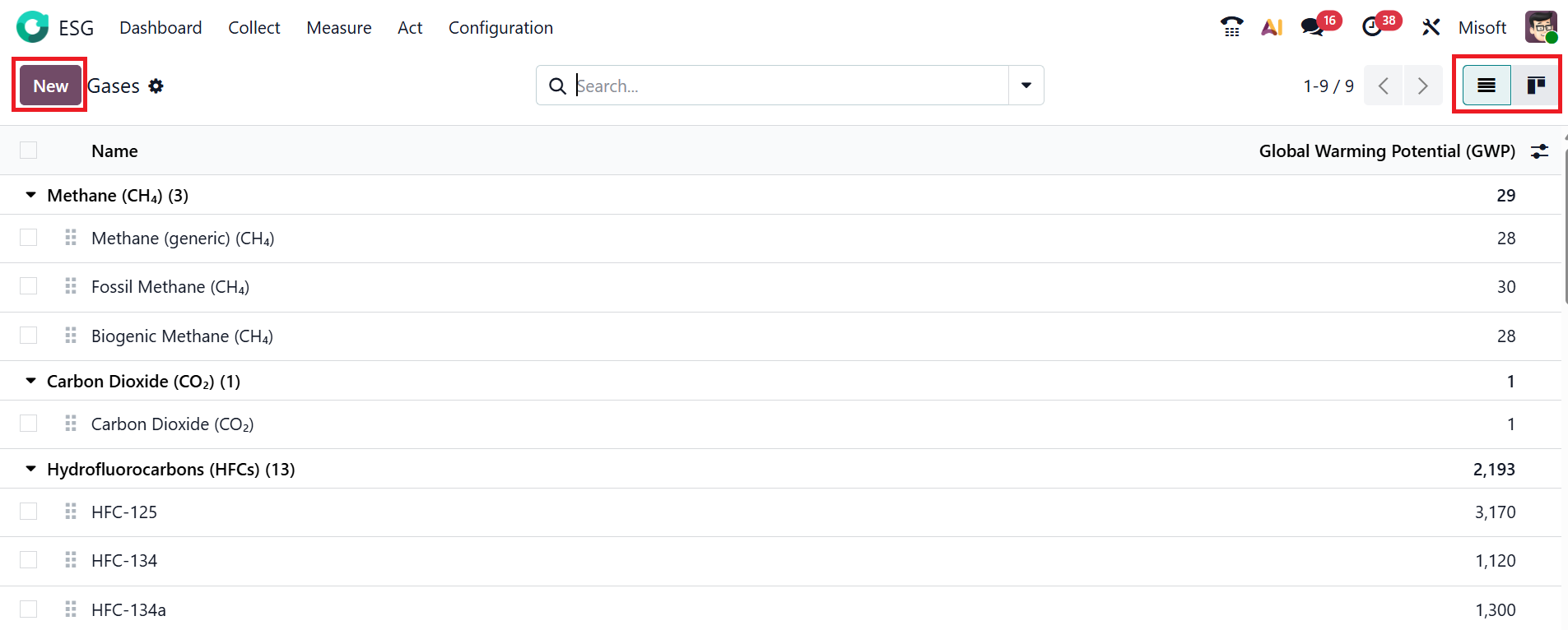
Under the Gases option in the Configuration menu, you can view a list of greenhouse gases that are emitted and used to calculate the total carbon emissions. Here, you can view the details of the gases, such as Name and Global Warming Potential (GWP). You can also view the gases option in List and Kanban views. Click on the New button to add a new greenhouse gas for the emission factor.
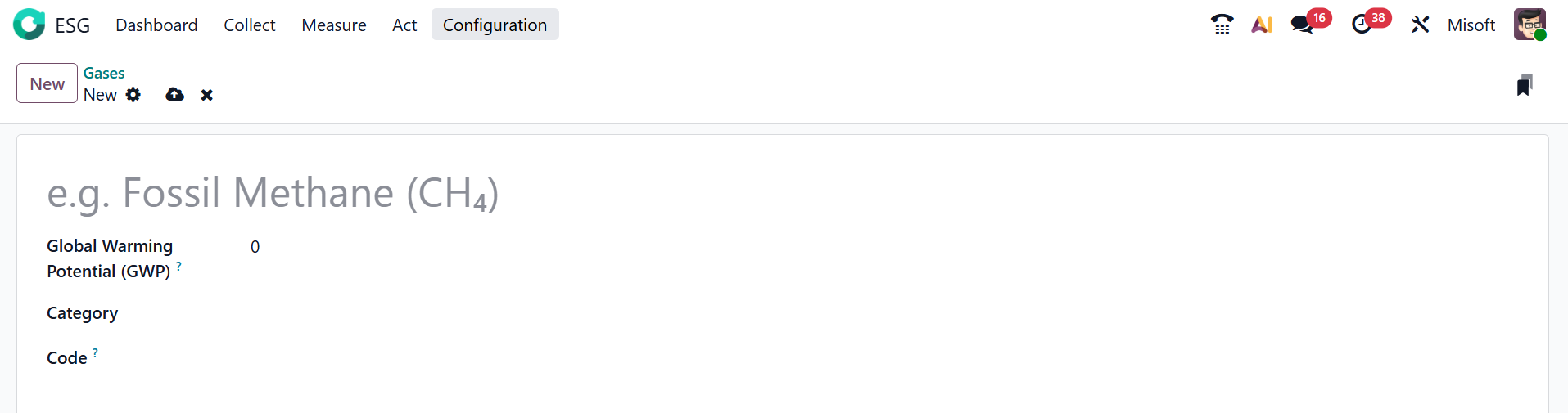
Here, add the name of the gas. The Global Warming Potential (GWP) field indicates the relative contribution of a gas to global warming compared to CO2. You can add the group or classification of the gas in the Category field. To easily recognize the gas, add a short reference in the Code field.
p>Under the Gases option in the Configuration menu, you can view a list of greenhouse gases that are emitted and used to calculate the total carbon emissions. Here, you can view the details of the gases, such as Name and Global Warming Potential (GWP). You can also view the gases option in List and Kanban views. Click on the New button to add a new greenhouse gas for the emission factor.
1.5 Source Databases:
In the Odoo 19 ESG module, Source Databases refers to the external databases from which you can take emission factors and data. Here, you can access two databases to download the emission factors.

The Odoo 19 ESG module offers a unified platform for collecting, tracking, and reporting more transparent environmental, social, and governance data. It provides real-time analytics to help firms manage sustainability projects, analyze energy consumption, and measure carbon emissions. To produce precise carbon footprint reports, the module transforms activity data into emission factors. This module helps businesses to achieve responsible growth and long-term sustainable success.