All Task
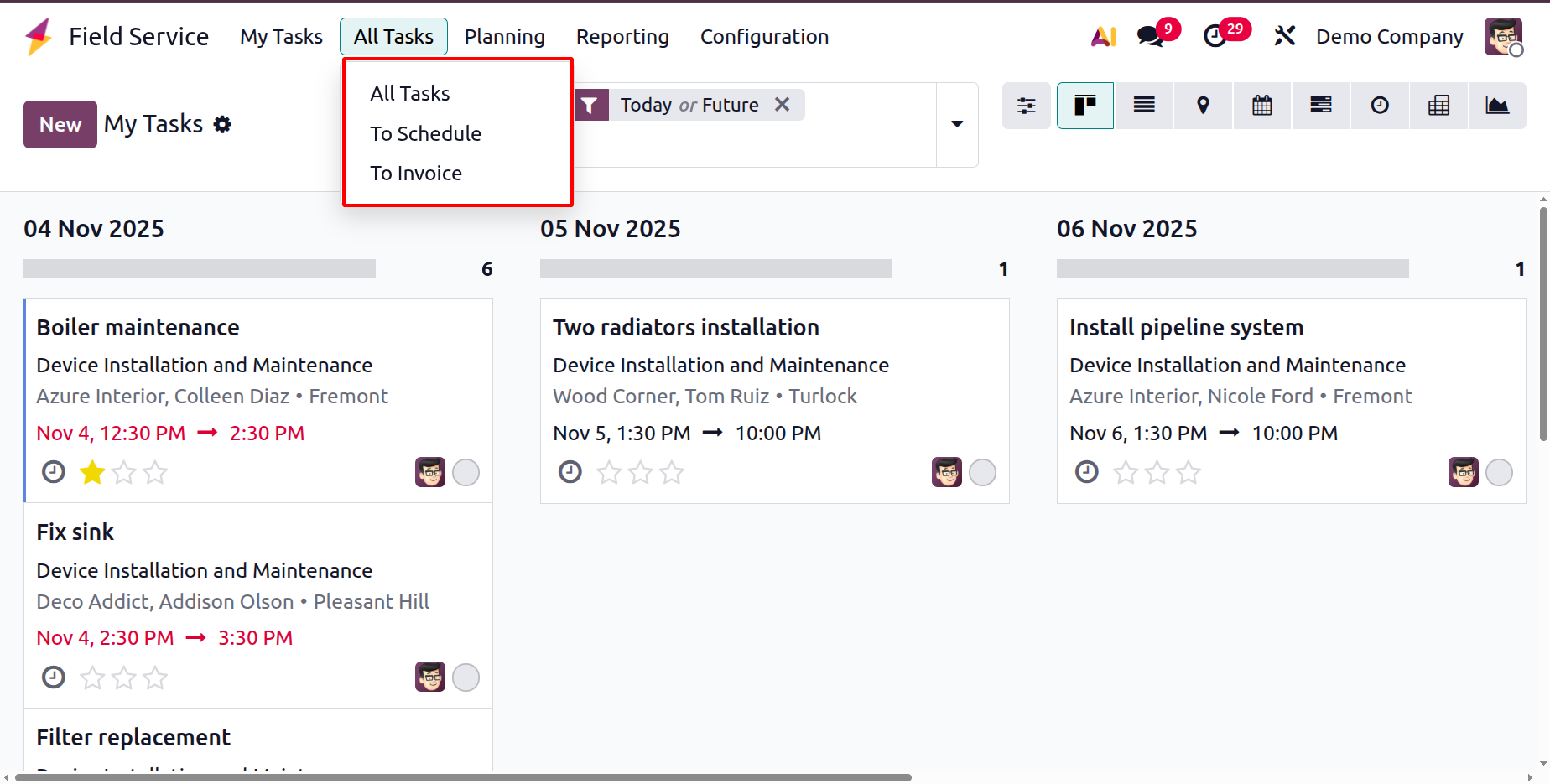
A list of all assigned field service tasks can be seen in the Odoo 19 Field Service module's "All Tasks" menu. The "To Schedule" and "To Invoice" submenus can be found under the "All Tasks" menu. While the "To Invoice" part shows tasks that need to be invoiced, the "To Schedule" section contains pending tasks.
The List view in the "All Tasks" window shows details like Title, Worksheet Template, Project, Customer, Assignees, Company, Start Date, End Date, Activities, and Tags.
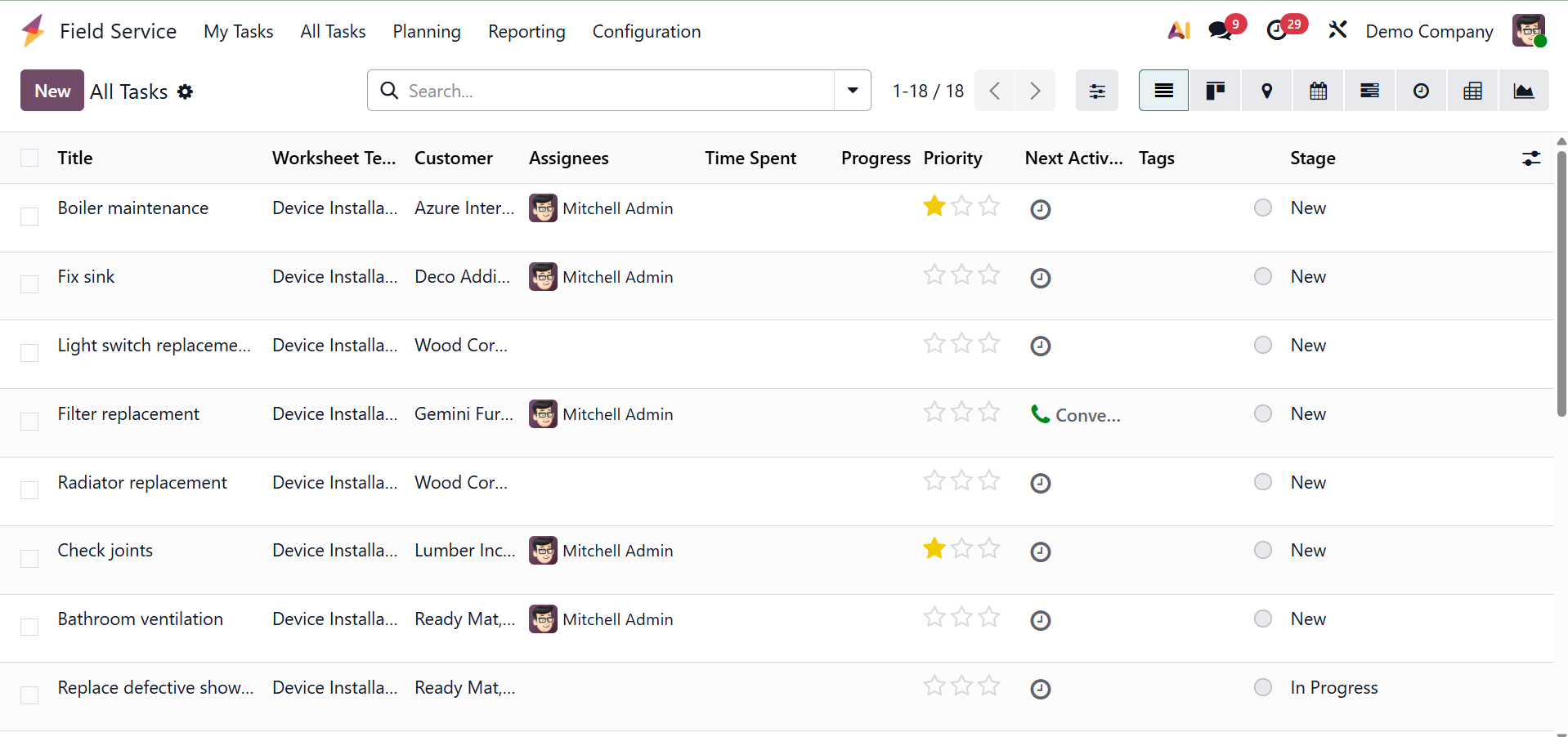
Activities can be scheduled using the clock icon on each task column, and you can swiftly move tasks through their corresponding stages as they proceed by selecting the "New" link under the "Stage" column. These tasks can also be seen in the following formats: List, Kanban, Map, Calendar, Gantt, Pivot, Graph, and Activity.
By selecting the "New" button and entering the pertinent data that we covered in the previous part in the task configuration fields, new tasks may be created.
1.1 To Schedule
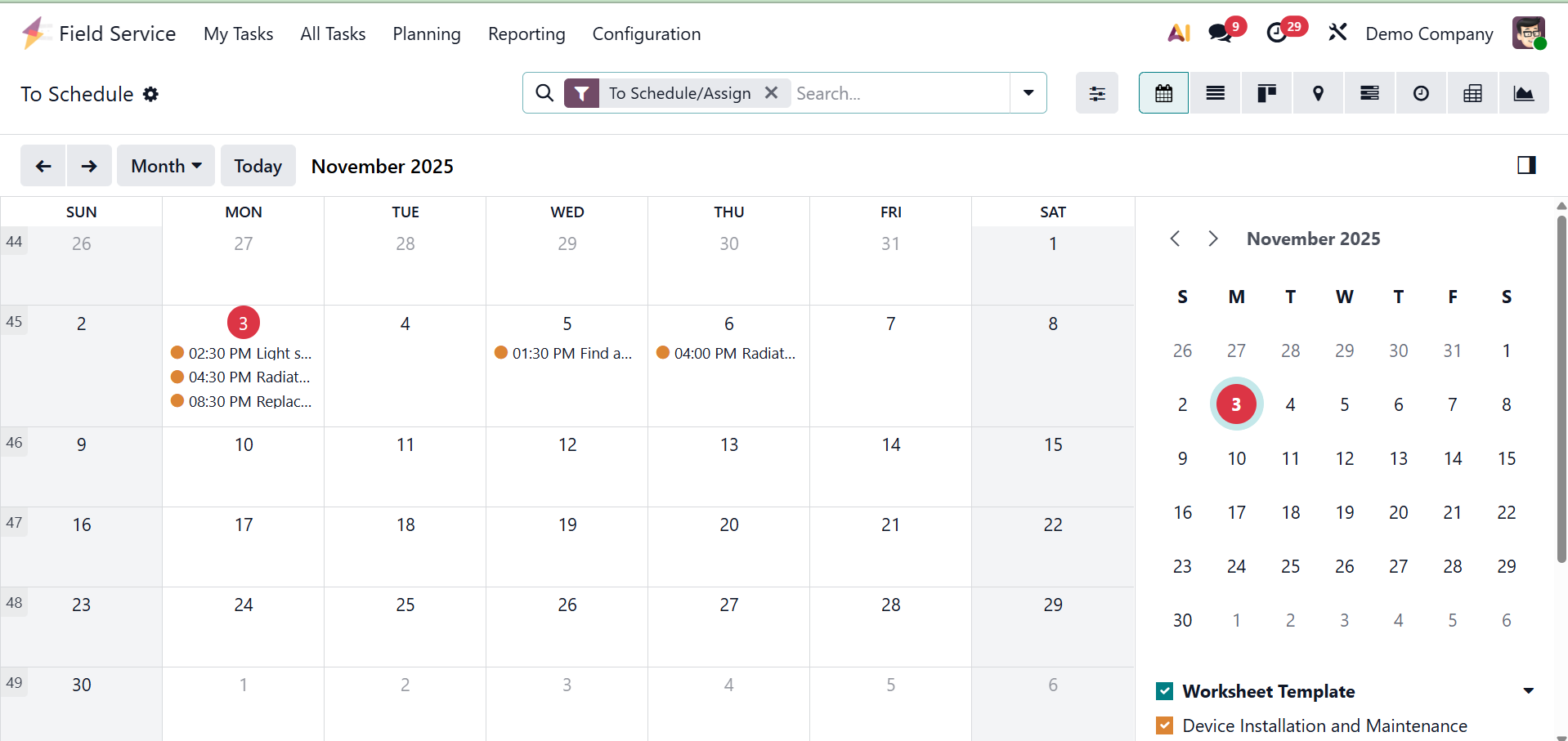
If the task has a scheduled date, it will be displayed in the To Schedule option. Planners can schedule tasks for technicians at a later time by using the To Schedule option to list tasks that have been established but have not yet been given a date or time. You can also use the To Schedule filter in the All Tasks view to quickly get the same list.
1.2 To Invoice
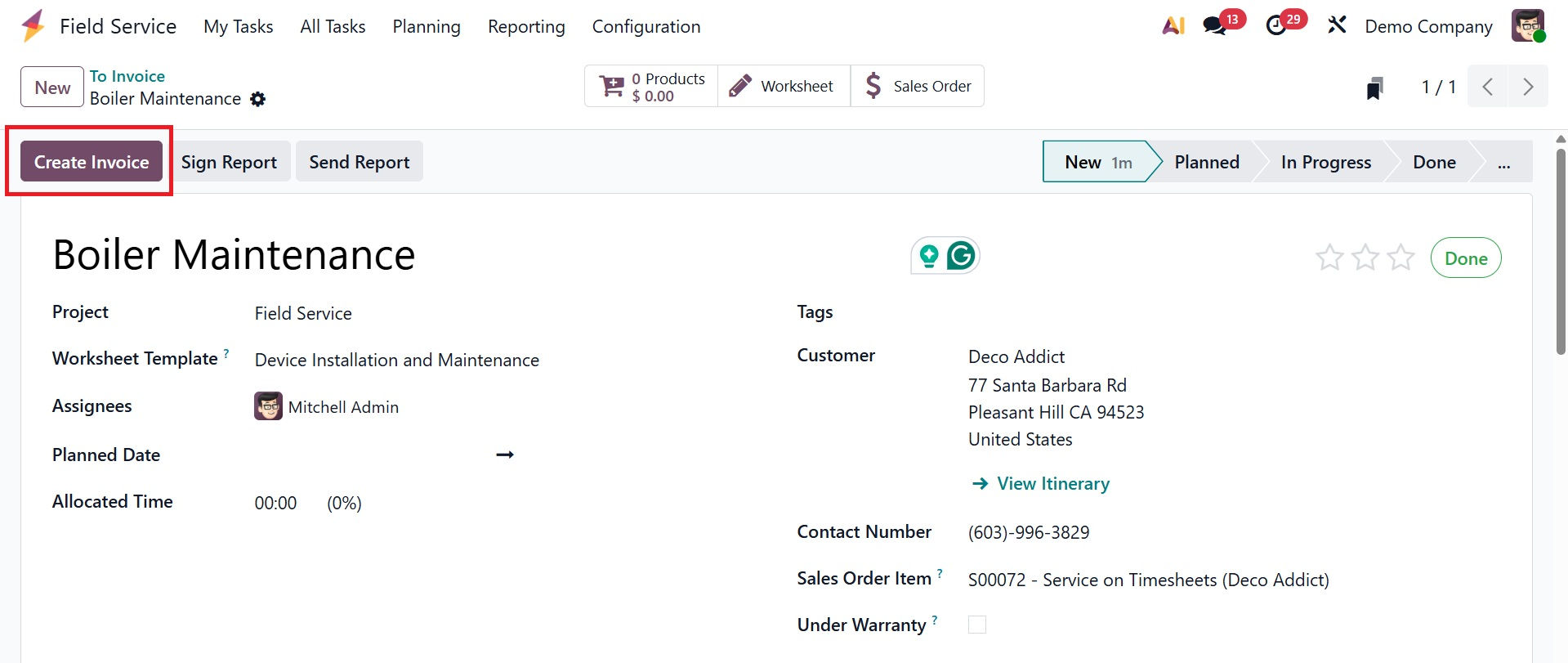
All completed tasks that are ready for billing but have not yet been billed are shown on the "To Invoice" platform in Odoo Field Service. The ability to generate bills directly from this view and quickly verify project data, including time, materials, and client information, makes the billing process efficient and precise.
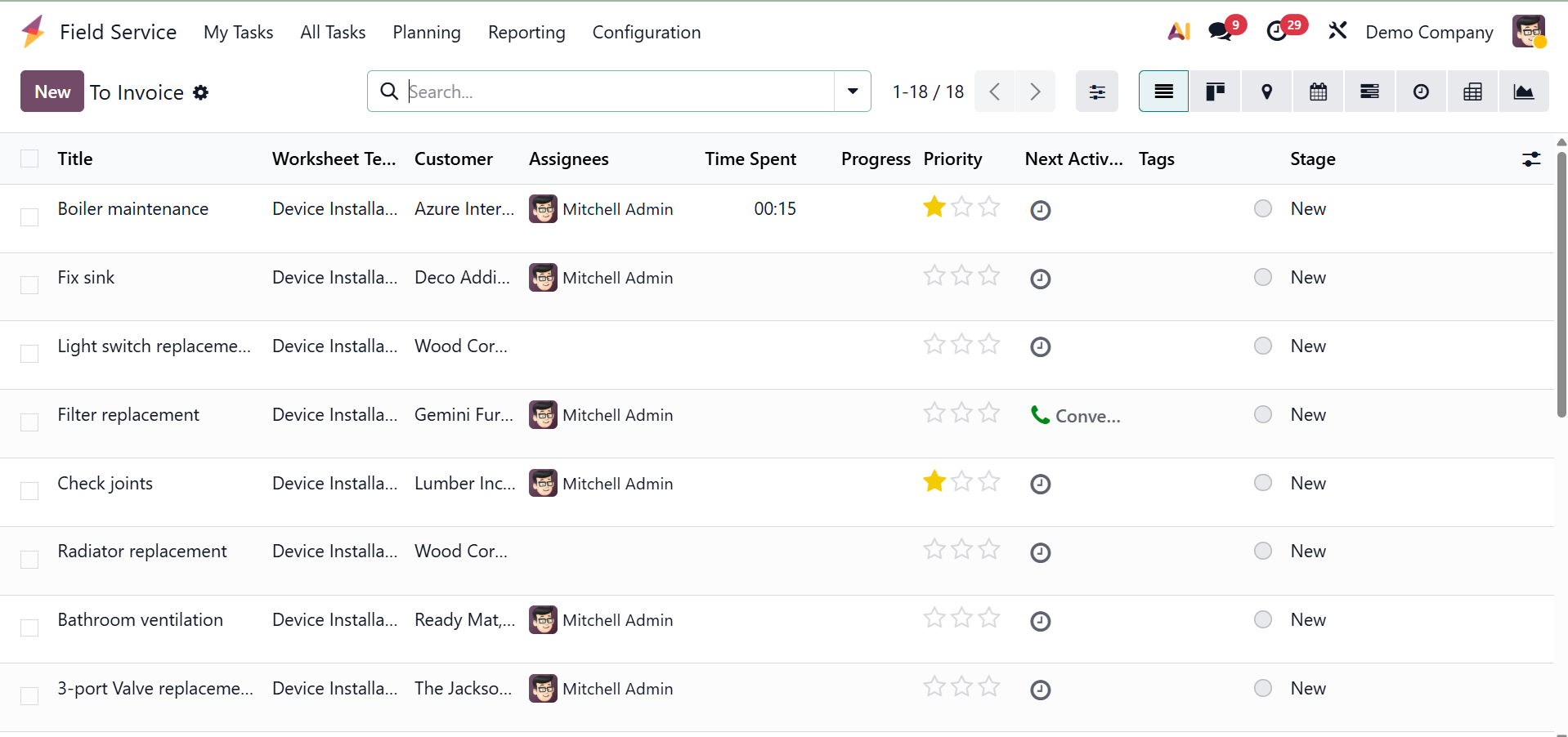
As we covered in the last task creation section, clicking on the invoice data column will open the form view of that specific task, allowing you to create an invoice using the "Create Invoice" button.