Planning
The Odoo 19 Field Service Module offers a specific platform for methodically organizing field services. The "By User" view from the "Planning" menu shows the tasks assigned to each user in a Gantt chart. While the "By Worksheet Template" view classifies tasks based on worksheet templates, the "By Project" view groups tasks based on related projects. Lastly, by identifying job locations, enhancing route planning, and optimizing technician assignments for more efficiency, the "By Location" view of the reporting menu improves job organization.
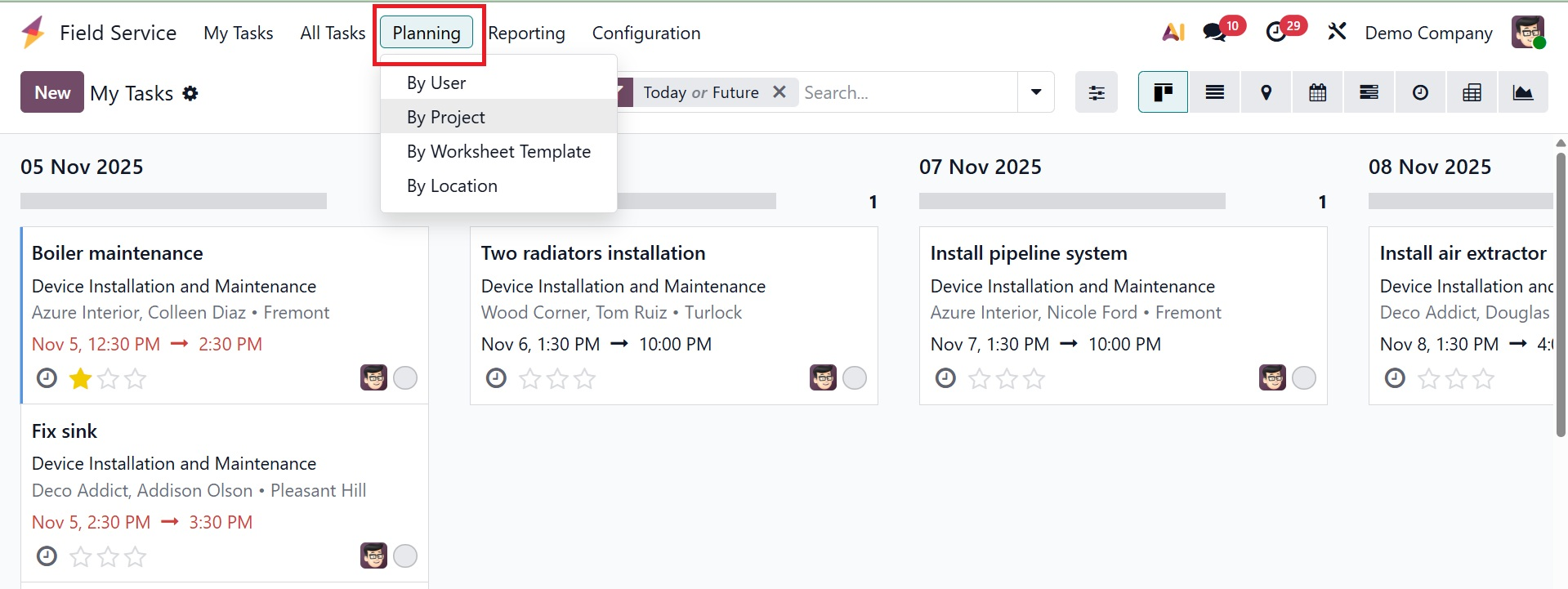
3.1 By User
The Planning "By User" option in Odoo 19 Field Service provides a calendar-style or Gantt view of planned tasks for each field service person, allowing teams to see workloads and create better plans. The task planning based on users is shown.
Changing assignments on the fly is made easy with the drag-and-drop rescheduling. The display lets you select by project, user, or time period and highlights any conflicts or gaps in technician availability. As seen in the screenshot below, this makes it a useful tool for team communication, optimizing resource allocation, and ensuring on-time service delivery.
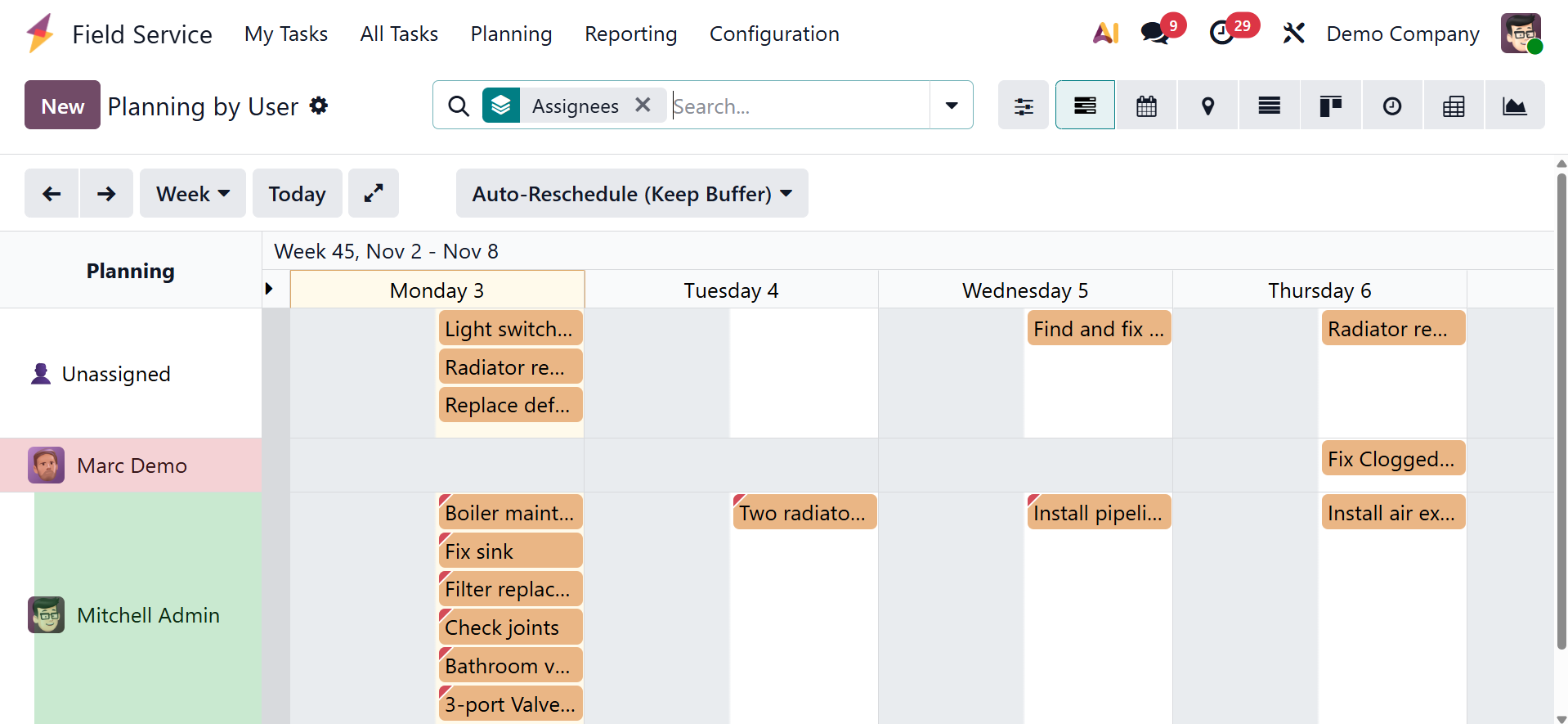
The task planner gives the user information about a certain date, which can be changed to represent a day, week, month, or year. When a date is hovered over, an addition (+) icon appears, enabling users to enter the specifics of a new assignment. The right staff will be immediately allocated the task. Additionally, users can use the given icons to enable sparse mode and expand or compress the Gantt chart view.
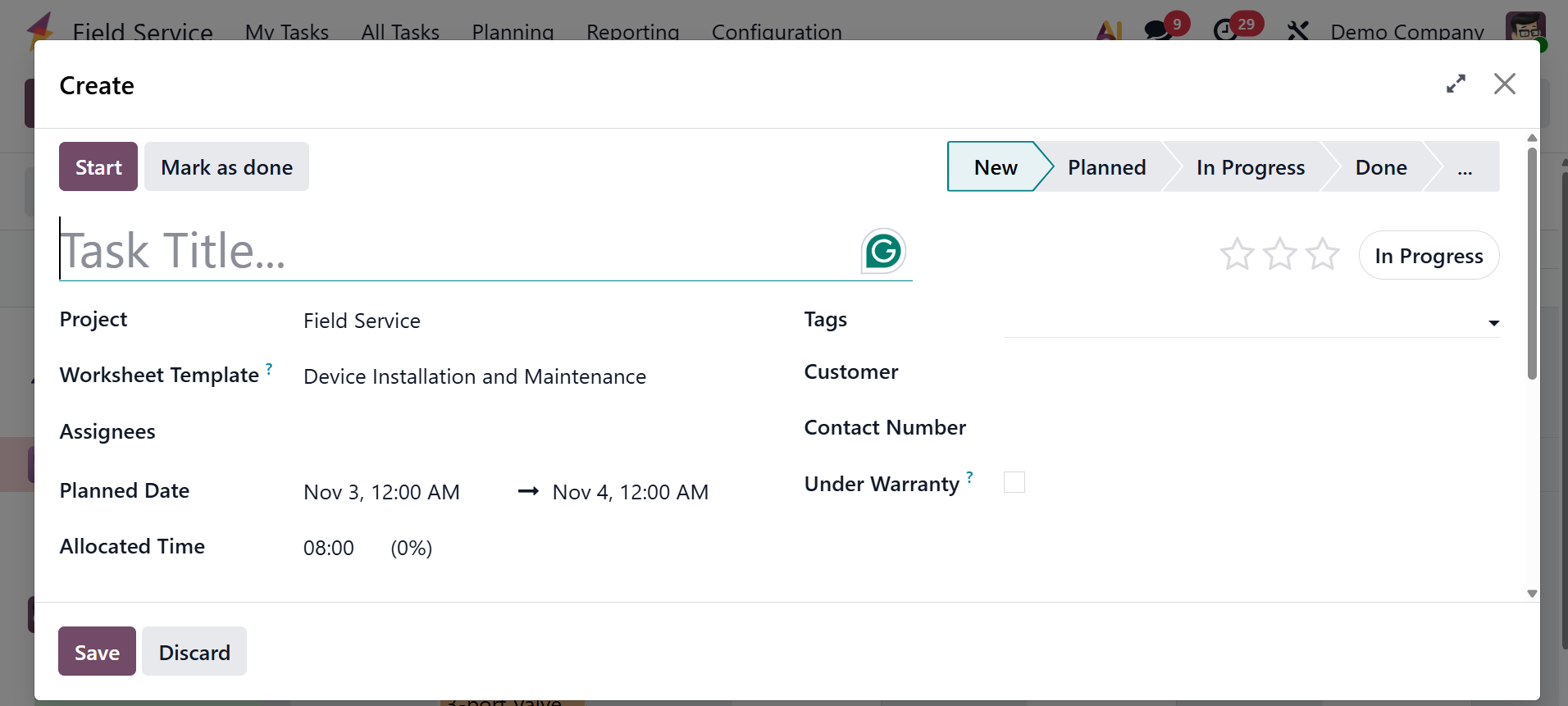
The "New" button or the plus icon on a particular date in the Gantt view can be used to create new task plans. As we covered in the previous part, this will create a new task creation window where you can modify the task details.
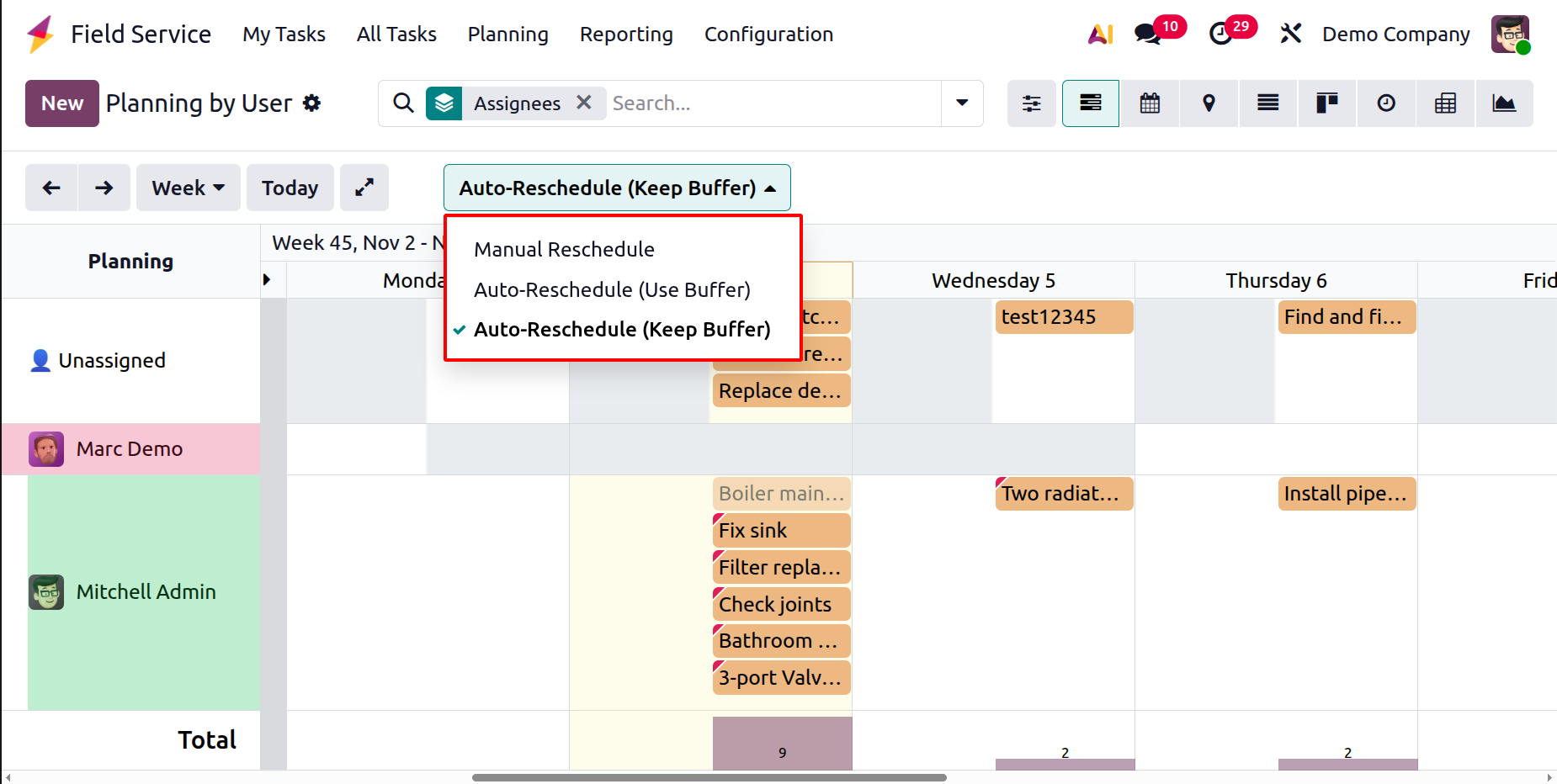
When rescheduling, Odoo field service planning offers the following methods for managing dependent records:
Manual rescheduling: When the schedule of a previous task changes, the user must manually modify each dependent task separately; the system does not automatically make these adjustments.
Auto reschedule (use buffer): Reduces idle time and optimizes the schedule by automatically rescheduling dependent tasks to fill the buffer time (gap) between tasks if the previous task ends earlier.
Auto reschedule (keep buffer): Preserves the appropriate spacing as the schedule changes by automatically moving all dependent task while keeping the initial buffer time or gap duration between them.
1.2 By Project
A centralized Gantt chart view of all planned field tasks, arranged by project, is provided via Odoo 19 Field Service's Planning by Project option. Managers and field service teams can effectively plan, assign, and monitor activities across numerous projects with this visual planning tool. As seen in the example below, users can choose between daily, weekly, or monthly timelines, add filters for more focused views, and drag & drop tasks to postpone or reassign them.
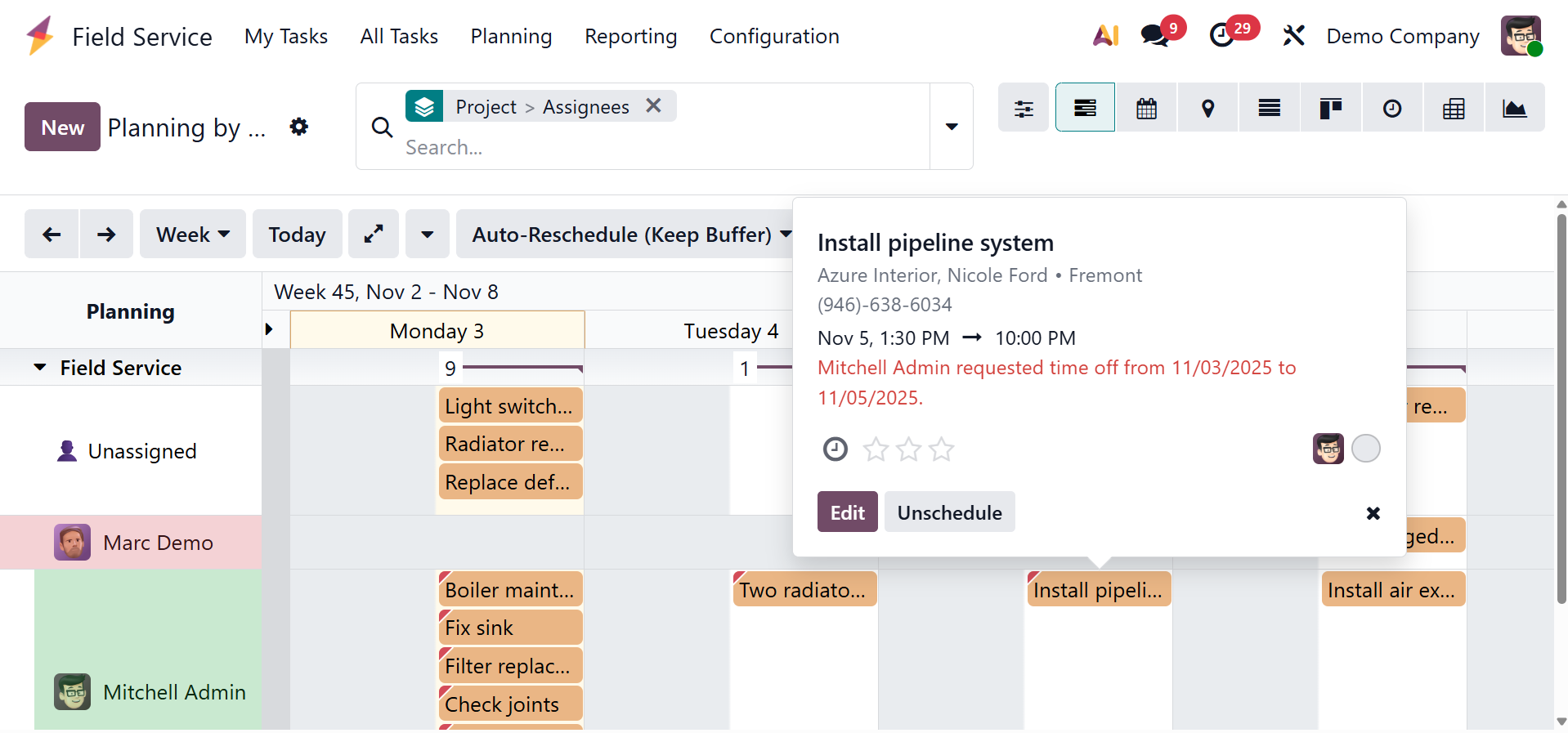
Clicking on a task entry displays the project specifics, such as personnel assignments, durations, and possibilities to instantly change task information, record time, add documents, and change statuses. To create a new plan based on a project, click the "New" button and fill out the form fields as you would when creating a regular field service request.
3.3 By Worksheet Template
The Field Service module of Odoo 19 allows users to schedule and manage Tasks using pre-made worksheet templates through the 'Planning By Worksheet Template' menu. These templates serve as standardized formats with specific forms, checklists, or data fields appropriate for various service tasks.
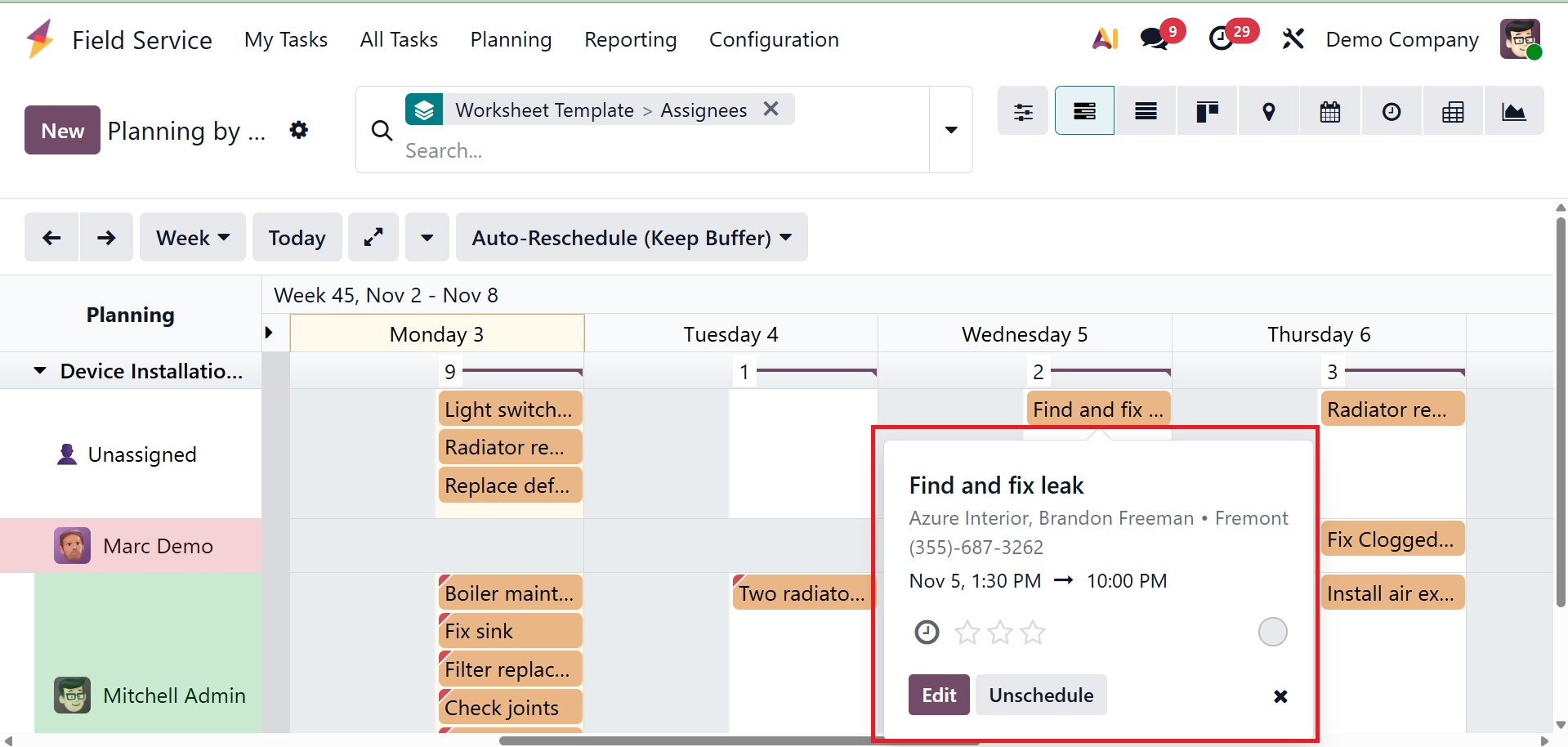
The calendar or Gantt view on the menu makes it easier to schedule and organize tasks, guaranteeing uniformity, better job distribution, and high standards of quality. It helps with scheduling installations, maintenance, or inspections that call for particular documentation and assigning professionals according to service type.
1.4 By Location
Users can view and organize tasks based on their geographic area using the 'Planning By area' menu in Odoo 19's Field Service module. This tool optimizes technician assignments and improves route planning. The calendar or Gantt view that is filtered by the service location allows users to plan, allocate, and change tasks based on the service location.
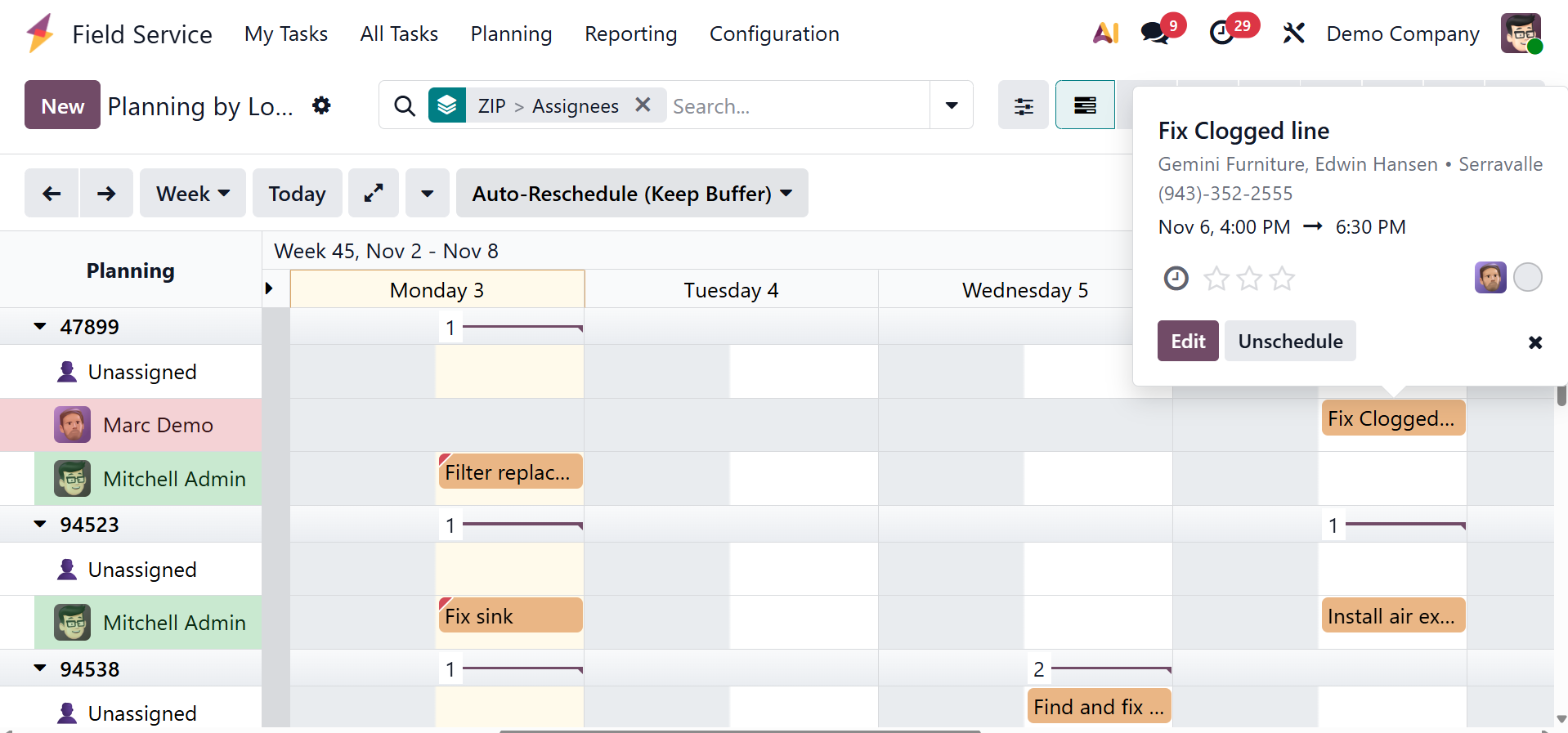
By facilitating task clustering by geography, this planning window reduces travel time and boosts technician productivity. Managing workload distribution among many service zones, effectively planning routes, and assigning numerous service calls to a single technician are examples of use cases.