When working with customers, having a proper customer care system is very important for the steady growth of any business. Excellent customer service should always be the top priority for every organization. Providing high-quality service not only keeps customers happy but also increases the chances of better marketing and sales opportunities. The best way to build a strong and lasting relationship with your clients is by meeting their needs promptly and resolving any problems they face quickly. The advanced Odoo 19 Helpdesk module serves as a complete platform designed for customer support and service management. Using this module, you can efficiently handle all customer inquiries, feedback, and complaints related to your business operations.
Once a customer submits a service ticket, the helpdesk team of your organization can take the necessary actions using this module to resolve the reported problem. In this chapter, we will explore how this module operates and the different features it provides.
1. Helpdesk Overview
When you first activate the module, you will see the main dashboard, as shown in the corresponding screenshot. This area is known as the Helpdesk Overview. It gives you a quick summary of the most important features and performance indicators of the module. From this screen, you can access the My Tickets, Customer Care, My Performance and VIP Support sections, as shown in the screenshot below.
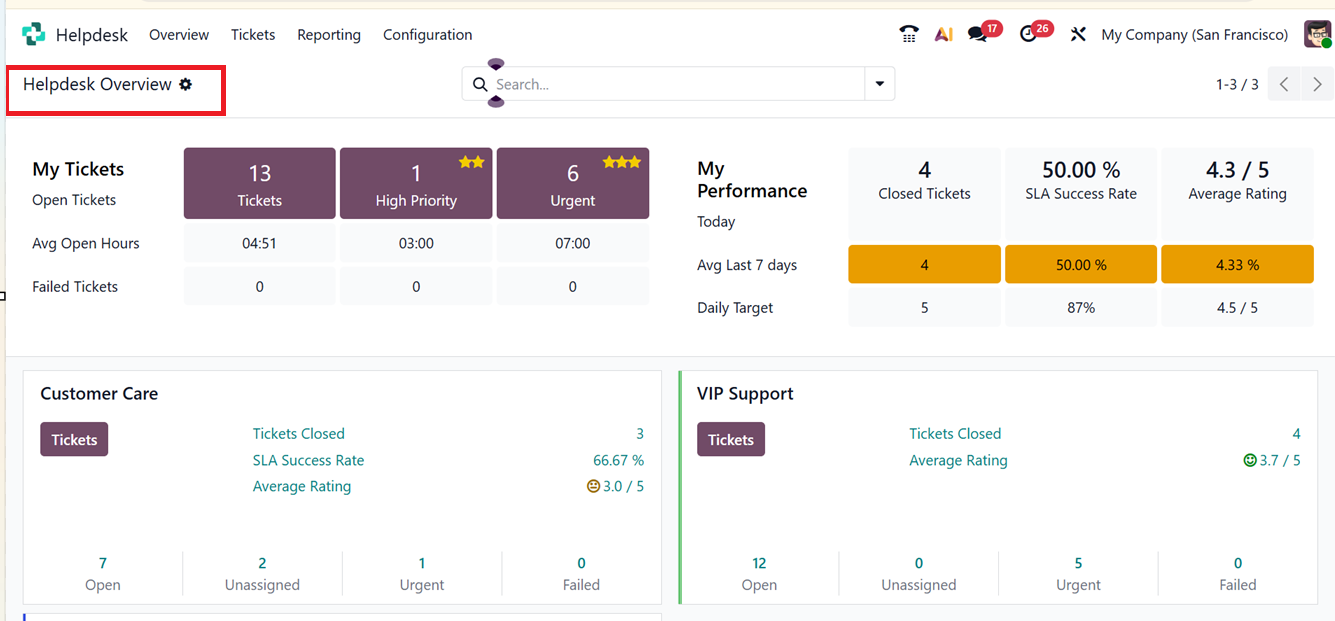
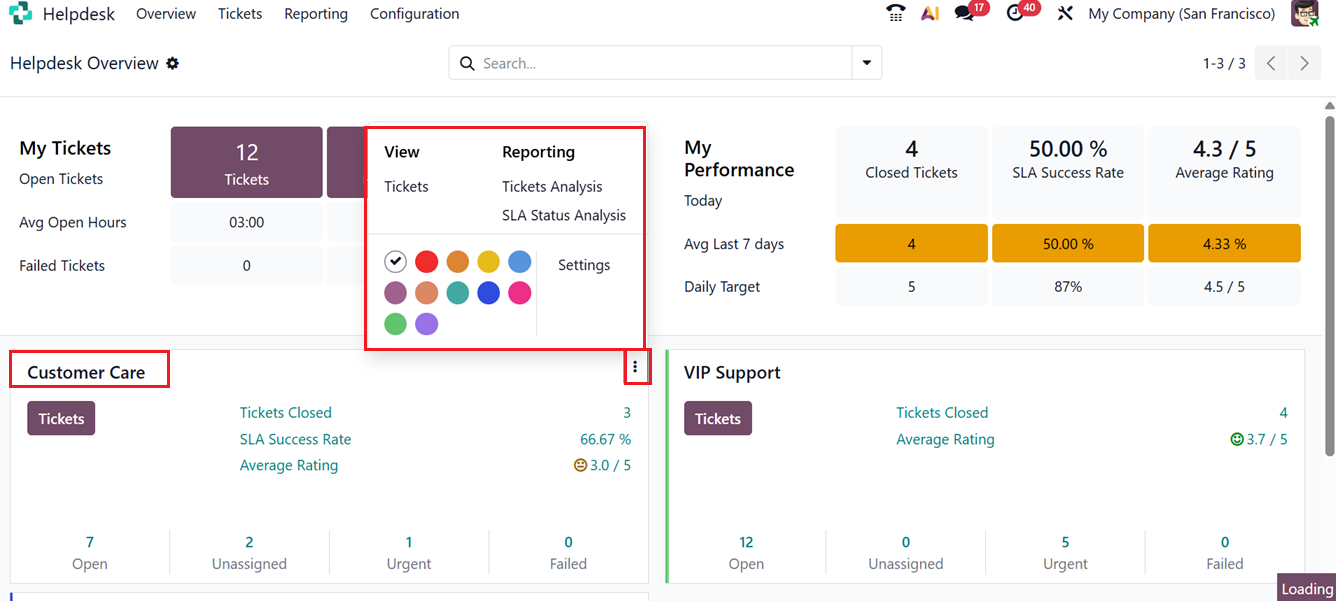
In the My Tickets section, you can view the number of tickets that are currently open, urgent, or marked as high priority. You can also see the average number of hours each ticket has remained open. The section also highlights any tickets that have failed to meet their targets.
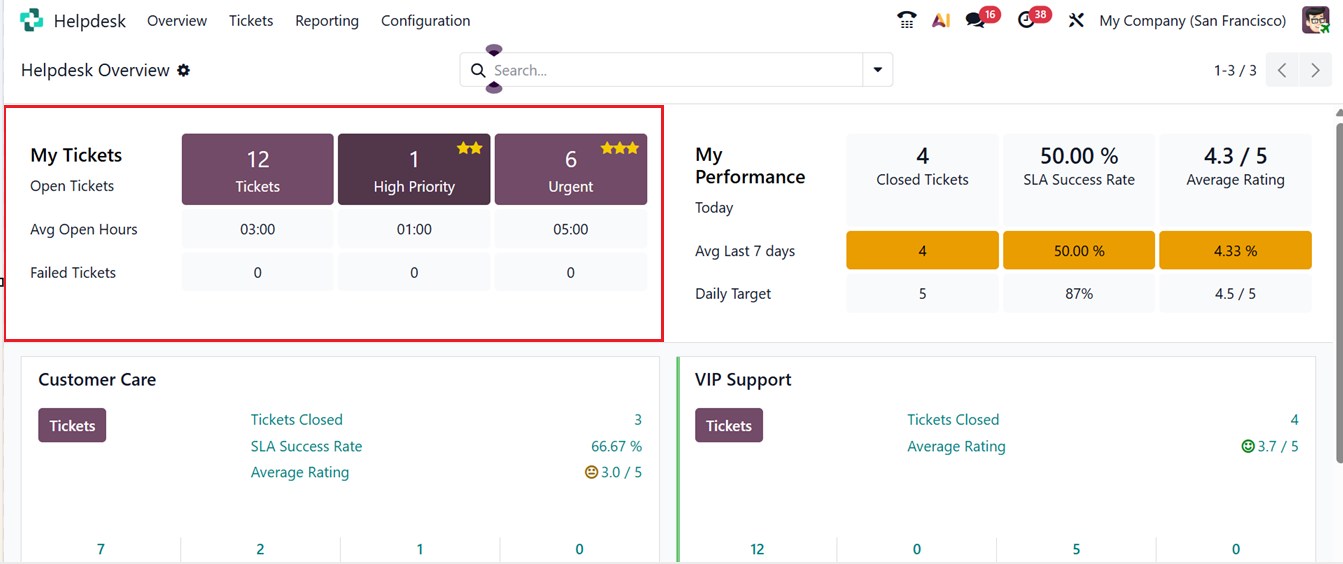
In the My Performance area, you can analyze your overall performance. It provides details such as your average customer rating over the past seven days, the number of closed tickets, and your success rate for the current day. This section also displays your ‘Daily Target,’ helping you monitor whether your goals are being met.
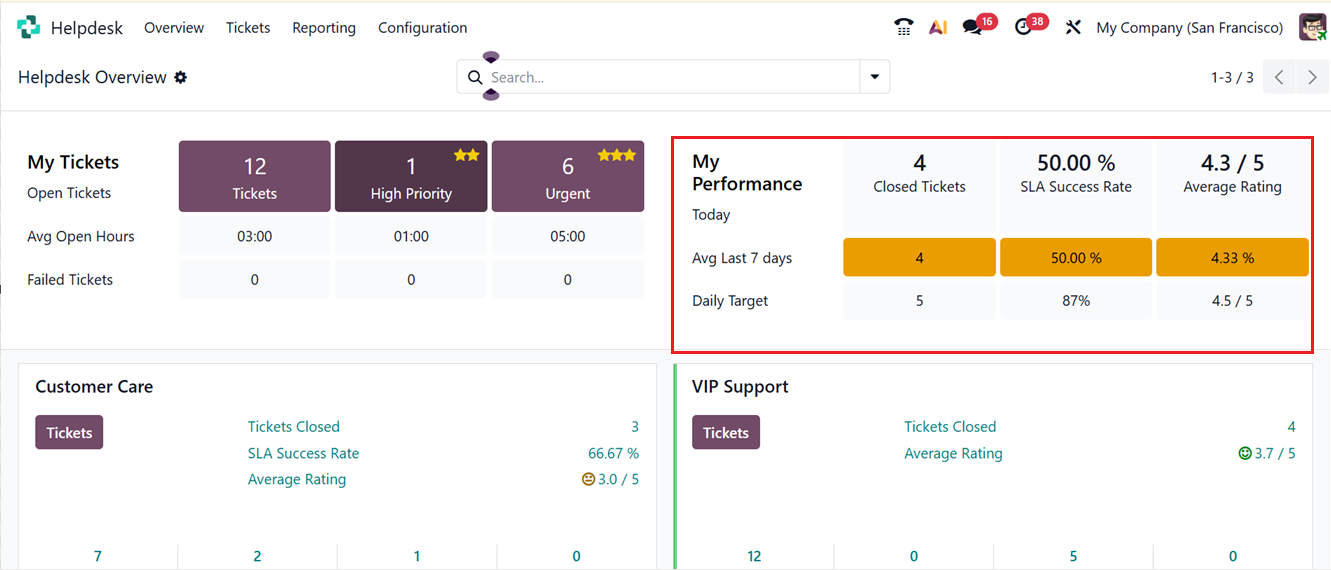
You can refine the displayed data using filters such as Archived or by adding your own Custom Filters. In the Group By menu, you can choose to group data by Company or add a Custom Group of your choice. Within the Odoo Helpdesk module, you can easily create custom filters and groupings by using the “Custom Filter” and “Custom Group” options found in the search view. Then, you can save the recent searches using the ‘Save current search’ option from the ‘Favorites’ section. These tools make it easier to organize and analyze your records based on specific conditions or classifications, as shown in the screenshot below.
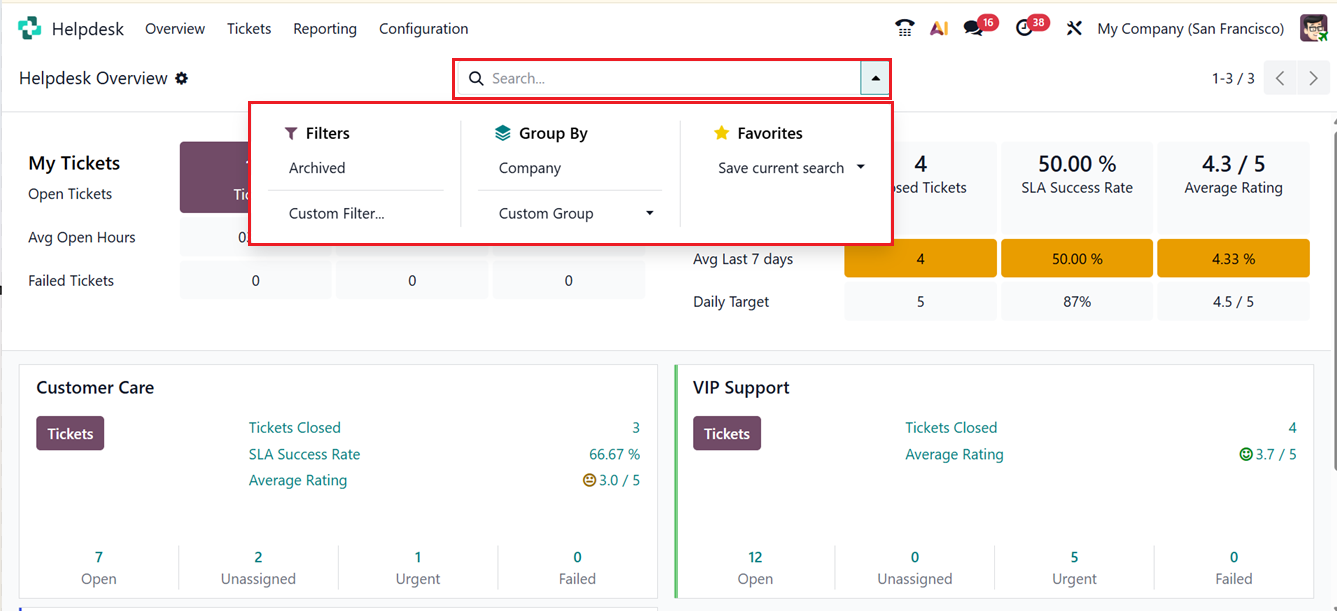
From the dashboard itself, you can also see how your helpdesk teams are set up in your database. Information for each support team is displayed separately. The data shown includes the total number of Open, Completed, Unassigned, Urgent, and Failed tickets, as well as the team’s Ticket Closed, SLA Success Rate and Average Rating. By clicking on the Tickets button on a team card, you can open and review all the tickets assigned to that specific helpdesk team, as shown in the screenshot below.
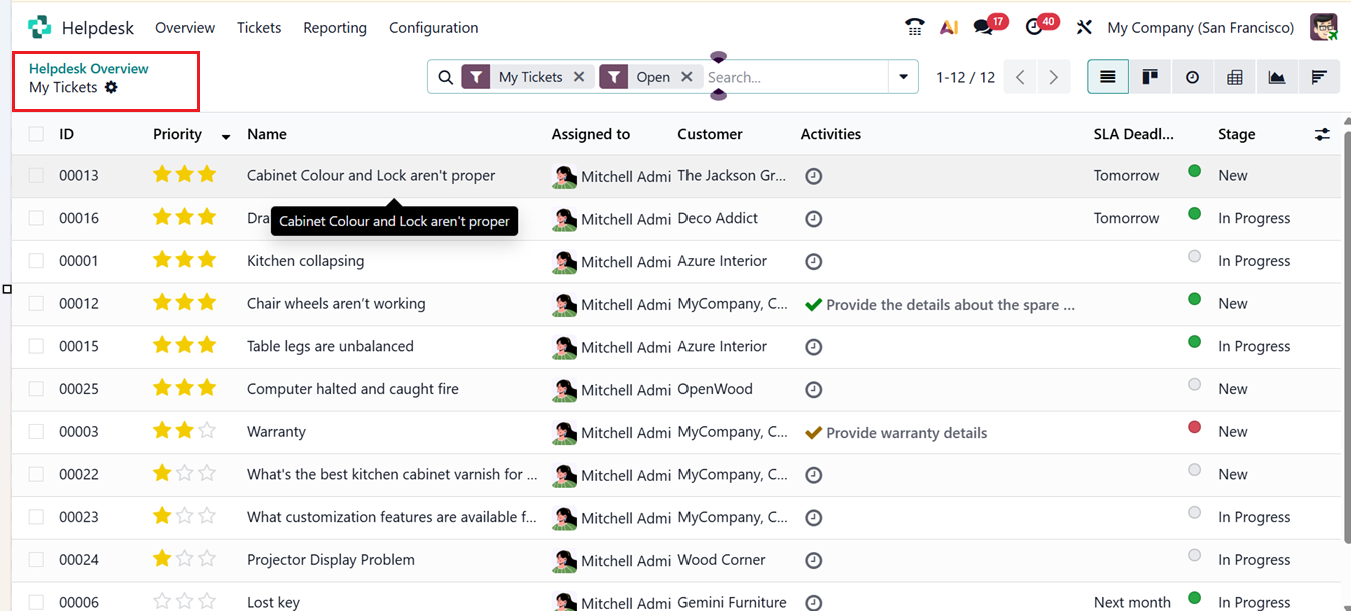
Clicking the three vertical dots in the upper-right corner of a helpdesk team card opens a new menu. This menu provides different viewing options. For example, you can select the View Tickets option to see ticket details or choose Reporting to access the SLA Status Analysis and Ticket Analysis features. These options allow you to review how well the helpdesk system is functioning, as depicted in the screenshot below.
Overall, this dashboard gives you a clear, summarized view of your helpdesk activities and serves as a central hub to manage your customer service operations effectively.