The Accounting module in Odoo 19 Enterprise has been carefully upgraded to make financial management simpler, faster, and more efficient for businesses of every scale. Whether you run a small business, a growing company, or a large organization, Odoo 19’s fully integrated accounting system helps you manage all your financial operations in one place. It automates core accounting tasks, ensures accuracy in reporting, and provides real-time insights into your company’s financial health.
With improved speed, an intuitive interface, and enhanced compliance features, Odoo 19 takes financial management to the next level. The module supports all major accounting functions such as accounts receivable and payable, bank reconciliation, journal entries, budgeting, asset management, tax computation, and analytic accounting. What truly sets Odoo 19 apart is its interactive Accounting Dashboard, offering a clear and detailed view of your company’s finances. You can now track key performance indicators (KPIs), visualize reports through dynamic charts, and access smart widgets that provide quick actions for common tasks, all from one unified screen.
The Accounting module in Odoo 19 works seamlessly with other Odoo applications like Sales, Purchase, Inventory, POS, and Payroll, ensuring that all financial data flows automatically between modules. For instance, when you confirm a sales order or validate a vendor bill, the corresponding journal entries are instantly created in the accounting system. This level of automation minimizes manual work, reduces the chance of human error, and keeps your books accurate at all times. Every financial transaction is automatically tracked and reflected across the system, making Odoo 19 a powerful tool for real-time decision-making.
When you open the Odoo 19 Accounting module from the main dashboard, you are welcomed by the new Accounting Dashboard. This serves as the central control panel for all your accounting activities, offering a clean and structured overview of your company’s financial data.
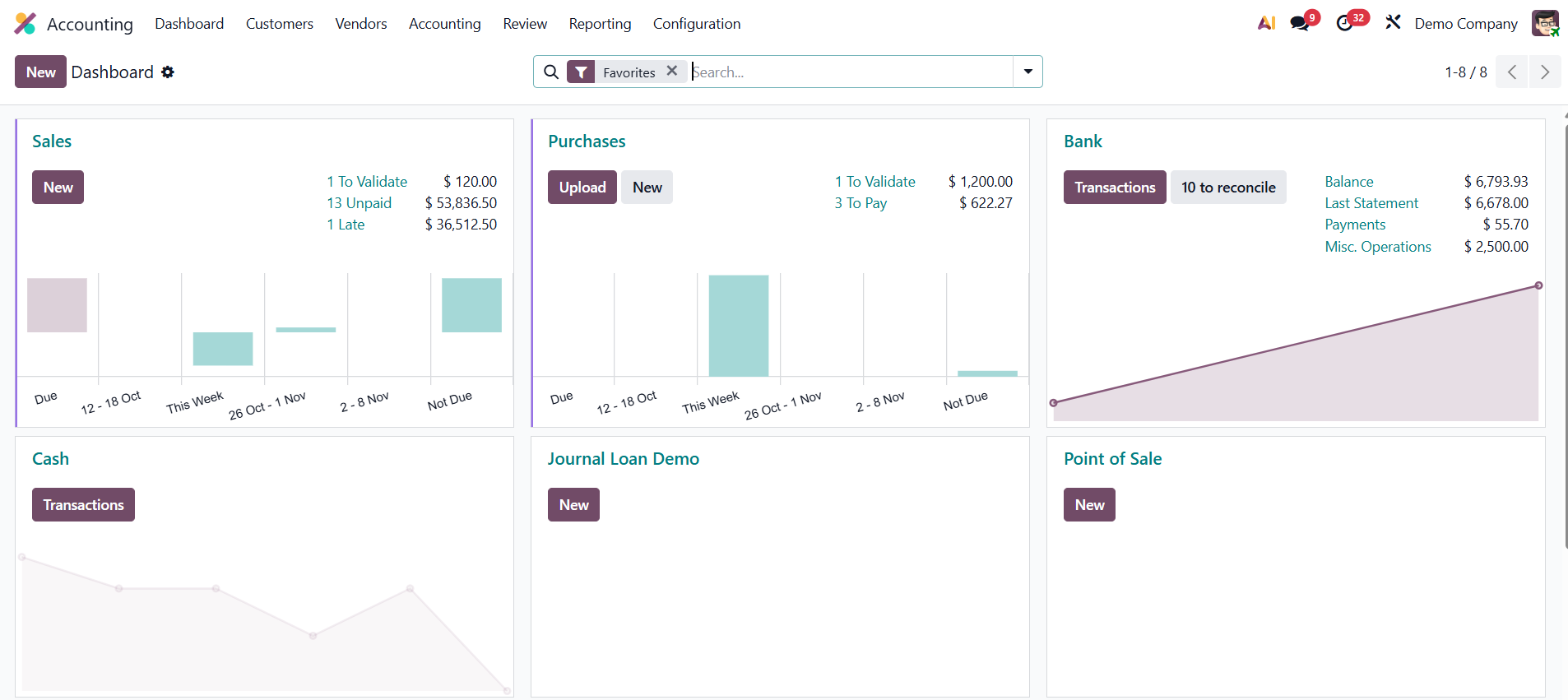
The dashboard is designed to simplify navigation and quick access. It displays the journals, such as Customer Invoices, Vendor Bills, Bank Transactions, Point of Sale, Payroll, and Miscellaneous Operations, in an organized manner. Each journal card on the dashboard includes quick action buttons and smart menus that let you manage entries, create new records, or analyze data instantly.
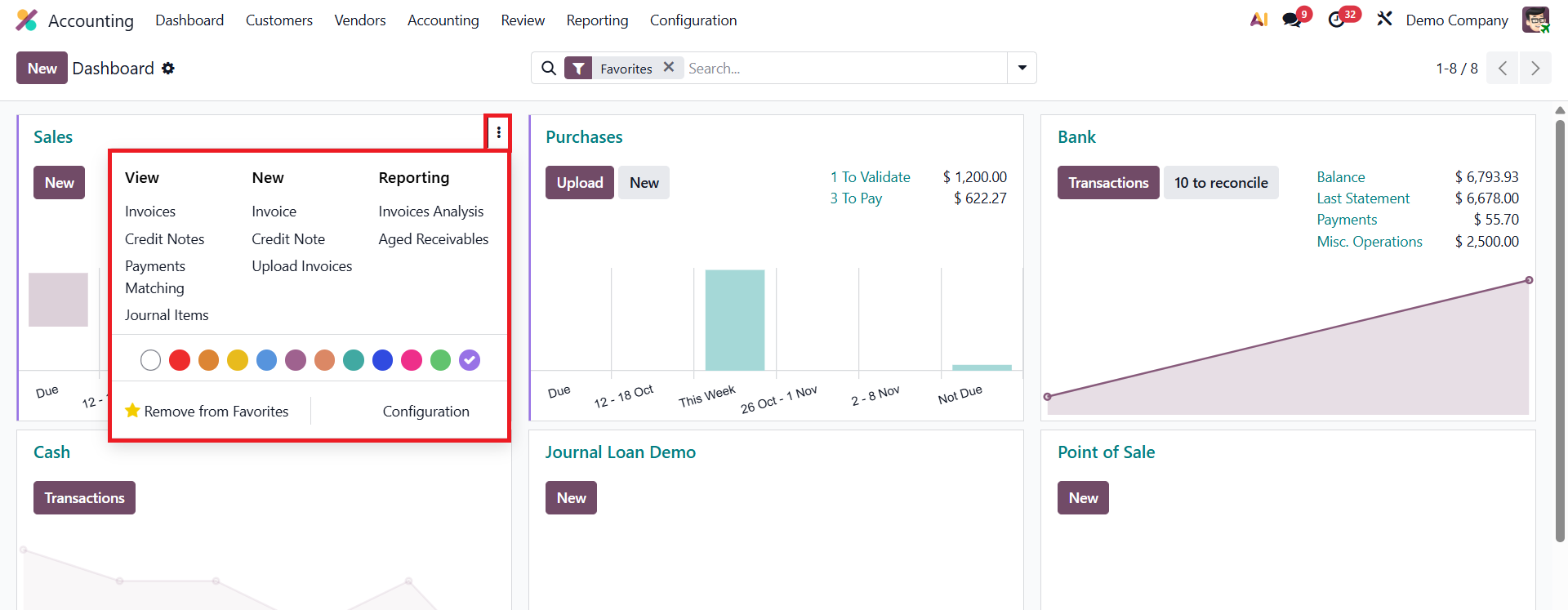
For example, within the Sales journal, you can quickly access:
- Invoices – View, create, and manage all customer invoices.
- Credit Notes – Handle returns or corrections easily.
- Payments Matching – Reconcile payments with invoices automatically.
- Journal Items – Review detailed accounting entries for transparency.
The “New” button allows you to create or upload invoices and credit notes effortlessly. You can also generate important financial reports, such as Aged Receivables and Invoice Analysis, directly from this section.
From the Accounting Dashboard, users can manage all bills, refunds, and journal entries directly.
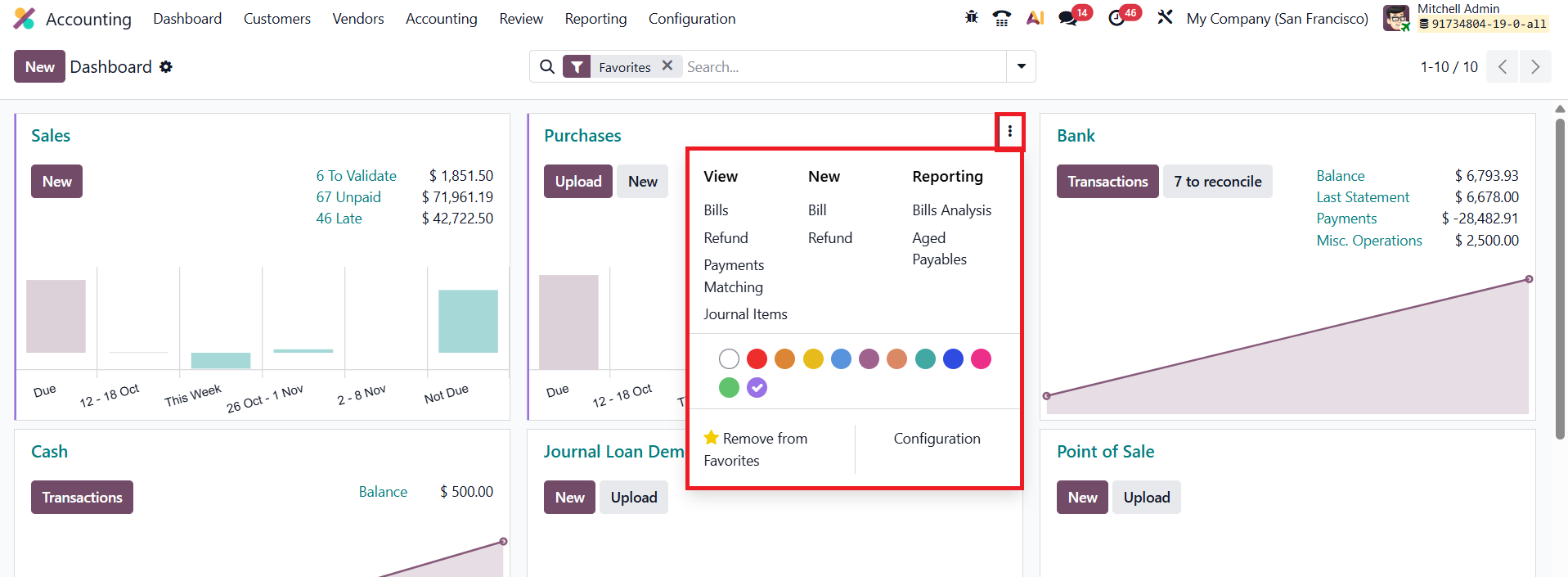
The New button offers quick access to Create Bill or Vendor Refund options. For performance tracking and analysis, Odoo 19 includes built-in Bills Analysis and Aged Payables reports, helping businesses monitor outstanding liabilities and vendor payment timelines. The Payment Matching feature assists in reconciling vendor bills with corresponding bank statements or purchase orders, ensuring accuracy in accounts payable.
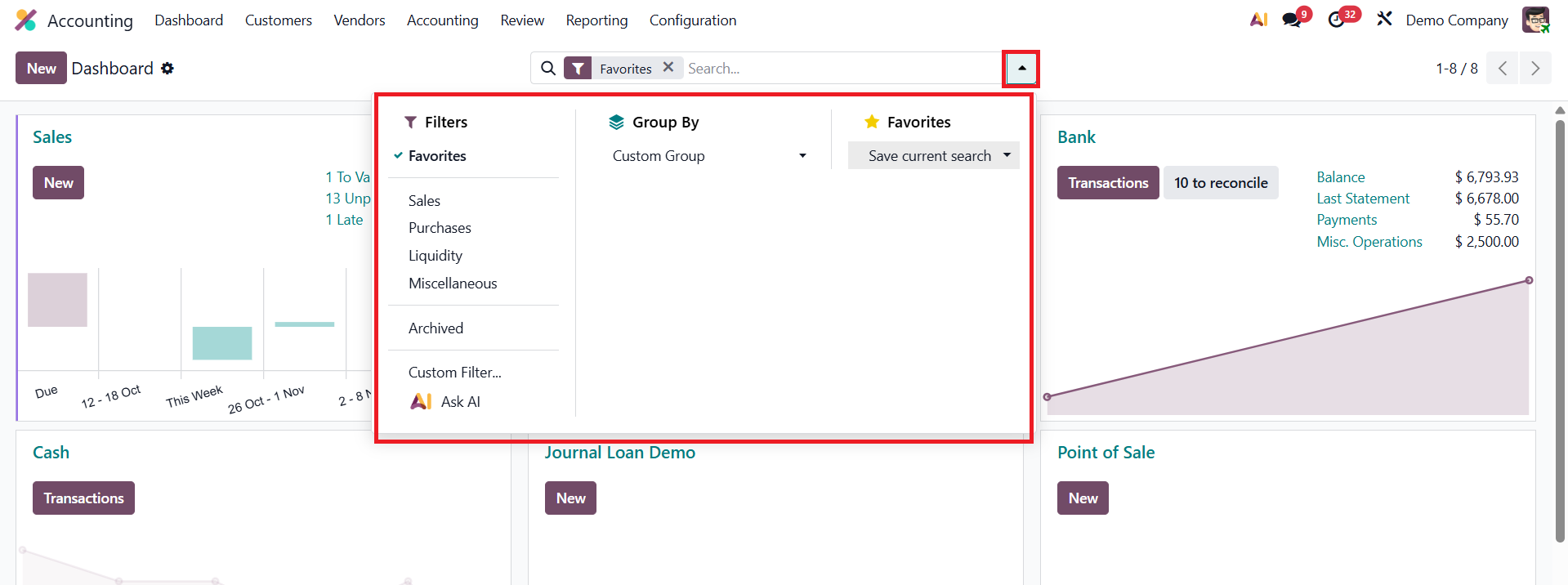
Odoo 19 has further refined its filtering and grouping options, helping users organize and view financial data the way they prefer. The dashboard includes default filters like Favorites, Sales, Purchases, Liquidity, Miscellaneous, and Archived, and you can create your own custom filters or group entries based on specific parameters.
There are Tax Returns in the Accounting Dashboard.
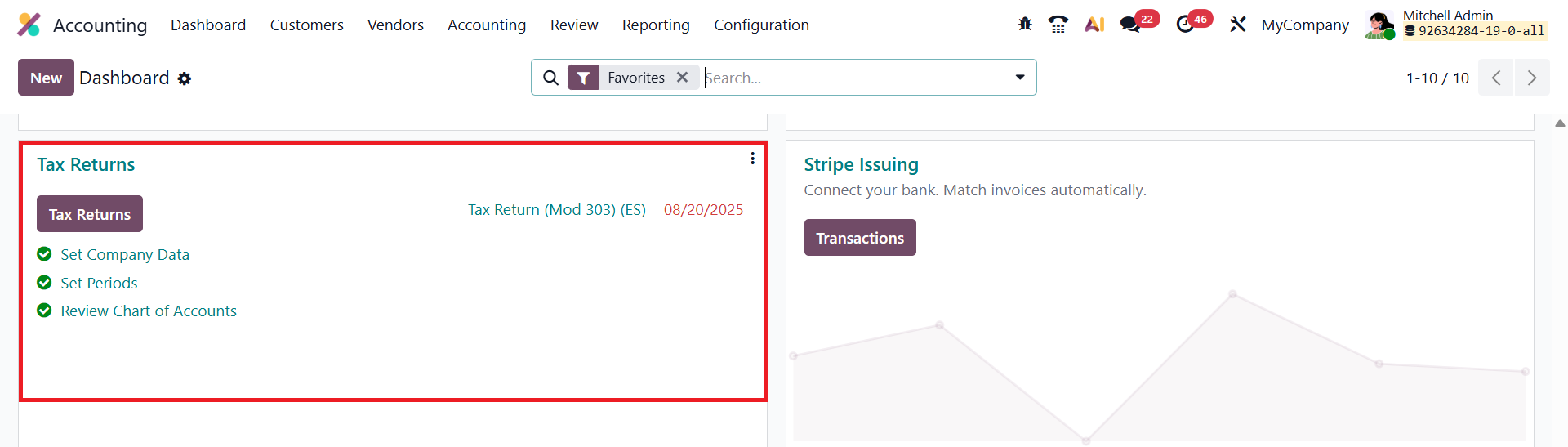
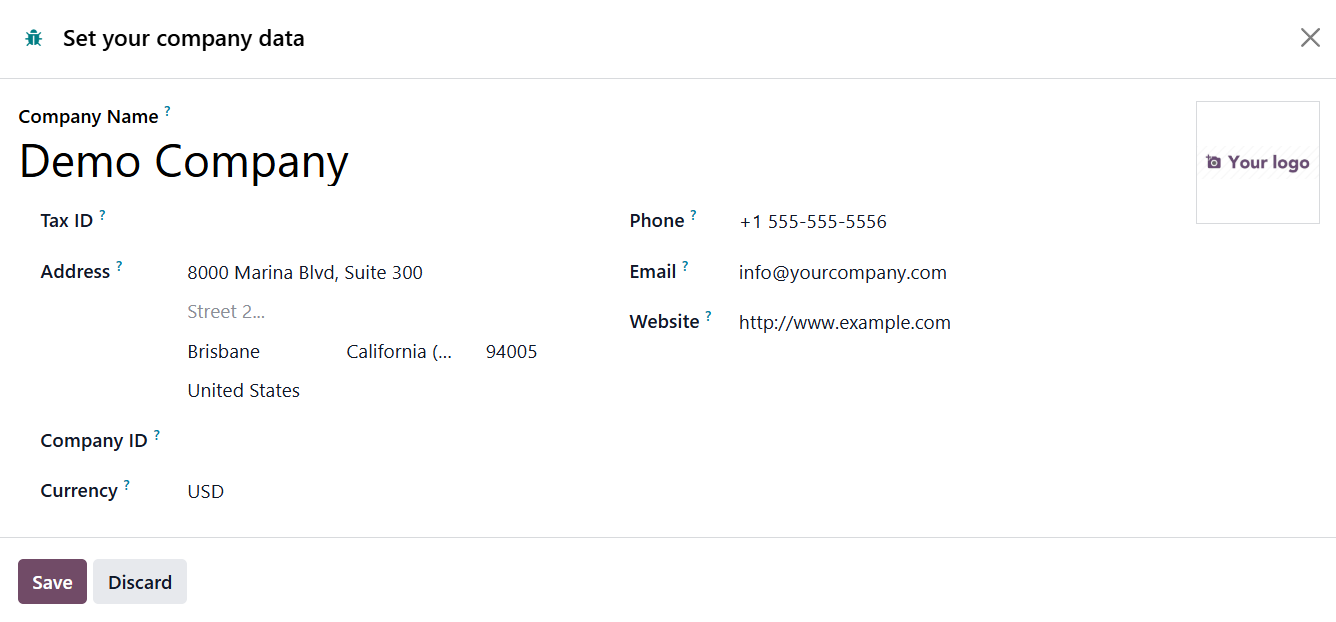
First, click Set Company Data to configure the essential details of your organization, such as the registered business name, office address, VAT number, and other tax-related information required for accurate reporting.
Once the company information is set, proceed by selecting Set Periods to access the Accounting Periods configuration window.
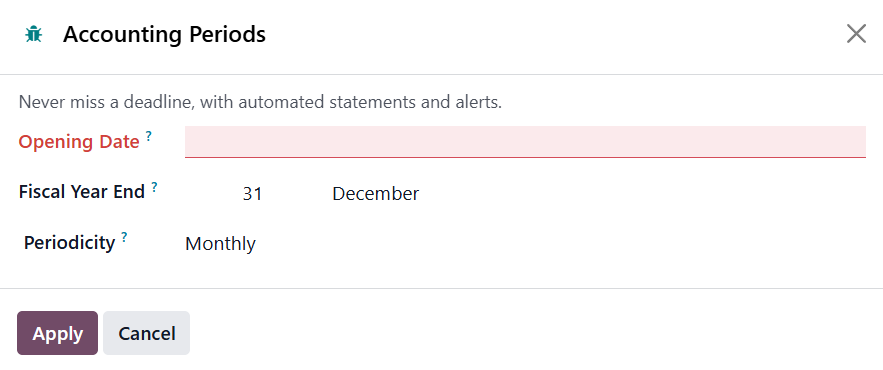
In this section, define the Opening Date and the Fiscal Year End, which together establish the start and end of your company’s financial cycle. You can also review and adjust the Periodicity setting to specify how frequently tax returns should be generated, choosing between monthly or quarterly filing based on your statutory compliance needs.
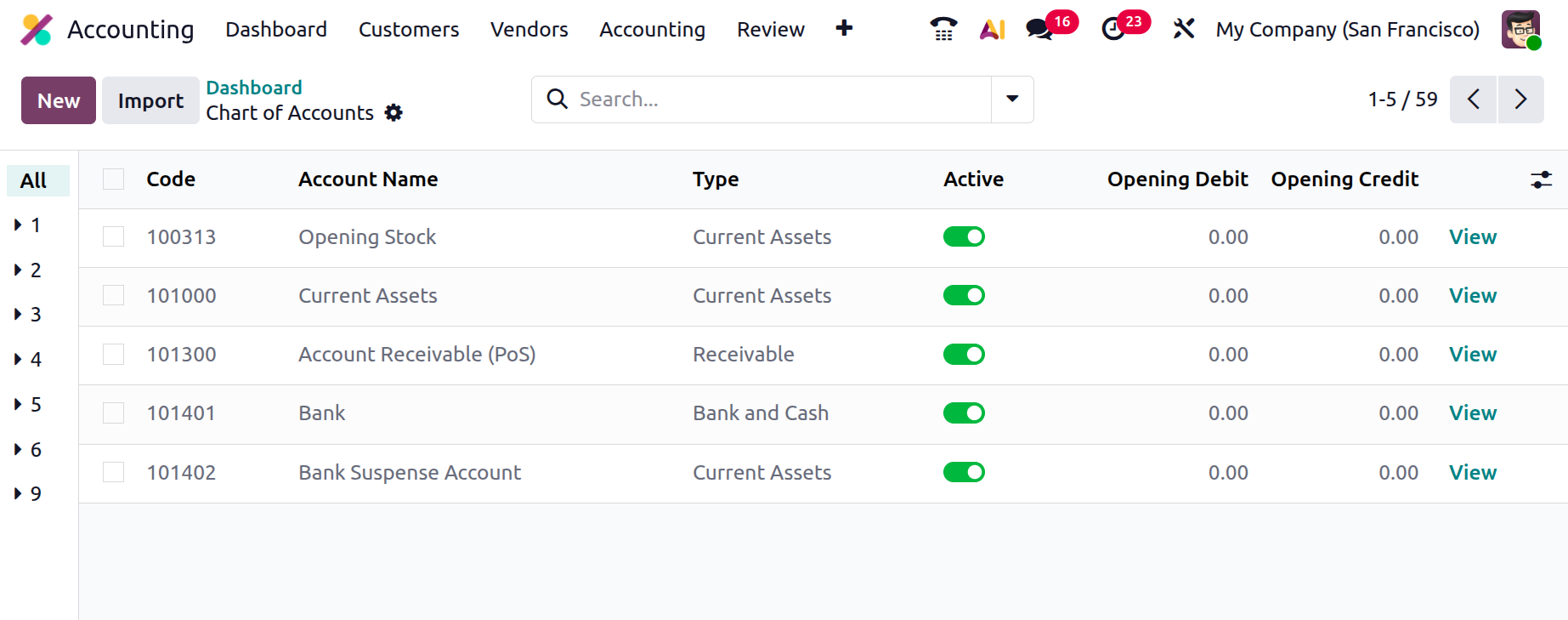
Finally, click the Review Chart of Accounts to ensure that all accounts are logically structured and correctly categorized according to your accounting standards. When reviewing the Chart of Accounts, you also have the option to enter Opening Balances for individual accounts. This is particularly useful during initial setup or when migrating from another accounting system, as it allows you to record the existing financial position of the company, including balances of assets, liabilities, and equity accounts, ensuring continuity and accuracy in financial reporting from day one.
Odoo 19 Accounting brings together everything a modern business needs to maintain financial stability, ensure compliance, and achieve long-term success.