Assets
In Odoo 19 Accounting, the Asset Management feature has been further enhanced to deliver a more streamlined and intelligent way of tracking, depreciating, and managing long-term business assets. The module offers an advanced structure for handling fixed assets, which represent resources that contribute to business operations over several years but gradually lose value through depreciation. Odoo 19 introduces improved automation, better control over depreciation schedules, and more flexibility in asset configuration, making financial tracking both transparent and efficient.
Asset management begins with the creation of Asset Models, accessible through the Configuration menu.
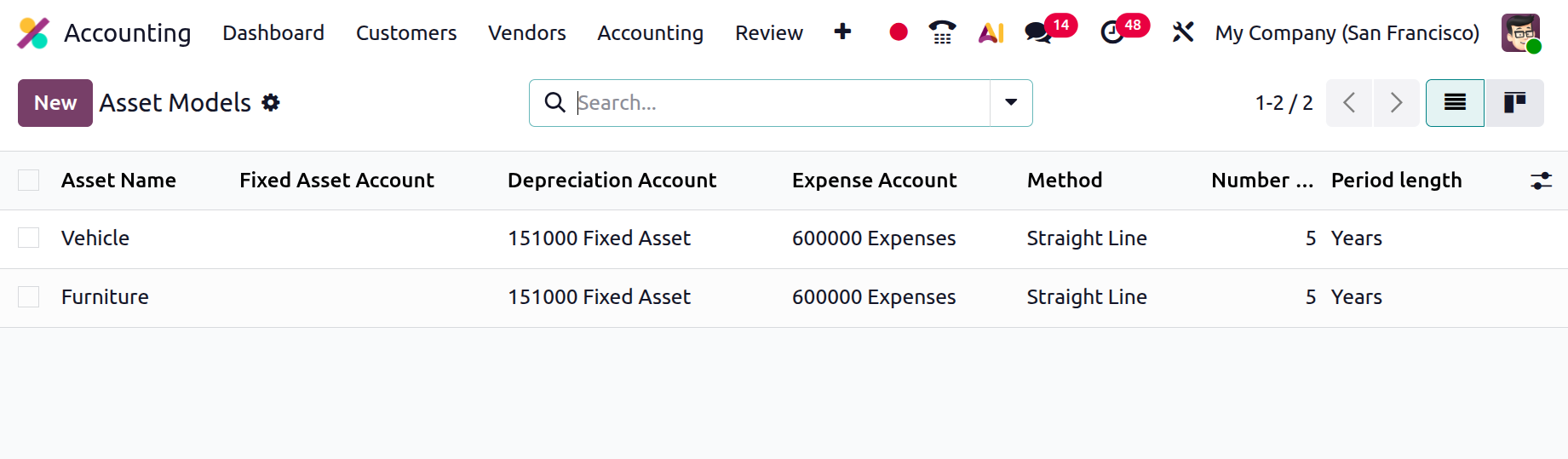
These models function as predefined templates that determine how each asset will behave in terms of depreciation, accounting treatment, and reporting.
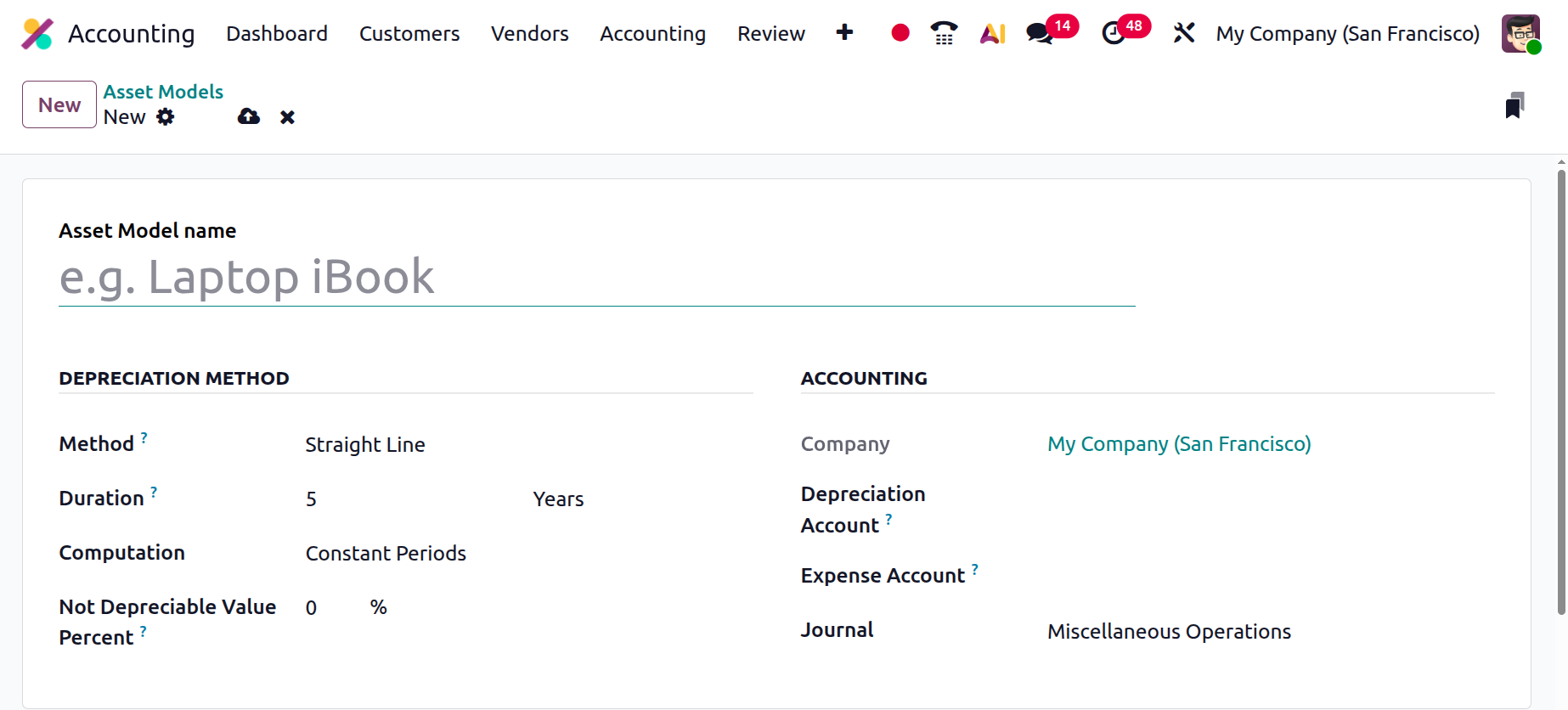
Within an asset model, users can define parameters such as the Asset Model Name, Depreciation Account, Expense Account, Depreciation Method, Number of Depreciations, and Duration. The Journal field allows linking to a specific accounting journal where all related depreciation entries will be recorded. This structured model-based approach ensures consistency and automation across all assets categorized under the same model.
Odoo 19 continues to support the three core depreciation methods, Straight Line, Declining Balance, and Declining then Straight Line.
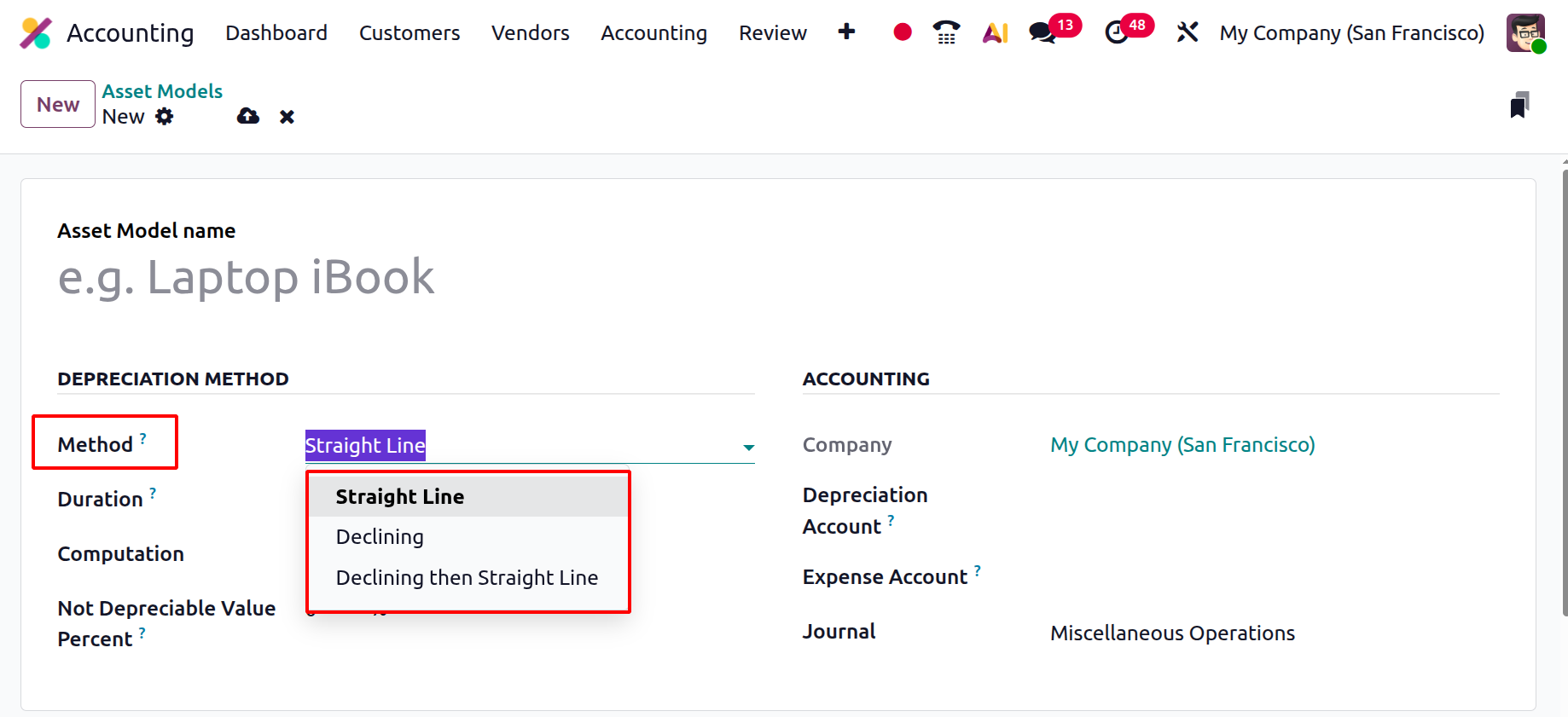
The Straight Line method spreads the asset’s cost evenly throughout its useful life, ensuring predictable expense recognition. The Declining Balance method applies a fixed percentage of depreciation on the remaining book value, producing higher depreciation expenses during the early years of the asset’s life. Meanwhile, the Declining then Straight Line method offers a hybrid approach, switching to the straight-line method once it becomes more beneficial, thus combining early high depreciation with later stability.
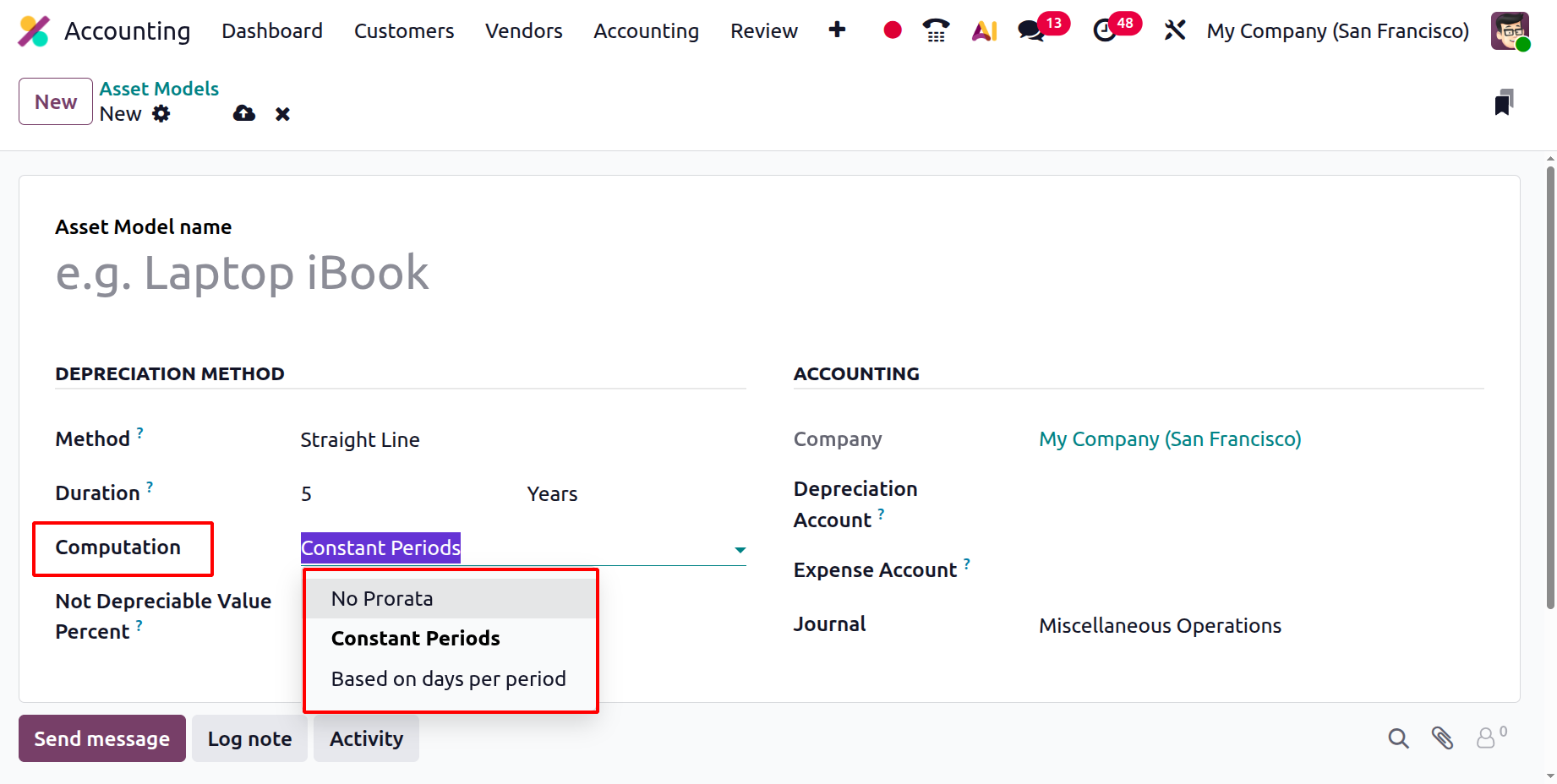
The system also provides the flexibility to define how often depreciation should occur and to choose whether it follows Constant Periods, excludes pro-rata calculations, or adjusts dynamically based on the actual number of days within each accounting period.
Another significant improvement in Odoo 19 is the seamless automation of asset creation and validation directly from the Chart of Accounts.
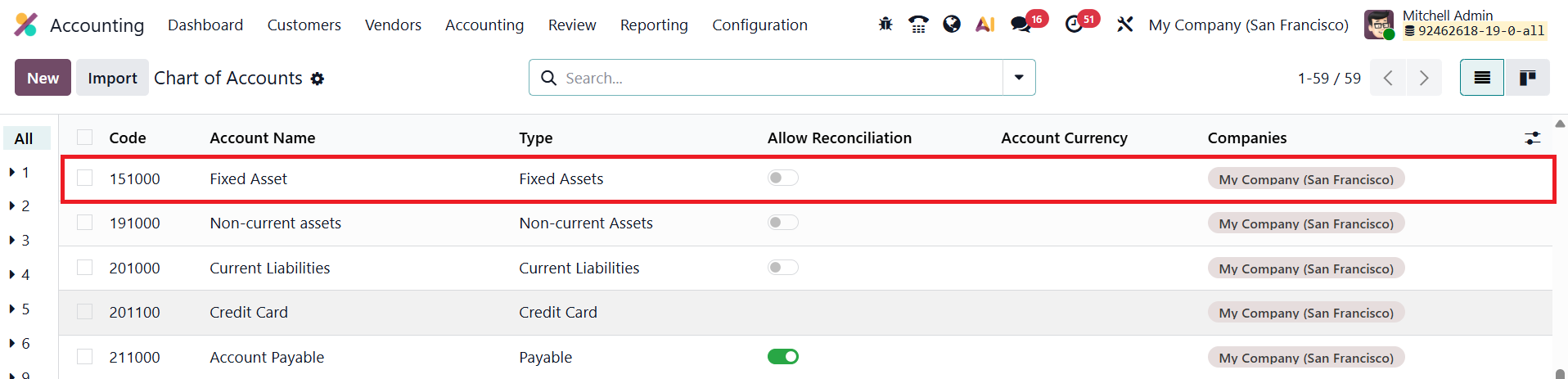
You can select the required account from the Chart of Accounts and enable the Automate Asset option available under the Automation tab as shown below.
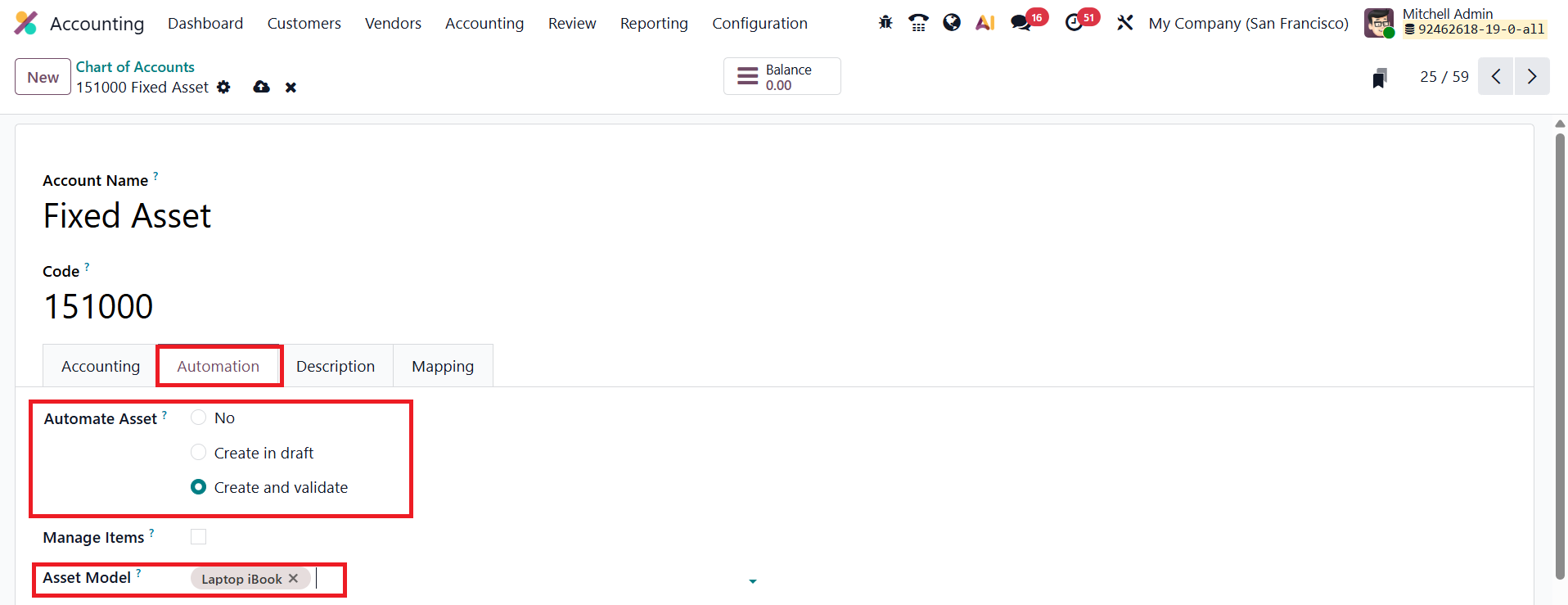
When you assign an Asset Model to a specific account, the system automatically generates and validates an asset record whenever a vendor bill is posted to that account. For instance, when a bill for office equipment is confirmed under an account linked to an asset model, Odoo 19 instantly creates an asset entry and marks it as active.
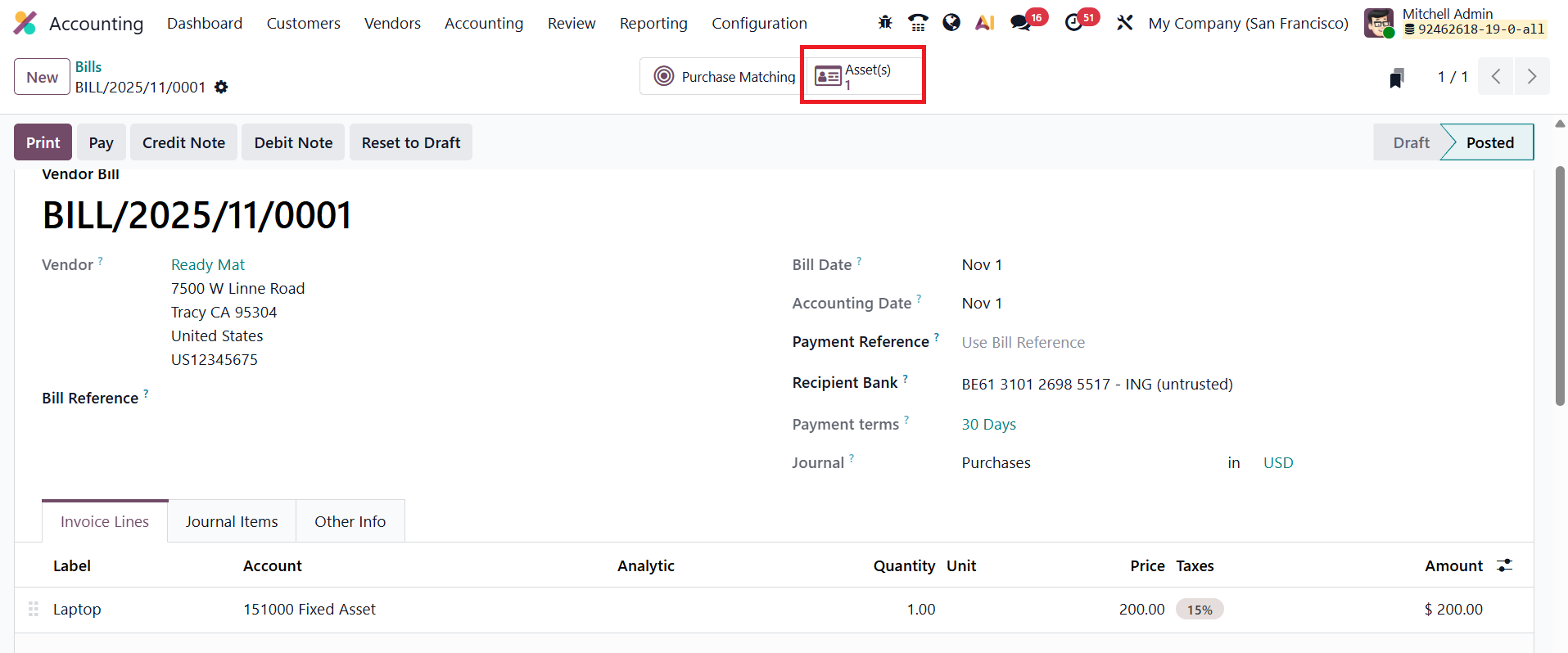
The Asset smart button on the vendor bill provides instant access to the corresponding asset record, saving time and ensuring that all fixed asset purchases are properly tracked.
Each Asset Record in Odoo 19 provides an in-depth overview of the asset’s lifecycle, starting from acquisition to depreciation and disposal.
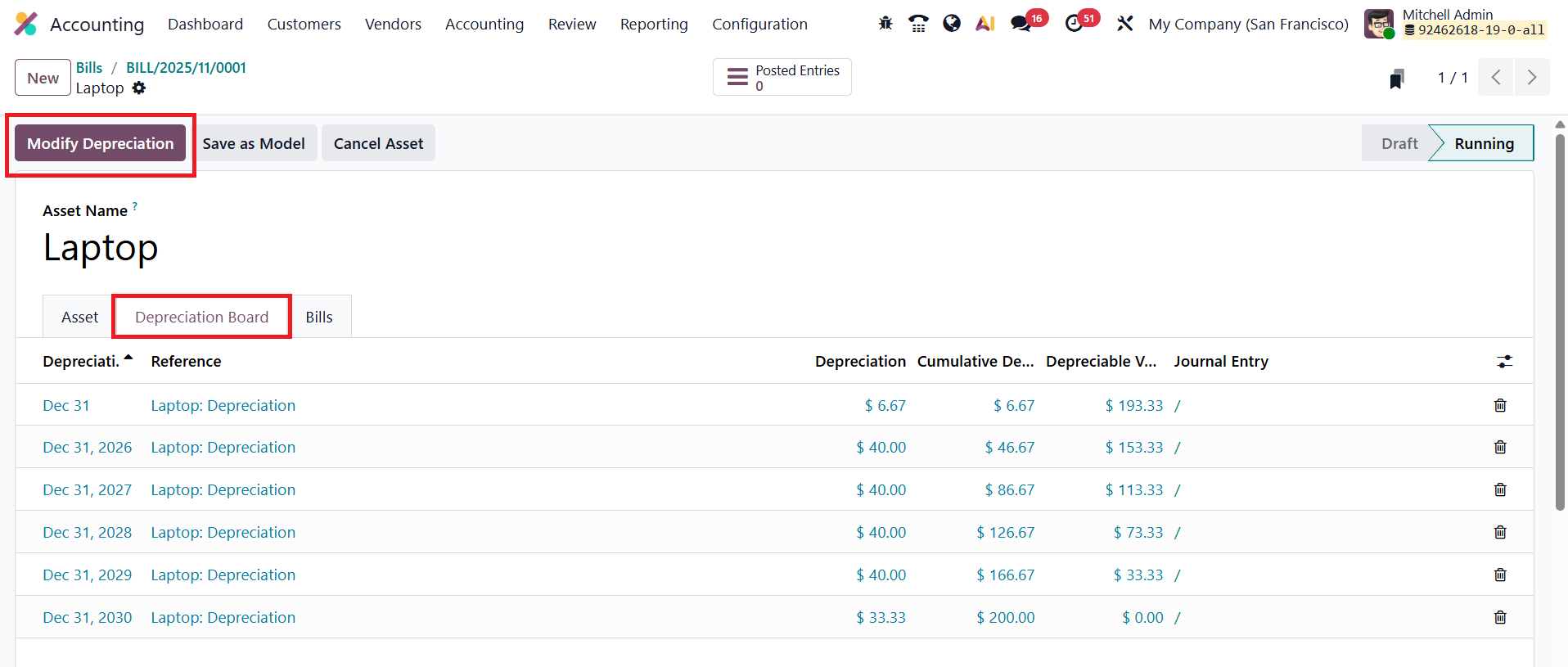
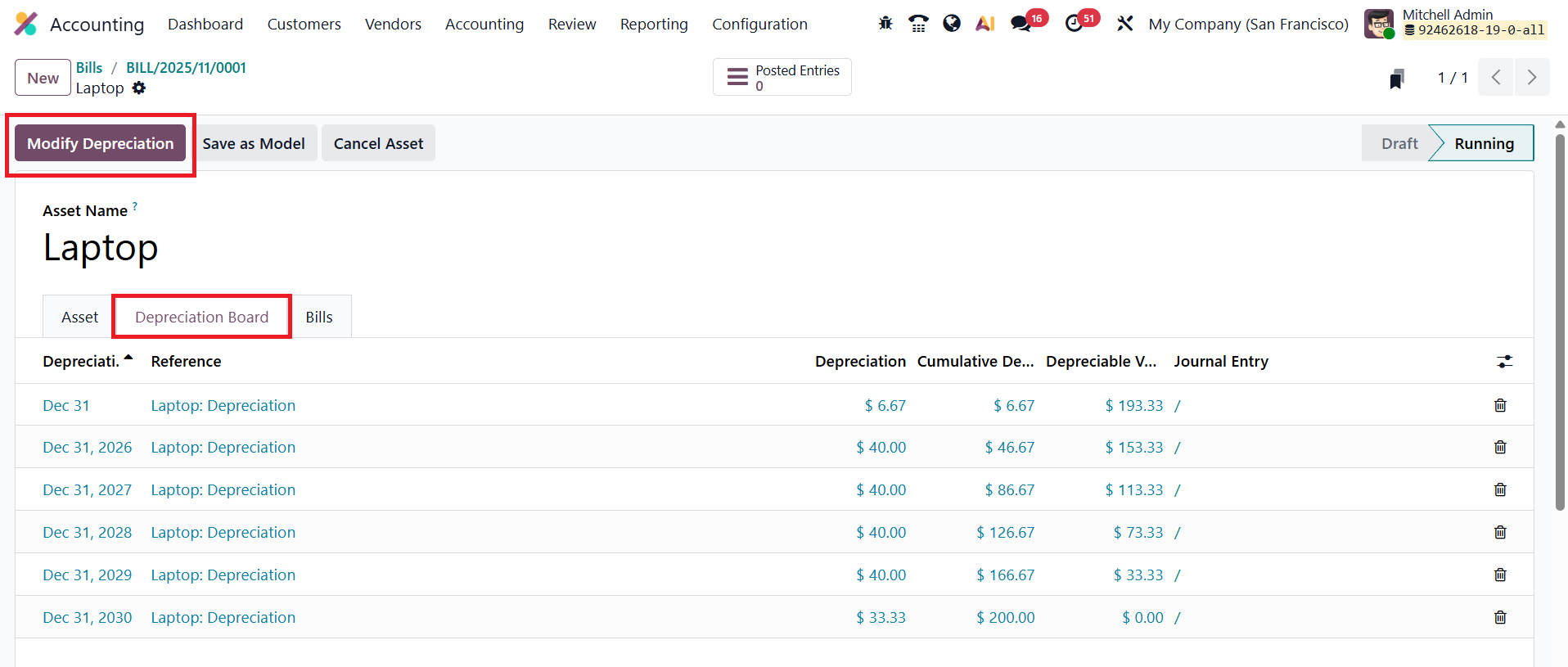
When opening an individual asset, users can access several tabs, including the Depreciation Board, which presents a complete schedule of all planned depreciation entries. The Modify Depreciation button allows users to make changes mid-life, such as reevaluating, pausing, or disposing of an asset.
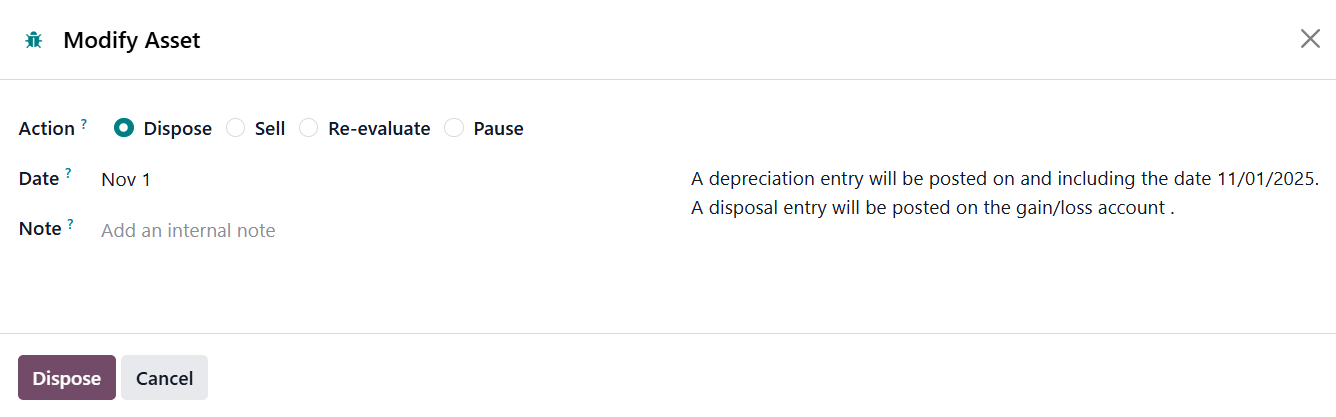
For Asset Re-evaluate, Odoo 19 provides the flexibility to increase or decrease the asset’s value while maintaining a clear audit trail.
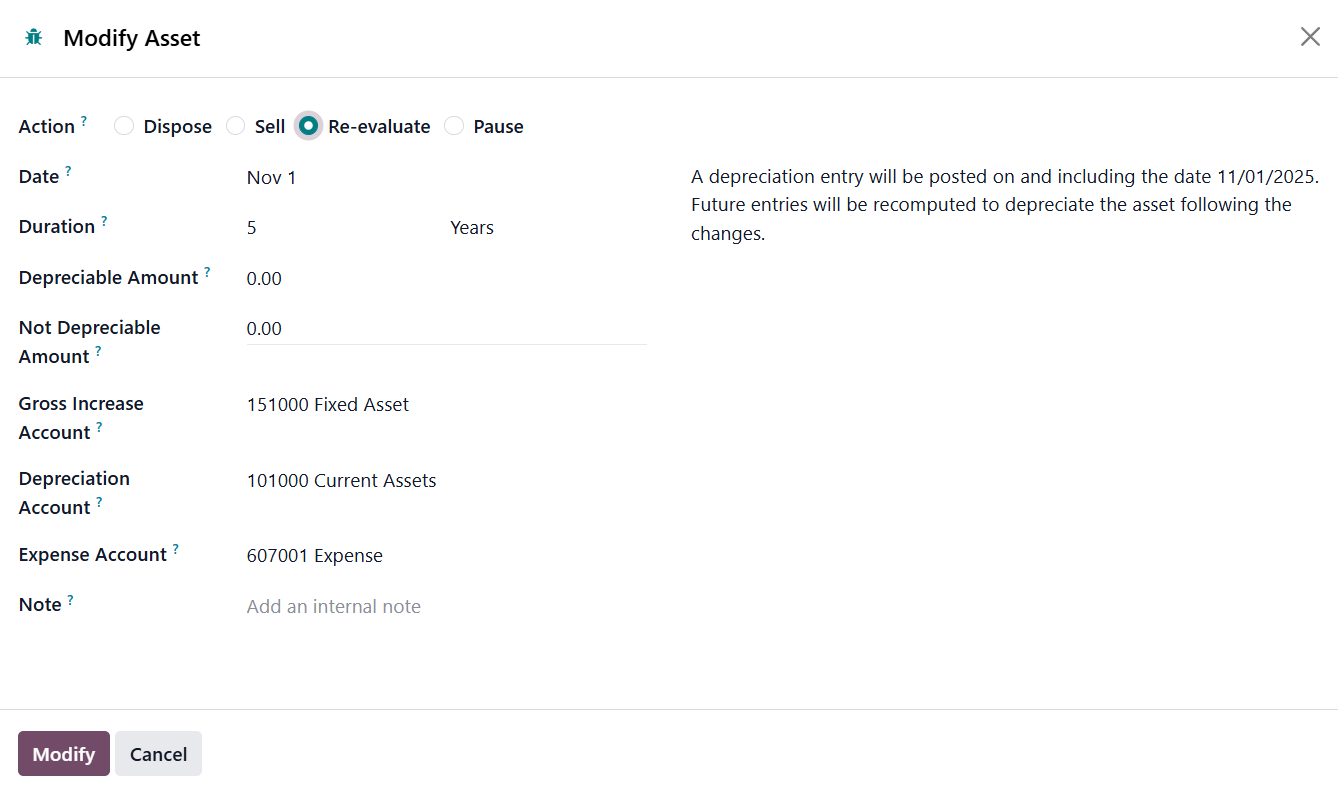
Users can adjust both depreciable and non-depreciable values, select relevant accounts like the Gross Increase Account, Depreciation Account and Expense Account, and have the system automatically update depreciation schedules to reflect the changes.
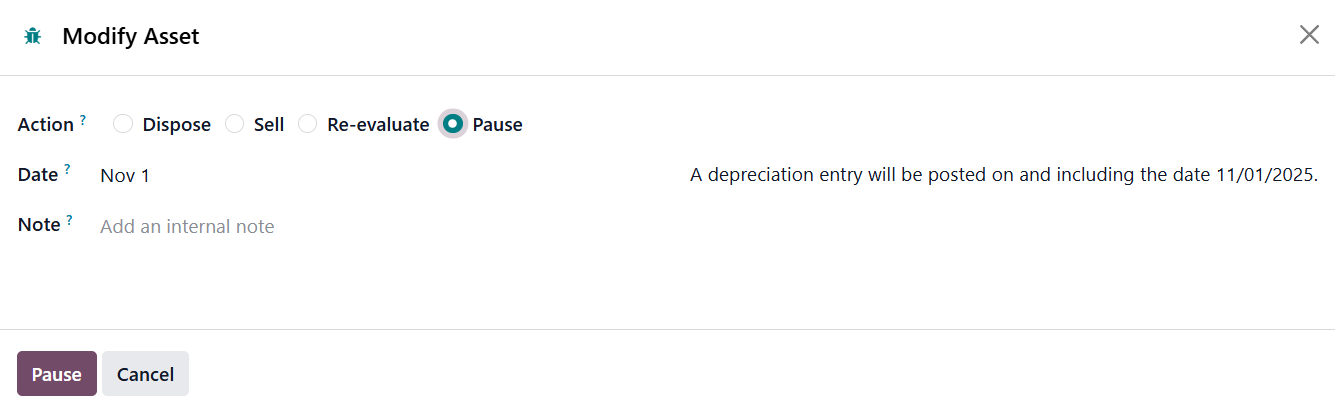
In the case of Disposal, the system allows entry of a Disposal Date, Loss Account, and even an invoice reference if the asset is sold. The Pause Depreciation option temporarily suspends scheduled depreciation for a specified duration, updating the Depreciation Board accordingly once resumed.
In addition to automated workflows, Odoo 19 allows users to manually create assets. The main dashboard under Accounting ▸ Assets displays all assets with details such as Asset Name, Acquisition Date, Original Value, Depreciation Method, Book Value, Depreciable Value, Fixed Asset Account, Depreciation Account, Expense Account, Analytic Distribution, and Current Status.
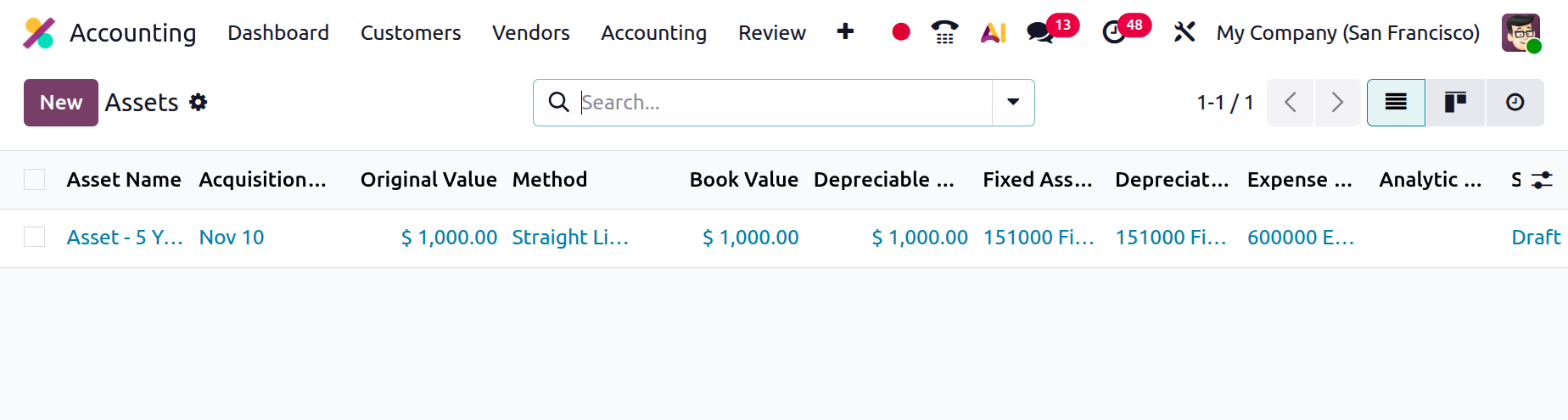
Clicking New, users can enter details such as Asset Name, Acquisition Date, Original Value, and link it to a predefined Asset Model.
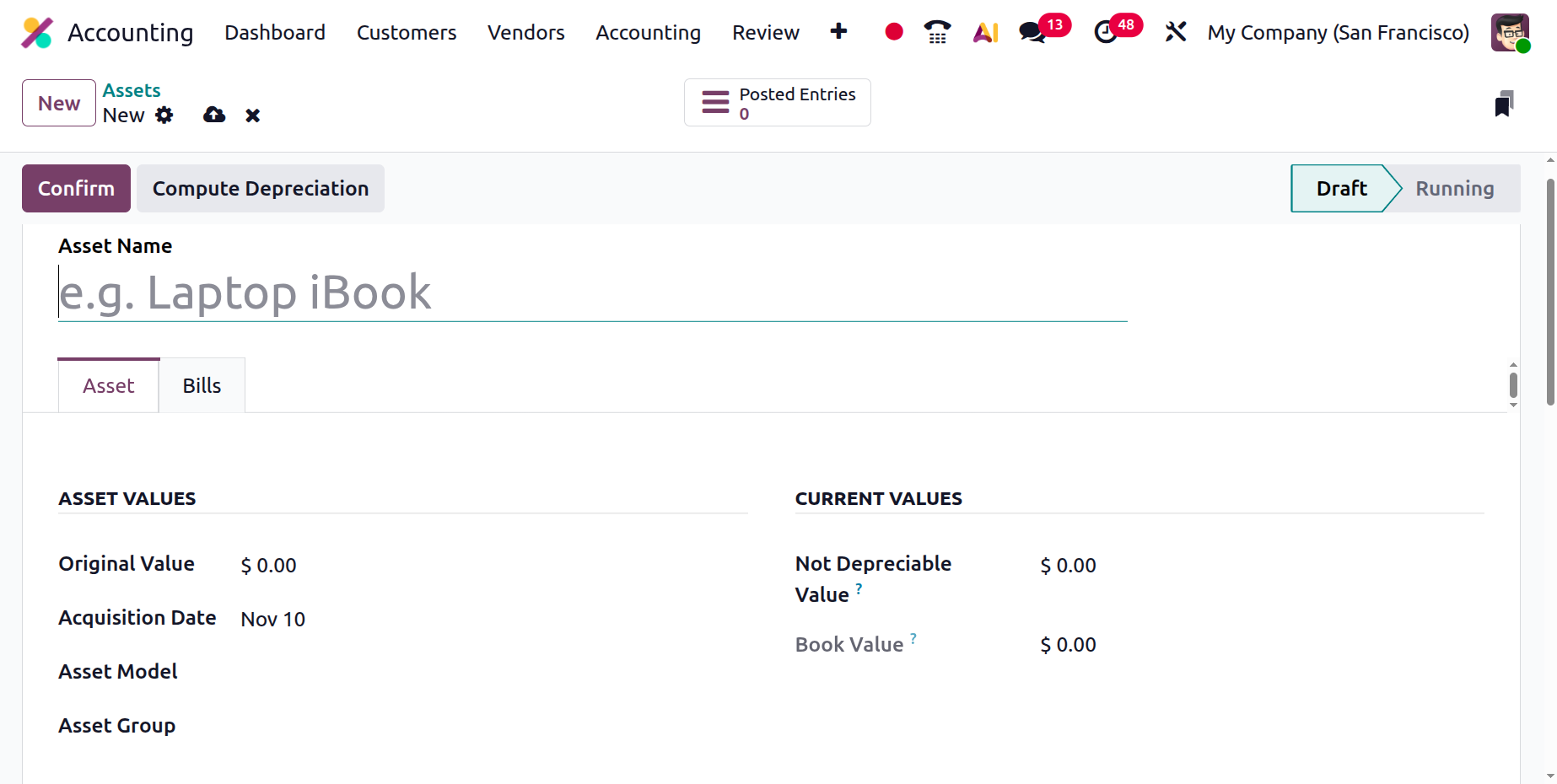
Once saved, the system auto-fills all depreciation details and schedules based on the chosen model.
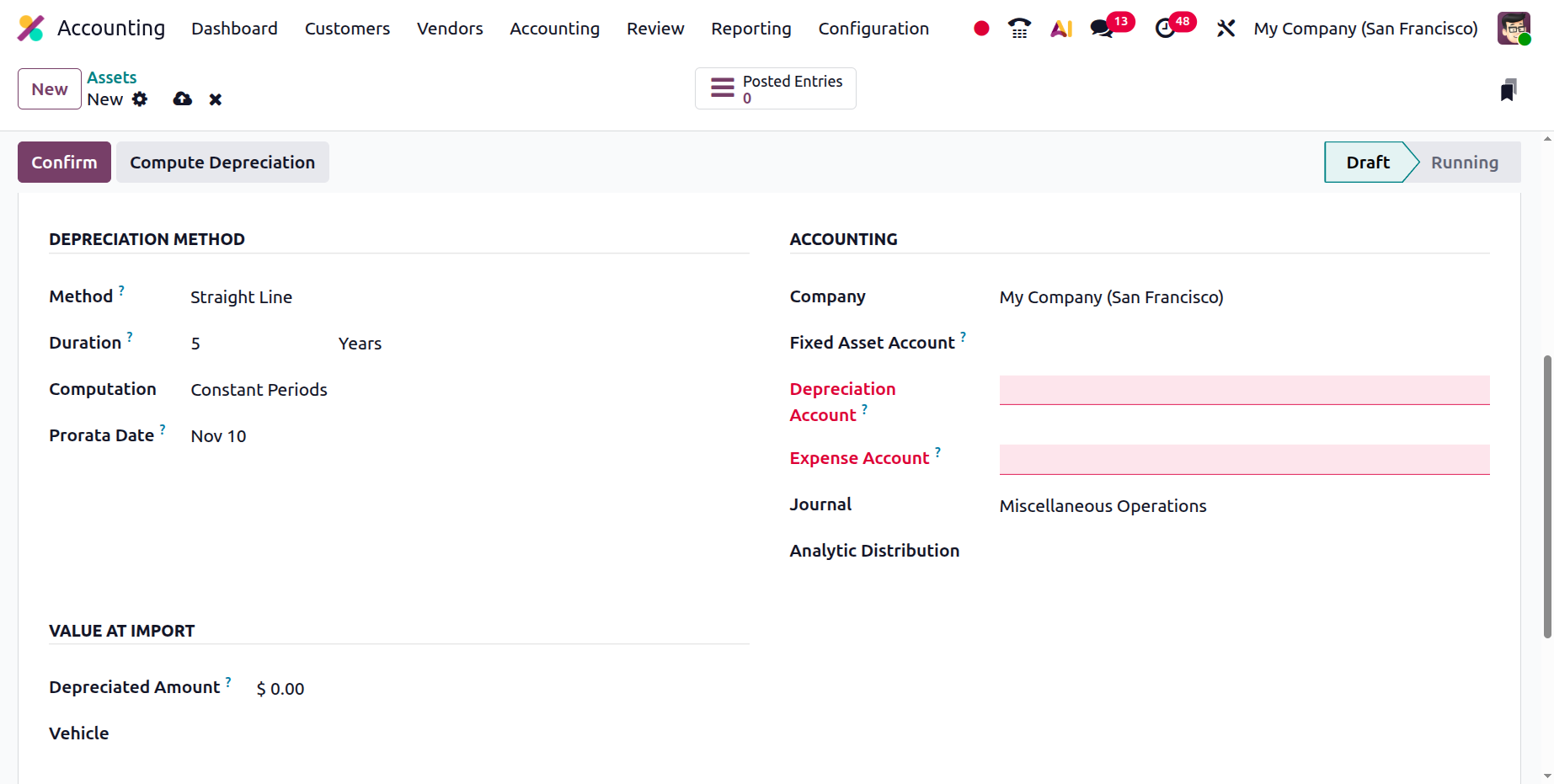
This flexibility proves valuable during data migration or when manually accounting for assets not tied to a vendor bill.
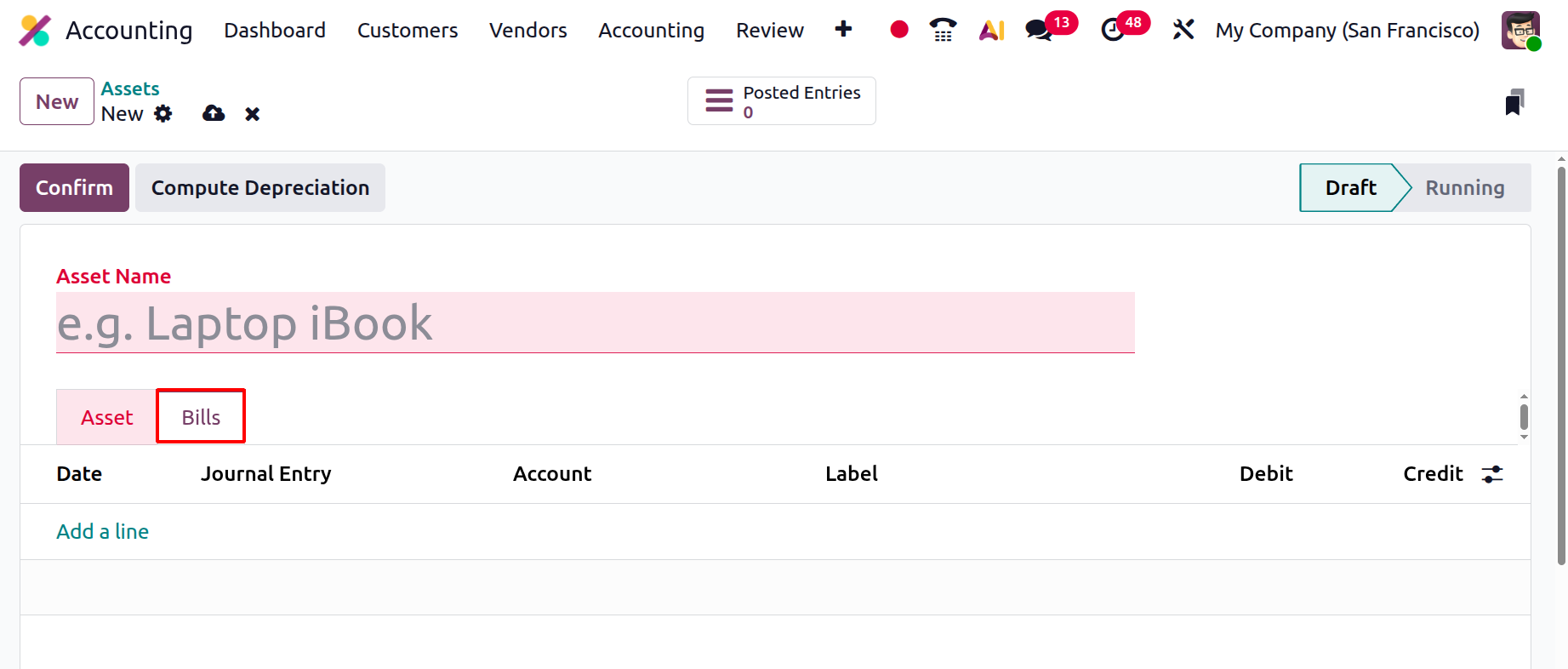
Bills associated with the asset can be managed under the Bills tab, keeping related financial records easily accessible.
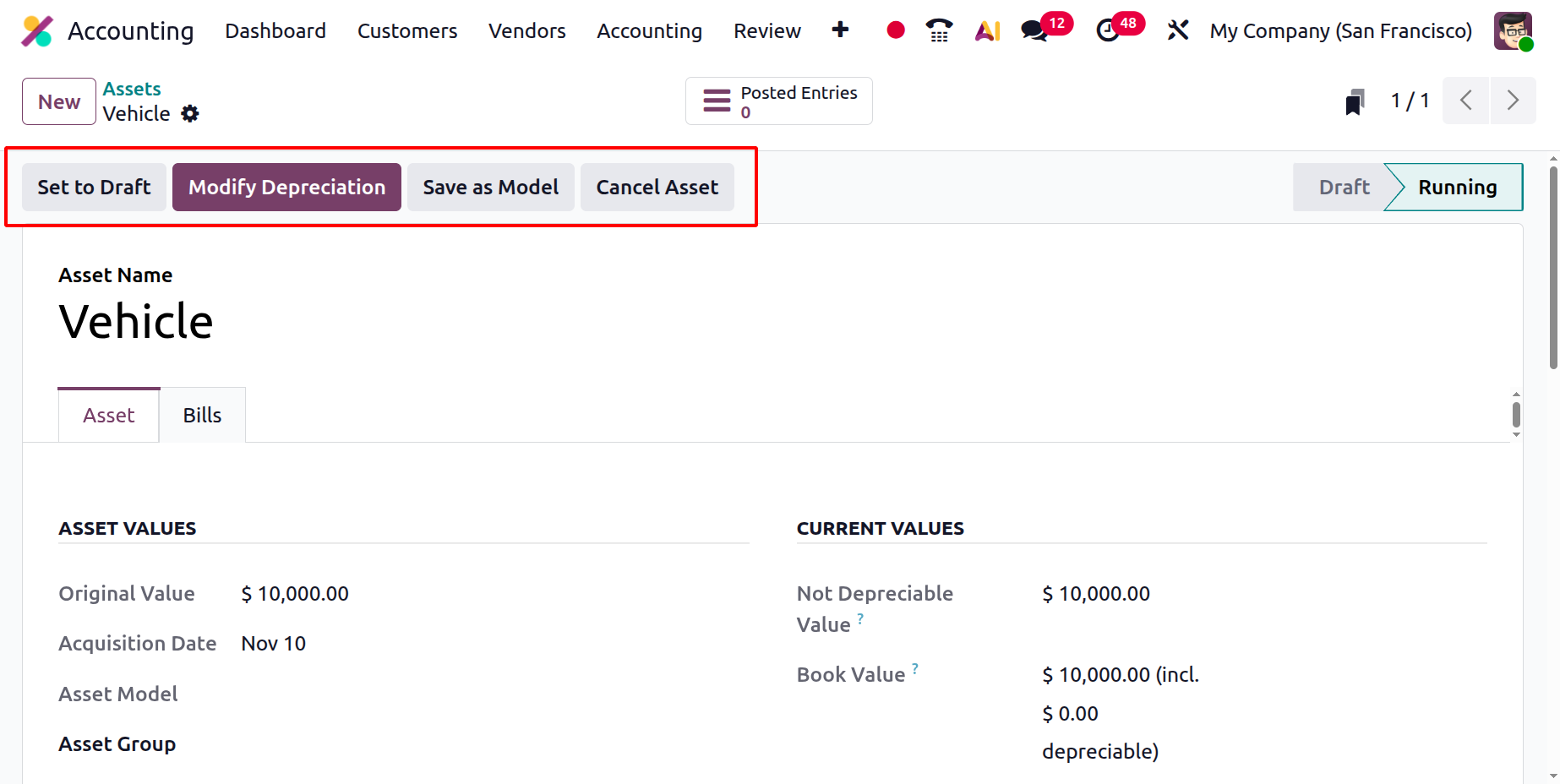
Confirm and Compute Depreciation button. The Confirm and Compute Depreciation button finalizes the asset and activates its depreciation schedule.
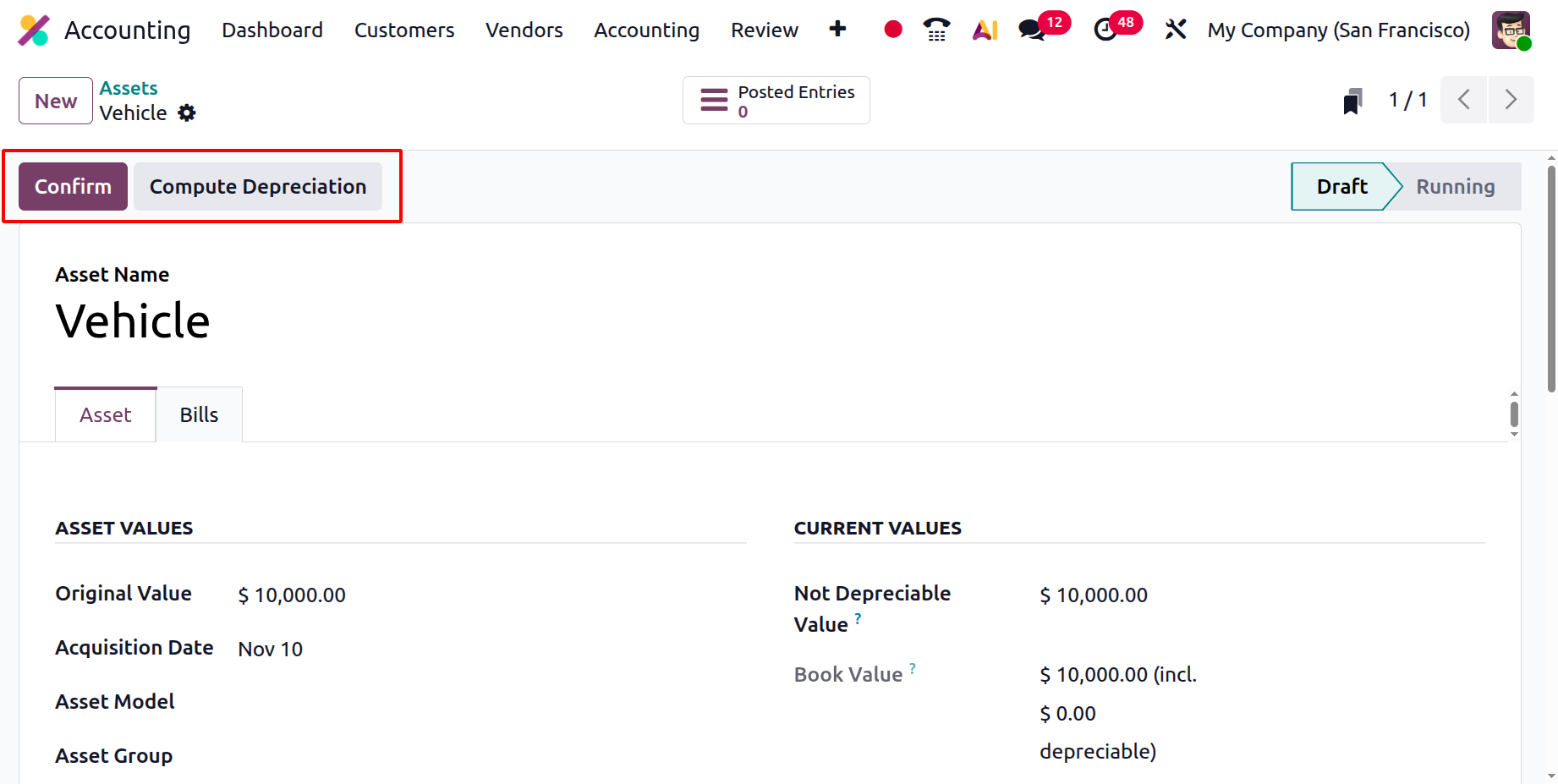
Once confirmed, the asset transitions to the Running stage, and Odoo 19 automatically computes depreciation according to the defined schedule. The Set to Draft option allows you to move an asset back to the draft stage so that you can review or edit its details before confirming it again.
The Save as Model option is used when you want to save the current asset’s configuration as a reusable template, making it easy to create similar assets in the future without re-entering all the settings. The Cancel Asset option lets you cancel or deactivate an asset that was created by mistake or is no longer required, ensuring that it will not generate any further depreciation entries.
Users can monitor the evolution of each asset’s value through the Depreciation Board, ensuring complete transparency in the asset lifecycle.
As business needs evolve, the system’s modification options, such as Reevaluation, Pause, Sell, or Dispose, help maintain up-to-date and compliant records.