Reconciliation
Bank reconciliation in Odoo 19 is the process of validating and matching bank transactions with corresponding business records such as customer invoices, vendor bills, and payments. This essential process ensures financial accuracy and transparency, helping businesses detect discrepancies, prevent fraud, and manage cash flow more efficiently. While many transactions can be automatically matched using Odoo’s default rules and customizable reconciliation models, certain entries, like bank charges or interest, may not have a direct counterpart and can be manually reconciled or written off using appropriate accounts.
Odoo 19 enhances the reconciliation experience with its Bank Matching view, which can be accessed from the Accounting Dashboard by either clicking the journal name (for example, “Bank”) to view all transactions, including those already reconciled.
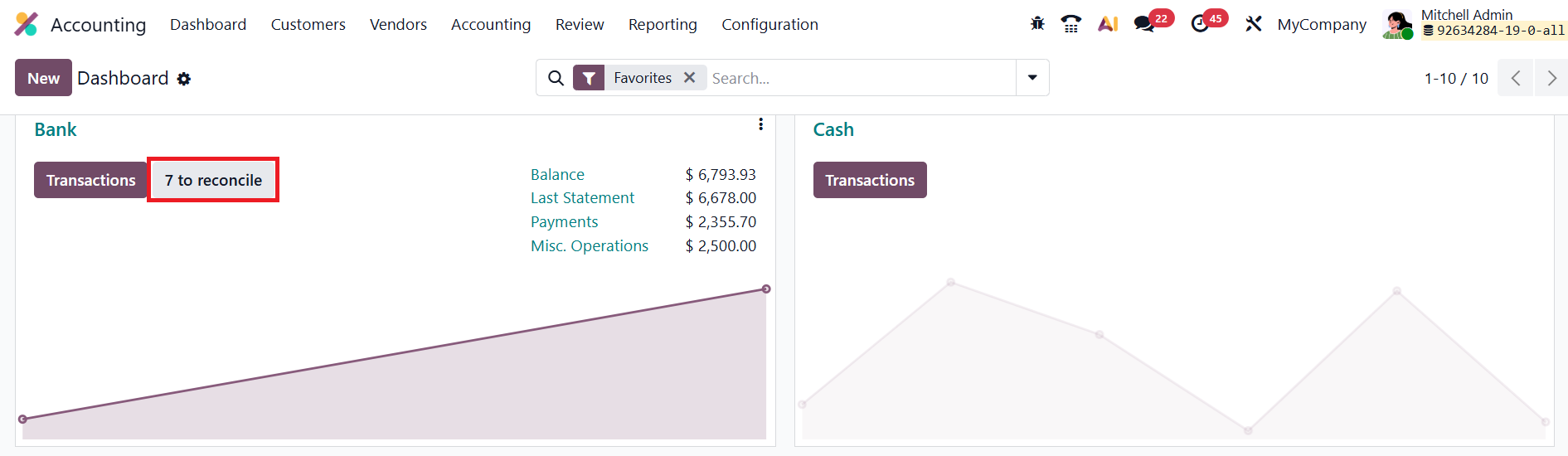
Alternatively, clicking the x to reconcile button displays only unreconciled transactions. Users can also remove the Not Matched filter from the search bar to include previously reconciled items.
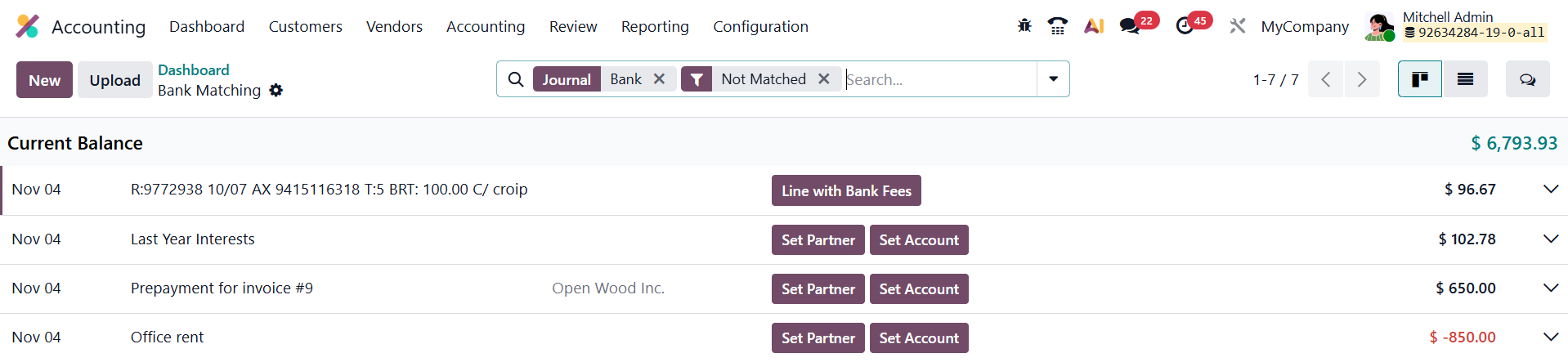
Within the Bank Matching view, each transaction appears as a line containing details such as date, label, partner (if any), action buttons, and transaction amount. The newest transactions are displayed first. Expanding a line reveals additional details and options. Each bank transaction is linked to a journal entry that temporarily debits or credits the journal’s main and suspense accounts until the reconciliation is completed. Once reconciled, the suspense account is replaced with the correct account from the matched counterpart item or from a manually chosen account.
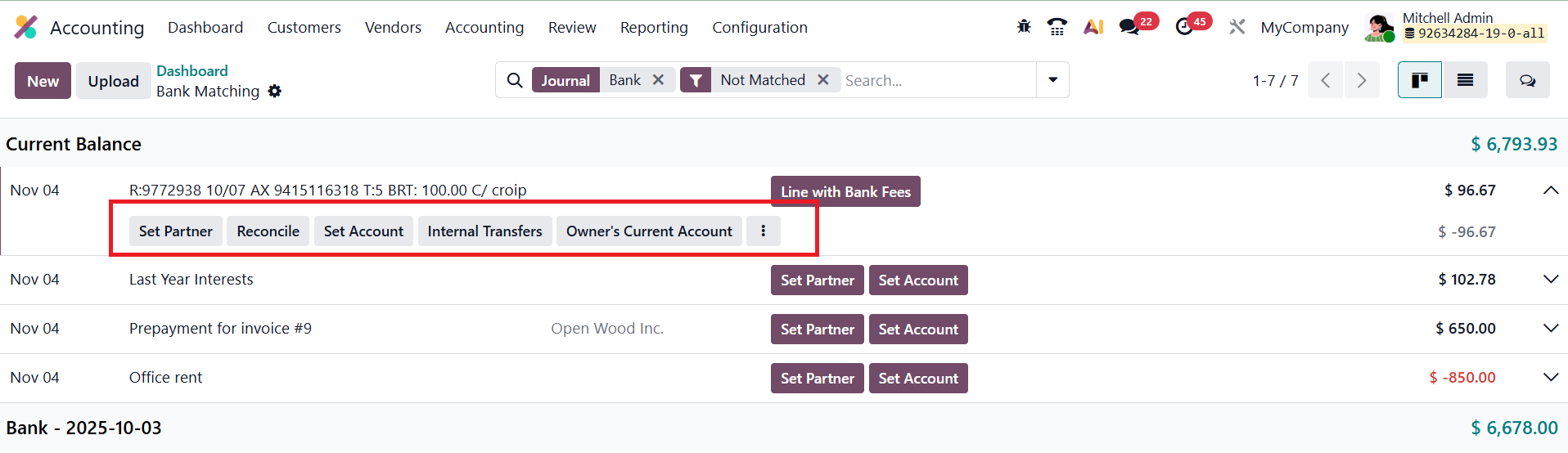
Odoo 19 provides a range of action buttons for faster reconciliation. Up to two primary actions are displayed initially, while expanding the transaction reveals all available options. Common actions include Set Partner, which allows users to assign a partner to the transaction, and Set Account, which lets users manually select an account to write off the transaction. The Receivable and Payable buttons write off the transaction to the respective partner accounts. The Sales button opens related sales orders for the partner, allowing invoice creation and quick reconciliation. Similarly, the Reconcile button opens a list of existing items, such as invoices, bills, or payments, that can be matched directly. Users can also access Batch Payments through the Batches option, enabling reconciliation of grouped payments. If predefined reconciliation models apply, Odoo displays them automatically, allowing one-click generation of counterpart entries based on those models.
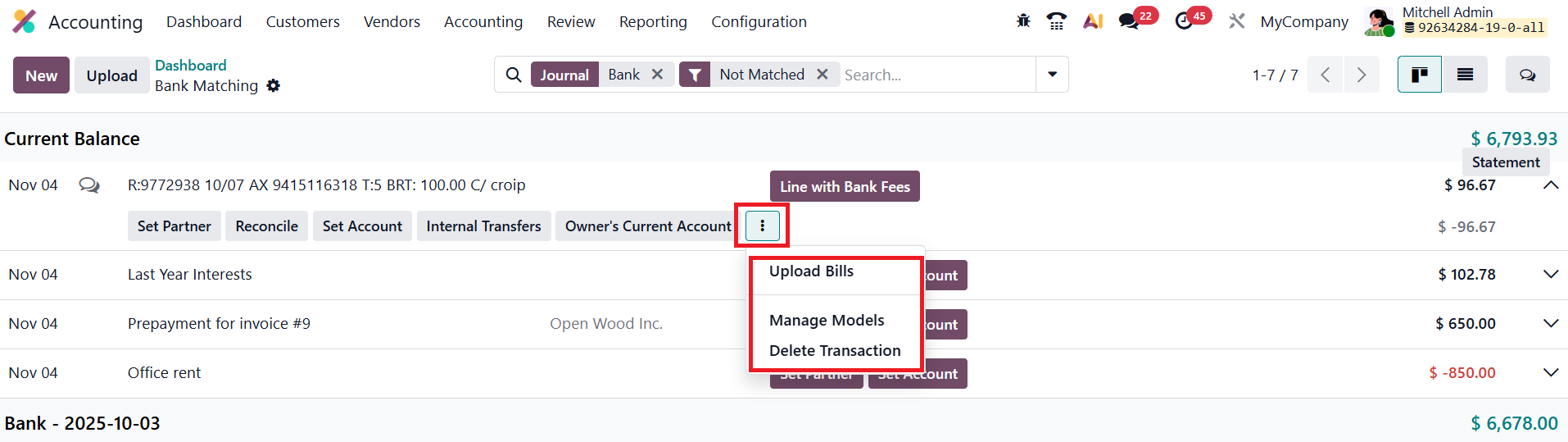
Additional options, accessible via the three vertical dots icon, include Upload Bills (for uploading and digitizing bills to be matched later), Manage Models (to view and edit reconciliation models), and Delete Transaction (to remove the record).
In Odoo 19, the system automates the bank reconciliation process by matching transactions based on predefined rules and available data fields. Whenever possible, Odoo automatically reconciles transactions using information such as the transaction label, partner details, amount, and references. If a partner is not assigned to a transaction, Odoo compares the transaction’s Label with the Number, Customer Reference, Bill Reference, and Payment Reference of existing invoices, bills, and payments to identify a match. Conversely, if a partner is already set, the system prioritizes transactions linked to that partner and matches them based on the Amount, following a sequence of rules to ensure accuracy.
The matching process occurs in a specific order:
- Exact Match – The system looks for an exact amount match between the transaction and an existing record.
- Discounted Match – Applies when payment terms include discounts for early payments.
- Tolerance Match – Matches amounts within a 3% tolerance to account for minor discrepancies such as rounding differences, merchant fees, or user input errors.
- Currency Match – Matches transactions in different currencies, allowing a 3% tolerance for exchange rate variations.
- Amount in Label – Matches the transaction if the invoice amount appears in the transaction’s label.
In Odoo 19, transactions can be reconciled with existing records such as customer invoices, vendor bills, and payments through a simple and interactive process.
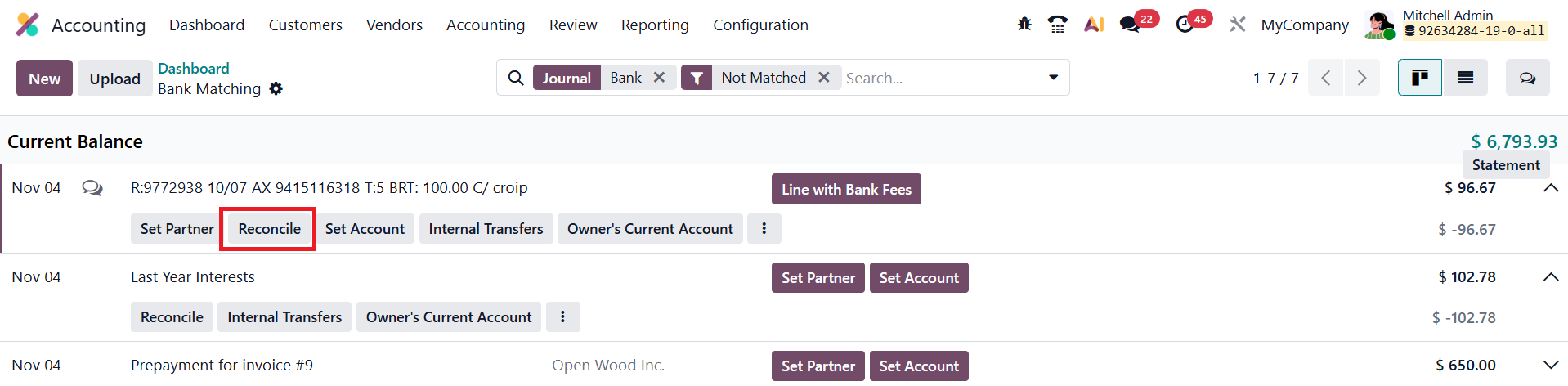
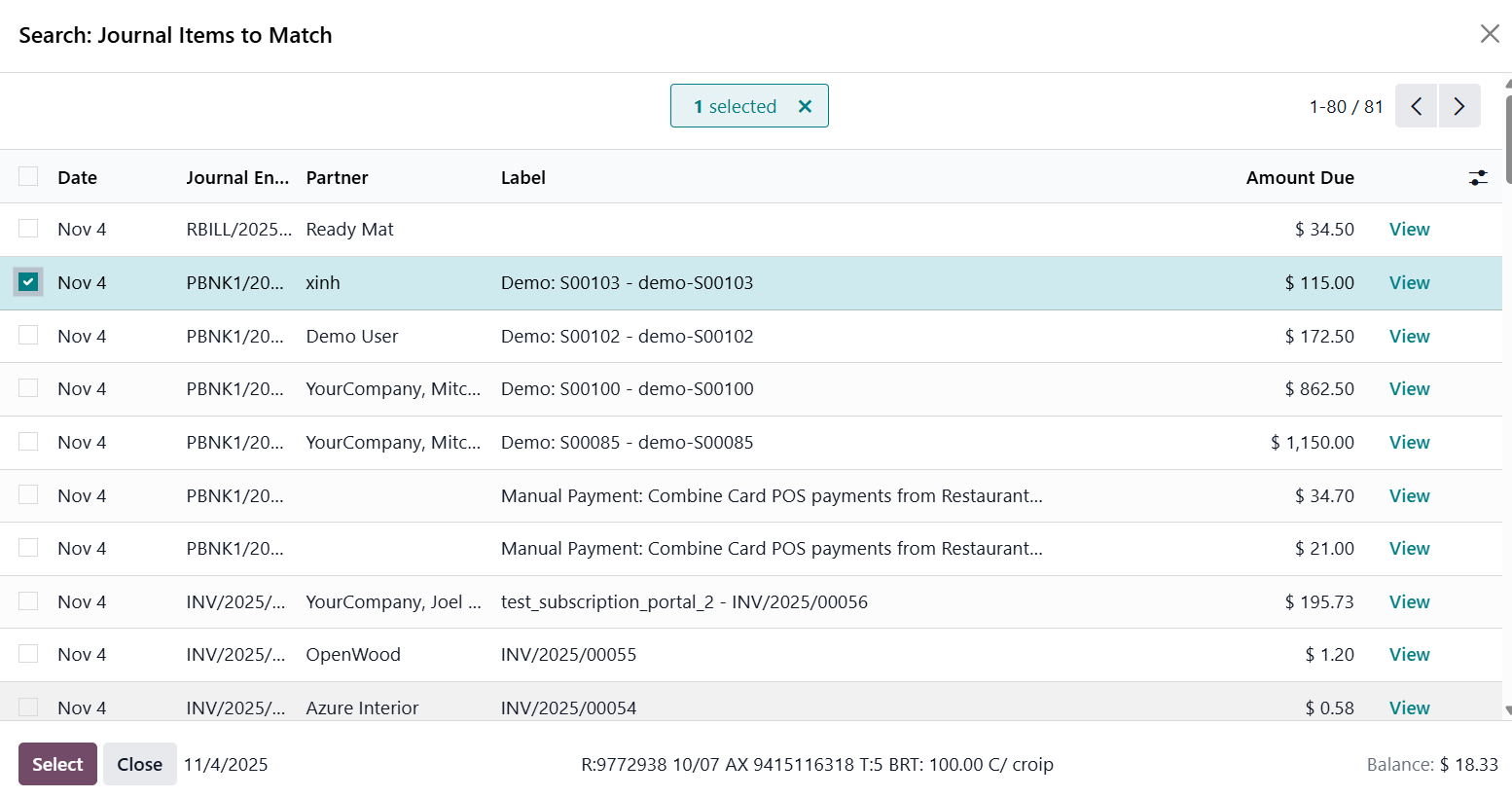
To begin, click the Reconcile action button for the desired transaction. A list of matching journal items will appear, from which you can select the appropriate record(s). Once the correct counterpart items are chosen, click Select to complete the reconciliation.
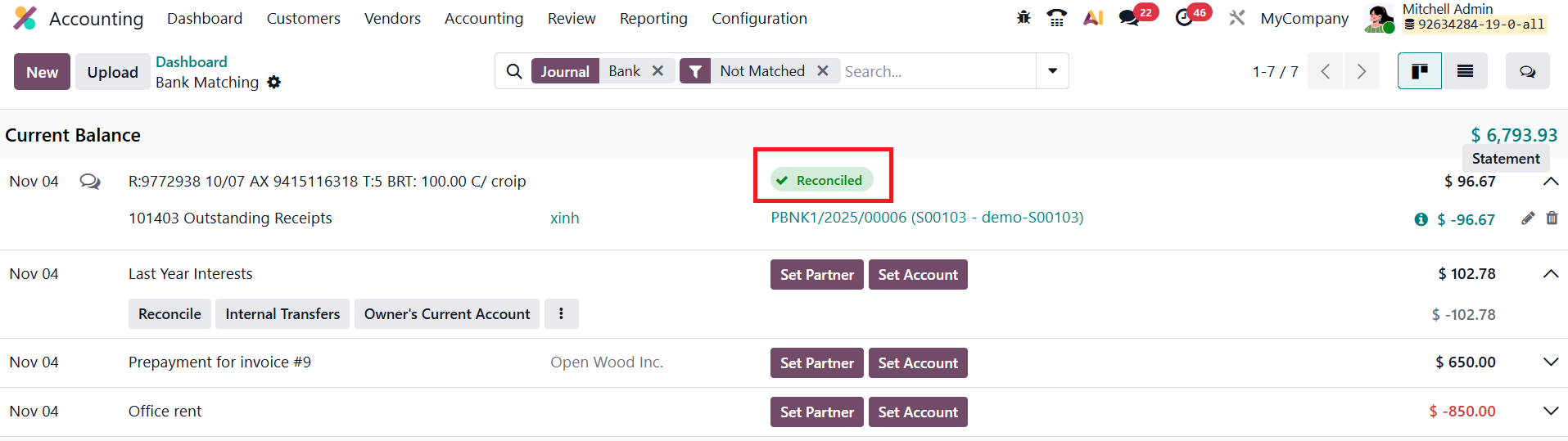
If the transaction amount is lower than the invoice or bill it is matched with, Odoo marks the transaction as fully reconciled, but the remaining difference stays open on the counterpart item.
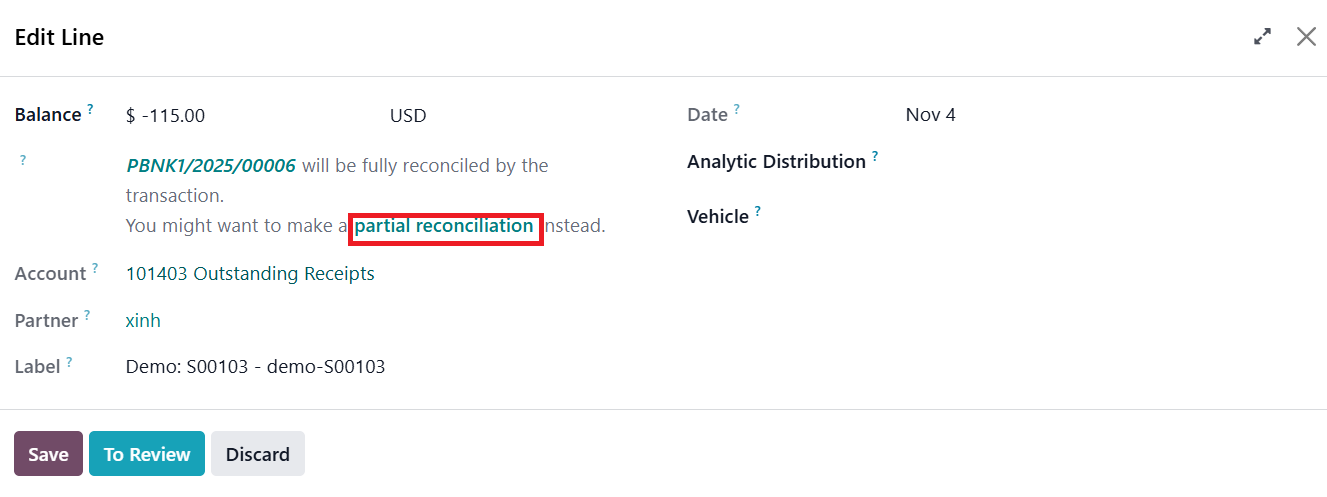
This open amount can either be left for future reconciliation, when additional payments are received, or the related invoice or bill can be marked as fully paid. To do this, edit the reconciled line, click Fully Paid, and then select Save. If you later wish to reverse this action, you can edit the line again, click Partial Payment, and save the changes.
On the other hand, if the transaction amount is greater than the related invoice or bill, Odoo only performs a partial reconciliation. The excess balance that remains after reconciliation can then be handled like any other transaction amount, either by matching it with another invoice or bill, or by writing it off using the appropriate account.
In Odoo 19, the bank reconciliation process can be fully or partially automated depending on your business workflow. If your reconciliation process meets all the conditions for automation, you can completely bypass the manual workspace by using the Auto-reconcile feature.
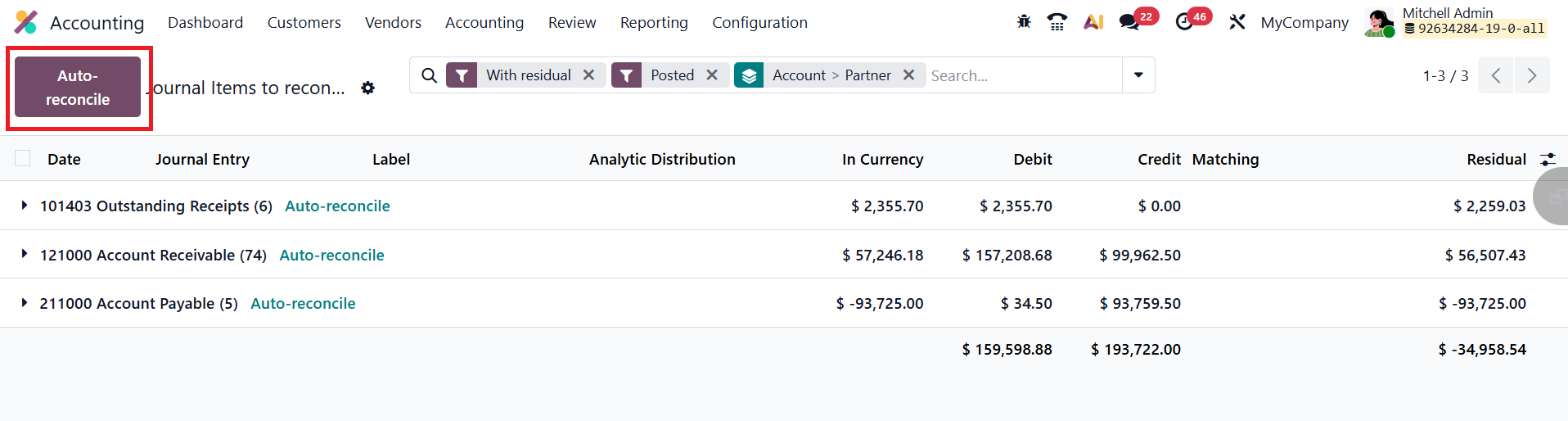
To do this, navigate to Accounting ▸ Reconciliation , select Auto-reconcile, specify the date range and accounts to be scanned, and let Odoo handle the rest.
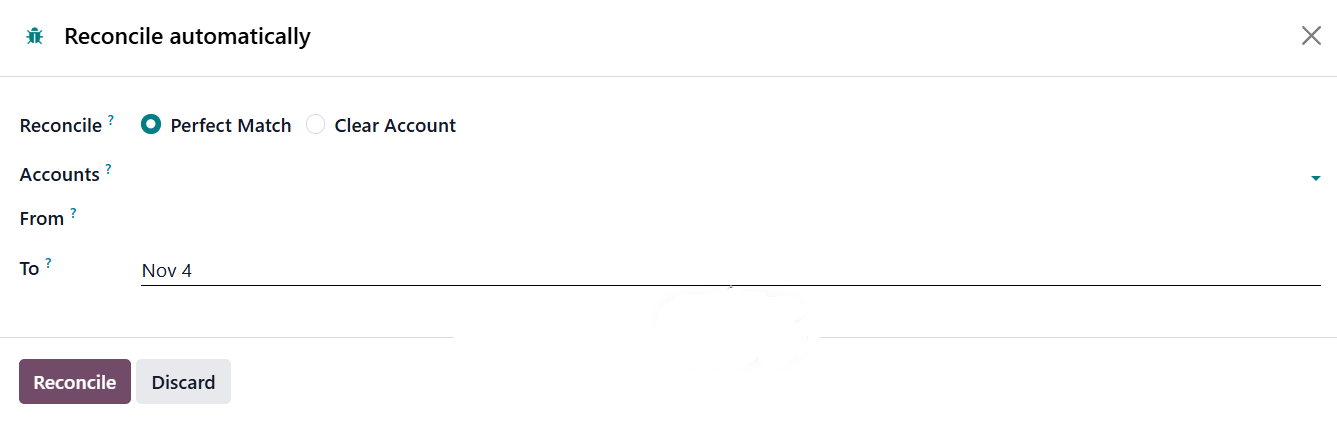
The system automatically creates and posts all the required journal entries in a single batch, following the same advanced logic that powers Odoo’s payment matching feature.
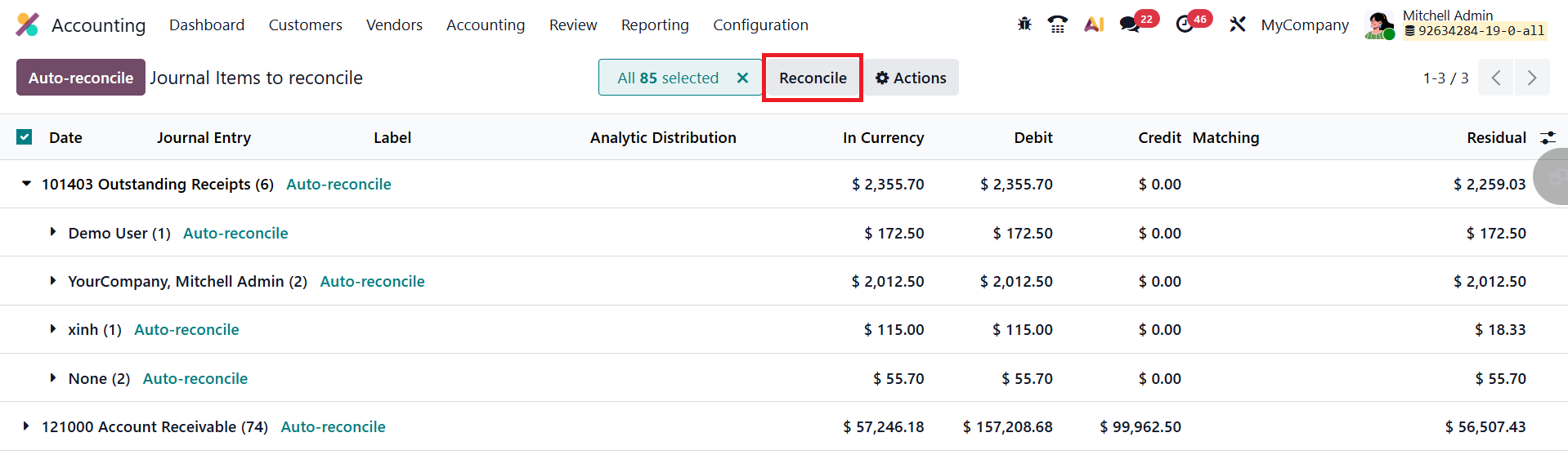
However, when certain transactions require manual review, for instance, when the transaction description is unclear or a partner is missing, you can opt for the Reconcile option instead. This allows you to carefully examine and reconcile each transaction line by line, ensuring that all records are accurate and correctly categorized.
1.1 Reconciliation Models
In Odoo 19, Reconciliation Models provide an advanced way to automate and simplify the bank reconciliation process beyond the system’s default matching rules. These models are particularly valuable for managing recurring transactions such as bank fees, cash discounts, or routine adjustments, allowing businesses to save time and reduce manual effort during reconciliation.
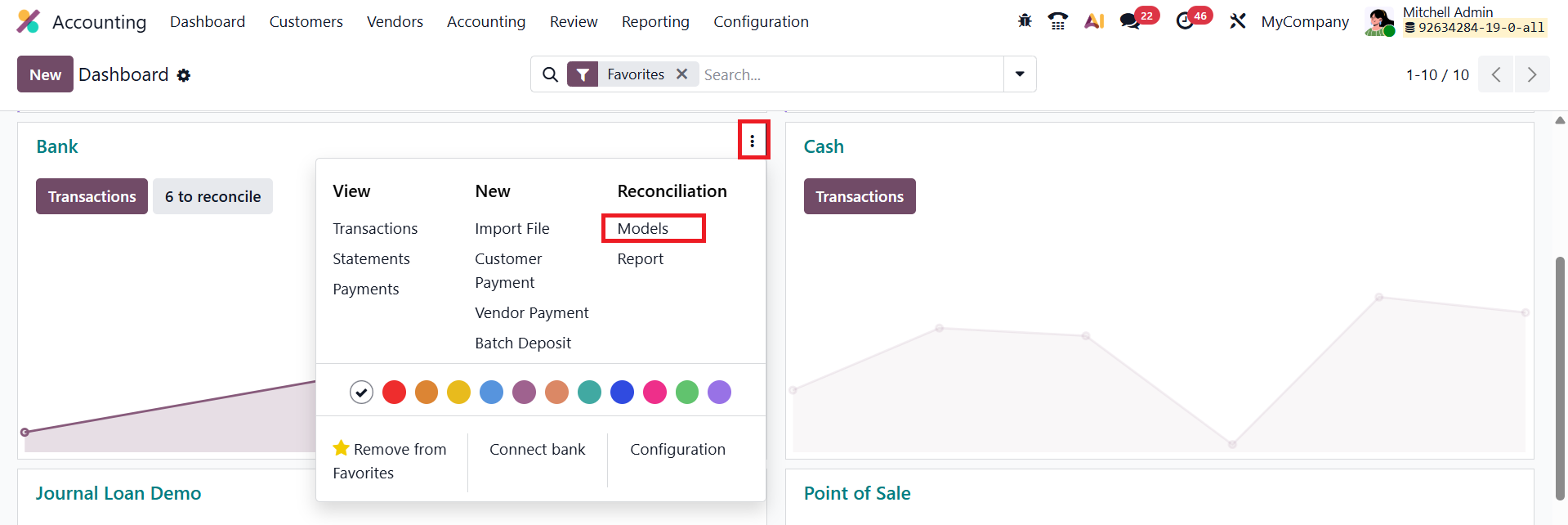
To access reconciliation models, navigate to the Accounting Dashboard, open the dropdown menu on the relevant bank journal, and select Models under the Reconciliation section.
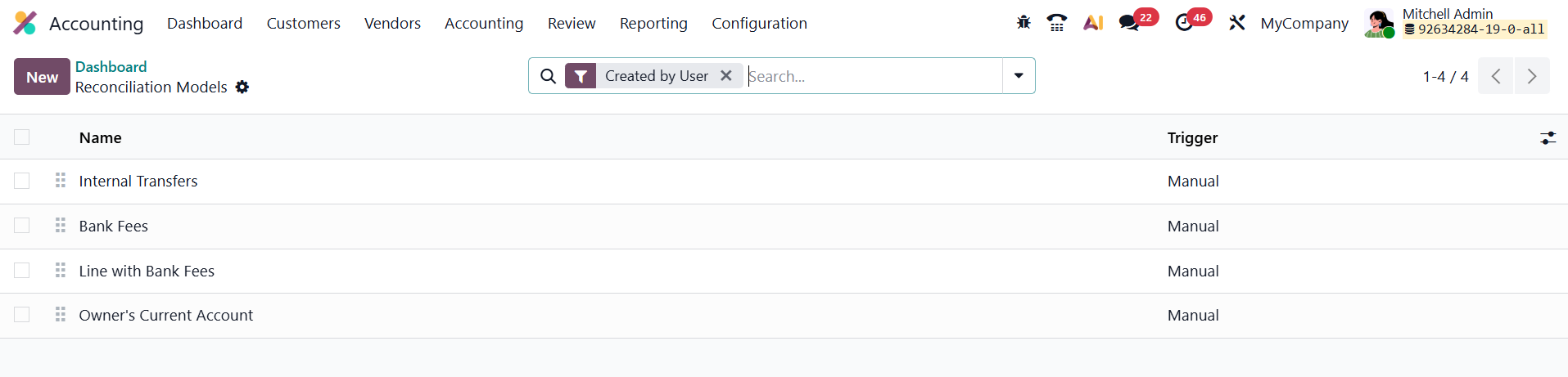
From here, click New to create a new reconciliation model. Odoo allows you to configure models as either Manual or Automated. Manual reconciliation models appear as action buttons during the reconciliation process, letting you apply them selectively when needed. In contrast, automatic reconciliation models are triggered automatically whenever a transaction meets the predefined matching conditions.
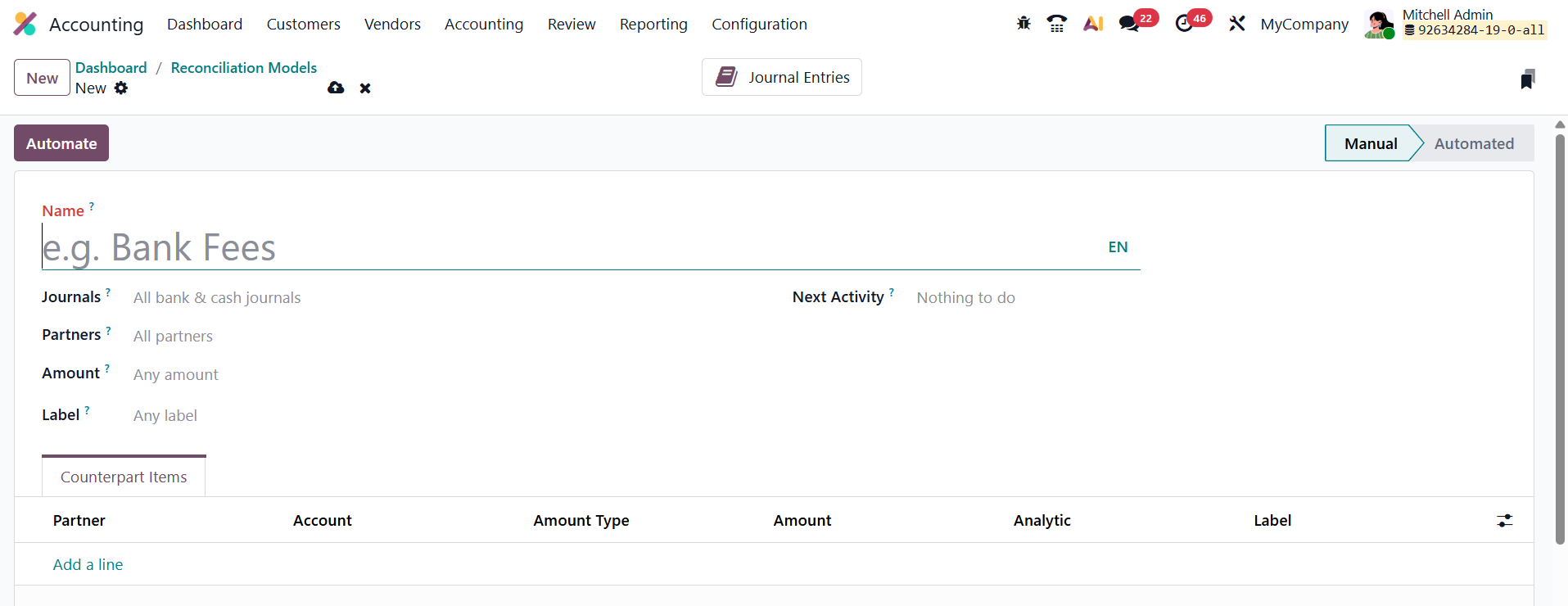
Odoo 19 offers a variety of fields to define the matching conditions for each model. You can restrict the model’s application based on specific Journals or Partners, and further narrow it down by Amount, choosing from options like Is lower than or equal to, Is greater than or equal to, or Is between, followed by entering the relevant values. The Label field enables text-based matching by selecting conditions such as Contains, Not Contains, or Match Regex, and entering the desired keyword or pattern.
Under the Counterpart Items tab, each line defines the journal item that Odoo 19 will generate during reconciliation. You can specify a Partner, select an Account to be used, and choose an Amount Type that determines how the journal item’s value is calculated. Available options include Fixed Amount, Percentage of Balance, Percentage of Statement Line, or From Label (which uses a percentage extracted from the label via regex). Based on the chosen type, you then enter the Amount, which can represent a fixed value, a percentage, or a regex-based figure.
Additional configuration options include applying Taxes, setting an Analytic Distribution, and adding a custom Label for clarity in journal entries. The tax option is available under the settings icon within the model configuration panel.
Through this flexible setup, Odoo 19’s Reconciliation Models allow businesses to automate repetitive accounting tasks, ensure consistent application of financial rules, and significantly speed up the reconciliation process, all while maintaining accuracy and control over financial records.
In Odoo 19 Accounting, users can easily import bank statement files in QIF format. To enable this feature, go to Settings ▸ Accounting ▸ Bank & Cash, and activate QIF Import.

Once activated, an Import File button appears on the Bank Dashboard.
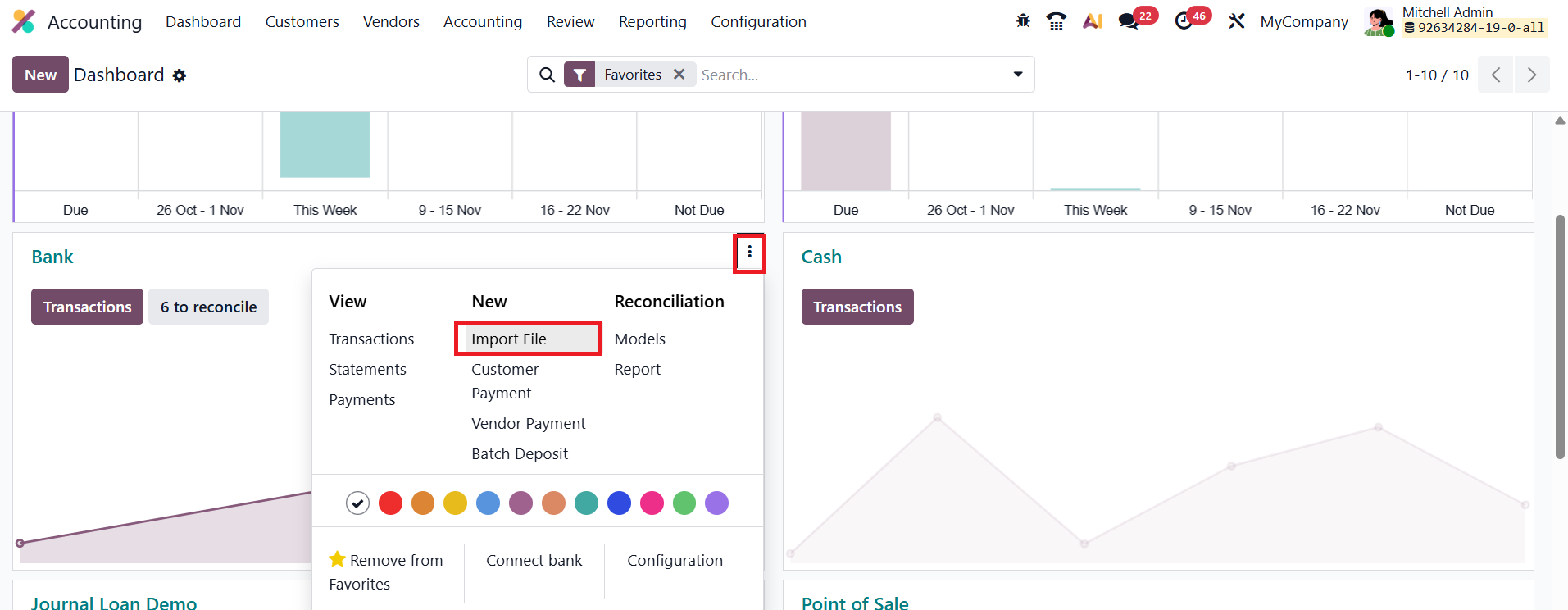
Simply upload the file provided by your bank, and Odoo automatically processes it, displaying the corresponding statement lines directly in the Reconciliation Queue for review and validation.