Tax Returns
In Odoo 19, companies with a registered VAT number are required to submit a tax return, also known as a VAT report, either monthly or quarterly, depending on their turnover and local tax regulations. A tax return summarizes all taxable transactions made by the company during a specific period and provides this information to the tax authorities. It includes two main components: the output tax, which is the VAT collected on the sale of goods and services, and the input tax, which represents the VAT paid on purchases. By comparing these two values, a company can determine whether it owes additional tax to the authorities or is eligible for a refund.
Odoo 19 simplifies this process through its Tax Return Periodicity configuration, which ensures accurate computation of tax returns and helps businesses stay compliant with filing deadlines.
To configure this feature, navigate to Accounting ▸ Configuration ▸ Settings, and scroll down to the Tax Return Periodicity section. Here, you can adjust the settings according to your company’s reporting requirements.
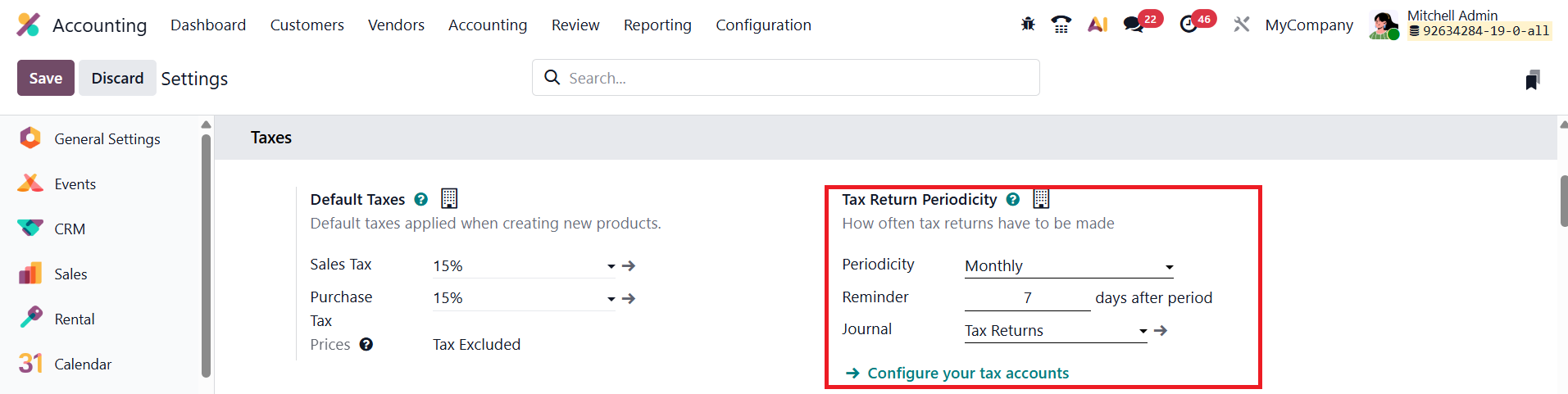
The Periodicity field allows you to define how often the tax return should be submitted, either monthly or quarterly, depending on your company’s statutory obligations. The Reminder field lets you specify when Odoo should automatically send reminders, ensuring that tax submissions are made on time. Finally, the Journal field can be updated to select or modify the journal where all tax return transactions are recorded.
In Odoo 19, the Tax Return Lock Date feature plays a crucial role in maintaining the integrity and accuracy of VAT-related financial records. By setting a lock date, you prevent any modifications to journal entries that could affect previously reported VAT amounts. Locking the tax period before generating the Closing Journal Entry helps safeguard the accuracy of your final tax report and minimizes the risk of discrepancies or compliance errors.
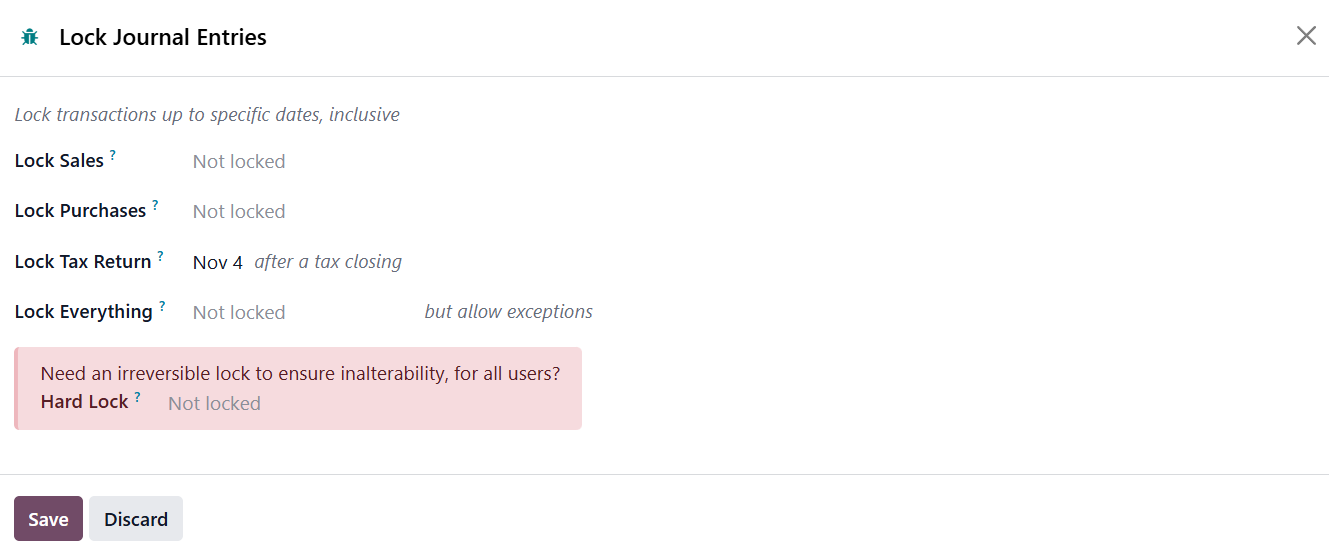
To view or modify the Lock Tax Return Date, navigate to Accounting ▸ Accounting ▸ Lock Dates. From this window, you can review the current lock date, update it when necessary, and confirm that no unauthorized adjustments are made to VAT-related entries after submission.
In Odoo 19, once all tax configurations are complete and every tax-related transaction for the reporting period has been posted, you can proceed to generate and submit your Tax Returns . To begin, click Tax Returns on the Tax Returns journal from the Accounting Dashboard, or navigate to Accounting ▸ Accounting ▸ Tax Returns.
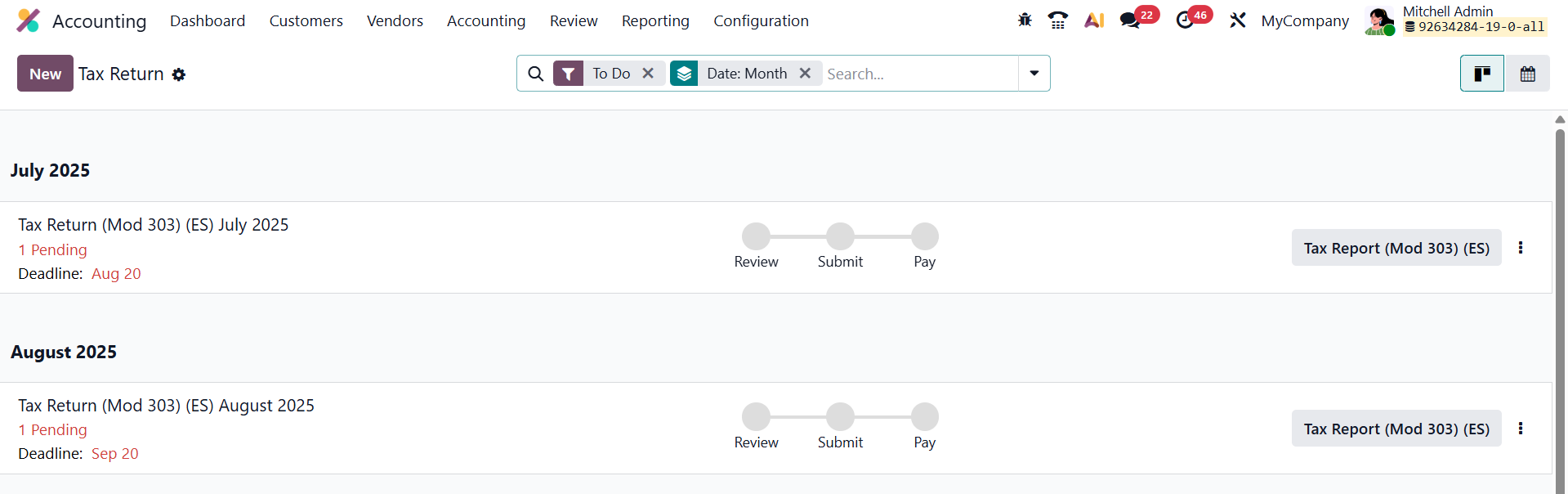
The Tax Return view presents a chronological list of all pending tax returns and advance payments, organized according to the company’s fiscal localization. Each item in the list includes the reporting period (month or quarter), the submission deadline, the related company and branch(es) (if applicable), and action steps such as Review, Submit, and Pay, each of which turns green once completed.
Every tax return follows three key steps: Review, Submit, and Pay. To access a specific return, click the relevant VAT report button To create a new return, click New, select the appropriate Return Type, and enter the required Dates.
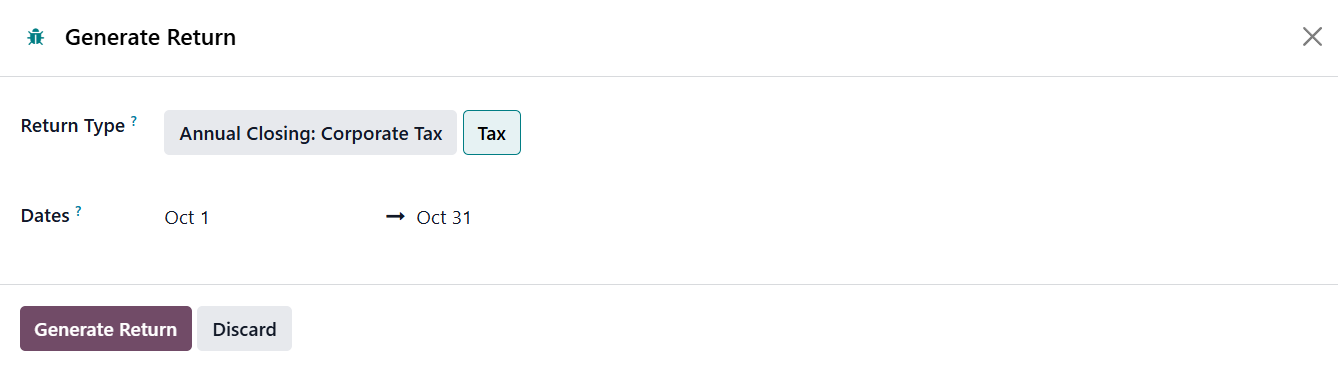
Then, click Generate Return. Odoo 19 supports various types of returns, including:
- Annual Closing (Corporate Tax)
- VAT Return
- VAT Listing (Belgium-specific)
- EC Sales List (EU-specific)
- Advance Payment (Belgium-specific)
- Intrastat (EU-specific)
Once a return is generated, begin with the Review step by clicking Review on the corresponding line.
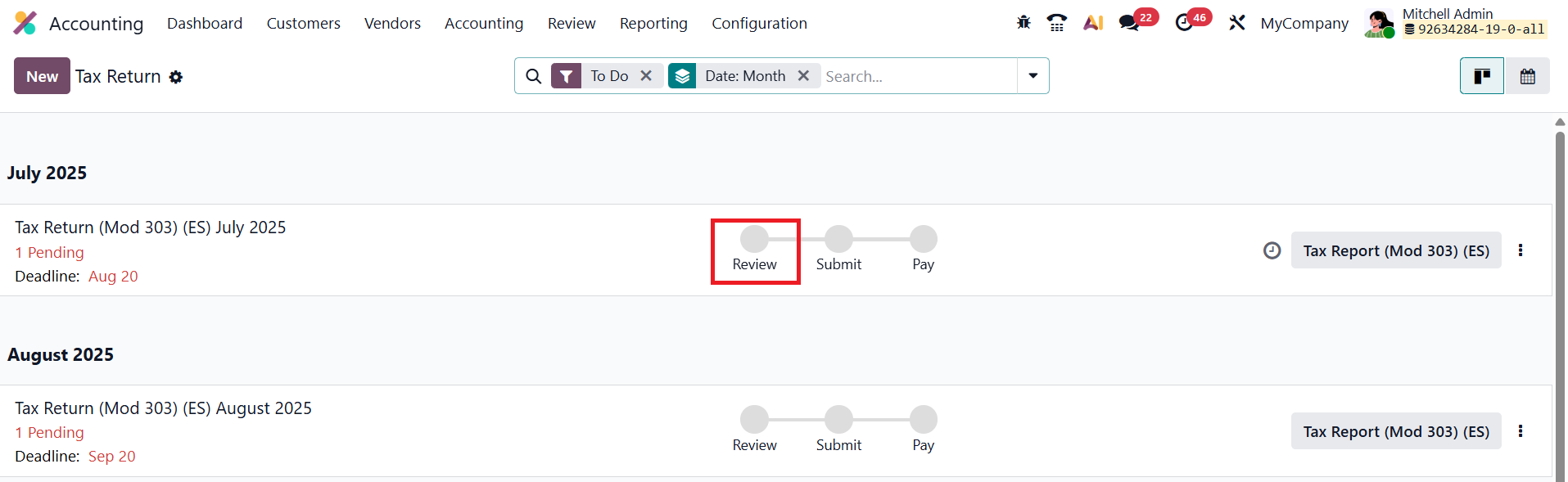
Odoo automatically performs several tax validation checks to ensure data consistency and regulatory compliance. If all checks are passed, the review is complete, and you can proceed to submission.
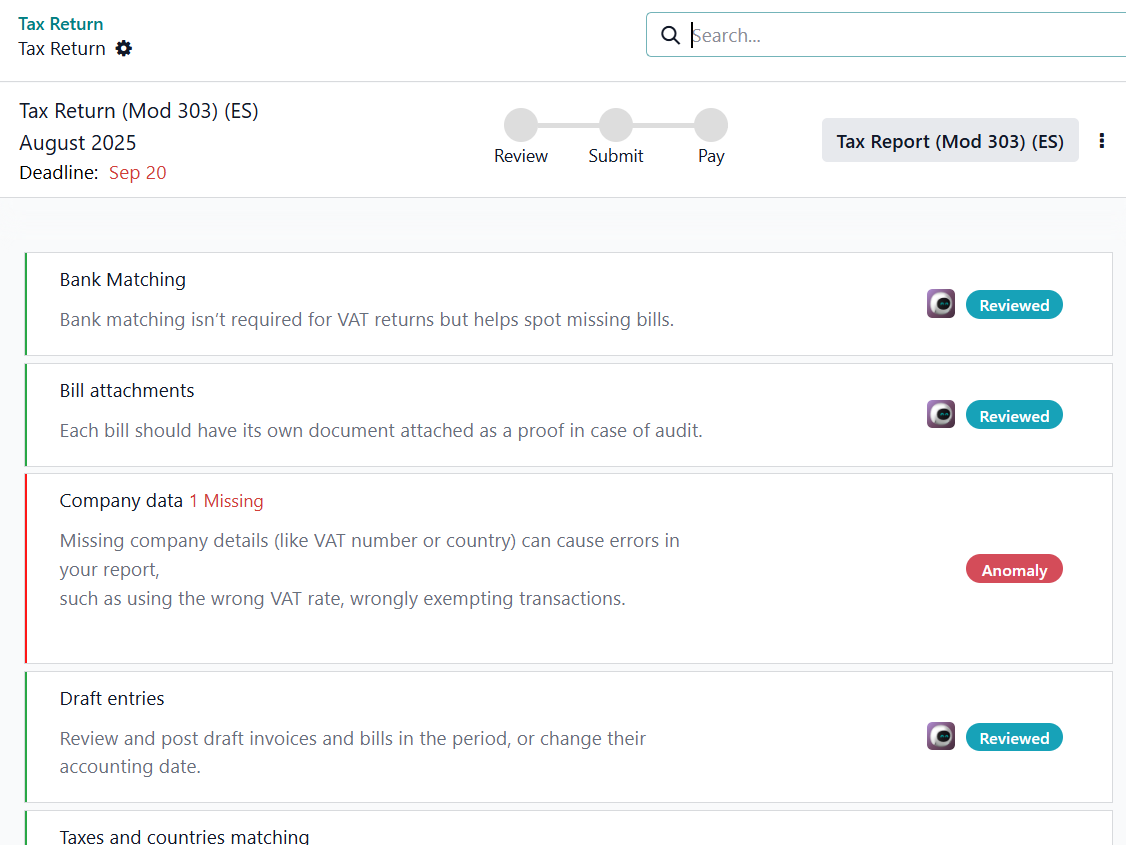
If some checks are pending, the Tax Checks view appears, displaying a list of validation items based on your fiscal localization.
Typical checks include:
- Bank Matching:Detects missing bills (optional for VAT reports).
- Bill Attachments: Ensures all bills have supporting documents for audits.
- Company Data: Identifies missing company details such as VAT number or country.
- Draft Entries: Prompts review and posting of any draft invoices or bills in the period.
- No Negative Amount in VAT Report: Ensures compliance with countries that disallow negative tax values.
- Taxes and Country Matching: Verifies that applied taxes correspond to the customer’s country.
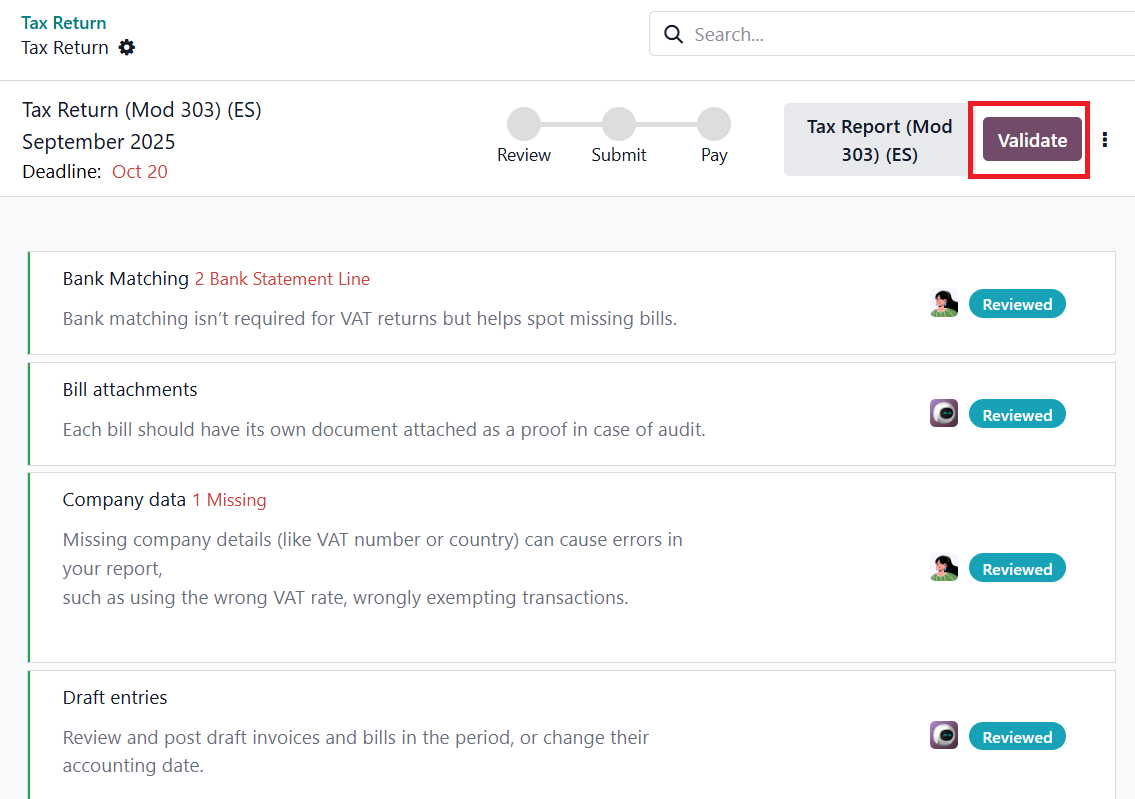
You can click a failed card to correct the issue or choose Validate to bypass it. Odoo also allows you to manage checks efficiently by adding approvers, notes, and activities directly from the check cards. Once all checks have passed, click Review to finalize the verification process. After verification, return to the Tax Return view and click Submit.
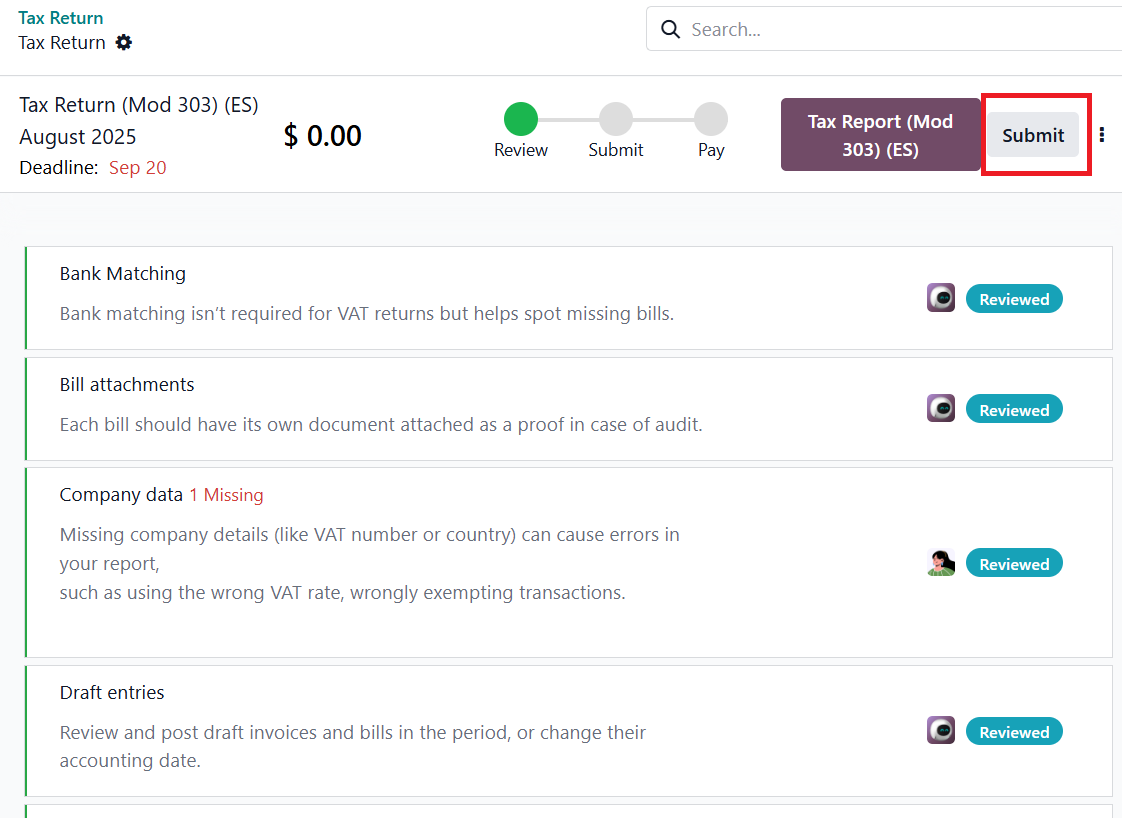
Upon submission, Odoo automatically updates the Tax Return Lock Date and posts the Closing Journal Entry in the Tax Returns journal. The submitted tax return now contains all necessary information for the tax authorities, including the total tax due or refundable. If a payment is required, a Payment window appears with all relevant details, including a QR code for instant payment through the banking app (if available for your country’s fiscal localization). With this structured workflow, Odoo 19 ensures that tax returns are accurately reviewed, verified, and submitted, maintaining full compliance with local tax laws while streamlining every step of the process, from validation to payment.
1.1 Tax Return Types
In Odoo 19 Accounting, you can configure different Tax Return Types to match your company’s tax reporting structure and regulatory requirements. These configurations determine how and when your tax reports are generated, reviewed, and submitted.
To create or modify a Tax Return Type, go to Accounting ▸ Configuration ▸ Tax Return Types. This opens the configuration window, where you can define the specific parameters that govern each type of tax return your company must file.
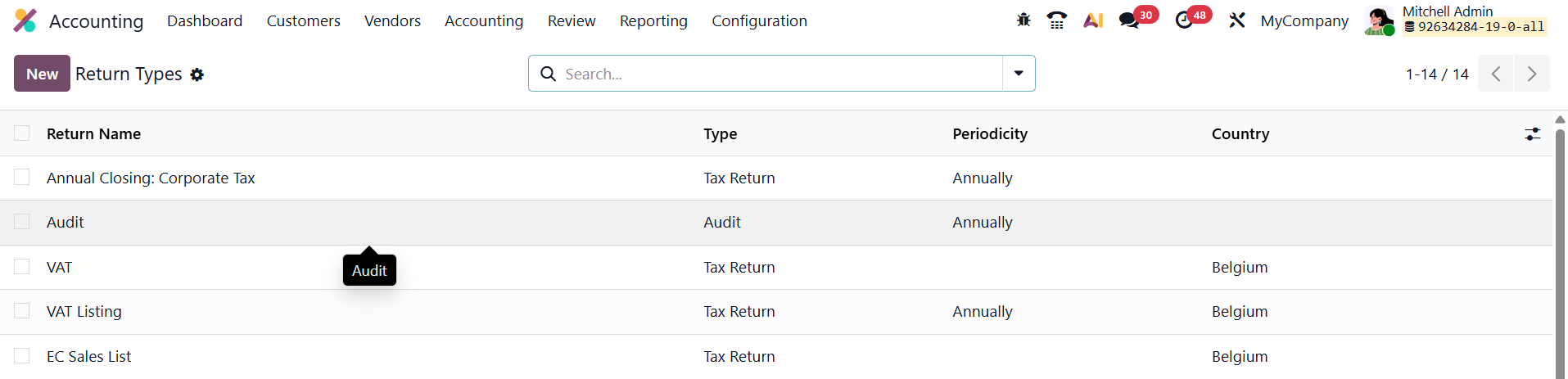
Click the New button to create a new Tax Return Type. You can select either Tax Return or Audit option from the configuration window. The Tax Return field allows you to specify the name or label of the return.
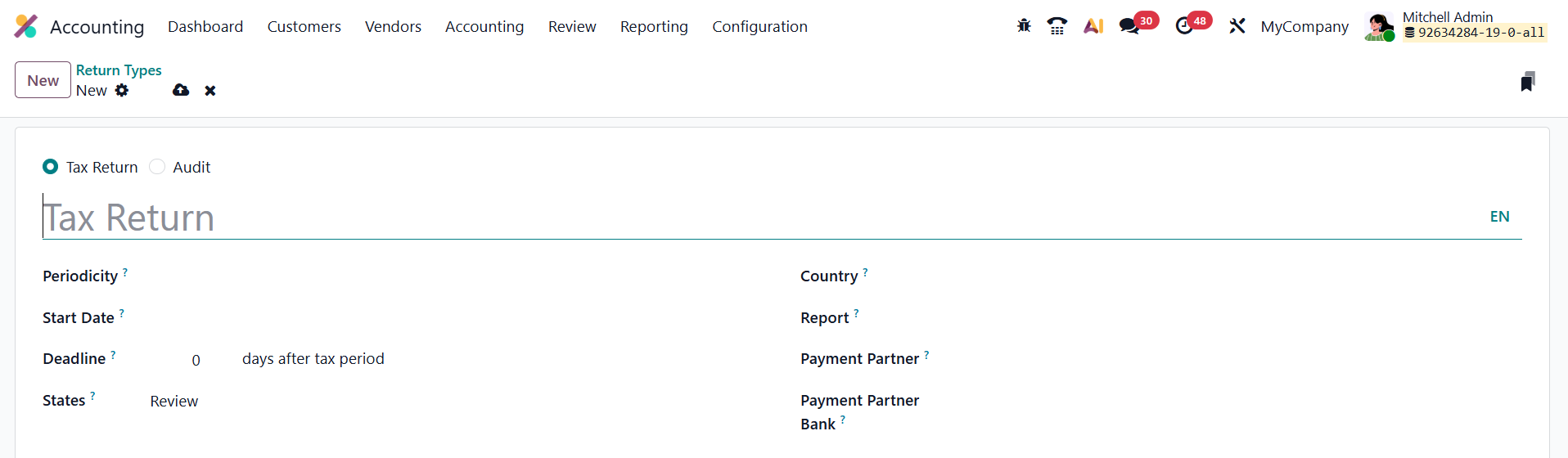
Define the Tax Return Periodicity, which determines how often the return is filed, choose between Monthly, Quarterly, or Annually based on your company’s obligations. In the Start Date field, set the date when the tax period begins, ensuring Odoo calculates the correct reporting cycle. The Deadline field specifies how many days after the end of the tax period the submission is due. Under States, you can define the workflow stages the tax return will go through, such as Review, Submit, and Pay. This helps track the progress of each return from validation to payment.
The Country field determines which country’s fiscal localization rules apply to the tax return, ensuring compliance with local tax regulations. The Report field links to the specific tax report template that will be used for generating the return. Finally, specify the Payment Partner, typically the tax authority or government entity responsible for receiving the payment, and their corresponding Payment Partner Bank account details to ensure payments are properly routed.
Once all fields are configured and saved, Odoo 19 will automatically use this Tax Return Type when generating tax returns, allowing accurate calculation, streamlined submission, and efficient payment processing within the accounting workflow.