Configuration:
In Odoo 19, the Configuration menu helps you tailor and enhance maintenance operations. Under the Configuration menu, you can view four options: Settings, Maintenance Teams, Equipment Categories, Maintenance Stages, Activity Types, and Worksheet Templates.
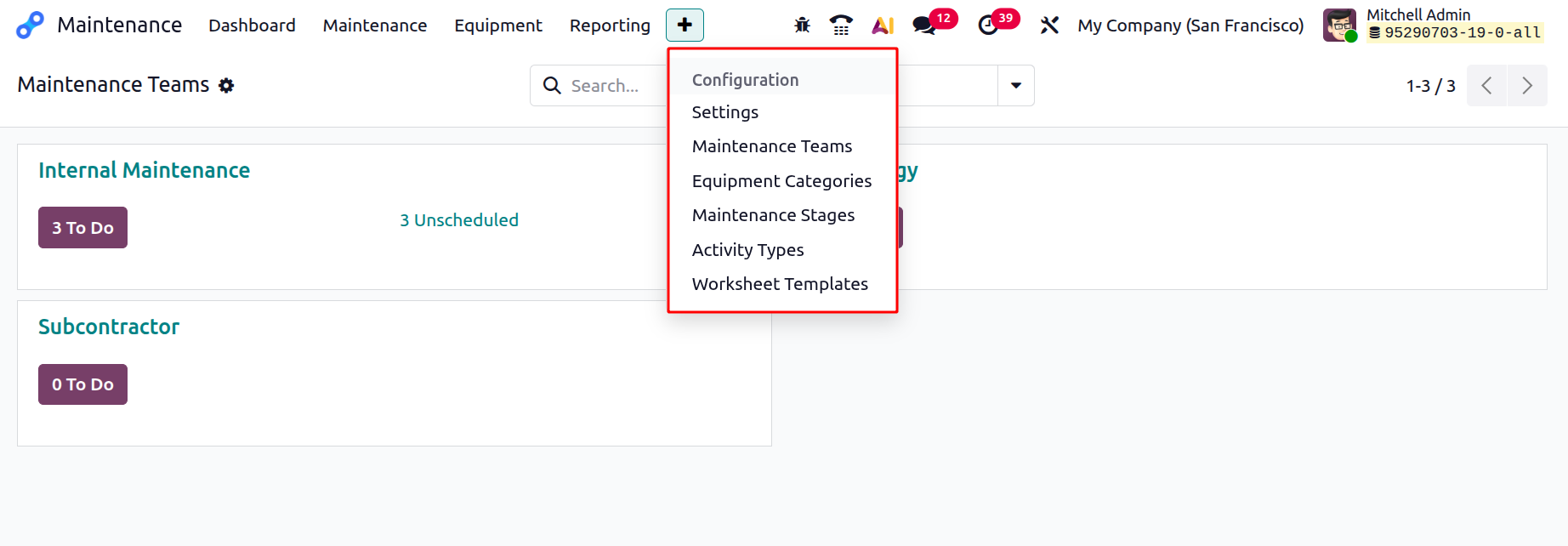
1.1 Settings:
Under Settings, you can enable the Custom Maintenance Worksheets option to create customized worksheets for different maintenance requests.
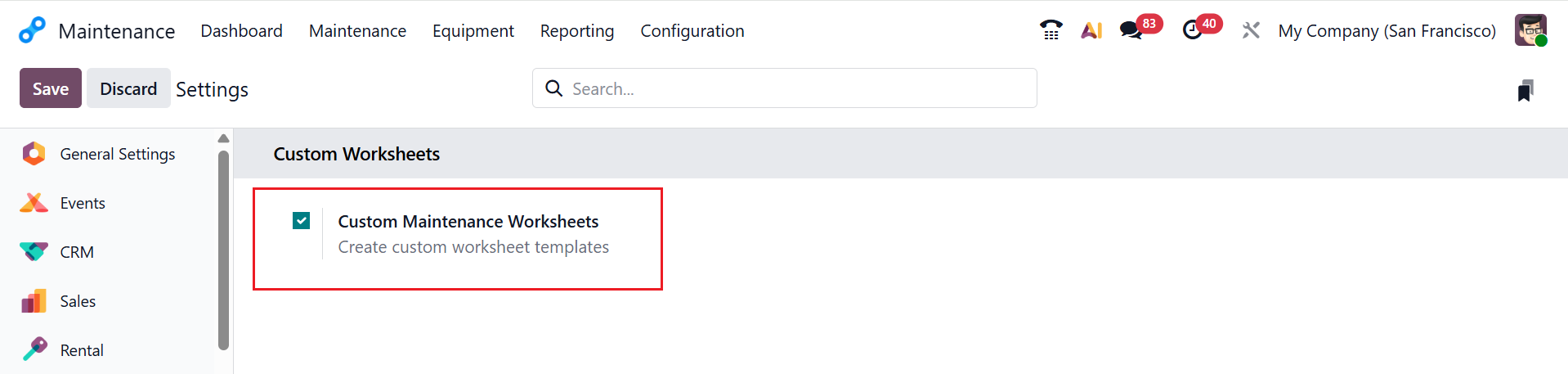
1.2 Worksheet Templates:
The Worksheet Template option will appear under the Configuration menu after the Custom Maintenance Worksheets option is enabled in the Settings menu. The dashboard view shows a list of existing worksheet templates, including the details: Name and Worksheet Count. To add a new worksheet template, click New, as illustrated below.
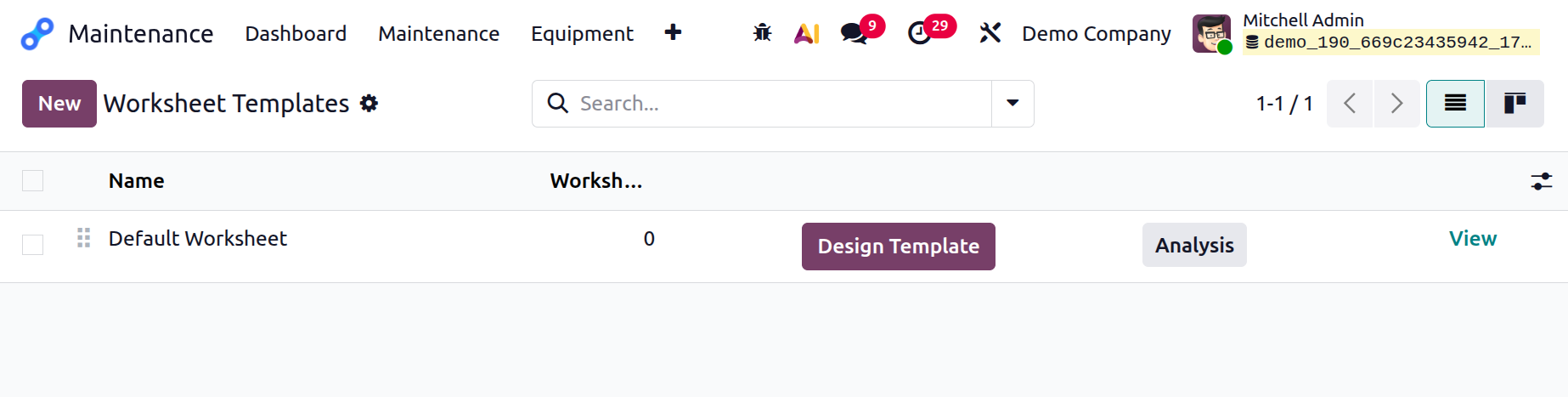
Click the Design Template button to make changes in the worksheet layout and form fields.
Here, you can see a wide variety of customisation options and settings, as seen in the picture below.
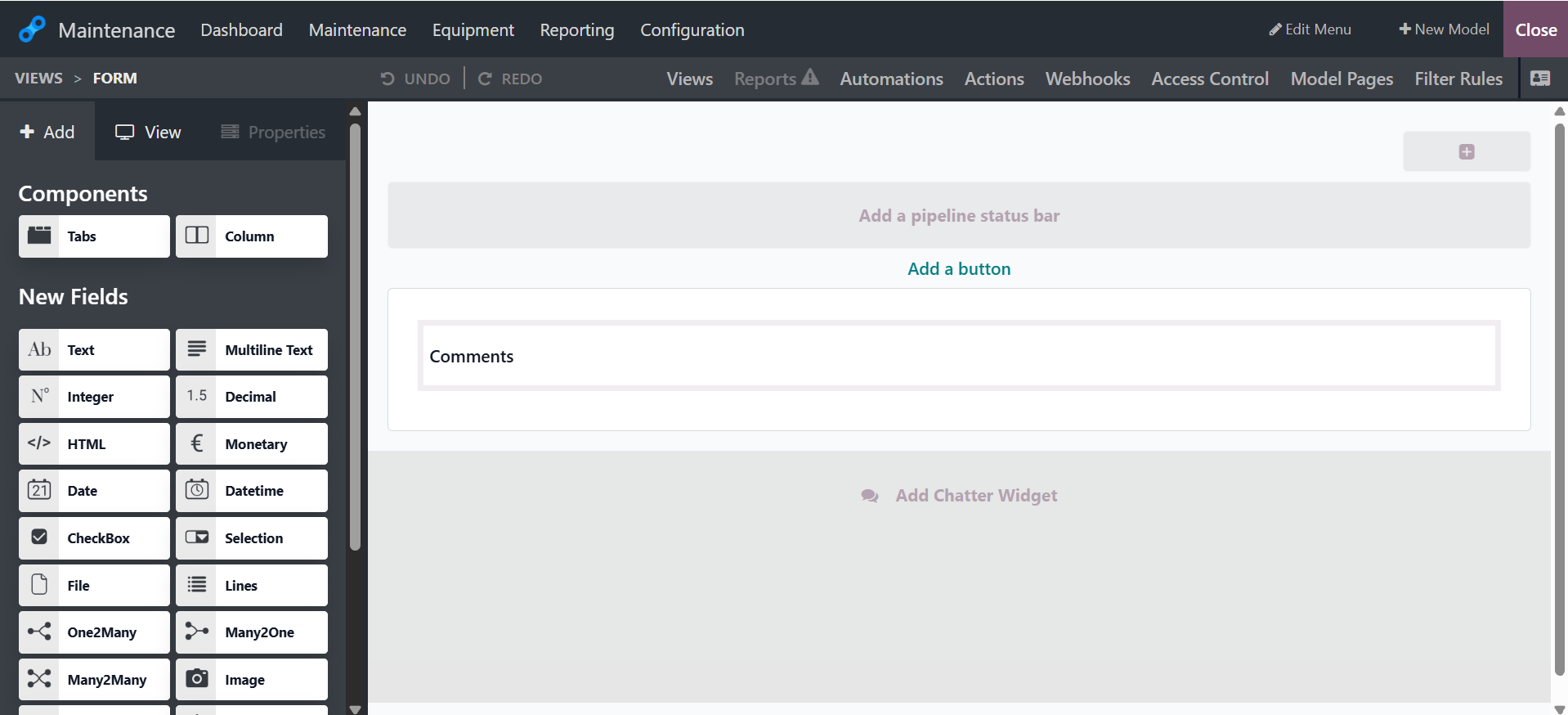
Here, you can see two sections on the left side of the screen: Components and New Fields, which offer a user-friendly drag-and-drop capability for customizing a worksheet by adding the required fields, columns, and any features.
1.3 Maintenance Teams:
In Odoo 19, Maintenance Teams are groups of technicians organized to handle specific maintenance requests in the Maintenance module. Here you can view details of the teams, including Team Name, Team Members, and Company. To create a new maintenance team, click on the New button. A new line will appear to add the details of the maintenance team, as shown below:
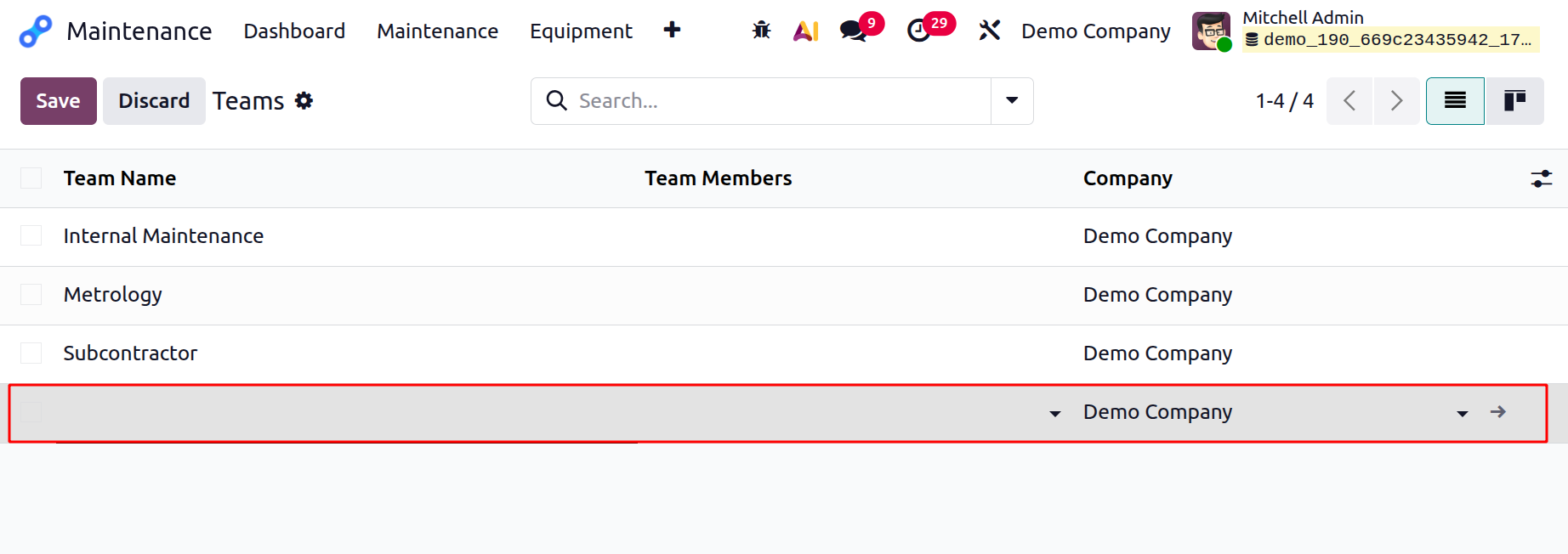
You can view the newly created maintenance team in the default dashboard of Odoo 19 Maintenance as shown below:
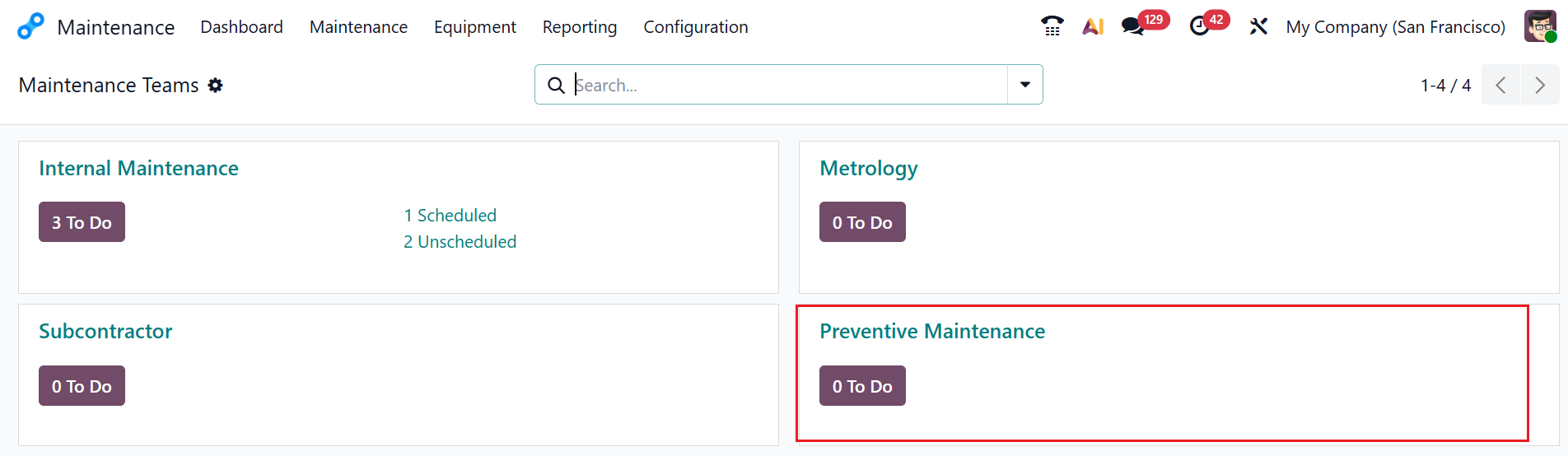
1.4 Equipment Categories:
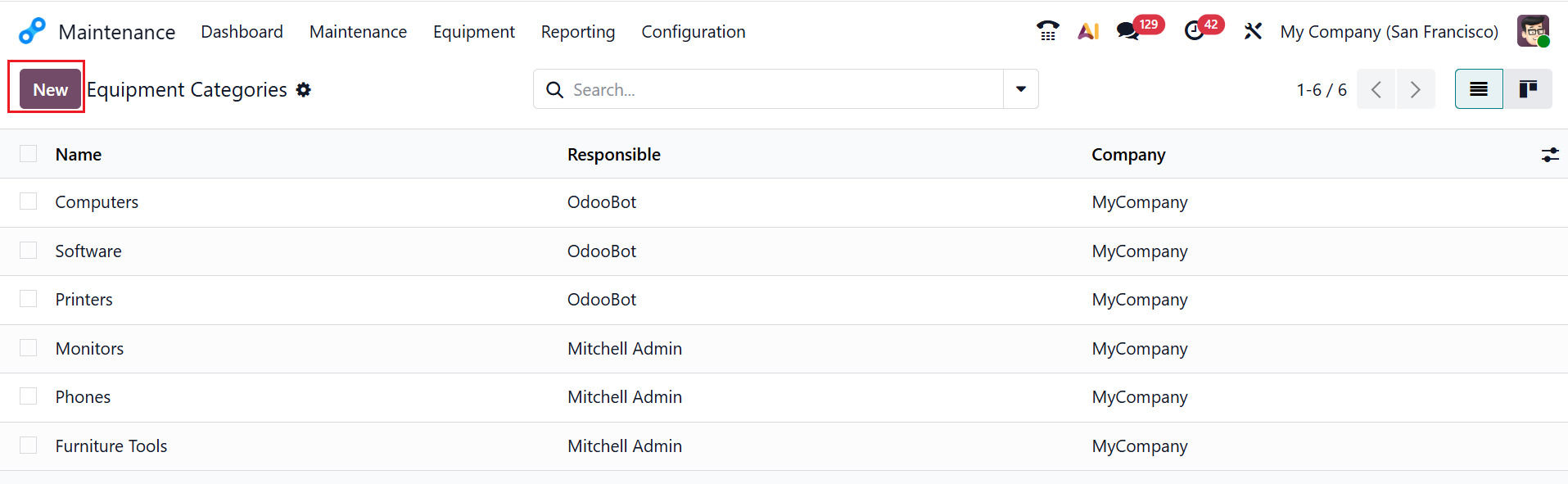
Equipment Categories in Odoo 19 are groups used to classify equipment, helping organize, filter, and manage maintenance more easily. The list view of the equipment categories option shows the details such as the category’s Name, Responsible, and Company. Click the New button to create a new equipment category, as shown below:
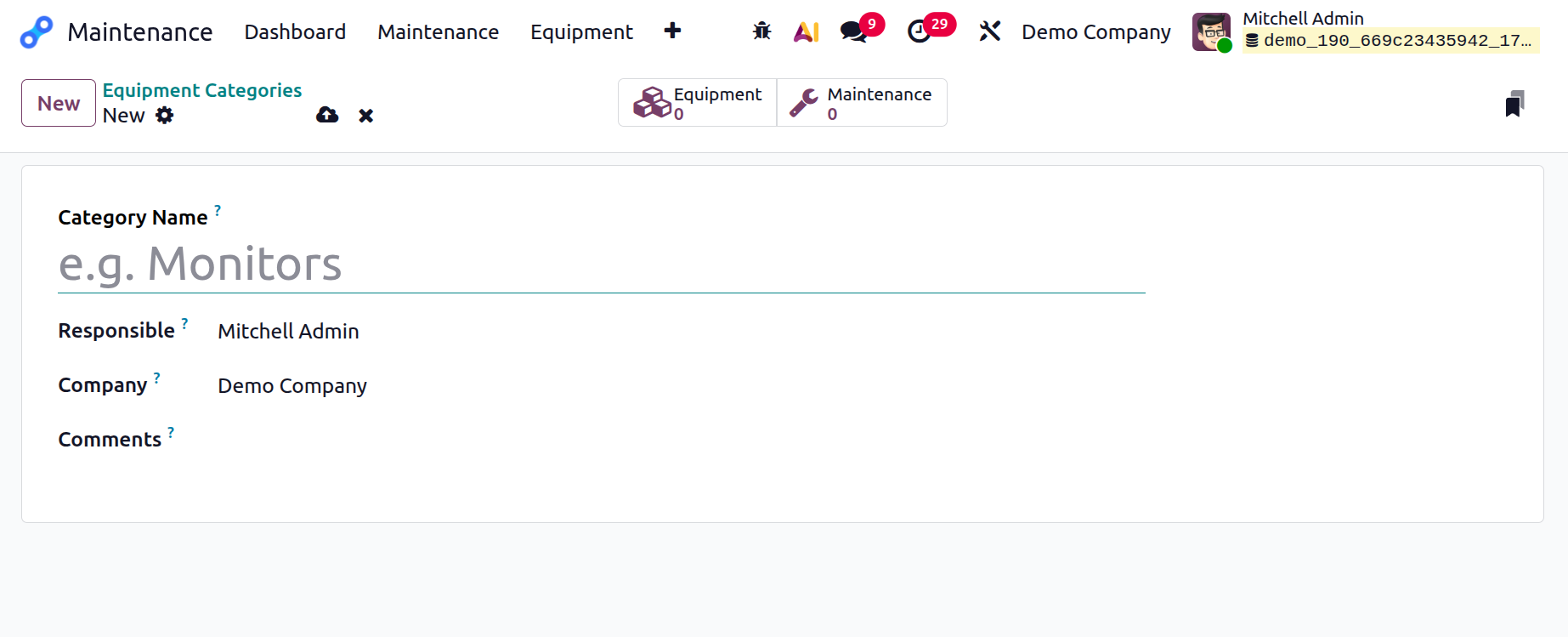
Enter the details for the category, including Category Name, Responsible, Company, and Comments.
1.5 Maintenance Stage:
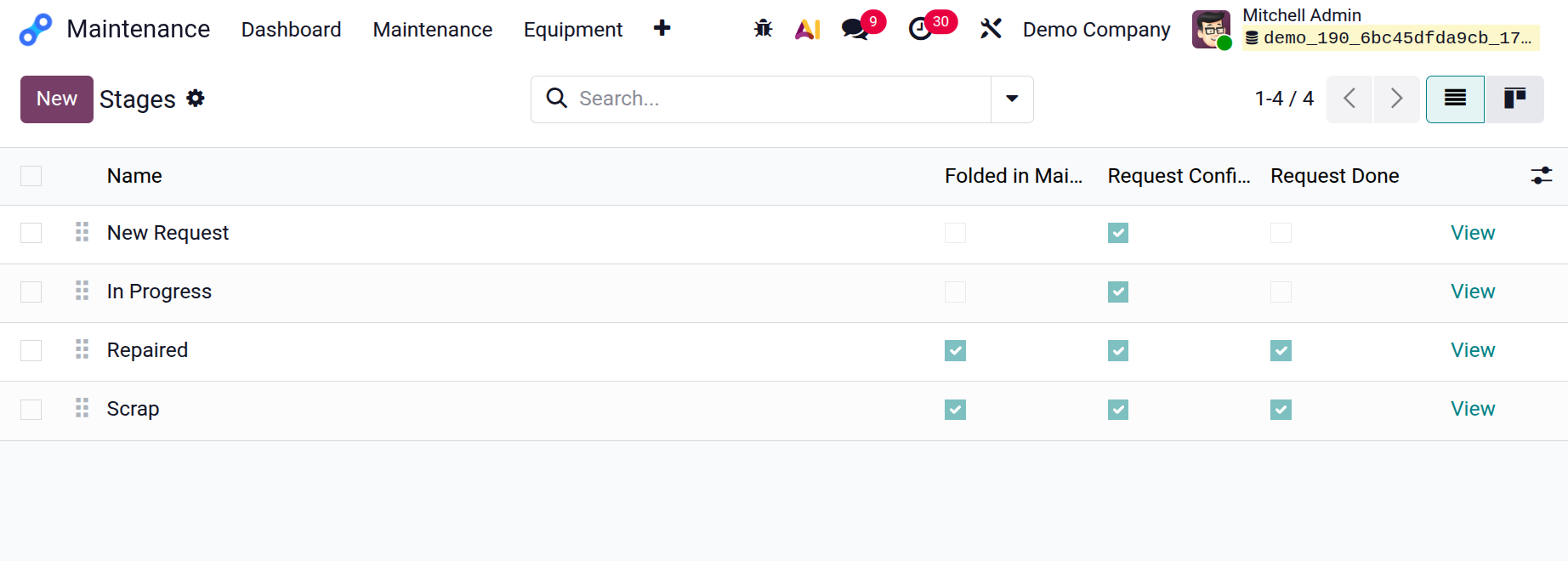
When you activate Developer Mode in the Settings module, you can view two additional options under the Configuration menu: Maintenance Stages and Activity Types. Maintenance Stages in Odoo 19 help you monitor the progress of each maintenance request from start to finish. They allow you to organize, monitor, and control how far a request has progressed from start to finish. Here, you can see the details of the maintenance stages, such as Name, Folded in Maintenance Pipe, Request Confirmed, and Request Done.
Click the New button to create a new stage. A new line will appear to add the details of the new stage, as shown below:
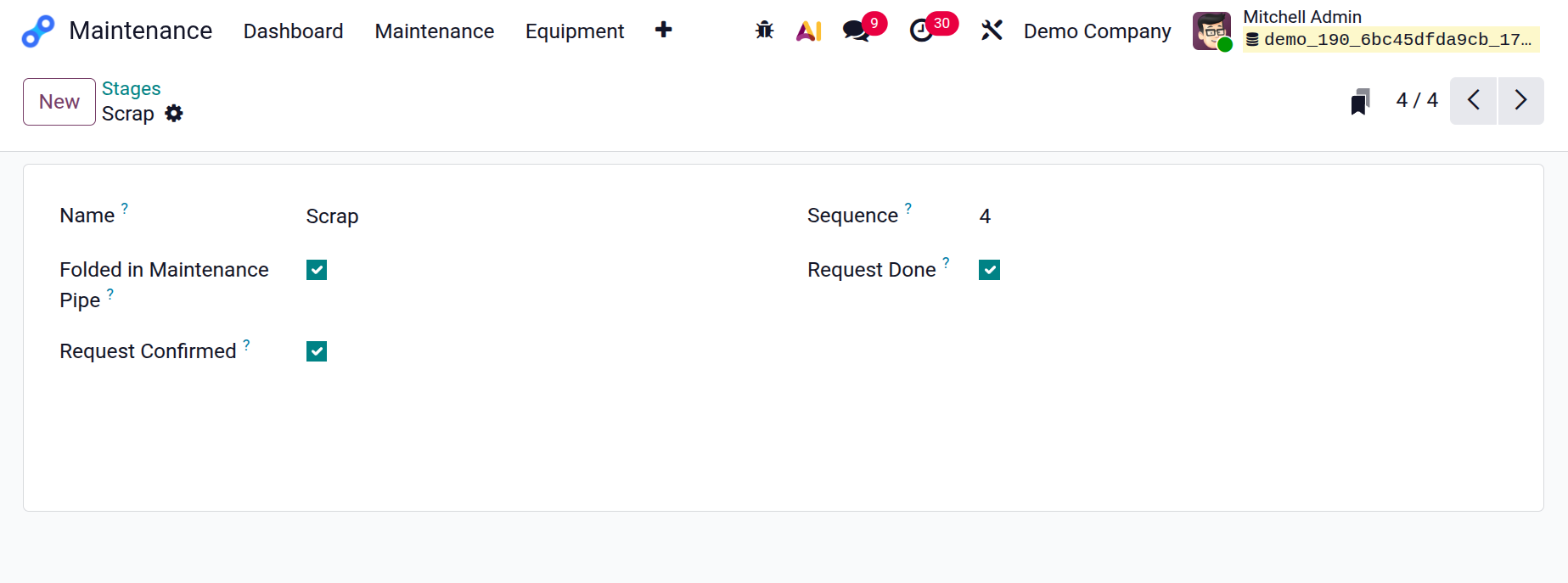
Click on the View button. Here, you can see the details such as Stage name, Folded in Maintenance Pipe, Request Confirmed, Request Done, and Sequence.
4.6 Activity Types:
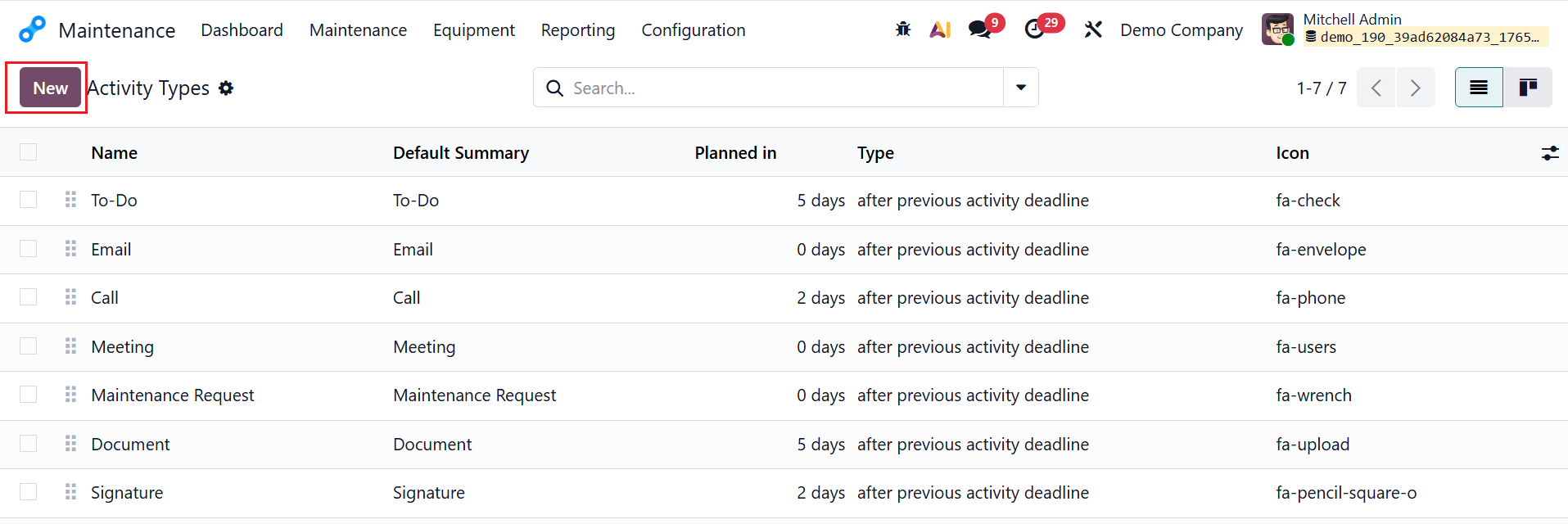
In Odoo 19, Activity Types are pre-defined categories of actions that you can schedule on records. You can view details of activity types, including Name, Default Summary, Planned In, Type, and Icon. To add a new activity type, click the New button.
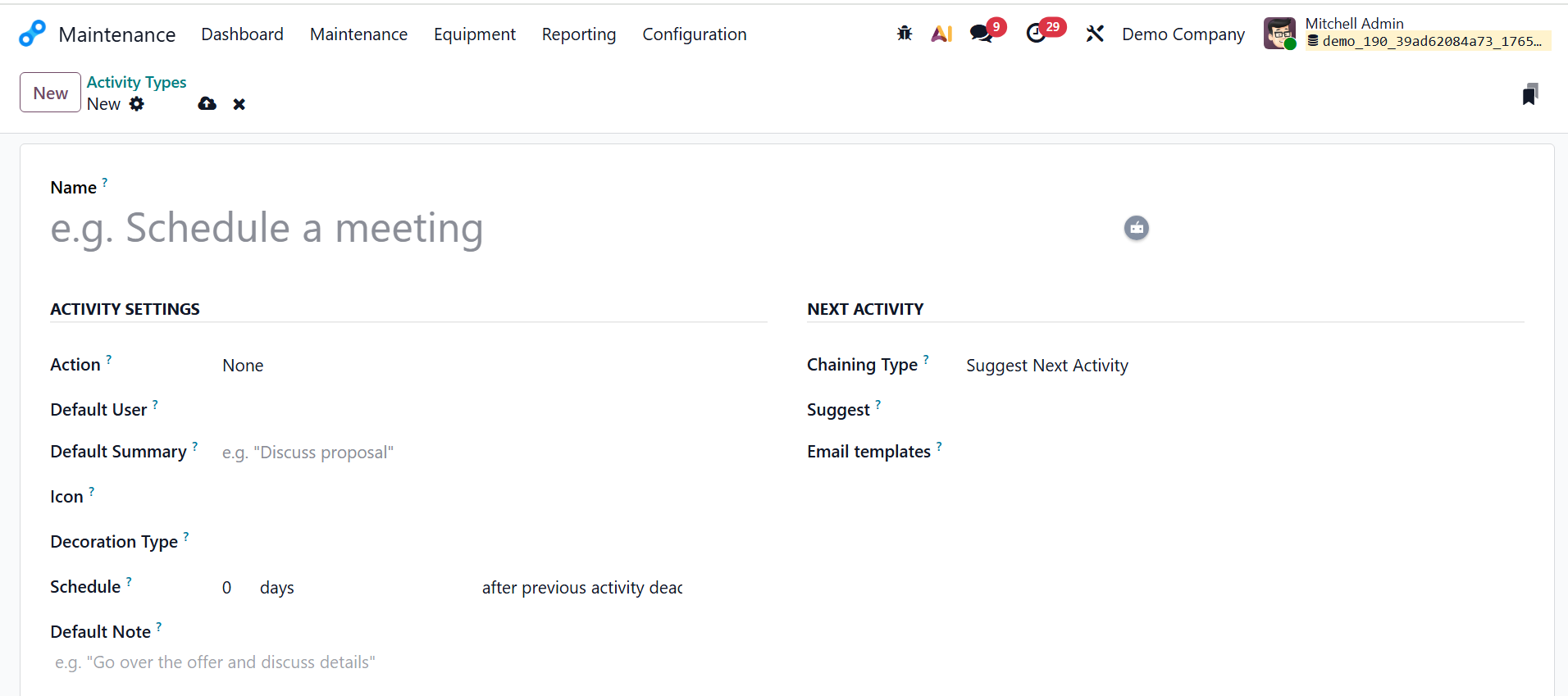
Then enter the title in the Name field. In the Actions field, select either Upload Document, Phonecall, Meeting, or Signature to trigger the activity. Select a user who will automatically beassigned this activity when created in the Default User field. In the Default Summary field, add a short description of the activity that will automatically appear when the activity is scheduled. Add a symbol in the Icon field to represent the activity type visually, and choose a color in the Decoration Type field to highlight it. In the Schedule field, define how many days after the previous activity the new activity should be planned automatically. Add a long predefined note in the Default Note field. Then, in the Chaining Type field, select Suggest Next Activity or Trigger Next Activity as needed. When you select the Chaining Type as Suggest Next Activity, the Suggest field will appear to select an activity type to be suggested. When you select the Chaining Type as Trigger Next Activity, the Trigger field will appear to select an activity that will automatically update after completing an activity. In the Email Template field, select a predefined email template to send an email as an activity.
2. Reporting:
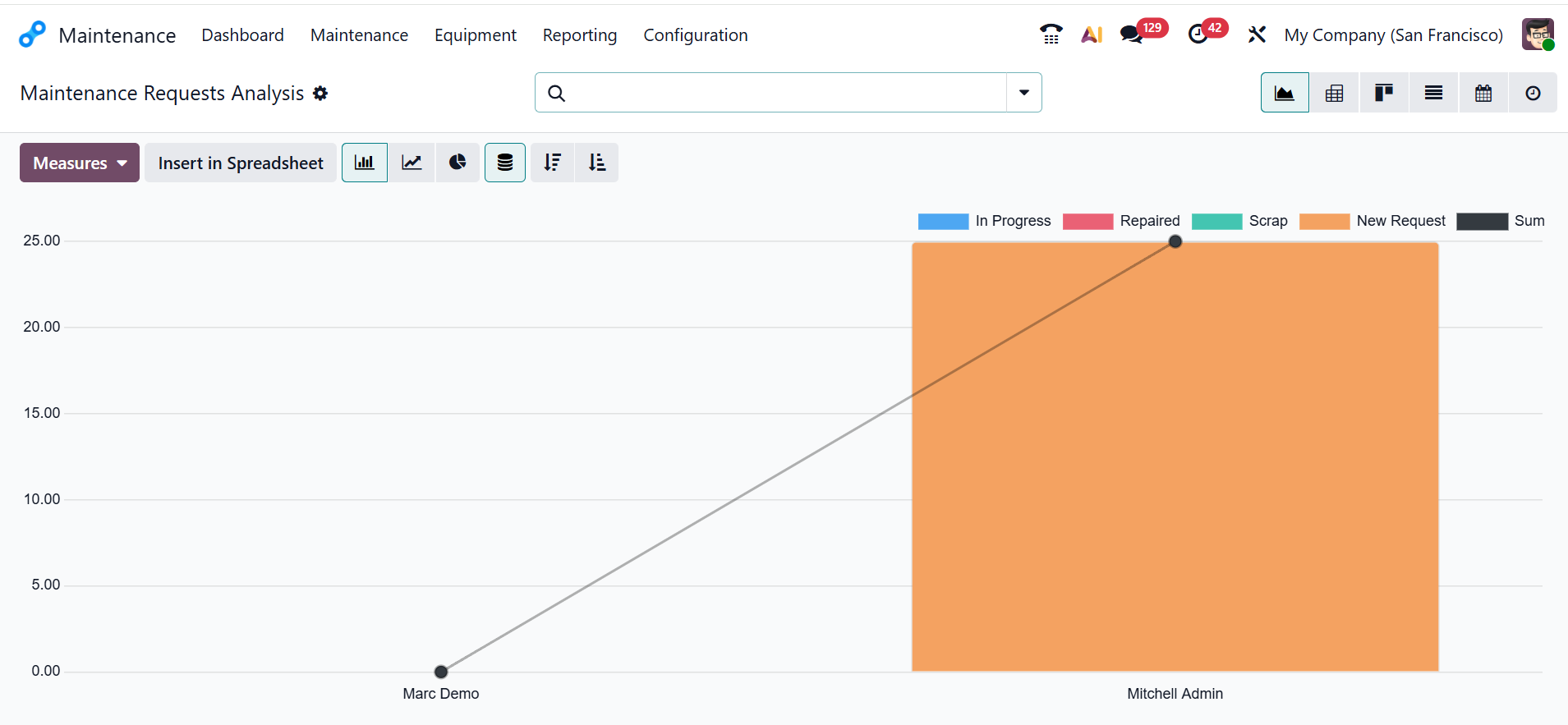
In the Odoo 19 Maintenance module, the Reporting menu shows a detailed analysis of maintenance operations in the Maintenance Requests Analysis window.
The reporting menu offers different view types, such as Graph, Kanban, List, Pivot, Calendar, and Activity. Maintenance requests can be analyzed with bar, line, or pie charts, with options to view the data in stacked, ascending, or descending order. Each color in the graph shows the status of the maintenance request. You can change the graph's value using the Measures button.
An effective, centralised system for handling preventive and corrective maintenance is provided by Odoo 19 Enterprise's Maintenance module. It helps minimise equipment downtime by making it simple for users to create, schedule, and monitor maintenance requests. Automated preventive planning guarantees timely maintenance for machinery, increasing dependability and long asset life. Better decision-making and cost control are supported by specific equipment records and performance data. With intuitive dashboards and KPIs, managers can view workloads and track progress in real time. The module improves coordination and guarantees the availability of necessary spare parts by integrating with Manufacturing and Inventory. In general, it creates stronger asset management and makes operations more seamless.