Operations
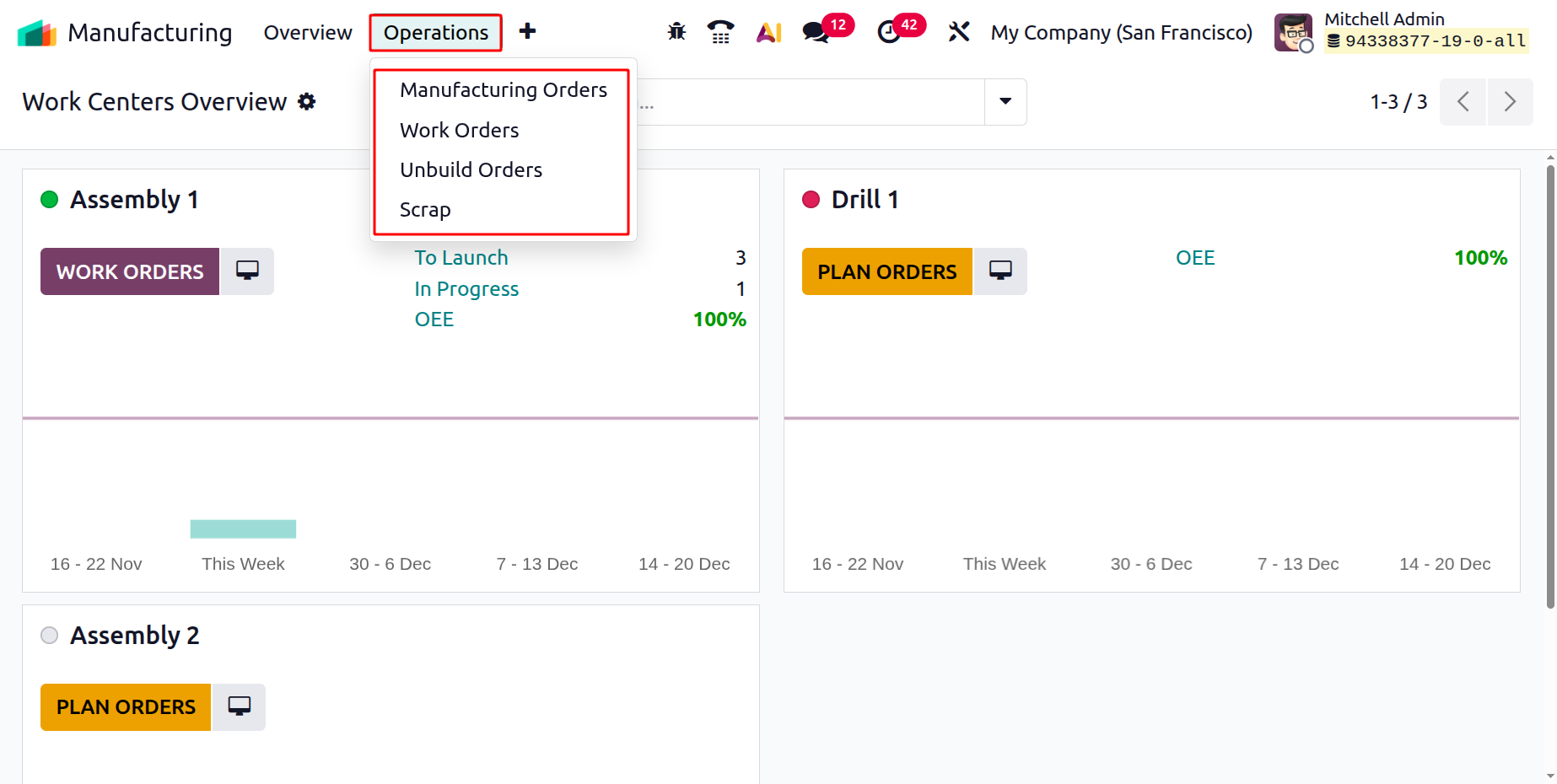
All operations, including Manufacturing Orders, Work Orders, Scrap and Unbuild are accessible through the Operations menu in Odoo Manufacturing, allowing users to carry out and monitor the complete production process.
On selecting the Operations menu, you are provided with some options, like Manufacturing Orders, Work Orders, Unbuild Orders, and Scrap.
1.1 Manufacturing Orders
When they access the manufacturing module, users are presented with a dashboard that displays current production orders, as shown below.
The page displays preconfigured information for each production order, including the Reference number, Start date, Product, Next activity, Source, Component availability, Quantity, Unit of measure (UoM), Company, and Status.
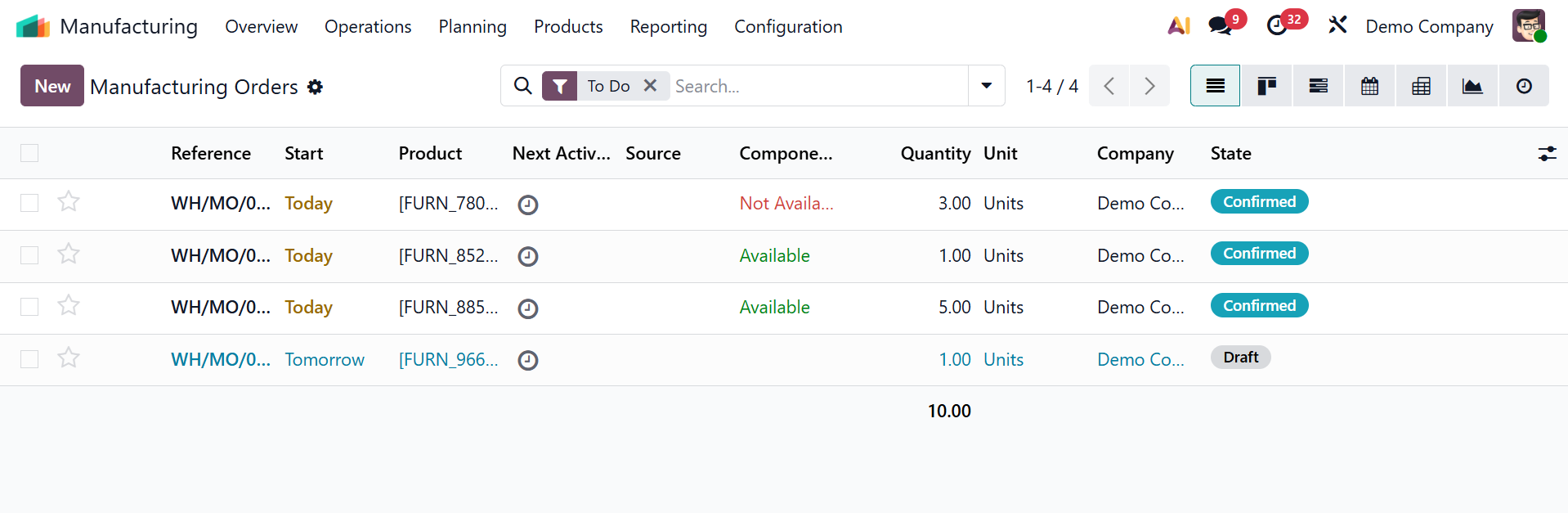
Additionally, the module offers a variety of views, such as Kanban, List, Gantt, Calendar, Graph, Activity, and Pivot, so users may select the view that best meets their requirements. Effective reporting and analysis are made possible by this adaptability.
The search bar's Group By and Filters features improve functionality even more. Manufacturing orders can be filtered by product type, scheduling date, material availability, and other criteria, or by their status (e.g., draft, confirmed, in process, or completed).

On selecting the New option, you will have the creation page, as shown below.
Odoo 19's creation page asks users to enter important information necessary for manufacturing operations, such as the Product Name, which describes the item to be produced, and the Bill of Materials (BoM), which lists the components and their necessary quantities. The number of units to be produced, the Scheduled date, and the Responsible User—the person in charge of the process—must all be specified in the allotted space.
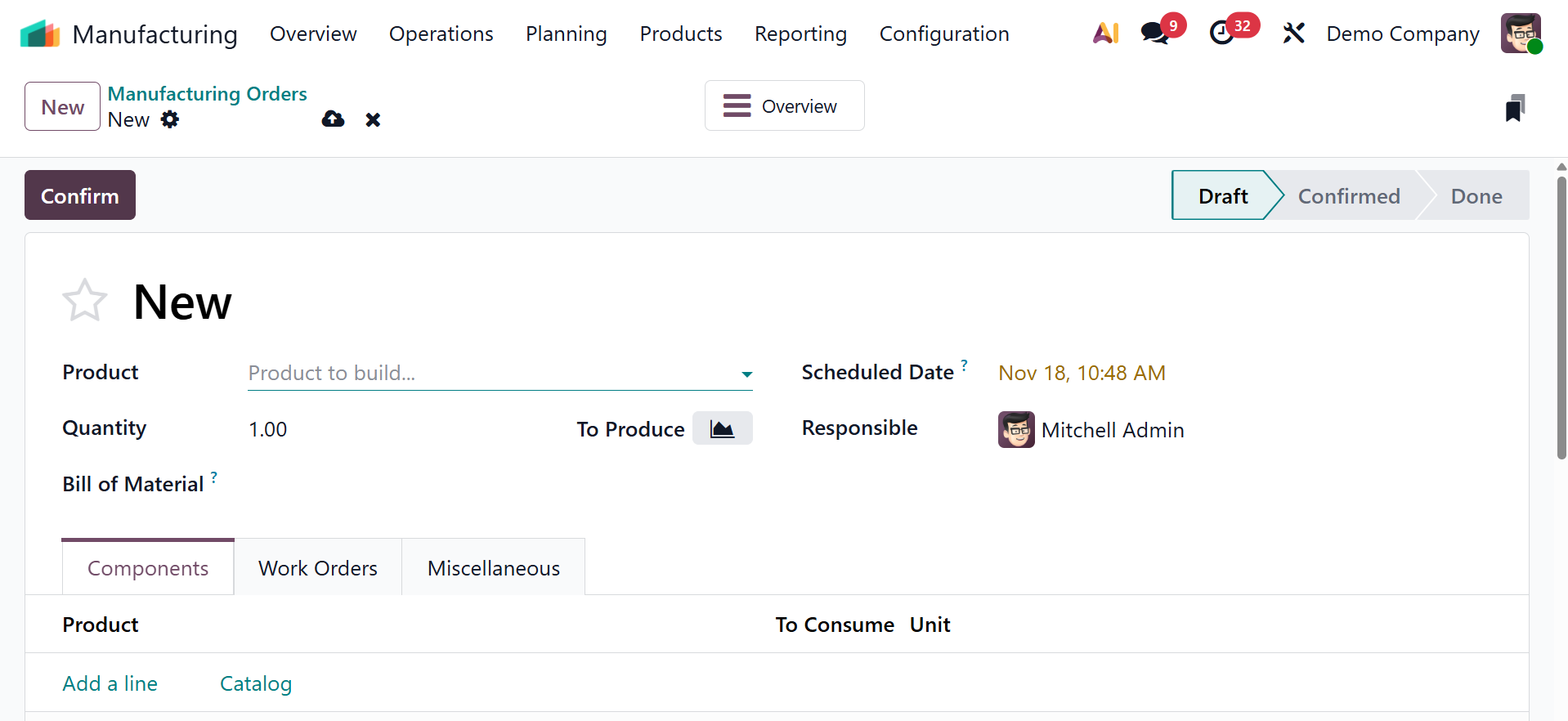
By using extra tabs like Components to manage material requirements, Work Orders to define specific jobs, and Miscellaneous for other pertinent configurations or notes, users can further improve the production process beyond these fundamental basics.
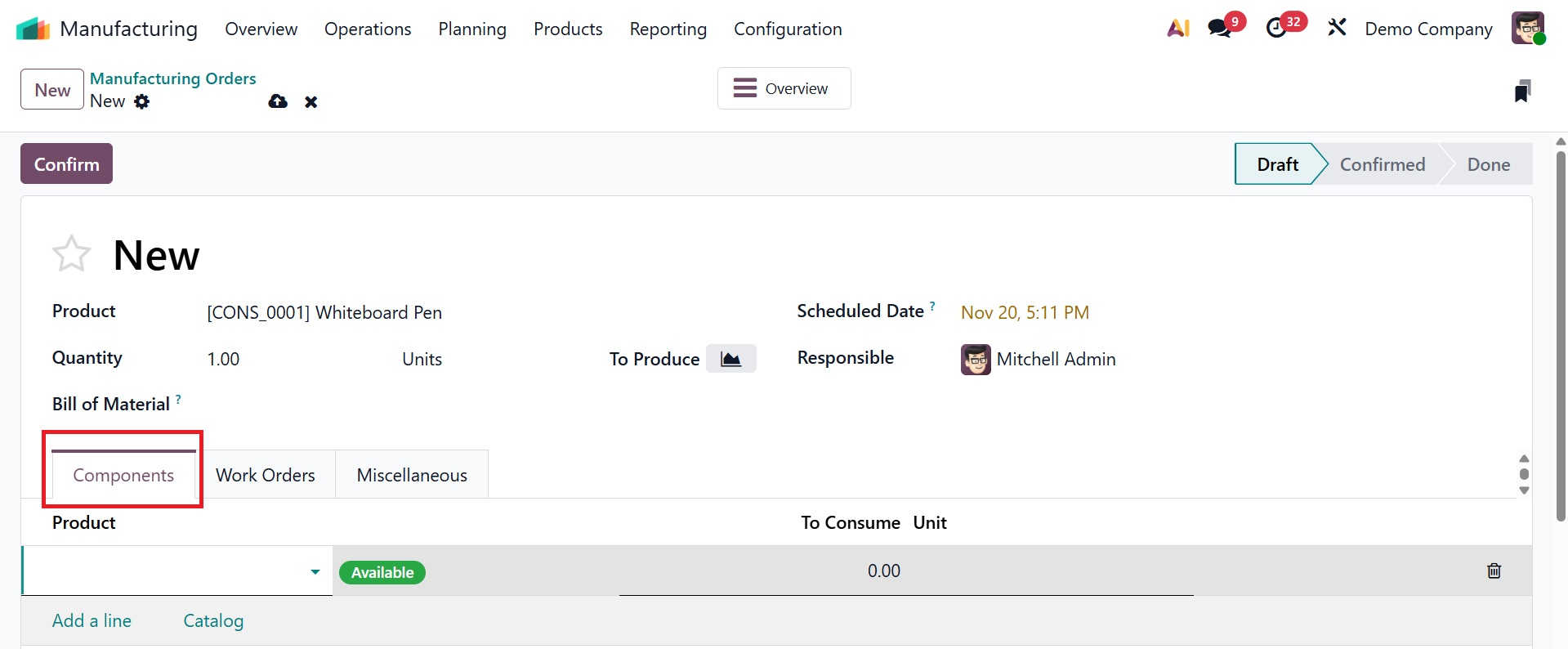
The "Add a Line" option on the Components page enables the inclusion of raw materials. As seen in the screenshot below, we can discuss the unit of measure (UoM), consumption quantities, and component products.
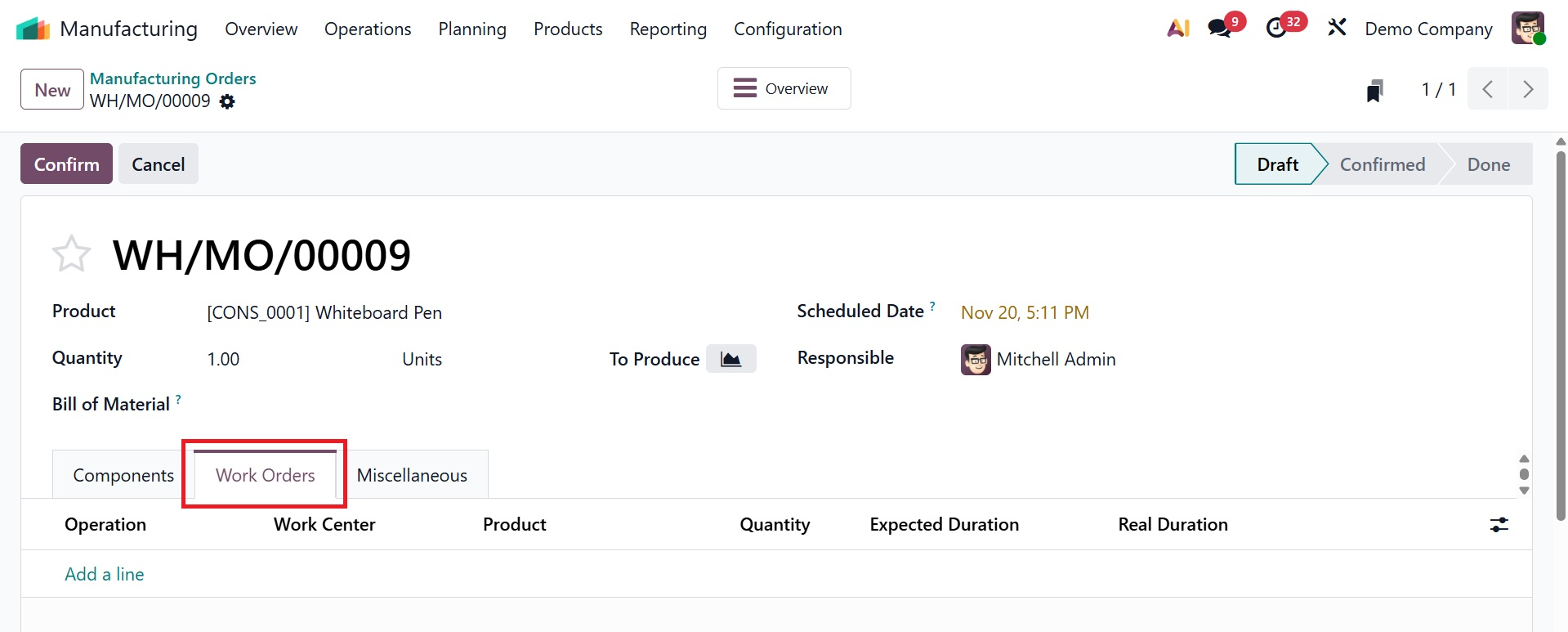
he operation, work center, product name, quantity scheduled to begin, expected duration, and actual duration can all be added under the Work Orders tab option. How the real-time is automatically adjusted will depend on the jobs involved in the manufacturing process.
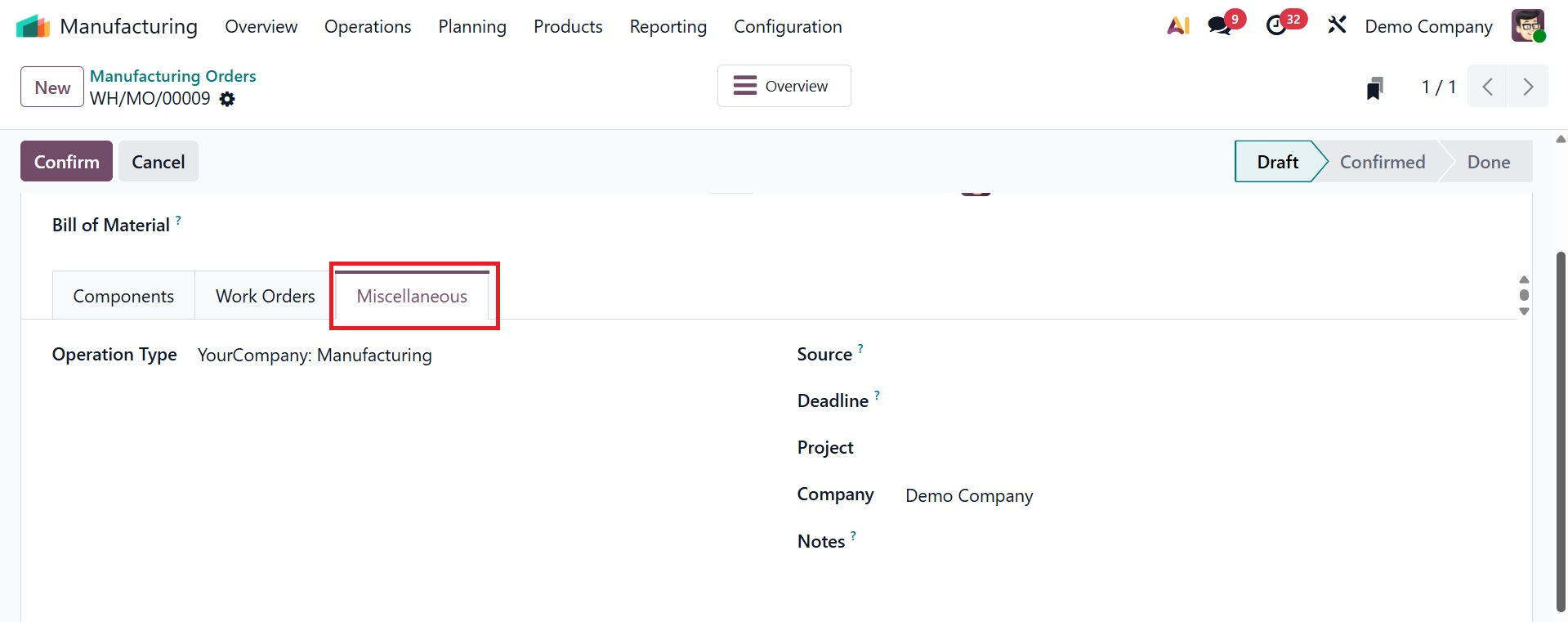
We can offer further information about the work order on the Miscellaneous area once everything has been finalized. The Miscellaneous tab allows you to identify Operation Types, Projects, and the Company, as well as add more details like Sources, deadline, project, company, and notes .
- Operation Type: Indicates the kind of manufacturing process being carried out, connecting the order to the appropriate entity or process flow.
- Source: To help with traceability, a reference field to the document (such as a particular Sales Order or a reordering rule) that generated the manufacturing order automatically.
- Project: The manufacturing order may be associated with a particular project in some versions.
Once all the information has been entered, save the work order details and use the "Confirm" option to move forward with the work order. A new manufacturing order will be created as a result of this action, and some key buttons and smart button options for subsequent operations are displayed below.
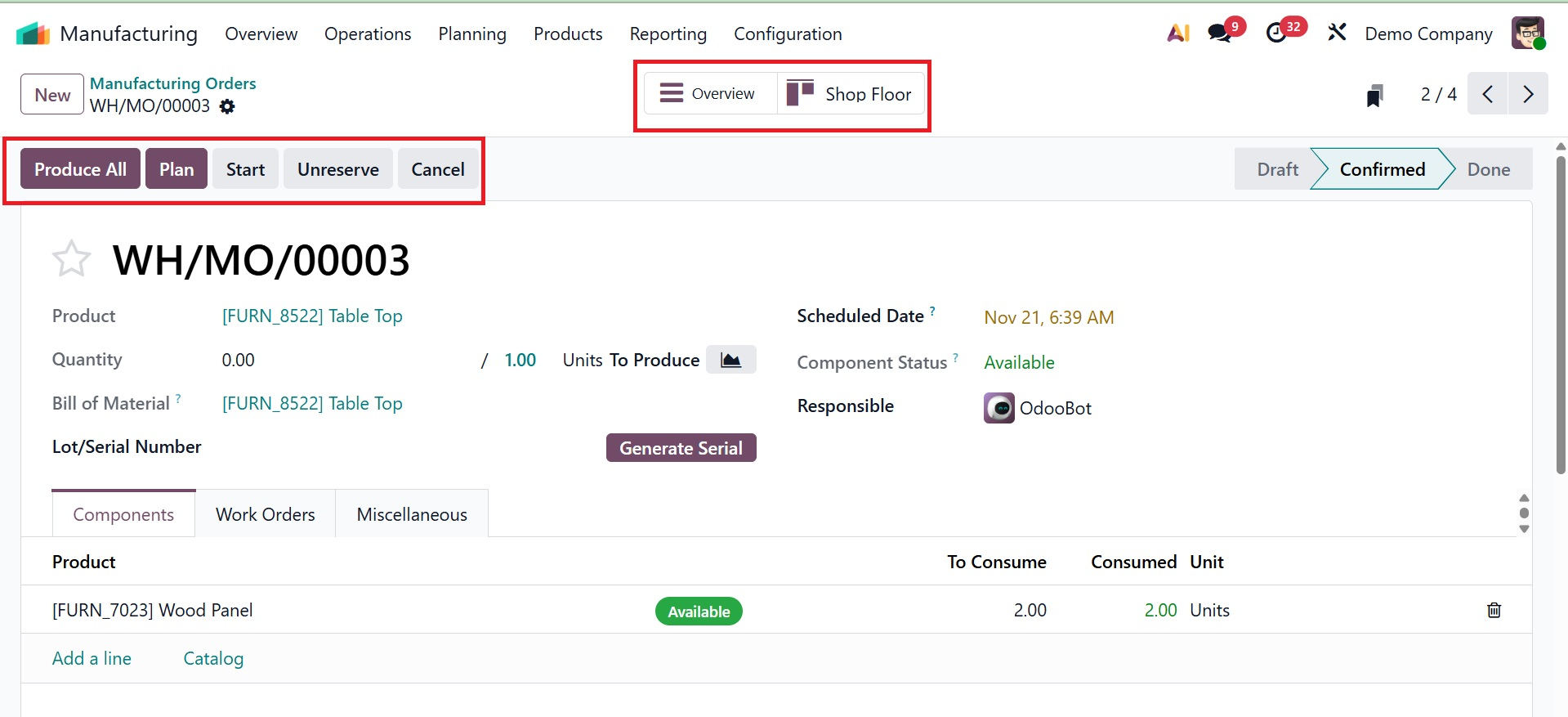
The manufacturer order can be created instantly by using the "Produce All" button, or it can be delayed by using the "Plan" option. Here, you can view the status of the orders in different representations.
- Blocked: Due to a shortage of components or an unmet dependency, the operation is now suspended.
- To Do: Awaiting the commencement of production, the manufacturing order has been verified and scheduled.
- In Progress: The shop floor is actively engaged in production.
- Cancelled: The manufacturing order will not be fulfilled and has been cancelled.
- Done: The order has been closed, and all production processes have been completed.
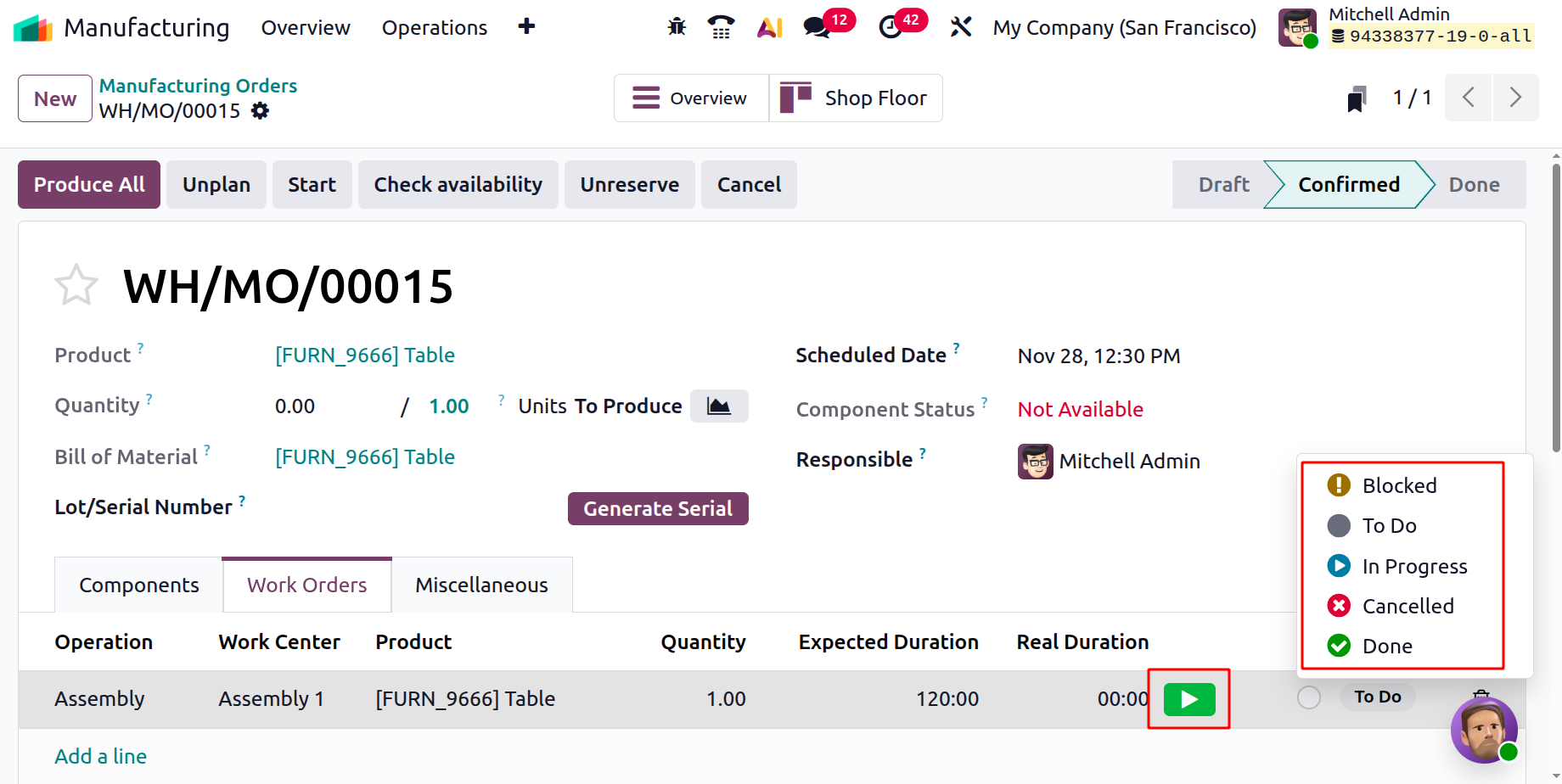
The manufacturing process can be initiated with the timesheet recording feature by pressing the "Start" button. You can cancel the entire production order and unreserve the product and its components by using the "Unreserve" and "Cancel" buttons.
As shown in the screenshot below, the Overview smart button will show a comprehensive overview of the manufacturing process, including the components, operations, status of the actual product and operations, quantity, reserved quantities, Manufacturing Order Costs (MO Costs), Real Cost, and other details.
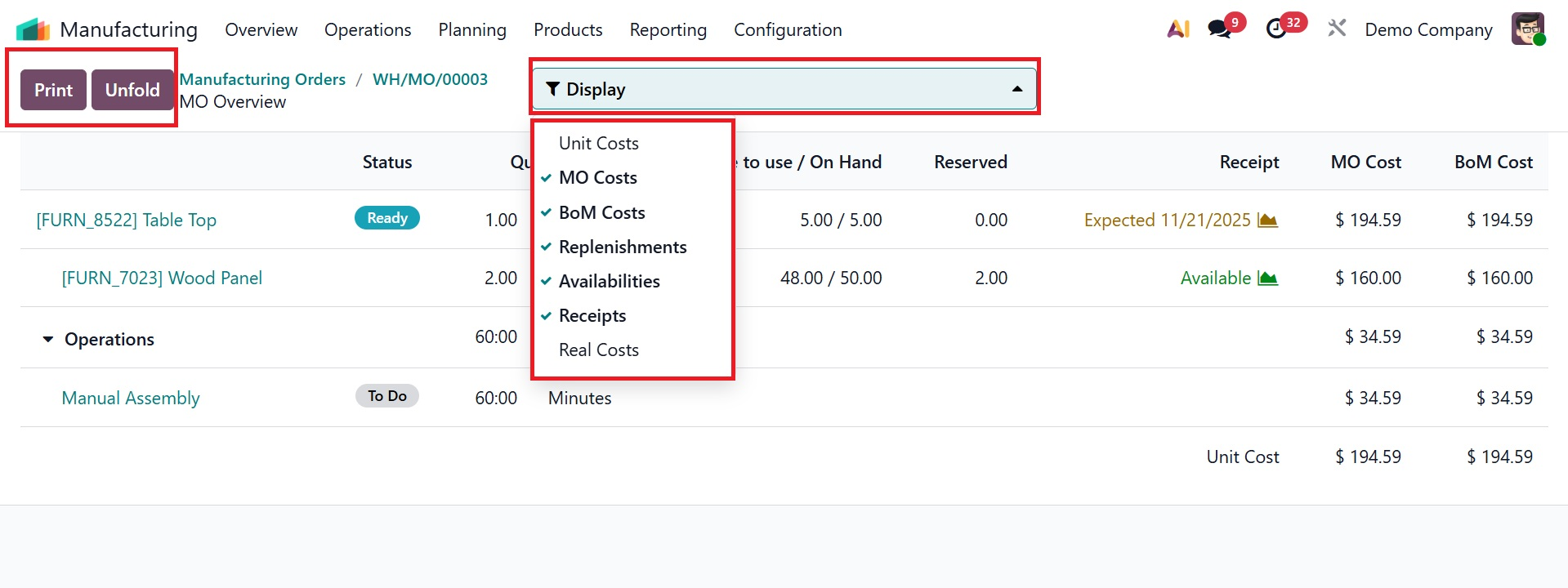
You can view many parts of the production process, including unit costs, manufacturing order costs, BoM costs, replenishments, availability, receipts, and real cost by using the filter option.
- Print: You can create and download manufacturing-related documents in PDF format, including work orders, manufacturing orders, and worksheets, using the Print option.
- Unfold: In a list (such BoM components or work orders), the Unfold option enlarges grouped lines to display all detailed records underneath that group.
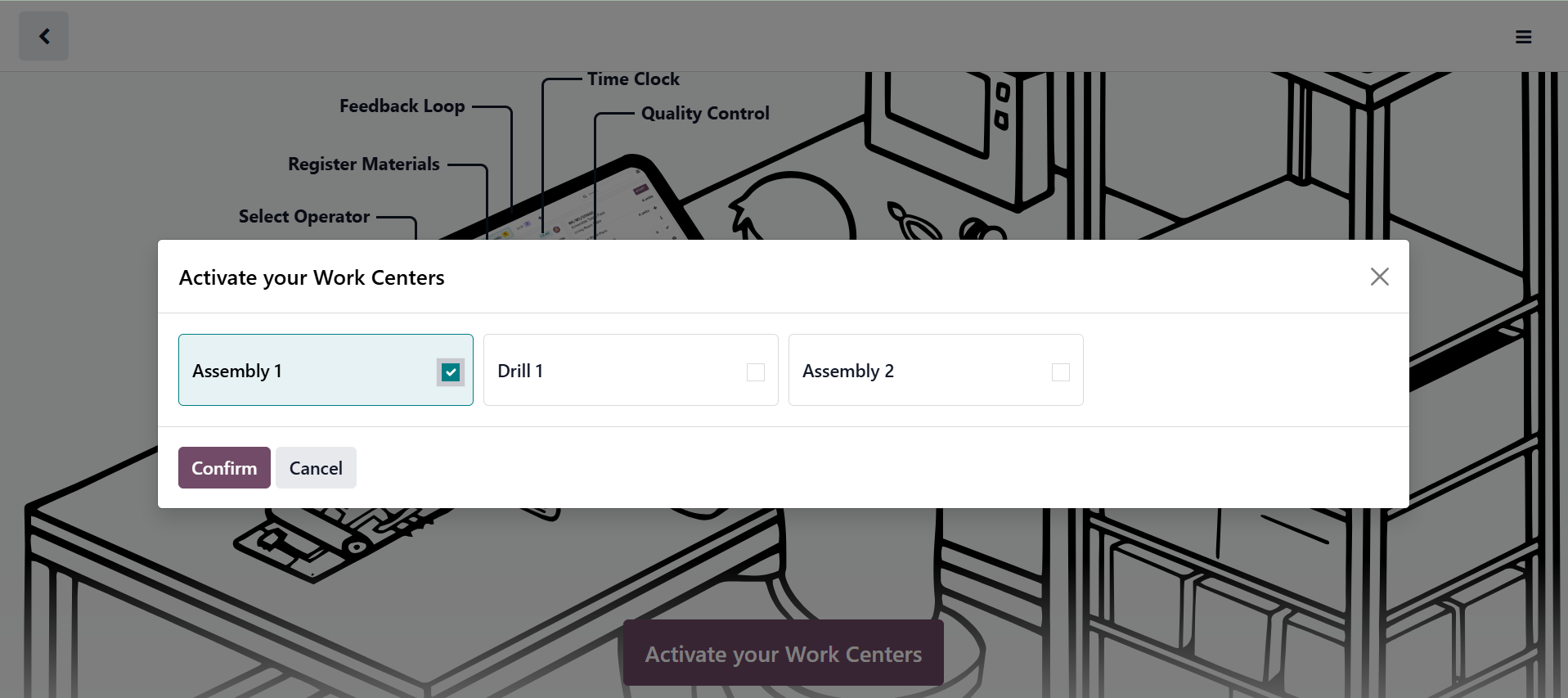
The manufacturing order's work order tablet view will be displayed under the "Shop Floor" tab. Thus, you must select and verify the work center for this station.
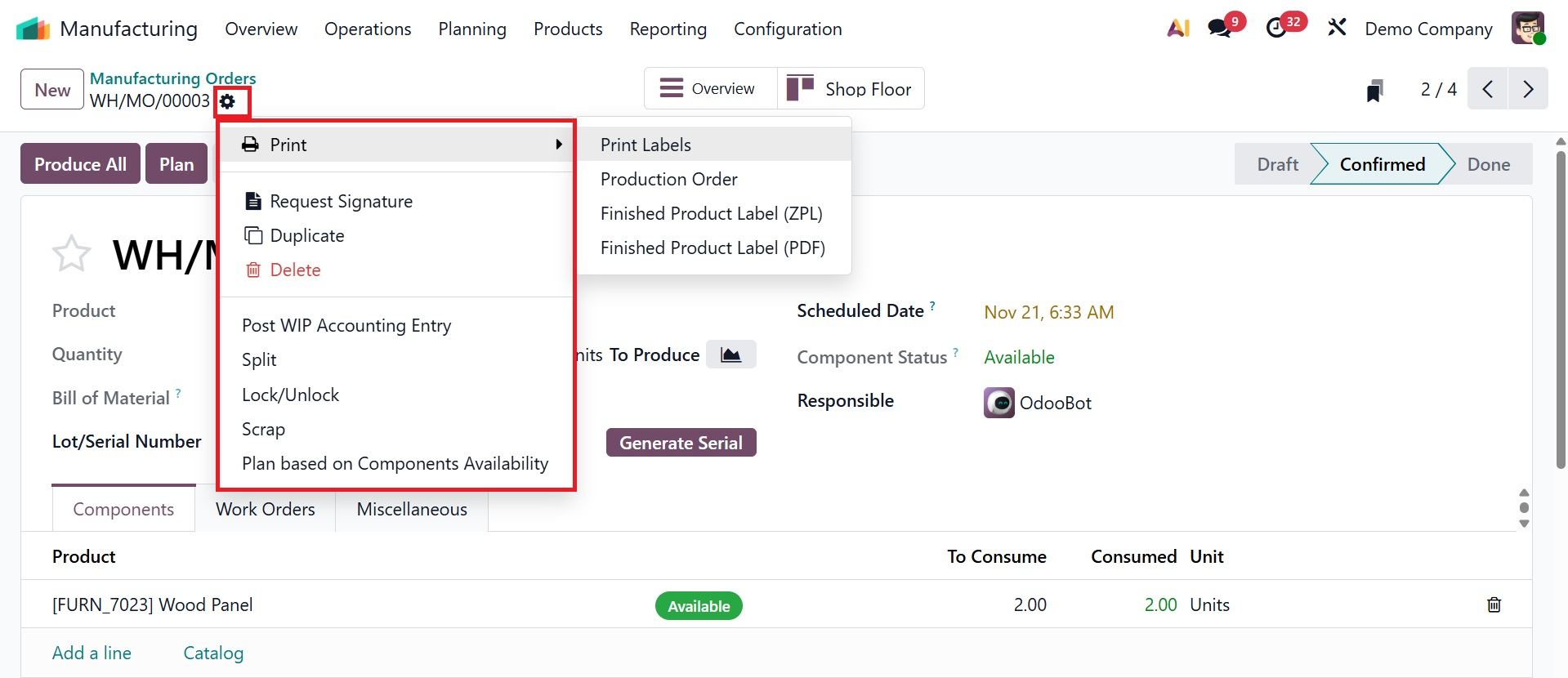
The form data can be printed, deleted, and duplicated using the "Action" button located in the upper left corner of the form view. Under this, you have the options like, Print, Request Signature, Duplicate, Delete, Post WIP Accounting Entry, Split, Lock/Unlock, Scrap, Plan based on Components Availability. Users can sign the work order documents by using the "Request Signature" option.
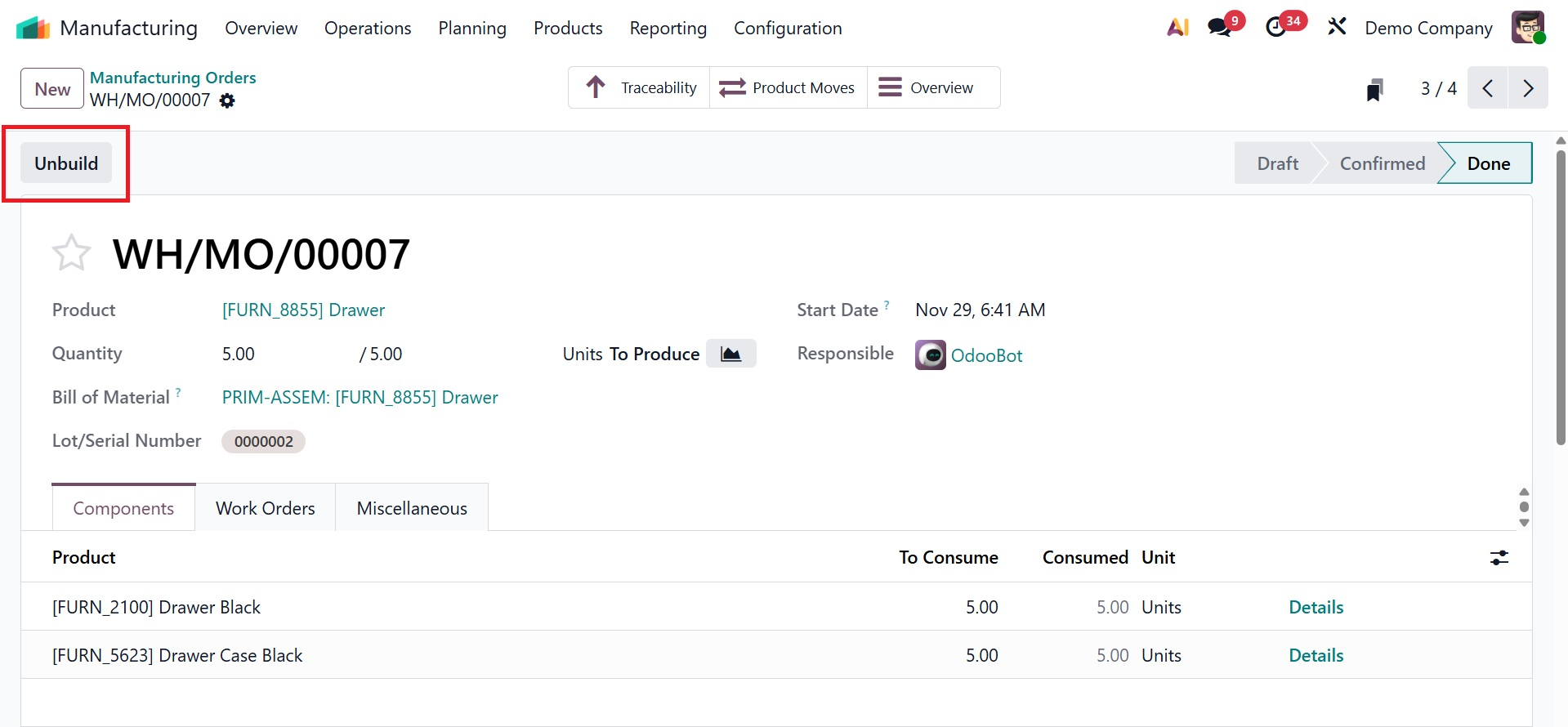
We can print the data using the Print button for further research or to better comprehend the processes. You can add or remove MO Cost, Real Cost, BOM Cost, Unit Cost, etc. from the MO Overview using the display filter. If there are any errors or problems with the product's quality, Odoo will show a "Unbuild" button after creating the manufacturing order.
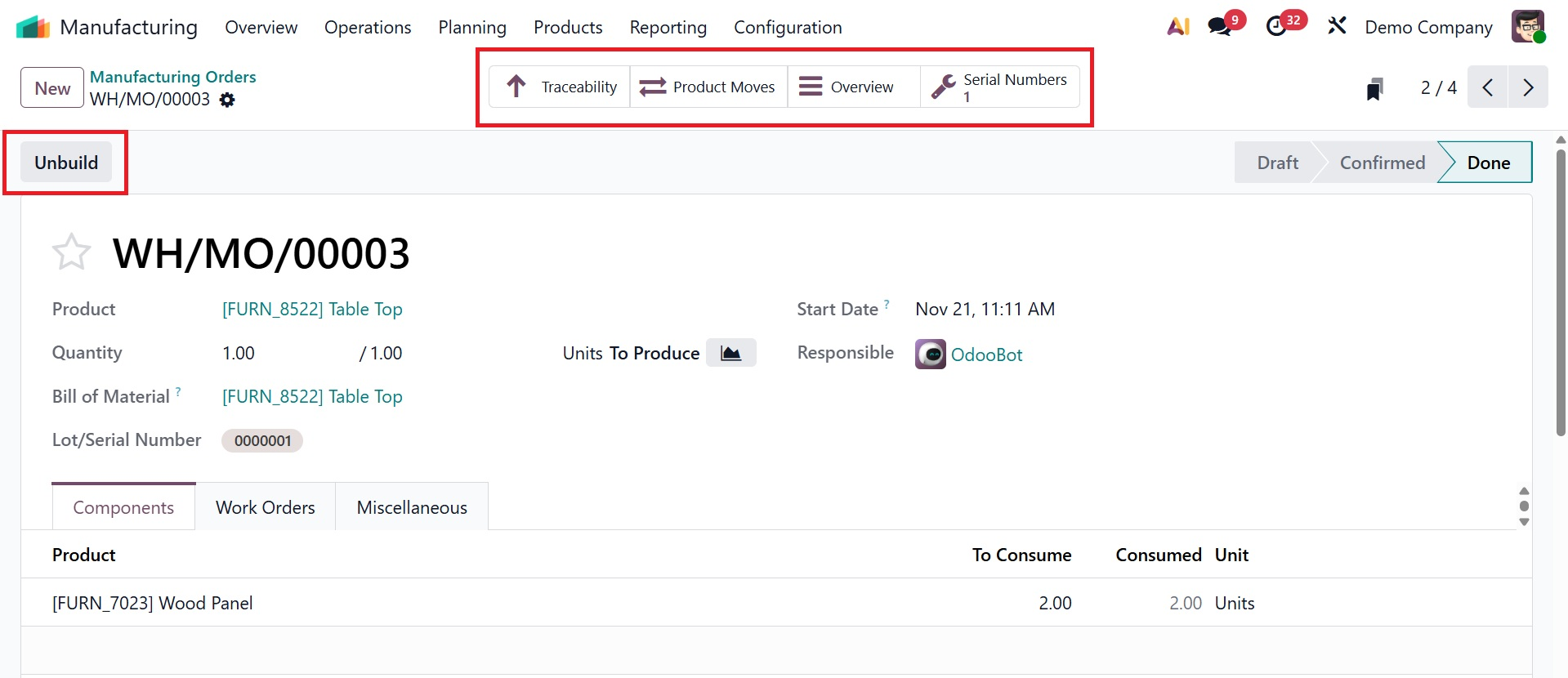
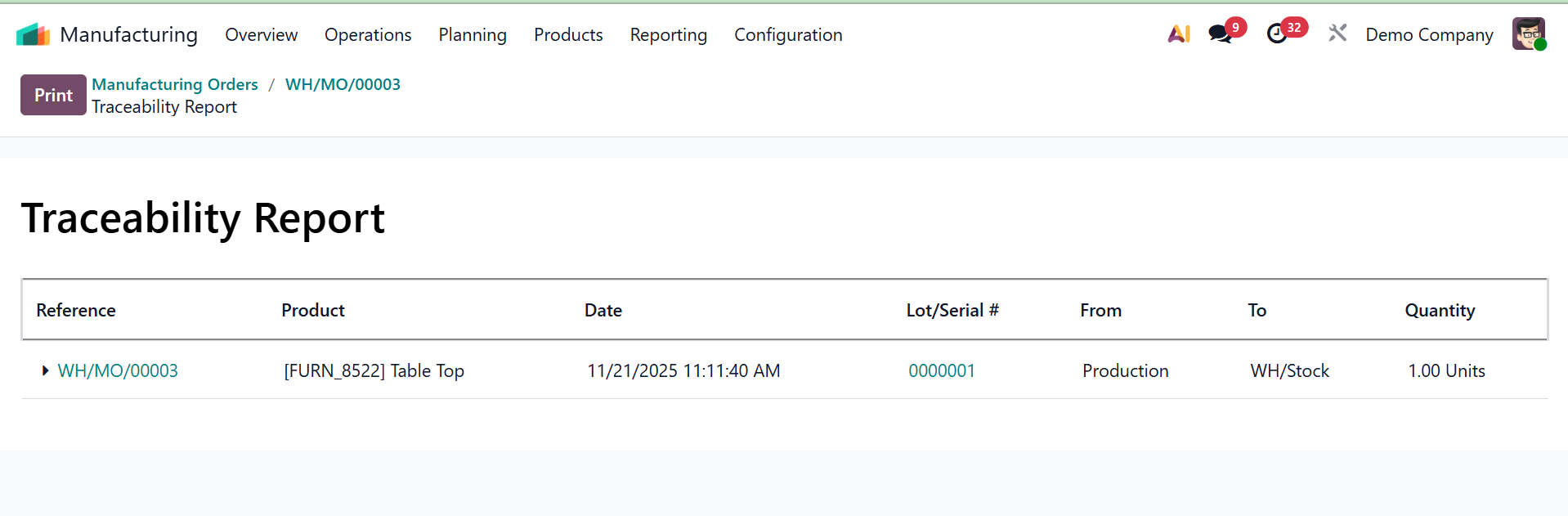
You can view the product traceability report by using the "Traceability" smart button. This report contains comprehensive details on each product that was included in the manufacturing order, as can be seen in the image below.
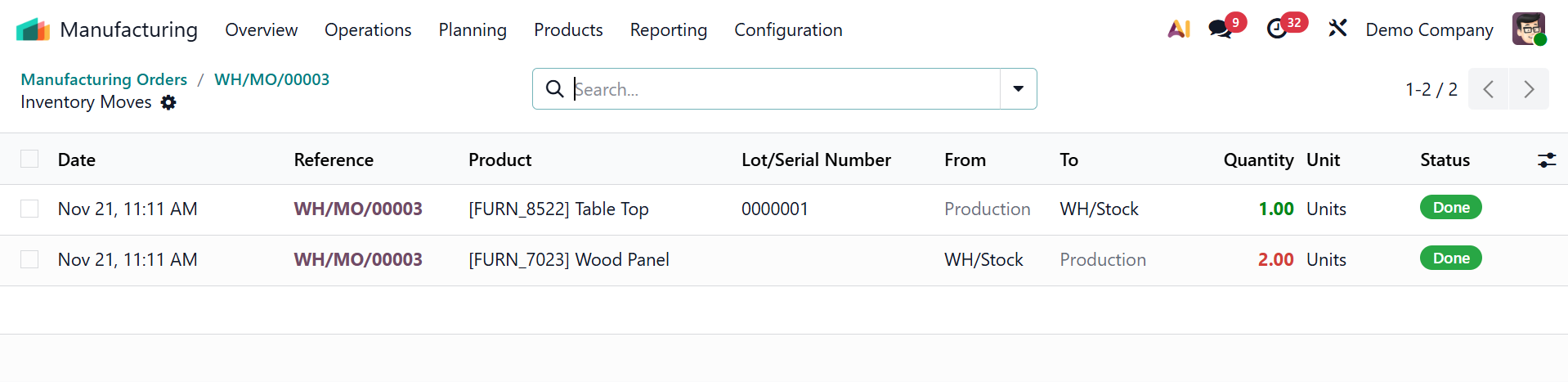
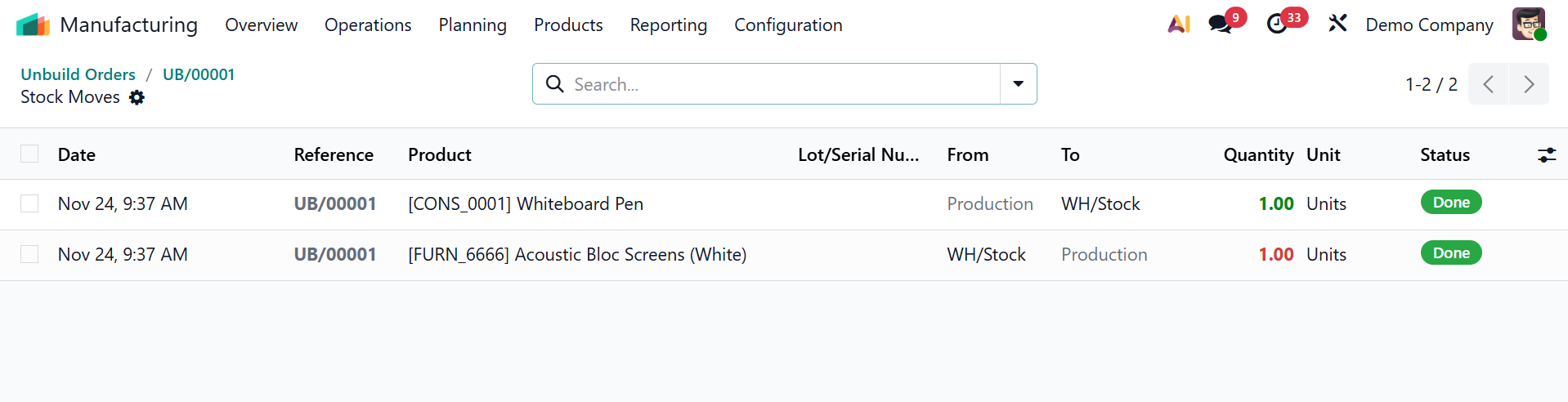
Clicking the "Product Moves" smart button will bring up a dashboard with all inventory movement data, including the time and location of a component or product transfer across facilities. In this example, several parts were moved to ensure stock availability.
2.2 Work Orders
The management and organization of work orders are crucial for effectively coordinating all activities related to product production. When work orders are initiated, options are available from the main menu of the manufacturing module.
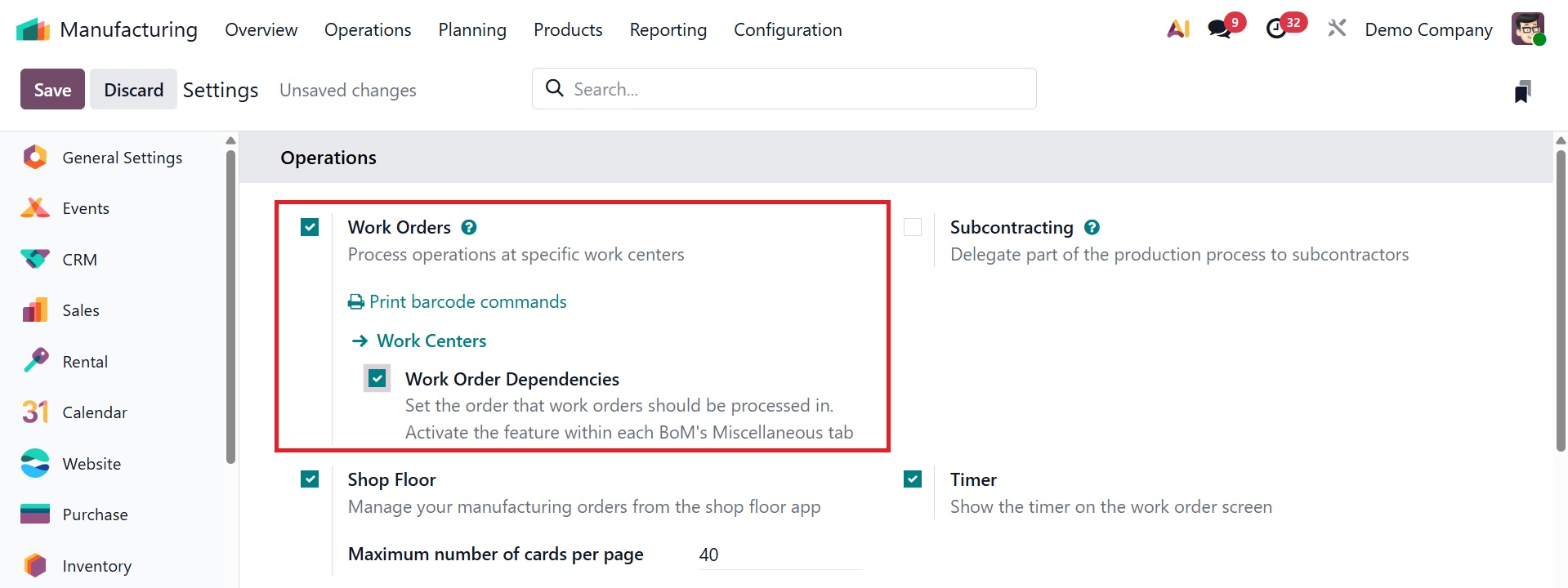
If you enable the Work Orders feature in the settings menu, the average work order details will be displayed on a separate page.
As shown in the screenshot below, if work orders have already been created, they will be listed on the "Work Orders" dashboard pane, displaying details such as the Operation, Work Order, Product, Quantity Remaining, Expected and Actual Durations, and the current state of each work order.
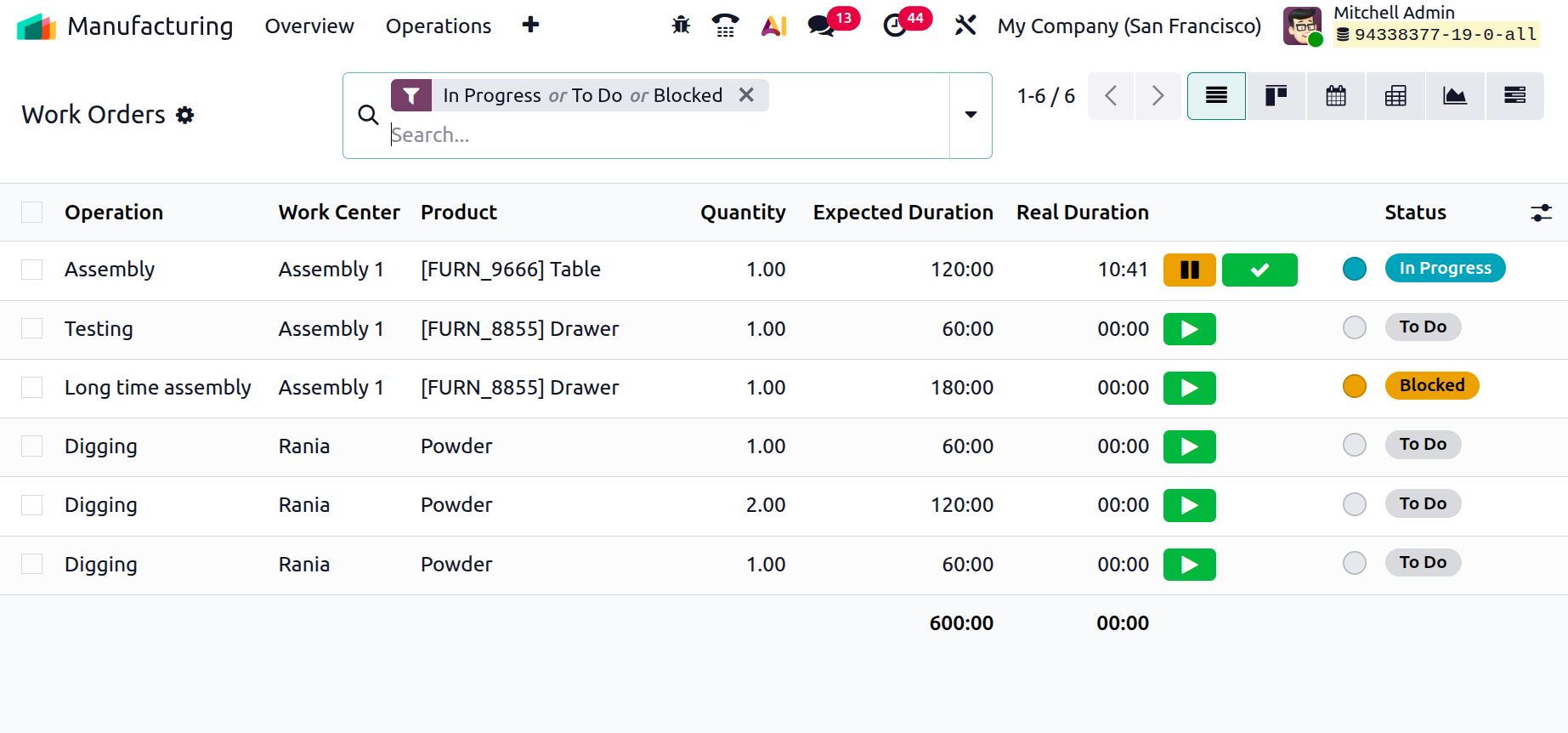
The production activity is initiated by pressing the green play button in a work order, which also allows time tracking and progress recording. This page's Pivot, Graph, and Kanban viewing options allow you to choose the format that best meets your workflow and analytical requirements. Clicking the Start button next to any outstanding work orders will initiate the procedure.
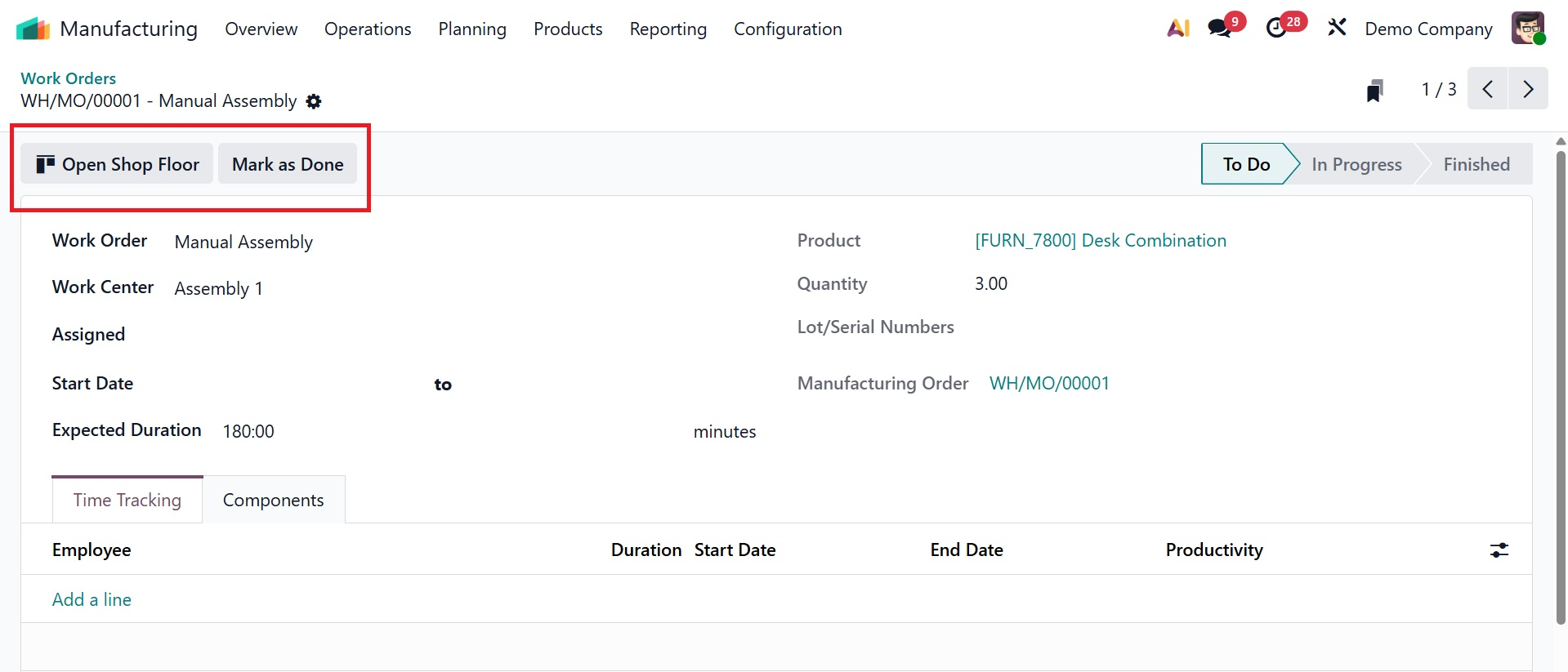
As shown in the screenshot below, clicking on any work order entry will reveal its work order form for easier comprehension.
-
Open Shop Floor – Opens the Shop Floor interface where operators can execute, track, and manage the work order in a real-time, tablet-friendly view. On selecting the option, you will be directed to the shop floor module.
- Mark as Done – Confirms that the work order has been fully completed and updates the manufacturing progress accordingly. Once you select the option, the status will be moved to Finished.
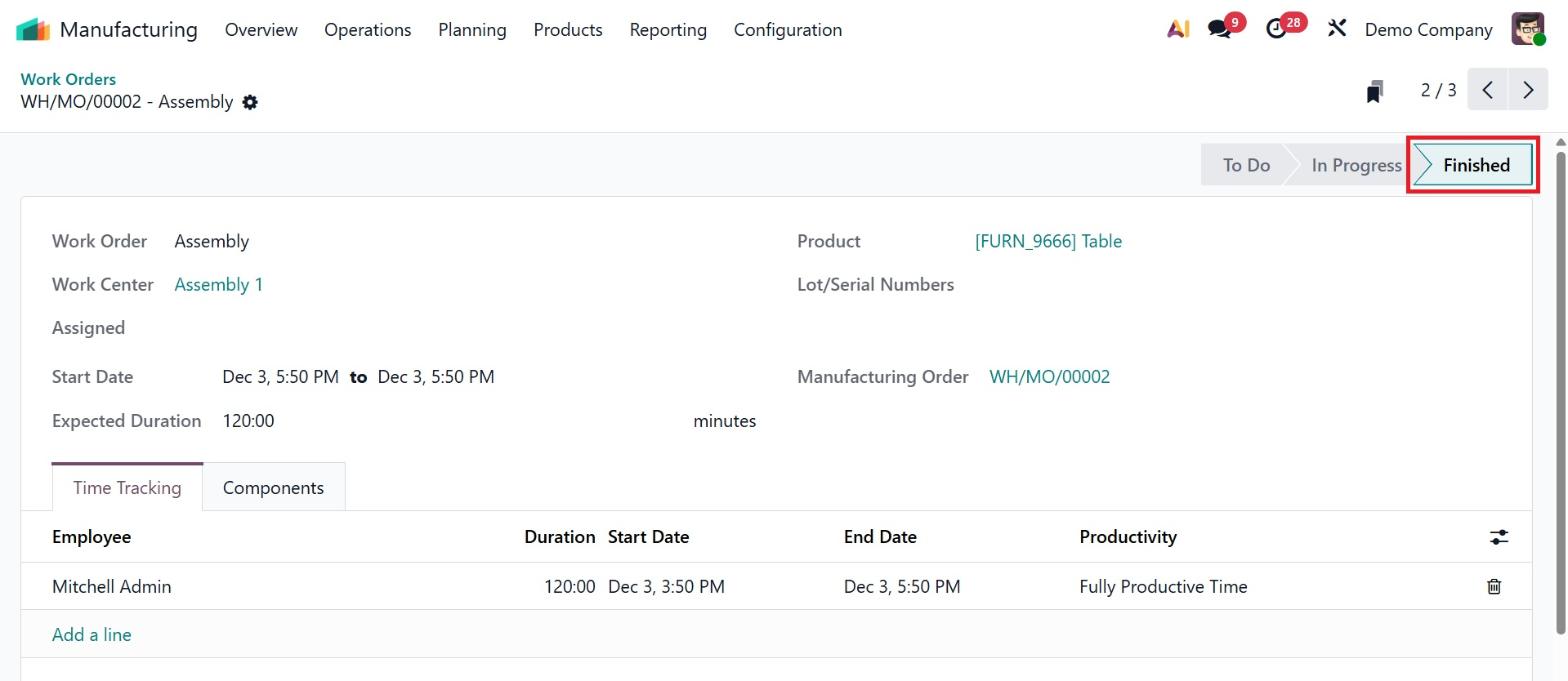
Here, you will get the details, such as work order, work center, assigned, start date, and expected duration. This work order's monitored time, together with the User, Duration, Start Date, End Date, and Productivity details, will be displayed on the Time Tracking tab. You can view the components needed for this work order under the Components tab.
For efficient supervision and management of the many stages of the production process, this capability is crucial. This configuration form allows you to make any necessary edits to the work order.
1.3 Unbuild Orders
Odoo's unbuilt technique makes it possible to break down a finished product into its constituent parts, which facilitates process management and tracking. The "Unbuilt Orders" window from the "Operations" menu in Odoo's manufacturing module displays a list of all created and unbuilt orders.
This window will display any unbuilt orders that have already been created in your manufacturing application database, along with their Reference Id, Product, Bill of Materials, Manufacturing Order, Lot/Serial Numbers, Unit of Measure, Source Location, and other information in a dashboard list view, as illustrated below.
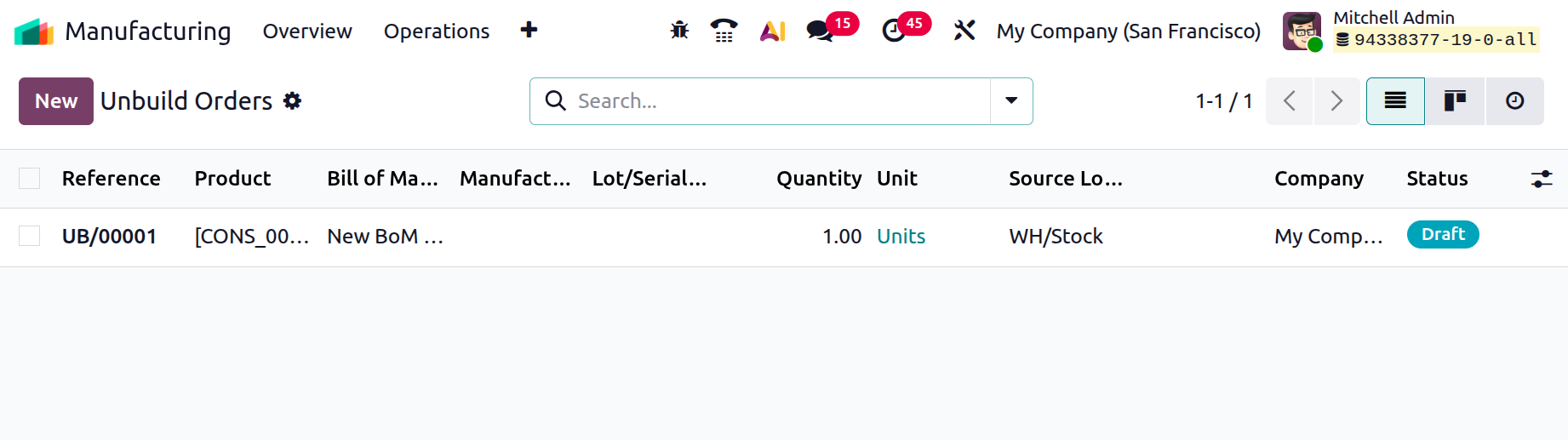
The "Group by," "Favorites," and "Filter" tools allow you to filter or arrange the list. Click the "New" button to start a new unbuild order. The unbuilt order creation page is displayed in the screenshot below.
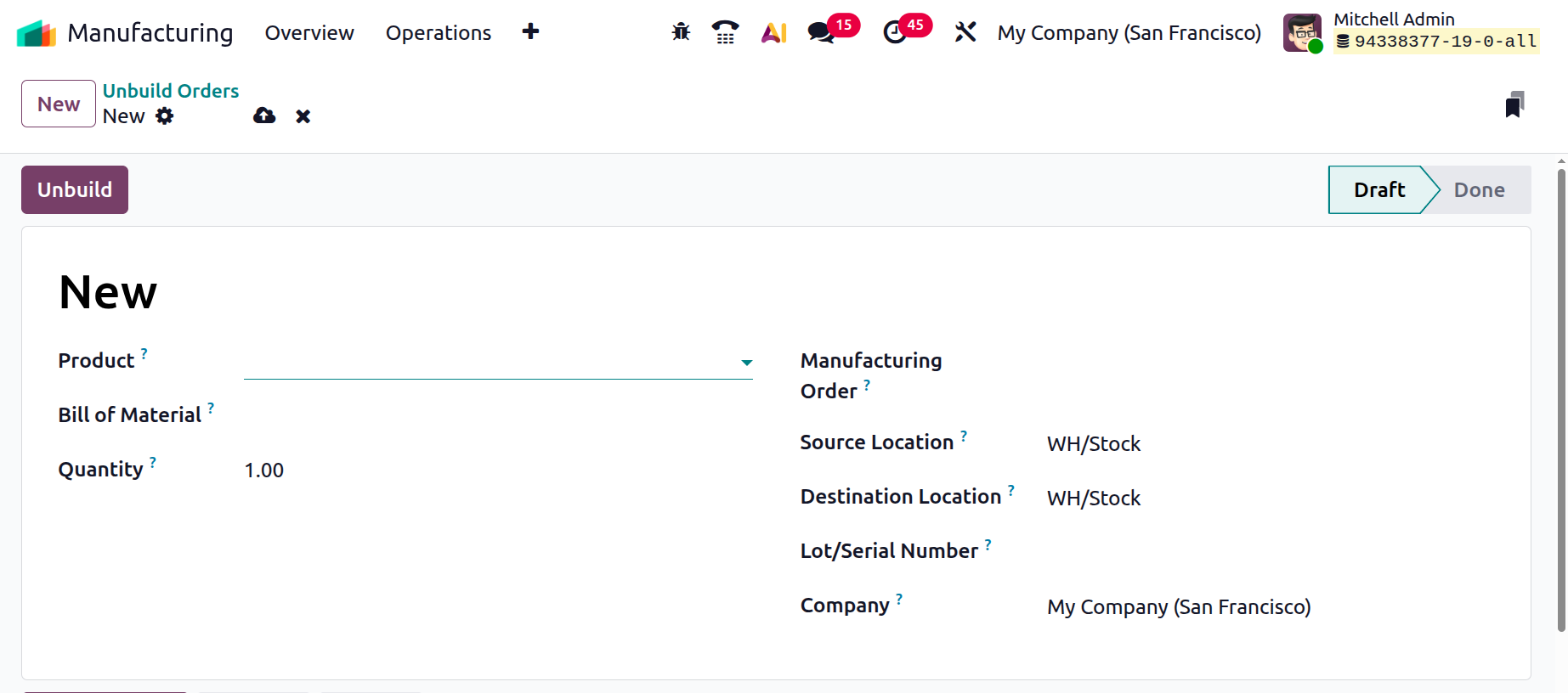
You can enter information such as the Product name, Bill of Materials, Quantity, Manufacturing Order, Lot/serial number, and Company name on the form field. The Manufacturing Order field in an unbuild order links the unbuild process to a specific completed manufacturing order whose finished product you want to dismantle back into components. Source Location is the warehouse location from which the finished product will be taken to perform the unbuild operation. Destination Location is the warehouse location where the recovered components will be returned after the unbuild process is completed.
Then, click on the "Save" icon when all the data has been provided. After saving, click the "Unbuild" button to finish the unbuild order draft. If required, you may use the action menu's Delete and Duplicate options from the ‘Actions’ button of the form to remove or duplicate the unbuilt order.
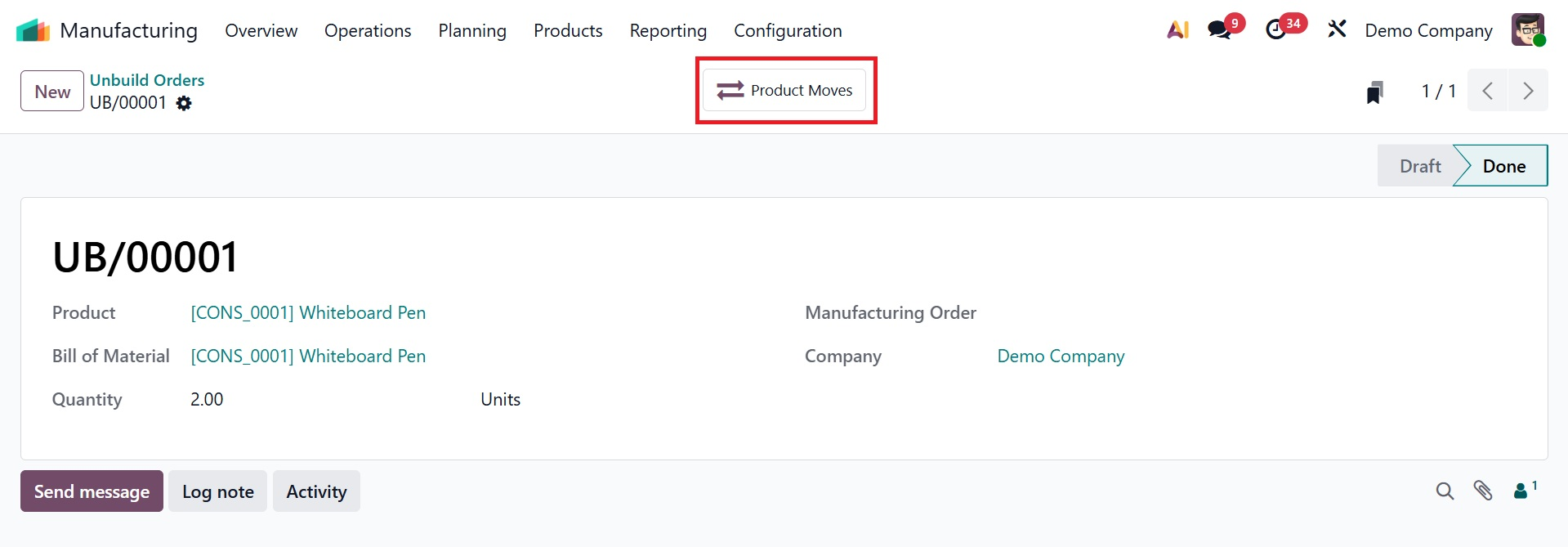
The "Product Moves" smart button provides thorough information about the movement of products from their point of origin to their destination. Simply click on the product move entry on the dashboard, as indicated below, to view this data.
Even after a typical manufacturing order is completed, you can make use of the unbuild capabilities. By choosing the "Unbuild" button on the manufacturing order form, as shown below, you can swiftly reverse the process if the final product is defective or damaged after all production procedures have been concluded. Consequently, the system can disassemble the finished product and properly put the pieces back into stock.
1.4 Scrap Orders
In order to handle wasted or damaged product components, scrap orders are a crucial component of the production process. After the production process is confirmed, removing scrap items is an essential step that guarantees defective parts are handled appropriately.
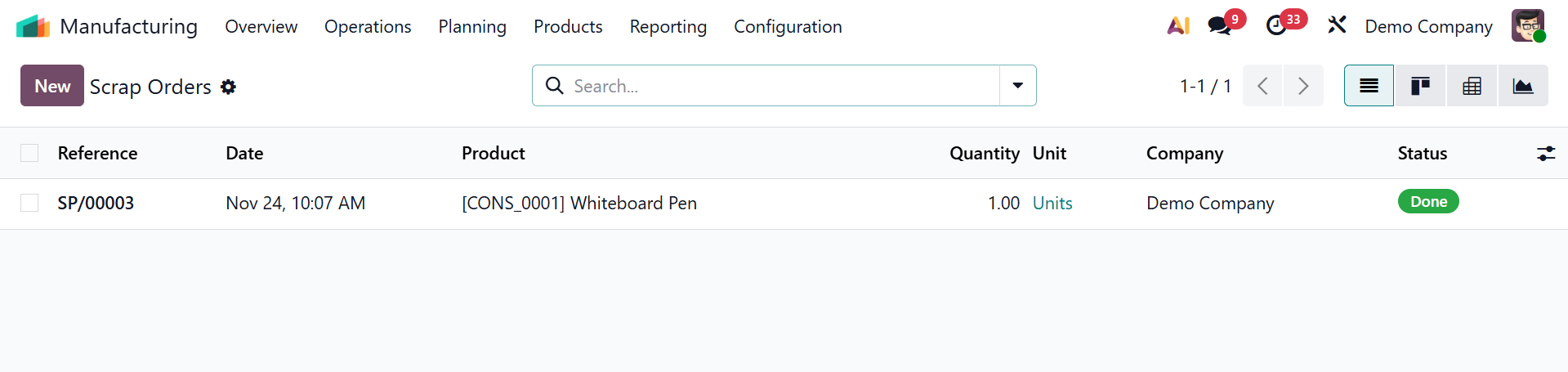
The Operations menu has the "Scrap" option. This will direct you to the dashboard for scrap orders. As seen in the screenshot below, you will also have access to a list of scrap orders that have already been fulfilled.
Create a new Scrap Order form from the dashboard. The product name and the quantity to be scrapped can be specified in this area. For future reference and improved scrap management, then supply the Lot/Serial Numbers, Scrap Reasons, Source Location, Scrap Location, and Source Document data. Replenishing Quantities is another option. To ensure that inventory levels are restored for upcoming production or sales, the Replenish Quantities option in Scrap Orders generates a replenishment request to replace the quantity of products that were scrapped.
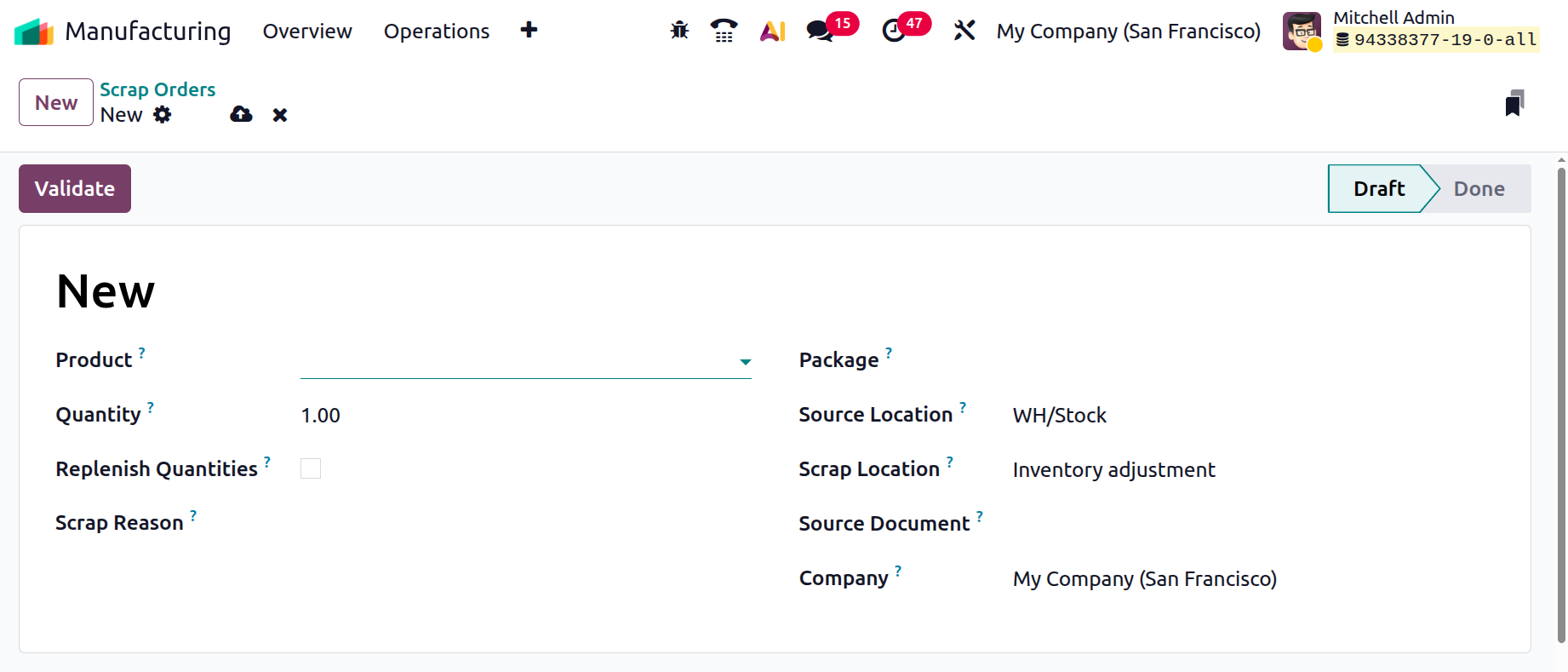
Lastly, to verify the scrap order, choose the "Validate" option. This order will appear in the Scrap menu dashboard after it has been validated.
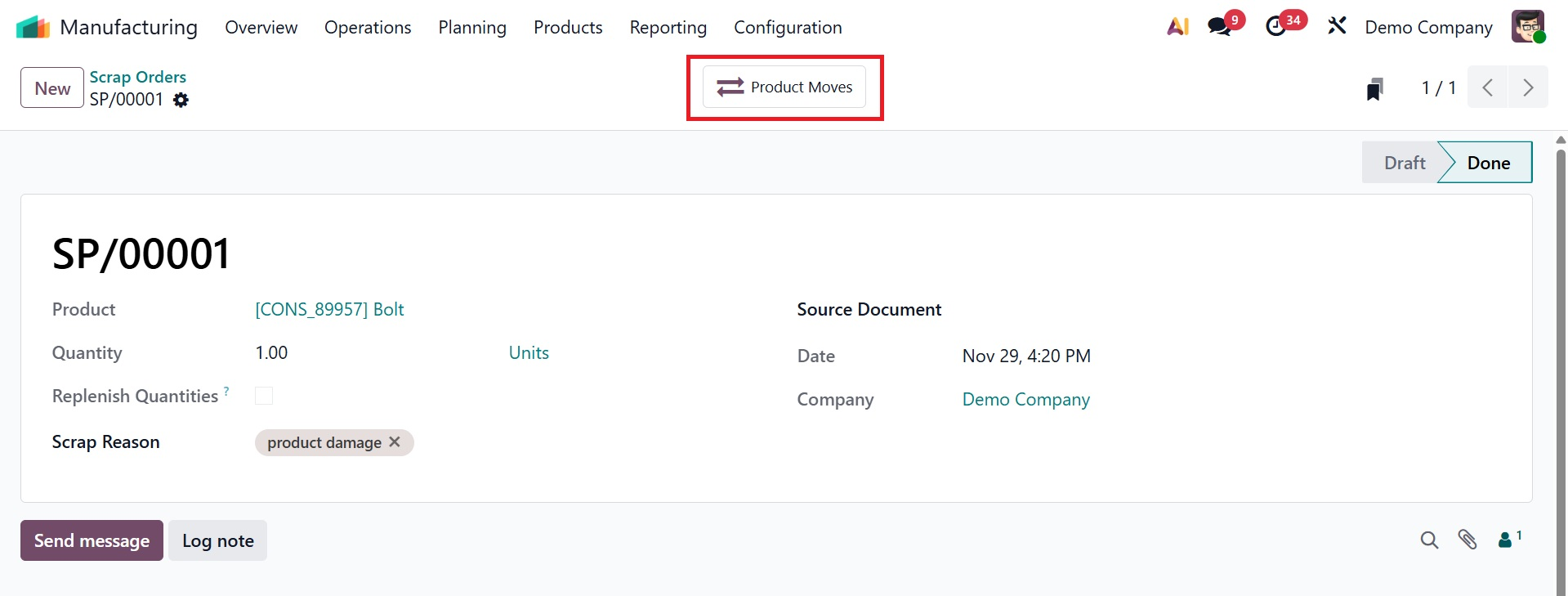
The "Product Moves" smart button allows you to view the details of the product movement history after the scrap order has been confirmed.