Planning
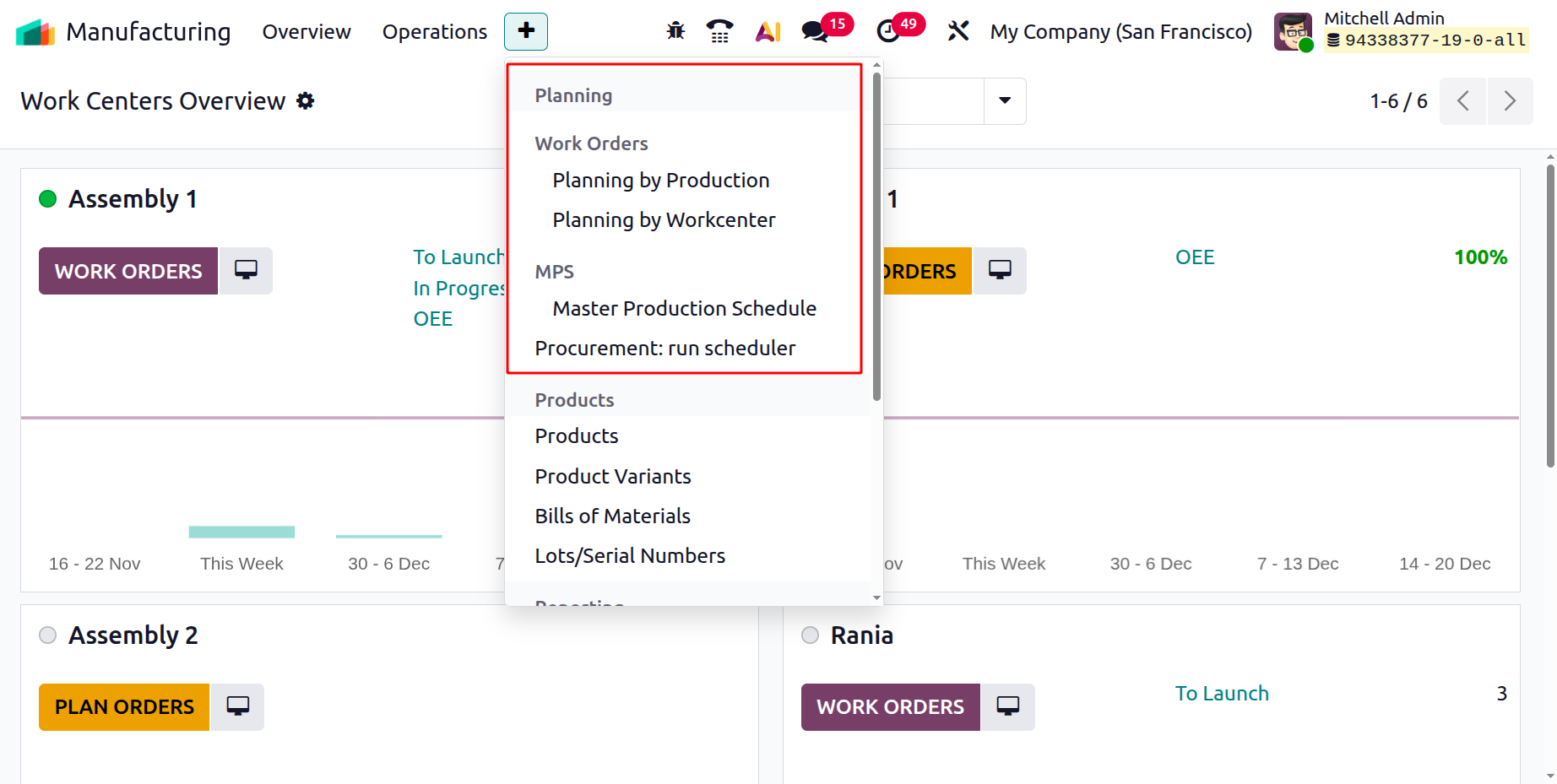
You can effectively arrange and manage work orders and production activities across many work centers with the help of the Planning menu in the Odoo 19 Manufacturing module. Coordination of intricate manufacturing processes and timely production output depend on this feature. An outline of the main planning choices under this menu may be found below.
1.1 Planning by Production
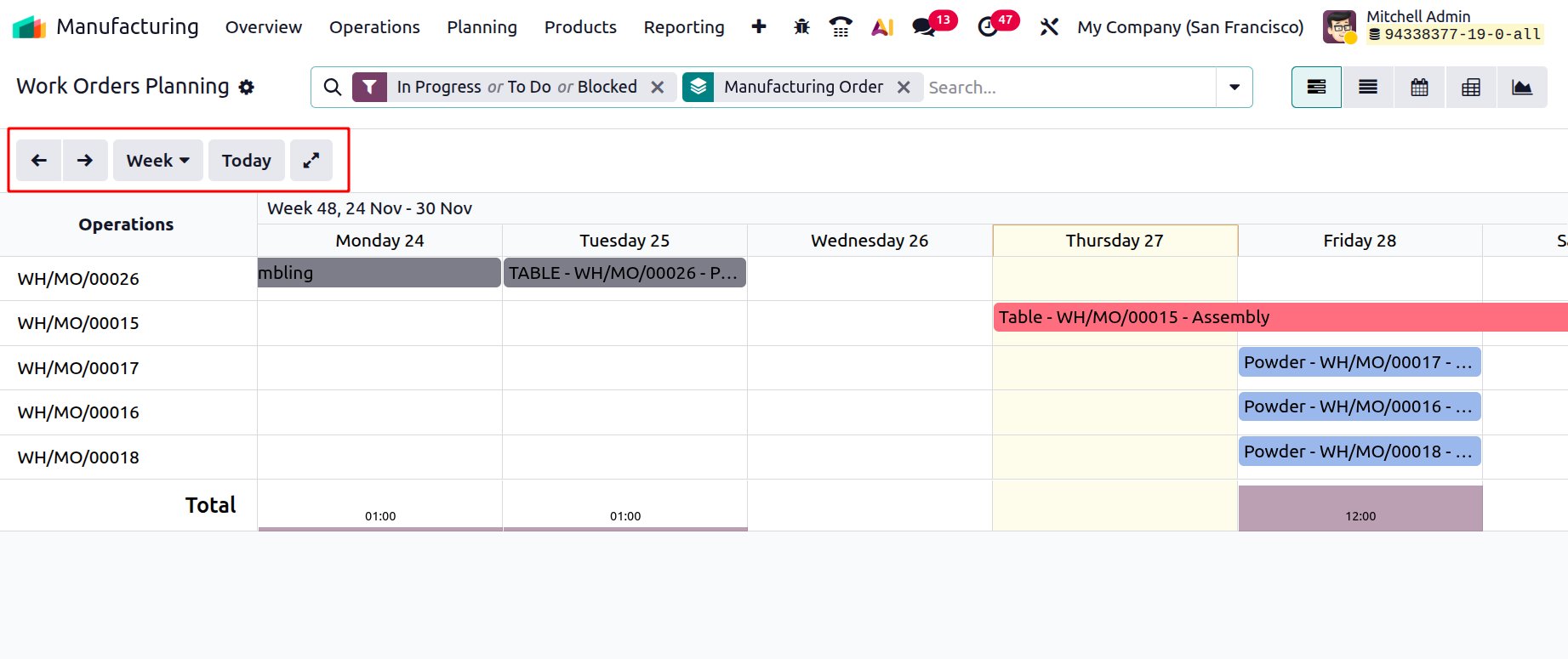
You can arrange work orders according to the overall production plan by using the Planning by Production option. The production's planned start date might be specified when drafting a manufacturing order. This schedule is automatically added to the work orders by Odoo 19, and it may be seen in a calendar-style view under the Planning by Production interface.
You can have the work orders planned in each Day, Week, Month, Quarter, and Year. You can also view today's work orders as well. The left and right arrows help to move forth and back work orders accordingly. Moreover, the Dense Mode displays all operations, steps, and information in a compact, tighter layout so more details fit on the screen without scrolling. And, the Sparse Mode shows operations and information in a more spaced-out, expanded layout, improving readability with more white space between elements.
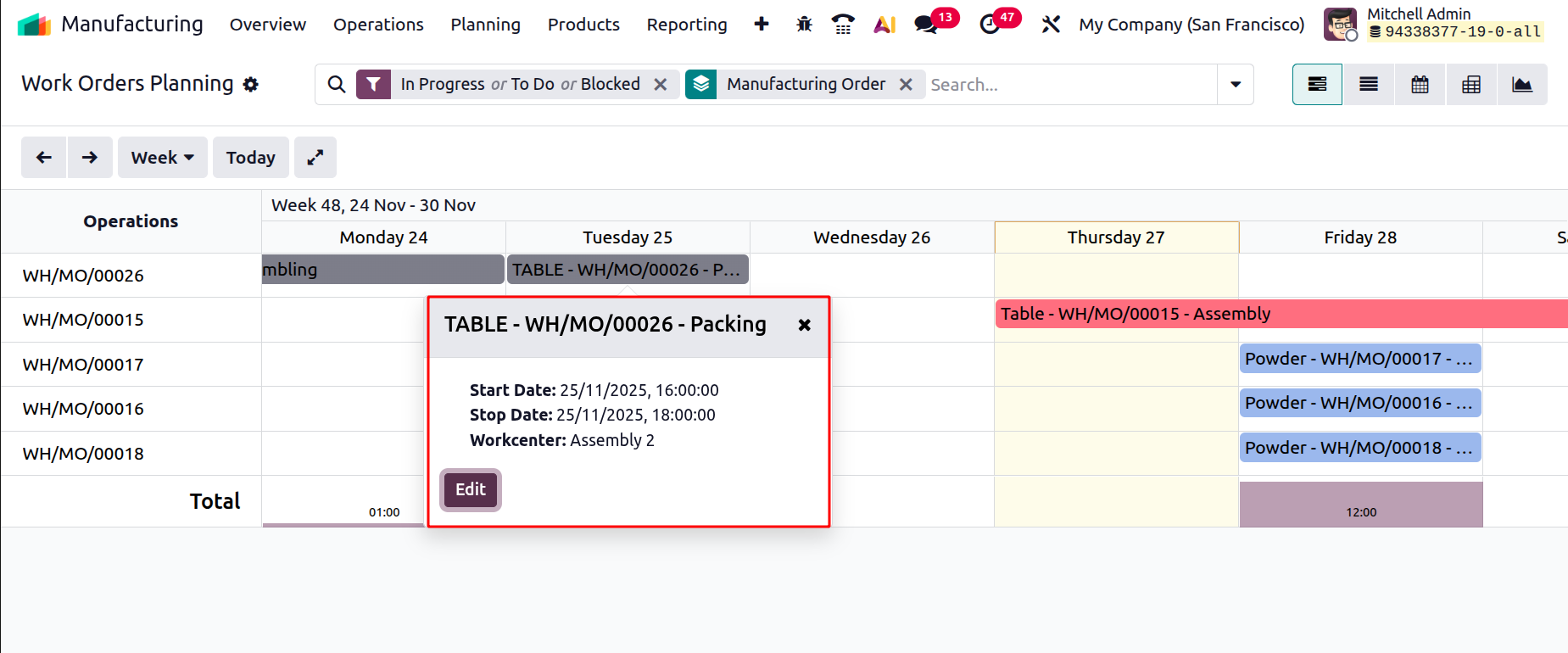
The planned dates for different work orders are shown in this view. A summary of the related work order, including its Name, Start Date, Stop Date, and Work Center, is displayed when you click on a highlighted date. To view and control all of the work order's details, you can choose the entry.
1.2 Planning by Workcenter
Workcenter view. This makes it easier for managers and production supervisors to keep an eye on the workload across several work centers and prevent schedule problems. This interface makes it simple to modify and reschedule work orders that are issued to the same work center on the same day in order to effectively balance the workload.
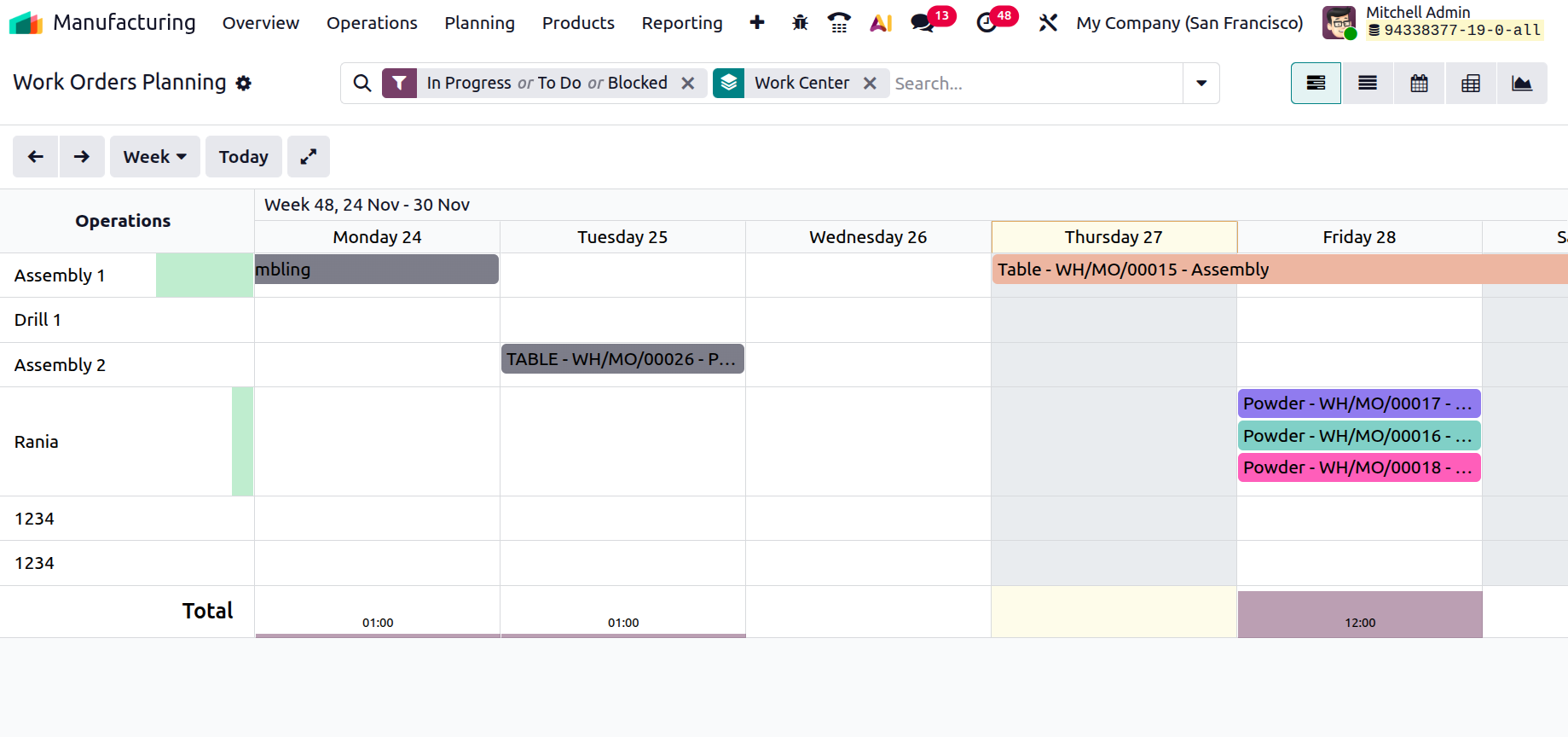
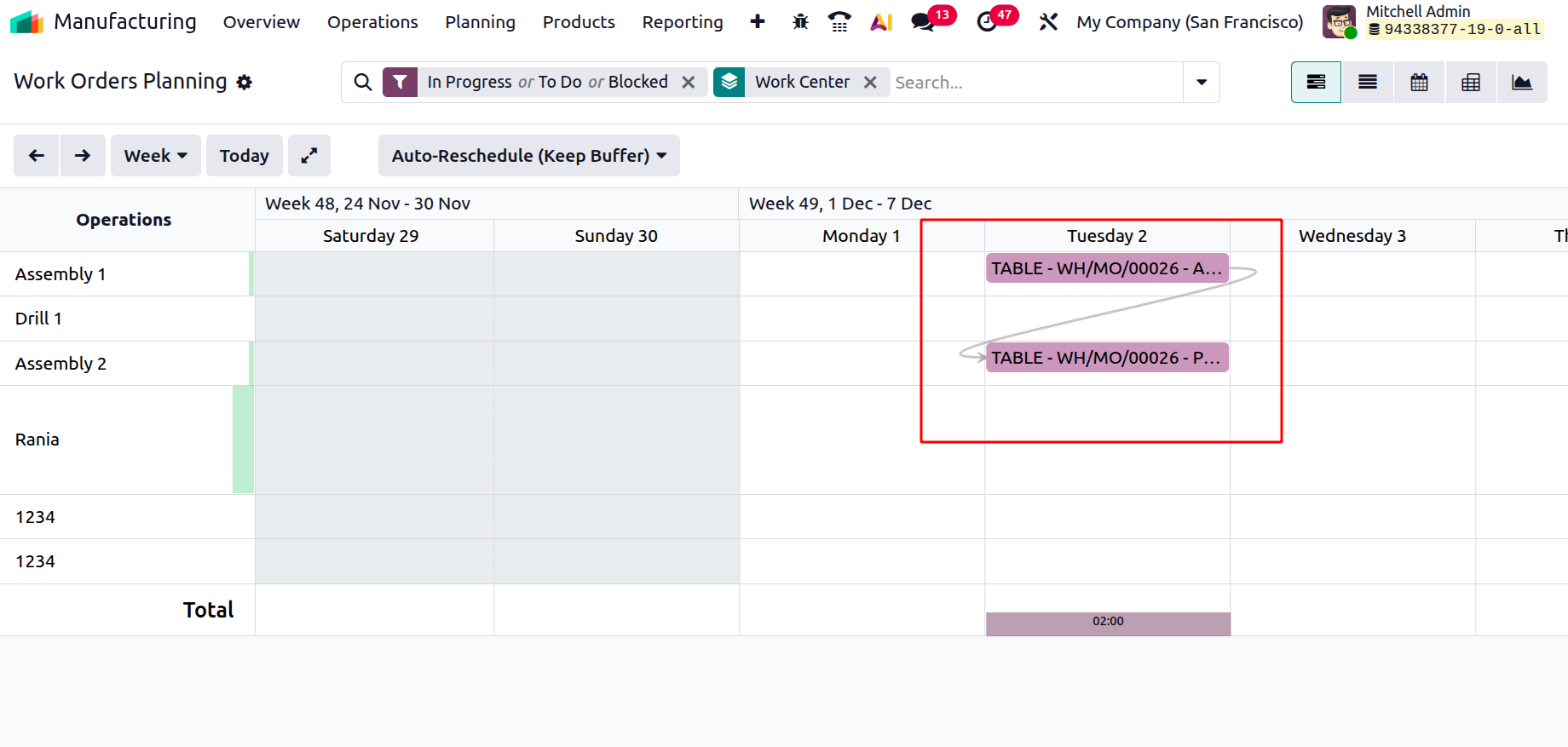
The arrow mark in the below screenshot indicates which work order will be performed after the completion of the other. It will be shown only when the work order dependency option is activated in the settings.
1.3 Master Production Schedule
The Planning menu also offers the Run Scheduler feature, which is essential for automating reordering and material availability procedures. This tool is just as effective in the Manufacturing module, even if it is frequently utilized in the Inventory module.
Odoo will allocate available inventory for work orders and operations that were previously put on hold because of a lack of components by executing the scheduler.
When stock levels drop below minimal thresholds, automatically initiate reordering rules to prevent production delays caused by shortages.
The Master Production Schedule (MPS) function in Odoo 19 must be enabled from the Settings menu under the Planning tab before it can be used, as seen in the picture below.
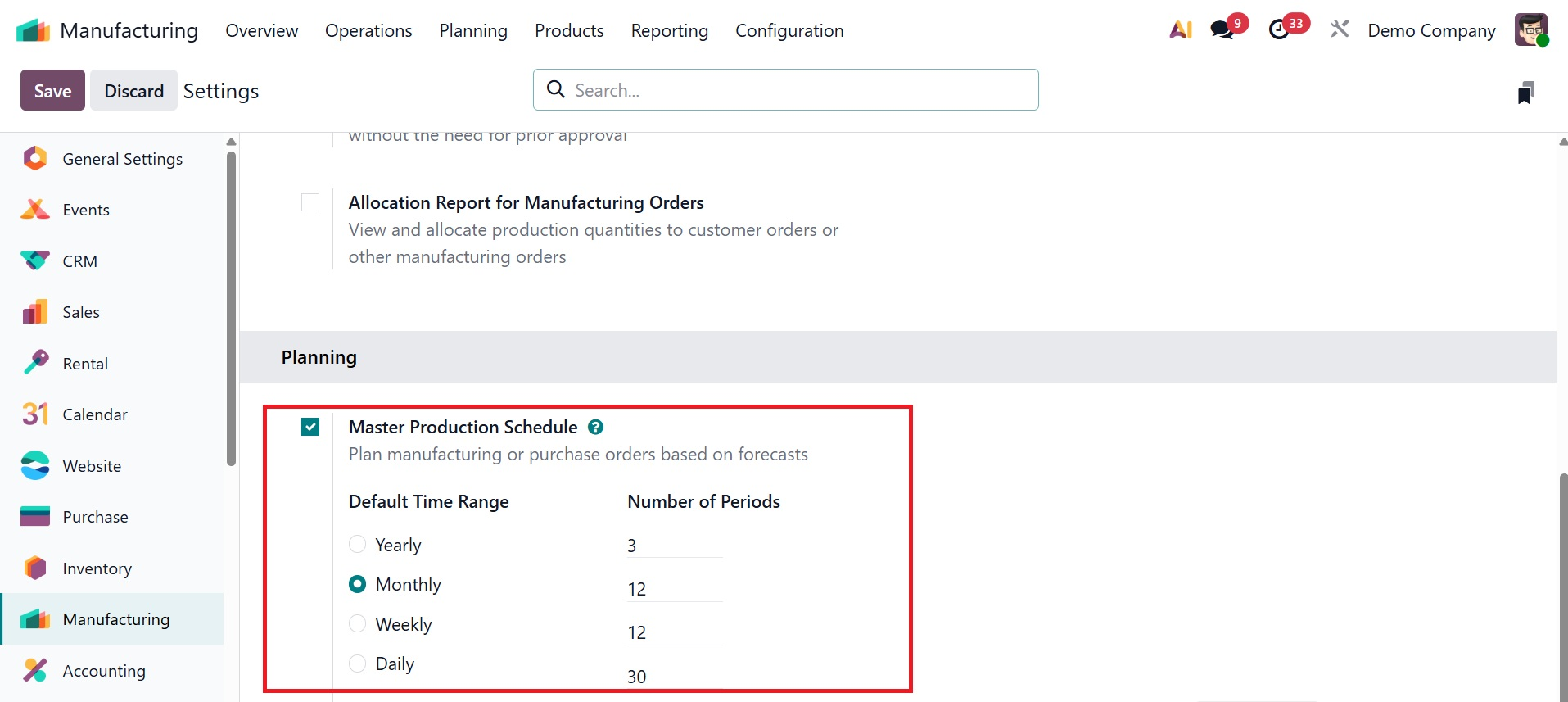
After turning on the feature, you must specify the schedule's time range, which can be set to daily, weekly, or monthly. Depending on the range chosen, you can also indicate how many columns should be included in the MPS reports. The Master Production Schedule is available through the Planning menu once this setup is finished.
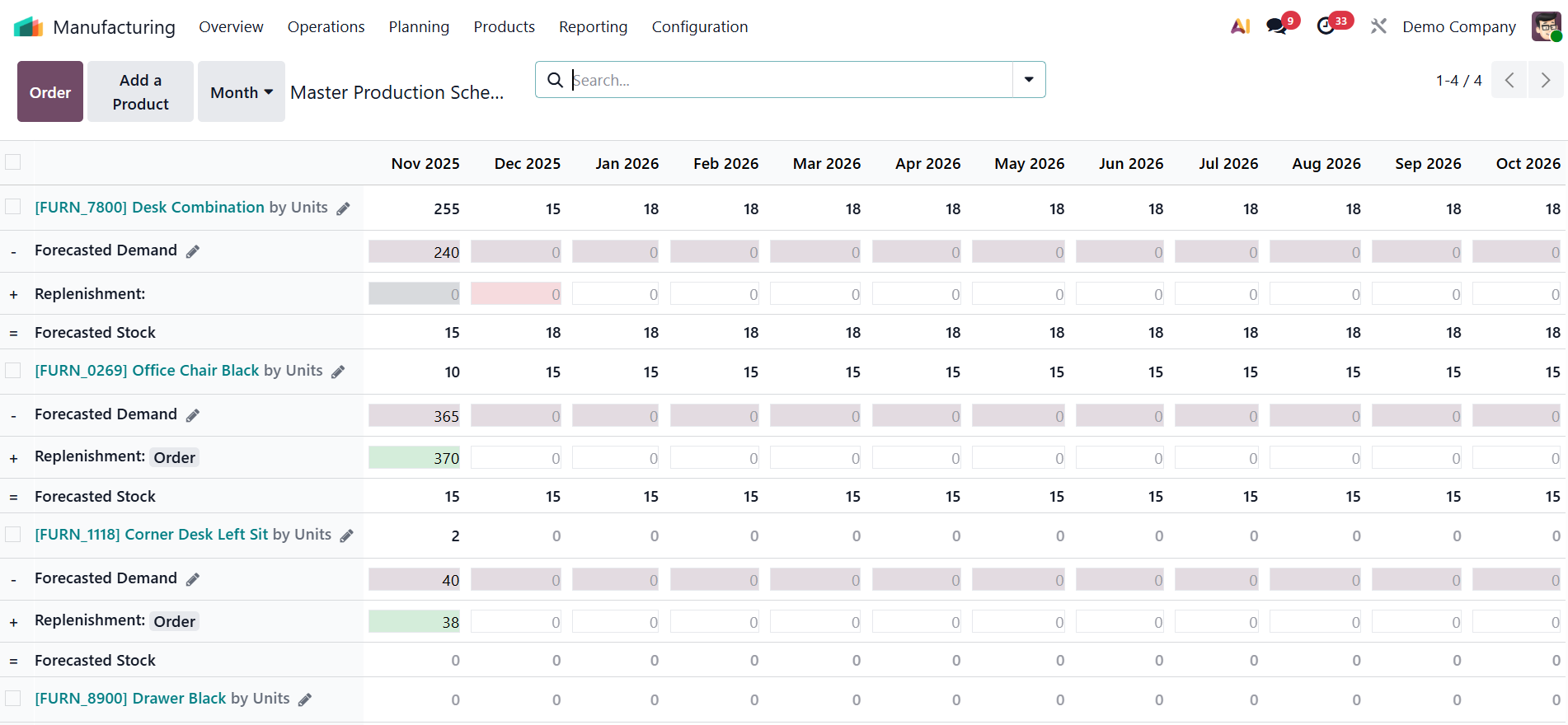
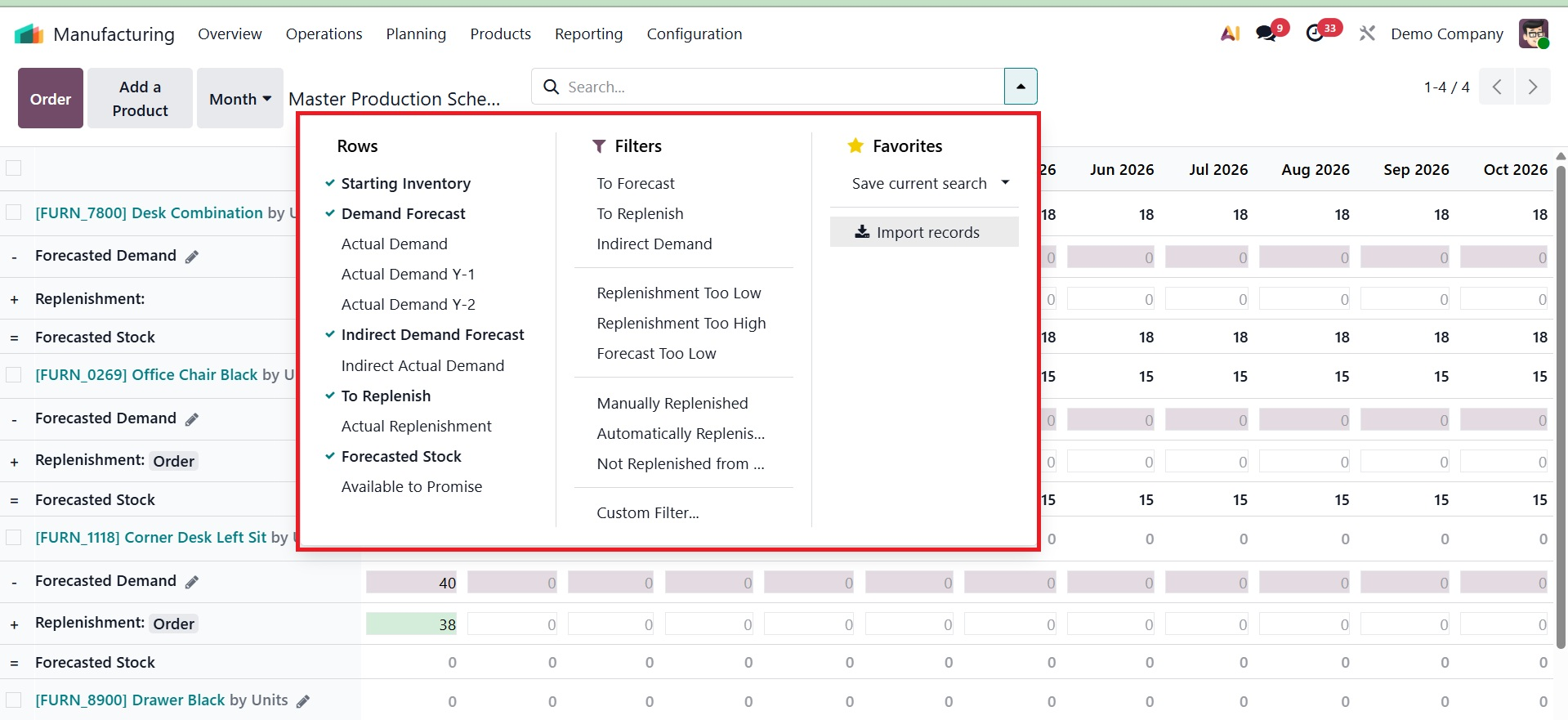
The data displayed in the Master Production Schedule (MPS) window includes a number of crucial inventory and planning parameters that support efficient production management, such as the Starting Inventory, which shows the stock on hand at the beginning of the period; Actual Demand, which shows the verified demand for the product; and the Indirect Demand Forecast, which projects potential future requirements based on patterns or related requests. The To Replenish field displays the amount that needs to be given, whereas Actual Replenishment logs the replenishment quantities that have already been finished. Additionally, Forecast Stock shows the anticipated inventory level at the end of the planning process, whereas Available to Promise shows the stock that can be guaranteed committed to new orders without jeopardizing existing promises.
Based on the chosen Time Range, columns are displayed in the MPS interface. Using the settings in the Rows menu found in the search bar area, you can further improve the display by adding more rows.
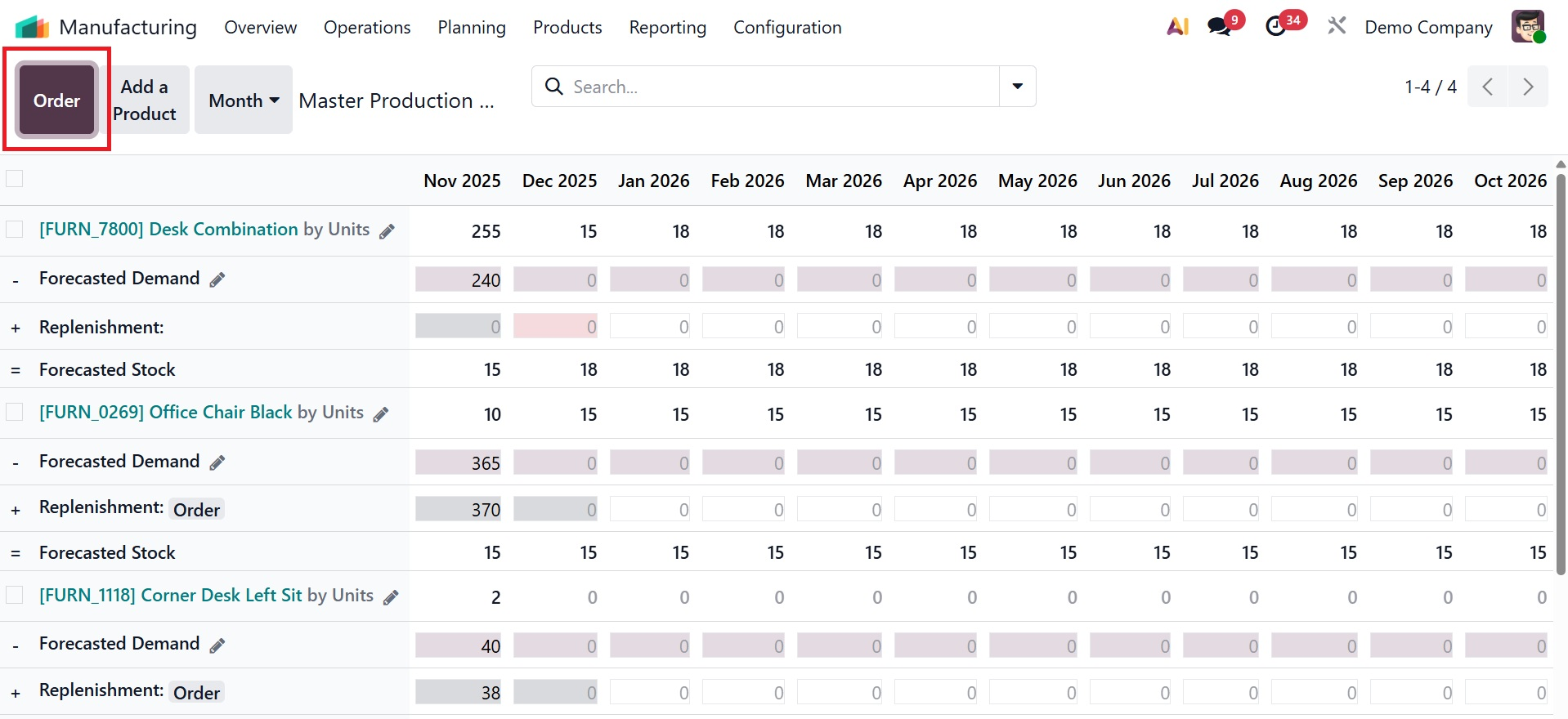
The Order button in the Odoo Manufacturing module is used to generate, examine, and manage manufacturing orders that specify the product being manufactured, its quantity, and the procedures involved in its creation.
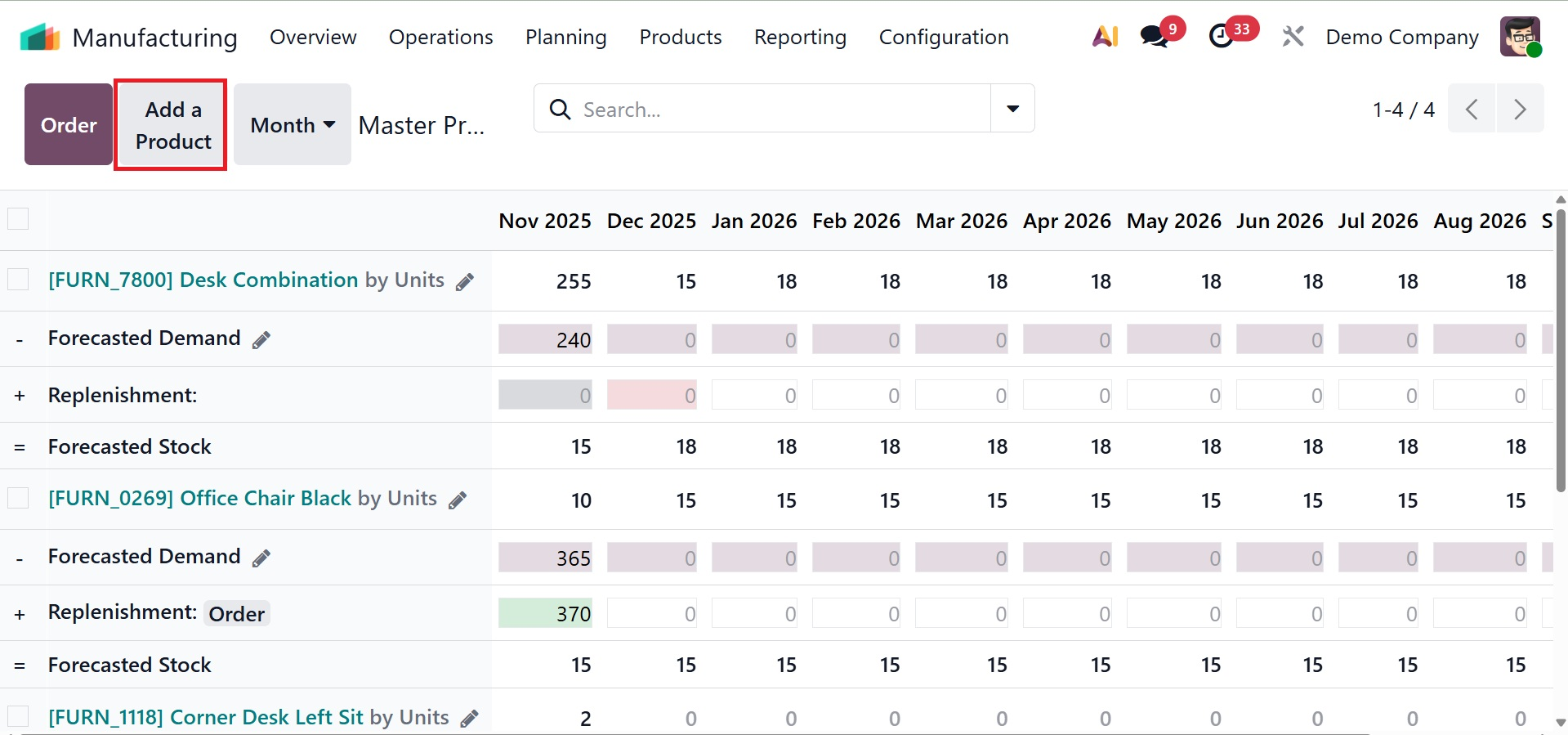
It's crucial to remember that Odoo can only create a manufacturing order via replenishment if the product's "Manufacturing" method of operation is set up. You can click on Add a Product to add the product to the MPS after making sure the right routes are specified for it.
In order to prevent this product from appearing in the "To Forecast" filter in an MPS dashboard, this action will cause a pop-up window to appear, asking you to enter particular information such as the Product, Bill of Materials, Route, Batch Size, and whether it is an Indirect Demand.
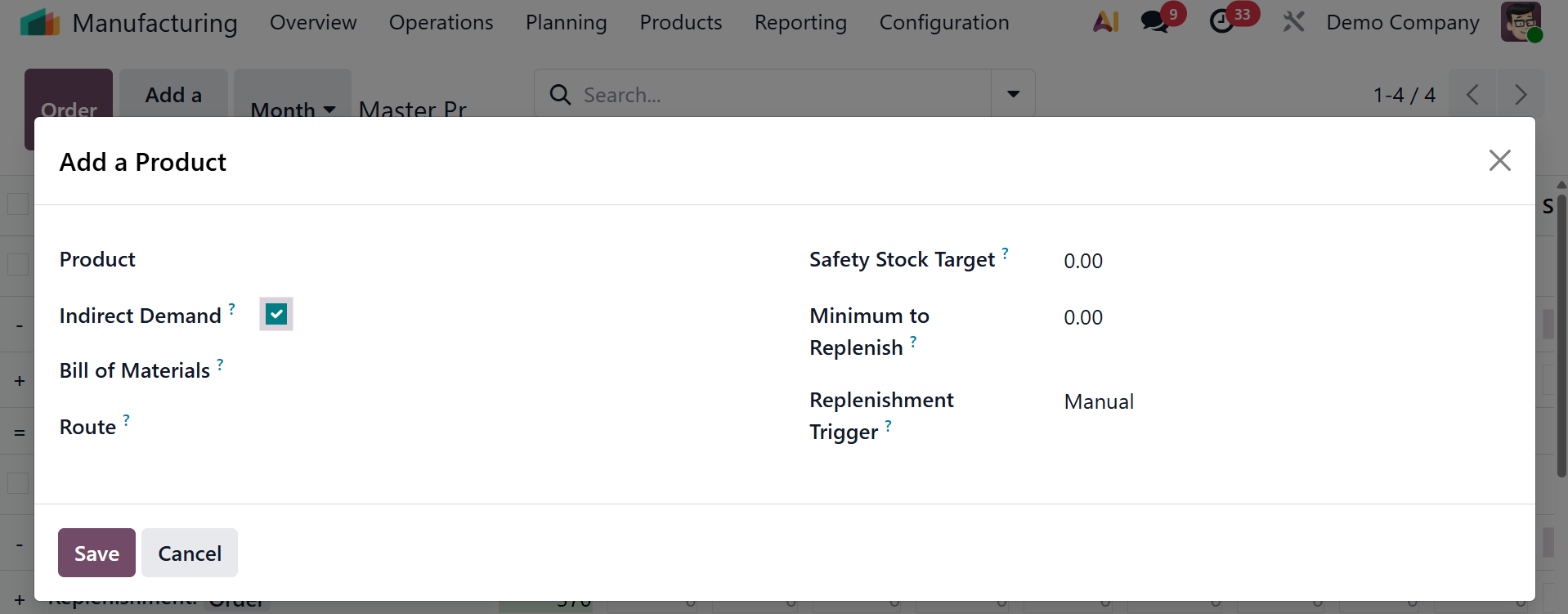
The minimal amount of the product that must always be on hand must be entered in the Safety Stock Target section. With the exception of situations where there is no demand, Odoo 19 will always replenish at least this amount thanks to the Minimum to Replenish value. The maximum quantity that has to be restocked for the product in any given time frame is specified in the Maximum to Replenish field. The excess will be automatically carried over to the following time period if real demand surpasses this cap. Click the Save button after completing all the fields.
For instance, the Starting Inventory for the current month will be noted if there are 20 units of the product on hand. Projected inventory data for the upcoming year will be displayed on the MPS screen. The Forecasted Demand area allows you to manually enter the current month's projected demand. The Suggested Replenishment quantity, which indicates how much should be ordered through a purchase or manufacture order, will be automatically calculated by the system based on this data. As shown in the screenshot below, the Forecasted Stock will represent the anticipated inventory level at the end of the term.
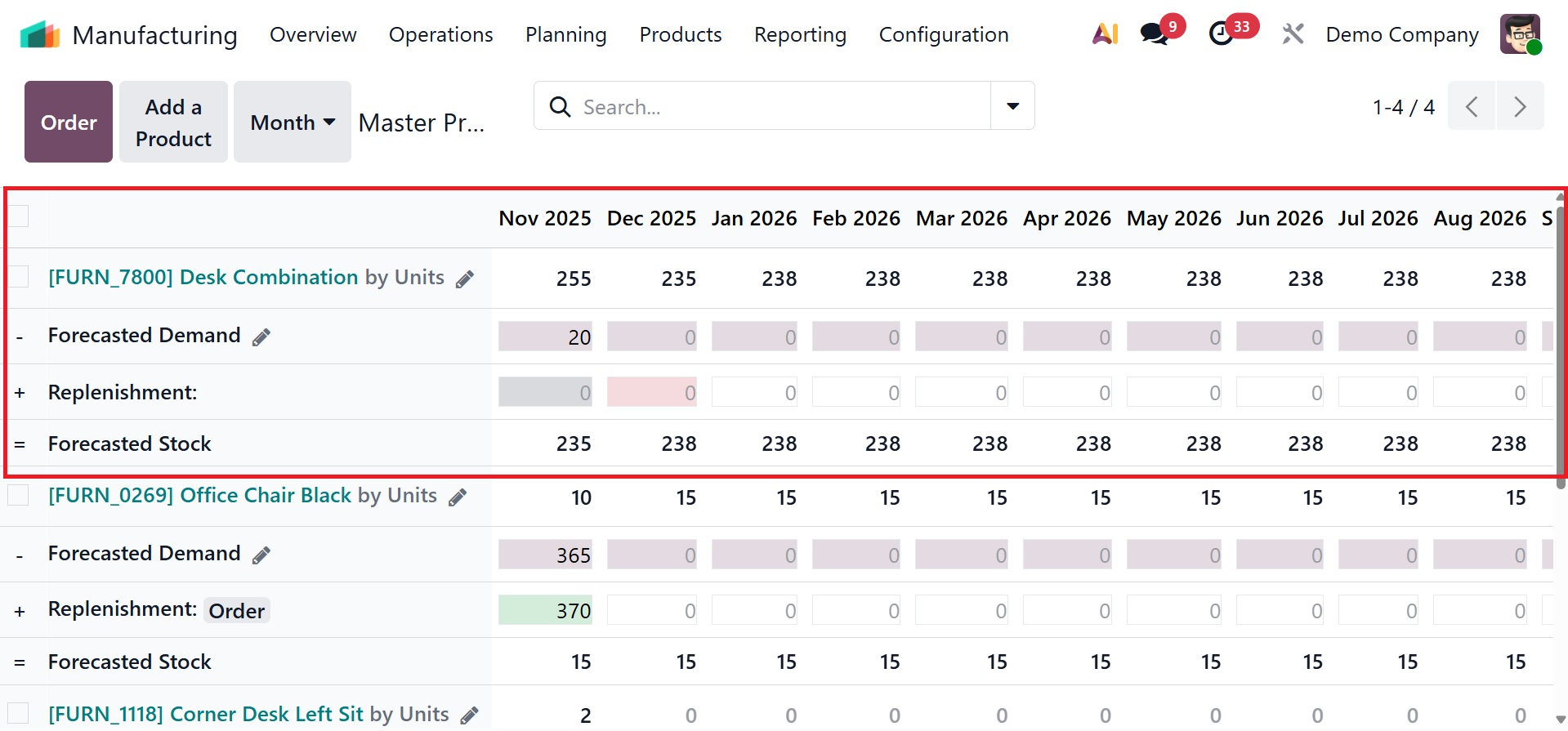
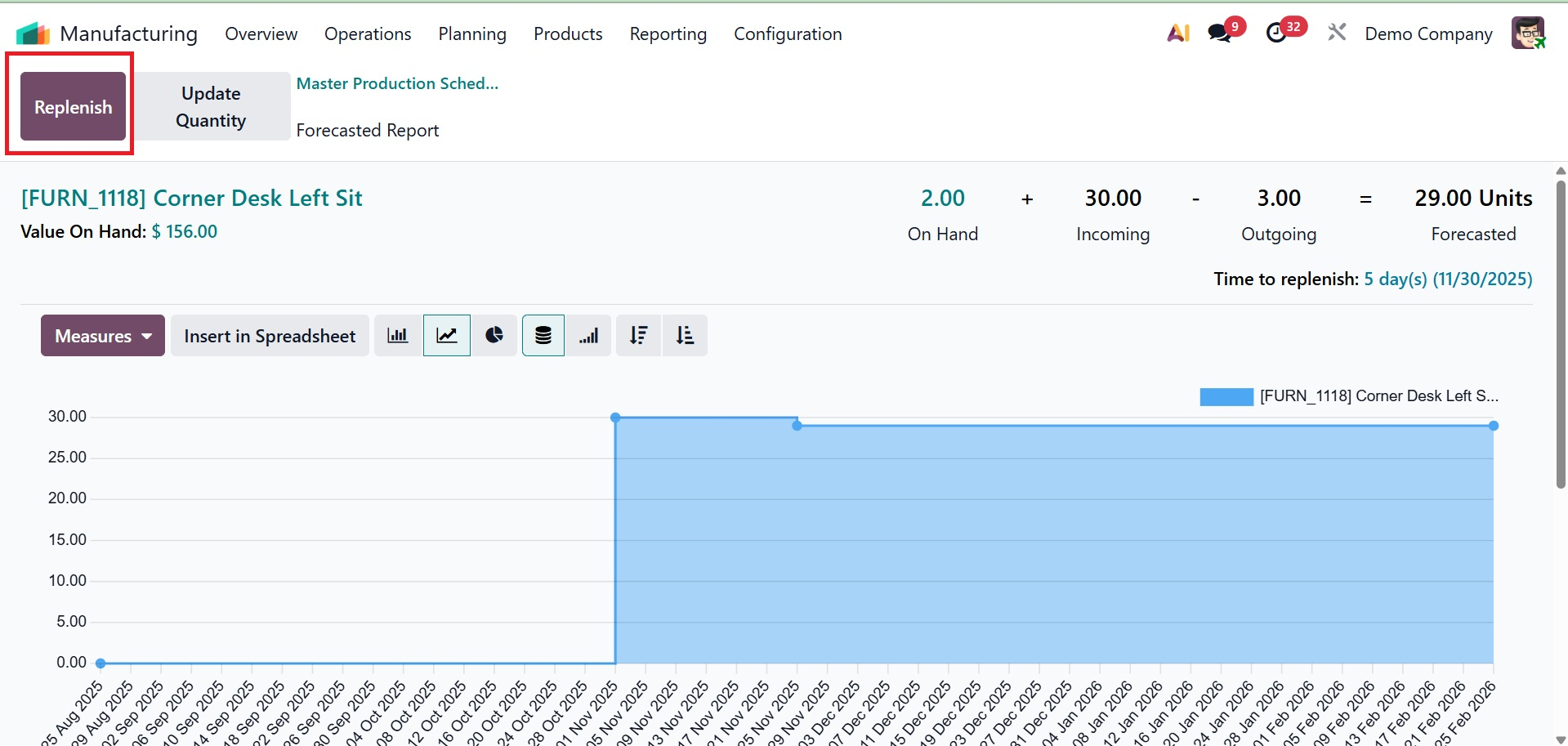
When you click the Replenishment button, Odoo will either create a Manufacturing Order or a Purchase Order, depending on how the product's operating route is set up.