Products
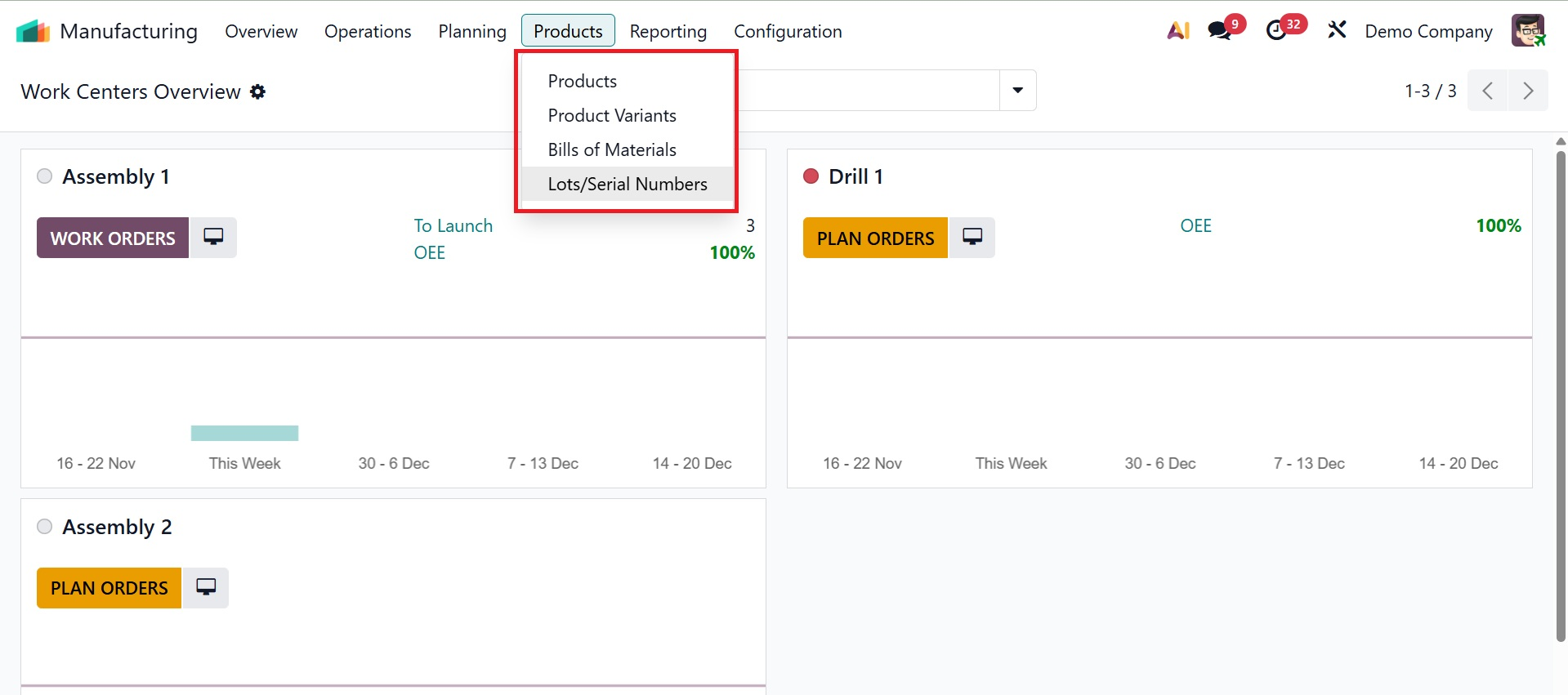
A centralized area for managing and keeping an eye on items and their variants is provided by the production module. Under the products menu, you have the options like, products, product variants, bill of materials, and lot/serial numbers.
1.1 Products
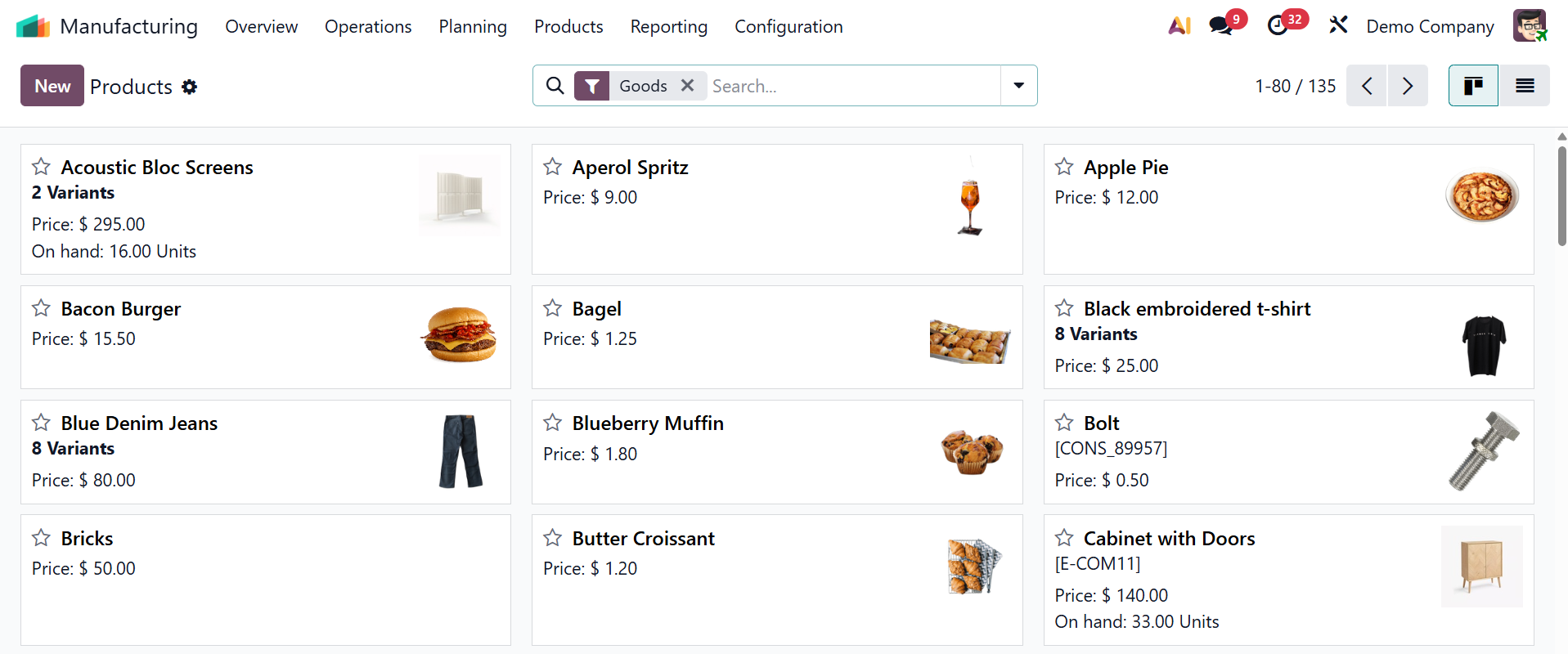
As seen in the screenshot below, we can view the available products and the product catalog from the Products menu, along with their name, price, and quantity available in a Kanban view.
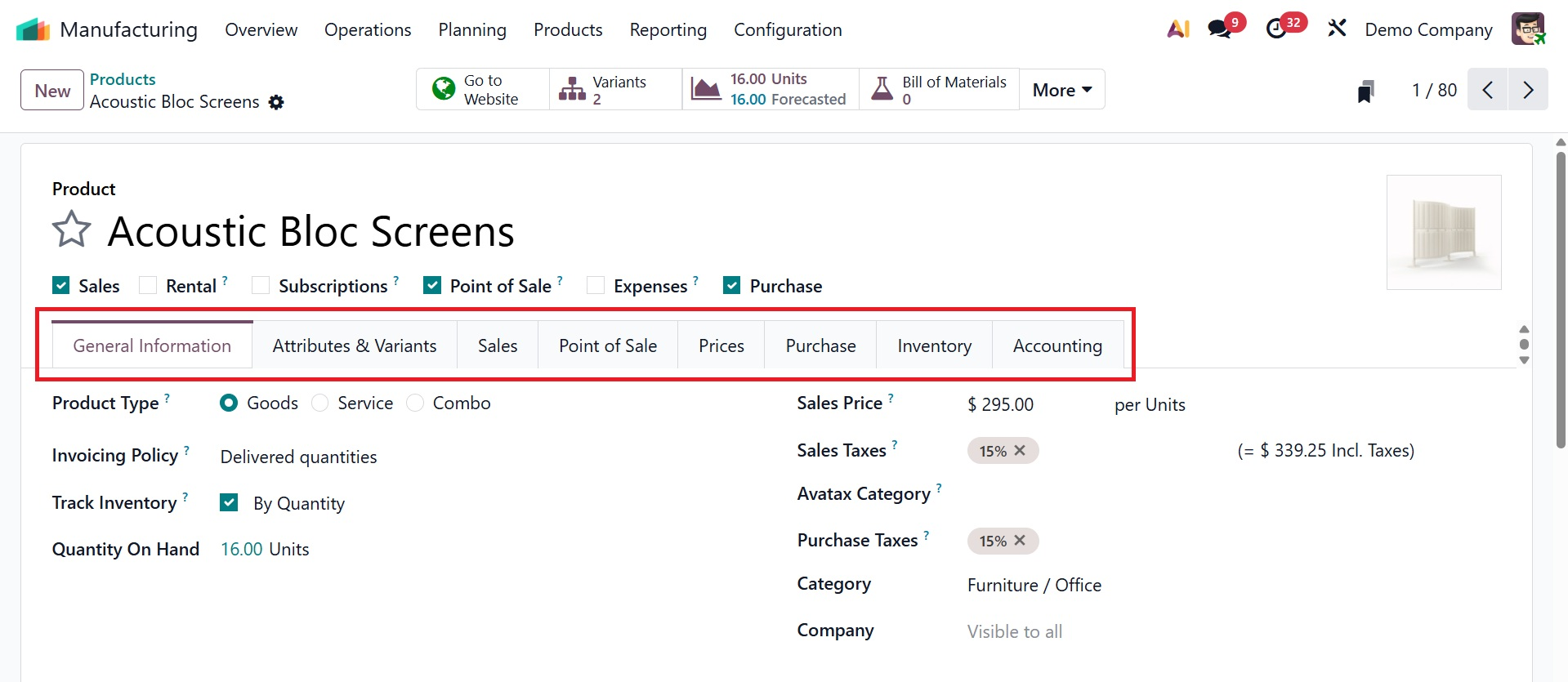
Additionally, we can use the "New" button to add additional products to the product dashboard. When creating a product, you must include information on the Purchase, Sales, Inventory, and Accounting in addition to General Information, Attributes, and Variants.
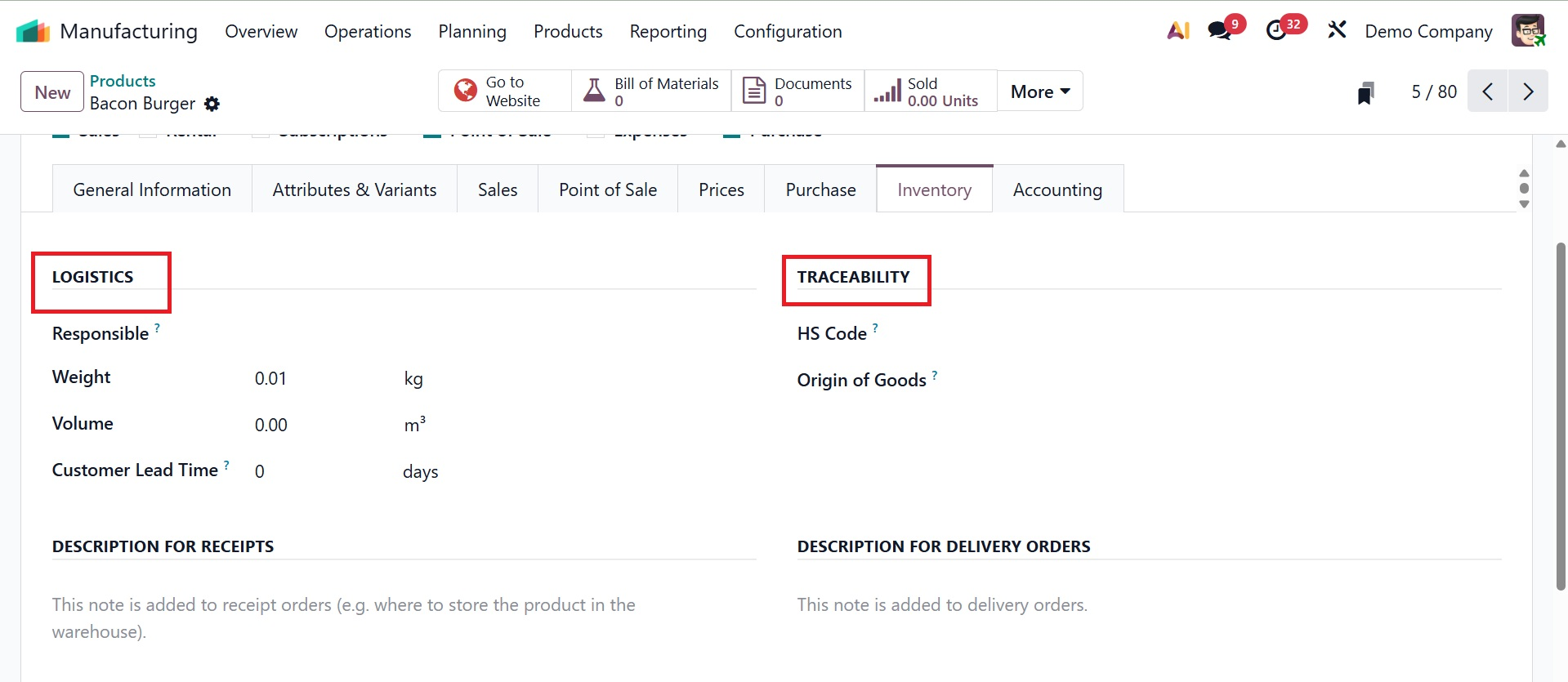
The LOGISTICS and TRACEBILITY function allows you to specify the responsible product's Weight, Volume, Customer Lead Time, Origin of Goods, and HS Code options. Save the data once the product details have been configured.
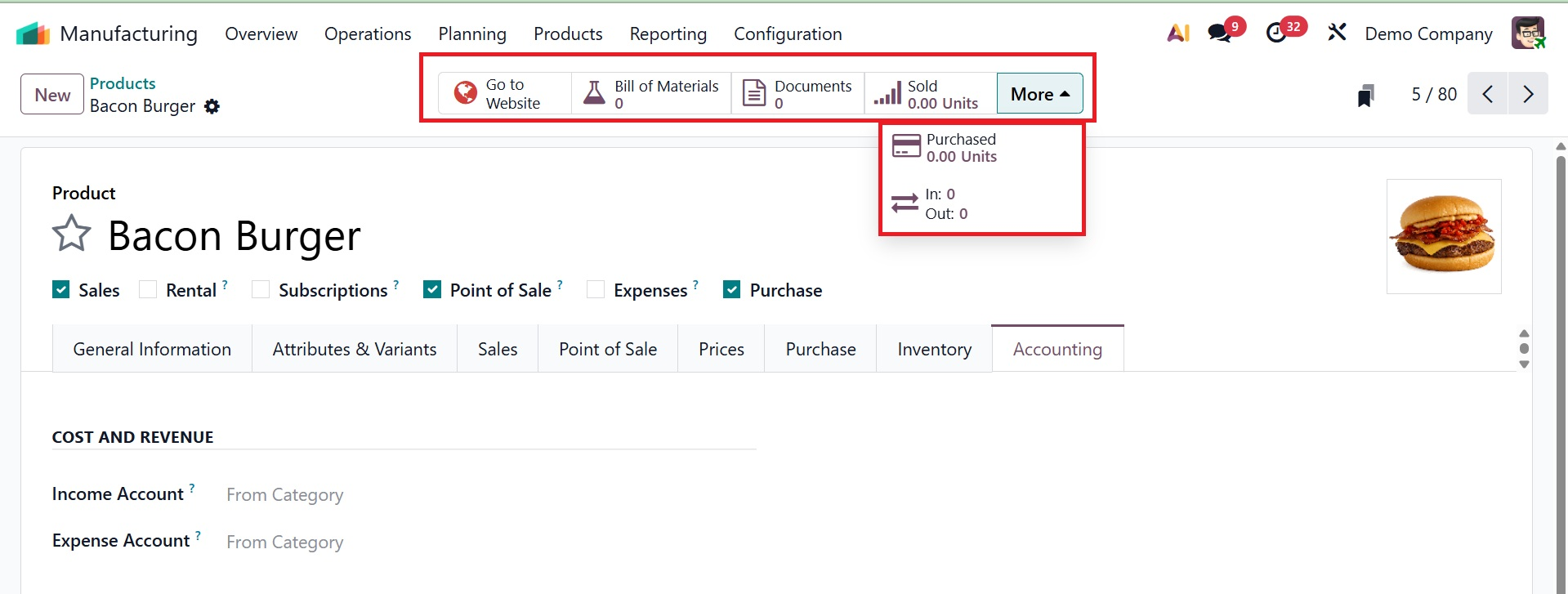
Additionally, the form has a number of smart buttons for managing and tracking different inventory options and product data, such as
- Pricelists: Shows all sales pricelists for managing prices for various clientele groups.
- Go to website: provides simple access to the product's page on the company's website.
- On Hand Units: Shows the warehouse's current physical stock so that inventory levels can be monitored.
- Forecasted Units: Displays the anticipated level of inventory based on sales orders, manufacturing orders, incoming shipments, and present stock.
- Bill of Materials (BoM): Enumerates all bills of materials associated with the manufacturing product.
- Documents: View any files or documents that are included with the product.
- Sold: Shows the product units that have been sold.
- Purchased: Shows the dashboard with every product that has been bought.
- Reordering Rules: Manages and shows rules for automated reordering.
- In/Out: Shows the history of the product's movement from one place to another.
- Quality Points: Displays the quality points obtained during the product's quality inspection.
1.2 Product Variants
By combining related products under a single product template and tracking each variant separately, Odoo's product variants simplify inventory, pricing, and sales procedures. The Product Variant option in the Odoo manufacturing module, which shows a dashboard of all potential product variants previously produced in a Kanban view, is where this functionality may be controlled.
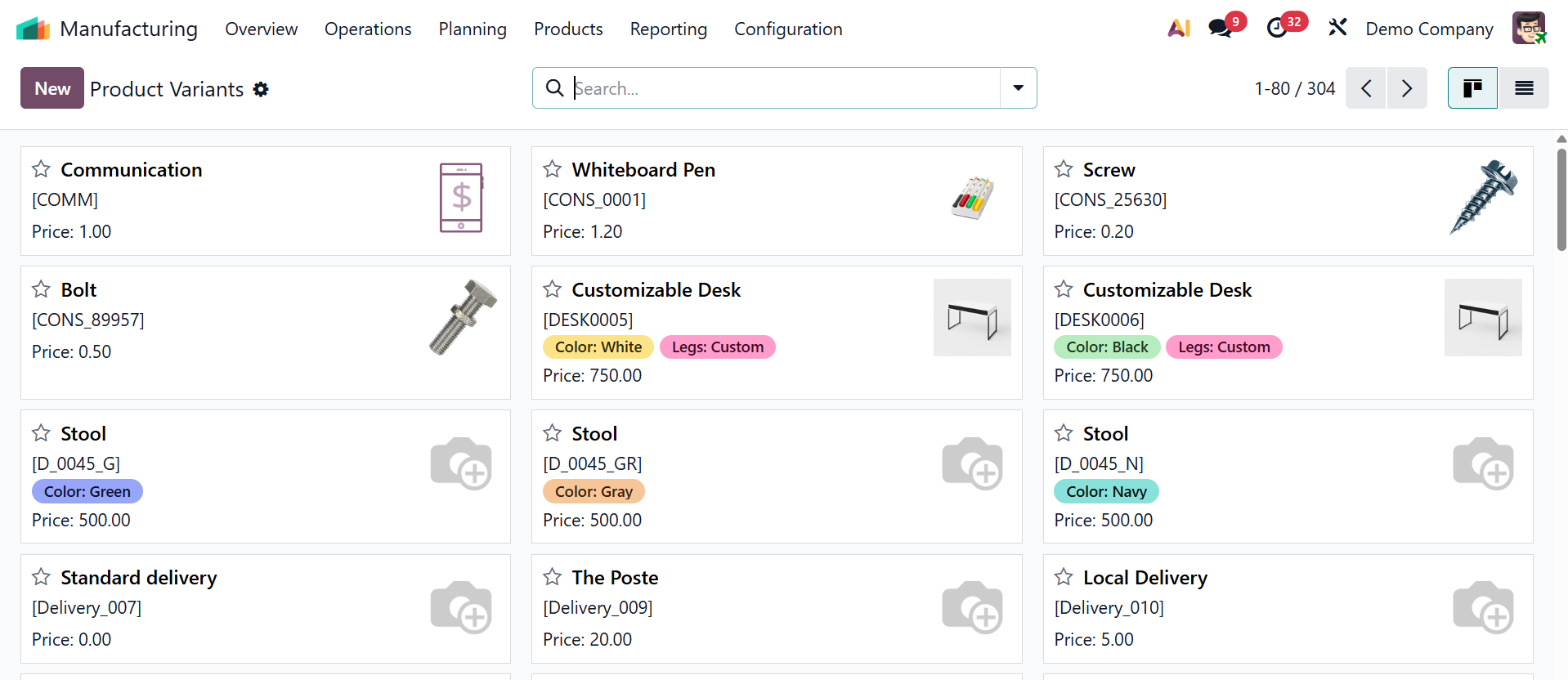
The configuration of a new product that we covered in the previous section is comparable to creating a new product variant.
1.3 Bill of Materials
The Manufacturing module of Odoo uses the Bills of Materials (BoM) tool to specify the parts, components, and ingredients required for a final product. It outlines materials, quantities, and optional procedures and functions as a comprehensive production blueprint. Component management, allowing multi-level or stacked BoMs, and connecting components to sub-assemblies are important aspects. The "Bill of Materials" menu allows us to control these.
A list of current bills of materials containing information such as product name, reference, BoM type, and company name may be found on the Bill of Material.
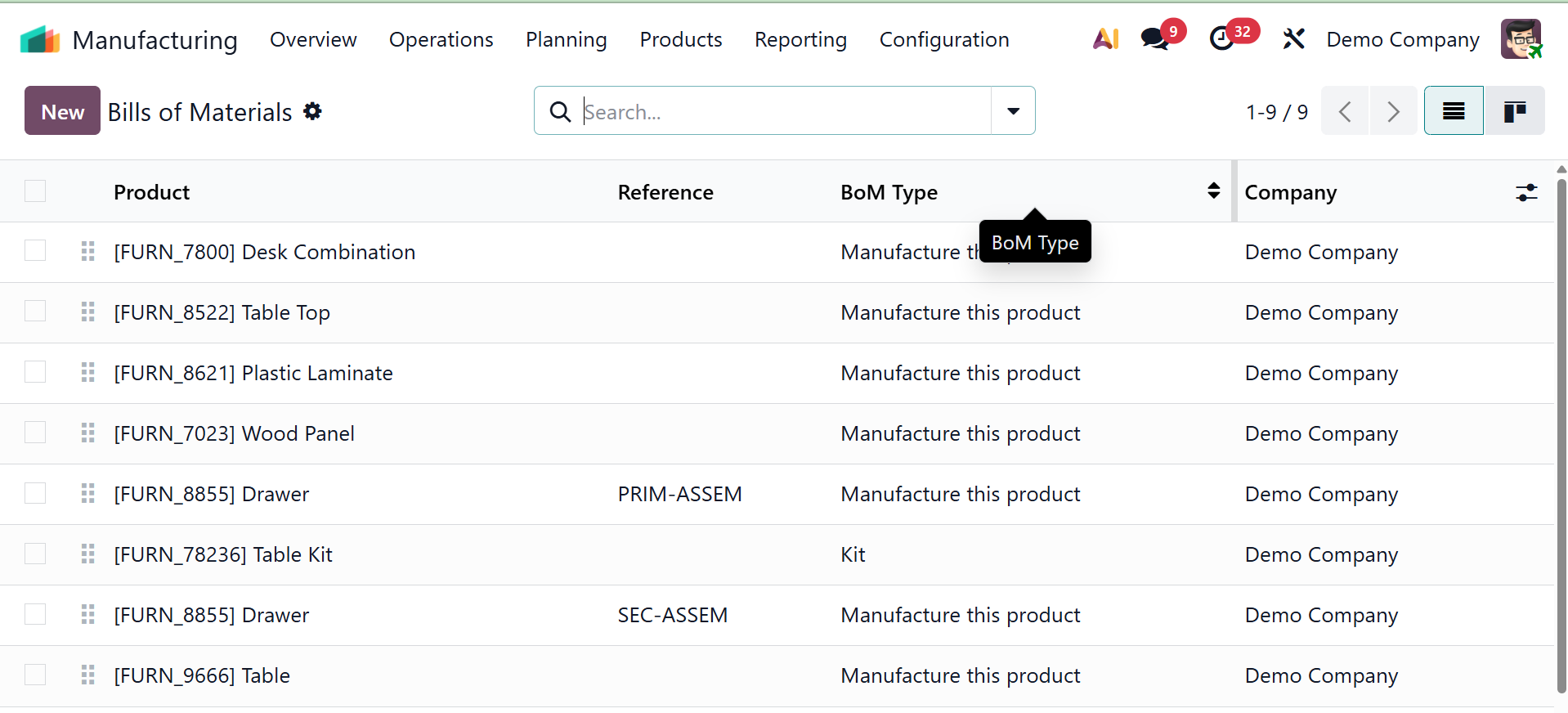
It is possible to convert the list view into a Kanban view. Then, using different Filters, Group By, and Favorite options, the advanced search box lets you receive personalized results. Use the "New" button at the top of the page to start a new BoM. As seen in the screenshot below, this will bring up the new BoM creation form.
Product name, Product Variant (selected from a drop-down menu), Quantity, Reference, and BoM Type (such as Manufacturing this product, Kit, or Subcontracting) can all be entered on the BoM creation page. Then the user can also specify the name of the Company.
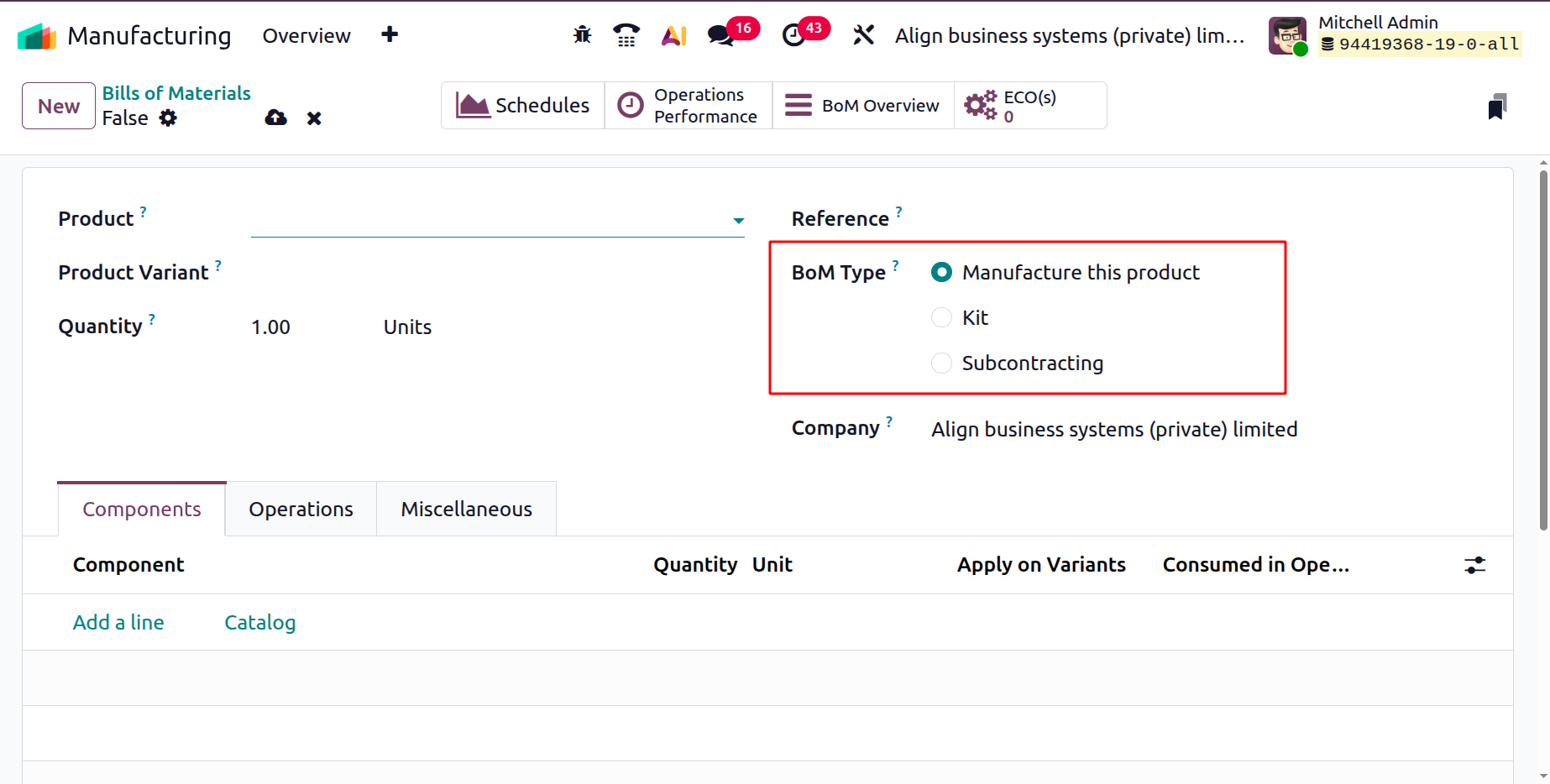
The BoM Types are
- 1. Manufacture this Product: to specify the subassemblies and raw materials needed to produce a new manufactured good.
- 2. Kit: to combine several different products into a single package that is offered for sale as a single unit.
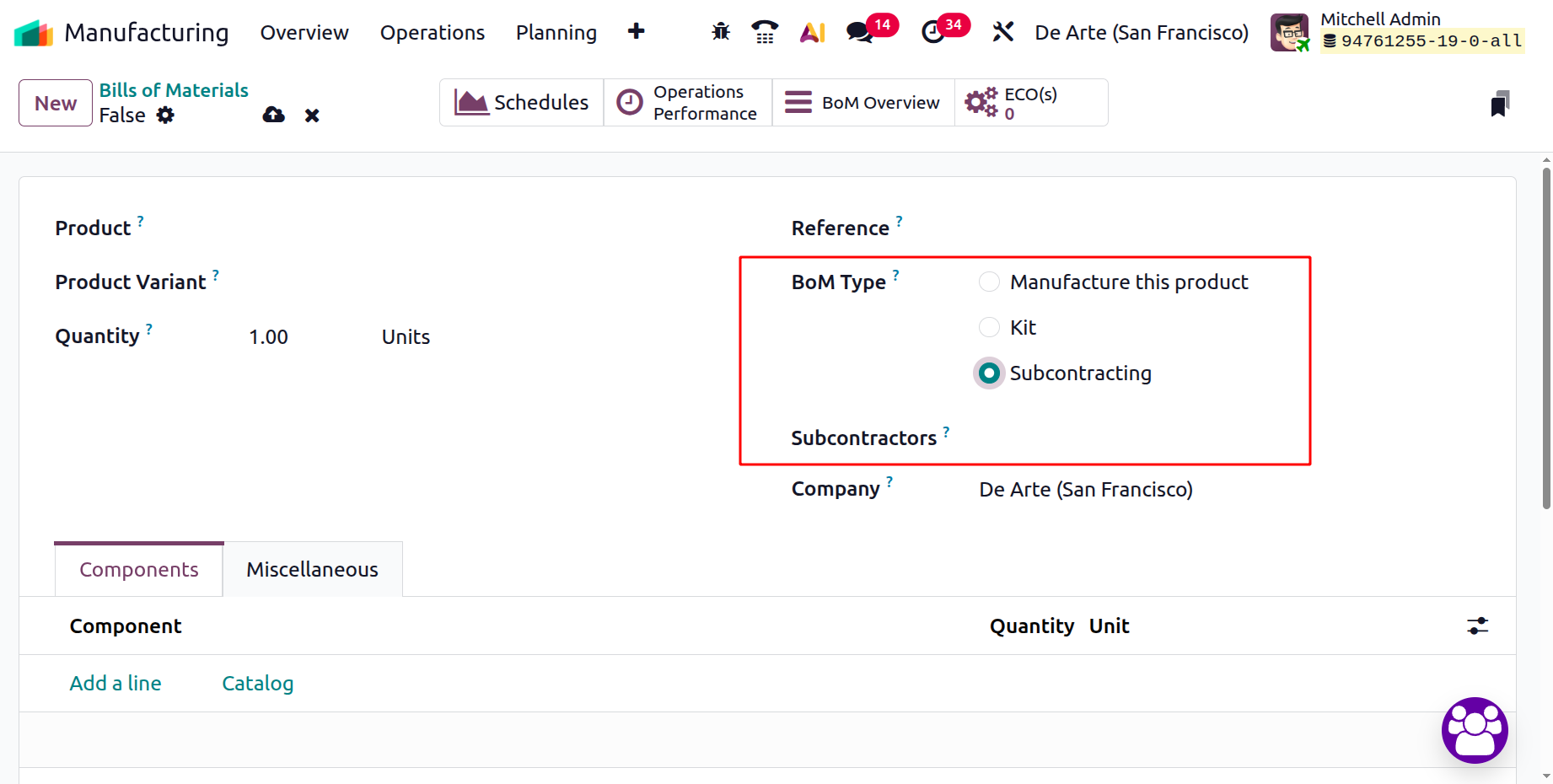
- 3. Subcontracting: to oversee the outsourcing of a product's production to an outside vendor. The option will be available when the Subcontracting option is activated in the settings. On selecting the option, you will get the field to add the subcontractor as well.
Components Tab: Next, use the Components tab's "Add a line" option to add components. As seen in the screenshot below, you can additionally indicate the quantity and unit of measurement for every product component.
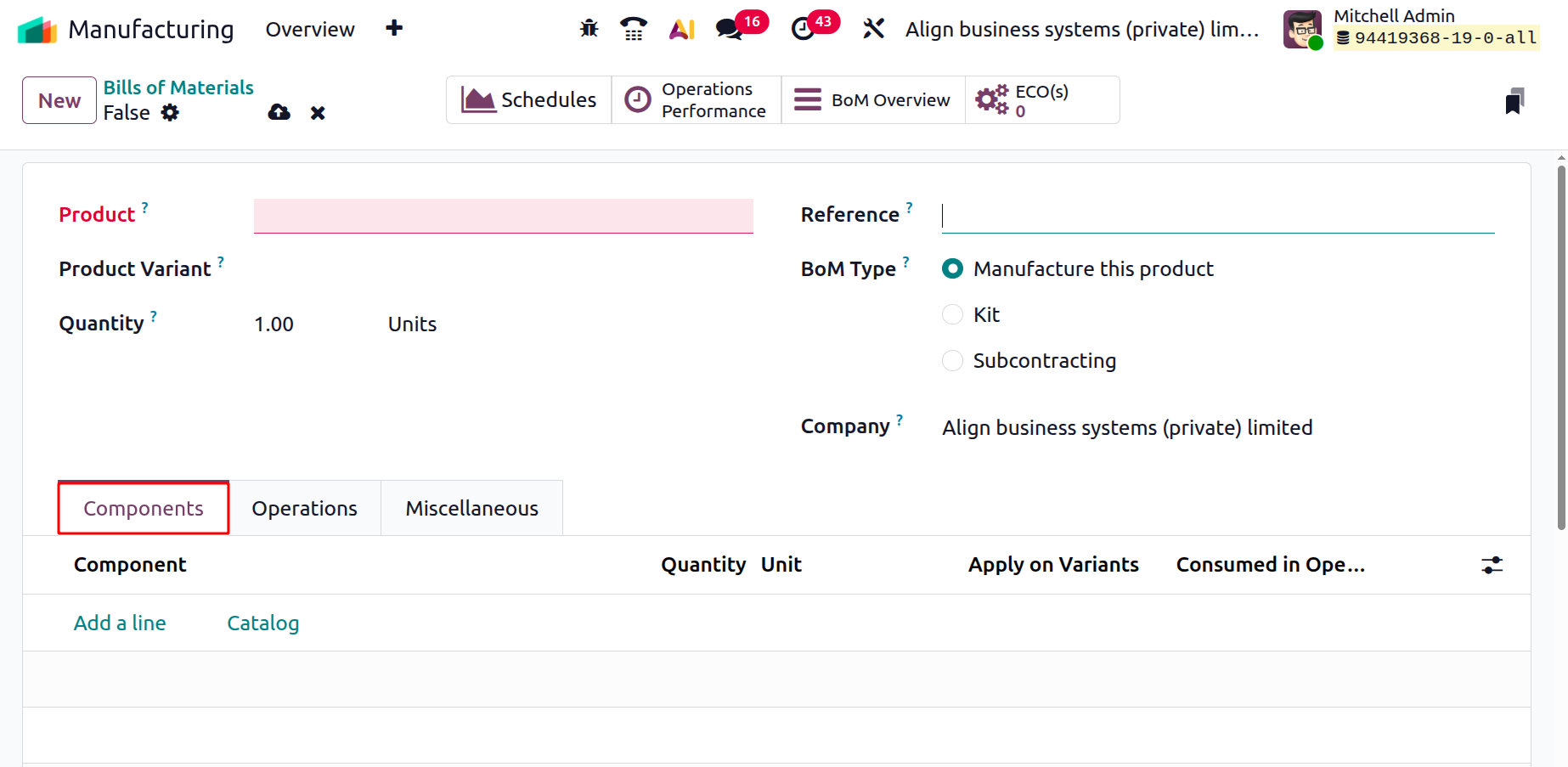
Under the Components tab, using the Add a Line option, you can add details regarding the components, quantity, unit, apply on variants, and consumed in operations, respectively.
- Components – The list of raw materials or parts required to manufacture the finished product defined in the Bill of Materials.
- Quantity – The exact amount of each component needed to produce one unit of the finished product.
- Unit – The unit of measure (e.g., kg, pcs, meters) used to quantify each component in the BoM.
- Apply on Variants – Specifies which product variants the component applies to when the product has multiple variants.
- Consumed in Operations - Indicates during which specific manufacturing operation(s) the component will be used or consumed in the production process.
- Operations: On selecting the tab, you will get the interface, as shown below.
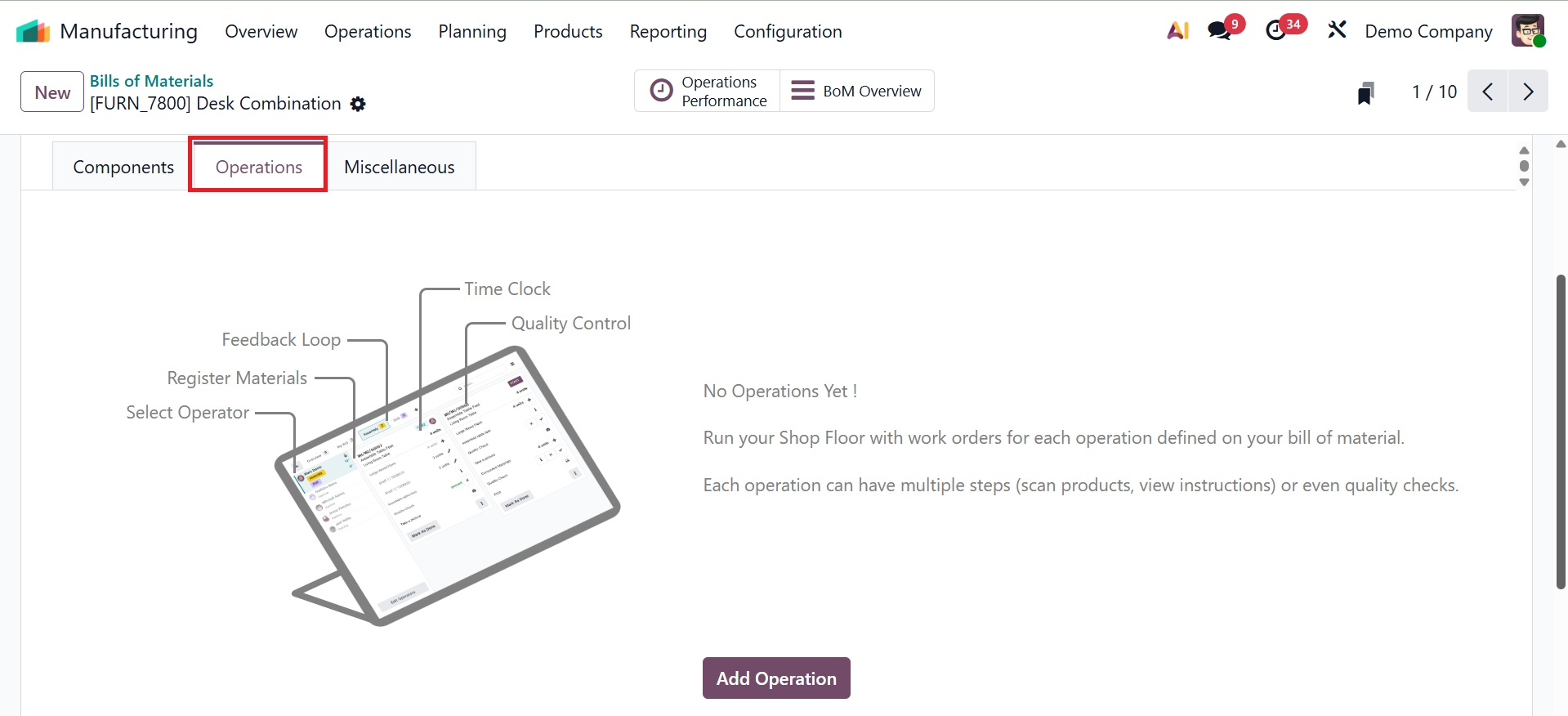
As seen below, on selecting the Add Operation option, this opens a new page.
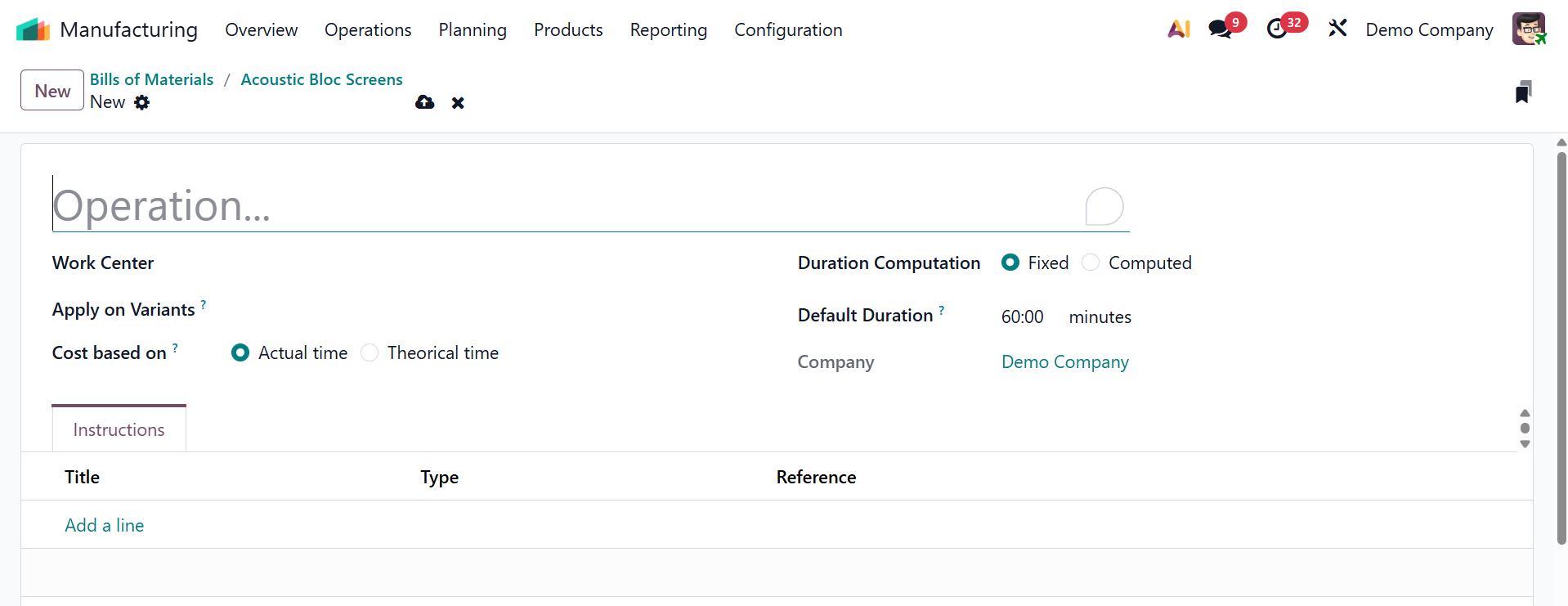
The Operations section allows you to specify the work's name. Next, select Work Center, Duration. Next, either leave it empty or set the Apply on Variants to immediately perform this specific procedure to a certain product variant. This operation's duration can be explicitly adjusted or computed using the "Duration Computation" options based on items under observation. You can either "Fixed" or use the "Computed" option to let Odoo determine the duration of the operation. This section displays the Default Duration. You can add instructions regarding the operations. Here, you have the option of Cost based on, which specifies whether the operation’s cost is calculated using a fixed cost per operation or the work center’s hourly cost multiplied by the operation duration.
They are of two types:
Actual Time calculates the operation cost based on the real time spent during production, recorded directly from work orders.
Theoretical Time calculates the operation cost using the predefined estimated duration from the BoM, regardless of the actual time taken during production.
Then, you have the instruction tab, which allows you to add written instructions, images, or documents that guide operators through the manufacturing process for that specific BoM.
Lastly, select "Save & Close" or "Save & New" if you wish to add more.
As seen in the screenshot below, this operation information will be shown under the Operations tab.
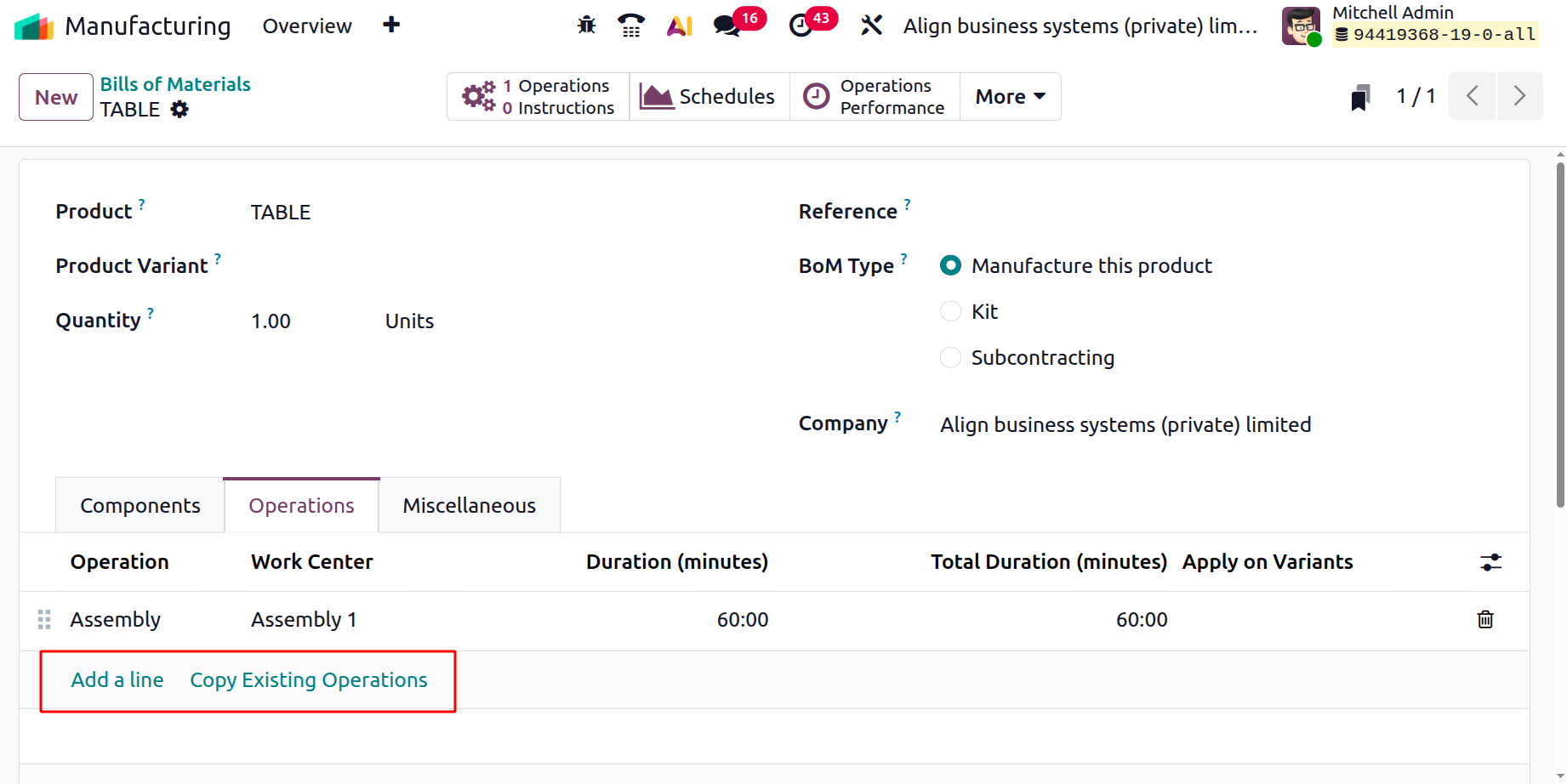
When performing any manufacturing tasks for this product, you can use the "Copy Existing Operations" option in the Operations page to replicate previously finished operations.
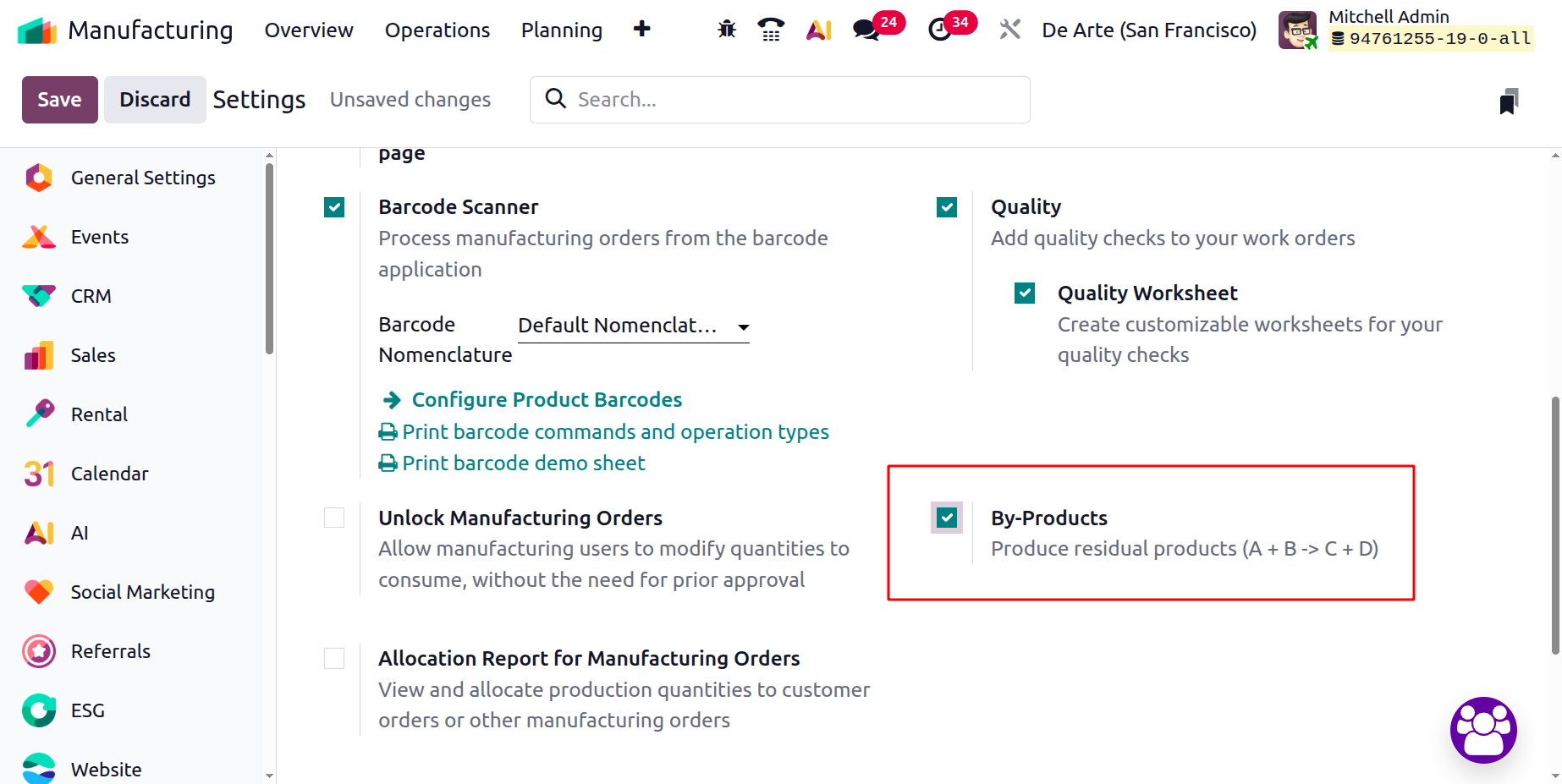
Tabs for operations and by-products will appear after you activate the By-Products options from the settings window.
You can then add by-products by clicking the "Add a line" option under the by-product tab or by selecting directly from the product catalog window by clicking on the "Catalog" button, as shown in the screenshot below.
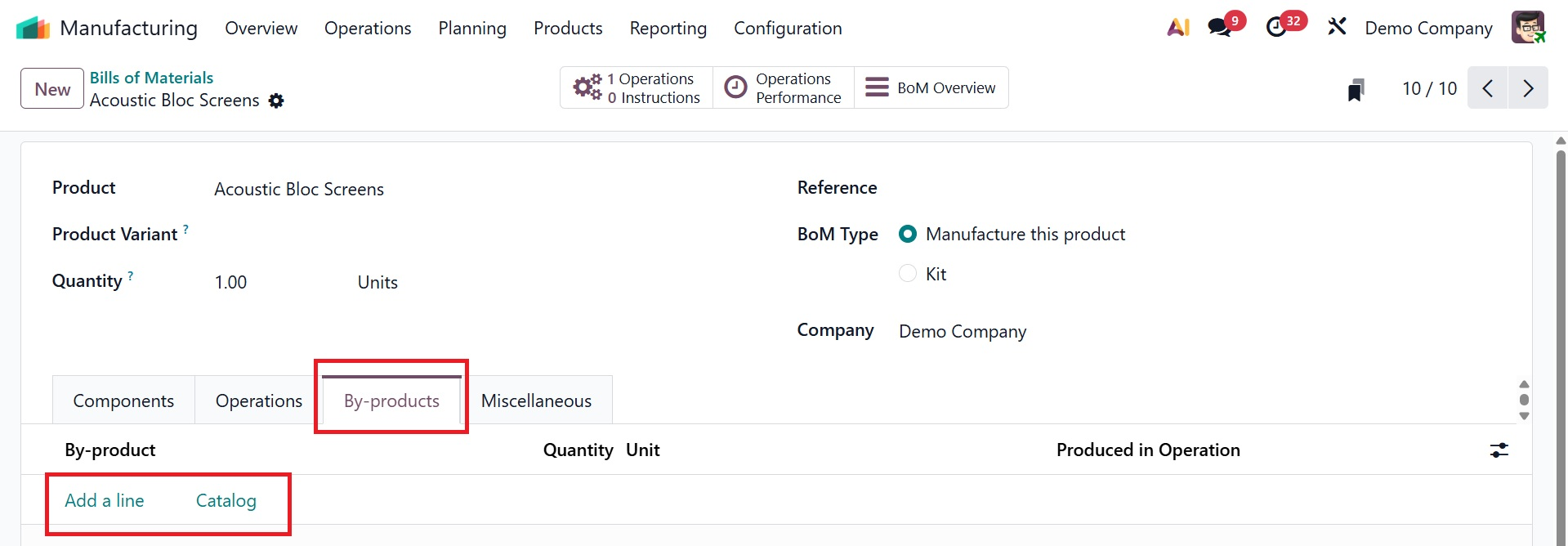
Here, you can select a By-Product, Quantity, Units of Measure, and Produced in Operation to specify the by-products. Therefore, the by-products will be created during the aforementioned activities.
- Miscellaneous:You can adjust "Manufacturing Readiness" on the Miscellaneous tab to specify whether all components must be present before beginning or whether just the initial components are required. When production can start is determined in part by this parameter. The "Flexible Consumption" configuration option can therefore be used to determine if material consumption can deviate from the BoM's specifications. Either Allow, Blocked, or Allow with warning can be selected.
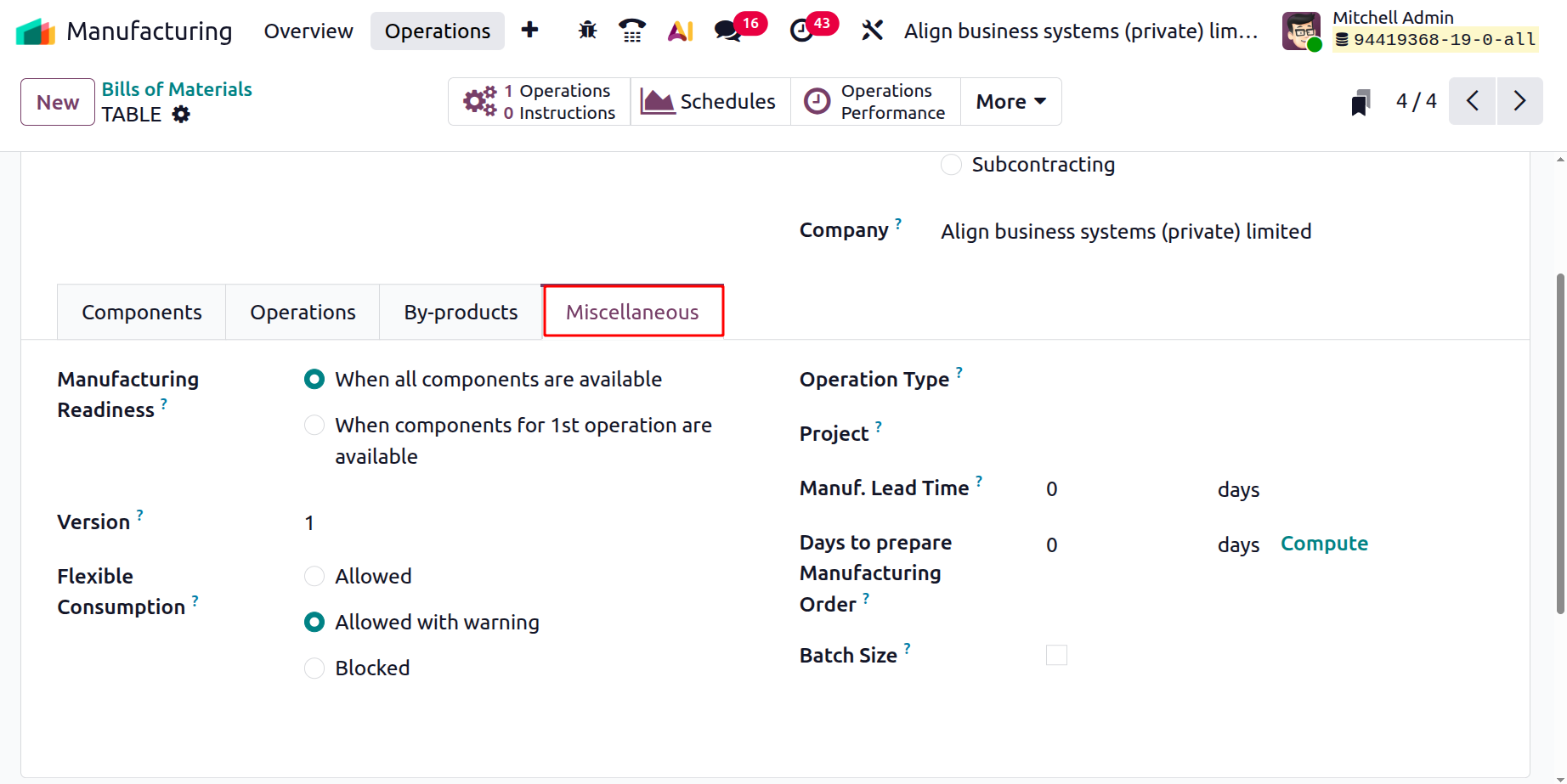
- Manufacturing Readiness: Specifies the minimum availability of components required before production can start (e.g., all components or only some needed). It can be set as when all components are available or when components for 1st operation are available.
- When all components are available:This readiness type allows the manufacturing order to start only when every component required in the BoM is fully available.
- When components for 1st operation are available: This readiness type allows production to begin as soon as the components needed for the first work operation are available, even if other components are still missing.
- Flexible Consumption: Allows operators to consume more or fewer components than the exact BoM quantity during production, giving flexibility for real-world variations. This option can be allowed, allowed with warning, or blocked accordingly.
- Allowed operators consume slightly more or fewer components than the exact BoM quantity during production.
- Allowed with Warning permits quantity variations but shows a warning message to alert users when consumption differs from the BoM.
- Blocked prevents users from changing component consumption quantities, forcing them to use exactly the amounts specified in the BoM.
- Project: Links the manufacturing order to a specific project so that its costs, tasks, and progress can be tracked as part of that project.
- Operation Type specifies the manufacturing flow or process category (such as Manufacturing, Repair, or Subcontracting) that the BoM will use when creating production orders.
- Version identifies the BoM’s revision number, allowing you to track changes and maintain different iterations of the same product’s production structure.
The standard production amount used to determine component requirements and cost structure for each manufacturing batch is defined via the Batch Size option under the Bill of Material’s Miscellaneous tab.
The "Manufacturing Lead Time" in Odoo 19 represents the typical time required to produce a finished product. When a product has a multi-level Bill of Materials (BoM), the method additionally takes component lead times into consideration and adds them together to calculate the total manufacturing time. This is especially useful when working with subcontracted items because it helps determine when components must be given to the subcontractor in order to meet deadlines.
Additionally, you can plan ahead by using the "Days to Prepare Manufacturing Order" option, which allows you to create and verify manufacturing orders in advance. This ensures that before the final step of manufacturing begins, there is sufficient time to produce semi-finished goods or replenish necessary parts.
A production order for the relevant product can be created in Odoo once the BoM configuration is finished. The smart buttons include operations, instructions, schedules, operation performance, BoM overview, and ECOs.
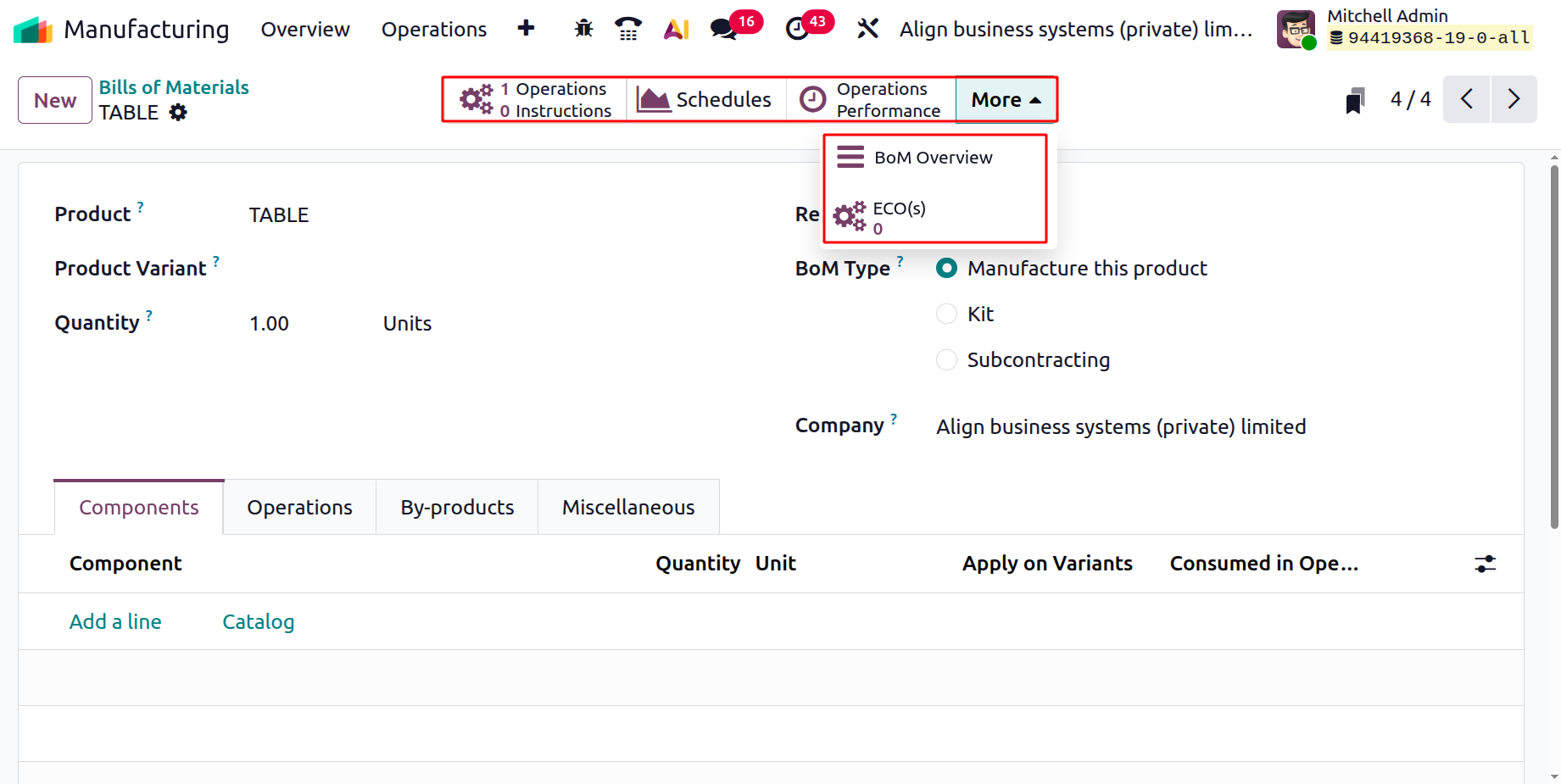
- Operations –Displays all work center operations linked to the BoM, including their steps, durations, and routing details.
- Instructions –Shows all work instructions, guidelines, or step-by-step procedures associated with the BoM’s manufacturing operations.
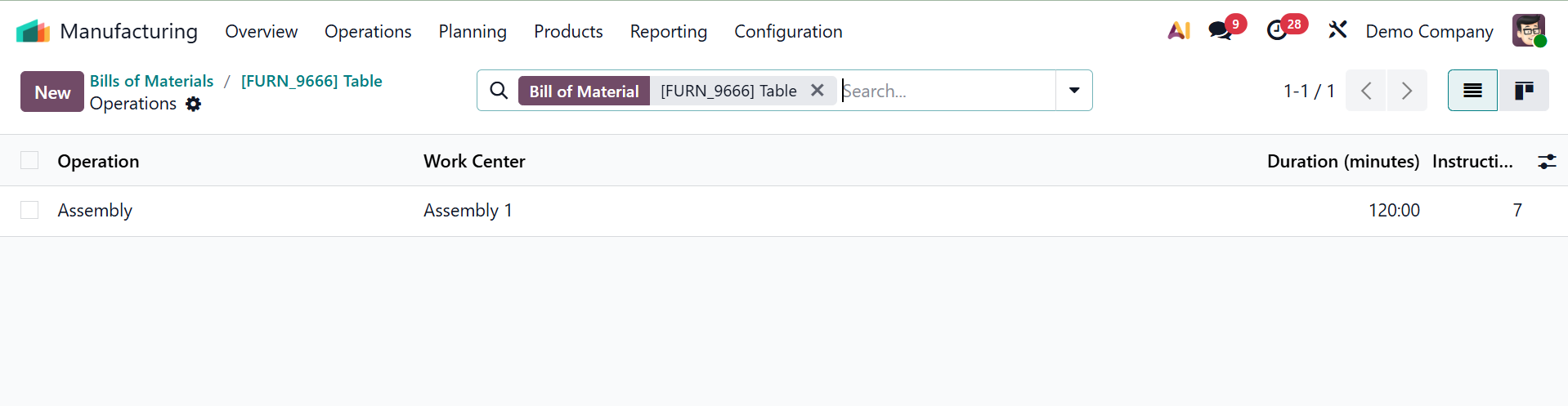
Schedules – Provides a calendar-style overview of planned and scheduled manufacturing operations derived from this BoM.
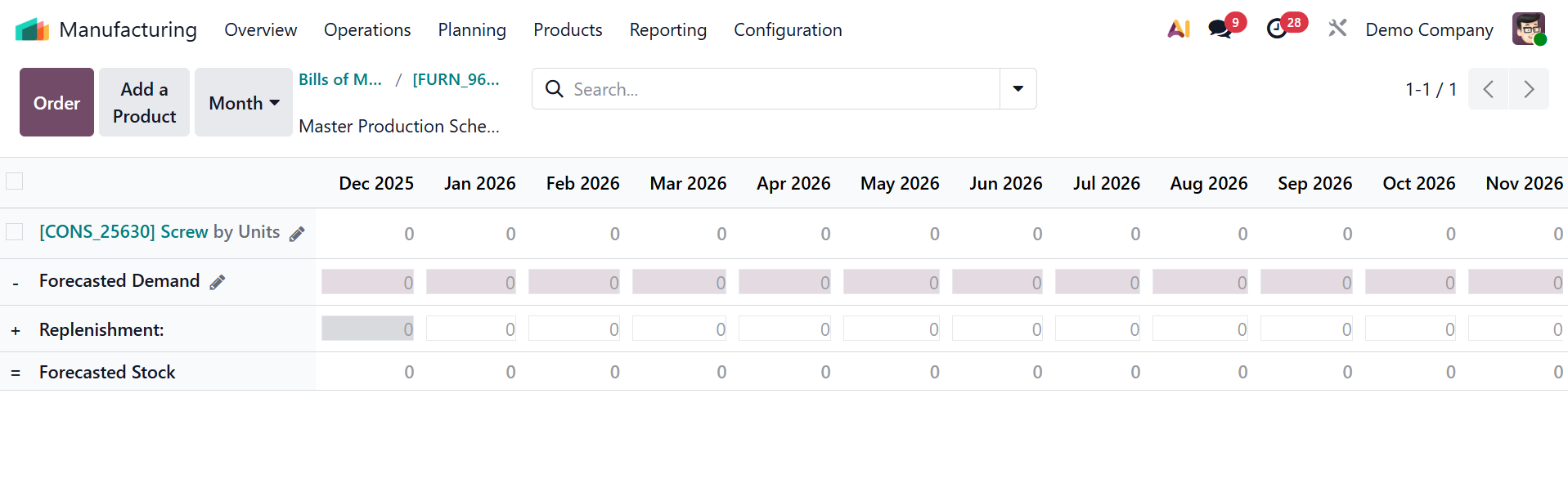
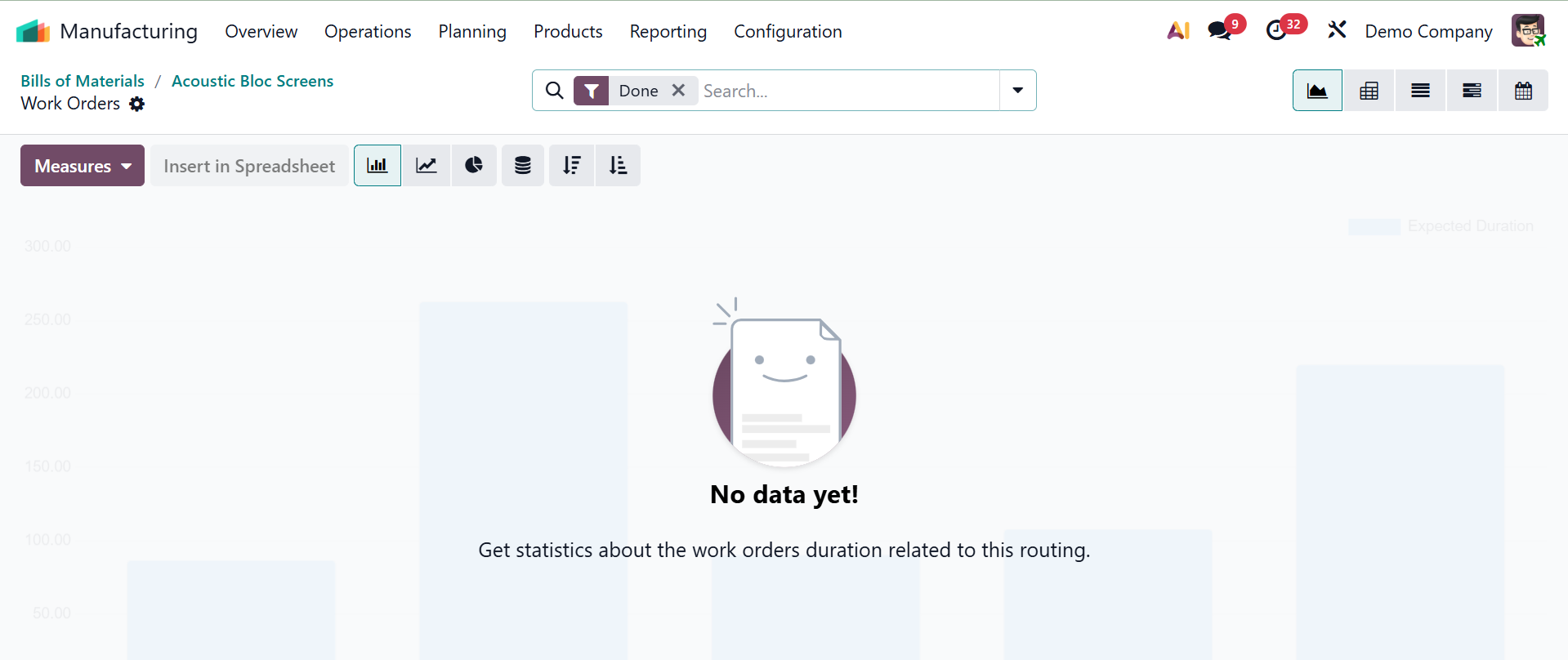
The "Operations Performance" smart button will then provide a thorough evaluation of each operation related to this BoM product.
Clicking the "BoM Overview" smart button will then display the complete overview of this BoM product, including its activities, by-products, lead time, and other details, as seen in the photos below.
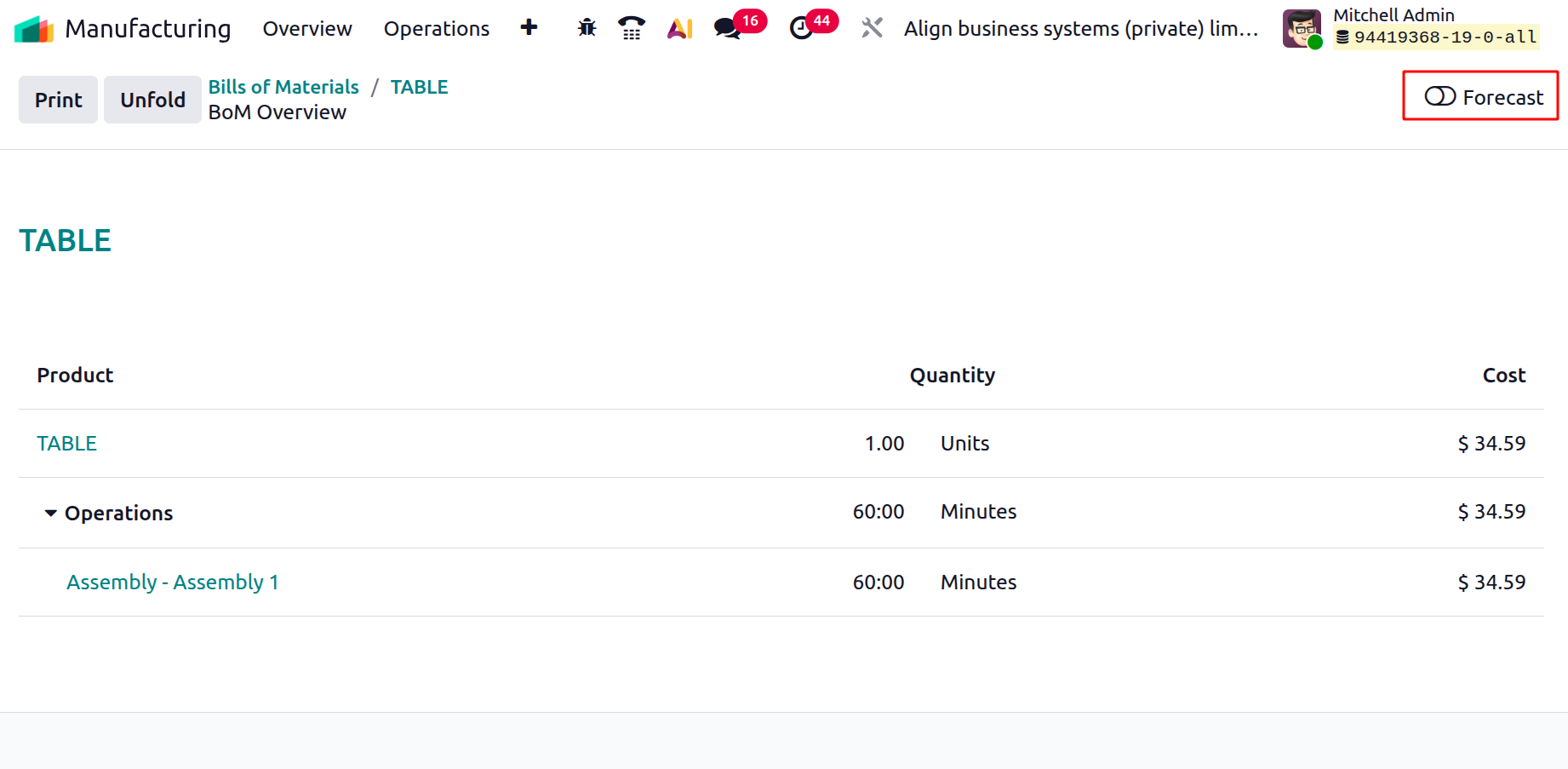
On enabling the Forecast icon, you will get more details. Here, you have the options like,
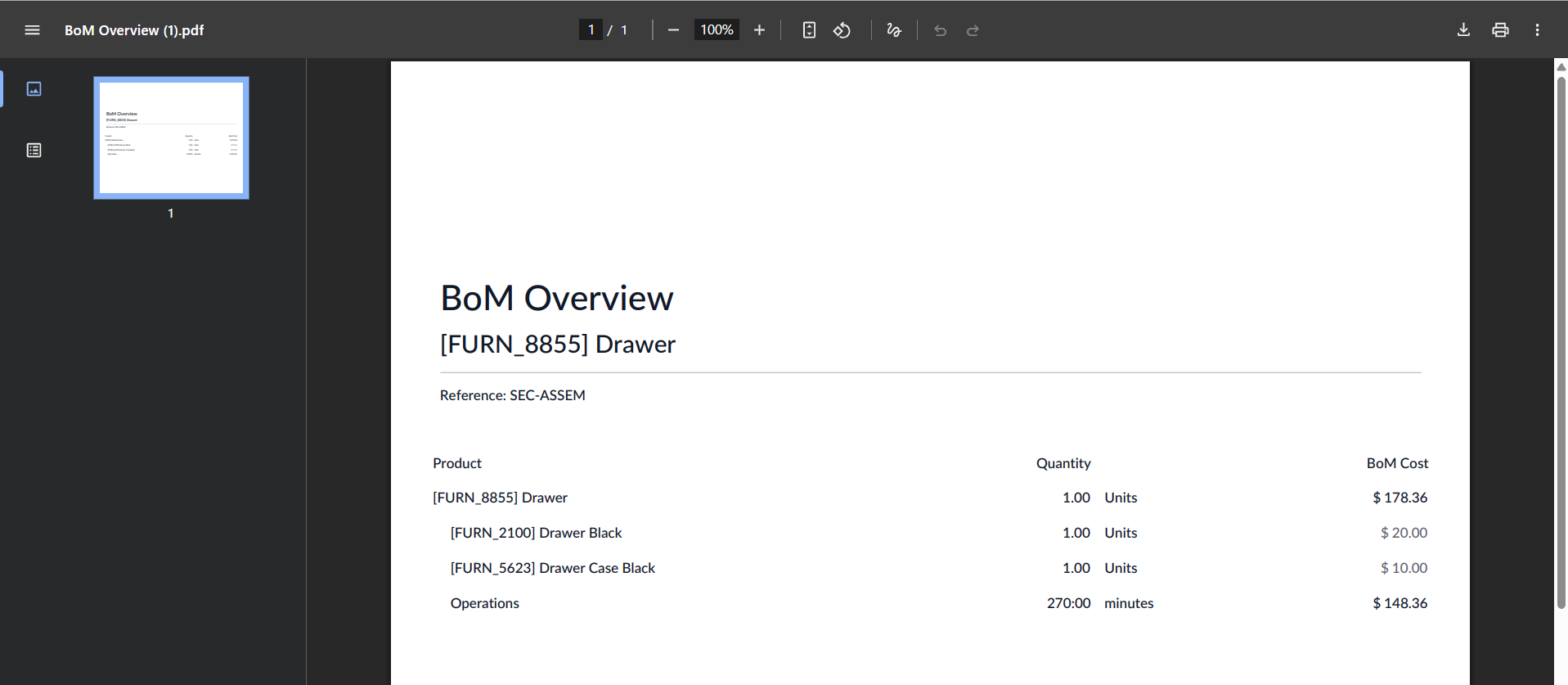
- 1. Print –Generates a printable PDF version of the BoM Overview, showing the complete component structure and quantities in a formatted report.
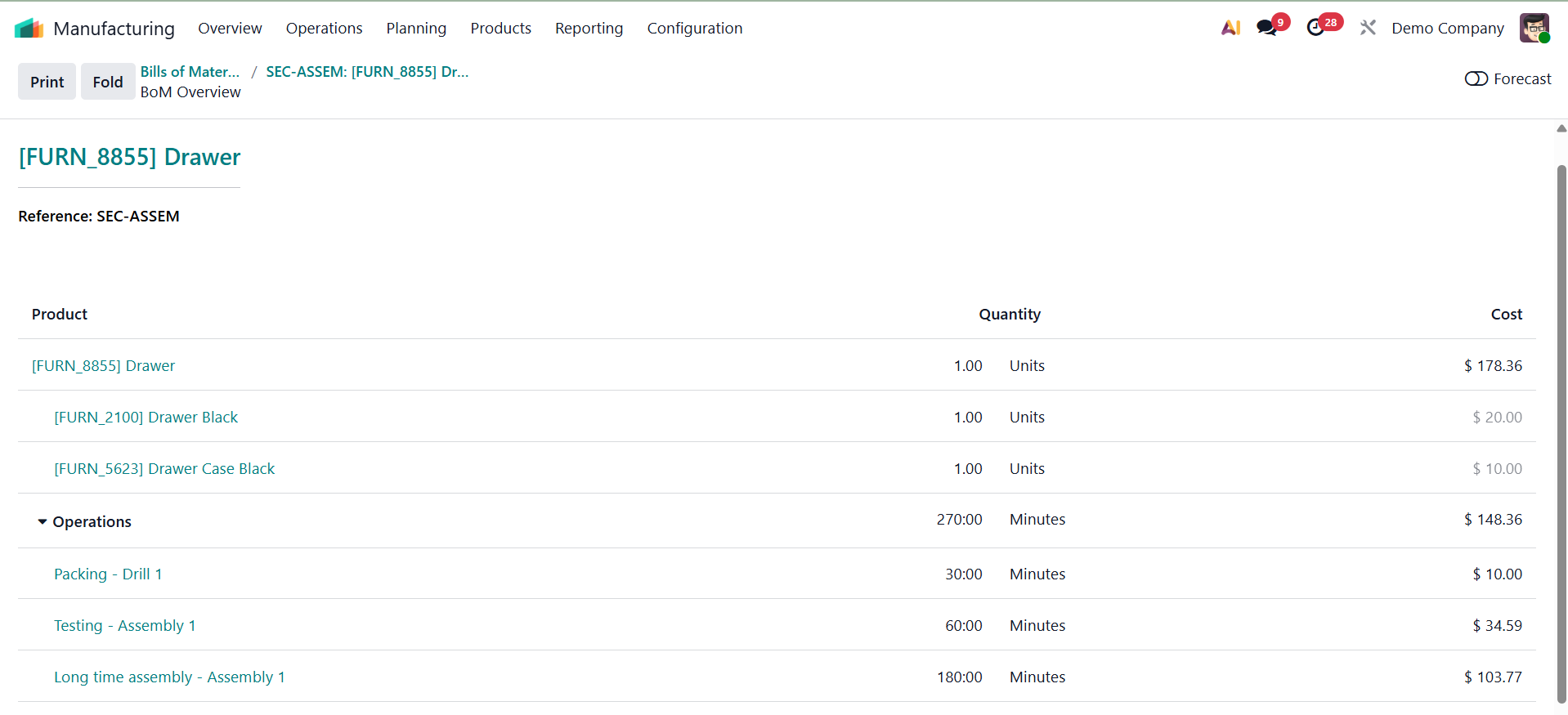
- 2. Unfold – Expands all nested components and sub-assemblies in the BoM Overview to display the full hierarchy in a single, fully opened view.
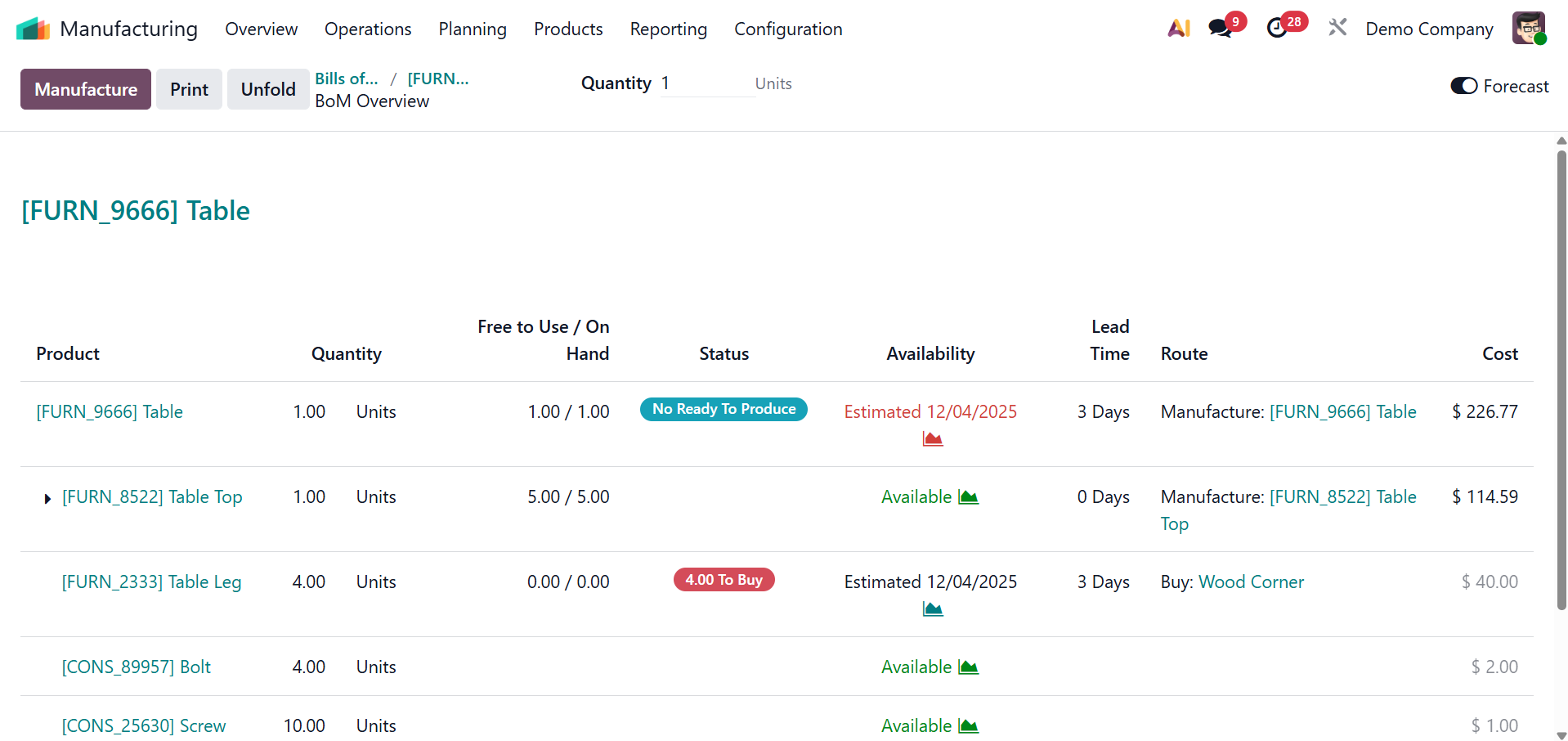
You can change a product's quantity and observe how it impacts various cost-related variables by using the 'Quantity' filter option. As seen in the screenshot below, you can view the most recent estimations for the Bill of Materials (BoM) Cost, Product Cost, and other relevant characteristics by adjusting the amount.
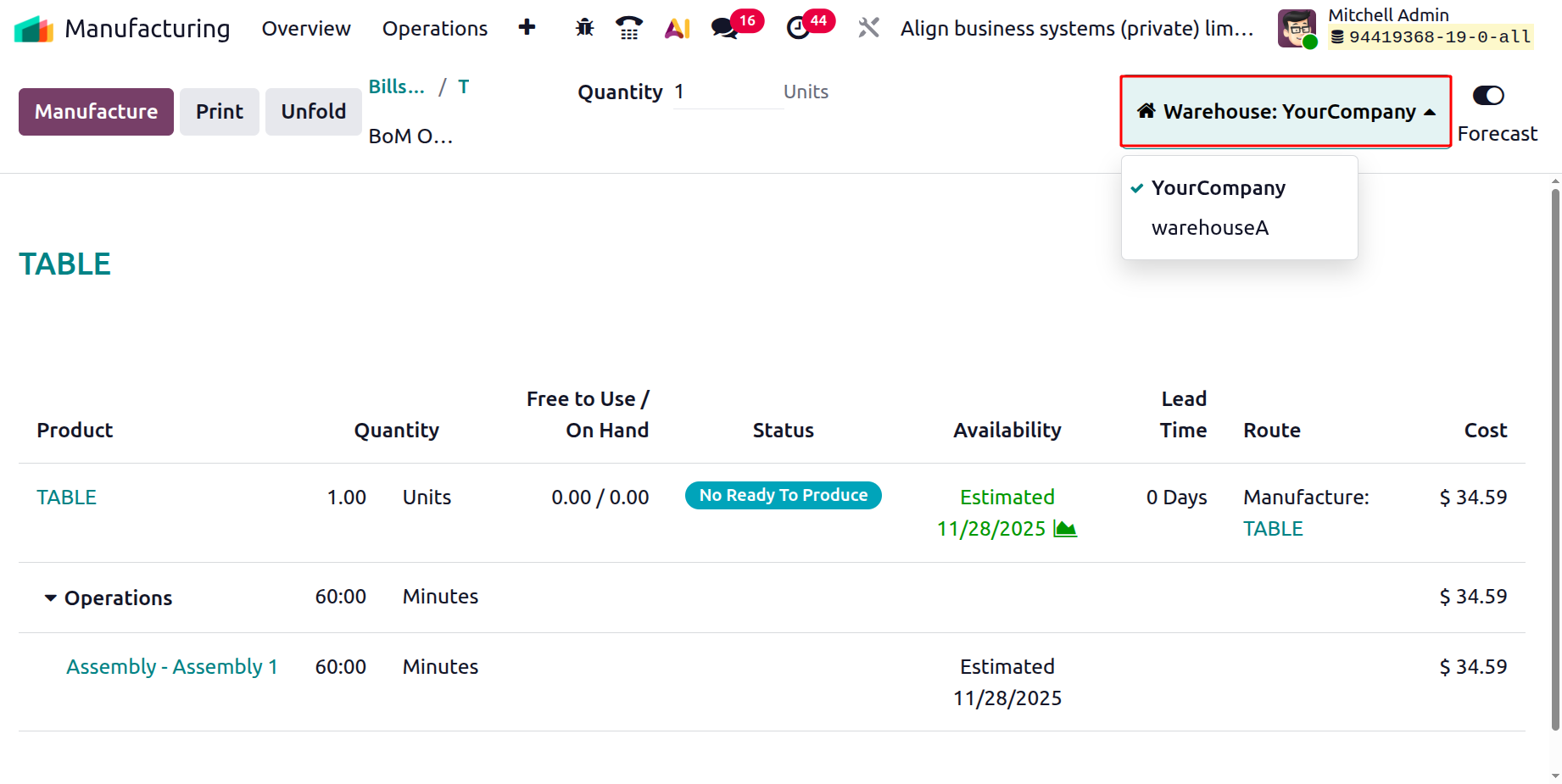
If the company has more than one warehouse, from the bill of material the users can choose the Warehouse as shown below.
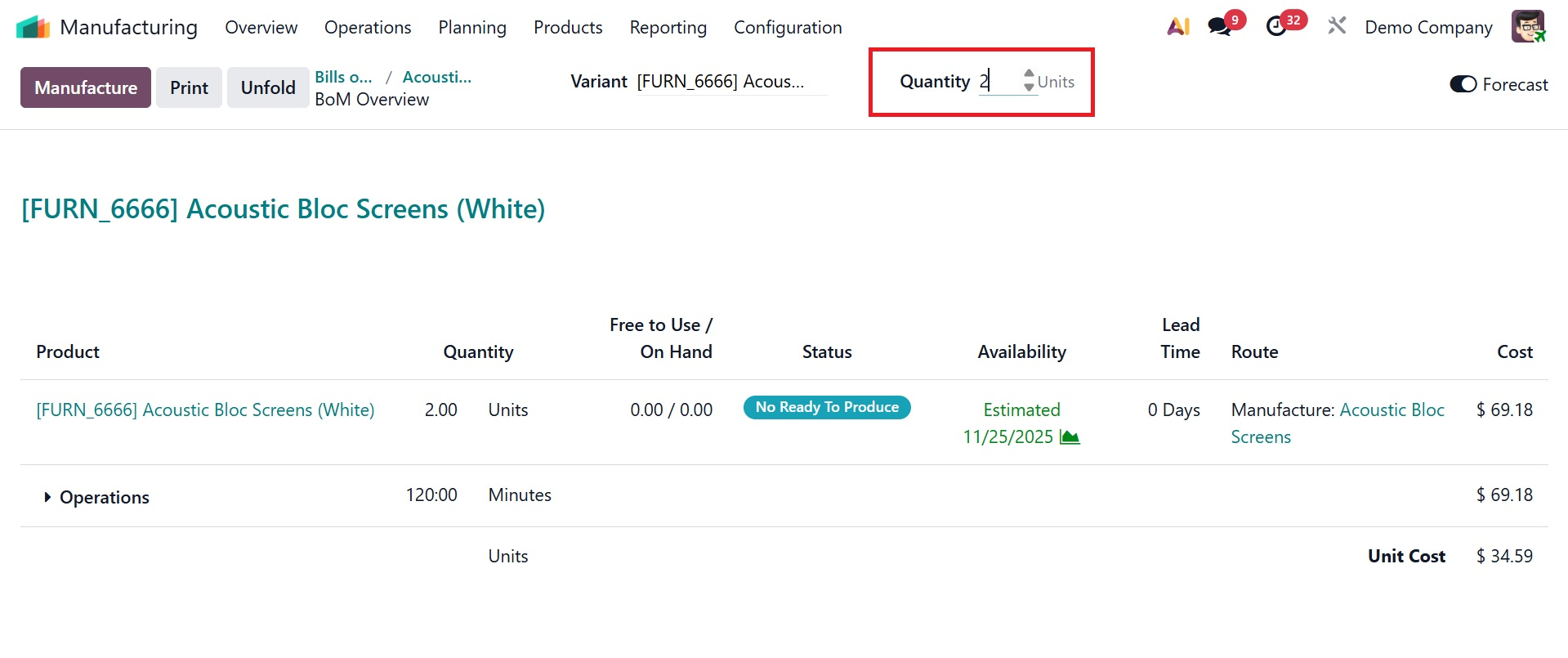
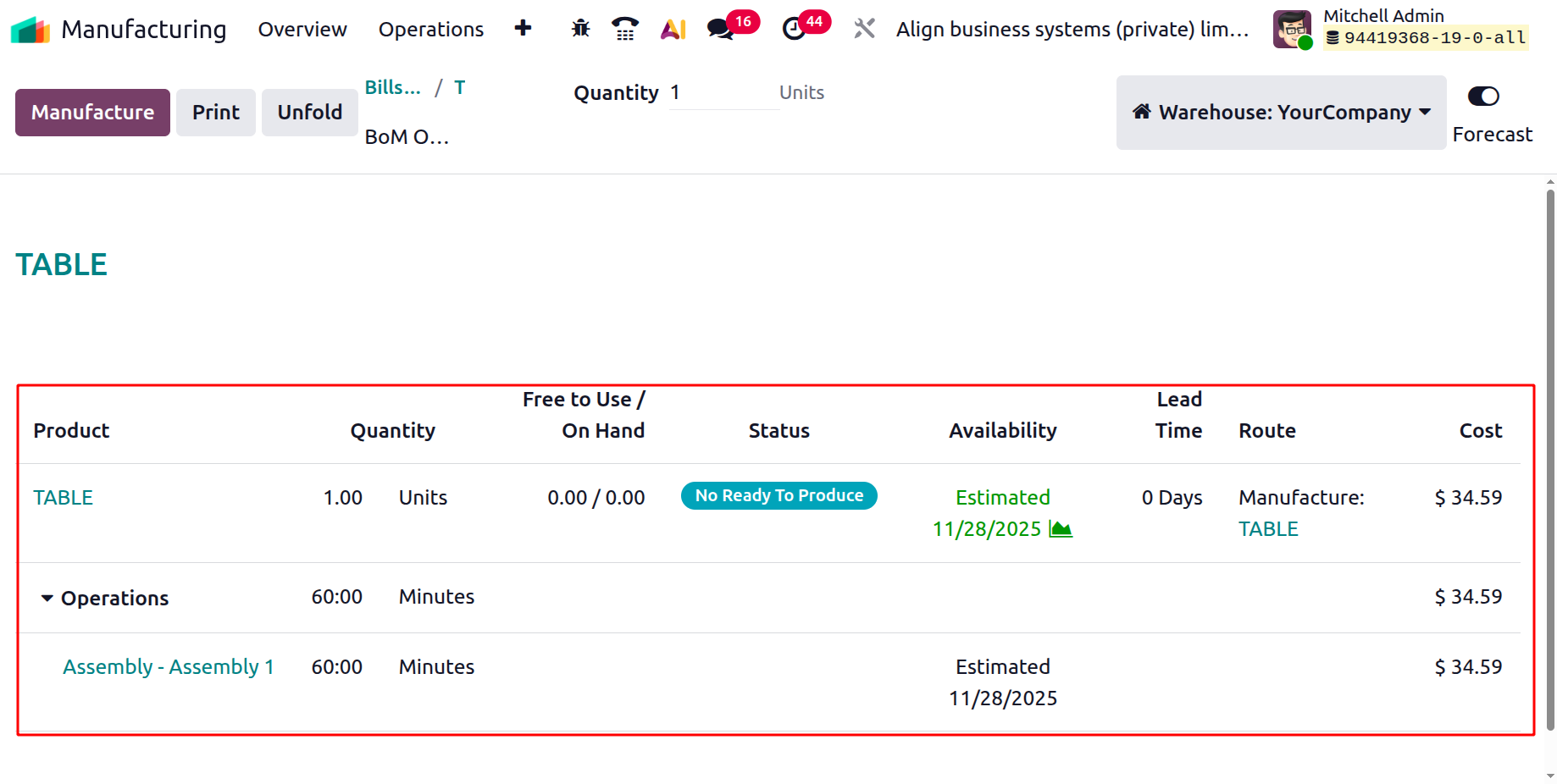
Here, in the bill of materials overview, you will get the details regarding the product, their quantity, free to use/on hand, status, availability, lead time, route, and cost respectively.
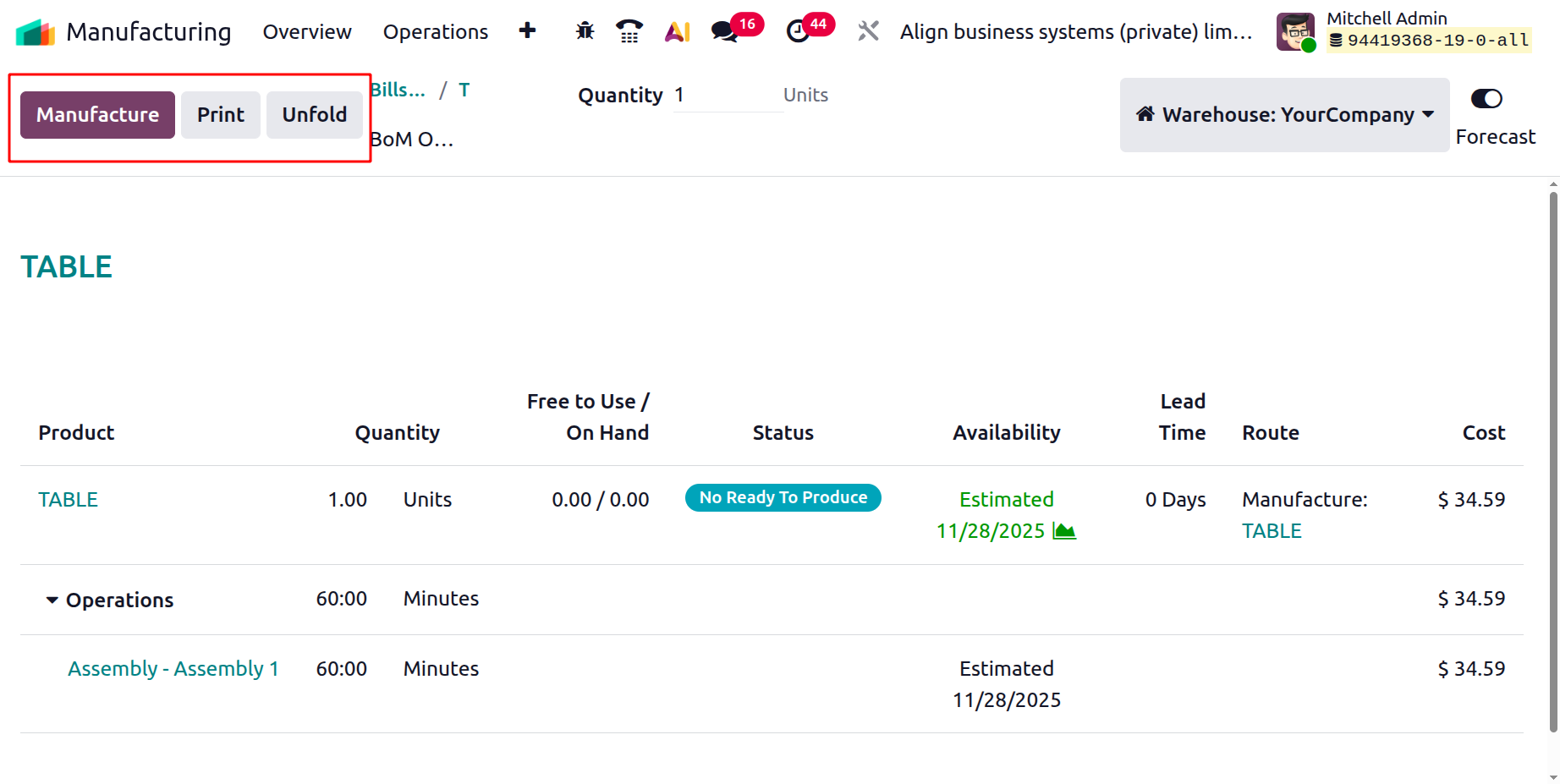
On the page, you can have some buttons like, manufacture, print, and unfold.
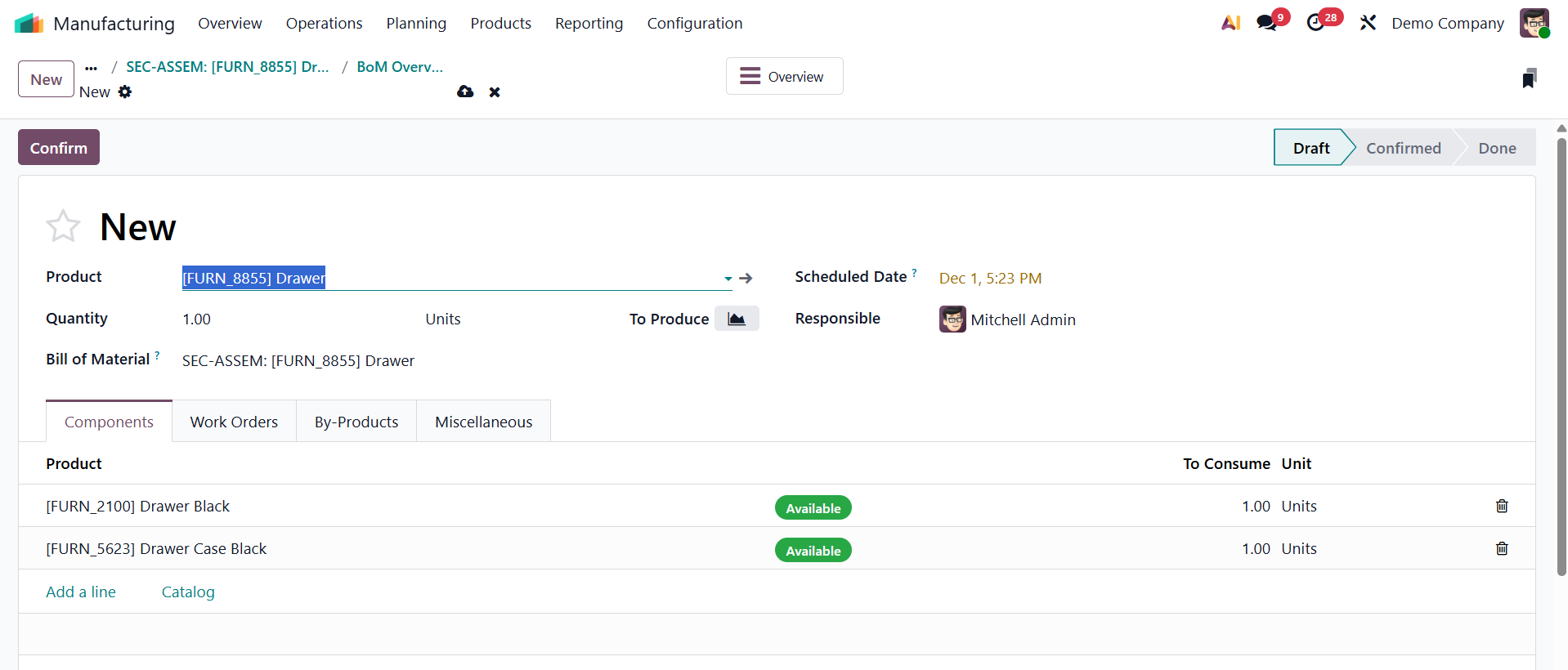
- Manufacture: Creates a new Manufacturing Order (MO) directly from the BoM Overview, using the selected Bill of Materials to initiate production immediately. On clicking the option, a new manufacturing order will be created.
- Print: Generates a PDF report of the BoM Overview, showing the complete component list, structure, and quantities in a clean, printable document.
- Unfold:. Expands all component levels and sub-assemblies in the BoM tree view, displaying the entire BoM hierarchy in a fully opened format for easy analysis.
1.4 Lot/Serial Numbers
Lot/Serial Numbers are an effective tool for product traceability and quality control in Odoo 19's manufacturing module. It enables accurate tracking throughout the production process by giving items or batches individual identities. This function ensures accountability, streamlines recalls, and is especially helpful for companies that need to adhere to tight regulations.
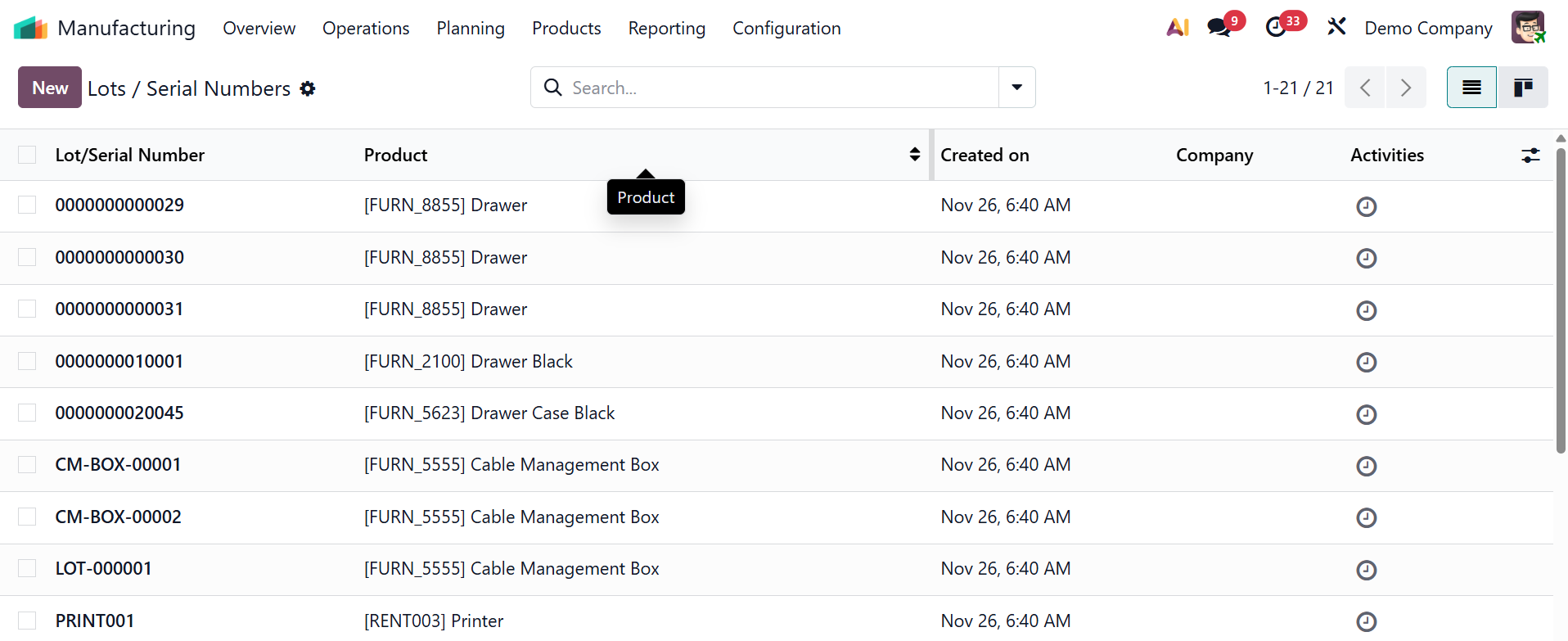
As you can see from the screenshot below, the "Lot/Serial Numbers" pane of the "Products" menu will display all of the previously defined Serial and Lot numbers along with their Internal Reference, Products, and Created dates.
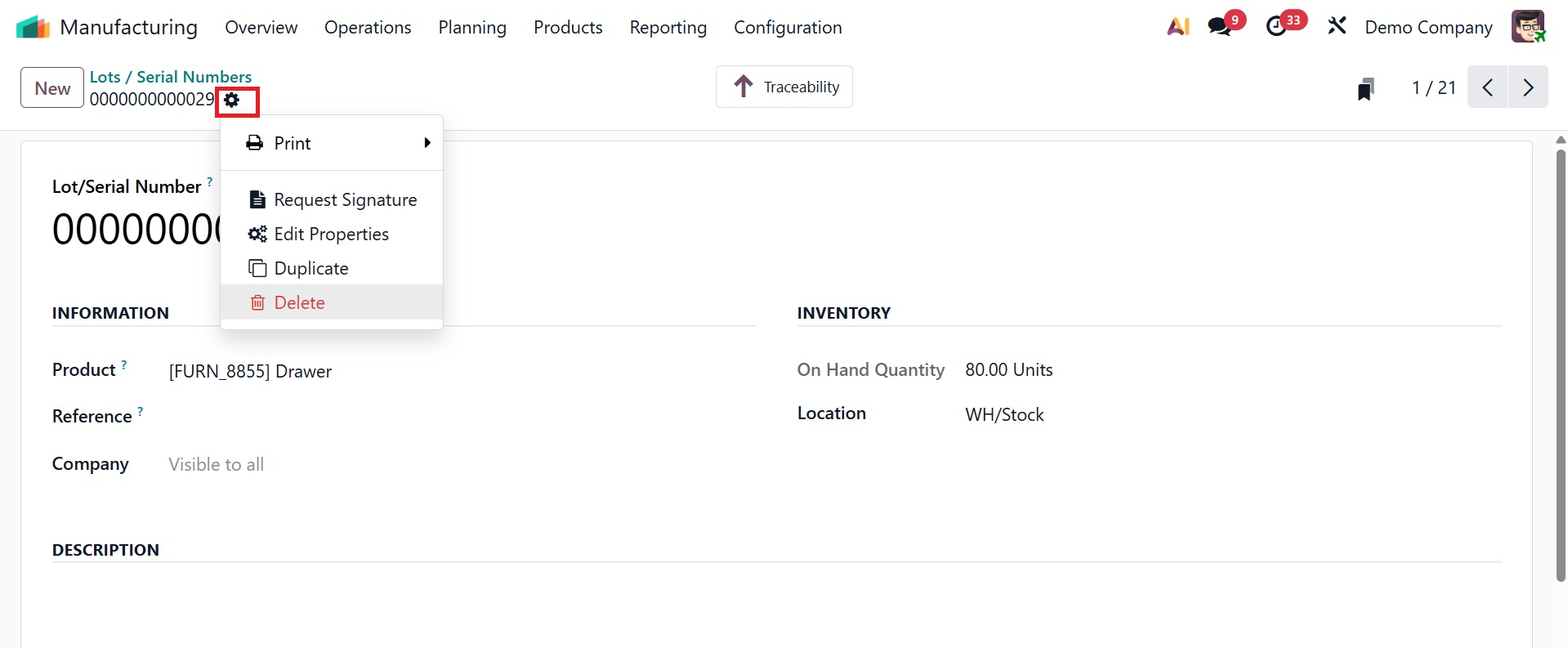
Additionally, this window's "New" button makes it easy to create new Lot/Serial numbers. Edit the data, such as the Lot/Serial Number, to suit your demands or your company's policies once a new creation window has started. The product, company, and internal reference number should then be stated. Under the INFORMATION field, you can add a unique serial number, product it belongs to, its amount, internal reference, and the company as well.
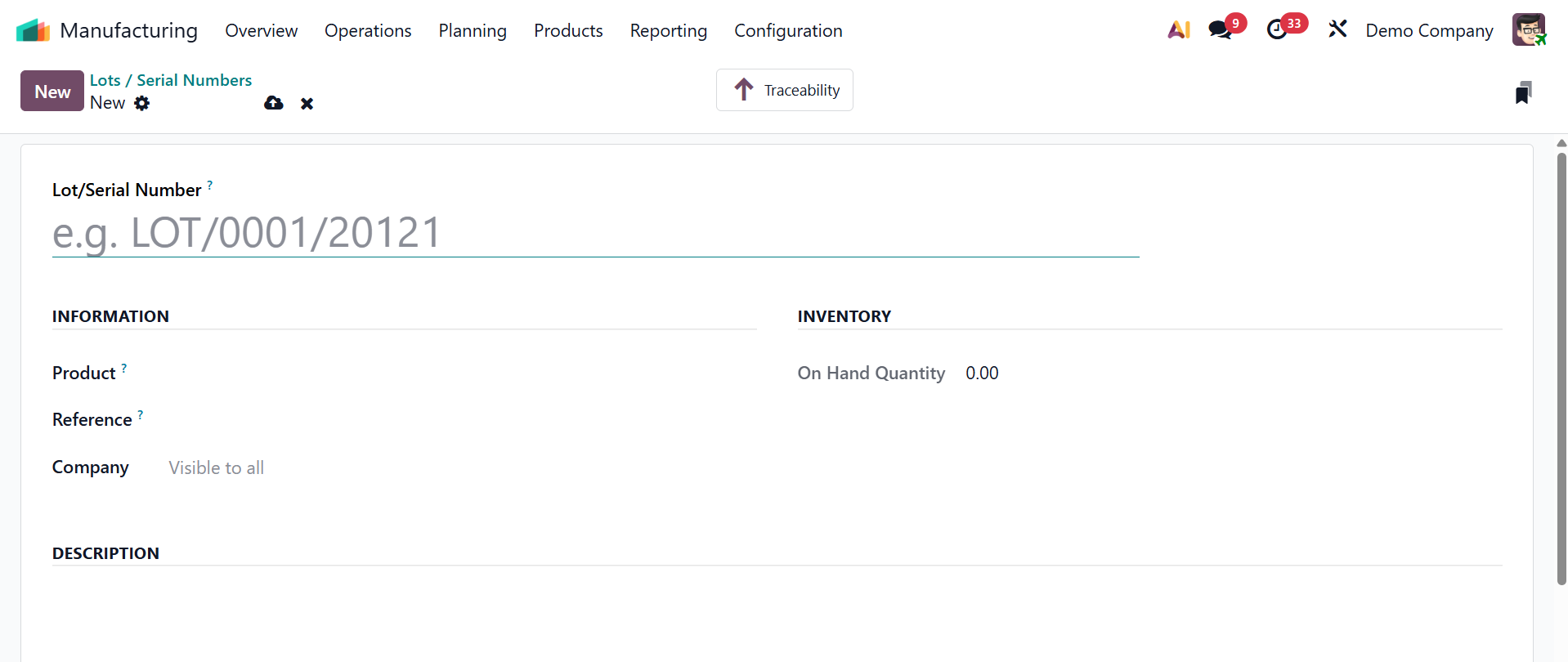
Under the INVENTORY, you can add the on hand quantity of the product as well.
We can also add a description of the product in the "Description" tab box. Only the enterprise edition of the Manufacturing module allows you to edit the other field data.
Once the editing is finished and the details are saved.
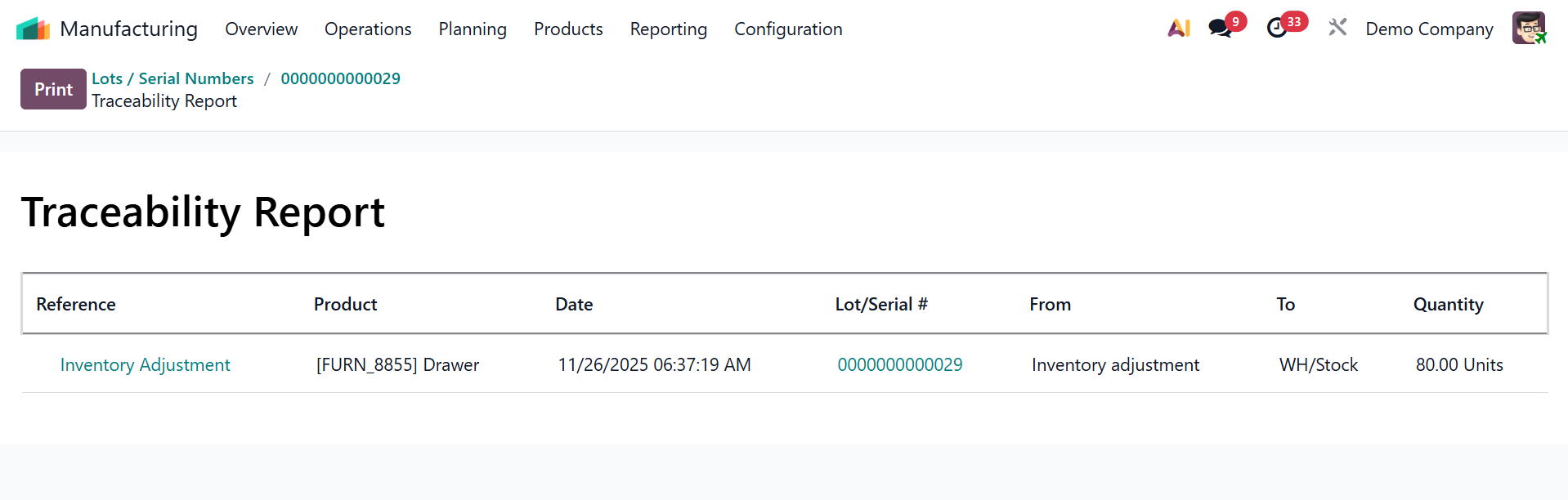
The "Traceability" smart button allows us to view the product's traceability report.
The lot/serial number can be printed, deleted, or duplicated using the action menu located on the upper left side of the configuration form.