Products Menu
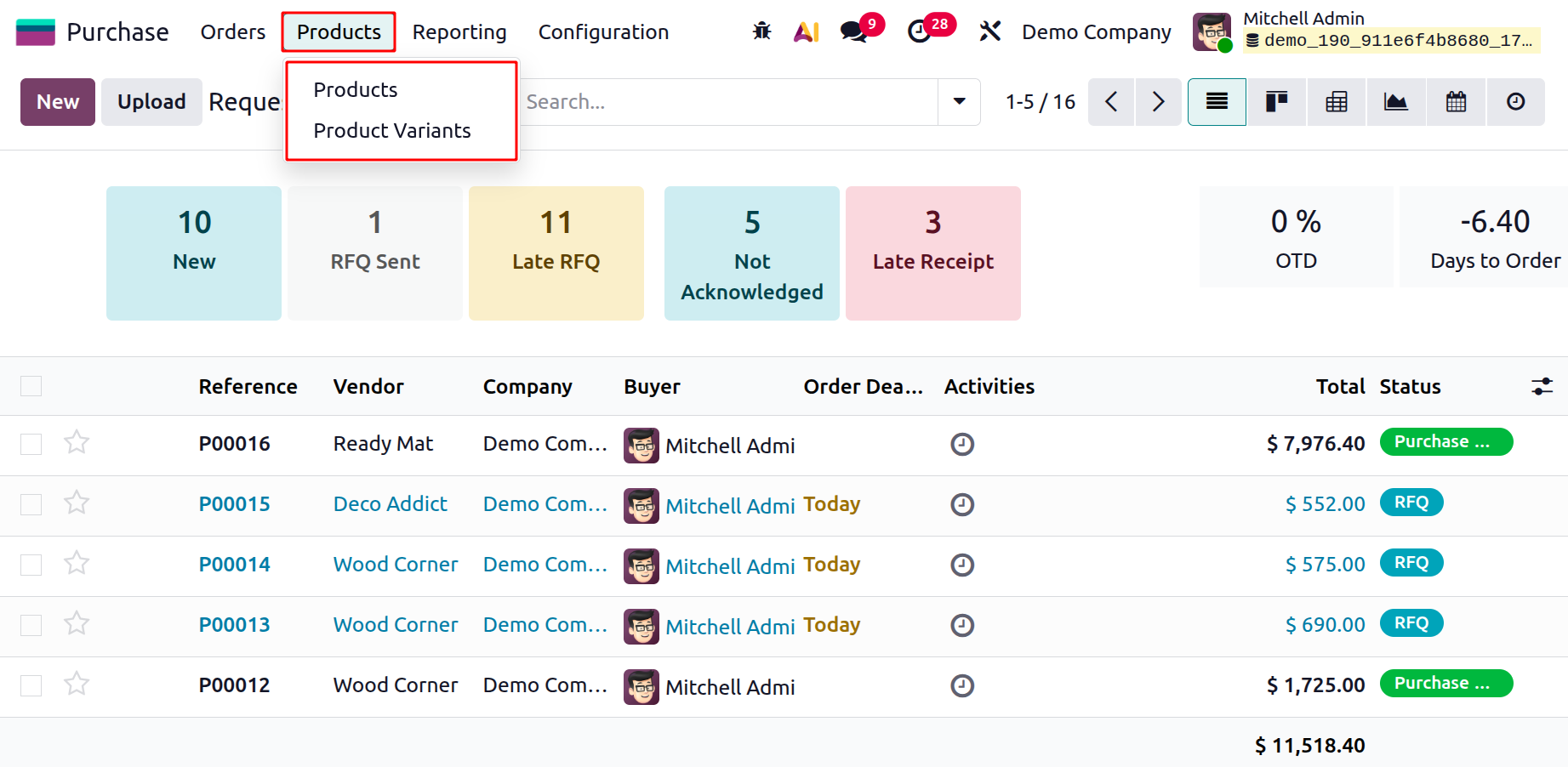
The Products menu provides users with the ability to define all purchasable items and their respective variants through the Products and Product Variants options.
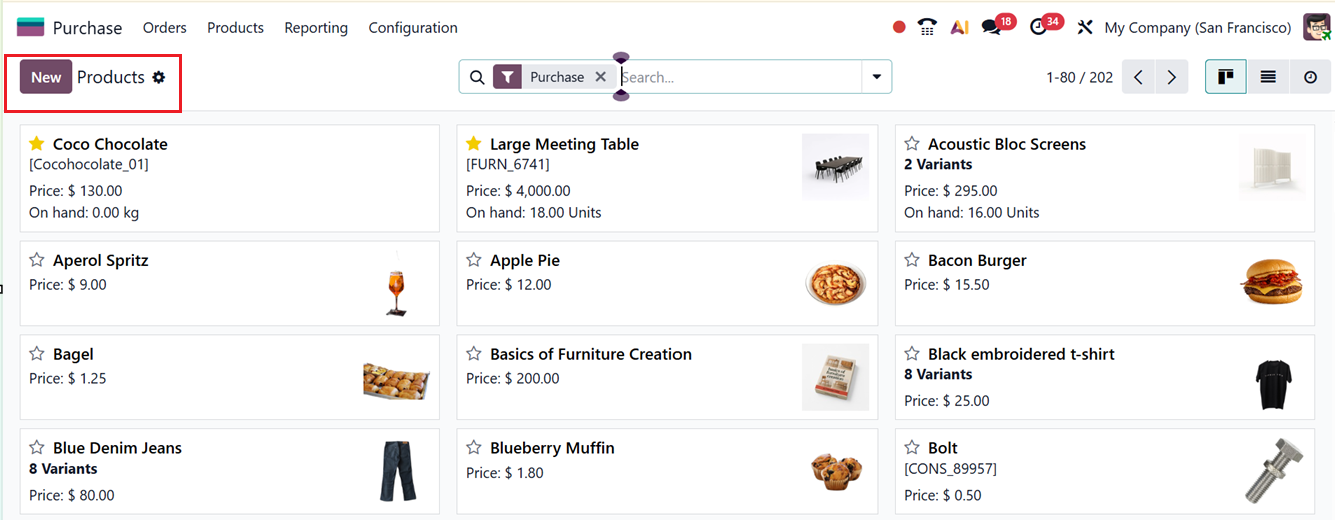
When this menu is accessed, a kanban-style dashboard appears, displaying the product catalog used across various purchasing and sales activities within the Purchase database, as shown in the screenshot below.
1.1 Products Management
The Products menu in the Odoo 18 Purchase module acts as the primary hub for managing items intended for procurement. Here, users can configure product details, specify vendor pricing, assign units of measure, and oversee inventory levels, lead times, and variant options, ensuring an efficient and coordinated purchasing workflow.
When this menu is accessed, a kanban-style dashboard appears, displaying the product catalog used across various purchasing and sales activities within the Purchase database, as shown in the screenshot below.
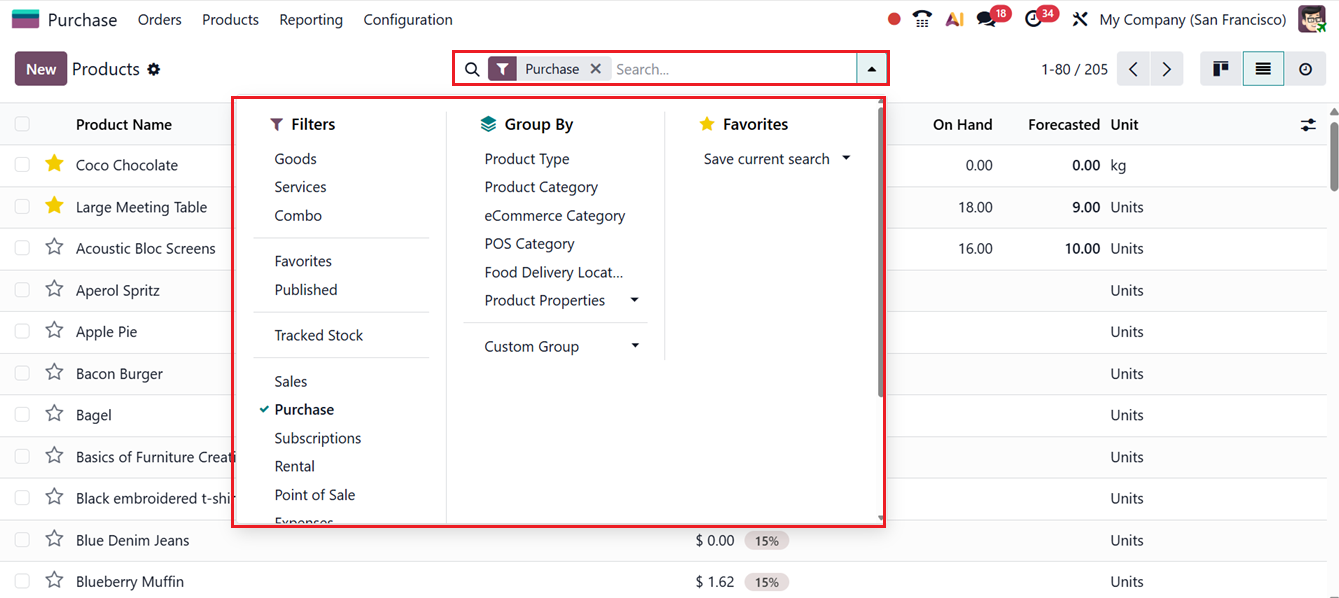
You may switch the kanban view to List or Activity mode by using the icons in the upper-right portion of the interface. You can also utilize the ‘Filters’ options including Goods, Services, Combo, Favorites, Published, Tracked Stock, Sales, Purchase, Subscriptions, Rental, Point of Sale etc.
The grouping options in the ‘Group By’ includes Product Type, Product Category, eCommerce Category, POS Category, Food Delivery Locator, Product Properties etc from the advanced search bar. Also, you can add custom filters and groups using the Custom Filter and Custom Group options. Finally, you can save the recent searches using the ‘Favorites’ filter.
To register a new product, click the New button. This opens a form where all relevant product information can be entered. Start with the Product Name and optionally upload an image via the camera icon. Then, choose appropriate checkboxes such as Sales, Purchase, Expenses, or Point of Sale, depending on how the item will be utilized.
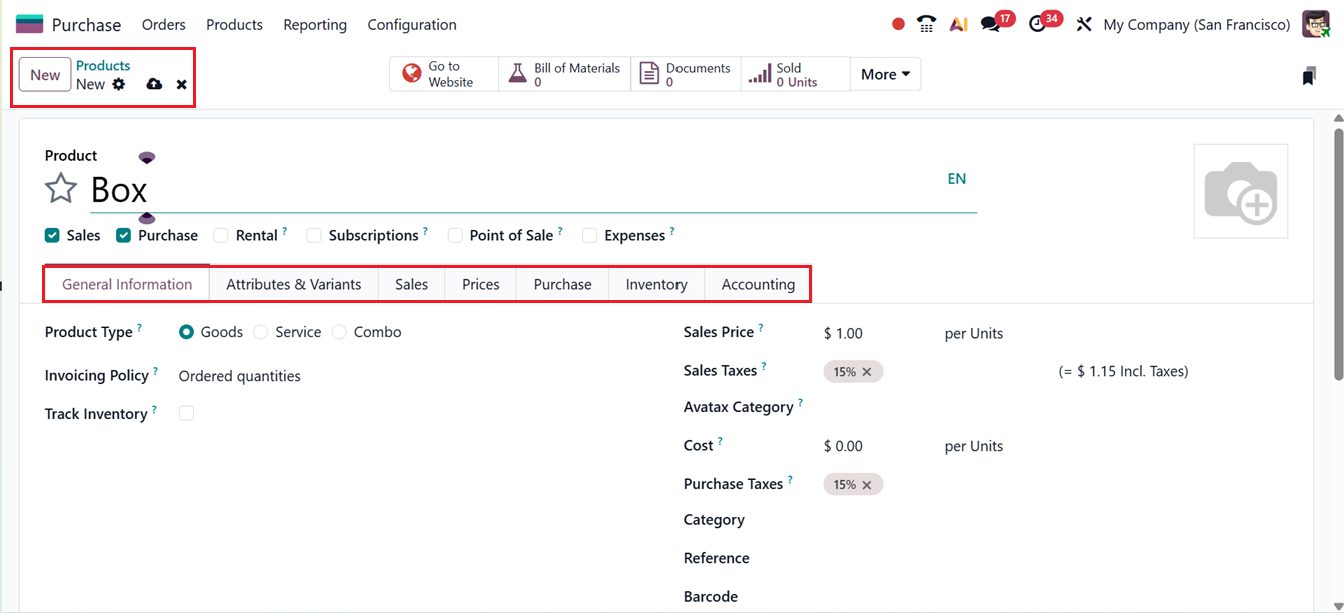
Next, select the Product Type, such as Goods, Service, or Combo, to indicate its nature in the ‘General Information’ tab. Set the Invoicing Policy to either Ordered Quantities (invoices generated at order confirmation) or Delivered Quantities (invoices generated upon product delivery). Additional fields allow configuration of key attributes including Track Inventory, Purchase Taxes, Sales Price, Sales Taxes, Cost, Product Category, Internal Reference, and Barcode. Companies operating under a multi-company environment can assign the product to the appropriate firm via the Company dropdown to maintain accurate configuration across entities.
If items are available in different sizes, colors, or similar options, these can be customized through the Attributes & Variants tab.
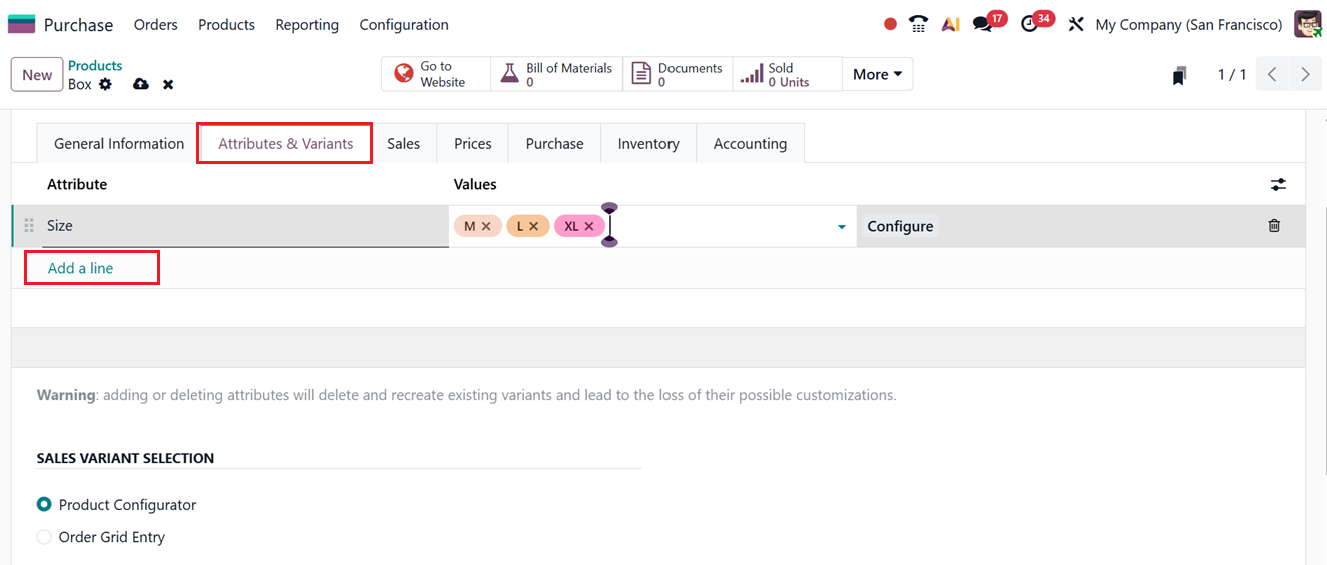
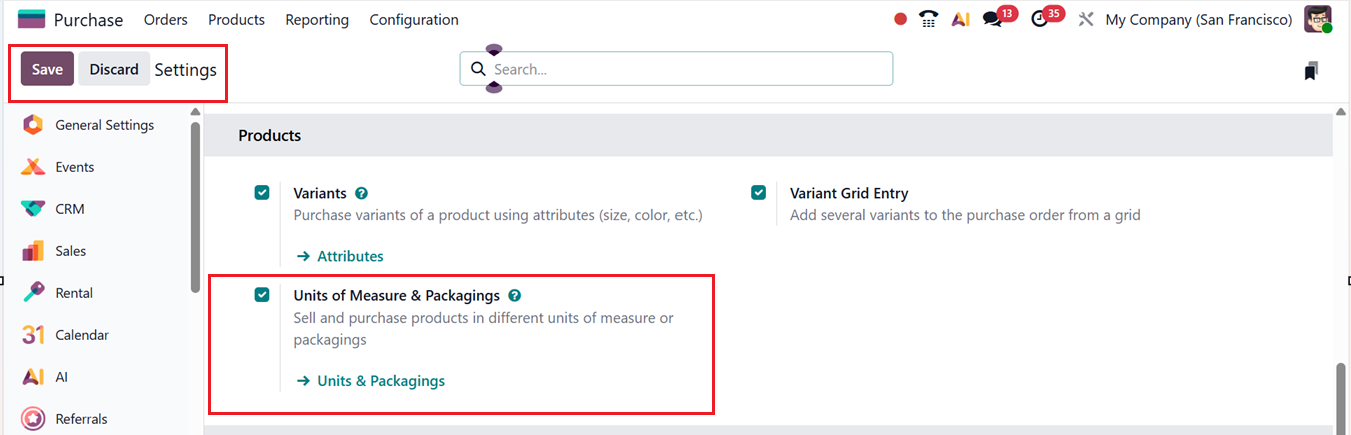
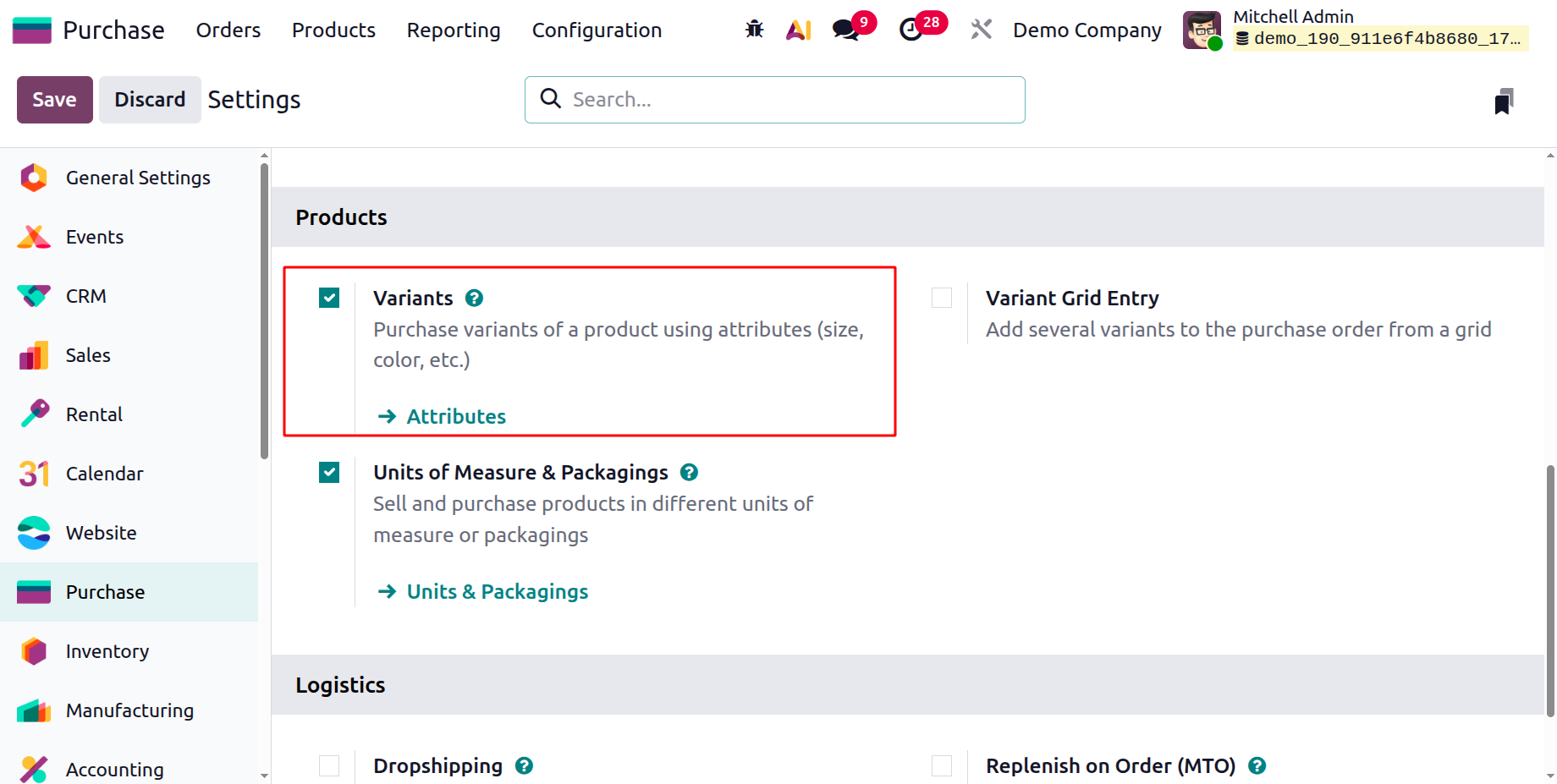
Enabling Product Variants and related product features within the module’s Settings allows the management of product variations in the Purchase database, as shown in the screenshot below.
The product configuration process follows the same procedures used in the Sales module due to Odoo’s modular integration. So, you can refer to the relevant modules for detailed explanation of product creation.
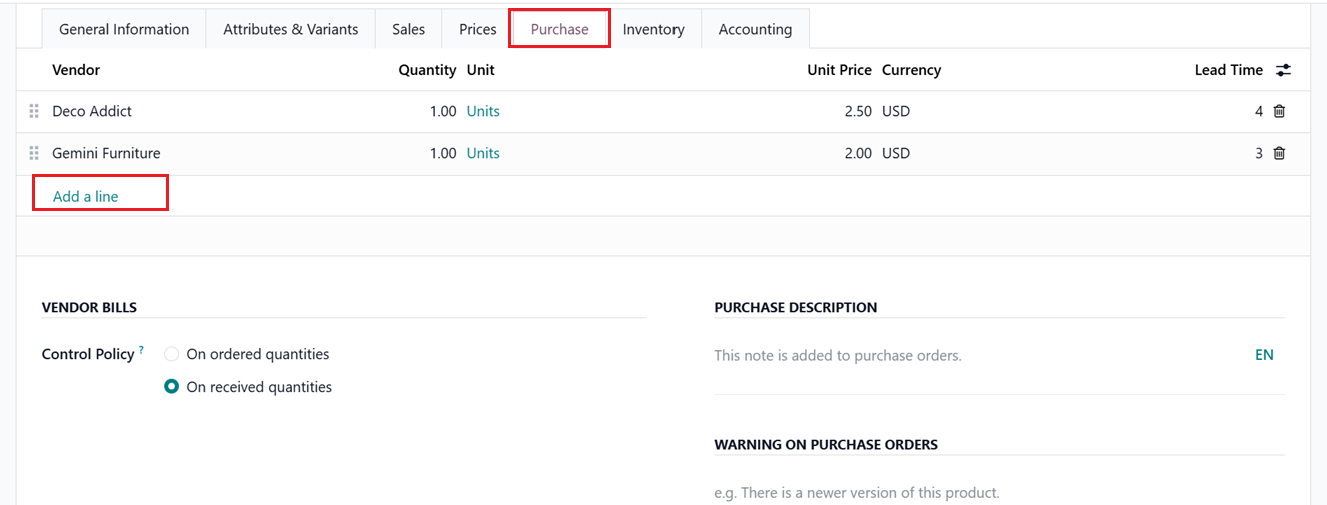
A notable capability in the Purchase module is the option to associate multiple vendors with a single product. To add vendor-specific details, click on the Add a Line under the Purchase tab, as shown in the screenshot below.
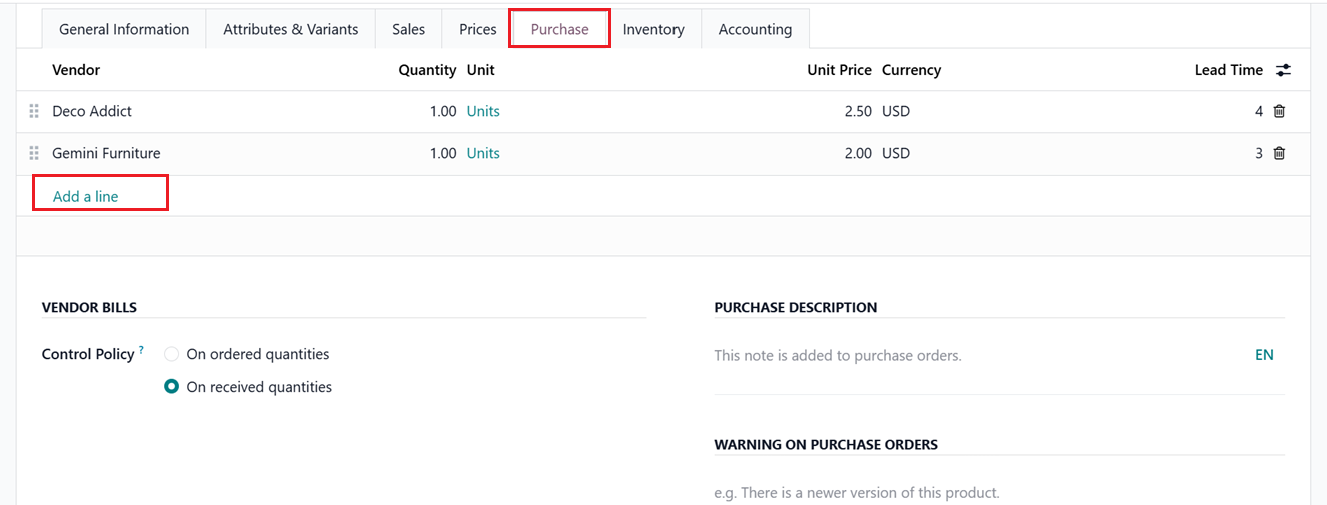
Within the Purchase tab of the product configuration window, users can designate the vendors responsible for supplying that specific item. By selecting the Add a line button, it becomes possible to link multiple vendors to the same product, each with unique pricing, currencies, or terms, as shown in the corresponding interface.
Vendors can be chosen from the existing contact list or created as new entries. Additional options available at the upper-right corner of this tab allow the creation of custom fields for more vendor-specific purchase information. If a vendor also serves as a subcontractor, the ‘Subcontracted’ option can be activated. Subcontracting processes and corresponding configurations are further detailed in the Manufacturing module.
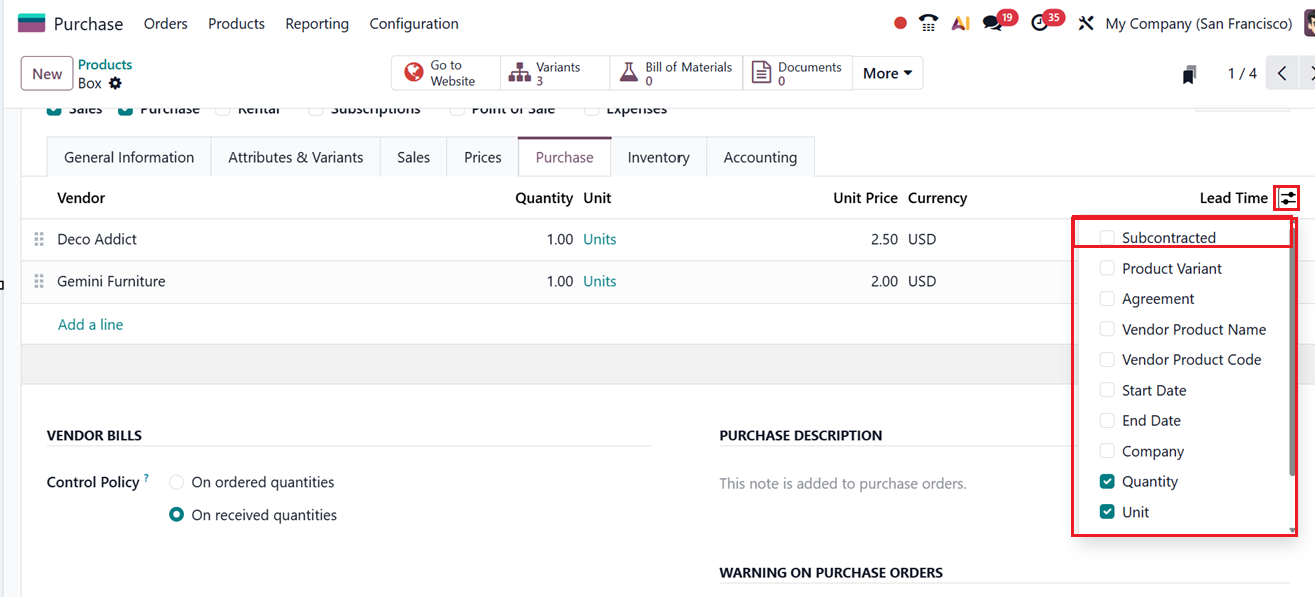
For each vendor, this portion of the Purchase tab enables you to outline essential procurement details for every vendor involved. You can define the transaction Currency, specify the Minimum Quantity required per order, input the agreed-upon Unit Price, and set the Delivery Lead Time, which reflects the number of days expected between the confirmation of a purchase order and the arrival of goods at the warehouse.
The fields found in the VENDOR BILLS section help determine how vendor invoices are processed during procurement. The Control Policy setting specifies whether vendor bills are generated based on ‘On ordered quantities’ or ‘On received quantities’ (only after the products have been received). Then, you can set a default invoicing method for all products using the Vendor bills option. However, this policy may still be customized at the product level. Additionally, users may include notes or additional content that will automatically appear on purchase orders through the Purchase Description field.
When the ‘On Ordered Quantities’ are chosen, vendor bills are created only for the quantities specified in the purchase order, even if more or fewer items are actually received. For example, if five units are ordered but ten are delivered, the bill will still be generated for only five units, with options to adjust the quantity later or issue a debit note for the extra items.
When ‘On Received Quantities’ is selected for the product, the bill reflects the actual number of items received. If ten units are ordered but only eight are delivered, the vendor bill is automatically created for eight units, allowing it to be confirmed without further changes.
Once all product details are entered and saved, the product becomes available for various sales and purchasing activities throughout Odoo. For more extensive instructions on setting up products, variant options, attributes, or categories, refer to the Sales or Inventory module documentation.
You can also set the Vendor bill policies, Purchase description and Warning on purchase orders inside the relevant fields.
1.2 Product Variants
This feature supports the creation of multiple product variations based on attributes like color, size, or material. Each variant is treated as a separate item with its own pricing, barcode, SKU, and inventory level. After activating Product Variants, businesses can manage individual variations from the Product Variants menu.
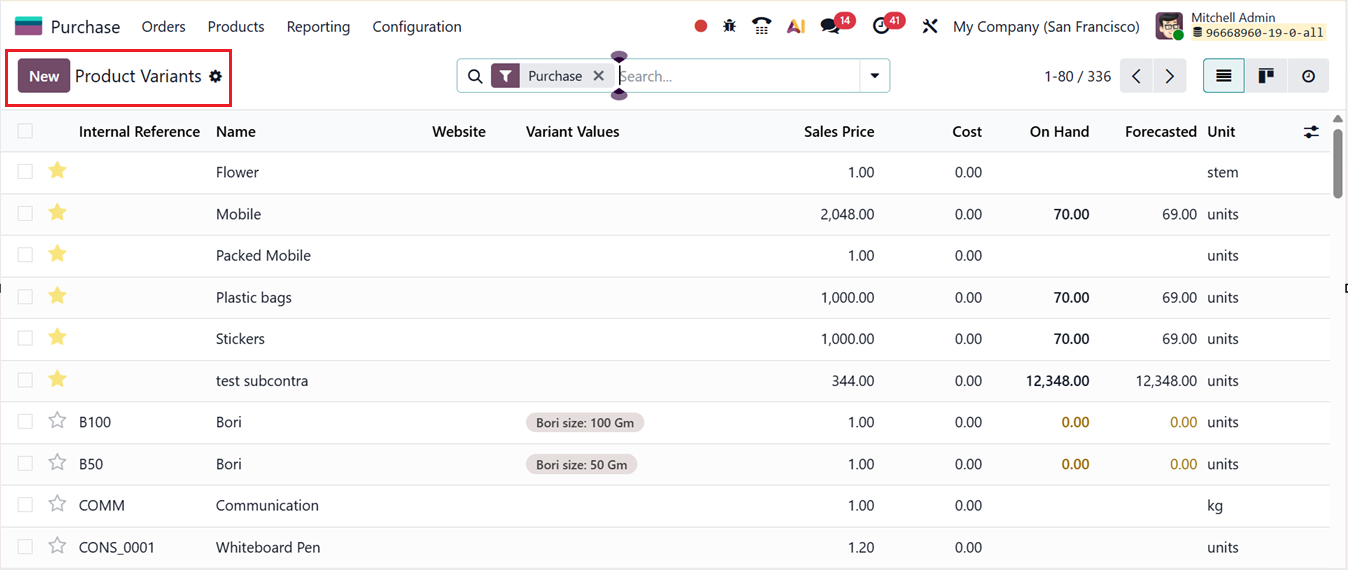
This is especially valuable for companies handling configurable or multi-attribute products, ensuring precise purchasing and inventory tracking.
Another important feature of the Purchase module is the ability to assign vendors to product items, enabling the entry of vendor-specific prices, delivery lead times, and purchasing conditions. This setup ensures accurate and adaptable procurement operations. Furthermore, the ‘Unit of Measure & Packaging’ tool, accessible through the module’s Settings, adds an efficient mechanism for defining packaging configurations during procurement, as shown in the screenshot below.