To Validate
Company management can examine employees' timesheets using the 'To Validate' choice in the Timesheet module. "Last Period" and "All Timesheets" are the two sections of this menu.
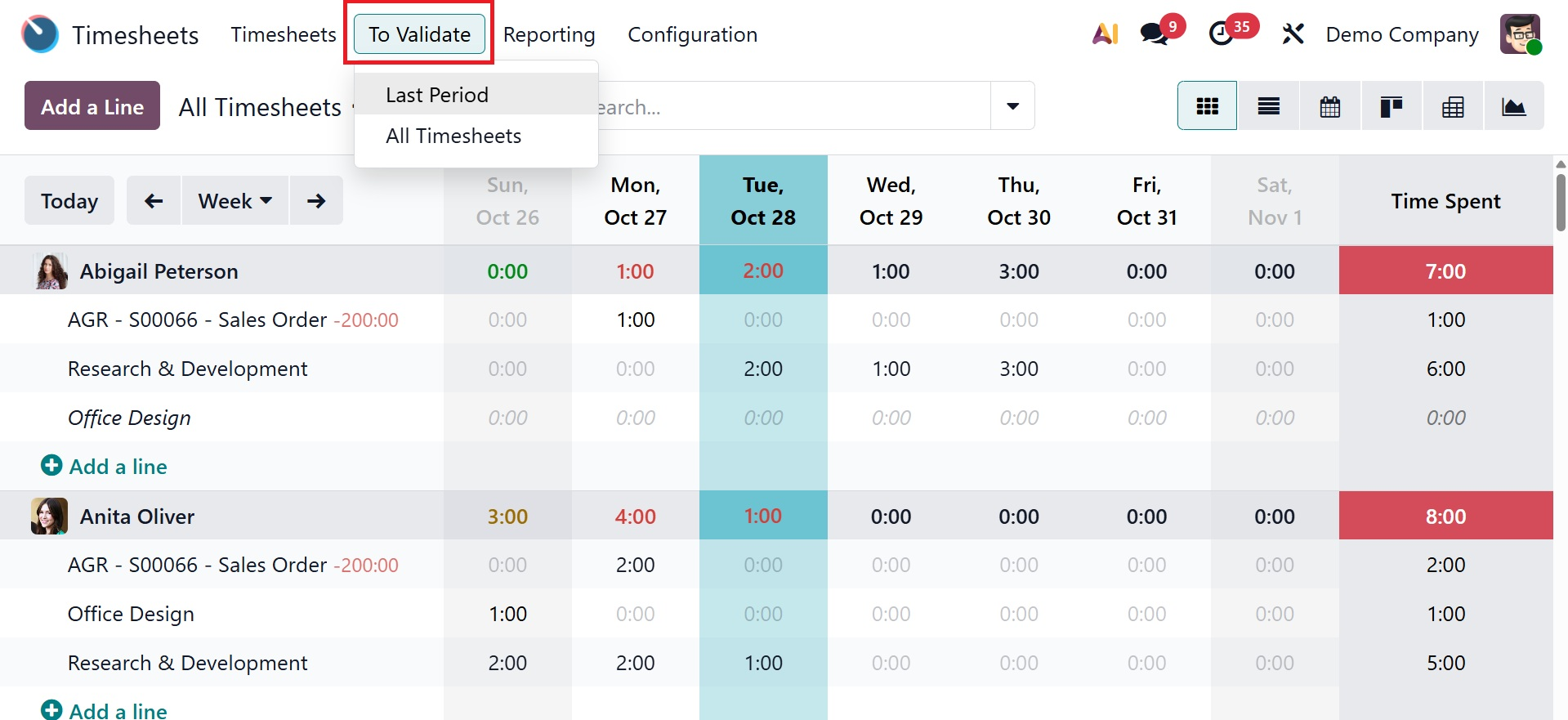
All recently added timesheets that are awaiting database validation are displayed in the "Last Period" box, allowing managers to verify timesheets using daily, weekly, or monthly data.
Grid, List, Kanban, Pivot, and Graphical representations are some of the views in which this functionality is accessible.
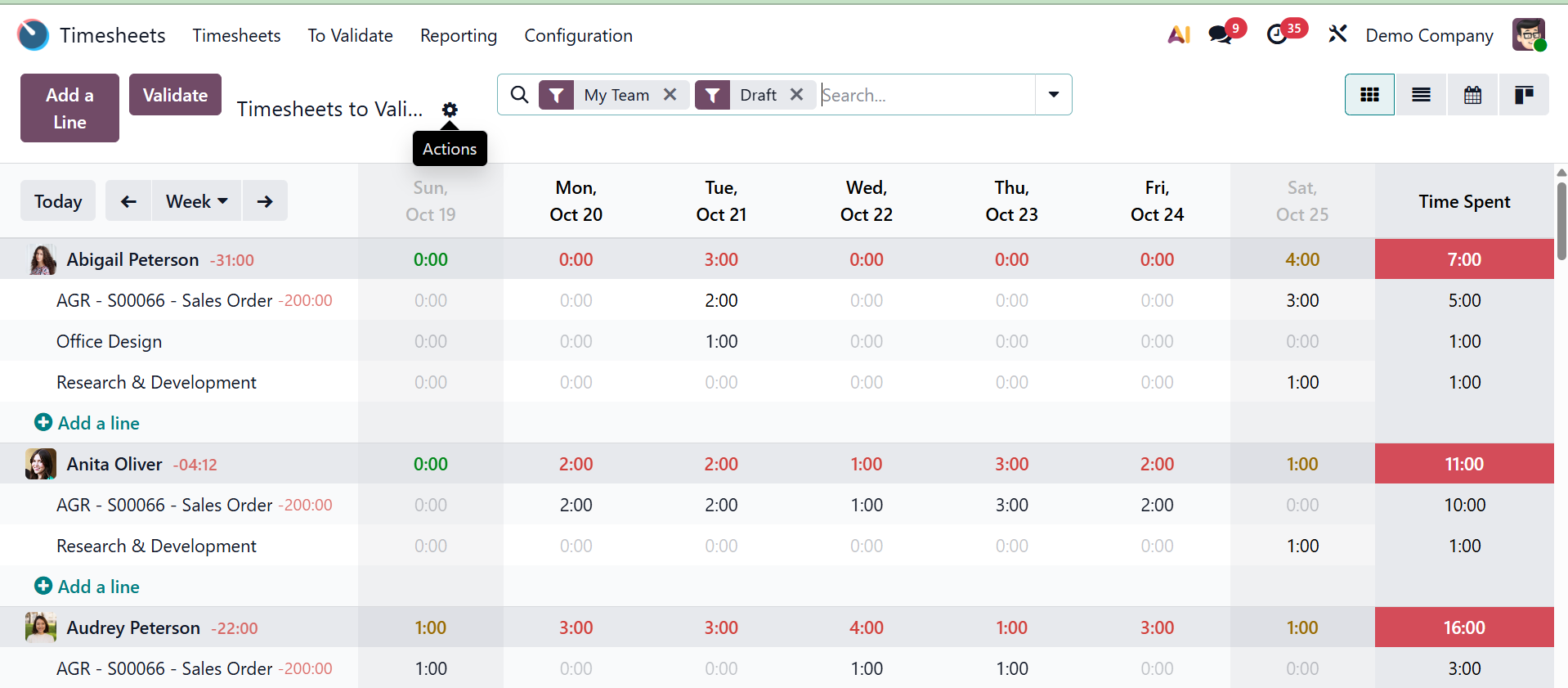
You can make a new timesheet entry for the overall dashboard or for a particular project or activity by using the window's "Add a Line" button. After adding entries, you can find particular timesheet records by using the Filter and Group By options from the search bar area.
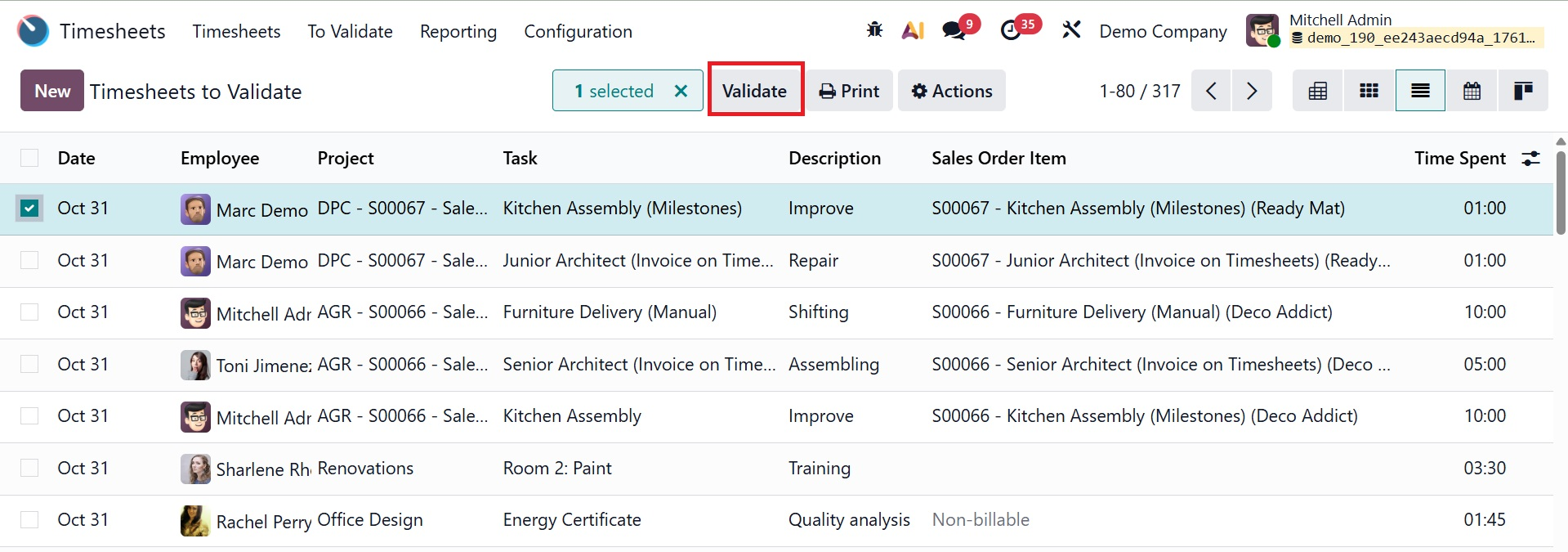
Once the desired entries have been chosen, click the "Validate" button to approve all, or just press the button to validate all pending timesheets at once without choosing any particular entry.
The timesheets can be verified by the manager for the week or month. To validate a particular timesheet, Use the checkboxes next to each element in the list view to select the particular timesheet.
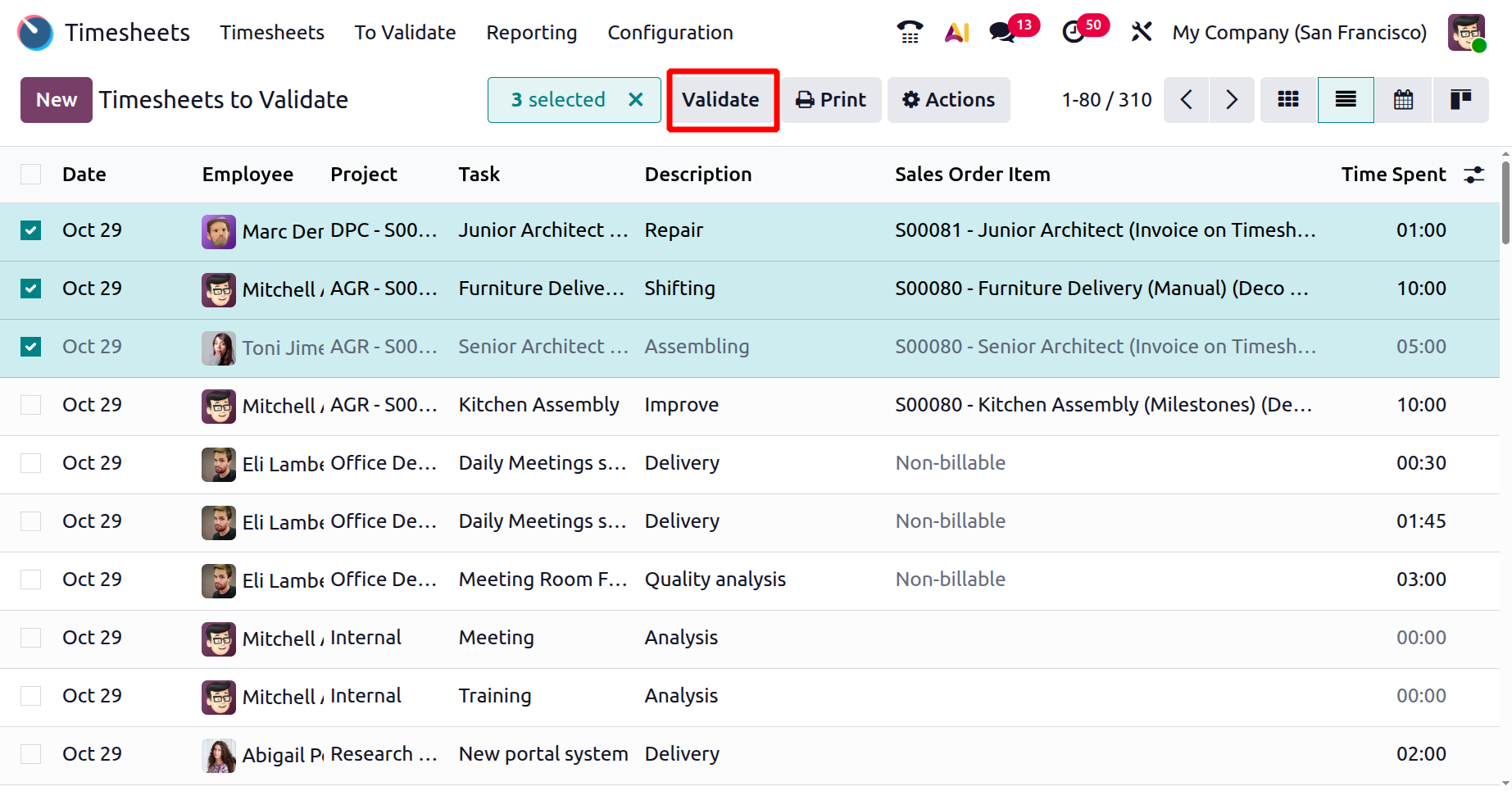
To validate multiple timesheets, you can select the particular ones.
Under the All Timesheets option here, provides the timesheets to validate in a separate page, as shown below. The default view is a Pivot view.
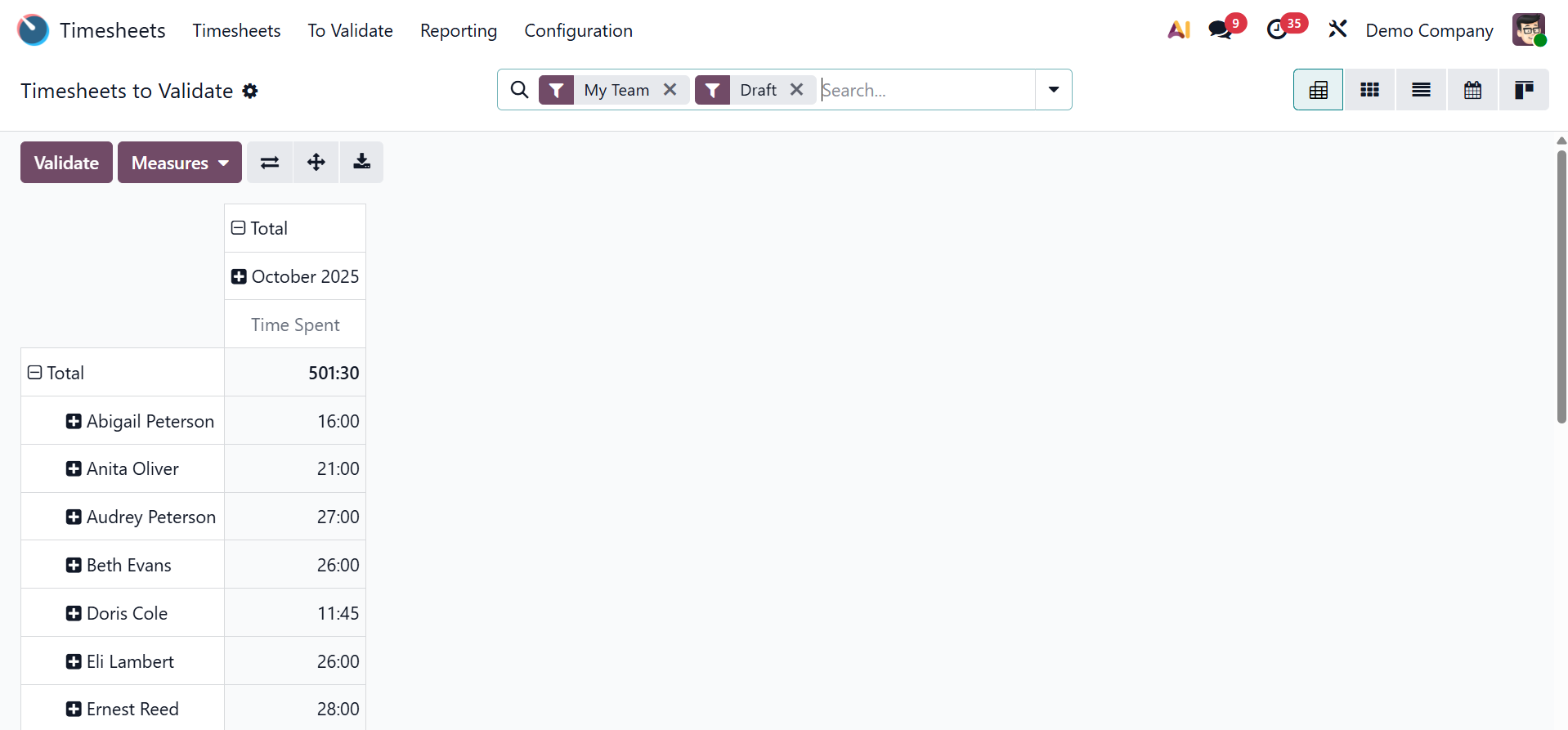
The page can also be viewed in grid, list, calendar, and kanban, respectively. You can also make use of certain measures accordingly. The system compares the number of hours performed with the number of hours required under the employee's contract. Project details and personnel names are also shown. By choosing the "Validate" option or using filters to find particular data, managers can verify timesheets.