Managing project-based services becomes more efficient with the Fixed-Price Billing feature in Odoo 19. This functionality allows businesses to create predefined project contracts with a fixed sales value, ensuring accurate invoicing and better financial control throughout the project lifecycle. Using the Project and Sales modules, organizations can link service products, sales orders, tasks, milestones, and customer invoices within a centralized workflow. Odoo 19 helps streamline project tracking by automating invoice generation based on project progress while maintaining clear visibility into profitability, timesheets, and resource allocation. Fixed-price billing improves operational consistency, simplifies customer billing processes, supports effective revenue management, and enhances collaboration between project management and accounting operations within the Odoo ERP environment.
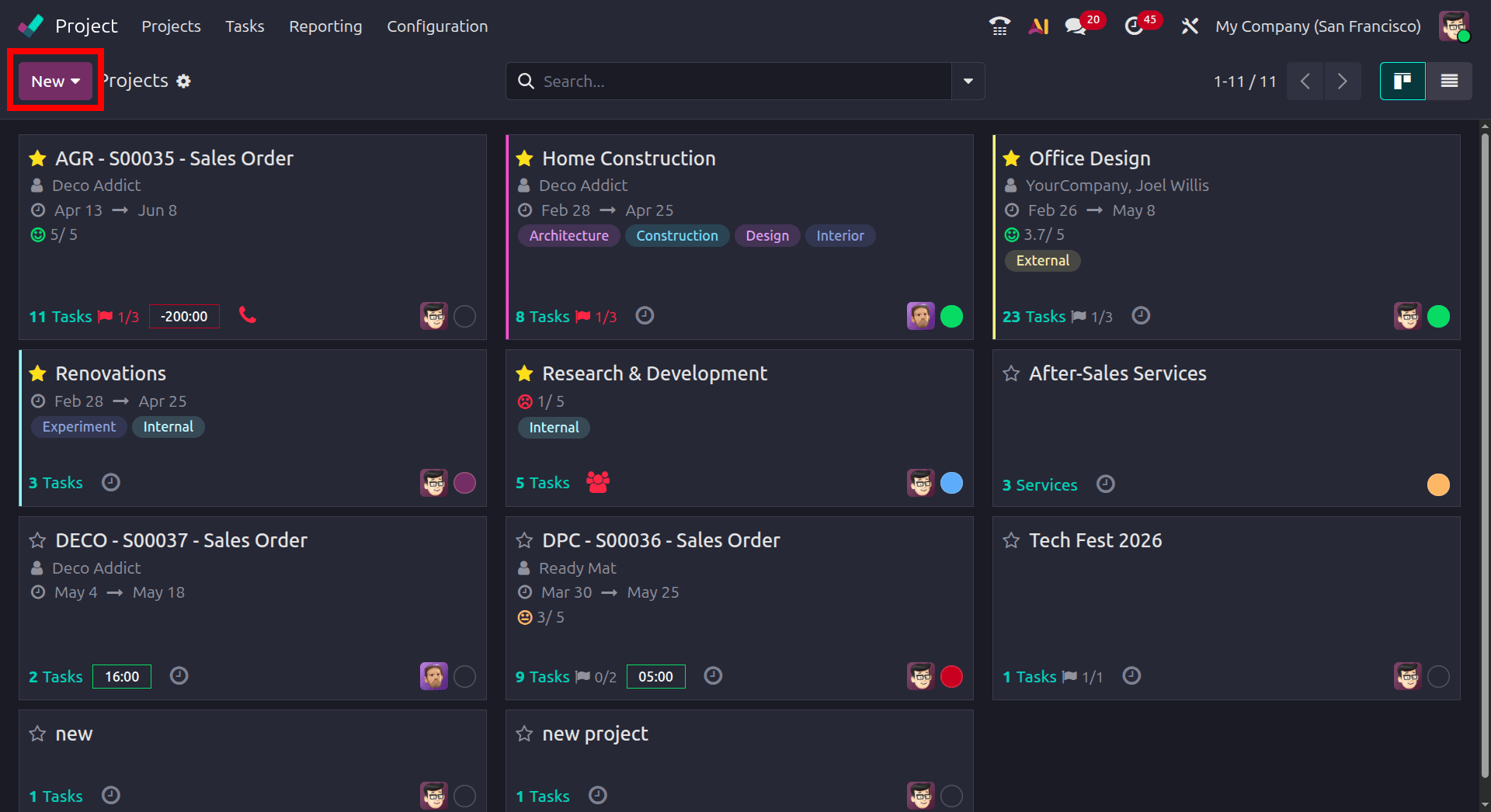
To configure fixed-price project billing in Odoo, the project must first be properly created and configured to manage tasks, activities, timesheets, and project-related costs. Navigate to the Project module and select the New button from the dashboard to create a new project record for tracking the complete project workflow and billing process.
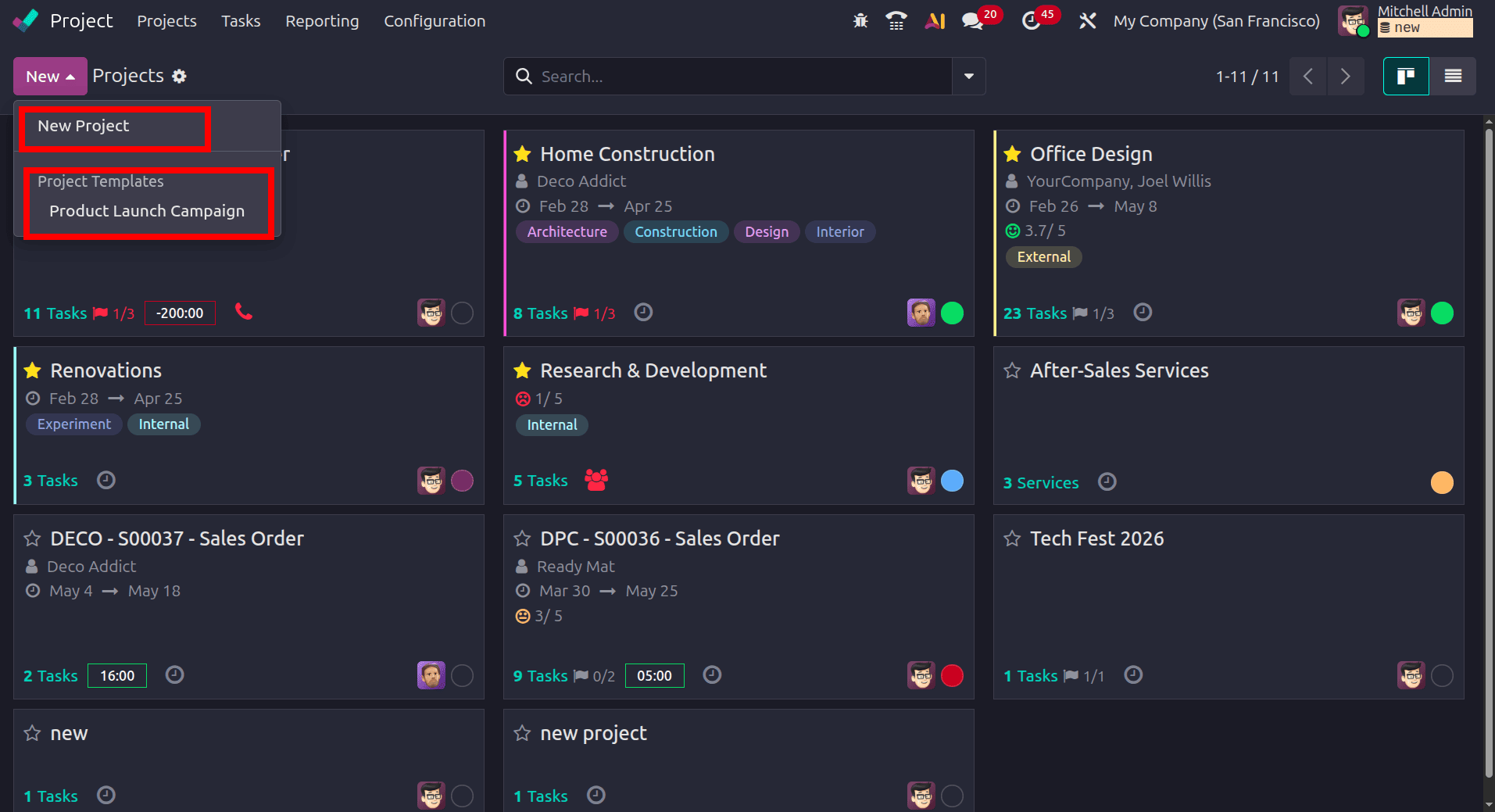
In Odoo 19, one more feature is added that allows us to create a project using a pre-configured project template. That is when we click the New button. There are two options: one is to create a new project, and the other is to select a project template and use it to create a new project.
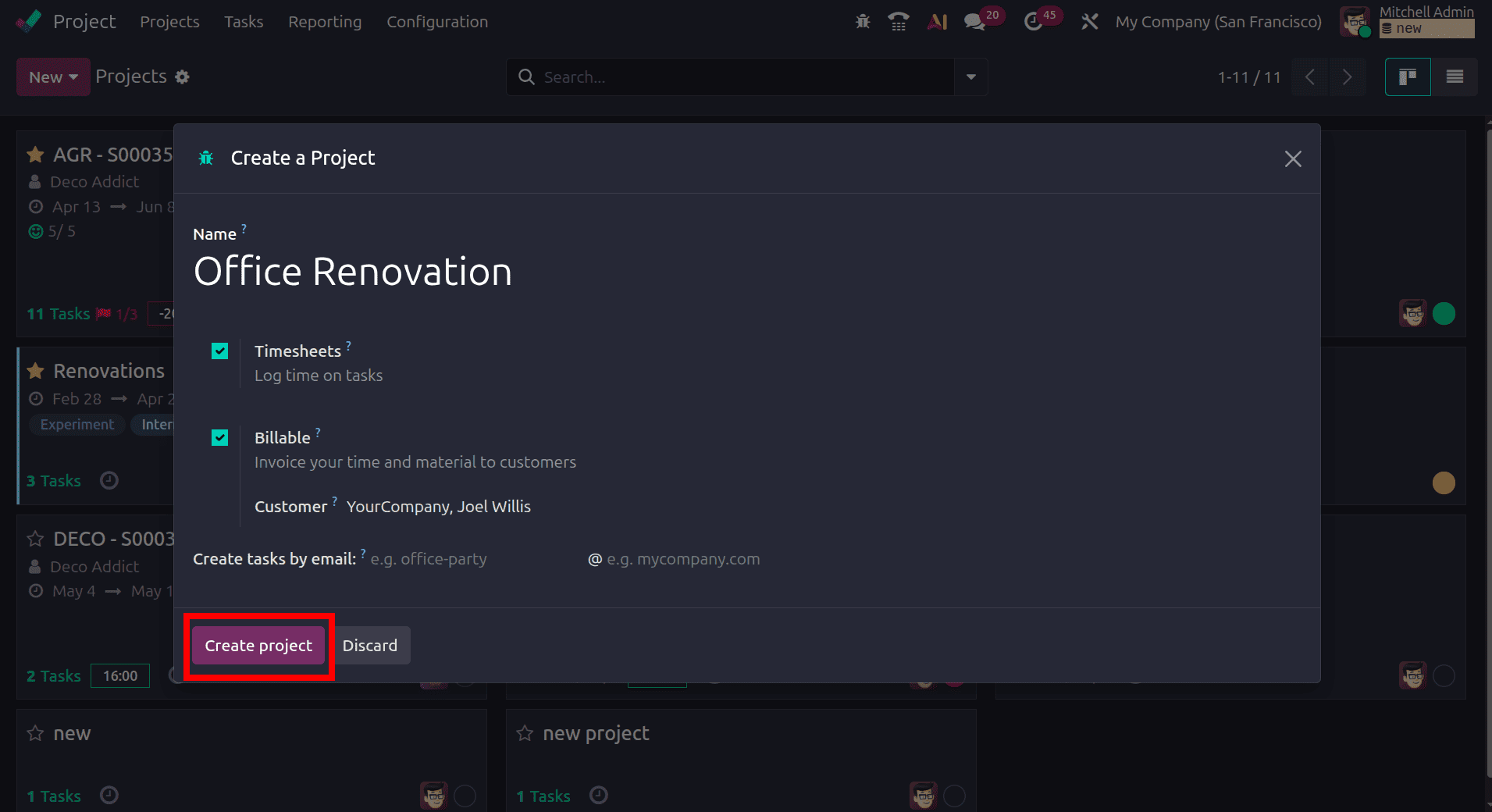
In the project configuration form of Odoo, enter the project title in the Name field and enable the Timesheets option to record the time spent on project tasks. Activate the Billable feature to generate customer invoices based on timesheets and materials. The related customer can also be assigned to the project for streamlined billing management. Additionally, an email alias can be configured in the Create tasks by sending an email to the field, allowing Odoo to automatically generate project tasks whenever emails are received through the specified alias.
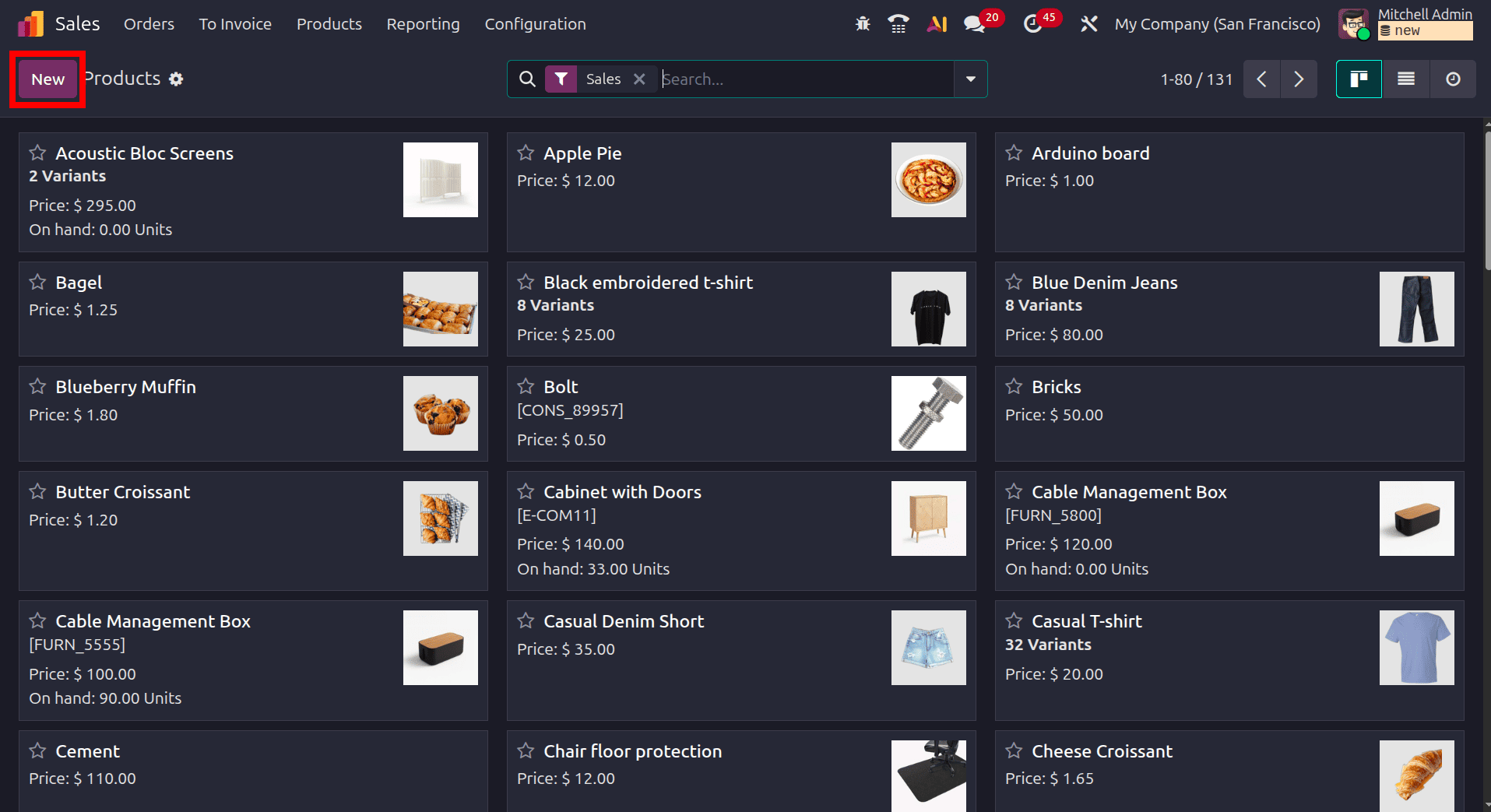
Once a new project is created, the next step is to create a new product, so move to the sales module and create a new product.
In the Product configuration form of Odoo, specify the service product name and set the Product Type to Service. Configure the service tracking option to automatically create a Task upon sales order confirmation. Once task creation is enabled, the Project field becomes available to define the project in which the task will be generated. Additionally, set the Invoicing Policy to Prepaid/Fixed Price to allow customer invoicing and payment registration before recording timesheets against the related project tasks. We have one more option, which is to choose a task template, and a new task will be created using that selected template.
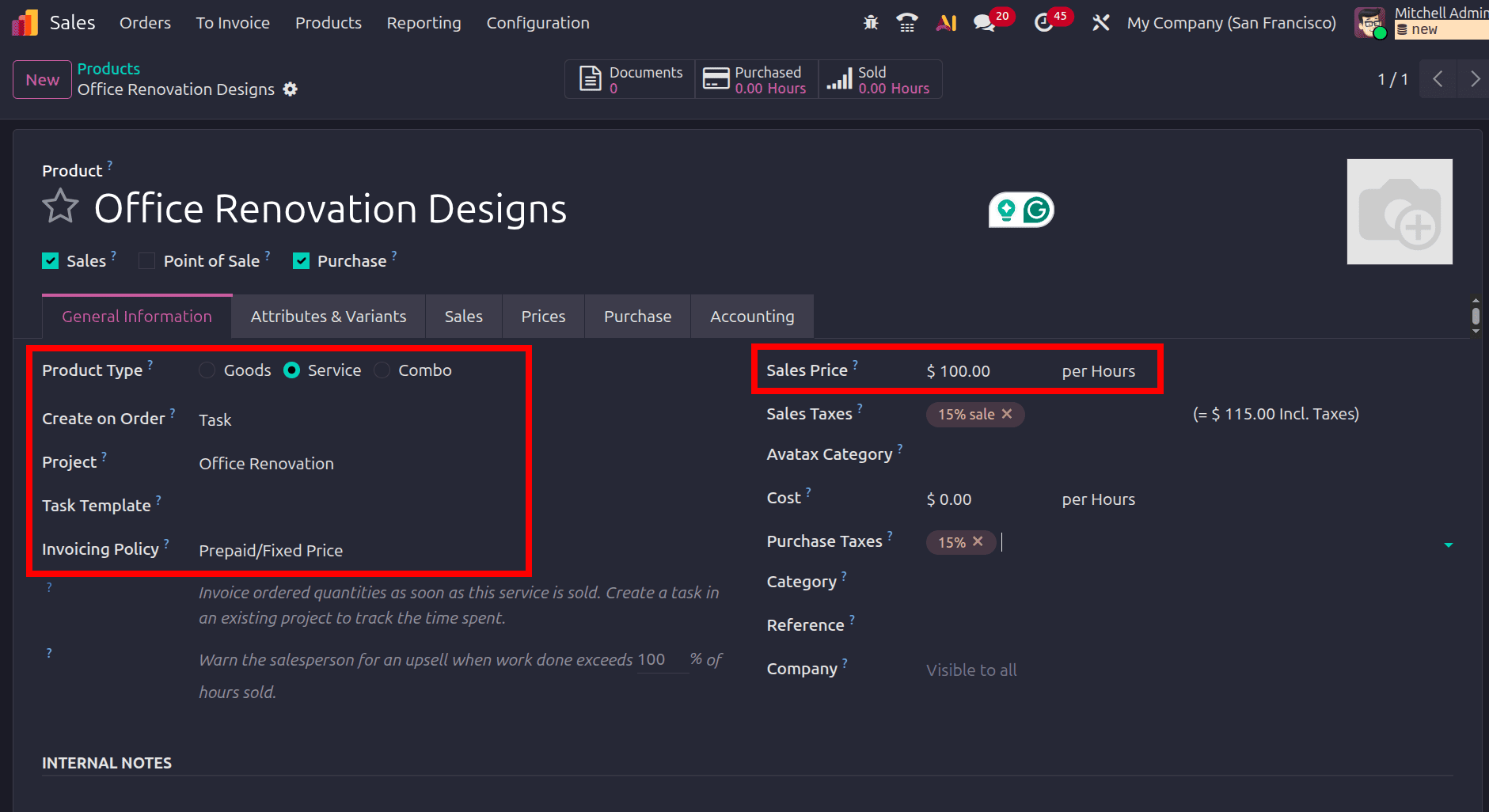
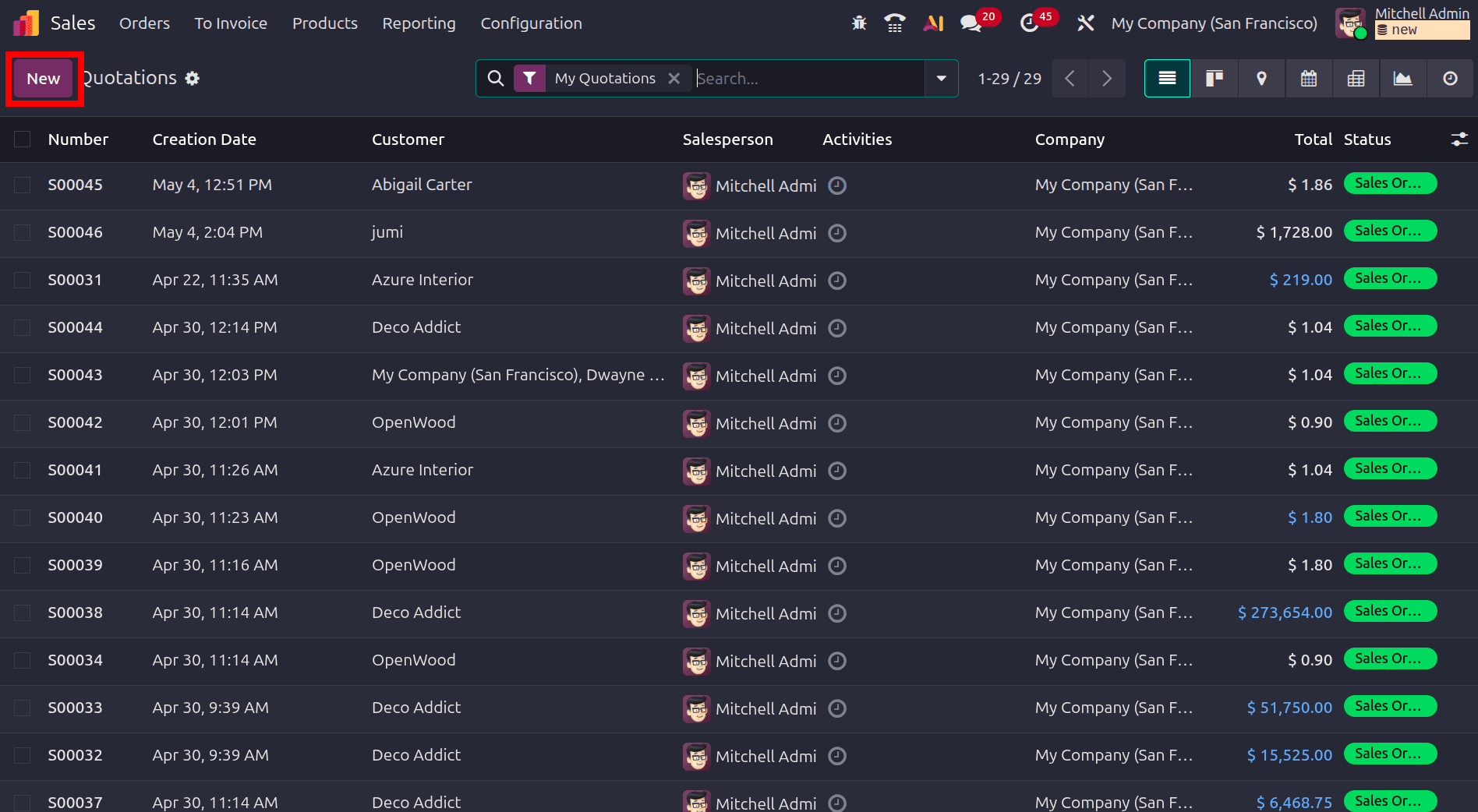
Since the service tracking option is configured to create a Task on a sales order, Odoo automatically generates a project task when the corresponding sales order is confirmed. To create the quotation, navigate to Sales > Orders > Quotations and select the New button to generate a new quotation record for the customer.
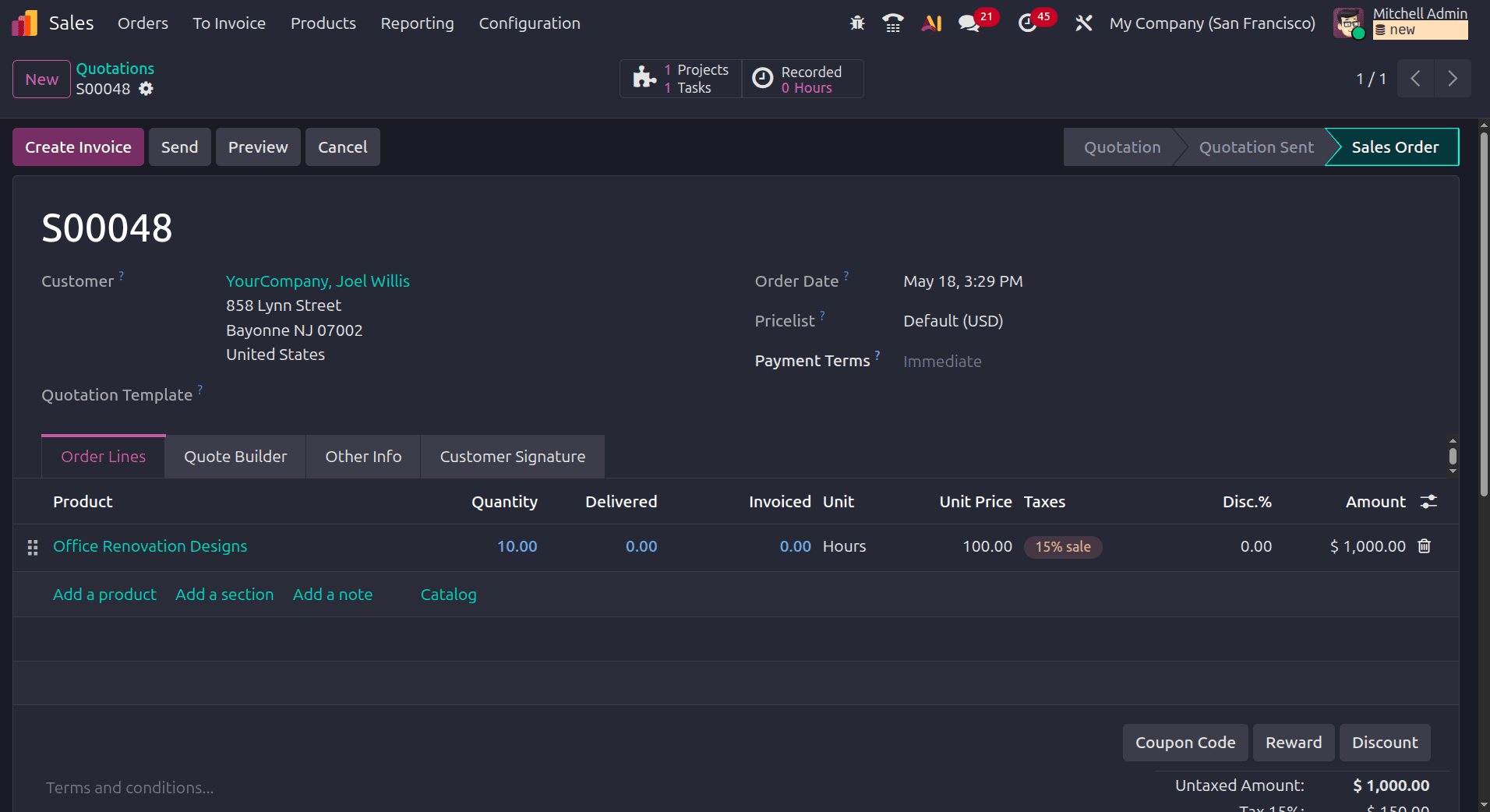
In the quotation form of Odoo, enter the customer details, add the configured service product, and complete the required sales information before confirming the quotation. After the sales order is confirmed, the Tasks smart button becomes available, allowing direct access to the automatically generated project task linked to the sales order.
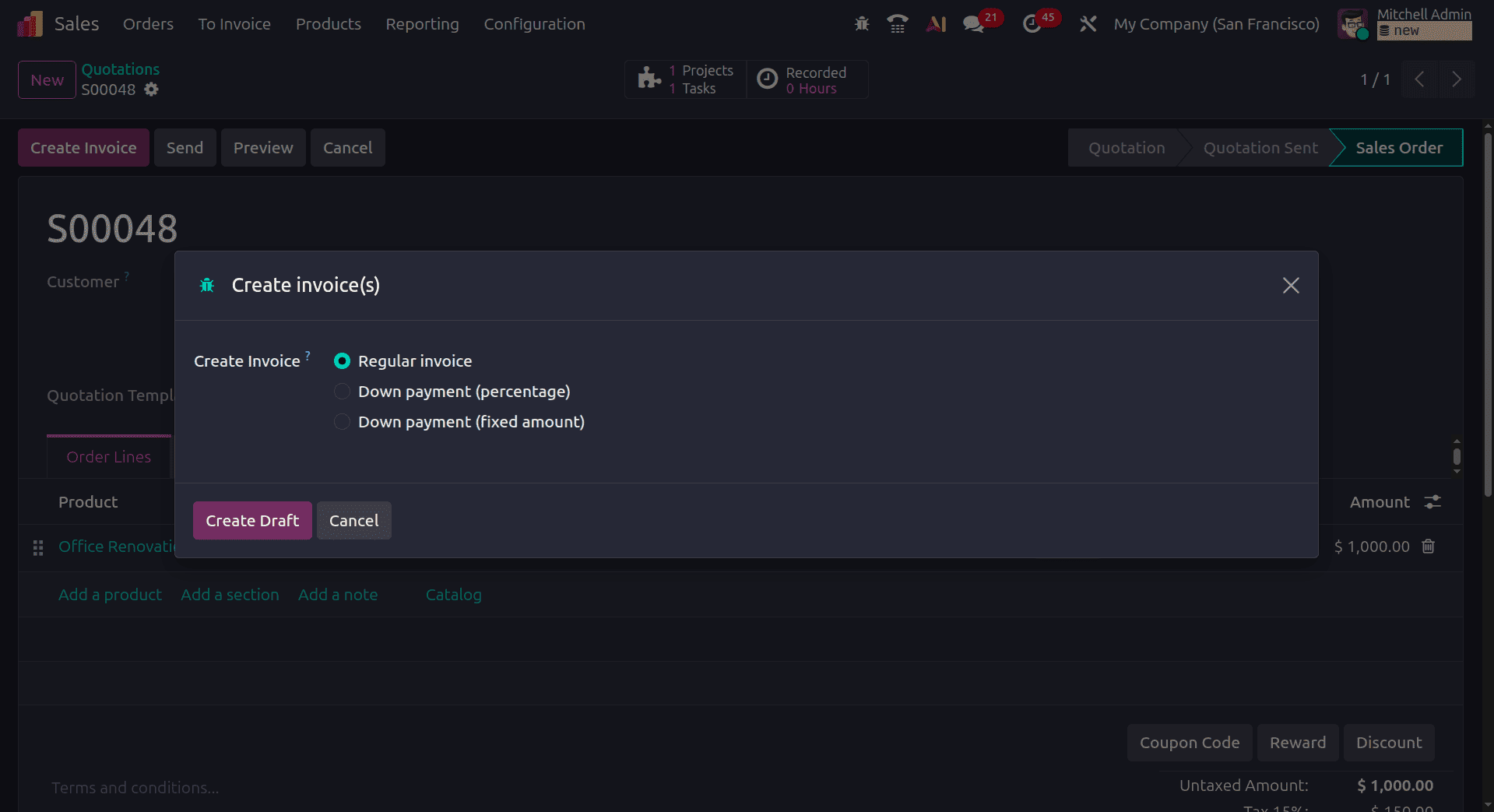
Since the Invoicing Policy is configured as Fixed/Prepaid in Odoo, customer invoices can be generated immediately after sales order confirmation. Select the Create Invoice button and choose the appropriate invoicing method, such as a regular invoice or a down payment invoice, based on the payment process. Then, click Create Draft Invoice to generate the draft customer invoice for further validation and accounting confirmation.
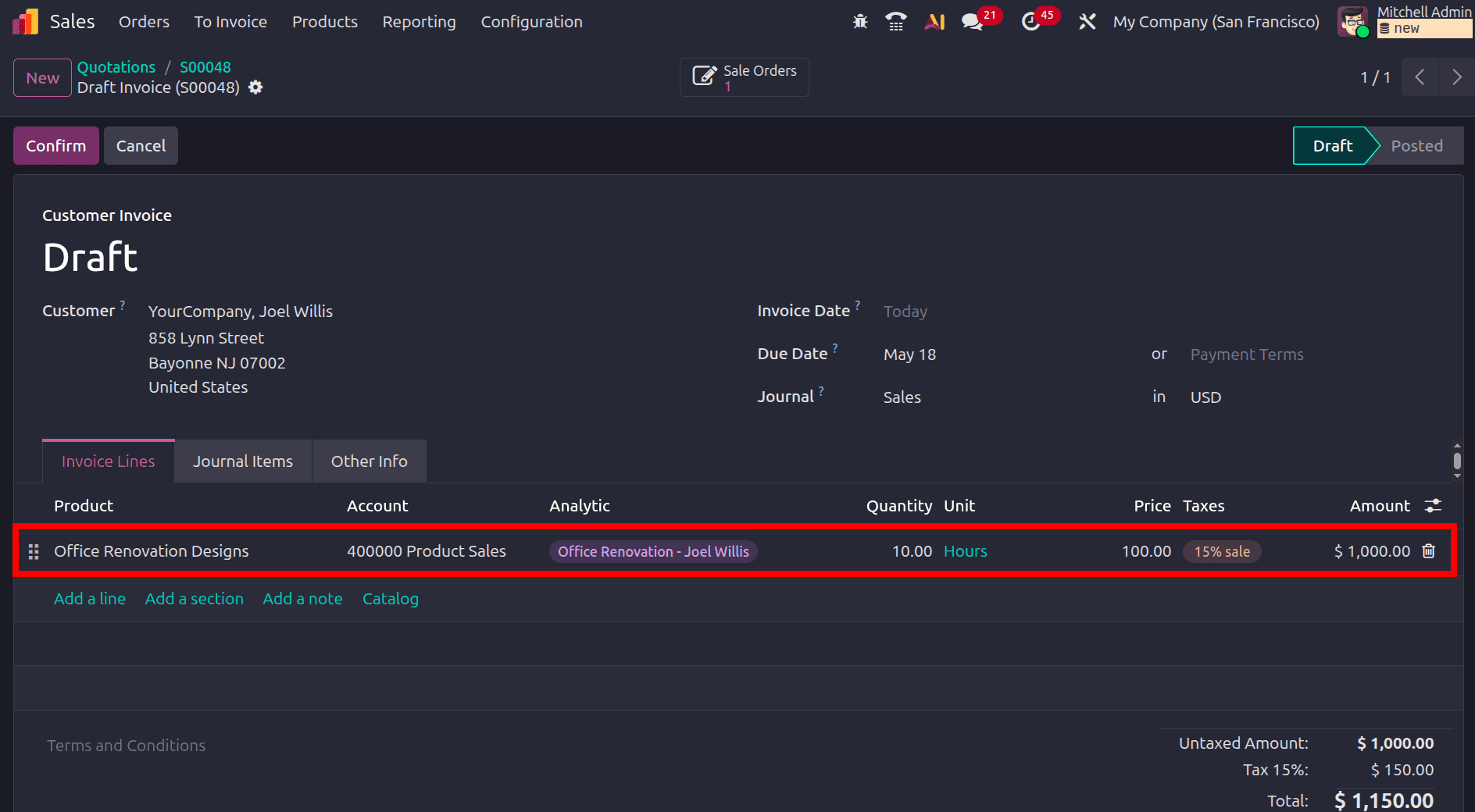
In the draft customer invoice of Odoo, the invoiced quantity is automatically generated based on the quantity defined in the confirmed sales order.
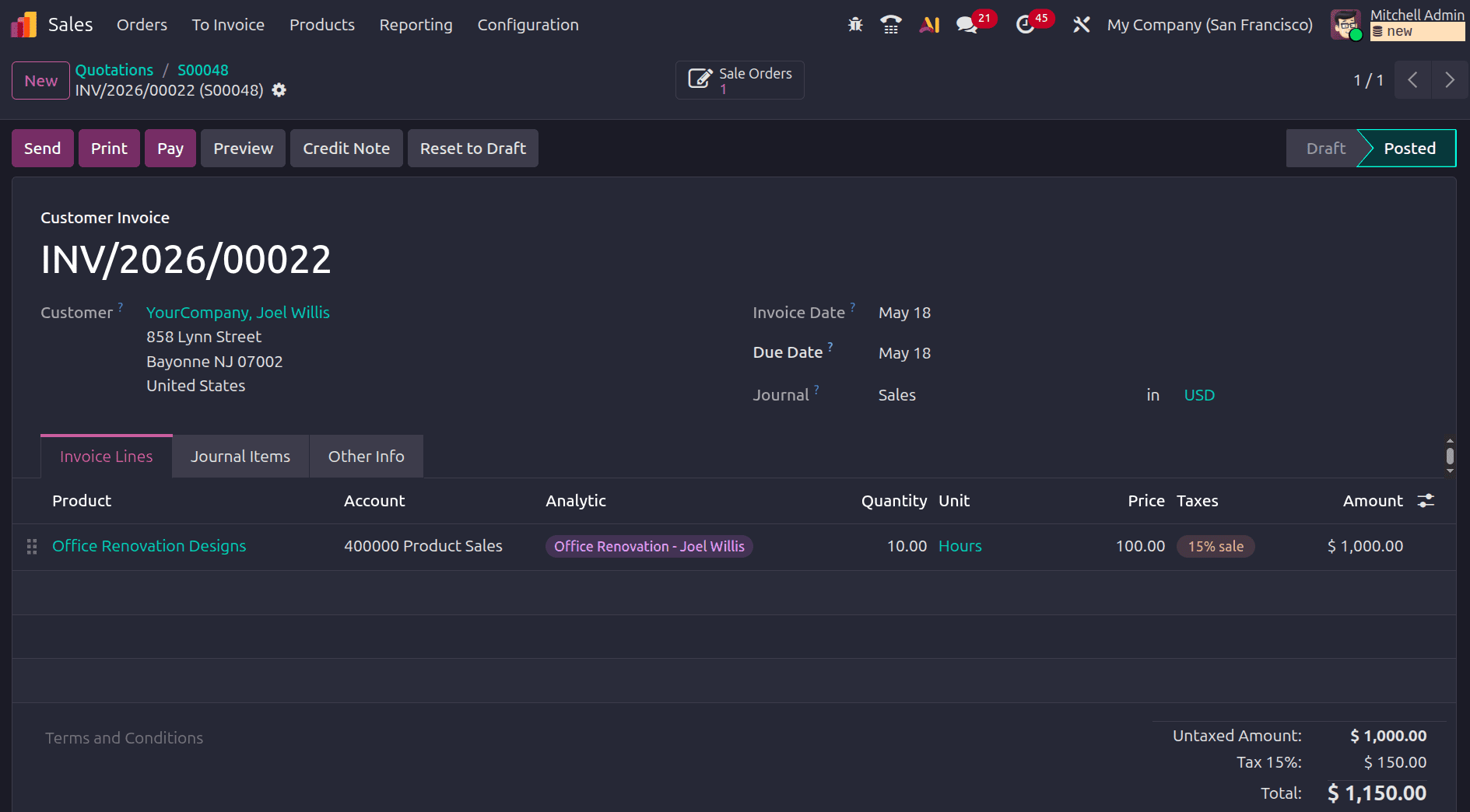
Once the invoice is confirmed, we can make the payment for the invoice by clicking the pay button.
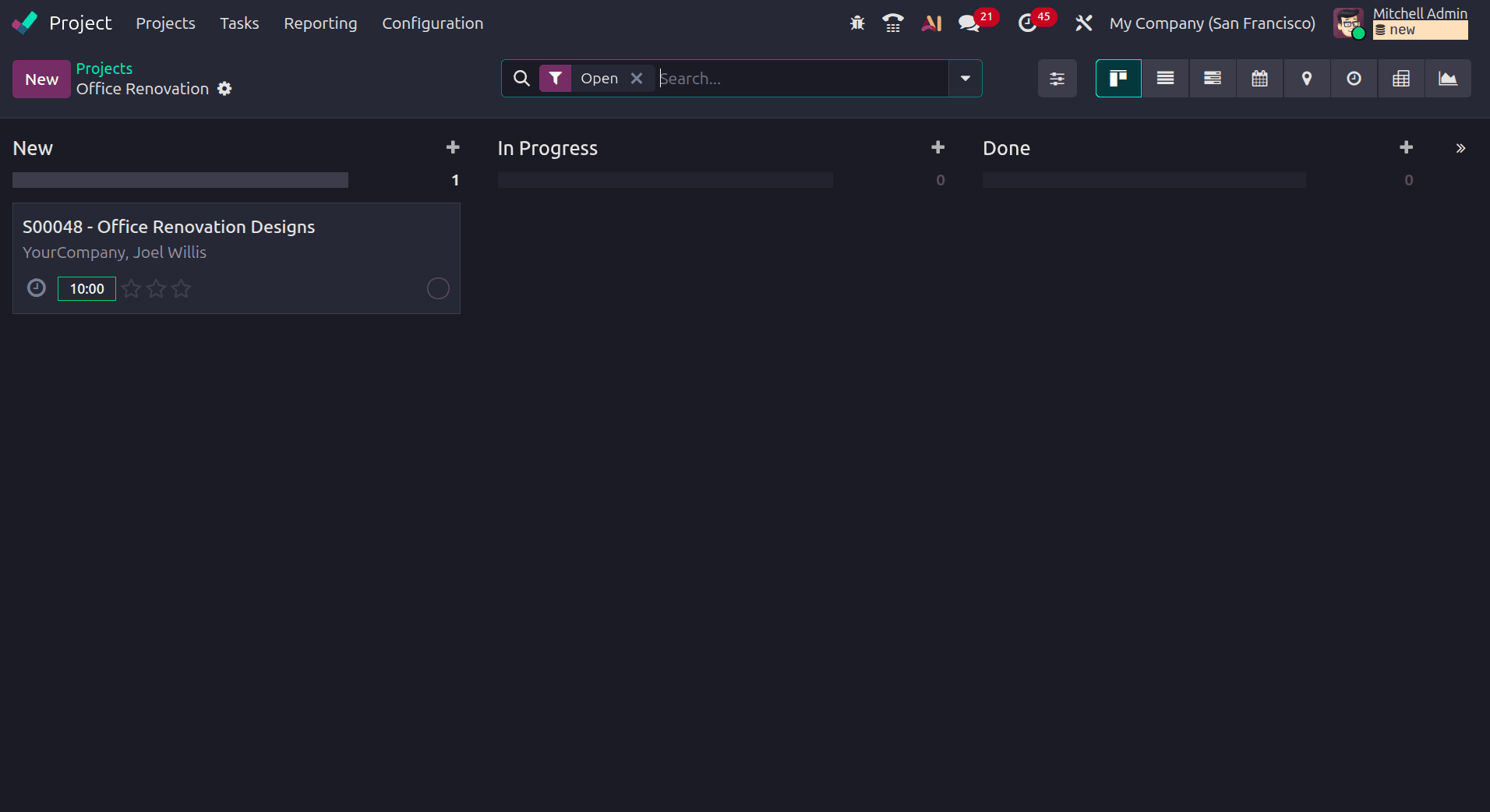
Navigate back to the Project module in Odoo and open the configured project either directly from the project dashboard or through the Tasks smart button available in the sales order. Inside the project, the task generated automatically from the confirmed sales order can be viewed and managed.
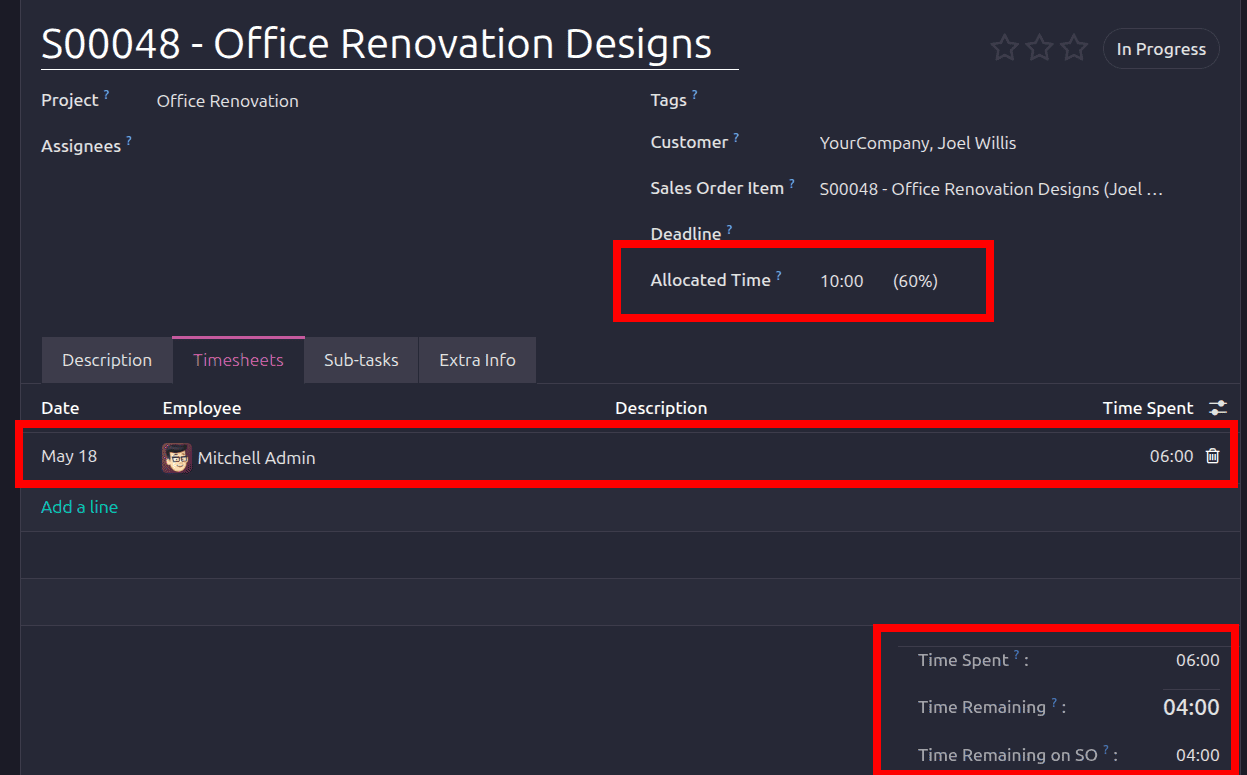
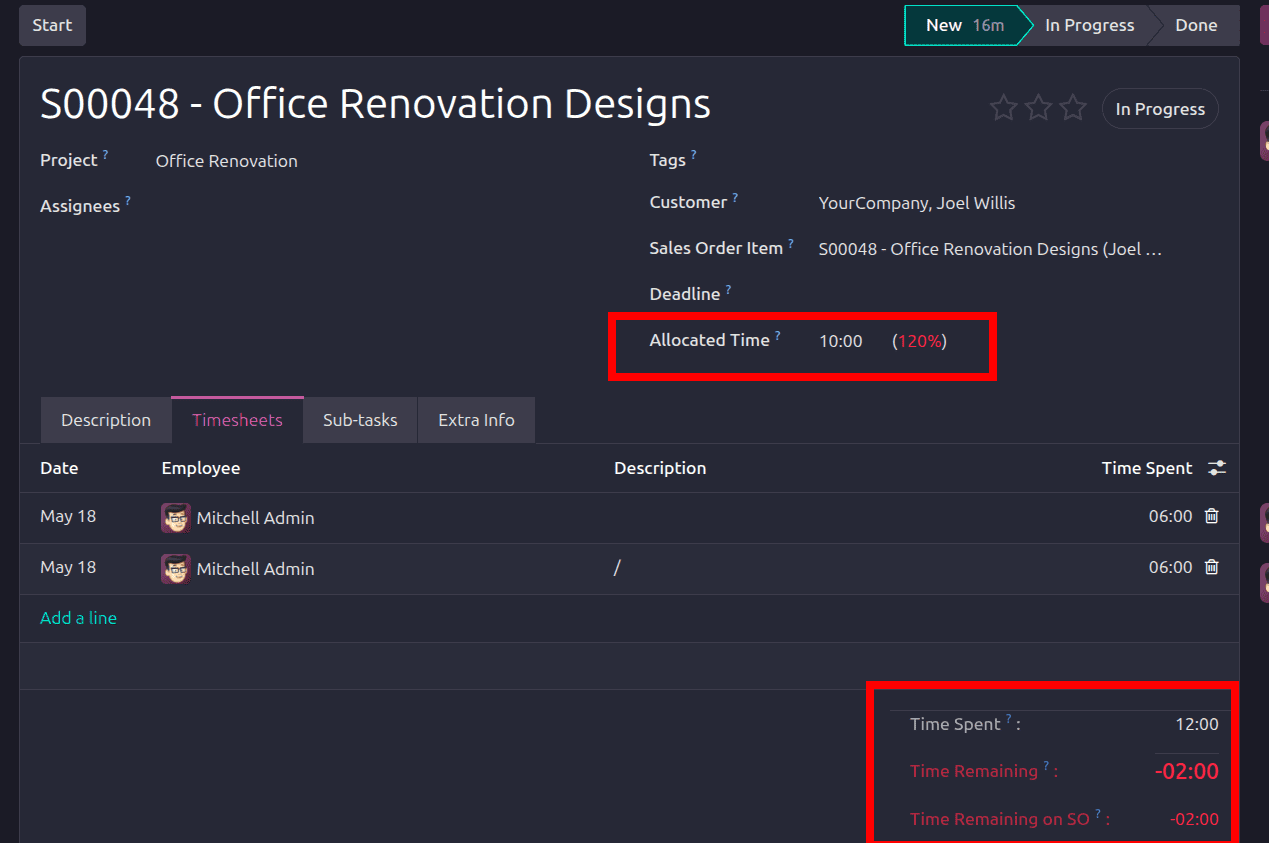
Since the service is configured with the Fixed Price/Prepaid invoicing policy in Odoo, the customer invoice is generated in advance for the defined service quantity. After invoice creation, the time spent on the project activities can be recorded in the Timesheets tab of the related project task. Within the task form, the Allocated Time represents the planned service duration defined in the sales order and used for the prepaid customer invoicing process.
When the recorded timesheet hours exceed the allocated service hours in Odoo, the Time Remaining and Time Remaining on Sales Order indicators are automatically displayed in red with negative values, showing that the planned service time has been exceeded.
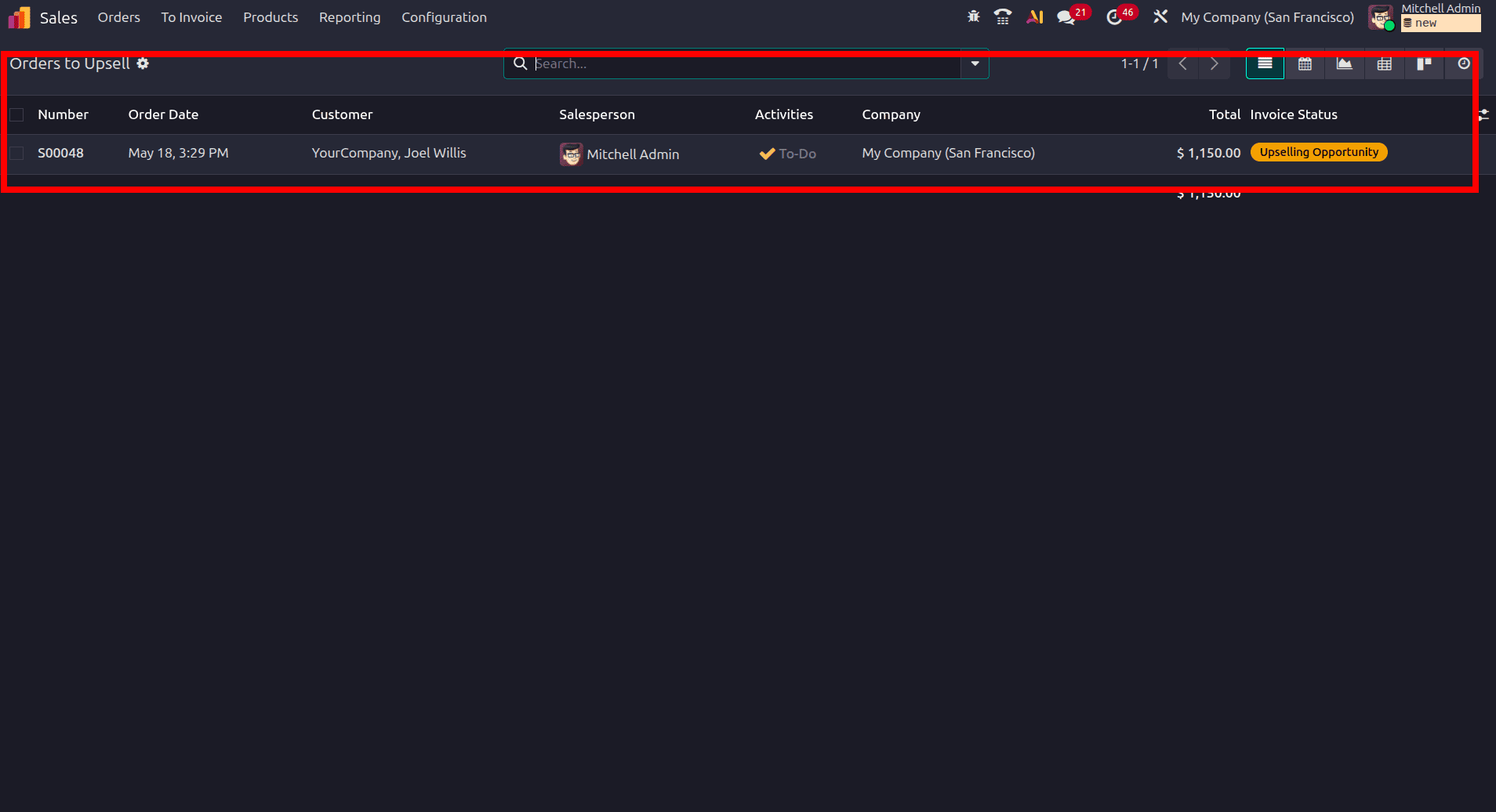
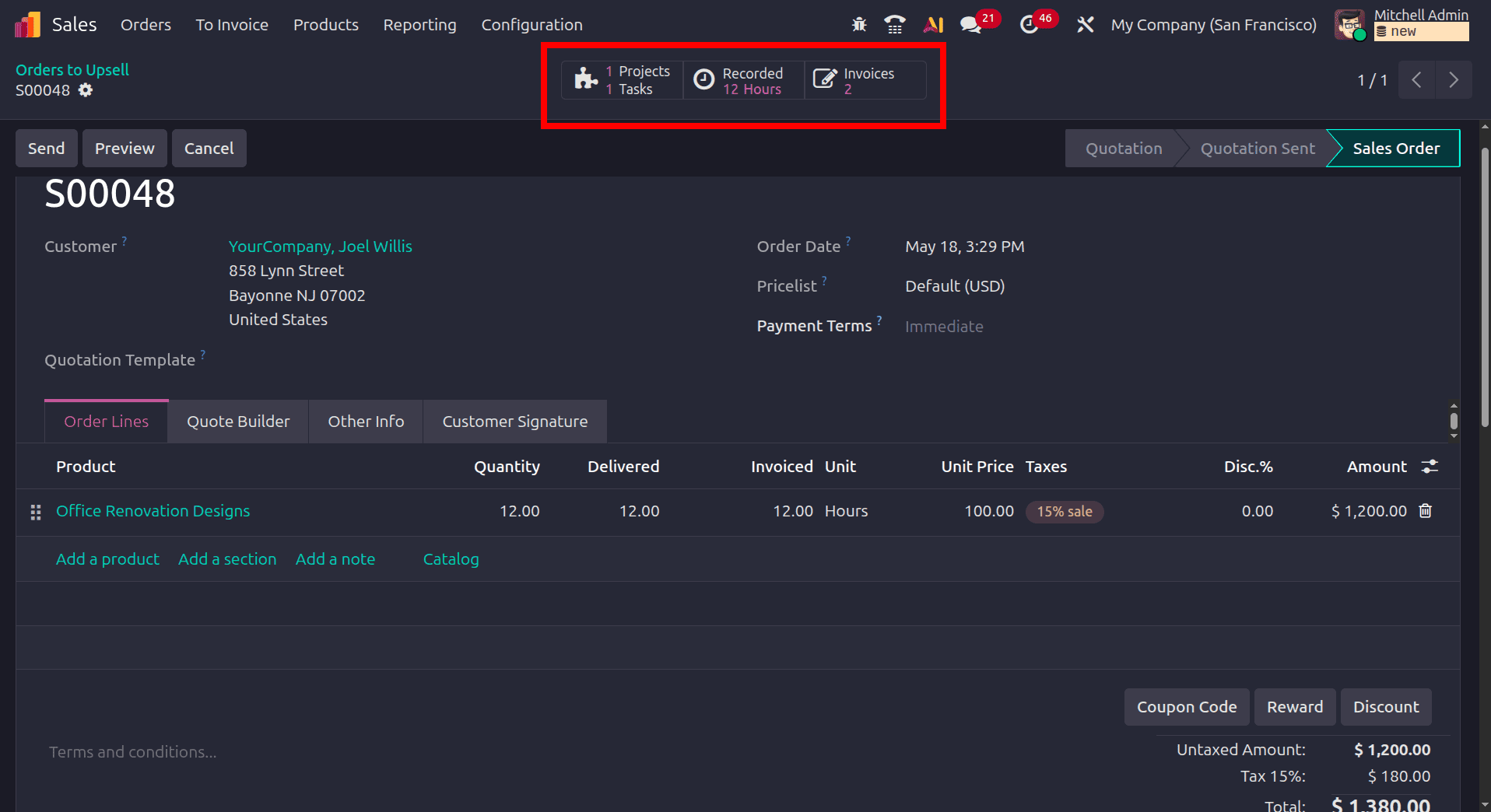
Since the customer invoice in Odoo has already been generated for the allocated prepaid service hours, any additional timesheet hours recorded beyond the planned duration require a new invoice to be created. Odoo identifies these extra billable hours as an upselling opportunity. The additional invoicing process can be managed through the Orders to Upsell feature by navigating to Sales > To Invoice > Orders to Upsell, where sales orders containing extra billable quantities are automatically displayed for further invoicing.
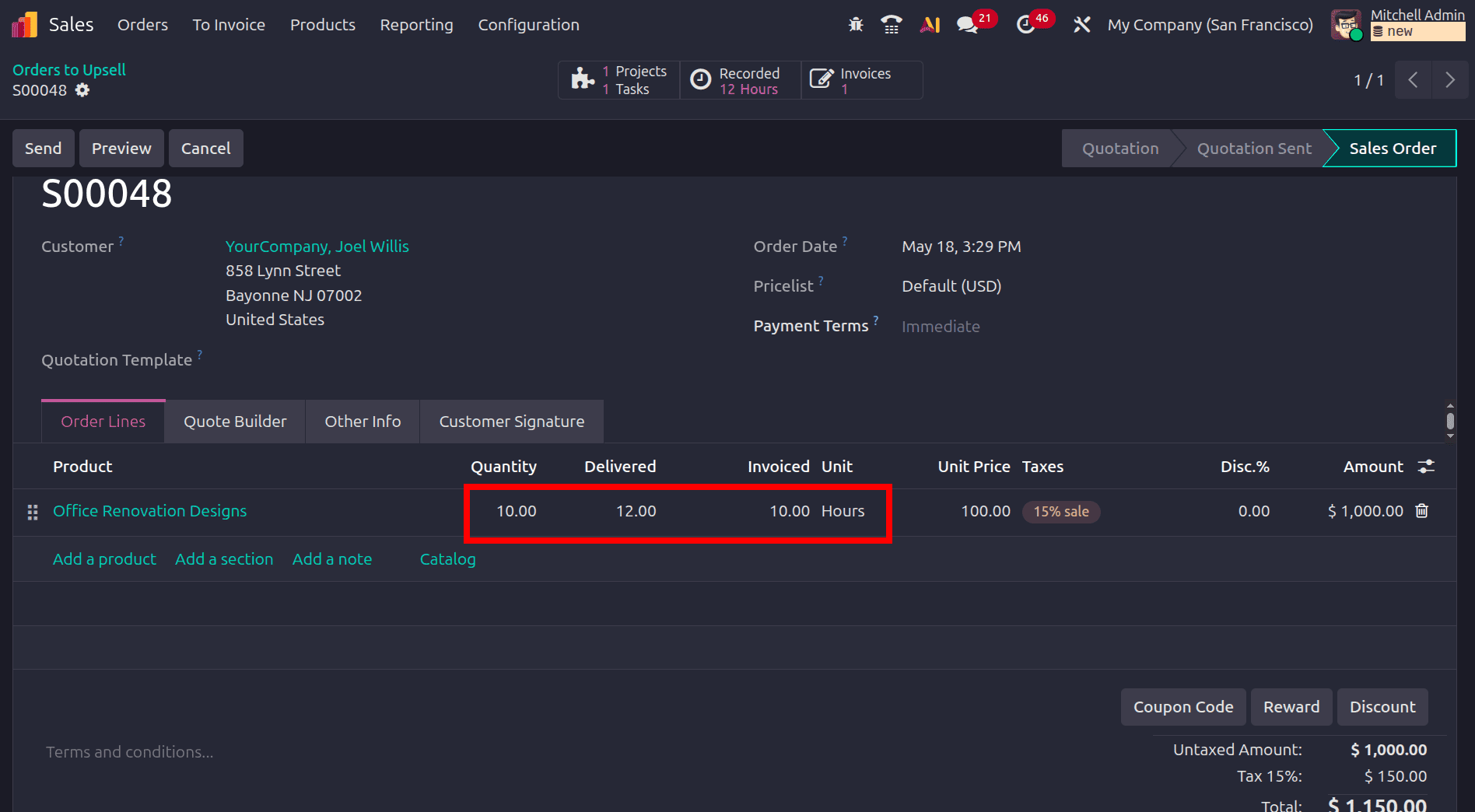
Select the corresponding sales order to open the detailed order view in Odoo, where the Ordered Quantity, Delivered Quantity, and Invoiced Quantity can be analyzed for the related service product and timesheet-based billing process.
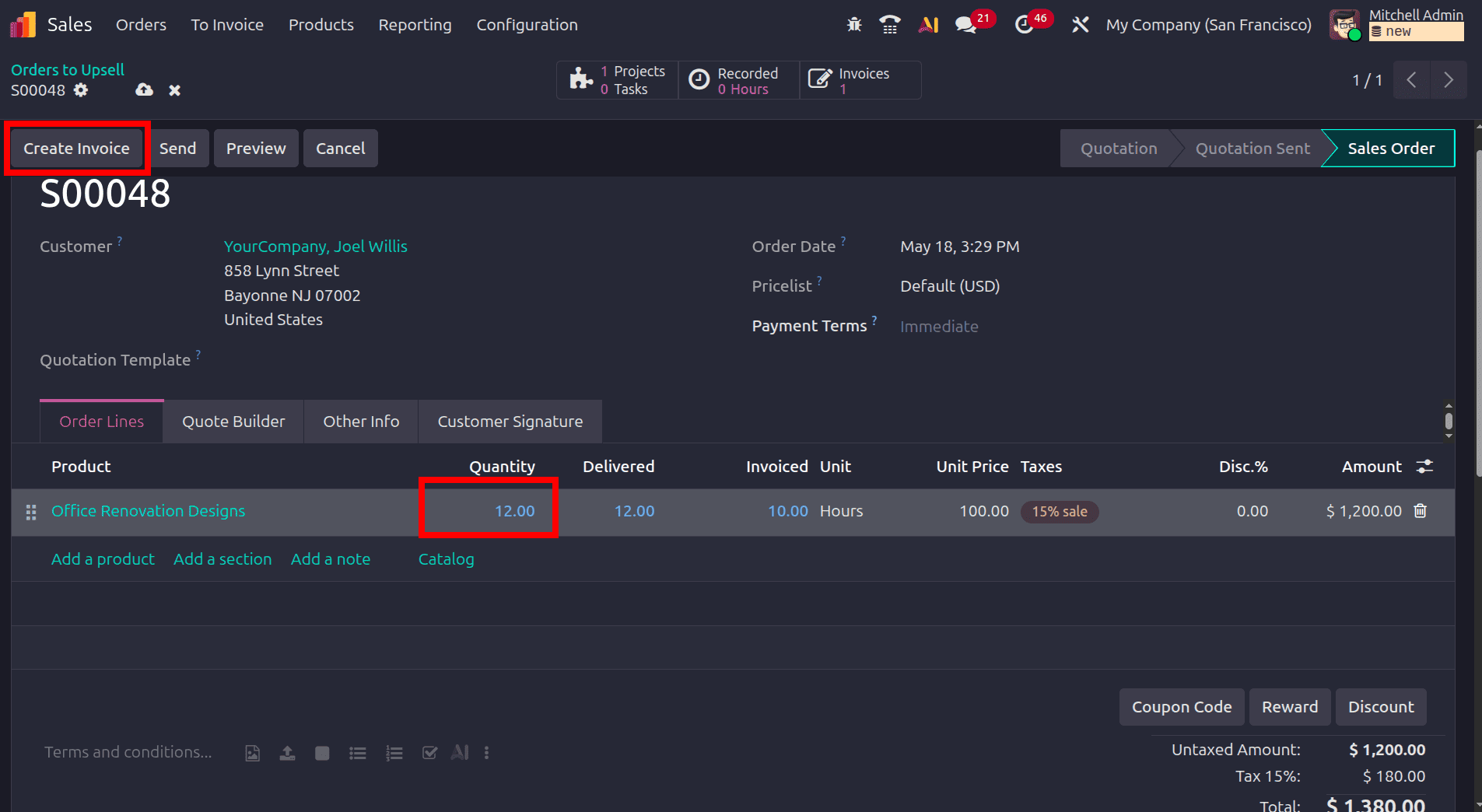
The invoice for the additional delivered service hours can now be generated in Odoo. Update the sales order quantity to match the delivered timesheet hours and save the changes. After the quantity is updated, the Create Invoice button becomes available, allowing the generation of a customer invoice for the extra billable hours. Then create the invoice and confirm it.
Navigate back to the sales order through the related smart button in Odoo, where the Invoices smart tab displays the generated customer invoices. The invoice count appears as 2, indicating that two separate invoices have been created for the project billing process.
This demonstrates how fixed-price project billing can be efficiently managed in Odoo. The integration between the Project, Sales, Timesheets, and Accounting modules enables businesses to handle prepaid service invoicing, timesheet tracking, upselling, and project profitability within a unified workflow. Features such as allocated hours management, additional billable time tracking, automated customer invoicing, and sales order integration help maintain accurate financial control and operational transparency. With streamlined project monitoring and invoicing processes, Odoo simplifies fixed-price project management while improving productivity, reducing manual administrative tasks, and ensuring better customer service and business profitability.
To read more about How Project Can Be Billed at a Fixed Price in Odoo 18, refer to our blog How Project Can Be Billed at a Fixed Price in Odoo 18.