The AI module is an innovative tool that uses artificial intelligence to improve and automate document and record management in Odoo 19, which is a new feature. It offers automation to help companies operate more quickly and precisely. Artificial intelligence is used to evaluate data, forecast results, automate operations, and provide users with insightful recommendations. The module boosts inventory forecasting, customer communication, and document processing. AI increases productivity and decision-making across departments by lowering manual labor and human error. The AI module allows organizations to streamline operations, save time, and provide better customer experiences by seamlessly integrating with essential Odoo modules like Sales, Accounting, HR, and Inventory.
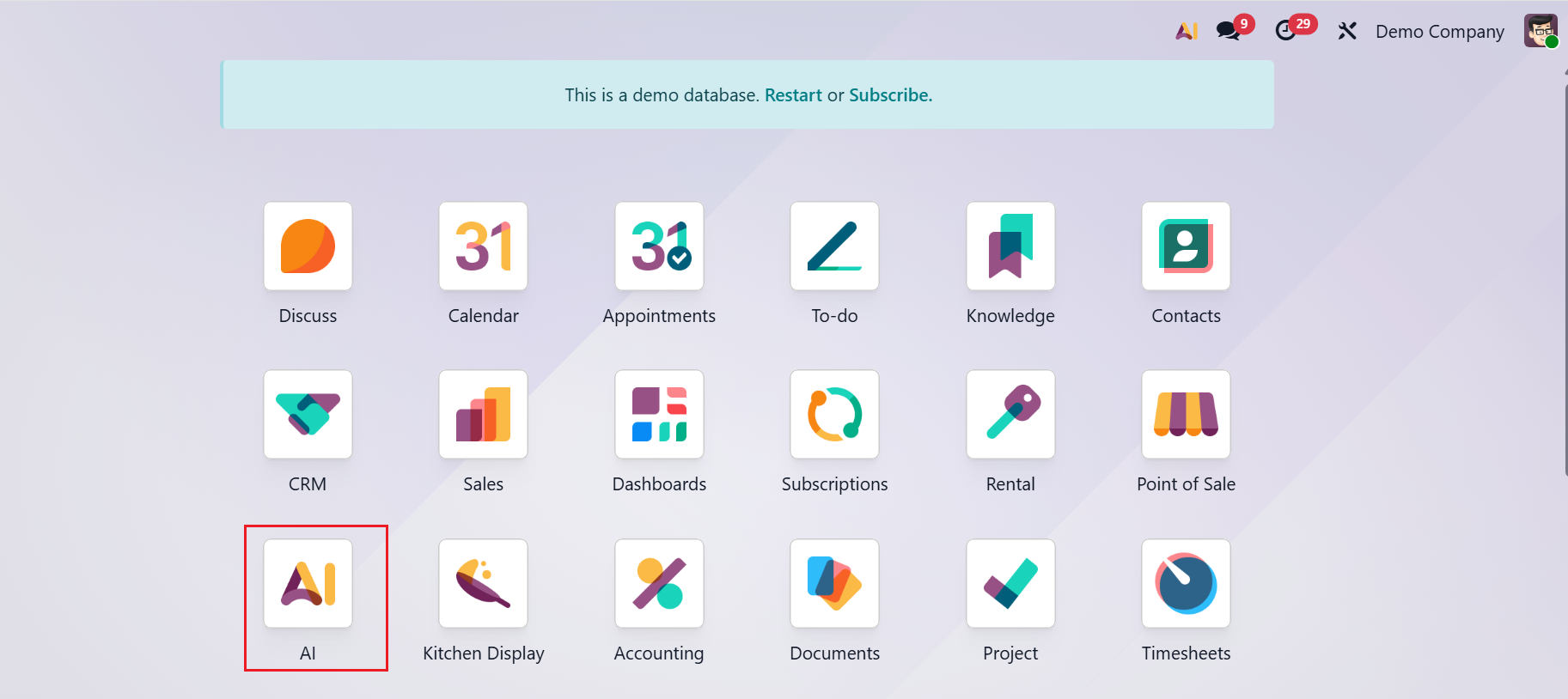
In the screenshot below, the AI module is displayed on the Odoo dashboard.
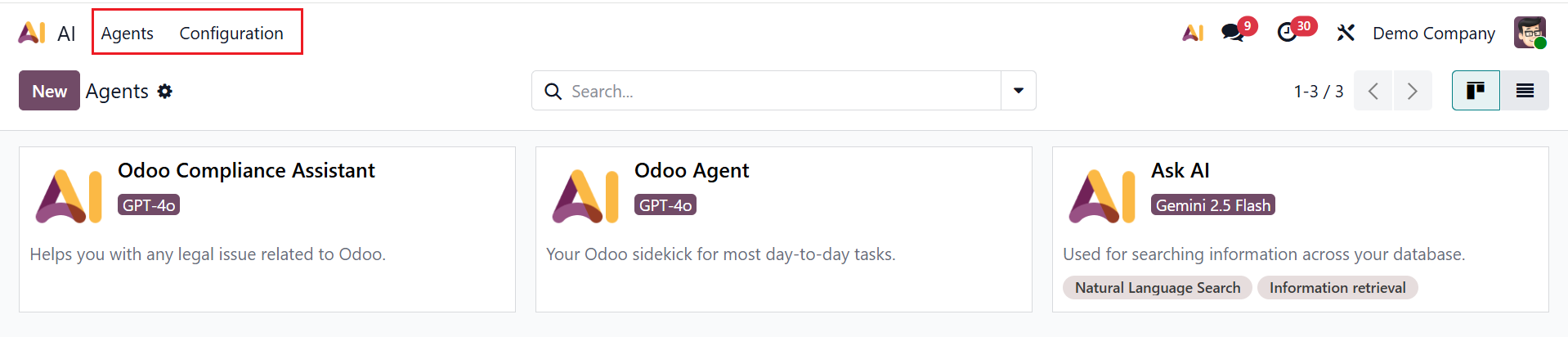
Here, the AI module consists of two menus: Agents and Configuration.
1. Agents:
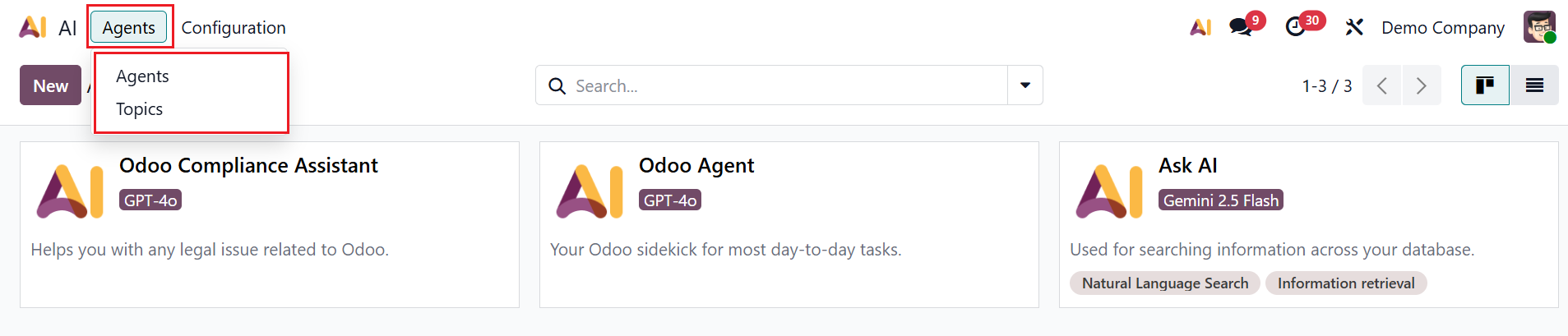
In Odoo 19 Enterprise AI module, Agents are intelligent assistants that perform specific tasks automatically based on predefined rules and data. They analyze information, make decisions, and trigger actions to streamline business processes. The Agents menu consists of two options: Agents and Topics.
1.1 Agents:
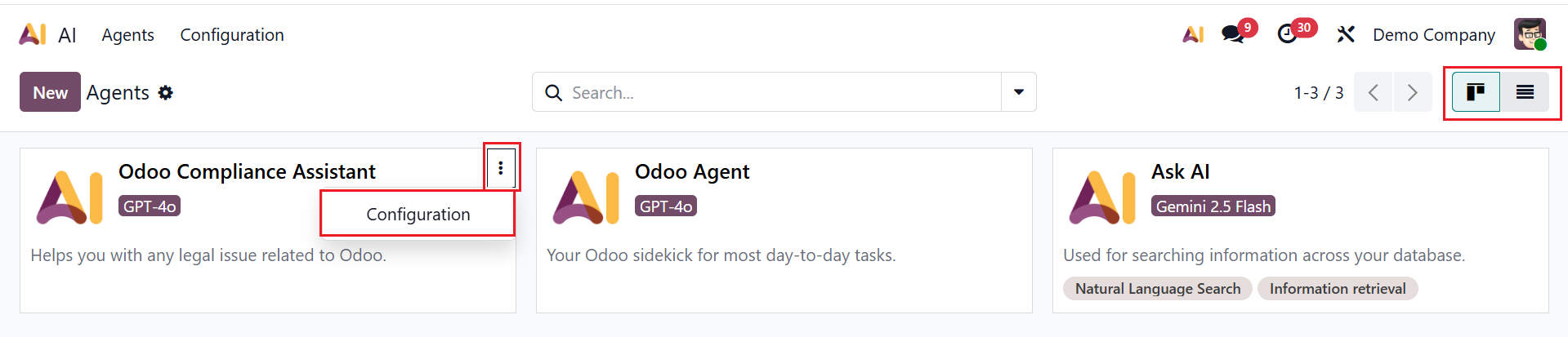
By default, you can see the Agents option as the AI module's dashboard view. Here, each agent is arranged as a kanban card. You can also switch to List view. To make changes to an existing AI agent, click the three-dot menu in the top-right corner of the card and select the Configuration option as shown below:
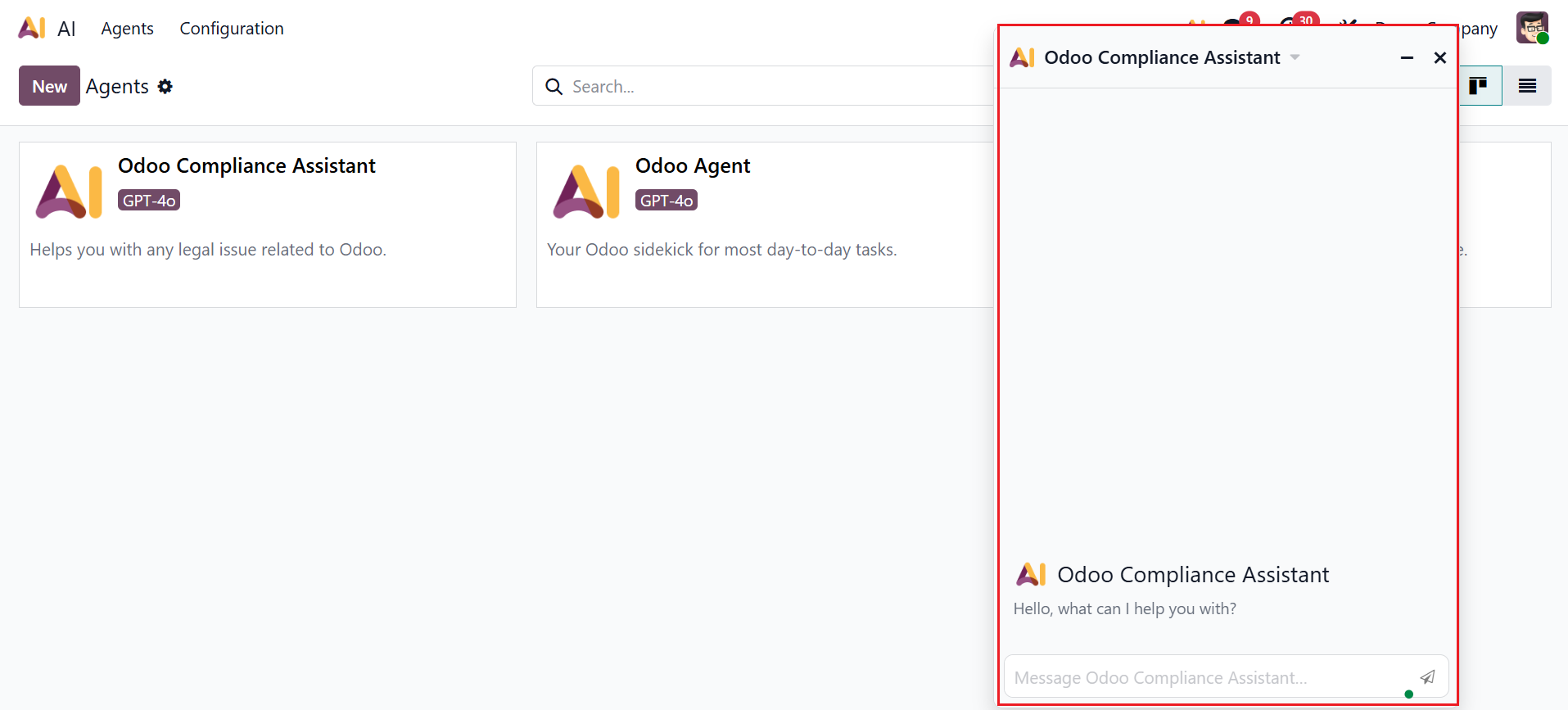
When you click on any AI agent, a new chat window will appear, as shown below. This area lets you interact with the AI by asking questions, providing instructions, and receiving immediate responses. It helps users to retrieve responses, generate content, and perform tasks.
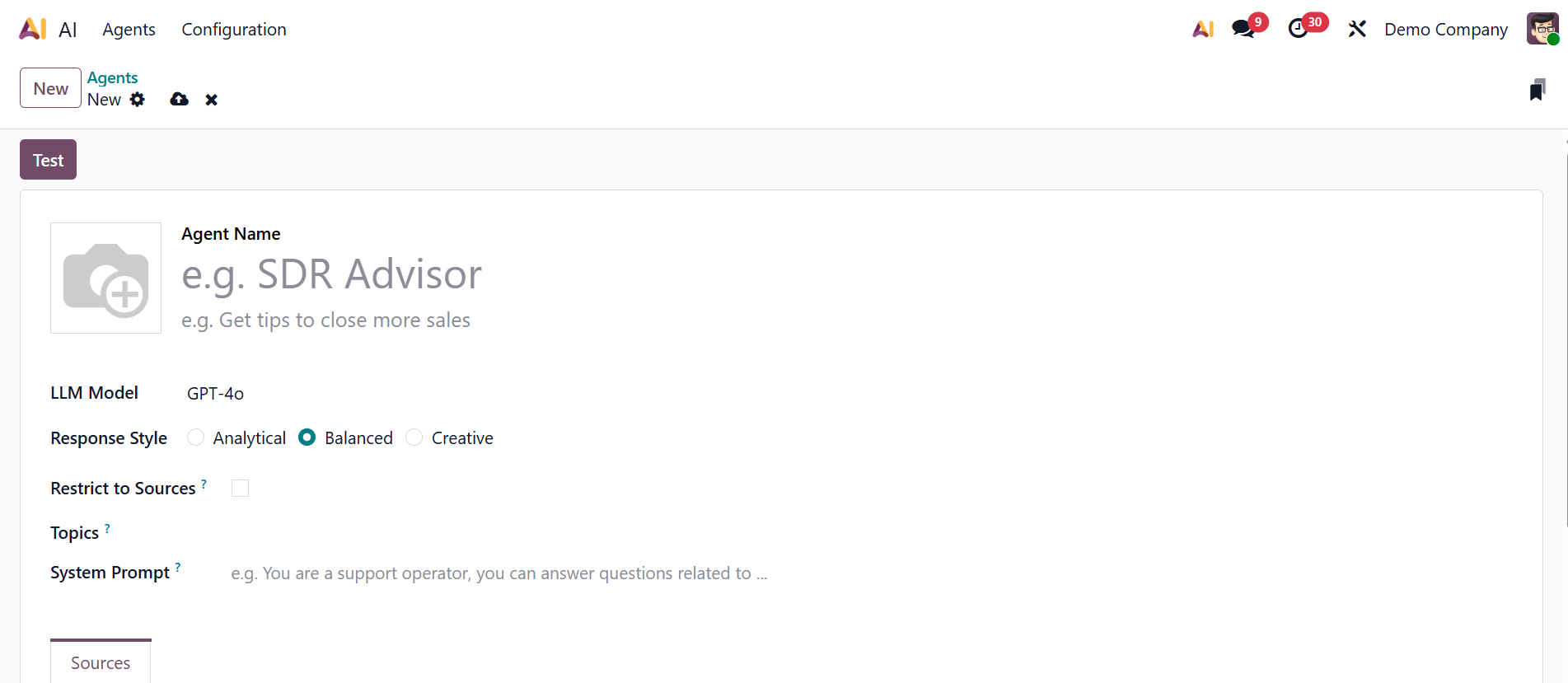
Click the New button to create a new AI agent. Here, add an Agent Name and add a short note if needed. From the drop-down menu, select an LLM Model. In the Response Style field, you can define how the AI responds to users, including tone, length, and level of detail. Select the response style as either Analytical (gives logical, data-driven, and structured responses focused on accuracy and reasoning), Balanced (provides clear and neutral responses with a mix of analytics and creativity), or Creative (produces imaginative, expressive, and engaging answers). Enable the Restrict to Sources field to allow the agent to respond only to the provided sources. In the Topics field, add instructions and tools that guide Odoo AI in helping the users to complete their tasks. In the System Prompt field, add a set of instructions that defines how the AI should behave and respond.
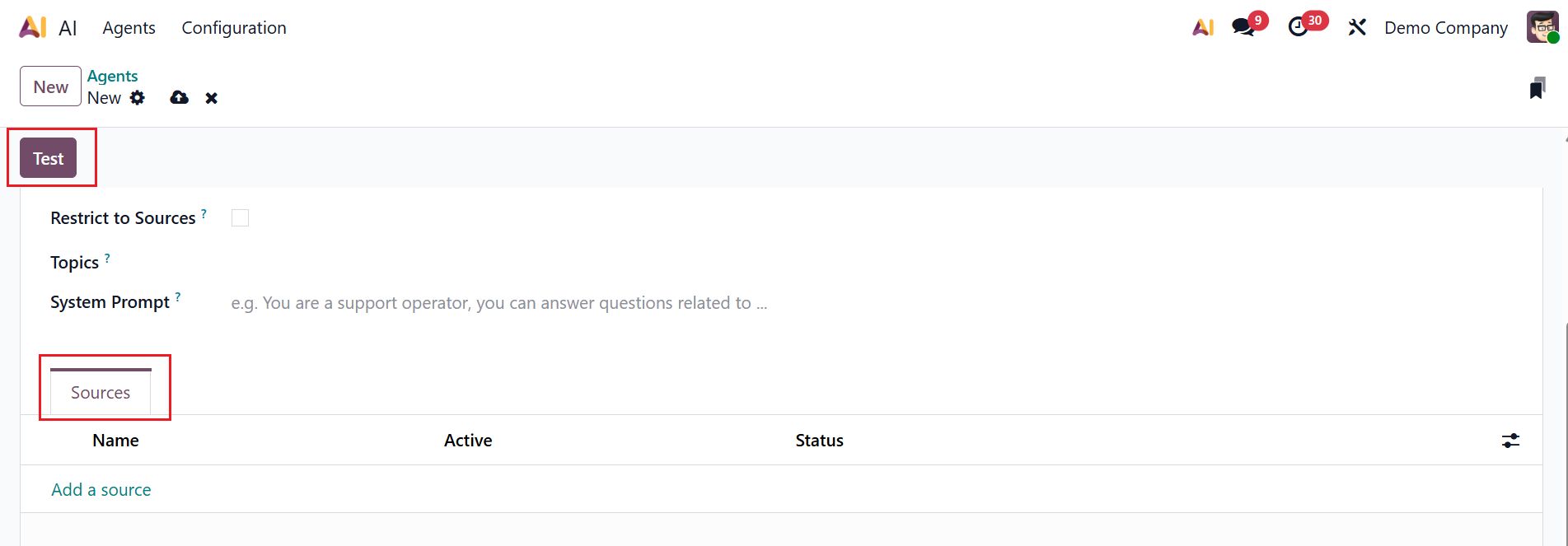
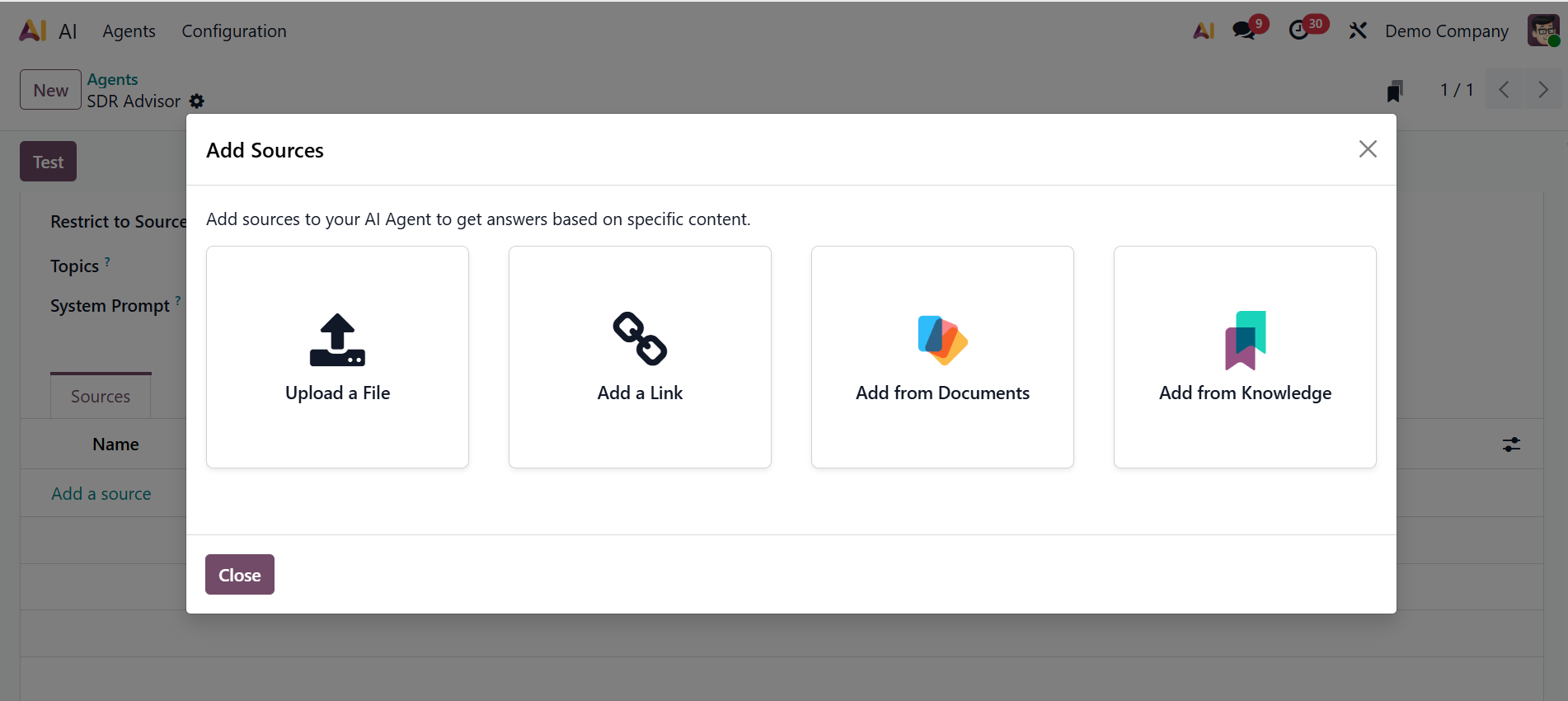
Under the Sources tab, click the Add a source button to add sources for the agent.
A pop-up screen will appear, allowing you to select a format such as:
- Upload a file
- Add a link
- Add from Documents
- Add from Knowledge
To activate the source, slide the toggle button under the Active option. Under the Status option, the source's current status will be displayed. Select Test to test the agent and open a chat window.
1.2 Topics:
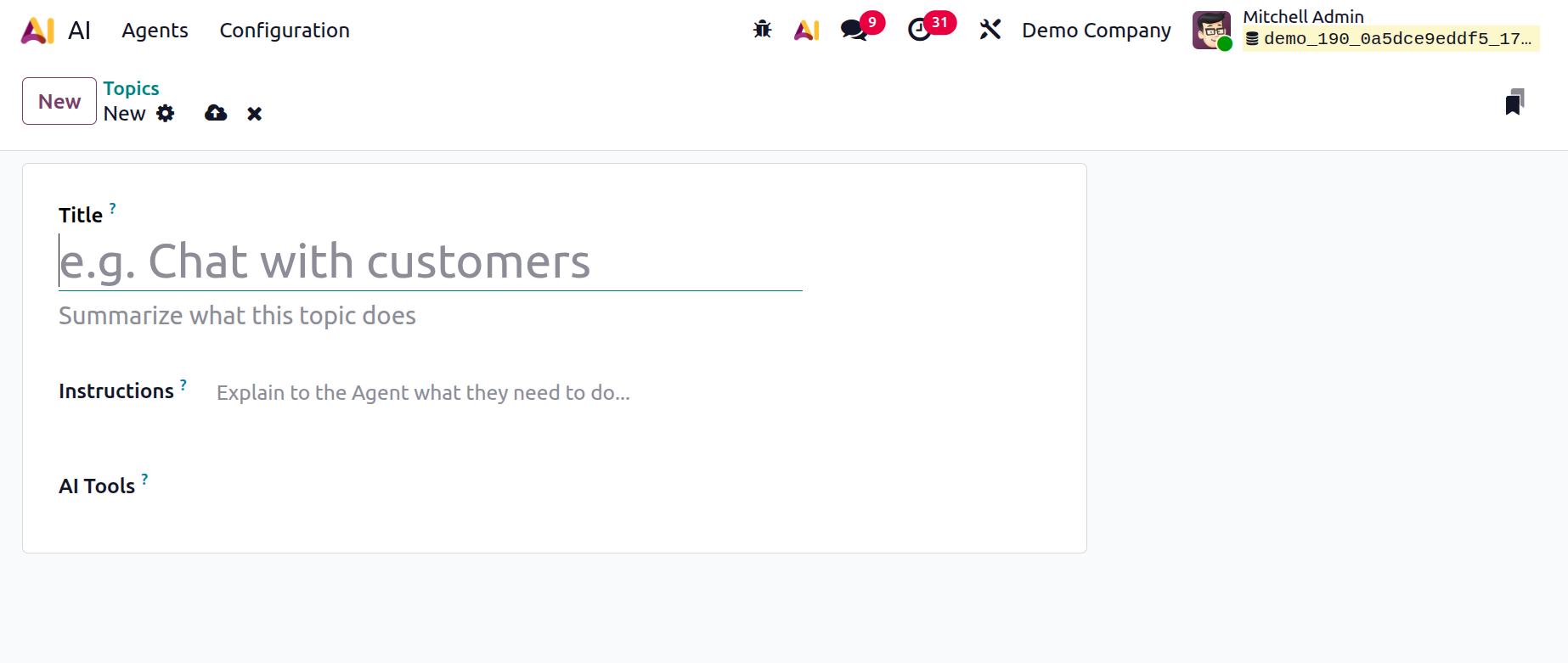
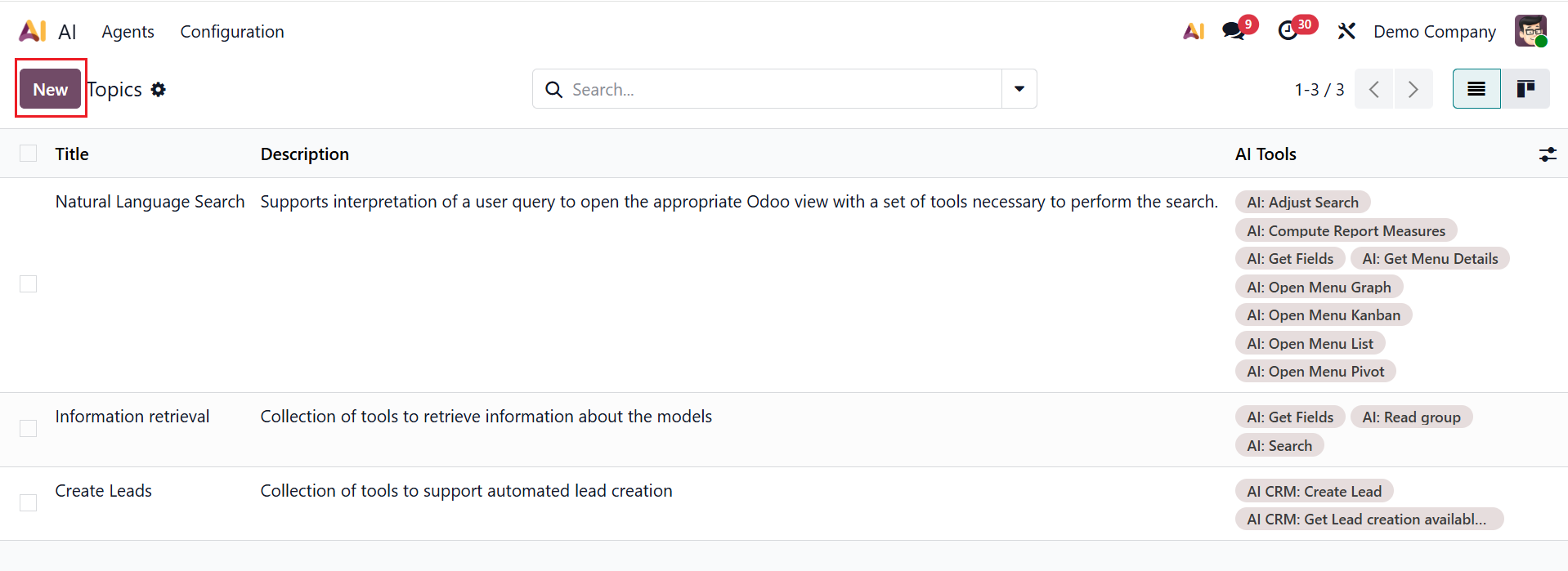
In Odoo 19 Enterprise AI, the Topics option is a collection of instructions that lets you clearly specify which subjects the AI may discuss and tell the agent what, when, and how to do it. It keeps AI responses pertinent, appropriate, and consistent with the chosen functional domain. Here you can see the details of the topics, including Name, Description, and AI Tools. To create a new topic, click on the New button as shown below:
Here, add a Title for the new topic and, if needed, summarize what it does. In the Instructions field, you can add guidelines to the agent on what they need to do. In the AI Tools field, select a tool from the drop-down menu to help the AI perform specific tasks.