Odoo 19 Enterprise’s Approval module makes it easy and organized for businesses to manage and regulate internal approvals. Companies can generate many types of approvals, including payment authorizations, purchase requests, leave requests, and expenditure approvals. Each approval can be configured with specific approvers and guidelines. Staff members can submit requests with ease, and managers are instantly notified to accept or reject them. The module ensures quicker decisions, greater transparency, less manual labor, and increased operational efficiency by integrating with the Accounting, Purchase, and HR modules.
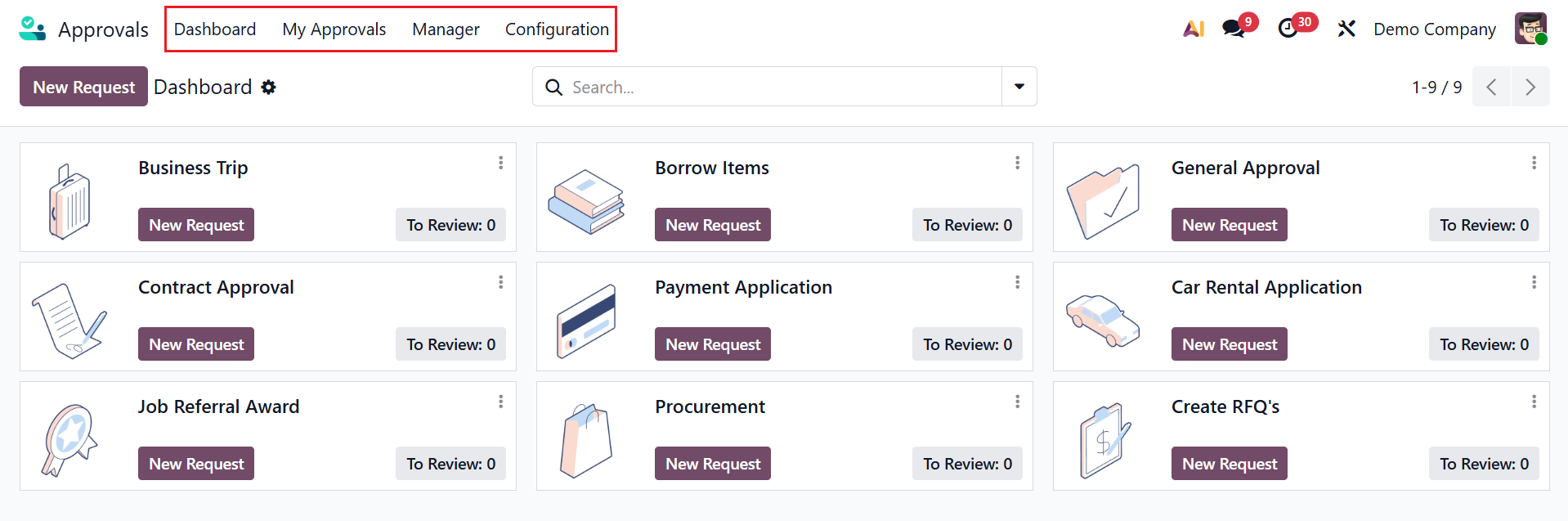
In the Approval module, you can see four types of menus: Dashboard, My Approvals, Manager, and Configuration.
1. Dashboard
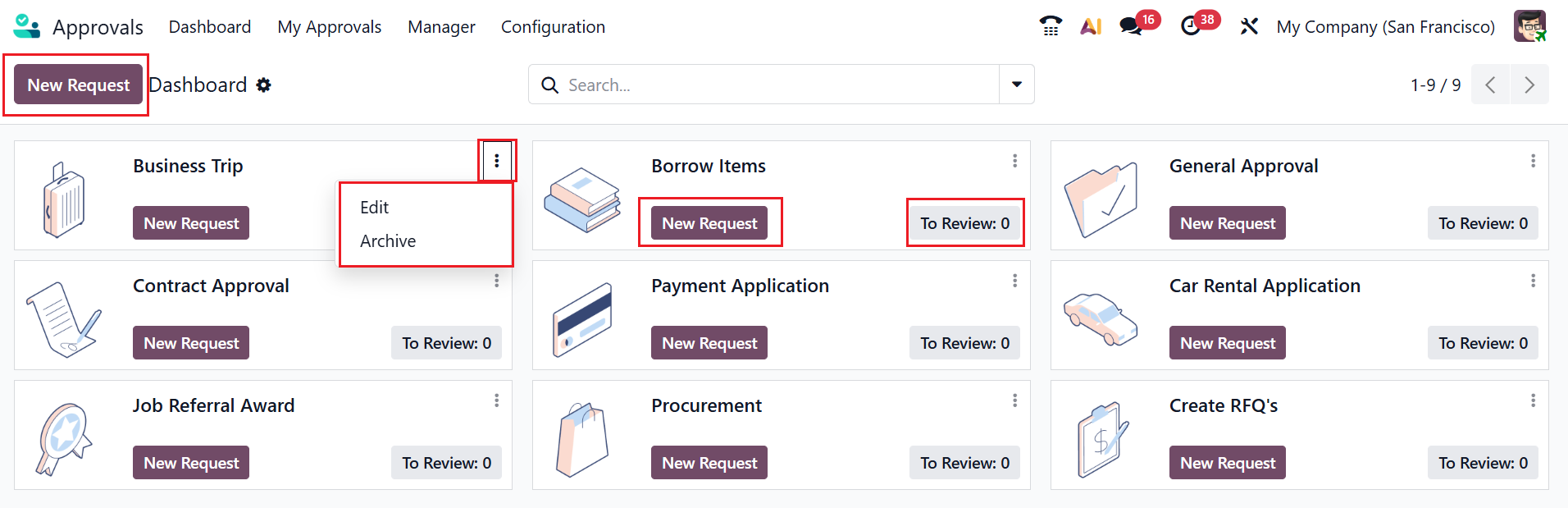
By default, the dashboard view of the Approvals module shows several approval types in a Kanban view. Each category is arranged as a card, where you can see the options such as New Request and To Review. The New Request button helps to create a new approval request under a specific category. You can review the approval status by clicking the To Review button. To Edit or Archive any approval category, click on the three-dotted vertical line in the right corner of each card. A new approval request can be created by clicking the New Request button.
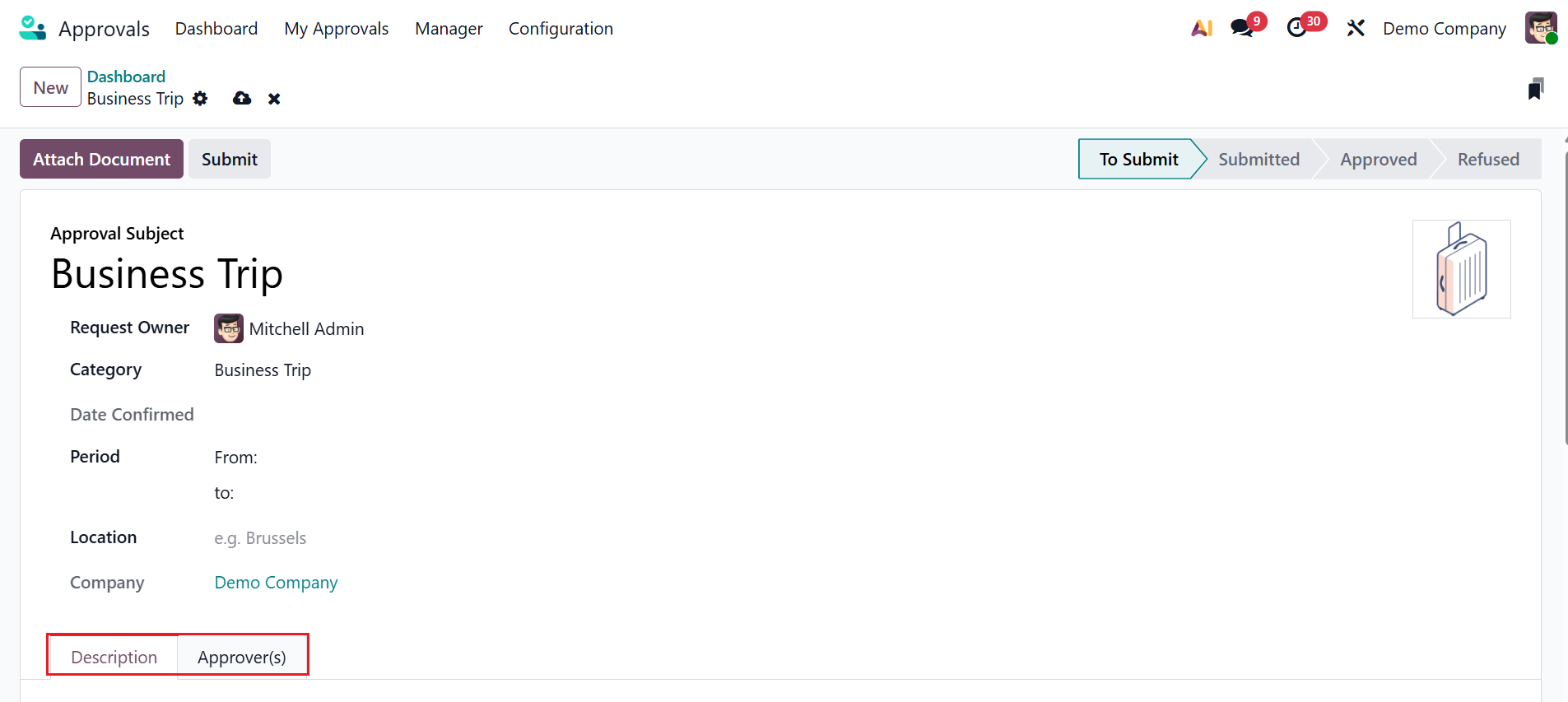
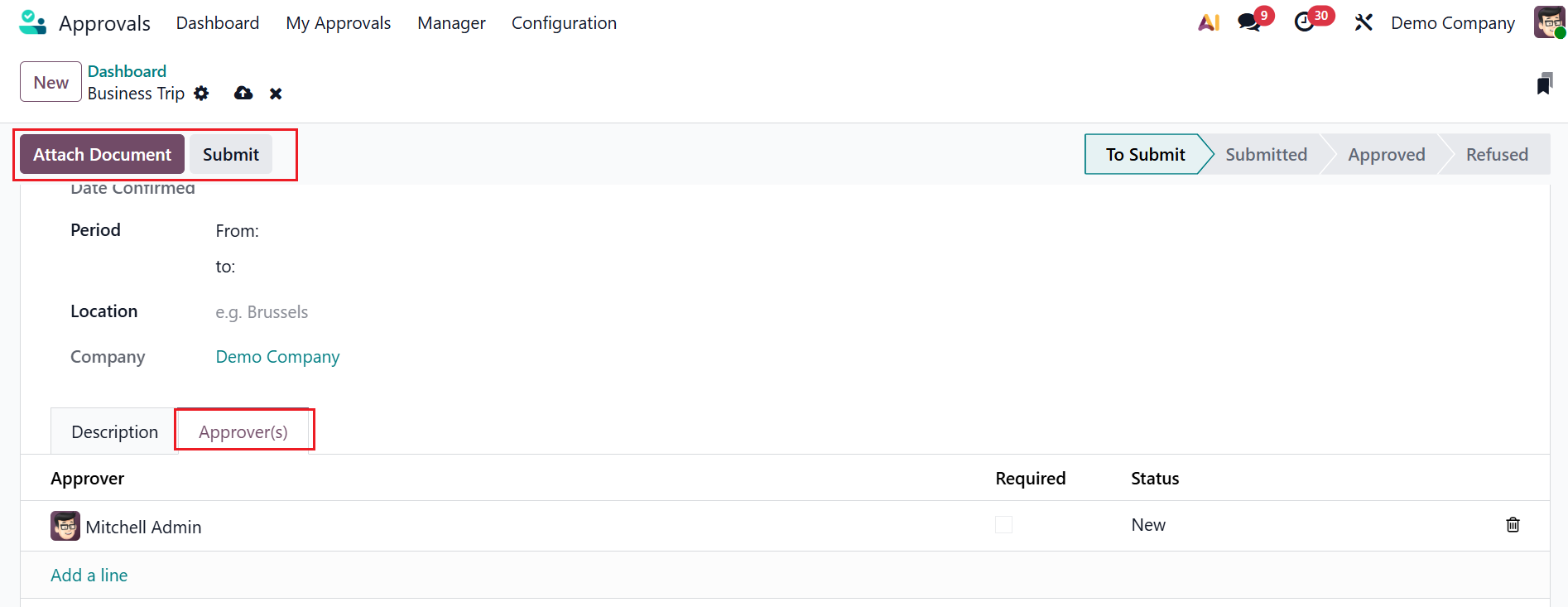
Then, add the details of the new request, such as Approval Subject, Category, Date Confirmed, Period, Location, and Company. Here, you can see two types of tabs: Description and Approver(s). Use the Description tab to provide additional details about the approval subject.
Under the Approver(s) tab, click on the Add a line button to add an Approver. Enable the Required field to set the approver as mandatory. You can also view the approver's Status. To attach a document, select the Attach Document button. Click Submit to save the request. From the To Submit stage, it will move to the Submitted stage.
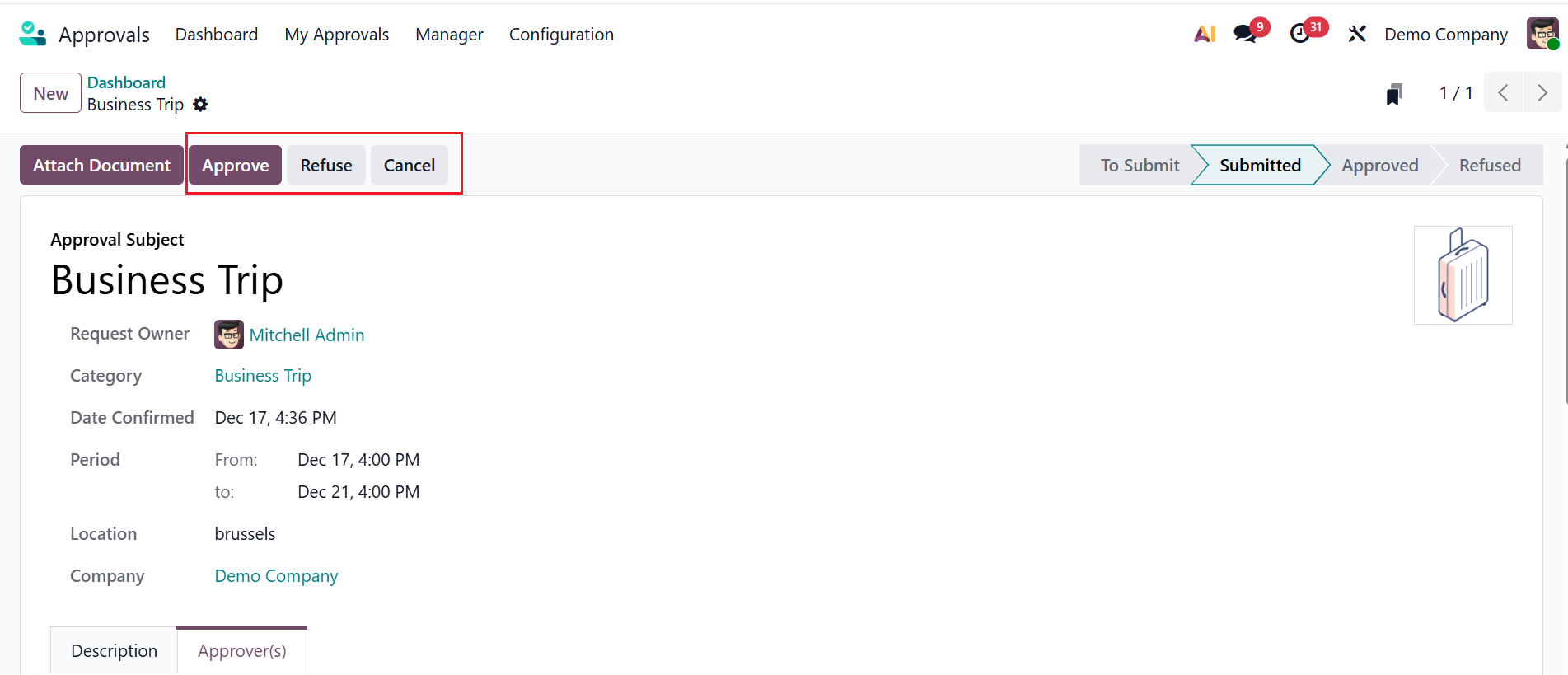
After submitting the request, you can choose either Approve, Refuse, or Cancel options.
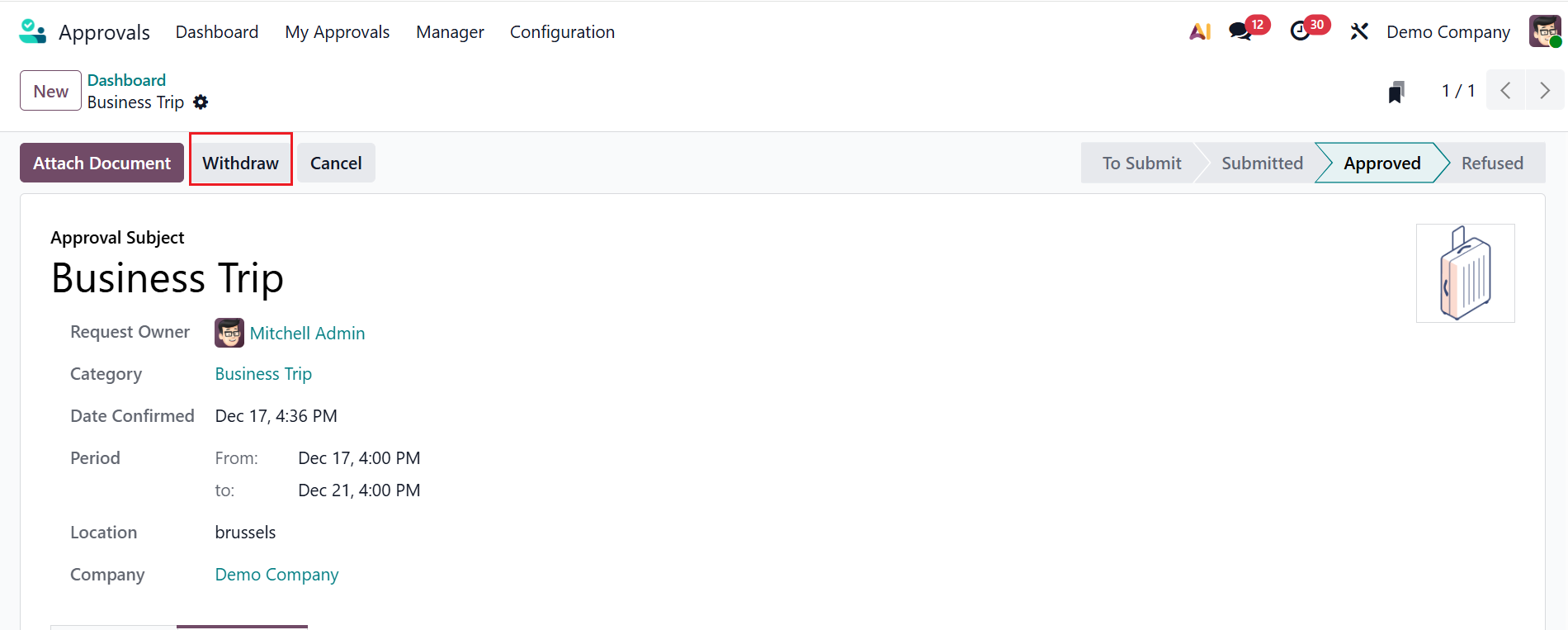
Once the request is approved, select Withdraw to refuse the request.
2. My Approvals
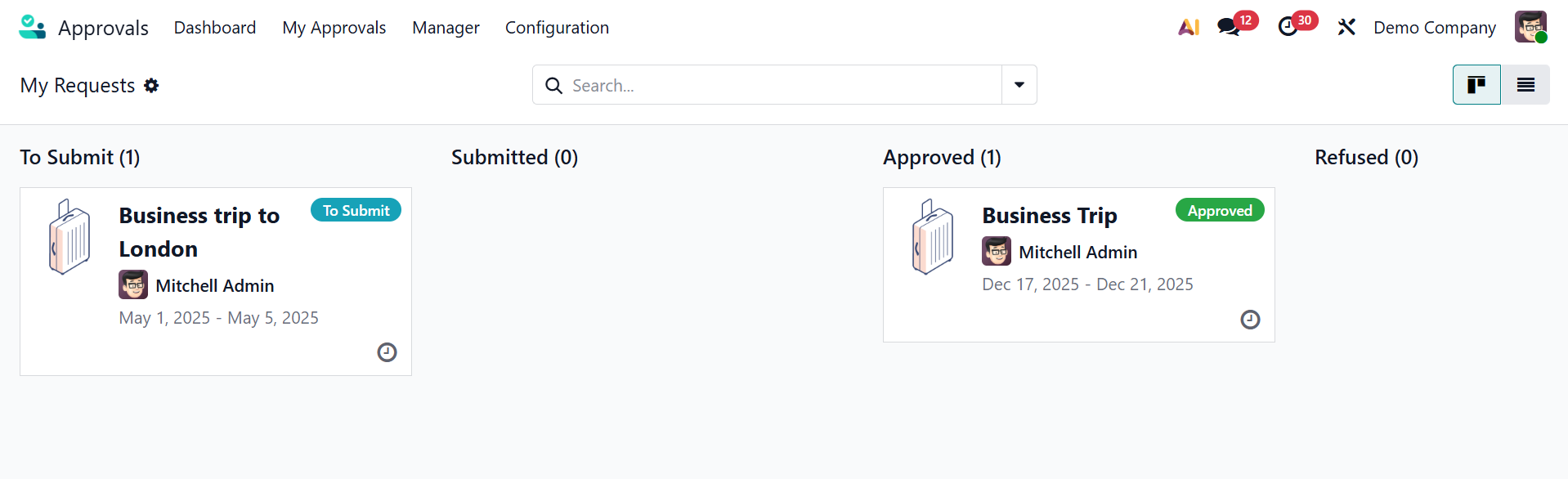
In the My Approval dashboard, you can see the request created by the logged-in user. The approval stages are To Submit, Submitted, Approved, Refused, and Cancelled. Each stage is arranged as a Kanban view, and you can also switch to a list view. Each card includes details such as the Approval subject, Request Owner, Period, and request status. To schedule an activity, click the clock icon for the selected approval. The Settings icon in the top-right corner of the kanban card allows you to fold and automate request stages.
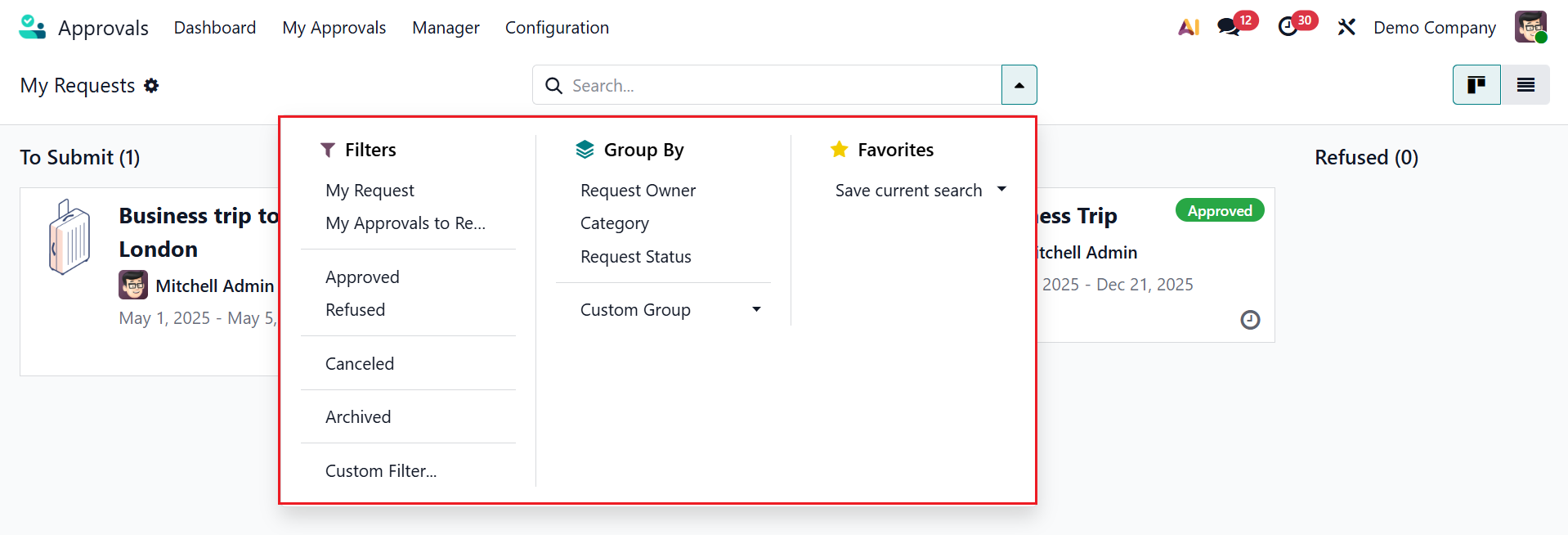
Click on the drop-down menu in the search bar to view options such as Filters, Group By, and Favorites. The Filters section includes My Request, My Approval To Review, Approved, Refused, Canceled, Archived, and Custom Filter options. The Group By section includes Request Owner, Category, Request Status, and Custom Group. The Favorites section helps you save the search for future use.
3. Managers
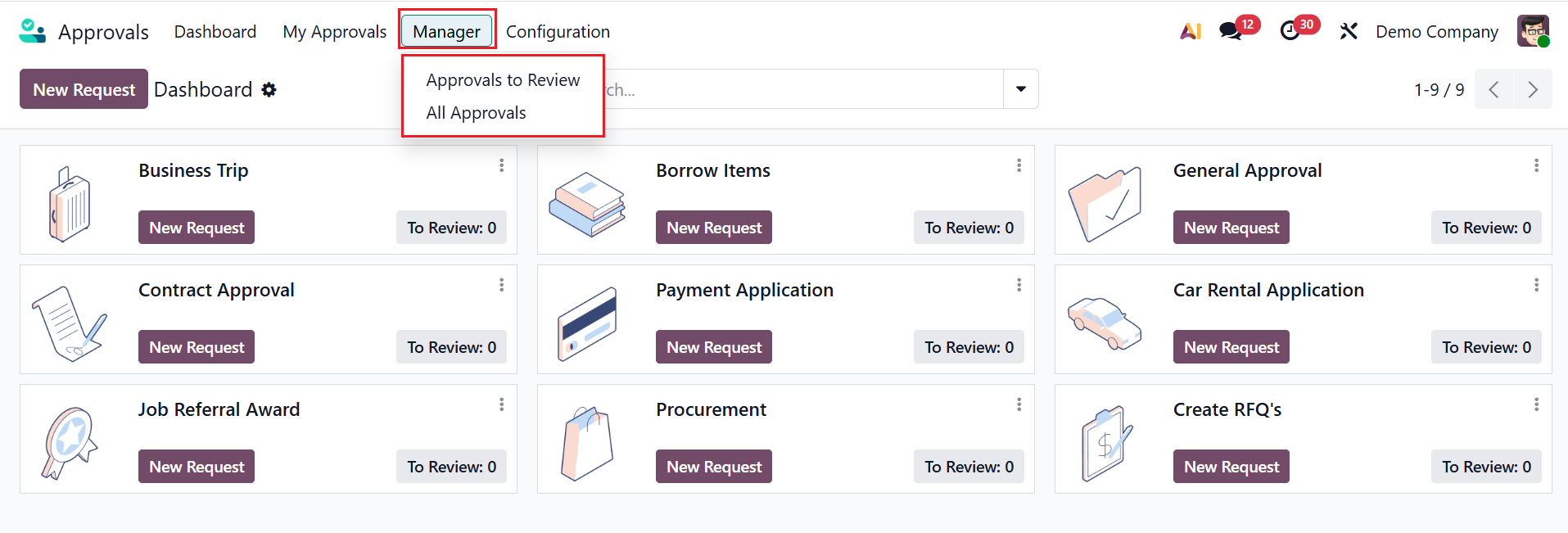
In the Odoo 19 Approvals module, the Managers menu allows you to assign and manage responsible managers who have the authority to review, approve, or reject requests. The Managers menu includes two options: Approvals to Review and All Approvals.
3.1 Approvals to Review:
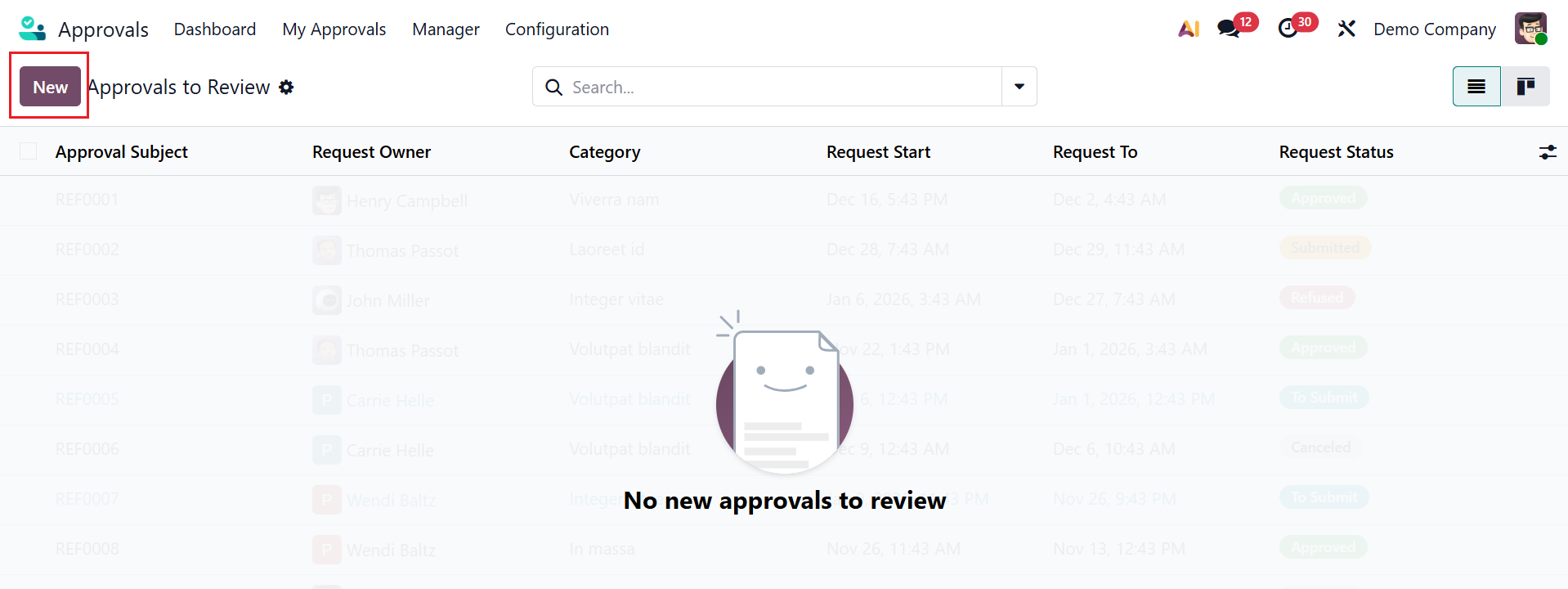
The Approvals to Review dashboard shows all approval requests that are awaiting your approval or review. It helps you quickly view, approve, or reject pending requests assigned to you. It helps to centralize all pending approval requests that need a user's attention. Here, you can see the details of the Approval to Review, such as Approval Subject, Request Owner, Category, Request Start, Request To, and Request Status.
You can also create a new approval request by clicking the New button, as explained above.
3.2 All Approvals:
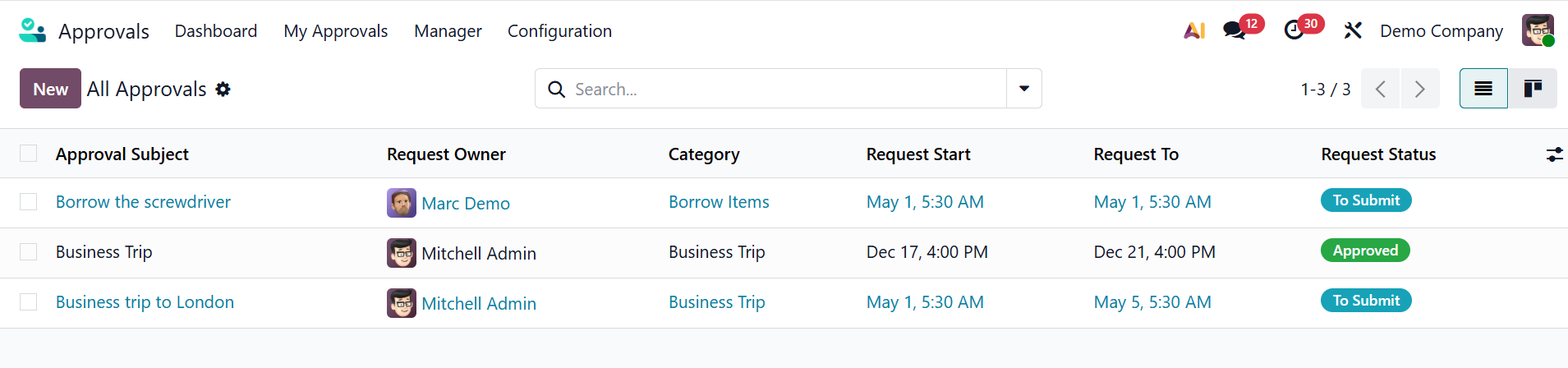
In the Odoo 19 Approvals module, All Approvals displays all the approval requests in the system. It provides a centralized platform for monitoring, auditing, and reporting all approval activities. In the dashboard view, you can see details of the approvals, including Approval Subject, Request Owner, Category, Request Start, Request To, and Request Status. A new approval request can be created by selecting the New button.