An effective Odoo 19 attendance management system allows users to monitor staff attendance marking and assess reports. These days, any firm needs to maintain track of attendance. Odoo provides a way for the police and HR departments to keep track of employee attendance. An attendance management system can be used to track employees' arrivals and departures. The Odoo 19 Attendance module makes it easy to pay workers depending on their presence during working hours.
The Odoo 19 employee check-in feature may now be used from outside the app, as shown in the screenshot below. The time of check-in is clearly displayed. An employee can then finish their checkout by using the Check Out button.
Use the Odoo 19 Attendance module to find out more about employee attendance.
This is the displayed dashboard view. You can change the display by Day, Month, or Year. To go to the previous and next Day, Month, or Year, use the two positioned arrows. The dashboard's Filter, Group, and Favorite options are located below the search bar.
In the Odoo Attendance module, the color shown on an employee’s name indicates their current attendance status:
- Red color: A person's name would appear in the red entry if they worked more than working hours in a single day. On the left side of the page, the employee's name is displayed in red, signifying that they added extra hours to the check-in details.
- Green color:The employee is checked in and currently present, indicating an active attendance record.
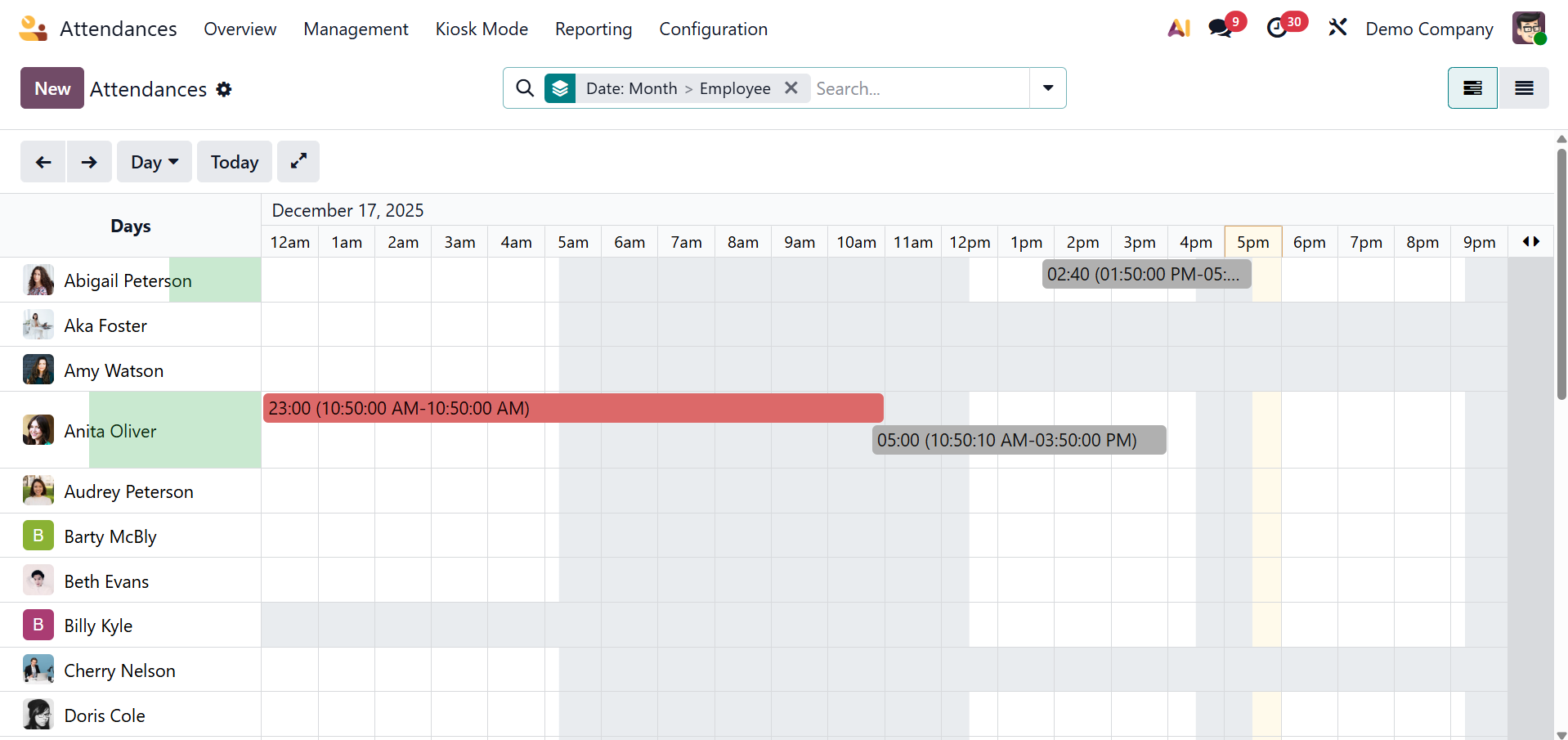
Data regarding employee attendance, including logged-in time, working hours, total working hours, break time, and overtime, is easily accessible through the dashboard itself.
In Odoo 19, the attendance list view is also accessible. The employee's name, work hours, overtime, and check-in and check-out times are all displayed in the list view.
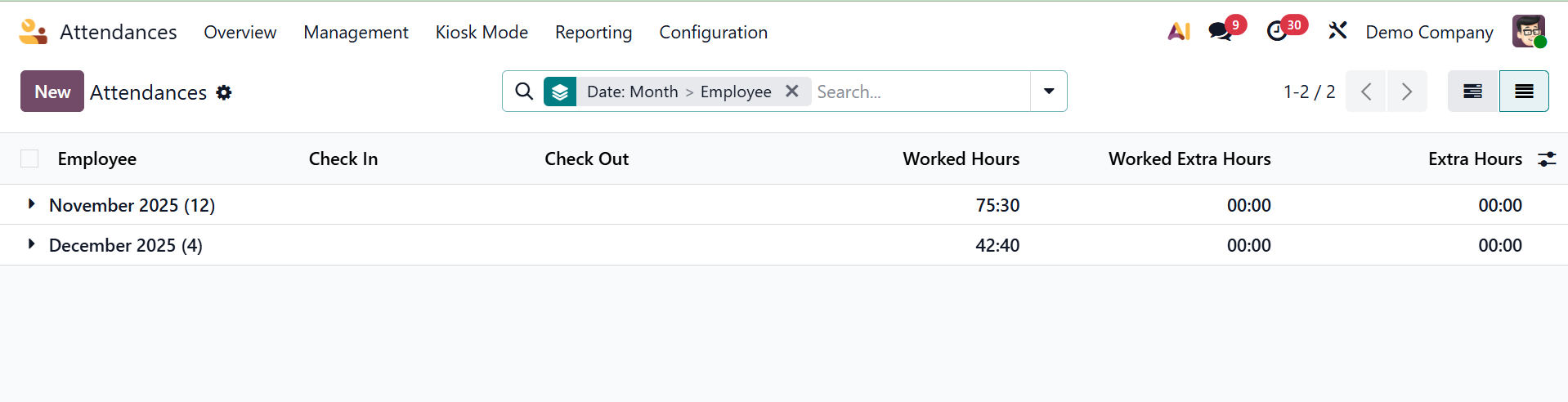
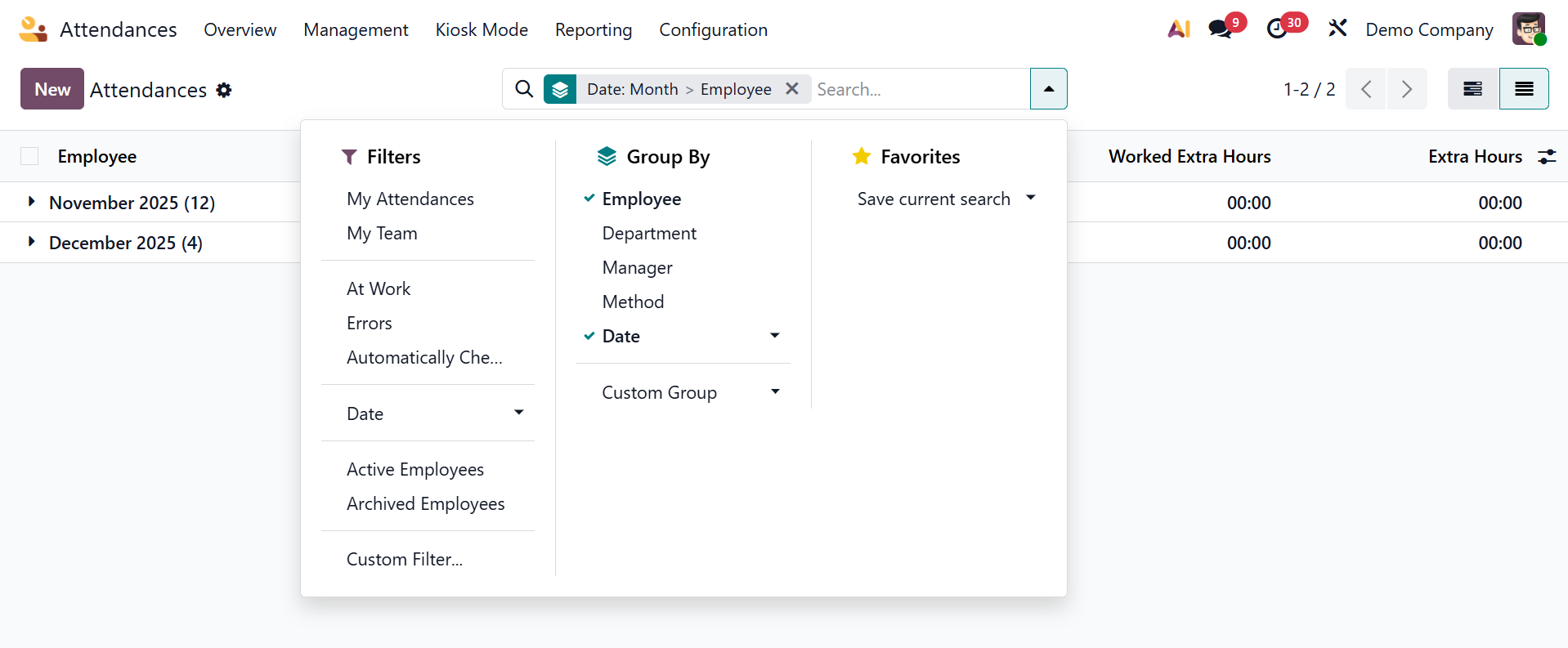
The user can quickly locate and verify the attendance by using the filter option. Employees, check-in, and check-out can all be used to categorize attendance. The list view also offers group by options and a custom filter.
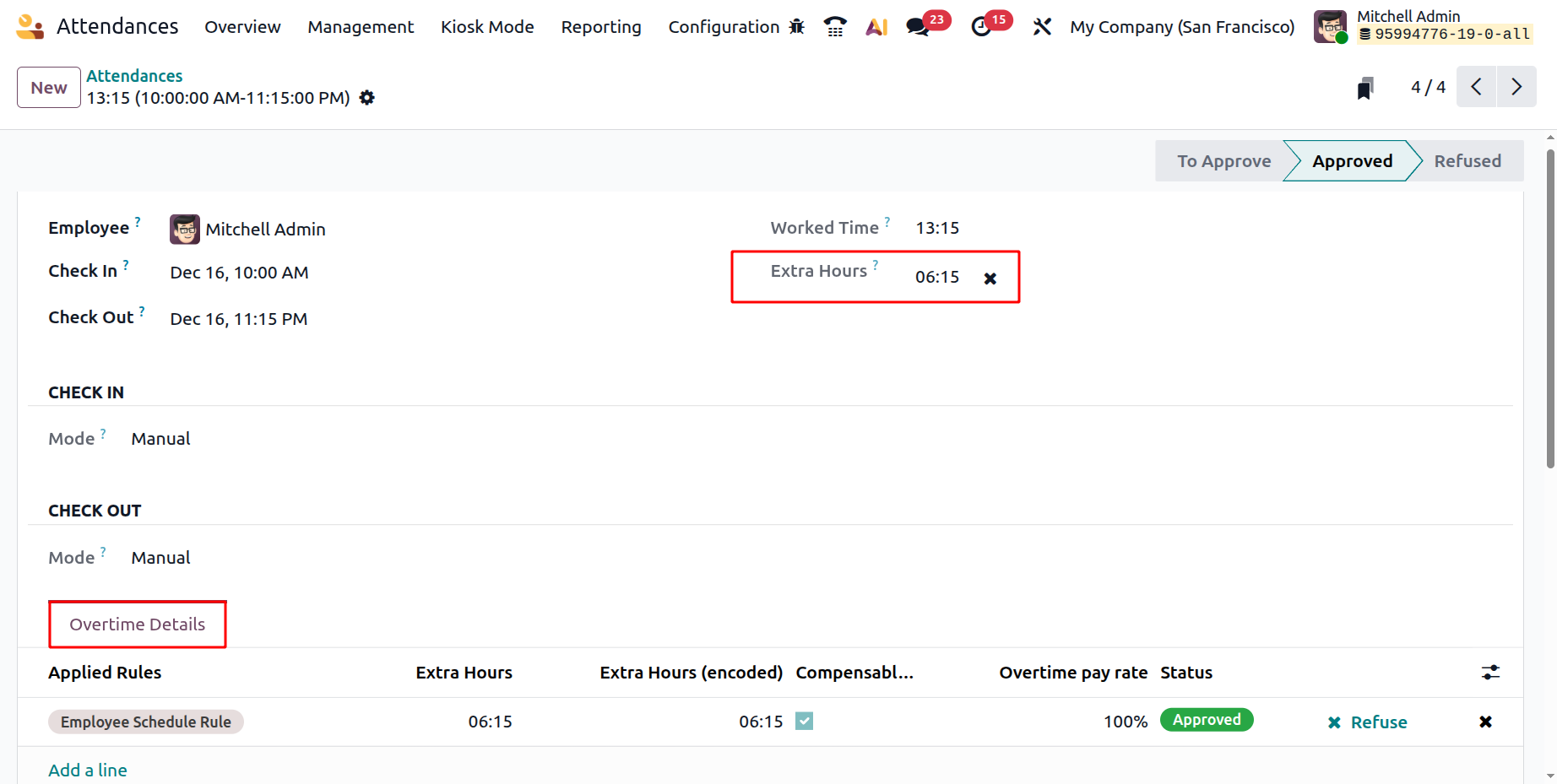
The employee's details, including name, hours worked, overtime, and check-in and check-out times, are displayed when an attendance is opened. Examples of additional check-in information include the browser, IP address, check-in mode, localization, and GPS coordinates.
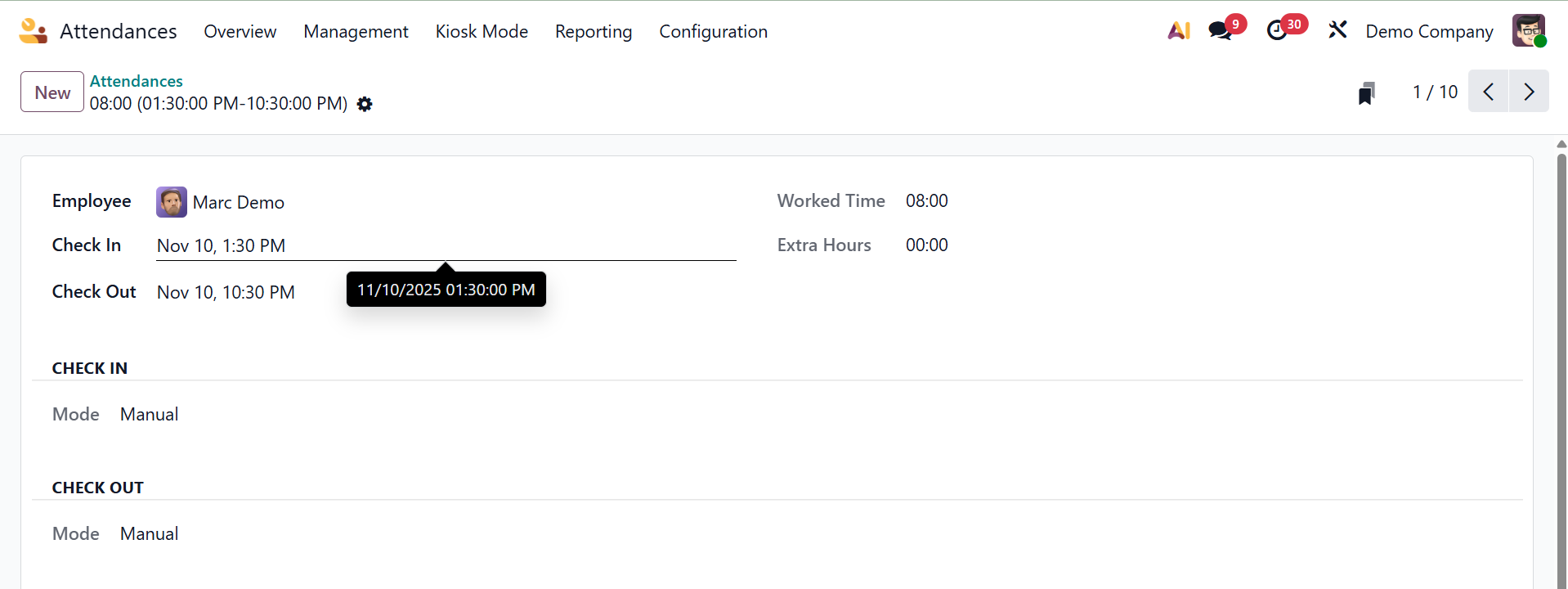
You will get information about the employee, check-in time, working time, extra hours, and check-out time when you pick a certain attendance. The check-in details, including mode, IP address, browser, localization, and GPS coordinates, will be sent to you.
Overtime Details defines and monitors time worked beyond regular business hours, computes additional compensation, oversees compliance, and automates procedures such as authorizing overtime (e.g., 1.5x pay for weekend shifts), establishing daily/weekly limits, and connecting to payroll, frequently using rules based on recorded check-ins and check-outs and corporate policies. If the cross icon is clicked in the extra hours option, then the overtime will be refused
Employees
Under the Overview, you are also provided with an Employee option, as shown below.
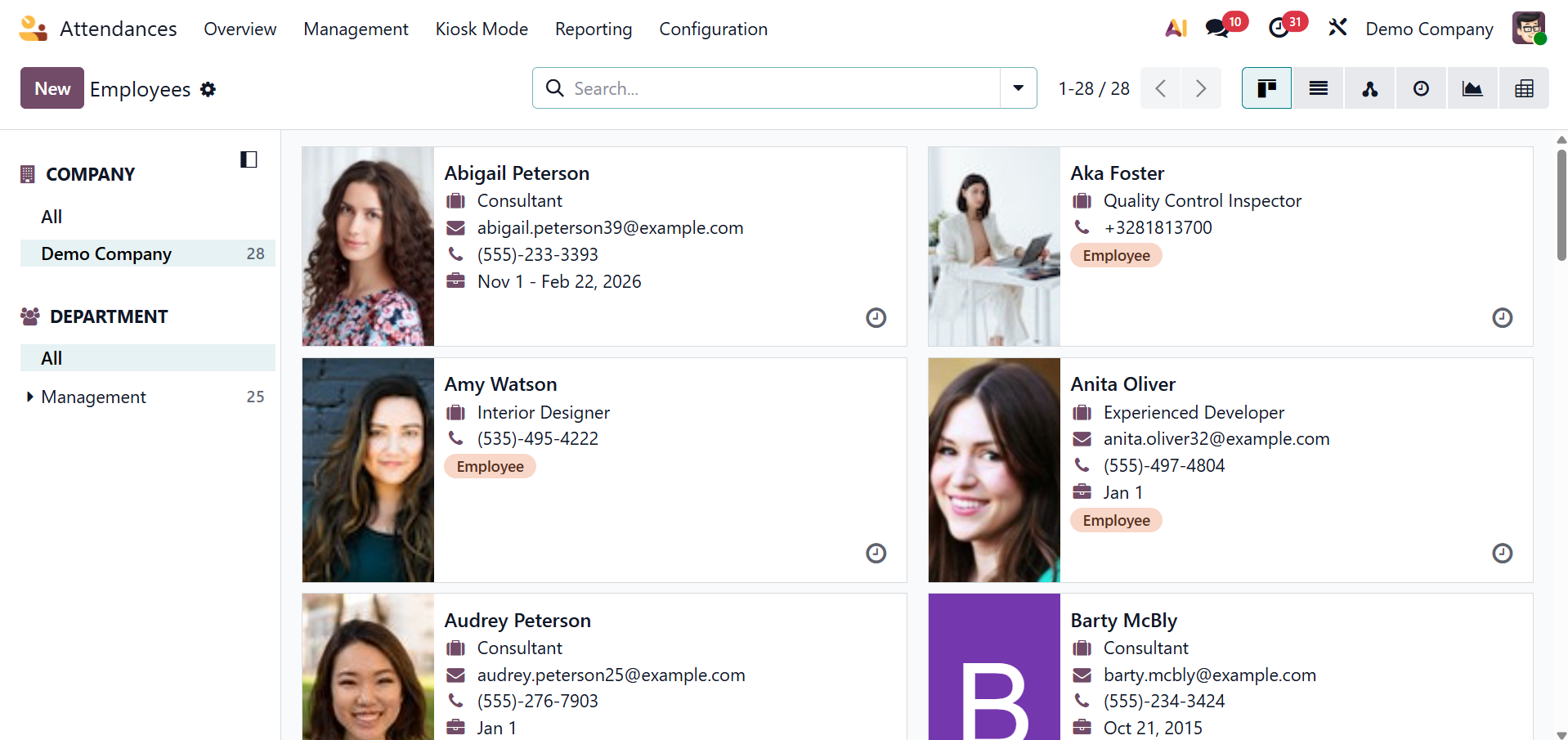
Managers and HR users may easily track employee presence in real time by using the Employee option under the Overview menu of the Odoo 19 Attendance module, which shows a list of employees with their current attendance status, check-in and check-out timings, and worked hours. On selecting a particular employee, you will get a detailed analysis of the employee.