Configuration
Odoo 19 Attendance's Configuration feature allows users to control additional settings about employee attendance. When the user selects the Configurations tab, options such as Settings, Onboarding, and Overtime rulesets are available.
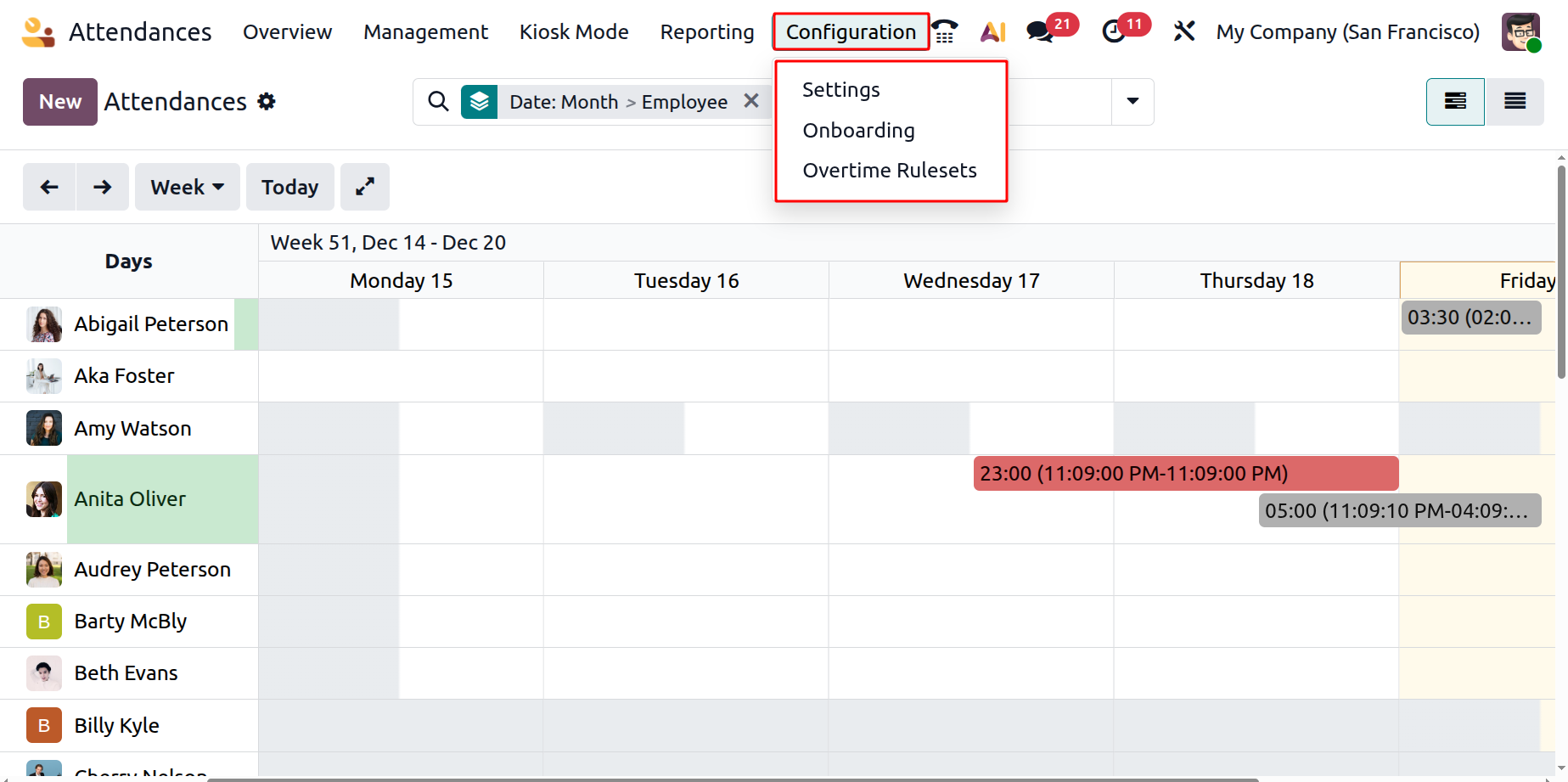
1.1 Settings
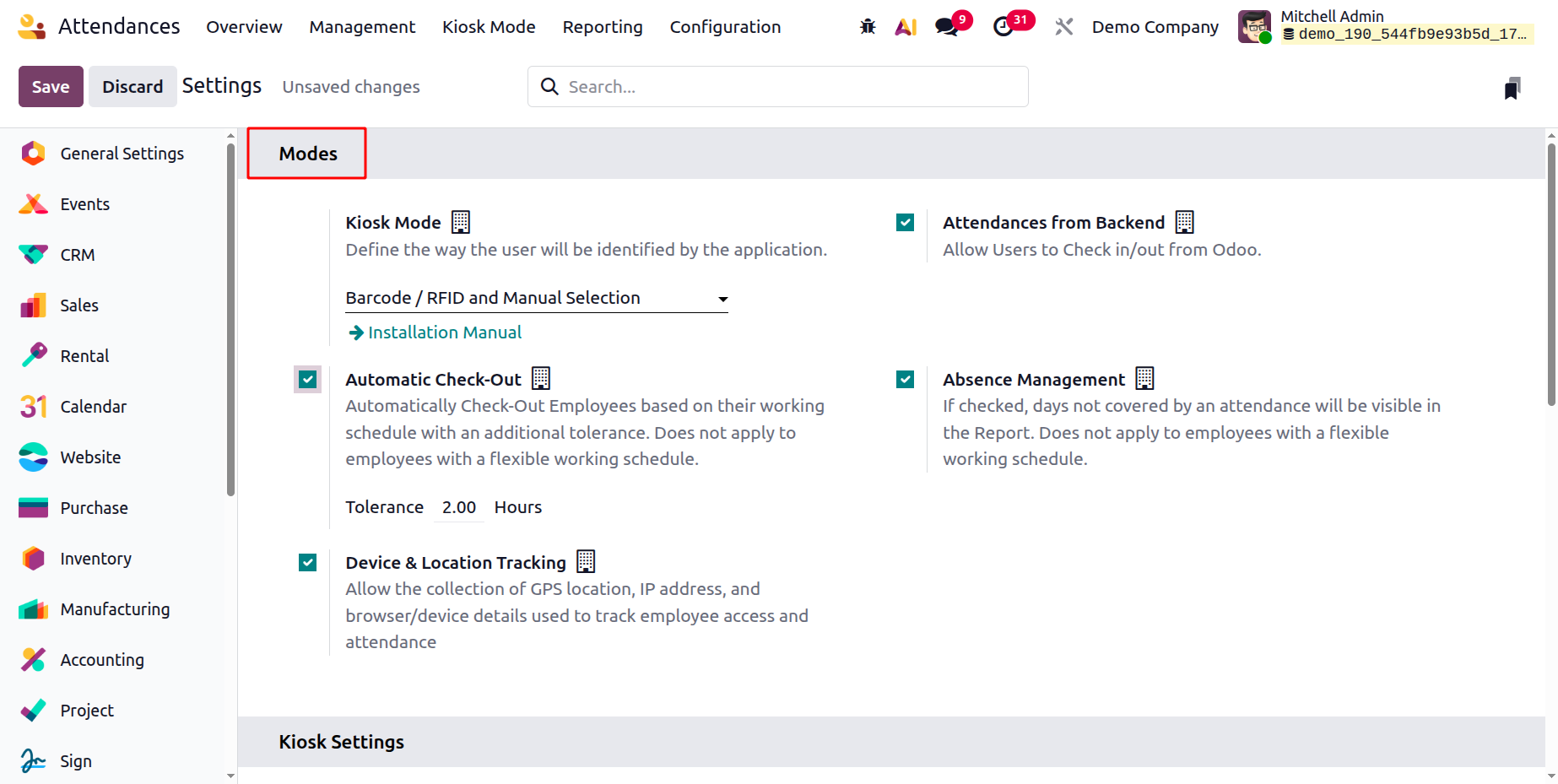
The user can examine three areas in the Settings window: Modes, Kiosk Settings, and Extra Hours.
In the Kiosk Mode section, users can alter how the kiosk program will recognize them after selecting a Mode. Users can then log in and out of Odoo using the Attendances from Backend capability.
Employees can be automatically checked out according to their work schedule with an extra margin of error, thanks to the Automatic check-out option. Days not covered by attendance will be shown in the report if the Absence Management option is selected.
As soon as they enter the Kiosk Settings section, users may identify every program. You can talk about the camera that was used to scan the barcodes under the Barcode Source option. The Display Time option allows you to specify how many seconds a greeting message will play. Once the Employee PIN Identification field has been activated, an employee can utilize PIN codes to log in to work. Click the SAVE icon once all check-in and check-out details have been entered in kiosk mode.
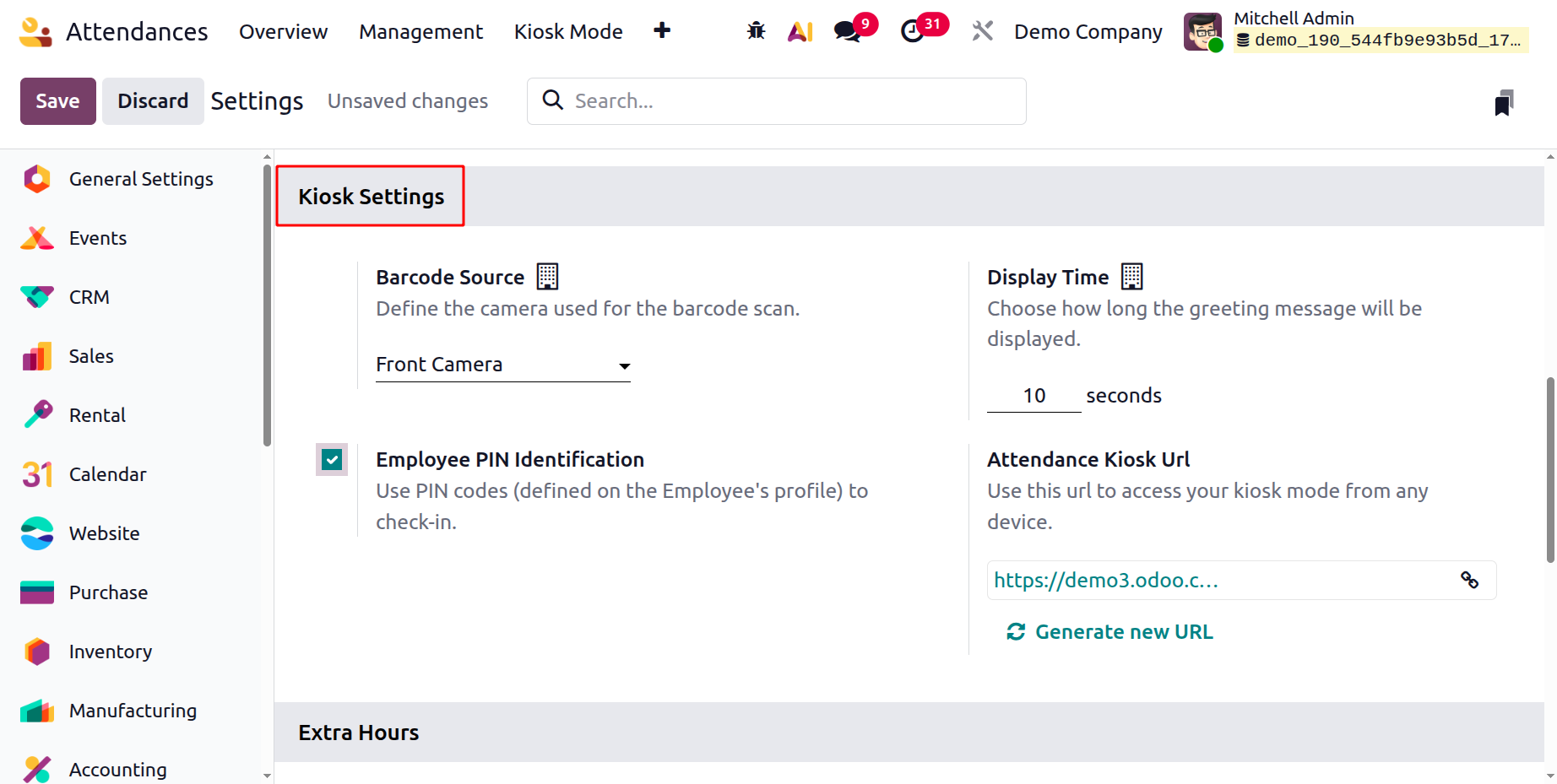
Participation uses the URL provided in the Attendance Kiosk URL section to access your kiosk mode on any device. Keep in mind that anyone with a connection can access your kiosk. You can generate a new address by refreshing it if your current one has been hacked. A configuration option called "Display Time" establishes how long, in seconds, a greeting or confirmation message stays on the screen following an employee's check-in or check-out in Kiosk Mode.
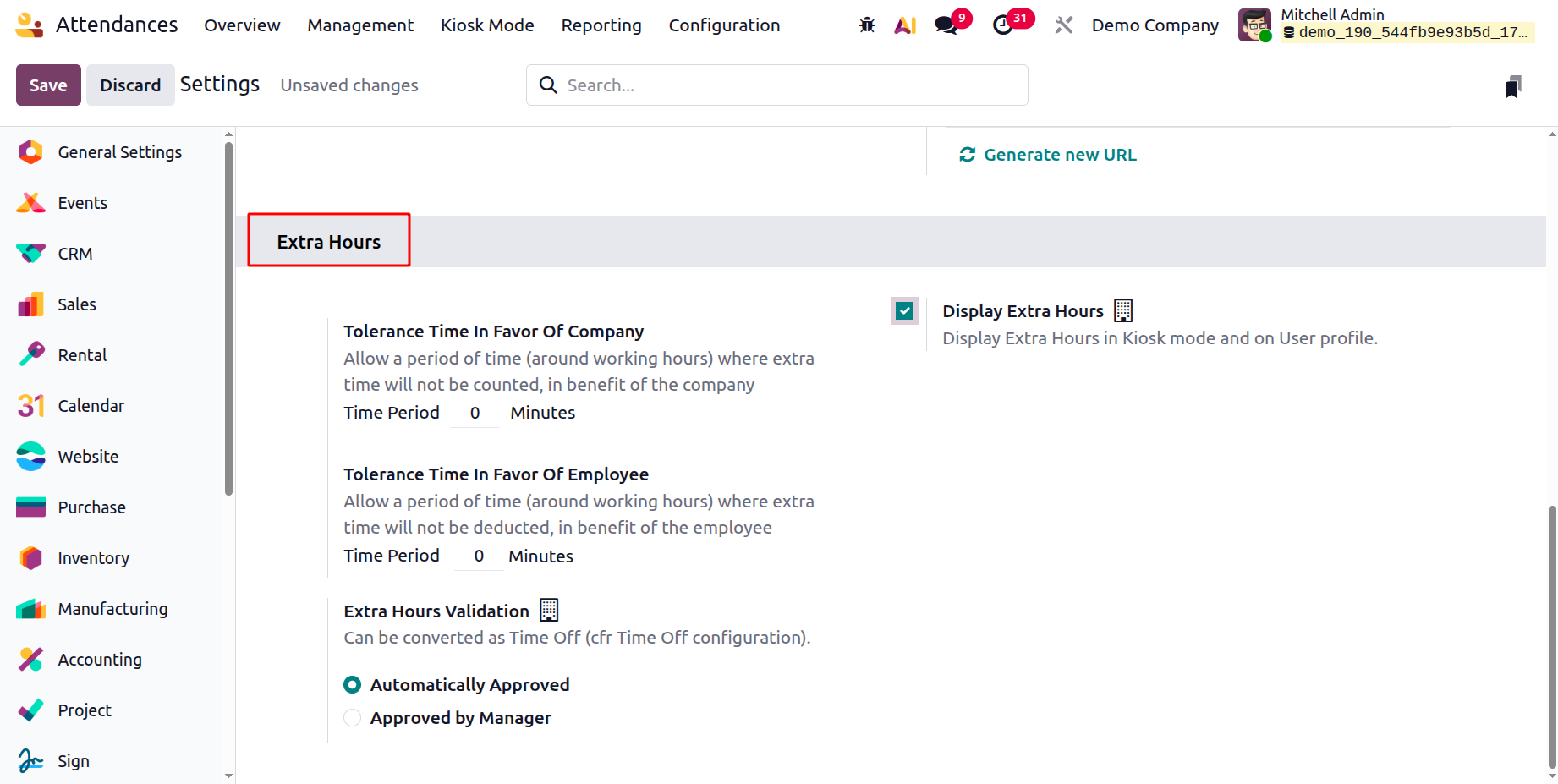
Managing the Extra Hours that have been set up in the Odoo 19 Attendance module comes next. You can set a tolerance period that benefits both the employer and the employee under the Extra Hours option. You can immediately assign the company-specific working hours within the Tolerance Time in Favor of the Company. The Tolerance Time in Favor of Employee column should also include the time that benefits an employee and from which additional time is not subtracted. The option to "Display Extra Hours" shows extra hours both on the user profile and in kiosk mode. Additionally, time off is converted using the Extra Hours Validation option. The manager may approve it or it may be approved automatically.
1.2 Onboarding
In order to guarantee that the Attendance module is properly configured and prepared for everyday employee use, the Onboarding option offers a detailed setup checklist. On opening the page, you will get the following screen.
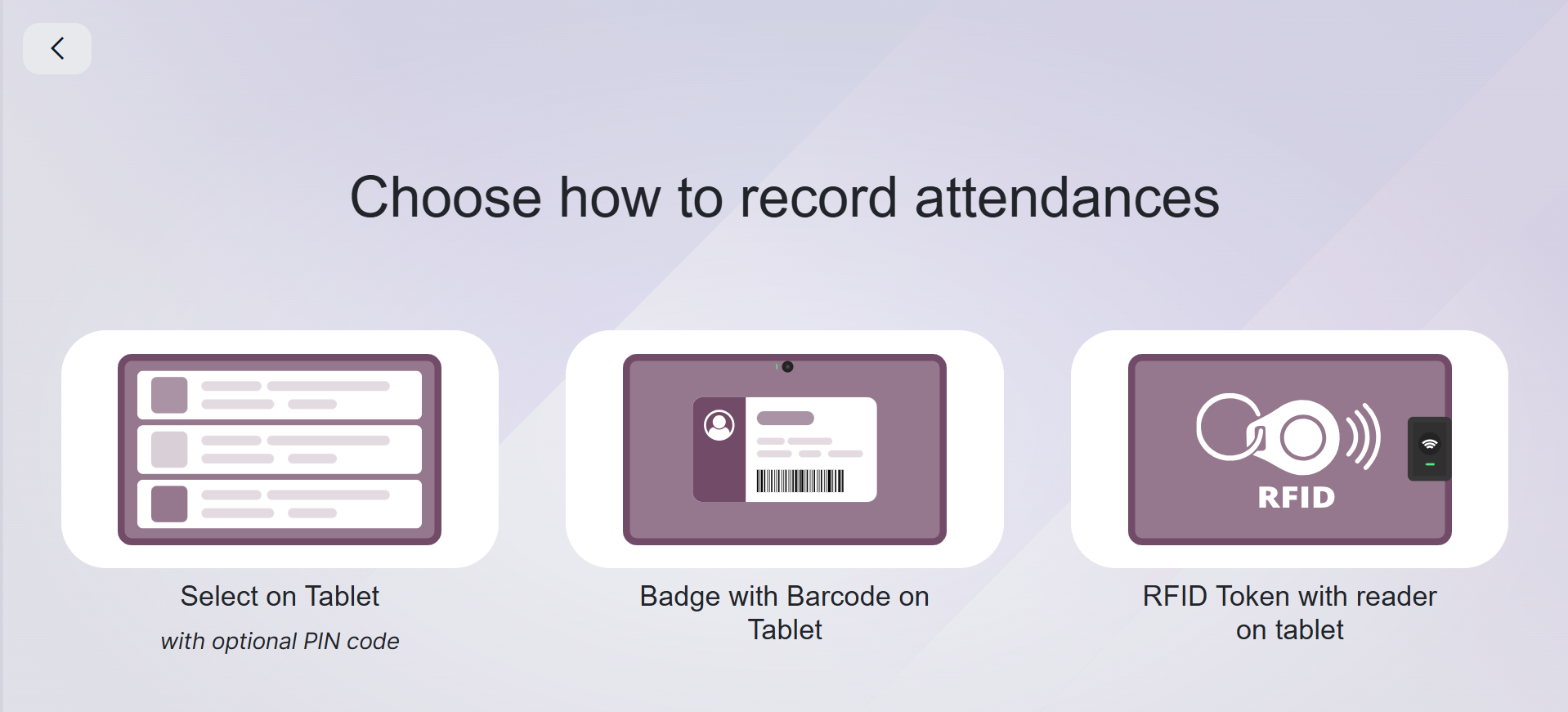
- Select on Tablet with Optional PIN Code: Employees check in or out by selecting their name on a shared tablet and optionally entering a personal PIN for verification.
- Badge with Barcode on Tablet:Employees record attendance by scanning their barcode badge using the tablet’s camera for quick and accurate check-in or check-out.
- RFID Token with Reader on Tablet: Employees mark attendance by tapping an RFID card or token on a reader connected to the tablet, enabling fast and contactless check-in or check-out.
3.3 Overtime Rulesets
Companies can specify rules for calculating employee overtime, including when overtime begins, how it is calculated, and how excess working hours beyond standard working schedules are handled, using the Overtime Rulesets option in the Odoo Attendance module setup.
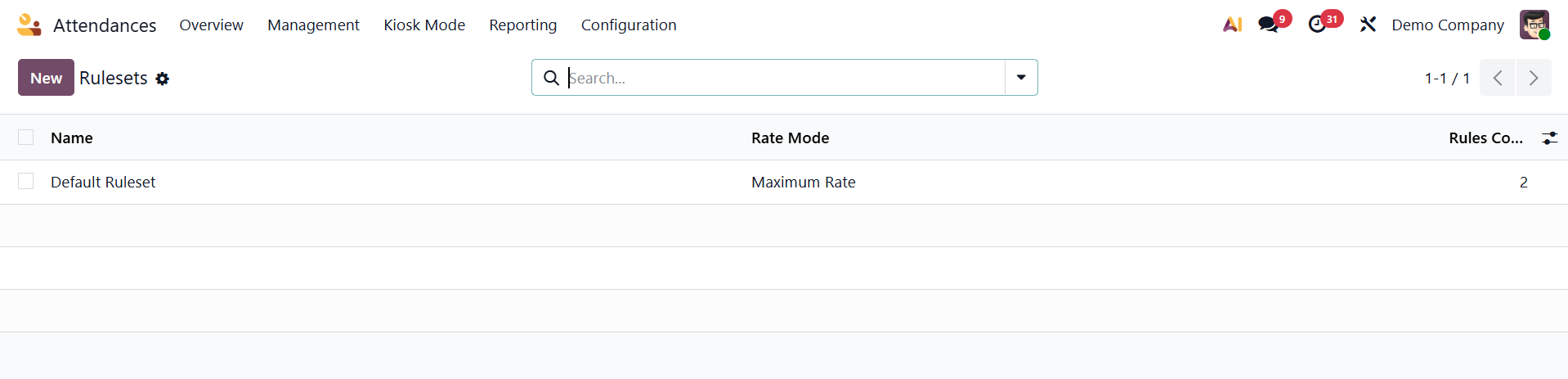
Here, using the New option, you can create a new ruleset, and the creation page will be as in the image below.
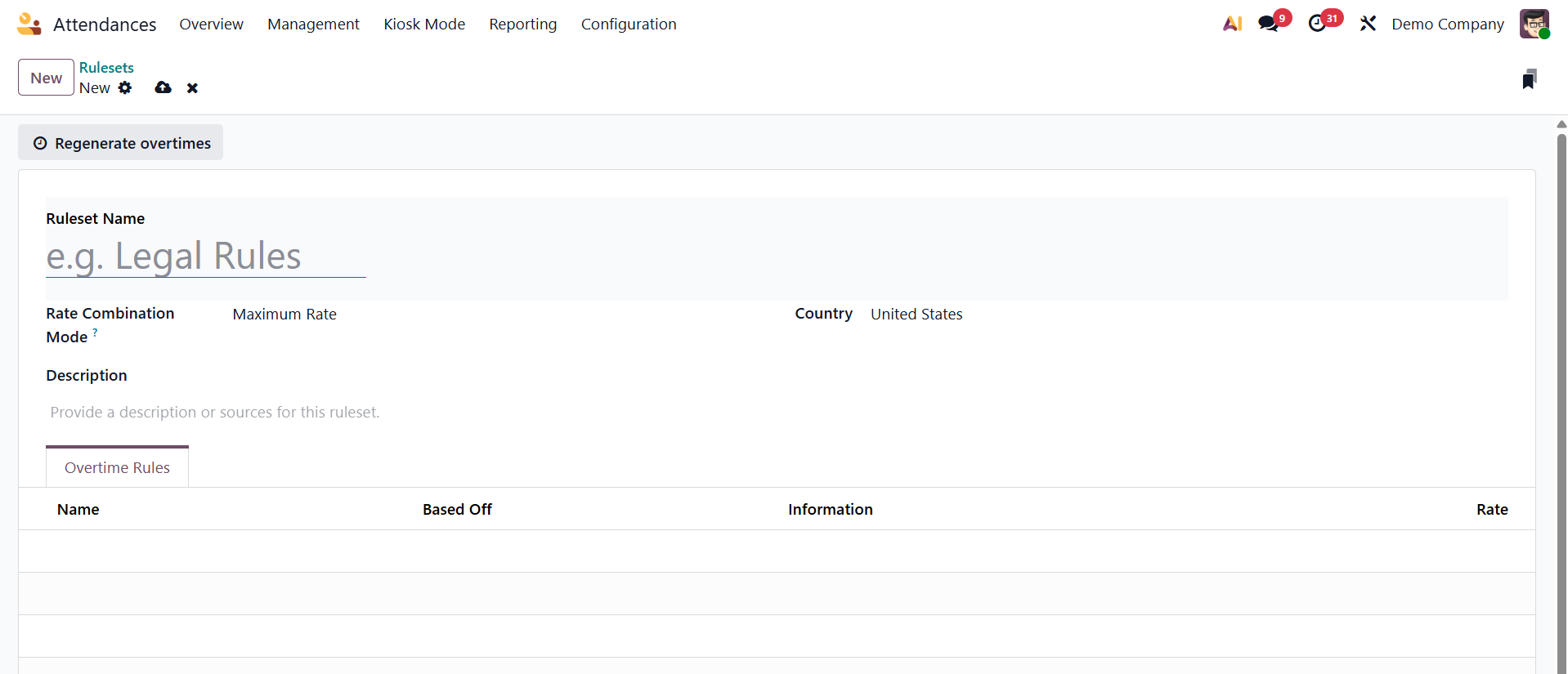
Here, provide the ruleset name, rate combination mode, country, description, and add an overtime rule under the area provided.