Kiosk Mode
You can engage with your company in a different way with Odoo19's kiosk mode. You can use this strategy by choosing the Kiosk Mode option in the Attendance module. Installing the Kiosk App, which allows employees to check in and out using a dedicated kiosk interface by either manually identifying themselves or scanning badges, is what the "Install" option under Kiosk Mode of Odoo's Attendance module refers to.
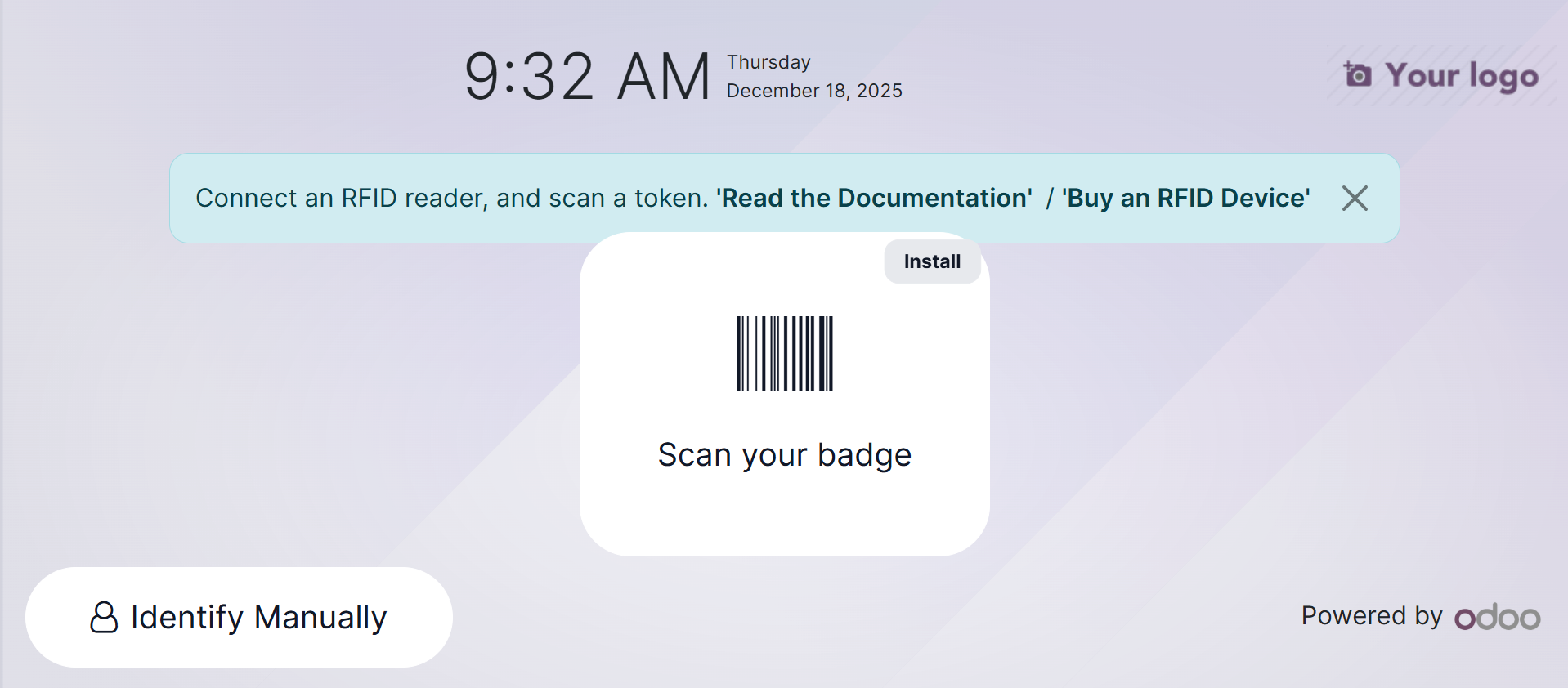
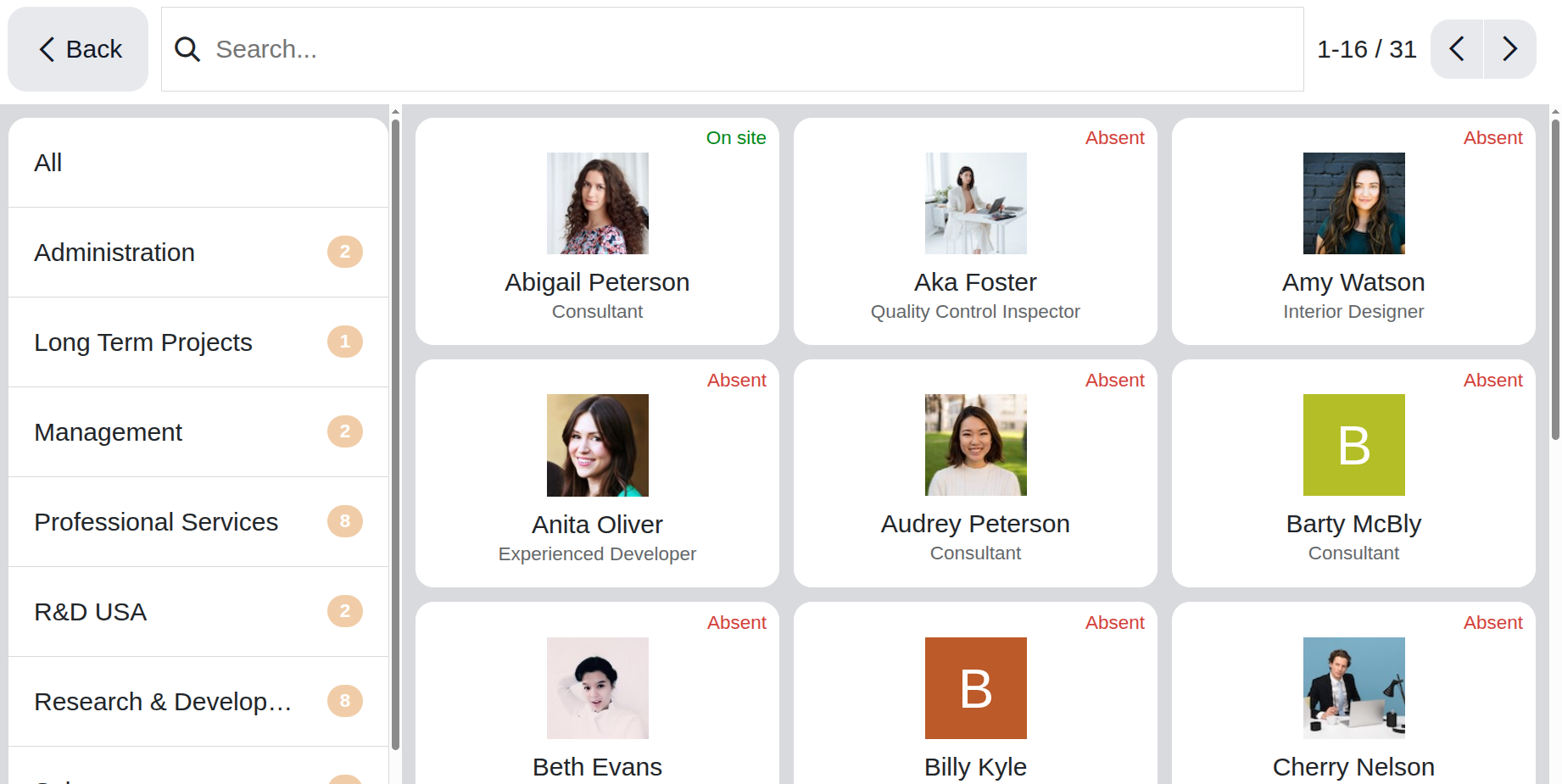
A new page appears when you choose the kiosk mode. There are options like "Identify Manually." The Scan your badge button makes it simple to scan your badges. Once you select Identify Manually, you can manually identify the employee. A screen listing every employee who can be checked in or out shows when you tap the Identify Manually button on the kiosk. The same display appears on the Employees app dashboard, as shown below. The left side of the screen shows the Departments. A confirmation notification shows when you tap on someone to check them in or out.
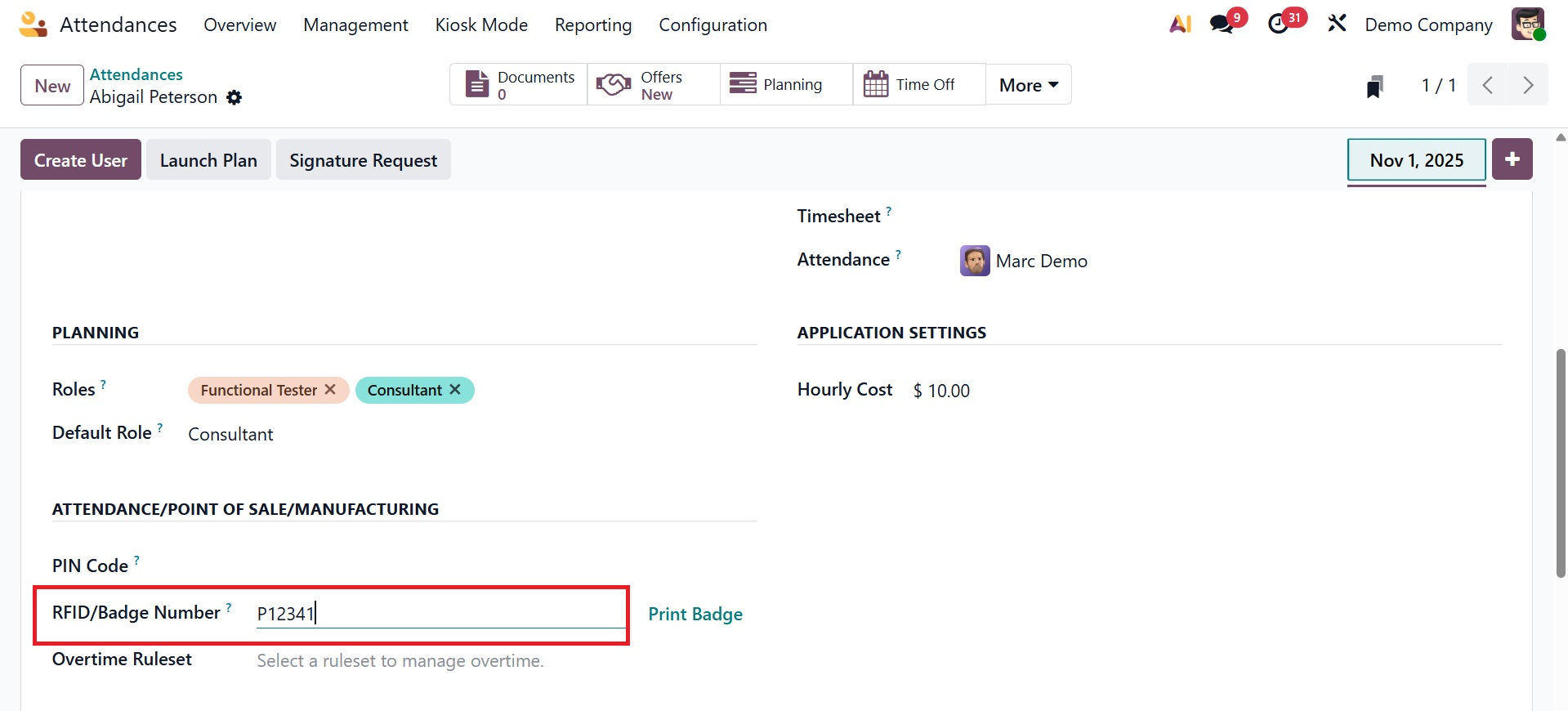
The Odoo19 system benefits from barcode integration in a number of business operations phases. The employee ID card that is used to enter and depart the platform can have a barcode added to it. After logging into the window, an employee can scan the barcode using the reader. You can enter the employee barcode in the Employee window.
For instance, in the Employees module of Odoo 19, choose your employee. The Badge ID option on the open page can be accessed by selecting the HR Settings tab.
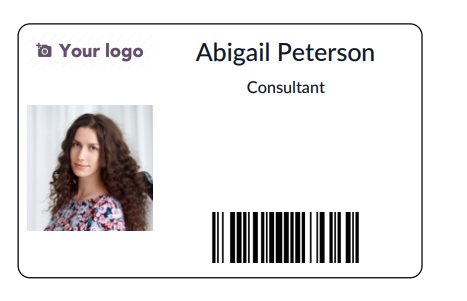
You can print the badge ID into your system by choosing "Print Badge." This enables us to provide each employee in a company with a badge ID.
Similarly, we might give each employee at a business a PIN. To do this, you need to activate the Employee PIN option in the Attendance module's Configuration > Settings box. It makes sure you need to enter a PIN in order to access your employee profile. After activation, select "Save" from the Settings menu.
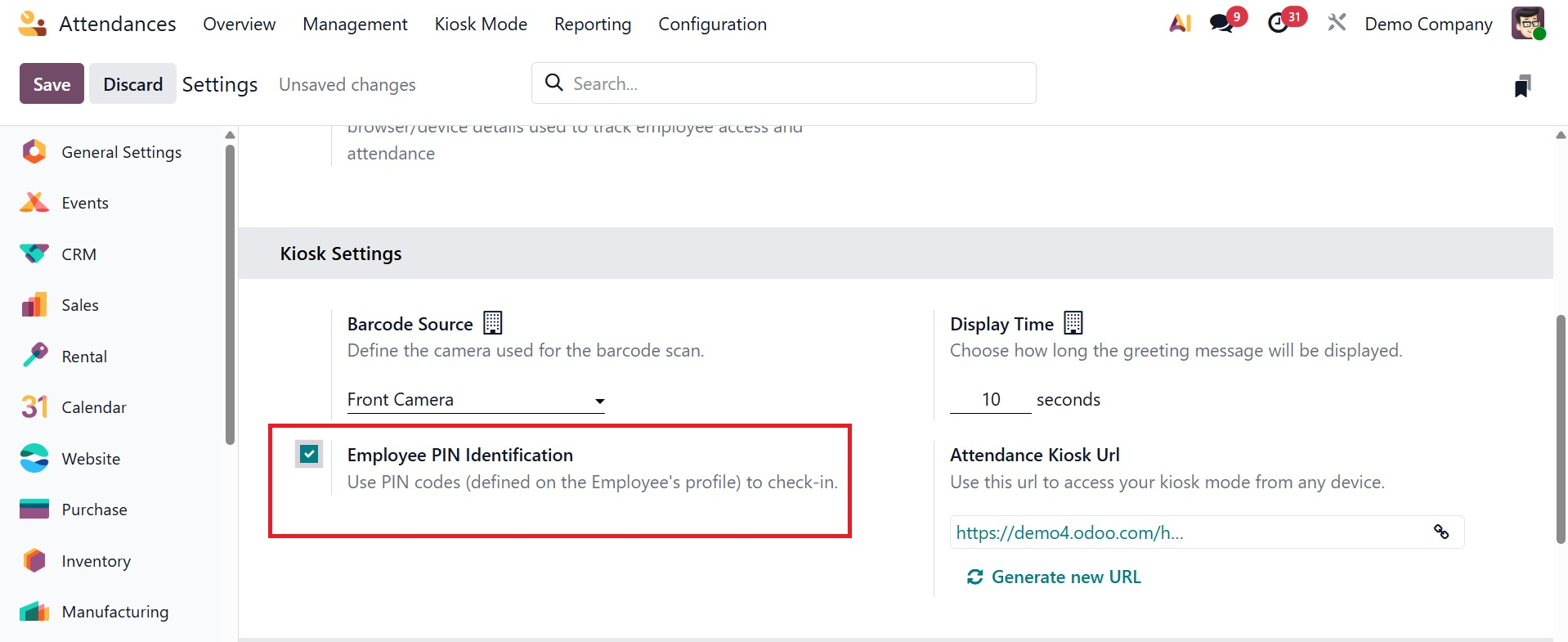
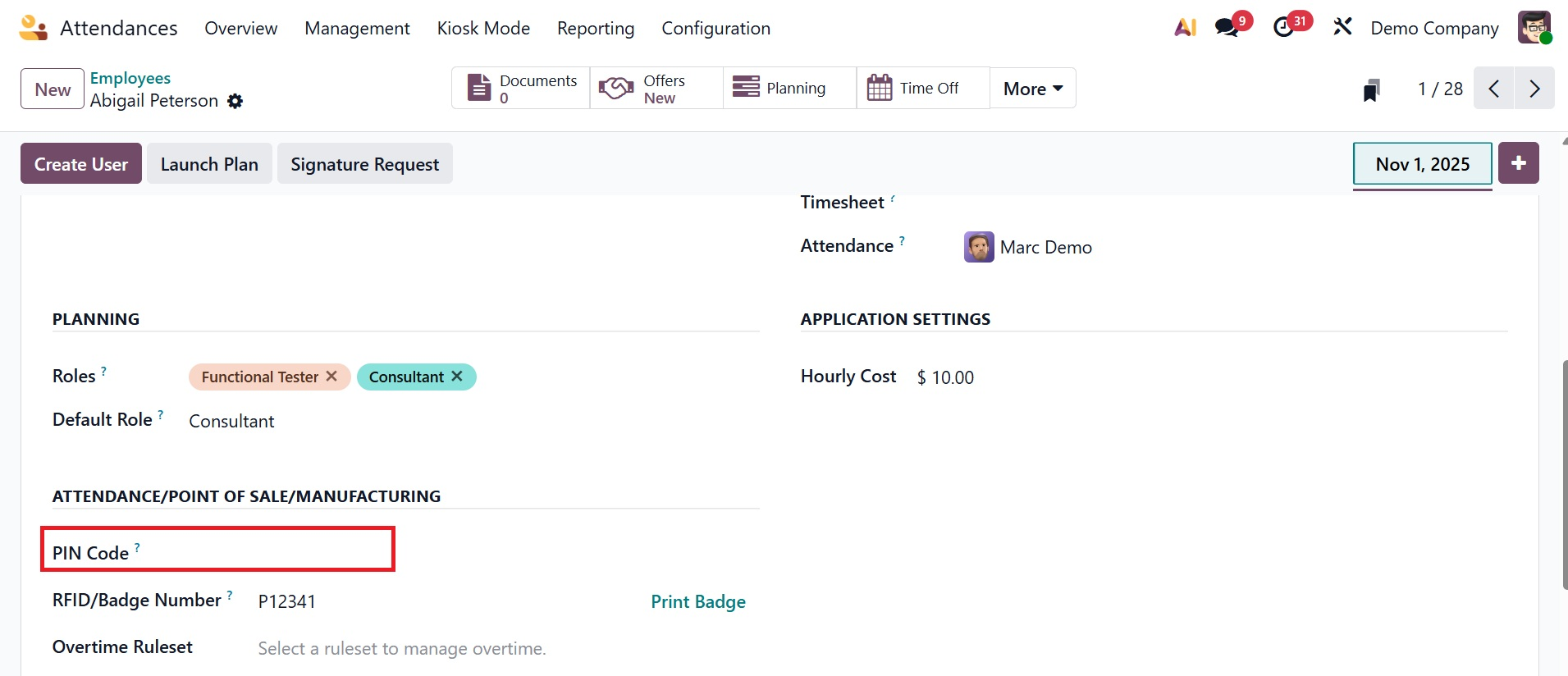
After entering their details in Odoo 19, you may give each employee a distinct PIN. The Employees window's HR tab contains the PIN Code option.
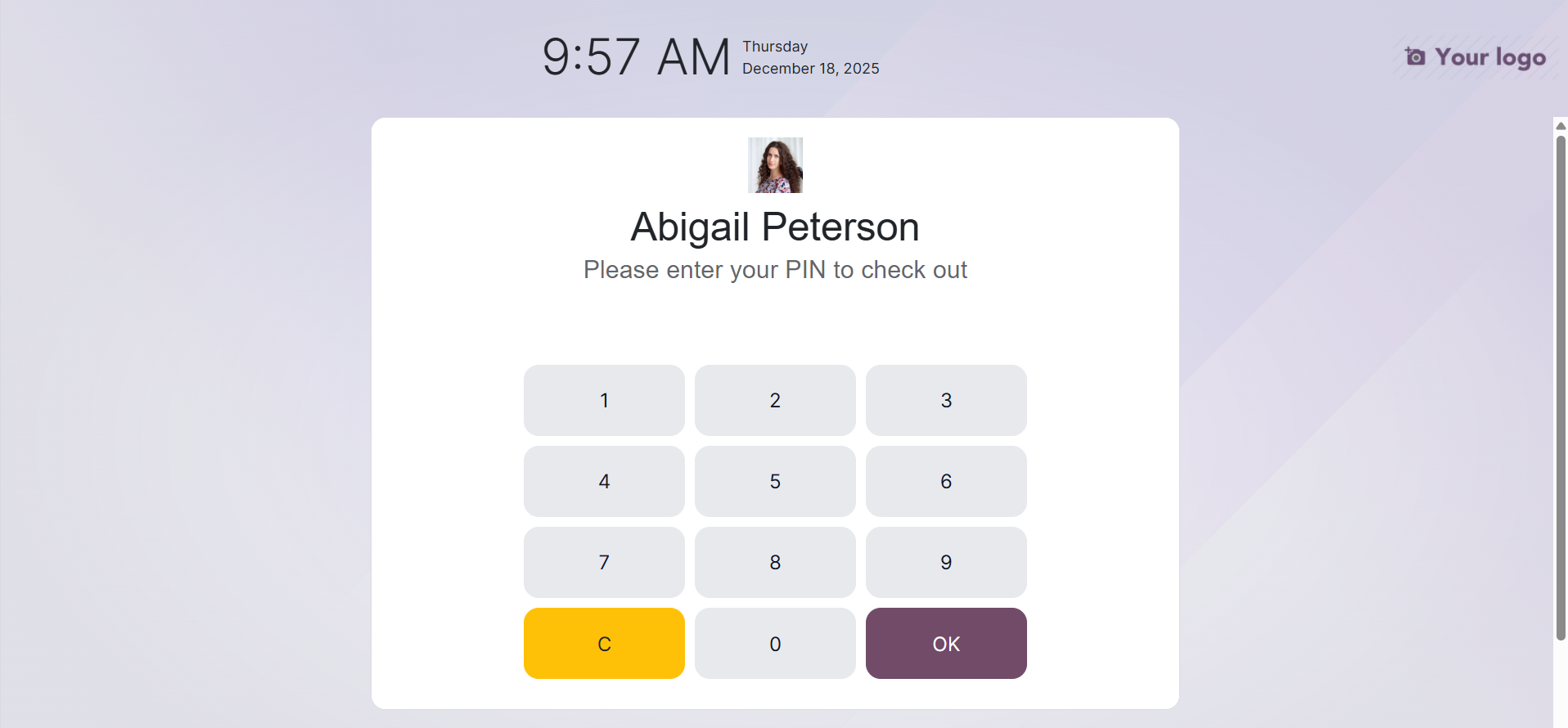
When an employee tries to access the platform after you've set a pin action, Odoo19 displays a pin code entry option. Let's now look at how the Identify Manually option works in Kiosk mode. Users that select the Identify Manually option see the list of workers. You can select the appropriate staff names by using the grouping and filtering options. The Employees window allows you to select the desired employee.
After entering your PIN and choosing your employee record, the system displays the employee profile in kiosk mode so you can check in. Once the PIN has been entered, you can log in to work.
Then, as shown in the screenshot below, a message appears in a window.
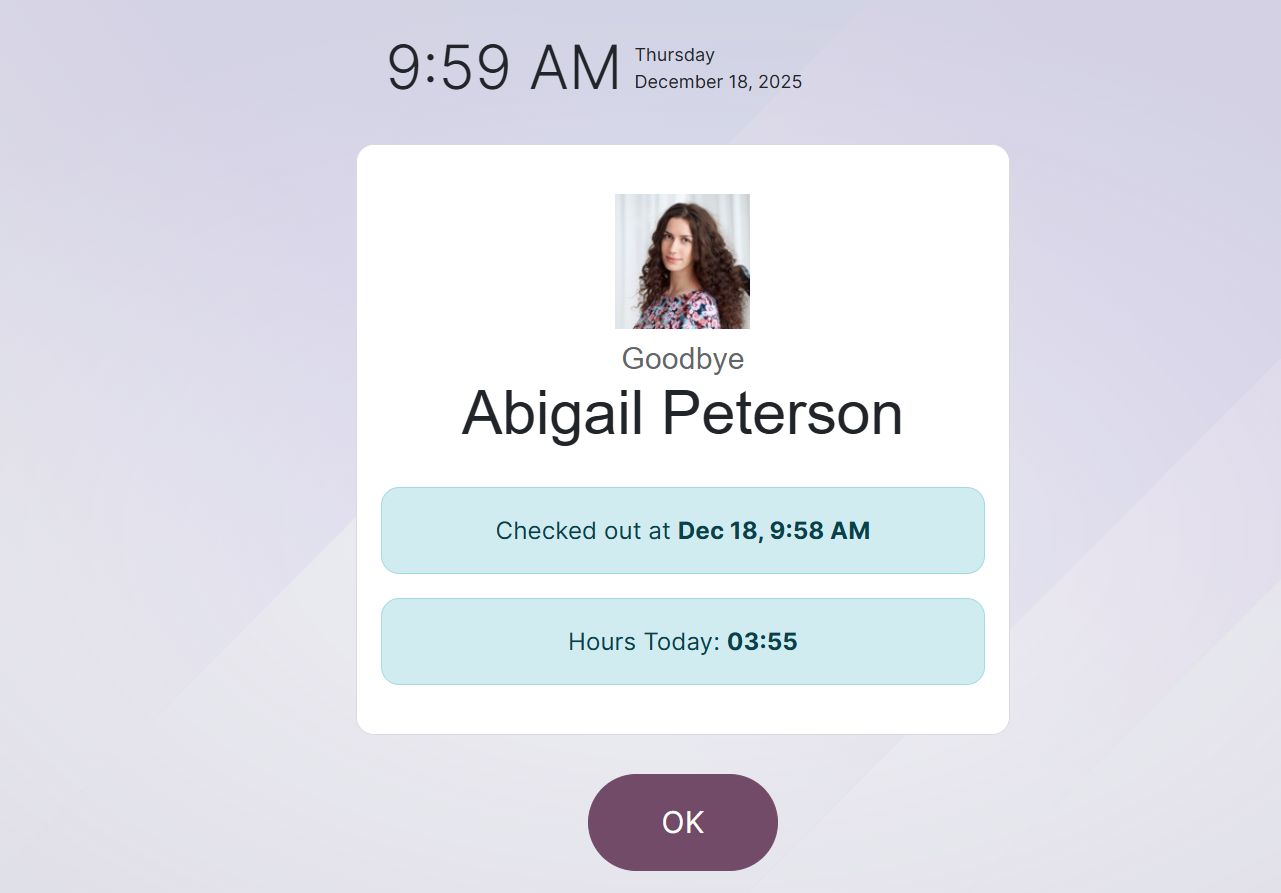
Employees can use their PIN and manually activated badges in Odoo19 Attendance's Kiosk Mode to record their attendance.